Bidirectional sync between Zoho Bookings and Zoho CRM - Part 1
Hey, community members!
The default integration between Zoho CRM and Zoho Bookings is unidirectional, which means that any appointments booked, rescheduled, or deleted in Zoho Bookings will be reflected in Zoho CRM. However, any modifications made to events in Zoho CRM that originated from Zoho Bookings will not be reflected back in Zoho Bookings. Hence, as we're announcing in this community post, we've made the sync bidirectional.
This community post will cover the process of configuring appointment bookings from Zoho CRM in Zoho Bookings, as well as managing appointment statuses such as Canceled, No Show and Completed. We have addressed the rescheduling action in a separate post. To view it, please click on the following link: Reschedule Action
This community post will be beneficial for active Zoho CRM users who handle all their meetings within Zoho CRM. Additionally, you can use this community post as a reference to explore various automation possibilities tailored to your business requirements. For instance, with this post's guidance, when you update a booking's status field to "Completed" in Zoho CRM, it will automatically sync with Zoho Bookings and trigger an automated "Mark as completed" email to customers. This enhancement will improve your Zoho Bookings and Zoho CRM synchronization experience, making appointment management easier.
Prerequisites of bidirectional sync:
- Zoho Bookings Premium subscription
- Zoho CRM paid subscription
- Enable Zoho CRM integration within Zoho Bookings
The purpose of enabling the Zoho CRM integration within Zoho Bookings is to transfer booking details from Zoho Bookings to Zoho CRM. In this configuration, the mandatory field is the Booking ID, which is passed from Zoho Bookings to Zoho CRM through the integration. Whenever an appointment is booked, customer details will be sent to the designated CRM module, and a corresponding record will be created in the Meetings module within Zoho CRM, which will help in automating the workflow.
Here's the complete demo video that covers all the configurations discussed in the community post below:
Timestamps for your reference:
0:35 - Purpose of this community post
Here's the complete demo video that covers all the configurations discussed in the community post below:
Timestamps for your reference:
0:35 - Purpose of this community post
1:26 - Zoho CRM plugin installation
4:43 - Custom field creation
7:20 - Function creation
9:22 - Connection creation
10:24 - Configuring arguments
11:06 - Workflow creation
13:33 - Argument mapping
14:41 - Output verification
17:41 - Conclusion
How we're approaching this bidirectional sync
1. Booking an appointment from Zoho CRM
Install the Zoho Bookings for Zoho CRM plugin within your Zoho CRM application. This plugin enables the creation of a "New Appointment" button within the Zoho CRM Leads and Contacts module, which enables you to select the desired booking page you wish to open. You can choose from various workspace, service, or staff booking pages. After configuration, you can initiate the process of scheduling bookings directly from within your Zoho CRM account.
- Guide on Zoho Bookings and Zoho CRM plugin installation: Booking page selection for Zoho CRM plugin
2. Booking status: Completed or No Show
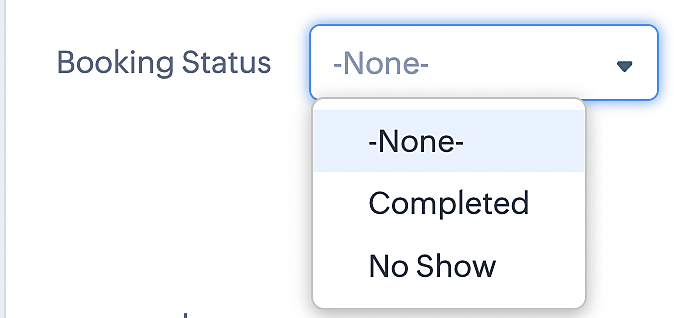
To update a booking's status (Completed or No Show), we've added a new picklist properties field named "Booking Status" in the Meetings module and configured it with two options: "completed" and "no show". Depending on the booking status chosen, the corresponding booking in Zoho Bookings will be updated.
- Details on how to add a custom field to the Meetings module : Customizing modules
- Here's a video that demonstrates how to add a field to a module in Zoho CRM: Adding fields
Reference:
3. Booking status: Canceled
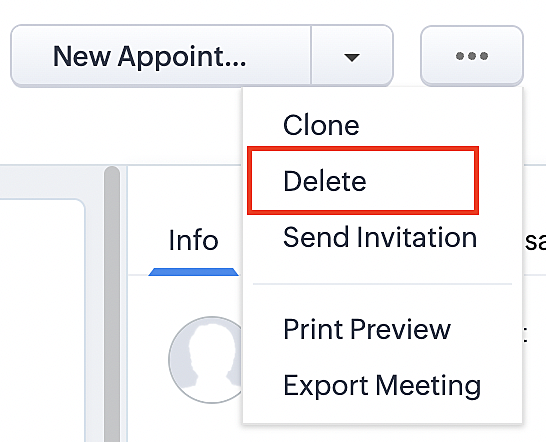
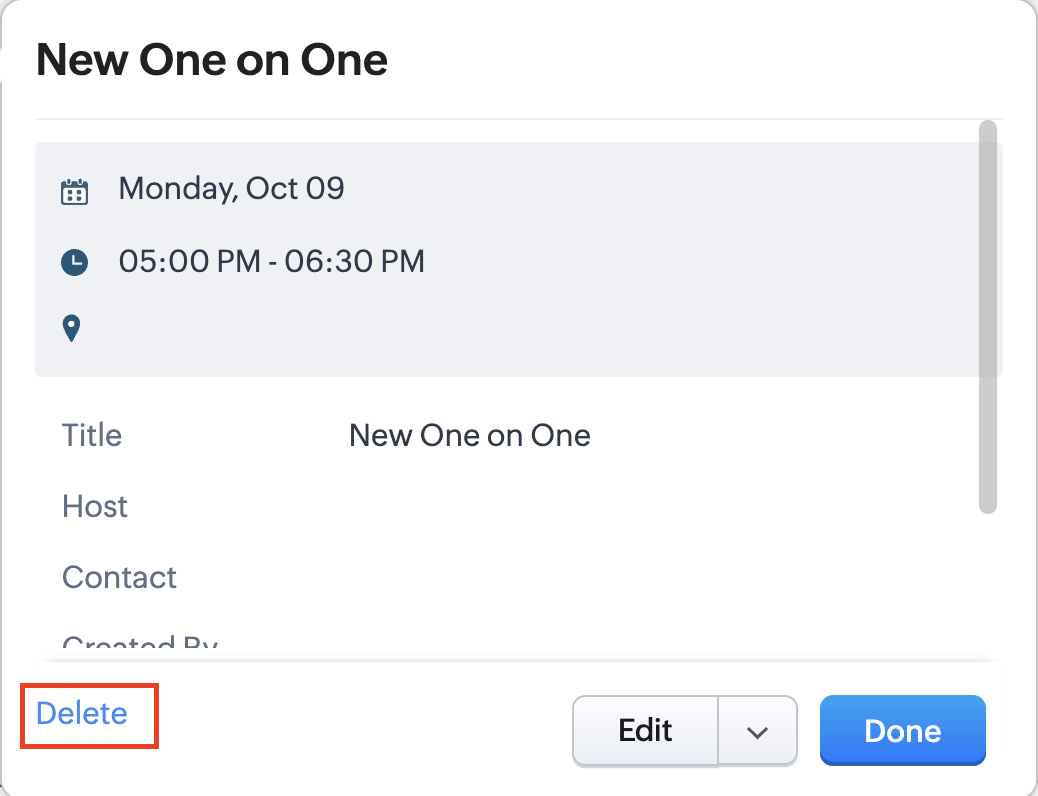
Whenever a meeting is deleted from the Meetings module, the corresponding booking in the Zoho Bookings app will also be canceled automatically. The meeting can be deleted either from the Meetings module or directly from the calendar.
To enable bidirectional sync between Zoho CRM and Zoho Bookings
Complete these steps in Zoho CRM.
Step 1: Creating connections
You first need to establish a connection between Zoho CRM and Zoho Bookings. Zoho Bookings is listed as one of the default connections in Zoho CRM, making it simple to set up. Select the Zoho Bookings connection, define the connection name and scope, and you'll be all set. This connection will enable you to link both applications and facilitate the seamless transfer of data.
Read here for more details on how to create connection in Zoho CRM: Connections
Step 2: Creating functions
In this context, we'll be creating three functions: one for marking appointments as completed, another for canceling appointments, a third for marking appointments as no shows, and a fourth for rescheduling appointments. For each function, we must also configure arguments, which pass values or data into a function when making a call. Here, we'll pass the booking ID to the function as an argument to update the necessary booking status.
i. To create a function for marking appointments as completed:
1. Go to Setup > Developer Space > Functions.
2. In the Functions page, click + Create New Function.

3. Configure the function name, display name, and description.
4. Set the category as automation.
This opens the Deluge script page.
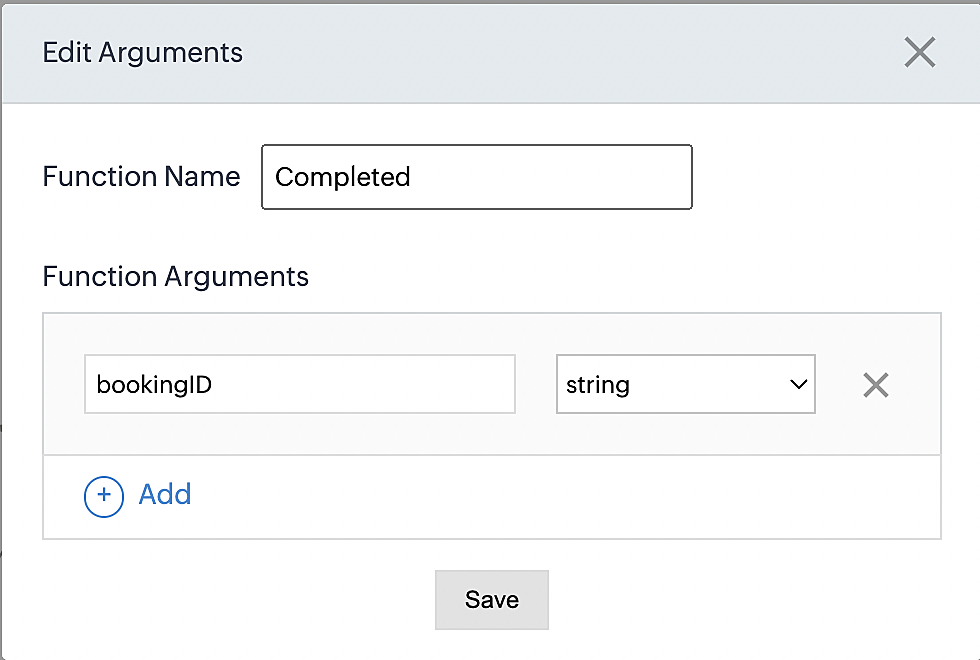
5. Next, configure the function's arguments:
A. Click on Edit Arguments on the Deluge script page.

B. Set the Parameter Name as bookingID. (Please note that the "bookingID" value is case sensitive and must match
the term used in the code).
C. Set the type as string.
Reference:
Please configure the below code in the Deluge script page.
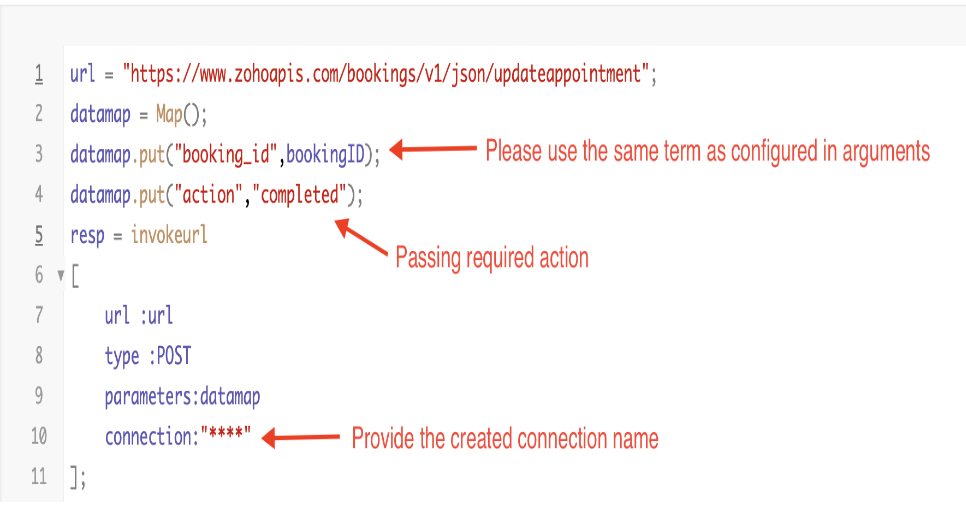
By completing these steps, we've configured a function that will mark appointments as completed.
ii. To create a function for marking appointments as no shows
1. Go to Setup > Developer Space > Functions.
2. In the Functions page, click + Create New Function.

3. Configure the function name, display name, and description.
4. Set the category as automation.
This opens the Deluge script page.
5. Next, configure the function's arguments:
A. Click on Edit Arguments on the Deluge script page.

B. Set the Parameter Name as bookingID. (Please note that the "bookingID" value is case sensitive and must match
the term used in the code).
C. Set the type as string.
Reference:
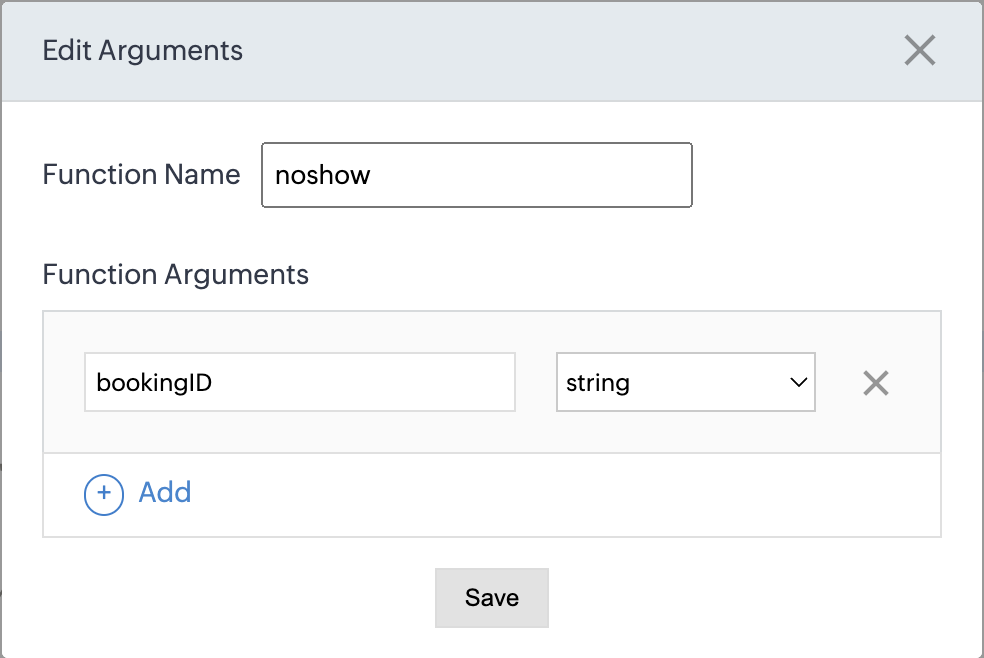
Please configure the below code on the Deluge script page.
Code link: No show
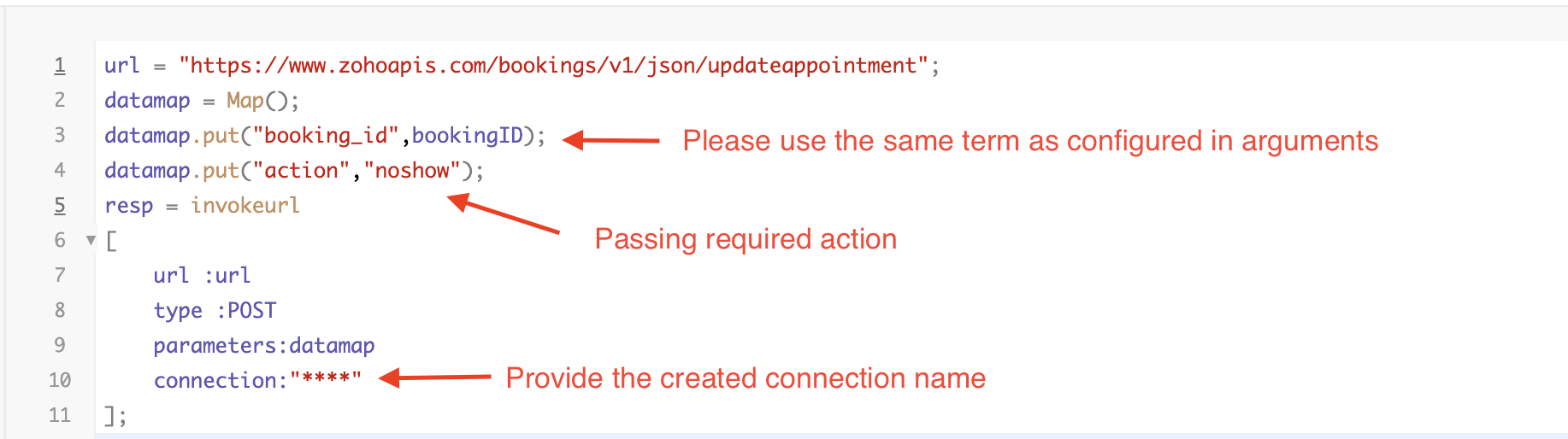
By completing these steps, we've configured a function that marks appointments as no shows.
iii. To create a function for marking appointments as canceled
1. Go to Setup > Developer Space > Functions.
2. In the Functions page, click + Create New Function.

3. Configure the function name, display name, and description.
4. Set the category as automation.
This opens the Deluge script page.
5. Next, configure the function's arguments:
A. Click on Edit Arguments on the Deluge script page.

B. Set the Parameter Name as bookingID. (Please note that the "bookingID" value is case sensitive and must match
the term used in the code).
C. Set the type as string.
Reference
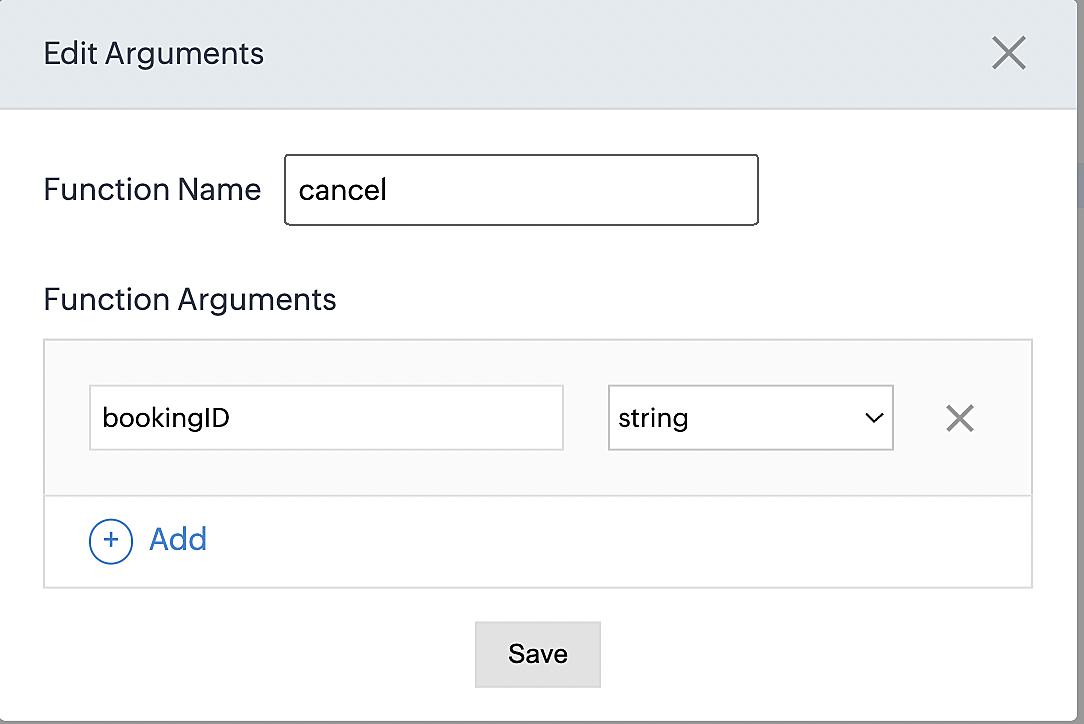
Please configure the below code on the Deluge script page.
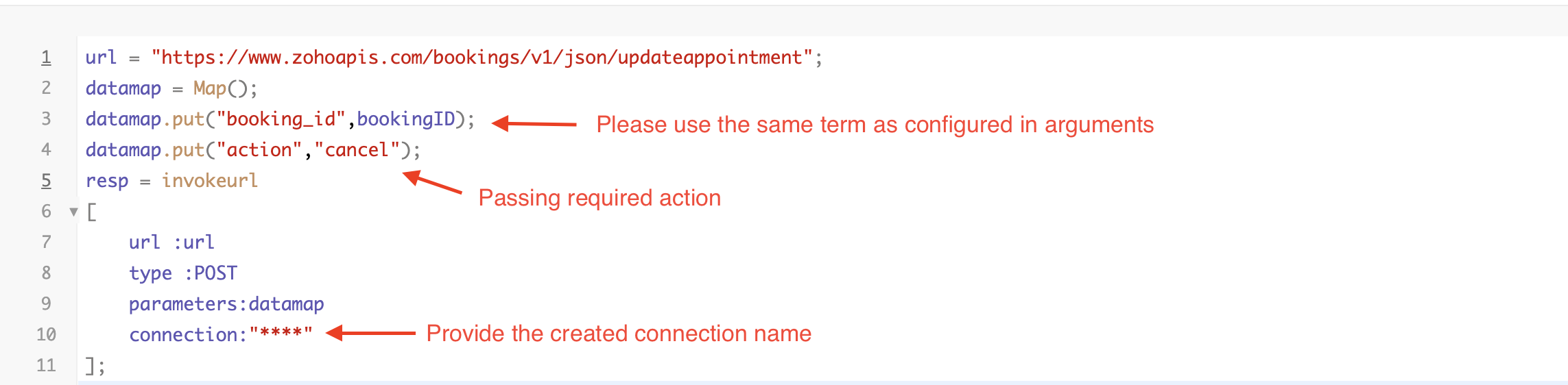
By completing these steps, we've configured a function that marks appointments as canceled.
Code explanation
Below is an explanation of the code that covers all the configurations present in the three functions mentioned above (cancel, mark as completed, and mark as no show).
Line 1: Based on the Zoho Bookings account's data center, we're setting up the API endpoint URL configuration.
Lines 2 - 4: To update appointments, we utilize the Zoho Bookings API. Within the update appointment API, there are two mandatory fields that need to be included: BookingID and action (completed/cancel/noshow).
Lines 5 - 10: We use the invokeURL task for API calls. To learn more about the invokeURL task, please refer to the following document: InvokeURL task for API calls
Now, let's proceed and learn about the process of creating a workflow and linking the established functions to it. This will enable us to automate the entire appointment status updating process.
Step 3: Creating a workflow
Workflow rules are sets of actions (email notifications, tasks and field updates) that are executed when specified conditions are met. Here, we'll generate workflow rules for each action to activate the respective function, thereby automating the appointment status updating process.
i. Creating a workflow for "canceling" appointments in Zoho Bookings when a meeting is deleted in Zoho CRM
Part 1: Creating the rule
1. Go to Setup > Automation > Workflow Rules.
2. In the Workflow Rules page, click Create Rule.

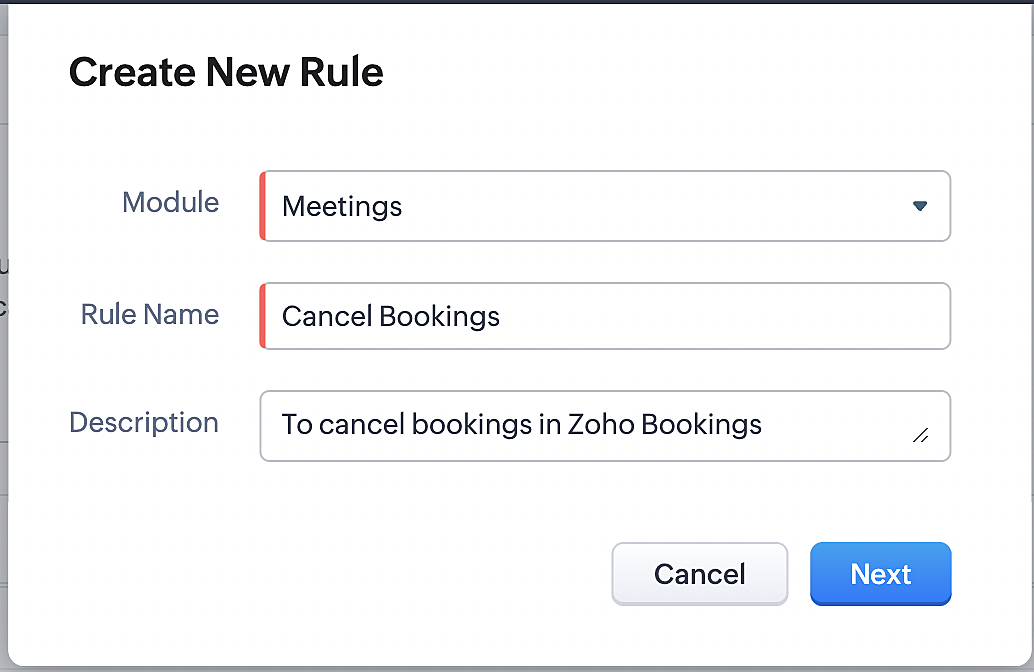
3. Select "Meetings" under Module and configure rule name and description as required.
More details: Create Rule
Reference:
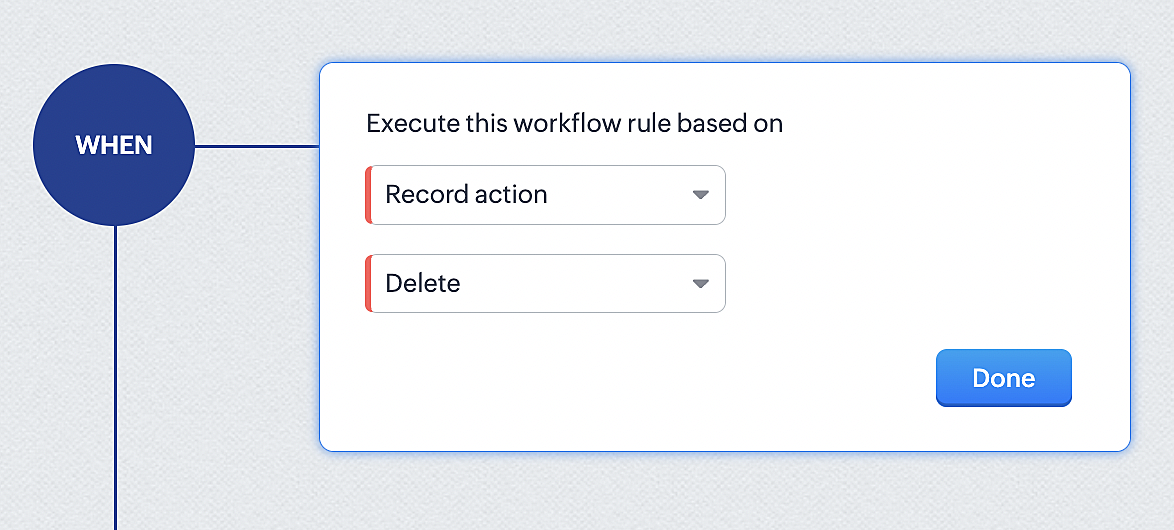
1. Select Record Action > Delete > Done to execute the rule when meetings are deleted.
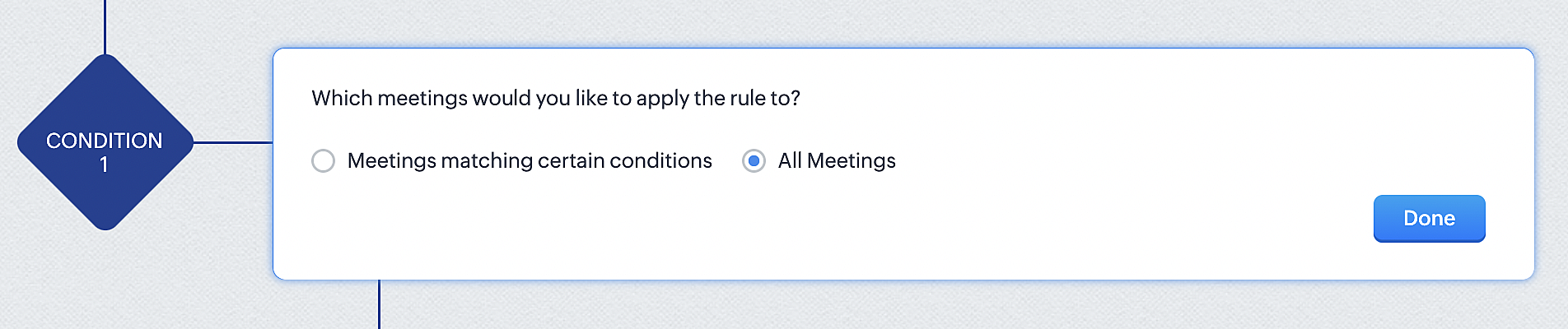
2. Configure condition > All Meetings.
3. Instant Actions > Function.
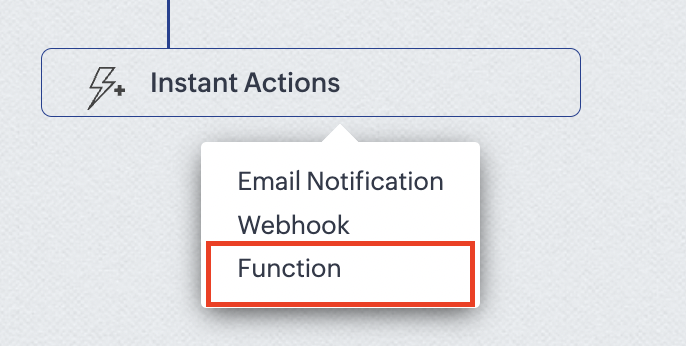
4. Click the New Function button.

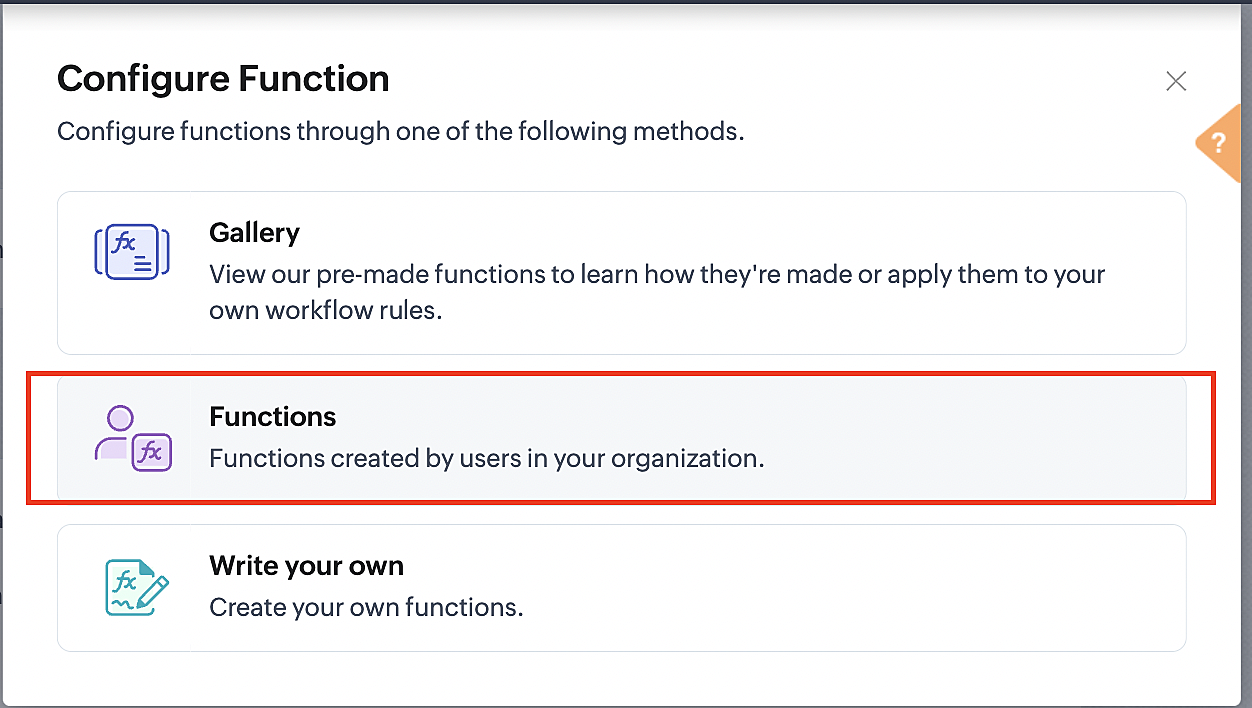
5. In the Configure custom function page, select the "cancel" function you created from among the functions users in your organization have created.
Part 3: Argument mapping
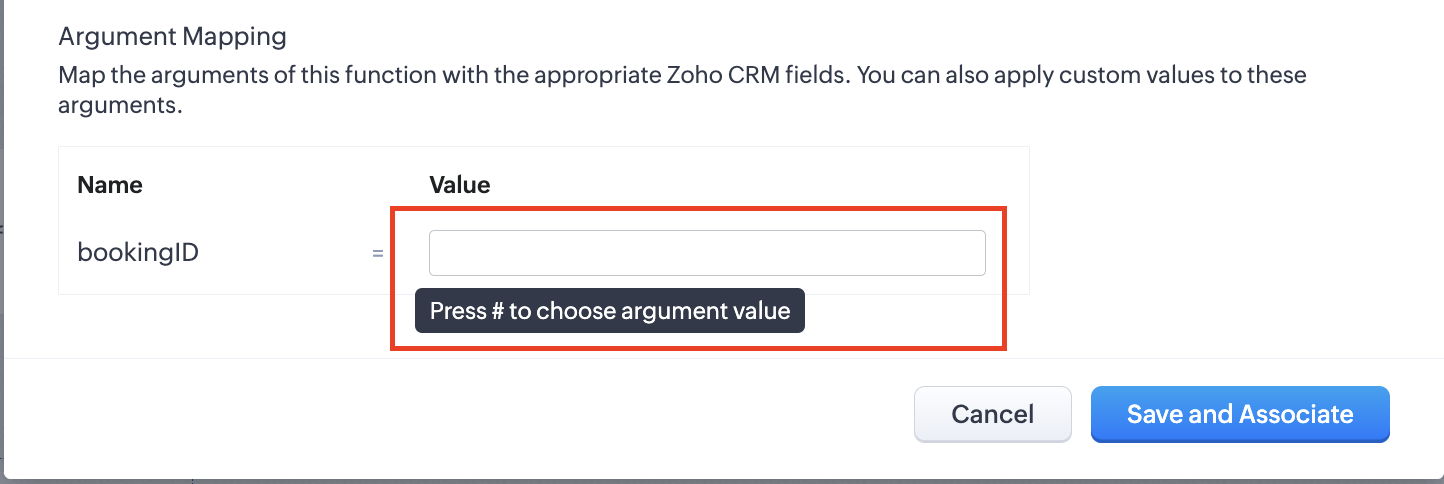
1. Press # to choose an argument value.
2. Select Meetings under Module and BookingId in the field.
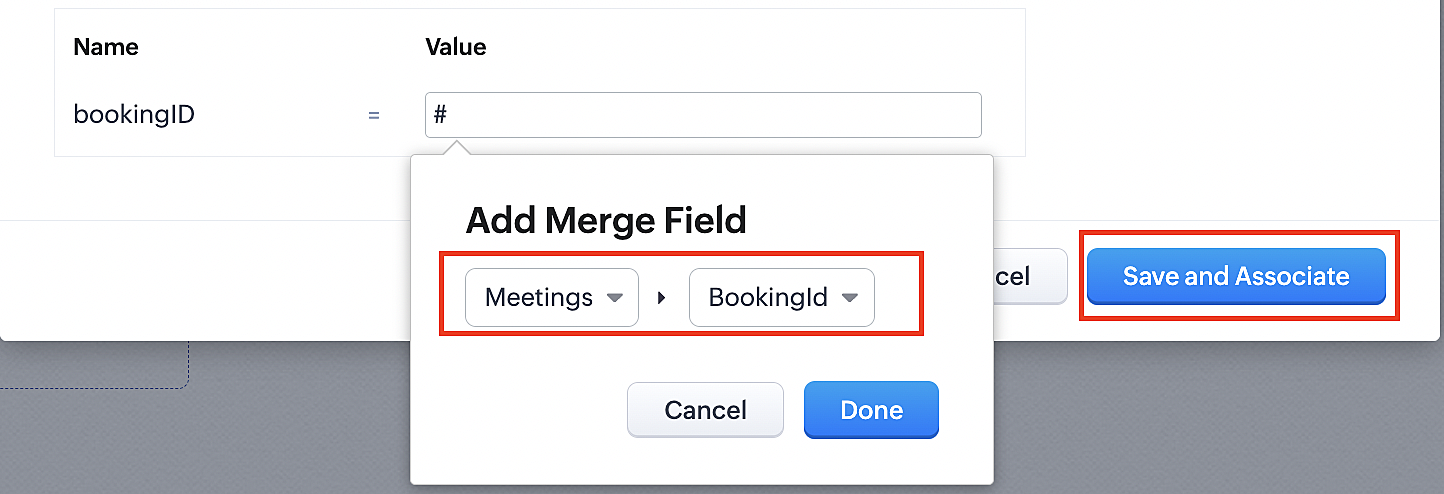
3. Click the Save and Associate button.
Reference:
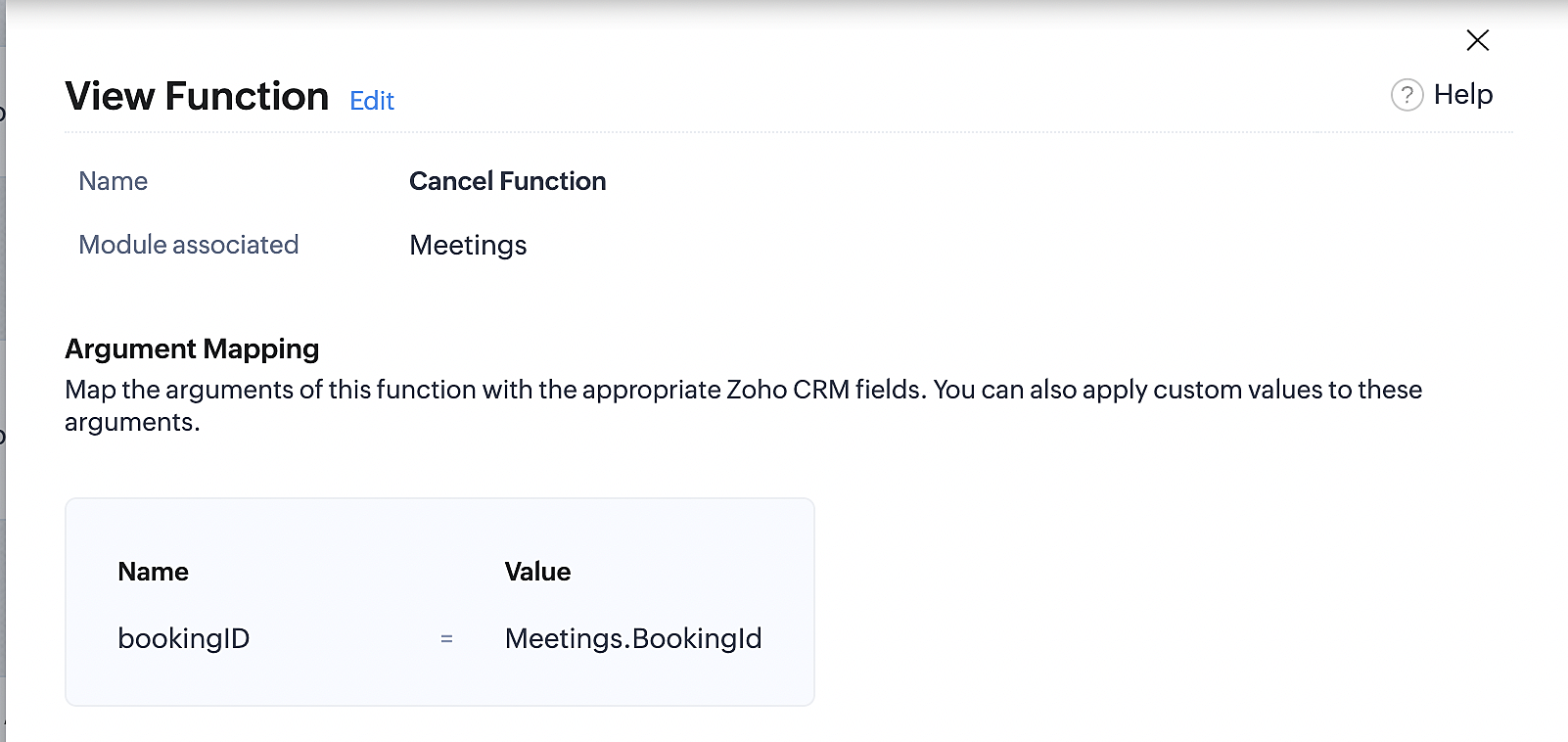
Below is the final flow of the cancel booking workflow:
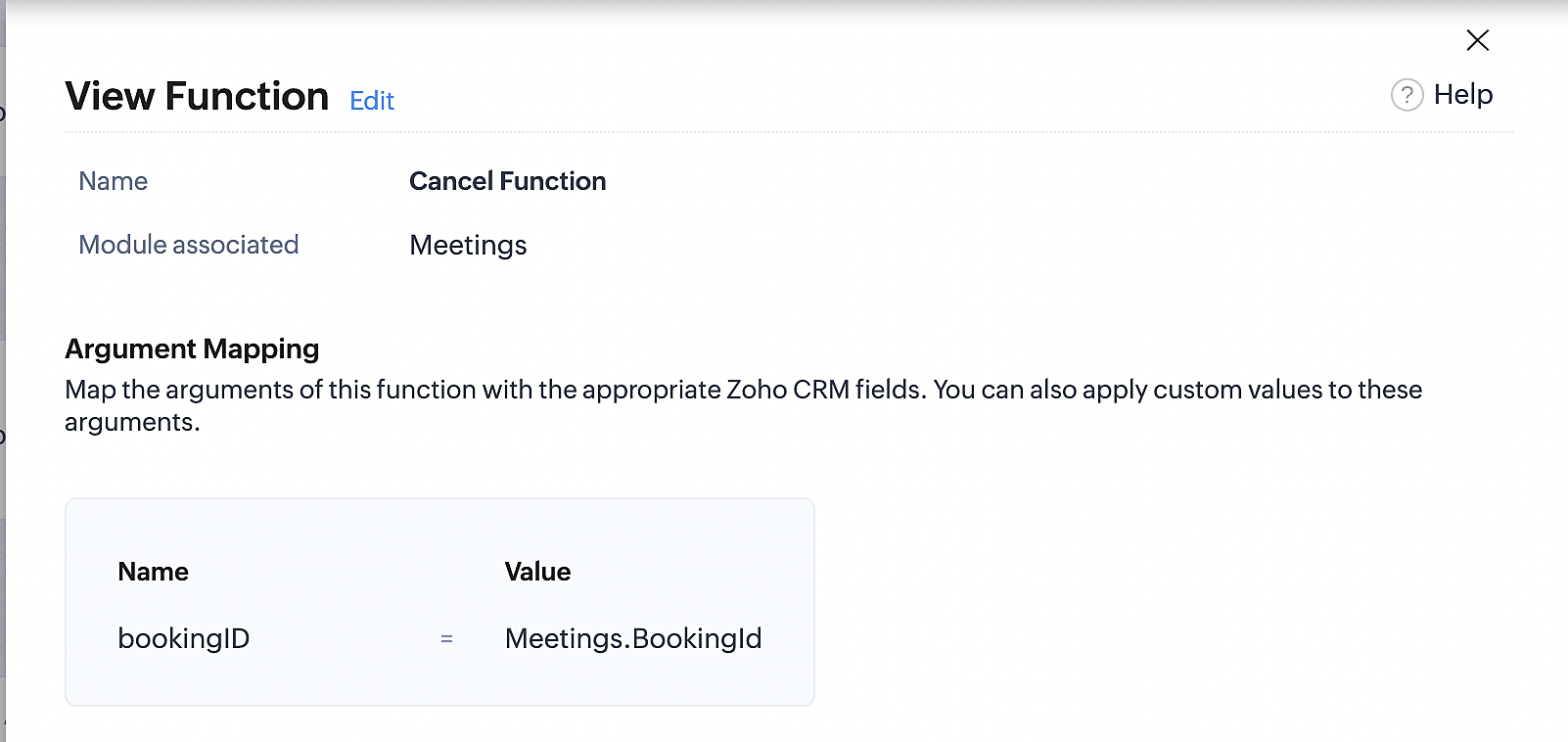
At the end of Part 3, we will have created a workflow that will be executed automatically when meetings are deleted in Zoho CRM. Simultaneously, the bookings associated with the meeting will also be canceled in Zoho Booking.
ii. Creating workflow for updating an appointment's status as "no show" in Zoho Bookings when the meeting's booking status is marked as no show in Zoho CRM
Part 4: Creating the rule
1. Go to Setup > Automation > Workflow Rules.
2. In the Workflow Rules page, click Create Rule.

3. Select Meetings under Module and configure the rule name and description as required.
Reference:
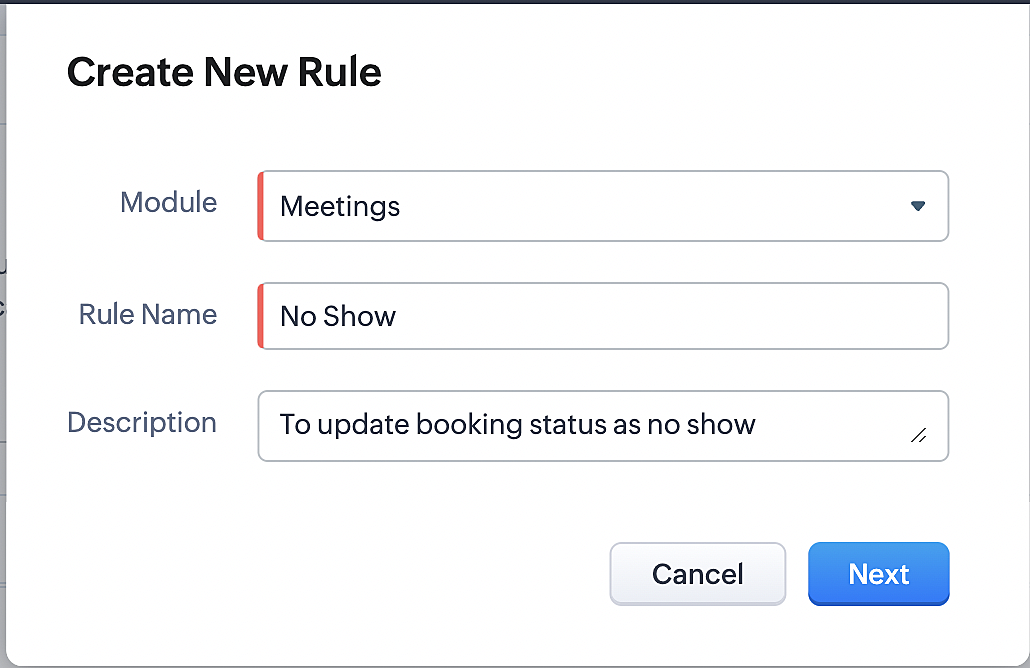
Part 5: Specifying the rule trigger
If you encounter difficulties while navigating through the steps mentioned below, please refer to Part 2 above, where we have provided step-by-step screenshots for clarification.
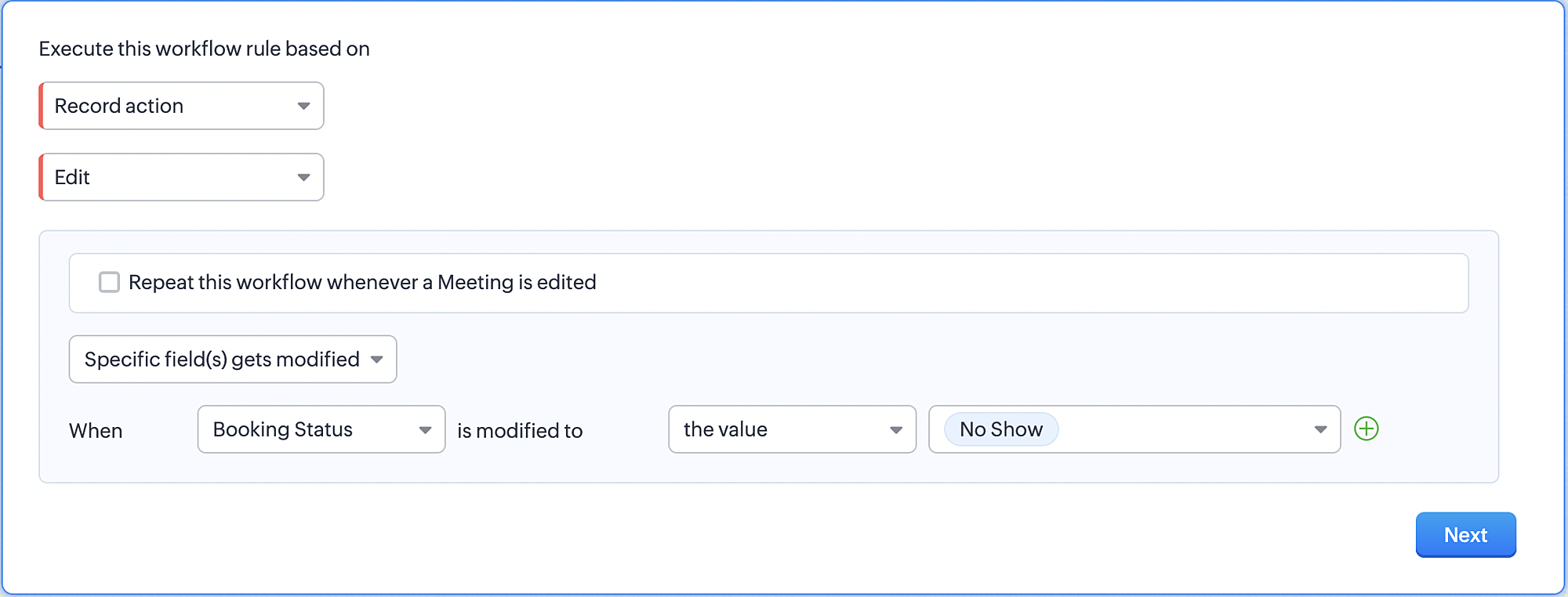
1. Record Action > Edit.

2. Enable the Specific field(s) gets modified and configure it per the screenshot below.
a. This is to ensure that the workflow is executed only when the booking status under the meeting module is
updated to "No Show".
updated to "No Show".
3. Configure condition > All Meetings.
4. Instant Actions > Function > New Function.
5. In the Configure custom function page, select the "no show" function you created from among the functions
users in your organization have created.
users in your organization have created.
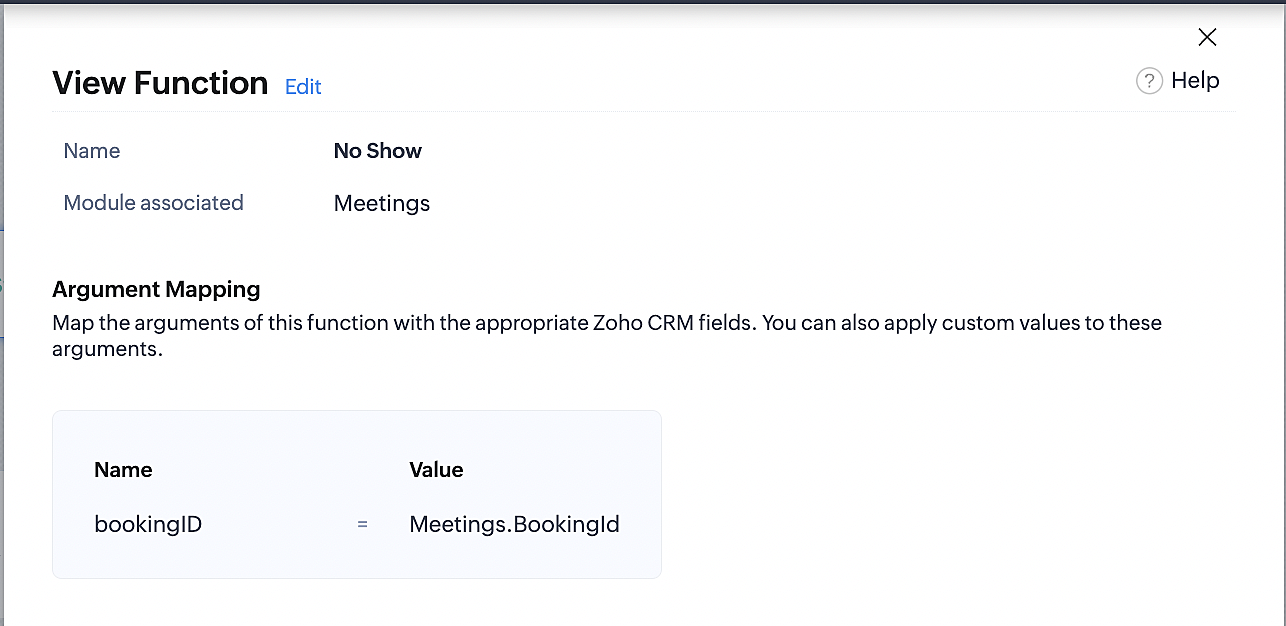
Part 6: Argument mapping:
If you encounter difficulties while navigating through the steps mentioned below, please refer to Part 3 above, where we have provided step-by-step screenshots for clarification.
1. Press # to choose an argument value.
2. Select Meetings under Module and configure the field as "BookingId".
3. Click Save and Associate button.
Reference:
Below is the final flow of the "No Show" booking status workflow:
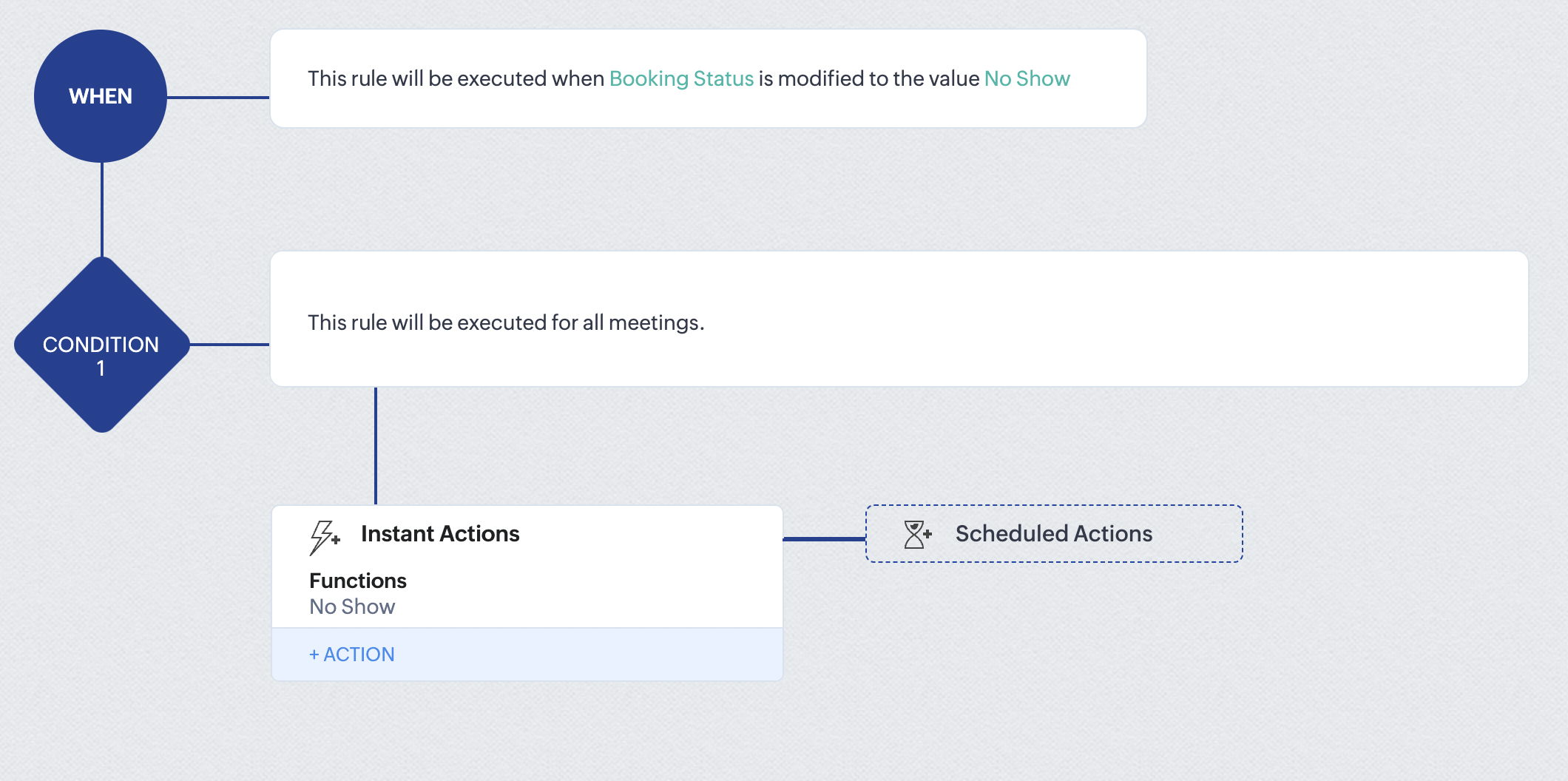
At the end of part 6, we will have created a workflow that automatically executes when the booking status field within the Zoho CRM Meetings module is updated to "No Show." This action will result in the associated bookings for that meeting also being marked as "No Show" in Zoho Bookings.
iii. Creating workflow for updating appointment status as "Completed" in Zoho Bookings when the booking status field of the meeting is marked as completed in Zoho CRM.
Part 7: Creating the rule
1. Go to Setup > Automation > Workflow Rules.
2. In the Workflow Rules page, click Create Rule.

3. Select Meetings under Module and configure rule name and description as required.
Reference:
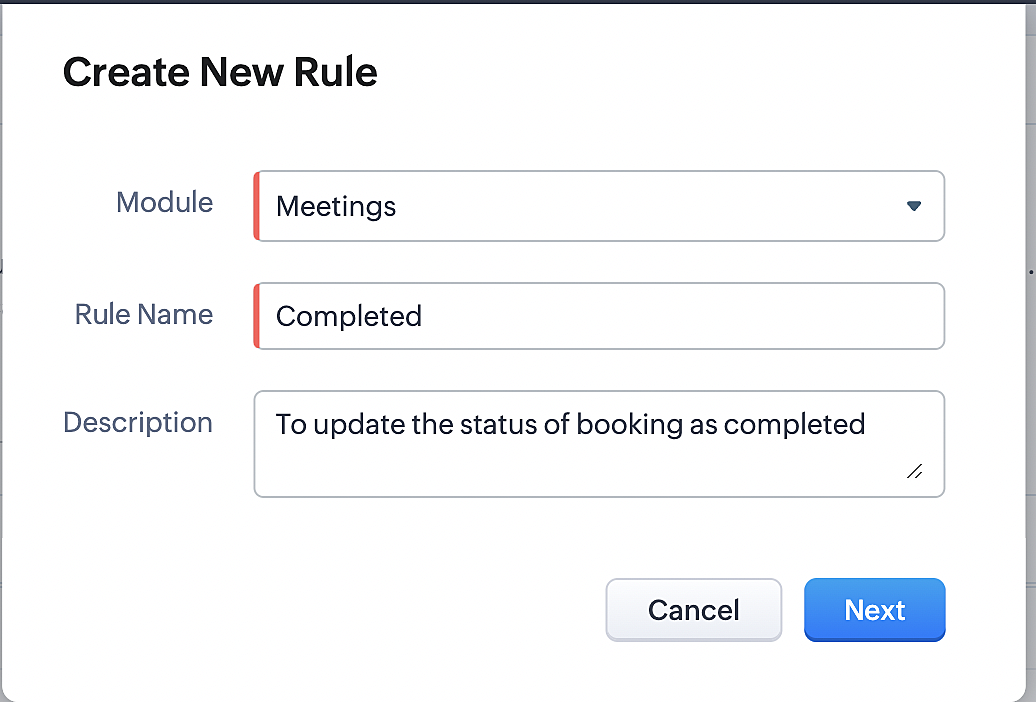
Part 8: Specifying the rule trigger
If you encounter difficulties while navigating through the steps mentioned below, please refer to Part 2 above, where we have provided step-by-step screenshots for clarification.
1. Record Action > Edit.

2. Enable the Specific field(s) gets modified setting and configure it per the screenshot below.
a. This serves to ensure that the workflow is executed only when the booking status under the Meetings module is
updated to "Completed".
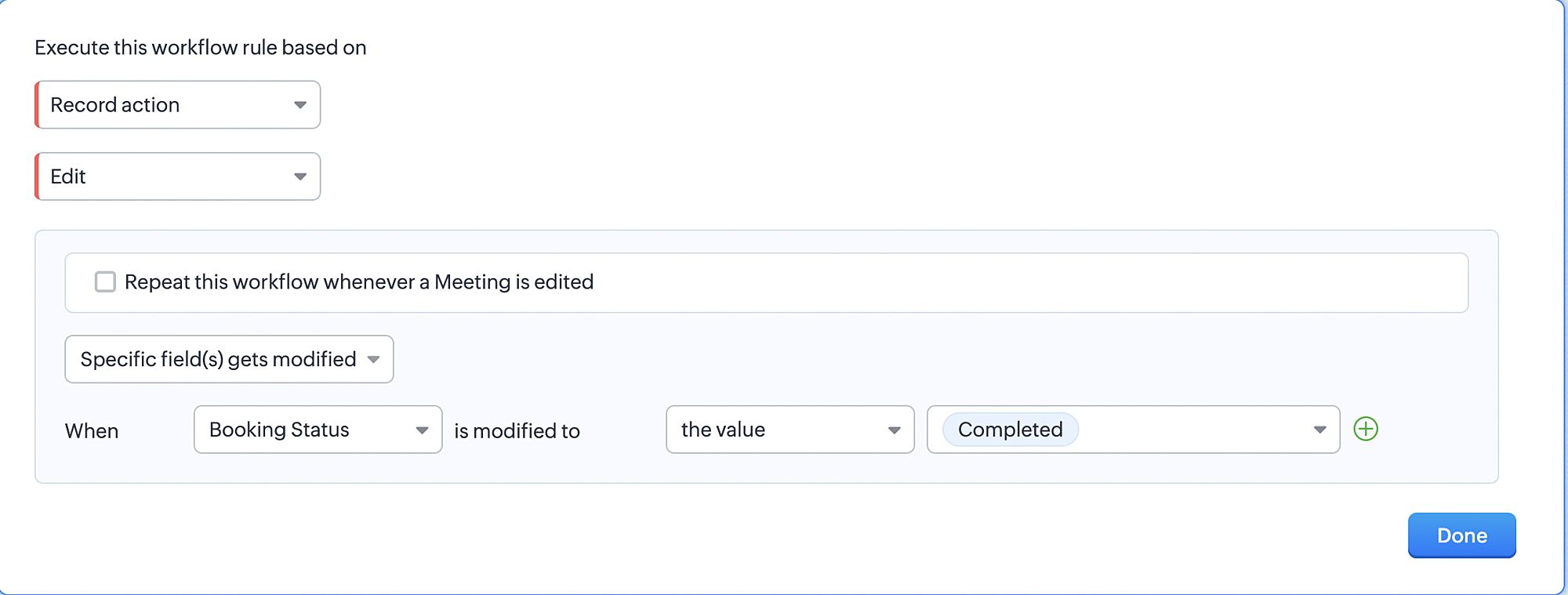
3. Configure condition > All Meetings.
4. Instant Actions > Function > New Function.
5. In the Configure custom function page, select the "completed" function you created from among the functions users
in your organization have created.
Part 9: Argument mapping:
If you encounter difficulties while navigating through the steps mentioned below, please refer to Part 3 above, where we have provided step-by-step screenshots for clarification.
1. Press # to choose an argument value.
2. Select Meetings under Module and configure the field as "BookingId".
3. Click Save and Associate button.
Reference:
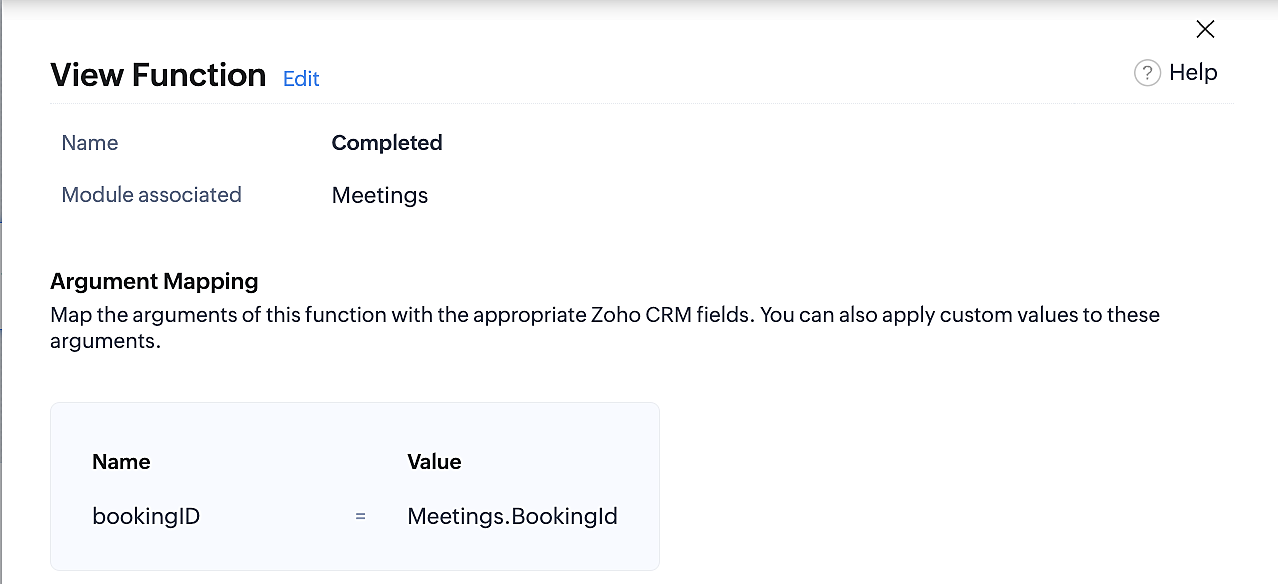
Below is the final flow of the "Completed" booking status workflow:
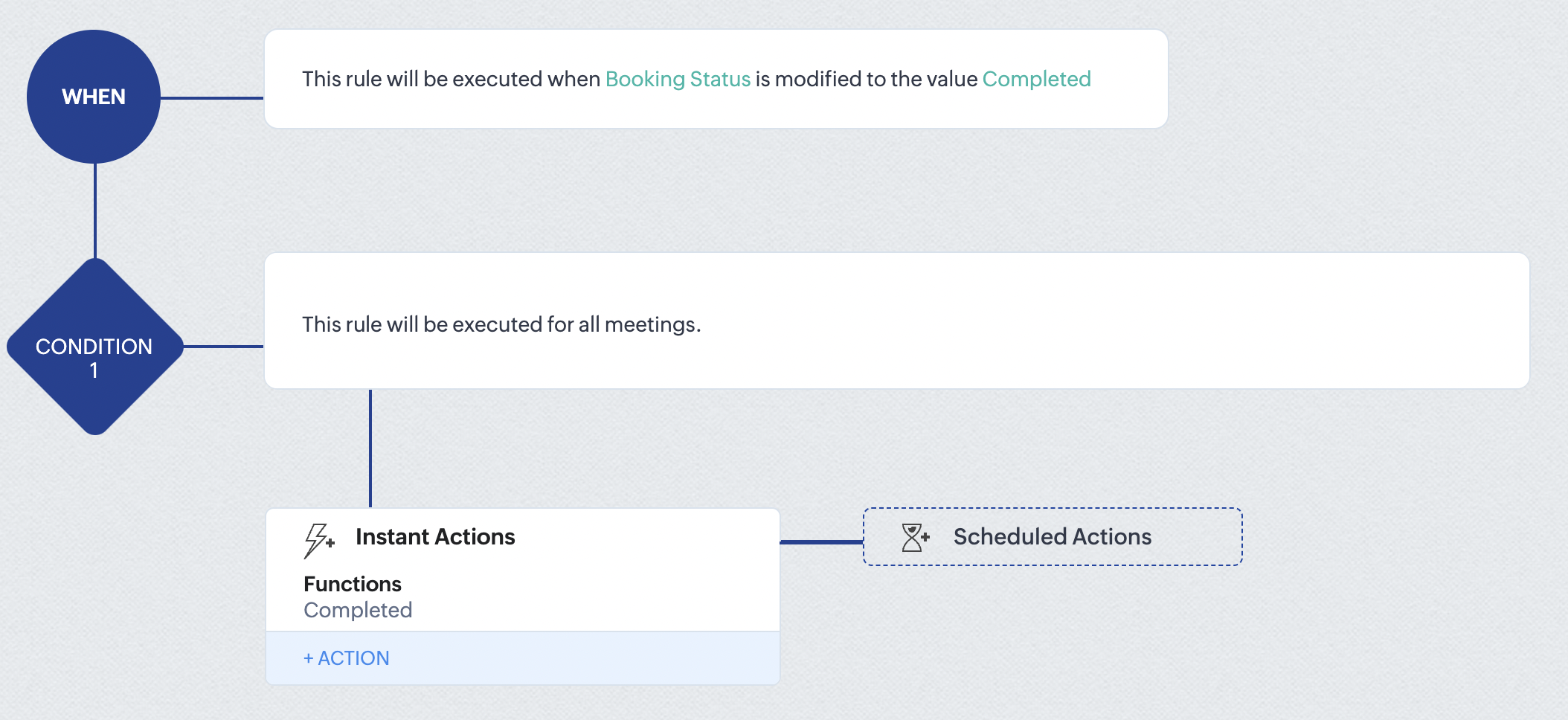
At the end of part 9, we will have created a workflow that is automatically executed when the booking status field within the Zoho CRM Meetings module is updated to "Completed." As a result, the associated bookings for that meeting will also be marked as "Completed" in Zoho Bookings.
Conclusion
We've reached the end of this community post. With the integration mentioned above in place, you'll be able to book, cancel, and update the status of appointments in Zoho Bookings directly from your Zoho CRM application. This will help you effectively manage your appointments in one place. As mentioned above, we've covered the rescheduling action in a separate post, which you can access by clicking on the following link: Reschedule Action
Furthermore, we've outlined a method for automating appointment statuses in detail. You can use this document as a reference to explore the various possibilities that suit your needs.
If you have any questions or need assistance with your configuration, please email us at hello@zohobookings.com or support@zohobookings.com.
Topic Participants
Kaushik S
bruce
Ishwarya SG
PrismaNote Support
Sticky Posts
Good news! Calendar in Zoho CRM gets a face lift
Dear Customers, We are delighted to unveil the revamped calendar UI in Zoho CRM. With a complete visual overhaul aligned with CRM for Everyone, the calendar now offers a more intuitive and flexible scheduling experience. What’s new? Distinguish activitiesEnhancement to ICR’s field prompting: Preferred data extraction using advanced field prompting
Dear Customers, We hope you’re well A quick background Intelligent Character Recognition (ICR) comes as part of Zia’s optical recognition capability called Zia Vision. When we introduced it last April, the data extraction was training-based and was applicableZoho CRM's sales trend and sales follow-up trend dashboards are now customizable
Dear Customers, We're here with good news! Sales trend and sales follow-up trend are two system-defined dashboards that help you understand trends and anomalies in your sales outreach and conversion efforts. They use Zia's intelligence to identify patternsIntroducing Multiple Sandbox Types and Support for Module's Data Population
Register here for the upcoming Focus Group webinar on Multiple Sandbox | Help documentation to learn more about the new enhancements Hello everyone, Sandbox in CRM is a testing environment for users to create and test new configurations like workflowVoC in Zoho CRM is now data savvy: Explore response drilldown, summary components and participation in CRM criteria
VoC has all the goods when it comes to customer intelligence—which is why we're constantly enhancing it. We recently added the following: A customer drilldown component that shows you the list of prospects and customers behind a chart's attribute Expanded
Recent Topics
Custom Related List Inside Zoho Books
Hello, We can create the Related list inside the zoho books by the deluge code, I am sharing the reference code Please have a look may be it will help you. //..........Get Org Details organizationID = organization.get("organization_id"); Recordid = cm_g_a_data.get("module_record_id");Zoho Meeting - Feature Request - Introduce an option to use local date and time formating
Hi Zoho Meeting Team, My feature request is to add an option for dates to be displayed in the users local format. This is common practice across Zoho applications and particularly relevant to an application like Zoho Meeting which revolves around dateCannot give public access to Html Snippet in Zoho Creator Page
Hi, I created a form in Zoho Creator and published it. The permalink works but I want to override the css of the form. (style based URL parameters is not good enough) So I created a page and added an Html snippet. I can now override the css, which isHow can Outlook 365 link back into Zoho Projects so meetings and events in Outlook calendar show in Zoho?
We use Outlook 365 for our emails and diaries and have integrated Zoho Projects with Office 365. One challenge we face is getting Zoho Projects to recognise when we have meetings and events in Outlook and not allow project managers to assign tasks over that period. Is there a way to resolve this? ThanksOn Edit Validation Blueprint
Hello, I have a notes field and a signature field. When the Approve button is clicked, the Signature field will appear and must be filled in. When the Reject button is clicked, the Notes field will appear and must be filled in. Question: Blueprint willZoho Invoice en Navarra (Spain)
Hola, ¿Alguien usa Zoho Invoice en la Comunidad Foral de Navarra? En Navarra tenemos un sistema tributario diferente y no aplica Verifactu (la Hacienda Foral de Navarra ha anunciado su alternativa, NaTicket, pero no ha informado cuándo entrará en vigor).Emails from Zoho are getting blocked due to Zoho IP address being blacklisted
This is the info I got from my hosting provider – please address this issue immediately. I don’t expect this from such a big household name. Every single invoice I have sernt it not being received by my clients, all being blocked. All of a sudden. Asagentid : Where to find?
I've been looking around for this agenId to check for the total ticket assigned on a specific agent url :"https://desk.zoho.com/api/v1/ticketsCountByFieldValues?departmentId=351081000000155331&agentId=35108xxxxxx132009&field=statusType,status" type :GETZoho DataPrep integration with OpenAI (beta)
We are thrilled to announce Zoho DataPrep's integration with OpenAI. The public beta roll-out opens up three features. Users who configure their OpenAI Organizational ID and ChatGPT API key (Find out how) will be able access the features. The featuresAI Bot and Advanced Automation for WhatsApp
Most small businesses "live" on WhatsApp, and while Bigin’s current integration is helpful, users need more automation to keep up with volume. We are requesting features based on our customer Feedbacks AI Bot: For auto-replying to FAQs. Keyword Triggers:Setting total budget hours for a specific project
Hi there, I work on a lot of projects that have fixed budget hours. Is there a way to enter the total budgeted hours so i can track progress and identify when hours have been exceeded. I see in the projects dashboard there is a greyed out text sayingClone entire dashboards
If users want to customize a dashboard that is used by other team members, they can't clone it in order to customize the copy. Instead they have to create the same dashboard again manually from scratch. Suggestion: Let users copy the entire dashboardIntroducing Formula Fields for performing dynamic calculations
Greetings, With the Formula Field, you can generate numerical calculations using provided functions and available fields, enabling you to derive dynamic data. You can utilize mathematical formulas to populate results based on the provided inputs. ThisGetting started with Zoho PDF Editor
Hello users, If you are new to Zoho PDF Editor or aren't sure of its full potential, then this article is for you. Zoho PDF Editor is a free online PDF editing tool, that allows you to upload and edit PDFs, insert text and images, add fillable and e-signatureZoho Projects - Cloning a task does not trigger task workflow when created
Hello! I have a Project where my team uses a set of tasks from a tasklist as templates, so we could simply clone it and drag it to another list in kanban view to avoid creating a new one from scratch. The process works well, but after cloning it the newPurchase Orders not in sequence
I am unable to sort by Purchase Order Numbers. I can only sort by date; however, the PO numbers aren't in the order they were entered. This was not the case prior to today.Internal Fillable Contract with Zoho Writer (Before Sending to Client)
Hi everyone, I’m trying to automate the following process in Zoho CRM and would appreciate some guidance. Process: When a Deal moves to a specific stage, CRM triggers an automation. CRM sends a contract template to an internal team member so they canDate/time displayed in ZohoCRM does not match date/time of entries in ZohoForm
Hello there, we use a ZohoForm as a worksheet, i.e. users use it to track start time, break and stop time for every working day. The ZohoCRM org time zone is set on GM -4, so is the Time Zone in the Date&Time section in ZohoForm (see attachment). DespiteUpdate Existing Records greyed out in Free Version
Trying to update records from an Excel sheet, and not getting the option to update. Only option is to add as new accounts. All documentation I can see says update should be an option! Accounts, Leads, Contacts, all the same.Dynamically Populate Picklist Values from Another Module Using Client Script
I am working in Zoho CRM and trying to dynamically populate a picklist field in the Partners module using values stored in another custom module. I have two modules: 1. Partners Module Field: Partner_Type_Pick Field Type: Picklist 2. Partners_Type ModuleAdd zoho calendar to google calendar
Hi I keep seeing instructions on how to sync Zoho CRM calendar with google calendar but no instructions on how to view Zoho calendar in my google calendar.Zoho Community Digest : Jan 2026 | Part 1
Hello Everyone! Staying in the loop with Zoho's latest product updates and features across the vast Zoho Community Forums can be a real challenge. We get it. With over 50+ applications, each with its dedicated forum, it's easy to miss out on importantWorld date & time format
Hello, Is there a timeline to get the worldwide used date and time format ? I mean not the american one... I mean day month year, and 24 hours clock. RegardsNimble enhancements to WhatsApp for Business integration in Zoho CRM: Enjoy context and clarity in business messaging
Dear Customers, We hope you're well! WhatsApp for business is a renowned business messaging platform that takes your business closer to your customers; it gives your business the power of personalized outreach. Using the WhatsApp for Business integrationConditional layouts - support for multi-select picklists
Hi, The documentation for conditional layouts says the following: "Layout Rules cannot be used on the following field types: Auto Number Lookup Multi Select Lookup User Lookup Formula File Upload Multi Line" I have a custom module with a multi-pick listDont want to list inactive items.
If an item is made inactive, there is no point in showing it in the item list. Please provide an option to hide all inactive items in 'Preferences'.Actual vs Minimum
Hi all, I am sure I am not the only one having this need. We are implementing billing on a 30-minute increment, with a minimum of 30 minutes per ticket. My question is, is there a way to create a formula or function to track both the minimum bill vs theClient Script Not Working When Field is Set by Workflow
Problem Context: I have implemented a client script in the Cases module that automatically assigns commands based on the value of the Priority field. The script functions correctly when the Priority field is manually set by a user through the form. ObservedIntegration of CRM and Recruit
hi team, Is it possible to sync deals <> job openings from only 1 pipeline? My configuration of CRM has pipeline for each business unit, so I will have all data in the CRM system. body leasing and recruitment is one BU (hence 1 pipeline) - can I sync{Action Required} Re-authenticate your Google Accounts to Continue Data Sync
Hello Users! To align with Google’s latest updates on how apps access files in Google Drive, we’ve enhanced our integration to comply with the updated security and privacy standards, ensuring safer and more reliable access to your data. With this update,integrating Zoho CRM vendors with Zoho projects
In most of our projects we collaborate with our Vendors. Being able to integrate only Accounts and not Vendors from CRM, is a huge limitation for our perspective and needs. We would really love to see this feature in the CRM-Projects integration.Zoho Creator Workshops 2026—Europe & UK | Coming to a city near you!
Hello everyone! We're excited to announce the Zoho Creator Workshop Series 2026, coming to cities across Europe and the United Kingdom this year! Whether you're looking to explore the intermediate-to-advanced capabilities of Creator or you're a seasonedValidation rule for Date field
The condition settings for a Date field are are absolutlly usless. Conditions can only be set for a specific date, which is logically ineffective in most cases. When setting a condition for a Date field, users usually need to compare the value relativeNumber 9 envelopes for invoice printing
I email and print invoices. Being new to Zoho and coming from QB, we did both as we have a more traditional So in Zoho i want to do the same using Number 9 envelopes. These have both a return window and mail to windoow see attached image. Im just looking for best suggestions on how to get a ZOHO invoice to work, so I can mail my invoices...Zoho Books/Square integration, using 2 Square 'locations' with new Books 'locations'?
Hello! I saw some old threads about this but wasn't sure if there were any updates. Is there a way to integrate the Square locations feature with the Books locations feature? As in, transactions from separate Books locations go to separate Square locationsOpen Sans Font in Zoho Books is not Open Sans.
Font choice in customising PDF Templates is very limited, we cannot upload custom fonts, and to make things worse, the font names are not accurate. I selected Open Sans, and thought the system was bugging, but no, Open Sans is not Open Sans. The realSuper Admin Logging in as another User
How can a Super Admin login as another user. For example, I have a sales rep that is having issues with their Accounts and I want to view their Zoho Account with out having to do a GTM and sharing screens. Moderation Update (8th Aug 2025): We are workingAdd Reporting feature to display variance/change columns when comparing periods
When running reports to compare periods (for example, Profit and Loss comparing current year to previous), I would like to be able to display variance columns in both (a) amount or (b) percentage.Payroll and BAS ( Australian tax report format )
Hello , I am evaluating Zoho Books and I find the interface very intuitive and straight forward. My company is currently using Quickbooks Premier the Australian version. Before we can consider moving the service we would need to have the following addressed : 1.Payroll 2.BAS ( business activity statement ) for tax purposes 3.Some form of local backup and possible export of data to a widely accepted format. Regards Codrin MitinInvalid scope choice: Workdrive integration in CRM
Bug: There is an invalid option in the permission choices for Workdrive integration in CRM. If the entry "WorkDrive.teamfolder.CREATE" is selected, it will return a message indicating invalid OAuth scope scope does not exist.Next Page