Geo-Powered Retail Intelligence with Zoho Analytics
In today’s highly competitive retail landscape, data-driven decisions are no longer optional — they’re essential. While businesses collect vast volumes of data across regions, stores, and customer segments, the real value lies in how effectively this data is visualized and interpreted.
Geo Maps in Zoho Analytics bring location intelligence to the forefront of decision-making. With powerful spatial analytics capabilities, retail businesses can now visualize store performance, identify untapped opportunities, and track customer behavior trends with a simple glance at a map.

This solution demonstrates how Zoho Analytics' Geo Maps can be leveraged to solve real retail business problems, using a step-by-step approach grounded in a practical, ready-to-use dataset.
- Business scenario
- Dataset Overview
- Problem Description
- Why Geo Maps Become a Game-Changer
- Solution Implementation – Report Creation
- Store Performance Analysis (Map – Bubble)
- Revenue-to-Traffic Ratio with Ghost Zone Detection (Map - Filled + Scatter)
- Competitor Pressure Zones (Map – Scatter)
- Customer Gender Distribution (Map - Pie)
- Summary
Business scenario
Imagine you're a retail chain operating hundreds of stores across the United States. Each store generates data—sales, visitor footfall, customer satisfaction, marketing spend—but these numbers alone don’t explain why some stores succeed while others under-perform.
Key challenges include:
- Identifying stores that are struggling before sales drop significantly.
- Understanding whether poor performance is due to location, low visibility, or intense competition.
- Evaluating which regions offer true expansion potential—and which are over-saturated.
With no visual correlation between location and business KPIs, many decisions remain reactive instead of proactive. This is where Geo Maps make all the difference—by transforming isolated data into contextual geographic insights.
Dataset Overview
To power this solution, we’ve created a comprehensive and realistic retail dataset that mirrors how actual store data behaves across geographies.
The dataset includes:
- Store-level performance data: revenue, average purchase value, and satisfaction.
- Customer insights: foot traffic, age, gender distribution.
- Market context: competitor presence and market share, population density, and economic growth rate.
- Geospatial data: zip code, city, state, latitude, and longitude of each store location.
Problem Description
Retail chains often operate on thin margins, and even minor under-performance at store level can have significant impacts across the organization. While dashboards provide revenue and performance trends, they often miss one critical dimension—geography.
Without geographic context, businesses face several recurring challenges:
- Underperforming stores go unnoticed until major losses occur.
- Ghost zones—areas with low store presence but high potential—remain unexplored.
- Marketing budgets get wasted in regions where returns are consistently low.
- Competitor pressure is misjudged due to lack of visibility on regional saturation.
- Store closures become reactive decisions, made after performance has already declined.
In short, data without location awareness leaves decision-makers blind to spatial trends and risks. Businesses need a smarter, more intuitive way to analyze store performance with geographical clarity—before it’s too late.
Why Geo Maps Become a Game-Changer
Geo Maps in Zoho Analytics address this gap by unlocking a visual layer of intelligence that traditional charts can’t offer.

Here’s what makes them a game-changer:
- Location-first insights: Instantly identify how store performance varies across the map - by city, state, or neighborhood.
- Visual correlation of multiple KPIs: Compare revenue, satisfaction, and foot traffic geographically to detect hidden patterns.
- Clutter-free, customizable visuals: Choose the right map type - bubble, filled, pie, or scatter - to match the data you want to analyze.
Unlike static dashboards, Geo Maps enable you to see the problem, context, and opportunity—all in one frame. Whether it's spotting trends, reallocating marketing spend, or planning expansion, this spatial layer puts decision-makers back in control.
Solution Implementation – Report Creation
This section walks through the step-by-step creation of four key Geo Map reports that reveal business insights from store-level data.
1. Store Performance Analysis (Map – Bubble)
To identify how stores are performing across different regions in terms of revenue and customer satisfaction, using a clean, visual-first map representation.
This helps uncover:
- High-performing stores in key zones
- Underperforming regions needing intervention
- Patterns related to location-based store success
Why Map - Bubble?
The Map - Bubble chart is ideal for visualizing store-level metrics using geolocation.
- Size indicates magnitude (e.g., Monthly Revenue)
- Color indicates health or quality (e.g., Customer Satisfaction)
- Each store appears as a distinct bubble based on its lat/long.
Procedure
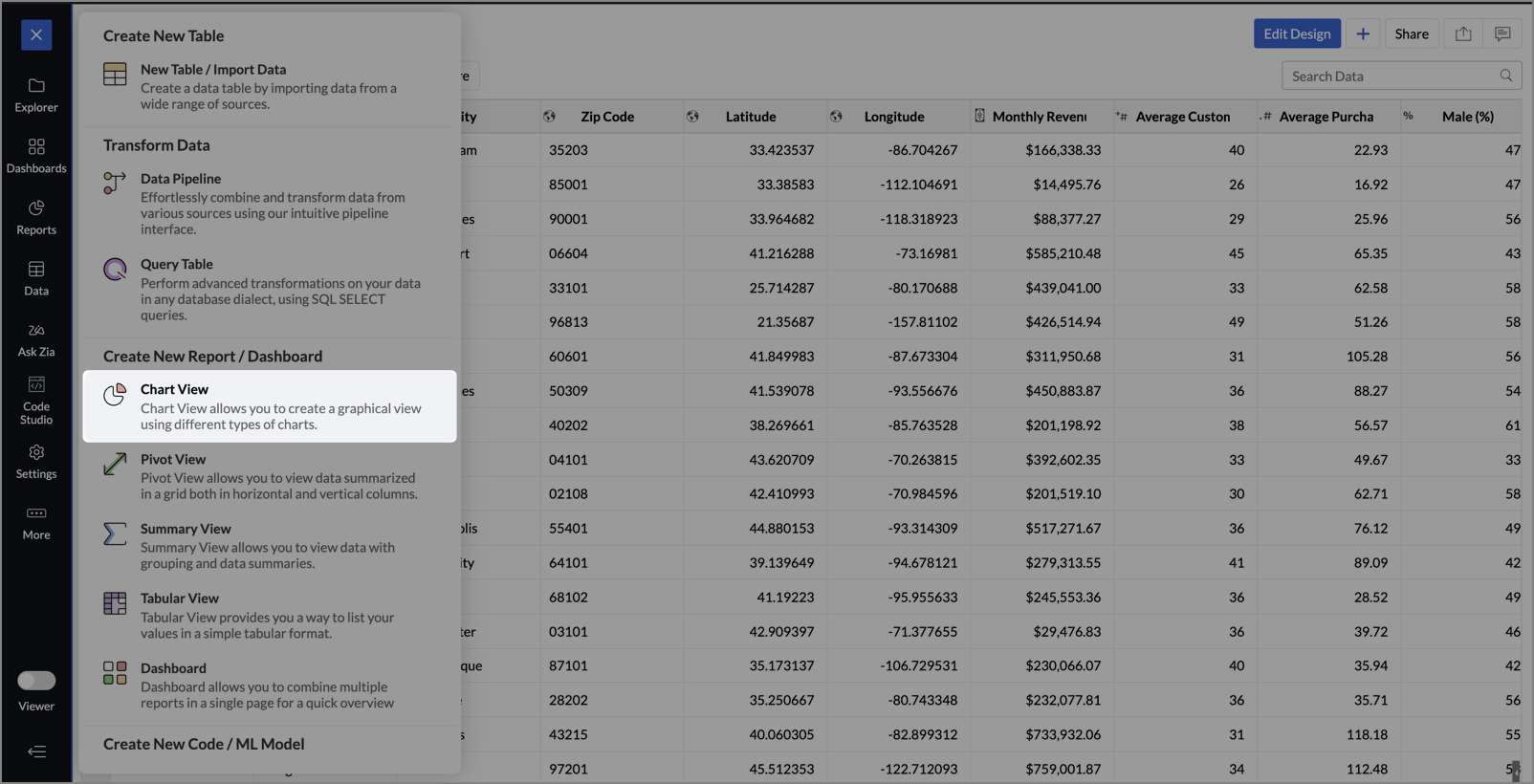
- From the dataset, click the Create icon and select Chart View.
- On the designer page, drag and drop the following columns into their respective shelves:
- Latitude → X-Axis
- Longitude → Y-Axis
- Customer Satisfaction (out of 10) → Color
- Monthly Revenue (USD) → Size
- Store ID, Store Type, City → Tooltip
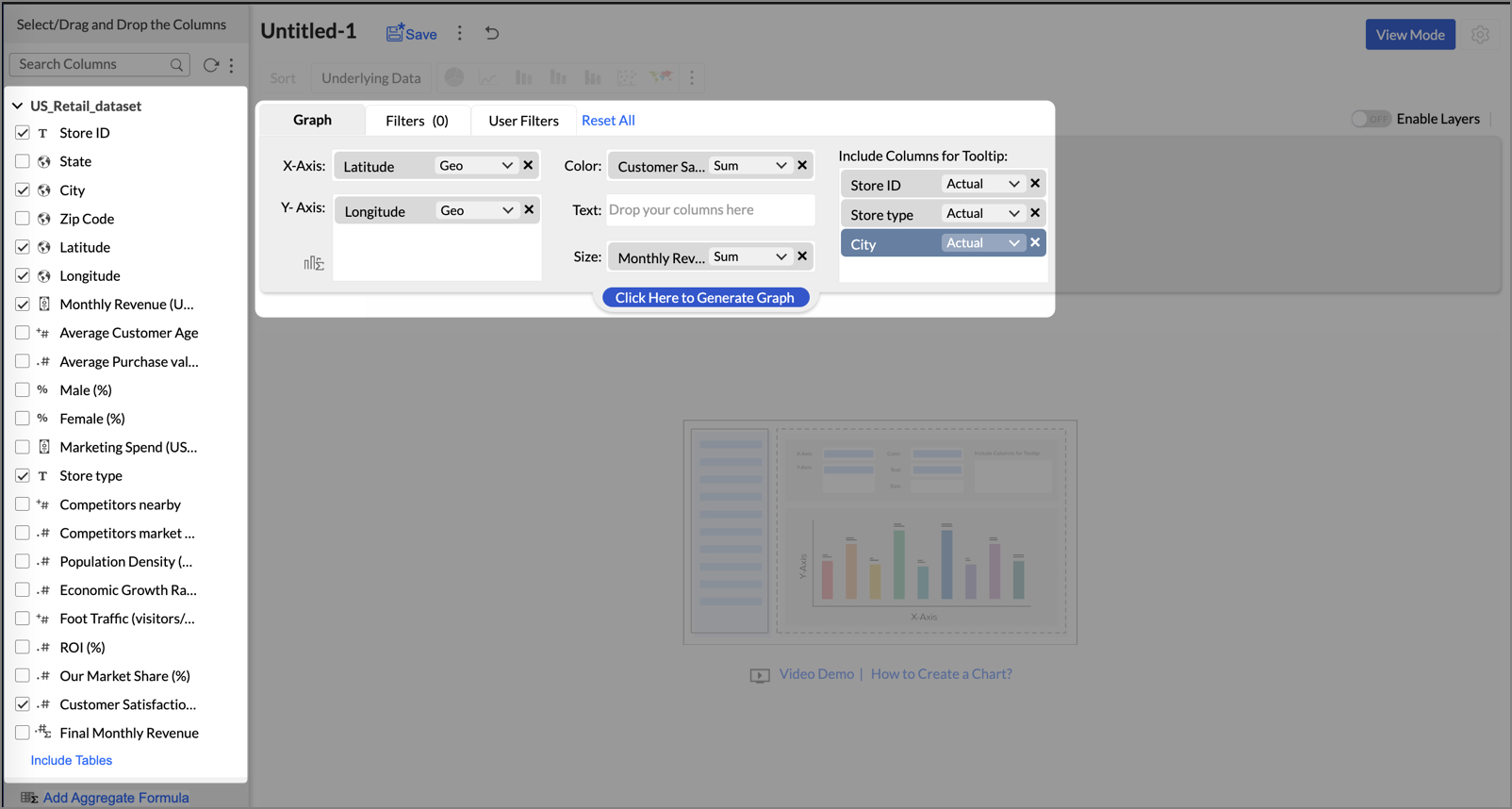
- Click Generate Graph.
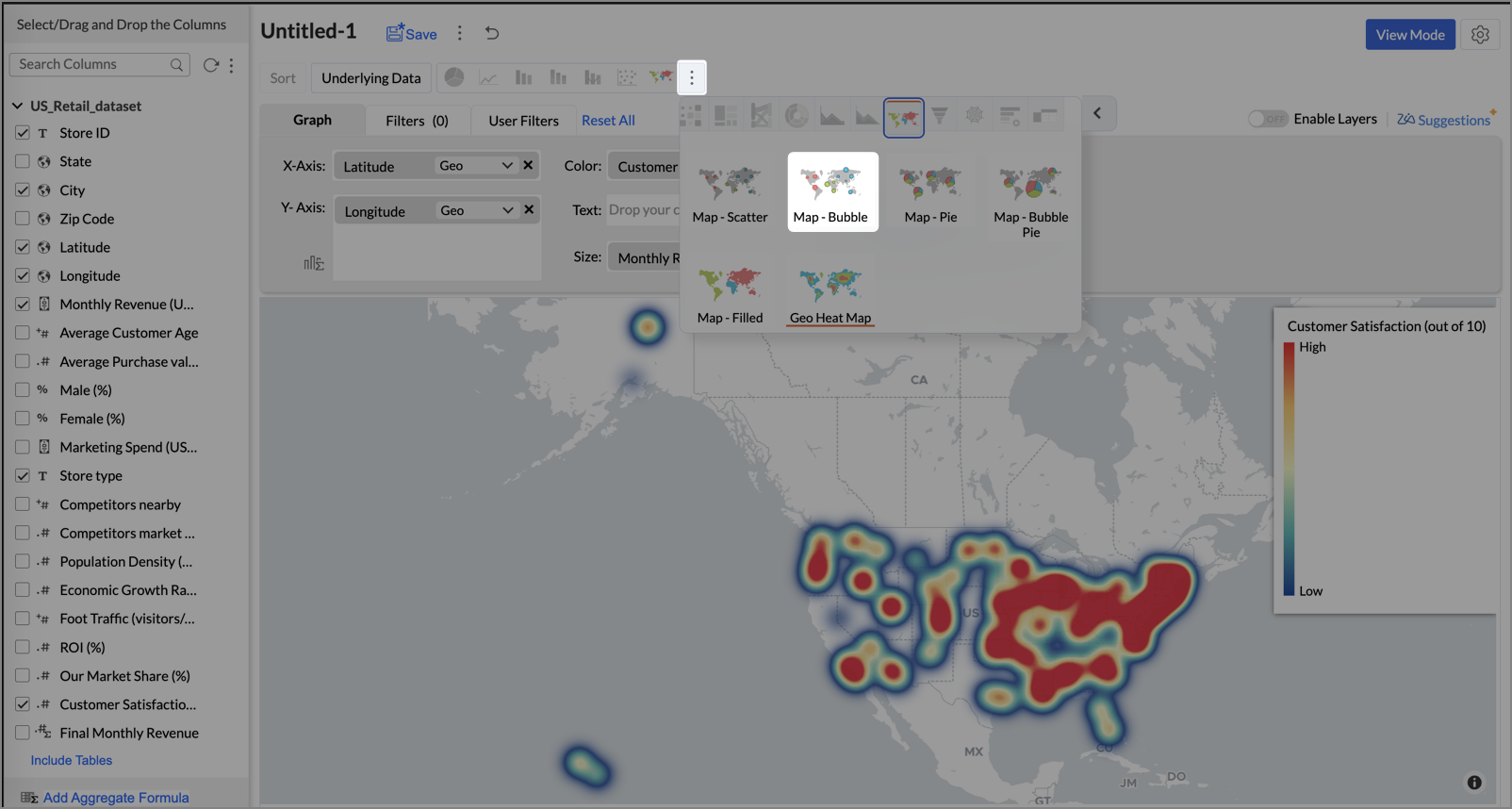
- Click on the ellipsis icon and select the chart type as Map - Bubble.
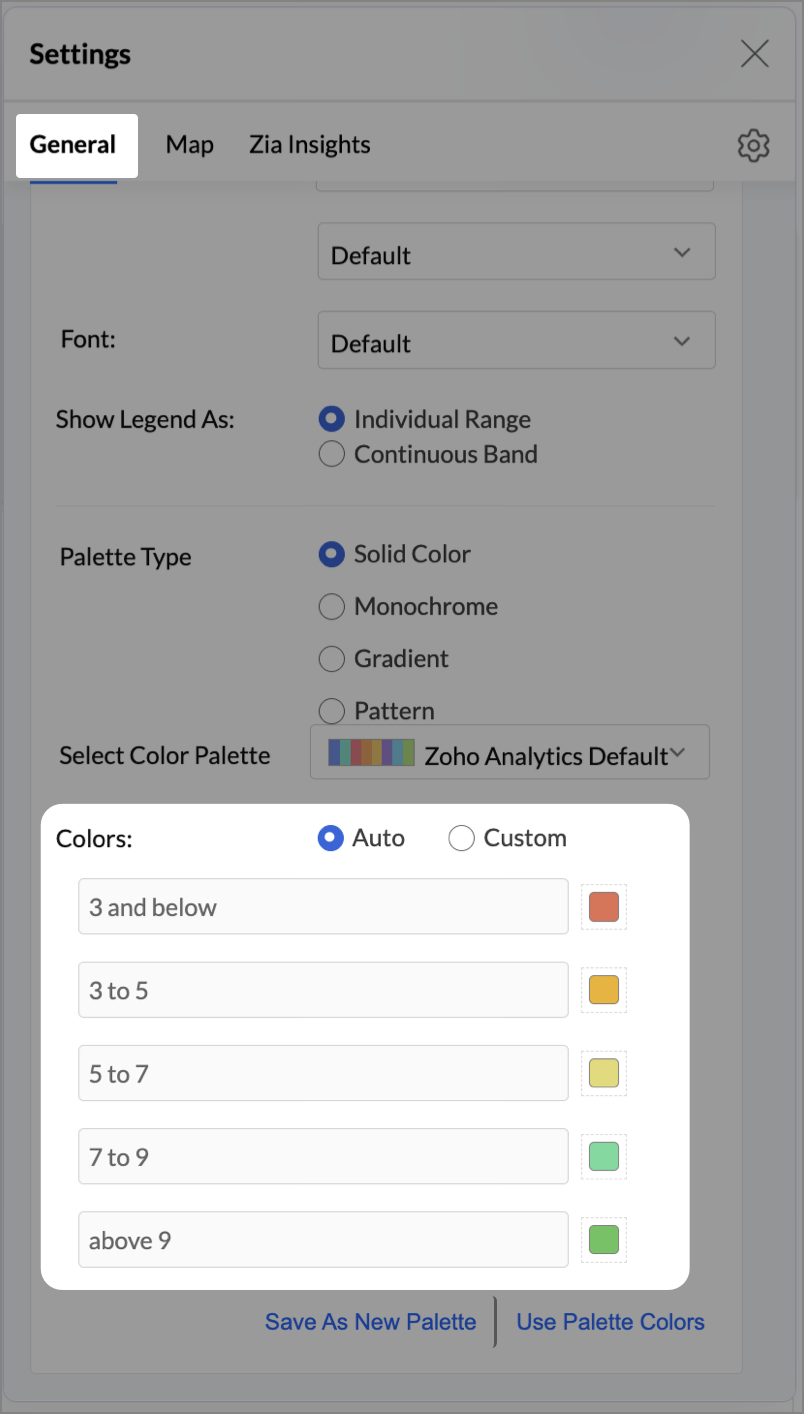
- Click the Settings icon, and under the General tab, click Legend.
- In the Colors section, customize the color scale from red to green to represent satisfaction ranges.
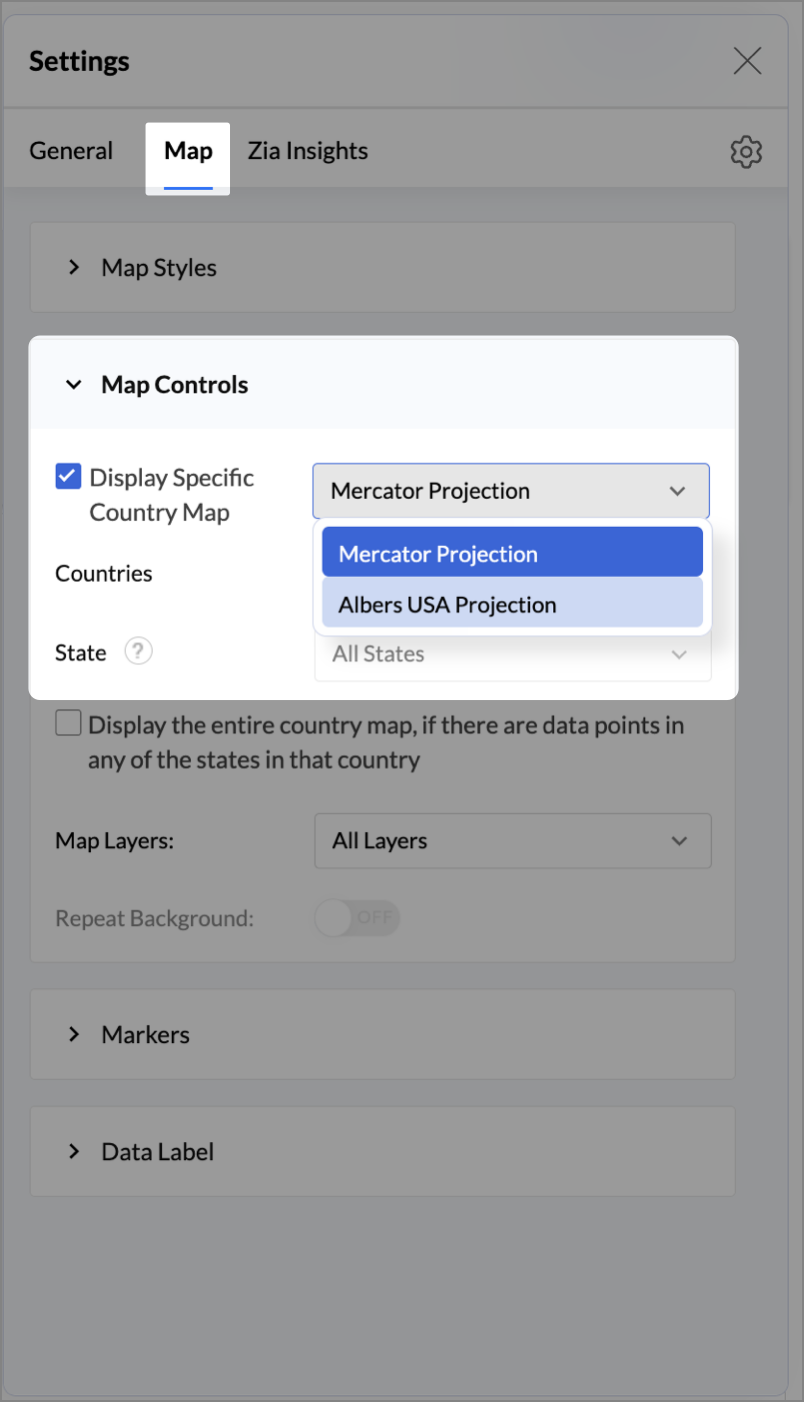
- Under the Map tab, click Map control and enable Display Specific Country Map.
- From the drop-down, select Albers USA Projection. This displays the USA map by placing Alaska and Hawaii below the mainland USA on a single map.
- Rename the report as Store Performance and click Save.
Tip:
Add a User filter such as Store type or State to analyze performance by segment.
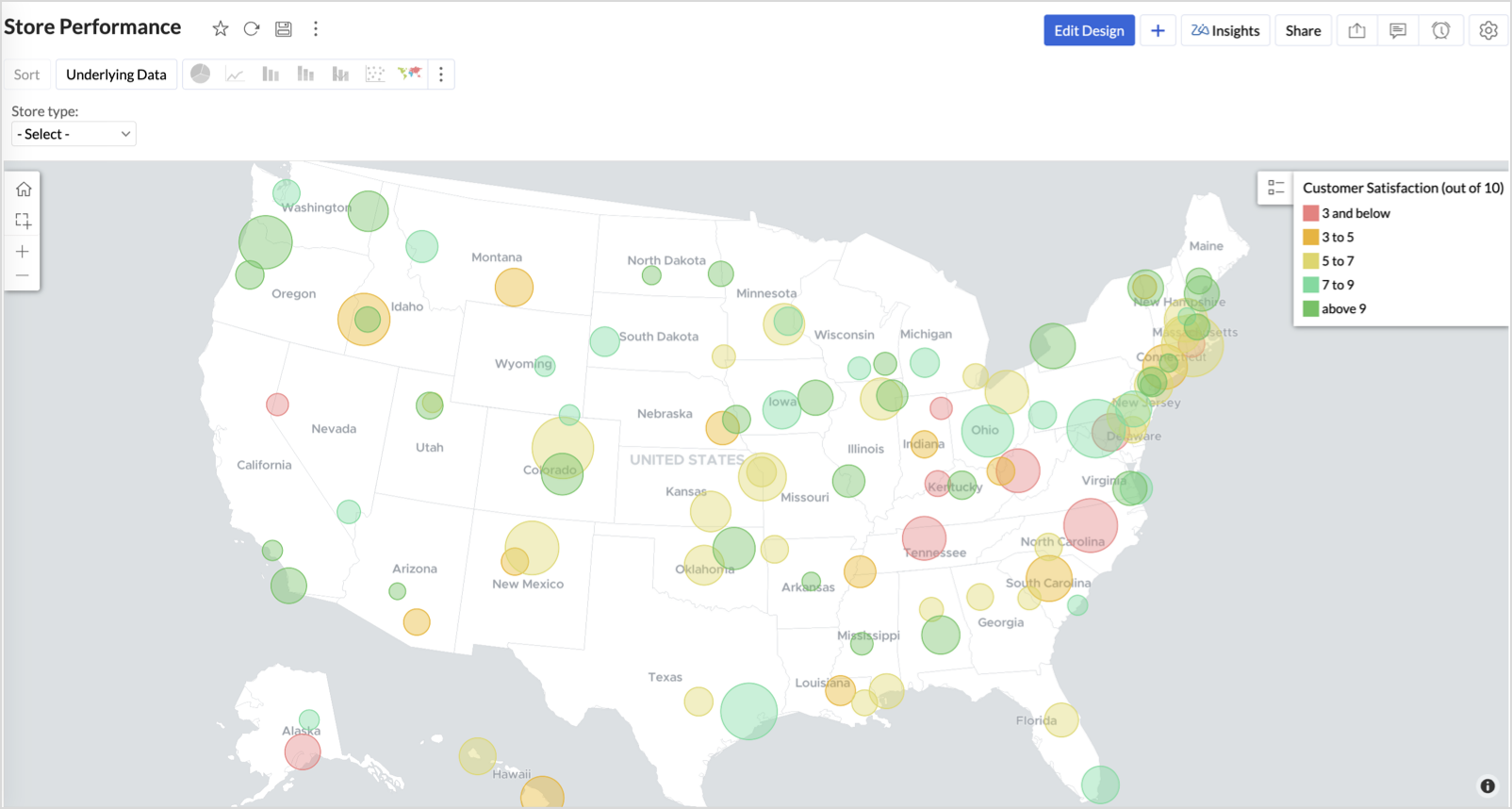
This configuration creates a bubble for every store, sized by its revenue and colored by customer satisfaction — instantly showing how happy customers are in high- or low-revenue zones.
Key Insights
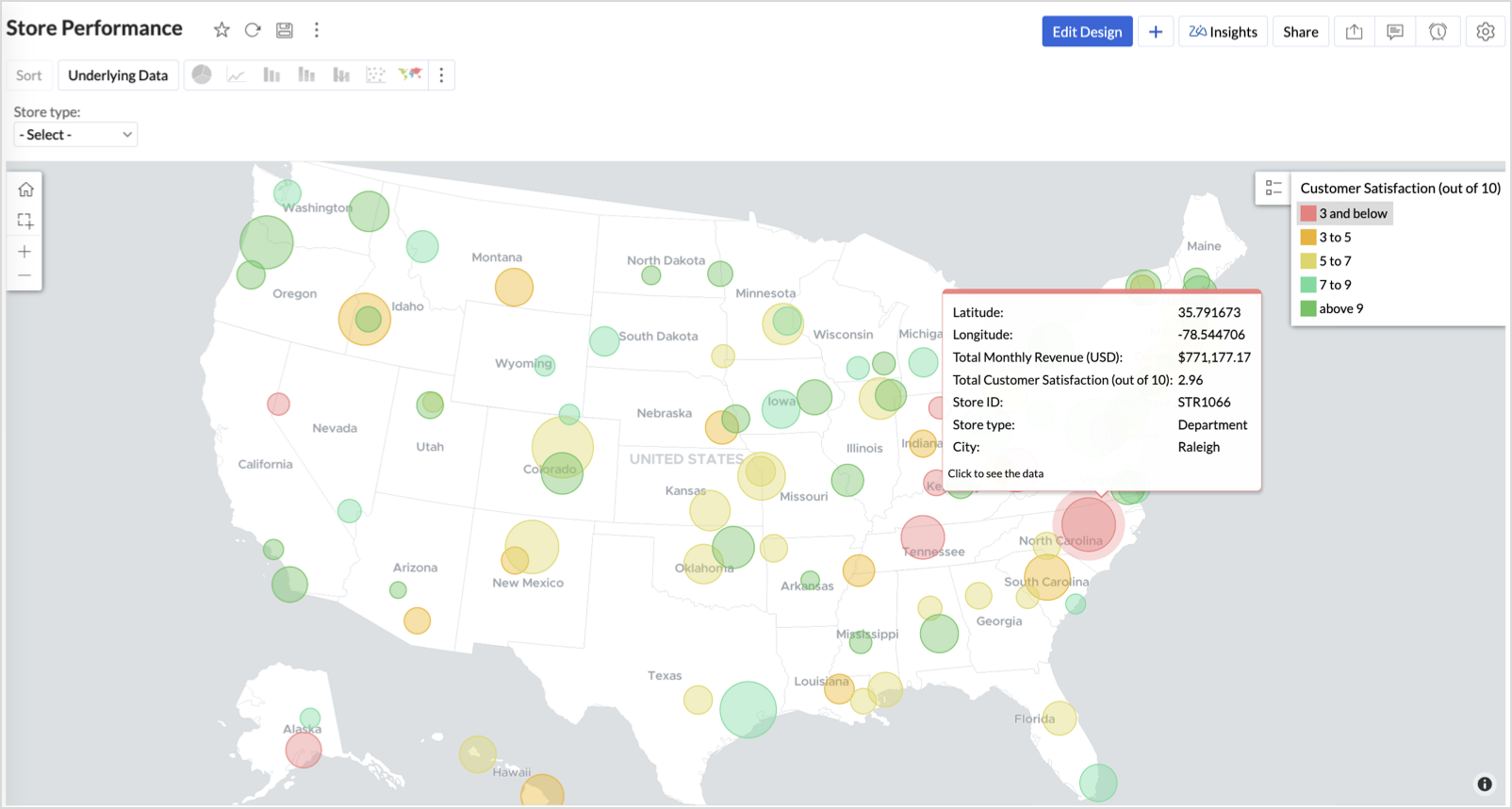
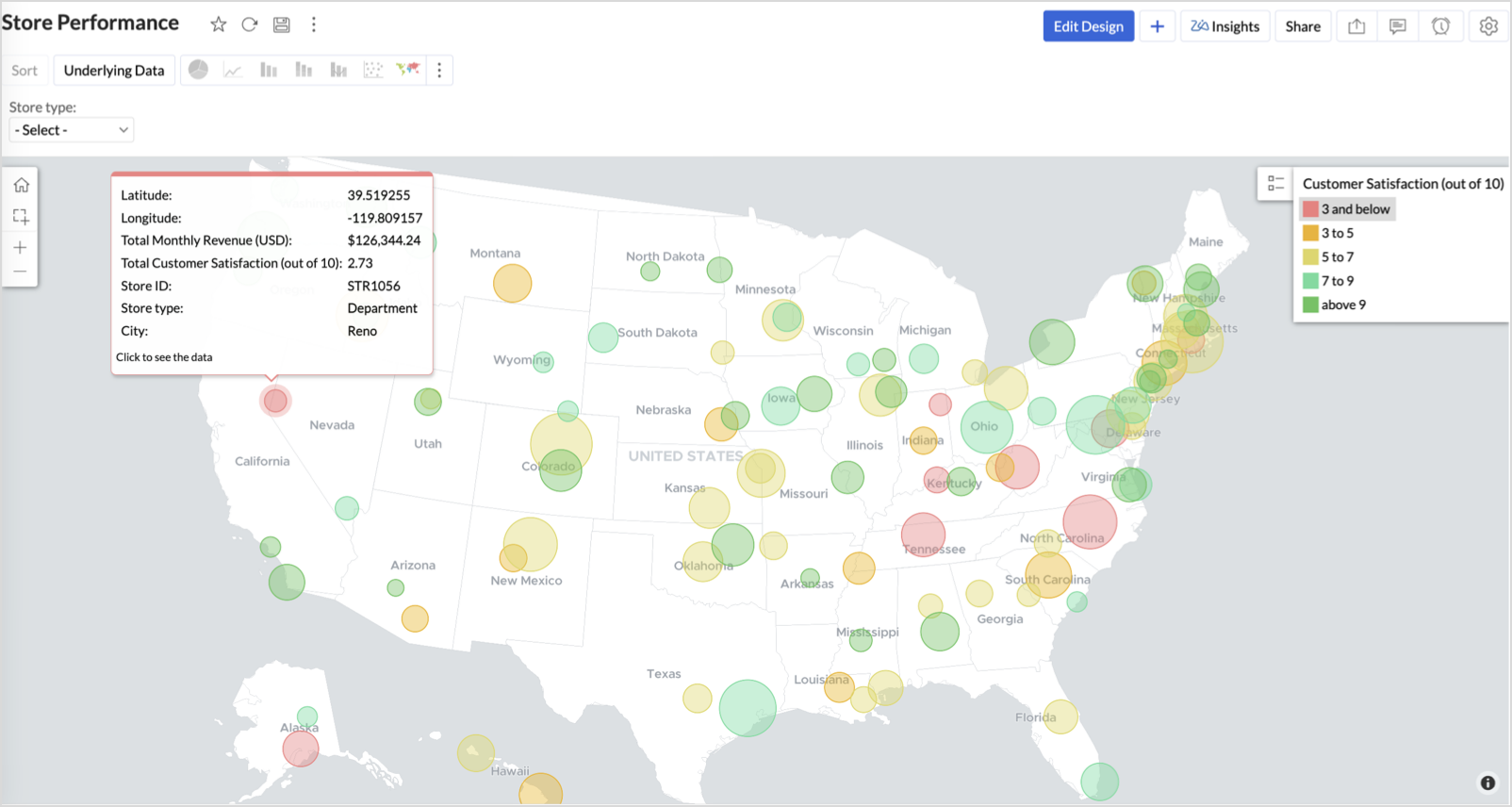
Large bubble + Red color - High revenue but poor satisfaction — risk of churn!
Small bubble + Green color - Low revenue but high satisfaction — possibly underserved
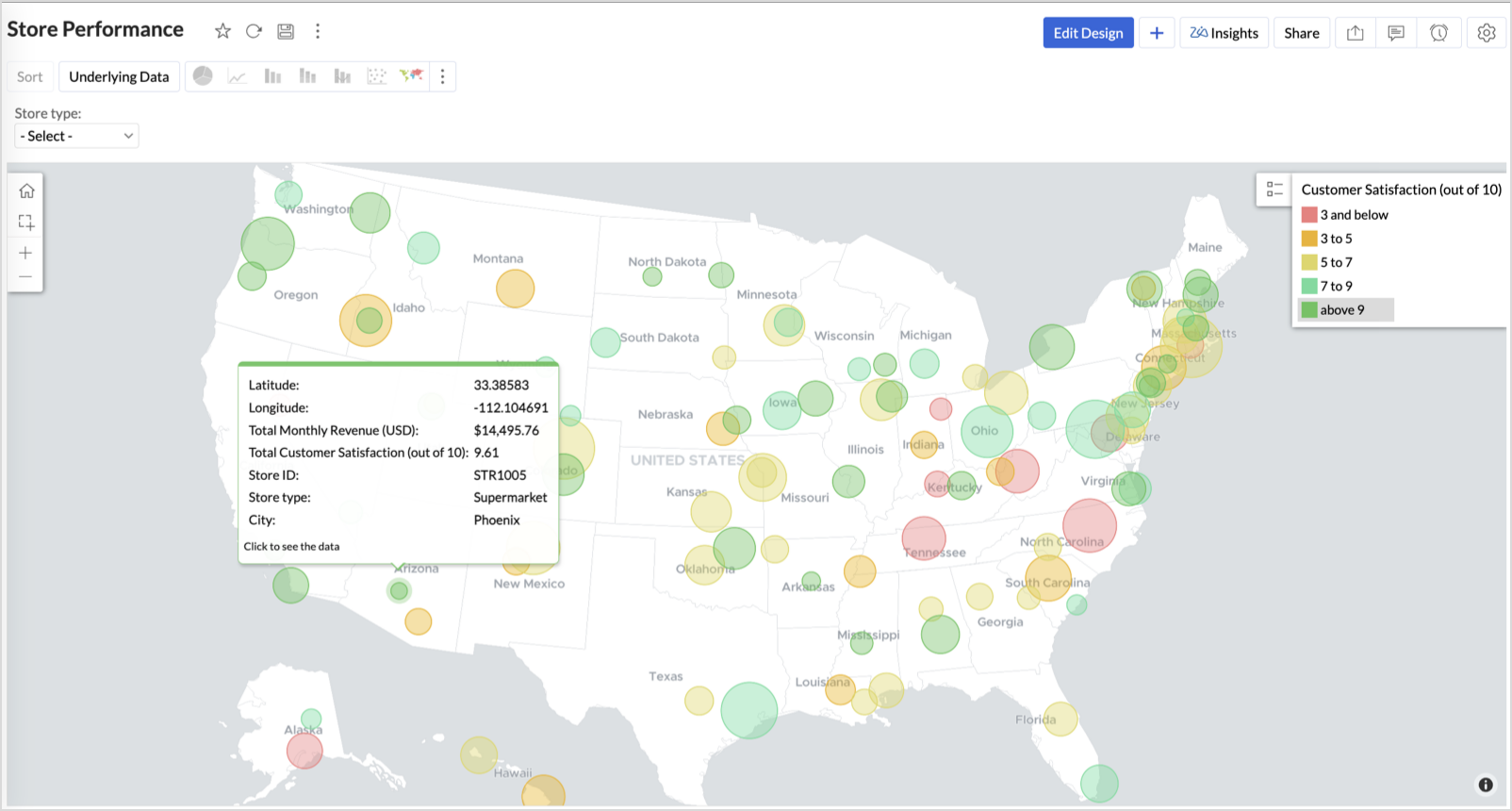
Large bubble + Green color - Healthy performers — consider replicating success
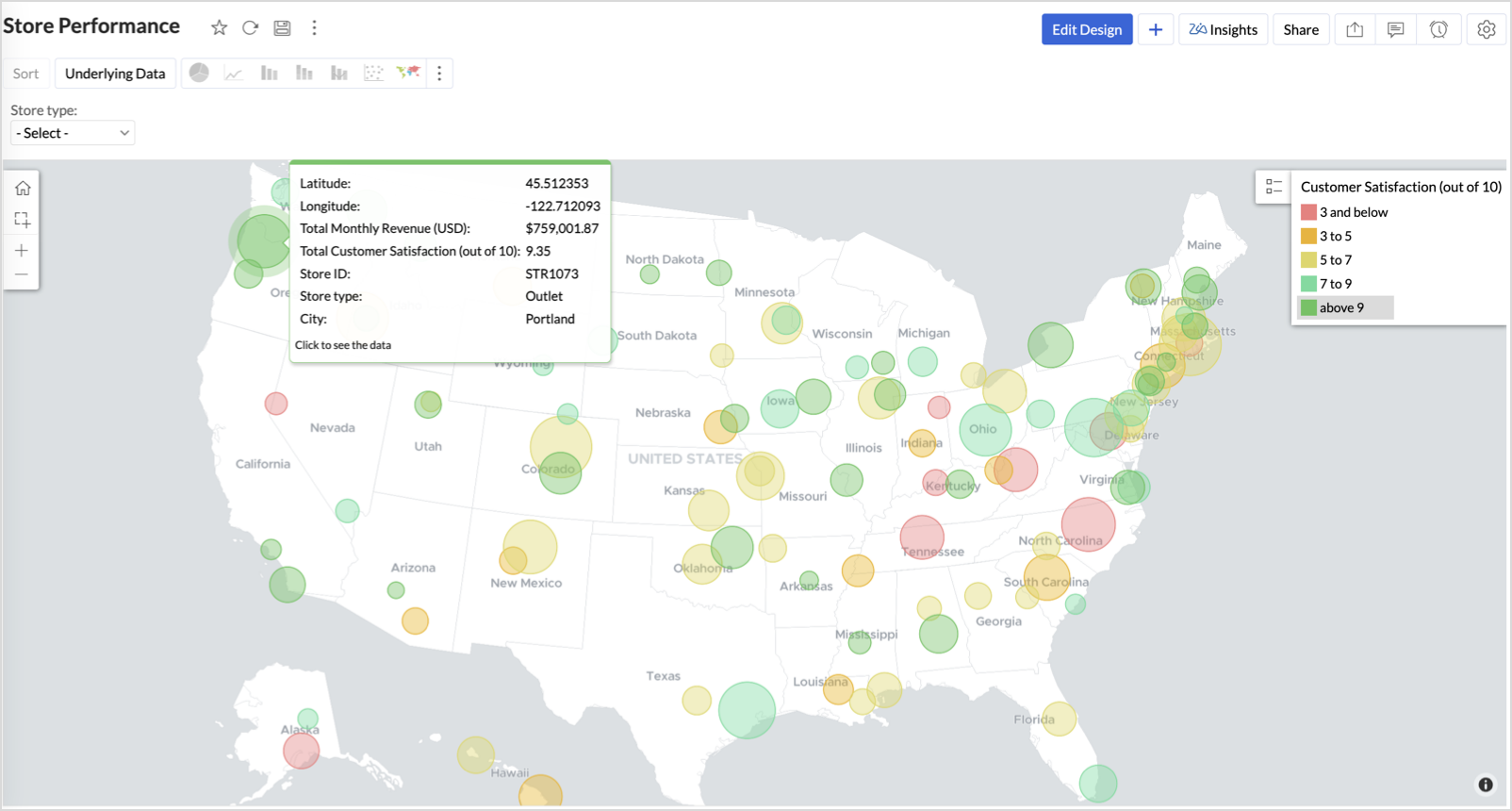
Small bubble + Red color - Low performers — review for possible closure or revamp.
Business Interpretation
This chart acts as a live performance map for executives and analysts. Instead of scanning through tables or KPIs, stakeholders can instantly spot outliers, prioritize investments, and plan corrective actions by just glancing at the map.
2. Revenue-to-Traffic Ratio with Ghost Zone Detection (Map - Filled + Scatter)
To evaluate how efficiently each state is converting foot traffic into store revenue — and more importantly, to identify high-footfall regions without store presence, often referred to as ghost zones.
This chart helps:
- Compare state-level foot traffic against actual revenue
- Spot underutilized or over-performing regions
- Discover untapped markets with high visitor potential but less to no physical stores
Why Map - Filled + Scatter?
- The Map - Filled chart provides a regional perspective of traffic density and revenue generation.
- The Scatter layer overlays actual store locations based on latitude and longitude.
This powerful combo allows you to measure performance where you’re active and spot opportunities where you're not.
Procedure
- From the dataset, click the Create icon and select Chart View.
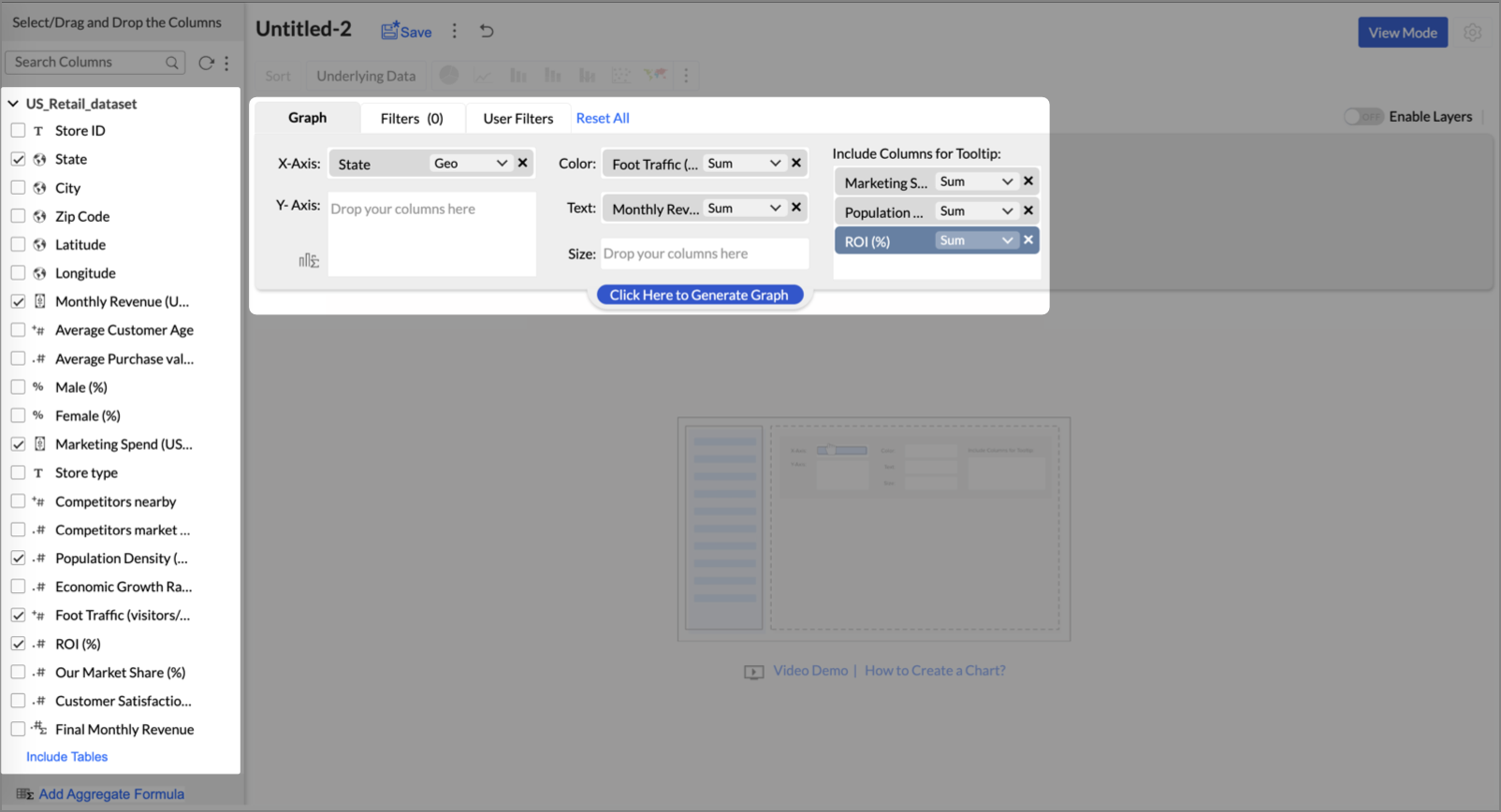
- On the designer page, drag and drop the following columns into their respective shelves:
- State → X-Axis
- Foot Traffic (visitors/month) → Color
- Monthly Revenue (USD) → Text
- Marketing Spend (USD), Population Density (people/sq km), ROI (%) → Tooltip
- Click Generate Graph.
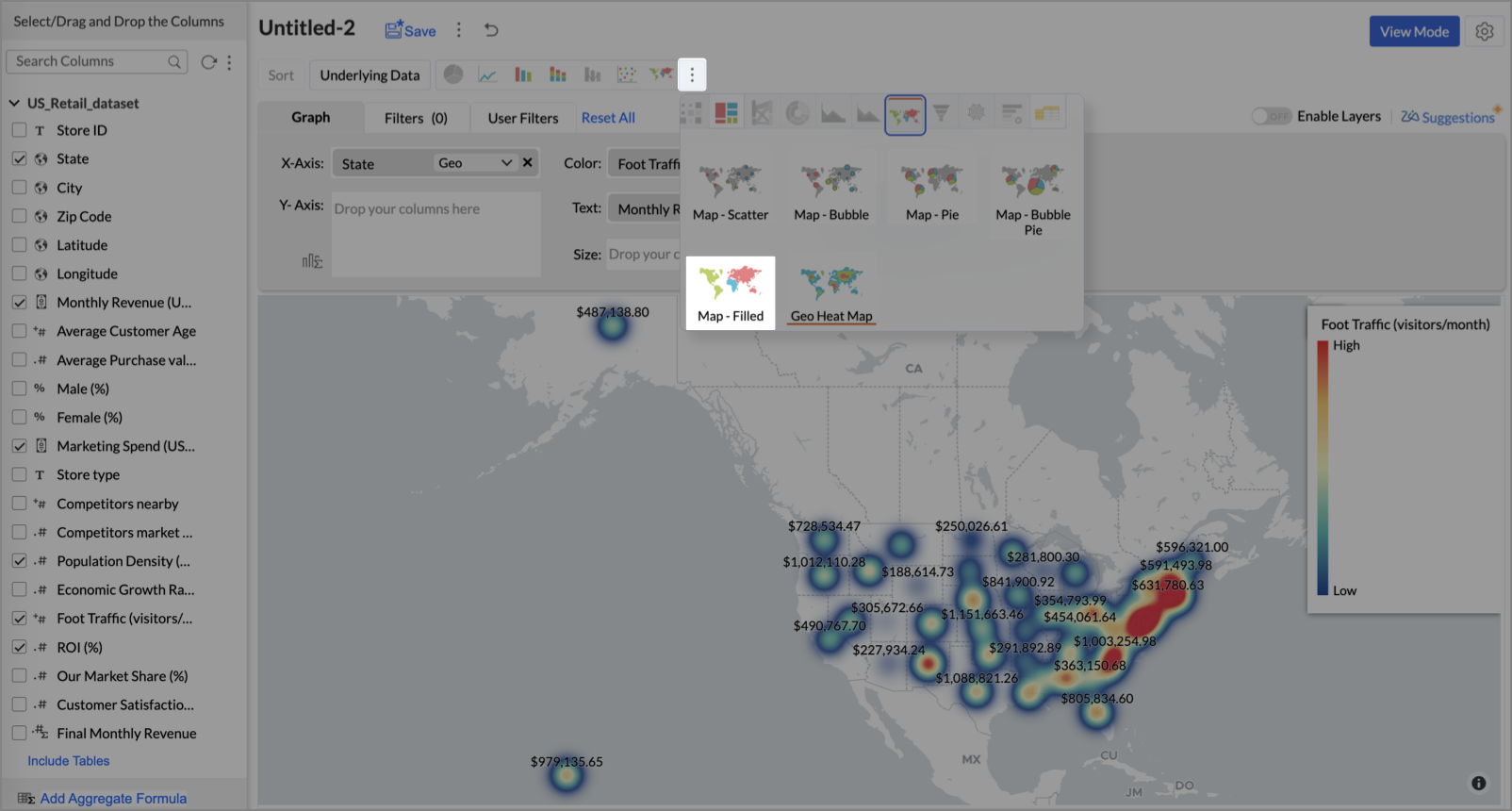
- Click on more option and select the chart type as Map-Filled.
- Click the Settings icon, then click Legend.
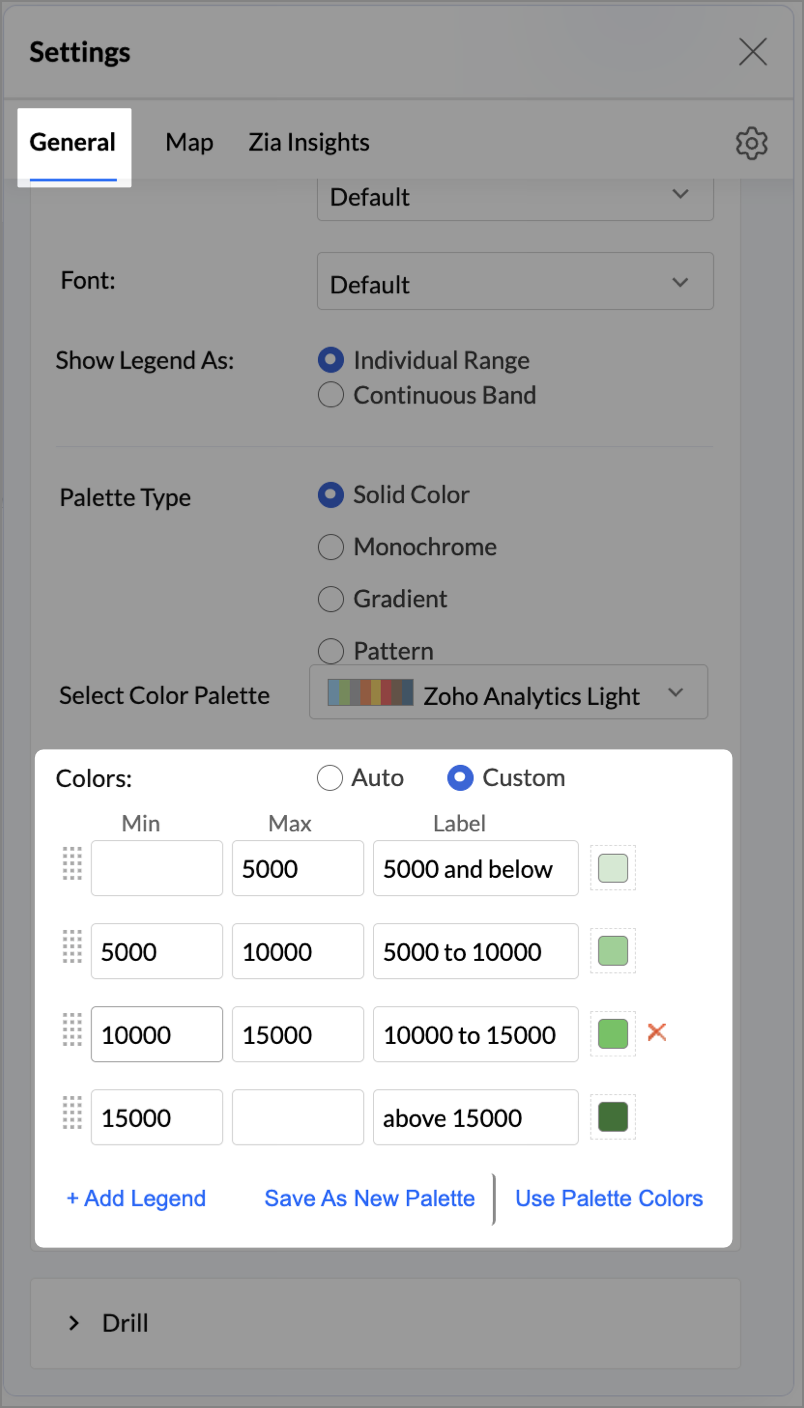
- In the Colors section, assign from light to dark green colors for the below range of foot traffic:
- Below 5,000
- 5,000–10,000
- 10,000–15,000
- Above 15,000
- Under the Map tab, change the map to Albers USA Projection.
This filled layer highlights traffic and revenue across states.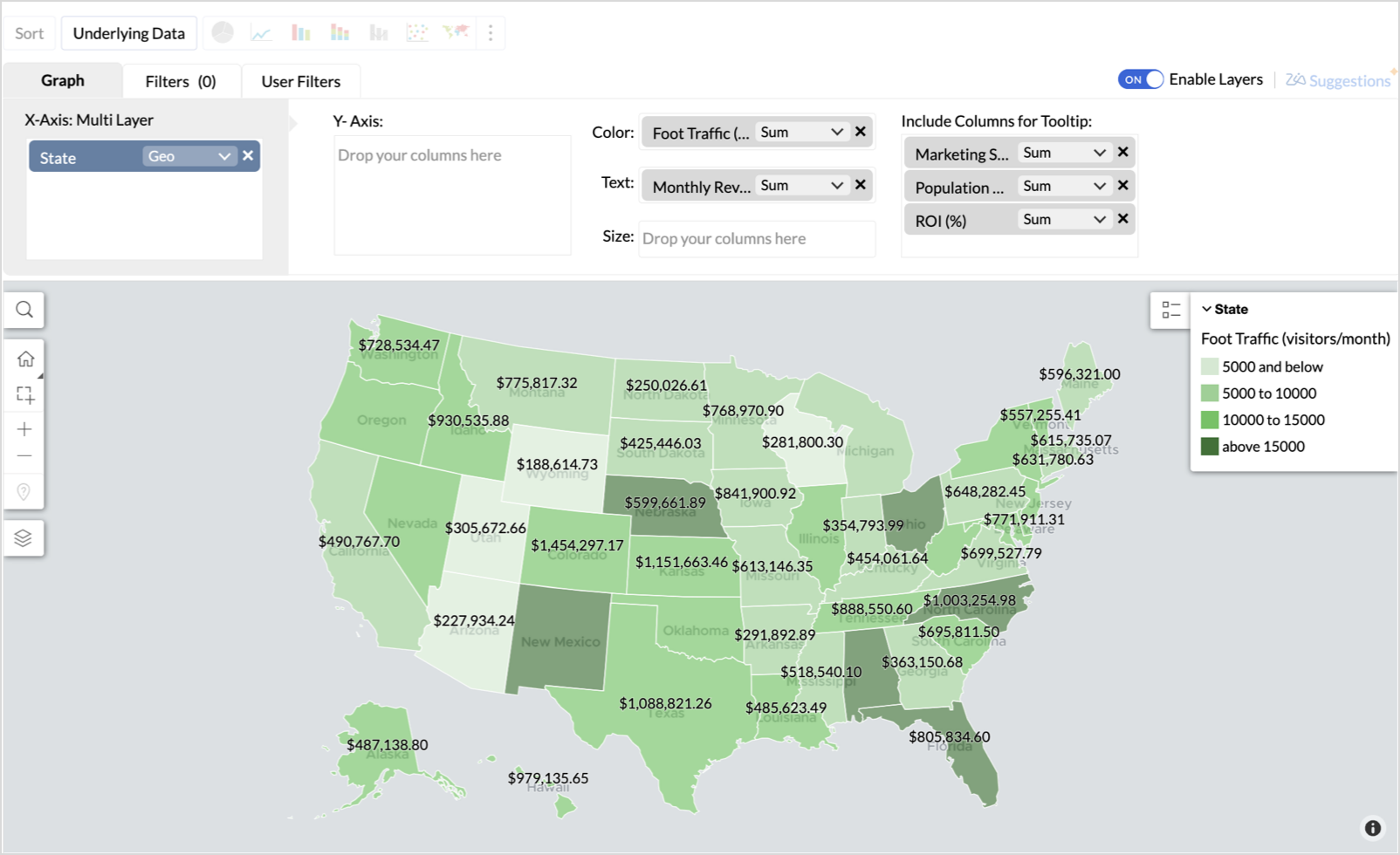
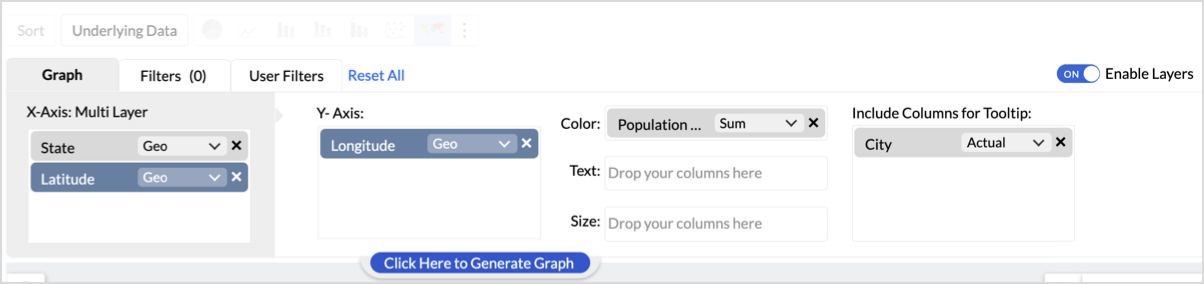
- Toggle Enable Layers to add a second layer.

- In the new layer, drag and drop Latitude and Longitude into the X-Axis and Y-Axis respectively, Population density into the Color shelf, and click Generate Graph.
- Click Layer Controls, select Chart Chooser besides Latitude and choose the map as Map - Scatter from the list.
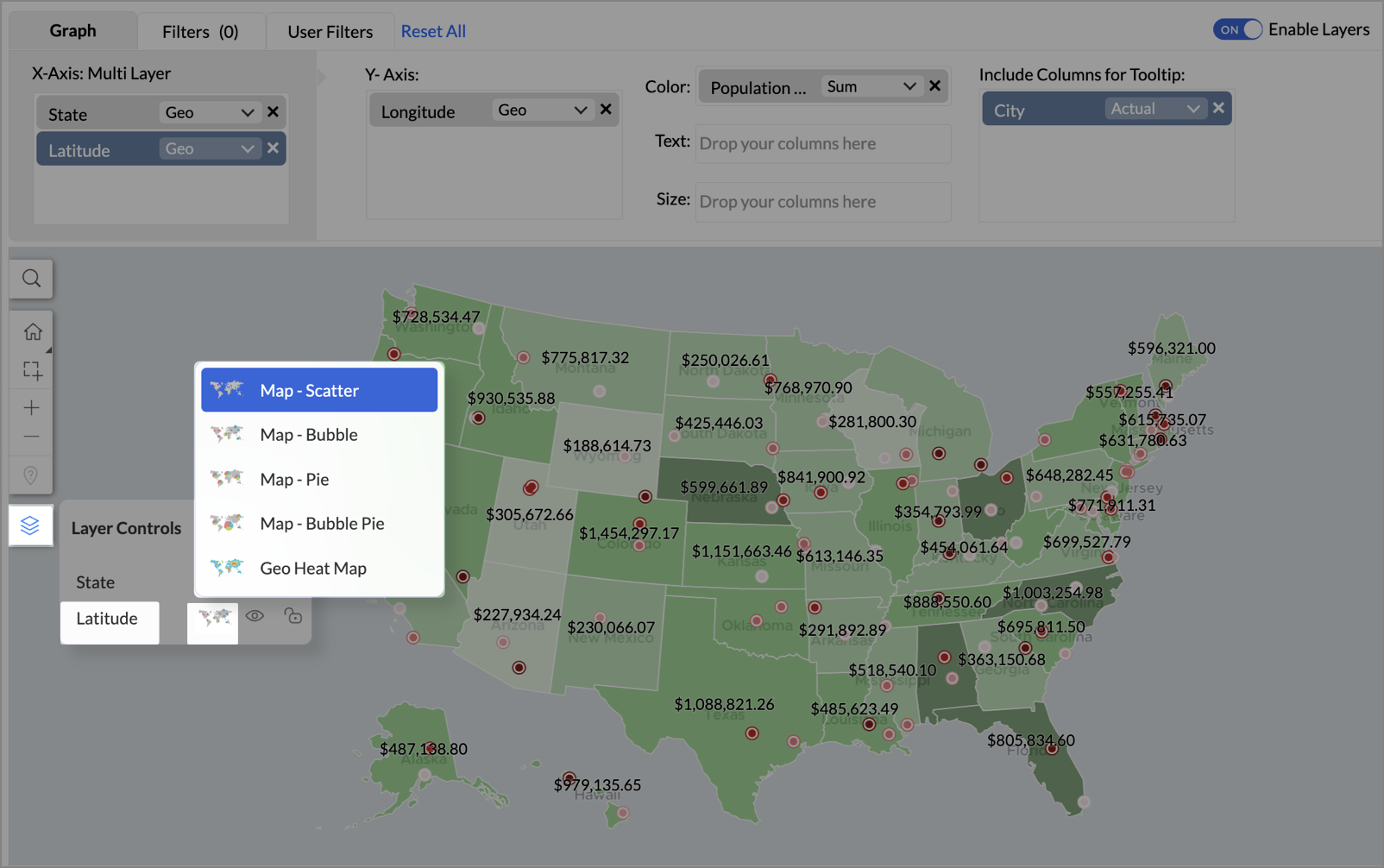
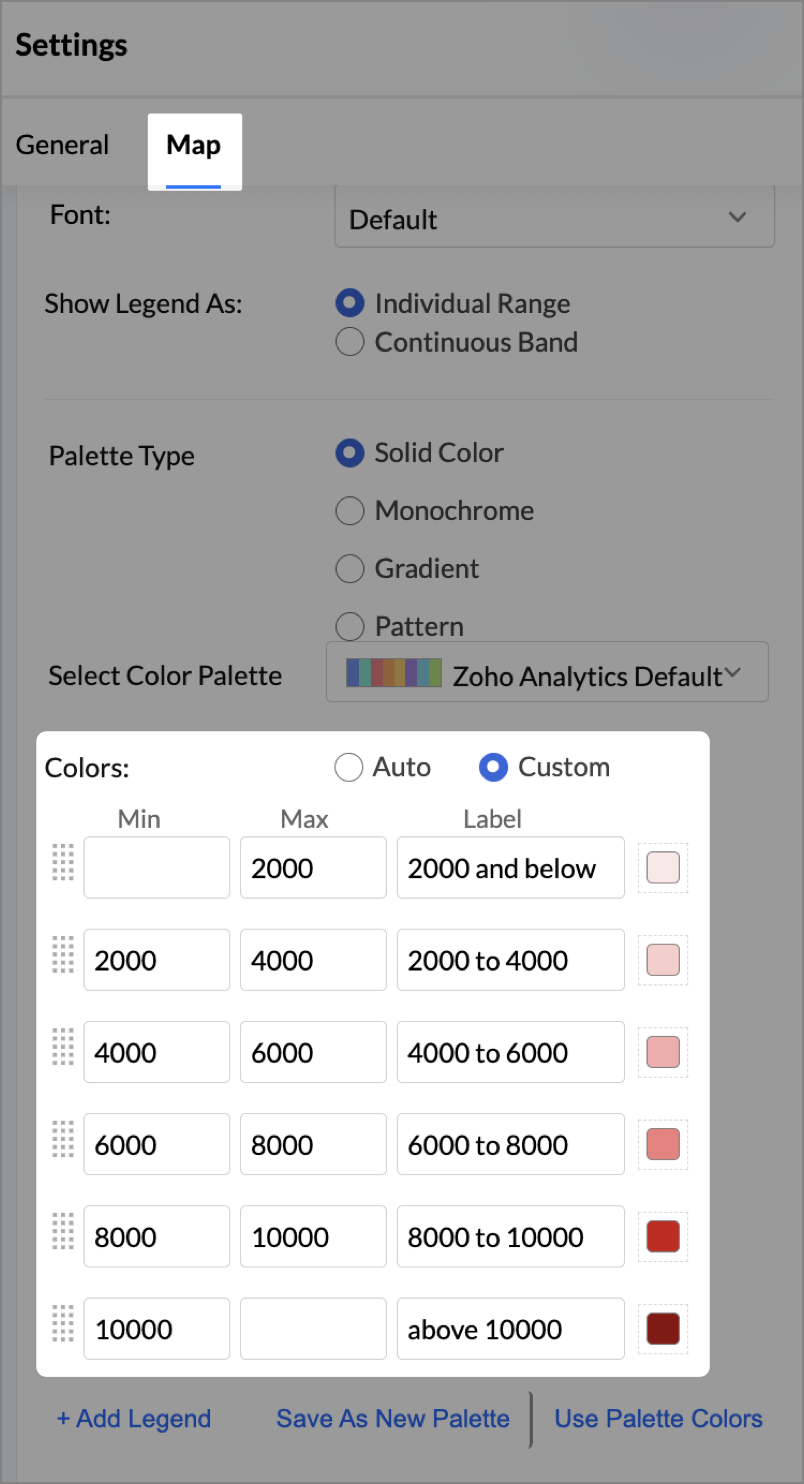
- To customize the second layer, go to Settings → Map → Latitude → Legend, and assign from light to dark red colors for the below range of population density:
- Below 2,000
- 2,000-4,000
- 4,000-6,000
- 6,000-8,000
- 8,000-10000
- Above 10,000
- Rename the report as Revenue-to-Traffic Ratio with Ghost Zone Detection and click Save.
This scatter layer marks the exact store locations, allowing visual correlation with high-traffic regions, revenue, and population density.

Key Insights
Dark green filled (high traffic) + Low revenue - Poor conversion - evaluate strategy or in-store experience
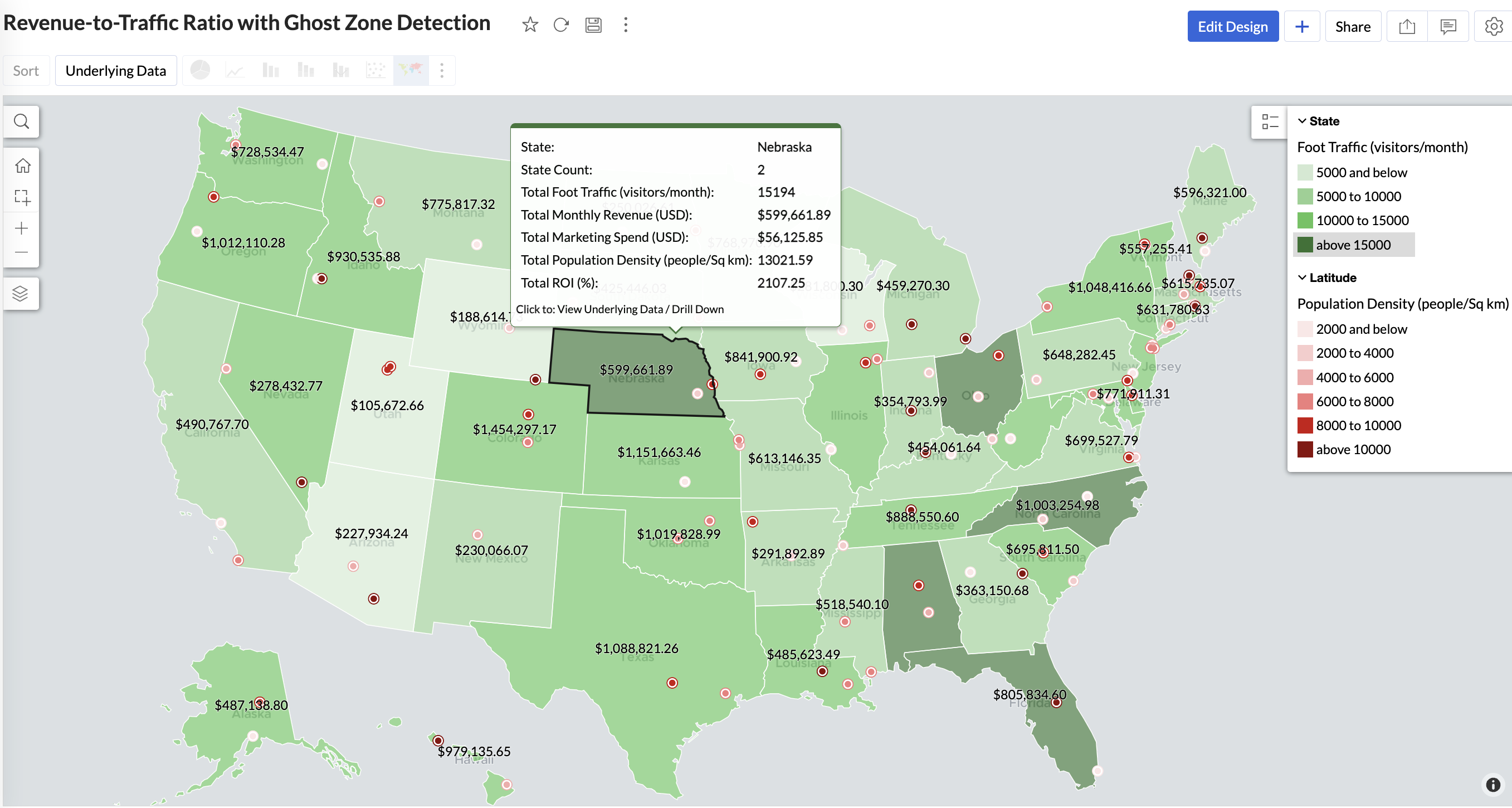
Mid to Dark green filled (high to mid traffic) + balanced revenue - Efficient zones — consider scaling efforts
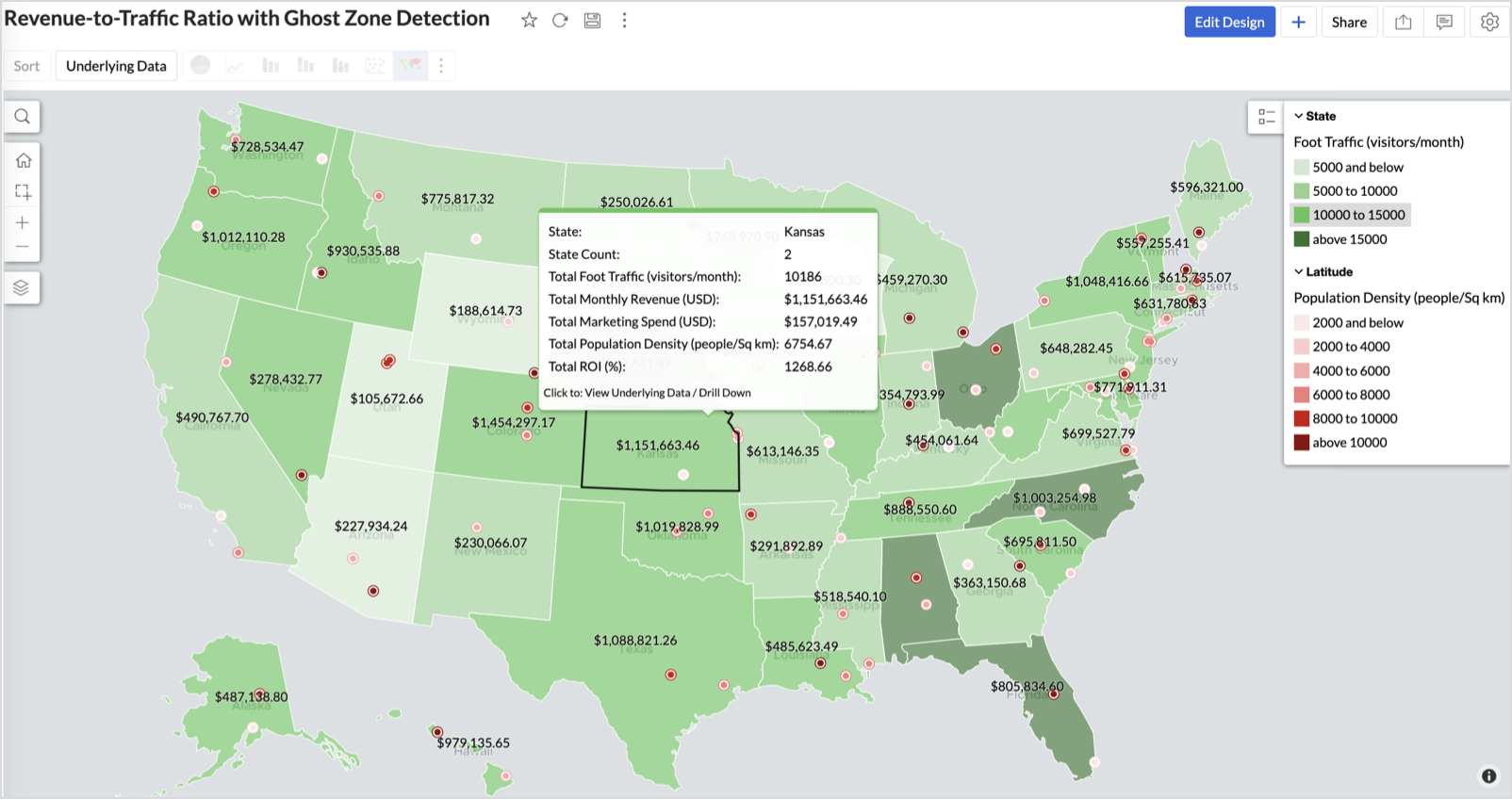
Light green filled (low traffic) + high marketing spend (from tooltip) - Budget drain — reduce spend or re-evaluate targeting
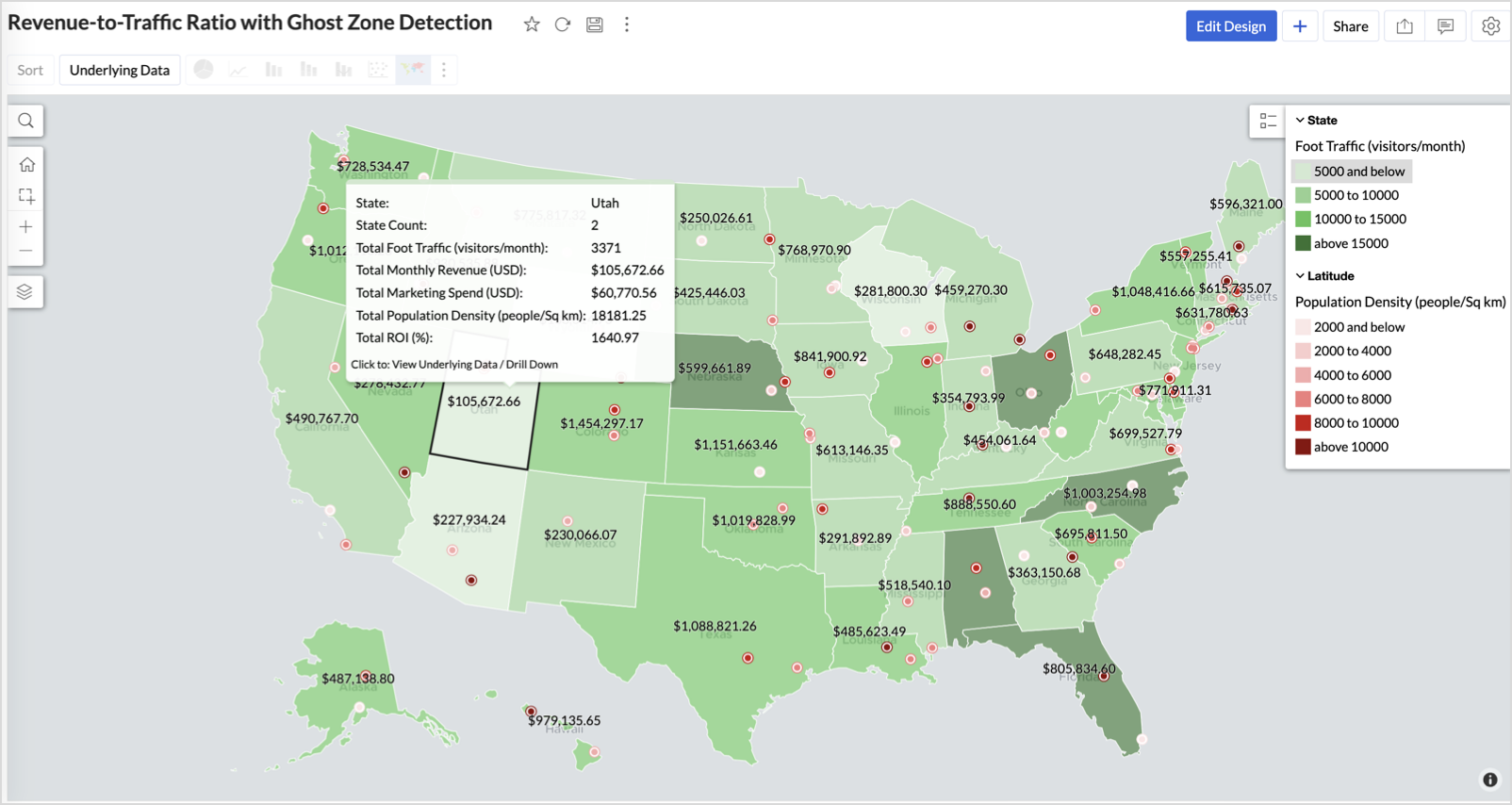
Dark red marker (high population density) + less to no store markers - Ghost Zones — high opportunity areas for expansion
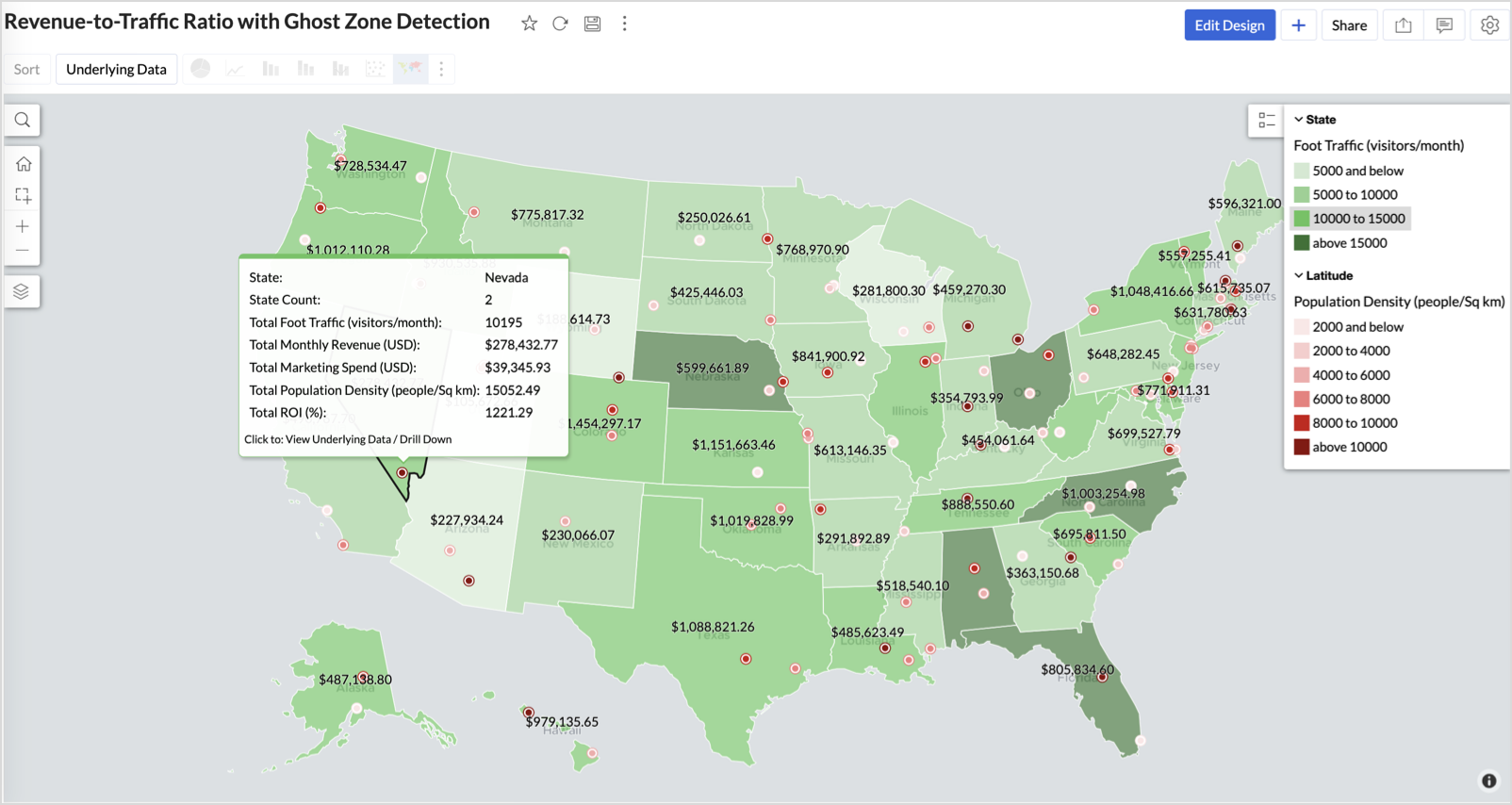
Example: In Las Vegas from Nevada, with a population density of 10,428 people/sq km and only two stores handling 10K–15K visitors/month, monthly revenue of the state remains modest at ~$278K. This indicates a high-opportunity zone for expansion, with strong footfall but untapped revenue potential.
Interpretation & Use
This map is designed for marketing and expansion teams who need to:
- Justify where to open new stores
- Optimize existing resource allocation
It visually answers the question:
Are we generating revenue where people are actually showing up?
Also, with the scatter layer:
Where are we not present — but should be?
3. Competitor Pressure Zones (Map – Scatter)
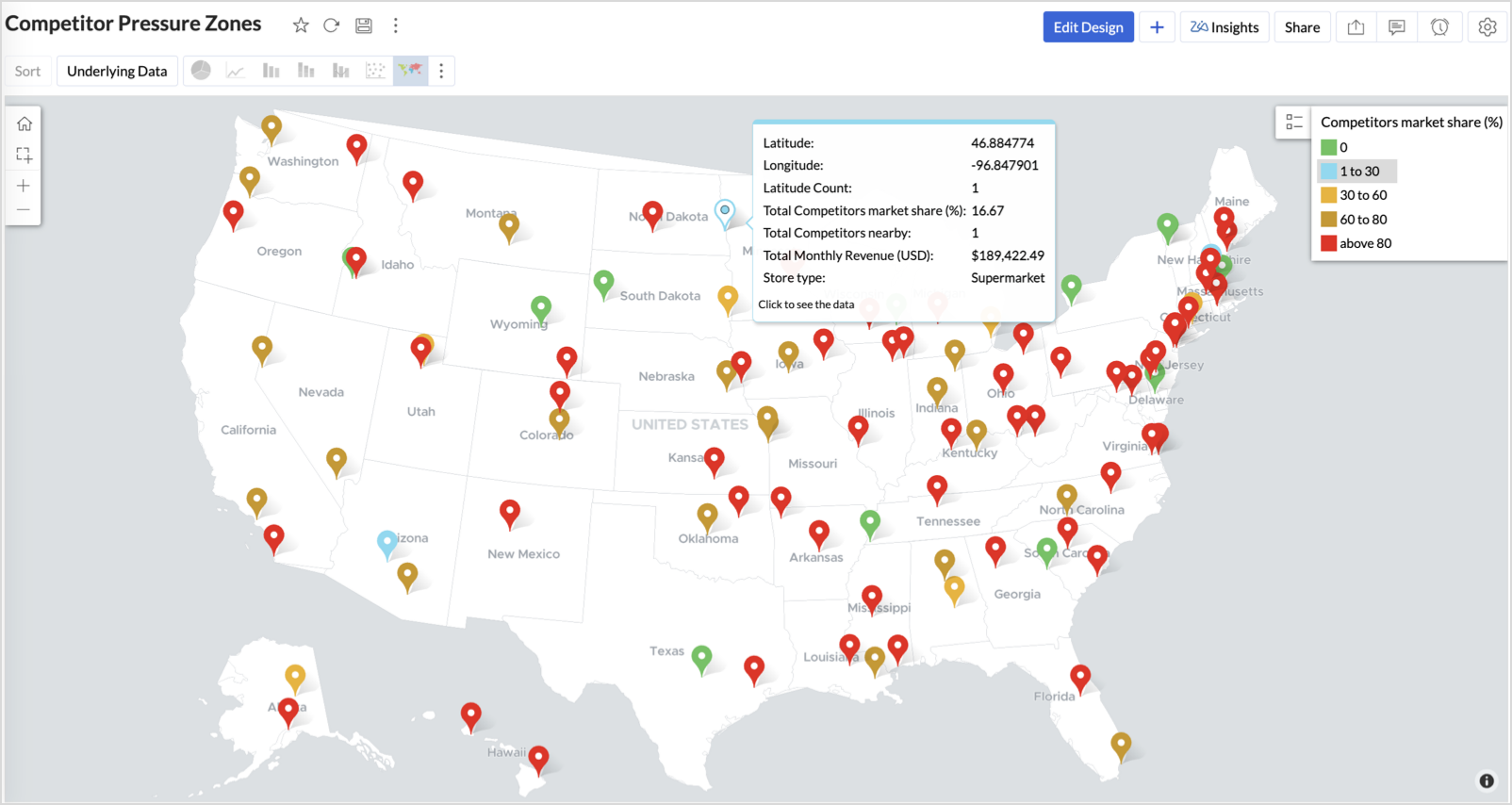
To evaluate how store performance is impacted by nearby competition, using a scatter map that plots every store across the U.S. and reflects competitor market share through color intensity.
This view helps:
- Detect locations under competitive stress
- Identify high-risk zones where your market share is at risk
- Correlate competitor presence with satisfaction and store performance
Why Map - Scatter?
Map - Scatter offers a clean and lightweight visual that plots each store based on its exact coordinates. By encoding competitor market share as color and overlaying other attributes via tooltip, this chart becomes a competitive pressure radar.
Procedure
- From the dataset, click the Create icon and select Chart View.
- In the chart designer, drag and drop the following columns into their respective shelves:
- Latitude → X-Axis
- Longitude → Y-Axis
- Competitors market share → Color
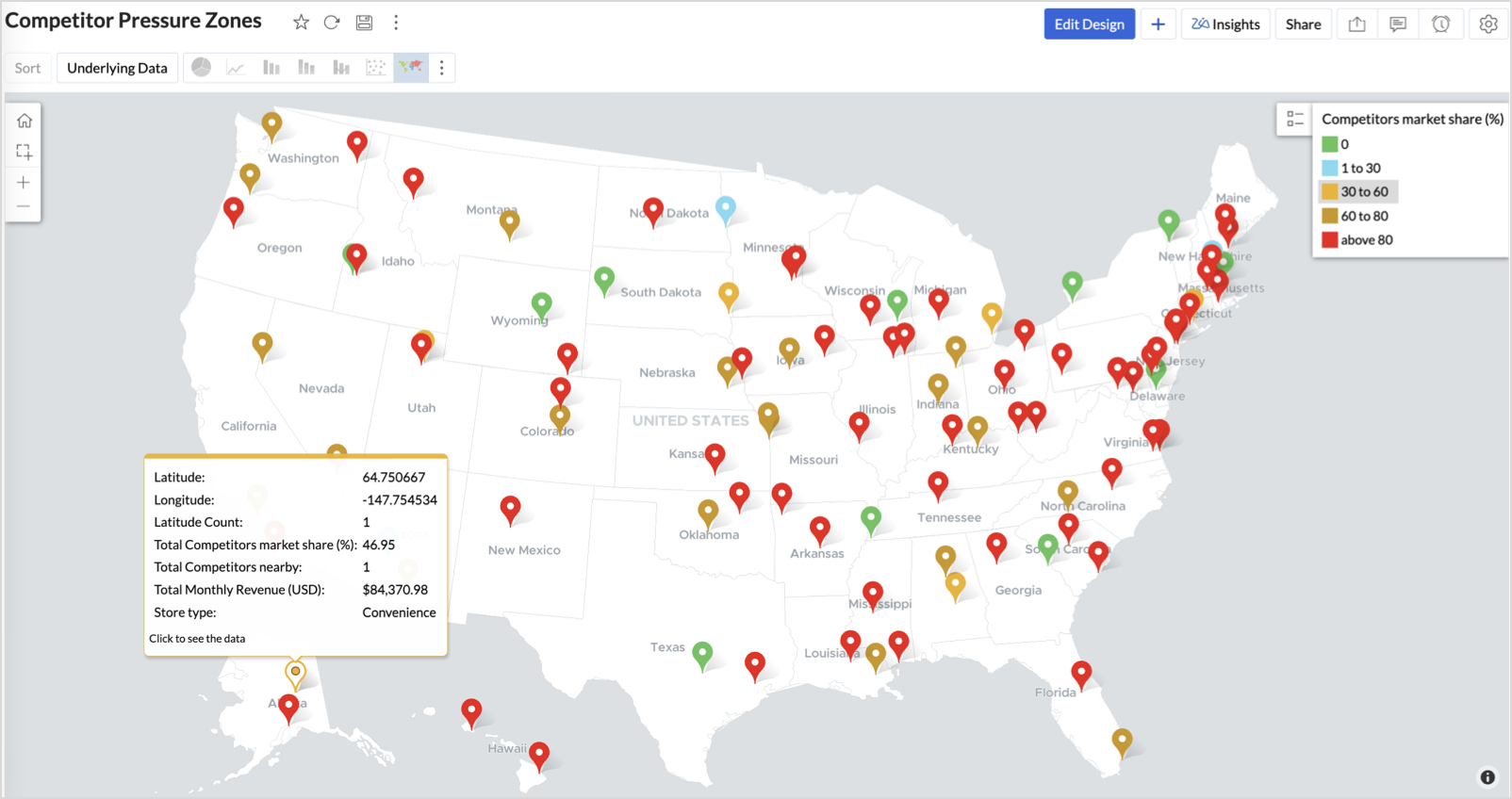
- Competitors nearby, Monthly Revenue, and Store Type → Tooltip
- Click Generate Graph.
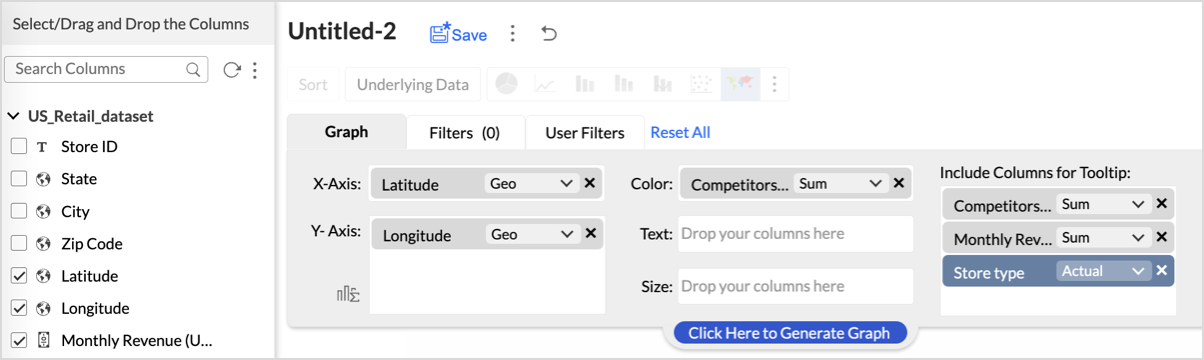
- Click on the more option and select the chart type as Map-Scatter.
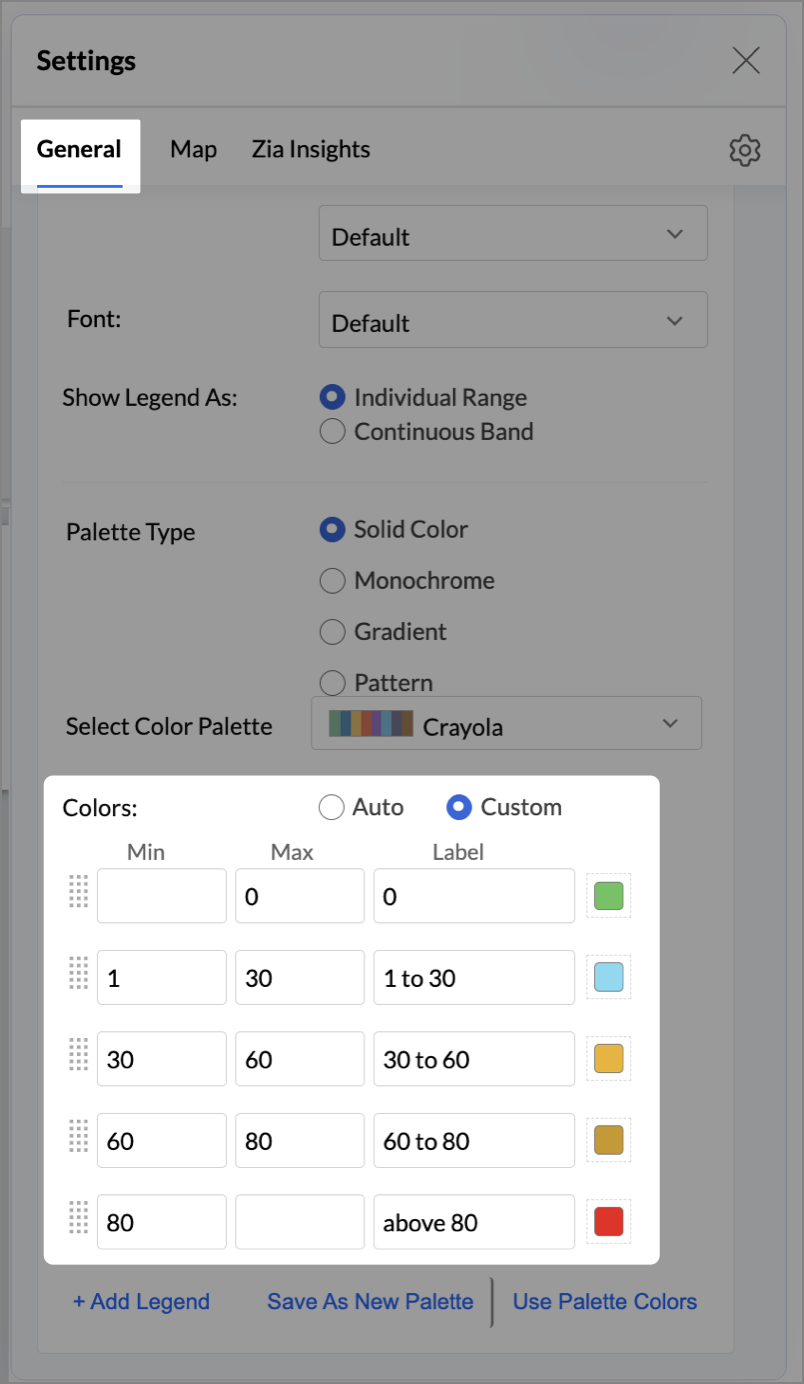
- In the Settings panel, adjust the color gradient to reflect pressure levels
- 0 → Green
- 1-30 → Cyan
- 30-60 → Orange
- 60-80 → Pale red
- Above 80 → Red
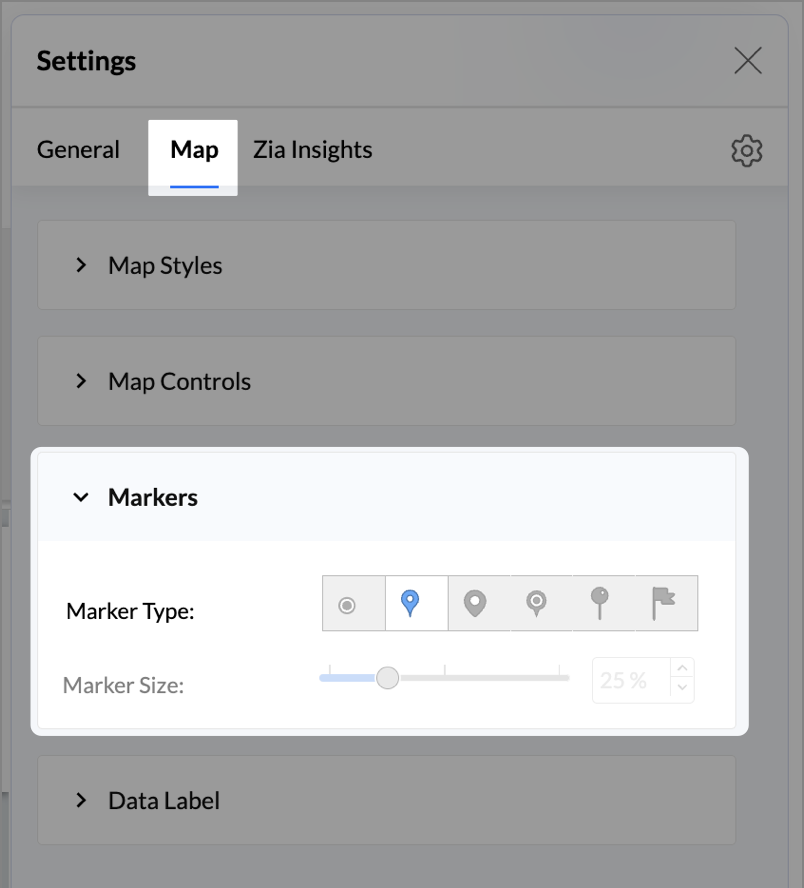
- Change the Marker type under Maps → Marker tab.
- Under the Map tab, change the map to Albers USA Projection.
- Rename the report as Competitor Pressure Zones and click Save.
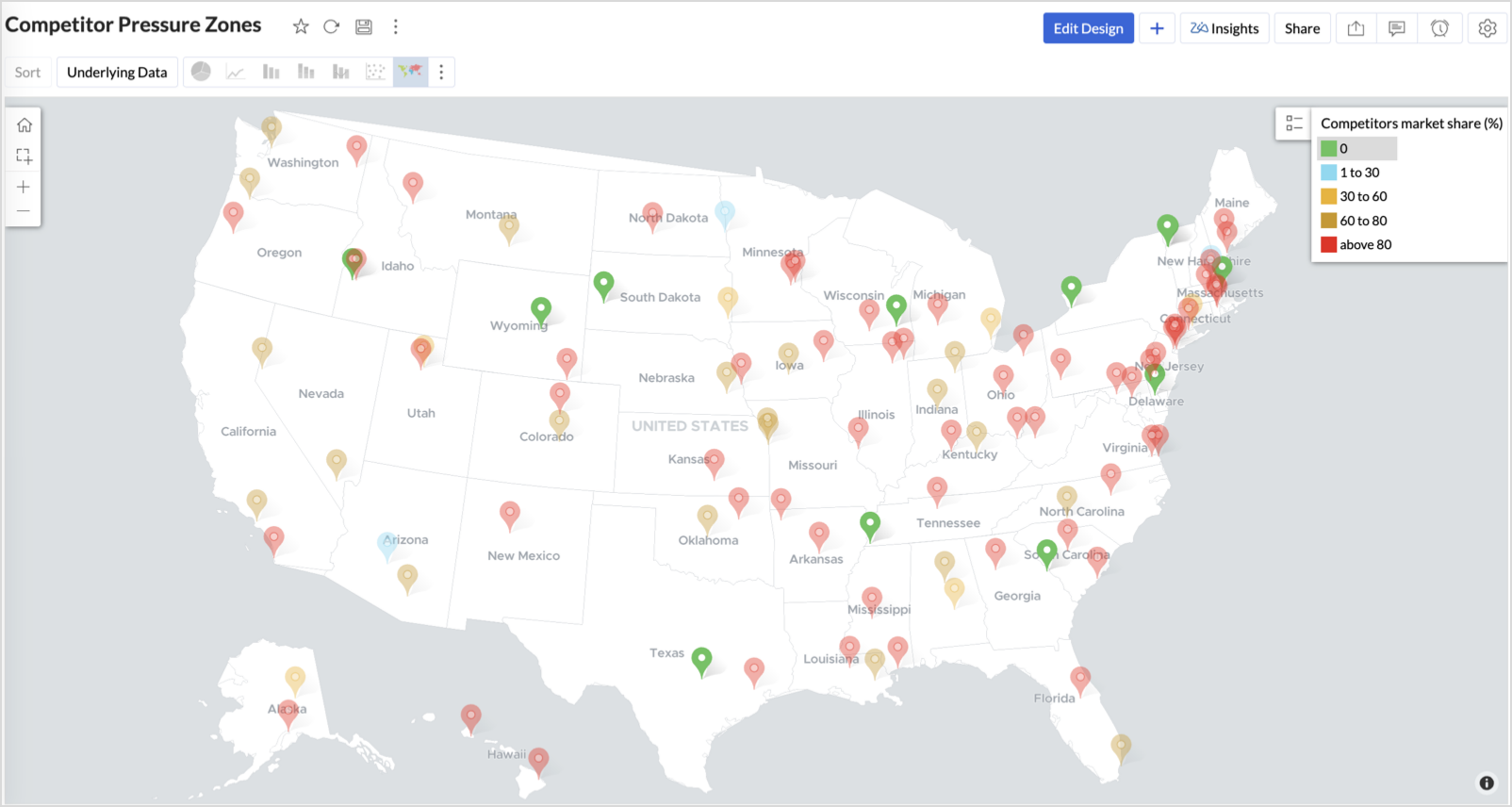
The resulting chart uses color to signal competitive heat around each store, allowing you to scan pressure zones across all regions visually.
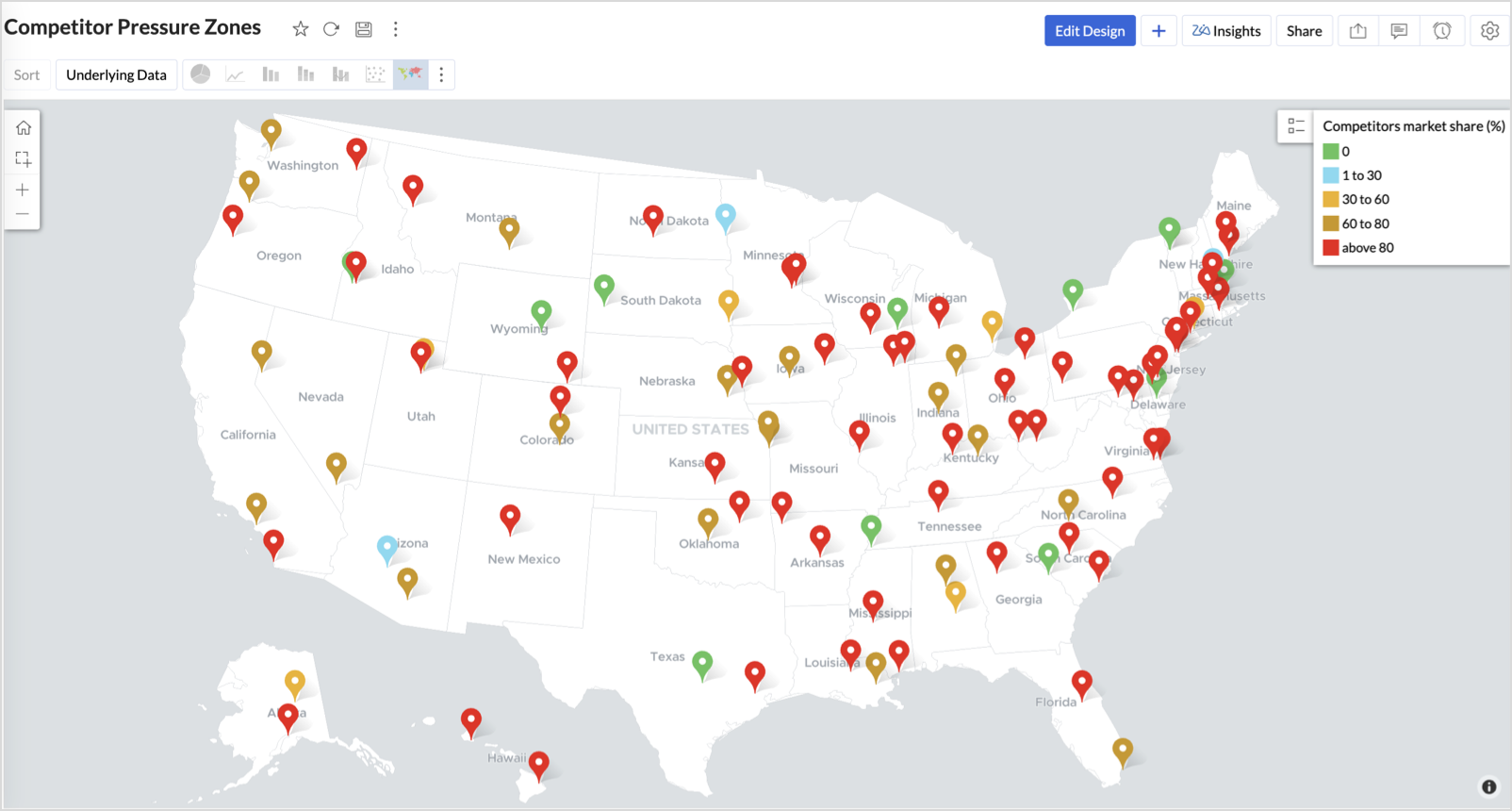
Key Insights
Red (80-100%) - High competitor dominance — urgent intervention zone
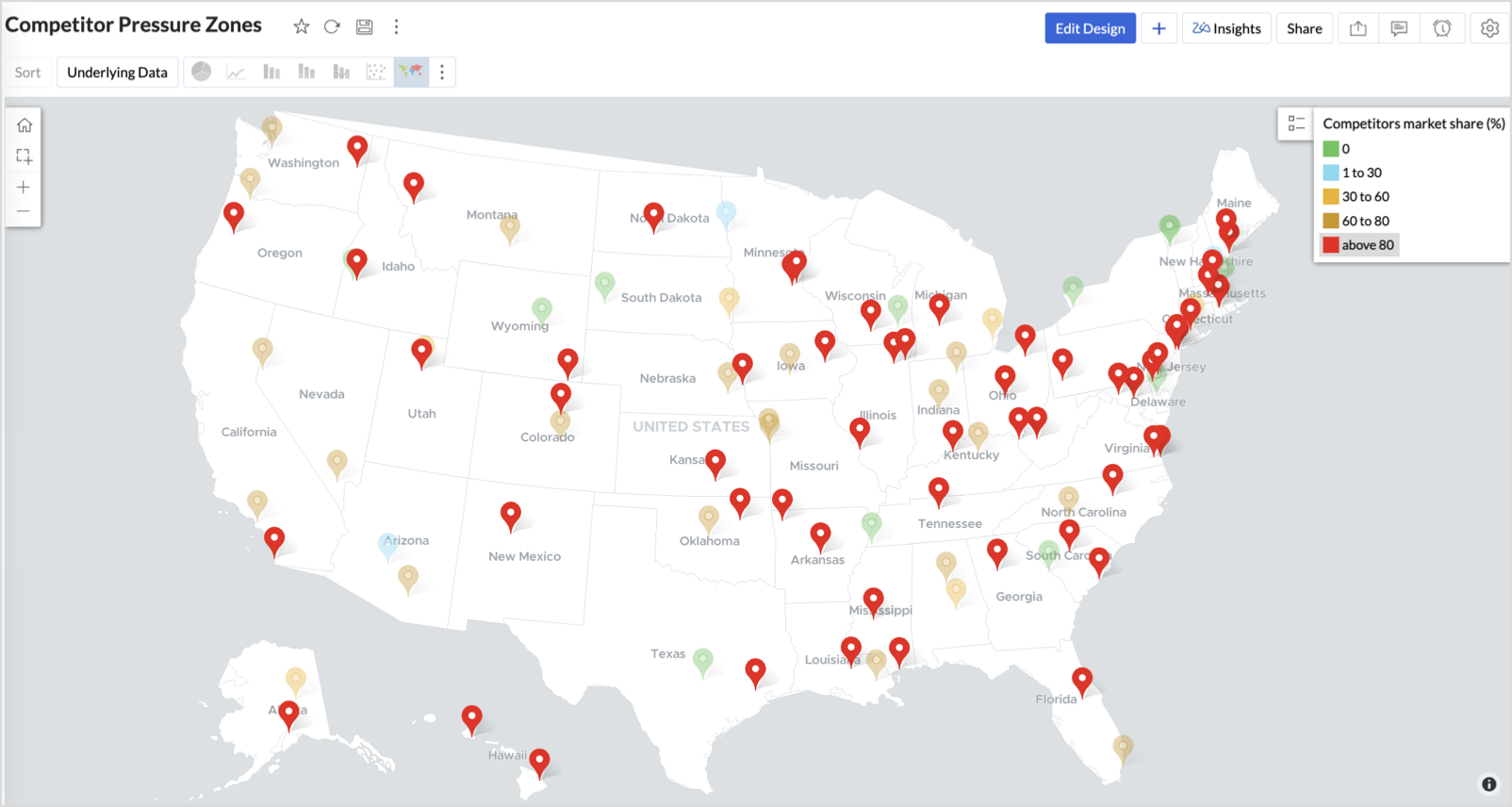
Orange (30-60%) + low revenue - Growing pressure — performance risk emerging
Green (0%) + strong revenue - Market leader — low competition, strong position
Cyan (1-30%) + moderate revenue - Mild competition — possible opportunity to scale further
Business Interpretation
This chart empowers regional and strategy teams to:
- Detect overcrowded areas where stores are losing share
- Identify safe zones where your brand leads the market
- Spot emerging competitor influence before it cuts into your margins
It acts as a competitive intelligence dashboard, mapping how your store network stands against external threats.
4. Customer Gender Distribution (Map - Pie)
To visualize how the gender distribution of customers varies across store locations. This helps identify stores with significant demographic skews, allowing for more personalized marketing, product selection, and in-store experience.
Why Map - Pie?
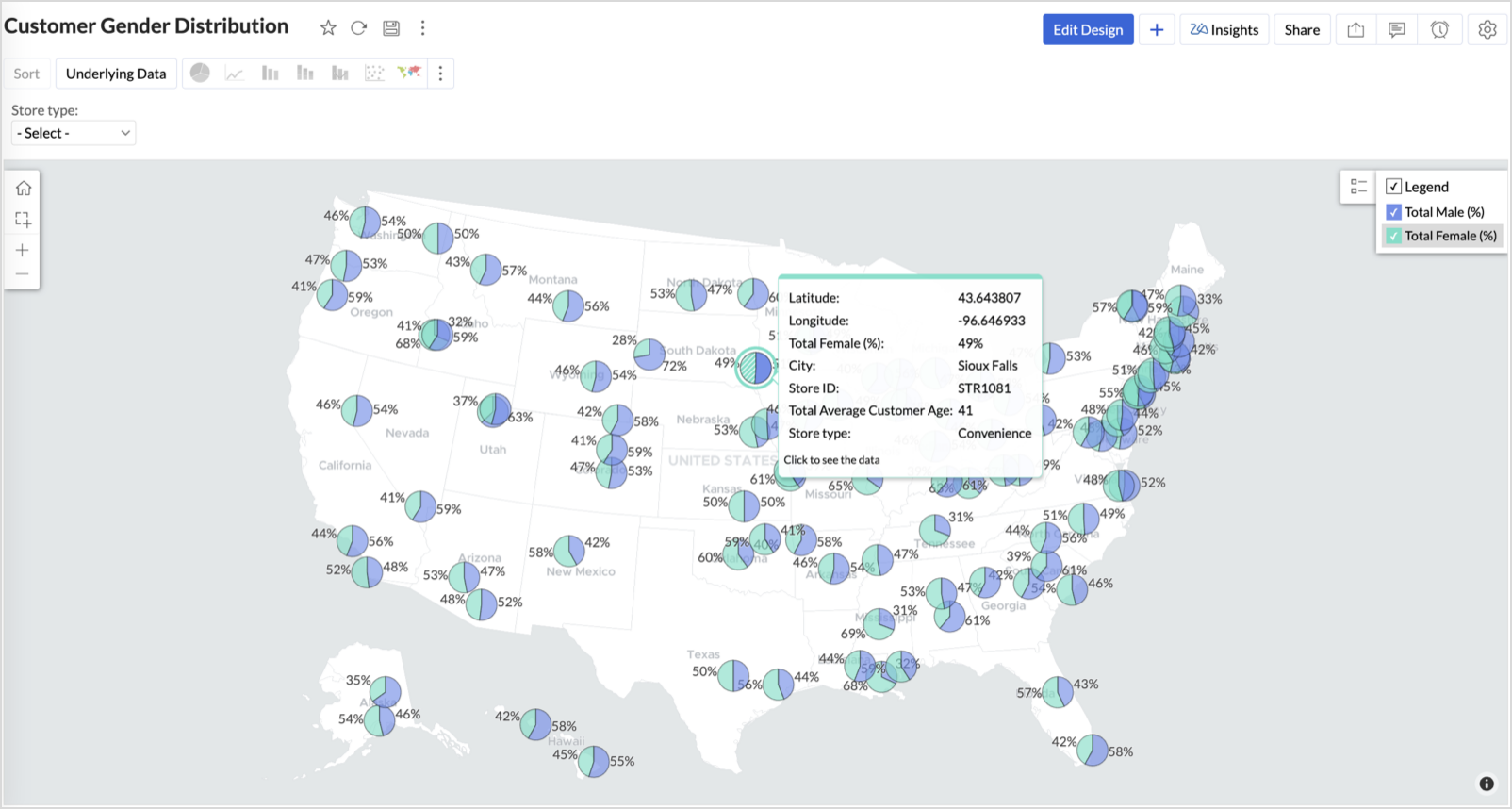
The Map - Pie chart is ideal for visualizing data composition across geographical locations.By breaking down each store’s customer base into Male (%) and Female (%) segments, this chart reveals who your customers are and where gender-targeted strategies might work best.
Procedure
- From the dataset, click the Create icon and select Chart View.
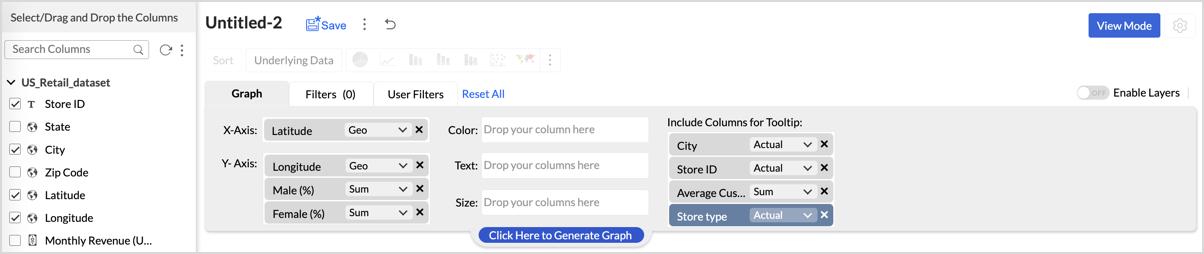
- In the chart designer, drag and drop the following columns into their respective shelves:
- Latitude → X-Axis
- Longitude, Male (%), Female (%) → Y-Axis
- City, Store ID, Average Customer Age, Store Type → Tooltip
- Click Generate Graph.
- In Settings, under the Map tab, change the map to Albers USA Projection.
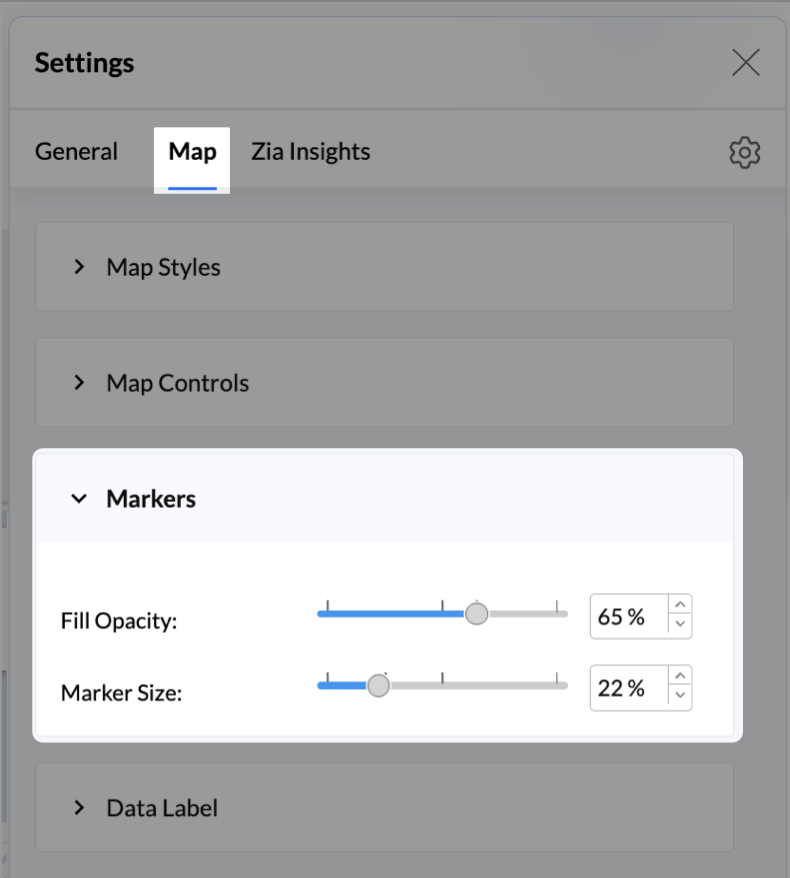
- Click on Markers, adjust the Marker Size as shown.
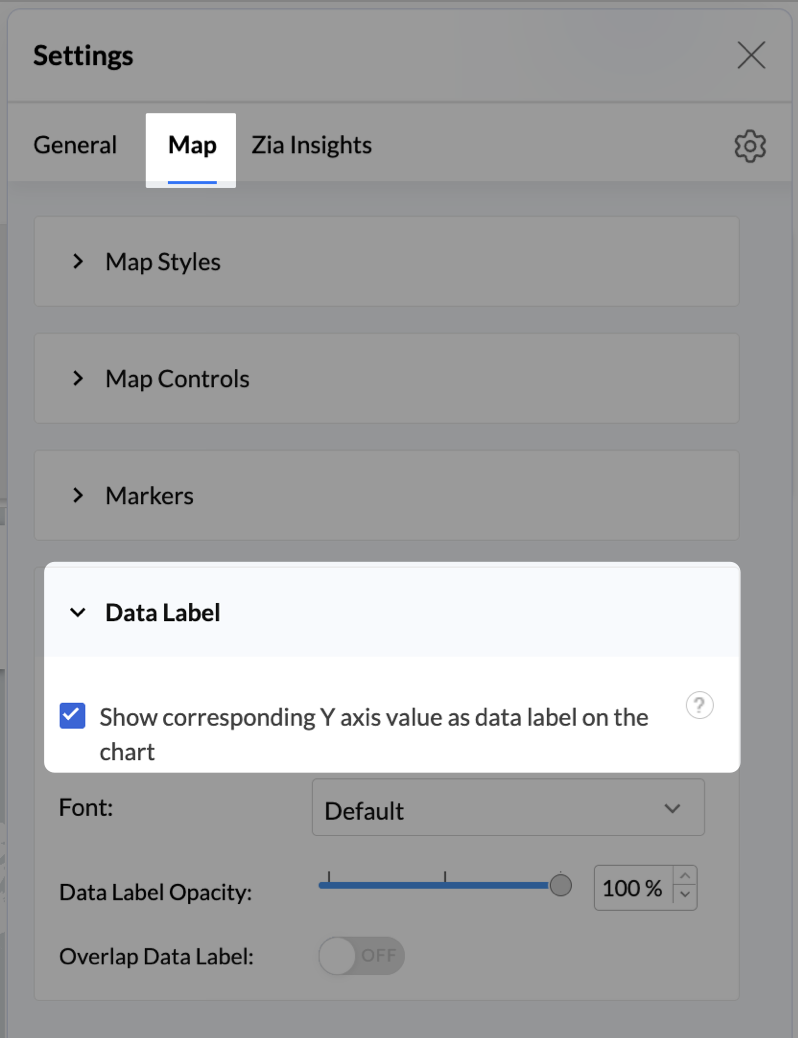
- Click on Data Label, and enable the Show corresponding Y axis value as data label on the chart to display the percentage values on the map.
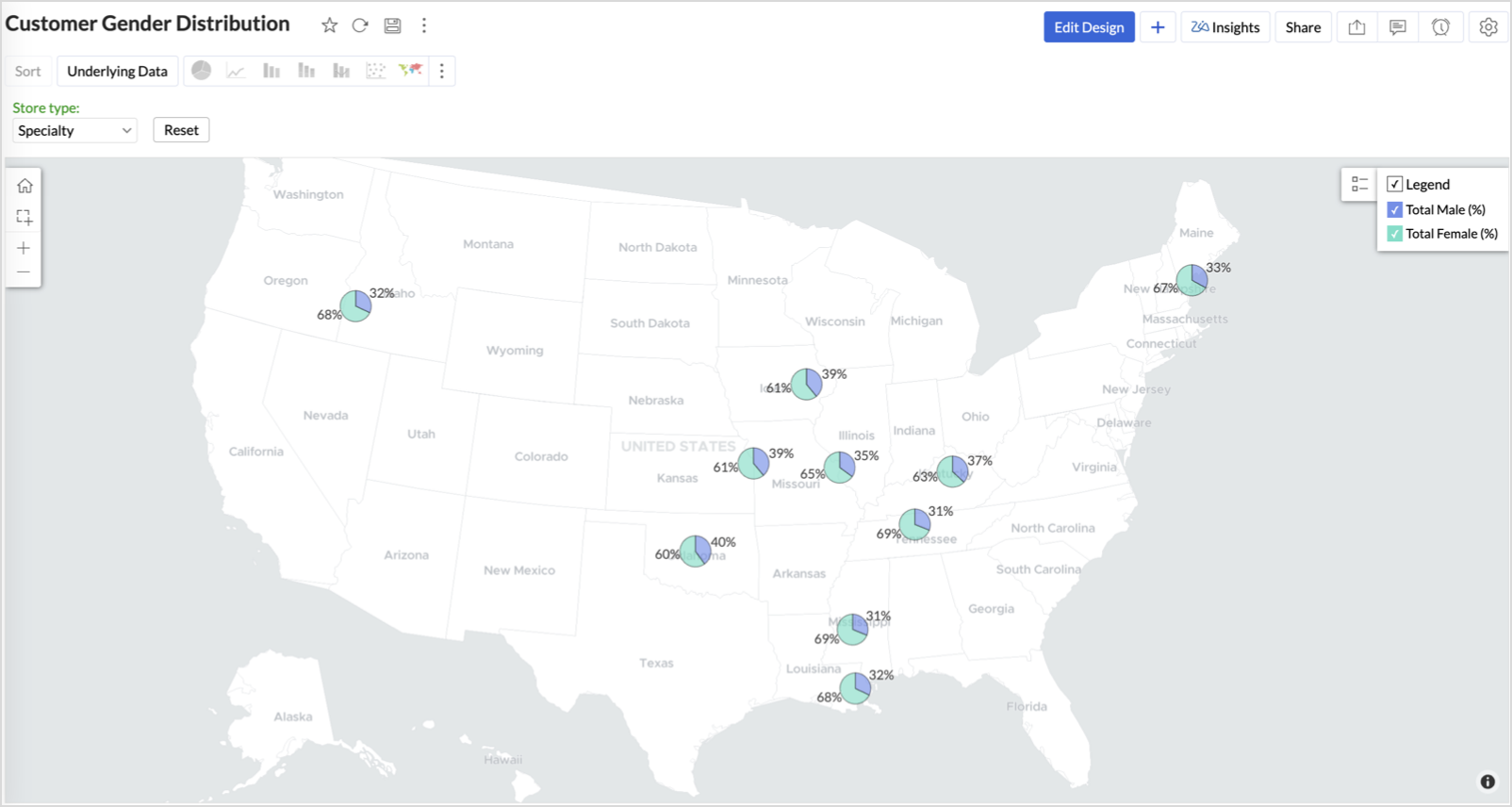
- Add Store Type as User Filters to slice down store-wise gender distribution.
- Rename the report as Customer Gender Distribution and click Save.
Each store will now display a pie chart representing the gender split among its customers, directly on the map.

Key Insights
Uneven gender split (e.g., 70% Male) - Potential to tailor offerings, branding, or promotions for the dominant gender
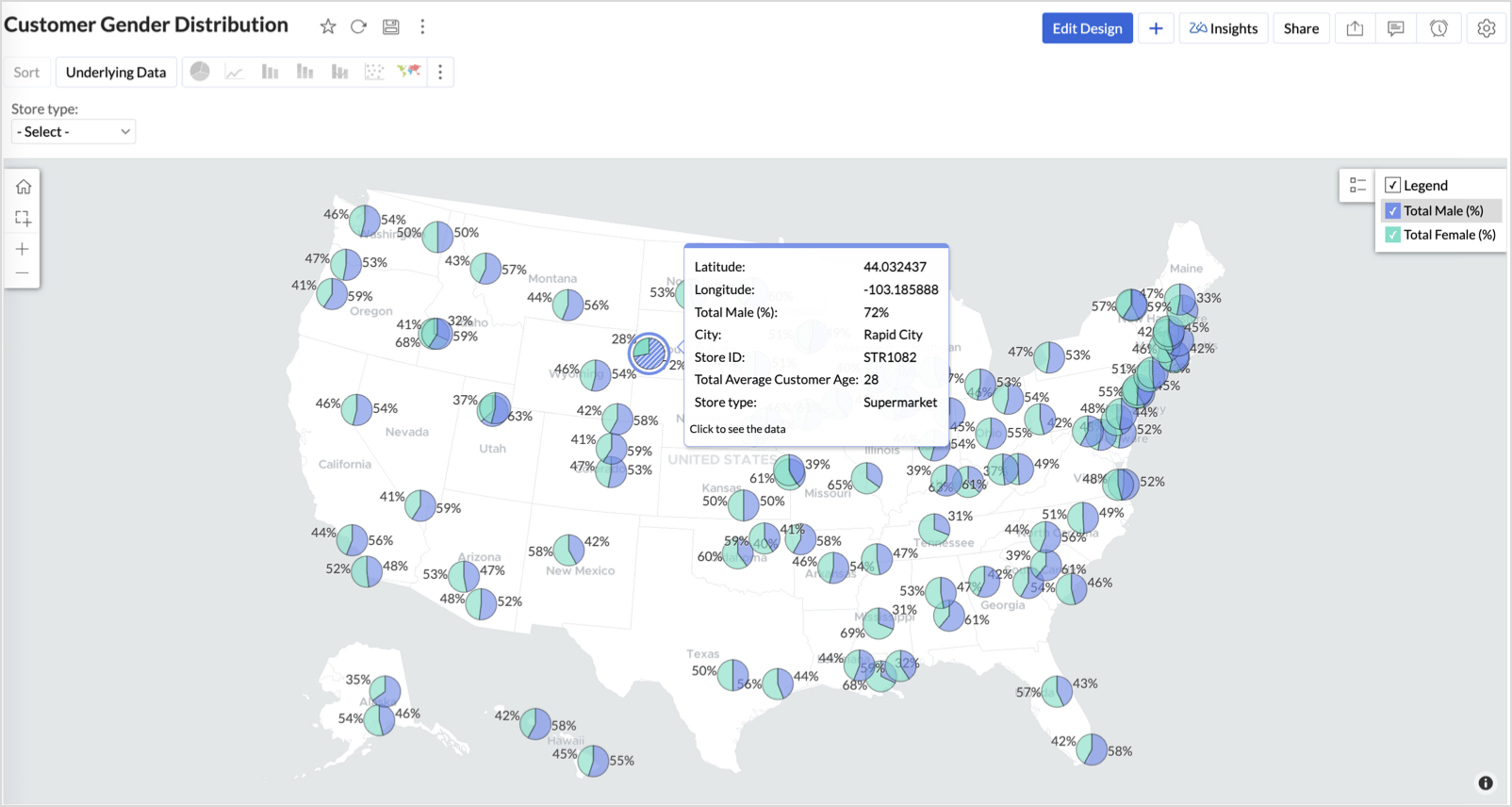
Balanced split (≈50/50) - Opportunity to run inclusive or diversified campaigns
High female ratio + specialty store - Indicates demand for niche products — expand category offerings
Business Interpretation
This chart allows marketing and merchandising teams to:
- Understand gender-based customer clustering across regions
- Launch targeted campaigns (e.g., loyalty programs, promotions)
- Refine product assortments to suit local preferences
For example: A store with 70% female shoppers may benefit from deeper investment in lifestyle categories, while a balanced store could serve as a testing ground for unisex offerings.
Summary
In this phase, we laid the foundation for geo-powered retail intelligence using Zoho Analytics. Through a single, well-structured dataset and four powerful geo map visualizations, we transformed raw store data into real, actionable business insights.
Here’s what we achieved:
|
Report
|
Business Insights
|
|
Store Performance (Bubble)
|
Identified stores that are over performing or at churn risk based on revenue and satisfaction.
|
|
Revenue-to-Traffic Ratio (Filled + Scatter)
|
Detected ghost zones and optimized marketing ROI by comparing traffic and revenue.
|
|
Competitor Pressure Zones (Scatter)
|
Mapped out competitor dominance and spotted at-risk or saturated regions.
|
|
Customer Gender Distribution (Pie)
|
Uncovered demographic patterns to tailor product, marketing, and in-store experience.
|
Click here to access the sample workspace.
These visualizations brought spatial awareness into every performance metric — turning maps into a strategic business tool.
And this... is just the beginning.
Stay tuned for Phase 2 — where Multi-Layer Geo Maps and Network Charts come together to supercharge your business strategy with even deeper spatial insights.
Topic Participants
Pradeepkumar R
Sticky Posts
What's New in Zoho Analytics - February 2026
Hello Users! We're back with another round of updates for Zoho Analytics. This month's release focuses on giving you greater flexibility in how you visualize, manage, and act on your data - with new features like custom visualizations, remote MCP server,What's New in Zoho Analytics - January 2026
Hello Users! We are starting the year with a strong lineup of updates, marking the beginning of many improvements planned to enhance your analytics experience. Explore the latest improvements built to boost performance, simplify analysis, and help youWhat's New in Zoho Analytics - November 2025
We're thrilled to announce a significant update focused on expanding your data connectivity, enhancing visualization capabilities, and delivering a more powerful, intuitive, and performant analytics experience. Here’s a look at what’s new. Explore What'sWhat's New in Zoho Analytics - October 2025
Hello Users! We're are back with a fresh set of updates and enhancements to make data analysis faster and more insightful. Take a quick look at what’s new and see how these updates can power up your reports and dashboards. Explore What's New! ExtremeWhat’s New in Zoho Analytics – September 2025
Hello Users!! In this month’s update, we’re raising the bar across multiple touchpoints, from how you bring in data, plan and track projects to how you design and brand your dashboards. We’ve added the all-new Gantt chart for project visualization, expanded
Recent Topics
SalesIQ Identity Update for Logged In Wordpress User
Hey folks, SalesIQ does not automatically detect when a visitor logs in to WordPress and update their identity to match. For example, if a client of ours visits the site and logs in, SalesIQ will not track them correctly by default. The Solution The solutionParagraph spacings in Zoho Notebook are double-spaced only. Is there a way to keep the original spacing format?
Sorry I don't know the proper terminologies but the best way I can put it is all single-spaced paragraphs that I copy to Zoho Notebook become double-spaced paragraphs. It's very inconvenient and counterproductive when copying and pasting things from andChanging line space in Notebook
My lines are double spaced. How do i change to single space?Plug Sample #14: Automate Invoice Queries with SalesIQ Chatbot
Hi everyone! We're back with a powerful plug to make your Zobot smarter and your support faster. This time, we're solving a common friction point for finance teams by giving customers quick access to their invoices. We are going to be automating invoiceWorkdrive on Android - Gallery Photo Backups
Hello, Is there any way of backing up the photos on my android phone directly to a specific folder on Workdrive? Assuming i have the workdrive app installed on the phone in question. EmmaAuto sync Photo storage
Hello I am new to Zoho Workdrive and was wondering if the is a way of automatically syncing photos on my Android phone to my workdrive as want to move away from Google? ThanksIs anyone experience missing functions in the new UI until hard refresh?
The set of functions including search is almost always missing upon loading an app in the new UI. If you refresh, the functions return. (see second screenshot) Anyone else experiencing this?Not receiving New Ticket Emails
Hello! The company I work for uses the Zoho ticketing system, however, I've noticed I'm not receiving email notifications when new tickets are published. I have admin rights to see these tickets on Zoho Desk and respond to them, but am not receiving theCan't update a field on a parent form from a child form's On Success workflow
Title: Can't update a field on a parent form from a child form's On Success workflow Hi everyone, I'm building a simple Golf Lesson Tracker app and I'm stuck on what should be a basic operation — updating a number field on a parent form when a child formUpload from Zoho Creator File Upload field to OpenAI Vector Store
I’ve struggled for quite a while to get this working properly. For a long time we relied on Azure Functions as a workaround to handle file transfers between Zoho Creator and OpenAI Vector Stores. It worked, but added unnecessary infrastructure and complexity.Calendar start time limit
Hi all, Has anyone found a magical way to filter calendar reports to start from, let's say 8:00, and not 0:00? Or at least to auto scroll there like Google Calendar for example?EU Problem
Hi all, we've been facing issues with the Europe data center for two days. It's starting to disrupt our daily workflow. Any word on when this will be resolved?How can I clone my website in order to try new templates?
I want to try a new template for my existing Zoho website without the risk of changing the current site or accidentally publishing the wrong template. Therefore I thought a 'clone website'-option should be somewhere, but I can't find it. How do I tryCustom Module Missing from Roles & Permissions List
Hi Zoho Community, I created a new Custom Module in Zoho Expense. The module is fully built and I can see it in the Module Builder (Settings > Customization > Modules). However, I am unable to deploy this to my users because the module does not appearNeed Customer Item Inward Module along with QC
Need Customer Item Inward Module along with QC 1. Using Transfer Orders hit the item balance sheet 2. Items without inventory it becomes difficult for tracking purpose. 3. Custom Modules become tedious to capture multiple items, item subforms are notPossible to Turn Off Automatic Notifications for Approvals?
Hello, This is another question regarding the approval process. First a bit of background: Each of our accounts is assigned a rank based on potential sales. In Zoho, the account rank field is a drop-down with the 5 rank levels and is located on the accountWill be possible to create a merge mail template for products?
Hi, we would need to create a mail merge template for products (native) module. Will be possibile? or do you have a smart solutions to merge products data with a mail merge? thanks ChrisMaximum incoming email (attachment size) limit
I see that the maximum size of received emails can now be set to 20MB, however I'd still like to see it be larger. It's embarrassing when a client sends me an email with a large attachment and I can't receive it. 50, even 100 MB seems reasonable these[Free Webinar] Learning Table Series - Multi-currency management in Zoho Creator
Hello everyone, We’re excited to invite you to another edition of the Learning Table Series webinar. As you may already know, we've moved to a purpose-based approach in the Learning Table Series this year. Each session now focuses on how a Zoho CreatorLESS_THAN_MIN_OCCURANCE - code 2945
Hi I'm trying to post a customer record to creator API and getting this error message. So cryptic. Can someone please help? Thanks VarunRanking by group in report
Dears, I am new to Zoho Analytics and I would like to ask you guys help to creating a ranking column. Report type: Pivot Matter: I want to create a ranking column on the right of Percentage. This ranking is group by column Type, and ranking by Final Score/Percent.How do I add a project template to a pre-existing project?
Help....How do I add a project template to a pre-existing project? Right now I have to delete the old project, make a new one and add the project template at the time of creating the new project.Passing the image/file uploaded in form to openai api
I'm trying to use the OpenAI's new vision feature where we can send image through Api. What I want is the user to upload an image in the form and send this image to OpenAI. But I can't access this image properly in deluge script. There are also some constraintsUsers may not pick the fields to be shown as columns in the Choose Account window when creating a new Deal record
Hi there, by talking with other users I found out that I, as an Admin, am the only one who can pick fields to be shown as columns in the Choose Account window when creating a new Deal record. In fact, if other users click on the "Add Column" symbol onWhy is the ability Customize Calls module so limited?
Why can't I add additional sections? why can't I add other field types than the very limited subset that zoho allows? Why can I only add fields to the outbound/inbound call sections and not to the Call Information section?Report Template - How to remove page break after each record?
Hi, We have report template for a list report. It looks good at screen. But when printing, it creates a page break after each record. How to remove the it? So we can print multiple records in same page. Please look at the attached screenshots. Report Template Report Print PreviewCalendar report with order options and more quick view templates
I think many of us regularly work with calendar-style reports. It would be great to be able to customize the quick view with new templates and have options to sort the entries for each day of the calendar by different criteria. I think this is an interestingDeprecation Notice: OpenAI Assistants API will be shut down on August 26, 2026
I recieved this email from openAI what does it means for us that are using the integration and what should we do? Earlier this year, we shared our plan to deprecate the Assistants API once the Responses API reached feature parity. With the launch of Conversations,Shall we play a game?
Presenting the very first game created using ZOHO Creator: Tic-Tac-Toe (or noughts and crosses) I made this to challenge myself and employ some of the new features of ZOHO Creator. I must admit that the code is very literal and not too elegant. There are plans to improve on the machine AI and streamline the code over time. Currently the code makes extensive use of functions for the machine "AI" - there are 12 of these. The machine AI can be tricked, so to counteract that I made it exceedingly arrogantCRM notes
I want to be able to add notes to a task that do not necessarily get rolled up into an account or contact. For example, I tasks to work on a Court Order for John Doe divorce account. There might be lots of updates (in the form of notes) that employeesConfluence export to zoho learn
Hello Is there any known way to export Confluence spaces to zoho learn ?Zoho People API, Inactive users
Hi, I would like to export using the Zoho People API using Fetch Leave Records API V2 | Zoho People API. However it only pulls active user's leaves. I want all users, active and former employees records.Empty folders are now appearing in the sidebar...
...and the folder list is now auto-collapsed by default with no way to change. Neither of these recent updates are useful or user-friendly. ==================== Powered by Haiku https://www.haiku.co.uk ====================Client Script | Update - Client Script Support For Custom Buttons
Hello everyone! We are excited to announce one of the most requested features - Client Script support for Custom Buttons. This enhancement lets you run custom logic on button actions, giving you greater flexibility and control over your user interactions.Zoho CRM for Everyone's NextGen UI Gets an Upgrade
Hello Everyone We've made improvements to Zoho CRM for Everyone's Nextgen UI. These changes are the result of valuable feedback from you where we’ve focused on improving usability, providing wider screen space, and making navigation smoother so everythingCreate custom rollup summary fields in Zoho CRM
Hello everyone, In Zoho CRM, rollup summary fields have been essential tools for summarizing data across related records and enabling users to gain quick insights without having to jump across modules. Previously, only predefined summary functions wereMonthly Webinar - Getting Started with Zoho LandingPage
Are you building your first landing page and want a little guidance? Join our monthly Getting Started with Zoho LandingPage webinar and learn how landing pages fit into your marketing strategy, drive lead generation, and improve conversions. Here’s whatView all email threads directly from record's History and Interactions
Greetings all, We've introduced the ability to view complete email thread conversations directly from records' History and Interactions sections, along with email delivery status and sentiment insights on the Interactions page—which makes it easier forMarketing Tip #22: Check website and navigation for broken links
Do you inspect your online store frequently? If not, here's your reminder to do it now. Broken links frustrate customers and make your store feel unreliable. Whether it’s a missing product page, an outdated menu item, social media accounts, or a brokenOnline Payment Fees
We don't take many online credit card payments so the merchant service provider (PayPal) charges us the 2.9% fee for processing the amount. I would like the ability for the fee to be automatically added to the total amount for "ease of payment". We'dNext Page