Geo-Powered Retail Intelligence with Zoho Analytics
In today’s highly competitive retail landscape, data-driven decisions are no longer optional — they’re essential. While businesses collect vast volumes of data across regions, stores, and customer segments, the real value lies in how effectively this data is visualized and interpreted.
Geo Maps in Zoho Analytics bring location intelligence to the forefront of decision-making. With powerful spatial analytics capabilities, retail businesses can now visualize store performance, identify untapped opportunities, and track customer behavior trends with a simple glance at a map.

This solution demonstrates how Zoho Analytics' Geo Maps can be leveraged to solve real retail business problems, using a step-by-step approach grounded in a practical, ready-to-use dataset.
- Business scenario
- Dataset Overview
- Problem Description
- Why Geo Maps Become a Game-Changer
- Solution Implementation – Report Creation
- Store Performance Analysis (Map – Bubble)
- Revenue-to-Traffic Ratio with Ghost Zone Detection (Map - Filled + Scatter)
- Competitor Pressure Zones (Map – Scatter)
- Customer Gender Distribution (Map - Pie)
- Summary
Business scenario
Imagine you're a retail chain operating hundreds of stores across the United States. Each store generates data—sales, visitor footfall, customer satisfaction, marketing spend—but these numbers alone don’t explain why some stores succeed while others under-perform.
Key challenges include:
- Identifying stores that are struggling before sales drop significantly.
- Understanding whether poor performance is due to location, low visibility, or intense competition.
- Evaluating which regions offer true expansion potential—and which are over-saturated.
With no visual correlation between location and business KPIs, many decisions remain reactive instead of proactive. This is where Geo Maps make all the difference—by transforming isolated data into contextual geographic insights.
Dataset Overview
To power this solution, we’ve created a comprehensive and realistic retail dataset that mirrors how actual store data behaves across geographies.
The dataset includes:
- Store-level performance data: revenue, average purchase value, and satisfaction.
- Customer insights: foot traffic, age, gender distribution.
- Market context: competitor presence and market share, population density, and economic growth rate.
- Geospatial data: zip code, city, state, latitude, and longitude of each store location.
Problem Description
Retail chains often operate on thin margins, and even minor under-performance at store level can have significant impacts across the organization. While dashboards provide revenue and performance trends, they often miss one critical dimension—geography.
Without geographic context, businesses face several recurring challenges:
- Underperforming stores go unnoticed until major losses occur.
- Ghost zones—areas with low store presence but high potential—remain unexplored.
- Marketing budgets get wasted in regions where returns are consistently low.
- Competitor pressure is misjudged due to lack of visibility on regional saturation.
- Store closures become reactive decisions, made after performance has already declined.
In short, data without location awareness leaves decision-makers blind to spatial trends and risks. Businesses need a smarter, more intuitive way to analyze store performance with geographical clarity—before it’s too late.
Why Geo Maps Become a Game-Changer
Geo Maps in Zoho Analytics address this gap by unlocking a visual layer of intelligence that traditional charts can’t offer.

Here’s what makes them a game-changer:
- Location-first insights: Instantly identify how store performance varies across the map - by city, state, or neighborhood.
- Visual correlation of multiple KPIs: Compare revenue, satisfaction, and foot traffic geographically to detect hidden patterns.
- Clutter-free, customizable visuals: Choose the right map type - bubble, filled, pie, or scatter - to match the data you want to analyze.
Unlike static dashboards, Geo Maps enable you to see the problem, context, and opportunity—all in one frame. Whether it's spotting trends, reallocating marketing spend, or planning expansion, this spatial layer puts decision-makers back in control.
Solution Implementation – Report Creation
This section walks through the step-by-step creation of four key Geo Map reports that reveal business insights from store-level data.
1. Store Performance Analysis (Map – Bubble)
To identify how stores are performing across different regions in terms of revenue and customer satisfaction, using a clean, visual-first map representation.
This helps uncover:
- High-performing stores in key zones
- Underperforming regions needing intervention
- Patterns related to location-based store success
Why Map - Bubble?
The Map - Bubble chart is ideal for visualizing store-level metrics using geolocation.
- Size indicates magnitude (e.g., Monthly Revenue)
- Color indicates health or quality (e.g., Customer Satisfaction)
- Each store appears as a distinct bubble based on its lat/long.
Procedure
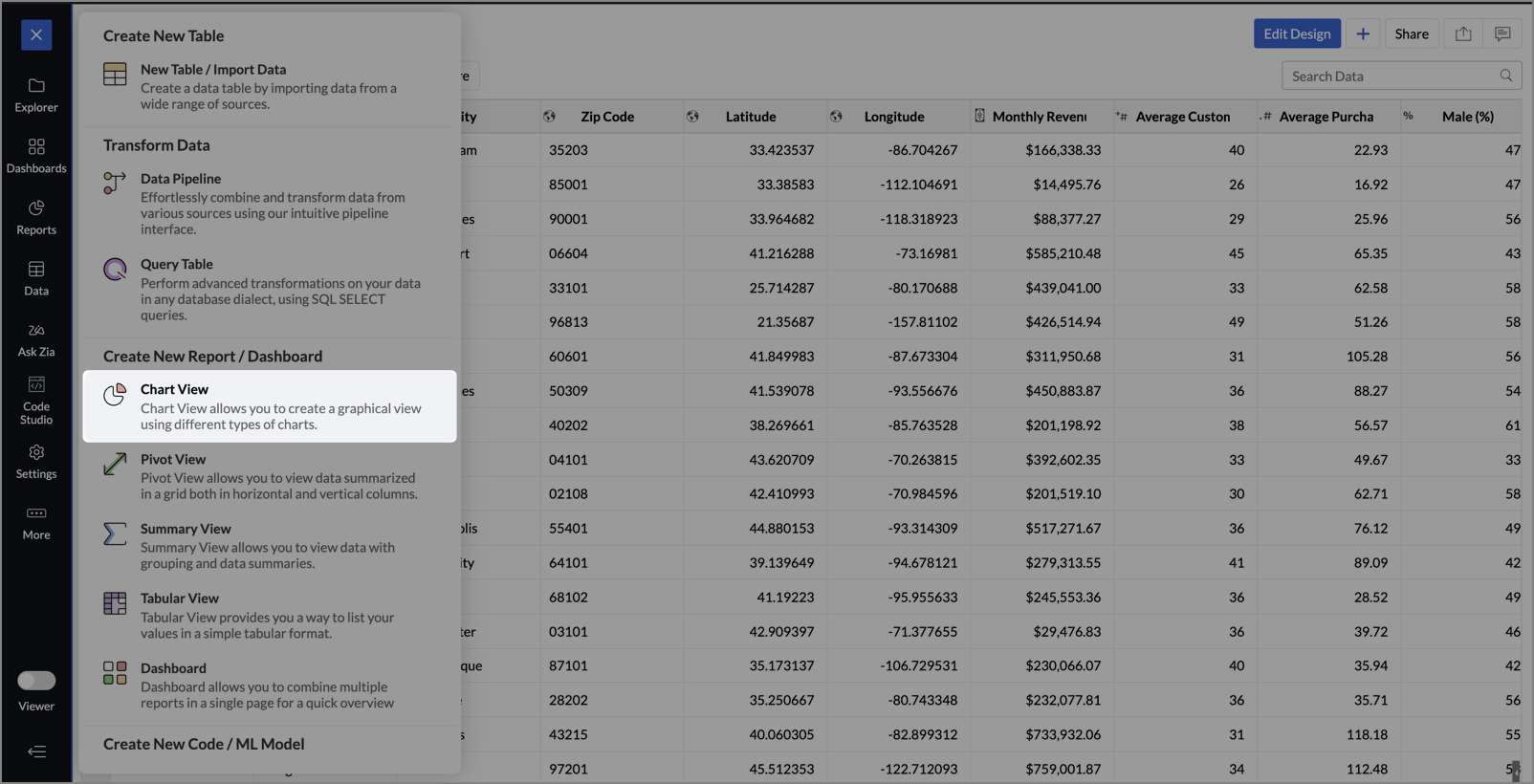
- From the dataset, click the Create icon and select Chart View.
- On the designer page, drag and drop the following columns into their respective shelves:
- Latitude → X-Axis
- Longitude → Y-Axis
- Customer Satisfaction (out of 10) → Color
- Monthly Revenue (USD) → Size
- Store ID, Store Type, City → Tooltip
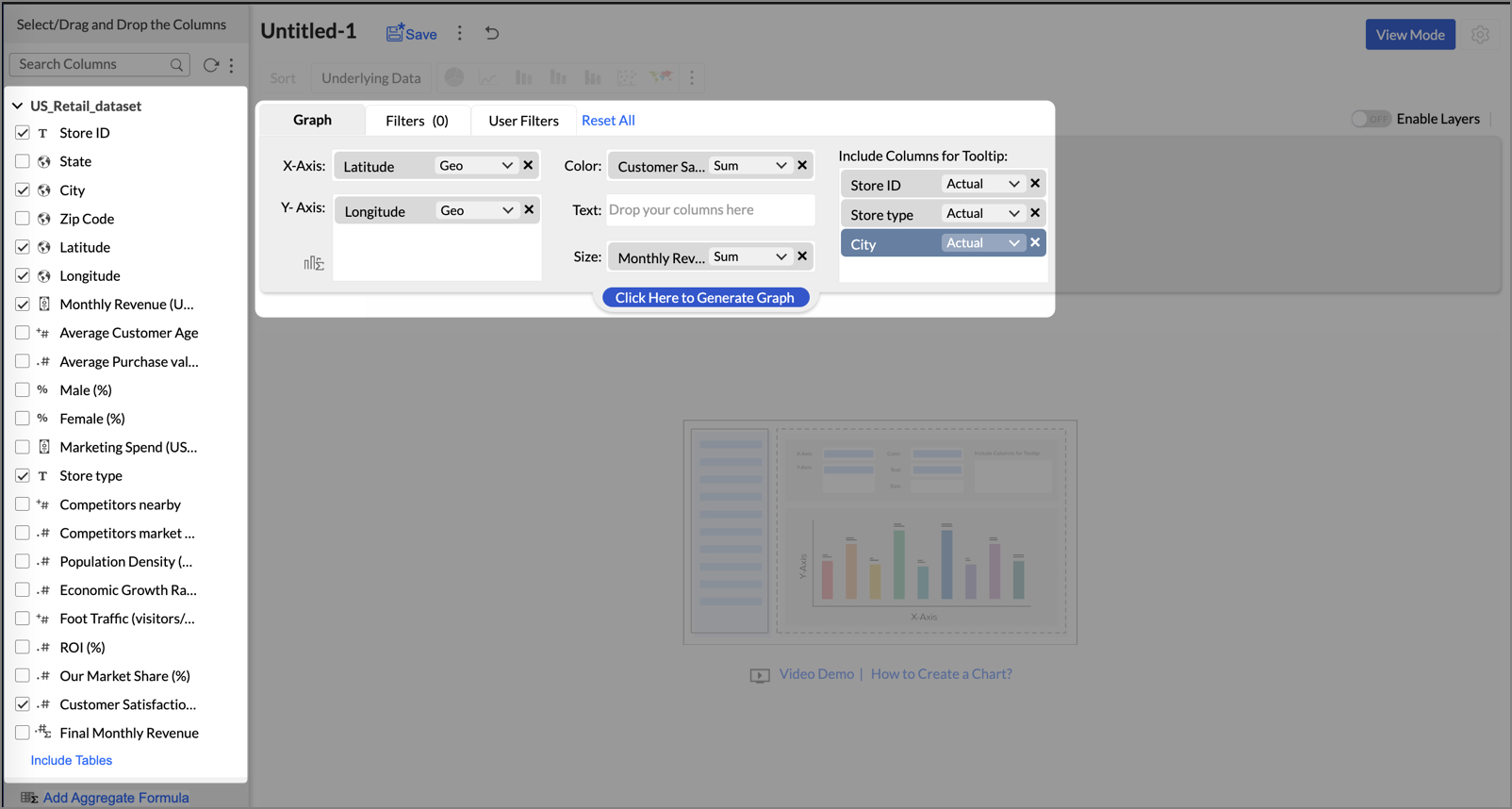
- Click Generate Graph.
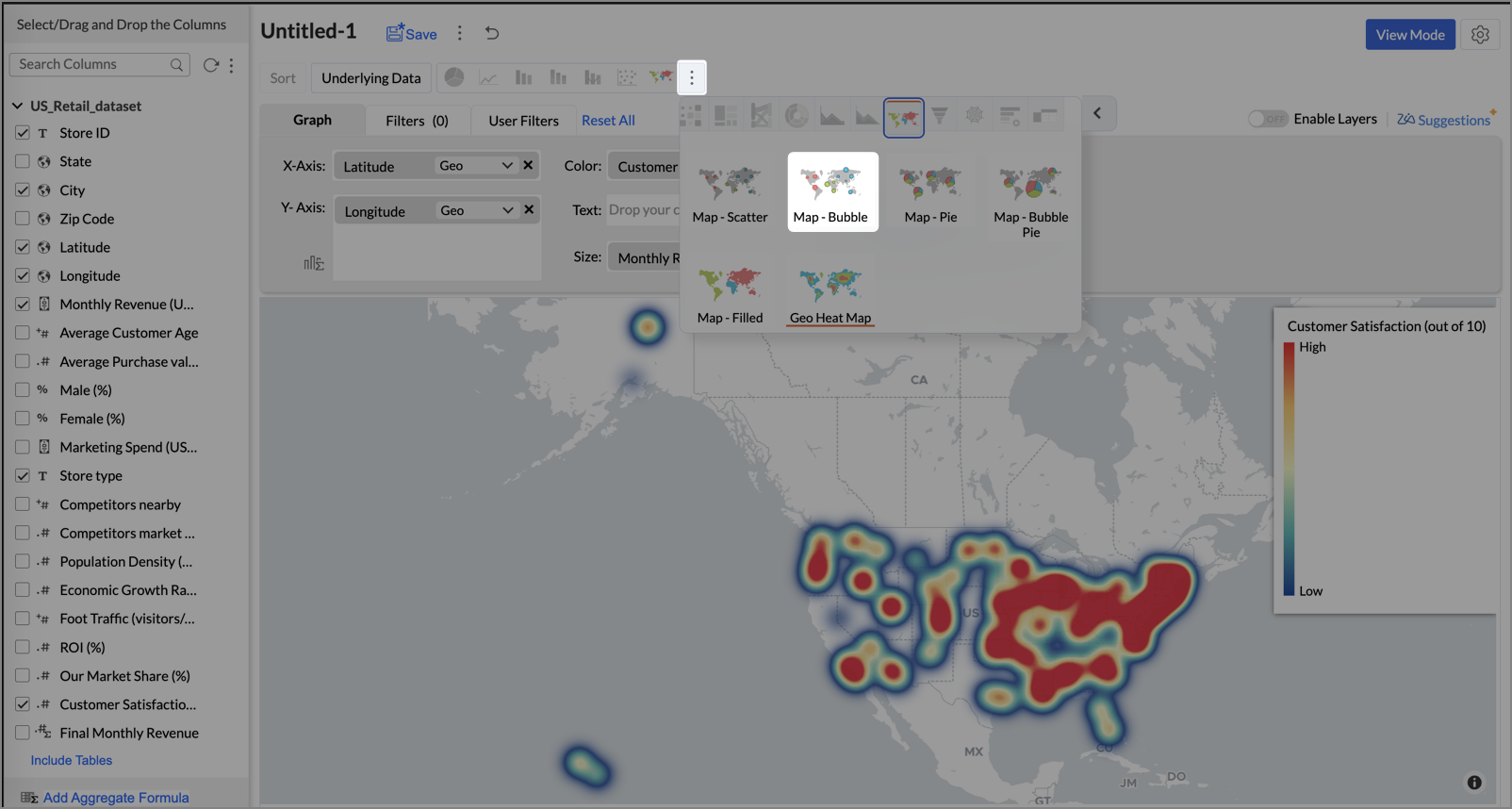
- Click on the ellipsis icon and select the chart type as Map - Bubble.
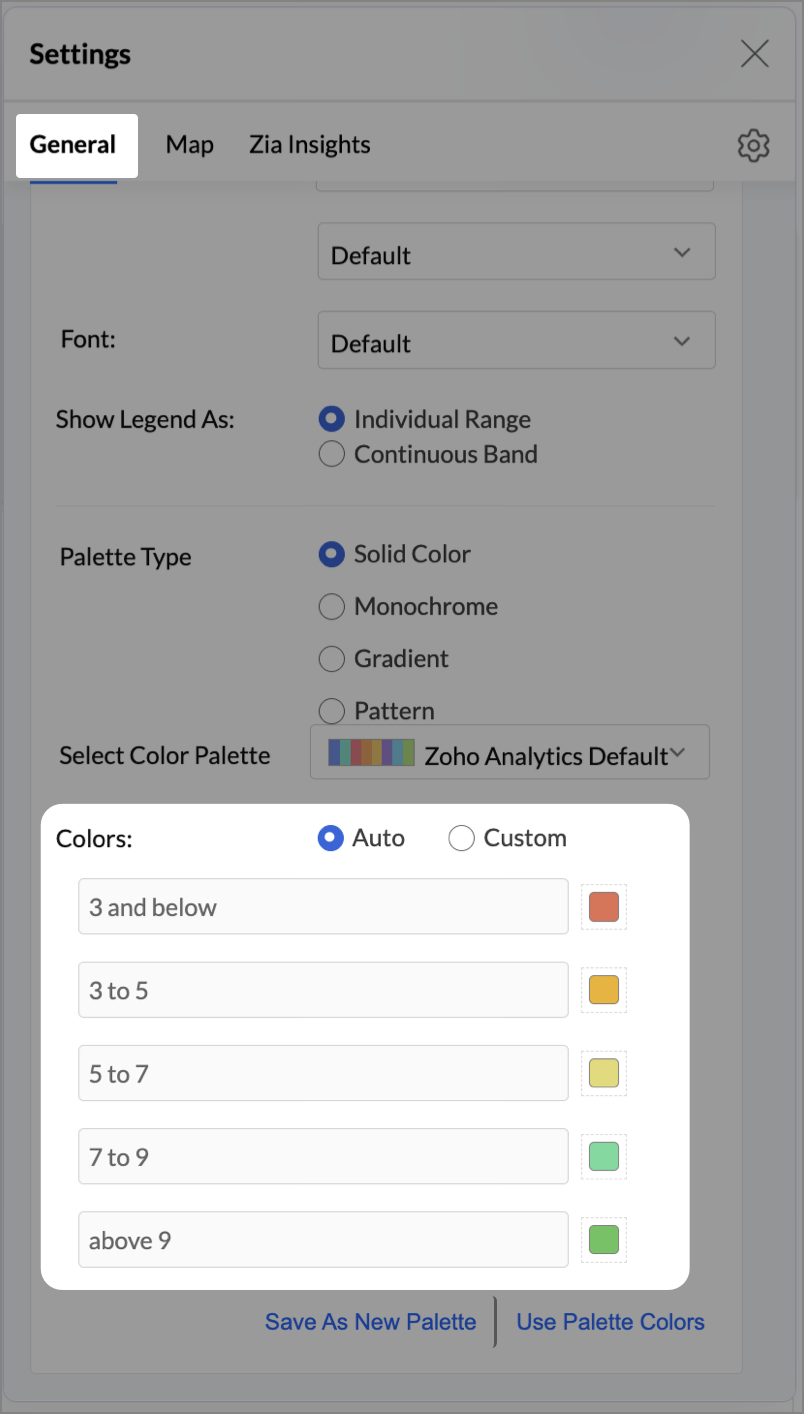
- Click the Settings icon, and under the General tab, click Legend.
- In the Colors section, customize the color scale from red to green to represent satisfaction ranges.
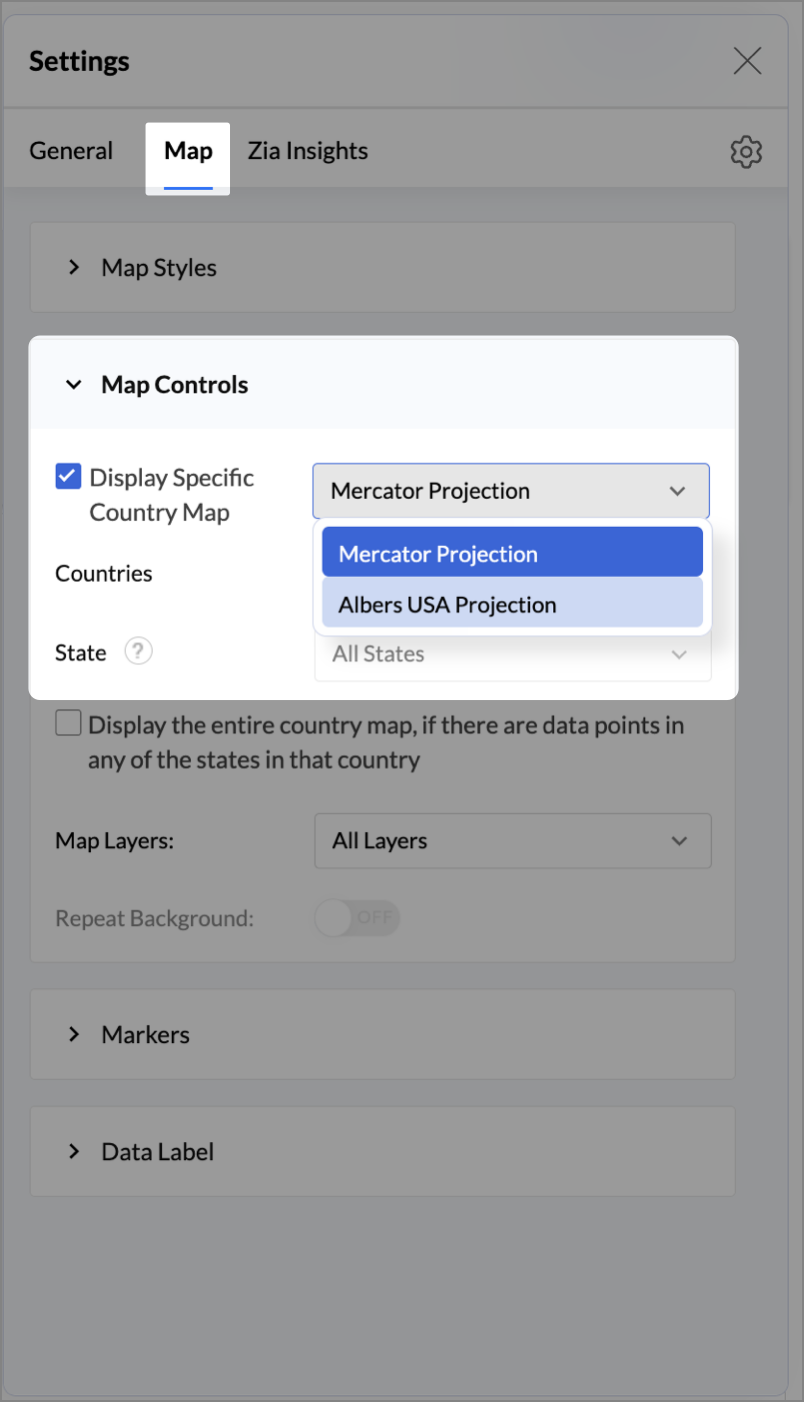
- Under the Map tab, click Map control and enable Display Specific Country Map.
- From the drop-down, select Albers USA Projection. This displays the USA map by placing Alaska and Hawaii below the mainland USA on a single map.
- Rename the report as Store Performance and click Save.
Tip:
Add a User filter such as Store type or State to analyze performance by segment.
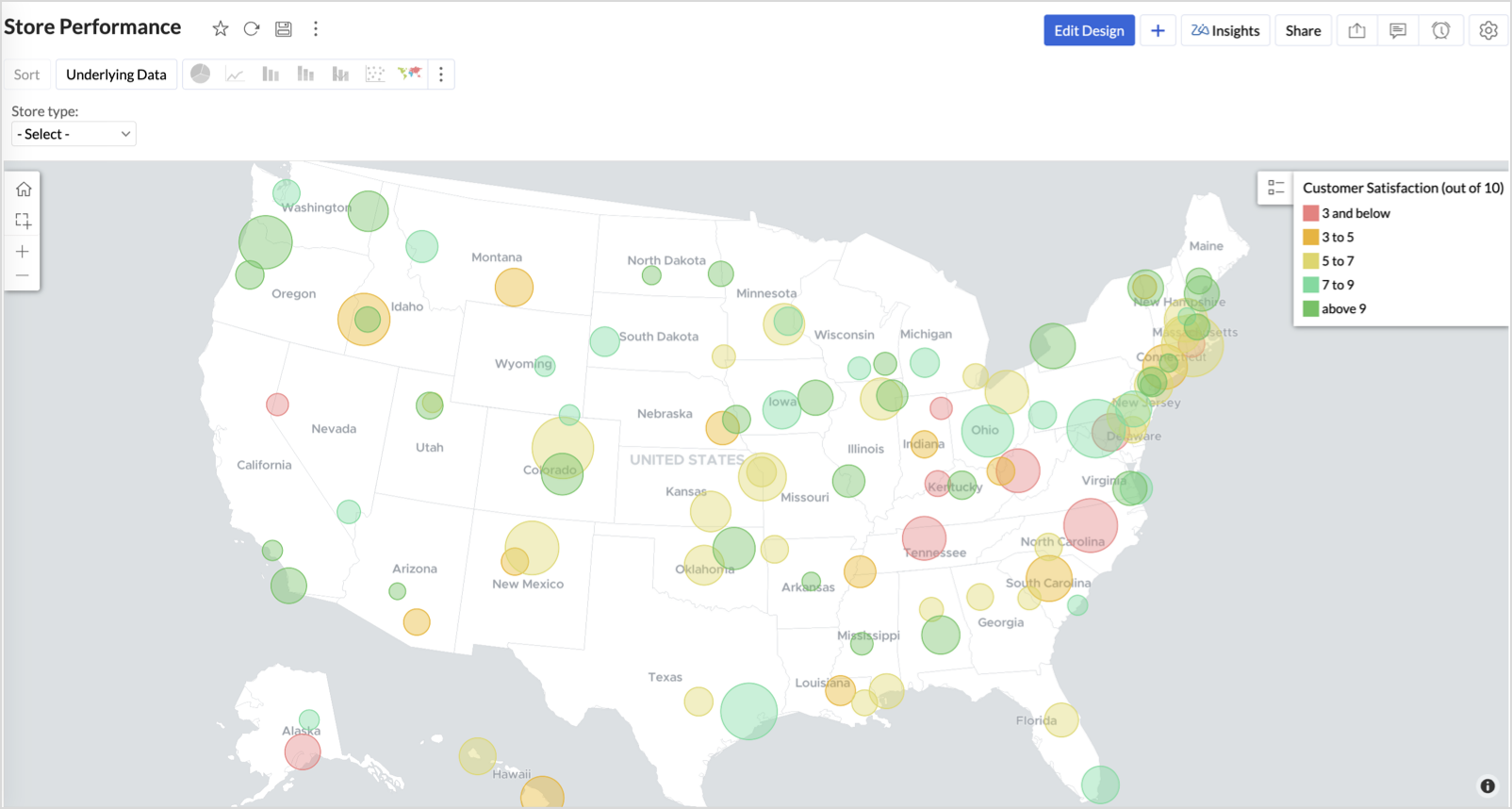
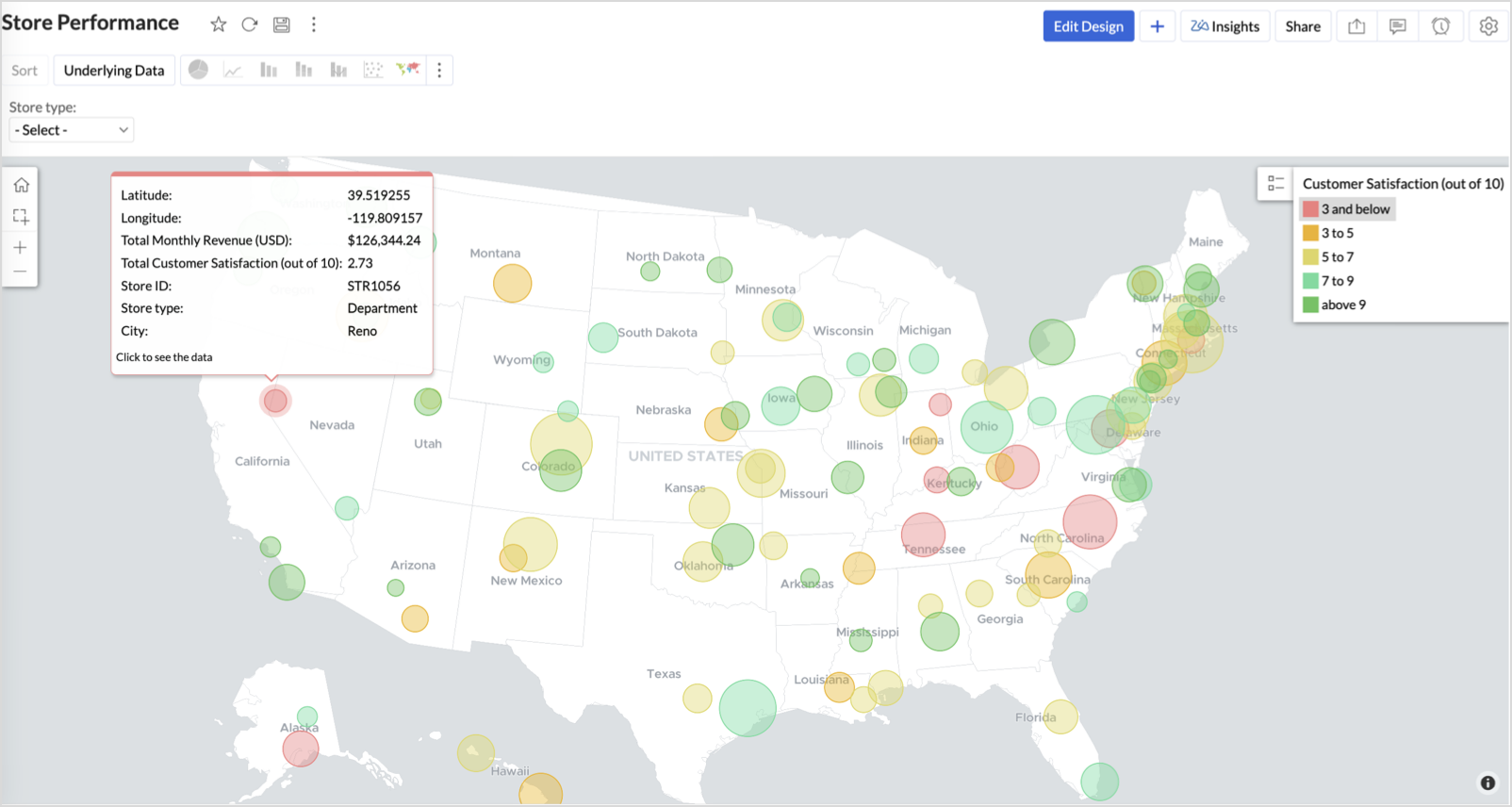
This configuration creates a bubble for every store, sized by its revenue and colored by customer satisfaction — instantly showing how happy customers are in high- or low-revenue zones.
Key Insights
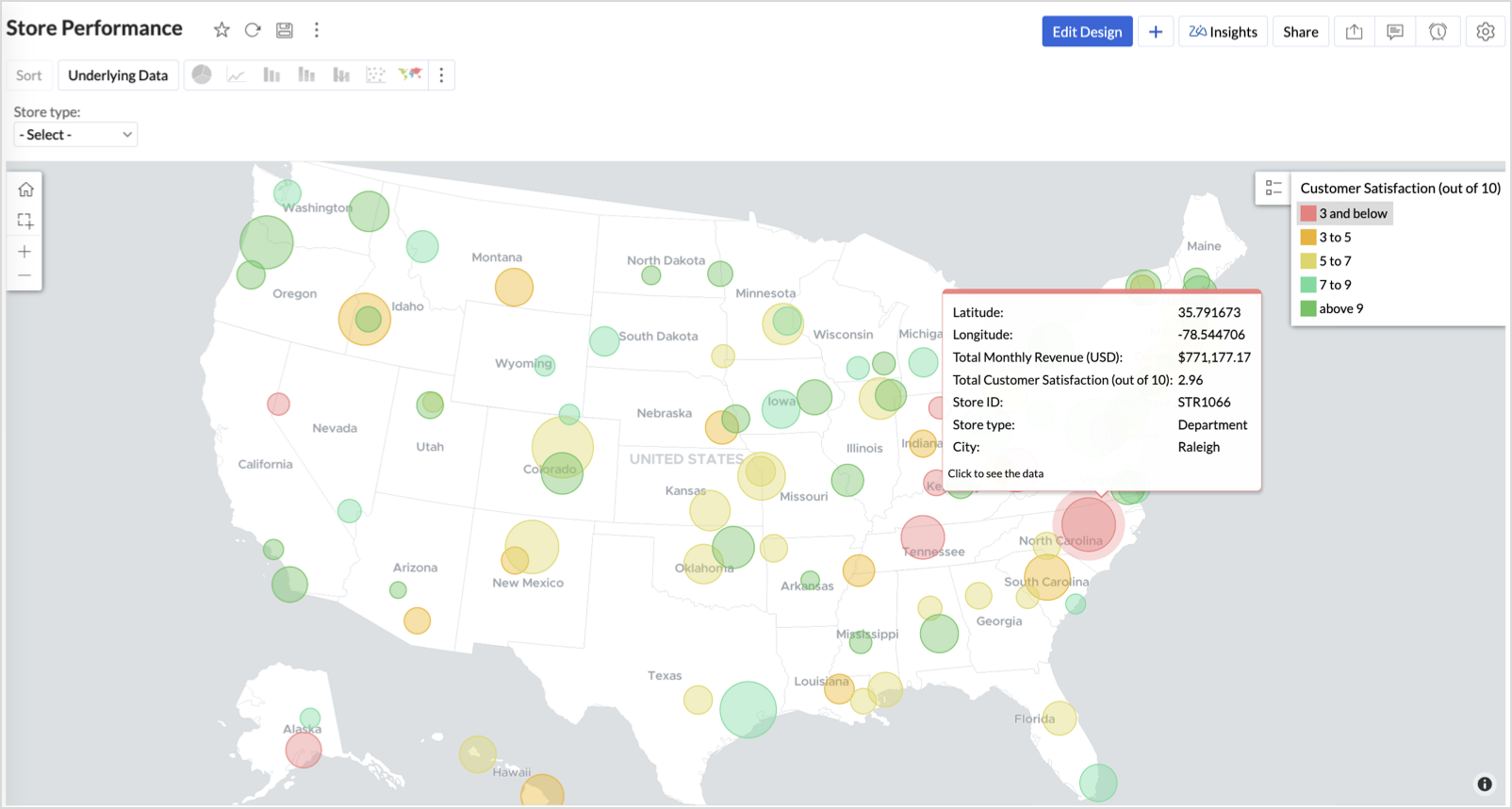
Large bubble + Red color - High revenue but poor satisfaction — risk of churn!
Small bubble + Green color - Low revenue but high satisfaction — possibly underserved
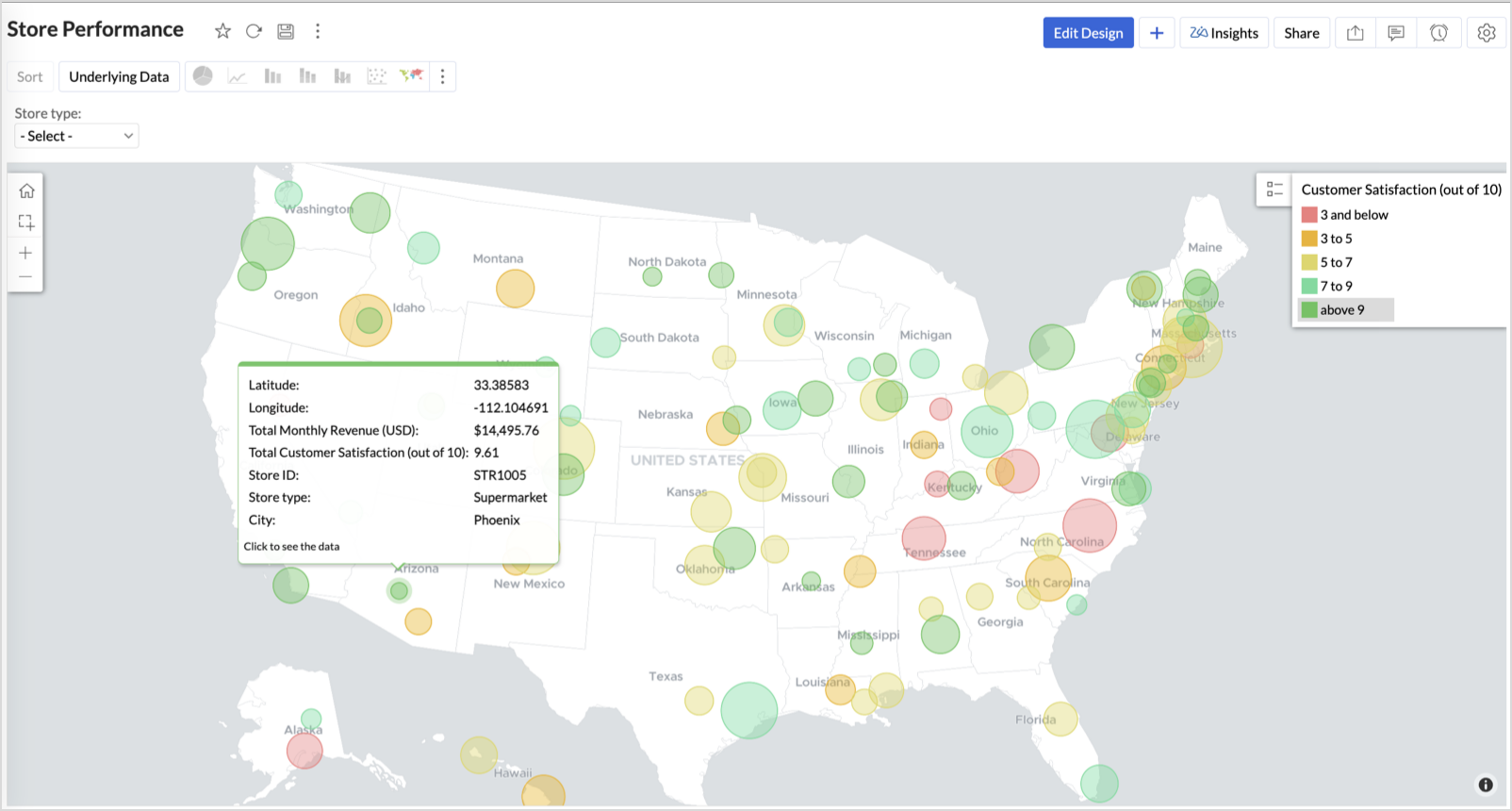
Large bubble + Green color - Healthy performers — consider replicating success
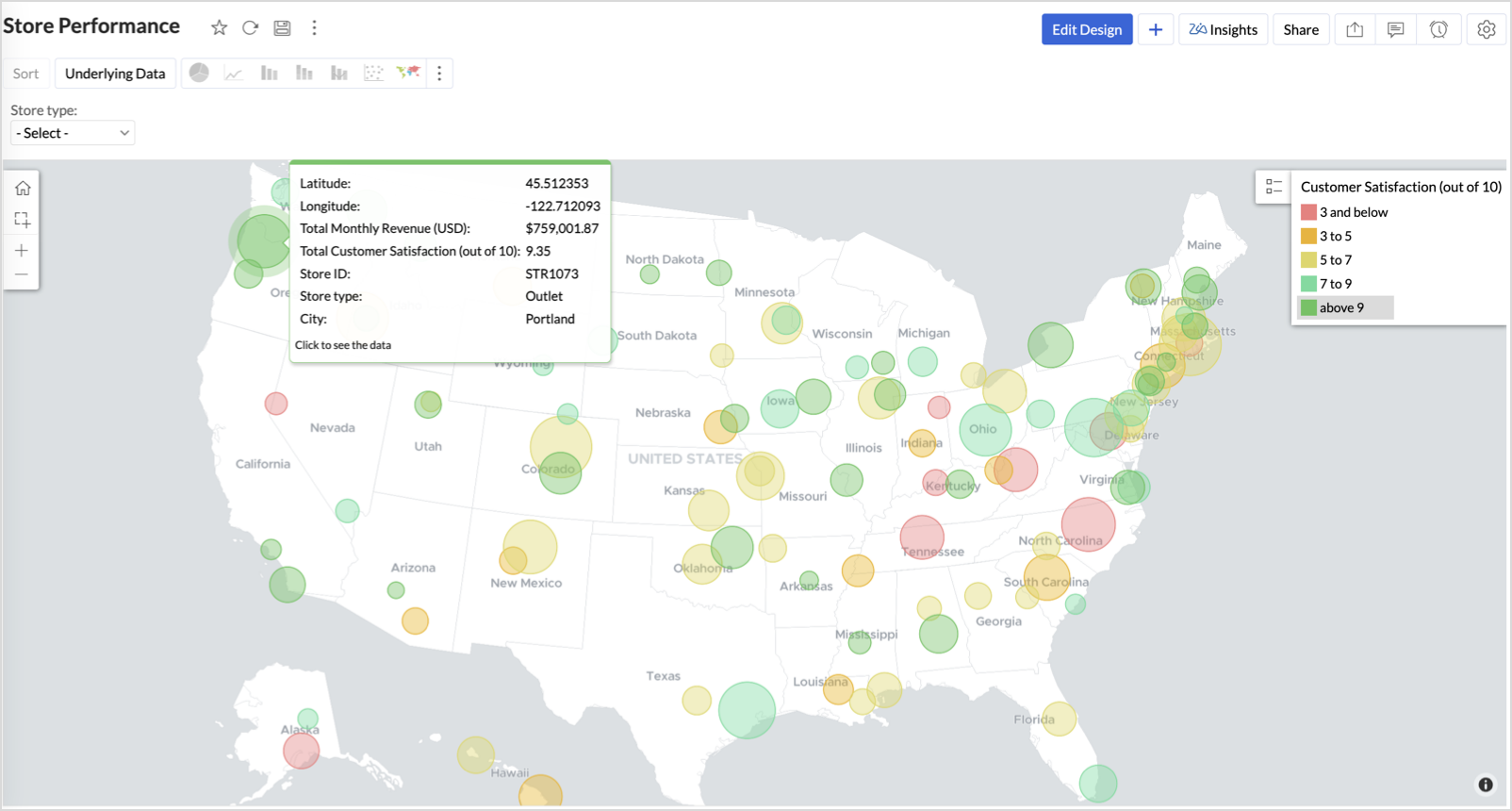
Small bubble + Red color - Low performers — review for possible closure or revamp.
Business Interpretation
This chart acts as a live performance map for executives and analysts. Instead of scanning through tables or KPIs, stakeholders can instantly spot outliers, prioritize investments, and plan corrective actions by just glancing at the map.
2. Revenue-to-Traffic Ratio with Ghost Zone Detection (Map - Filled + Scatter)
To evaluate how efficiently each state is converting foot traffic into store revenue — and more importantly, to identify high-footfall regions without store presence, often referred to as ghost zones.
This chart helps:
- Compare state-level foot traffic against actual revenue
- Spot underutilized or over-performing regions
- Discover untapped markets with high visitor potential but less to no physical stores
Why Map - Filled + Scatter?
- The Map - Filled chart provides a regional perspective of traffic density and revenue generation.
- The Scatter layer overlays actual store locations based on latitude and longitude.
This powerful combo allows you to measure performance where you’re active and spot opportunities where you're not.
Procedure
- From the dataset, click the Create icon and select Chart View.
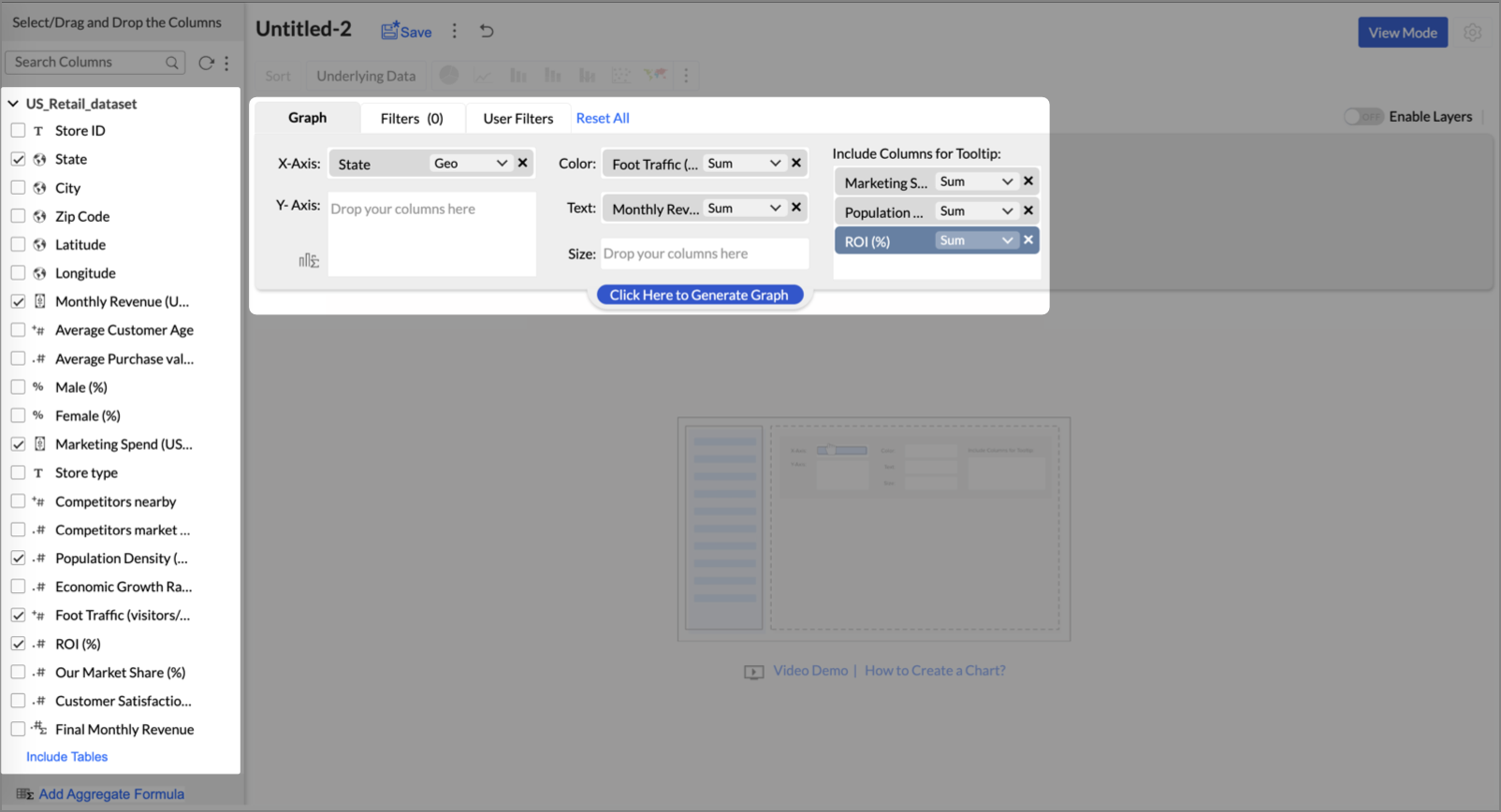
- On the designer page, drag and drop the following columns into their respective shelves:
- State → X-Axis
- Foot Traffic (visitors/month) → Color
- Monthly Revenue (USD) → Text
- Marketing Spend (USD), Population Density (people/sq km), ROI (%) → Tooltip
- Click Generate Graph.
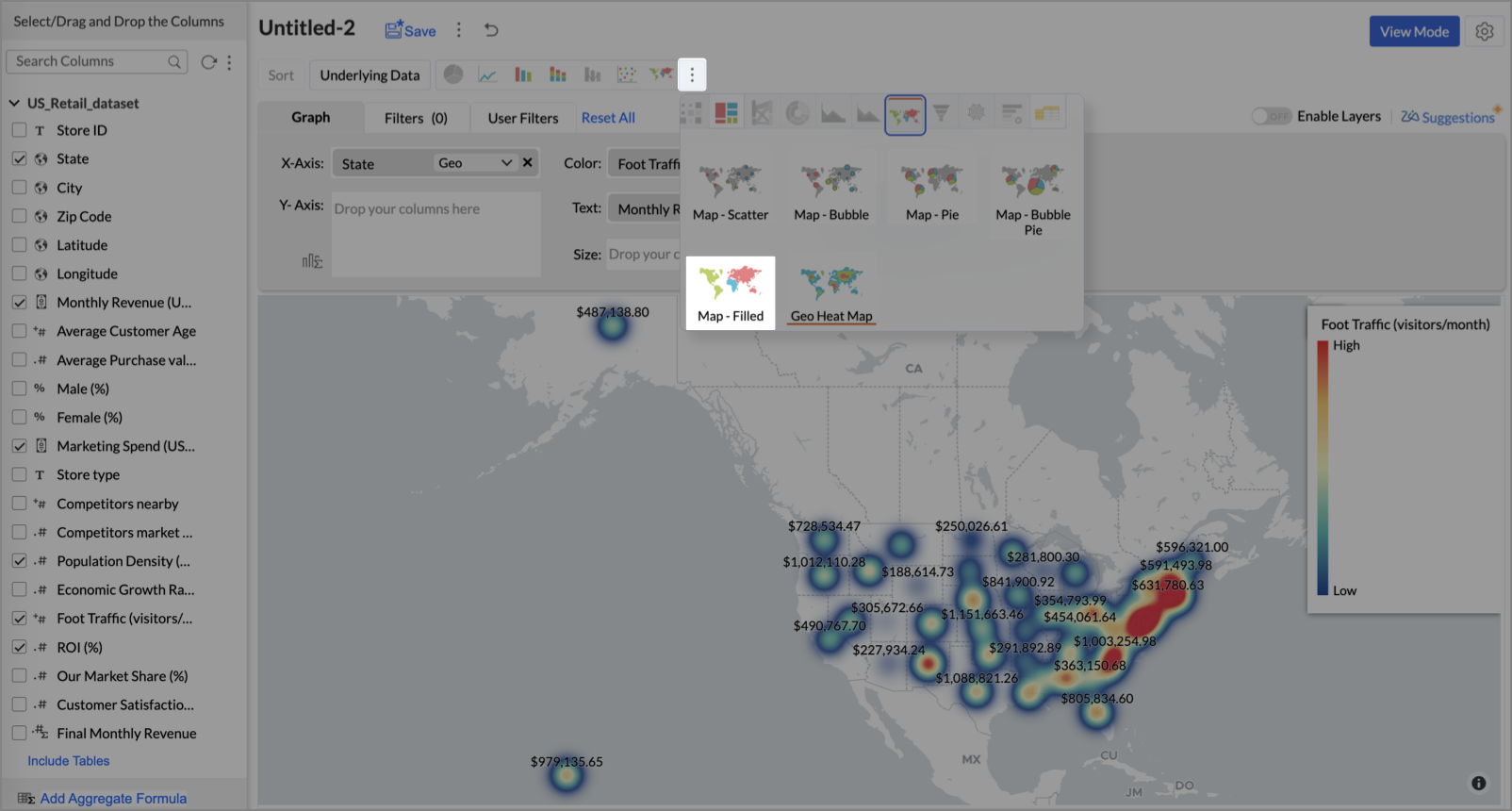
- Click on more option and select the chart type as Map-Filled.
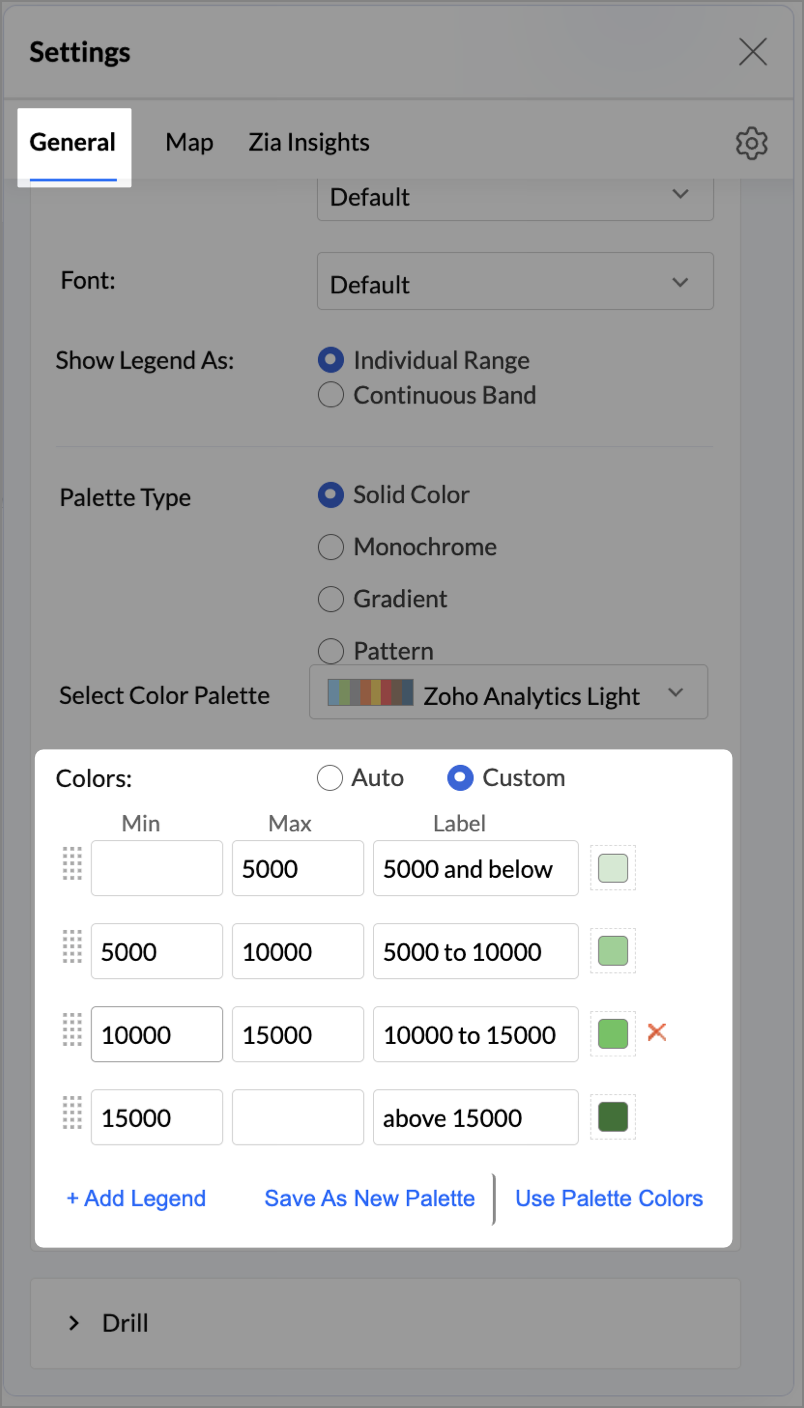
- Click the Settings icon, then click Legend.
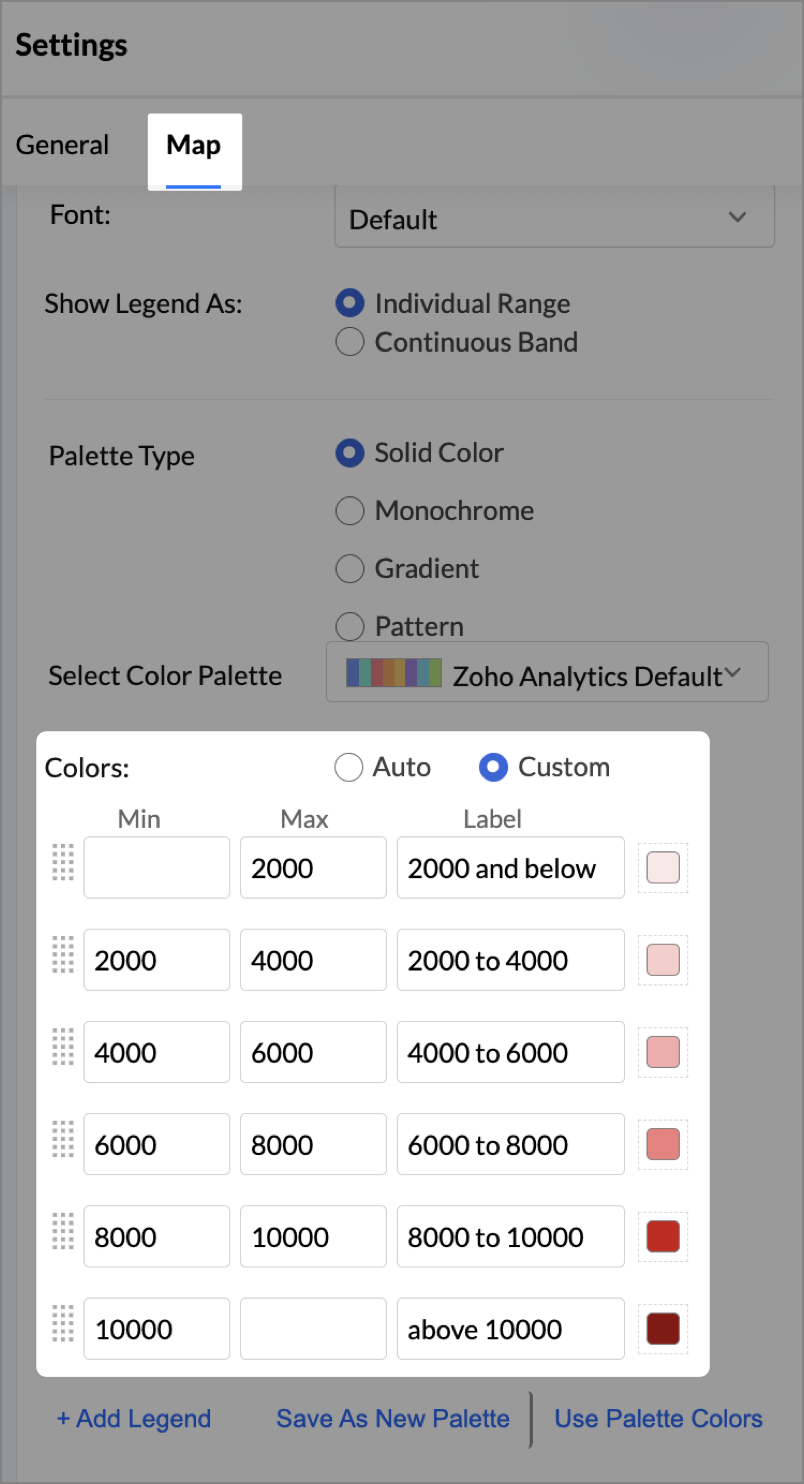
- In the Colors section, assign from light to dark green colors for the below range of foot traffic:
- Below 5,000
- 5,000–10,000
- 10,000–15,000
- Above 15,000
- Under the Map tab, change the map to Albers USA Projection.
This filled layer highlights traffic and revenue across states.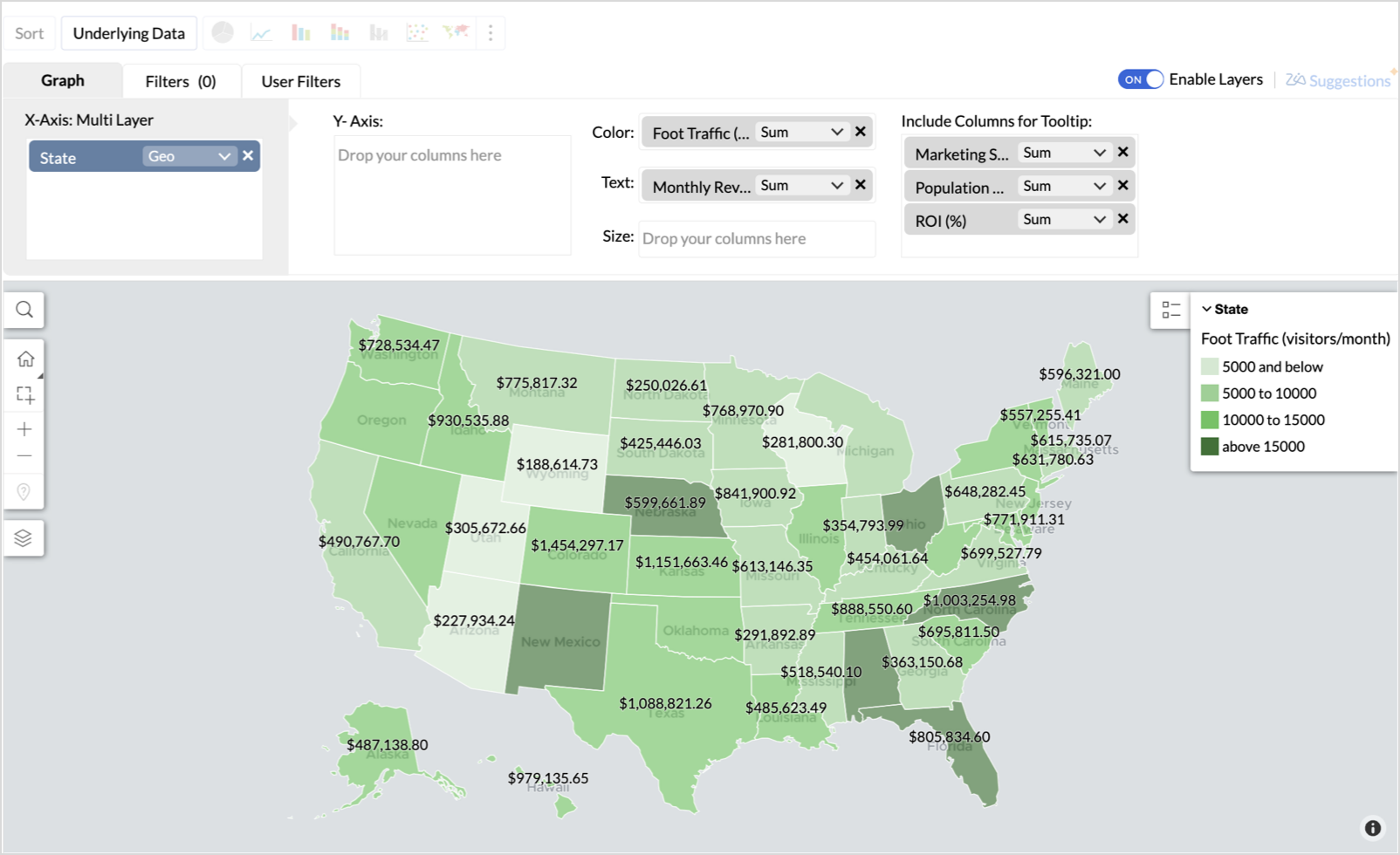
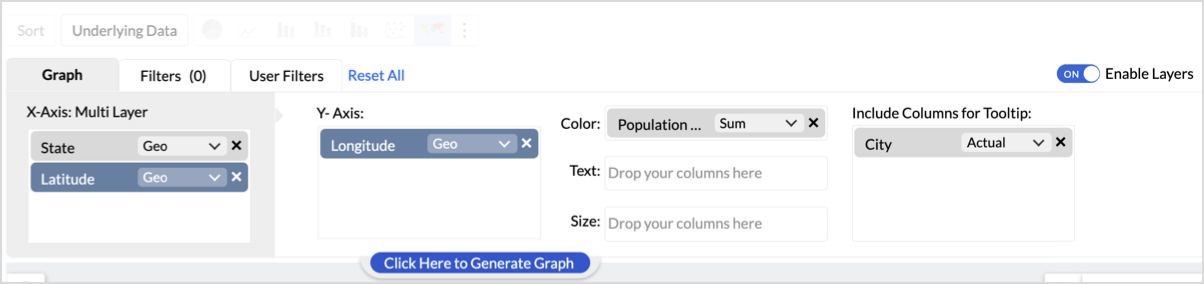
- Toggle Enable Layers to add a second layer.

- In the new layer, drag and drop Latitude and Longitude into the X-Axis and Y-Axis respectively, Population density into the Color shelf, and click Generate Graph.
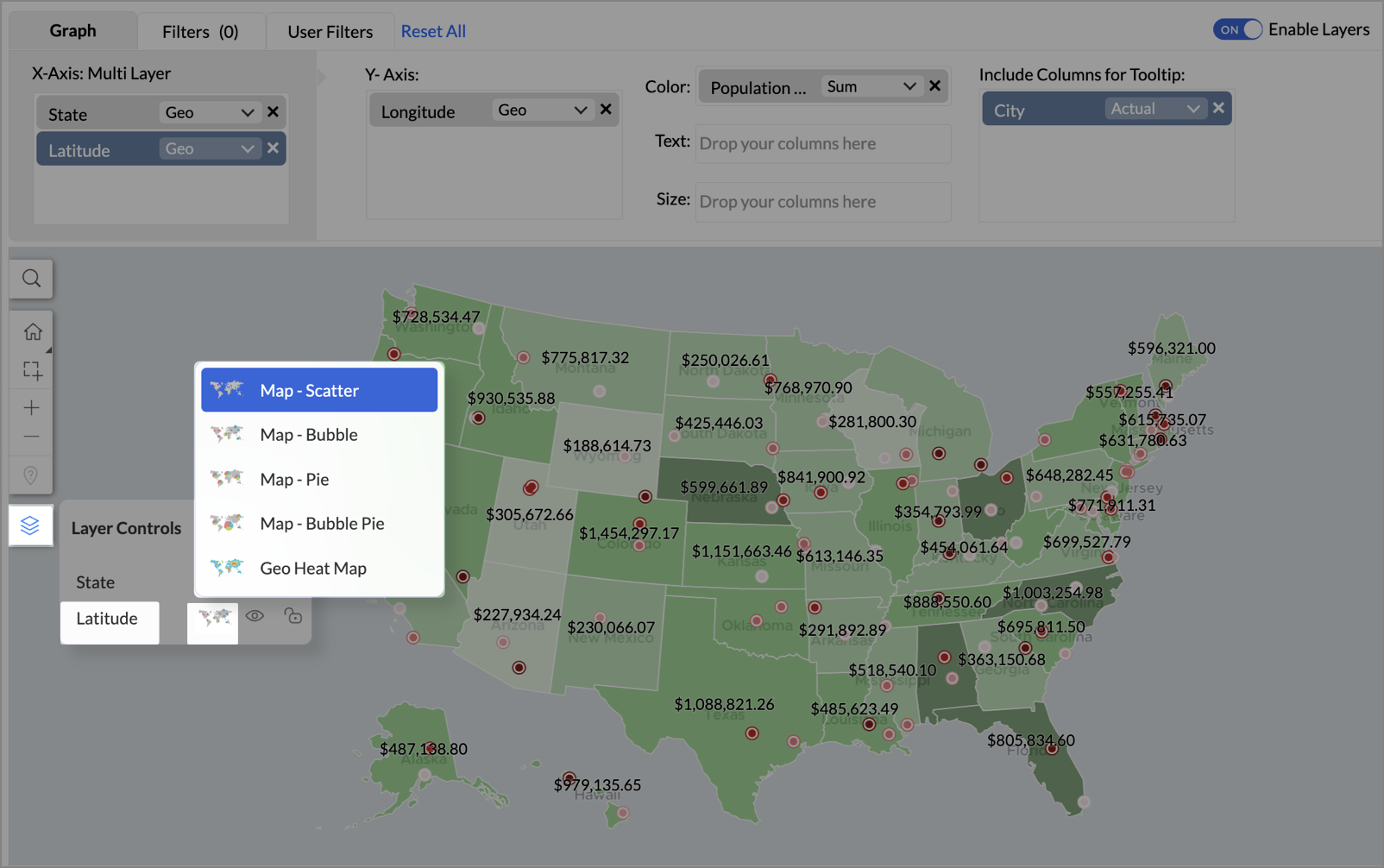
- Click Layer Controls, select Chart Chooser besides Latitude and choose the map as Map - Scatter from the list.
- To customize the second layer, go to Settings → Map → Latitude → Legend, and assign from light to dark red colors for the below range of population density:
- Below 2,000
- 2,000-4,000
- 4,000-6,000
- 6,000-8,000
- 8,000-10000
- Above 10,000
- Rename the report as Revenue-to-Traffic Ratio with Ghost Zone Detection and click Save.
This scatter layer marks the exact store locations, allowing visual correlation with high-traffic regions, revenue, and population density.

Key Insights
Dark green filled (high traffic) + Low revenue - Poor conversion - evaluate strategy or in-store experience
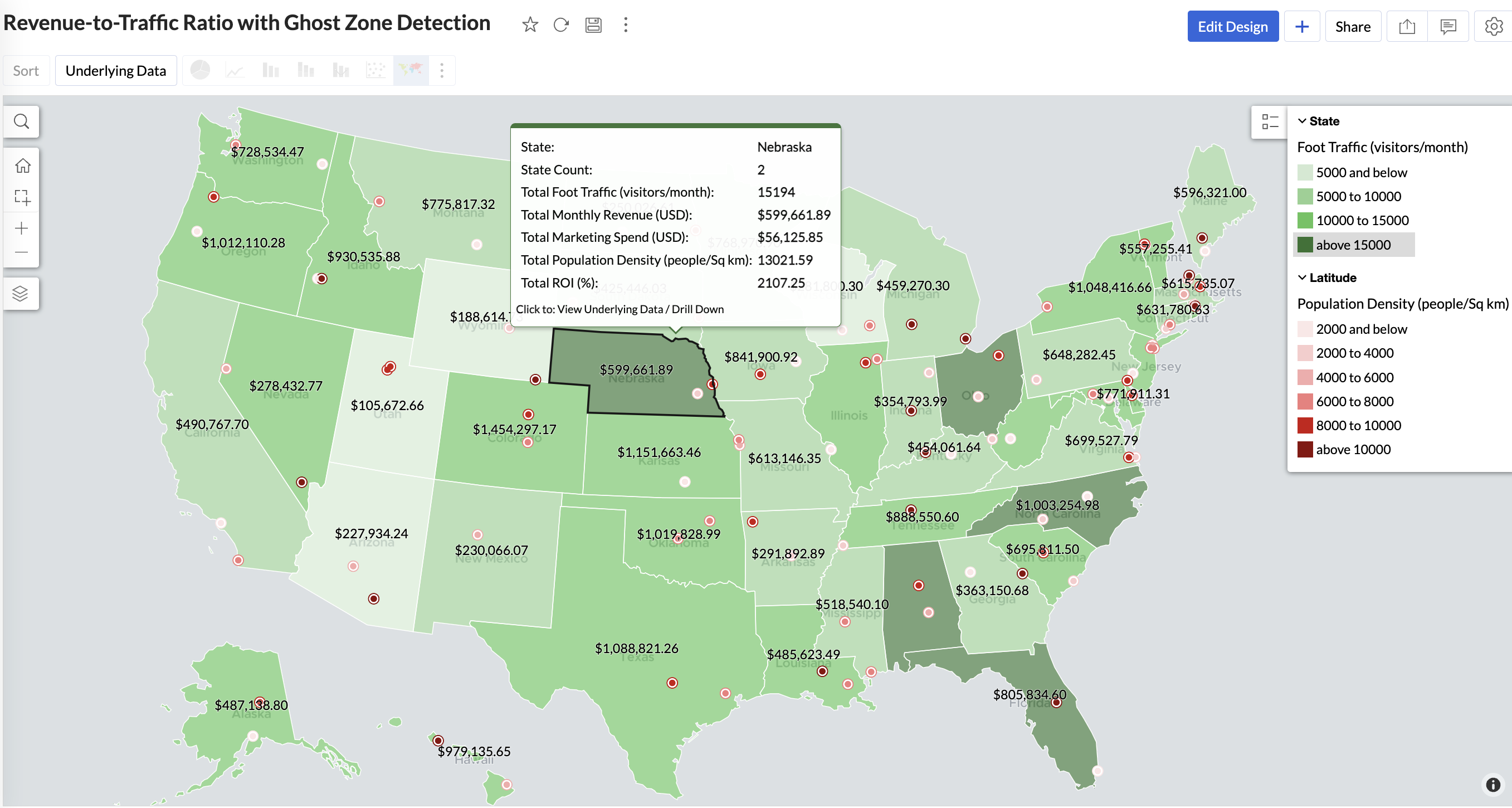
Mid to Dark green filled (high to mid traffic) + balanced revenue - Efficient zones — consider scaling efforts
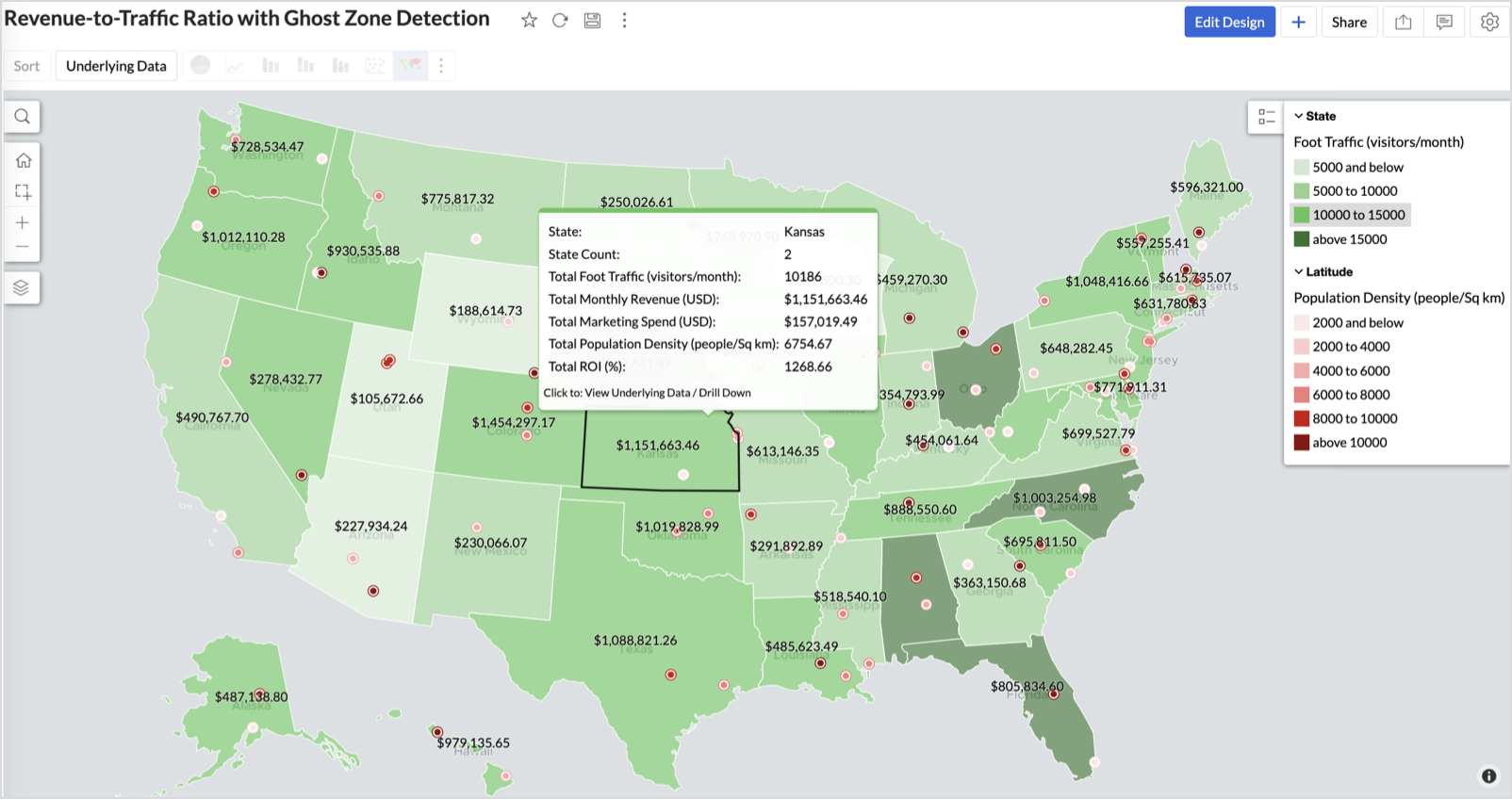
Light green filled (low traffic) + high marketing spend (from tooltip) - Budget drain — reduce spend or re-evaluate targeting
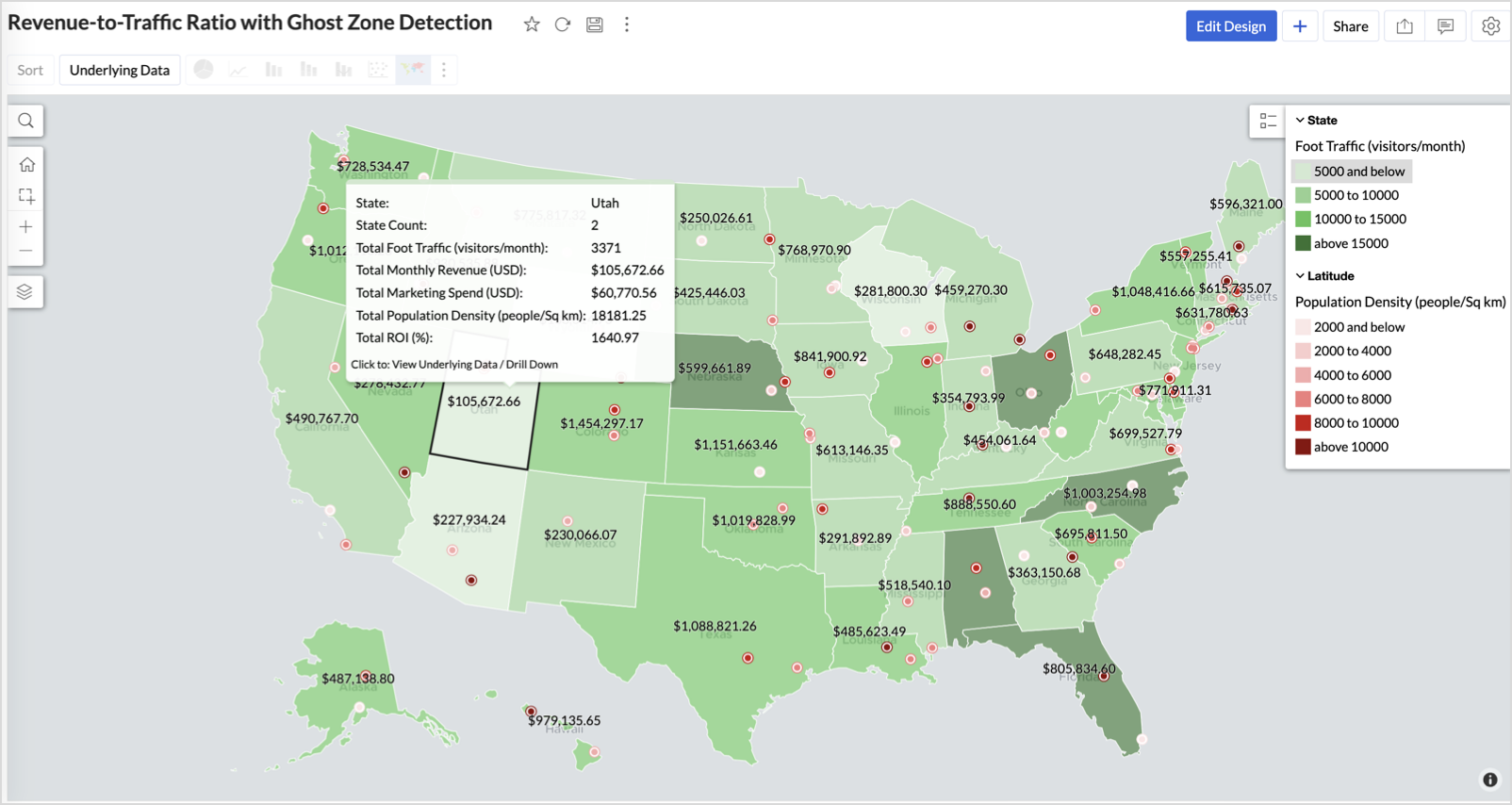
Dark red marker (high population density) + less to no store markers - Ghost Zones — high opportunity areas for expansion
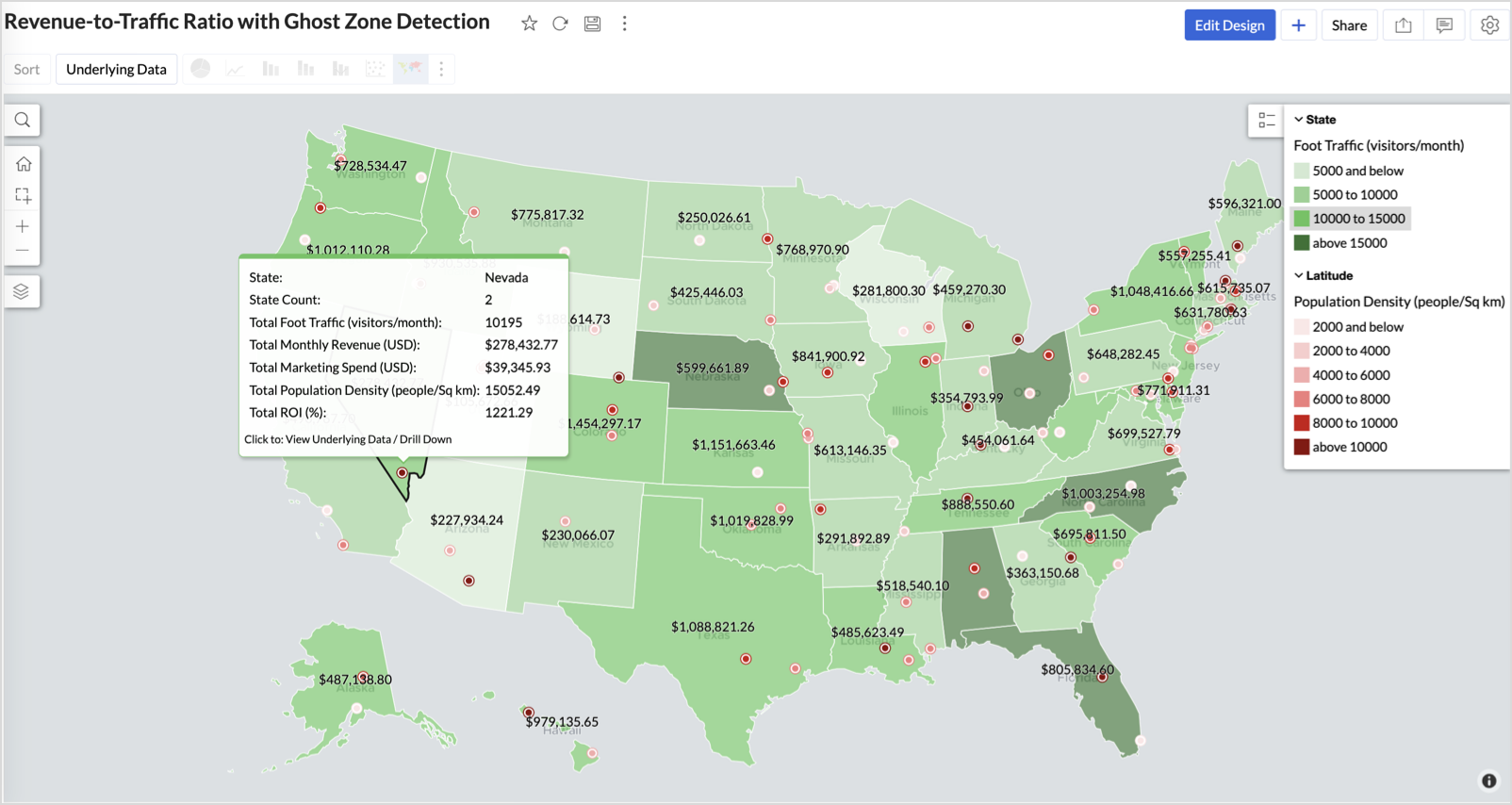
Example: In Las Vegas from Nevada, with a population density of 10,428 people/sq km and only two stores handling 10K–15K visitors/month, monthly revenue of the state remains modest at ~$278K. This indicates a high-opportunity zone for expansion, with strong footfall but untapped revenue potential.
Interpretation & Use
This map is designed for marketing and expansion teams who need to:
- Justify where to open new stores
- Optimize existing resource allocation
It visually answers the question:
Are we generating revenue where people are actually showing up?
Also, with the scatter layer:
Where are we not present — but should be?
3. Competitor Pressure Zones (Map – Scatter)
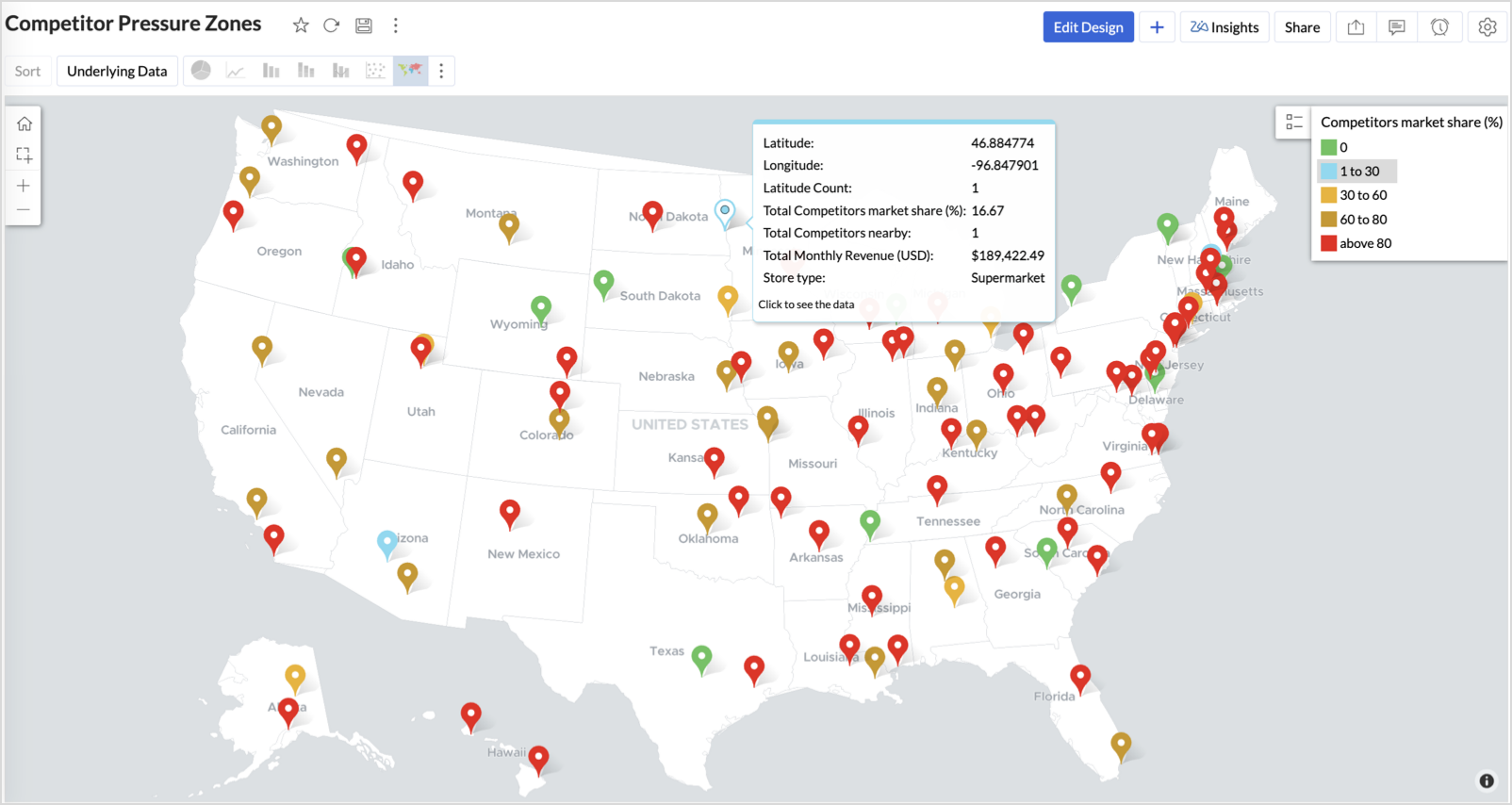
To evaluate how store performance is impacted by nearby competition, using a scatter map that plots every store across the U.S. and reflects competitor market share through color intensity.
This view helps:
- Detect locations under competitive stress
- Identify high-risk zones where your market share is at risk
- Correlate competitor presence with satisfaction and store performance
Why Map - Scatter?
Map - Scatter offers a clean and lightweight visual that plots each store based on its exact coordinates. By encoding competitor market share as color and overlaying other attributes via tooltip, this chart becomes a competitive pressure radar.
Procedure
- From the dataset, click the Create icon and select Chart View.
- In the chart designer, drag and drop the following columns into their respective shelves:
- Latitude → X-Axis
- Longitude → Y-Axis
- Competitors market share → Color
- Competitors nearby, Monthly Revenue, and Store Type → Tooltip
- Click Generate Graph.
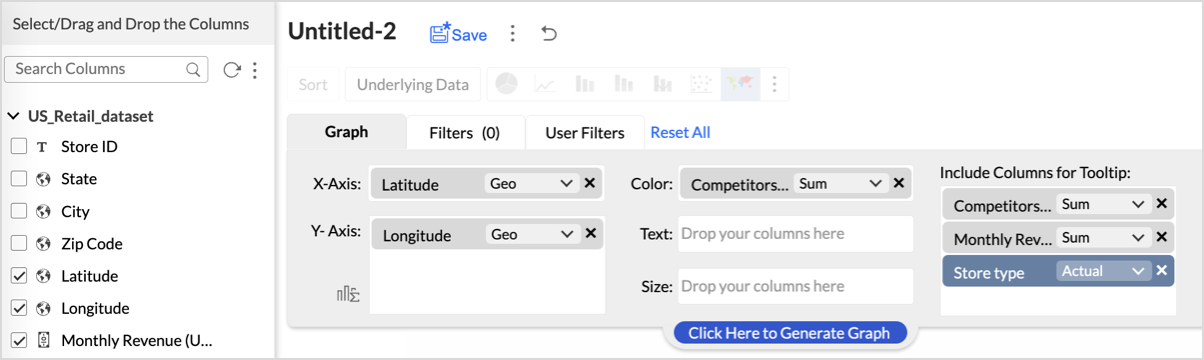
- Click on the more option and select the chart type as Map-Scatter.
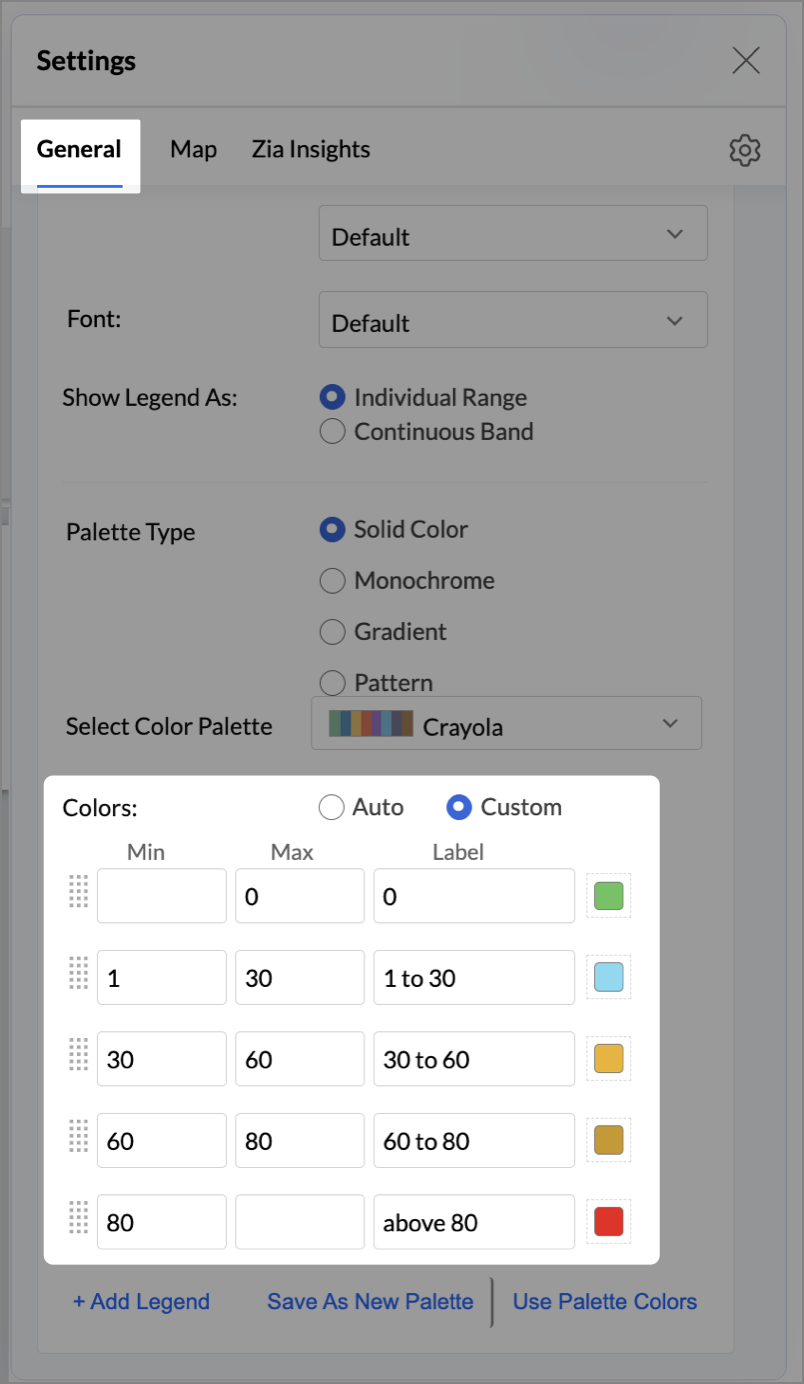
- In the Settings panel, adjust the color gradient to reflect pressure levels
- 0 → Green
- 1-30 → Cyan
- 30-60 → Orange
- 60-80 → Pale red
- Above 80 → Red
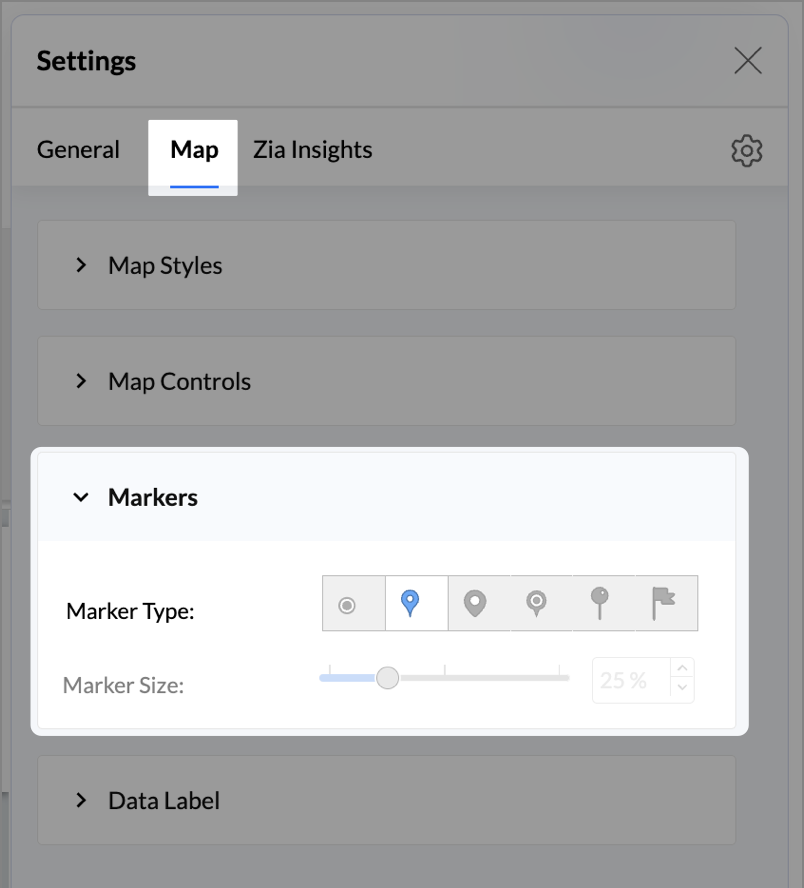
- Change the Marker type under Maps → Marker tab.
- Under the Map tab, change the map to Albers USA Projection.
- Rename the report as Competitor Pressure Zones and click Save.
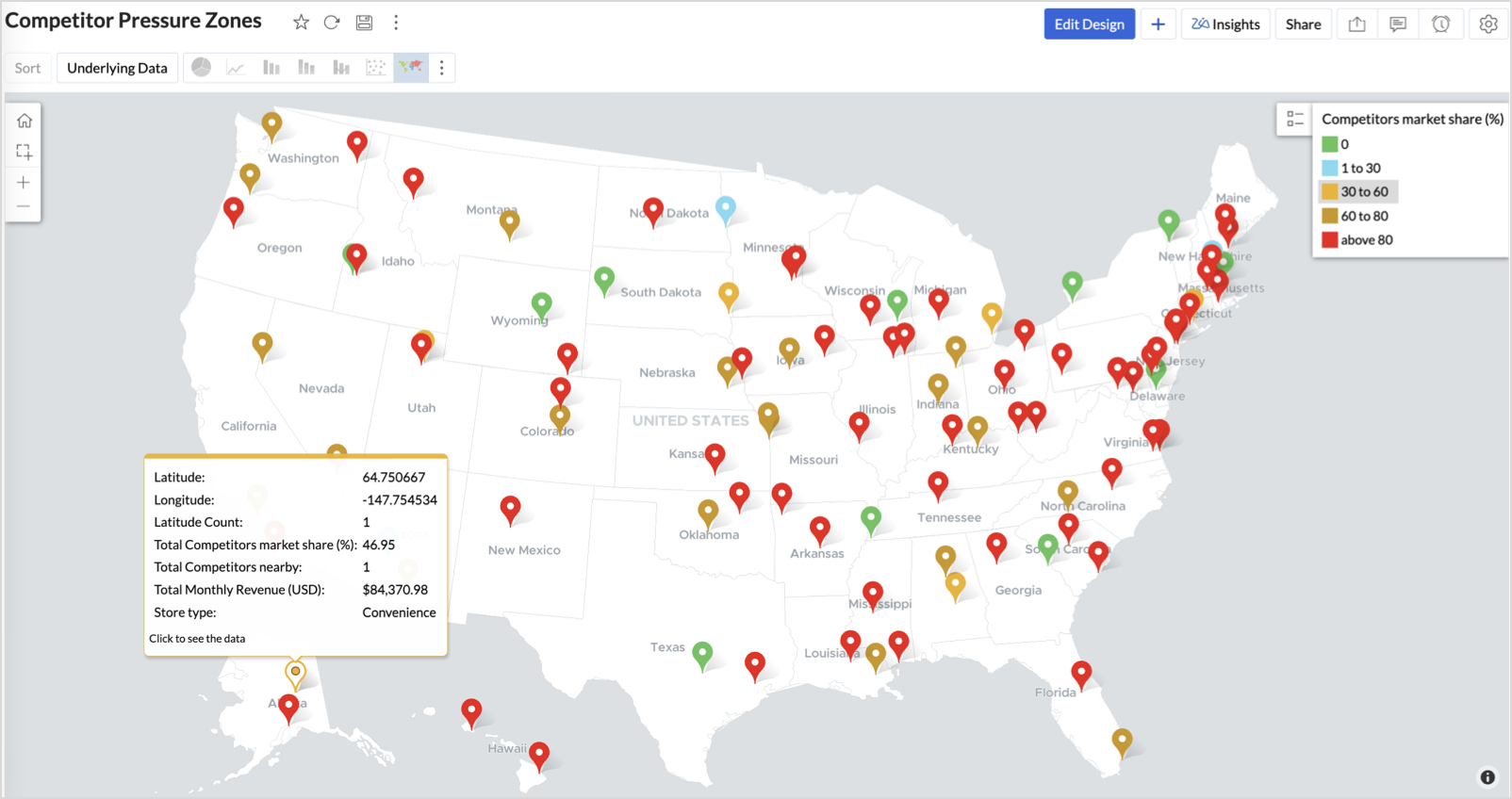
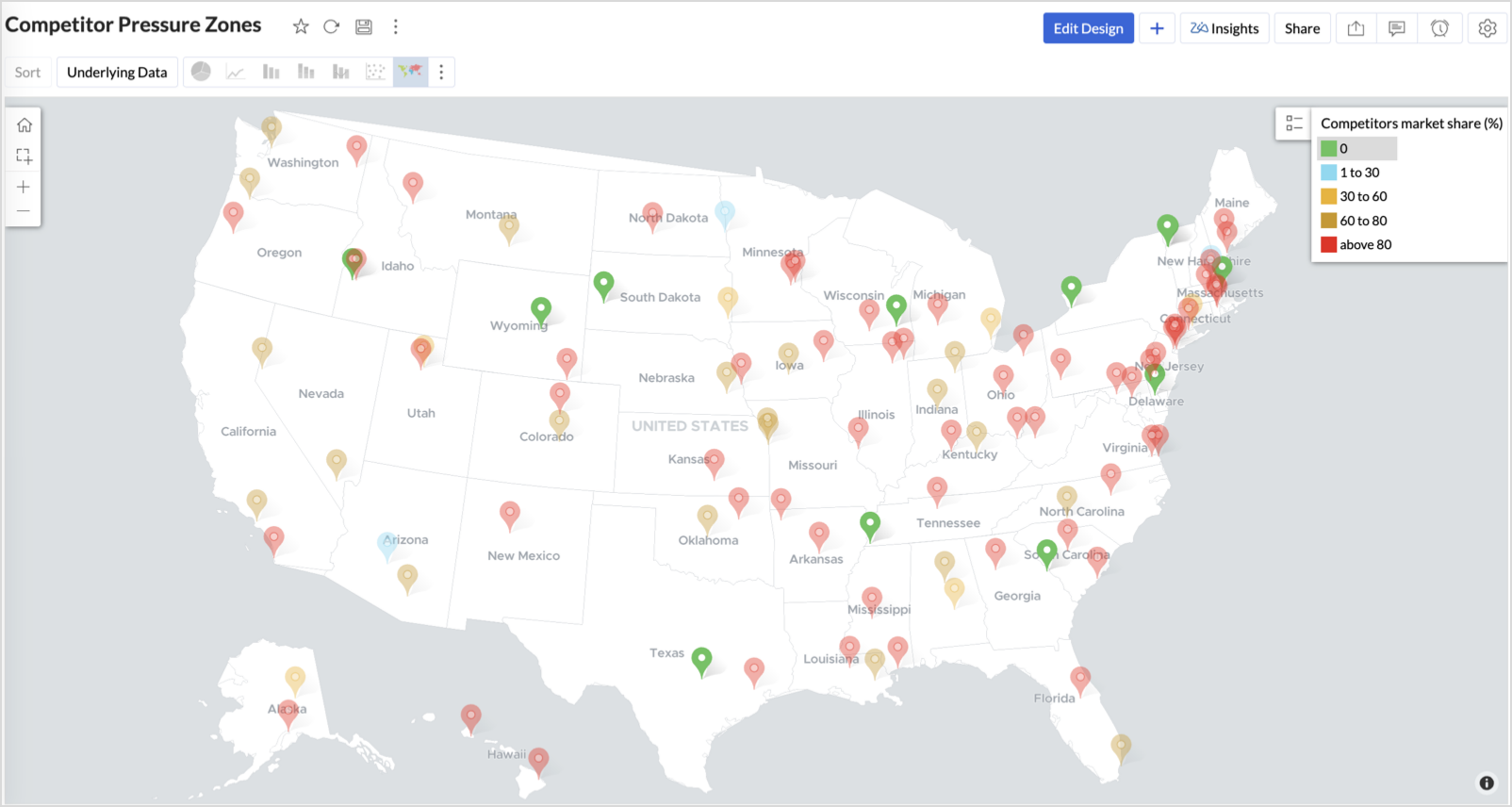
The resulting chart uses color to signal competitive heat around each store, allowing you to scan pressure zones across all regions visually.
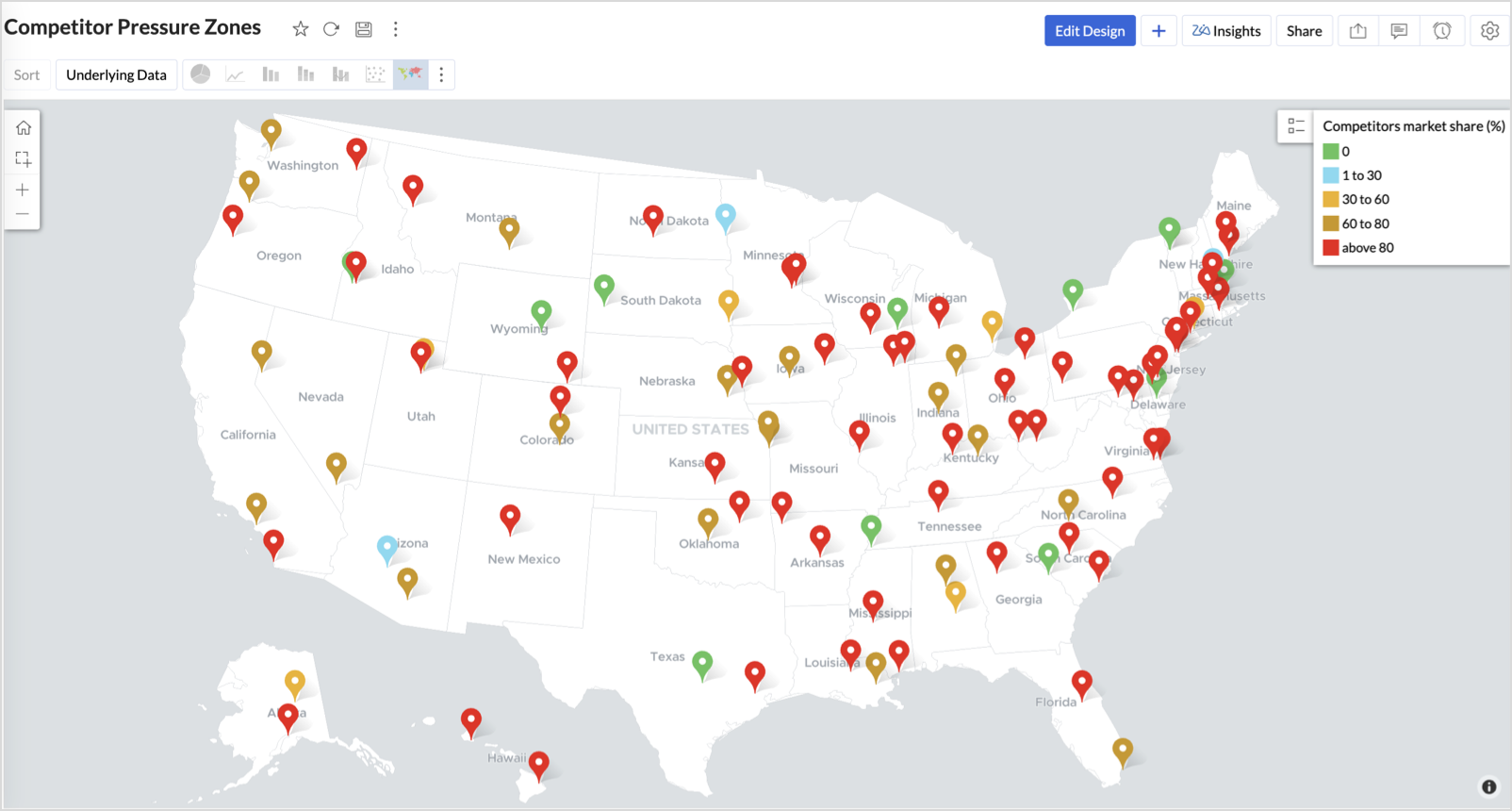
Key Insights
Red (80-100%) - High competitor dominance — urgent intervention zone
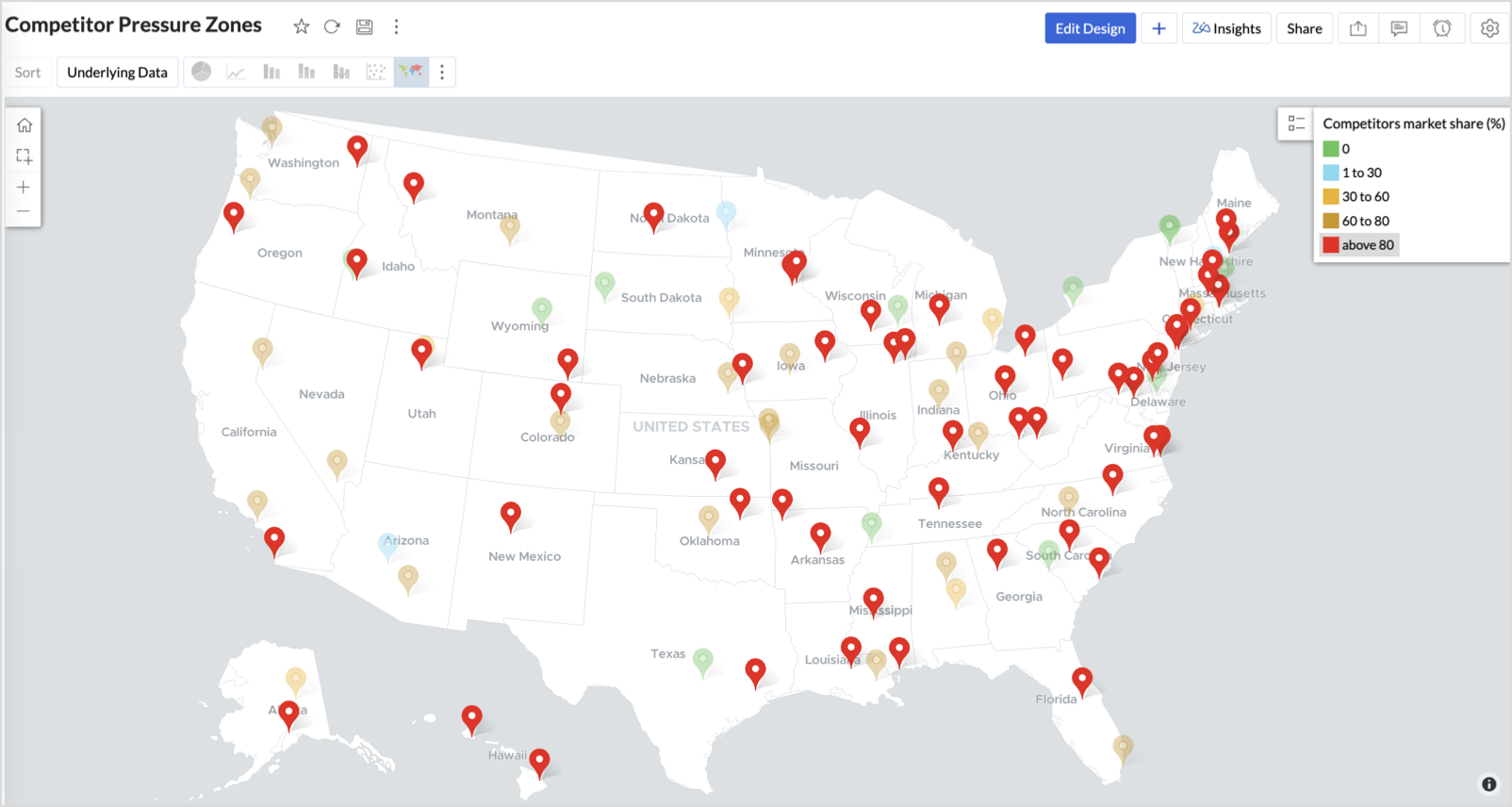
Orange (30-60%) + low revenue - Growing pressure — performance risk emerging
Green (0%) + strong revenue - Market leader — low competition, strong position
Cyan (1-30%) + moderate revenue - Mild competition — possible opportunity to scale further
Business Interpretation
This chart empowers regional and strategy teams to:
- Detect overcrowded areas where stores are losing share
- Identify safe zones where your brand leads the market
- Spot emerging competitor influence before it cuts into your margins
It acts as a competitive intelligence dashboard, mapping how your store network stands against external threats.
4. Customer Gender Distribution (Map - Pie)
To visualize how the gender distribution of customers varies across store locations. This helps identify stores with significant demographic skews, allowing for more personalized marketing, product selection, and in-store experience.
Why Map - Pie?
The Map - Pie chart is ideal for visualizing data composition across geographical locations.By breaking down each store’s customer base into Male (%) and Female (%) segments, this chart reveals who your customers are and where gender-targeted strategies might work best.
Procedure
- From the dataset, click the Create icon and select Chart View.
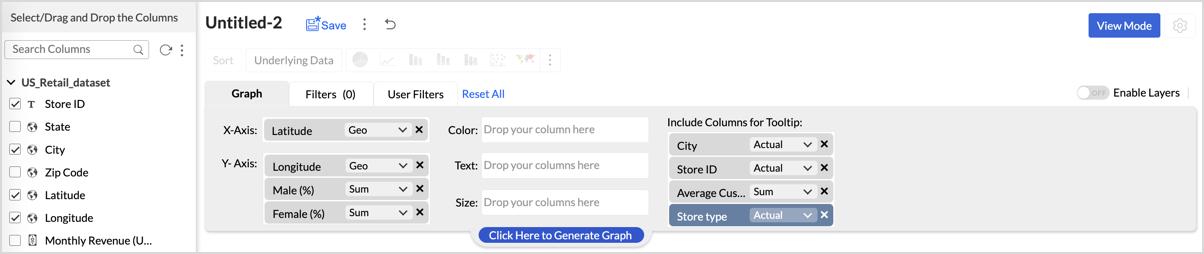
- In the chart designer, drag and drop the following columns into their respective shelves:
- Latitude → X-Axis
- Longitude, Male (%), Female (%) → Y-Axis
- City, Store ID, Average Customer Age, Store Type → Tooltip
- Click Generate Graph.
- In Settings, under the Map tab, change the map to Albers USA Projection.
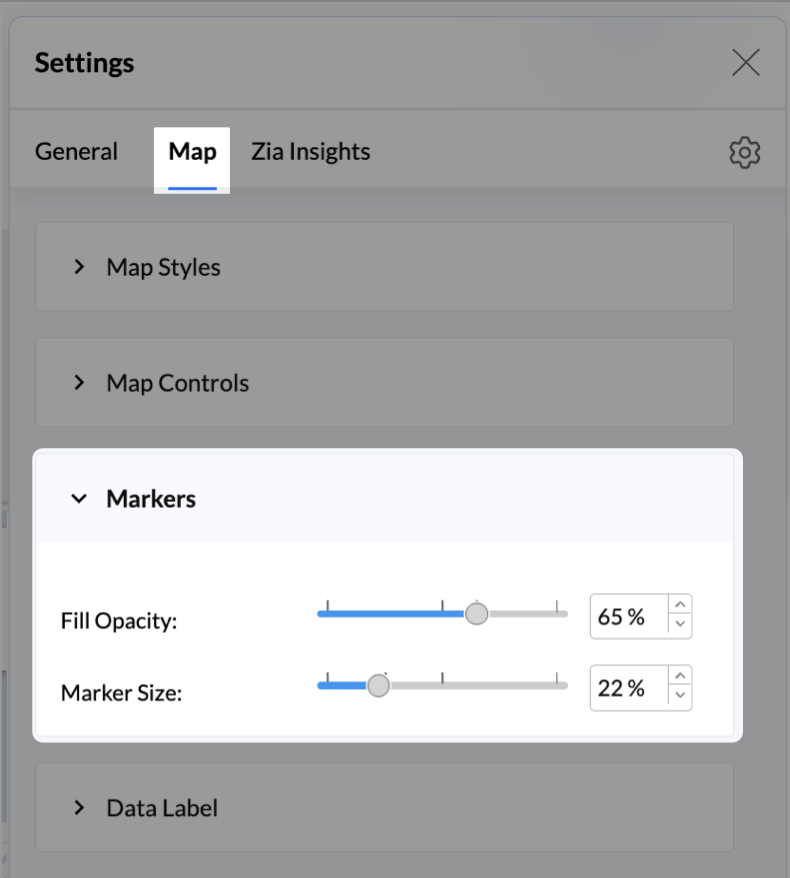
- Click on Markers, adjust the Marker Size as shown.
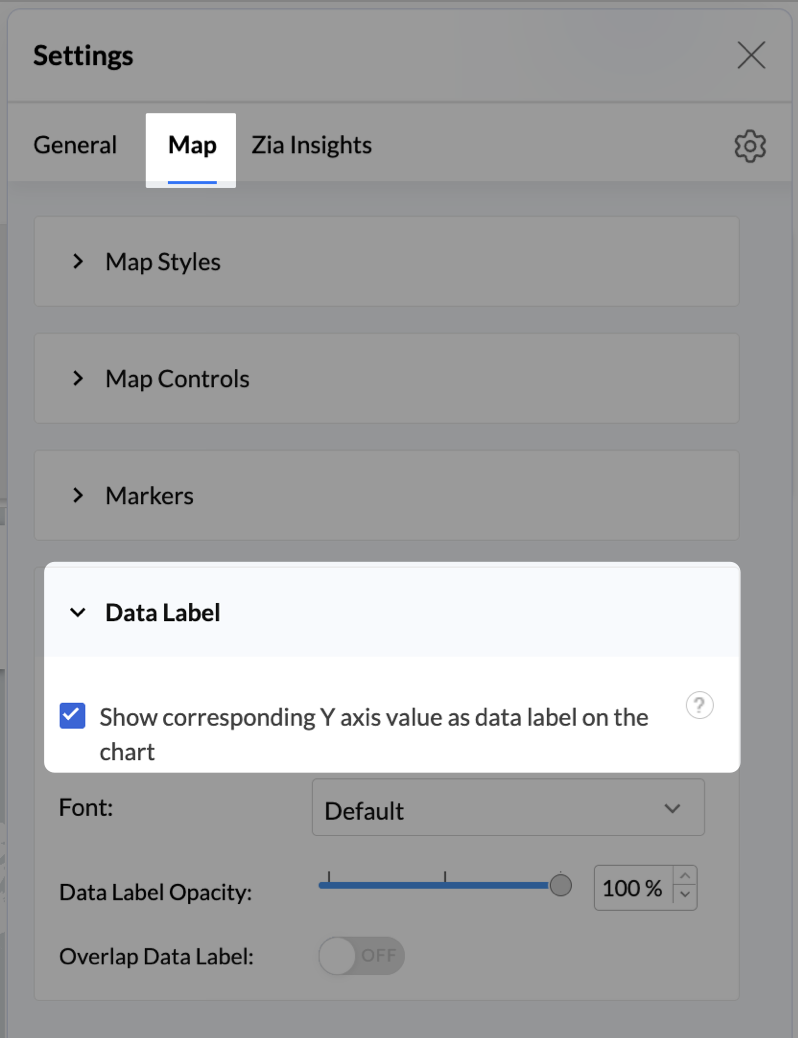
- Click on Data Label, and enable the Show corresponding Y axis value as data label on the chart to display the percentage values on the map.
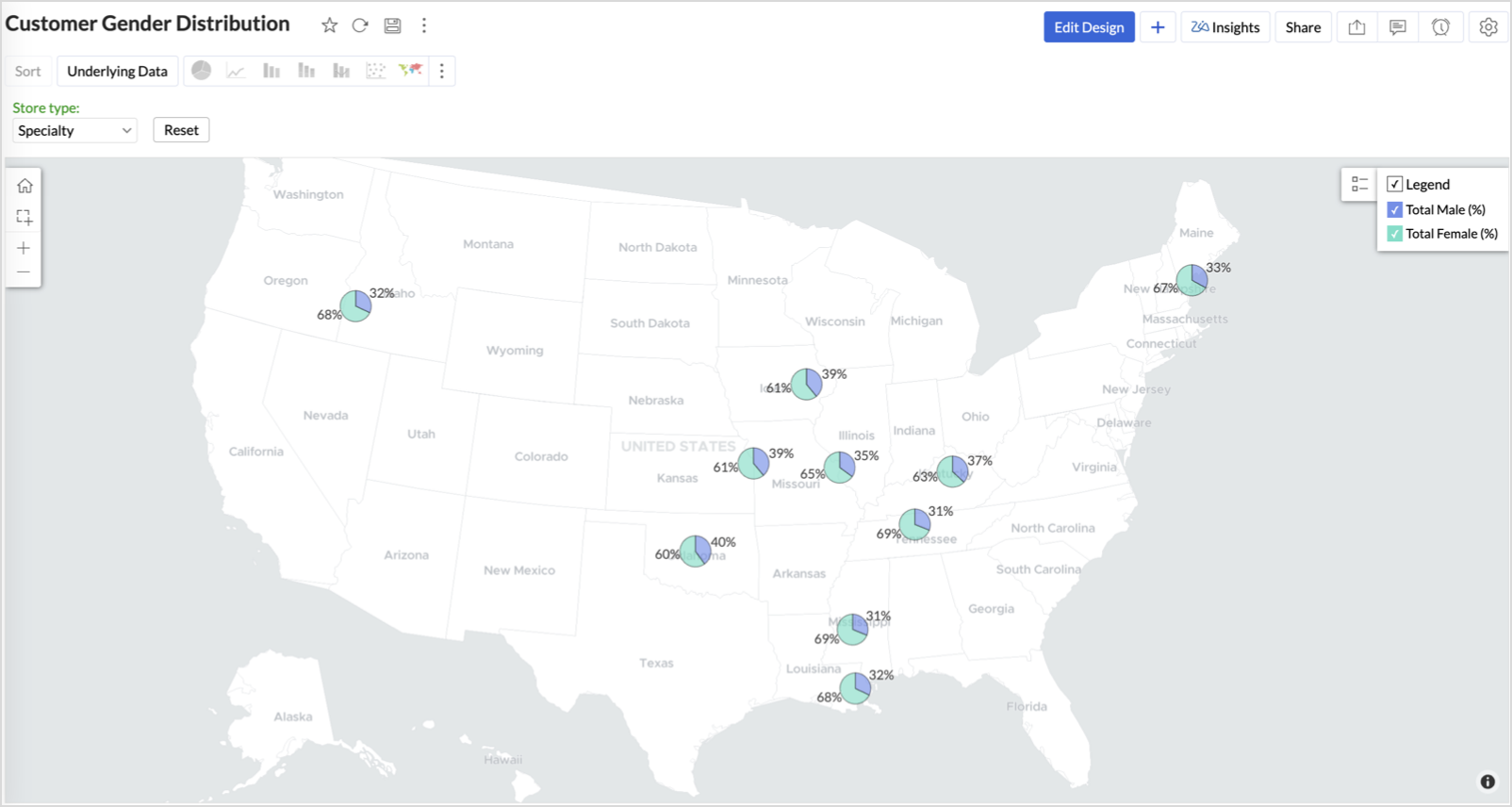
- Add Store Type as User Filters to slice down store-wise gender distribution.
- Rename the report as Customer Gender Distribution and click Save.
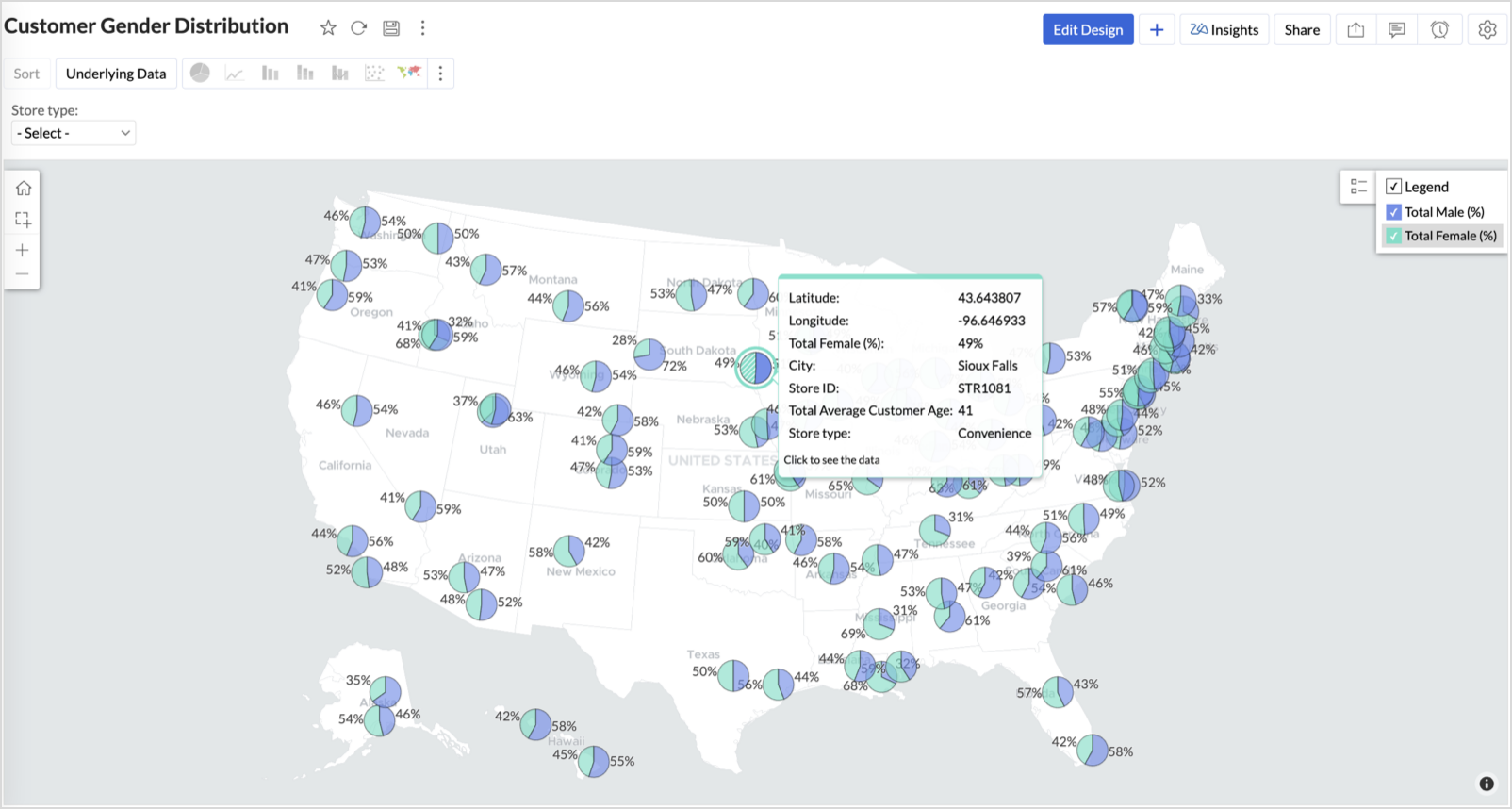
Each store will now display a pie chart representing the gender split among its customers, directly on the map.

Key Insights
Uneven gender split (e.g., 70% Male) - Potential to tailor offerings, branding, or promotions for the dominant gender
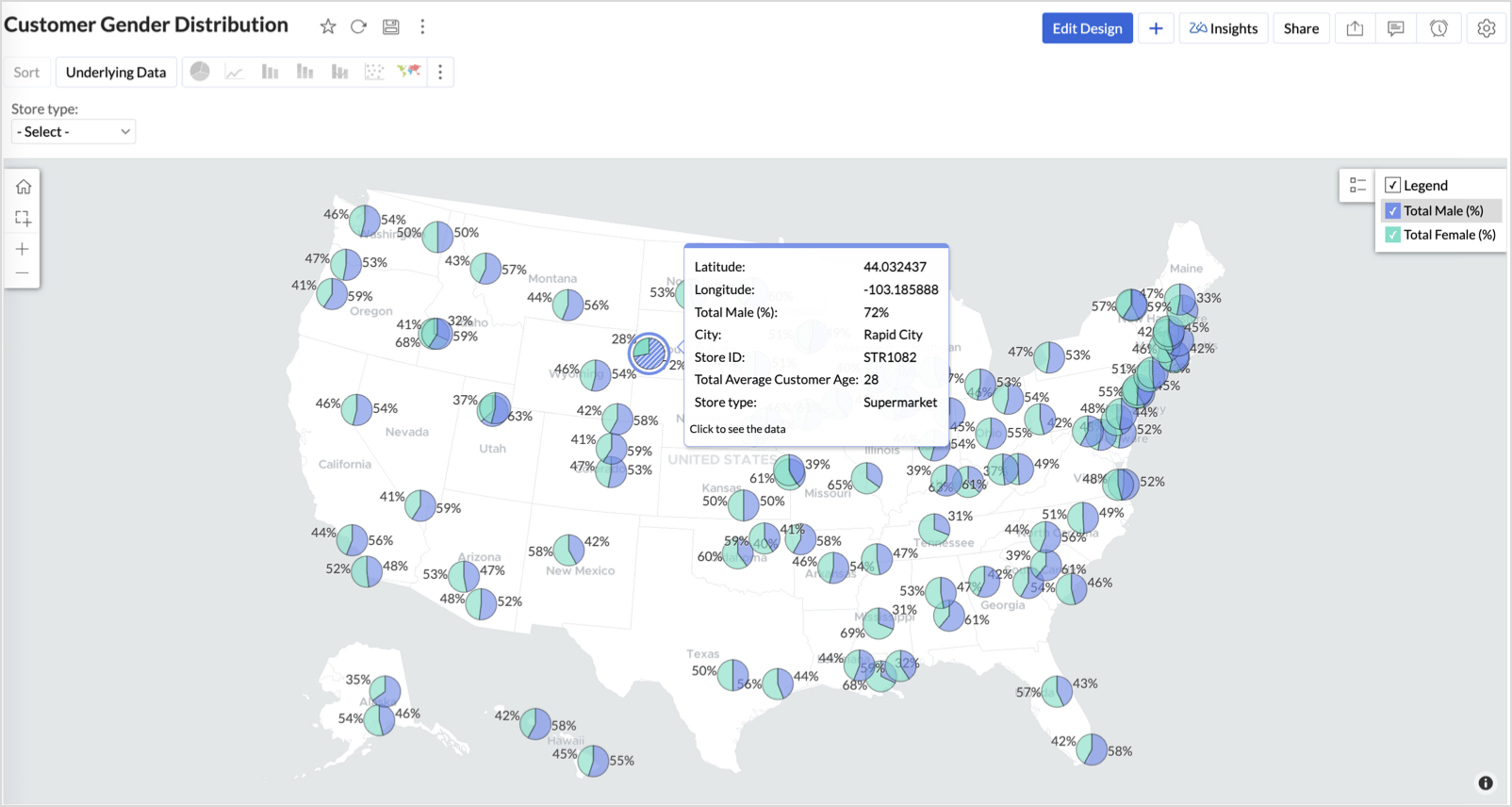
Balanced split (≈50/50) - Opportunity to run inclusive or diversified campaigns
High female ratio + specialty store - Indicates demand for niche products — expand category offerings
Business Interpretation
This chart allows marketing and merchandising teams to:
- Understand gender-based customer clustering across regions
- Launch targeted campaigns (e.g., loyalty programs, promotions)
- Refine product assortments to suit local preferences
For example: A store with 70% female shoppers may benefit from deeper investment in lifestyle categories, while a balanced store could serve as a testing ground for unisex offerings.
Summary
In this phase, we laid the foundation for geo-powered retail intelligence using Zoho Analytics. Through a single, well-structured dataset and four powerful geo map visualizations, we transformed raw store data into real, actionable business insights.
Here’s what we achieved:
|
Report
|
Business Insights
|
|
Store Performance (Bubble)
|
Identified stores that are over performing or at churn risk based on revenue and satisfaction.
|
|
Revenue-to-Traffic Ratio (Filled + Scatter)
|
Detected ghost zones and optimized marketing ROI by comparing traffic and revenue.
|
|
Competitor Pressure Zones (Scatter)
|
Mapped out competitor dominance and spotted at-risk or saturated regions.
|
|
Customer Gender Distribution (Pie)
|
Uncovered demographic patterns to tailor product, marketing, and in-store experience.
|
Click here to access the sample workspace.
These visualizations brought spatial awareness into every performance metric — turning maps into a strategic business tool.
And this... is just the beginning.
Stay tuned for Phase 2 — where Multi-Layer Geo Maps and Network Charts come together to supercharge your business strategy with even deeper spatial insights.
Topic Participants
Pradeepkumar R
Sticky Posts
What's New in Zoho Analytics - February 2026
Hello Users! We're back with another round of updates for Zoho Analytics. This month's release focuses on giving you greater flexibility in how you visualize, manage, and act on your data - with new features like custom visualizations, remote MCP server,What's New in Zoho Analytics - January 2026
Hello Users! We are starting the year with a strong lineup of updates, marking the beginning of many improvements planned to enhance your analytics experience. Explore the latest improvements built to boost performance, simplify analysis, and help youWhat's New in Zoho Analytics - November 2025
We're thrilled to announce a significant update focused on expanding your data connectivity, enhancing visualization capabilities, and delivering a more powerful, intuitive, and performant analytics experience. Here’s a look at what’s new. Explore What'sWhat's New in Zoho Analytics - October 2025
Hello Users! We're are back with a fresh set of updates and enhancements to make data analysis faster and more insightful. Take a quick look at what’s new and see how these updates can power up your reports and dashboards. Explore What's New! ExtremeWhat’s New in Zoho Analytics – September 2025
Hello Users!! In this month’s update, we’re raising the bar across multiple touchpoints, from how you bring in data, plan and track projects to how you design and brand your dashboards. We’ve added the all-new Gantt chart for project visualization, expanded
Recent Topics
I'd like to suggest a feature enhancement for SalesIQ that would greatly improve the user experience across different channels.
Hello Zoho Team, Current Limitation: When I enable the pre-chat form under Brands > Flow Controls to collect the visitor’s name and email, it gets applied globally across all channels, including WhatsApp, Messenger, and Instagram. This doesn't quite alignThe Social Playbook - February edition: Why moment marketing works (and how brands use it)
Imagine the final season of your favorite series is about to drop. Your entire feed is talking about it. Trailers everywhere. Fan theories. Hype at 100%. Now your go-to burger place launches a limited-edition meal box themed around that series—customPDF Attachment Option for Service Reports
Hello Team, I would like to check with you all if there is an option to attach PDF documents to the service reports. When I try to attach a file, the system only allows the following formats: JPEG, JPG, and PNG. Could you please confirm whether PDF attachmentsCliq Bots - Post message to a bot using the command line!
If you had read our post on how to post a message to a channel in a simple one-line command, then this sure is a piece of cake for you guys! For those of you, who are reading this for the first time, don't worry! Just read on. This post is all about howDepositing funds to account
Hello, I have been using Quickbooks for many years but am considering moving to Zoho Books so I am currently running through various workflows and am working on the Invoicing aspect. In QB, the process is to create an invoice, receive payment and then【Zoho CRM】営業日のロジックに関するアップデート
ユーザーの皆さま、こんにちは。コミュニティチームの中野です。 今回は「Zoho CRM アップデート情報」の中から、営業日のロジックに関するアップデートをご紹介します。 本アップデートにより、ワークフローにおける営業日の計算方法が改善されました。 週末などの非営業日にワークフローのトリガーが発生した場合でも、 「+0」「+1」「+2 営業日」といった設定が、意図どおりに正確に動作するようになりました。 営業日に基づくワークフローでは、日付項目を基準に「何営業日後に処理を実行するか」を指定します。Merged cells are unmerging automatically
Hello, I have been using Zoho sheets from last 1 year. But from last week facing a issue in merged cells. While editing all merged cells in a sheet became unmerged. I merged it again, but it again unmerged. In my half an hour work I have to do this 3-4Introducing Built-in Telephony in Zoho Recruit
We’re excited to introduce Built-in Telephony in Zoho Recruit, designed to make recruiter–candidate communication faster, simpler, and fully traceable. These capabilities help you reduce app switching, handle inbound calls efficiently, and keep everyJust want email and office for personal use
I am unclear as how to how I would have just a personal email (already do have it and love it) and get to use docs, notebook, workdrive etc. In other words mostly everything I had a google. I find gocs can be free with 5gb and so can mail with 5gb. AreUnable to change the "credentials of login user" option when creating a connection
I want to create a new Desk connection where the parameter to use 'credentials of login user' is set to YES. I'm able to create a new connection but am never given the option to change this parameter. Is this a restriction of my user profile, and if so,Show backordered items on packing slip
Is it possible to show a column on the Packing Slip that shows number of backordered items when a PO is only partially filled? I would also like to see the Backordered column appear on POs after you receive items if you didn't get ALL of the items or partial amounts of items. And lastly, it would be nice to have the option of turning on the Backordered column for invoices if you only invoice for a partial order. -TomZoho Sheet for Desktop
Does Zoho plans to develop a Desktop version of Sheet that installs on the computer like was done with Writer?Zoho CRM Community Digest - January 2026 | Part 1
The new year is already in motion, and the Zoho CRM Community has been buzzing with steady updates and thoughtful conversations. In this edition, we’ve pulled together the key product enhancements, Kaizen learnings, and helpful discussions from the firstZoho CRM Feature Requests - SMS and Emails to Custom Modules & Time Zone Form Field
TLDR: Add Date/Time/Timezone form field, and be able to turn off auto timezone feature. Allow for Zoho Voices CRM SMS Extension to be able to be added to custom modules, and cases. Create a feature that tracks emails by tracking the email chain, ratherIntroducing Bigin's Add-in for Microsoft Outlook
Hello Everyone, Email is an important way to communicate with customers and prospects. If you use Outlook.com for emails and Bigin as your CRM, the Outlook Add-in helps you connect them easily so you can see your Bigin contact details right inside Outlook.com.Ask the Expert – Zoho One Admin Track : une session dédiée aux administrateurs Zoho One
Vous administrez Zoho One et vous vous posez des questions sur la configuration, la gestion des utilisateurs, la sécurité ou encore l’optimisation de votre back-office ? Bonne nouvelle : une session Ask the Expert – Zoho One Admin Track arrive bientôt,Zoho Commerce
Hi, I have zoho one and use Zoho Books. I am very interested in Zoho Commerce , especially with how all is integrated but have a question. I do not want my store to show prices for customers that are not log in. Is there a way to hide the prices if notHow to Associate Zoho Projects in Zoho CRM
Hi I need script for associating projects in zoho projects to particular Account in zoho CRM side. It can be done manually but I need the automation for this process. There are no api regarding associating a project in zoho crm account. Need assistanceAdd Claude in Zoho Cliq
Let’s add a real AI assistant powered by Claude to your workspace this week, that your team can chat with, ask questions, and act on conversations to run AI actions on. This guide walks you through exactly how to do it, step by step, with all the codeNeed to set workflow or journey wait time (time delay) in minutes, not hours
Minimum wait time for both Campaigns workflows and Marketing Automation journeys is one hour. I need one or the other to be set to several minutes (fraction of the hour). I tried to solve this by entering a fraction but the wait time data type is an integerEditing Item Group to add Image
I did not have the image of the product when the Item Group was created. Now I have the product image, and would like to associate/add to the Item Group. However the Item Group Edit functionality does not show/allow adding/changing image. Please helUrgent: Slow Loading Issue on Zoho Commerce Website
Dear Zoho Support Team, I am experiencing slow loading times on my Zoho Commerce website, which is affecting its performance and user experience. The issue persists across different devices and networks. Could you please investigate this matter and provideZoho Books - France
L’équipe de Zoho France reçoit régulièrement des questions sur la conformité de ses applications de finances (Zoho Books/ Zoho Invoice) pour le marché français. Voici quelques points pour clarifier la question : Zoho Books est un logiciel de comptabilitéNew in Office Integrator: Download documents as password-protected PDFs
Hi users, We're excited to introduce password-protected PDF as a download option in Zoho Office Integrator's document editor. This allows you to securely share confidential information from within your web app. Highlights of the password-protected PDFSales IQ - Zobot en multilangue
Bonjour, J'ai un Zobot installé sur mon site depuis longtemps. J'ai ajouté plusieurs langues, dans la configuration et dans le générateur de bot sans code Pourtant, le Chat continue à s'afficher en Francais. Comment enclencher le multilangue en frontStreamlining E-commerce Photography with AI Background Tools
Hey Zoho Community, I’ve been messing around with ways to make product images less of a headache for fashion brands on Zoho Commerce. You know how boring generic backdrops can get, and how much time traditional photoshoots eat up, right? I tried out thisUnable to Assign Multiple Categories to a Single Product in Zoho Commerce
Hello Zoho Commerce Support Team, I am facing an issue while assigning categories to products in Zoho Commerce. I want to assign multiple categories to a single product, but in the Item edit page, the Category field allows selecting only one categoryCollapsing and expanding of lists and paragraphs
hello Would you ever implement Collapsing and expanding of lists and paragraphs in zoho writer ? Best regardsSaving issue
First problem I opened a MS word file in writer. after the work is done, it does not save instantly, I waited for like 10min and it still did not save. second problem When I save a file, then file gets saved as another copy. I just did save, not saveNotifications Feeds unread count?
How do I reset the unread count on feeds notifications? I've opened every notification in the list. And the count never goes to zero.Zoho Finance Limitations 2.0 #3: Can't assign a Contact to a Finance Record (estimate, sales order or invoice)
If you use a business to business scenario with different contact people within the company you can't assign a finance record (estimate, invoice, etc...) to that person. Why this matters? No way to find out which person placed the order without manualZoho Community Digest — Febrero 2026
¡Hola, comunidad! Un mes más os traemos las novedades más interesantes de Zoho para febrero de 2026, incluyendo actualizaciones de producto publicadas oficialmente, cambios de políticas y noticias del ecosistema. Pero antes de lanzarnos a las actualizaciones,Disable Zoho Contacts
We don't want to use this app... How can we disable it?Filter button in the Zoho Sheet Android App doesn't toggle on
I am a new Zoho Sheets user and experiencing a specific issue with the filter functionality in the Android mobile application. Detailed Issue Description: The filter icon appears correctly in the toolbar. Upon tapping the filter icon/button, the toggle【Zoho CRM】商談タブへのデータインポート
Zoho使用前にエクセルで管理していた商談情報を、Zoho一括管理のため、商談タブにインポートしたいのですが、お客さまの氏名だけが紐づけられませんでした。 「Zoho CRMにインポートする項目を関連付ける」のところが画像のようになっています。 (弊社では、「姓」を「★個人データ名」という項目名に変更し、フルネームを入れて使用しています。) どのようにしたら氏名をインポートできるかご存じの方がいらっしゃいましたら、ご教示いただきたく、よろしくお願いいたします。 (投稿先が間違っていましたらご指CRM Cadences recognise auto-responses
I have leads in a Cadence. I get an auto-responder reply "I'm out of the office..." Normally Cadences seems to know that isn't a real reply and keeps the lead enrolled in the cadence. However, today, Cadences has UNENROLLED a Lead who sent an auto-reponseSelecting all notes in a notebook
In Windows11, I select a notebook and I get a list of notes, but only 30 notes. If I scroll down to the end, I get an additional 30 notes (and at the top it now shows 60 notes). I can keep doing this to eventually see all my notes but this is a real pain.SalesIQ Chat Notifications
I am the admin of our salesIQ implementation. About two weeks ago, I started hearing/seeing notification for ALL chats messages from monitored agents/chat participants. I don't need to see these, we have a manager who deals with this. I can't stop theHow to Create a Fixed Sliding Time Window (D-45 to D-15) in Zoho Analytics ?
Hello, I would like to create a report in Zoho Analytics based on a sliding time window between D-45 and D-15, with a fixed snapshot of that specific period. The data displayed should strictly reflect activity recorded between D-45 and D-15 only, withoutExport Zoho Books to another accounting package?
Is an export feature to Quickbooks or Accpac available (or a form that is easily imported by them)? My reasons: 1) my accountant, who prepares my corporate tax return, prefers to work with their own accounting system. If I can convert Zoho books a form that is easily importable into Quickbooks or an Accpac format, this process would be easy. 2) I don't want to keep my data in a proprietary format on the cloud somewhere without a way to easily extract it to a format that can be read my a well establishedNext Page