Kaizen 223 - File Manager in CRM Widget Using ZRC Methods
Hello, CRM Wizards!

Here is what we are improving this week with Kaizen.
we will explore the new ZRC (Zoho Request Client) introduced in Widget SDK v1.5, and learn how to use it to build a Related List Widget that integrates with Zoho WorkDrive. It helps users to preview and upload files directly from the record’s detail page.
Why ZRC?
ZRC is a unified client for making REST calls across all developer-facing components in Zoho CRM. It is currently supported in Widgets and CScript, and will soon be available for other features within the Developer Hub as well.
It simplifies external API usage with:
- async/await support
- Auto JSON parsing
- Unified API client for Zoho CRM developer tools (currently supported for CScript and widgets)
- Stronger error handling
Business Problem
Zylker, a real-estate company, stores documents, images, and property videos for each lead in a third-party cloud storage platform.
However, some of these files exceed 20 MB, making the CRM’s built-in file upload field unsuitable. Their team also needs the ability to preview and upload files directly from the Lead detail page.
Solution Overview
Zylker can build a Related List Widget integrated with their third-party cloud storage platform using ZRC methods.
This widget will allow users to:
- Fetch and display files inside the folder linked to the Lead.
- Preview files (images, PDFs, videos) inside the widget.
- Upload new documents to the same folder.
- Create new subfolders to keep the data organized.
- Navigate subfolders using breadcrumbs.
To keep the demo simple, let us walk you through on building this widget for listing, previewing and uploading files using Zoho WorkDrive.
Prerequisites
1. Create a Custom Field
Create a Single Line field named WorkDrive Folder ID in the Leads module. Check out the Working with Custom Fields document for guidance.
This stores the folder ID created for each lead through workflow rule that we build in the next steps.
2. Create WorkDrive and CRM Connection
- Go to Setup > Developer Hub > Connections and click Create Connection.
- Choose Zoho WorkDrive with the scopes WorkDrive.files.CREATE and WorkDrive.files.READ.
- Click the Create and Connect button and proceed to authorize the connection.
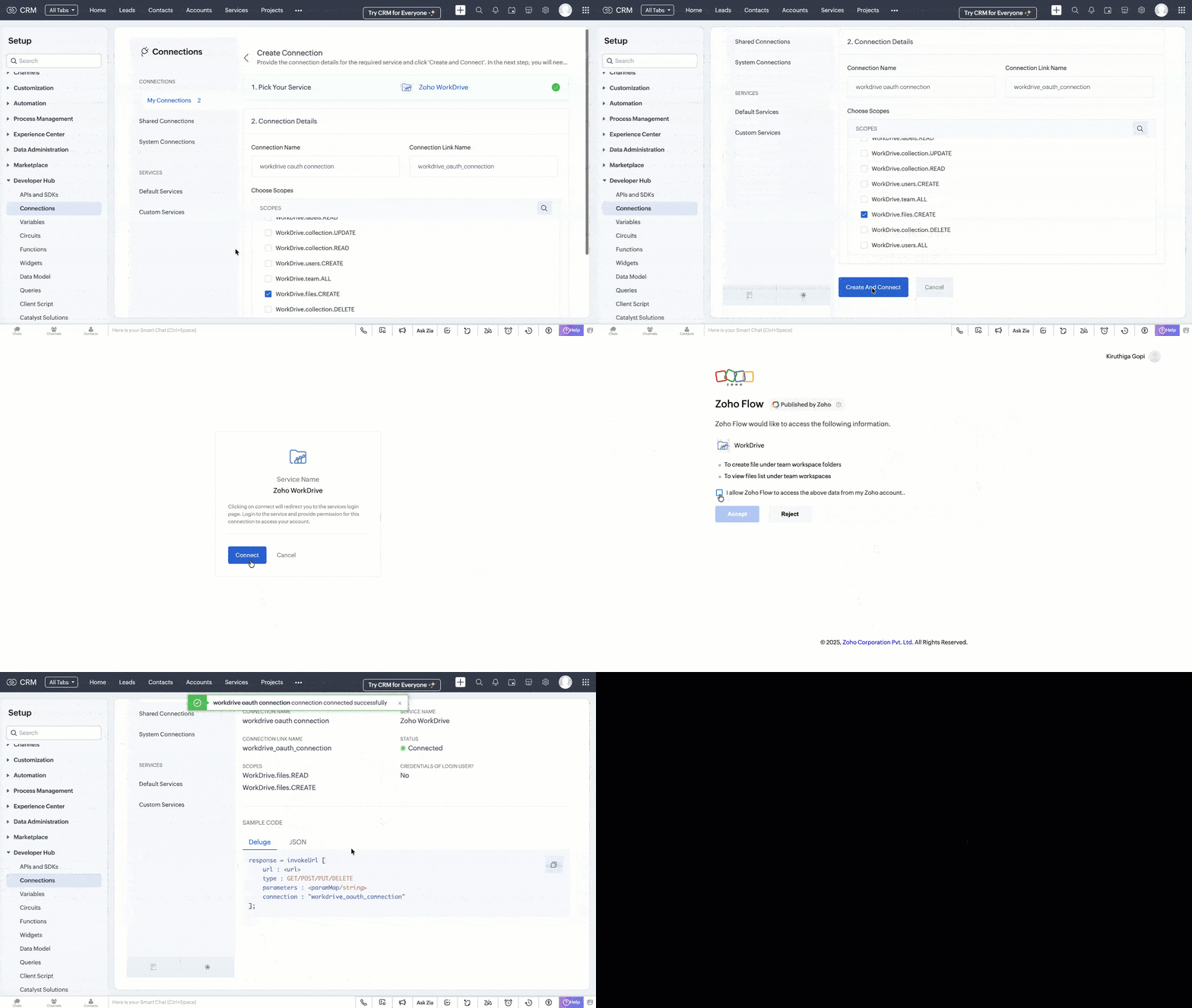
- Similarly, choose Zoho CRM with the ZohoCRM.modules.ALL scope and create the connection.
Refer to the Connections help doc for more information. Store the Connection Link Name to use while making API calls.
3. Automate WorkDrive Folder Creation
- Go to Automation > Workflow Rules in the Setup page and click Create Rule.
- Create a Workflow Rule with the following details:
Module: Leads
Trigger: On Record Creation
Condition: All Records
Action: Custom Action (Deluge Function)
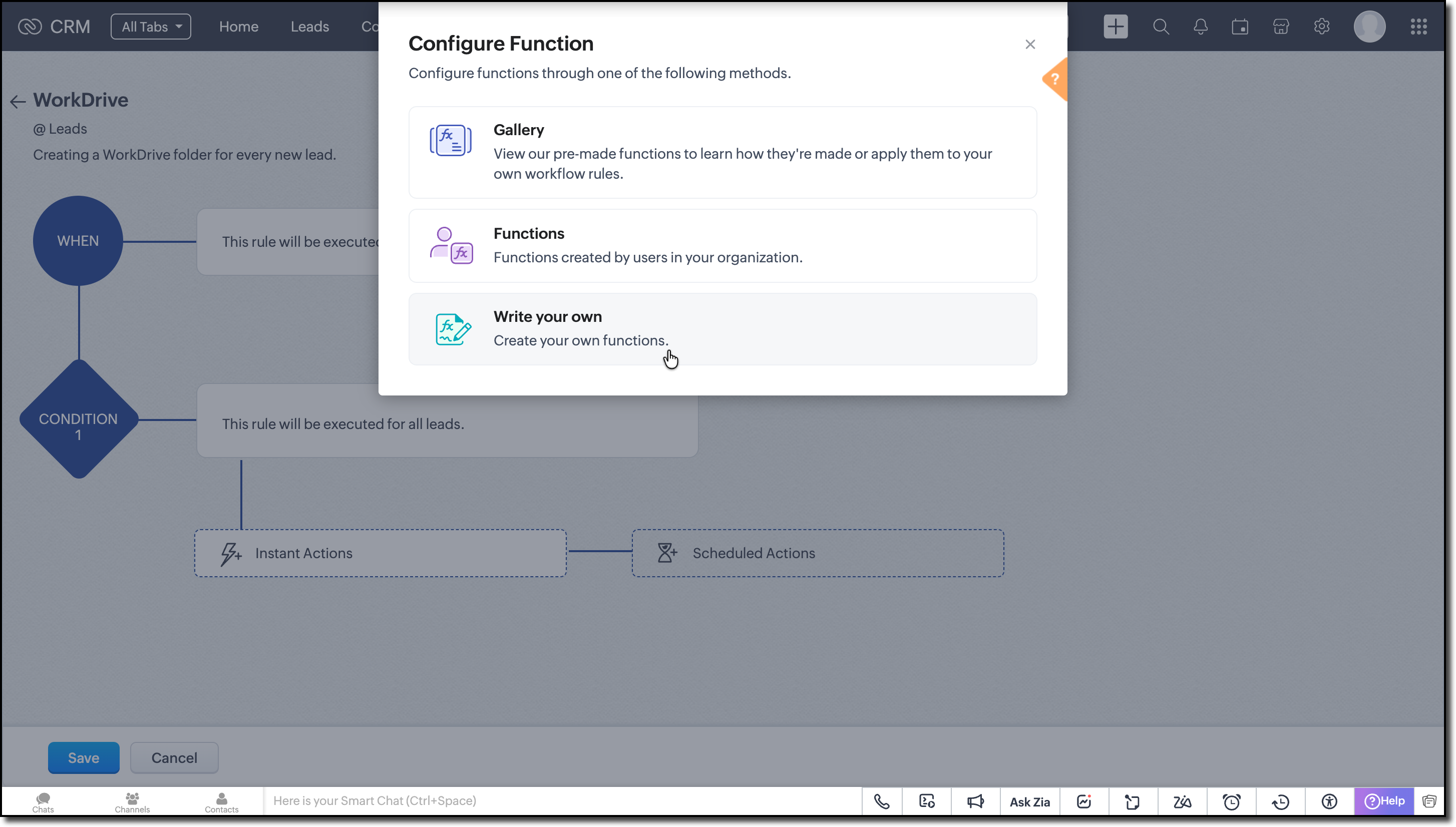
Function Logic:
1. Create a new folder in the WorkDrive combining the lead's record ID and First Name as the folder's name. Use the Invoke URL task to make the Create Folder API call.
responseMap = Map(); attributeInfo = Map(); dataInfo = Map(); headerMap = Map(); headerMap.put("Accept","application/vnd.api+json"); // First Name and Record ID from the argument AttributeInfo.put("name",Name + recordId); // Parent folder ID under which you want to maintain the lead folders attributeInfo.put("parent_id","e8gn06f2d7b3a48044090b7217524be95c9ac"); dataInfo.put("attributes",attributeInfo); dataInfo.put("type","files"); responseMap.put("data",dataInfo); folderCreateResponse = invokeurl [ url :"https://zohoapis.in/workdrive/api/v1/files" type :POST parameters:responseMap.toString() headers:headerMap connection:"workdrive_oauth_connection" // Connection Link Name created in the prerequisites ]; info folderCreateResponse; |
2. Retrieve the folder ID from the API response.
3. Update the Lead’s WorkDrive Folder ID field with this folder ID using Update Records API call.
requestBody = Map(); dataList = List(); record = Map(); // Set field values record.put("WorkDrive_Folder_ID",driveId); // Add record to list dataList.add(record); // Wrap data requestBody.put("data",dataList); updateLead = invokeurl [ url :"https://zohoapis.in/crm/v8/Leads/" + recordId type :PUT parameters:requestBody.toString() connection:"crm_oauth_connection" ]; info updateLead; |
Assign values to the arguments using merge fields while associating the function with Workflow Rule.
Now every Lead has its own WorkDrive folder before the widget loads.

Note:
The complete code snippet for the deluge function is attached to the post for your reference.
Building the Related List Widget
Step 1: Initialize the Widget Project
Review the basics from our earlier Kaizen on CLI Installation, Creating a Widget Project, and Internal hosting of the same.
Step 2: Develop your Widget
After setting up the widget project using CLI, implement the following code logic for the case we are discussing:
- Get the current record's ID from the PageLoad event.
- With the record ID, fetch the lead details using the GET Records API call using the GET ZRC method as shown here.
// data.Entity and data.EntitiyId are the module and record ID from PageLoad const response = await zrc.get( "/crm/v8/" + data.Entity + "/" + data.EntityId ); var workdriveFolderId = response.data.data[0].WorkDrive_Folder_ID; |
- Extract the WorkDrive Folder ID from the response to get the list of files from the folder.
- Since we'll be using WorkDrive APIs multiple times, let’s create a reusable instance with the Connection Link Name and API's base URL. This way, we avoid repeating the same setup for every API call.
Following is sample of how to create a custom instance:
workDriveZrc = zrc.createInstance({ baseUrl: "https://www.zohoapis.in/workdrive/api/v1", connection: "workdrive_oauth_connection", }); |
You can also check out the Create Instance in the requestConfig help section to learn more.
- Now, let us make the GET List of Files/Folder API call using the newly created ZRC instance.
let apiResponse = await workDriveZrc.get( "/files/" + workdriveFolderId + "/files", { headers: { Accept: "application/vnd.api+json", }, } ); |
- Display the file details like File Name, Type and Modified Time in a table from the API response. Save the File ID in a variable for displaying preview.
- When user clicks a particular file, use the file ID to fetch the preview URL using the GET Preview Meta Data API. Then load the preview URL in an iframe to display the file.
try { const previewResponse = await workDriveZrc.get( "/files/" + resourceId + "/previewinfo", { headers: { Accept: "application/vnd.api+json", }, } ); parsed = JSON.parse(previewResponse.data); console.log("Preview Data:", parsed); // Extract the preview_url from the expected location previewUrl = parsed && parsed.data && parsed.data.attributes && parsed.data.attributes.preview_url || null; // Remove surrounding quotes if server wrapped the url in quotes if (typeof previewUrl === "string") { previewUrl = previewUrl.replace(/^"(.*)"$/, "$1").trim(); } } catch (err) { console.error("Error fetching preview info for resource:", resourceId, err); } function showPreview(previewUrl, fileName, permalink) { var modal = document.getElementById("modal-container"); var thumbnailFrame = document.getElementById("thumbnail-img"); var caption = document.getElementById("caption"); var workdriveLink = document.querySelector(".redirect-workdrive"); // Load the preview URL into the iframe thumbnailFrame.src = previewUrl; // Set the file name in caption and workdrive link caption.textContent = fileName; workdriveLink.setAttribute("data-link", permalink); // Show the modal modal.style.display = "block"; } |
- Create an Upload button for users to select files from their local. Convert the streamed files to blob and execute Upload API call using the custom ZRC instance.
async function workdriveUpload(file, fileType, fileName, folderId) { const fileBlob = new Blob([file], { type: fileType }); try { const formData = new FormData(); formData.append("filename", fileName); formData.append("parent_id", String(folderId).trim()); formData.append("content", fileBlob); const uploadResponse = await workDriveZrc.post( "/upload", formData, { headers: { "Content-Type": "multipart/form-data", }, } ); console.log("Upload response:", uploadResponse.data); return uploadResponse; } catch (error) { console.error("Error uploading file:", error); throw error; } } |
Step 3: Validate and Pack
Follow the steps given in the Widget help page to validate and package the widget.
Step 4: Upload to Zoho CRM
- Go to Zoho CRM > Setup > Developer Hub > Widgets and click Create New Widget.
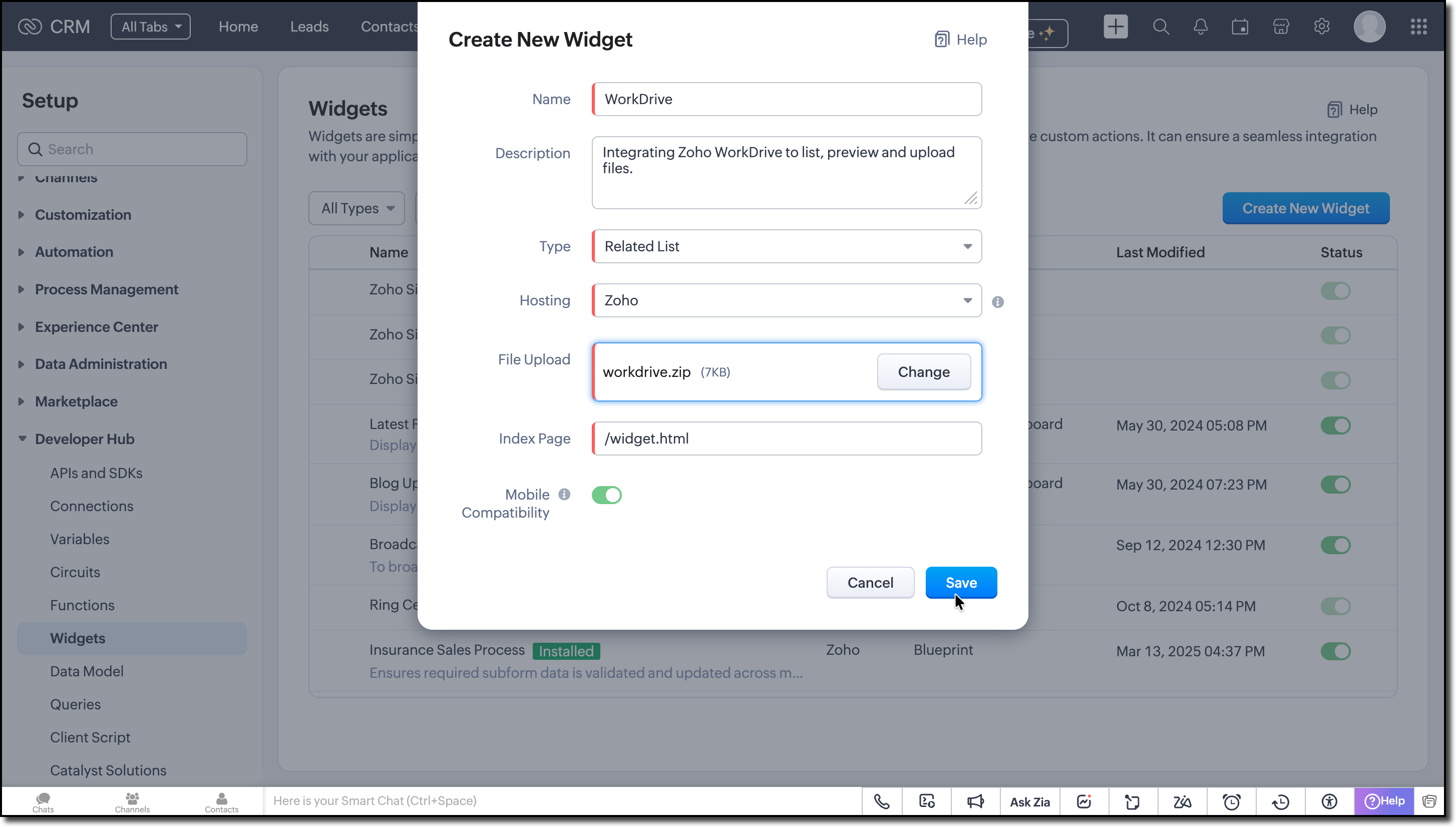
- Fill in the required details such as:
Name: Zoho WorkDrive
Type: Related List
Hosting: Zoho
File Upload: Upload the ZIP created in the dist folder within the widget project directory after packaging in the Step 3.
Index page: /widget.html
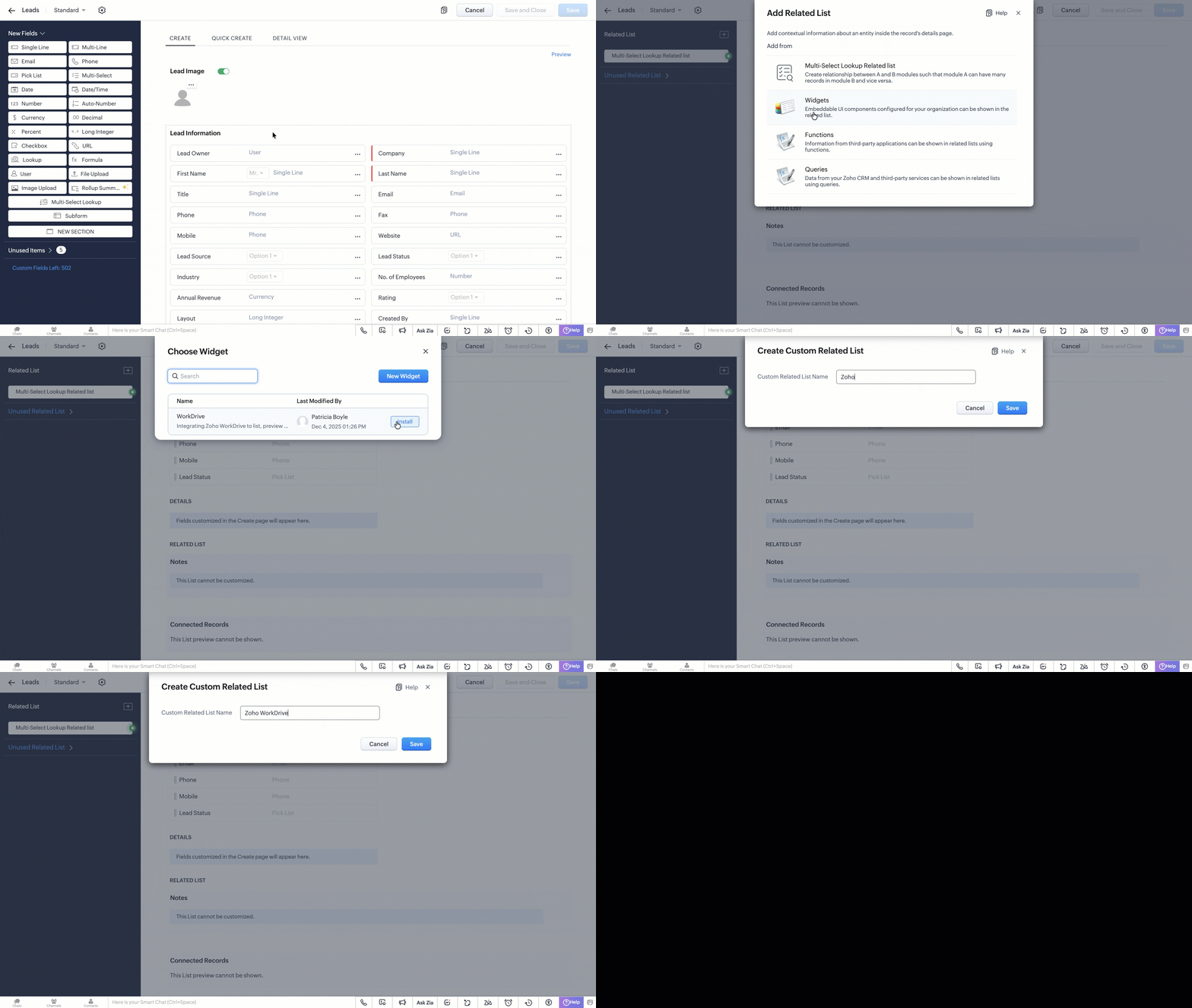
- Create a related list in the Leads module and associate this widget. Refer to the Customize Related Lists help page for more information on creating a related list.
Try it Out!
A complete working code sample of this widget is attached at the bottom of this post for reference.
Now let us see how this works from the Lead's detail page:
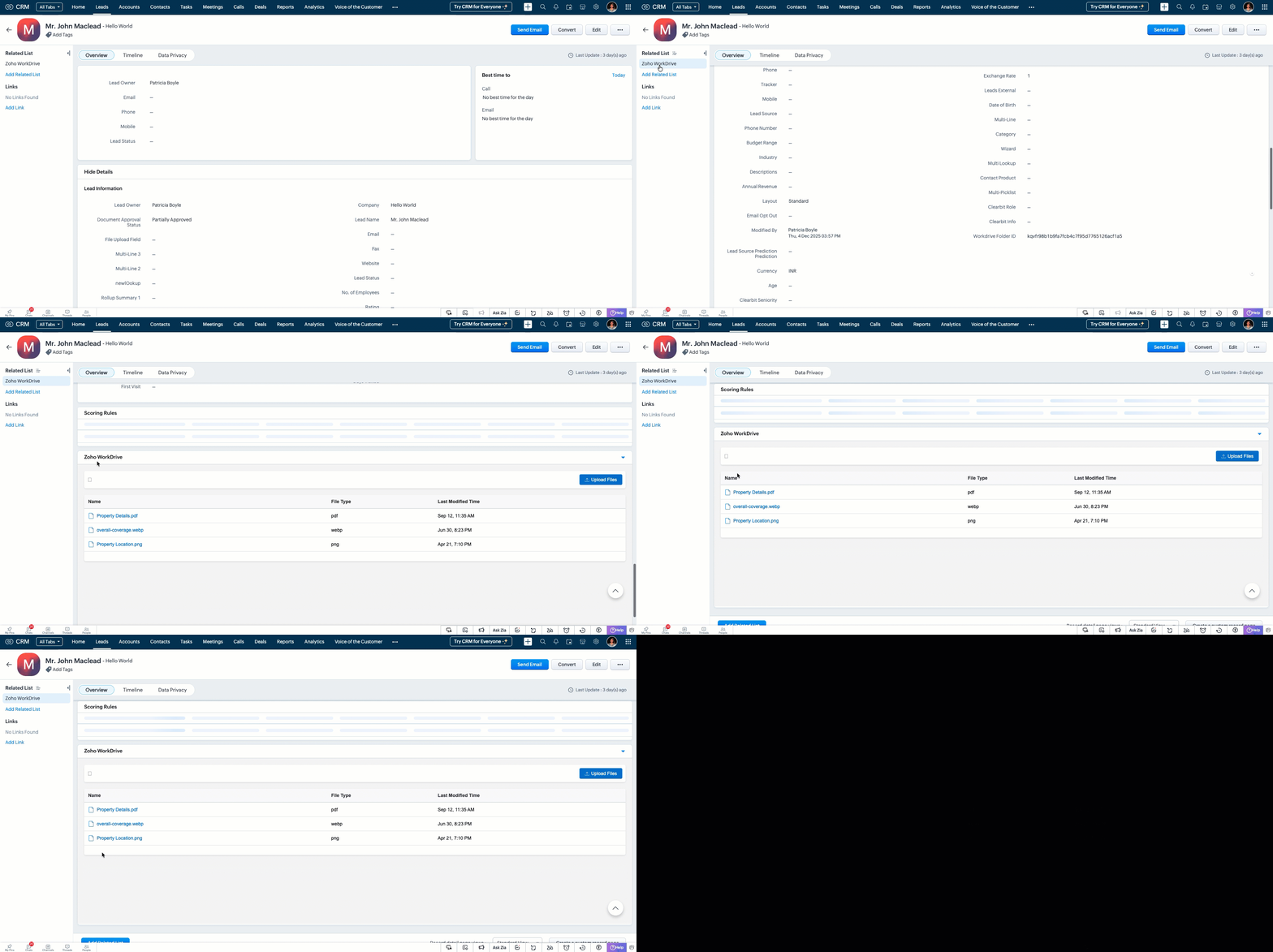
1. Listing the available files from Zoho WorkDrive on page load.
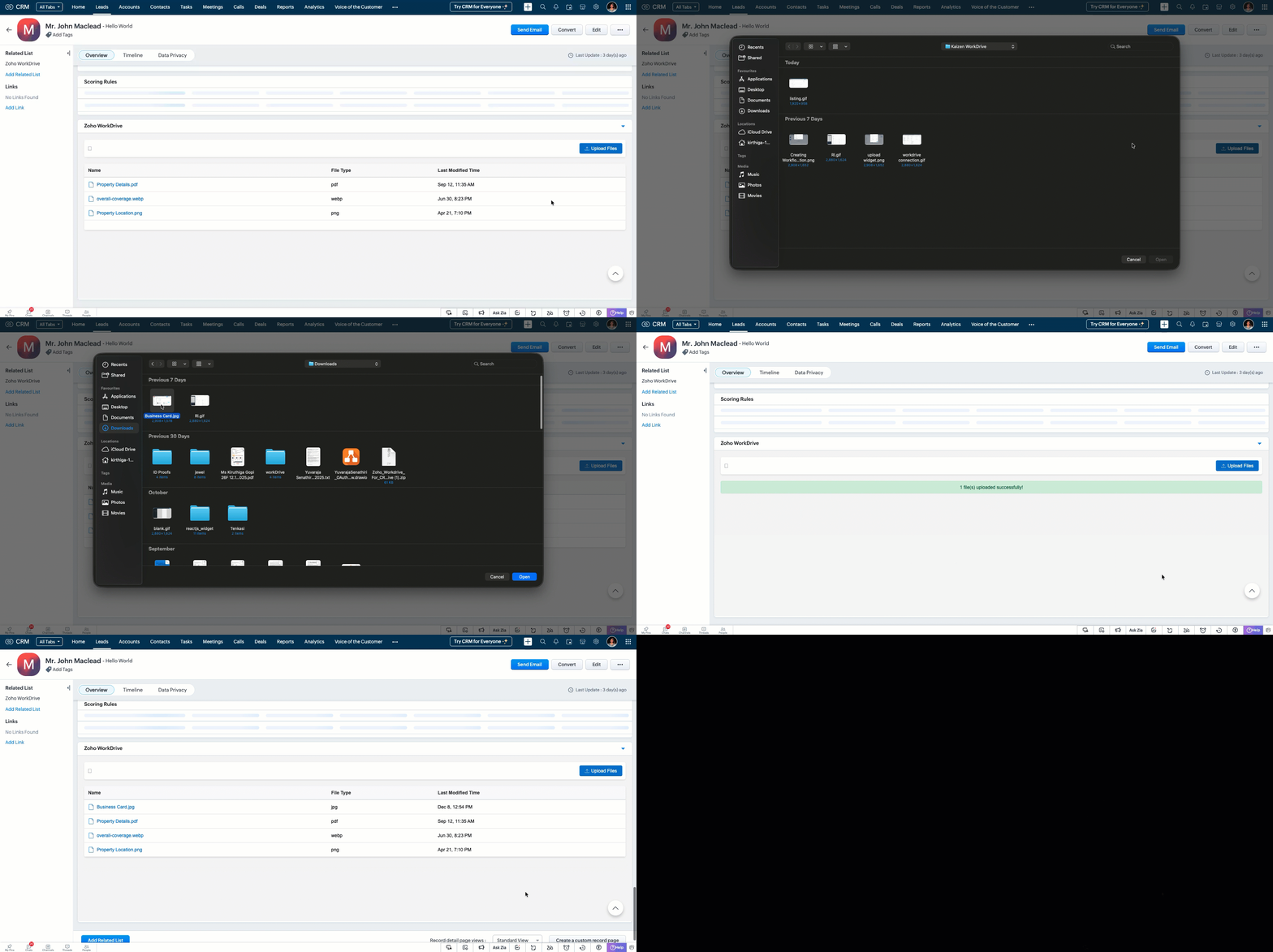
2. Uploading new files to the folder.
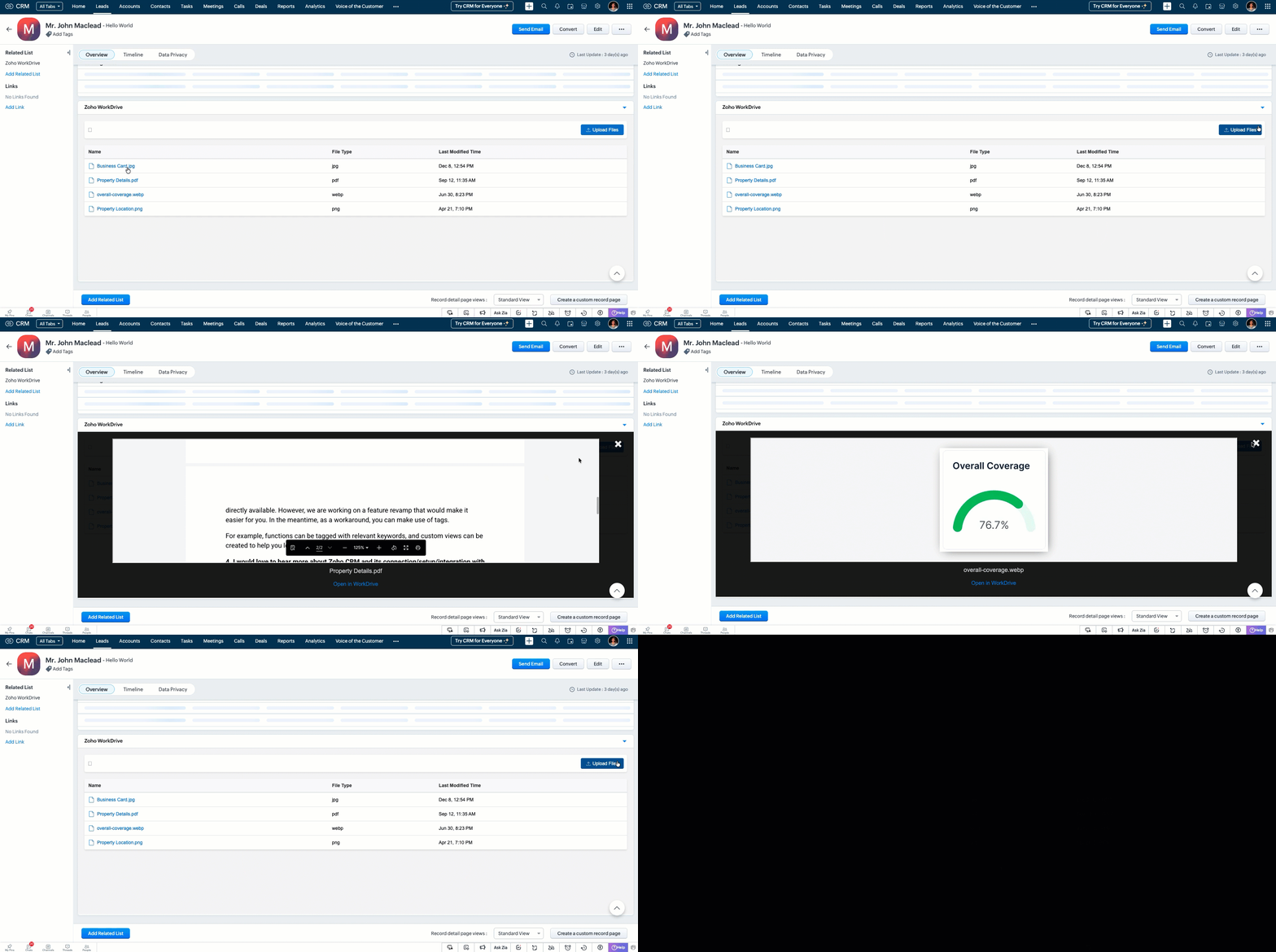
3. Previewing all the listed files.
We hope this Kaizen helps you explore the new ZRC capabilities and build seamless file-management experiences in Zoho CRM.
Have questions or suggestions? Drop them in the comments or write to us at support@zohocrm.com.
We will circle back to you next Friday with another interesting topic.
On to Better Building!
------------------------------------------------------------------------------------------------------
Related Reading
1. Widgets - An Overview, CLI Installation, Working with Widgets, ZRC Methods, Mobile Compatibility of Widgets and Kaizens
2. Connections - An Overview
6. CRM Customizations - Related Lists and Custom Fields.
------------------------------------------------------------------------------------------------------

Previous Kaizen: Client Script Support for Notes Related List | Kaizen Collection: Home
Topic Participants
Kiruthiga G
Doug Tereba
Jaya Suriya J
Sticky Posts
Kaizen #198: Using Client Script for Custom Validation in Blueprint
Nearing 200th Kaizen Post – 1 More to the Big Two-Oh-Oh! Do you have any questions, suggestions, or topics you would like us to cover in future posts? Your insights and suggestions help us shape future content and make this series better for everyone.Kaizen #226: Using ZRC in Client Script
Hello everyone! Welcome to another week of Kaizen. In today's post, lets see what is ZRC (Zoho Request Client) and how we can use ZRC methods in Client Script to get inputs from a Salesperson and update the Lead status with a single button click. In thisKaizen #222 - Client Script Support for Notes Related List
Hello everyone! Welcome to another week of Kaizen. The final Kaizen post of the year 2025 is here! With the new Client Script support for the Notes Related List, you can validate, enrich, and manage notes across modules. In this post, we’ll explore howKaizen #217 - Actions APIs : Tasks
Welcome to another week of Kaizen! In last week's post we discussed Email Notifications APIs which act as the link between your Workflow automations and you. We have discussed how Zylker Cloud Services uses Email Notifications API in their custom dashboard.Kaizen #216 - Actions APIs : Email Notifications
Welcome to another week of Kaizen! For the last three weeks, we have been discussing Zylker's workflows. We successfully updated a dormant workflow, built a new one from the ground up and more. But our work is not finished—these automated processes are
Recent Topics
Using MPN across multiple SKUs and inventory tracking
I have several different SKU's that share a common MPN and would like to track inventory by MPN. SKU1 has MPN1 assigned SKU2 has MPN1 assigned Here is an example If I start with 5 of MPN 1 in stock I want each SKU1 and SKU2 to show as 5 in stock, If IExtend Zoho Canvas Customization to Zoho Creator Forms and Reports
Currently, Zoho Canvas allows users to design and customize the UI of Zoho CRM modules with a much better visual experience. This helps organizations create cleaner layouts, improve usability, and design interfaces that match their workflows. However,Marketing Tip #1: Optimize item titles for SEO
Your item title is the first thing both Google and shoppers notice. Instead of a generic “Leather Bag,” go for something detailed like “Handcrafted Leather Laptop Bag – Durable & Stylish.” This helps your items rank better in search results and instantlyFeature Enhancement Request – Text Formatting Options in Item Description (Zoho Books/Quotes Module)
Dear Zoho Development Team, Greetings from Radiant360 Integrated Technical Services LLC. We would like to bring to your attention a functional limitation we've encountered within the Item Table / Quote Description section of Zoho Books (and Zoho CRM Quotes).ZOHO Books Query
Good day, Can someone please advise. I recently migrated from ZOHO Invoice to ZOHO Books. No that I want to use the inventory on Books I cant as all my items have transaction history. The person I spoke to at ZOHO said I need to create a new Company profileBest way to schedule bill payments to vendors
I've integrated Forte so that I can convert POs to bills and make payments to my vendors all through Books. Is there a way to schedule the bill payments as some of my vendors are net 30, net 60 and even net 90 days. If I can't get this to work, I'll haveZOHO.CRM.UI.Record.open not working properly
I have a Zoho CRM Widget and in it I have a block where it will open the blocks Meeting like below block.addEventListener("click", () => { ZOHO.CRM.UI.Record.open({ Entity: "Events", RecordID: meeting.id }).catch(err => { console.error("Open record failed:",inventory removal at packing list or shipment.
currently our system is set to remove inventory at invoice. This is creating an inventory nightmare? Is it possible to change the settings to remove the item from inventory at either the packing slip stage or shipping the item.How to add employee and not invite them to log in?
I want to add 50 employees, but invite them only when everything will be configured and ready. Is it possible? Should we create employee profiles and then convert them later? Thank you,How is Your eCommerce Experience w/Zoho Inventory?
First off, I'm SUPER grateful for the advent of Zoho Inventory and now the Zoho Commerce Suite. Overall, Inventory is a great product, especially for customers without an eCommerce presence. For eCommerce companies (especially those shipping more than ~10 packages/day), however, there are certain drawbacks that keep my clients from moving over to Zoho Inventory: Cons: 1. Invoice + Package Creation from Shopify/Other eCommerce Integrations: Zoho Inventory makes the somewhat perplexing decision toAbility to Use Both AND and OR When Creating Rules (Advanced Conditions)
I'd like to be able to use more complicated logic when setting up rules. E.g. in Zoho Mail, I can choose "Advanced conditions (AND/OR) to create a rule that can be applied to multiple subject lines from the same sender. But in Zoho TeamInbox, I will haveZoho Desktop App- Unable to Minimize/Freezes
I'm having issues with my Zoho Mail desktop app (PC). When go on my desktop and open the app this is what happens: - Unable to minimize and close app (in the screenshot attached you can see at the top right there is no option to minimize/close) - UnableZoho Invoice Zapier Integration
Is there still a way to use Zapier with Zoho Invoice? I've read online that that migrated to Zoho Books or Billing but since I am just using Invoice I can not find a Zapier Connection anymore.Conect chat of salesiq with zoho cliq
Is there any way to answer from zoho cliq the chat of salesiq initiated by customers?Bug: OAuth 2.0 State Parameter fails with Pipe Delimiters (RFC 6749 Non-Compliance)
I've discovered a bug in how Zoho's API Console handles the OAuth 2.0 authorization flow when the state parameter contains pipe characters (|), and I'm hoping the Zoho team can address this in a future update. The Issue Zoho's OAuth 2.0 implementationZobot with Plugs
Hello, I am having a problem with Zobot using Plugs. Here is my current flow: When I run the flow, I should immediately see the messages from the initial cards (Send Message cards), then after running the plug, and finally, see the messages after thePrint a document from Zoho Writer via Zoho Creator
If i use the code below i can get writer to create a new document or email it to me but i want to be able to print it directly from the browser and not have to send it via email and then print. Below is the code im using. Attached options form zoho writerIs it possible to use HTML formatting in SMS messages sent from Zoho?
Hi everyone, I have a question regarding sending SMS from Zoho When we send emails from Zoho, we can include HTML code to format the message (like adding links, styling, etc.). Is it possible to do something similar when sending SMS messages through ZohoTraining for How can i Operate the Software Features
need to Help for Training of the ZOHO Billing SoftwareAutomating Vendor Contract Management between Zoho Contracts and Zoho Books using Zoho Flow
Managing vendor agreements across procurement and finance systems often requires manually downloading executed contracts and attaching them to vendor records. This can become time-consuming and difficult to manage when dealing with a large number of contracts.Problem applying batch operation error keeps looping that error
Problem applying batch operation error keeps looping that error an wont loginShared Email Sending Duplicate Copies of Emails
Hi there, We recently have moved our info@ email to Team Inbox to trial. We set this channel up using the Microsoft setup which works fine and have 3 users. I am wanting to know: 1. When I send a new email, it will create a copy of that email and sendmerhaba
merhaba sosyal medya paketimiz mevcut ama yorumları göremiyoruz ve o yüzden cevap veremiyoruz destek rica ediyoruz.Teaminbox not working
We couldn't send or receive any mail within the team inbox. Displaying error 'Unable to process this request.'Related lists New option in missing
hi I have created quite a few modules and added as related lists to my main module. Some have new, some dont I can not see why?Cliq and ToDo integrations?
I'm a bit surprised not to find any way to open a Cliq chat for the current thread, or to create a Zoho Mail ToDo from a thread. Are these on the roadmap?Reply-to names are mangled
Hello, I'm seeing an odd behavior in replies. Steps to reproduce: 1. Click reply to an email from "John Doe <doe.john@example.com> in TeamInbox Expected outcome: TO field pre-filled with "John Doe <doe.john@example.com>" Actual outcome: TO field pre-filledI CANT UPGRADE MY FREE ACCOUNT
I TRY TO UPGRADE MY FREE ACCOUNT AND I COULD NOT UPGRADE IT CAN SOMEBODY TELL ME WHY? AND I HAVE THE MONEY SO.Level up your ASO game with tags & categories in store reviews
Introducing tags and categories in Apptics' store reviews Dear Apptics community, If your app is listed on the Play Store or App Store, you already know how important store reviews and ratings are. They’re one of the most direct signals of user sentimentIncluding attachments with estimates
How can attachments be included when an estimate is sent/emailed and when downloaded as a .pdf? Generally speaking, attachments should be included as part of an estimate package. Ultimately, this is also true for work orders and invoices.Adding VENDOR SKU to PURCHASE ORDERS
how can we add the Vendor SKU when issuing a Purchase Order , so the PO shows the Supplier SKU and our own Internal SKU , which is what we want to receive into the system .Possible to freely prompt/query CRM data using Zia?
Is it possible to prompt Zia to query on any information stored in the CRM, especially on the data stored in custom text fields? My use case is the people in my organisation have entered lots of text in custom text fields to capture information from anRestrict employees to take only one day holiday from a multi-day festival holiday
Hi everyone, I have a requirement related to Optional/Festival Holidays in Zoho People. For example, in the month of May there are three optional holiday dates: May 11, May 12, and May 13. Employees can choose one of these days as their optional holiday.Cannot modify colours in invoice email template
I have tried switching browsers... but I cannot change the (pretty horrible) default colours in the preset email when sending an invoice... the blue banner, red outstanding total and the bright green button... I can change other things but not the colours?Cannot find zpuid for Zoho Projects user
I'm using the Zoho Projects v3 API to create a task. The task is created successfully, but in order to assign the task owner, the "Create a Task" API also requires the zpuid of the task owner. Unfortunately I cannot find any user-related API calls thatPrint a document from Zoho Writer via Zoho Creator
If i use the code below i can get writer to create a new document or email it to me but i want to be able to print it directly from the browser and not have to send it via email and then print. Below is the code im using. Attached options form zoho writerAllow styling for specific Subform fields in Zoho Creator
Sometimes in forms we need to visually highlight a specific field inside a Subform (for example Sanctioned Amount, Approved Value, Critical Fields, etc.) so that users immediately notice it while entering data. Currently there is no direct UI option toCareer site URL - Suggestion to modify URL of non-english job posting
Hi, I would like to suggest making a few modification to career sites that are not in english. Currently, the URL are a mix of different languages and are very long. It makes for very unprofessional looking URLs... Here is an example of one of our URL3/18 オンライン勉強会のお知らせ Zoho ワークアウト (無料)
ユーザーの皆さま、こんにちは。コミュニティチームの中野です。 3月開催のZoho ワークアウトの開催が決定しましたのでご案内します。 今回はZoomにて、オンライン開催します。 ▶︎参加登録はこちら(無料) https://us02web.zoom.us/meeting/register/BoNTN7zYR8OvOPGShqBY0A ━━━━━━━━━━━━━━━━━━━━━━━━ Zoho ワークアウトとは? Zoho ユーザー同士で交流しながら、サービスに関する疑問や不明点の解消を目指すイベントです。New 2026 Application Themes
Love the new themes - shame you can't get a little more granular with the colours, ie 3 different colours so one for the dropdown menu background. Also, I did have our logo above the application name but it appears you can't change logo placement positionNext Page