Ring in the New Year with Guided Conversations for Smooth Offline Support
As we step into the new year, it’s time to refocus, re-energize, and gear up for fresh opportunities. But what about your customers as they begin the year with their own set of challenges or queries to resolve?
With Zoho Desk’s Guided Conversations (GC), you can ensure they’re supported seamlessly, even as your team navigates the post-holiday rush.
Zylker Techfix, a mobile gadget firm, has a busy start as its customers flood them with requests: repair appointments, service inquiries, delivery tracking, and questions about new products. By leveraging Guided Conversations, Zylker Techfix provided an efficient, self-service experience that kept customers engaged while their team prioritized high-value tasks.
Here’s why Zylker Techfix setup the Guided Conversations feature within Zoho Desk:
- Customers could effortlessly log repair or service requests.
- Delivery updates and product inquiries were instantly addressed without delays.
- Clear and reassuring messaging kept customers informed that their concerns were logged and would be prioritized.
Guided Conversations acts as a dependable, 24/7 virtual assistant, automating ticket creation while offering a personal touch. Its intuitive, drag-and-drop builder enables you to design workflows that guide customers through their questions, gather essential information, and create tickets—even when your team is unavailable.
For businesses like Zylker Techfix, GC turned the often-hectic start of the year into an opportunity to build stronger customer relationships. By ensuring requests were acknowledged and logged, customers felt valued and confident that their needs were being addressed.
As you plan for the year ahead, Guided Conversations can help you create a customer experience that’s efficient, thoughtful, and future-ready.
Guide to Set up Guided Conversations (GC) in Zoho Desk
Guide to Set up Guided Conversations (GC) in Zoho Desk
Here’s how you can easily set up Guided Conversations to create tickets when agents are unavailable/offline:
1. Go to Setup > Self-Service > Guided Conversations.
2. Select the department before creating the flow because Guided Conversations are department-specific.
Create a New Flow
3. Click on the Create Flow tab in the top-right corner.
4. Select the Web Channel.
5. Enter a Name and Description for your flow, then click Next.
6. The GC design window will appear. Below the Guided Conversation icon, click the + icon to start building your flow.
7. Drag and drop elements from the right-hand panel to create your conversation blocks.
8. Drag the Text Message Block and drop it into the flow. Type a Welcome message.
9. Enter the Name of the block and the Message you want to display to customers. This block is used to share direct information with your customers.
10. Click the + icon below the text message block and add a Question Block.
11. Use the Question blocks to collect inputs from customers based on your questions.
For example, use the following Question Blocks using the + icon to receive the information from your customers:
- Name (Text Block)
- Email (Email Block)
- Contact Number (Number Block)
- Date (Calendar Block for availability)
- Attachments (Attachment Block to receive files or images, such as screenshots).

Add Button Choice Blocks
12. Use the Button Choice Blocks to present predefined options to customers, such as a list of countries, states, or regions. This is useful for collecting specific information like location and understanding the time zone.
13. Drag the Text Question block to receive a description on the Issues submitted.
14. Create the Date and Time question block to get the customer's availability time to reconnect, if required.

To Create a Ticket
15. Now, click on the Zoho Desk blocks, click on the Create ticket.
16. Give the Block Name, choose the Department (the same department where you create this Guided Conversation), choose the layout for the Email template.
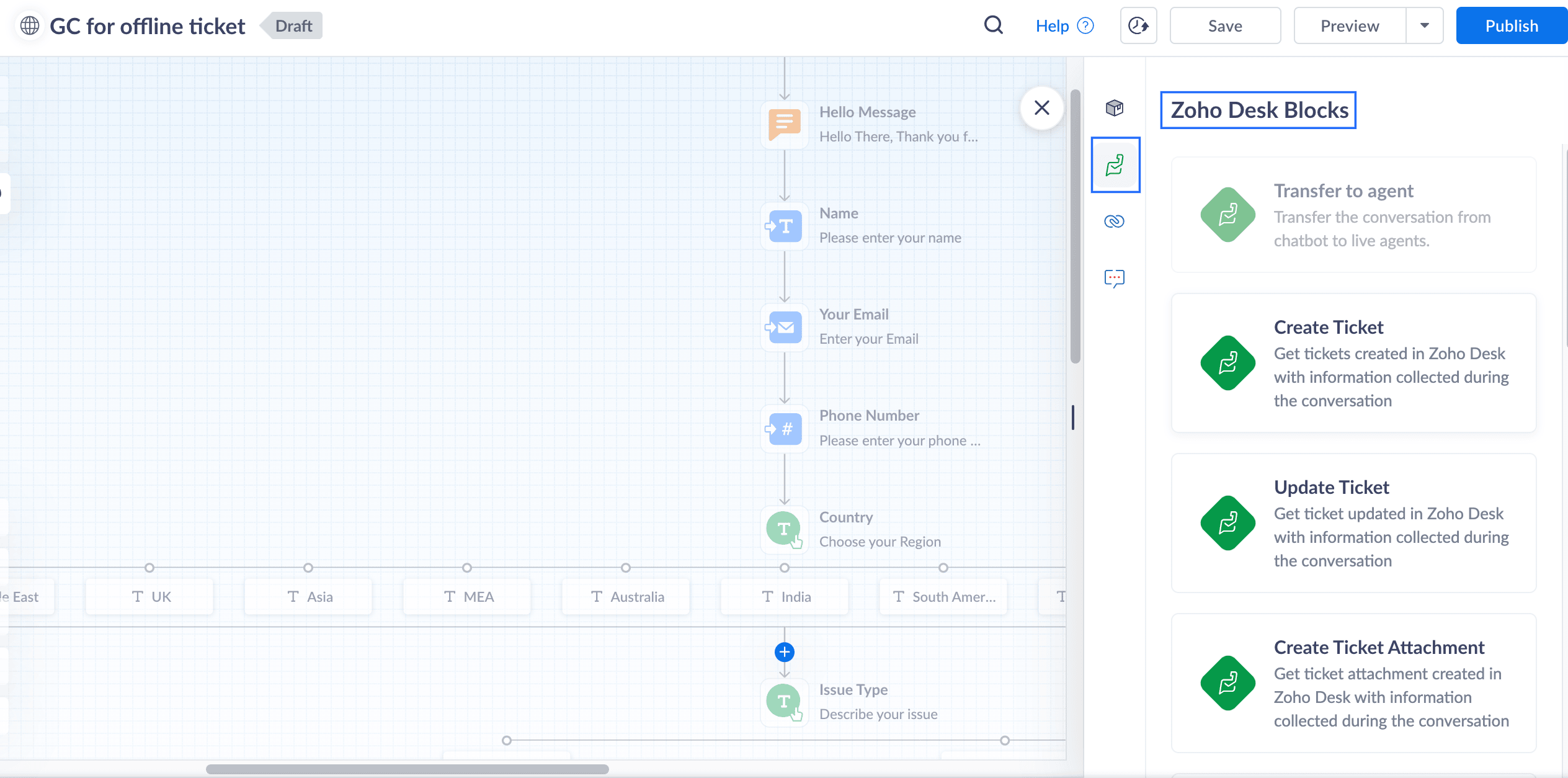
17. In the Input variable mapping, click on the gear icon, map the field variables in the Tickets layout with the Flow variables created within GC.
For example, map the Email field within Tickets to the Email block in GC, map Phone with the Phone field, map Subject with the Issue Type, and map Description with the Describe issue text block
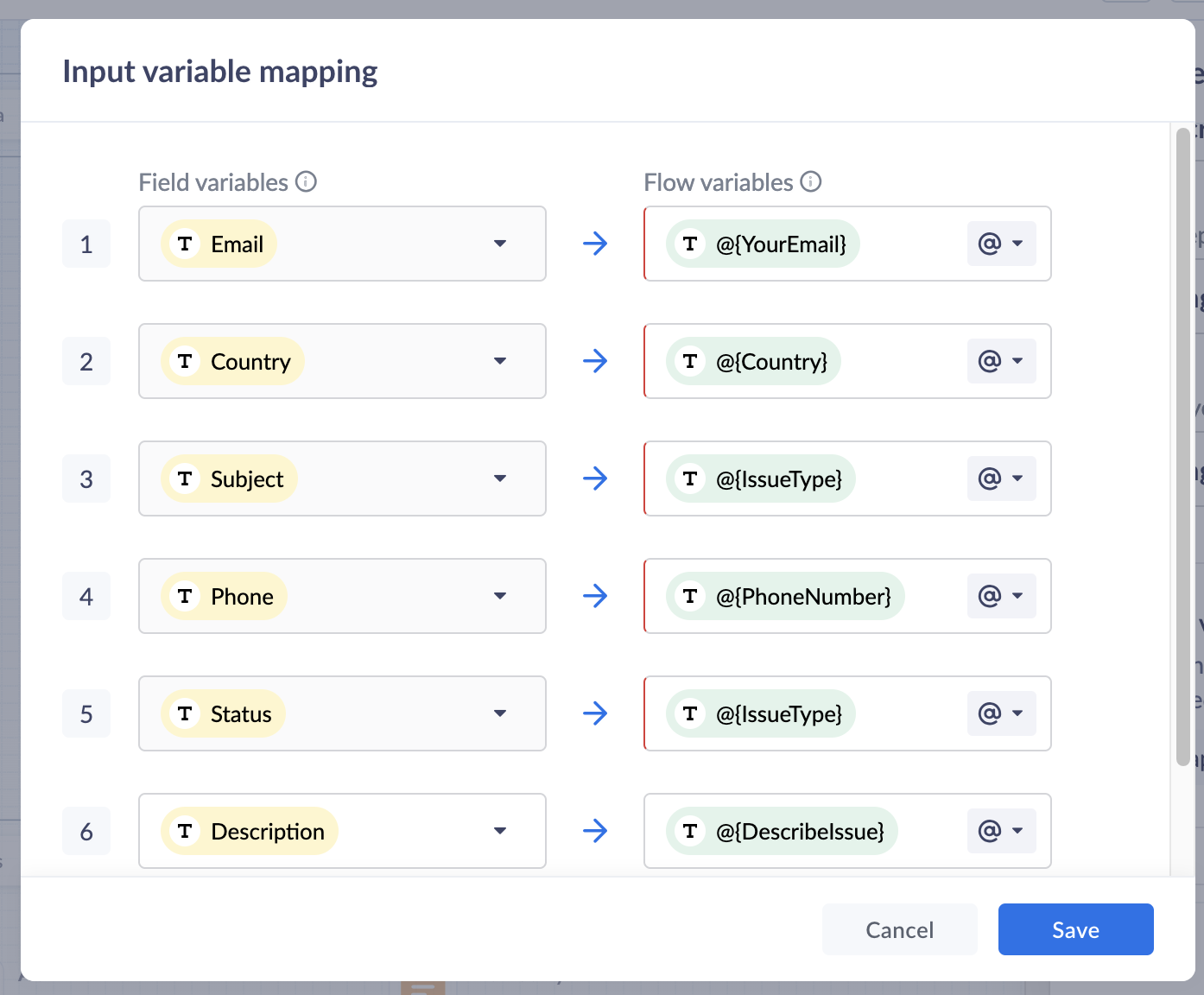
18. Click Save to save the mapping variables
19. In the Output variable mapping, click on the gear icon, map the ticket related information which you would like to share with the customers within the GC.
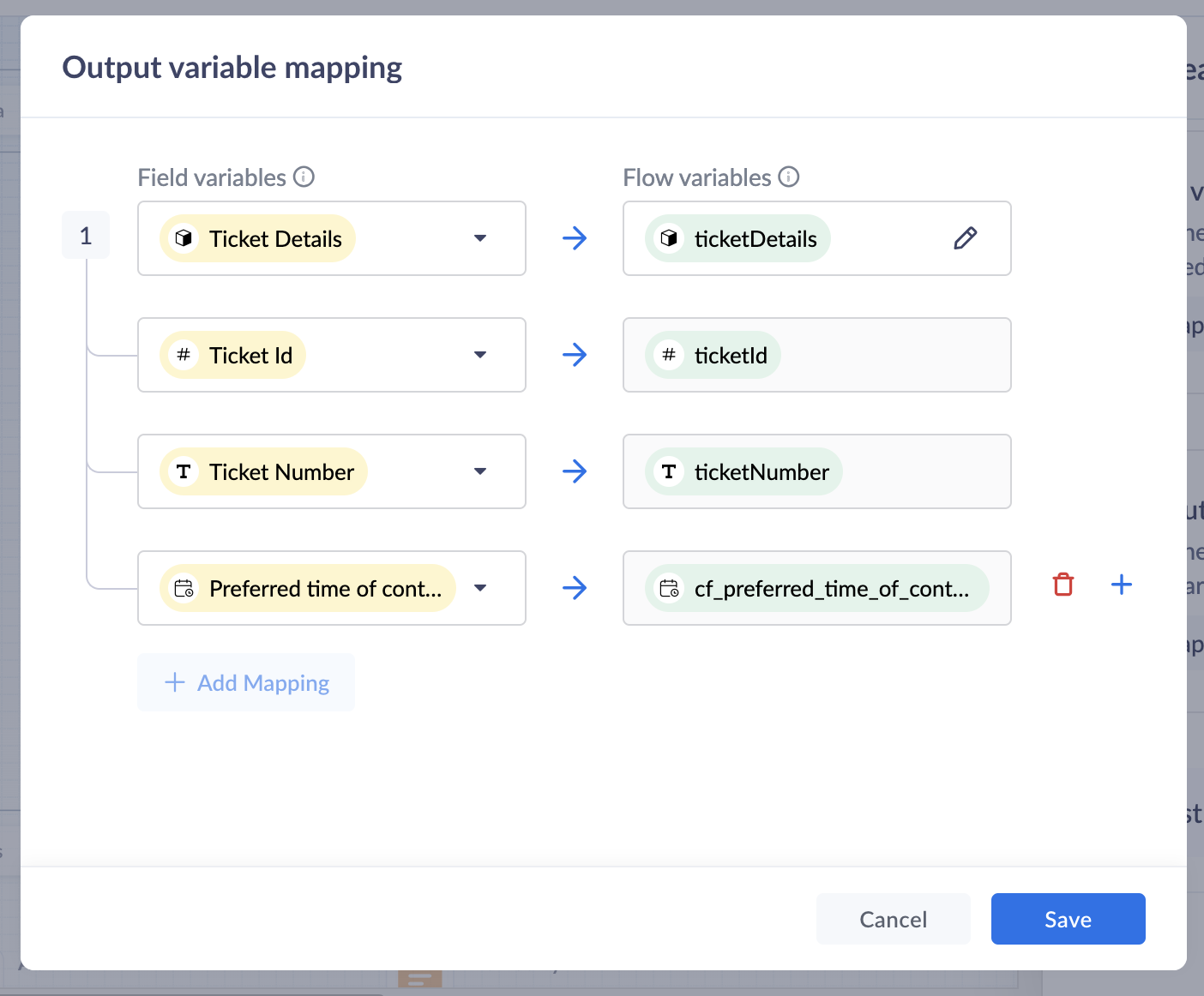
Preview and Publish
20. Once all blocks are added, click on Preview to view the flow and ensure it works based on your requirements.
21. Save your changes, and click Publish. Your Guided Conversation is ready to use!

Note: Some blocks are being developed for Instant Messaging (IM) channels and will appear faded out if you choose IM channels.
Create A GC Widget
i. Go to Setup(S) >> Self Service >> Guided Conversations >> GC widgets.ii. Click on Create GC widget. Give a Name and Description.iii. Choose the Channels. click on the drop-down arrow under Associate flows >> Add Flow >> select the Published GC.iv. Click Associate. under Access Permissions, select users based on your preferences.v. Enter your preferred welcome message that you would like to appear on your GC widget.vi. Enter End Options based on your preferences.vii. Click Save to save your GC widget.
ASAP Widget
Go to Setup (S) >> Self-Service >> ASAP >> Create New Widget.
a. Enter a Name, enable the widget launcher to show the widget on your website.b. Associate the help widget with required departments.c. Choose the required modules to associate with the widget.d. Once you are done, click on Generate.
Embed GC
You can obtain the embed code to integrate the widget into your website or Help Center, as well as the organization ID for iOS and Android SDKs.
i. Go to Setup (S) >> Self-Service >> ASAP.ii. Hover over the created ASAP widget; click on Embeddable Code.iii. Copy the web embed code for use on your website or Help Center.iv. Use the iOS ID for iOS SDK and the Android ID for Android SDK.
That’s it—your Guided Conversation is now live and ready to assist your customers!
Pro Tip
Guided Conversations can be tailored to suit a variety of scenarios, from managing customer inquiries to streamlining ticketing operations. Enhance the customer experience by customizing, editing, or updating workflows to meet their needs effortlessly.
Explore our Guided Conversation Guide and the automation with GC to ensure your customers always have the support they need.
Here’s to a fantastic start to the New Year! Wishing you success and seamless experiences ahead: Happy New Year from the Zoho Desk Team! 🎉
Topic Participants
Lydia | Zoho Desk
Sticky Posts
Register for Zoho Desk Beta Community
With the start of the year, we have decided to take a small step in making the life of our customers a little easier. We now have easy access to all our upcoming features and a faster way to request for beta access. We open betas for some of our featuresShare your Zoho Desk story with us!
Tell us how you use Zoho Desk for your business and inspire others with your story. Be it a simple workflow rule that helps you navigate complex processes or a macro that saves your team a lot of time; share it here and help the community learn and grow with shared knowledge.Tip #1: Learn to pick the right channels
Mail, live chat, telephony, social media, web forms—there are so many support channels out there. Trying to pick the right channels to offer your customers can get pretty confusing. Emails are most useful when the customer wants to put things on record. However, escalated or complicated issues should not be resolved over email because it's slow and impersonal. When you need immediate responses, live chat is more suitable. It's also quick and convenient, so it's the go-to channel for small issues.Welcome to Zoho Desk Community - Say hello here!
Hello everyone! Though we have been here for a while, it’s time to formally establish the Zoho Desk Community; we’re really happy to have you all here! This can be the place where you take a moment to introduce yourself to the rest of the community. We’d love to hear all about you, what you do, what company or industry you work for, how you use Zoho Desk and anything else that you will like to share! Here’s a little about me. I am Chinmayee. I have been associated with Zoho since 2014. I joined hereWebinar 1: Blueprint for Customer Service
With the launch of a host of new features in Zoho Desk, we thought it’ll be great to have a few webinars to help our customers make the most of them. We’re starting off with our most talked about feature, Blueprint in Zoho Desk. You can register for the Blueprint webinar here: The webinar will be delivered by our in-house product experts. This is a good opportunity to ask questions to our experts and understand how Blueprint can help you automate your service processes. We look forward to seeing
Recent Topics
Don't Allow Customer to Edit Values After Submitting Ticket
After a customer submits a ticket through the customer portal, they can go into the ticket and see some of the values from the questions they answered in the sidebar. Currently, a customer can edit these values even after they submitted them. This makes no sense. We ask very specific questions that we don't want customers to later change! Please disable the ability for customers to edit the values to their submission questions in the portal. Screenshot attached.Analytics <-> Invoice Connection DELETED by Zoho
Hi All, I am reaching out today because of a big issue we have at the moment with Zoho Analytics and Zoho Invoice. Our organization relies on Zoho Analytics for most of our reporting (operationnal teams). A few days ago we observed a sync issue with thetext length in list report mobile/tablet
Is there a way to make the full text of a text field appear in the list report on mobile and tablet? With custom layouts, the text is always truncated after a certain number of characters.Automation #4 - Auto Delete Tickets based on Rules
This is a monthly series in which we pick some common use cases that have been either discussed or most asked about in our community and explain how they can be achieved using one of the automation capabilities in Zoho Desk. Unwanted tickets spammingZoho Community Digest — Enero 2026
¡Hola, comunidad! 🌟 Aquí os traemos las novedades más interesantes de Zoho durante este mes de enero, incluyendo actualizaciones de productos, integraciones y un recordatorio sobre los workshops certificados que vuelven a España. 🎓 Eventos y ComunidadAutomation #3 - Auto-sync email attachments to tickets
This is a monthly series where we pick some common use cases that have been either discussed or most asked about in our community and explain how they can be achieved using one of the automation capabilities in Zoho Desk. Most of our customers use emailAutomation #11 - Auto Update Custom Fields with Values from Emails
This is a monthly series designed to help you get the best out of Desk. We take our cue from what's being discussed or asked about the most in our community. Then we find the right use cases that specifically highlight solutions, ideas and tips to optimizeAutomation #13 - Auto assign tickets based on agent shift time
This is a monthly series designed to help you get the best out of Desk. We take our cue from what's being discussed or asked about the most in our community. Then we find the right use cases that specifically highlight solutions, ideas and tips to optimizeAutomation #14: Capture Jira Issue Key/ID in a Ticket Custom Field
Hello Everyone! This month's edition brings you a custom function to consolidate your records associated with Jira integration. Jira integration enables support engineers and R&D units to collaborate seamlessly on feature development, product improvement,Automation #16: Automate Ticket Reopening on Scheduled Timestamp
Hello Everyone! This edition uncovers the option to schedule reopening a ticket automatically. Zylker Finance tracks insurance policyholder activities through Zoho Desk. For policyholders who pay monthly premiums, tickets are closed upon payment completion.Automation#19:Auto-Close Tickets Upon Task Completion
Hello Everyone! We’re excited to bring you another custom function this week. In this edition, we’ll show you how to automatically close tickets when all associated tasks are marked as completed. Let’s see how ZylkaPure, a leading water filter company,Automation #15: Automatically Adding Static Secondary Contacts
Rockel is a top-tier client of Zylker traders. Marcus handles communications with Rockel and would like to add Terence, the CTO of Zylker traders to the email conversations. In this case, the emails coming from user address rockel.com should have TerenceImproved UX design for Projects CRM integration
The current integration embeds the entier projects inteface into the CRM this is confusing and allows users to get lost. For example as a user i navigate to an account and go down to the related projects list and want to get information about a specificTransformer vos stocks en décisions intelligentes avec Zoho Inventory et Zoho Analytics
Zoho Inventory permet de suivre facilement les niveaux de stock et d’anticiper les restockages. Pour de nombreuses entreprises, cela suffit à gérer les opérations au quotidien. Mais à mesure que l’activité se développe, cette clarté peut commencer à montrerSecurity Enhancements | Migrate to the Updated Policies
Hello everyone, Zoho Directory's security policies have been updated and reorganized into three new policies with features that enhance the overall organization security. These policies provide a stronger and more secure sign-in methods and improve theBring Zoho Shifts Capabilities into Zoho People Shift Module
Hello Zoho People Product Team, After a deep review of the Zoho People Shift module and a direct comparison with Zoho Shifts, we would like to raise a feature request and serious concern regarding the current state of shift management in Zoho People.How to block a WhatsApp user for sending spam
Is there a way to block those whatsapp users that just come to play and annoy our service, they also spam us. We have a waba service with sales iqInquiry regarding auto-save behavior for Zoho Sign Embedded Sending
Dear Zoho Support Team, I am currently integrating Zoho Sign's Embedded Sending functionality using iframes on my website. I would like to know if there is a way to ensure that the document state (including any added fields) is automatically saved asIntroducing Connected Records to bring business context to every aspect of your work in Zoho CRM for Everyone
Hello Everyone, We are excited to unveil phase one of a powerful enhancement to CRM for Everyone - Connected Records, available only in CRM's Nextgen UI. With CRM for Everyone, businesses can onboard all customer-facing teams onto the CRM platform toAutomation#17: Auto-Create Tasks in Zoho Projects Upon Ticket Creation in Zoho Desk
Hello Everyone, This edition delivers the solution to automatically create a task in Zoho Projects when a ticket is created in Zoho Desk. Zylker Resorts uses Zoho Desk for bookings and handling guest requests. Zylker resorts outsources cab bookings toAutomation#20 : Auto-Add Ticket Tags based on Keywords
Hello Everyone! Welcome to unveiling custom functions on our Community series. This week's post lets you add tags to your tickets automatically based on the keywords in the ticket subject and the ticket thread. Discover how this custom function helpsAutomation#21: Track Ticket Transfers Across Departments
Hello Everyone! With Halloween just around the corner, we'd like to let you know the Zoho Desk team is always there to sweep away your customer service troubles! This week, we’re excited to introduce a custom function that tracks tickets moved betweenEmail Integration - Zoho CRM - OAuth and IMAP
Hello, We are attempting to integrate our Microsoft 365 email with Zoho CRM. We are using the documentation at Email Configuration for IMAP and POP3 (zoho.com) We use Microsoft 365 and per their recommendations (and requirements) for secure email we haveHomepage not assignable to group
MS Teams for daily call operations
Hello all, Our most anticipated and crucial update is finally here! Organizations using Microsoft Teams phone system can now integrate it effectively with Zoho CRM for tasks like dialling numbers and logging calls. We are enhancing our MS Teams functionalityAutomation#22 Track Ticket Duration at Specific Status
Hello Everyone! Welcome back to the Community Learning Series! Today, we explore how Zylker Techfix, a gadget servicing firm, boosted productivity by tracking the time spent at a particular ticket status in Zoho Desk. Zylker Techfix customized Zoho Desk’sAutomation#23: Automate Guided Conversations in Zoho Desk with Business Hours
Hello Everyone, This week's edition introduces a custom function designed to automate Guided Conversations in Zoho Desk, based on your business hours. With this feature, you can align the bot's behavior with your business schedule, ensuring a smooth andAddress changes in quote form
When entering a quote, the first piece of information required is the Account, which properly populates the billing and shipping address fields. Then I use the lookup function to select a contact, and when I do, the billing and shipping addresses areAutomation#24: Auto-Update custom field from Accounts to Tickets
Hello Everyone! Welcome back to the Community Learning Series! This episode dives into how Zylker Techfix streamlines account-related ticket references. Previously, employees had to manually check account details to retrieve specific customer information,Kaizen #227 : Client Script Support for List Page (Canvas)
Hello everyone! Welcome to another week of Kaizen. In today's post lets see how Client Script can be used in Canvas List Page to mask sensitive information from specific roles and add colors to Canvas List Page records based on custom criteria.This useAutomation#25: Move Tickets to Unassigned When the Owner Is Offline
Hello Everyone, Welcome to this week's Community Series! 'Tis the holiday season—a time when work often takes a brief pause. The holiday spirit is in full swing at Zylker Techfix too, with employees taking some well-deserved time off. During this period,Automation#27: Retain Ticket Owner on Moved Tickets
Hello Everyone! This week, we present to you a custom function that retains the ticket owner when a ticket is moved from one department to another. Here’s more to help you understand the custom function: At Zylker Techfix, Alex, the Support Engineer managesAutomation#28 Notify Agents on Article Expiry
Hello Everyone! This week, we’re bringing you a feature that notifies your team when articles in the Knowledge Base are set to expire to keep your content relevant and helpful for customers. The Zoho Desk's Knowledge Base is an asset for customers toAutomation#29 Retain ticket status on moved tickets
Hello Everyone, Hear out Zylker Techfix’s Success Story on Smoother Ticket Transitions! Zylker Techfix, a gadget servicing firm committed to quick repairs and timely deliveries, faced a challenge when ticket statuses changed automatically while movingAutomation#32:Auto Add New Portal Users to the Help Center User Groups
Hello Everyone, Introducing a custom function that automates the process of adding new portal users to Help Center user groups, making user management effortless! By default, Zoho Desk allows you to assign new portal users to groups manually. But withAutomation#34 : Automate Email threading for Ticket notification
Hello Everyone, It's been a while since we've presented an automation. However, our community has been buzzing with ideas, use cases, and discussions with our community experts and Ask the Experts session. So, here we are again, presenting an automationAutomation#35 : Auto-Add Comments under the Owner's Name in Tickets via Macros
Hello Everyone, This week's custom function provides simple steps to configure a Macro for adding comments to tickets with the name of the Comment owner. When managing tickets, you can use the Comment feature to communicate internally with your team andAutomation#36: Auto-create time-entry after performing the Blueprint transition
Hello Everyone, This week’s edition focuses on configuring a custom function within Zoho Desk to streamline time tracking within the Blueprint. In this case, we create a custom field, and request the agent to enter the spending time within the singleAutomation#33: Automate Splitting Names for Existing Contact Records
An organized directory – who doesn't love one? Previously, we explored how to split contact names into First Name and Last Name for new contacts in Zoho Desk. But what about existing contacts already in your database? This week, we bring you a customWorkqueue
I really like the idea of the Workqueue generally - it will be really useful. What it seems to lack however, is the ability to customise it properly. I want to be able to show a custom view rather than just "My Leads" and "Leads Assigned in Last 3 hours".Next Page