Quiz Forms
Overview
Quiz forms in Zoho Forms let you build assessments with answer keys, scoring, and respondent rankings. You can set a pass score, shuffle questions and choices, add a countdown timer, and view detailed results.
A Welcome Page is the first screen respondents see, where they read the instructions before attempting the quiz. It is created by default for quiz forms. The Timer is optional and can be used or skipped depending on your requirements.
Quiz Workflow
Creating a quiz is only the first step. From there, you build it, test it, publish it to your respondents, and finally close it to see the results. This section walks you through the complete flow and links to the sections that cover each stage in detail.
Build the quiz
- Create the quiz form by clicking New Form and choosing Quiz. The quiz is created in the Unpublished state.
- Add quiz fields and other fields to build the questions and collect any additional details.
- Set the answer key and points for each quiz field.
- Configure the Welcome Page with the instructions respondents need before they start.
- Set up scoring and display, such as the pass score, shuffling, and the Quiz Closed Message.
- Set up the quiz timer if the quiz is time-bound. This is optional.
- Your quiz is now ready for testing.
Test the quiz
- Make test submissions by clicking Test Quiz and attempting the quiz as a respondent.
- Check the respondent experience in the live form, such as the Welcome Page, the countdown timer, and the points shown for each question.
- Check the results as an admin. Open All Entries and Reports and review the List View, Ranking View, and Questions View built from your test entries.
- Make sure everything looks right. If something needs a change, update the quiz and test it again.
- Your quiz is now ready for publishing.
Publish and share the quiz
- Publish the quiz once you are ready. The test entries are deleted when the quiz is published.
- Share the quiz with the actual respondents using the quiz link, or any of the other ways to share a form.
Close the quiz and review the results
- When the assessment duration is over, check the submitted responses in the List View of All Entries and Reports to verify them if needed.
- Close the quiz to stop accepting responses. This action is permanent.
- View the results in the Ranking View and Questions View, along with the List View.

Note:
- The pass score and the timer are optional. You can publish a quiz without setting either.
- Ranking View and Questions View are generated once the quiz is closed. In test mode, they are available until the quiz is published.
Creating a Quiz Form
To create a quiz form:
- From your Zoho Forms account, click My Forms, then click New Form in the top right corner.
- On the Choose how to create your form screen, click Quiz.
- Enter a name for your quiz in Quiz Name and click Create Quiz.
- The quiz is created in the Unpublished state and you land in the form builder.
In this state, the quiz is not open to respondents, so you can build it and test it before opening it to respondents. - You can now start adding fields and configuring answer keys.
A Welcome Page is created by default for a quiz form. You can customize it to suit your quiz.
Note:
- Quiz forms are not supported in the mobile app. Use a web browser instead.
- Quiz forms are created in the Standard form style. Layout switching is not supported, and a quiz form cannot be converted to Spotlight or Card forms, or the other way around.
Quiz Fields and Other Fields
Unlike the regular form builder, the quiz builder organizes the fields panel into two separate sections: Quiz Fields and Other Fields.
Quiz Fields
Quiz Fields are fields that support answer keys. You can set answers and assign points for each of these field types:
The field label of a quiz field acts as the question. Drag and drop the required quiz field into the builder and edit the field label (question) from the field properties. You can also set the answer key and points from there. Learn more
Use Single Line, Number, and Decimal fields when you want respondents to type their answers (text, numbers, or decimal numbers respectively).
Use Yes/No, Radio, Checkbox, Dropdown, and Multiple Choice fields when you want respondents to select one or more answers from the choices you provide.
Use the Image Choices field when you want to include images in the choices.
Note: A quiz field used without an answer key behaves as a regular field.
Other Fields
Other Fields include field types that can be added to a quiz form but do not support answer keys. They are listed below along with their categories:
Category | Other Fields |
Grid | 1-column, 2-column, and 3-column |
Basic Info | Name, Address, Phone, Email, Website |
Textbox | Multi Line, Regex |
Number | Currency |
Date & Time | Date, Time, Date-Time |
Rating Scales | Rating, Slider |
Instructions | Description, FAQ, Audio Embed, Video Embed, PDF Embed, Image Slider, Banner |
Legal & Consent | Decision Box |
Page Elements | Section, Heading, Page Break, Divider, Spacer |
Note: A quiz form can contain a maximum of 100 input fields in its body. Fields added to the Welcome Page are not counted toward this limit.
Setting Answer Keys and Points
Every quiz field that you want graded must have an answer and points configured. To configure:
- Click the quiz field in the builder, then open its field properties.
- Under Answer & Points, click Configure.
- In the Answer & Points popup, configure the answers according to the field type chosen.
- Single Line, Number, Decimal: Type the correct answer.
- Single-select fields (Radio, Dropdown, Yes/No, Image Choices): Select the answer from the available choices.
- Multi-select fields (Checkbox, Multiple Choice): Select all the answers from the available choices.
- Set the Points for the question.
- Click Done to close the popup.
- The Answer & Points section now shows a Configured message along with edit and delete options. You can come back to edit the answers or points, or delete the answer that was set, until the quiz is published.
- Click Save to save the changes. Once the field properties are saved, the field in the builder shows its points in the top right corner of the field.
Apart from Answer & Points, the other properties of a quiz field are mostly the same as those of the regular form fields. For more information, refer to the help document of the respective form field.
Note:
- For Image Choices fields, add at least one image choice before setting the answer.
- Choices that are already set as answers cannot be removed directly. To delete such a choice, first remove it from the answer.
- The maximum number of characters allowed for an answer is 255.
- The maximum number of points that can be set for a question is 100.
- If an answer key is set and deleted later, the field no longer acts as a quiz field. It acts as a normal field and is not used for scoring.
Quiz Setup
Click Quiz Setup in the left menu of the builder to configure scoring, display options, and the timer. Quiz Setup has two sections: Scoring and Display and Quiz Timer.
Scoring and Display
Set the pass score, choose whether questions and choices are shuffled, and control how points are shown to respondents.
- Pass Score: Select this option and enter the minimum score a respondent needs to pass. The total points of the quiz are shown next to it, for example, out of 30. The pass score cannot exceed the total points, and it cannot be edited once the quiz is published.
- Shuffle Questions: Mixes up the order of the questions, so that all respondents don’t see them in the same sequence.
- Shuffle Choices: Reorders the choices within each question every time the quiz is attempted, so the answer options don’t stay in a fixed position.
- Show Points for each Question: Shows respondents how many points each question carries while they take the quiz.
- Quiz Closed Message: The message shown to respondents who try to open the quiz after it is closed. By default, it reads This quiz is closed and is no longer accepting responses.
Once done, click Save to apply the changes.
Note:
- Pass Score is optional. Not all quizzes need a pass or fail threshold.
- The maximum number of characters allowed for the Quiz Closed Message is 240.
Quiz Timer
To add a countdown to your quiz, go to Quiz Setup > Quiz Timer and click Set Up Timer. Then, configure the following and click Save.
- Time Limit: Set in Hours and Minutes. The minimum is 1 minute and the maximum is 23 hours 59 minutes. The time limit is set to 10 minutes by default.
- Countdown Label: The label shown to respondents along with the countdown on the live quiz. It is set to Time Remaining by default, and you can change it.
When the timer runs out, the quiz is submitted automatically, even if some mandatory fields were not filled. Respondents can also submit manually before the timer expires. Once started, the timer cannot be paused.
The Welcome Page is required for the timer to work, and it is created automatically when the quiz form is created. The countdown starts only after the respondent clicks Start Quiz on the Welcome Page.
To edit or remove the timer, open your form in the builder and go to Quiz Setup > Quiz Timer. The previously configured values will be displayed. To edit the timer settings, update the time limit or countdown label (or both) and click Save. To remove the timer, click Remove Timer and confirm in the alert popup.
To customize the visual appearance of the timer, go to Themes > Customize Theme > Timer and configure the following:
- Style: Choose from the available visual layout styles for the timer display.
- Background: Sets the background color of the timer container.
- Text : Sets the color of countdown label and the digits displayed in the timer.
Welcome Page
A Welcome Page is created automatically when you create a quiz form. It is the first screen respondents see before the quiz begins.
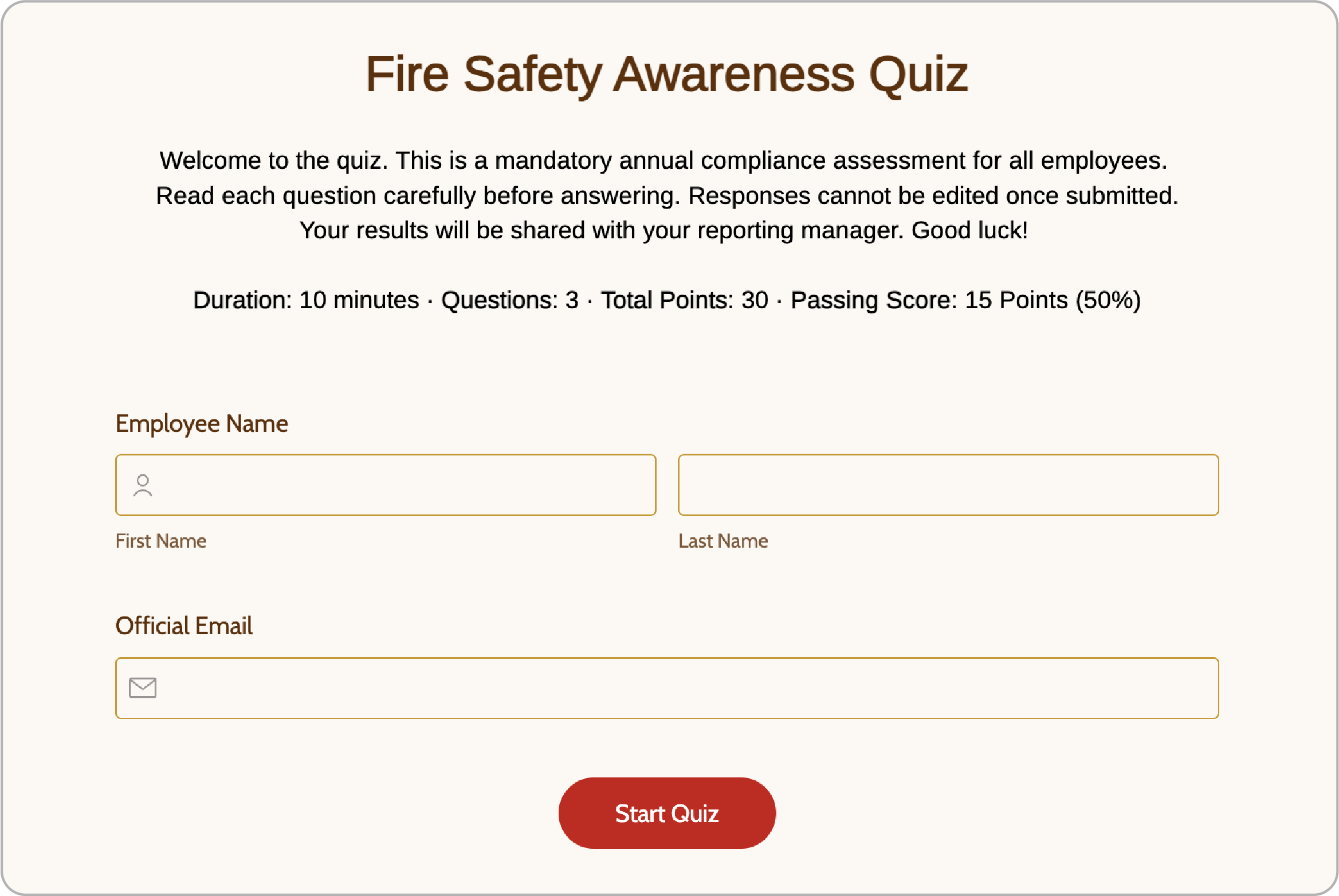
The Welcome Page comes pre-filled with the quiz name as the heading, a generic description below the heading, and the Start Quiz button.
A quiz summary showing the duration, number of questions, total points, and passing score is also displayed, based on your quiz setup. You can update the heading, description, and banner image to include quiz-specific instructions or anything else respondents need to know before they start.
You can also add fields such as Name and Email to the Welcome Page to collect basic details before the quiz begins.
Note: The Welcome Page is mandatory in quiz forms and cannot be removed.
The Quiz Builder
A quiz form moves through three states:
- Unpublished: The quiz is being set up and tested.
- Published: The quiz is live and actual responses are collected from respondents.
- Closed: The quiz is closed for respondents and the results can be reviewed.
Unpublished State
A quiz is created in the Unpublished state, which is the draft stage. Here you can add and edit fields, configure answer keys and points, set up scoring, display settings, and the timer, and finally test the quiz in test mode.
The builder header shows the Quiz badge and the Unpublished status. Two actions are available: Test Quiz and Publish Quiz. The form header also shows the total points of the quiz, for example, Total: 30 Points.
All the test submissions can be seen in Test Entries. If Save & Resume is enabled, Partially Saved Entries are also available in case a respondent saves the form partway. Deleted entries can be seen in Trashed Entries.
Note: A maximum of 50 test submissions is allowed. To collect more test submissions, delete the existing ones.
Test Quiz
- From the builder, click Test Quiz at the top right. It opens a full preview of the live quiz, starting from the Welcome Page.
A banner is displayed at the top while you are in test mode. - Attempt the quiz yourself as a respondent and check that the answers, points, and the timer work as expected in the live form before you publish.
- Then come back and check the results in All Entries (List View, Ranking View, and Questions View) to make sure everything looks right.
Publish Quiz
Once everything is verified in test mode, you can publish the quiz:
- From the builder, click Publish Quiz at the top right to open the Publish your Quiz popup.
- Review the summary carefully before going live, enter the CAPTCHA shown, and click Publish.
- Review the and make sure your questions, answers, points, and timer are all set up correctly before publishing.
- Quiz Fields: The number of quiz fields that have an answer and points configured.
- Total Points: The sum of the points of all the quiz fields that have an answer set.
- Pass Score: The minimum score required for a respondent to pass.
- Timer: The time limit configured.
If the pass score or the timer is not set, it is displayed as Not Set. You can continue without them, or cancel, set them in Quiz Setup, and then come back to publish.
All test submissions are permanently deleted once the quiz is published. Responses received after publishing count as actual entries.
Note:
- Once the quiz is published, you cannot edit the answers, points, or pass score, or add new quiz fields.
- Test the quiz thoroughly in test mode before publishing. Publish only when ready.
- At least one quiz field must have an answer and points configured to publish.
Published State
Once published, the quiz is live and accepts responses. Share the quiz link with your respondents.
The builder header shows the Quiz badge and the Published status. Two actions are available: Access Quiz and Close Quiz.
All the submissions (whether manual or auto-submitted) can be seen in Submitted Entries.
If Save & Resume is enabled, Partially Saved Entries are also available in case a respondent saves the form partway.
The entries of respondents who started the quiz but closed the window and did not resume it before the timer ended are available under Unsubmitted Timer Entries.
Note:
- Once the quiz is published, you cannot edit/delete the answers, points, or choices of quiz fields.
- Pass Score cannot be edited once the quiz is published.
- Entries cannot be moved to the trash in a published quiz, so Trashed Entries is not available for published and closed quizzes. Entries deleted from a published or closed quiz are deleted permanently and cannot be restored.
- Once the quiz is published, new quiz fields cannot be added.
Access Quiz
- Click Access Quiz to open the live quiz link, which starts with the Welcome Page.
Learn more about the different ways to share your quiz form with respondents. - When the respondent clicks Start Quiz, the timer starts, and the respondent submits the quiz when done.
If a respondent has not completed all the questions when the timer expires, the form is auto-submitted. If a respondent closes the form after the timer starts, they can reopen it with the same form link at any time before the timer expires.
If Save & Resume is enabled, they can even resume from where they left off. If the respondent comes back after the timer has expired, a message is shown saying that the timer has expired and the quiz cannot be attempted again.
Close Quiz
Once all the respondents have taken the quiz, you can close it. Closing the quiz stops it from accepting new responses.
- To close the quiz, click Close Quiz in the builder. A confirmation popup appears.
- Enter the Captcha and click Close Quiz to confirm, or click Cancel to go back.
Note: Close Quiz is a permanent action. Once closed, the quiz will become inactive and you won't be able to restart it.
Closed State
Once the quiz is closed, you can review the results. No new responses are accepted after this. The result views, Ranking View and Questions View, are generated at this point.
When the quiz is closed, the builder shows a Closed status badge for easy identification, along with a Quiz Closed Message. The form builder will be fully inactive, no fields can be added, edited, or deleted, and the Quiz Setup settings are locked.
Respondents who open the quiz link after it is closed see the Quiz Closed Message set in Scoring and Display. They cannot attempt the Quiz once it's closed.
Viewing Quiz Responses
In addition to the default List View, two more views, Ranking View and Questions View, are available in All Entries and Reports exclusively for quiz forms.
Along with the responses submitted by the respondents, important quiz-related information such as the score, result, and the count of correct and wrong answers is also displayed in All Entries and Reports.
List View
List View is the default view in All Entries and Reports. It lists the responses submitted by the respondents along with the quiz details. Each answer to a quiz field is marked with a green tick if it is correct and a red cross if it is wrong.
Along with the form fields, List View shows these quiz columns: Quiz Result, Quiz Score, Correct Answers Count, Wrong Answers Count, and Skipped Questions Count. The same values are also available as variables, so you can use them in thank-you pages, form rules, email notifications, and the PDF editor. Learn More
Use the entries dropdown at the top left to switch between the entry types available for the current state of the quiz. See Unpublished State and Published State for the entry types in each state.
Note: Record Edit is not supported for quiz form entries.Timer Columns in All Entries
For timer-enabled quizzes, two additional columns appear:
- Start Time: The time when the respondent clicked Start Quiz on the Welcome Page, that is, when they began the quiz.
- Time Taken: How long the respondent took to submit the quiz.
Along with these, the standard Added Time column shows when the response was submitted.
When you open an individual record, the record summary shows Correct Answers Count, Wrong Answers Count, Skipped Questions Count, Quiz Score, Quiz Result, Start Time, Added Time, and Time Taken.
Ranking View and Questions View
Ranking View and Questions View show the quiz results and are generated once the quiz is closed. Both views start with an Overall Summary that shows Total Responses, Passed Count, Failed Count, and Time Taken (in hh:mm:ss).
Note: Ranking View and Questions View are generated only once the quiz is closed. However, in test mode they are available until the quiz is published, and they are built from the data available at the time you open them.
Ranking View
This view ranks respondents by their quiz score, with the highest scorer at the top. The top three ranks are marked with medals. The table shows each respondent's Rank along with the quiz and timer columns.
You can also view the rankings as cards:
- Click the View rankings as cards icon at the top right of the Ranking View table.
- In the Card View popup, select the fields you want to display on each card, for example, the name and email. The Rank and Quiz Score are always shown on the card. A preview of the card is shown on the right.
- Click Create.
Each card shows the respondent's Rank and Quiz Score, along with the Pass or Fail result if a pass score is configured.
Click Modify View to change the fields displayed on the cards. To go back to the table, click the list icon.
A confirmation message is shown before switching to the default tabular view, since the configured Card View setup will be lost.
Questions View
Questions View analyzes each question's responses and shows how the choices were distributed across all respondents.
For each question, you can see the Points, Correct Answers, Wrong Answers, and Skipped Questions.
Click the expand arrow on the right side of a question to see the choices with the number of respondents who selected each one, a pie chart of the answers given, and which answers are right and wrong.
To expand all the questions at the same time, click the maximize button at the top right of Questions View, so you do not have to check each question individually.
List View, Ranking View, and Questions View are available in Reports as well.
Note:
- Kanban View is not supported for quiz forms.
- Public report sharing is not available for quiz forms.
Quiz Variables
Quiz results are available as variables that you can use in thank-you pages, form rules, email notifications, and the PDF editor. For example, you can show different thank-you messages to respondents who passed and respondents who failed. These values are already shown in the All Entries and Reports sections of the quiz by default. They are listed below:
- Quiz Score: The respondent's total score.
- Quiz Result: Pass or Fail (available only when a Pass Score is configured).
- Correct Answers Count: Number of correctly answered questions.
- Wrong Answers Count: Number of incorrectly answered questions.
- Skipped Questions Count: Number of questions left unanswered.
If you want to display all of them in a tabular format, select Quiz Record Summary in the variable picker.
Note: In Quiz forms, only Form Rules are supported. Field Rules, Page Rules, Choice-based Field Rules, Deny Submissions, and Field-to-Field Comparison are not supported.