Working with Alarms in Zoho IoT: A Practical Guide

Working with Alarms


The different views of Alarms allow users to examine alarms in detail, providing insights into their nature, severity, and history. The application also includes features to view related alarms, helping users identify connections between different incidents, and a timeline view that tracks actions performed over the alarm facilitating efficient alarm management. 

Info
Refer to the Understanding Alarms document before proceeding with this document to understand the flow and terminologies.
Alert
All Alarm operations require necessary permissions. Refer to Users and Profiles document for more details.

Viewing Alarms        

The generated alarms can be viewed in the Alarms list view by clicking on the Alarms > Alarms in the left navigation bar in the End Application.  


List View

By default, all alarms in the application are displayed in the list view. The list view contains all the generated alarms and selective details about each, in a tabulated view as displayed below.


The list view offers the following customization options:

Option
Description
Column Customization
You can include or remove columns in the list view, and to arrange the columns in the desired order.
Sorting Records
You can sort records in a column in descending or ascending order.
Filtering Records
You can filter and view subset of alarms.
   

Filtered View

The 'Source' column in the filter option can be used to filter and view alarms that originated from a particular source. You can filter using two options: either the source is 'Located At' a specific location, or 'Under' that location and its hierarchy.

For example, consider a location North Plaza Main, where two DGs, DG1 and DG2, are located. To view the alarms that originated from these two sources (DG1 and DG2) present at North Plaza Main, you can filter using:
Source → Located At → North Plaza Main.

Now, assume there are two other locations under North Plaza Main: West Wing, where DG3 is located, and East Wing, where DG4 is located. To view alarms that originated from the DGs present at North Plaza Main, West Wing, and East Wing, you can filter using:

Source → Under this Location → North Plaza Main.


Actions from the list view

The actions that can be performed from the list view are highlighted with separate screenshots for each action below. 


Viewing Alarm History
  1. Click on the View History button to view the history related to the alarm.  
InfoInfo: All alarms generated for a managed entity are recorded under Alarms History. The latest or current alarm is considered the active Alarm. In other words, all alarms that preceded the current Alarm form the Alarms History.


NotesNote: Alarm history for a managed entity can also be viewed from the respective managed entities list view i.e. devices, assets, or locations list views by selecting the managed entity and clicking on the View Alarm History button on top of the list view.

Assign User
  1. Click on the Assign User button to assign the alarm to an user.  
Info
Info: Alarms can be manually assigned to users to send them notifications, prompting them to take the necessary actions. This immediate notification ensures that the user is aware of the problem and can quickly respond to mitigate any potential impact.


Clear Alarm
  1. Click on the Clear Alarm button to clear the alarm manually.  
Info
Info: Typically, the system automatically clears an alarm when the fault is resolved and the same will be reflected in the application. In rare cases, when the fault has been rectified but the alarm remains uncleared, you can manually clear the alarm using the Clear Alarm option.
 

Delete Alarm
  1. Click the Delete Alarm button to delete any invalid alarm.  


Alarm Details View 

Complete details of an alarm can be viewed by clicking on any alarm name in the list view. The details about the alarms are displayed under the tabs: Summary, Alarm Details, Alarm History, Related Alarms, and Timeline.

The actions that can be viewed from the Alarm Details view are highlighted with a separate screenshots for each action below. 

  
Tab
Description
Summary
Displays the summary of the Alarm in a dashboard view with widgets. This is also known as the overview dashboard view of the alarm.
 
Alarm Details
Displays properties of an alarm such as alarm created time, modified time, severity, state, category, etc.
 
History
Displays the occurrence order of the alarm with its severity.
 
Related Alarms
Displays the list of related alarms.
 
Timeline
Displays the list of activities performed on the alarm in chronological order.
 

Alarms Summary View

Alarms Summary View provides a dashboard view with a set of widgets.


Acknowledge/Unacknowledge Alarms


Acknowledging the alarm indicates that a user or system operator has recognized the alarm and is taking steps to address the issue, ensuring it is being attended to. It can be reverted to the unacknowledge state if the alarm was acknowledged by mistake or it needs re-alert.
  1. Click on the Actions > Acknowledge button to acknowledge the alarm.  


  1. Click on the Actions > Unacknowledge button to revert.
Notes
Note: The acknowledged/unacknowledged status is used in trigger conditions in escalation and resolution actions in notification profiles. Escalation actions can be triggered for unacknowledged alarms, while resolution actions can be tied to acknowledged alarms.
  1. The acknowledgement details can be viewed from the Details tab next to the Summary tab.


Notes
Note: Acknowledging an alarm allows users to pause repeated alerts and associated actions for the same state. This can done using the Noise Reduction and Suppress updates for acknowledged alarms option when configuring alarm rule state.

Details View

The Details View provides all alarm details.


History


Related Alarms


Timeline


Managed Entity Alarms View

Alarms generated for a particular managed entity (ME) in the application such as device, asset, and location can be viewed from the details page of the particular entity. The Alarms tab in the information page of the ME contains all the alarm information. The Source and Related Alarms can be viewed using the toggle button.
 
Alarm Type
Description
 
Source Alarm
 
In managed entity's details page, the alarms that have source same as the managed entity is termed as source alarm.
 
 
Related Alarm
 
In managed entity's details page, the related alarms are listed based on the relationship of this managed entity with other managed entity.
 

More alarms can be configured for an ME from this view using the Alarm Rule Configuration option.


Dashboard View

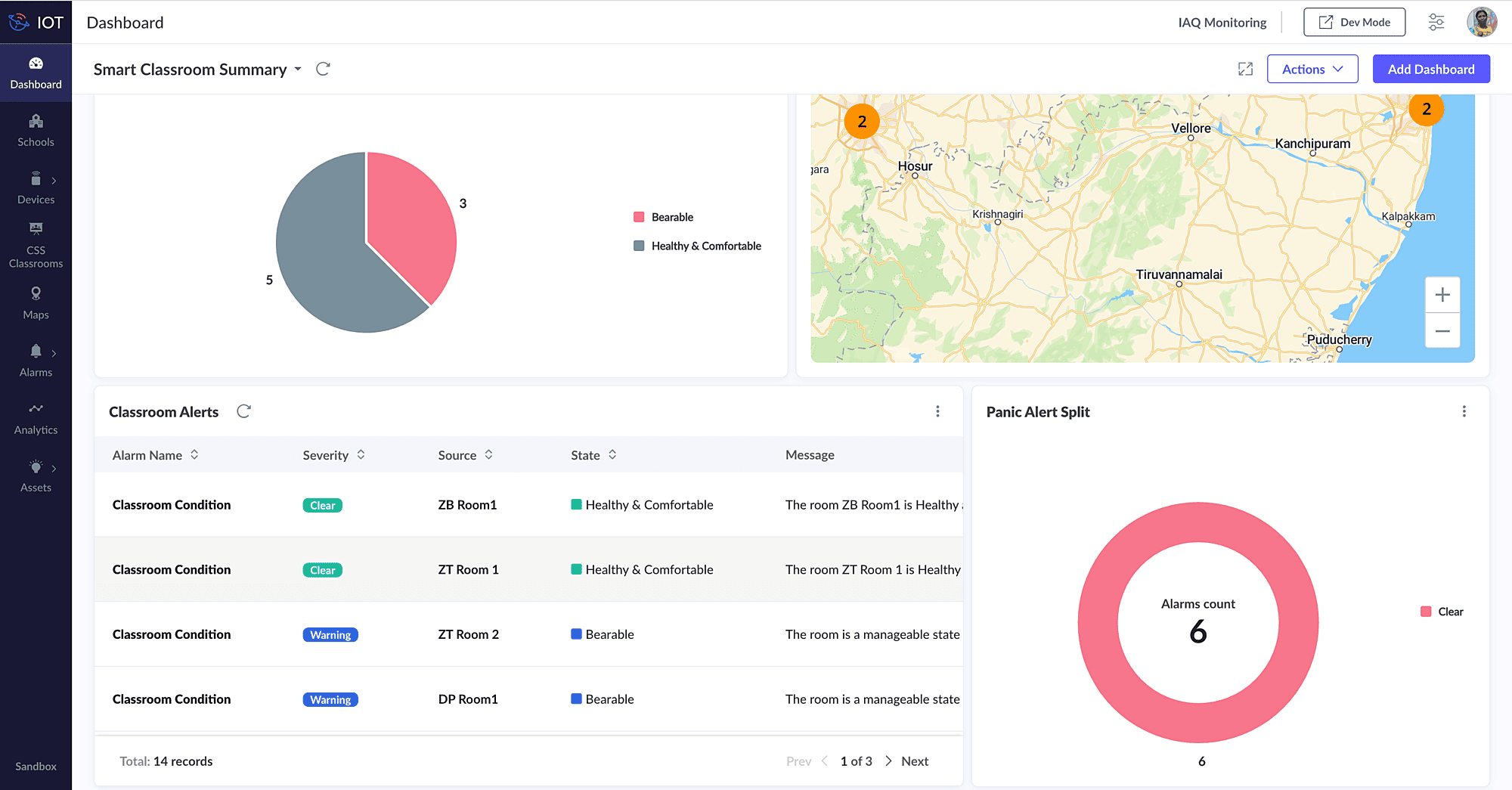
Alarms can be viewed from the global dashboard in Zoho IOT by configuring appropriate widgets. The various widget types: Card, Dial, Image and Table can be used to display alarms and their relevant information.
 

See Also

      Create. Review. Publish.

      Write, edit, collaborate on, and publish documents to different content management platforms.

      Get Started Now


        Access your files securely from anywhere

          Zoho CRM Training Programs

          Learn how to use the best tools for sales force automation and better customer engagement from Zoho's implementation specialists.

          Zoho CRM Training
            Redefine the way you work
            with Zoho Workplace

              Zoho DataPrep Personalized Demo

              If you'd like a personalized walk-through of our data preparation tool, please request a demo and we'll be happy to show you how to get the best out of Zoho DataPrep.

              Zoho CRM Training

                Create, share, and deliver

                beautiful slides from anywhere.

                Get Started Now


                  Zoho Sign now offers specialized one-on-one training for both administrators and developers.

                  BOOK A SESSION


                              Quick LinksWorkflow AutomationData Collection
                              Web FormsEnterpriseOnline Data Collection Tool
                              Embeddable FormsBankingBegin Data Collection
                              Interactive FormsWorkplaceData Collection App
                              CRM FormsCustomer ServiceAccessible Forms
                              Digital FormsMarketingForms for Small Business
                              HTML FormsEducationForms for Enterprise
                              Contact FormsE-commerceForms for any business
                              Lead Generation FormsHealthcareForms for Startups
                              Wordpress FormsCustomer onboardingForms for Small Business
                              No Code FormsConstructionRSVP tool for holidays
                              Free FormsTravelFeatures for Order Forms
                              Prefill FormsNon-Profit

                              Intake FormsLegal
                              Mobile App
                              Form DesignerHR
                              Mobile Forms
                              Card FormsFoodOffline Forms
                              Assign FormsPhotographyMobile Forms Features
                              Translate FormsReal EstateKiosk in Mobile Forms
                              Electronic Forms
                              Drag & drop form builder

                              Notification Emails for FormsAlternativesSecurity & Compliance
                              Holiday FormsGoogle Forms alternative GDPR
                              Form to PDFJotform alternativeHIPAA Forms
                              Email FormsFormstack alternativeEncrypted Forms

                              Wufoo alternativeSecure Forms

                              WCAG

                                        Create. Review. Publish.

                                        Write, edit, collaborate on, and publish documents to different content management platforms.

                                        Get Started Now


                                                          You are currently viewing the help pages of Qntrl’s earlier version. Click here to view our latest version—Qntrl 3.0's help articles.


                                                              Manage your brands on social media


                                                                • Desk Community Learning Series


                                                                • Digest


                                                                • Functions


                                                                • Meetups


                                                                • Kbase


                                                                • Resources


                                                                • Glossary


                                                                • Desk Marketplace


                                                                • MVP Corner


                                                                • Word of the Day


                                                                • Ask the Experts


                                                                  Zoho Sheet Resources


                                                                      Zoho Forms Resources


                                                                        Secure your business
                                                                        communication with Zoho Mail


                                                                        Mail on the move with
                                                                        Zoho Mail mobile application

                                                                          Stay on top of your schedule
                                                                          at all times


                                                                          Carry your calendar with you
                                                                          Anytime, anywhere


                                                                                Zoho Sign Resources

                                                                                  Sign, Paperless!

                                                                                  Sign and send business documents on the go!

                                                                                  Get Started Now


                                                                                          Zoho TeamInbox Resources


                                                                                                    Zoho DataPrep Demo

                                                                                                    Get a personalized demo or POC

                                                                                                    REGISTER NOW


                                                                                                      Design. Discuss. Deliver.

                                                                                                      Create visually engaging stories with Zoho Show.

                                                                                                      Get Started Now


                                                                                                                          • Related Articles

                                                                                                                          • Understanding Alarms

                                                                                                                            Identifying faults in devices and assets within an IoT network is the most vital part of any monitoring application. It provides insight into the health of devices and assets, and consequently, the overall health of the network. This capability ...
                                                                                                                          • Working with Notification Profiles

                                                                                                                            Notification Profile actions can be triggered based on various conditions. This document provides steps to create and automate notification profile actions under the Notification, Escalation, and Resolution action sections. Refer to the Understanding ...
                                                                                                                          • Working with Alarm Rules

                                                                                                                            Creating Alarm Rule Alarm Rules can be created in the End Application. In this document, we will follow the steps in creating Alarm Rules from the End Application. Prerequisites Define instance : Ensure the device, asset, or location instance is ...
                                                                                                                          • Working with Maps

                                                                                                                            The Maps feature helps to position managed entities at specific locations using their configured geolocation property with latitude and longitude values. And also the location type of datapoint allows to configure live tracking and location history ...
                                                                                                                          • Working with Geofences

                                                                                                                            The Geofence feature in Maps has the ability to define virtual boundaries around specific geographic locations associated with your assets, vehicles, or other managed entities. These virtual perimeters, or geofences, allow you to closely monitor ...
                                                                                                                            Wherever you are is as good as
                                                                                                                            your workplace

                                                                                                                              Resources

                                                                                                                              Videos

                                                                                                                              Watch comprehensive videos on features and other important topics that will help you master Zoho CRM.


                                                                                                                              eBooks

                                                                                                                              Download free eBooks and access a range of topics to get deeper insight on successfully using Zoho CRM.


                                                                                                                              Webinars

                                                                                                                              Sign up for our webinars and learn the Zoho CRM basics, from customization to sales force automation and more.


                                                                                                                              CRM Tips

                                                                                                                              Make the most of Zoho CRM with these useful tips.


                                                                                                                                Zoho Show Resources