Automating appointment status and customer feedback collection
Hello community members,
In the spirit of elevating your scheduling game for 2024, we're bringing you a couple of useful workarounds that can enhance your overall Bookings experience.
We have divided the community post into two halves. In the first half, we will show how to automate the appointment status to Completed. This action ensures that emails are automatically triggered after the appointment is completed. In the second half, we will explore how to add and prefill the feedback form in your customer emails. This will allow you to efficiently gather feedback from customers.
In an effort to streamline the entire process, we're merging both topics into a single post. This aims to automate updating the appointment status to completed, triggering the completion email to customers, and seamlessly integrating our Zoho Survey form for actively collecting valuable feedback.
In an effort to streamline the entire process, we're merging both topics into a single post. This aims to automate updating the appointment status to completed, triggering the completion email to customers, and seamlessly integrating our Zoho Survey form for actively collecting valuable feedback.
Automating the appointment status
Currently, updating an appointment's status to Completed is a manual process in Zoho Bookings. However, with our new workaround, you can now streamline this task through automation. We've included steps below that will make it so that once an appointment has ended, its status will automatically switch to Completed.
Note that if you mark an appointment as No show, your selection will not be overwritten by this new workaround.
If you're still concerned about this, consider editing the content of the appointment completion trigger email, providing generic content suitable for both attendees and non-attendees. This guarantees that even if all appointments are marked as completed, a generic email with relevant information will be sent to all customers.
Prerequisites for automating the appointment status
1. Zoho Bookings basic or premium subscription.
2. Zoho Flow paid subscription
How to automate
A. First, we'll create a new flow in Zoho Flow:
1. Sign in to Zoho Flow.
2. Select the Create flow option.
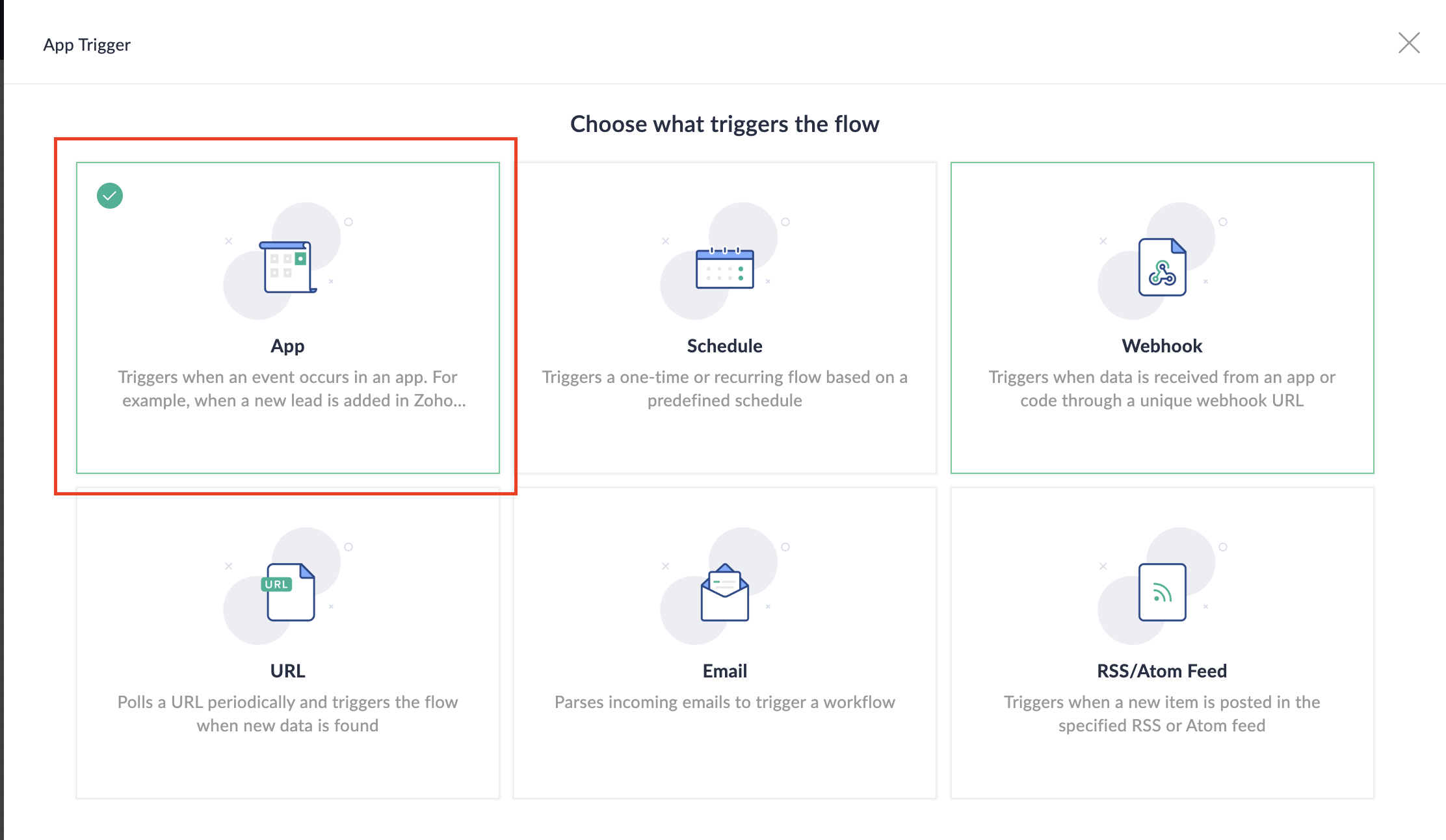
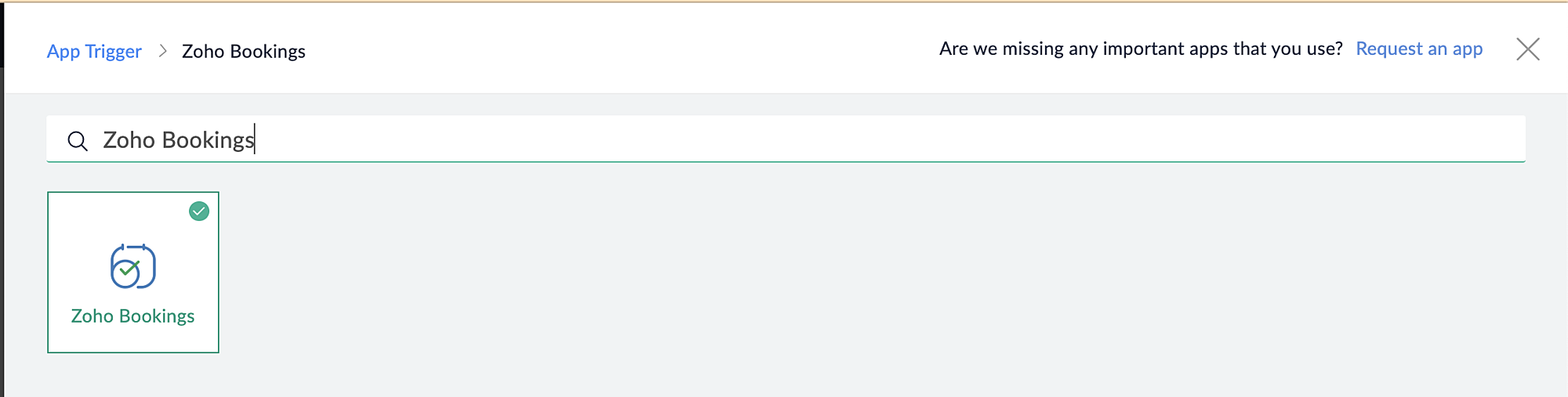
3. Select App and search for Zoho Bookings in the search bar.
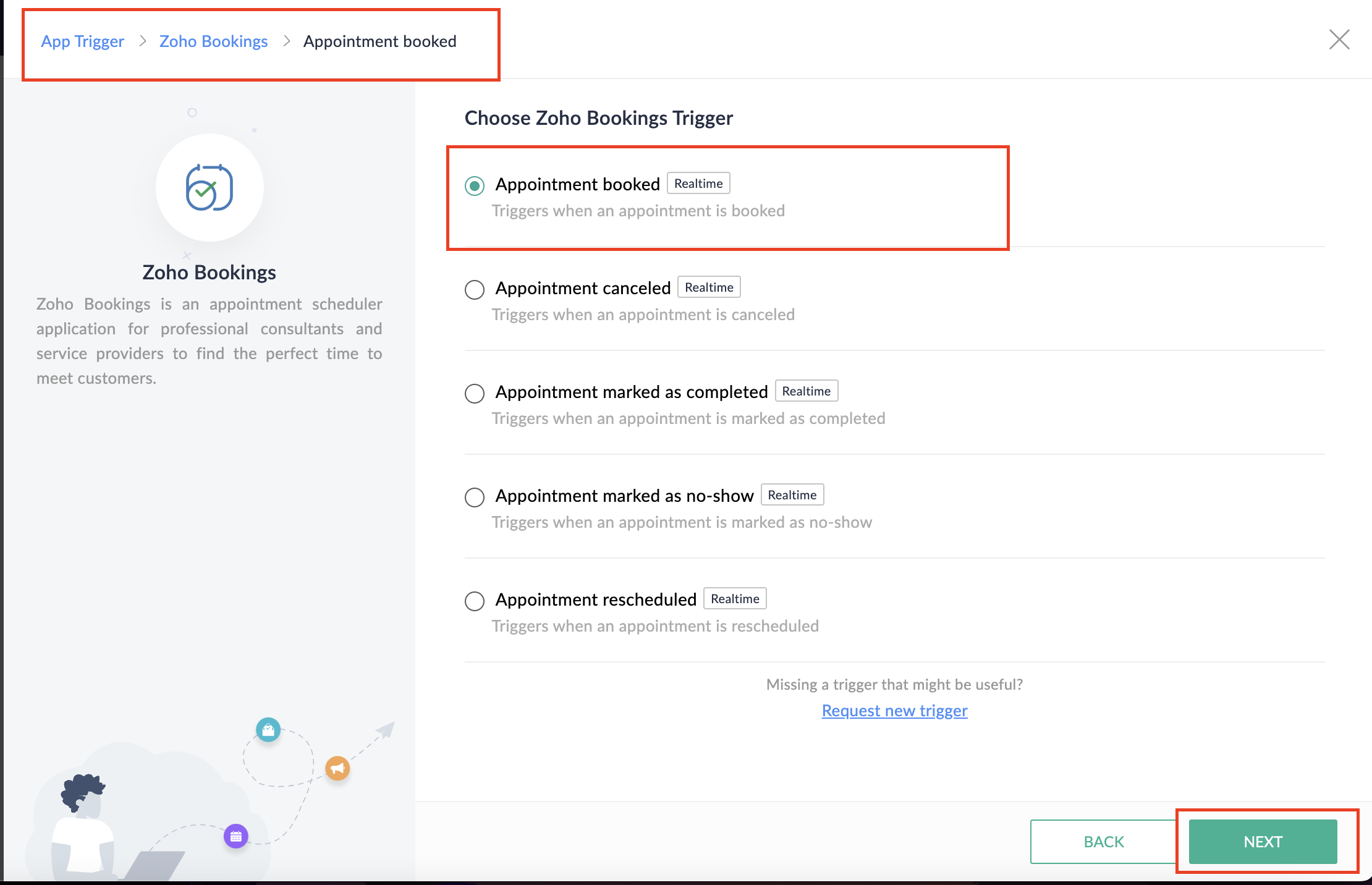
4. Select the Appointment booked trigger.
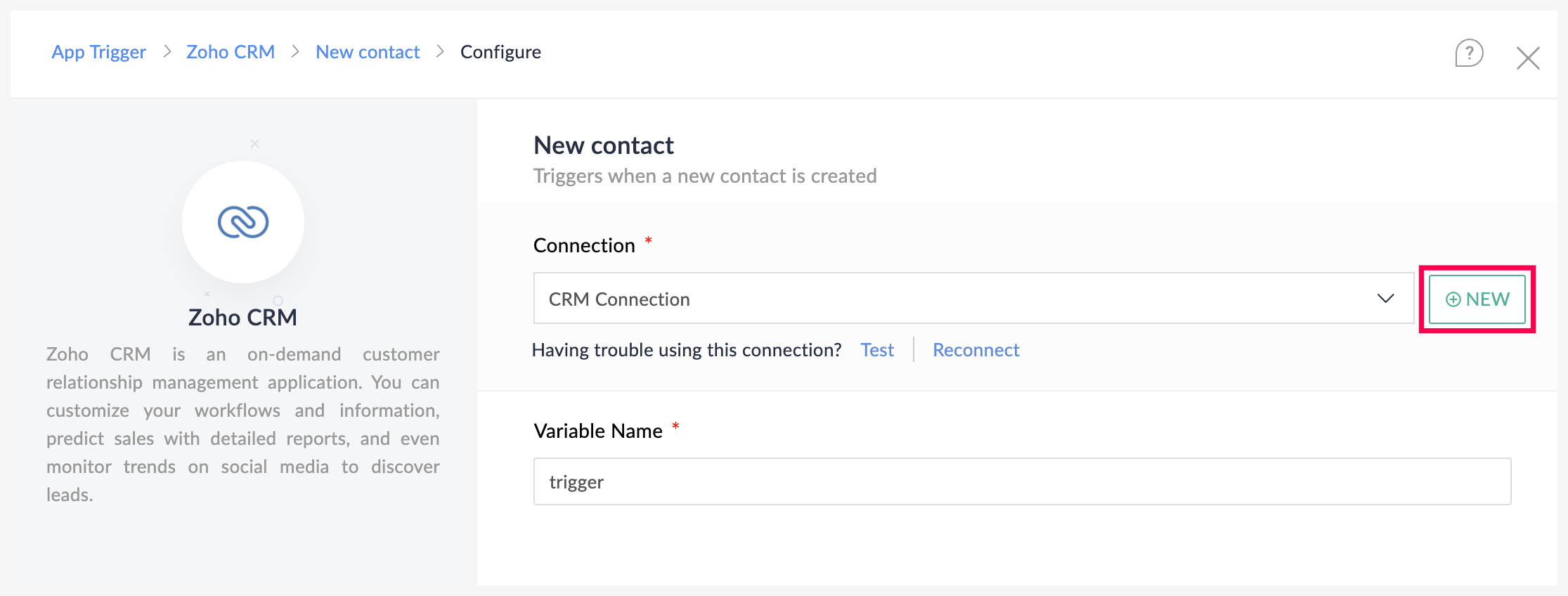
5. Select the Connection and Variable Name.
6. Click Done.
You have now created a new flow for Zoho Bookings.
Other helpful links for this process:
- How to create a flow in Zoho Flow: Create a flow from scratch
- How to create connection in Zoho Flow: Create a Connection
B. Next, let's configure the logic:
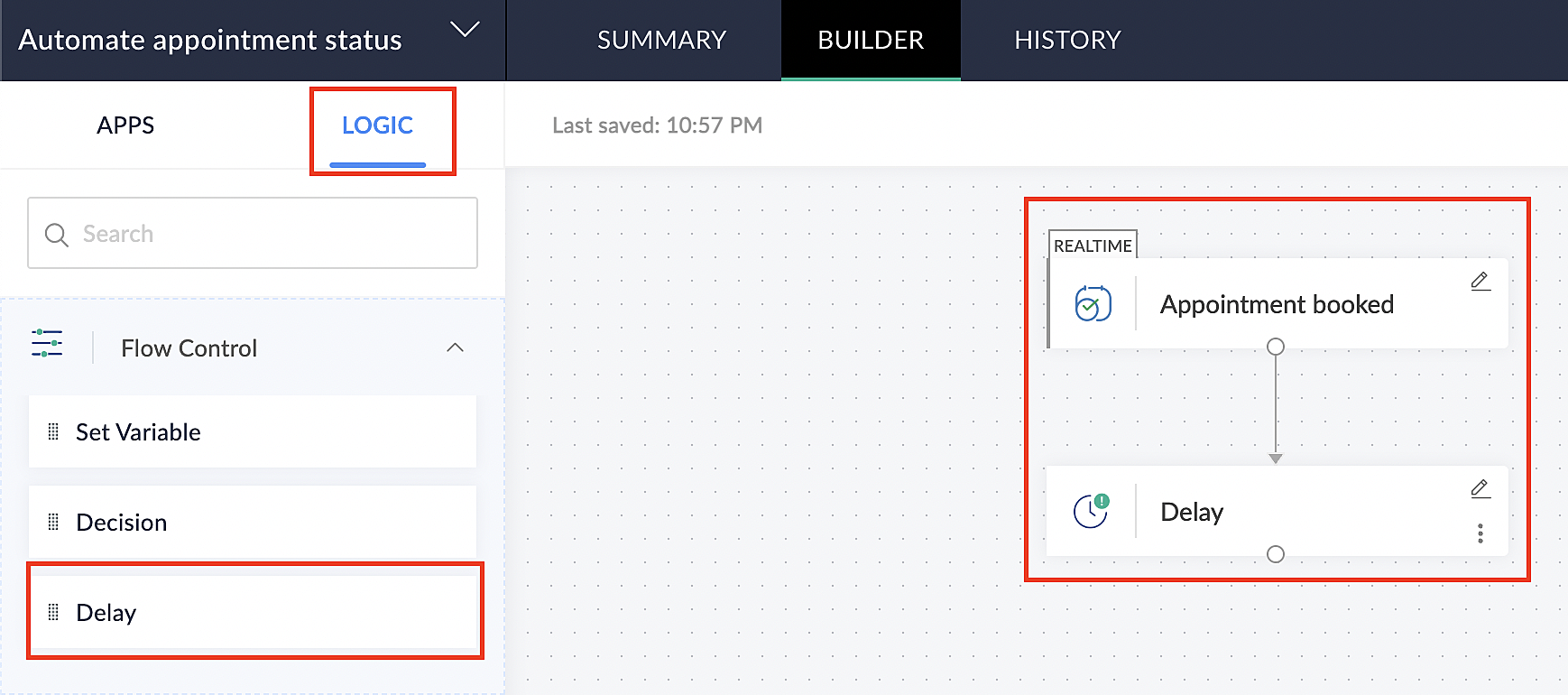
1. Navigate to the Logic tab in Zoho Flow.
2. Click the Flow Control dropdown and select Delay.
3. Drag and drop the Delay function to the bottom of the Appointment booked trigger.
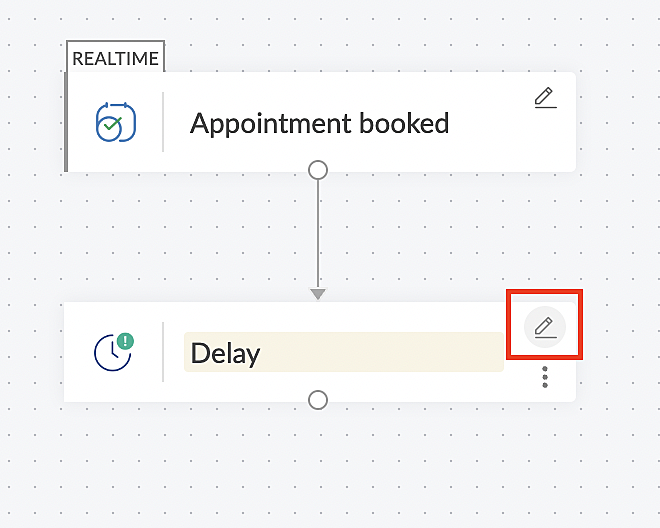
4. Click on the edit icon next to the Delay function.
5. In the Delay For the column, select the appointment end time variable from the available Zoho Bookings variables.
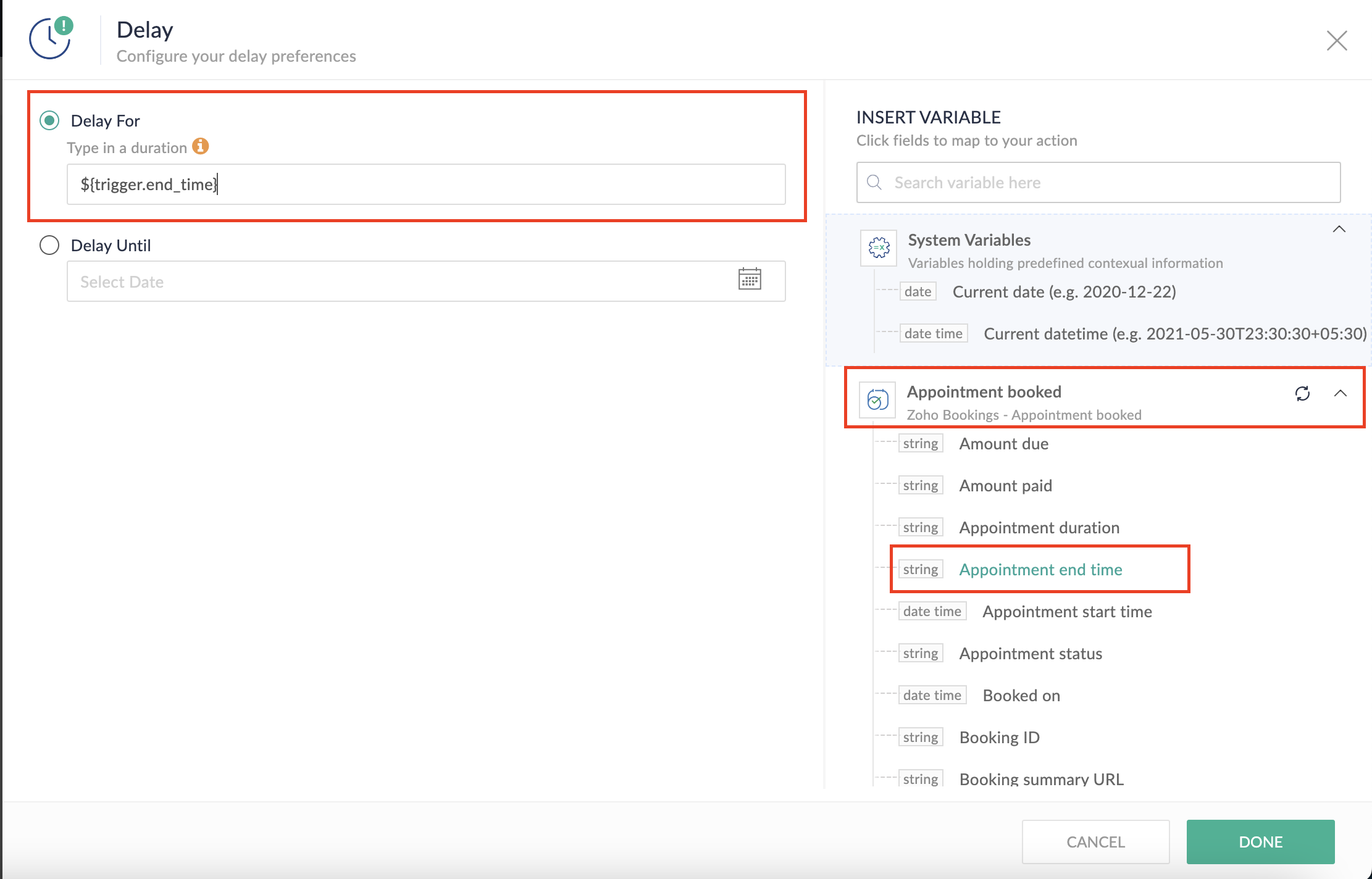
Completing this steps helps us ensure that this workflow executes exclusively at the end of each appointment.
C. We can now allocate additional time for any necessary actions:
For example, let's consider extending the remaining actions by an extra 5 minutes. This extension grants you additional time to update the appointment status.
1. From the Logic tab, drag and drop another Delay action to the bottom of the first Delay action.
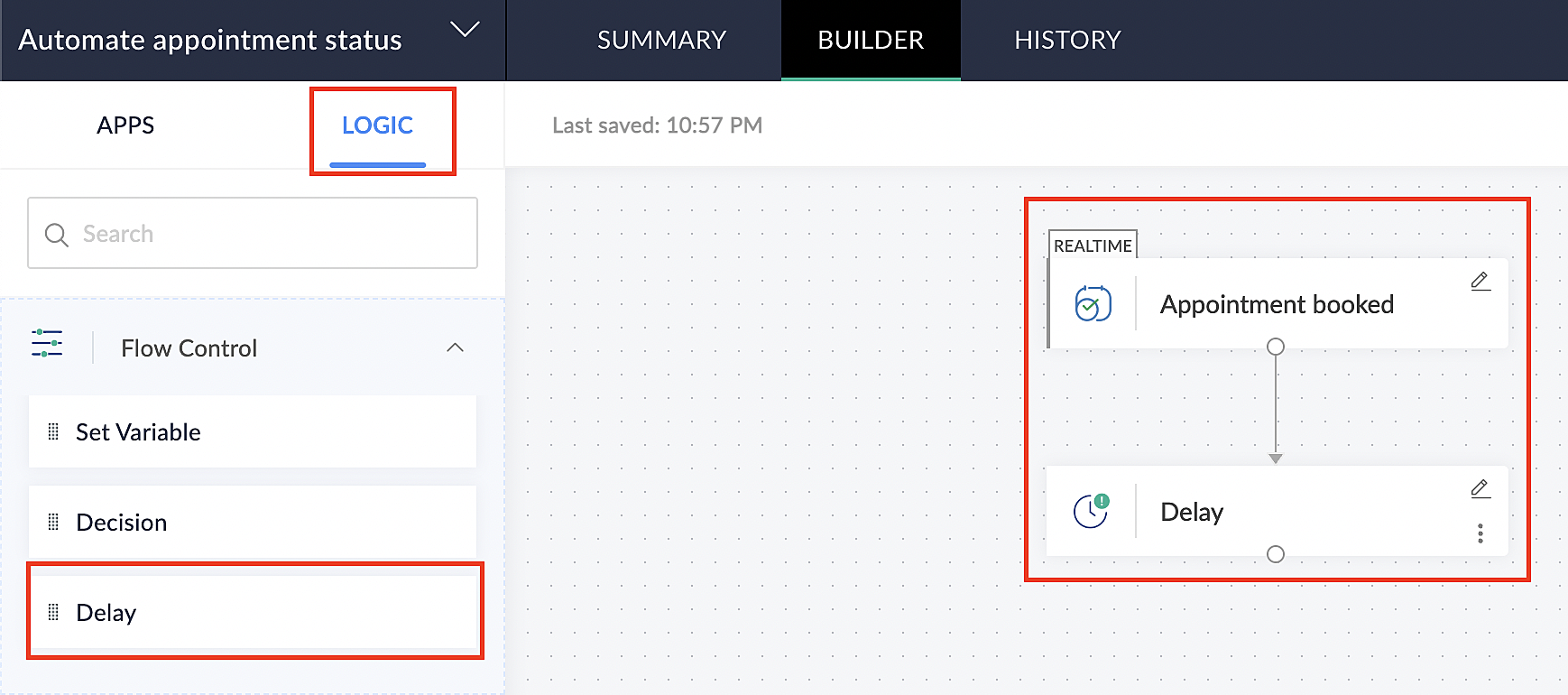
2. Click on the edit icon next to the Delay function.
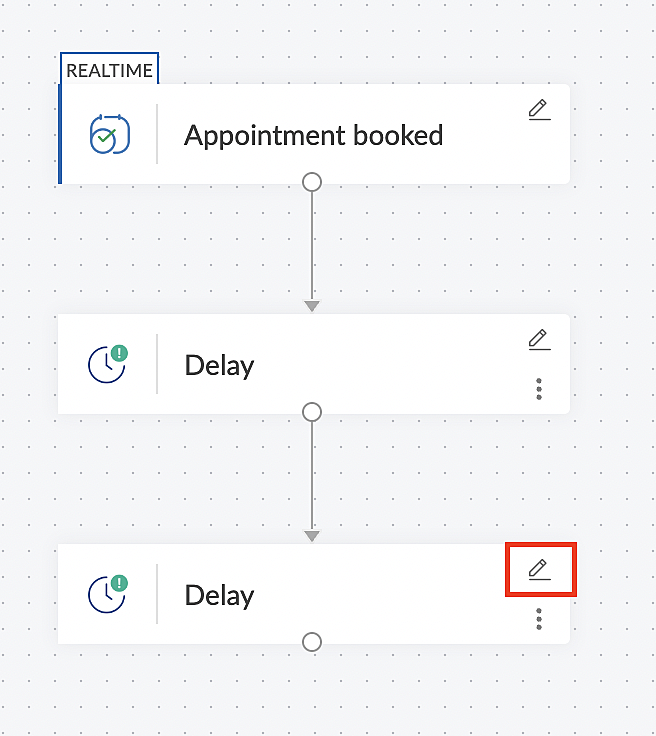
3. In the Delay For column, set the desired extra time based on your preference. If going by our proposed example, we'd configure an additional 5 minutes.
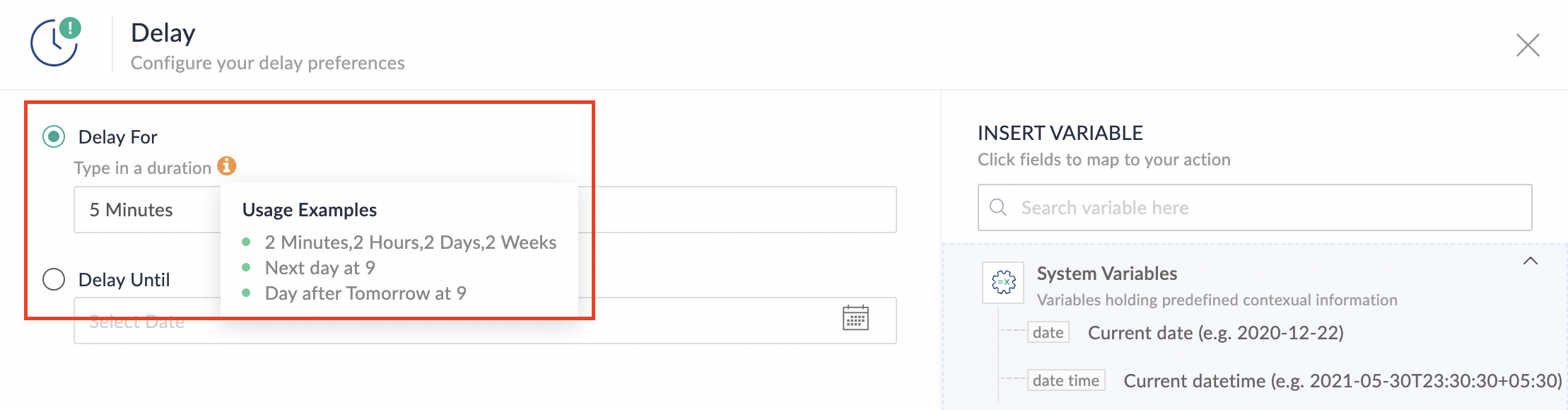
For more details: Delay
Note: If you decide not to include extra time and prefer to execute the flow precisely at the end of the appointment duration, you do not need to complete this section of steps.
D. Finally, let's configure a custom function
Through this step, we'll ensure our ended appointment's status updates to Completed (as long as no other status has been selected).
1. From the Logic tab, click the Custom Functions dropdown.
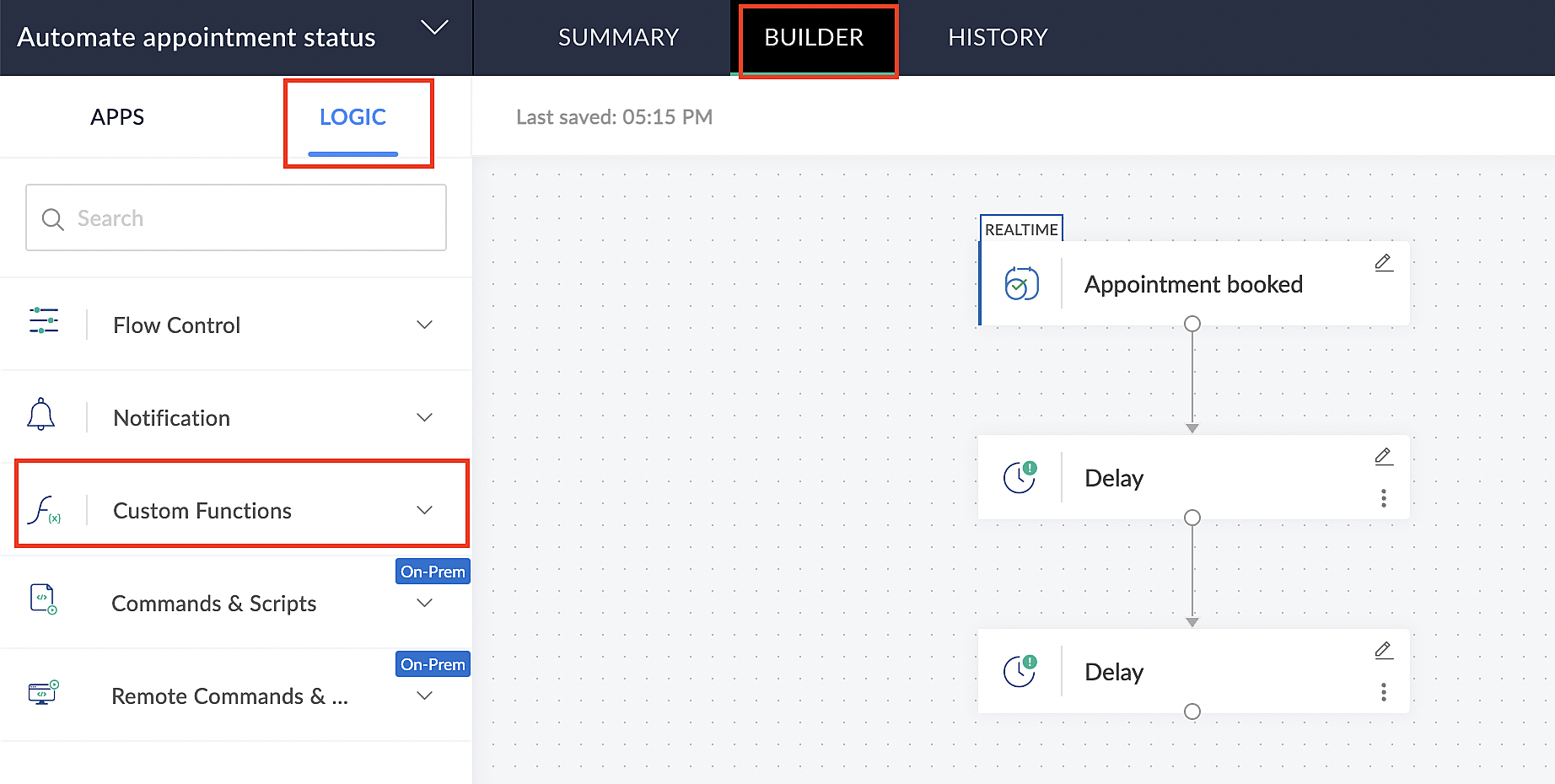
For more details: Custom Functions
2. Click +Custom Function.
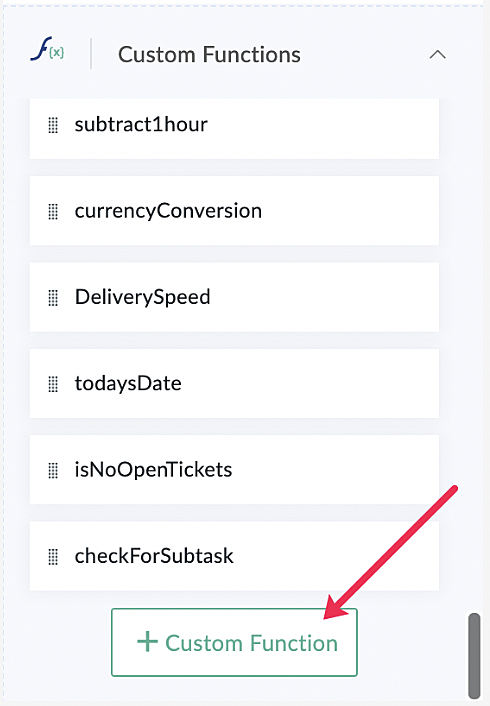
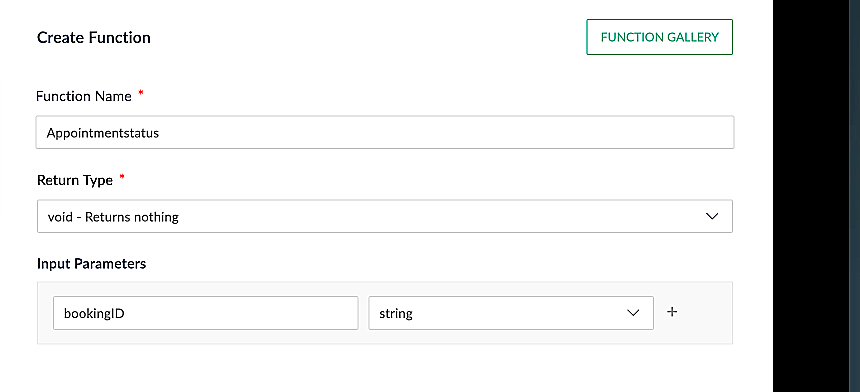
3. Add a relevant name for the function under Function Name, and set the Return Type as void - Returns nothing from the dropdown.
4. Under Input parameters, type bookingID and select string from the dropdown as shown in the screenshot below.
5. Click Create to open the Deluge script page, where we will enter our code for execution.
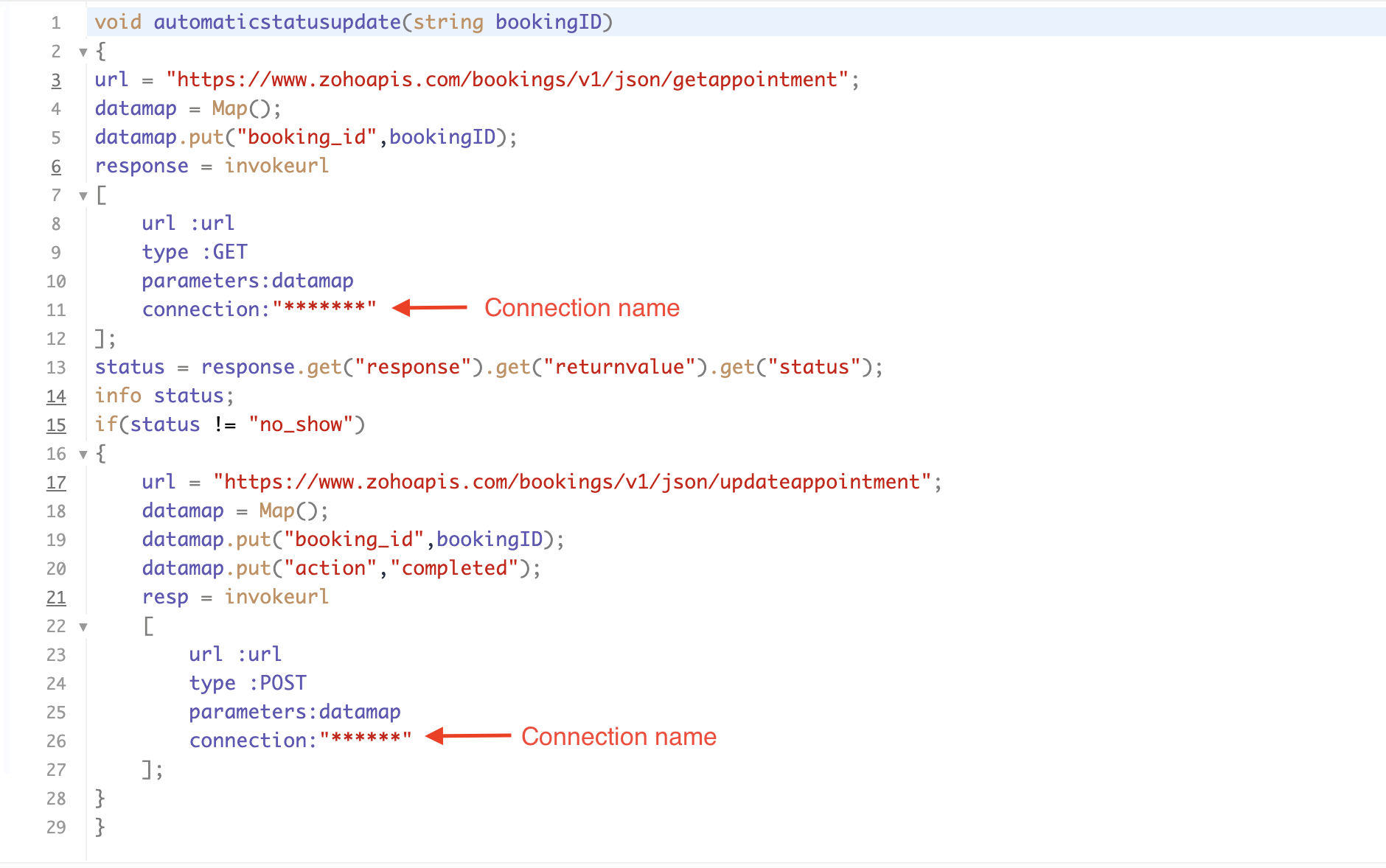
If you're interested, here is a brief explanation of the code:
Line 1: To pass the input data below to the code.
- Booking ID: Identifies the specific booking for fetching details and checking the status.
Line 3: Set up the API endpoint URL based on the Zoho Bookings account's data center.
- More details: Domain-specific API URLs
Line 3–12: We utilize the Get Appointment API' to retrieve the appointment details. For more details: Get Appointment API
Line 13: Here, we're fetching the status of the respective appointment from the response of the Get Appointment API.
Line 15: Implement an 'if' condition to execute the code only if the appointment status is not No show.
Line 16–27: In this step, we utilize the 'Update Appointment API to mark the appointment status as Completed' when the condition specified in line 15 of the code is met.
This is how the final flow will look:
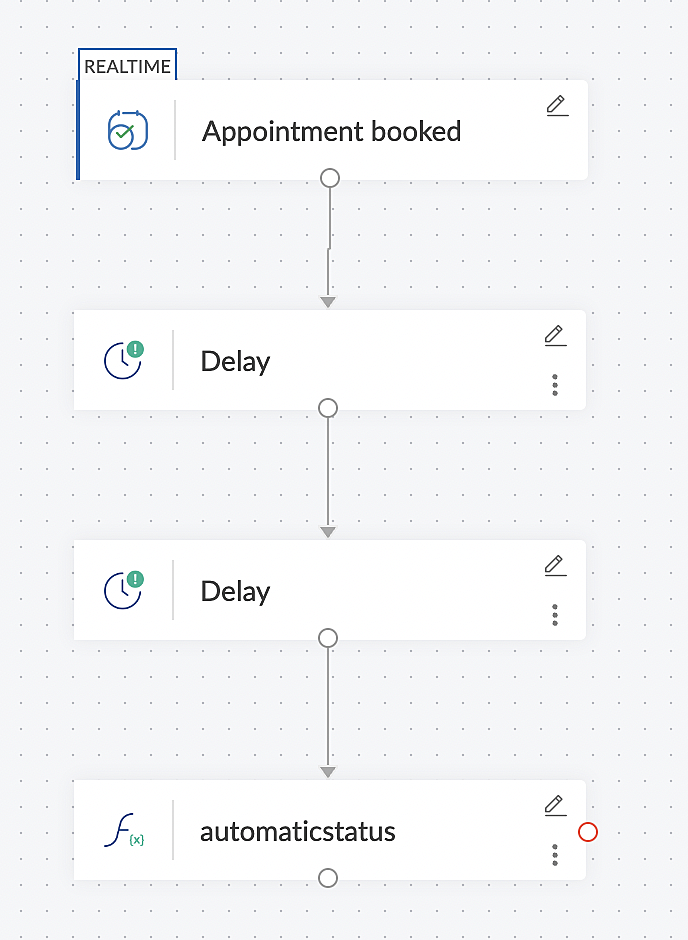
This is how the final flow will look:
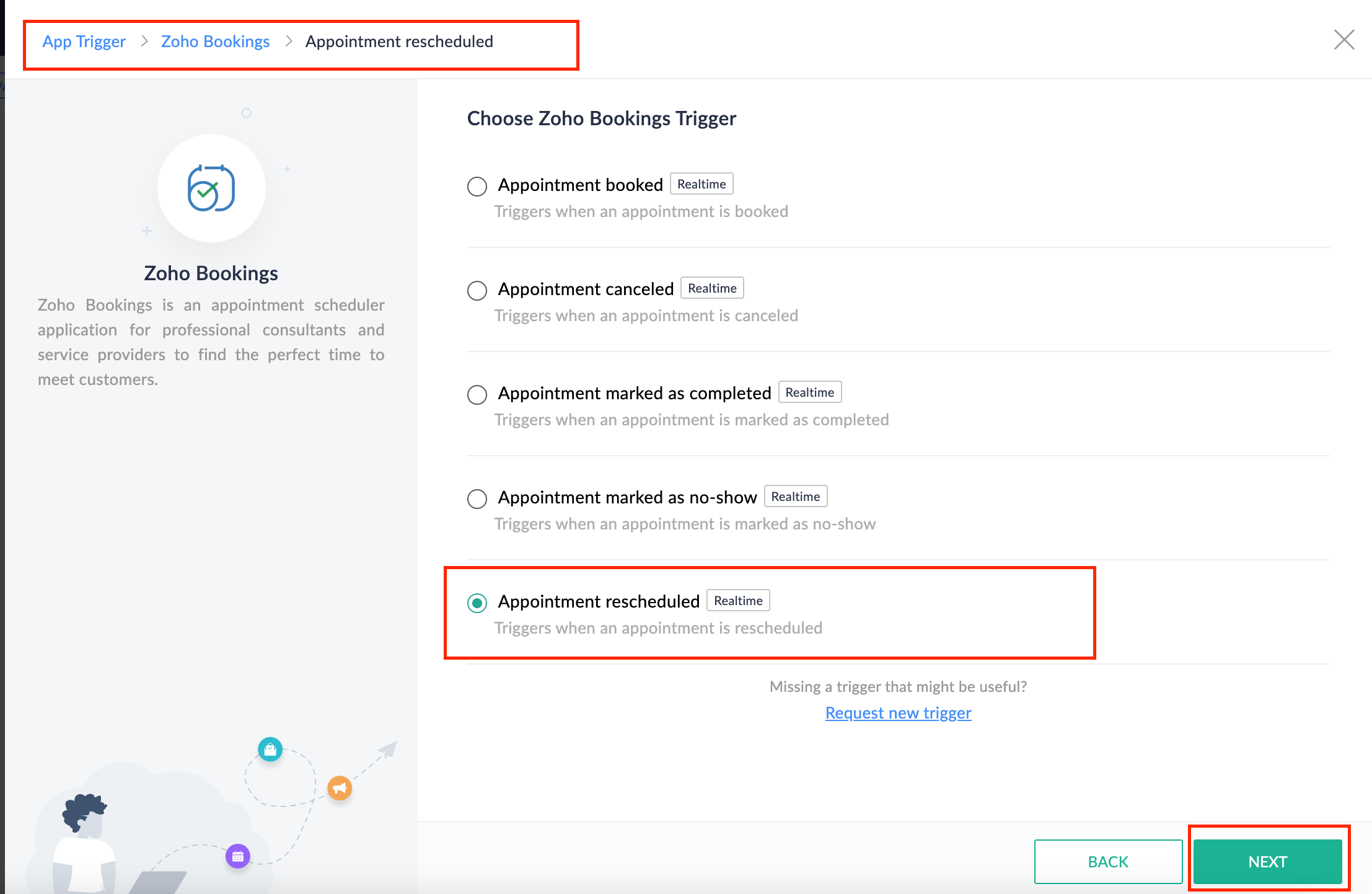
Note: The described flow is tailored for newly scheduled appointments. For cases where appointments are initially scheduled and later rescheduled, a separate flow must be created. The flow for rescheduled appointments follows the same steps outlined above, with the only modification being the initial trigger. Instead of the 'Appointment booked' trigger, please substitute it with the 'Appointment rescheduled' trigger in step A (steps B, C, and D remain the same).
Collecting feedback with surveys
Ensuring a seamless and positive customer experience is a top priority for every appointment. An integral part of this process involves gathering feedback from customers after the appointment's completion. This valuable feedback not only helps understand their sentiments but also provides insights for continuous improvement.
Let's explore how to leverage Zoho Survey to collect valuable feedback from customers. Additionally, we'll delve into the process of pre populating survey fields with the customer's name extracted from the appointment.
How to create a survey in Zoho survey:
You have the option to create a new survey from scratch or choose from templates or existing surveys.
For more details, refer to: Create a Survey.
As an example, let's use the Customer Feedback Survey from the templates.
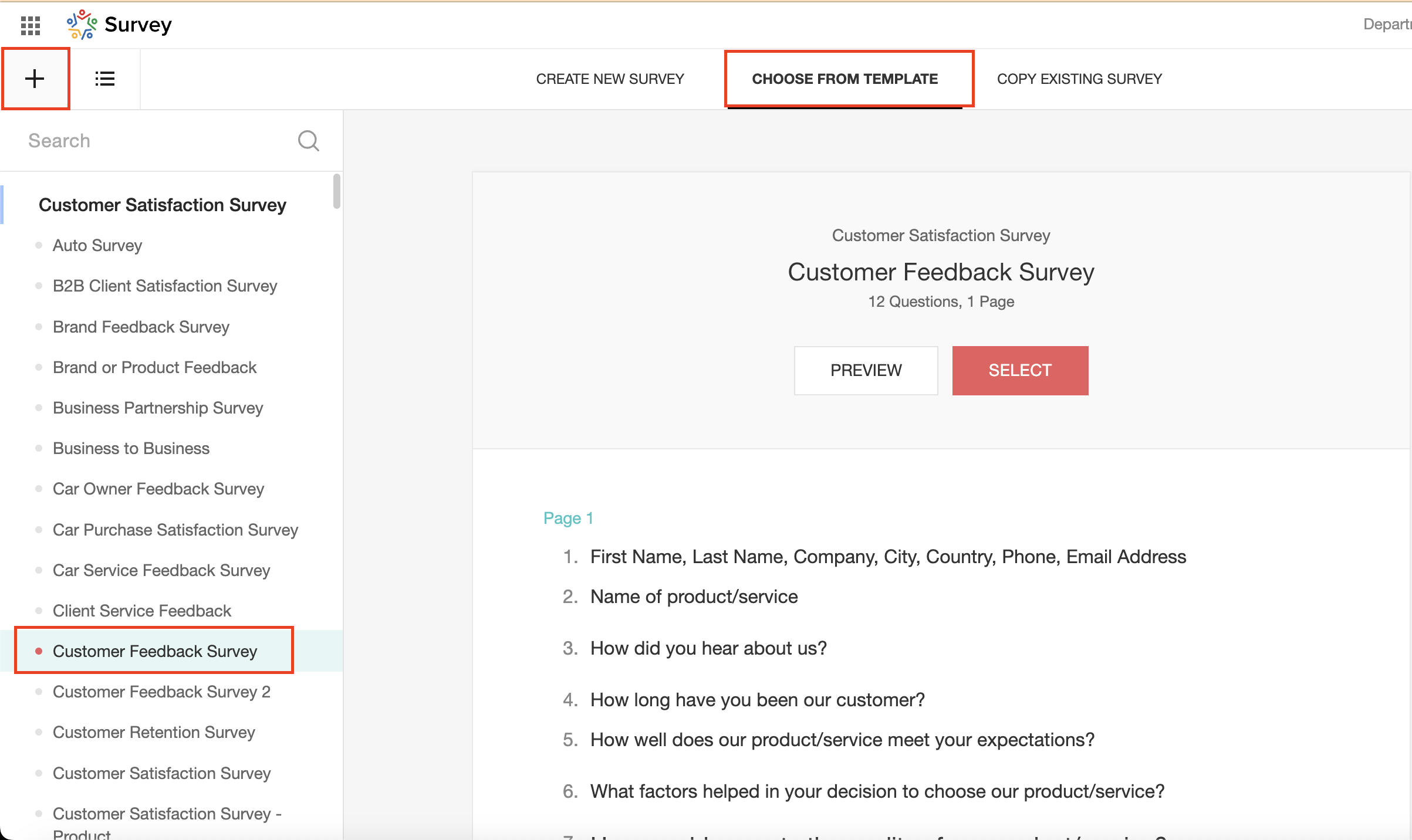
To enhance your survey experience, you have the flexibility to edit the survey form and select specific fields for inclusion.
Now, let's take a closer look at streamlining the customer experience by auto-populating the field inputs in Zoho survey with customer details. This additional step eliminates the need for customers to add their information manually, contributing to an enhanced overall experience.
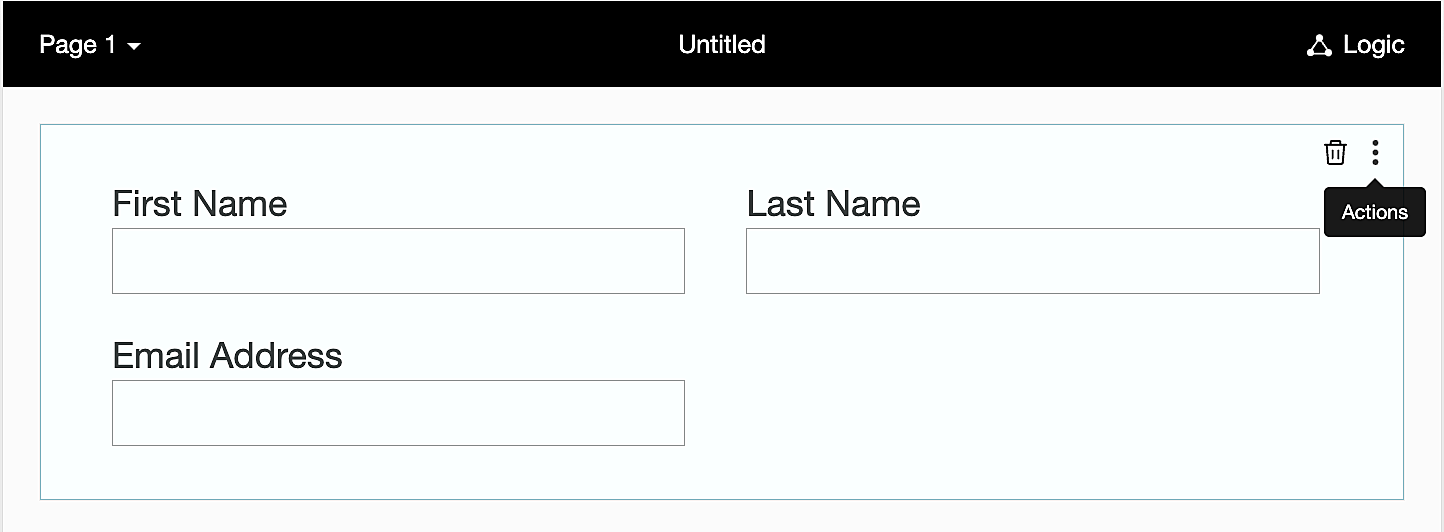
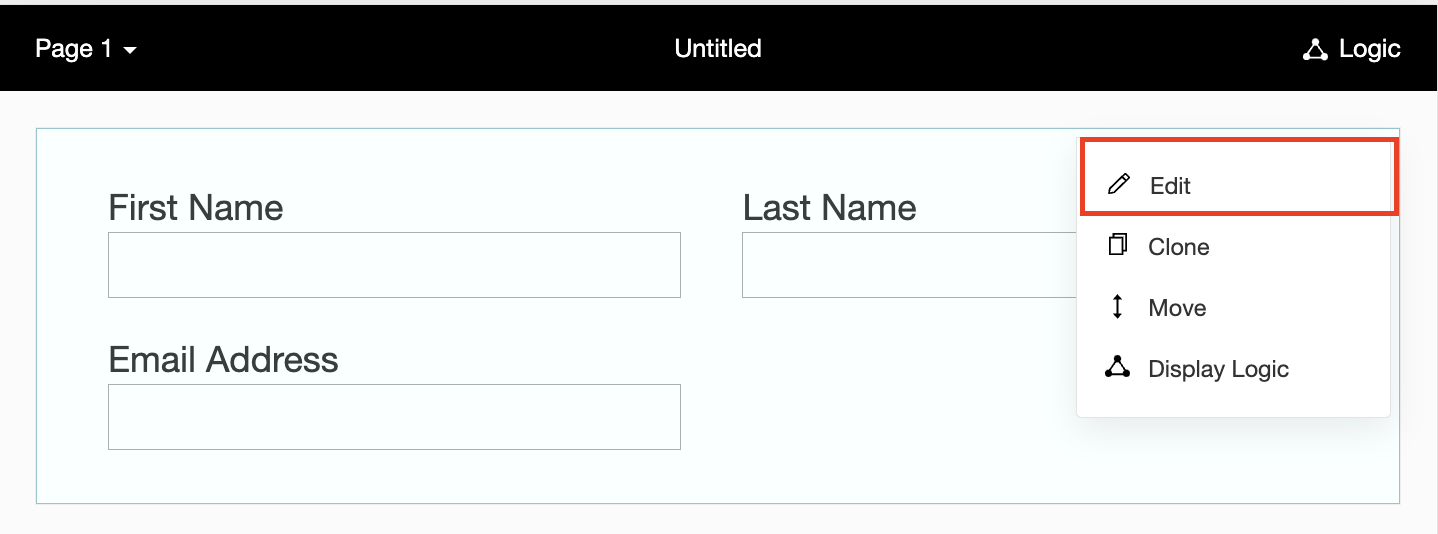
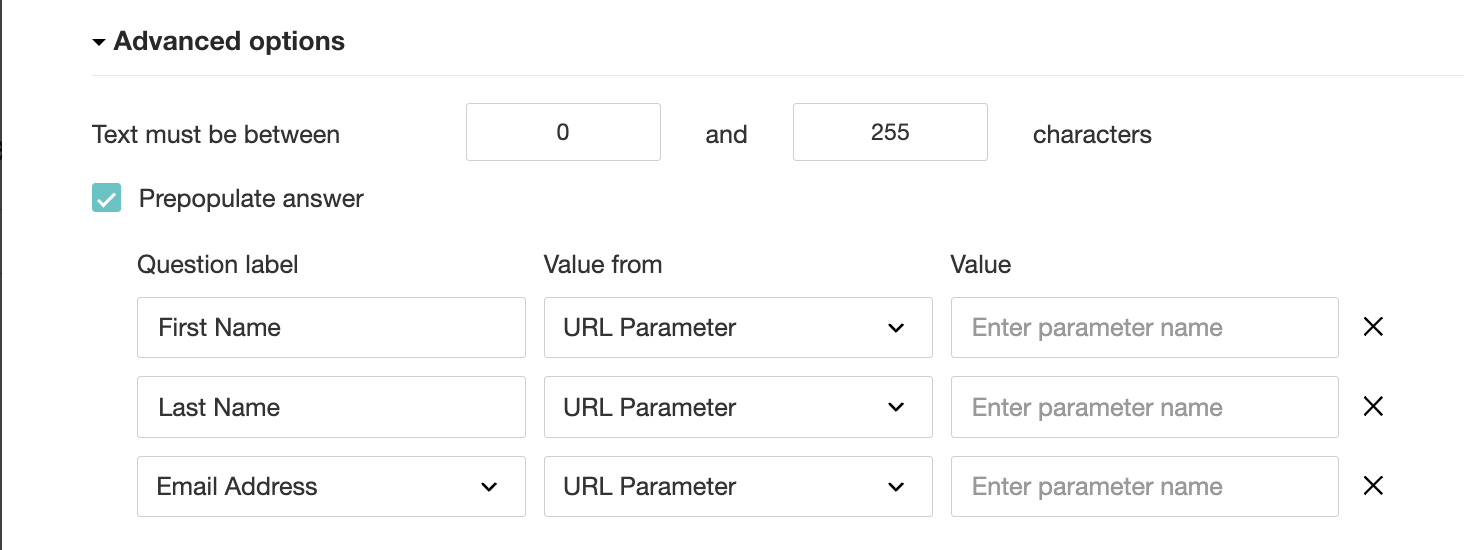
1. Click on the Actions button (three dots) next to the Last Name field, and choose Edit.
2. Click on Advanced options and check the box next to Prepopulate answer.
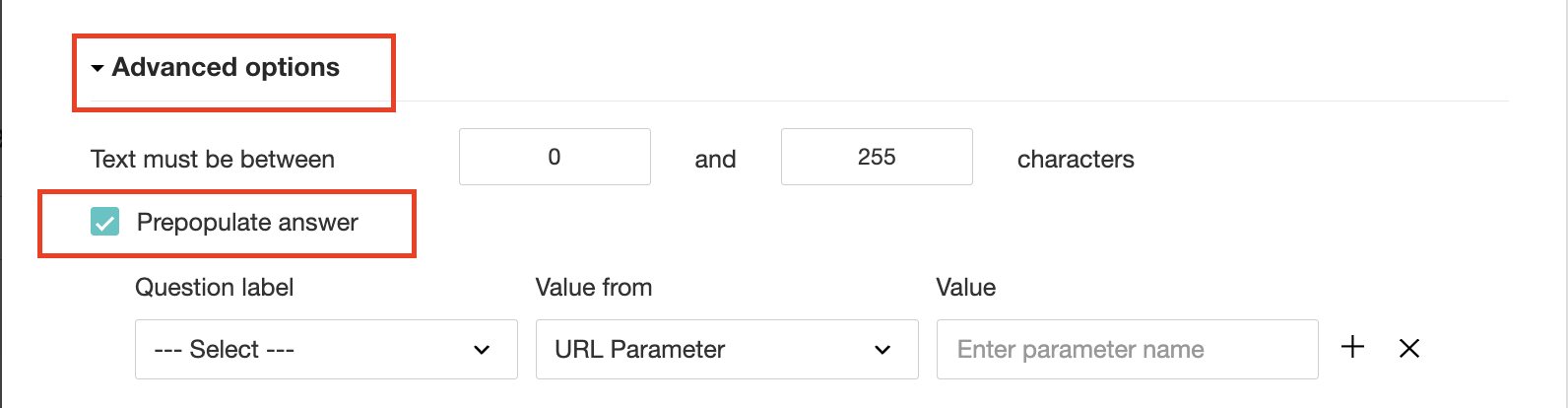
3. Select First Name, Last Name, and Email Address under Question label and URL parameter in each corresponding Value from field.
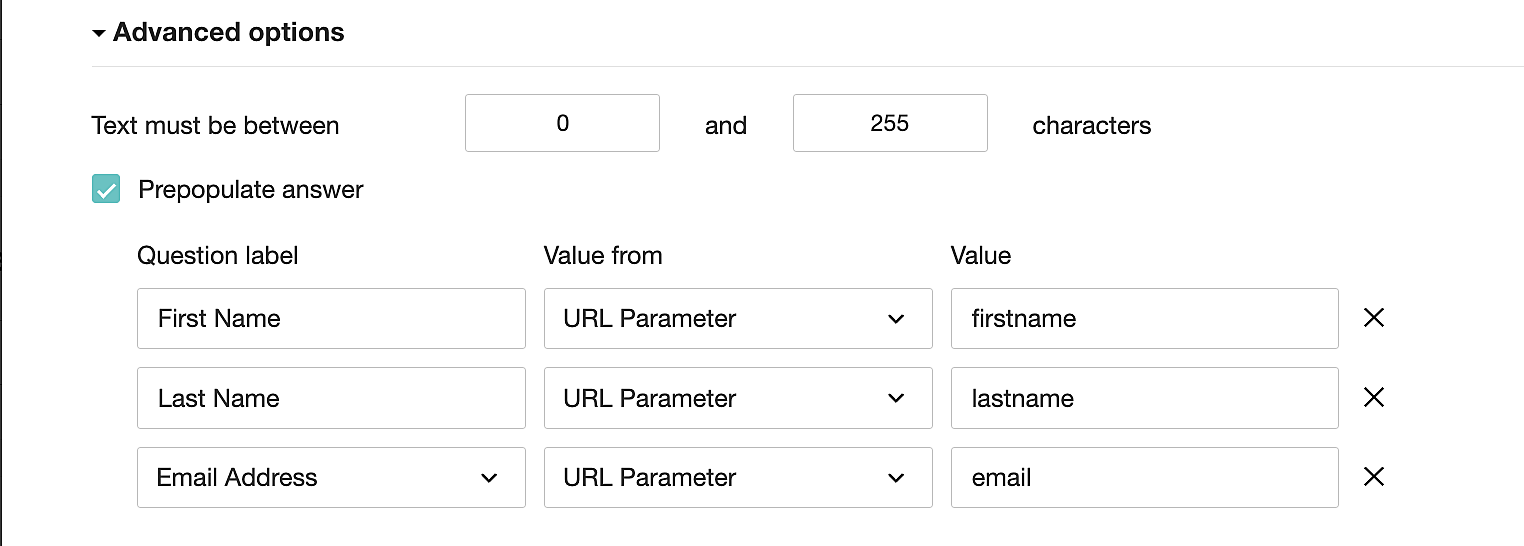
4. In the Value field, configure the parameter name (e.g., firstname, lastname, email). Once configured, this parameter name will be used in the survey link to prefill the fields in the survey form. Customize it as per your requirements, ensuring consistency with the term used in the survey URL.
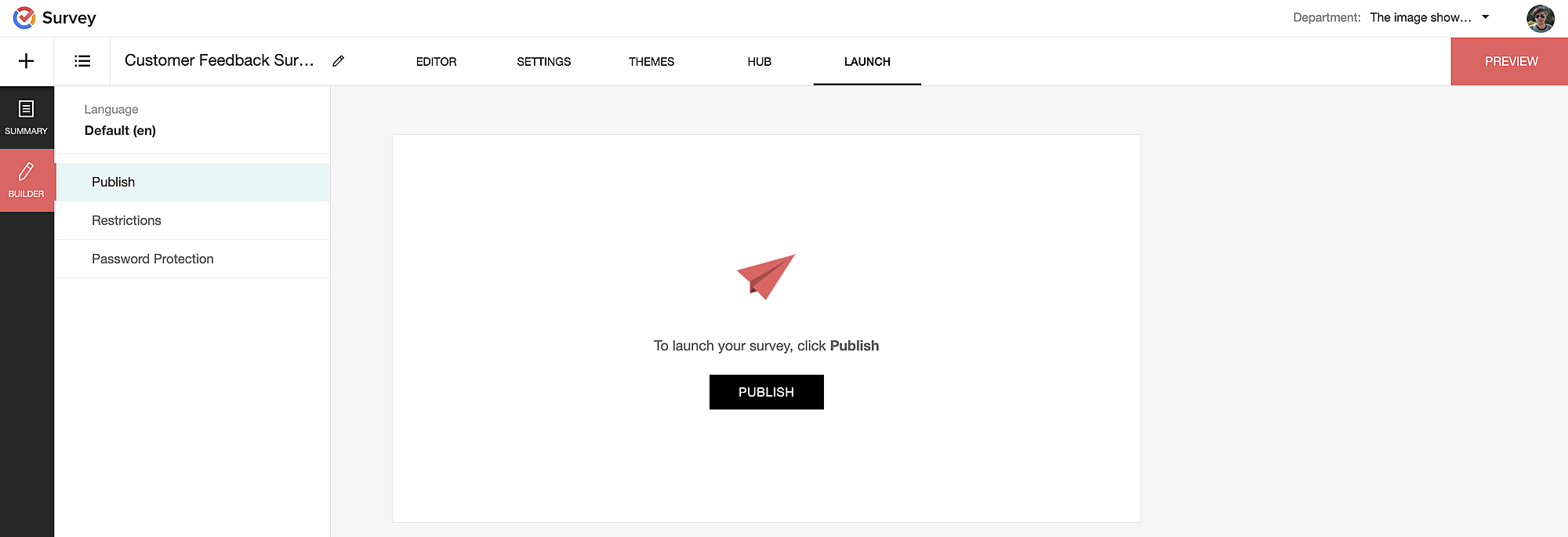
To publish the survey, go to the Launch tab and click on the Publish button to obtain the Zoho Survey URL.
Pre-populating fields in the Zoho Survey form
Once we have the Zoho Survey URL, we'll need to match the configured parameter name and variables from the Zoho Bookings email notifications. These variables play a crucial role in dynamically fetching customer information and populating it in the Zoho Survey form.
For details about variables in Zoho Bookings email notifications, refer to this link: Pre-defined variables
We'll now edit the survey URL to align the variables with the configured Value, or parameter name, from our prepopulated answer settings.
Let's say this is our survey URL:
https://survey.zohopublic.com/zs/E****h
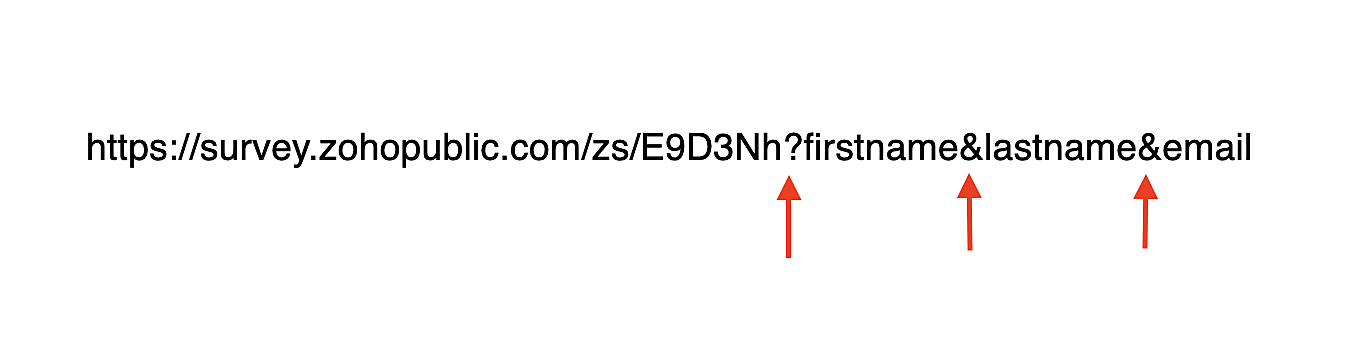
We'll want to use a question mark ("?") at the end of the survey URL and an ampersand ("&") to separate different parameter names.
Here's what that would look like using our example Value names from earlier:
Now, let's map the parameter names to the Zoho Bookings variables.
It would look like this:

For more details: Autofill
Where to use the Zoho Survey URL
To enable the automatic sending of the Zoho Survey URL to customers upon updating the appointment status to Completed, follow these steps in the Zoho Bookings application:
For one-on-one services:
1. Click on Service in the top left corner.
2. Select the desired one-on-one service.
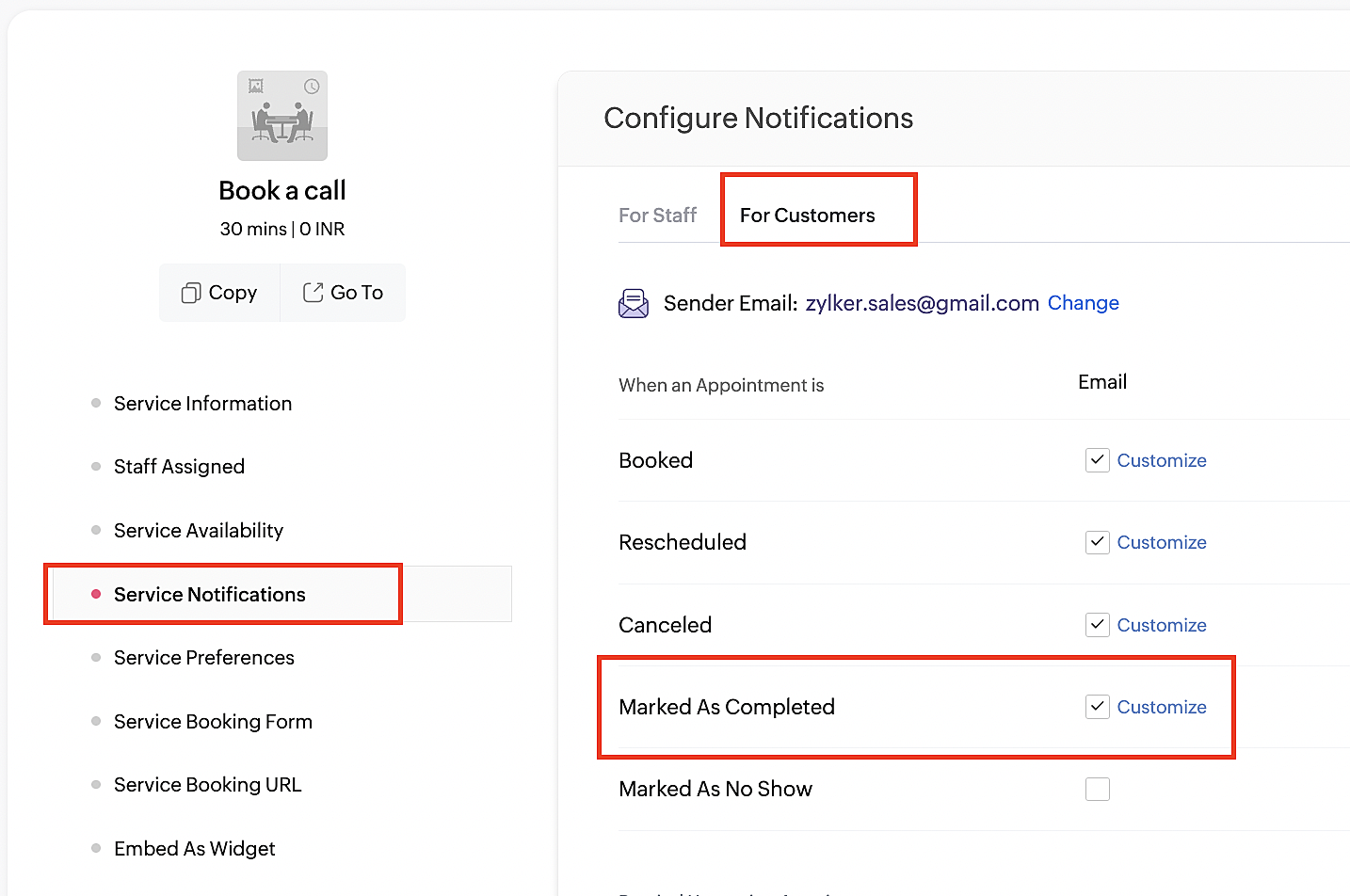
3. Choose Service Notifications.
4. Navigate to the For Customers tab.
5. Click Customize next to the Mark As Completed' trigger to access the email content.
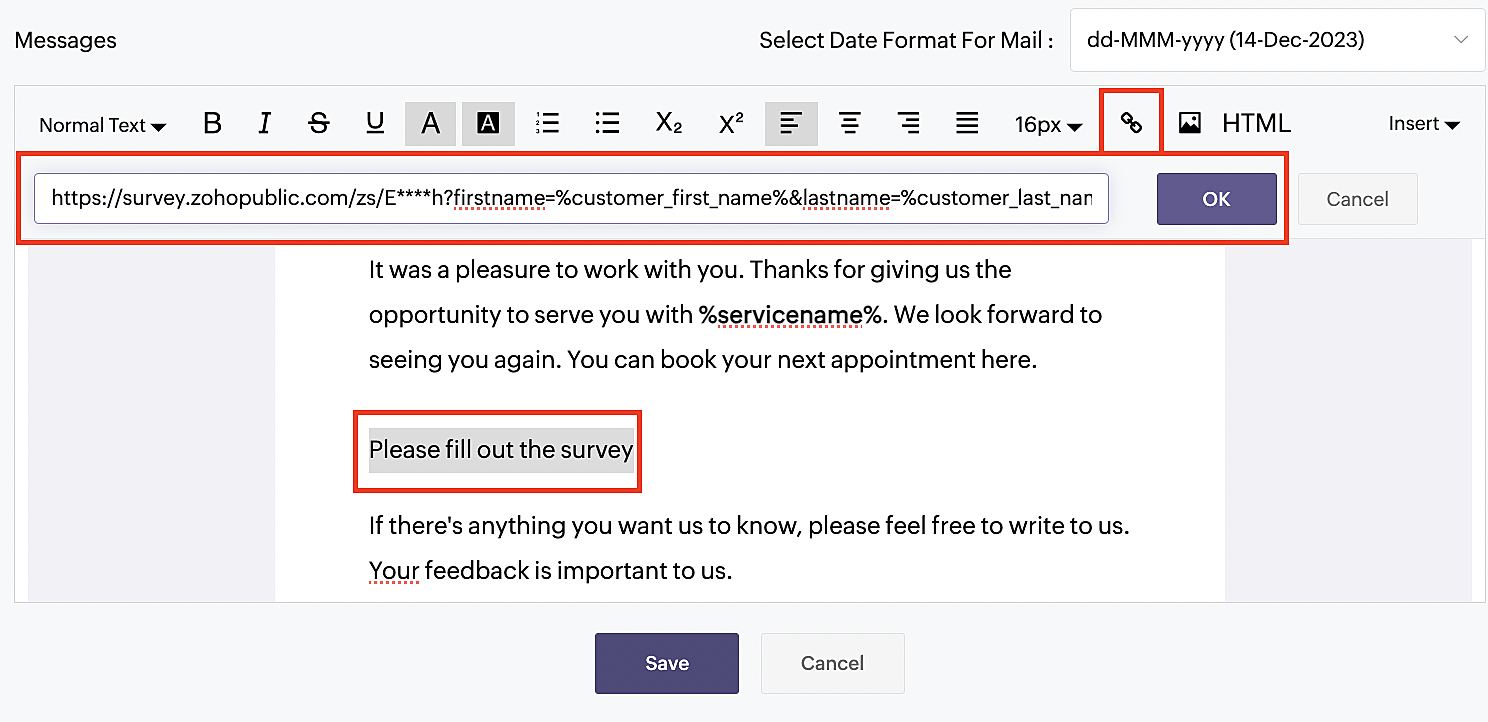
6. Enter your desired name for the button. For example, you might use something like 'Please fill out the survey'.
7. Select the entered text and click on the Add Link icon. Paste the configured Zoho Survey URL in the URL box. This will convert your text into a hyperlink that leads to the survey.
For group and resource booking services, please follow the same steps under Workspaces > Notifications.
For more details: Workspace Notifications
With the completion of this step, we have incorporated the Zoho Survey URL with dynamic variables, facilitating the dynamic autofill of customer data.
To wrap it up
With the successful implementation of the configuration described above, the entire process of automating status updates and collecting feedback is now seamlessly integrated, promising an elevated and enhanced product experience for all users.
If you have any questions or need assistance with your configuration, please email us at hello@zohobookings.com or support@zohobookings.com.
Topic Participants
Kaushik S
Sticky Posts
Approve or deny appointments based on criteria
Hey, community members! Have you ever wondered how to automatically approve or deny appointments? While we're still working on building that feature, we've got an alternative method to cancel appointments if they don't meet your specific criteria. Let
Recent Topics
Serious problem with file that contains non-ASCII characters
I imported many pdf files from Evernote whose names contain Hebrew characters, such as ח רבעוני - ביטוח חיים - סוף רבעון 3 - לשנת 2025.pdf I have two very serious problems: (1) Zoho Notebook cannot open the pdf file; (2) It cannot download the pdf file.Notifications Feeds unread count?
How do I reset the unread count on feeds notifications? I've opened every notification in the list. And the count never goes to zero.Zoho Finance Limitations 2.0 #3: Can't assign a Contact to a Finance Record (estimate, sales order or invoice)
If you use a business to business scenario with different contact people within the company you can't assign a finance record (estimate, invoice, etc...) to that person. Why this matters? No way to find out which person placed the order without manualZoho Community Digest — Febrero 2026
¡Hola, comunidad! Un mes más os traemos las novedades más interesantes de Zoho para febrero de 2026, incluyendo actualizaciones de producto publicadas oficialmente, cambios de políticas y noticias del ecosistema. Pero antes de lanzarnos a las actualizaciones,Disable Zoho Contacts
We don't want to use this app... How can we disable it?Filter button in the Zoho Sheet Android App doesn't toggle on
I am a new Zoho Sheets user and experiencing a specific issue with the filter functionality in the Android mobile application. Detailed Issue Description: The filter icon appears correctly in the toolbar. Upon tapping the filter icon/button, the toggle【Zoho CRM】商談タブへのデータインポート
Zoho使用前にエクセルで管理していた商談情報を、Zoho一括管理のため、商談タブにインポートしたいのですが、お客さまの氏名だけが紐づけられませんでした。 「Zoho CRMにインポートする項目を関連付ける」のところが画像のようになっています。 (弊社では、「姓」を「★個人データ名」という項目名に変更し、フルネームを入れて使用しています。) どのようにしたら氏名をインポートできるかご存じの方がいらっしゃいましたら、ご教示いただきたく、よろしくお願いいたします。 (投稿先が間違っていましたらご指CRM Cadences recognise auto-responses
I have leads in a Cadence. I get an auto-responder reply "I'm out of the office..." Normally Cadences seems to know that isn't a real reply and keeps the lead enrolled in the cadence. However, today, Cadences has UNENROLLED a Lead who sent an auto-reponseSalesIQ Chat Notifications
I am the admin of our salesIQ implementation. About two weeks ago, I started hearing/seeing notification for ALL chats messages from monitored agents/chat participants. I don't need to see these, we have a manager who deals with this. I can't stop theHow to Create a Fixed Sliding Time Window (D-45 to D-15) in Zoho Analytics ?
Hello, I would like to create a report in Zoho Analytics based on a sliding time window between D-45 and D-15, with a fixed snapshot of that specific period. The data displayed should strictly reflect activity recorded between D-45 and D-15 only, withoutExport Zoho Books to another accounting package?
Is an export feature to Quickbooks or Accpac available (or a form that is easily imported by them)? My reasons: 1) my accountant, who prepares my corporate tax return, prefers to work with their own accounting system. If I can convert Zoho books a form that is easily importable into Quickbooks or an Accpac format, this process would be easy. 2) I don't want to keep my data in a proprietary format on the cloud somewhere without a way to easily extract it to a format that can be read my a well establishedAnchor Links in Dashboards
Hello, Our dashboards frequently have multiple sections that would be more easily skipped between using anchor links. Please consider adding an anchor link feature to the text widget? This could be done by adding an anchor link option to the text widget next to the "remove" option (see screenshot). The option would assign an ID to the <div> containing the text widget in the live dashboard. Then, the chosen ID could be linked using a traditional <a href="#link_id"> in the html section of the textIntroducing Auto-trigger for Screening Bot
Still manually sending screening tests after every application? Not anymore. With Auto-trigger for Screening Bot, screening now begins automatically. When a candidate applies for a job that has an attached assessment, Recruit checks whether the test hasImporting into Multiselect Picklist
Hi, We just completed a trade show and one of the bits of information we collect is tool style. The application supplied by the show set this up as individual questions. For example, if the customer used Thick Turret and Trumpf style but not Thin Turret,Add line item numbers to sales order/invoice creation page
It would be really helpful if there were line numbers visible as we are creating a sales order and/or invoice. There are line numbers visible in the PDF once the sales order is created. I would like to be able to see the line numbers as I am buildingAPI to Apply Retainer invoice payment to Invoice
Hi Team, I could not find API to apply the Retainer invoice payment to existing Invoice. Can you please help ? Attaching the screenshotReconciling a month with no transactions
I'm treasurer for a small non profit cemetery association and I'm trying to reconcile a bank statement for a month that did not have any transactions. Do I skip the month entirely and go a month with transactions?Customize your Booking page using Zia
We’re excited to introduce an AI-based enhancement that automatically customizes your booking page effortlessly. By simply providing your business website URL, Zoho Bookings can automatically design a booking page that matches or complements your brandMultiple header in the quote table???
Hello, Is it possible in Zoho CRM to add multiple headers or sections within the Quote product table, so that when the quote is printed it shows separate sections (for example “Products” and “Services”)? To clarify, I’m asking because: This does not appearZoho mail to contacts and leads, but not to accounts?
We use the accounts tab a lot for our business because they can be linked to the sales orders. Now we want to use the mail add on to link communication of our emails to our accounts. However this is only possible for contacts and leads? It would be convenientAPI keys not showing in ZeptoMail dashboard
Hi there, I'm hoping someone can provide some assistance as support isn't replying. I am trying to configure my transactional emails, but the dashboard doesn't show any of my API details - the `div` is there but it's emtpy. Every time I click "GenerateReading from and writing to Zoho Projects Custom Module with Deluge
Does anyone know if there is a way to read from and write to the Custom Modules that Zoho now supports. I would love to be able to loop through a set of data and create the entities I need to for this new custom module I'm looking to put together.How Does Knowledge Base Search and Article Recommendation Work?
Hello, I would like to understand how the Knowledge Base search engine works. Specifically, does it search based on: The article title only? The full article content? Both, the article and the content? Keywords? Tags? Also, how does the system determineZoho Books/Inventory - Restrict Items With Pricebook
Hi Zoho Team, I'm trying to address as use case where a client needs to restrict which products certain customers can purchase. I have been able to find a way to do this based on the current Zoho Books or Zoho Inventory configuation. My feature requestBest Way to Integrate Zoho Campaigns with Amazon SES Without Third-Party Tools
I am looking for the most seamless and efficient method to integrate Zoho Campaigns with Amazon SES. My goal is to avoid using any third-party automation tools like Zapier, Make, or Pabbly, and instead, leverage Zoho's native capabilities for this integration.How to charge Convenience fee OR payment gateway charges to the end client who is paying the invoice?
Hello, I am creating this topic after having discussions with various sets of users and have understood that with people moving more and more to digital payments, it is important for the client to enable the "Convenience fee" kind of scenario. I haveCard payment surcharge?
Hi, I would like to offer my customers the ability to pay invoices by card (using the PayPal integration). However, PayPal charges me around 5% to receive a card payment, and I would like to pass on this cost to my customer by way of a card payment surcharge. Is there any way for Zoho Invoice to be set up to automatically add a defined "card processing fee", say 5% of the invoice total, if the customer elects to pay by card? I don't want to add this on to invoice manually, since most of my clientsJavascript Error
I don't know how this happened but I'm constantly getting popup windows with Javascript coming from Notebook. I have no idea why this is happening. Screen shot attached. Thanks, Joe BerryZoho POS App Hanging Issue – Sales Becoming Difficult
The Zoho POS app frequently hangs and becomes unresponsive during billing, making it very difficult to complete sales smoothly. This commonly happens while adding items, during checkout, or at payment time, especially during peak hours. These issues causeTip #62- Exploring Technician Console: Send Ctrl + Alt + Del- 'Insider Insights'
Hello Zoho Assist Community! This week, we’ll be exploring the Send Ctrl + Alt + Del option in the Technician Console. Let’s jump right in. System administrators often rely on Ctrl + Alt + Del when managing remote devices that have unresponsive applicationsDisappearing Mouse cursor in Zoho Mail / Windows 11 (Chrome + Edge)
I'm seeing an issue when writing mails with the light theme with the mouse cursor being white and the document area also being white - making it nearly impossible to see the mouse cursor. I see the problem on Windows 11 under Chrome and Edge. (Yet toTemporarily rate limited due to IP reputation.
We have suddenly started receiving the following Mail Delivery Status Notification: Diagnostic-Code: 4.7.650 The mail server [136.143.184.12] has been temporarily rate limited due to IP reputation. For e-mail delivery information, see https://aka.ms/postmasterSKUs for Invoices, POs, etc.
It doesn't appear that one can enable SKU display on invoices, POs, etc. This is problematic, and I don't see a good reason why this shouldn't be an option. Some of our vendors and customers use this in their system. Every other identifier code is availablehow to avoid duplicate customer
How can i avoid to create a duplicate customer. I charged a same customer with two different plans and it showed up twice in my customer list and subsequently in Zoho books contacts. It creates confusion to have a same customer appears multiple times in customer or contact list. How can i avoid it.Tags with spaces
I imported notes from Evernote where tags can have spaces in them (for example "House Expenses" or "House Improvements". The import worked fine. Now I want to add a new note and assign it a tag. As soon as I type "House" followed by the space I get aRSC Connectivity Linkedin Recruiter RPS
It seems there's a bit of a push from Linkedin Talent Solutions to keep integrations moving. My Account Manager confirmed that Zoho Recruit is a Certified Linkedin Linkedin Partner but does not have RSC as of yet., (we knew that :-) She encouraged meim facing issue on generate the Estimate price
i couldn't understand what is the issue , i cant generate Estimate price where is the issuecannot be able to add user
Dear team I tried to add a new user for sales team, but after entering the OTP its showing error message cannot add nowChanging an existing item to different accounts & inventory-tracked
Hi everyone, I have an item in Zoho Books that was originally set up as a non-inventory item. Over time, I associated it with different sales and purchase accounts, and I now have many invoices, bills, and reports that use this item. My business processHow do I edit the Calendar Invite notifications for Interviews in Recruit?
I'm setting up the Zoho Recruit Interview Calendar system but there's some notifications I don't have any control over. I've turned off all Workflows and Automations related to the Calendar Scheduling and it seems that it's the notification that is sentNext Page