Kaizen 215 - Workflow APIs - Part 3

Welcome back to another week of Kaizen!
Over the last couple of weeks, we’ve joined Zylker Cloud Services as they review and improve their workflows. In Part 1, we discovered and audited their sprawling workflow landscape. In Part 2, we learned how to use the Configuration API to understand valid triggers and actions, preventing errors before they happen.
Now, it is time to take action. Zylker has identified the "VP Alert - High Value Deal" workflow as a prime candidate for an update. It is old, has never run, and its logic might be too narrow. We will also explore how to create a new workflow from scratch to handle a new business requirement.
STEP 5: Update an Existing Workflow
From our audit in Step 2, we know that the existing ‘VP Alert - High Value Deal’ workflow (id: 4876876000016390024) hadn’t triggered even once. The original $50,000 threshold missed many valuable deals. Most winning opportunities actually land above $30,000. It has never executed, suggesting the criteria are too strict.
Let us use the Update Workflow Rule API to fix it. We'll change the criteria to trigger for deals greater than or equal to $30,000 and add an additional email notification.
What you can and cannot update
When working with the Update Workflow Rule API, not every field in a workflow is open for modification. Think of it like editing an existing automation blueprint. Some foundations are fixed, while others are flexible.
You can update:
Name and Description
Trigger : You can update triggers, but only within the same trigger type. For example, you can change a Record Action trigger from create to edit, but not from a Record Action trigger to a Score-based trigger. For more details on this, please refer to our detailed help documentation here.
Conditions and Criteria : add, remove, or refine them.
Actions : add new ones, remove existing ones, or update their configuration.
Status : activate or deactivate a workflow rule.
What cannot be updated
There are a few key restrictions to remember:
You cannot change the module associated with the workflow.
You cannot switch trigger categories (e.g., from Record Action to Email Trigger).
You cannot retain unsupported actions when changing to a trigger that doesn’t support them. For instance, if you change a trigger from Edit to Delete, but keep an Assign Owner action, the update will fail, because “Assign Owner” isn’t valid for Delete triggers.
Updating an existing workflow is not about replacing everything. it is about editing precisely what needs to change.
Here is how to do it:
Fetch the workflow details using the Get Workflow Rule API. This gives the full structure, including condition IDs, action IDs, and trigger details.
Identify what needs to change.
In this case, to fix the “VP Alert - High Value Deal” workflow, we can update the Workflow rule to:
lower the threshold to $300,000
change the comparator to greater_than.
To make the workflow more useful, Zylker has also decided to add a few new actions.
But before doing that, the developers needed to confirm which actions are supported for this workflow’s trigger type. That is where last week’s Configuration API comes in handy. Since we already know this is a Record Action trigger (create_or_edit), we can refer to the configuration response we explored in Part 2 to see which actions are valid.
{ "api_name": "create_or_edit", "deprecated": false, "name": "CreateorEdit", "scheduled_actions_supported": true, "actions": [ "field_updates", "assign_owner", "add_tags", "remove_tags", "email_notifications", "tasks", "create_record", "create_connected_record", "add_meeting", "webhooks", "functions", "circuits", "flow" ] }, |
The response clearly shows that email notifications, field updates, and tags are all supported for this trigger type. With that confidence, in addition to updating the condition, we can also add a 'Priority' tag to those records that trigger the Workflow. This makes the workflow more visible and actionable across the sales hierarchy.
Sample Request:
PUT {{api-domain}}/crm/v8/settings/automation/workflow_rules/4876876000016390024
{ "workflow_rules": [ { "description": "Notify sales leadership and track strategic opportunities", "name": "VP Alert - High Value Deal.", "conditions": [ { "sequence_number": 1, "criteria_details": { "criteria": { "group_operator": "AND", "group": [ { "comparator": "greater_than", // change in comparator operator "field": { "api_name": "Amount" }, "value": "300000" // Lowered threshold }, { "comparator": "equal", "field": { "api_name": "Stage" }, "value": "Negotiation/Review" } ] } }, "instant_actions": { "actions": [ { "type": "add_tags", "module": "Deals", "details": { "tags": [ { "name": "Priority" } ], "overwrite": true } } ] }, "id": "4876876000016390025" // id of the condition to be updated } ] } ] } |
After this update, the workflow now triggers for any deal worth more than $300,000 in the Negotiation/Review stage. Apart from sending the email notifications and adding the follow up task, it also tags these deals as Priority.
Edit vs Add:
To edit an existing condition or action, include its existing id in your update payload. Zoho CRM will recognize it as an update to that object.
To add a new condition or action, simply omit the id. CRM treats any object without an ID as a new addition.
STEP 6: Create a new Workflow Rule
With the “VP Alert - High Value Deal” workflow now fixed and performing as expected, Zylker’s sales team quickly began to see results.
But their sales team noticed that deals often stall after proposals are sent, with no systematic follow-up. Zylker has hence refined the requirements for a new Workflow.
They want to automatically trigger follow-up actions when a high-value deal (above ₹30,000) is marked “Closed Lost” due to pricing reasons. This workflow must ensure that every lost opportunity is reviewed, tagged, and re-engaged after a cooling-off period. To achieve this, they want to create a workflow to be triggered whenever a deal’s Stage is updated to Closed Lost. It must perform the following actions:
Add tags Lost due to Pricing and Re-engagement Pending.
Send an email alert to the Sales team, with the details of the failed Deal, so they can look into the reasons.
After 30 business days, automatically create another “Lost Deal - Feedback” task to remind the owner to re-contact the customer for feedback, and for future opportunities.
Before proceeding, Zylker makes an API call to the Workflow Configuration endpoint. This ensures that their chosen trigger type and actions are supported. From the response snippet below, it is clear that a field_update trigger supports scheduled actions and the required action types.
{ "api_name": "field_update", "deprecated": false, "name": "FieldUpdate", "scheduled_actions_supported": true, "actions": [ "field_updates", "assign_owner", "add_tags", "remove_tags", "email_notifications", "tasks", "create_record", "create_connected_record", "add_meeting", "webhooks", "functions", "circuits", "flow" ] } |
With these details validated, we can now move on to adding a new workflow for Zylker using the Create Workflow Rule API request.
Understanding the input JSON structure
Every workflow definition follows the same hierarchy - defining when the rule runs, what conditions it checks, and which actions it performs.
The top-level input object contains a workflow_rules array. You must include just one workflow rule object per request. Each workflow rule defines its name, trigger type, and one or more condition blocks, each with its own criteria and actions.
Here is a breakdown of what is inside a single workflow rule:
{ "workflow_rules": [ { "name": "VP Alert - High Value Deal.", //name of the workflow rule "description": "Notify leadership when high-value deals are lost due to pricing.", "module": { "api_name": "Deals" }, //module to which the workflow applies "execute_when": { ... }, //trigger configuration (e.g., on record edit, field update, etc.) "conditions": [ { "sequence_number": 1, // order of execution. this is the first condition "criteria_details": { ... }, // condition logic (criteria group) "instant_actions": { "actions": [ ... ] }, //instant actions executed instantly cheduled_actions": [ // schedules actions executed after a delay { "execute_after": { ... }, // delay period for the scheduled action "actions": [ ... ] } ] }, { "sequence_number": 2, // second condition "criteria_details": { ... }, "instant_actions": { "actions": [ ... ] } } ] } ] } |
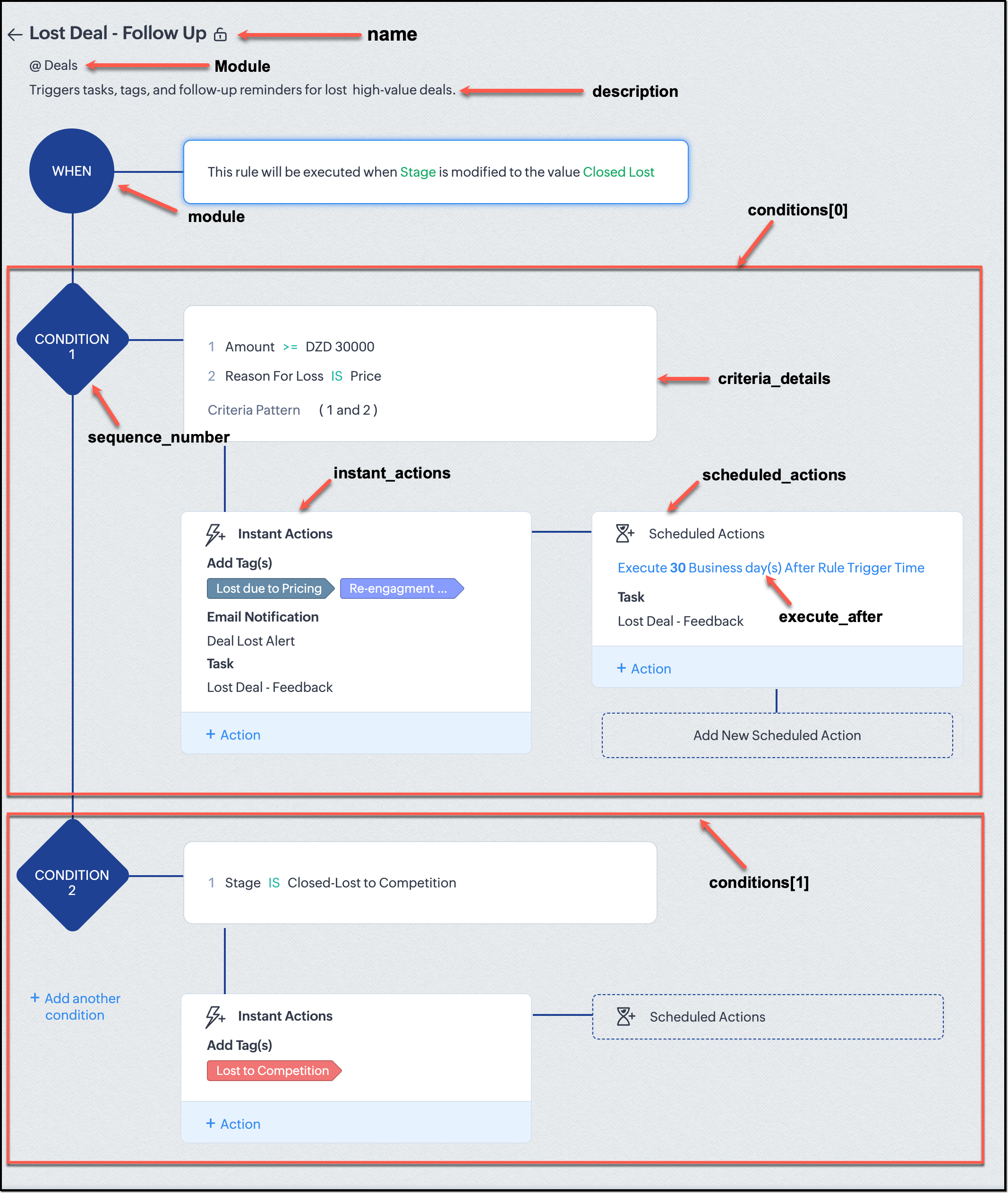
Associative vs. Non-Associative Actions
Every workflow rule performs one or more actions like sending an email, creating a task, or updating a field, etc. These actions fall into two broad categories: associative and non-associative.
Type | Description | Example Actions |
Non- Associative Actions | These are defined inside the workflow rule itself. They do not need to exist beforehand. You can configure their details directly within the workflow payload. | Create record, schedule a call, add a meeting, convert records, social actions, create record on email received, assign owner, |
Associative Actions | These are reusable actions created separately in CRM and referenced by their IDs. They can be used across multiple workflows and other automation tools. | Field updates, Email notifications, tasks, Webhooks, Add/Remove tags |
When you create or update a workflow via API, the associative actions require you to pass their existing action IDs. These IDs can be fetched using the corresponding Actions APIs : Field Updates, Email Notifications, Webhooks, and Tasks. In the coming weeks of Kaizen, we will take a closer look at each of these Actions APIs. We will see how to create, manage, and delete them within your workflow automation strategy.
Sample Request:
POST {{api-domain}}/crm/v8/settings/automation/workflow_rules
{ "workflow_rules": [ { "execute_when": { "details": { "trigger_module": { "api_name": "Deals", "id": "4876876000000002181" }, "criteria": { "comparator": "equal", "field": { "api_name": "Stage", "id": "4876876000000002565" }, "type": "value", "value": "Closed Lost" }, "repeat": false, "match_all": false }, "type": "field_update" }, "module": { "api_name": "Deals", "id": "4876876000000002181" }, "description": "Triggers tasks, tags, and follow-up reminders for high-value deals lost due to pricing", "name": "Lost Deal due to Pricing - Follow Up", "conditions": [ { "sequence_number": 1, "instant_actions": { "actions": [ { "name": "Lost Deal - Feedback", "id": "4876876000016794047", "type": "tasks" }, { "details": { "module": { "api_name": "Deals", "id": "4876876000000002181" }, "over_write": false, "tags": [ { "name": "Lost due to Pricing", "id": "4876876000016794071", "color_code": "#658BA8" }, { "name": "Re-engagement pending", "id": "4876876000016794075", "color_code": "#879BFC" } ] }, "type": "add_tags" }, { "name": "Deal Lost Alert", "id": "4876876000016794062", "type": "email_notifications" } ] }, "scheduled_actions": [ { "execute_after": { "period": "business_days", "unit": 30 }, "actions": [ { "name": "Lost Deal - Feedback", "id": "4876876000016794047", "type": "tasks" } ] } ], "criteria_details": { "criteria": { "group_operator": "AND", "group": [ { "comparator": "greater_equal", "field": { "api_name": "Amount", "id": "4876876000000002557" }, "type": "value", "value": "30000" }, { "comparator": "equal", "field": { "api_name": "Reason_For_Loss__s", "id": "4876876000002440001" }, "type": "value", "value": "Price" } ] } } } ] } ] } |
The execute_when defines when the workflow should fire.
type = field_update means this rule runs when a field’s value changes.
criteria : Stage = Closed Lost so the rule triggers whenever the Stage field is updated to Closed Lost.
repeat = false ensures it will not trigger multiple times for the same record.
In simple terms: “Whenever a deal is marked as Closed Lost, run this workflow.” The criteria_details section refines the trigger. The workflow only runs when the Amount ≥ ₹30,000 AND Reason for Loss = Price.
The instant_actions section inside the conditions array has the actions to be executed immediately when the criteria are met.
Add Tags : labels the record for easy filtering and reporting.
Send Email Alert : notifies the sales team instantly about the lost deal.
The scheduled_actions defines what happens after some time has passed. In this case, after 30 business days. Here, the workflow automatically creates a “Lost Deal - Feedback” task, reminding the deal owner to follow up with the customer to get feedback, and for future opportunities.
- The Amount is greater than or equal to ₹30,000, and
The Reason for Loss is “Price.”
By combining these elements, this workflow achieves a full closed-loop follow-up system.
Conclusion:
Zylker’s updated and new workflows make their automation smarter and more responsive. They are now able to spot key deals and ensure lost opportunities are revisited.
We hope you are now well on your way to mastering Workflow APIs. Share your thoughts in the comments or write to us at support@zohocrm.com.

Additional Reading:
- Workflow APIs - Part 1 - Auditing Workflows
- Workflow APIs - Part 2 - Find out what actions and triggers are supported for each module
Topic Participants
Anu Abraham
Sticky Posts
Kaizen #198: Using Client Script for Custom Validation in Blueprint
Nearing 200th Kaizen Post – 1 More to the Big Two-Oh-Oh! Do you have any questions, suggestions, or topics you would like us to cover in future posts? Your insights and suggestions help us shape future content and make this series better for everyone.Kaizen #226: Using ZRC in Client Script
Hello everyone! Welcome to another week of Kaizen. In today's post, lets see what is ZRC (Zoho Request Client) and how we can use ZRC methods in Client Script to get inputs from a Salesperson and update the Lead status with a single button click. In thisKaizen #222 - Client Script Support for Notes Related List
Hello everyone! Welcome to another week of Kaizen. The final Kaizen post of the year 2025 is here! With the new Client Script support for the Notes Related List, you can validate, enrich, and manage notes across modules. In this post, we’ll explore howKaizen #217 - Actions APIs : Tasks
Welcome to another week of Kaizen! In last week's post we discussed Email Notifications APIs which act as the link between your Workflow automations and you. We have discussed how Zylker Cloud Services uses Email Notifications API in their custom dashboard.Kaizen #216 - Actions APIs : Email Notifications
Welcome to another week of Kaizen! For the last three weeks, we have been discussing Zylker's workflows. We successfully updated a dormant workflow, built a new one from the ground up and more. But our work is not finished—these automated processes are
Recent Topics
Agent Performance Report
From data to decisions: A deep dive into ticketing system reports An agent performance report in a ticketing system provides a comprehensive view of how support agents manage customer tickets. It measures efficiency and quality by tracking key performancePourquoi dans zohobooks version gratuite on ne peut ajouter notre stock d'ouverture??
Pourquoi dans zohobooks version gratuite on ne peut ajouter notre stock d'ouverture ??How can I adjust column width in Zoho Books?
One issue I keep running into is as I show or hide columns in reports, the column widths get weird. Some columns have text cut off while others can take a fourth of the page for just a few characters. I checked report layout guides and my settings, butInvalid value passed for file_name
System generated file name does not send file anymore - what is the problem?Custom Function for Estimates
Hey everyone, I was wondering if there was a way to automate the Subject of an estimate whenever one is created or edited: * the green box using following infos: * Customer Name and Estimate Date. My Goal is to change the Subject to have this format "<MyFirm>-EstimateSearch in module lists has detiorated
Every module has a problem with the search function :-/YouTube Live #1: AI-powered agreement management with Zia and Zoho Sign
Hi there! We're excited to announce Zoho Sign’s first YouTube live series, where you can catch the latest updates and interact with our Zoho Sign experts, pose questions, and discover lesser-known features. We're starting off by riding the AI wave inSearch in module lists has detiorated
Every module has a problem with the search function :-/Bigin: filter Contacts by Company fields
Hello, I was wondering if there's a way to filter the contacts based on a field belonging to their company. I.e.: - filter contacts by Company Annual Revenue field - filter contacts by Company Employee No. field In case this is not possibile, what workaroundHas Zoho changed the way it searches Items?
Right now all of our searches have broken and we can no longer search using the SKU or alias. It was fine last night and we came in this morning to broken.....this is impacting our operations now.Refunds do not export from Shopify, Amazon and Esty to Zoho. And then do not go from Zoho inventory to Quickbooks.
I have a huge hole in my accounts from refunds and the lack of synchronisation between shopify , Amazon and Etsy to Zoho ( i.e when I process a refund on shopify/ Amazon or Etsy it does not come through to Zoho) and then if I process a manual credit note/Zoho Calendar not working since a few days
Hey there, first off a minor thing, since I just tried to enable the Calendar after reading this in another topic (there was no setting for this though) : For some reason my current session is showing me based in New York - I'm in Germany, not using aMonthly timesheet, consolidation of time by project
I have time logs for various jobs for project. Is it possible to consolidate the time spent for each job, when I am generating a timesheet for a month? I am getting the entries of jobs done on each day when I generate a timesheet for a month For exampleSending emails from an outlook account
Hi, I need to know if it's possible to send automatic emails from an Outlook account configured in Zoho CRM and, if so, how I can accomplish that. To give you some context, I set up a domain and created a function that generates PDF files to be sent laterStruggling with stock management in Zoho CRM – is Zoho Inventory the solution?
My biggest pain point today with Zoho is inventory management. I run a retail business and reliable stock management is absolutely critical. Obviously, I need this inventory to be visible inside the CRM. At first, I tried handling it through custom modulescan't login Kiosk URGENT
already try, can't login pls help to support. thanks.【Zoho CRM】CRM for Everyoneに関するアップデート:関連データ機能
ユーザーの皆さま、こんにちは。コミュニティチームの中野です。 今回は「Zoho CRM アップデート情報」の中から、CRM for Everyoneの新機能「関連データ機能」をご紹介します。 関連データ機能は、あるタブのデータを別のタブに柔軟に関連付け、異なるタブで管理されている情報を1か所にまとめて表示できます。 たとえば、組織タブとチームタブのデータを関連付けることで、必要な情報に効率よくアクセスでき、顧客理解を深めながら他チームとの連携もスムーズに行えます。 目次 1. 関連データの設定方法Profit / margins on Sales orders / Invoices / Estimates
When we select an SKU or item name in any of these documents, much info such as invoice.line_items.rate is pulled from the item & filled into the document being worked on. If we had another lineItem DB field (hidden) auto filled at the same time: invoice.line_items.purchase_rateInventory to Xero Invocie Sync Issues
Has anyone had an issue with Invoices not syncing to Xero. It seems to be an issue when there is VAT on a shipping cost, but I cannot be 100% as the error is vague: "Unable to export Invoice 'INV-000053' as the account mapped with some items does notHow to activate RFQ? What if a price list has ladder price for items?
Where can I find the option to activate request for quotation? How does it work? If the item has ladder price, does it gets calculated depending on how many items are in the cart?Can't join canal Developers Zoho User
Hello, I received an invitation to join this channel, but I get an error when I try to join it, and I get the same error when I go to the Zoho Cliq interface > Search for a channel. Is this because I don't have a license linked to this email address?Desk Email reply - set default font / use custom font
Hello, in our e-mails, which we send to our customers, a certain font must be used (Corporate Design): Segoe UI https://en.wikipedia.org/wiki/Segoe#Segoe_UI How can this be included? How can this be set as the default font to ensure that this font isPDF Templates - Checkbox Borders
Is there a way to remove the border of a radio/checkbox on a PDF? I'd like to use the function of checkbox but if there's no easy way to remove the border (the PDF form already has a rectangle so it gets cluttered), then I'm forced to create a singleSettings Icon No Longer in ZOHO Desk?
In ZOHO desk, there has been a gear icon for settings. as of yesterday, it is no longer there. I showed up briefly this morning but is gone again. Anybody else experiecing this?Tip #43 - Track, Review, and Analyze Your Assist Sessions with Reports-'Insider Insights'
Did you know you can generate detailed reports for both remote support sessions and unattended access sessions in Zoho Assist? This makes it easy to monitor technician activity, measure efficiency, and review customer interactions. Let us now take a closerSimplified Call Logging
Our organization would like to start logging calls in our CRM; however, with 13 fields that can't be removed, our team is finding it extremely cumbersome. For our use case, we only need to record that a call happened theirfor would only need the followingSub form doesn't as formula field
Is it possible to get formula field in sub form in futures?Week date range in pivot table
Hello, I need to create a report that breakouts the data by week. I am using the pivot table report, and breaking out the date by week, however the date is displayed as 'Week 1 2014' format. Is there anyway to get the actual dates in there? ex. 1/6/2014-1/12/2014 Thanks,How do I get Status History data of my Projects?
I want to build a table in Zoho Analytics that Groups by Date, when Projects entered a certain status. I cannot find Status History or any such useful data available in the Setup of my Data Source sync. Please advise how I can achieve this?Is it possible to hide fields in a Subform?
Since layout rules cannot be used with Subforms, is there another way, or is it even possible, to hide fields in a subform based on a picklist fields within said subform? For example, if the Service Provided is Internet, then I do not want to see theWeekly Tips :Instantly find what you need with Attachment Viewer
Your inbox must be packed with project emails, shared notes, and scattered attachments. You are looking for one specific file—a presentation slide or maybe a media clip from a team update—but don’t want to dig through endless email threads or switch betweenMissing Zoho Desk integration option for form workflows
According to the help page "Configure Zoho Desk integration in form workflows" we should be able to select Zoho Desk as an integration target but when I open the integrations list then Zoho Desk is not being listed in it. We are on the Premium plan which should already support Zoho Desk integrations.Gantt for 2 or more projects
Hello, I'm trying the free version of your produtc. It is veryyy good!!!! I don't know if in the Standard plan, I can overview a Gantt Graph for 2 or more Projects Milestone. This would be very helpfull for managing teams and taking decisions about who I will assign a task to. In the paid plan Do I have this possibility? Thank you.Integrating a Zoho Project Gantt Chart into Reports
Is is possible to integrate a Zoho Project Gantt Chart into a Zoho Report Dashboard. I am in the process of creating Project Status Dashboards for the projects that we track in Zoho Projects and I would like to incorporate the gantt chart within Reports. Please let me know! ThanksZOHO BOOKS - EXCESSIVELY SLOW TODAY
Dear Zoho Books This is not the first time but it seems to be 3 times per week now that the system is extremely slow. I work on Zoho Books 95% of my day so this is very frustrating. Zoho you need to do something about this. I have had my IT guy checkDisplaying related quotes in sales order and back
Hi, My colleague liked to see to which sales orders, the quote has been converted. Quote shows Invoices, but not SO. Same, they would like to see the quotes in the sales order, as they can see invoices, packages, shipment, How can we achieve this ? ThankTip of the Week #71–Auto-move incoming messages to the right inboxes with keywords
We all know that customer-facing teams, especially your sales and support teams, can’t afford to miss even a single customer conversation. But sometimes, sales queries or support requests can easily get lost in a crowded inbox or even end up in the wrongClearing Fields using MACROS?
How would I go about clearing a follow-up field date from my deals? Currently I cannot set the new value as an empty box.Migrating a Zoho Forms form into Zoho Creator
Hi, How can I migrate my Zoho Forms form into Zoho Creator? Thanks. Truly, EmadIs there any way to recall an email sent using Zoho CRM?
If an email is sent using Zoho Mail, there is a recall option/functionality that is available to the sender. Is there any way to recall an email if it was sent using Zoho CRM? I can't seem to find that option. Any help would be appreciated.Next Page