Kaizen 215 - Workflow APIs - Part 3

Welcome back to another week of Kaizen!
Over the last couple of weeks, we’ve joined Zylker Cloud Services as they review and improve their workflows. In Part 1, we discovered and audited their sprawling workflow landscape. In Part 2, we learned how to use the Configuration API to understand valid triggers and actions, preventing errors before they happen.
Now, it is time to take action. Zylker has identified the "VP Alert - High Value Deal" workflow as a prime candidate for an update. It is old, has never run, and its logic might be too narrow. We will also explore how to create a new workflow from scratch to handle a new business requirement.
STEP 5: Update an Existing Workflow
From our audit in Step 2, we know that the existing ‘VP Alert - High Value Deal’ workflow (id: 4876876000016390024) hadn’t triggered even once. The original $50,000 threshold missed many valuable deals. Most winning opportunities actually land above $30,000. It has never executed, suggesting the criteria are too strict.
Let us use the Update Workflow Rule API to fix it. We'll change the criteria to trigger for deals greater than or equal to $30,000 and add an additional email notification.
What you can and cannot update
When working with the Update Workflow Rule API, not every field in a workflow is open for modification. Think of it like editing an existing automation blueprint. Some foundations are fixed, while others are flexible.
You can update:
Name and Description
Trigger : You can update triggers, but only within the same trigger type. For example, you can change a Record Action trigger from create to edit, but not from a Record Action trigger to a Score-based trigger. For more details on this, please refer to our detailed help documentation here.
Conditions and Criteria : add, remove, or refine them.
Actions : add new ones, remove existing ones, or update their configuration.
Status : activate or deactivate a workflow rule.
What cannot be updated
There are a few key restrictions to remember:
You cannot change the module associated with the workflow.
You cannot switch trigger categories (e.g., from Record Action to Email Trigger).
You cannot retain unsupported actions when changing to a trigger that doesn’t support them. For instance, if you change a trigger from Edit to Delete, but keep an Assign Owner action, the update will fail, because “Assign Owner” isn’t valid for Delete triggers.
Updating an existing workflow is not about replacing everything. it is about editing precisely what needs to change.
Here is how to do it:
Fetch the workflow details using the Get Workflow Rule API. This gives the full structure, including condition IDs, action IDs, and trigger details.
Identify what needs to change.
In this case, to fix the “VP Alert - High Value Deal” workflow, we can update the Workflow rule to:
lower the threshold to $300,000
change the comparator to greater_than.
To make the workflow more useful, Zylker has also decided to add a few new actions.
But before doing that, the developers needed to confirm which actions are supported for this workflow’s trigger type. That is where last week’s Configuration API comes in handy. Since we already know this is a Record Action trigger (create_or_edit), we can refer to the configuration response we explored in Part 2 to see which actions are valid.
{ "api_name": "create_or_edit", "deprecated": false, "name": "CreateorEdit", "scheduled_actions_supported": true, "actions": [ "field_updates", "assign_owner", "add_tags", "remove_tags", "email_notifications", "tasks", "create_record", "create_connected_record", "add_meeting", "webhooks", "functions", "circuits", "flow" ] }, |
The response clearly shows that email notifications, field updates, and tags are all supported for this trigger type. With that confidence, in addition to updating the condition, we can also add a 'Priority' tag to those records that trigger the Workflow. This makes the workflow more visible and actionable across the sales hierarchy.
Sample Request:
PUT {{api-domain}}/crm/v8/settings/automation/workflow_rules/4876876000016390024
{ "workflow_rules": [ { "description": "Notify sales leadership and track strategic opportunities", "name": "VP Alert - High Value Deal.", "conditions": [ { "sequence_number": 1, "criteria_details": { "criteria": { "group_operator": "AND", "group": [ { "comparator": "greater_than", // change in comparator operator "field": { "api_name": "Amount" }, "value": "300000" // Lowered threshold }, { "comparator": "equal", "field": { "api_name": "Stage" }, "value": "Negotiation/Review" } ] } }, "instant_actions": { "actions": [ { "type": "add_tags", "module": "Deals", "details": { "tags": [ { "name": "Priority" } ], "overwrite": true } } ] }, "id": "4876876000016390025" // id of the condition to be updated } ] } ] } |
After this update, the workflow now triggers for any deal worth more than $300,000 in the Negotiation/Review stage. Apart from sending the email notifications and adding the follow up task, it also tags these deals as Priority.
Edit vs Add:
To edit an existing condition or action, include its existing id in your update payload. Zoho CRM will recognize it as an update to that object.
To add a new condition or action, simply omit the id. CRM treats any object without an ID as a new addition.
STEP 6: Create a new Workflow Rule
With the “VP Alert - High Value Deal” workflow now fixed and performing as expected, Zylker’s sales team quickly began to see results.
But their sales team noticed that deals often stall after proposals are sent, with no systematic follow-up. Zylker has hence refined the requirements for a new Workflow.
They want to automatically trigger follow-up actions when a high-value deal (above ₹30,000) is marked “Closed Lost” due to pricing reasons. This workflow must ensure that every lost opportunity is reviewed, tagged, and re-engaged after a cooling-off period. To achieve this, they want to create a workflow to be triggered whenever a deal’s Stage is updated to Closed Lost. It must perform the following actions:
Add tags Lost due to Pricing and Re-engagement Pending.
Send an email alert to the Sales team, with the details of the failed Deal, so they can look into the reasons.
After 30 business days, automatically create another “Lost Deal - Feedback” task to remind the owner to re-contact the customer for feedback, and for future opportunities.
Before proceeding, Zylker makes an API call to the Workflow Configuration endpoint. This ensures that their chosen trigger type and actions are supported. From the response snippet below, it is clear that a field_update trigger supports scheduled actions and the required action types.
{ "api_name": "field_update", "deprecated": false, "name": "FieldUpdate", "scheduled_actions_supported": true, "actions": [ "field_updates", "assign_owner", "add_tags", "remove_tags", "email_notifications", "tasks", "create_record", "create_connected_record", "add_meeting", "webhooks", "functions", "circuits", "flow" ] } |
With these details validated, we can now move on to adding a new workflow for Zylker using the Create Workflow Rule API request.
Understanding the input JSON structure
Every workflow definition follows the same hierarchy - defining when the rule runs, what conditions it checks, and which actions it performs.
The top-level input object contains a workflow_rules array. You must include just one workflow rule object per request. Each workflow rule defines its name, trigger type, and one or more condition blocks, each with its own criteria and actions.
Here is a breakdown of what is inside a single workflow rule:
{ "workflow_rules": [ { "name": "VP Alert - High Value Deal.", //name of the workflow rule "description": "Notify leadership when high-value deals are lost due to pricing.", "module": { "api_name": "Deals" }, //module to which the workflow applies "execute_when": { ... }, //trigger configuration (e.g., on record edit, field update, etc.) "conditions": [ { "sequence_number": 1, // order of execution. this is the first condition "criteria_details": { ... }, // condition logic (criteria group) "instant_actions": { "actions": [ ... ] }, //instant actions executed instantly cheduled_actions": [ // schedules actions executed after a delay { "execute_after": { ... }, // delay period for the scheduled action "actions": [ ... ] } ] }, { "sequence_number": 2, // second condition "criteria_details": { ... }, "instant_actions": { "actions": [ ... ] } } ] } ] } |
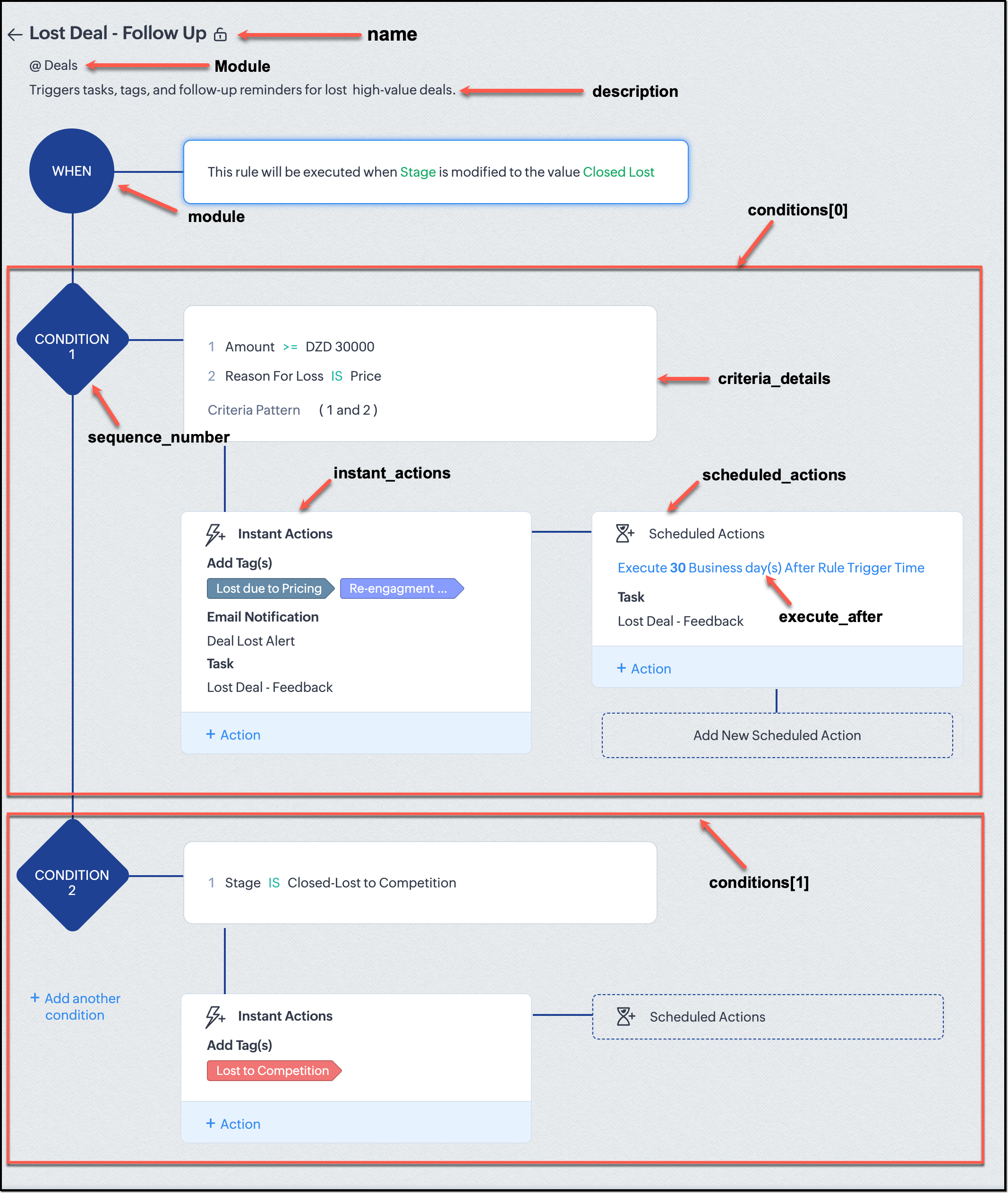
Associative vs. Non-Associative Actions
Every workflow rule performs one or more actions like sending an email, creating a task, or updating a field, etc. These actions fall into two broad categories: associative and non-associative.
Type | Description | Example Actions |
Non- Associative Actions | These are defined inside the workflow rule itself. They do not need to exist beforehand. You can configure their details directly within the workflow payload. | Create record, schedule a call, add a meeting, convert records, social actions, create record on email received, assign owner, |
Associative Actions | These are reusable actions created separately in CRM and referenced by their IDs. They can be used across multiple workflows and other automation tools. | Field updates, Email notifications, tasks, Webhooks, Add/Remove tags |
When you create or update a workflow via API, the associative actions require you to pass their existing action IDs. These IDs can be fetched using the corresponding Actions APIs : Field Updates, Email Notifications, Webhooks, and Tasks. In the coming weeks of Kaizen, we will take a closer look at each of these Actions APIs. We will see how to create, manage, and delete them within your workflow automation strategy.
Sample Request:
POST {{api-domain}}/crm/v8/settings/automation/workflow_rules
{ "workflow_rules": [ { "execute_when": { "details": { "trigger_module": { "api_name": "Deals", "id": "4876876000000002181" }, "criteria": { "comparator": "equal", "field": { "api_name": "Stage", "id": "4876876000000002565" }, "type": "value", "value": "Closed Lost" }, "repeat": false, "match_all": false }, "type": "field_update" }, "module": { "api_name": "Deals", "id": "4876876000000002181" }, "description": "Triggers tasks, tags, and follow-up reminders for high-value deals lost due to pricing", "name": "Lost Deal due to Pricing - Follow Up", "conditions": [ { "sequence_number": 1, "instant_actions": { "actions": [ { "name": "Lost Deal - Feedback", "id": "4876876000016794047", "type": "tasks" }, { "details": { "module": { "api_name": "Deals", "id": "4876876000000002181" }, "over_write": false, "tags": [ { "name": "Lost due to Pricing", "id": "4876876000016794071", "color_code": "#658BA8" }, { "name": "Re-engagement pending", "id": "4876876000016794075", "color_code": "#879BFC" } ] }, "type": "add_tags" }, { "name": "Deal Lost Alert", "id": "4876876000016794062", "type": "email_notifications" } ] }, "scheduled_actions": [ { "execute_after": { "period": "business_days", "unit": 30 }, "actions": [ { "name": "Lost Deal - Feedback", "id": "4876876000016794047", "type": "tasks" } ] } ], "criteria_details": { "criteria": { "group_operator": "AND", "group": [ { "comparator": "greater_equal", "field": { "api_name": "Amount", "id": "4876876000000002557" }, "type": "value", "value": "30000" }, { "comparator": "equal", "field": { "api_name": "Reason_For_Loss__s", "id": "4876876000002440001" }, "type": "value", "value": "Price" } ] } } } ] } ] } |
The execute_when defines when the workflow should fire.
type = field_update means this rule runs when a field’s value changes.
criteria : Stage = Closed Lost so the rule triggers whenever the Stage field is updated to Closed Lost.
repeat = false ensures it will not trigger multiple times for the same record.
In simple terms: “Whenever a deal is marked as Closed Lost, run this workflow.” The criteria_details section refines the trigger. The workflow only runs when the Amount ≥ ₹30,000 AND Reason for Loss = Price.
The instant_actions section inside the conditions array has the actions to be executed immediately when the criteria are met.
Add Tags : labels the record for easy filtering and reporting.
Send Email Alert : notifies the sales team instantly about the lost deal.
The scheduled_actions defines what happens after some time has passed. In this case, after 30 business days. Here, the workflow automatically creates a “Lost Deal - Feedback” task, reminding the deal owner to follow up with the customer to get feedback, and for future opportunities.
- The Amount is greater than or equal to ₹30,000, and
The Reason for Loss is “Price.”
By combining these elements, this workflow achieves a full closed-loop follow-up system.
Conclusion:
Zylker’s updated and new workflows make their automation smarter and more responsive. They are now able to spot key deals and ensure lost opportunities are revisited.
We hope you are now well on your way to mastering Workflow APIs. Share your thoughts in the comments or write to us at support@zohocrm.com.

Additional Reading:
- Workflow APIs - Part 1 - Auditing Workflows
- Workflow APIs - Part 2 - Find out what actions and triggers are supported for each module
Topic Participants
Anu Abraham
Sticky Posts
Kaizen #198: Using Client Script for Custom Validation in Blueprint
Nearing 200th Kaizen Post – 1 More to the Big Two-Oh-Oh! Do you have any questions, suggestions, or topics you would like us to cover in future posts? Your insights and suggestions help us shape future content and make this series better for everyone.Kaizen #226: Using ZRC in Client Script
Hello everyone! Welcome to another week of Kaizen. In today's post, lets see what is ZRC (Zoho Request Client) and how we can use ZRC methods in Client Script to get inputs from a Salesperson and update the Lead status with a single button click. In thisKaizen #222 - Client Script Support for Notes Related List
Hello everyone! Welcome to another week of Kaizen. The final Kaizen post of the year 2025 is here! With the new Client Script support for the Notes Related List, you can validate, enrich, and manage notes across modules. In this post, we’ll explore howKaizen #217 - Actions APIs : Tasks
Welcome to another week of Kaizen! In last week's post we discussed Email Notifications APIs which act as the link between your Workflow automations and you. We have discussed how Zylker Cloud Services uses Email Notifications API in their custom dashboard.Kaizen #216 - Actions APIs : Email Notifications
Welcome to another week of Kaizen! For the last three weeks, we have been discussing Zylker's workflows. We successfully updated a dormant workflow, built a new one from the ground up and more. But our work is not finished—these automated processes are
Recent Topics
Customer happiness customisation
Hi, I was wondering if it's possible to somehow customise to whom and when customer happiness request is sent? Can you enable it only for selected tickets for example based on workflow or any other criteria (customer name, tag or anything else)? AlsoNo Zoho Support Response in Months
I want to say that I love Zoho FSM, Books, and CRM, but the support is scary bad. About 2-3 months ago, I emailed Zoho FSM support with two specific issues I needed help with, and I have still not received one single response. I also submitted a supportNull
If a result is null how do I make it so that a custom error pops up instead of the default error? Can someone write an example as if I were using the script builder?Format a "return" message
Good day, Is there a way to format the message of the "return" function in CRM deluge script?Having Trouble Opening The Candidate Portal
Recently am having trouble opening the Candidate Portal. It keeps loading but cannot display any widgets. Tried Safari, Chrome and Edge. Non of them work. Please solve the problem ASAP.Tip of the Week - Spot Risky Sales with Conditional Formatting
In Zoho Analytics, small tweaks can lead to big insights. One such feature is Conditional formatting based on other columns, your key to instantly spotting where sales success is overshadowed by product returns. Our tip this week shows you how to applyHow do I duplicate / copy a campaign
I am evaluation Zoho Campaigns and sent an email to one of my personal email accounts from Zoho Campaigns. It went into my junk file in Hotmail. I want to duplicate that same (1-page) campaign and send it to another of my personal accounts to try toFor a Bill, can "Pay via Check" - Can we also "Pay via Check" when documenting refund for payment?
We really like when we have a Bill in Zoho Books that we can record payment by selecting "Pay via Check" and that will cut the check for us from Zoho Books. However, when we have to write checks as a result of invoice overpayment, we can not select "PayCreator Change History: Ways to improve
Hi Everyone, Recently been working in developing this change history(an idea from Zoho Forms) - unlike forms that you can this with a click but using Creator, we can use "old" keyword. The concept I come up with is to put the result in a table however,Suitability of Zoho One (Single User License) for Multi-State GST Compliance & Cost Analysis
Hello Zoho Team, I am an e-commerce business owner selling on platforms like Amazon, Flipkart, and Meesho, and I'm currently using their fulfillment warehouses. I have two GSTIN registrations and am planning to register for an additional 2-3 to expandadd employees and customiz
I want a Zoho software to track employees record. I logged in a demo so now I tried adding employee, first thing when I click on add employee it takes me to a page where it says add user maximum 10 users, my first doubt why users I don't want employeesInactive User Auto Response
We use Zoho One, and we have a couple employees that are no longer with us, but people are still attempting to email them. I'd like an autoresponder to let them no the person is no longer here, and how they can reach us going forward. I saw a similarZoho People Attendance Module - Split Shifts
Hello, Our business employs a number of college students who often split their workdays between work hours and class schedules, resulting in split shifts. For example: Employee 1 works 9am to 11:30am and then leaves for class, returning to work at 3pmZoho One subscription
we have got Zoho CRM for 3 users and we paid for the app , and we have still 9 months to go , but if we join Zoho one , does it mean the payment for that subscription would be a waste? Please help. Thanks.How Zoho CRM Can Enhance Your Faucets Accessories Business Operations?
In today's competitive market, having a reliable CRM system is crucial for managing customer relationships and streamlining business operations. For businesses in the faucets accessories niche, Zoho CRM offers powerful tools to help manage everythingDashboard
I’m currently working on a project using the Zoho IoT Cloud with an ESP32 and MQTT. I’ve successfully connected the ESP32 to Wi-Fi and MQTT, and the data from the ESP32 is displayed in the telemetry section of the cloud. However, when I try to createCan i connect 2 instagram accounts to 1 brand?
Can i connect 2 instagram accounts to 1 brand? Or Do i need to create 2 brands for that? also under what subscription package will this apply?Zoho Forms - Improved Sub-Forms
Hi Forms team, I'm helping a client move from JotForms to Zoho Forms and I've found another opportunity for improvement. In the below screenshot, JotForm left and Zoho Forms right. The Zoho Forms Sub-Form is quite a poor visually. There is no way to makeWhat's New in Zoho Billing | Q3 2025
Hello everyone, We are excited to share the latest set of updates and enhancements made to Zoho Billing in Q3 2025. From the latest GST updates to multi-level discounting, Zia-powered report summaries, and customizable web forms, these updates are designedHow to Delete Personal Account Linked with My Mobile Number in past or by someone else
How to Delete Account Created with My Mobile Number in past or by someone else This is creating issues in making or sync with my credentials mobile and email address..WhatsApp Business Calling API
Dear Zoho SalesIQ Team, I would like to request a feature that allows users to call WhatsApp numbers directly via Zoho SalesIQ. This integration would enable sending and receiving calls to and from WhatsApp numbers over the internet, without the needDoes Zoho Learn integrate with Zoho Connect,People,Workdrive,Project,Desk?
Can we propose Zoho LEarn as a centralised Knowledge Portal tool that can get synched with the other Zoho products and serve as a central Knowledge repository?Marketer's Space - Going beyond basics: Smarter ecommerce marketing with Zoho Campaigns
Hello Marketers, Welcome back to this week's Marketer's Space. In the last post, we discussed the basics of email marketing and how to get started with email marketing in ecommerce. In this part, we'll dive much deeper into some other advanced featuresConnecting two modules - phone number
Hi, I’d like some guidance on setting up an automation in Zoho CRM that links records between the Leads module and a custom module called Customer_Records whenever the phone numbers match. Here’s what I’m trying to achieve: When a new Lead is createdZoho Marketing Automation 2.0 - Landing Page function not working
Dear Zoho Team, I am working on implementing Zoho Marketing Automation 2.0, and am now looking into the section "Lead Generation". If I open the "Landing Pages" section, I immediately get an Error code: Error: internal error occurred. Can you help meUnable to use Sign "You have entereed some invalid characters"
Unable to use Sign "You have entered some invalid characters" I do not see any invalid characters. The text in "Leave a Note" is plain text which I entered directly into the field. See attached screenshotcannot login from outlook on mobile
Hi there, I tried to set up my email accounts on my iphone using outlook, but it always return email address and password error. Please find the attachment for the screenshot. I am pretty sure that I typed in the correct email address and password and the imap has been enabled from zoho admin account. I can configure the email address on iphone default mail service as well as outlook on pc, the problem only occurs on the outlook app on mobile. I do need to use this app instead of the iphone defaultElevate your CX delivery using CommandCenter 2.0: Simplified builder; seamless orchestration
Most businesses want to create memorable customer experiences—but they often find it hard to keep them smooth, especially as they grow. To achieve a state of flow across their processes, teams often stitch together a series of automations using WorkflowMessages not displayed from personal LinkedIn profile
Hello. I connected both our company profile and my personal profile to Zoho social. I do see all messages from our company page but none from my private page. not even the profile is being added on top to to switch between company or private profile,"Performed changes in the query is not allowed due to following reason" when adding columns or reordering data
I'm trying to make changes to a query but every time i try to save it i get this error message. I'm not touching the data it's flagging. All I've tried to do is reorder a couple of fields and add a new one. Why won't it let me do this? It's a core queryOnboard new users easily with native screen recording in Zoho Projects Plus
Communication involving both visual and audio elements tends to capture more interest among the audience. Whenever we onboard new employees to the organization, the task of engaging them in the induction sessions, and keeping the spark going in theirRequest to Add Support for PDF Templates and More Flexibility in Email Editor
Hi Zoho Campaigns Team, I hope you're doing well. I wanted to share some feedback and request a few improvements in the Email Template feature of Zoho Campaigns. Right now, we can create email templates using the HTML editor, which is helpful. But we’reCan you stop Custom View Cadences from un-enrolling leads?
I'm testing Cadences for lead nurture. I have set un-enroll properties to trigger on email bounce/unsubscribe, and do NOT have a view criteria un-enroll trigger. However, help documents say that emails are automatically un-enrolled from a Cadence whenZoho Desk Android and iOS app update: Agent detail overview
Hello everyone! We’ve introduced agent detail overview on the Zoho Desk Android and iOS app update. With this feature, you can get a complete view of agent’s tickets, response times, logged hours (for both tickets and activities), customer happiness ratingsBlog Widget: Show recent blog posts on my homepage
Hey there I am using the Zoho Sites Blog feature. On my homepage, on the bottom I'd like to have a featured content section where I show some of my blog posts (selected, most recent, filtered by category and so on...). It would be nice to have a blogHow to iterate through excel data using zoho rpa
I wanted to iterate or loop through excel data ( datatable). How can i do thatZoho Commerce
Hi, I have zoho one and use Zoho Books. I am very interested in Zoho Commerce , especially with how all is integrated but have a question. I do not want my store to show prices for customers that are not log in. Is there a way to hide the prices if notMass (Pull back) (Close WOs) (Close APs)
Hi develop team. Just idea because Zoho FSM is great but its too manual. we have a lot of task to do every day and the system needs to have more features to automatic our tasks. I need to close several WOs, APs and Pull Back per day. Please we need massCustomising Zohidesk portal default widgets
Hello, I'm wondering how could I customise the default widgets such as "popular topics", "popular articles" using CSS or to make the tiles at the bottom match the ones that I made in the picture attached. I have made some custom widgets and edited themIf there’s a batch at the end, the ‘mark as inactive’ function doesn’t work.
when my batch has a date to batch end and I "mark as inactive" he batch does not obey the status and reactivates the batch.Next Page