Bidirectional sync between Zoho Bookings and Zoho CRM - Part 1
Hey, community members!
The default integration between Zoho CRM and Zoho Bookings is unidirectional, which means that any appointments booked, rescheduled, or deleted in Zoho Bookings will be reflected in Zoho CRM. However, any modifications made to events in Zoho CRM that originated from Zoho Bookings will not be reflected back in Zoho Bookings. Hence, as we're announcing in this community post, we've made the sync bidirectional.
This community post will cover the process of configuring appointment bookings from Zoho CRM in Zoho Bookings, as well as managing appointment statuses such as Canceled, No Show and Completed. We have addressed the rescheduling action in a separate post. To view it, please click on the following link: Reschedule Action
This community post will be beneficial for active Zoho CRM users who handle all their meetings within Zoho CRM. Additionally, you can use this community post as a reference to explore various automation possibilities tailored to your business requirements. For instance, with this post's guidance, when you update a booking's status field to "Completed" in Zoho CRM, it will automatically sync with Zoho Bookings and trigger an automated "Mark as completed" email to customers. This enhancement will improve your Zoho Bookings and Zoho CRM synchronization experience, making appointment management easier.
Prerequisites of bidirectional sync:
- Zoho Bookings Premium subscription
- Zoho CRM paid subscription
- Enable Zoho CRM integration within Zoho Bookings
The purpose of enabling the Zoho CRM integration within Zoho Bookings is to transfer booking details from Zoho Bookings to Zoho CRM. In this configuration, the mandatory field is the Booking ID, which is passed from Zoho Bookings to Zoho CRM through the integration. Whenever an appointment is booked, customer details will be sent to the designated CRM module, and a corresponding record will be created in the Meetings module within Zoho CRM, which will help in automating the workflow.
Here's the complete demo video that covers all the configurations discussed in the community post below:
Timestamps for your reference:
0:35 - Purpose of this community post
Here's the complete demo video that covers all the configurations discussed in the community post below:
Timestamps for your reference:
0:35 - Purpose of this community post
1:26 - Zoho CRM plugin installation
4:43 - Custom field creation
7:20 - Function creation
9:22 - Connection creation
10:24 - Configuring arguments
11:06 - Workflow creation
13:33 - Argument mapping
14:41 - Output verification
17:41 - Conclusion
How we're approaching this bidirectional sync
1. Booking an appointment from Zoho CRM
Install the Zoho Bookings for Zoho CRM plugin within your Zoho CRM application. This plugin enables the creation of a "New Appointment" button within the Zoho CRM Leads and Contacts module, which enables you to select the desired booking page you wish to open. You can choose from various workspace, service, or staff booking pages. After configuration, you can initiate the process of scheduling bookings directly from within your Zoho CRM account.
- Guide on Zoho Bookings and Zoho CRM plugin installation: Booking page selection for Zoho CRM plugin
2. Booking status: Completed or No Show
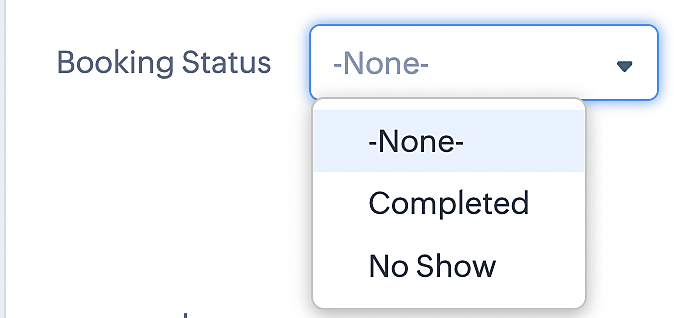
To update a booking's status (Completed or No Show), we've added a new picklist properties field named "Booking Status" in the Meetings module and configured it with two options: "completed" and "no show". Depending on the booking status chosen, the corresponding booking in Zoho Bookings will be updated.
- Details on how to add a custom field to the Meetings module : Customizing modules
- Here's a video that demonstrates how to add a field to a module in Zoho CRM: Adding fields
Reference:
3. Booking status: Canceled
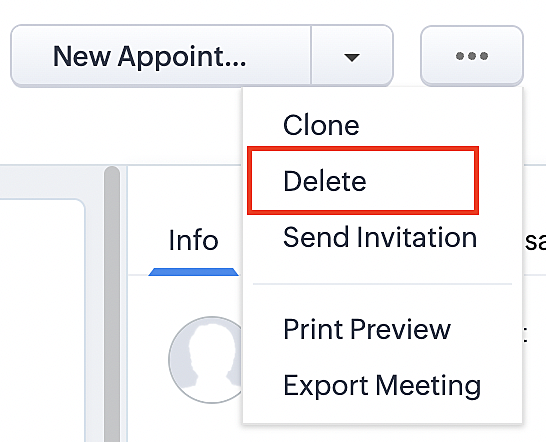
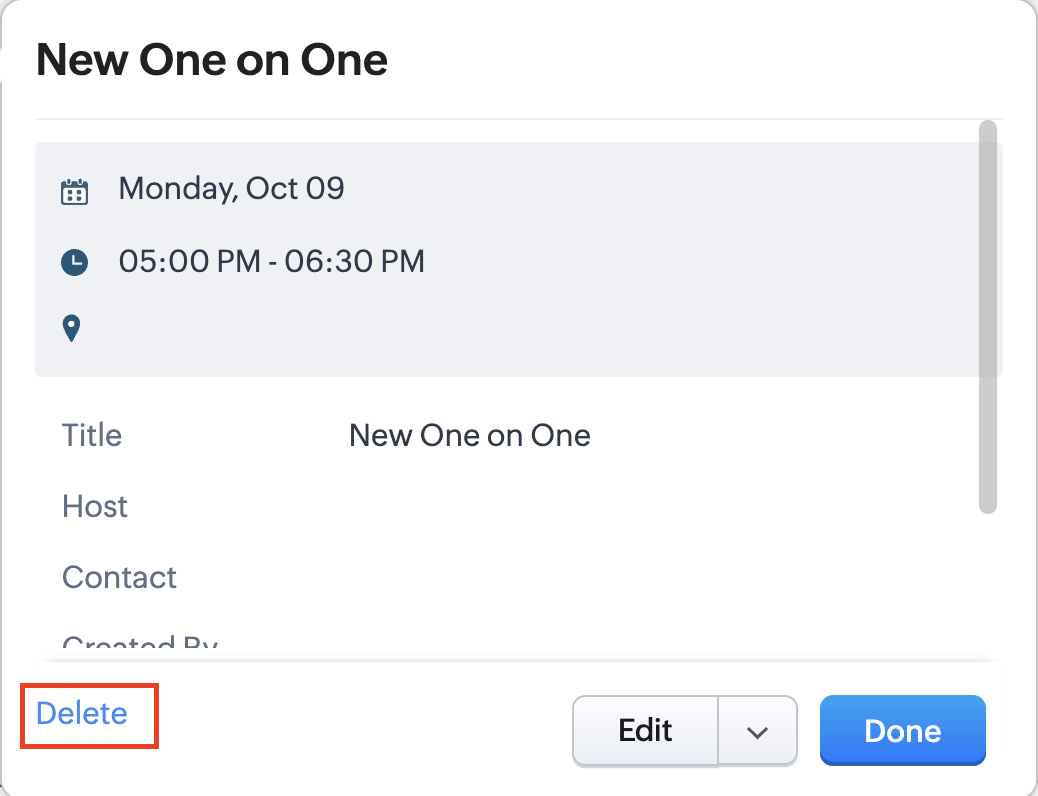
Whenever a meeting is deleted from the Meetings module, the corresponding booking in the Zoho Bookings app will also be canceled automatically. The meeting can be deleted either from the Meetings module or directly from the calendar.
To enable bidirectional sync between Zoho CRM and Zoho Bookings
Complete these steps in Zoho CRM.
Step 1: Creating connections
You first need to establish a connection between Zoho CRM and Zoho Bookings. Zoho Bookings is listed as one of the default connections in Zoho CRM, making it simple to set up. Select the Zoho Bookings connection, define the connection name and scope, and you'll be all set. This connection will enable you to link both applications and facilitate the seamless transfer of data.
Read here for more details on how to create connection in Zoho CRM: Connections
Step 2: Creating functions
In this context, we'll be creating three functions: one for marking appointments as completed, another for canceling appointments, a third for marking appointments as no shows, and a fourth for rescheduling appointments. For each function, we must also configure arguments, which pass values or data into a function when making a call. Here, we'll pass the booking ID to the function as an argument to update the necessary booking status.
i. To create a function for marking appointments as completed:
1. Go to Setup > Developer Space > Functions.
2. In the Functions page, click + Create New Function.

3. Configure the function name, display name, and description.
4. Set the category as automation.
This opens the Deluge script page.
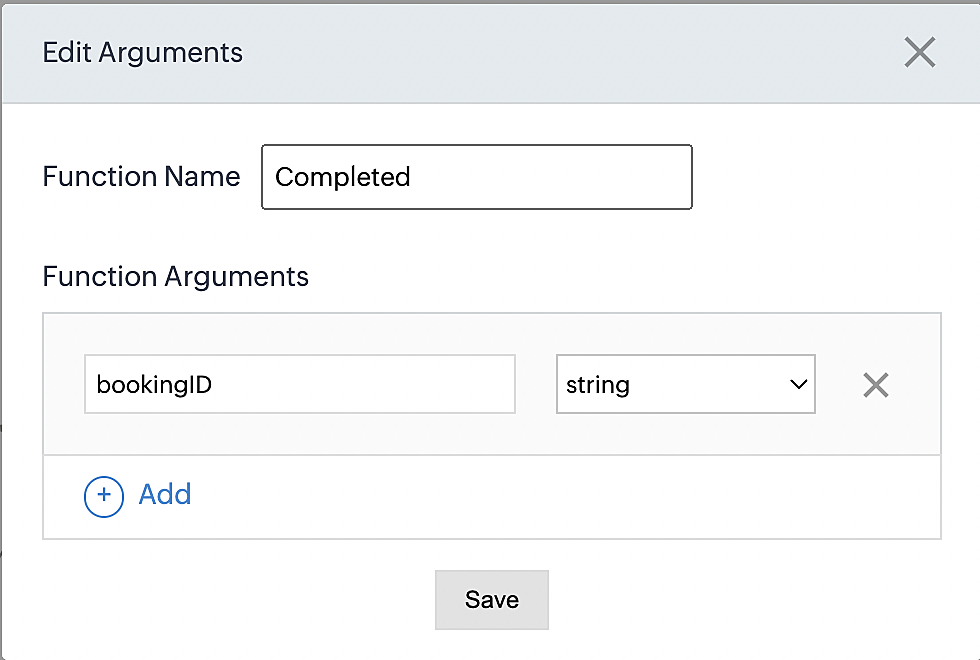
5. Next, configure the function's arguments:
A. Click on Edit Arguments on the Deluge script page.

B. Set the Parameter Name as bookingID. (Please note that the "bookingID" value is case sensitive and must match
the term used in the code).
C. Set the type as string.
Reference:
Please configure the below code in the Deluge script page.
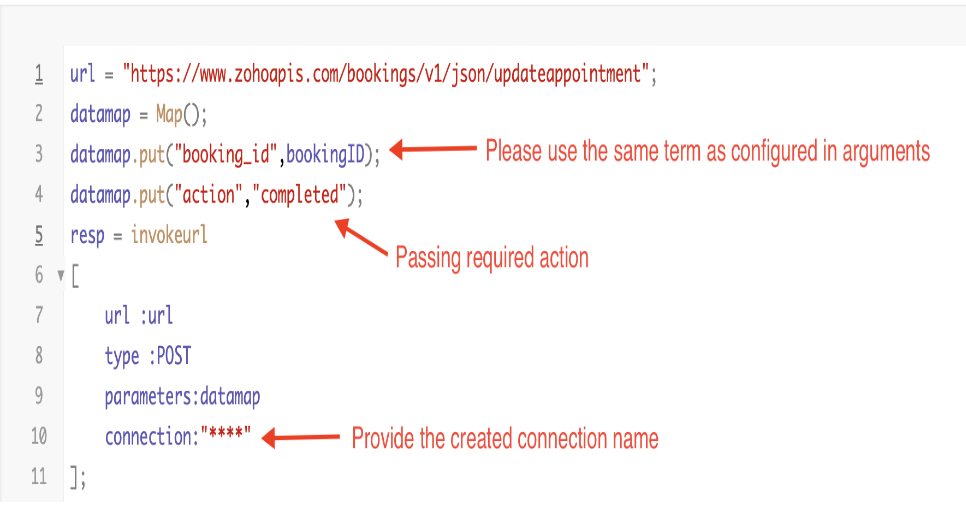
By completing these steps, we've configured a function that will mark appointments as completed.
ii. To create a function for marking appointments as no shows
1. Go to Setup > Developer Space > Functions.
2. In the Functions page, click + Create New Function.

3. Configure the function name, display name, and description.
4. Set the category as automation.
This opens the Deluge script page.
5. Next, configure the function's arguments:
A. Click on Edit Arguments on the Deluge script page.

B. Set the Parameter Name as bookingID. (Please note that the "bookingID" value is case sensitive and must match
the term used in the code).
C. Set the type as string.
Reference:
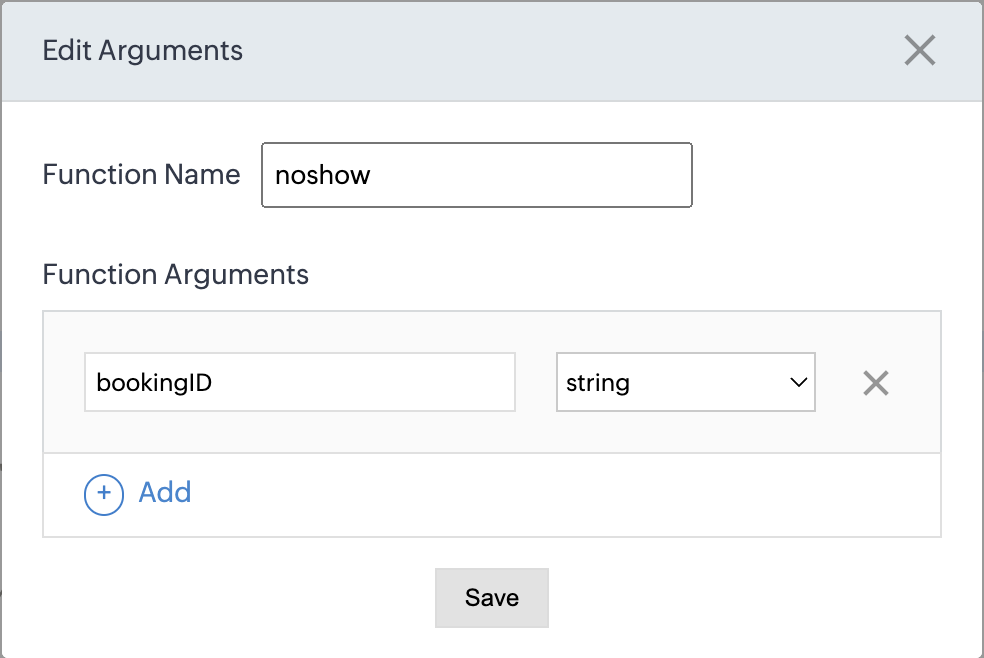
Please configure the below code on the Deluge script page.
Code link: No show
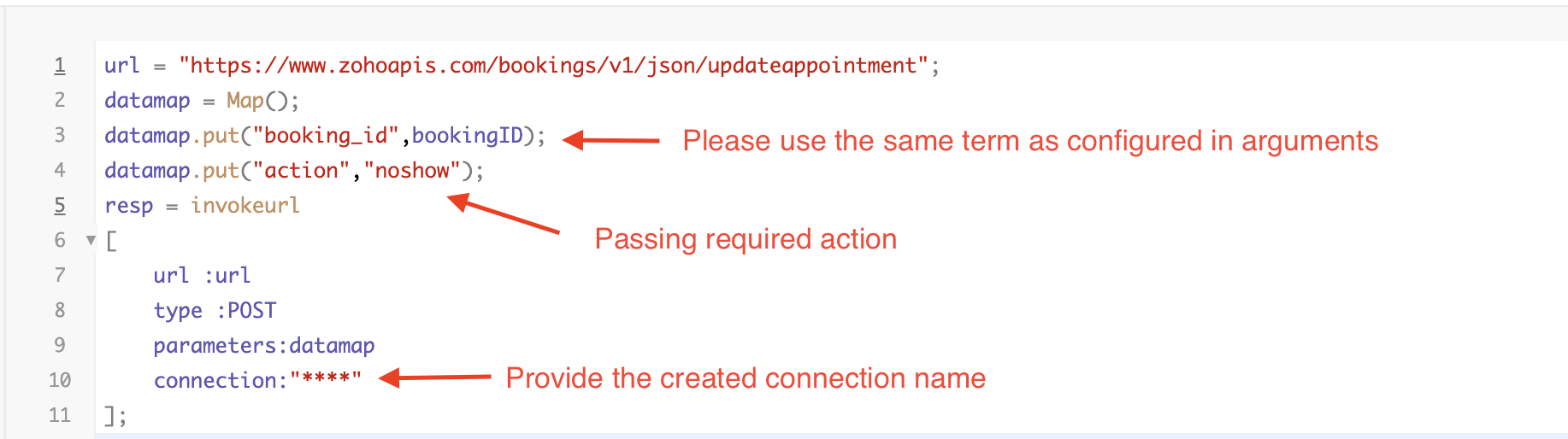
By completing these steps, we've configured a function that marks appointments as no shows.
iii. To create a function for marking appointments as canceled
1. Go to Setup > Developer Space > Functions.
2. In the Functions page, click + Create New Function.

3. Configure the function name, display name, and description.
4. Set the category as automation.
This opens the Deluge script page.
5. Next, configure the function's arguments:
A. Click on Edit Arguments on the Deluge script page.

B. Set the Parameter Name as bookingID. (Please note that the "bookingID" value is case sensitive and must match
the term used in the code).
C. Set the type as string.
Reference
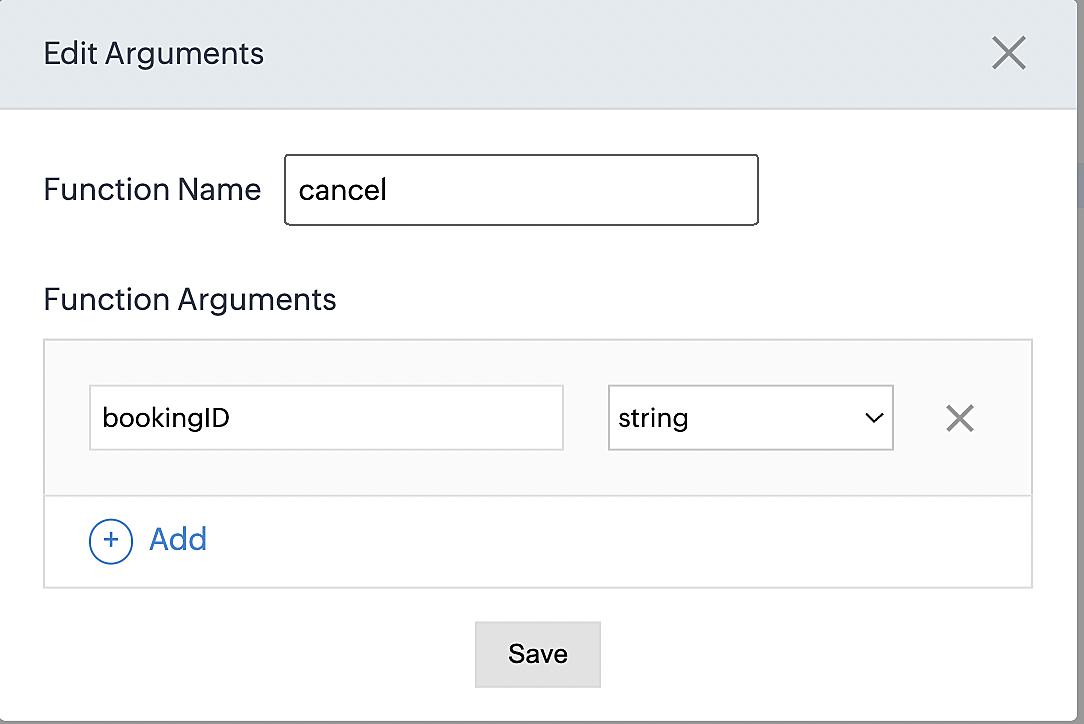
Please configure the below code on the Deluge script page.
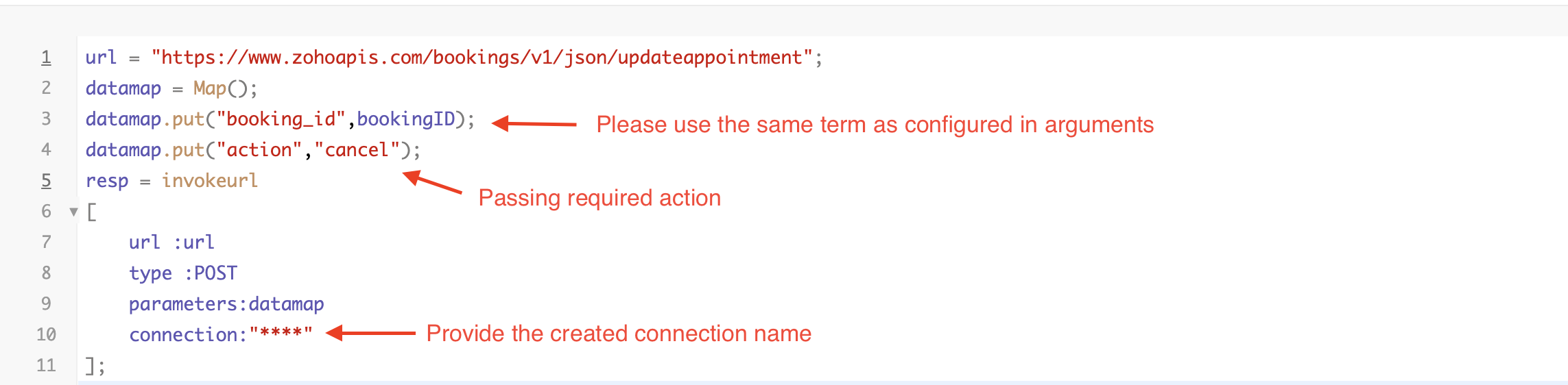
By completing these steps, we've configured a function that marks appointments as canceled.
Code explanation
Below is an explanation of the code that covers all the configurations present in the three functions mentioned above (cancel, mark as completed, and mark as no show).
Line 1: Based on the Zoho Bookings account's data center, we're setting up the API endpoint URL configuration.
Lines 2 - 4: To update appointments, we utilize the Zoho Bookings API. Within the update appointment API, there are two mandatory fields that need to be included: BookingID and action (completed/cancel/noshow).
Lines 5 - 10: We use the invokeURL task for API calls. To learn more about the invokeURL task, please refer to the following document: InvokeURL task for API calls
Now, let's proceed and learn about the process of creating a workflow and linking the established functions to it. This will enable us to automate the entire appointment status updating process.
Step 3: Creating a workflow
Workflow rules are sets of actions (email notifications, tasks and field updates) that are executed when specified conditions are met. Here, we'll generate workflow rules for each action to activate the respective function, thereby automating the appointment status updating process.
i. Creating a workflow for "canceling" appointments in Zoho Bookings when a meeting is deleted in Zoho CRM
Part 1: Creating the rule
1. Go to Setup > Automation > Workflow Rules.
2. In the Workflow Rules page, click Create Rule.

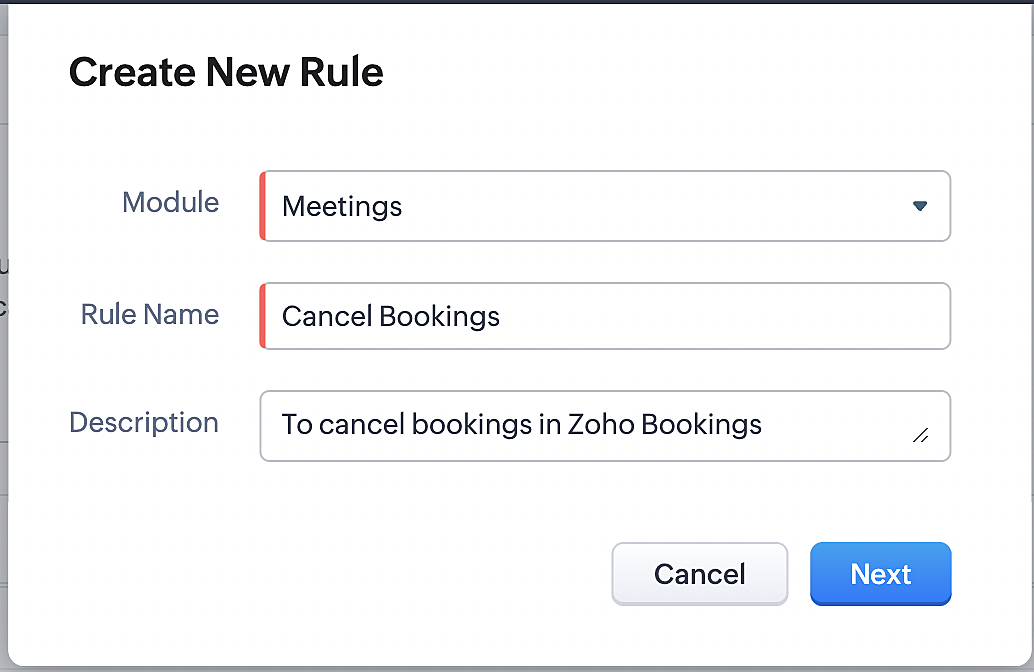
3. Select "Meetings" under Module and configure rule name and description as required.
More details: Create Rule
Reference:
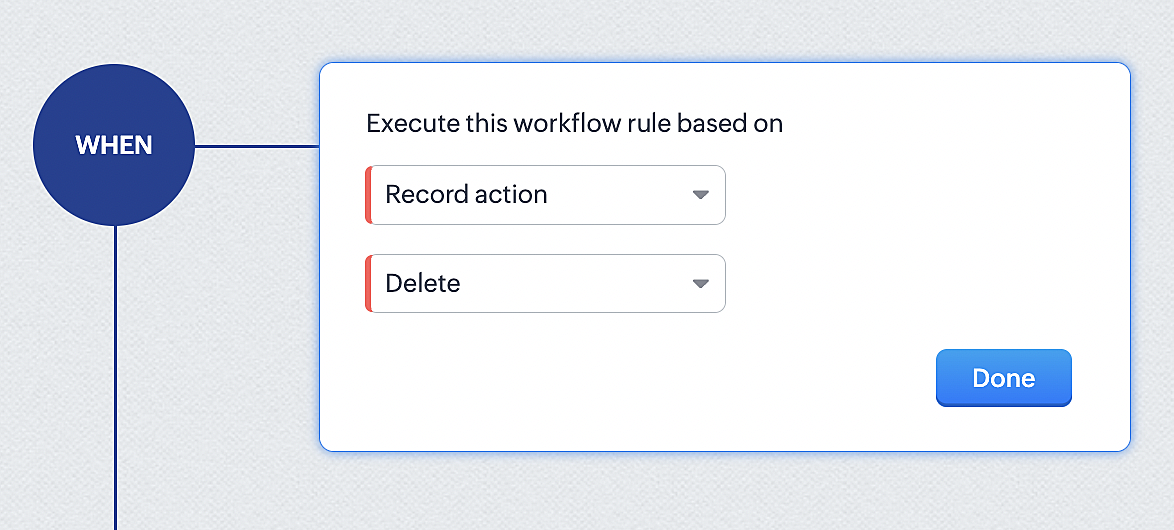
1. Select Record Action > Delete > Done to execute the rule when meetings are deleted.
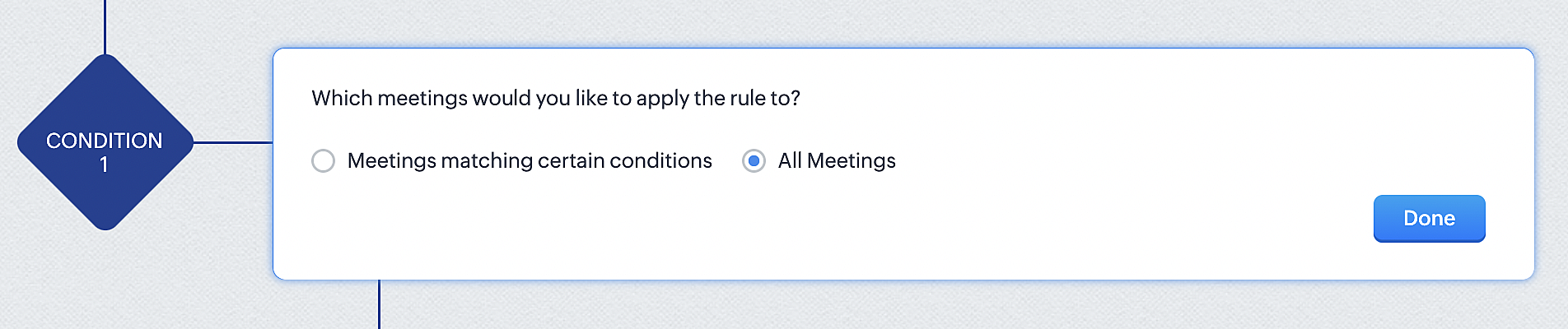
2. Configure condition > All Meetings.
3. Instant Actions > Function.
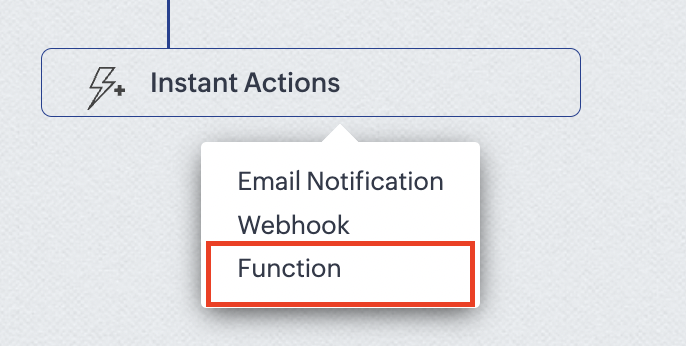
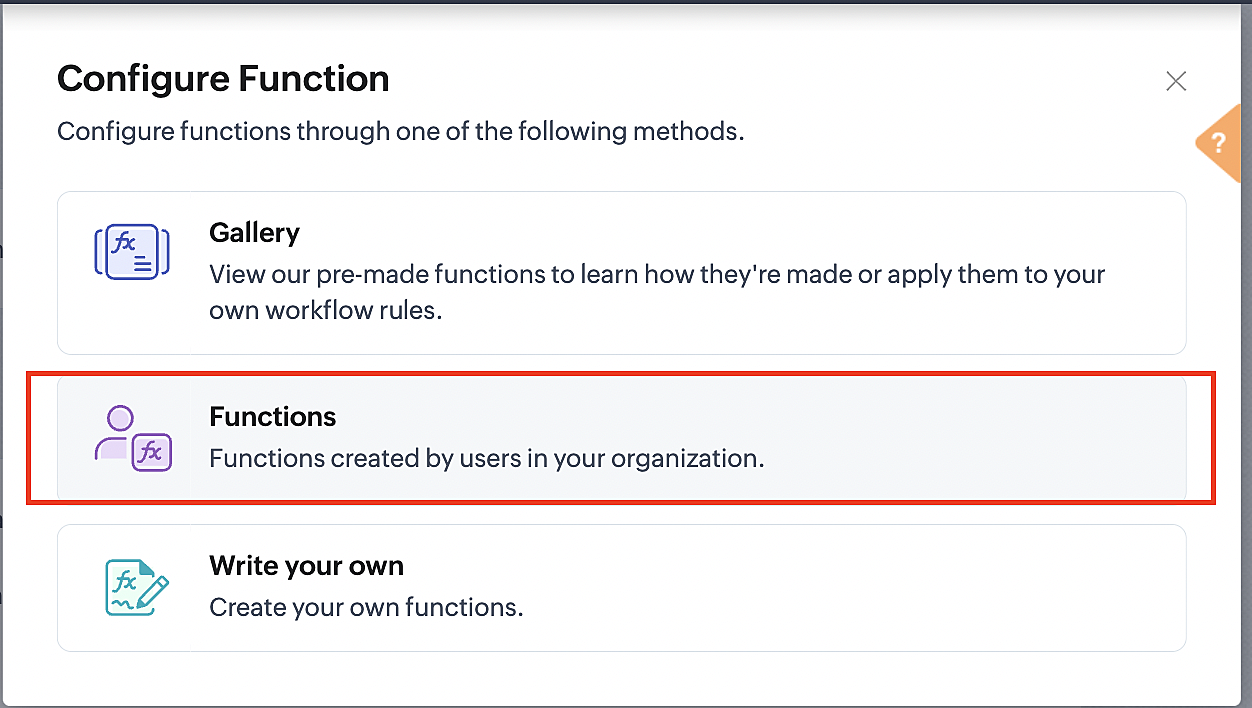
4. Click the New Function button.

5. In the Configure custom function page, select the "cancel" function you created from among the functions users in your organization have created.
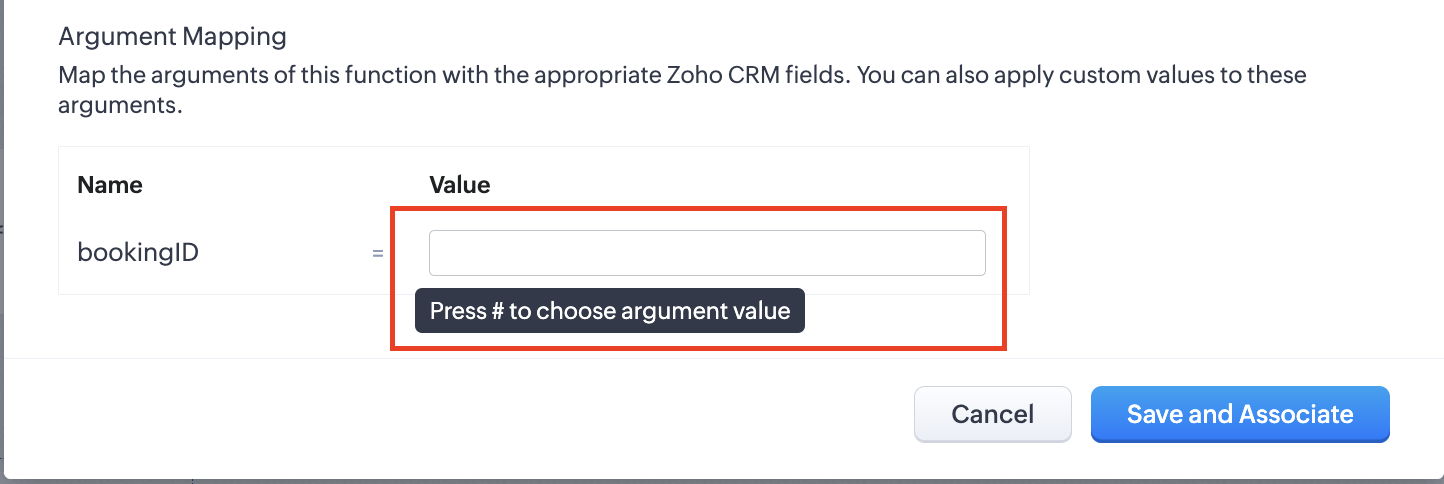
Part 3: Argument mapping
1. Press # to choose an argument value.
2. Select Meetings under Module and BookingId in the field.
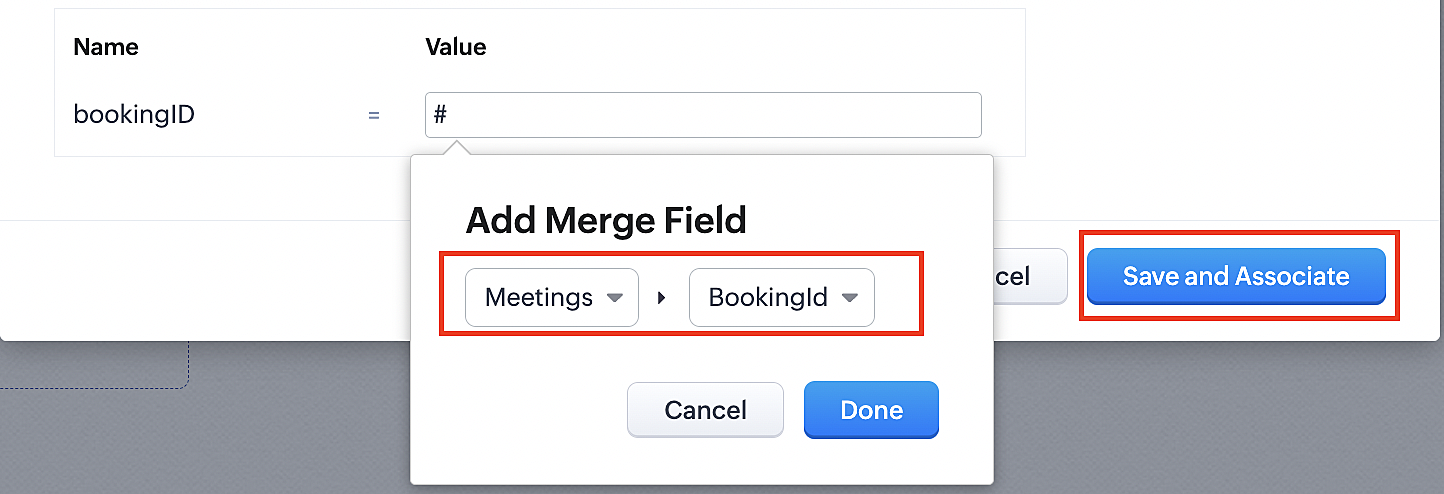
3. Click the Save and Associate button.
Reference:
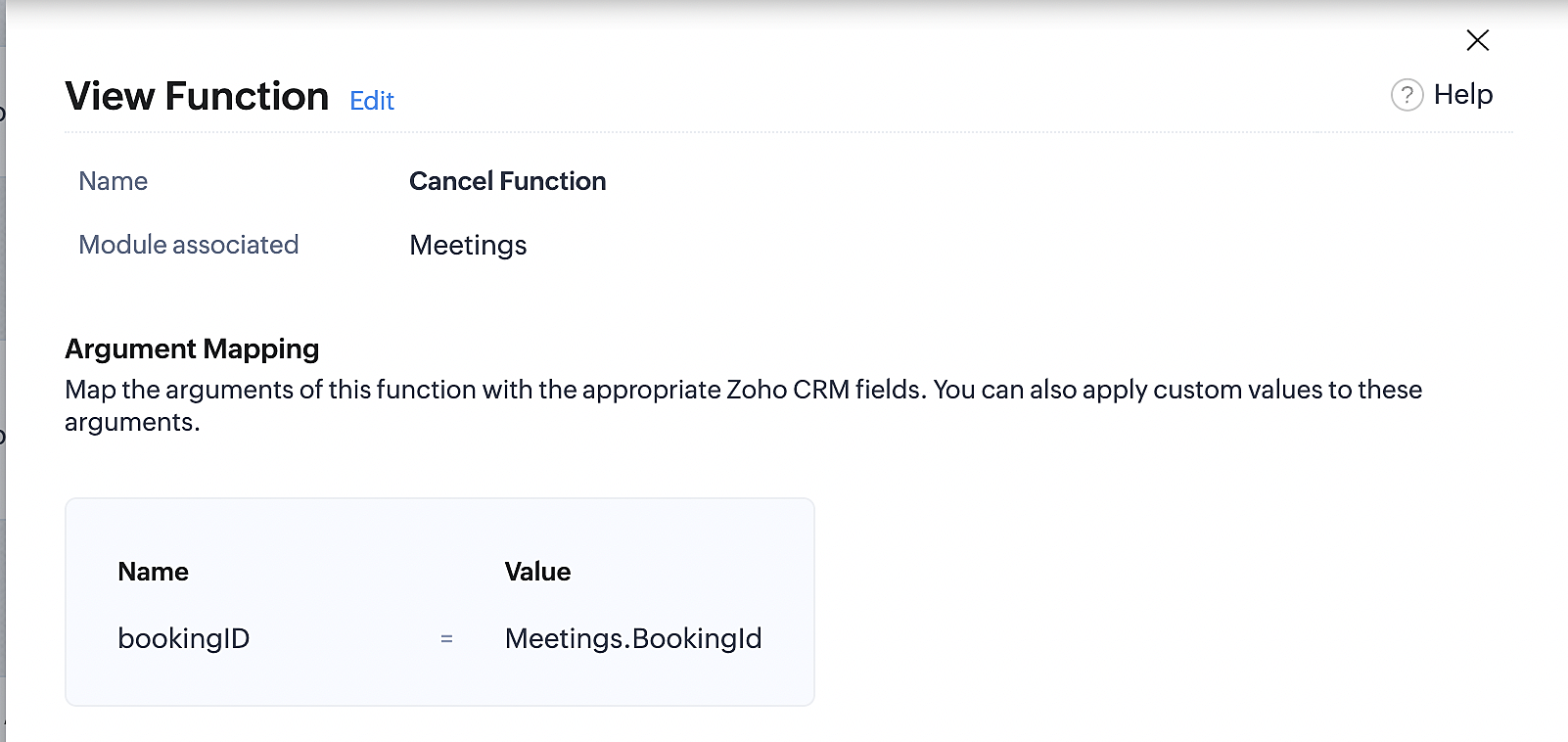
Below is the final flow of the cancel booking workflow:
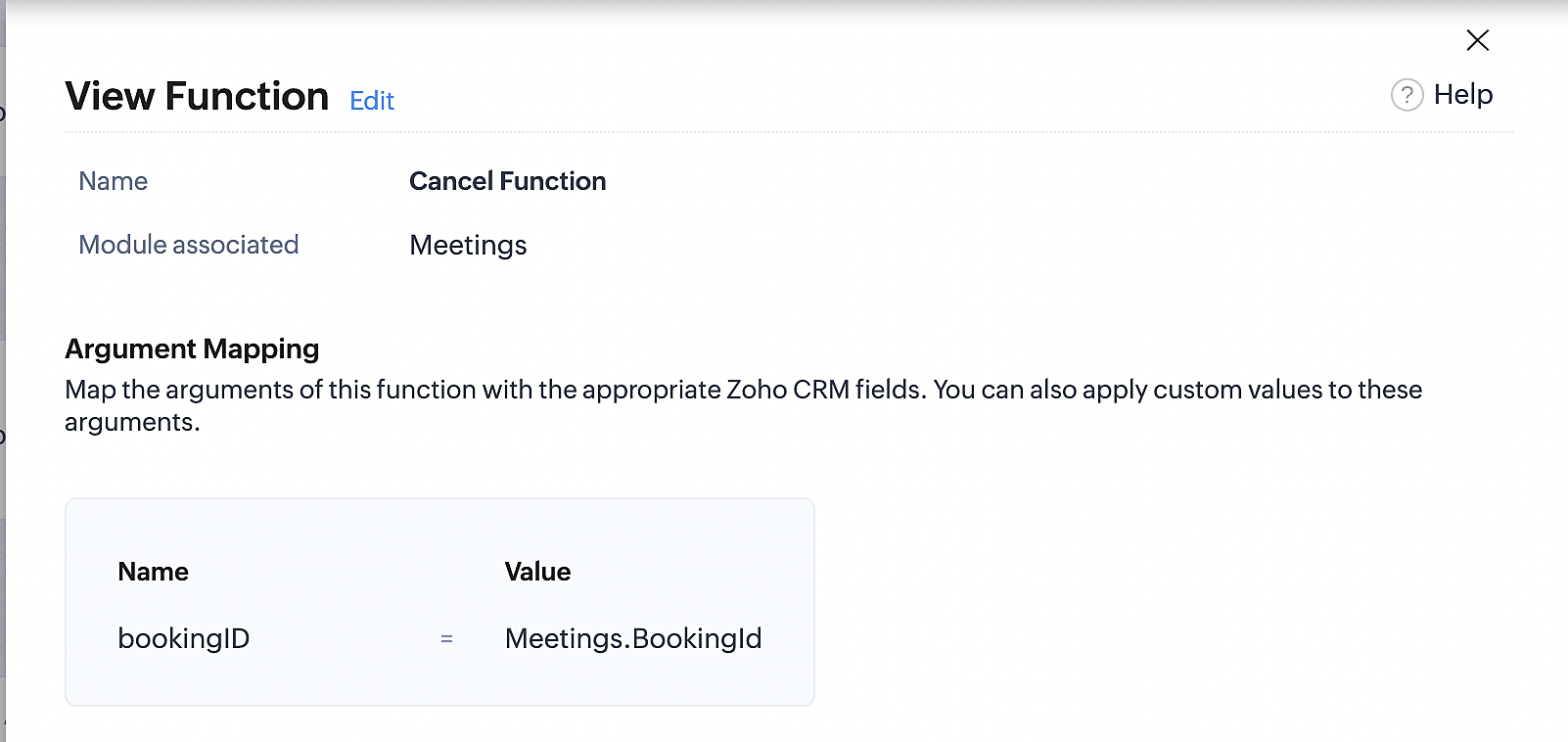
At the end of Part 3, we will have created a workflow that will be executed automatically when meetings are deleted in Zoho CRM. Simultaneously, the bookings associated with the meeting will also be canceled in Zoho Booking.
ii. Creating workflow for updating an appointment's status as "no show" in Zoho Bookings when the meeting's booking status is marked as no show in Zoho CRM
Part 4: Creating the rule
1. Go to Setup > Automation > Workflow Rules.
2. In the Workflow Rules page, click Create Rule.

3. Select Meetings under Module and configure the rule name and description as required.
Reference:
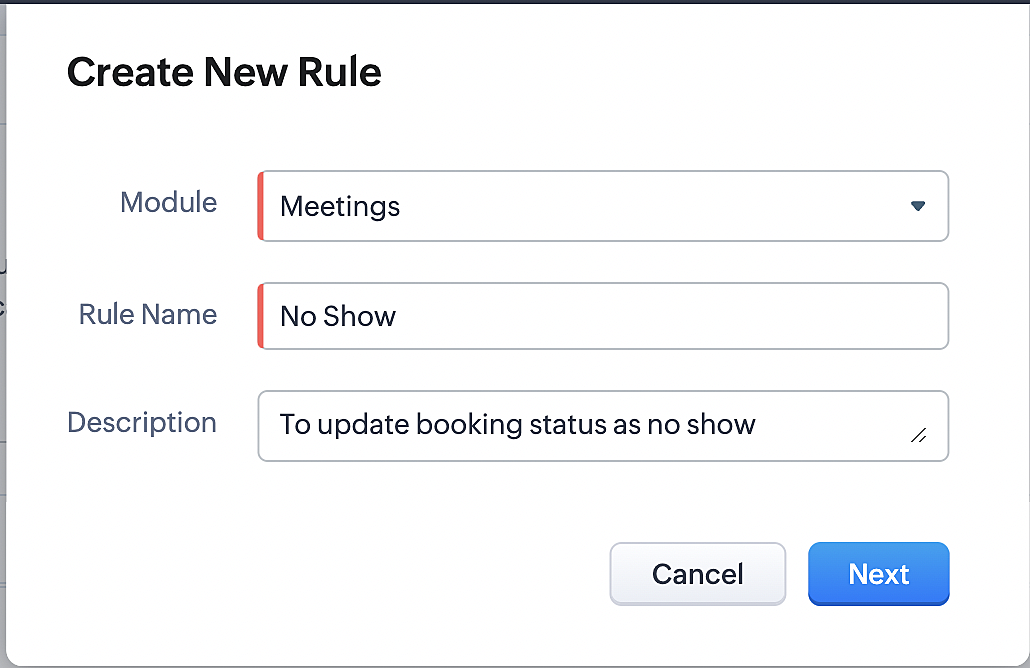
Part 5: Specifying the rule trigger
If you encounter difficulties while navigating through the steps mentioned below, please refer to Part 2 above, where we have provided step-by-step screenshots for clarification.
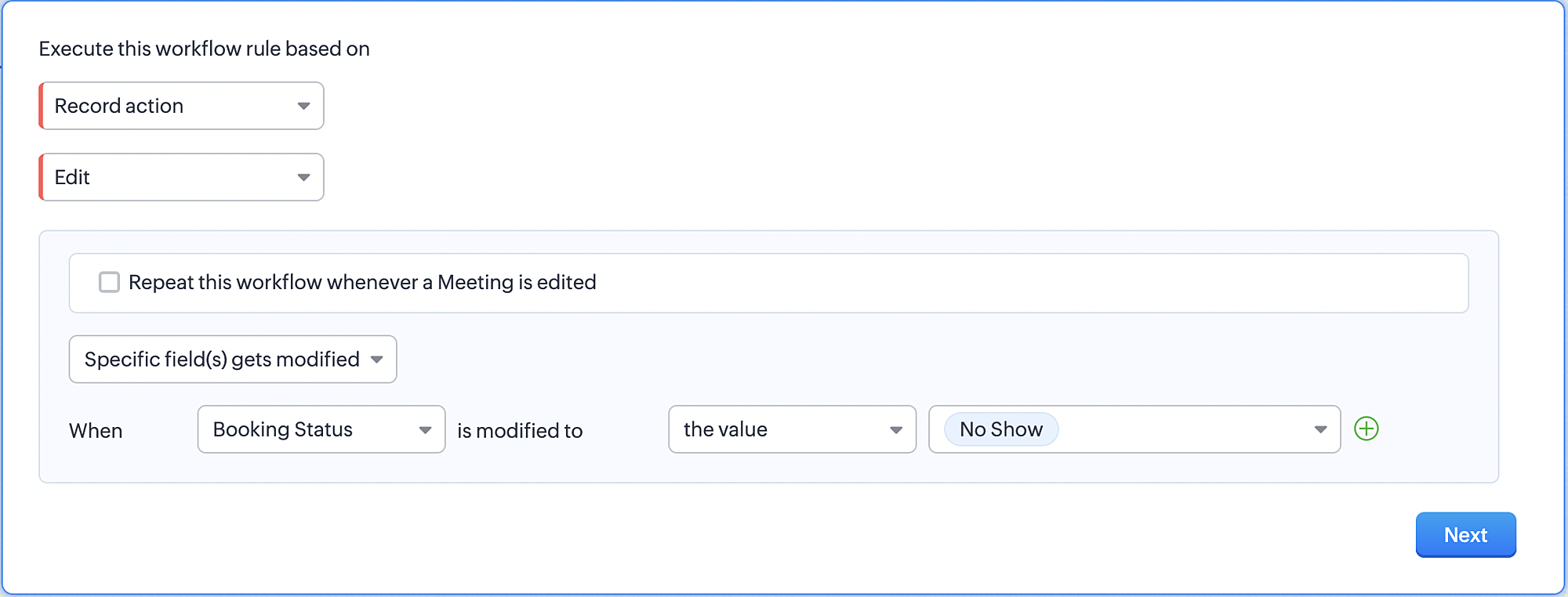
1. Record Action > Edit.

2. Enable the Specific field(s) gets modified and configure it per the screenshot below.
a. This is to ensure that the workflow is executed only when the booking status under the meeting module is
updated to "No Show".
updated to "No Show".
3. Configure condition > All Meetings.
4. Instant Actions > Function > New Function.
5. In the Configure custom function page, select the "no show" function you created from among the functions
users in your organization have created.
users in your organization have created.
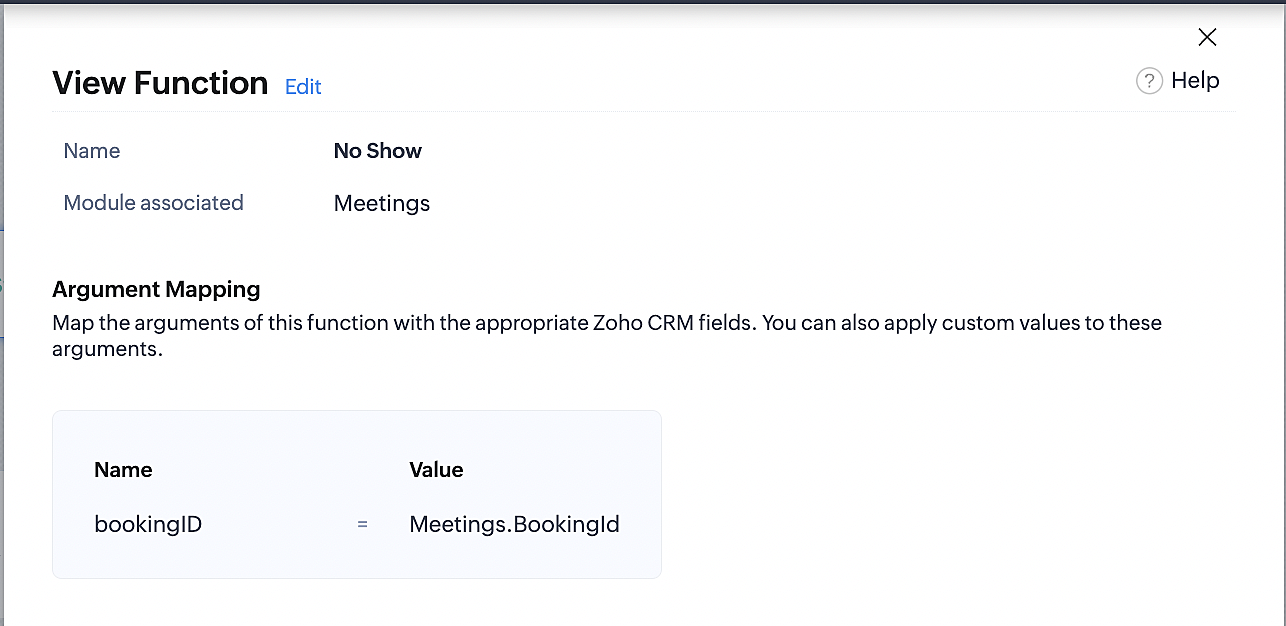
Part 6: Argument mapping:
If you encounter difficulties while navigating through the steps mentioned below, please refer to Part 3 above, where we have provided step-by-step screenshots for clarification.
1. Press # to choose an argument value.
2. Select Meetings under Module and configure the field as "BookingId".
3. Click Save and Associate button.
Reference:
Below is the final flow of the "No Show" booking status workflow:
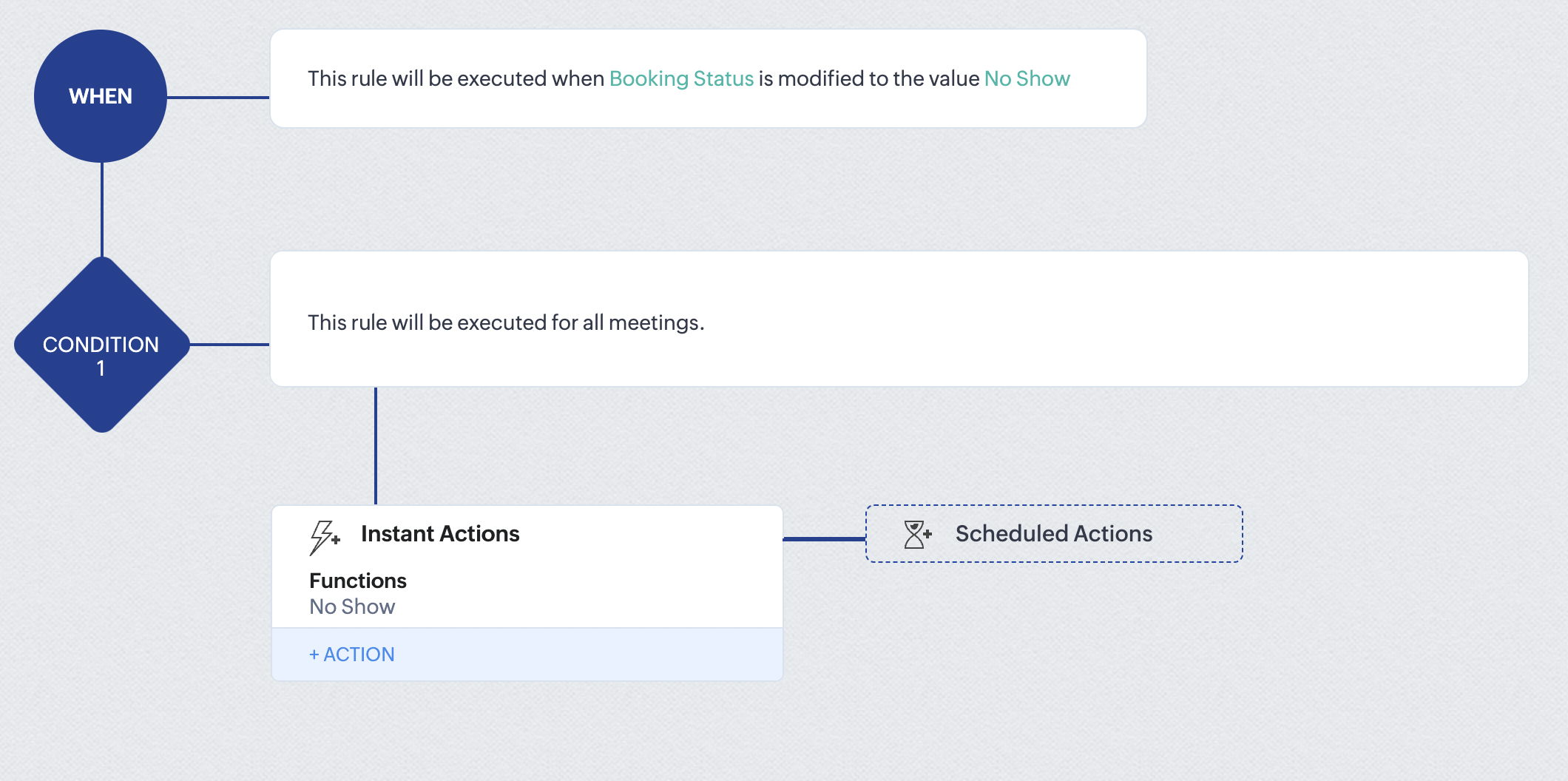
At the end of part 6, we will have created a workflow that automatically executes when the booking status field within the Zoho CRM Meetings module is updated to "No Show." This action will result in the associated bookings for that meeting also being marked as "No Show" in Zoho Bookings.
iii. Creating workflow for updating appointment status as "Completed" in Zoho Bookings when the booking status field of the meeting is marked as completed in Zoho CRM.
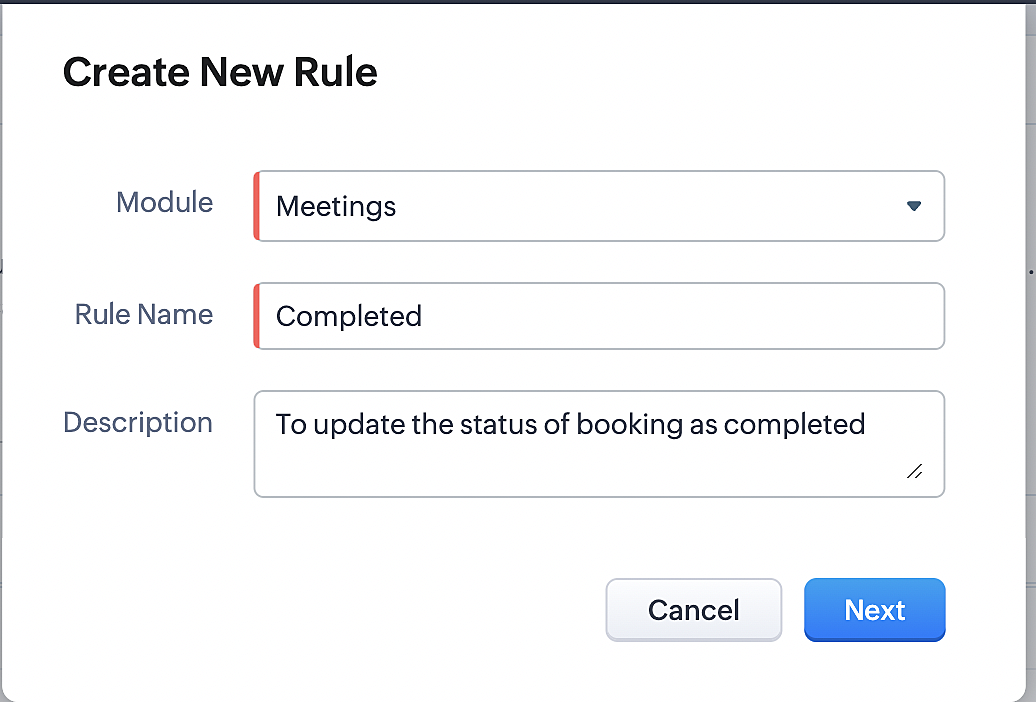
Part 7: Creating the rule
1. Go to Setup > Automation > Workflow Rules.
2. In the Workflow Rules page, click Create Rule.

3. Select Meetings under Module and configure rule name and description as required.
Reference:
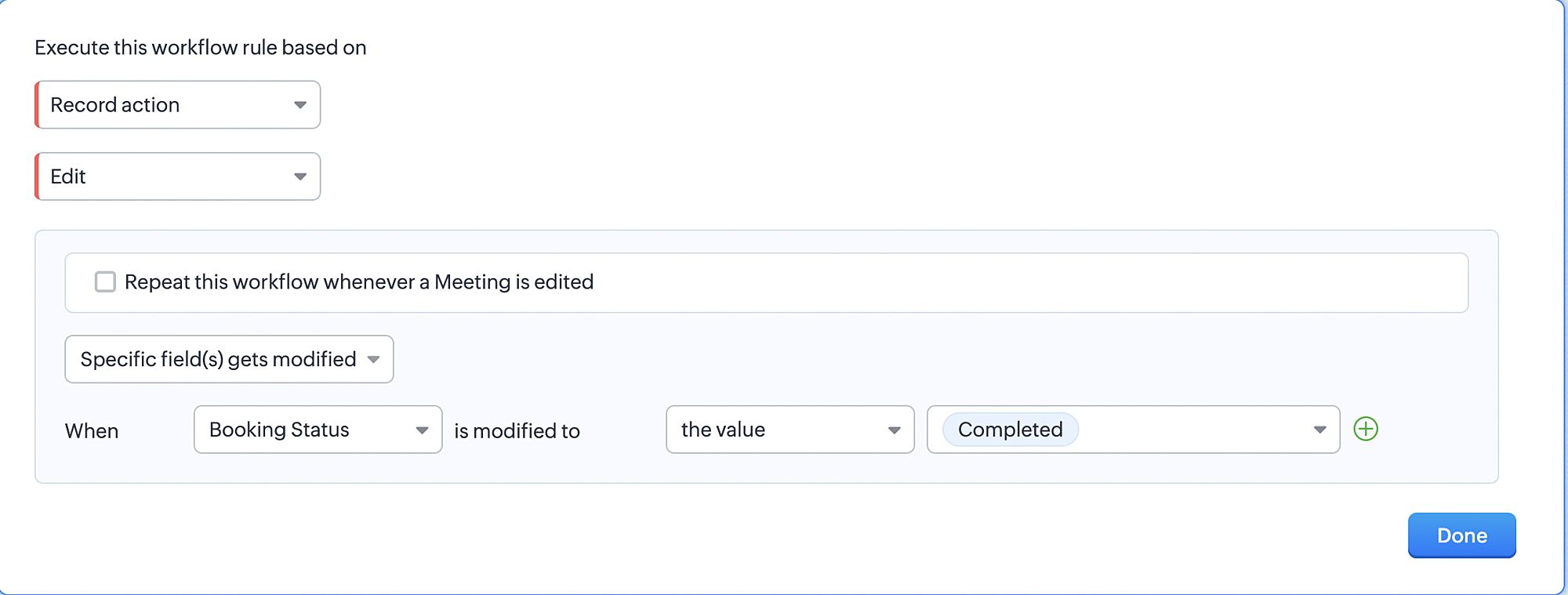
Part 8: Specifying the rule trigger
If you encounter difficulties while navigating through the steps mentioned below, please refer to Part 2 above, where we have provided step-by-step screenshots for clarification.
1. Record Action > Edit.

2. Enable the Specific field(s) gets modified setting and configure it per the screenshot below.
a. This serves to ensure that the workflow is executed only when the booking status under the Meetings module is
updated to "Completed".
3. Configure condition > All Meetings.
4. Instant Actions > Function > New Function.
5. In the Configure custom function page, select the "completed" function you created from among the functions users
in your organization have created.
Part 9: Argument mapping:
If you encounter difficulties while navigating through the steps mentioned below, please refer to Part 3 above, where we have provided step-by-step screenshots for clarification.
1. Press # to choose an argument value.
2. Select Meetings under Module and configure the field as "BookingId".
3. Click Save and Associate button.
Reference:
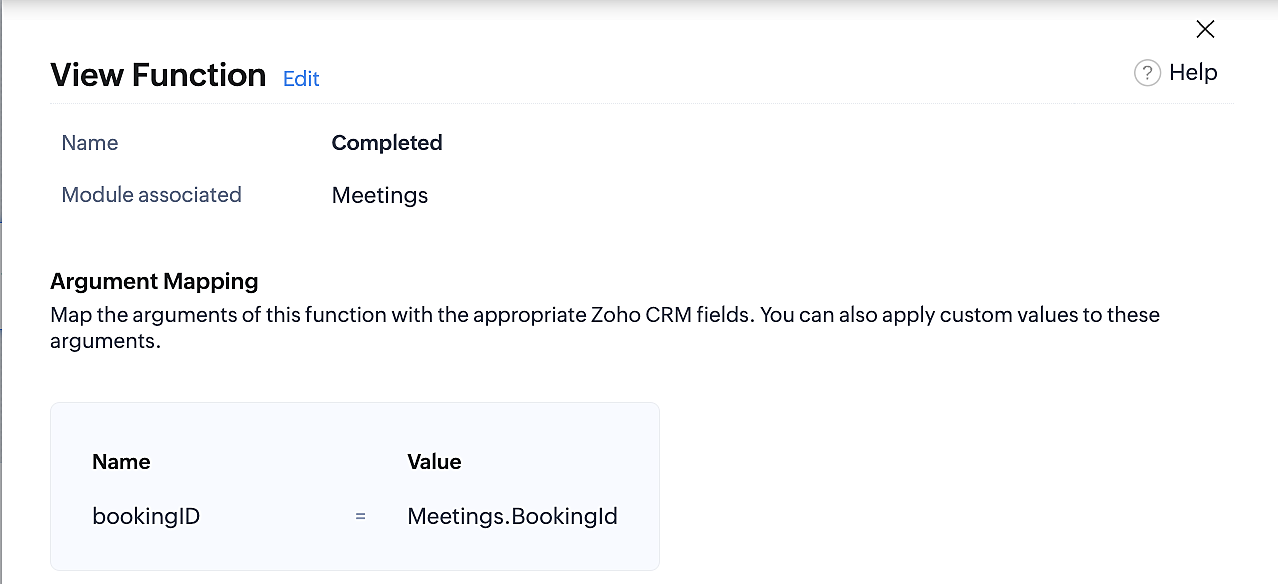
Below is the final flow of the "Completed" booking status workflow:
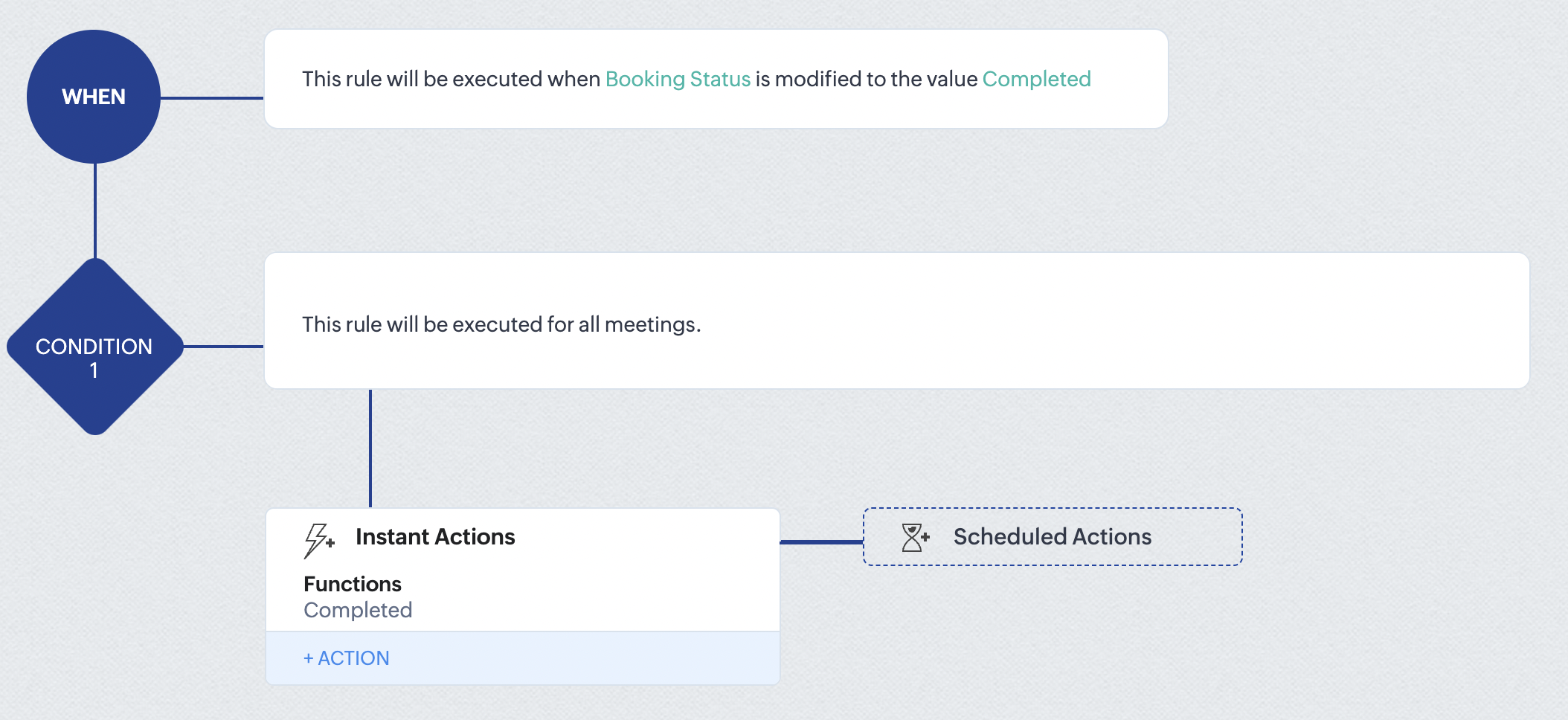
At the end of part 9, we will have created a workflow that is automatically executed when the booking status field within the Zoho CRM Meetings module is updated to "Completed." As a result, the associated bookings for that meeting will also be marked as "Completed" in Zoho Bookings.
Conclusion
We've reached the end of this community post. With the integration mentioned above in place, you'll be able to book, cancel, and update the status of appointments in Zoho Bookings directly from your Zoho CRM application. This will help you effectively manage your appointments in one place. As mentioned above, we've covered the rescheduling action in a separate post, which you can access by clicking on the following link: Reschedule Action
Furthermore, we've outlined a method for automating appointment statuses in detail. You can use this document as a reference to explore the various possibilities that suit your needs.
If you have any questions or need assistance with your configuration, please email us at hello@zohobookings.com or support@zohobookings.com.
Topic Participants
Kaushik S
bruce
Ishwarya SG
PrismaNote Support
Sticky Posts
Enhancement to ICR’s field prompting: Preferred data extraction using advanced field prompting
Dear Customers, We hope you’re well A quick background Intelligent Character Recognition (ICR) comes as part of Zia’s optical recognition capability called Zia Vision. When we introduced it last April, the data extraction was training-based and was applicableGood news! Calendar in Zoho CRM gets a face lift
Dear Customers, We are delighted to unveil the revamped calendar UI in Zoho CRM. With a complete visual overhaul aligned with CRM for Everyone, the calendar now offers a more intuitive and flexible scheduling experience. What’s new? Distinguish activitiesAccessibility in Zoho CRM: Not just a feature—a way to empower
For instructions on setting up these controls, please check this help document: Configuring accessibility controls. Hello everyone, Today (December 3, 2024), on the International Day of Persons with Disabilities, we begin our journey towards a CRM thatScaling the customer journey: What's new in CommandCenter
Dear Customers, The last time we connected about CommandCenter, it was about the tool's new controls and revamped UI. Personally, the overhaul of the UI from the last update, still excites me. Today, we're here with news about its scalability and addedZoho CRM's sales trend and sales follow-up trend dashboards are now customizable
Dear Customers, We're here with good news! Sales trend and sales follow-up trend are two system-defined dashboards that help you understand trends and anomalies in your sales outreach and conversion efforts. They use Zia's intelligence to identify patterns
Recent Topics
kanban view for client portal
Are kanban views an option for client portals? Access to Kanban views in the client portals would solve some mobile-compliant issues I have with the UI. Kanban functions very nicely on mobile and would be a super asset for my clients and vendors as they【Zoho CRM】サンドボックスのアップデート:メール送信トレイ機能の追加
ユーザーの皆さま、こんにちは。コミュニティチームの藤澤です。 CRMのサンドボックス(テスト環境)にメールの送信トレイ機能が追加されました。 本番環境でメール配信の前に、サンドボックスで送信される全てのメールを確認・検証できます。ワークフロー、承認プロセス、一括送信など、あらゆる送信パターンに対応しています。 「メールの送信トレイ」機能を使うと、顧客へ送信する前にメールの内容を事前確認できます。項目の欠落や書式の乱れなど、あらゆる問題をサンドボックス内でチェックできるため、本番環境でのトラブルを未然に防ぐことに役立ちます。Force mandatory entry on one of two fields on Contacts
We are finding our users aren't always entering a phone number or email address of a contact. We would like to make these fields mandatory but realize they won't always have both pieces of information, but should at least have one. Is there a way to makeHow can I prevent having recepients from being added as contacts in Zoho Desk?
How can I prevent having recepients from being automatically added as contacts in Zoho Desk? There's no option to disable this.Agent Concern
would like to ask the difference between an agent and a light agent. can a light agent close a ticket. thank you.Train Zoho Answer Bot Based on Customer
Hi all, Is it currently possible to mark Help Centre articles to a specific customer, and restrict the answer bot to only use relevant information if it is either marked as "General", or tagged for the specific customer in question? We currently haveNon-depreciating fixed asset
Hi! There are non-depreciable fixed assets (e.g. land). It would be very useful to be able to create a new type of fixed asset (within the fixed assets module) with a ‘No depreciation’ depreciation method. There is always the option of recording landErrorcode 554
Hello, I am unble to send any single email during the whole time due to the Zoho IP 136.143.188.16 being blocked by SpamCop. Please can somebody help me?Spamcop
Have been trying to email several of our clients and many of our emails keep getting bounced back with an error that states: ERROR CODE :550 - "JunkMail rejected - sender4-op-o16.zoho.com [136.143.188.16]:17694 is in an RBL: Blocked - see spamcop.net/bl.shtml?136.143.188.16"Will Zoho Search work with Zoho Learn
Currently, Zoho Search only works with Zoho Wiki which will be phased out. Moving forward, will Zoho Search be enabled for Zoho Learn? Thanks.How to use filters on all products page? Or even a category page?
Hello, I am trying to create some filters so users can use filters to find products they are looking for. So what i am trying is to create a filter according to price lets say. So if i define it this way i am expecting to see this filter option on categoryaudio and video comments in tasks in zoho projects
Hi, is it planned to have the ability to post audio and video comments? the whatsapp wechat format of communicating is a reality... tools like zoho project would facilitate a lot teamwork by facilitating the way in which we can give feedback in audio and video rather than only text. thx!Zoho Projects app update: Voice notes for Tasks and Bugs module
Hello everyone! In the latest version(v3.9.37) of the Zoho Projects Android app update, we have introduced voice notes for the Tasks and Bugs module. The voice notes can be added as an attachment or can be transcribed into text. Recording and attachingBoas práticas de desenvolvimento em Deluge
O Deluge (Data Enriched Language for the Universal Grid Environment) é a linguagem de script utilizada em diversas aplicações do ecossistema Zoho, como Zoho Creator, Zoho CRM, Zoho Books e Zoho Flow. Ela foi projetada para permitir automações rápidasSeeking a WhatsApp Business App (not API) Zoho CRM integration
We have a business need to integrated WhatsApp Business App (not API) into Zoho CRM to centrally manage communications between our Sales team and Leads & Contact. Is there a reputable integration available for this scenario of ours? Core features we wouldZoho Sign 2025–2026: What's new and what's next
Hello! Every year at Zoho Sign, we work hard to make document signing and agreement execution easy for all users. This year we sat down with our head of product, Mr. Subramanian Thayumanasamy, to discuss what we delivered in 2025 and our goals for 2026.Creditos API
Queria saber se alguém poderia me ajudar a resolver um problema na compra e utilização de créditos de mensagens API do WhatsApp. ja tentei todos o tutoriais porem não consegui realizar a compre, pois ao clicar no botão de comprar créditos aparece a mensagemIntergrating multi location Square account with Zoho Books
Hi, I have one Square account but has multiple locations. I would like to integrate that account and show aggregated sales in zoho books. How can I do that? thanks.Emails being blocked / spamcop
Hello, I am unablr to send any single email during the whole time due to the Zoho IP 136.143.188.16 being blocked by SpamCop.net Please help on this.Zoho IP blocked by SpamCop 136.143.188.16
Hello, I am unble to send any single email during the whole time due to the Zoho IP 136.143.188.16 being blocjed by SpamCop.net Please help on this.Is there a way to configure dark mode for Campaigns emails that go out to customers?
I've found a lot of information on how to configure dark mode for my (The user) personal Zoho workspace and email, but is there any way to edit dark mode settings on emails that we send out to customers via campaigns? We sent out a test email the otherCan I hide empty Contact fields from view?
Some contacts have a lot of empty fields, others are mostly filled. Is there a way I can hide/show empty fields without changing the actual Layout? I would like to de-clutter my view, and also be able to add information later as I am able. I would beAuto-publish job openings on my Zoho Recruit Careers Website
I have developed a script using the Zoho Recruit API that successfully inserts new jobOpening records to my Zoho Recruit website, but my goal is to auto-publish to the Careers Website. The jobOpening field data shows two possible candidates to make thisCredit Card Terminal for Zoho Books
Hello, Instead of punching the credit card number manually for customer payment, do you have a third-party hardware credit card reader that works with Braintree? Thank YouHow do you print out the invoices comments
I have some invoices where i need to print out the comments that show when reminders and etc were sent how do we print those out in Zoho Books.Feature Request: Enable Custom PDF Layout Editor for All Modules (Including Package Slips)
Hello Zoho Community and Product Team, I am writing to share a suggestion that would significantly enhance the customization capabilities within Zoho Books. We all appreciate the power of the Custom PDF Layouts (the "New" template engine) that allowsNeed advice for product/item search functionality when adding invoices.
My client uses "Catalog or Vendor" name and Product code to search for his items. But Zoho only allow to search by product name and SKU when adding items to Invoices/Estimates. Clients product codes are not unique as they may overlap from different catalogs/vendors.How to dynamically pass IDs from one API response to a second API call in Zoho DataPrep?
Hi Team, I am setting up a global consolidated reporting pipeline in Zoho Analytics (India) using Zoho DataPrep as the ETL engine. I am pulling data from multiple Zoho Books Data Centers (US, Singapore, India) thats why i used the URL Source (OAuth 2.0)Feature Request: "Send Invitation" Toggle for Events
I am writing to request a critical "Quality of Life" update for the Activities module. Currently, adding people to the Participants field in an Event triggers an automatic email invitation/acceptance tracking with no way to opt-out. For general eventsAccount Review Pending - Daily Limit 100
Hi ZeptoMail Team, I'm writing to request a manual review of my account. I am currently stuck on the 100-email daily limit and cannot purchase credits. Status: My domain is already verified (DKIM/CNAME). Issue: The "Customer Validation" option is no longerAutomation Series: Move Tasks to a different Task List on Status Change
In Zoho Projects, you can automatically move a task from one task list to another when its status is updated. This keeps your tasks organised and ensures better visibility while reducing manual work. For instance, during a product launch, the marketingIntroducing Bigin's all new integration with Microsoft Teams
Picture this: You are on call with your team to discuss some important deals that need to be closed soon. While discussing each deal, your team has to switch back and forth between your Teams account and Bigin account to refer to details about the deal.Scaling the customer journey: What's new in CommandCenter
Dear Customers, The last time we connected about CommandCenter, it was about the tool's new controls and revamped UI. Personally, the overhaul of the UI from the last update, still excites me. Today, we're here with news about its scalability and addedAdjusting Physical Inventory
Not getting very far with support on this one, they say they are going to fix it but nothings happened since November. Please give this a thumbs up if you would like to see this feature or comment if you have some insight. Use Case: Inventory set to beDynamic Remaining Quantity in Lookup During Allocation
Hi everyone, From what I understand in Zoho Creator, lookup fields only display the stored value from the source record and do not dynamically update while a form is being filled. Because of this, showing a real-time updated remaining quantity insideIs it possible to use HTML formatting in SMS messages sent from Zoho?
Hi everyone, I have a question regarding sending SMS from Zoho When we send emails from Zoho, we can include HTML code to format the message (like adding links, styling, etc.). Is it possible to do something similar when sending SMS messages through ZohoImportant update: Migrate to the new SalesIQ live chat widget before April 14, 2026
The old SalesIQ live chat widget will be deprecated on April 14, 2026. This is a final reminder to migrate to the new SalesIQ live chat widget before this date. After April 14, 2026, the old widget will no longer be maintained, which can lead to slowerIf your IM chats aren’t auto-assigning, here’s what to check
Hey everyone! We’ve been seeing quite a few questions around Instant Messaging (IM) Chat Routing in Zoho Desk, especially around how it actually behaves in real time. So I thought I’d share a practical breakdown of what’s happening behind the scenes.connect zoho creator with google drive
Hello everyone, I need to connect to a folder drive. The idea, is that google drive loads a text document with some data, I must read that text document to be able to autofill a form that I have in zoho creator with that data. I also attach PDFs and placeUploaded files are not included when using "Include user submitted data" in Email Notification
In Send Email notification workflow in Zoho Creator, there is an option called "Include user submitted data" which allows the email to contain all the form submission details. However, when this option is enabled, files or images uploaded through FileNext Page