Kaizen #205 - Answering Your Questions | Managing Picklists and Enabling History Tracking via Zoho CRM APIs
Hello everyone!
Welcome back to another post in our Kaizen series.
In this post, we will look at how you can manage picklist fields in Zoho CRM using APIs. This topic was raised as feedback to Kaizen #200, so we are taking it up here with more details.

In this post, we will cover the following:
- What is a picklist field in Zoho CRM?
- Picklist vs Multi-select Picklist
- Working with picklist fields via APIs
- Creating a picklist field using the Create Custom Field Metadata API
- Updating a picklist field using the Update Custom Field Metadata API
- Assigning picklist values when creating records using the Insert Records API
- Updating picklist values in existing records using the Update Records API
- History tracking for picklists
- What is history tracking for picklists in Zoho CRM?
- Use case
- Enabling history tracking for a picklist using the Create Custom Fields API
What is a picklist field in Zoho CRM?
A Picklist field is a drop-down field in Zoho CRM that contains a predefined list of values. While creating or updating a record, you can select one value from this list instead of entering it manually. This helps you avoid typing errors.
Example :
A Region field with values East, West, North, and South.
If a lead is from the East, the user simply selects East from the picklist instead of typing it manually.
Picklist vs Multi-select Picklist
Picklist | Multi-select Picklist |
Users can select only one value from the list. | Users can select multiple values at once. |
A standard Region picklist works when a record belongs to only one region. Example : East | A Multi-select Region picklist works when a record spans multiple regions. Example : East, North |
Global picklist / Global set : User can create a picklist in common and associate the created picklist across the modules to maintain accuracy. Refer to Kaizen #161: Global Sets using Zoho CRM APIs for more details.
Working with picklist fields via APIs
Creating a picklist field using the Create Custom Field API
You can create a new Picklist field in a module by calling the Create Custom Field Metadata API. For example, you can create a picklist field named Region with the values: East, West, North, South.
Request URL : {{api-domain}}/crm/v8/settings/fields?module=Leads
Request Method : POST
Sample Input
When creating a picklist field, set its data type as picklist and provide the list of options, each with a mandatory display_value. You can also configure additional properties such as actual_value, lexical sorting, and color coding.
{ "fields": [ { "field_label": "Select Region", "data_type": "picklist", // Specify the data type as picklist "tooltip": { "name": "info_icon", "value": "Select your region here" }, "profiles": [ { "id": "5725767000000026011", "permission_type": "read_write" } ], "pick_list_values": [ { "display_value": "East", //The unique display value for the picklist, which will be displayed in the CRM UI. Use the display_value in API requests during create, update, and upsert operations. "actual_value": "IN_East" //The unique reference value associated with the particular option. }, { "display_value": "West", "actual_value": "IN_West" }, { "display_value": "North", "actual_value": "IN_North" }, { "display_value": "South", "actual_value": "IN_South" } ], "pick_list_values_sorted_lexically": true, //Sorts options alphabetically. Default value is false. "enable_colour_code": true //Allows color coding for picklist options. Default value is false. } ] } |
Note : To create a multi-select picklist field, set the data_type key to multiselectpicklist in the request body ("data_type": "multiselectpicklist").
Sample Response
{ "fields": [ { "code": "SUCCESS", "details": { "id": "5725767000007613005" }, "message": "field created", "status": "success" } ] } |
Updating a picklist field using the Update Custom Field API
The PATCH - Field Metadata API lets you modify an existing Picklist field. Use the Get Fields Metadata API to get your picklist field ID.
You can:
- Add new options
- Update the picklist
- Remove existing options using Update Custom Layout API
Here is a sample request that updates the Select Region dropdown field in the Leads module.
Request URL : {{api-domain}}/crm/v8/settings/fields/5725767000007613005?module=Leads
Request Method : PATCH
Adding a new option to the existing picklist field
Sample Input
{ "fields": [ { "pick_list_values": [ { "display_value": "Central", //adding a new option to the existing picklist field "actual_value": "IN_Central" } ], } ] } |
Updating picklist
{ "fields": [ { "profiles": [ { "id": "5725767000000026011", "permission_type": "read_only" //updating the permission_type } ], "pick_list_values": [ { "display_value": "South Region", //updating the display field's value "id": "5725767000007613010" //unique ID of the option } ], "enable_colour_code": false //disabling color code for the options } ] } |
Note : Use the actual_value or unique ID of a picklist option to update its display value. Use the Get Fields Metadata API or Get Layouts Metadata API to get the details.
Removing existing options using Update Custom Layout API
To remove picklist values, keep only the required options in your input. Any options not included in the request will automatically move to the unused section.
First, fetch the required layout, section, field, and option IDs using the Get Layouts Metadata API. Then, in your request body, specify only the picklist values you want to retain.
Request URL : {{api-domain}}/crm/v8/settings/layouts/5725767000000091055?module=Leads
Request Method : PATCH
Sample Input
{ "layouts": [ { "id": "5725767000000091055", //layout id "sections": [ { "id": "5725767000000209001", //section id "fields": [ { "id": "5725767000007613005", //field id "pick_list_values": [ { "display_value": "Central", "id": "5725767000007626001" }, { "display_value": "East", "id": "5725767000007613004" } ] } ] } ] } ] } |
Here, Central and East regions remain as active picklist options, and West, North, and South regions are moved to the unused section.
Updated response
Use the Get Fields Metadata API to check the updated response. The Central and East are still active options (type: used), and North, South, and West are inactive options (type: unused)
{ "fields": [ . . . { "field_label": "Select Region", "id": "5725767000007613005", "api_name": "Select_Region", "pick_list_values": [ { "display_value": "-None-", "sequence_number": 1, "reference_value": "-None-", "colour_code": null, "actual_value": "-None-", "id": "5725767000007613013", "type": "used" //default option }, { "display_value": "Central", "sequence_number": 6, "reference_value": "Central", "colour_code": null, "actual_value": "IN_Central", "id": "5725767000007626001", "type": "used" }, { "display_value": "East", "sequence_number": 2, "reference_value": "East", "colour_code": null, "actual_value": "IN_East", "id": "5725767000007613004", "type": "used" }, { "display_value": "North", "sequence_number": 4, "reference_value": "North", "colour_code": null, "actual_value": "IN_North", "id": "5725767000007613008", "type": "unused" }, { "display_value": "South", "sequence_number": 5, "reference_value": "South", "colour_code": null, "actual_value": "IN_South", "id": "5725767000007613010", "type": "unused" }, { "display_value": "West", "sequence_number": 3, "reference_value": "West", "colour_code": null, "actual_value": "IN_West", "id": "5725767000007613006", "type": "unused" } ], "data_type": "picklist" } ] } |
Assigning picklist values using the Insert Records API
When you insert a record, you can directly pass the picklist option’s display value (not the ID) in the request body.
Request URL : {api-domain}/crm/v8/{module_api_name}
Request Method : POST
Sample Input
{ "data": [ { "Company": "Zylker", "Last_Name": "David", "Select_Region": "Central" // Picklist value to assign } ] } |
Note:
- When creating, updating, or upserting records,
- You can either pass an existing picklist value or add a new one, through the API. Please note that the new value will only be stored in that record, and will not be added to the picklist field’s metadata.
- In the UI, you can only select from the available dropdown options.
- Always use the display_value of the picklist option, not the picklist option’s ID.
- You can also assign the default option (-None-). In this case, the picklist field’s value will be stored as null ("Select_Region": null)
Sample Response
{ "data": [ { "code": "SUCCESS", "details": { "Modified_Time": "2025-08-23T04:51:39-07:00", "Modified_By": { "name": "Patricia Boyle", "id": "5725767000000411001" }, "Created_Time": "2025-08-23T04:51:39-07:00", "id": "5725767000007623017", "Created_By": { "name": "Patricia Boyle", "id": "5725767000000411001" } }, "message": "record added", "status": "success" } ] } |
Updating picklist values in existing records using the Update Records API
When updating, you also use the picklist display value in the field.
Request URL : {api-domain}/crm/v8/Leads/5725767000007628002
Request Method : PUT
Sample Input
{ "data": [ { "Select_Region": "West" // New picklist value } ] } |
This will replace the existing picklist value with West.
History tracking for picklists
What is history tracking for picklists in Zoho CRM?
You can enable history tracking for a picklist field using the Create Custom Field API. Once enabled, Zoho CRM automatically creates a related list for the tracked picklist and a separate module.
Every time the picklist value changes, Zoho CRM creates a new entry in this related list. Each entry shows the old value, the new value, who made the change, and when it was made, and how long the record stayed in the previous value before moving to the next one.
Use case
Zylker's sales team tracks lead progress through the statuses such as New, Contacted, Qualified, and Converted. The team wants to know how long a lead remains in each status and identify if follow-ups are delayed or leads are not progressing.
You can achieve this by enabling history tracking on the Status picklist. You can also monitor every status change, who made it, and how long the lead stayed in the previous status. This helps the team monitor, identify delays, and improve the follow-up process.
The log stores:
- New Value - updated region in the Moved_To__s key.
- Changed By - user who made the update in the Modified_By key.
- Changed On - date and time when the region was changed in the Last_Activity_Time key.
- Duration - how long the record stayed in the previous value before the change in the Duration_Time and Duration_Days keys.
Enabling history tracking for a picklist using the Create Custom Fields API
Request URL : {{api-domain}}/crm/v8/settings/fields?module=Leads
Request Method : POST
Sample Input
{ "fields": [ { "field_label": "Status", "data_type": "picklist", "pick_list_values": [ { "display_value": "New", "actual_value": "New" }, { "display_value": "Contacted", "actual_value": "Contacted" }, { "display_value": "Qualified", "actual_value": "Qualified" }, { "display_value": "Converted", "actual_value": "Converted" } ], "history_tracking_enabled": true, //(mandatory) Enables history tracking for the picklist "history_tracking": { "related_list_name": "Status History", //Lets you give a custom name to the history related list that CRM creates. "duration_configuration": "time", //Decides how to track the timing of changes: days - History is tracked by days and time - History is tracked by time. Note : Before specifying the time value, enable the duration customization feature in your organization by contacting support@zohocrm.com. "followed_fields": [ // The followed_fields lets you retrieve additional field values whenever the picklist value changes. { "api_name": "Owner" } ] } } ] } |
Sample Response in UI
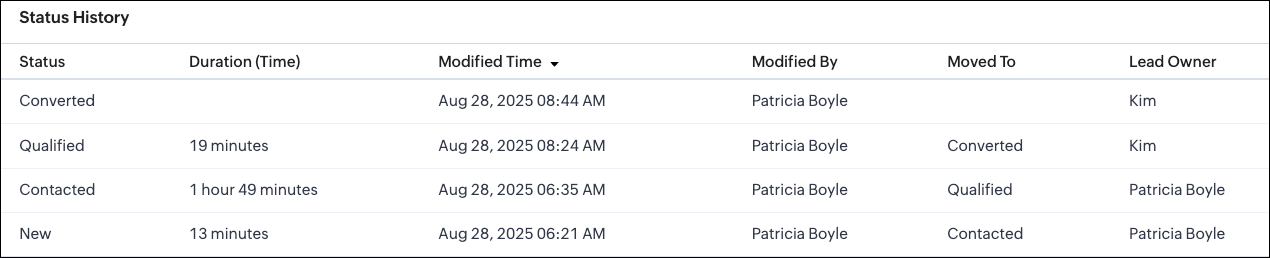
Sample Response via API
Whenever a picklist option changes, the system creates a new record in the related list module. In this example, Status History is the related list module. The sample response below shows how a particular change looks when retrieved using the Get Records API.
Request URL : {{api-domain}}/crm/v8/Status_History/5725767000007739323
Request Method : GET
Sample Response
{ "data": [ { "Status": "Contacted", "$approval": { "delegate": false, "takeover": false, "approve": false, "reject": false, "resubmit": false }, "Modified_Time": "2025-08-28T06:35:15-07:00", "$currency_symbol": "$", "$field_states": null, "$review_process": null, "$editable": true, "Duration_Time": "6568847", //The system stores the duration in milliseconds. "$sharing_permission": "full_access", "Lead_Owner": { "name": "Patricia Boyle", "id": "5725767000000411001" }, "Moved_To__s": "Qualified", "$orchestration": false, "Last_Activity_Time": "2025-08-28T08:24:44-07:00", "Full_Name": { "name": "Zylker", "id": "5725767000007735001" }, "Modified_By": { "name": "Patricia Boyle", "id": "5725767000000411001", }, "$review": null, "$process_flow": false, "$in_merge": false, "id": "5725767000007739350", "$approval_state": "approved", "$pathfinder": false, "$zia_visions": null } ] } |
Note :
- You can select up to 10 fields in total, with a maximum of 5 user fields for all modules except Deals.
- Encrypted fields cannot be specified.
- In the Deals module,
- History tracking is enabled by default for the Stage picklist field.
- You cannot enable history tracking for any other picklist field in the Deals module.
- You can only update the existing Stage picklist field using the Update Custom Field API.
- You can add up to 6 followed fields, with a maximum of 5 user fields.
We hope this post helps you confidently manage picklists and track their history in Zoho CRM. Try it out, and let us know your experience in the comment section or reach out to us at support@zohocrm.com
Stay tuned for more insights in our upcoming Kaizen posts!
Cheers!

Previous Kaizen : Kaizen# 204 - Answering Your Questions - Perform Field Updates before Blueprint transition via Client Script | Kaizen Directory : Home
Related Links :
Topic Participants
Subramanian K
Sticky Posts
Kaizen #198: Using Client Script for Custom Validation in Blueprint
Nearing 200th Kaizen Post – 1 More to the Big Two-Oh-Oh! Do you have any questions, suggestions, or topics you would like us to cover in future posts? Your insights and suggestions help us shape future content and make this series better for everyone.Kaizen #226: Using ZRC in Client Script
Hello everyone! Welcome to another week of Kaizen. In today's post, lets see what is ZRC (Zoho Request Client) and how we can use ZRC methods in Client Script to get inputs from a Salesperson and update the Lead status with a single button click. In thisKaizen #222 - Client Script Support for Notes Related List
Hello everyone! Welcome to another week of Kaizen. The final Kaizen post of the year 2025 is here! With the new Client Script support for the Notes Related List, you can validate, enrich, and manage notes across modules. In this post, we’ll explore howKaizen #217 - Actions APIs : Tasks
Welcome to another week of Kaizen! In last week's post we discussed Email Notifications APIs which act as the link between your Workflow automations and you. We have discussed how Zylker Cloud Services uses Email Notifications API in their custom dashboard.Kaizen #216 - Actions APIs : Email Notifications
Welcome to another week of Kaizen! For the last three weeks, we have been discussing Zylker's workflows. We successfully updated a dormant workflow, built a new one from the ground up and more. But our work is not finished—these automated processes are
Recent Topics
Need code format to specify default values
Can someone please direct me to the code syntax or the proper translation per the instructions circled below. These instructions don't seem correct.AI Interview Insights: Turn Recorded Interviews into Quick Transcripts & Summaries
Evaluating interviews shouldn’t require replaying long recordings or taking manual notes. With AI Interview Insights, you can now review complete transcripts and AI-generated summaries of your One-way (Recorded) interviews right inside Zoho Recruit. ThisRecord payment: Payment Mode vs. Deposit To and how to "connect" them!?
How do we set up that when we choose: "Payment Mode"= Cash, then "Deposit to" is automatically set to Petty Cash, and if we choose "Payment Mode"= Check, then "Deposit to" is automatically set to Undeposited Checks, and if we choose "Payment Mode"=Grouping Undeposited Funds to Move to other accounts
In the bank option it would be nice to check what transactions in undeposited funds I want to move to other accounts. Then while checking this it can accumulate totals and created whats essentially a deposit slip. Once the transaction is moved it shouldDepositing funds to account
Hello, I have been using Quickbooks for many years but am considering moving to Zoho Books so I am currently running through various workflows and am working on the Invoicing aspect. In QB, the process is to create an invoice, receive payment and thenFacing email delivery issues? Verify your domain's DNS records
Have you ever wondered why your legitimate emails are landing in the recipient’s spam folder? Or been surprised to see emails sent from your registered domain getting rejected by recipient email servers? Why does this happen? In most cases, this happensOrder of Departments in Help Desk
In the end user portal, , the departments are sorted by the date of creation of the department (or perhaps their id). Is there a way to choose the display order of the departments or at least to be able to sort them alphabetically?COGS - Account showing negetive
I have multiple COGS account and in these all there is one account is negetive so suggest why it is showing negetive value.?Create CRM Deal from Books Quote and Auto Update Deal Stage
I want to set up an automation where, whenever a Quote is created in Zoho Books, a Deal is automatically created in Zoho CRM with the Quote amount, customer details, and some custom fields from Zoho Books. Additionally, when the Sales Order is converted%PaymentLink%
Does not work. Software creates a BAD link. ....and yes payment options are turned on. Link on the invoice pdf once opened will work but this template is a joke.Google Photos
I am hoping that my question already has a fix. I current have Google synced accounts that I want to get away from. One in particular on is Google photos. Is there any software, or 3rd parties that I can join to back my photos up straight to specifically designated file in the ZOHO cloud that's tied to Docs? Please advise... MikeZoho Books Items Categorisation/Grouping/Folder
Is there a way to do items categorisation? a folder structure? Product Type A - Option 1/2/3 Product Type B - Option 1/2/3 Current problem : I have more than 50 items on the list, its hard for team to navigate.Cash payments before invoice date
We have been using zoho books for our hospitality business for some time and have been very happy with the system. However in 2025 an update was pushed through and we are now not able to record payments for invoices before the invoice date. the case scenarioCopy / Duplicate Workflow
I have workflows setup that are very similar to each other. We have a monitoring system watching servers, and all notifications - no matter what client it is about - will come from a noreply@ address which is not very helpful in having it auto assigned to the right account. I have setup a workflow that will change the contact name of the ticket (currently it would say noreply@) to the correct customer which is based on the subject line, as that mentions which server the alert it is about. I needTransfer between two customers (Peters Rental account to Peters Private account)
we are a Property Management company. Our customers have to accounts (registered as two customers - Peter Rental and Peter Private On the rental account all income and costs fron rental activities are noted. On the private account all private are notedAutomation#18: Automatically Fetch Values from Contacts to the Tickets Module
Hello Everyone, Welcome to this week's edition, where you can seamlessly sync fields from the Contacts to the Tickets module. For efficient business operations, it's crucial to have details mapped across different modules. Zylker Secure offers antivirusCharge multiple invoices
We use auto-charge/recurring invoicing for 100's of clients. If we create a single manual invoice we can charge it to the credit card for these clients with the CC added to their recurring invoices. If a client has multiple outstanding invoices, is there a way to make one charge for all of the invoices instead of a separate charge to the cc for each invoice?Handling/tracking escalation management in Zoho
Hi all, I am working on finding a tool to register and track our escalation management process. Specifically, this is about client escalations, typically related to project delivery issues. The idea is that we could have some sort of form with core questionsGlobal Choice List share ownership
I have created several forms that use one or more Global Choice Lists. These lists have been published to Org. I would like to allow one or more admins to edit the choices in these lists. Any help appreciated. GeoffSetting up property management in Zoho Books
Hi, I run a property management business that manages property complexes. There are multiple owners, some owning more than one property on the same complex. My role is to manage the fees they pay for maintenance of common areas, such as the swimming poolHow to prevent users from switching price lists in an order?
Hi, I have Zoho Finance integrated with Zoho CRM. My team will be placing orders through the CRM using the Finance module. When creating a new customer I will assign it a price list, I don't want the sales rep to switch to a different Price List, otherUnable to Change Display Name for my outlook mail ID
Hello, I recently added my personal outlook mail to Zohomail (in the web interface) using POP3 options. I tried to change the display name of the outlook account, but it changes for a brief moment and reverts back to the old name. Kindly help me withMollie Connect in Zoho Books
Have noticed that Zoho Books is missing the most popular payment provider in Europe: Mollie. Knowing that Mollie has a solid Java SDK, why is this not yet implemented in Zoho Books for European customers? More info: https://docs.mollie.com/oauth/ovUnable to change Lookup field from Multi Select to Single Select
I am trying to change a Lookup field in my Zoho Creator form from Multi Select to Single Select, but I am unable to find any option to do this.Simple Callback Notifications Needed
My team are terrible at remembering their CRM callbacks, often due to how long in the future they are set for. Is there a way i can set an e-mail notification for when a callback is due? For example we set it for 9am one day and five minutes before theyPersonal Data (RODO), Cookies / Trackers - ePrivacy
I have noticed several issues that should be addressed on the customer support page. Zoho Desk provides the support portal, but it currently lacks the following options: A GDPR and personal data processing consent checkbox before logging in, located inHow to set a multi-lookup field as mandatory?
Allow Multiple Scheduled Appointments with Zoho Support
Dear Zoho Team, I hope you're doing well. First, thank you for introducing the option to schedule support calls via the Zoho CRM booking link. This has been a fantastic enhancement, eliminating the need for back-and-forth coordination when schedulingAudit Log for Zoho One Admin Panel
Dear Zoho One Team, We would like to request the addition of an Audit Log feature in the Zoho One Admin Panel. This log should provide visibility into any changes made within the Zoho One admin panel and directory, including but not limited to: Adding,Bug: OAuth 2.0 State Parameter fails with Pipe Delimiters (RFC 6749 Non-Compliance)
I've discovered a bug in how Zoho's API Console handles the OAuth 2.0 authorization flow when the state parameter contains pipe characters (|), and I'm hoping the Zoho team can address this in a future update. The Issue Zoho's OAuth 2.0 implementationCustom Function to increment a value by one
Hi, I'm trying to find a solution to set up a counter on CRM records that tracks how many times certain actions have taken place. As a specific example: We have a field on Deals called "Times Close Updated". This starts at 0 on record creation. I'd likeAccess token generate from the refresh token not working for API
Dear Sir/Madam, When I use my refresh token to obtain new access_token, that token return INVALID_TOKEN when the same API is called. I made sure that my api site is correct and match the auth web site. However the original access_token work fine.why does my campaign move back to draft?
Every time I try to send my email campaign, it reverts back to Draft status.. this has happened three times in a row..how do i find out what the problem is? ThanksService and Parts Line Item Limitations
Hi FSM Team, We work with clients who deliver large-scale field service projects. In many cases, a single work order can contain 200+ service and parts line items. Currently, Zoho FSM limits work orders to 30 service and parts line items. While this works【Zoho CRM】やりとりの要約機能リリースのお知らせ
ユーザーの皆さま、こんにちは。コミュニティチームの藤澤です。 今回は「Zoho CRM アップデート情報」の中から、新機能のやりとり要約機能をご紹介します。 Zoho CRMのやりとりの要約は、Ziaが生成する機能で、データに関連付けられた最近のやりとりを簡潔にまとめて提供します。 メール、通話、ミーティング、メモなどを1つの明確な要約にまとめ、重要なポイント、過去の話し合いの要点、結果、次のステップを表示することで、日常的な課題に対処します。 Ziaの強みは、単なる要約にとどまらず、内容の解釈も行える点です。やりとりの要約では、顧客との会話に潜む遅延、フォローアップ漏れ、約束、期限、感情、意図を特定します。Recent post analytics not very useful
Hi, I'm enjoying some aspects of the Zoho Social. like being able to schedule posts to multiple channels. However, the recent posts analytics is disappointing. For example, I put up a reel on Instagram and Facebook yesterday. Instagram insights showsWhat happens to the files created by user, whose account is deleted.
Hello, I created a folder in the My folders names "Quote" I shared the same with my colleague. She created some files and folders in that folder over the period of 1 and half year. Now she left company, and I deleted her account from Zoho. What happensInternal Error When Accessing Team Inbox.
All our users are seeing this error in teaminbox. Because its a critical tool kindly resolve this issue ASAP.Sharing URLs and direct access
Hello, I am storing my team's email signature images on Workdrive. I am creating a public image download share and adding “?directDownload=true” so that the image can be accessed without the Workdrive interface. A few questions: 1) Can we generate friendlyZoho Mail Android app update: Calendar enhancements
Hello everyone! In the most recent version of the Zoho Mail Android app update, we have introduced various new enhancements for the calendar module. Let's explore what's new. Drag and drop events to update the date and time We have enhanced the calendarNext Page