Kaizen #205 - Answering Your Questions | Managing Picklists and Enabling History Tracking via Zoho CRM APIs
Hello everyone!
Welcome back to another post in our Kaizen series.
In this post, we will look at how you can manage picklist fields in Zoho CRM using APIs. This topic was raised as feedback to Kaizen #200, so we are taking it up here with more details.

In this post, we will cover the following:
- What is a picklist field in Zoho CRM?
- Picklist vs Multi-select Picklist
- Working with picklist fields via APIs
- Creating a picklist field using the Create Custom Field Metadata API
- Updating a picklist field using the Update Custom Field Metadata API
- Assigning picklist values when creating records using the Insert Records API
- Updating picklist values in existing records using the Update Records API
- History tracking for picklists
- What is history tracking for picklists in Zoho CRM?
- Use case
- Enabling history tracking for a picklist using the Create Custom Fields API
What is a picklist field in Zoho CRM?
A Picklist field is a drop-down field in Zoho CRM that contains a predefined list of values. While creating or updating a record, you can select one value from this list instead of entering it manually. This helps you avoid typing errors.
Example :
A Region field with values East, West, North, and South.
If a lead is from the East, the user simply selects East from the picklist instead of typing it manually.
Picklist vs Multi-select Picklist
Picklist | Multi-select Picklist |
Users can select only one value from the list. | Users can select multiple values at once. |
A standard Region picklist works when a record belongs to only one region. Example : East | A Multi-select Region picklist works when a record spans multiple regions. Example : East, North |
Global picklist / Global set : User can create a picklist in common and associate the created picklist across the modules to maintain accuracy. Refer to Kaizen #161: Global Sets using Zoho CRM APIs for more details.
Working with picklist fields via APIs
Creating a picklist field using the Create Custom Field API
You can create a new Picklist field in a module by calling the Create Custom Field Metadata API. For example, you can create a picklist field named Region with the values: East, West, North, South.
Request URL : {{api-domain}}/crm/v8/settings/fields?module=Leads
Request Method : POST
Sample Input
When creating a picklist field, set its data type as picklist and provide the list of options, each with a mandatory display_value. You can also configure additional properties such as actual_value, lexical sorting, and color coding.
{ "fields": [ { "field_label": "Select Region", "data_type": "picklist", // Specify the data type as picklist "tooltip": { "name": "info_icon", "value": "Select your region here" }, "profiles": [ { "id": "5725767000000026011", "permission_type": "read_write" } ], "pick_list_values": [ { "display_value": "East", //The unique display value for the picklist, which will be displayed in the CRM UI. Use the display_value in API requests during create, update, and upsert operations. "actual_value": "IN_East" //The unique reference value associated with the particular option. }, { "display_value": "West", "actual_value": "IN_West" }, { "display_value": "North", "actual_value": "IN_North" }, { "display_value": "South", "actual_value": "IN_South" } ], "pick_list_values_sorted_lexically": true, //Sorts options alphabetically. Default value is false. "enable_colour_code": true //Allows color coding for picklist options. Default value is false. } ] } |
Note : To create a multi-select picklist field, set the data_type key to multiselectpicklist in the request body ("data_type": "multiselectpicklist").
Sample Response
{ "fields": [ { "code": "SUCCESS", "details": { "id": "5725767000007613005" }, "message": "field created", "status": "success" } ] } |
Updating a picklist field using the Update Custom Field API
The PATCH - Field Metadata API lets you modify an existing Picklist field. Use the Get Fields Metadata API to get your picklist field ID.
You can:
- Add new options
- Update the picklist
- Remove existing options using Update Custom Layout API
Here is a sample request that updates the Select Region dropdown field in the Leads module.
Request URL : {{api-domain}}/crm/v8/settings/fields/5725767000007613005?module=Leads
Request Method : PATCH
Adding a new option to the existing picklist field
Sample Input
{ "fields": [ { "pick_list_values": [ { "display_value": "Central", //adding a new option to the existing picklist field "actual_value": "IN_Central" } ], } ] } |
Updating picklist
{ "fields": [ { "profiles": [ { "id": "5725767000000026011", "permission_type": "read_only" //updating the permission_type } ], "pick_list_values": [ { "display_value": "South Region", //updating the display field's value "id": "5725767000007613010" //unique ID of the option } ], "enable_colour_code": false //disabling color code for the options } ] } |
Note : Use the actual_value or unique ID of a picklist option to update its display value. Use the Get Fields Metadata API or Get Layouts Metadata API to get the details.
Removing existing options using Update Custom Layout API
To remove picklist values, keep only the required options in your input. Any options not included in the request will automatically move to the unused section.
First, fetch the required layout, section, field, and option IDs using the Get Layouts Metadata API. Then, in your request body, specify only the picklist values you want to retain.
Request URL : {{api-domain}}/crm/v8/settings/layouts/5725767000000091055?module=Leads
Request Method : PATCH
Sample Input
{ "layouts": [ { "id": "5725767000000091055", //layout id "sections": [ { "id": "5725767000000209001", //section id "fields": [ { "id": "5725767000007613005", //field id "pick_list_values": [ { "display_value": "Central", "id": "5725767000007626001" }, { "display_value": "East", "id": "5725767000007613004" } ] } ] } ] } ] } |
Here, Central and East regions remain as active picklist options, and West, North, and South regions are moved to the unused section.
Updated response
Use the Get Fields Metadata API to check the updated response. The Central and East are still active options (type: used), and North, South, and West are inactive options (type: unused)
{ "fields": [ . . . { "field_label": "Select Region", "id": "5725767000007613005", "api_name": "Select_Region", "pick_list_values": [ { "display_value": "-None-", "sequence_number": 1, "reference_value": "-None-", "colour_code": null, "actual_value": "-None-", "id": "5725767000007613013", "type": "used" //default option }, { "display_value": "Central", "sequence_number": 6, "reference_value": "Central", "colour_code": null, "actual_value": "IN_Central", "id": "5725767000007626001", "type": "used" }, { "display_value": "East", "sequence_number": 2, "reference_value": "East", "colour_code": null, "actual_value": "IN_East", "id": "5725767000007613004", "type": "used" }, { "display_value": "North", "sequence_number": 4, "reference_value": "North", "colour_code": null, "actual_value": "IN_North", "id": "5725767000007613008", "type": "unused" }, { "display_value": "South", "sequence_number": 5, "reference_value": "South", "colour_code": null, "actual_value": "IN_South", "id": "5725767000007613010", "type": "unused" }, { "display_value": "West", "sequence_number": 3, "reference_value": "West", "colour_code": null, "actual_value": "IN_West", "id": "5725767000007613006", "type": "unused" } ], "data_type": "picklist" } ] } |
Assigning picklist values using the Insert Records API
When you insert a record, you can directly pass the picklist option’s display value (not the ID) in the request body.
Request URL : {api-domain}/crm/v8/{module_api_name}
Request Method : POST
Sample Input
{ "data": [ { "Company": "Zylker", "Last_Name": "David", "Select_Region": "Central" // Picklist value to assign } ] } |
Note:
- When creating, updating, or upserting records,
- You can either pass an existing picklist value or add a new one, through the API. Please note that the new value will only be stored in that record, and will not be added to the picklist field’s metadata.
- In the UI, you can only select from the available dropdown options.
- Always use the display_value of the picklist option, not the picklist option’s ID.
- You can also assign the default option (-None-). In this case, the picklist field’s value will be stored as null ("Select_Region": null)
Sample Response
{ "data": [ { "code": "SUCCESS", "details": { "Modified_Time": "2025-08-23T04:51:39-07:00", "Modified_By": { "name": "Patricia Boyle", "id": "5725767000000411001" }, "Created_Time": "2025-08-23T04:51:39-07:00", "id": "5725767000007623017", "Created_By": { "name": "Patricia Boyle", "id": "5725767000000411001" } }, "message": "record added", "status": "success" } ] } |
Updating picklist values in existing records using the Update Records API
When updating, you also use the picklist display value in the field.
Request URL : {api-domain}/crm/v8/Leads/5725767000007628002
Request Method : PUT
Sample Input
{ "data": [ { "Select_Region": "West" // New picklist value } ] } |
This will replace the existing picklist value with West.
History tracking for picklists
What is history tracking for picklists in Zoho CRM?
You can enable history tracking for a picklist field using the Create Custom Field API. Once enabled, Zoho CRM automatically creates a related list for the tracked picklist and a separate module.
Every time the picklist value changes, Zoho CRM creates a new entry in this related list. Each entry shows the old value, the new value, who made the change, and when it was made, and how long the record stayed in the previous value before moving to the next one.
Use case
Zylker's sales team tracks lead progress through the statuses such as New, Contacted, Qualified, and Converted. The team wants to know how long a lead remains in each status and identify if follow-ups are delayed or leads are not progressing.
You can achieve this by enabling history tracking on the Status picklist. You can also monitor every status change, who made it, and how long the lead stayed in the previous status. This helps the team monitor, identify delays, and improve the follow-up process.
The log stores:
- New Value - updated region in the Moved_To__s key.
- Changed By - user who made the update in the Modified_By key.
- Changed On - date and time when the region was changed in the Last_Activity_Time key.
- Duration - how long the record stayed in the previous value before the change in the Duration_Time and Duration_Days keys.
Enabling history tracking for a picklist using the Create Custom Fields API
Request URL : {{api-domain}}/crm/v8/settings/fields?module=Leads
Request Method : POST
Sample Input
{ "fields": [ { "field_label": "Status", "data_type": "picklist", "pick_list_values": [ { "display_value": "New", "actual_value": "New" }, { "display_value": "Contacted", "actual_value": "Contacted" }, { "display_value": "Qualified", "actual_value": "Qualified" }, { "display_value": "Converted", "actual_value": "Converted" } ], "history_tracking_enabled": true, //(mandatory) Enables history tracking for the picklist "history_tracking": { "related_list_name": "Status History", //Lets you give a custom name to the history related list that CRM creates. "duration_configuration": "time", //Decides how to track the timing of changes: days - History is tracked by days and time - History is tracked by time. Note : Before specifying the time value, enable the duration customization feature in your organization by contacting support@zohocrm.com. "followed_fields": [ // The followed_fields lets you retrieve additional field values whenever the picklist value changes. { "api_name": "Owner" } ] } } ] } |
Sample Response in UI
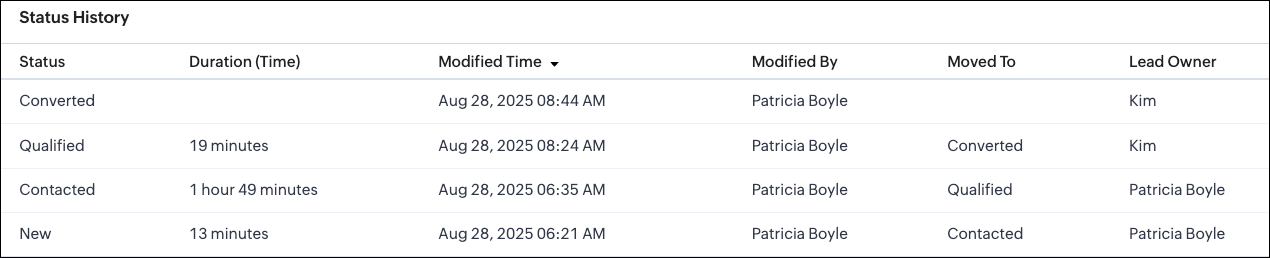
Sample Response via API
Whenever a picklist option changes, the system creates a new record in the related list module. In this example, Status History is the related list module. The sample response below shows how a particular change looks when retrieved using the Get Records API.
Request URL : {{api-domain}}/crm/v8/Status_History/5725767000007739323
Request Method : GET
Sample Response
{ "data": [ { "Status": "Contacted", "$approval": { "delegate": false, "takeover": false, "approve": false, "reject": false, "resubmit": false }, "Modified_Time": "2025-08-28T06:35:15-07:00", "$currency_symbol": "$", "$field_states": null, "$review_process": null, "$editable": true, "Duration_Time": "6568847", //The system stores the duration in milliseconds. "$sharing_permission": "full_access", "Lead_Owner": { "name": "Patricia Boyle", "id": "5725767000000411001" }, "Moved_To__s": "Qualified", "$orchestration": false, "Last_Activity_Time": "2025-08-28T08:24:44-07:00", "Full_Name": { "name": "Zylker", "id": "5725767000007735001" }, "Modified_By": { "name": "Patricia Boyle", "id": "5725767000000411001", }, "$review": null, "$process_flow": false, "$in_merge": false, "id": "5725767000007739350", "$approval_state": "approved", "$pathfinder": false, "$zia_visions": null } ] } |
Note :
- You can select up to 10 fields in total, with a maximum of 5 user fields for all modules except Deals.
- Encrypted fields cannot be specified.
- In the Deals module,
- History tracking is enabled by default for the Stage picklist field.
- You cannot enable history tracking for any other picklist field in the Deals module.
- You can only update the existing Stage picklist field using the Update Custom Field API.
- You can add up to 6 followed fields, with a maximum of 5 user fields.
We hope this post helps you confidently manage picklists and track their history in Zoho CRM. Try it out, and let us know your experience in the comment section or reach out to us at support@zohocrm.com
Stay tuned for more insights in our upcoming Kaizen posts!
Cheers!

Previous Kaizen : Kaizen# 204 - Answering Your Questions - Perform Field Updates before Blueprint transition via Client Script | Kaizen Directory : Home
Related Links :
Topic Participants
Subramanian K
Sticky Posts
Kaizen #198: Using Client Script for Custom Validation in Blueprint
Nearing 200th Kaizen Post – 1 More to the Big Two-Oh-Oh! Do you have any questions, suggestions, or topics you would like us to cover in future posts? Your insights and suggestions help us shape future content and make this series better for everyone.Kaizen #226: Using ZRC in Client Script
Hello everyone! Welcome to another week of Kaizen. In today's post, lets see what is ZRC (Zoho Request Client) and how we can use ZRC methods in Client Script to get inputs from a Salesperson and update the Lead status with a single button click. In thisKaizen #222 - Client Script Support for Notes Related List
Hello everyone! Welcome to another week of Kaizen. The final Kaizen post of the year 2025 is here! With the new Client Script support for the Notes Related List, you can validate, enrich, and manage notes across modules. In this post, we’ll explore howKaizen #217 - Actions APIs : Tasks
Welcome to another week of Kaizen! In last week's post we discussed Email Notifications APIs which act as the link between your Workflow automations and you. We have discussed how Zylker Cloud Services uses Email Notifications API in their custom dashboard.Kaizen #216 - Actions APIs : Email Notifications
Welcome to another week of Kaizen! For the last three weeks, we have been discussing Zylker's workflows. We successfully updated a dormant workflow, built a new one from the ground up and more. But our work is not finished—these automated processes are
Recent Topics
Plans to allow more columns of monitoring, and monitoring not only your own channels?
Are their any plans to allow more columns of monitoring, and monitoring not only your own channels? Here's why - I'm sure I'm not alone in that we sell other brands products, so not only am I interested in my own brand social channels, but also the socialUnwrapping the best practices for the Zoho Desk mobile app: Part 1
In focus: Empowering the field and frontline customer support representatives Imagine having to carry your computer everywhere to respond to customers, handle escalations, and update your process. This series presents you with efficient tips to handledealing with post dated cheques
Hi, can you help me please the best way to deal with this We sell an item of three months duration that is paid for with post dated cheques in monthly stages example - item is sold £3000 Cheque 1 is for £1000 due at time of sale (say Sept) cheque 2 is dated 25th of next month (Oct) cheque 3 is dated 25th of next month +1 (Nov) Now, with invoice number one it's simple - i send a standard invoice as usual But with the other two here's what i want zoho to do next month i want it to send an invoice onIs there a way to sell in a practical method multiple subscriptions of the same product? i.e. domain names
In evaluating Zoho Billing, a hurdle to adopting it is that Zoho Billing does not seem designed to support businesses that sell multiple subscriptions of the same product. In our case, we need to sell and manage several domain names per client. Am I rightPaid Support Plans with Automated Billing
We (like many others, I'm sure) are designing or have paid support plans. Our design involves a given number of support hours in each plan. Here are my questions: 1) Are there any plans to add time-based plans in the Zoho Desk Support Plans feature? TheBug Report: "Name A-Z" sorting fails when Note titles start with an Emoji
Hello, I recently migrated from Evernote (~2600 notes across 23 notebooks). I use emojis at the start of my note titles for visual organization. The Issue: When I set the view to Sort by: Name (A to Z), the sorting logic breaks for any note starting withCopy & Paste not working
I could create and save 10 new documents but when I go to copy and paste content (just text) into them, only 1 of 10 would save the content. It would appear to save the content but when I go back into the documents, they are empty.Currency for Petty Cash
Currencies for Petty Cash should be availableediting/applying online payments
We have customers who pay part or all of an invoice and then cancel their service and want the payment as a credit to future work. It would be ideal if we could make it an excess payment and then void the invoice. I can't make it an excess payment becauseContacts per department
Hello, Is it possible to limit Contacts to a Department? ThanksThis site can’t be reached mail.zoho.com took too long to respond
In my office at any system, we couldnt able to login zoho email. it shows " This site can’t be reached mail.zoho.com took too long to respond". please fix it soon.Can send email from zoho mail, but can't receive any.
Hi, My domain is sattvameditationresort.com. I've updated MX records with those of Zoho. But i can't send any mails to this email id from gmail. I have checked the MX status with MXTOOLS, its showing the correct entry either. The error is as shown below:My domain did not activate
Hi, my domain (apsaindustrial.com.ar) did not activate, and the phone verification message never arrived. Please would you solve this problem? Thanks.Host not found?
Howdy! So i'm trying to add my custom domain for with the mail server. I have 100% control of my DNS and have tried every single option (TXT, CNAME, and even HTML) multiple times, ensuring i did it properly, to no luck. I get the same error message everyAuto End Chats After Customer Inactivity
Hello Everyone, I may be missing something, but is there a way to auto-end chats when a customer has been inactive for an amount of time? I have several operators (we use a shared set of account with schedules for people... that's another story) but atReport on opportunities showing only the last note added.
Hi I need to create a report that shows the most recent note added to each opportunity. This is so management can see what the latest update is according to the assigned salesperson. One workaround is to use the status field but this implies added manual work and mistakes as the salesperson would have to copy the existing status to a note before adding the latest status... otherwise the activity history would be lost. My current workaround is a report on Notes with Opportunities as the related module.Please add Zelle as an online payment option
Hello, I would like to request Zelle be added to the online payment service providers for Zoho Invoice. Considering how ubiquitous Zelle has become as a way to pay people via the major banking institutions, I feel like many freelancers would benefit fromGetting Project Template List using the REST API
I am trying to confirm that I can use the REST API to create a project using a project template. The API documentation indicates this is possible by providing the Template ID, but it is not clear at all how to get a list of available Project TemplatesHow to display the CONTACT ID in the Contact page
Hi, I've seen this conversation below and it is exactly the same question I'm raising now, but unfortunately the last message is not solved https://help.zoho.com/portal/community/topic/show-contact-id-while-editing-contact-form I need to show the ContactId and I don't know how to do this. The last message included in the conversaton shows the way but not it is not completed. "I am sorry by default we do not have the option to show the record ID for the contacts in the field in a record. When youHow to change margins in templates
Hi, I'm new to Zoho Campaigns, and am trying to figure out how to adjust the margins within an email template. The default margins make the text go all the way to the edges of the page. Please advise.Create Canvas list view templates from images powered by Zia
Currently available for all paid editions of Zoho CRM in the US, EU, IN, JP & CN DCs. Designing a personalized CRM interface just got even easier. In today’s fast-evolving digital landscape, AI is transforming the way we work by automating complex tasksPainfully Slow Zoho mail
Since yesterday Zoho Mail seems to have starting functioning very slowly and having a few bugs. It's slow to open mails, slow to send, slow to change between email accounts. Sometimes clicking on a particular folder (eg Sent folder) stops working and"Wrong password or login" Problem to configure Zoho on MAIL App on my Macbook
Hi, I'm having problems to configure my e-mail on my MAIL App(Macbook pro). My e-mail is hari@trespontoum.net Actually was working perfectly, and still working on my Iphone. My MAIL App prompt me that my login or password is wrong. I tried to change 3"User already exist in your org"
Hello, I've just read a discussion about this issue, which didn't solve my problem. I'm trying to add the following emails: sales@kiss-my-boutique.co.uk returns@kiss-my-boutique.co.uk orders@kiss-my-boutique.co.uk I'm getting an error message each time I try and add them. None of them are primary or secondary emails and none of them have been created as users before. I know this as when I try and login and do 'forgot my password' all I get is an error message saying 'user invalid'. Please advise.Operation Not Permitted
Hi, I have problem in adding user after verifying the domain but it seems like error appeared which is "operation not permitted". For your information, I had delete other domain before did it.Email forwarding setup fails
I'm trying to set up email forwarding from my Zoho email to my gmail address. I followed the directions to set up email forwarding here: https://www.zoho.com/mail/help/email-forwarding.html. I did only steps 1-6. After doing this, rather than settingShopify store email issues- Not getting emails
Hi We have migrated from Microsoft outlook to Zoho back in March, we have a shopify store, the domain is hosted on namesilo, not shopify, I have seen some people here complaining about not getting emails from customers who fill out the contact form onInvoice Discount Account
Is there a way to change the account used for Discounts applied to an invoice? The current Discount account (ZB native account) type is an "Income" type. I would like to change it to "Other Income", but that is not possible, I am assuming because it containsNeed Inactive accounts to be visible in Reports in Zoho Books
I N=need Inactive accounts to be visible in Reports in Zoho Books to do recons of the accounts but when i see the same they are not visible in the Accountant - Account Transactions reportjavax.mail.authenticationfailedexception 535 authentication failed
Hi, I am facing 535 authentication failed error when trying to send email from zoho desktop as well as in webmail. Can you suggest to fix this issue,. Regards, RekhaPhantom Opening Balance
While experimenting w/ creating a composite item, Zoho added funds to Petty Cash and added Bank Account equal to previous day's balance. I'm unable to undo the adding of funds. Attaching screenshots of both bank account and petty cash transactions.Importing customer comments and multiple shipto addresses
I am evaluating Zoho Books and have most of my data imported with two exceptions: (1) Import customer comments - in my current system I have several comments of different types, and I need to bring these into Zoho. Preferably Books customer records, butDetailed Account Reports - Add Running Balance
When one clicks into an account from a report (say P/L or Balance Sheet), the default reports have the Debit, Credit, and then the Amount. The Amount column (last one) is duplicate information. It would be far better and fit more peoples' use cases ifHow to Billed from two different GST Numbers
How to Billed from two different GST Numbers. Suppose ABC & Co had GST registration in Delhi and Haryana and Zoho account is created with Delhi GST Registration number. Now i also want to issue invoice from Haryana GST Registration number. How can i proceed ?Zoho IP blocked by SpamHaus
ERROR CODE :550 - 5.7.0 Your server IP address is in the SpamHaus SBL-XBL database, byeIMAP Communication Problems - IMAP Down Again
We are experiencing the same problems over the last week or so that were supposedly 'solved' according to this thread. Zoho Imap Down Again This is affecting attempts to use IMAP on multiple ISPs and users so is definitely narrowed down to Zoho problems.Can't login to Zoho mail
I'm logged into Zoho but when I try to go in zoho mail I get: Invalid request! The input passed is invalid or the URL is invoked without valid parameters. Please check your input and try again. I just set up my mx records and stuff with namecheap a fewHotmail is STILL blocking the zoho mail IP
Greetings, as I already mentioned in my last message, my Zoho IP has been blocked by Hotmail for more than 15 days. Although someone said that the issue was "solved," it still isn't, and this amount of time seems neither normal for a "serious" company,Keyboard shortcut M key
I'm trying to customize my keyboard shortcuts and assign the "m" key. But it says the key is already assigned. I've looked through all my shortcuts and can't see any assigned "m". When I select an email and press the M key, nothing happens. What is theManage customer access across multi-brand help centers
Hello everyone! Managing customer's access across multiple brands has been streamlined with the ability to invite, reinvite, approve, reject, and deactivate contacts individually for each help center brand . This enhancement gives administrators preciseNext Page