Tips and tricks #61: Convert a table to a chart using the Show app for Android

Imagine you are preparing for a business presentation, and you decide to use a table to represent the revenue data over five years. After creating the table, you realize that a bar chart would more effectively depict the data. Now you don't have to create a chart from scratch. In the Show app for Android, you can convert your existing table to a chart with the Convert to Chart option. You can also choose the chart you prefer and update the chart values, if necessary.
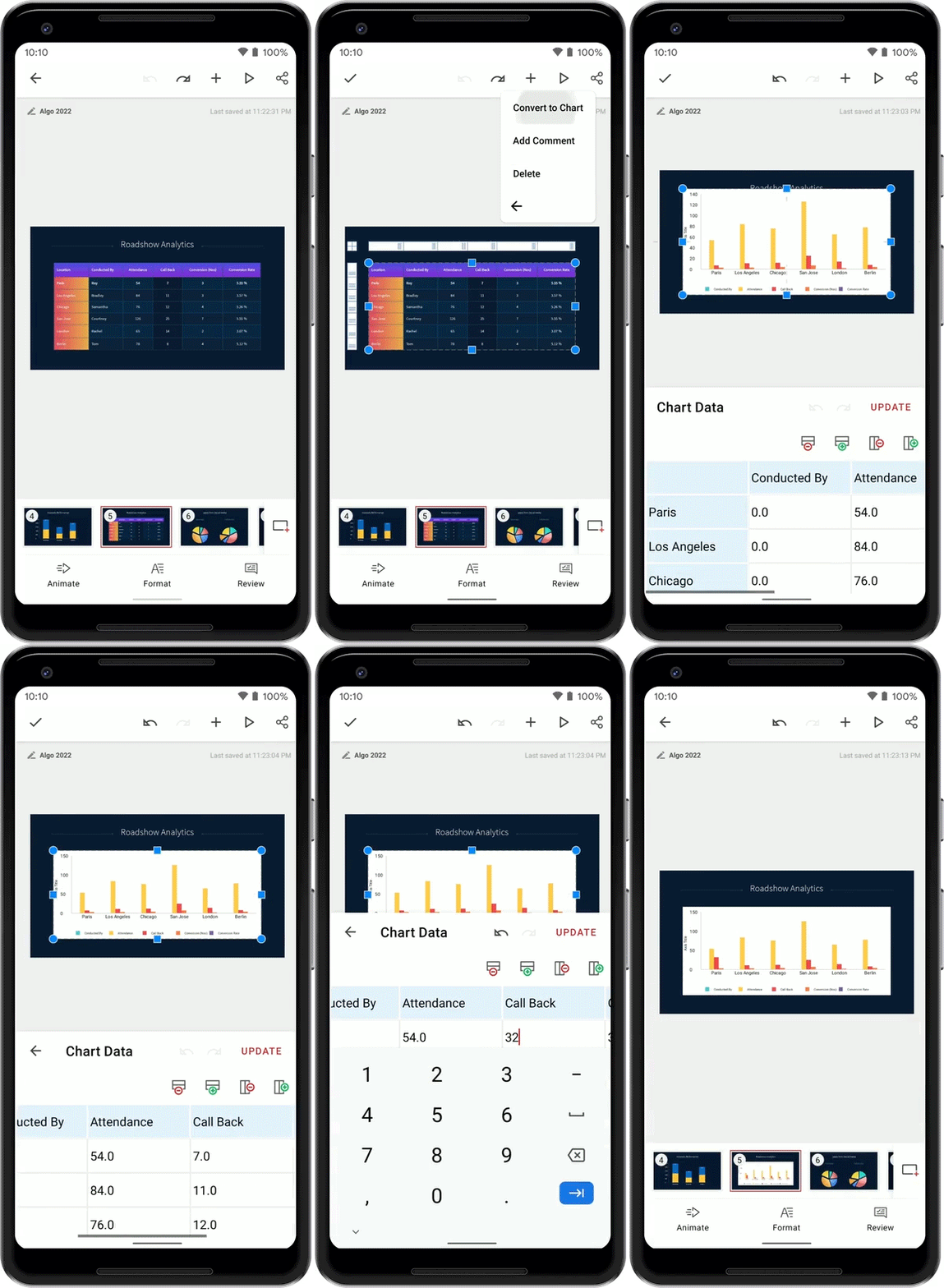
To convert a table to a chart
Once you've added a table to your slide:
- Tap on the table.
- Select
 and tap Convert to Chart.
The chart window with various chart categories will appear. - Tap to select your preferred chart.
- Tap on the rows and columns to edit the values of the chart.
- To add a new row or column, tap
 and
and  .
. - To delete a row or column, tap
 and
and  .
. - To undo or redo an action, tap
 and
and  .
. - Once you have made all the changes, tap UPDATE.
- You can then customize your chart according to your preference.
We hope you find this tip useful! Stay tuned for additional tips, feature updates, and more.