Automating appointment status and customer feedback collection
Hello community members,
In the spirit of elevating your scheduling game for 2024, we're bringing you a couple of useful workarounds that can enhance your overall Bookings experience.
We have divided the community post into two halves. In the first half, we will show how to automate the appointment status to Completed. This action ensures that emails are automatically triggered after the appointment is completed. In the second half, we will explore how to add and prefill the feedback form in your customer emails. This will allow you to efficiently gather feedback from customers.
In an effort to streamline the entire process, we're merging both topics into a single post. This aims to automate updating the appointment status to completed, triggering the completion email to customers, and seamlessly integrating our Zoho Survey form for actively collecting valuable feedback.
In an effort to streamline the entire process, we're merging both topics into a single post. This aims to automate updating the appointment status to completed, triggering the completion email to customers, and seamlessly integrating our Zoho Survey form for actively collecting valuable feedback.
Automating the appointment status
Currently, updating an appointment's status to Completed is a manual process in Zoho Bookings. However, with our new workaround, you can now streamline this task through automation. We've included steps below that will make it so that once an appointment has ended, its status will automatically switch to Completed.
Note that if you mark an appointment as No show, your selection will not be overwritten by this new workaround.
If you're still concerned about this, consider editing the content of the appointment completion trigger email, providing generic content suitable for both attendees and non-attendees. This guarantees that even if all appointments are marked as completed, a generic email with relevant information will be sent to all customers.
Prerequisites for automating the appointment status
1. Zoho Bookings basic or premium subscription.
2. Zoho Flow paid subscription
How to automate
A. First, we'll create a new flow in Zoho Flow:
1. Sign in to Zoho Flow.
2. Select the Create flow option.
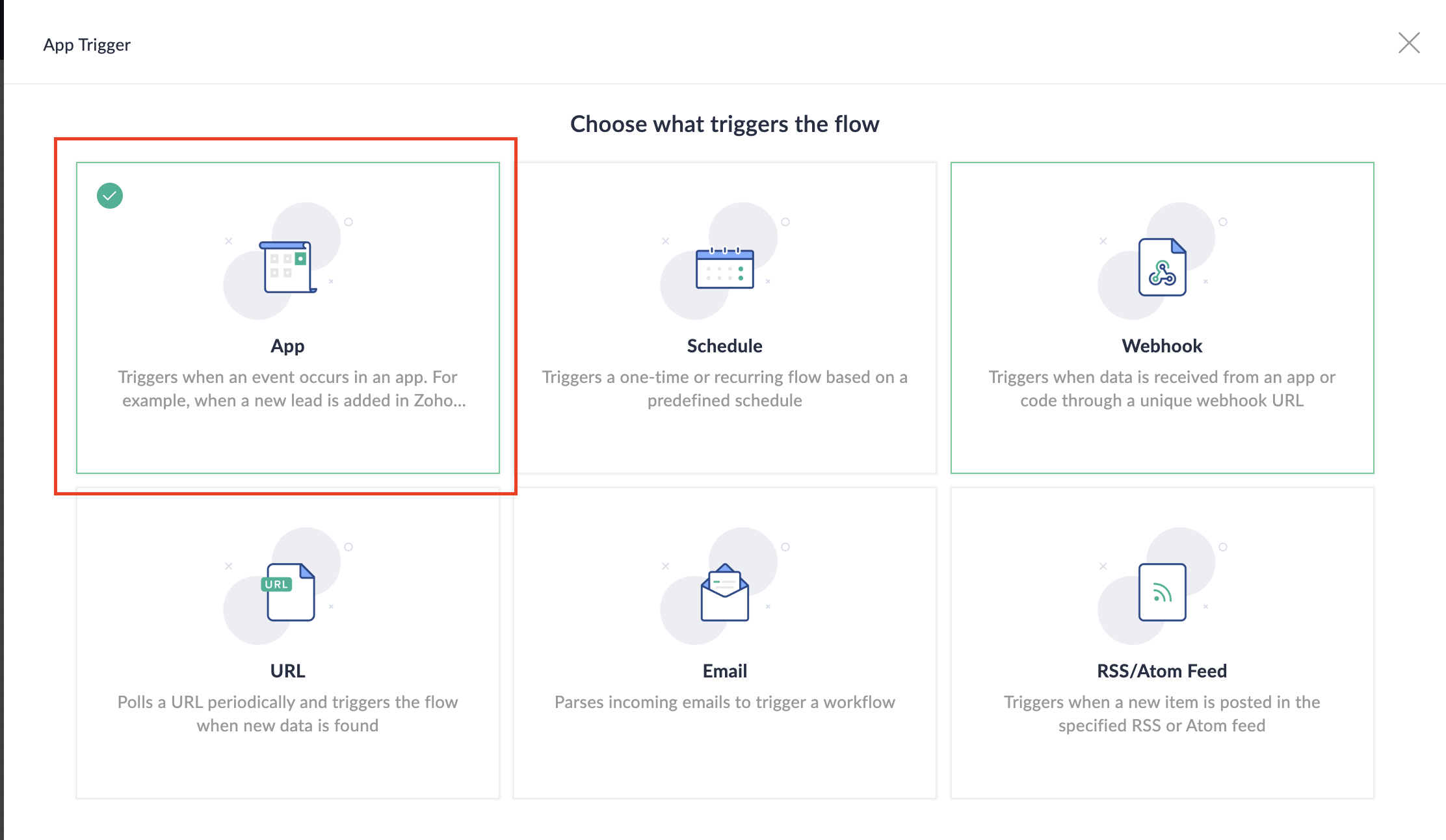
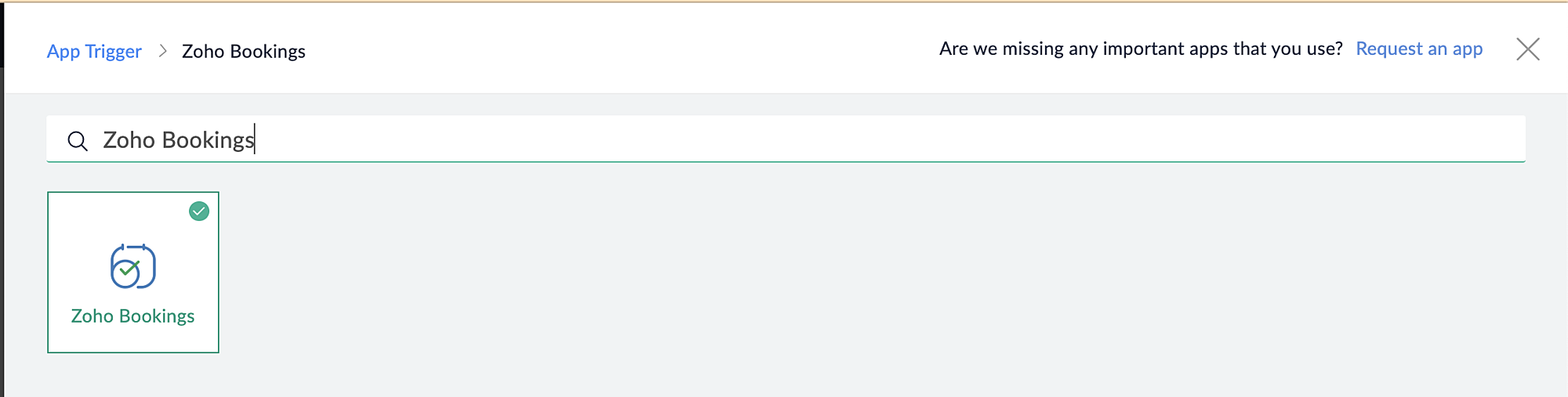
3. Select App and search for Zoho Bookings in the search bar.
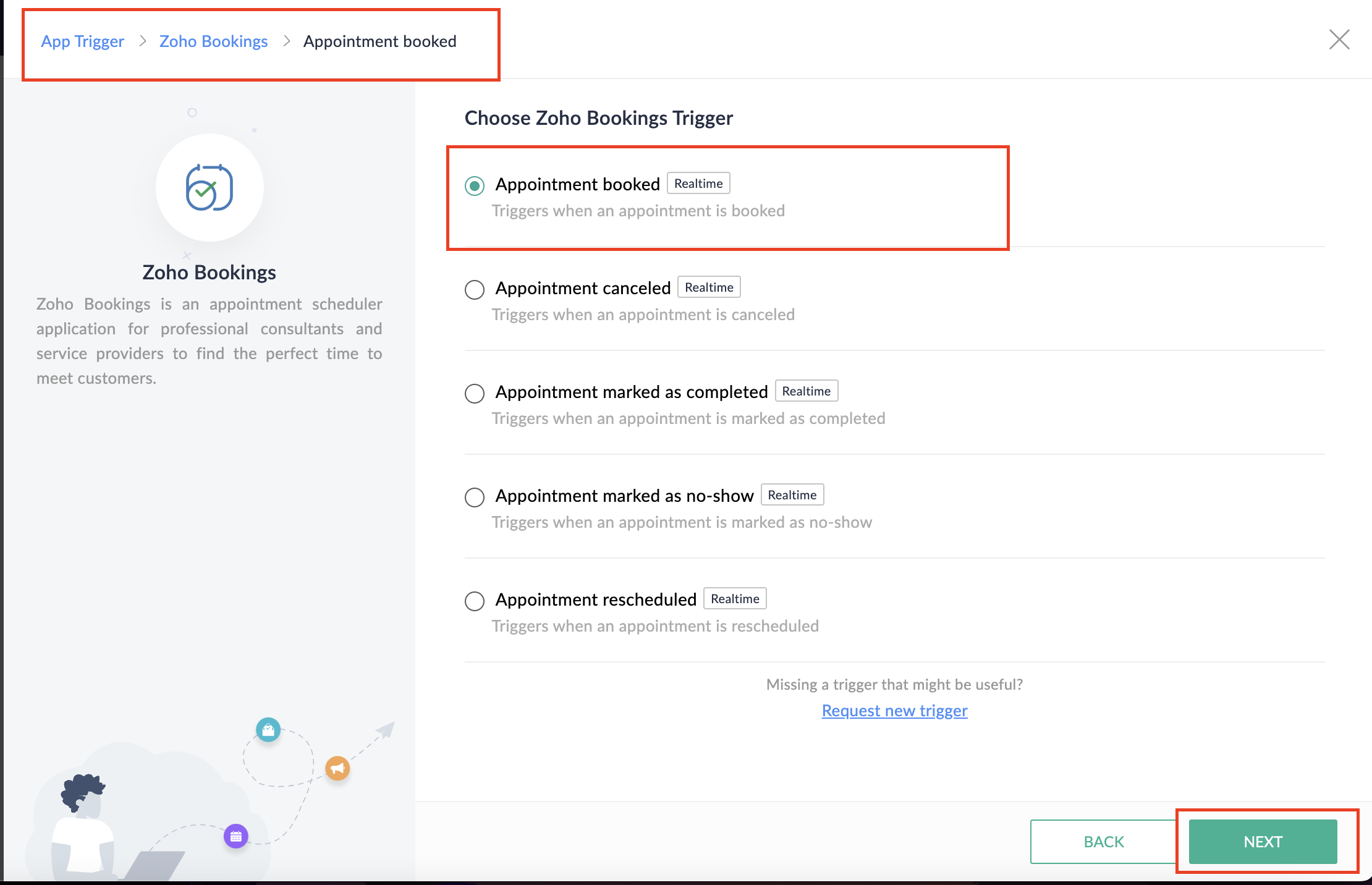
4. Select the Appointment booked trigger.
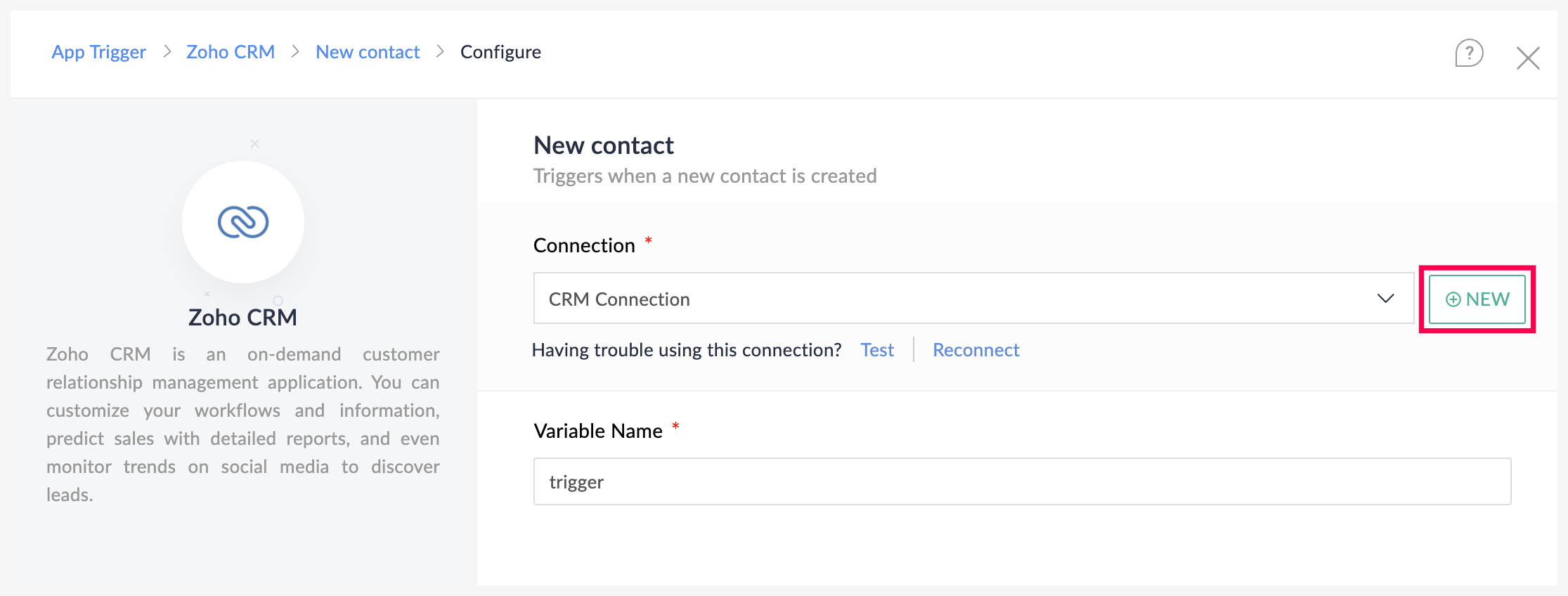
5. Select the Connection and Variable Name.
6. Click Done.
You have now created a new flow for Zoho Bookings.
Other helpful links for this process:
- How to create a flow in Zoho Flow: Create a flow from scratch
- How to create connection in Zoho Flow: Create a Connection
B. Next, let's configure the logic:
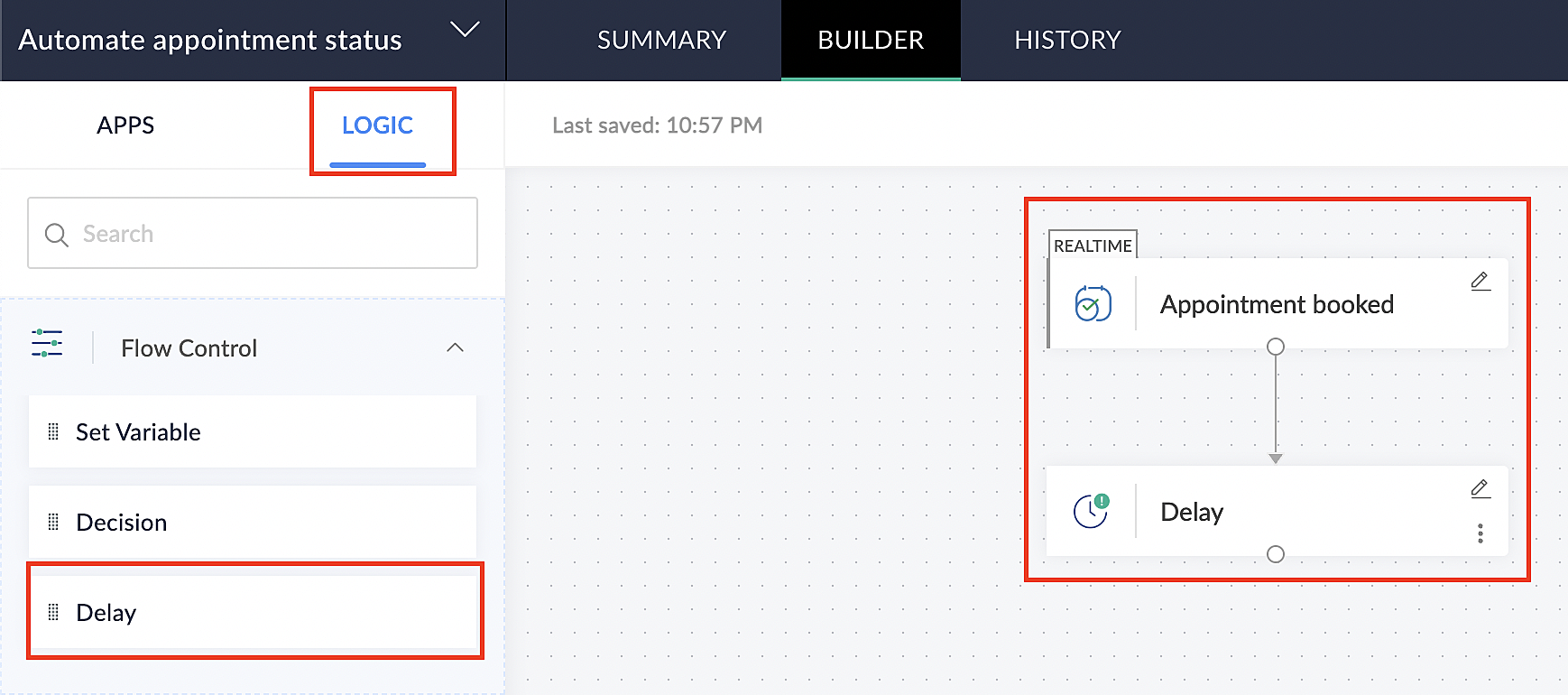
1. Navigate to the Logic tab in Zoho Flow.
2. Click the Flow Control dropdown and select Delay.
3. Drag and drop the Delay function to the bottom of the Appointment booked trigger.
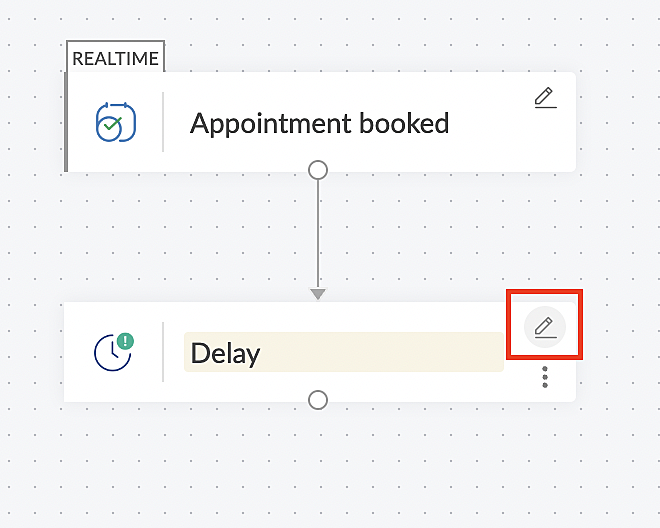
4. Click on the edit icon next to the Delay function.
5. In the Delay For the column, select the appointment end time variable from the available Zoho Bookings variables.
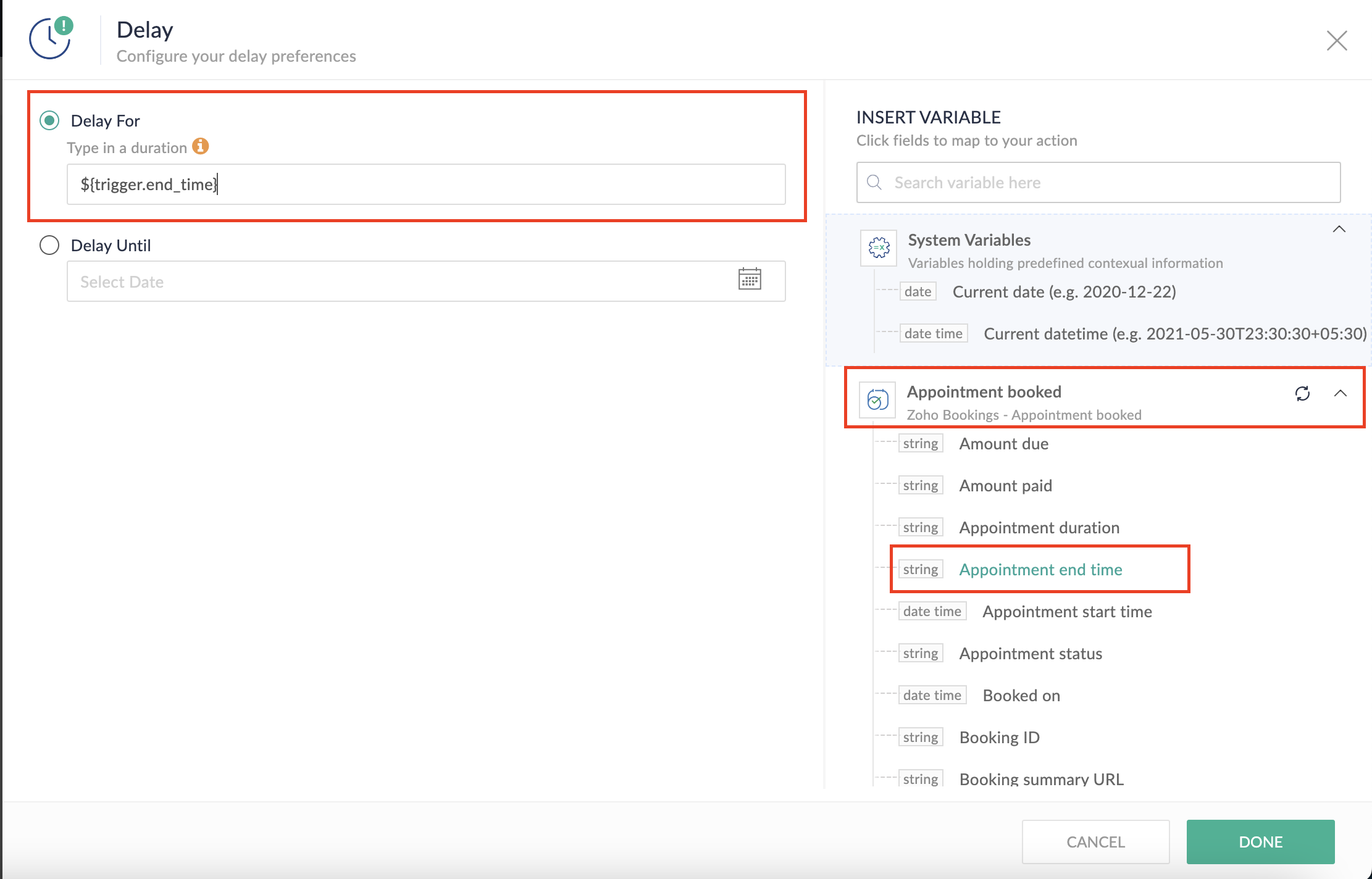
Completing this steps helps us ensure that this workflow executes exclusively at the end of each appointment.
C. We can now allocate additional time for any necessary actions:
For example, let's consider extending the remaining actions by an extra 5 minutes. This extension grants you additional time to update the appointment status.
1. From the Logic tab, drag and drop another Delay action to the bottom of the first Delay action.
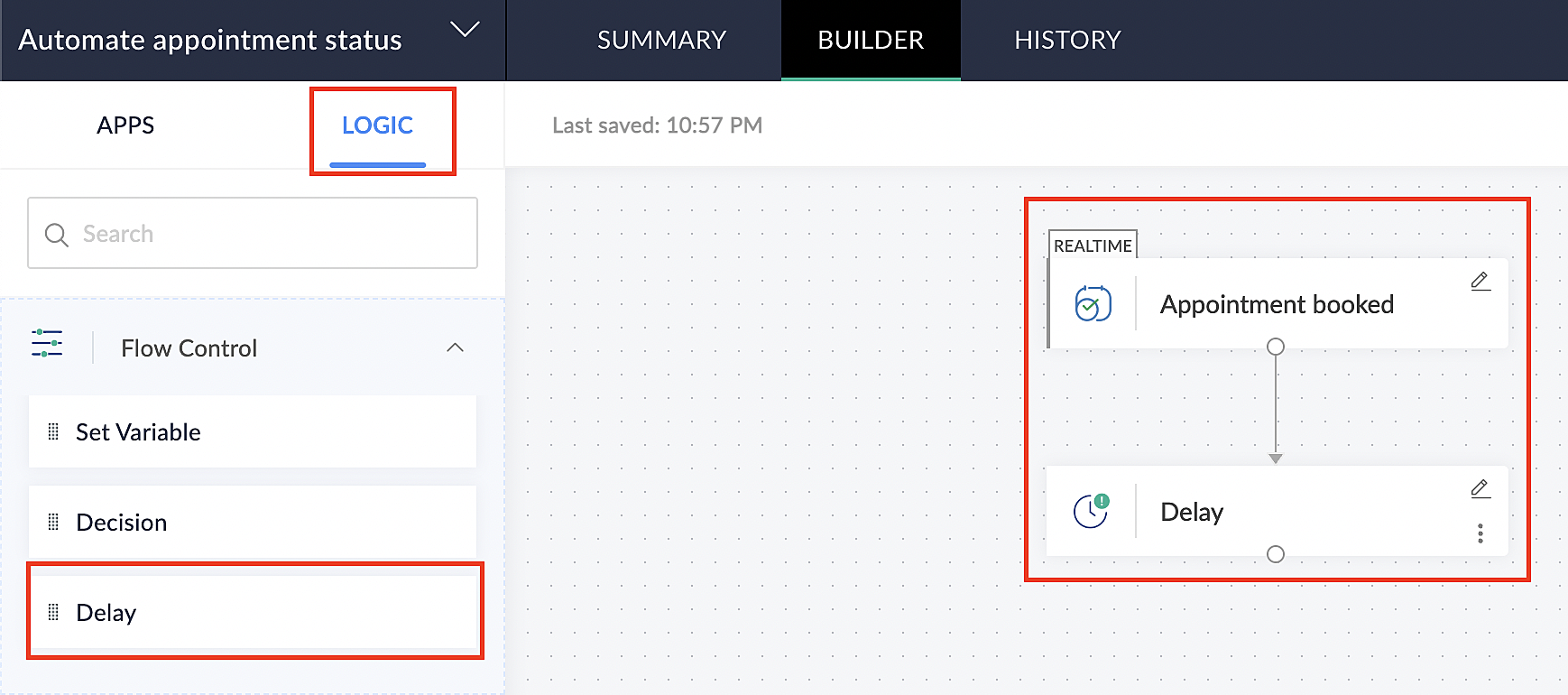
2. Click on the edit icon next to the Delay function.
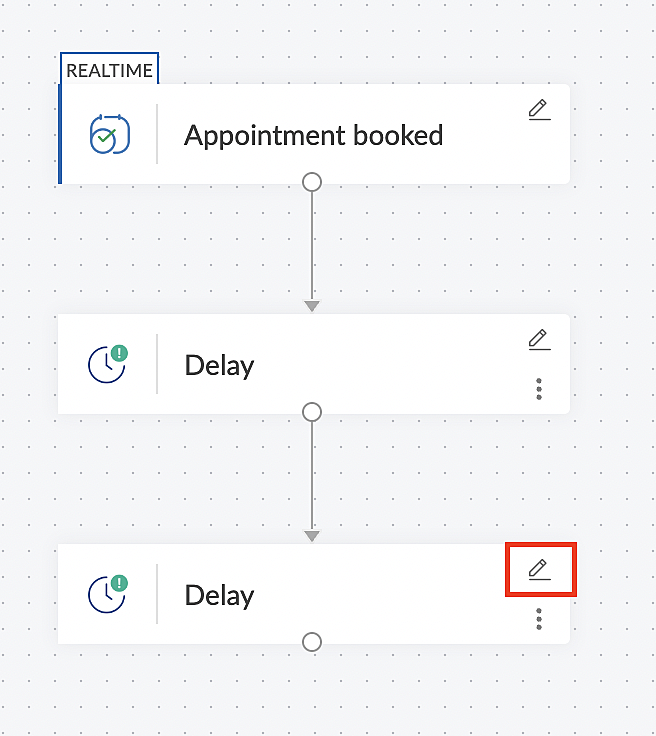
3. In the Delay For column, set the desired extra time based on your preference. If going by our proposed example, we'd configure an additional 5 minutes.
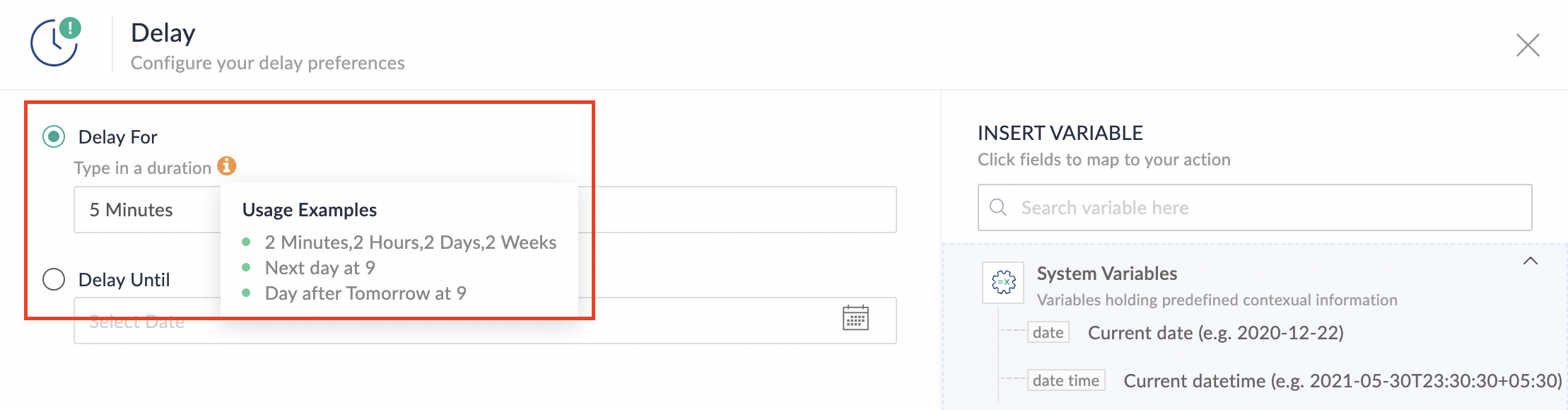
For more details: Delay
Note: If you decide not to include extra time and prefer to execute the flow precisely at the end of the appointment duration, you do not need to complete this section of steps.
D. Finally, let's configure a custom function
Through this step, we'll ensure our ended appointment's status updates to Completed (as long as no other status has been selected).
1. From the Logic tab, click the Custom Functions dropdown.
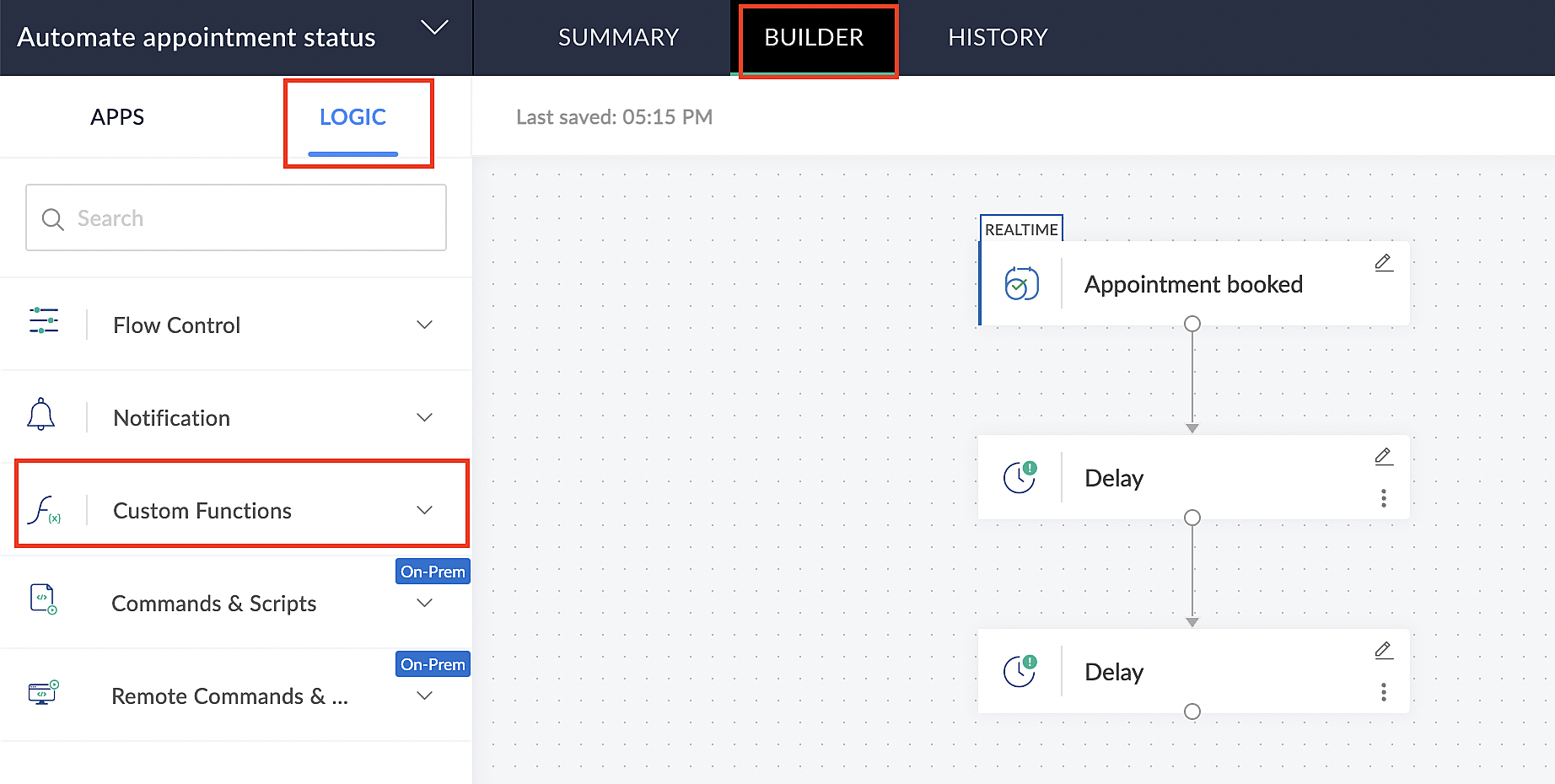
For more details: Custom Functions
2. Click +Custom Function.
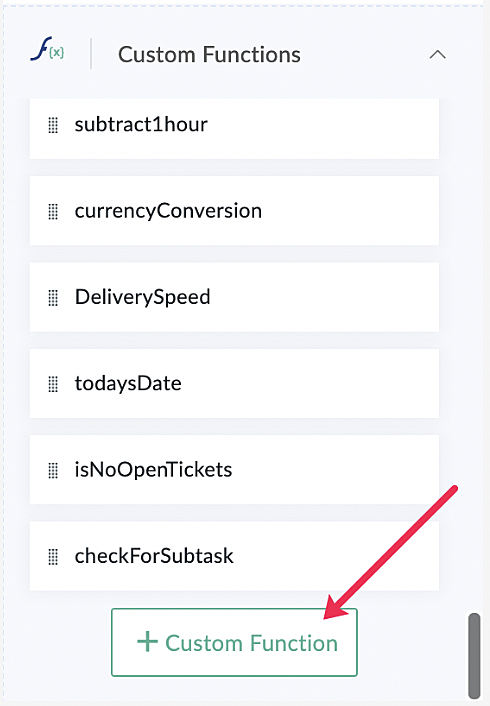
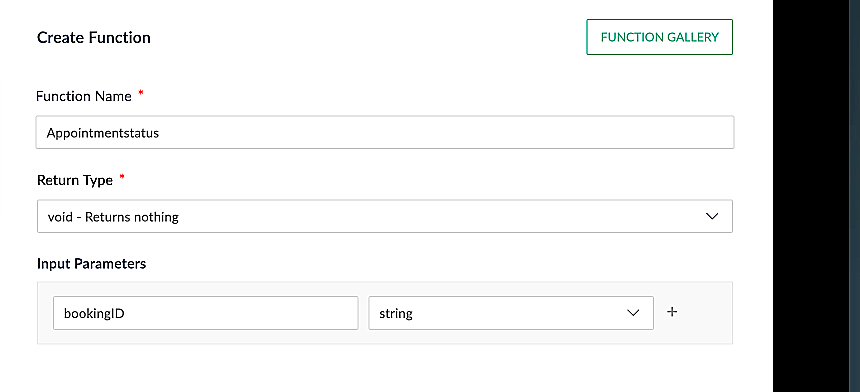
3. Add a relevant name for the function under Function Name, and set the Return Type as void - Returns nothing from the dropdown.
4. Under Input parameters, type bookingID and select string from the dropdown as shown in the screenshot below.
5. Click Create to open the Deluge script page, where we will enter our code for execution.
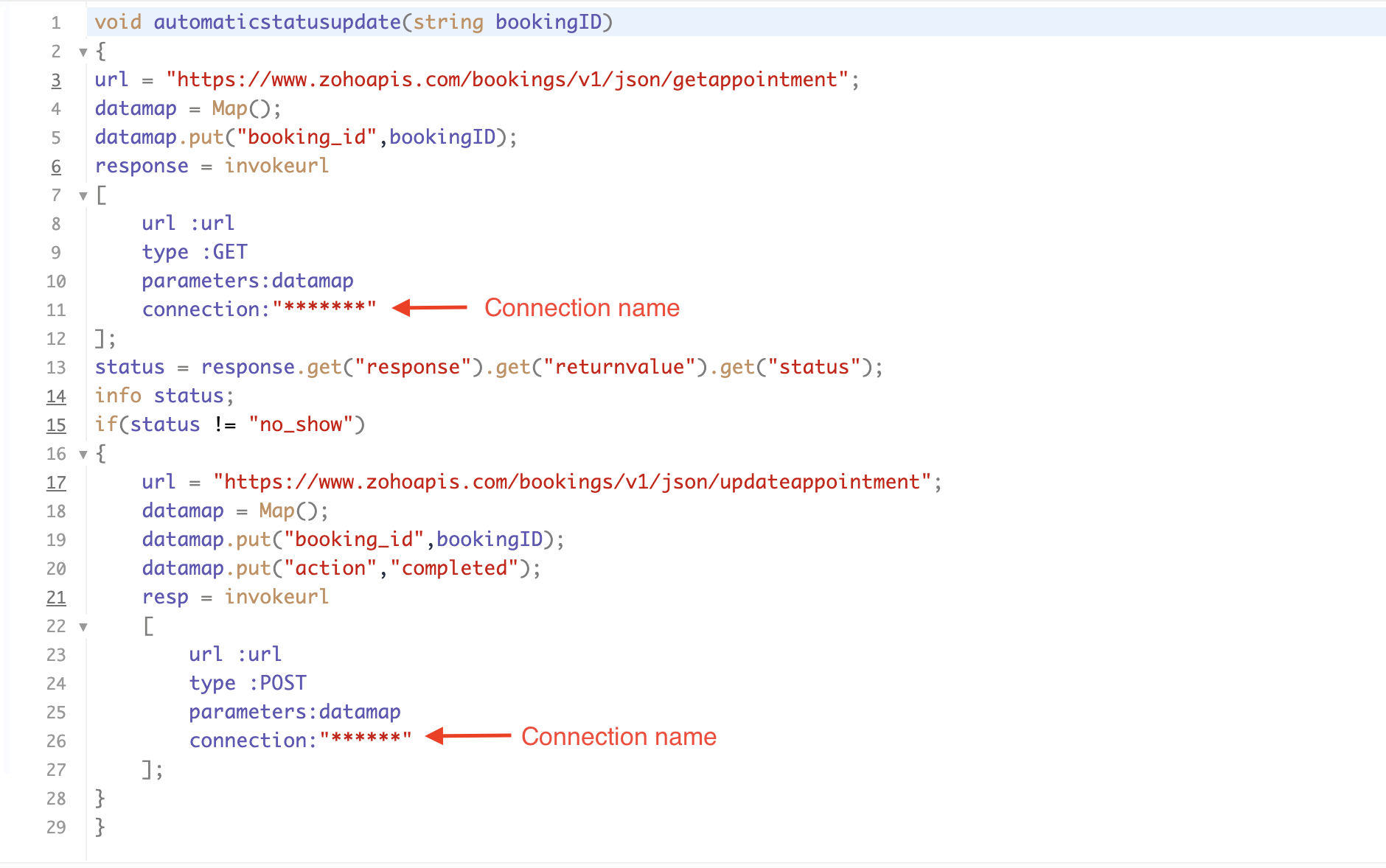
If you're interested, here is a brief explanation of the code:
Line 1: To pass the input data below to the code.
- Booking ID: Identifies the specific booking for fetching details and checking the status.
Line 3: Set up the API endpoint URL based on the Zoho Bookings account's data center.
- More details: Domain-specific API URLs
Line 3–12: We utilize the Get Appointment API' to retrieve the appointment details. For more details: Get Appointment API
Line 13: Here, we're fetching the status of the respective appointment from the response of the Get Appointment API.
Line 15: Implement an 'if' condition to execute the code only if the appointment status is not No show.
Line 16–27: In this step, we utilize the 'Update Appointment API to mark the appointment status as Completed' when the condition specified in line 15 of the code is met.
This is how the final flow will look:
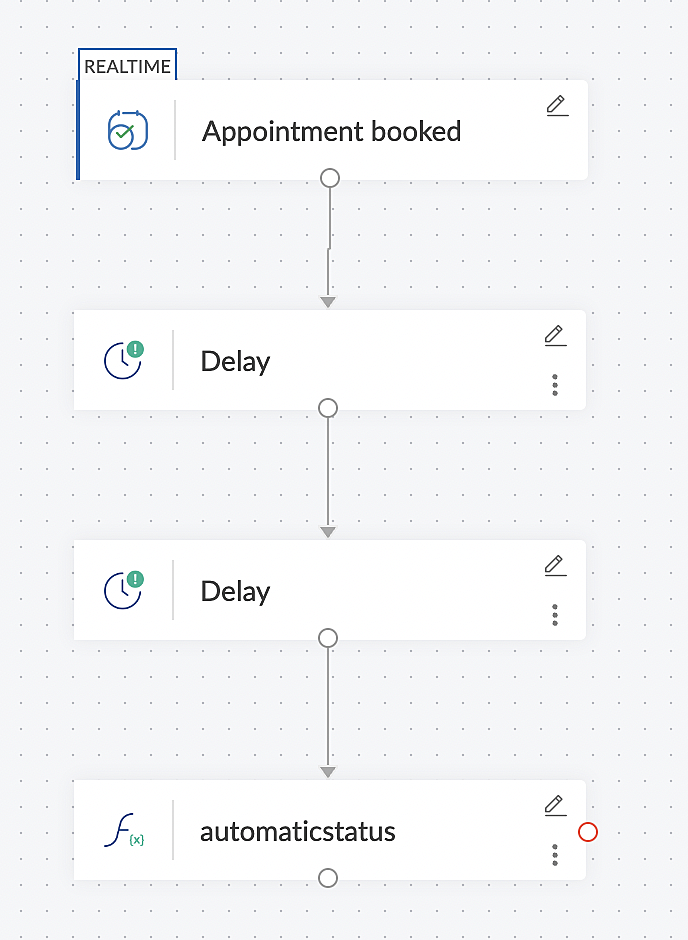
This is how the final flow will look:
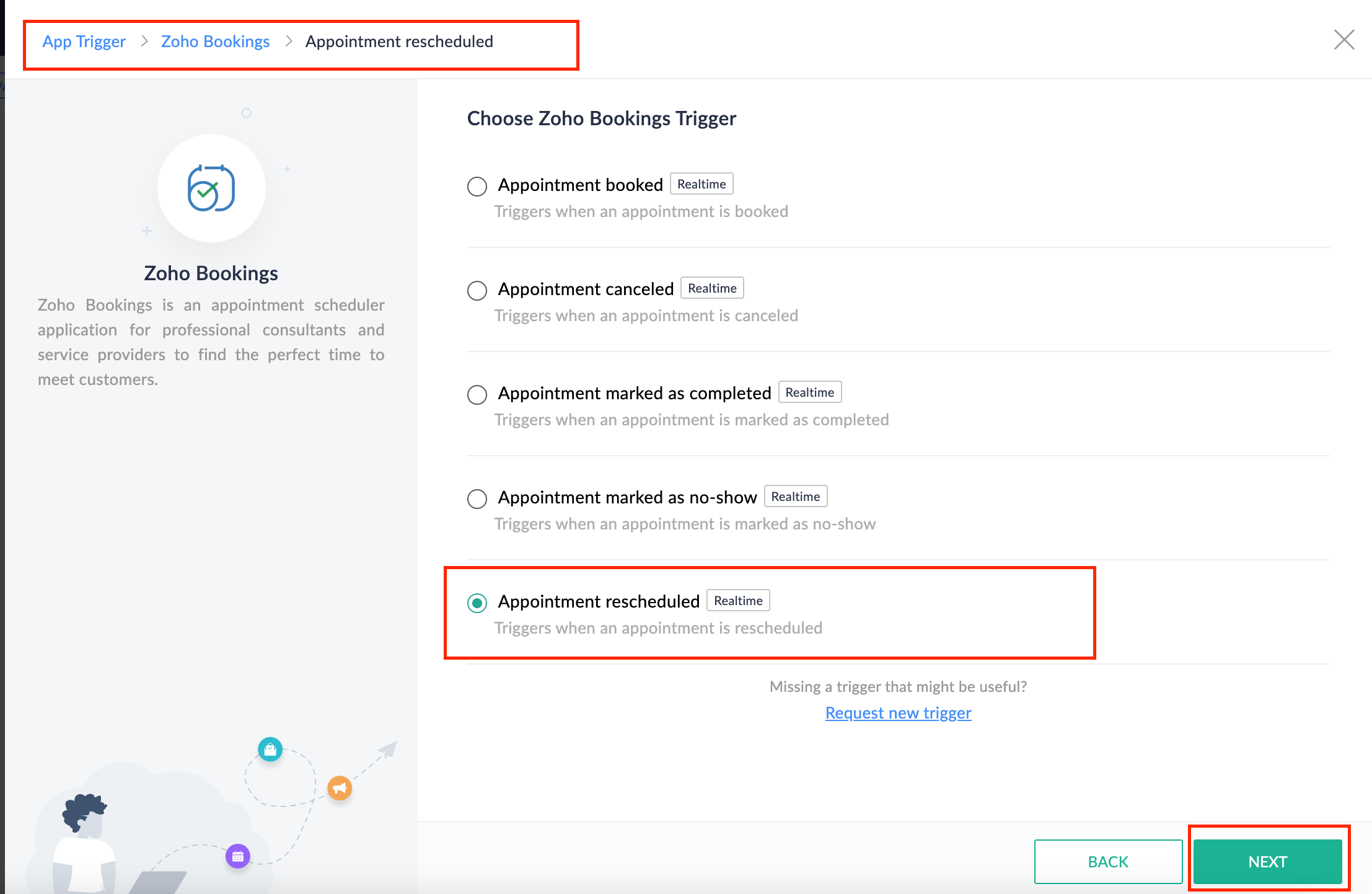
Note: The described flow is tailored for newly scheduled appointments. For cases where appointments are initially scheduled and later rescheduled, a separate flow must be created. The flow for rescheduled appointments follows the same steps outlined above, with the only modification being the initial trigger. Instead of the 'Appointment booked' trigger, please substitute it with the 'Appointment rescheduled' trigger in step A (steps B, C, and D remain the same).
Collecting feedback with surveys
Ensuring a seamless and positive customer experience is a top priority for every appointment. An integral part of this process involves gathering feedback from customers after the appointment's completion. This valuable feedback not only helps understand their sentiments but also provides insights for continuous improvement.
Let's explore how to leverage Zoho Survey to collect valuable feedback from customers. Additionally, we'll delve into the process of pre populating survey fields with the customer's name extracted from the appointment.
How to create a survey in Zoho survey:
You have the option to create a new survey from scratch or choose from templates or existing surveys.
For more details, refer to: Create a Survey.
As an example, let's use the Customer Feedback Survey from the templates.
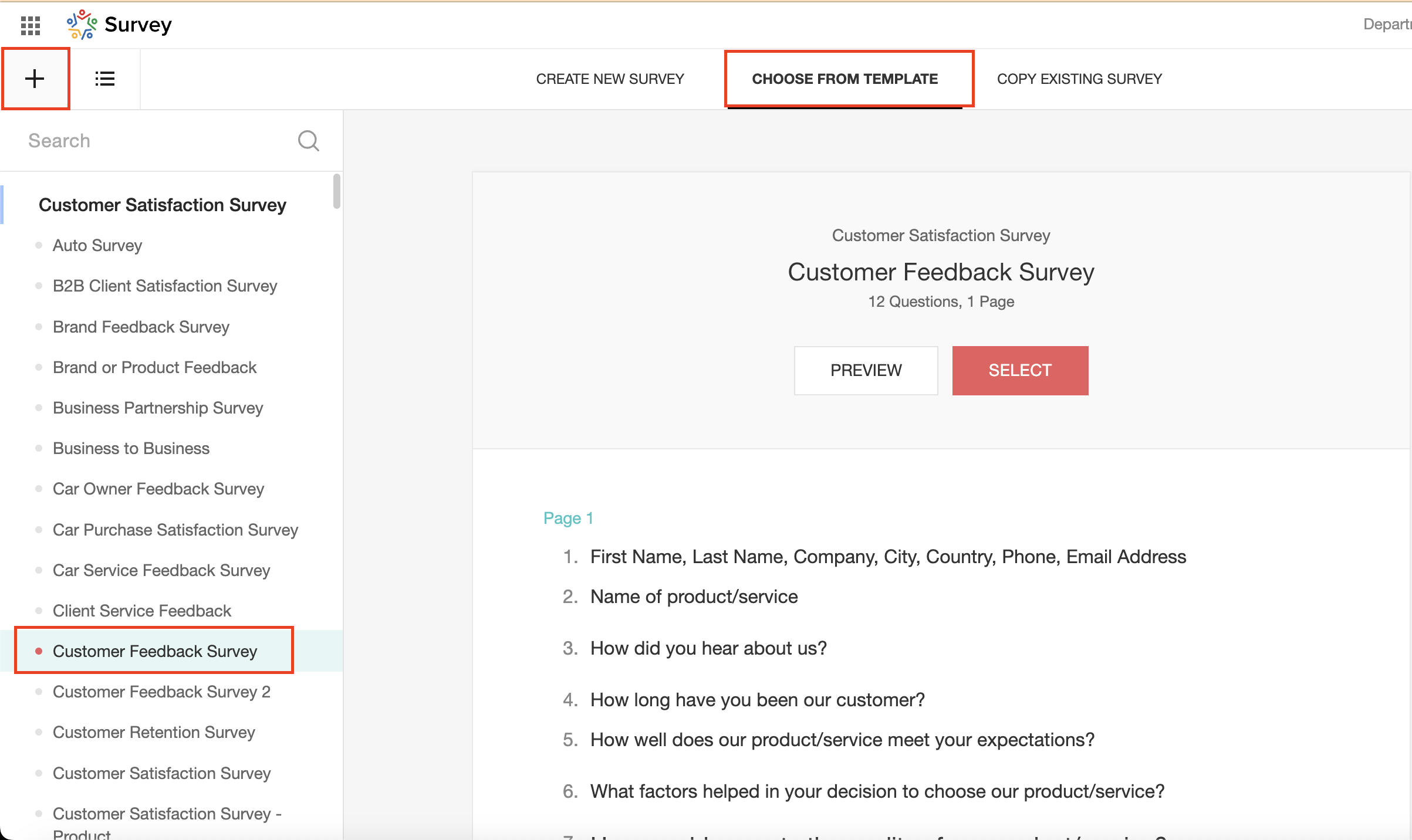
To enhance your survey experience, you have the flexibility to edit the survey form and select specific fields for inclusion.
Now, let's take a closer look at streamlining the customer experience by auto-populating the field inputs in Zoho survey with customer details. This additional step eliminates the need for customers to add their information manually, contributing to an enhanced overall experience.
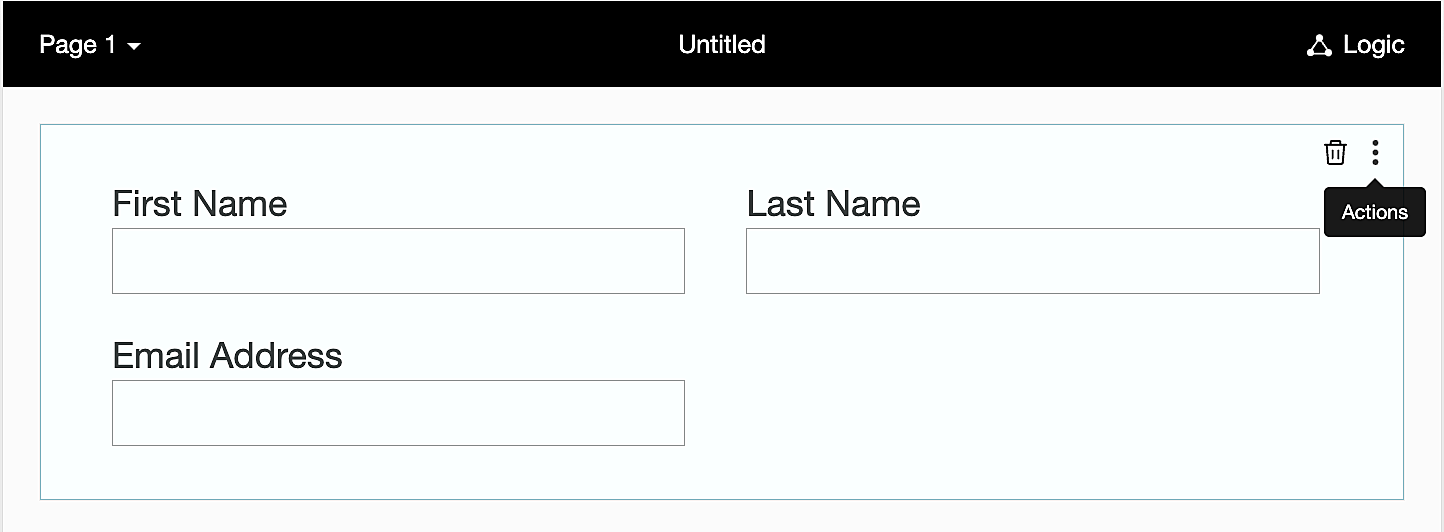
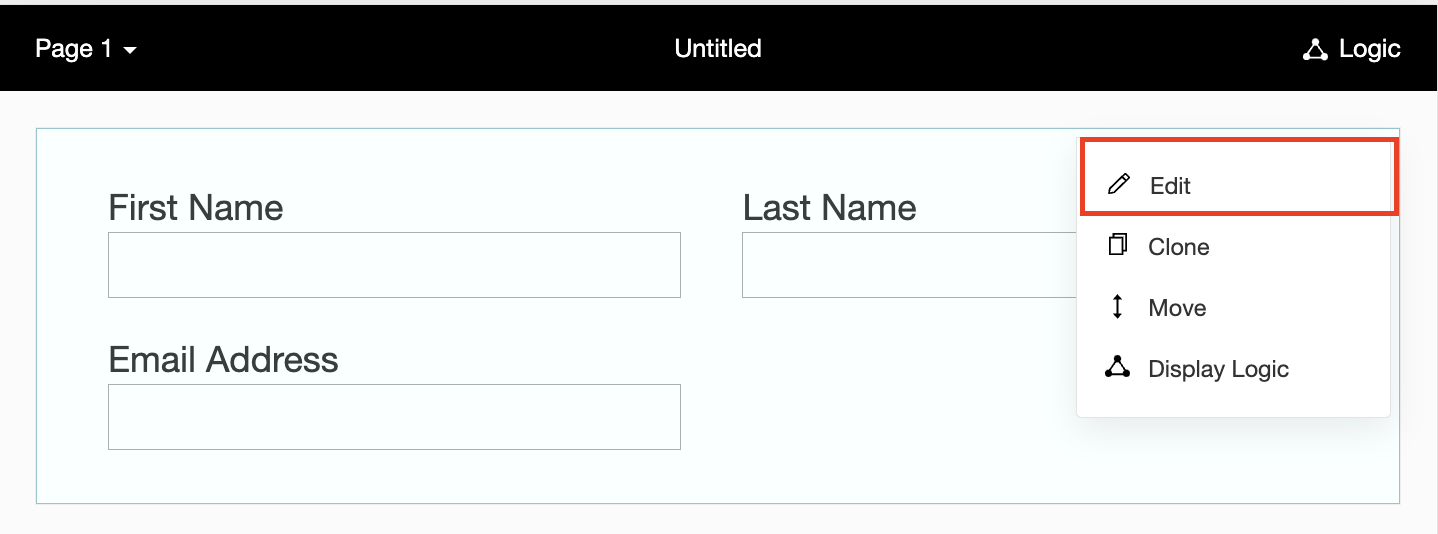
1. Click on the Actions button (three dots) next to the Last Name field, and choose Edit.
2. Click on Advanced options and check the box next to Prepopulate answer.
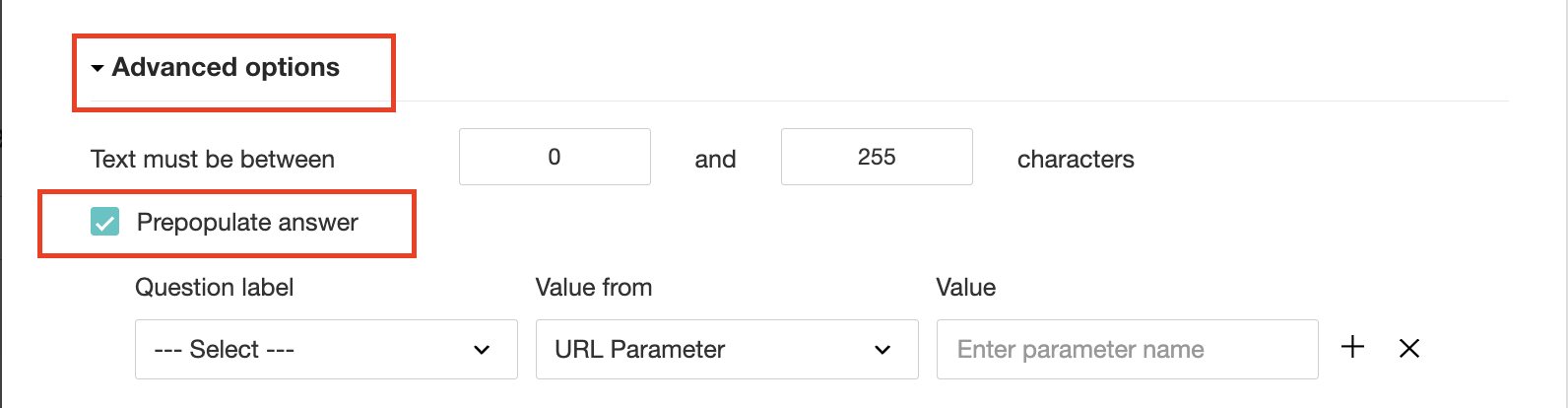
3. Select First Name, Last Name, and Email Address under Question label and URL parameter in each corresponding Value from field.
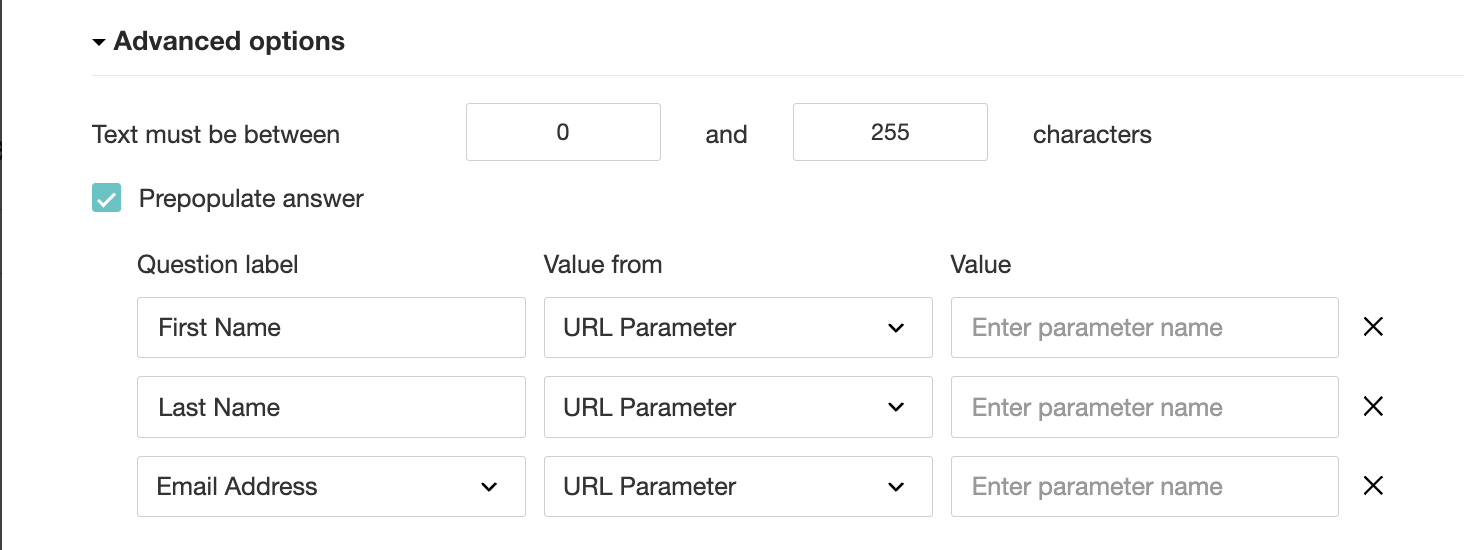
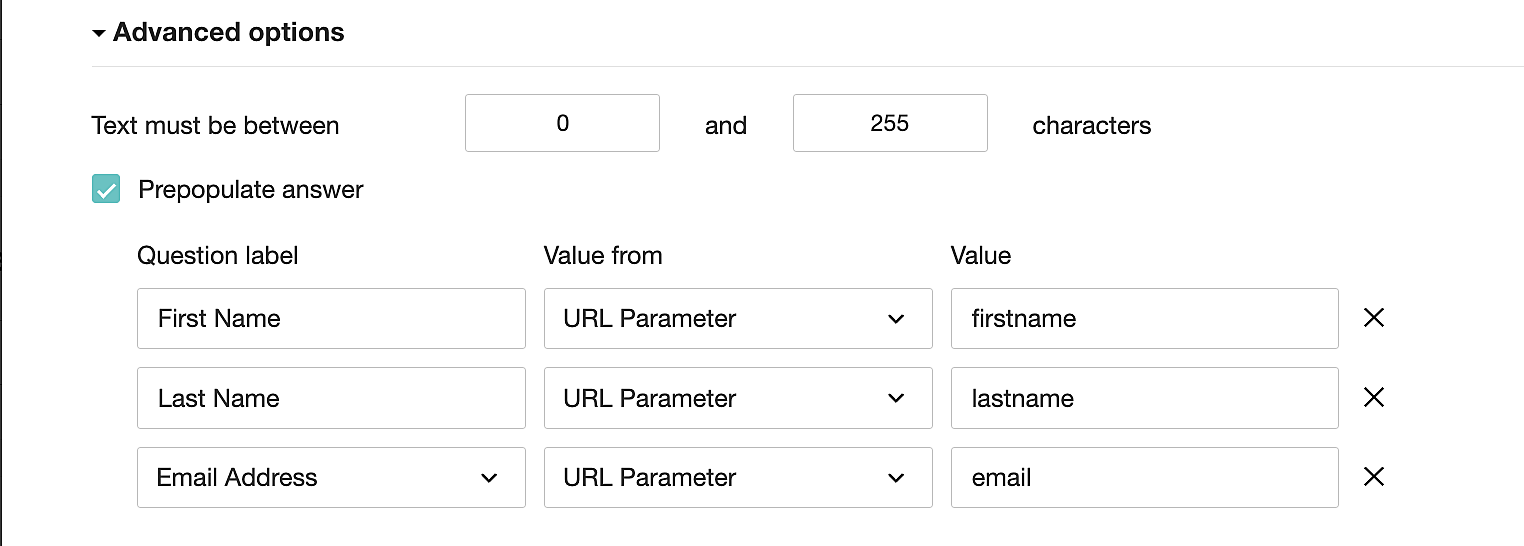
4. In the Value field, configure the parameter name (e.g., firstname, lastname, email). Once configured, this parameter name will be used in the survey link to prefill the fields in the survey form. Customize it as per your requirements, ensuring consistency with the term used in the survey URL.
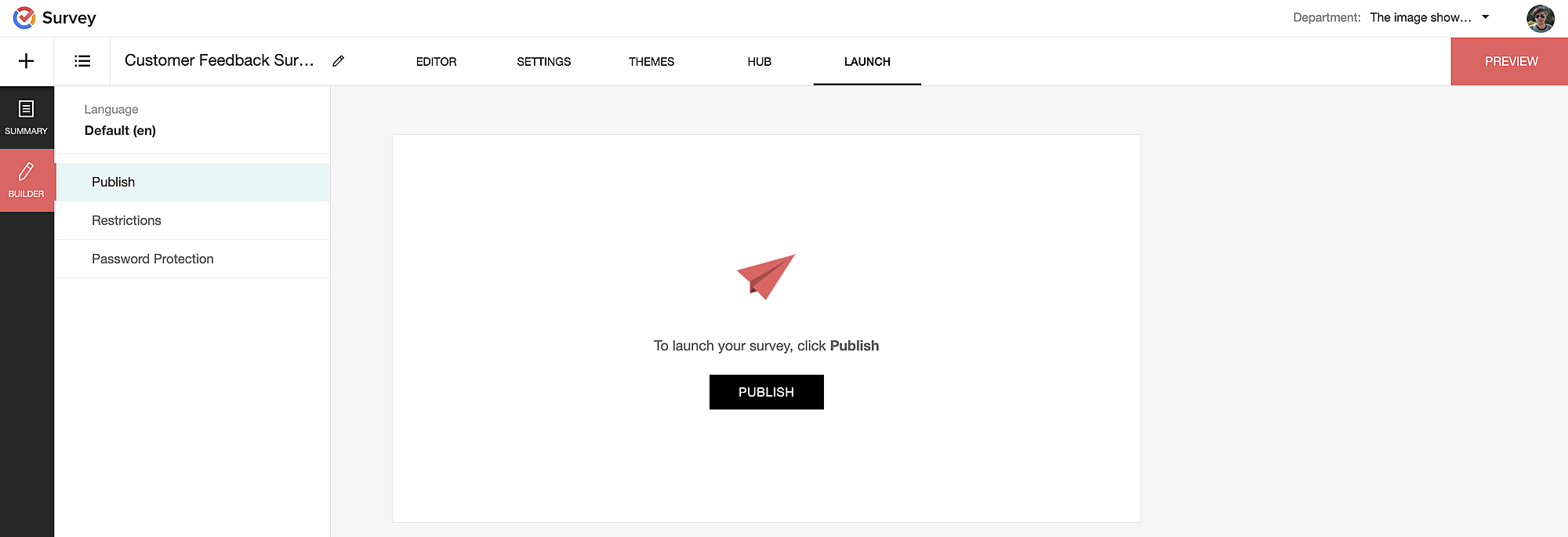
To publish the survey, go to the Launch tab and click on the Publish button to obtain the Zoho Survey URL.
Pre-populating fields in the Zoho Survey form
Once we have the Zoho Survey URL, we'll need to match the configured parameter name and variables from the Zoho Bookings email notifications. These variables play a crucial role in dynamically fetching customer information and populating it in the Zoho Survey form.
For details about variables in Zoho Bookings email notifications, refer to this link: Pre-defined variables
We'll now edit the survey URL to align the variables with the configured Value, or parameter name, from our prepopulated answer settings.
Let's say this is our survey URL:
https://survey.zohopublic.com/zs/E****h
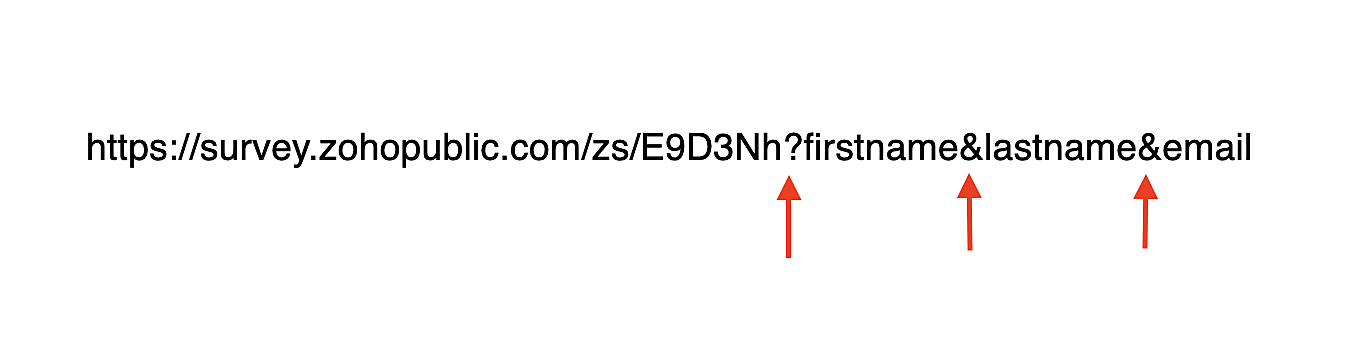
We'll want to use a question mark ("?") at the end of the survey URL and an ampersand ("&") to separate different parameter names.
Here's what that would look like using our example Value names from earlier:
Now, let's map the parameter names to the Zoho Bookings variables.
It would look like this:

For more details: Autofill
Where to use the Zoho Survey URL
To enable the automatic sending of the Zoho Survey URL to customers upon updating the appointment status to Completed, follow these steps in the Zoho Bookings application:
For one-on-one services:
1. Click on Service in the top left corner.
2. Select the desired one-on-one service.
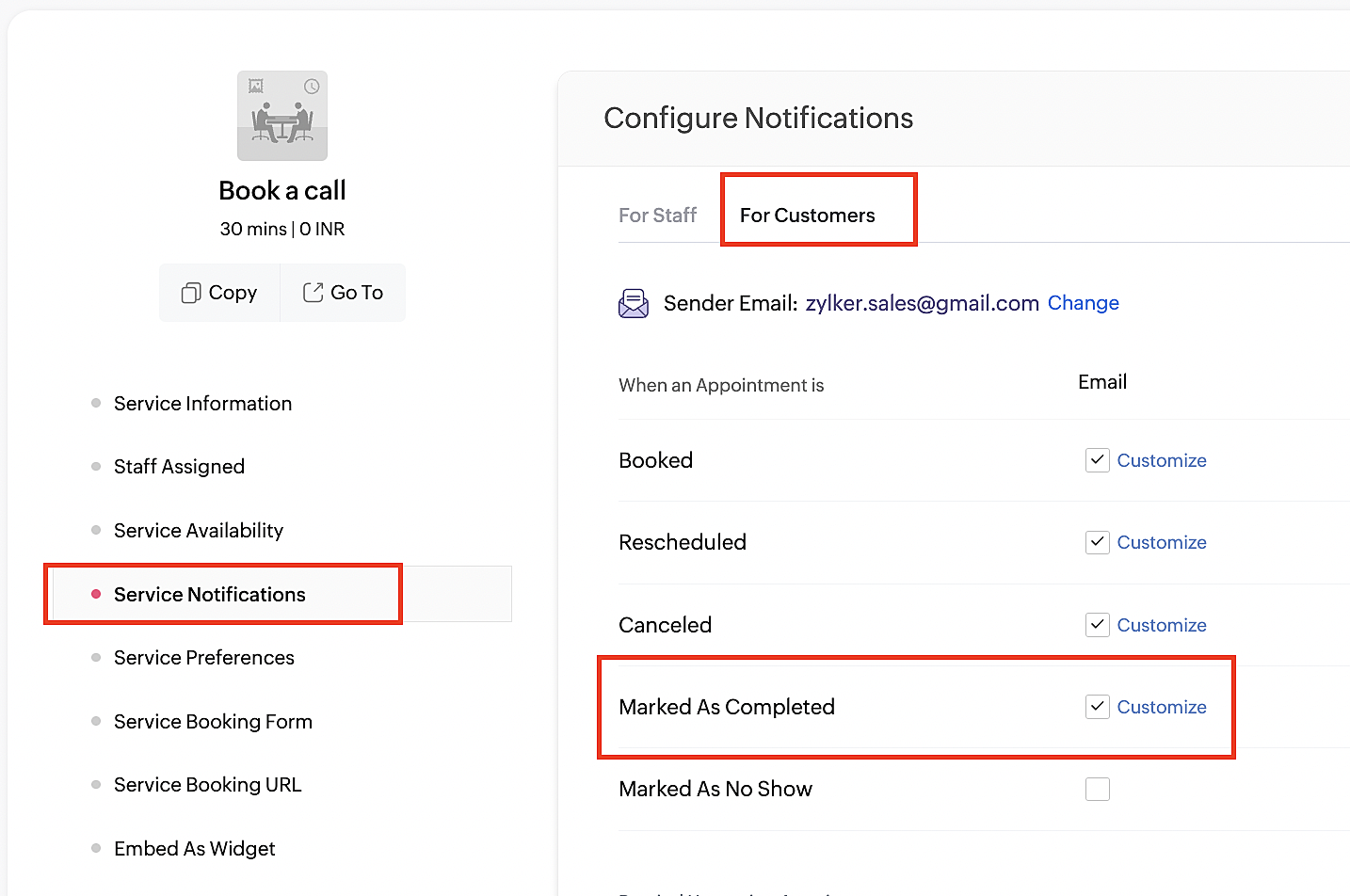
3. Choose Service Notifications.
4. Navigate to the For Customers tab.
5. Click Customize next to the Mark As Completed' trigger to access the email content.
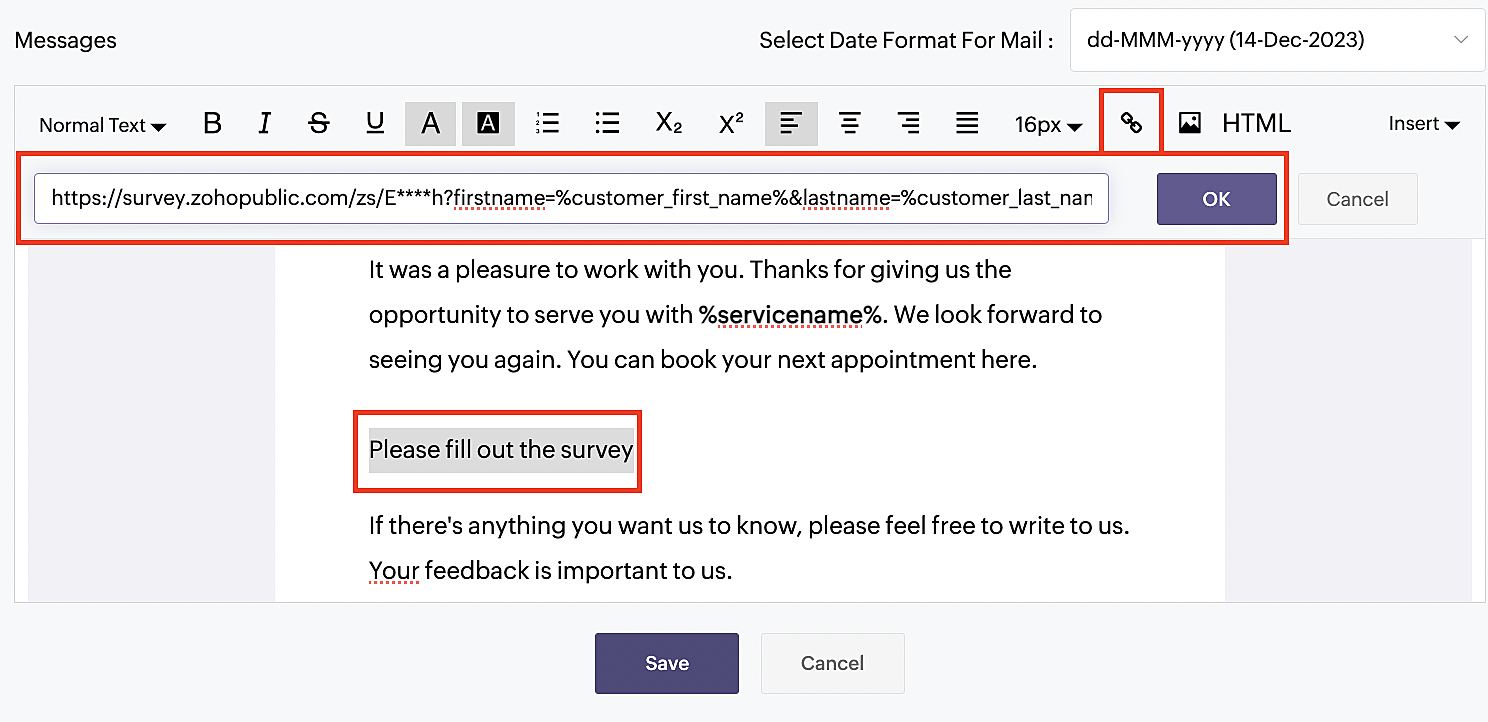
6. Enter your desired name for the button. For example, you might use something like 'Please fill out the survey'.
7. Select the entered text and click on the Add Link icon. Paste the configured Zoho Survey URL in the URL box. This will convert your text into a hyperlink that leads to the survey.
For group and resource booking services, please follow the same steps under Workspaces > Notifications.
For more details: Workspace Notifications
With the completion of this step, we have incorporated the Zoho Survey URL with dynamic variables, facilitating the dynamic autofill of customer data.
To wrap it up
With the successful implementation of the configuration described above, the entire process of automating status updates and collecting feedback is now seamlessly integrated, promising an elevated and enhanced product experience for all users.
If you have any questions or need assistance with your configuration, please email us at hello@zohobookings.com or support@zohobookings.com.
Topic Participants
Kaushik S
Sticky Posts
Approve or deny appointments based on criteria
Hey, community members! Have you ever wondered how to automatically approve or deny appointments? While we're still working on building that feature, we've got an alternative method to cancel appointments if they don't meet your specific criteria. Let
Recent Topics
Making an email campaign into a Template
I used a Zoho Campaign Template to create an email. Now I want to use this email and make it a new template, but this seems to be not possible. Am I missing something?Syncing calendar with Google Calendar doesn't work when events are sent to auto repeat
Hi... The ZOHO CRM -- GOOGLE CALENDAR sync is broken. If I create a single event on either side, sync works, but if I create an event with auto repeat on either side it doesn't work. Furthermore, events created before the sync don't show up in the calendar.Invoice status on write-off is "Paid" - how do I change this to "Written off"
HI guys, I want to write off a couple of outstanding invoices, but when I do this, the status of the invoices shows as "Paid". Clearly this is not the case and I need to be able to see that they are written off in the customer's history. Is there a wayZoho Books - France
L’équipe de Zoho France reçoit régulièrement des questions sur la conformité de ses applications de finances (Zoho Books/ Zoho Invoice) pour le marché français. Voici quelques points pour clarifier la question : Zoho Books est un logiciel de comptabilitéCreating meetings from an email
Hi. Similar to Outlook, it would be helpful if a meeting can be scheduled from an email so that the attendees need not be manually entered every time it's created.Please, make writer into a content creation tool
I'm tired of relying on Google Docs. I'm actually considering moving to ClickUp, but if Writer were a good content creation tool instead of just a word processor, I would finally be able to move all my development within the Zoho ecosystem, rather thanZohoSalesIQ.Chat cannot send messages
Chat cannot send messages. Our app implements the customer service chat window functionality by integrating the Mobilisten SDK. Recently, we encountered an issue: after successful SDK initialization and visitor registration, when the `startWithQuestion`Missed chats on WhatsApp closing after one minute
Hi, we have added WhatsApp as a channel. However, if a chat is not picked up within 2mins, the chat is marked as missed and is closed within a minute. Why are they not staying in our "missed" queue for 24 hours as per our WhatsApp preference settings?Feature Request: Add Tax ID Display on Event Tickets
Hello Backstage Team, I’ve had several clients bring up an issue regarding tax compliance when creating events. For tax purposes, they are required to show their Tax ID on the event tickets. Currently, this isn’t an option, so they have to manually generateRelease Notes | January 2026
We have rolled out a set of powerful new enhancements across Zoho Vertical Studio that bring several long-awaited capabilities to your applications. These updates focus on deeper customization, smarter automation, better reporting, and improved usabilityEmail Alias: To keep emails flowing without disruption
Email Alias acts like a nickname for a user’s primary email address, allowing multiple email addresses to deliver messages into the same mailbox. Consider the scenario where an employee manages multiple responsibilities, such as responding to sales inquiries,Zoho Sites - General Feedback
Hi Everyone-- Quick question for discussion: is it me or is working with Zoho Sites like entering the Twilight Zone? I've built many sites over the years, but this platform seems impossible. I've spent an entire day and a half trying to get a simple one-colorArchive Option in Conversation View
Hello, I have a suggestion\request to add an "Archive Thread" button in conversation view of Zoho Mail. The best suggestion I have is to put an "Archive Thread" button next to the "Label Entire Thread" button in conversation view. Most users don't justCollapsing and expanding of lists and paragraphs
hello Would you ever implement Collapsing and expanding of lists and paragraphs in zoho writer ? Best regardsAutomatic Refresh on Page?
Hi everyone, We use a page as a dashboard which shows data for the laboratory and tasks pending etc. Is there a way to set the page to automatically refresh on a X time? Many thanks TOGInventory "Bulk Actions" button - add more fields to "Bulk Update > Select a field"
Can we not get a lot more actions that are commonly used by customers into the "More Actions" button on the Inventory list? More fields listed in the Bulk Update > Select A Field? Possible Bulk update Fields Preferred Supplier ( to quickly move itemsBulk upload image option in Zoho Commerce
I dont know if I am not looking into it properly but is there no option to bulk upload images along with the products? Like after you upload the products, I will have to upload images one by one again? Can someone help me out here? And what should I enterFunction #11: Apply unused credits automatically to invoices
Today, we bring you a custom function that automatically applies unused credits from excess payments, credit notes, and retainer payments to an invoice when it is created. Prerequisites: Create a Connection named "zbooks" to successfully execute the function.Tip #60- Exploring Technician Console: Screen Resolution- 'Insider Insights'
Hello Zoho Assist Community! Have you ever started a remote session and felt the screen quality wasn’t sharp enough for detailed work? A new user recently explored Zoho Assist after installing the trial version and running a few initial tests. While theRight Moment, Right Message, Right Operator: Never Miss a High-Intent Lead
Ever been on a website or app, thinking “Should I buy this or not?” and suddenly a friendly message “Hi! How can I help you?” pops up at the perfect moment? That’s not luck. That’s timing done right. Engaging right visitors at the right moment, with theCRM x WorkDrive: We're rolling out the WorkDrive-powered file storage experience for existing users
Release plan: Gradual rollout to customers without file storage add-ons, in this order: 1. Standalone CRM 2. CRM Plus and Zoho One DCs: All | Editions: All Available now for: - Standalone CRM accounts in Free and Standard editions without file storageZoho CRM Workflow Automation: Activate & Deactivate Workflows Using API
Zoho has now enabled: ✅ Activate / Deactivate workflows using API ✅ Schedule workflow activation & deactivation This is extremely useful for real-world automation use cases 💡 🧩 My Use Case I created a scheduled automation that: ☀️ Activates workflows{Action Required} Re-authenticate your Google Accounts to Continue Data Sync
Hello Users! To align with Google’s latest updates on how apps access files in Google Drive, we’ve enhanced our integration to comply with the updated security and privacy standards, ensuring safer and more reliable access to your data. With this update,Function #53: Transaction Level Profitability for Invoices
Hello everyone, and welcome back to our series! We have previously provided custom functions for calculating the profitability of a quote and a sales order. There may be instances where the invoice may differ from its corresponding quote or sales order.Project-Based Inventory Consumption and Proforma Invoice in Zoho ERP
While working with customers across different industries, we have identified a few functional questions and gaps that commonly arise—especially for project-based and service-oriented businesses. Many organizations, such as those in shipping, construction,[Free Webinar] Zoho RPA - OCR, PDF Automation, & More
Hello Everyone! Greetings from the Zoho RPA Training Team! We’re excited to invite you to our upcoming webinar on the latest release updates for Zoho RPA, where we’ll unveil powerful new capabilities designed to make your automation journey smarter, faster,Zobot Execution Logs & Run History (Similar to Zoho Flow)
Dear Zoho SalesIQ Team, We would like to request an enhancement for Zoho SalesIQ Zobot: adding an execution log / run history, similar to what already exists in Zoho Flow. Reference: Zoho Flow In Zoho Flow, every execution is recorded in the History tab,Global Search Settings
I'd love a way to remove some modules from being included in the global search. This would allow use to provide a better user experience, limiting the global search to only those modules that are regularly used removing any models used for backgroundCard Location in Zobot
Hello, when using the “Location” card in a codeless builder Zobot, the behavior in WhatsApp is inconsistent. When asking the user to share their location, they can type a message, which will return the message “Sorry, the entered location is invalid.Automation Series: Auto-create Dependent Task on Status Change
In Zoho Projects, you can automatically create and assign a dependent task when a task’s status is updated. This helps teams stay aligned, ensures reviews happen on time, and reduces manual effort. In this post, we’ll walk through an easy setup usingLanguages in Zobot
Hello, I have found a list of supported languages for the Zobot. The information specifies the languages are supported in the following 3 features: SalesIQ supports 34 different languages in the following features. Resources (Articles, FAQs, Small Talks)Composite items inside of composite items; bill of materials needed
Hi Zoho and Everyone, I am evaluating whether Zoho Inventory will work for my small business. I grow and harvest herbs and spices but also get from wholesalers. I use all these items to make herbal teas, but also sell them as individual items on my Shopify store and Etsy. I discovered the composite item bundling and am wondering if I could get some assistance since there is no bill of materials: Our herbal company's best selling tea is a sleepytime tea. Sleepytime Tea can be purchased in three weightsAction required: Reauthorizing your Google account in Zoho Sign for automatic cloud backup to Google Drive
This is applicable to users who have already configured automatic cloud backup to Google Drive. Hi there! Google has mandated reauthorization of all preconfigured third-party integrations to ensure only the necessary scopes are shared as an improved securityZoho CRM Layouts
I have customised all our modules, Leads, Contacts and deals, and within them, I have created lots of different layouts depending on the type of Lead or contact, for example. Since the new Zoho UI came out, they have all disappeared. I have gone intoStreamlining E-commerce Photography with AI Background Tools
Hey Zoho Community, I’ve been messing around with ways to make product images less of a headache for fashion brands on Zoho Commerce. You know how boring generic backdrops can get, and how much time traditional photoshoots eat up, right? I tried out thisWhatsApp IM in Zoho Desk always routes to Admin instead of assigned agent
Hello Zoho Experts, I connected WhatsApp IM to my Zoho Desk account. I only assigned my Customer Service (CS) agent to the WhatsApp channel, and I did NOT include Admin in this channel. However, every new WhatsApp conversation automatically gets assignedhide resolution from help centre
to my surprise, i just found out that the resolution text is public in the helpcenter, even if 'notify customer' is off. is there a workaround to that? how do others deal with this? How zoho support does this and I don't think its used by Zoho in the first place. the resolution is meant to be private, not publicMultiple Cover Letters
We are using the staffing firm edition of Recruit and we have noticed that candidates cannot add more than one cover letter. This is a problem as they might be applying for multiple jobs on our career site and when we submit their application to a client,Zoho Analytics + Facebook Ads: Performance Alerts for Active Campaigns
Is it possible with integration of Zoho Analytics with Facebook Ads and set up alerts or notifications for active campaigns when performance drops? For example, triggering a notification if CTR goes below a defined threshold or if other key metrics (likeMultiple upload field CRM
I desperately need the functionality to add more than one upload field to web to contacts form. How can I do this?Next Page