Building extensions #1: Creating and testing extensions for Zoho Finance Suite applications
Hello developers!
We're excited to announce a new series called "Building extensions" to assist developers in creating efficient extensions for Zoho Finance Suite products. We'll support and guide you through the process of creating an extension and using the features offered in the developer portal.
What are extensions?
Extensions are installable plugins or add-ons that help enhance the existing functionality of your Zoho product or seamlessly integrate and interact with third-party applications for data transmission.
How can you build extensions?
Zoho offers a developer platform called Zoho Developer that allows you to build different types of applications. Sigma is a platform offered within Zoho Developer that is specifically designed for creating extensions for various Zoho products. Throughout this series, we'll look at how to create and develop extensions for the Zoho Finance Suite applications using Sigma.
Get to know all about extensions and building them further in detail.
Sigma extension support
The Zoho Finance Suite consists of seven applications: Zoho Books, Zoho Inventory, Zoho Expense, Zoho Invoice, Zoho Billing, Zoho Checkout, and Zoho Payroll. Currently, the Sigma platform supports creating and building extensions for these five Zoho Finance applications:
- Zoho Books
- Zoho Inventory
- Zoho Expense
- Zoho Invoice
- Zoho Billing
Creating an extension
- Log in or sign up at developer.zoho.com.
- Go to Sigma and access your workspace.
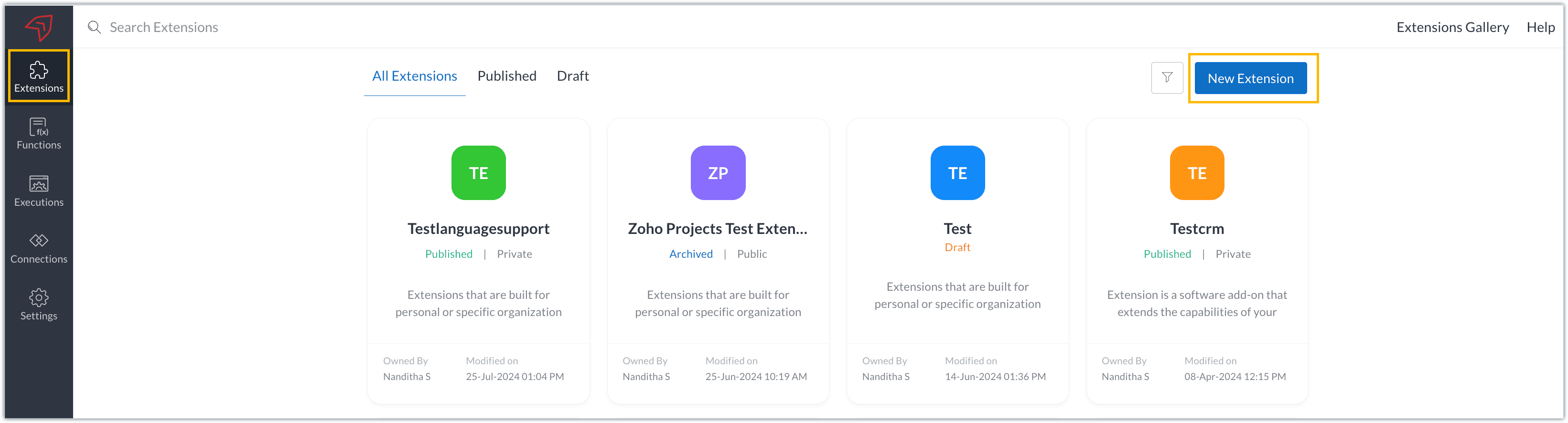
- Once you enter your workspace, you'll be taken to the Extensions section in Sigma.
- Click the New Extension button to start building an extension.
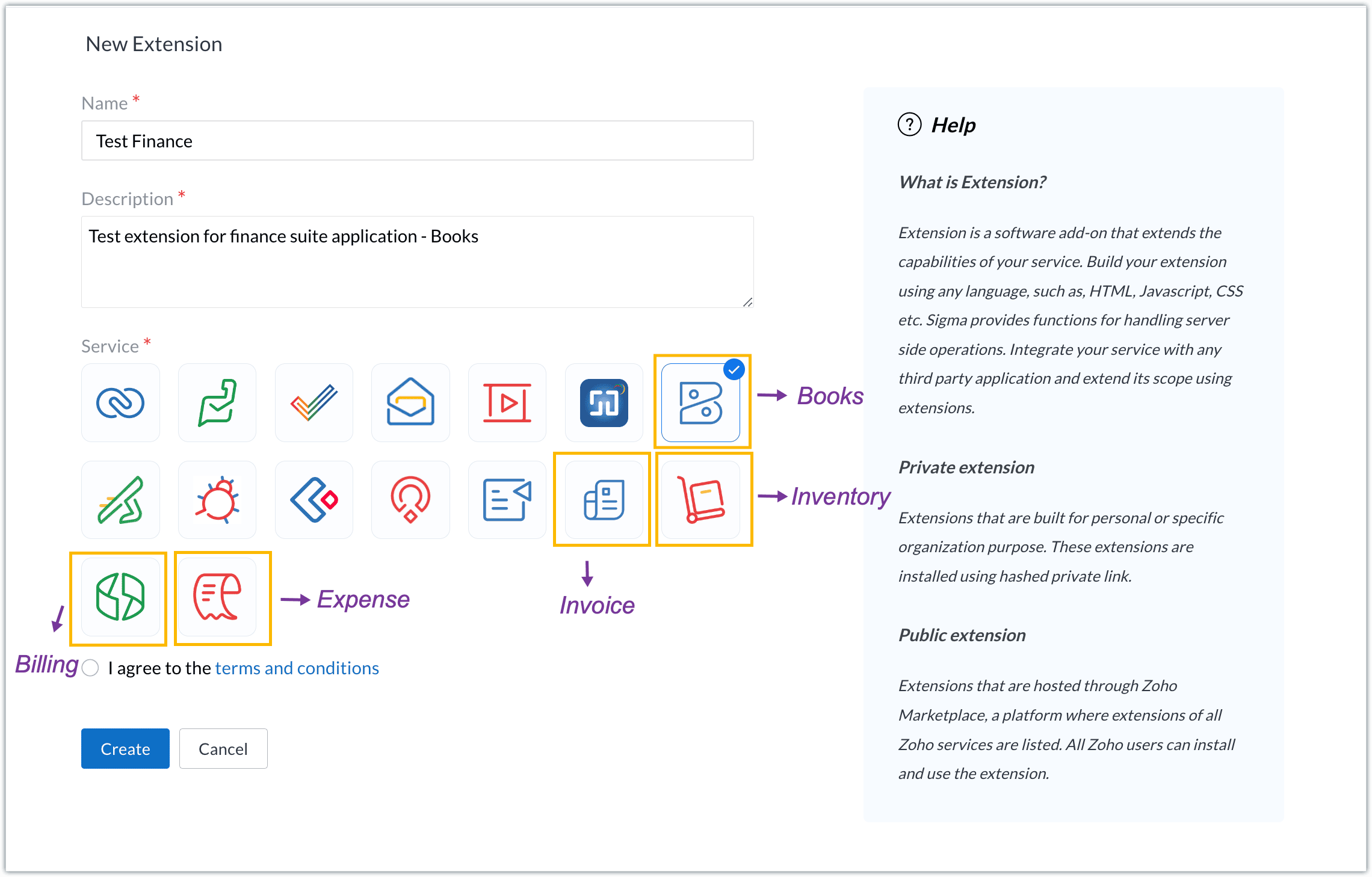
- Enter a name and description for the extension and choose the service you want to build the extension for. As mentioned earlier, Sigma offers support for Zoho Books, Zoho Invoice, Zoho Inventory, Zoho Billing, and Zoho Expense.
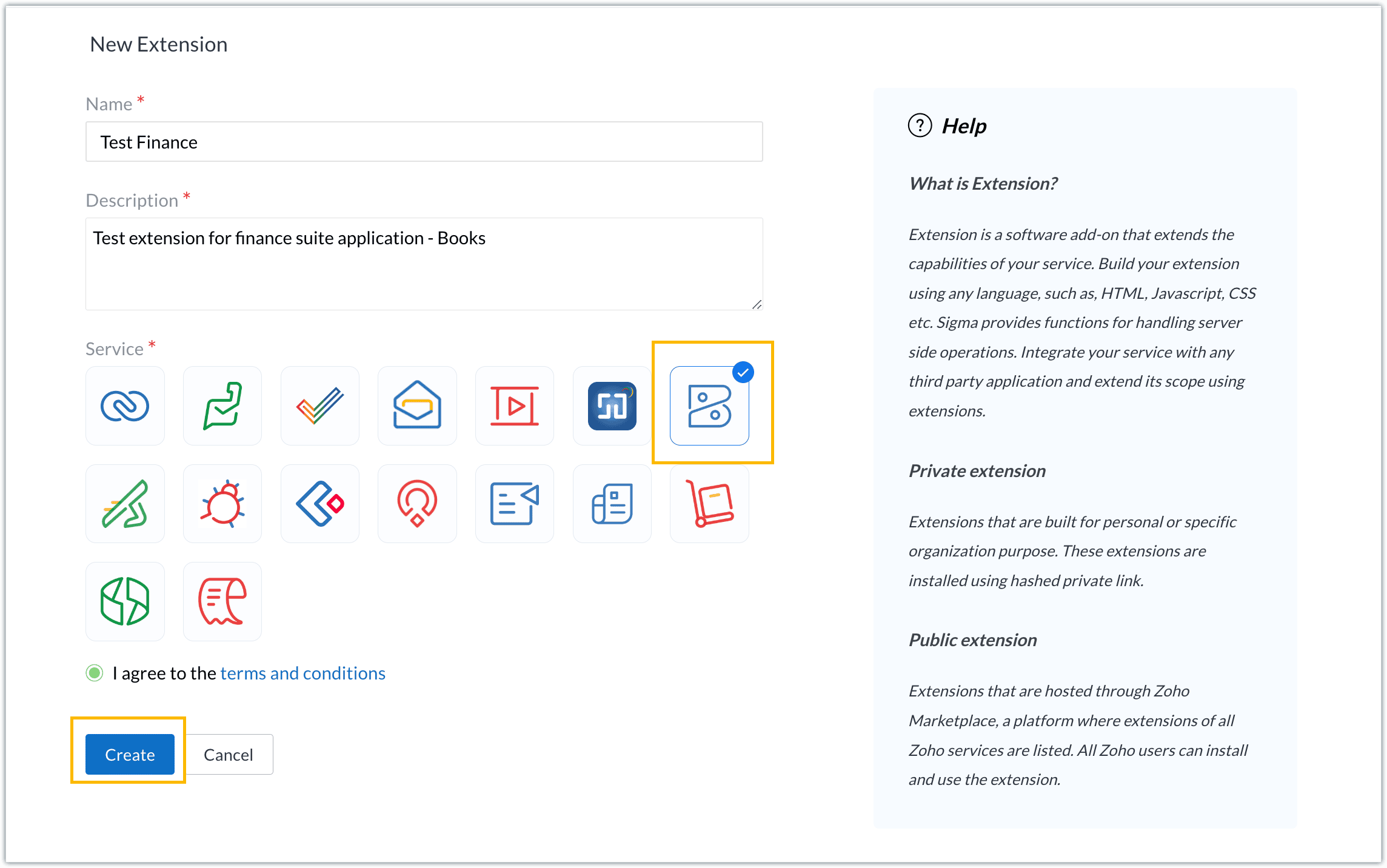
- For our demo, let's choose the service as Zoho Books. Accept the terms and conditions, and then click Create.
- The extension is successfully created. You can click the Extension Details icon to see an overview of the extension.
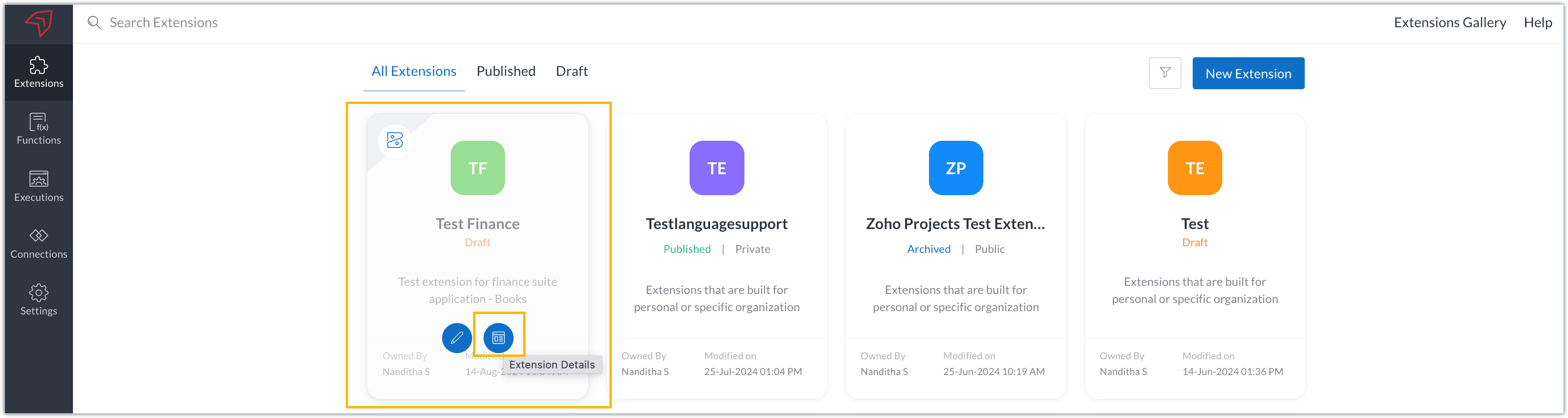
The extension details page shows the general details of the extension, such as creation date, creation time, and version, and allows you to associate developers with the extension.
- Click the Edit Extension icon to start developing the extension.
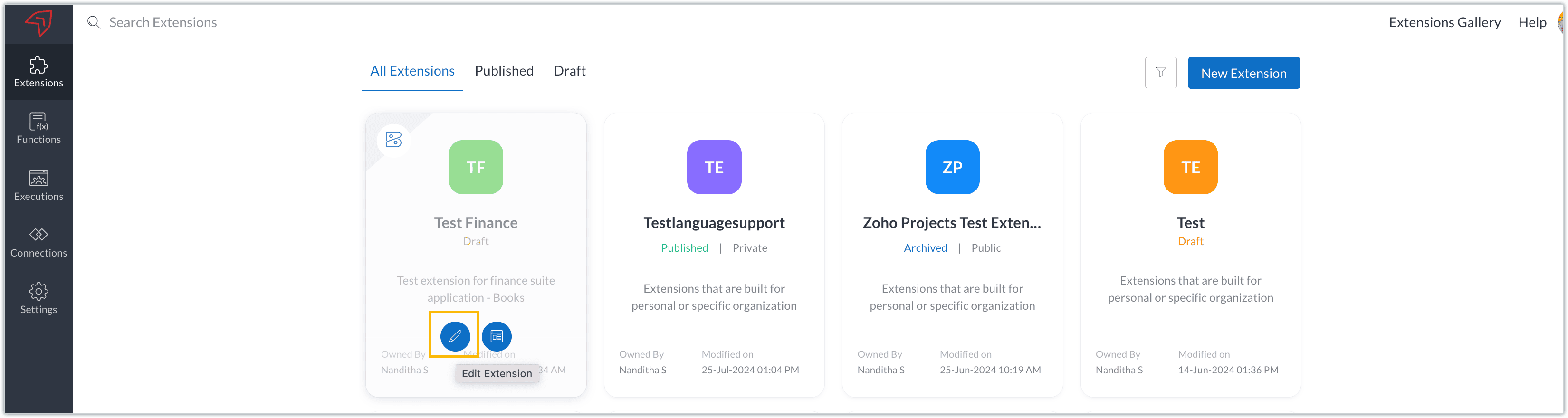
- The Zoho Books Developer Portal opens with the options and native features available to customize, curate, and develop your extension.
Zoho Books Developer Portal sections
The developer portal has four different sections to help customize and build your extension.
Learn: This section lists the native Zoho Books capabilities that can be used to create and develop extensions. Clicking the Set up Now button next to each feature will take you to the feature's development setup page.

Build: This is the development setup section, which includes customization, automation, and components like connections, widgets, schedules, webhooks, and signals. You can customize your extension preferences, establish connections to integrate with other applications, and design custom interfaces to enhance user experience.

Configure: This section assists with handling your extension's required configurations, whether they are generic settings or customizations required from the user. You can add global fields, which can be incorporated as either variables that store static data or through custom widgets that retrieve user inputs. You can also define functionalities that happen during installation and uninstallation.

Publish: Once the extension has been built and configured, you can use this section to publish it for either private or public use. In both cases, the Zoho Books team will review the extension; for public extensions listed on Zoho Marketplace, the Zoho Marketplace approval team will also review them. You can share your privately published extension with other users using the Shared List option.

We will explore more about each of these sections and their features in upcoming posts.
Testing an extension
The Zoho Books Developer Portal offers a dedicated testing environment for each extension, allowing you to test and validate it before publishing.
As a developer, you can use the Test Your Extension option in the top right corner of the portal to access your extension's sandbox environment.

This will redirect you to the sandbox testing environment for the extension you're developing, which is similar to Zoho Books and contains relevant modules to test with.

You can populate necessary data and test your extension functionality. Once everything is validated, you can go ahead and publish your extension for private or public use.
For support or questions related to Zoho Finance Suite extension development, you can email developer@zohofinance.com.
We hope you found this guide useful. Keep following this space for more information!
Topic Participants
Nanditha Somasundaram Somasundaram
Sticky Posts
Building extensions #5: Creating custom connections for extensions
In our previous post, we discussed the significance of connections, identified their types, developed a predefined connection, and demonstrated how it can be integrated with Zoho Books using an example. In this post, we'll walk through the process ofBuilding extensions #4: Integrating Zoho Books with applications using connections
In our last post, we looked at an overview of the key features available for creating a Zoho Books extension, including connections. In this post, we'll go over connections in depth, including their types and applications. What are connections? "Connections"Building extensions #3: Fundamental features of a Zoho Books extension
In our earlier posts, we covered how to create, test, and publish an extension for Zoho Finance suite applications. Moving forward, we'll look specifically at instances relating to one of the products from the Zoho Finance suite: Zoho Books. In this post,Building extensions #2: Publishing an extension
Hello developers, Welcome to our next post about building extensions for Zoho Finance Suite applications. In our previous post, we looked at extensions, their purpose, and how to create and test them. To recap, extensions are installable plugins or add-onsBuilding extensions #1: Creating and testing extensions for Zoho Finance Suite applications
Hello developers! We're excited to announce a new series called "Building extensions" to assist developers in creating efficient extensions for Zoho Finance Suite products. We'll support and guide you through the process of creating an extension and using
Recent Topics
Workflow workdrive rollout
Hi! When will workflow be rolled out to all users? Thanks.Creating and managing a Team Folder using WorkDrive TrueSync
Hello everyone, Are you tired of constantly switching between your Desktop TrueSync app and the WorkDrive web app to create and manage Team Folders? We’ve made things easier for you. You can now create and manage Team Folders directly within the TrueSyncEdit images seamlessly with WorkDrive's built-in Image Editor
Are you tired of switching between multiple tools just to make simple edits to your images? We understand the hassle, which is why Zoho WorkDrive now comes with a built-in image editing tool, powered by Zoho Annotator. This tool allows you to edit imagesSupercharge your email workflow with WorkDrive's add-in for Microsoft Outlook
Consider this: You’re handling a critical project, and your inbox is packed with important attachments, email threads, and client communications. The back-and-forth routine of downloading files to your computer, uploading them to WorkDrive, and manuallySecure and promote your content with Custom Watermarking
Imagine this: You’re a professional photographer who regularly shares your work online with potential clients and collaborators. Recently, you notice that some of your images have been reposted without any credit or permission. This not only impacts yourJoin us in Singapore for the Zoho WorkDrive User Group meetup!
Hello, everyone! Exciting news! We'll be hosting an upcoming Zoho WorkDrive user group meetup in the beautiful city of Singapore this November. At this Zoho User Group meetup, we'll guide you through ways to use WorkDrive as a platform and build customWorkDrive TrueSync now supports ARM64-based Windows devices!
We’re excited to announce that the Zoho WorkDrive TrueSync app now fully supports Windows devices with ARM64 architecture! Whether you're working on an ARM-based device or an x64 processor, you can now enjoy the same seamless file synchronization experienceOption to Disable Download for Documents Shared via Permalink
Dear Zoho Writer Team, Currently, when sharing a Writer document using the regular permalink (Collaborators with external users), there is no option to restrict the ability to download the document. While the external share link allows such restrictions,How to Download a File from Zoho WorkDrive Using a Public Link
How to Download a File from Zoho WorkDrive Using a Public Link If you're working with Zoho WorkDrive and want to download a file using a public link, here's a simple method to do so using API or a basic script. This approach helps developers or teamsdomain not verified error
Hi when i try to upload a video from zoho creator widget to zoho work drive iam getting domain not verified error.I don't know what to do .In zoho api console this is my home page url https://creatorapp.zoho.com/ and this is my redirect url:www.google.com.IamLive Webinar: Getting Started with Zoho WorkDrive - A Complete Overview
Hello everyone, We’re excited to invite you to our upcoming live webinar! Discover how to set up your team, bring in your data, and make the most of WorkDrive’s collaboration, organization, AI, and security capabilities. This session is perfect for anyoneCalendly One-way sync- Beta Access
Hello Community, Many of our Zoho Calendar users have expressed their interests in Zoho Calendar and Calendly integration. We've been tightly working on with Calendly team to provide a two-way sync between Calendly and Zoho Calendar. However, there haveThe year that was at Zoho Calendar 2023- Part 2
In continuation with our previous post on all the exciting updates and improvements that have shaped Zoho Calendar over the past 12 months, Lets delve into more: Bring your calendars together- Introducing Zoho Calendar and Outlook calendar synchronisationTip of the week #18: Change the event organizer in Zoho Calendar.
We cannot always be available to conduct an event when we organise one. In these circumstances, you can use Zoho Calendar to change the event organizer at any moment before the event begins. This way, you can avoid cancelling the event while still takingTip of the week #20: Create and manage multiple personal calendars.
Zoho Calendar provides users with the facility to create and manage as many calendars as required. All these calendars can be managed and edited as per user requirements. You can alter the calendar view, make changes to the calendar theme, share the calendarTip of the week #24: Subscribe to the calendars of a Zoho Calendar user.
Calendars that are created by Zoho Calendar users can also be added to your Zoho calendar. All public calendars listed by the users will be available when you enter the email address. You can choose the calendar you need to subscribe to. Once the emailRemoving calendar for zoho email group
How do I make it so that an email group created in Zoho Mail does NOT have a calendar? I have a couple groups for our phone systems voicemails - one for each department. Voicemail recordings are sent to this groups email address so they have access toTip of the week #27: Edit personal calendars in Zoho Calendar.
In Zoho Calendar, the personal calendars you create can be edited to make changes you need to make. Edit a Personal Calendar The following changes can be made to the personal calendar by editing it: Calendar title Calendar color Reminders and DescriptionTip of the week #28: Show/ hide, enable/ disable and empty/ delete your calendars in Zoho Calendar.
The popularity of online calendars has soared in recent years. It's used both for personal and professional reasons. Calendars have evolved into an effective productivity tool in our lives, from creating events for birthdays and anniversaries to schedulingTip of the week #30: Share calendars publicly in Zoho Calendar.
In Zoho Calendar, calendars that are created under My Calendars can be shared publicly. Making your calendar public allows others to view it. When you need to share your calendar with a larger group, public sharing can help. You can restrict others fromTip of the week #31: Share your personal calendars within organization.
Keep your Organization members aware of what's happening. In Zoho Calendar, you can share your personal calendar with all the members in your organization using the Share with org option.When you enable org sharing for a particular personal calendar,Tip of the Week #33: Appointment scheduler in Zoho Calendar.
In Zoho Calendar, you can use the Schedule Appointment option to share your appointment request form with the public, allowing people to fill out the form to request an appointment with you. This form can be embedded on your website or blog. VisitorsTip of the Week #34: Embed Calendars using Zoho Calendar
You can make your calendars public and visible to the general public by embedding them in your websites/blogs using Zoho Calendar. You can use the embed code to add your own calendars to your website's/ blog's HTML code, and the calendar will appear onTip of the week #35: Migrate to Zoho Calendar from Google Calendar.
If you are looking to move your Google Calendar events to Zoho Calendar, never worry about missing out the events from your Google Calendar. You can migrate the events from Google Calendar using the export option and import it to Zoho Calendar and manageTip of the week #36: Migrate to Zoho Calendar from Outlook Calendar.
If you've been using Outlook calendar and looking to migrate to Zoho Calendar, you can seamlessly export your calendars from Outlook and import them into Zoho Calendar without losing any events, participants, and the reminders set for each event. To migrateShared calendar issues and duplications
Apparently there was a calendar update? Now when I schedule an event for a team member that has shared his calendar with me, the event makes me the organizer and adds the event to my calendar as well. Previous to this "update" I would scheduled an eventSubscribed Calendar
Hi i have subscribed to a calendar for Holidays in Canada it shows all the holidays perfectly but every one of them has the word Canada before the rest of the name is there a way to remove that word Canada? It takes up a lot of space in the square onThe year that was at Zoho Calendar 2023- Part 1
Hello, amazing community members! Happy new year from all of us here at Zoho Calendar. As we begin the new year, we'd like to thank each and everyone of our community members for your unwavering support and love that you have shown for Zoho Calendar.Zoho Calendar 2024: A Year in Review
Hello, community members! Happy new year from all of us here at Zoho Calendar. As we turn the page to a new year, we extend our heartfelt gratitude to every member of our Zoho Calendar community for your continued support and enthusiasm. Your feedbackZoho Calendar not syncing correctly with personal Google Calendar
Coming to this forum as Zoho Calendar support team is not responding, any more. For the past 8 weeks, I have been having an issue with Zoho Calendar not syncing with my personal Google Calendar correctly. I subscribed to Zoho Calendar iCal in my personalZeptomail API error 500 internal server error
Hi Everyone, getting this eror continuously! Can anyone please guide around the same! Zeptomail API error 500 internal server error Best RegardsWaiting multiple days to buy credits, causing my website to suffer
So I own a fairly large website that gets a lot of registered users. I use transmail send activation emails, and also forgot password emails. I sent an email to zoho's presales team when I was only at 4K/10K emails sent, hoping to buy more credits beforeFollow up
Hello, I sent a message 2 days ago but I don't receive any response and I cannot find my ticket here. this is the ticket: Your ticket has been created with the ticket ID 68925465 and subject "Fwd: Fishing-alert" looking forward to seeing your response.What's new in TransMail!
Note: TransMail is now ZeptoMail. Click here to know more. Hello again, everyone! We've recently crossed the 6 months mark of TransMail's launch. In this time post our launch, we have been constantly working on updating our platform and adding new featuresJune 2021 in TransMail!
Note: TransMail is now ZeptoMail. Click here to know more. Hello again, everyone! Hope you and your loved ones are doing well. If you're doing less than fine, we truly hope that things only get better for you. We've had a few updates in the past monthTransMail has a new name—ZeptoMail!
Tried navigating to TransMail's community forum but see a different name now? That's because TransMail has a new name. TransMail is now ZeptoMail! As we’ve grown from an internal service used mainly by other Zoho products to an up-and-coming competitorJuly 2021 in ZeptoMail!
Note: TransMail is now ZeptoMail. Click here to know more. Hello again, everyone! Hope you and your loved ones are doing well. We've had a few updates in the past month in ZeptoMail—some new features and some important announcements. Take look at whatSend Email From the ZeptoMail BY API
What is Zeptomail:- Transactional email service with reliable and fast delivery How we can Create a Connection for Zeptomail in Zoho CRM Go to the Setup Click on Connection Enter Connection Details:- Generate Consumer Key & Consumer Secret Using ZohoCustomer email on Opencart 3
When I place an order, 2 emails are sent: 1) administrator 2) to the user The administrator receives a beautiful letter, but the user receives a damaged letter (see screenshot). What could be the problem?[Announcement] Insert image from URL changes in Zoho Writer
Hi Zoho Writer users! We'd like to let you know that we've changed the behavior of the Insert image from URL option in Zoho Writer for security reasons. Earlier behavior Once you inserted an image URL in a Writer document, the image would be fetched fromNext Page