Automating appointment status and customer feedback collection
Hello community members,
In the spirit of elevating your scheduling game for 2024, we're bringing you a couple of useful workarounds that can enhance your overall Bookings experience.
We have divided the community post into two halves. In the first half, we will show how to automate the appointment status to Completed. This action ensures that emails are automatically triggered after the appointment is completed. In the second half, we will explore how to add and prefill the feedback form in your customer emails. This will allow you to efficiently gather feedback from customers.
In an effort to streamline the entire process, we're merging both topics into a single post. This aims to automate updating the appointment status to completed, triggering the completion email to customers, and seamlessly integrating our Zoho Survey form for actively collecting valuable feedback.
In an effort to streamline the entire process, we're merging both topics into a single post. This aims to automate updating the appointment status to completed, triggering the completion email to customers, and seamlessly integrating our Zoho Survey form for actively collecting valuable feedback.
Automating the appointment status
Currently, updating an appointment's status to Completed is a manual process in Zoho Bookings. However, with our new workaround, you can now streamline this task through automation. We've included steps below that will make it so that once an appointment has ended, its status will automatically switch to Completed.
Note that if you mark an appointment as No show, your selection will not be overwritten by this new workaround.
If you're still concerned about this, consider editing the content of the appointment completion trigger email, providing generic content suitable for both attendees and non-attendees. This guarantees that even if all appointments are marked as completed, a generic email with relevant information will be sent to all customers.
Prerequisites for automating the appointment status
1. Zoho Bookings basic or premium subscription.
2. Zoho Flow paid subscription
How to automate
A. First, we'll create a new flow in Zoho Flow:
1. Sign in to Zoho Flow.
2. Select the Create flow option.
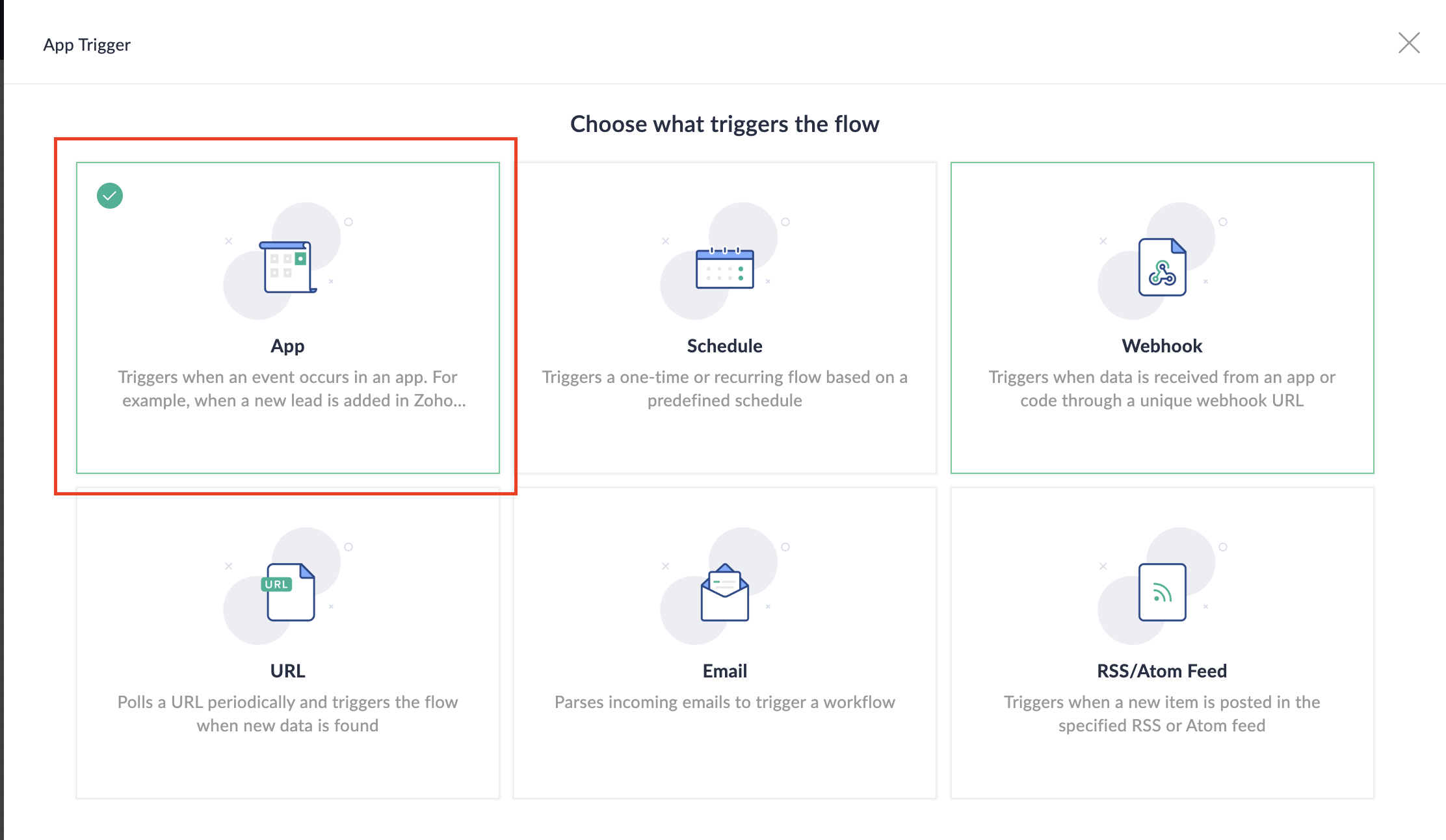
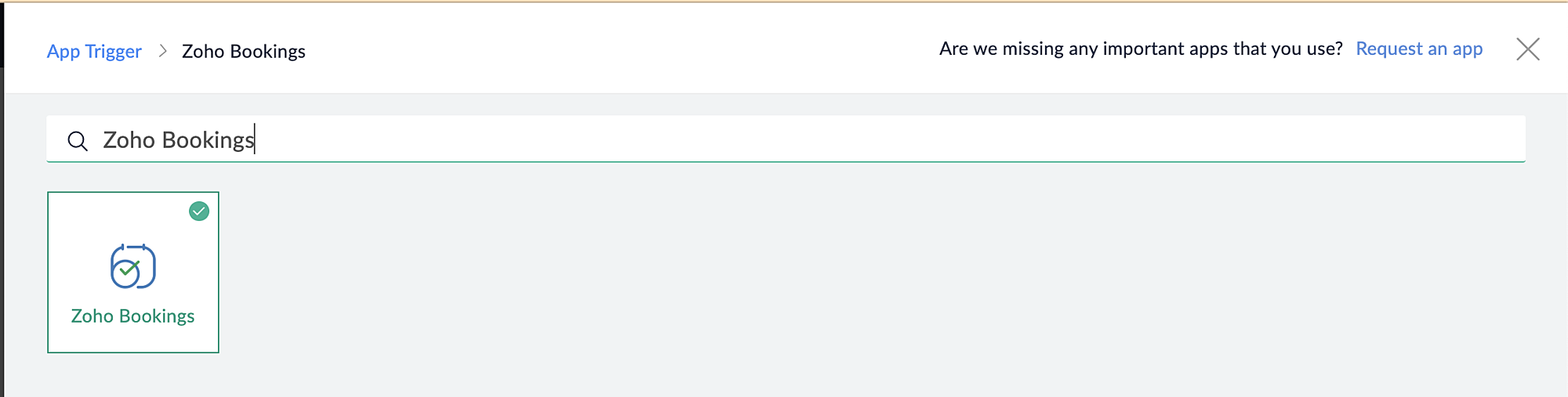
3. Select App and search for Zoho Bookings in the search bar.
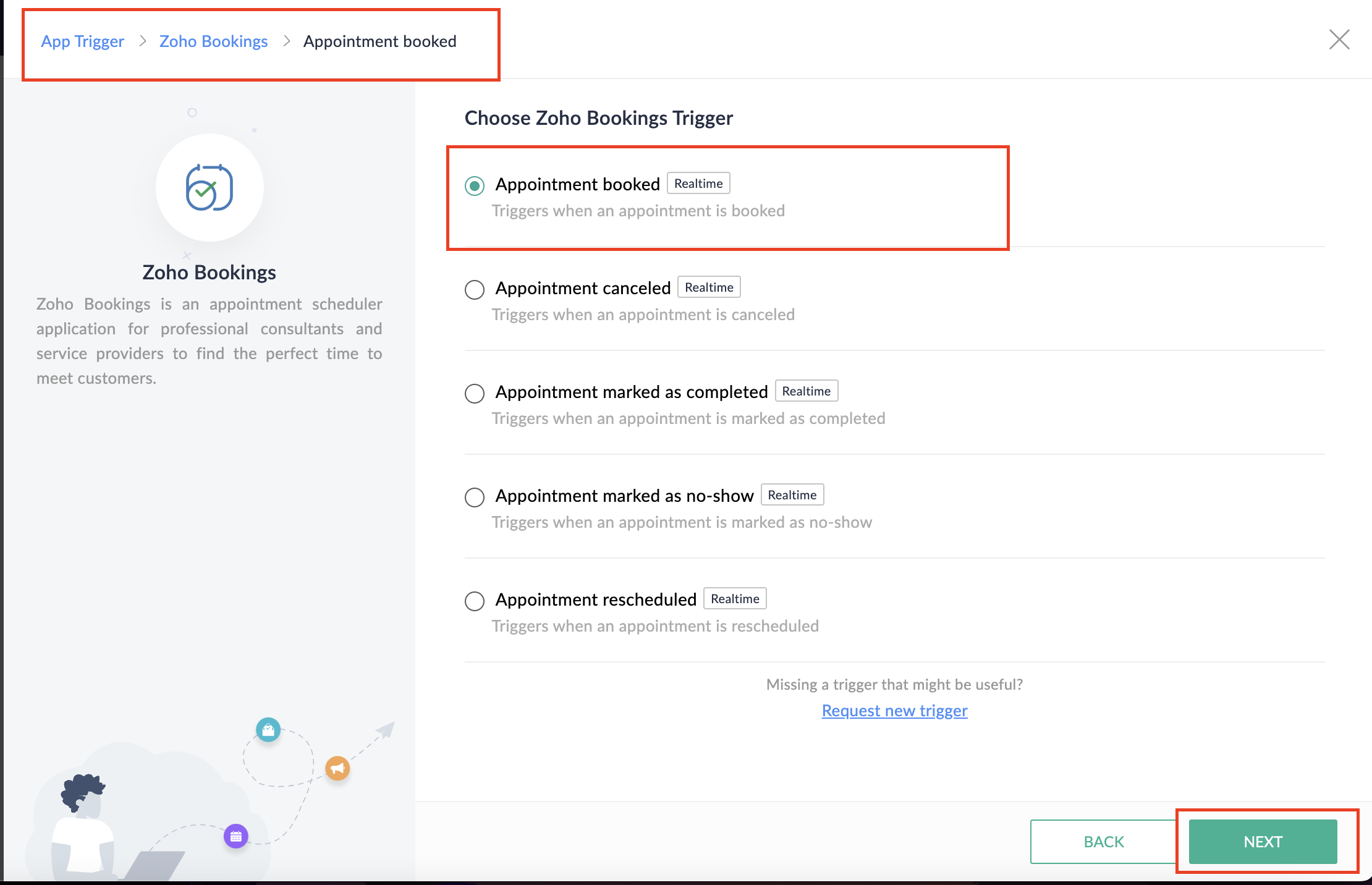
4. Select the Appointment booked trigger.
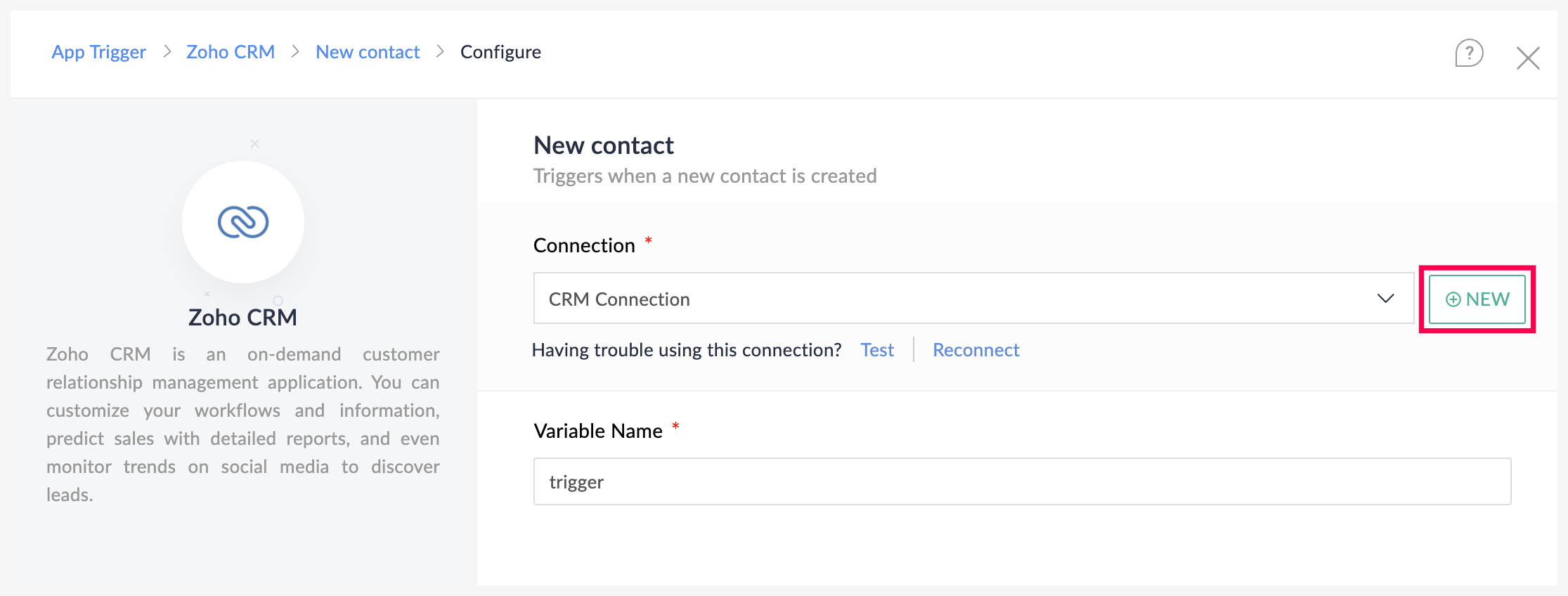
5. Select the Connection and Variable Name.
6. Click Done.
You have now created a new flow for Zoho Bookings.
Other helpful links for this process:
- How to create a flow in Zoho Flow: Create a flow from scratch
- How to create connection in Zoho Flow: Create a Connection
B. Next, let's configure the logic:
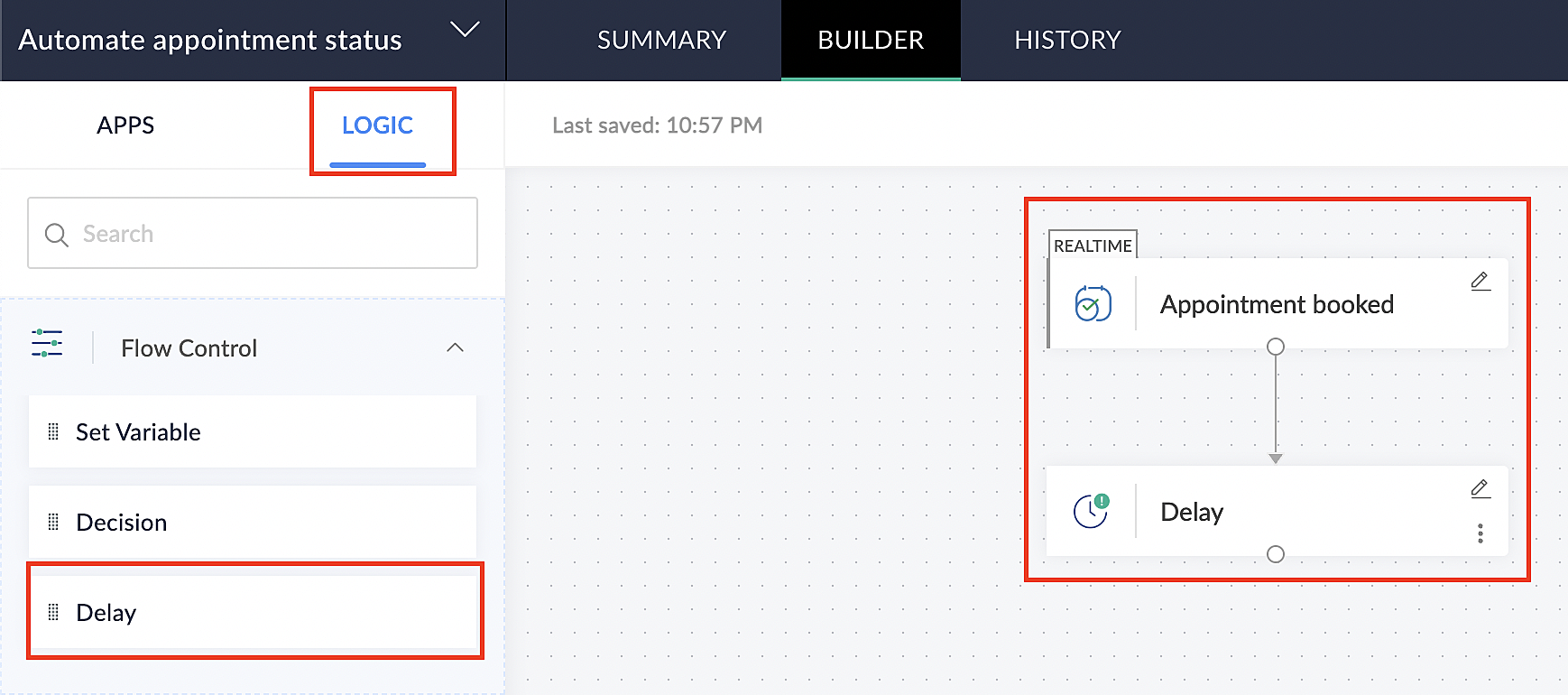
1. Navigate to the Logic tab in Zoho Flow.
2. Click the Flow Control dropdown and select Delay.
3. Drag and drop the Delay function to the bottom of the Appointment booked trigger.
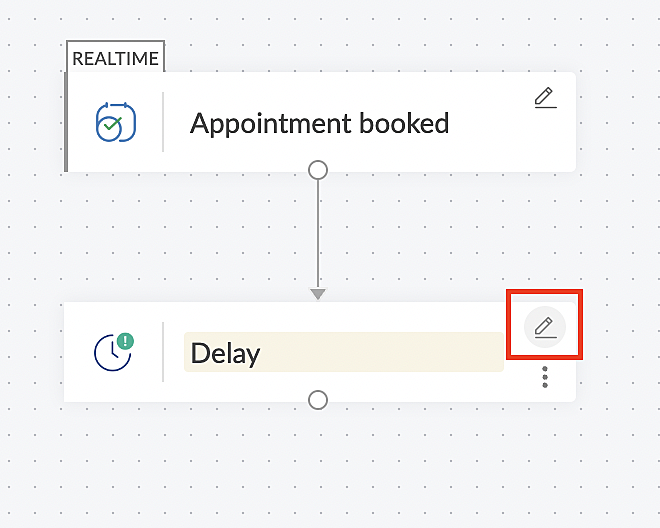
4. Click on the edit icon next to the Delay function.
5. In the Delay For the column, select the appointment end time variable from the available Zoho Bookings variables.
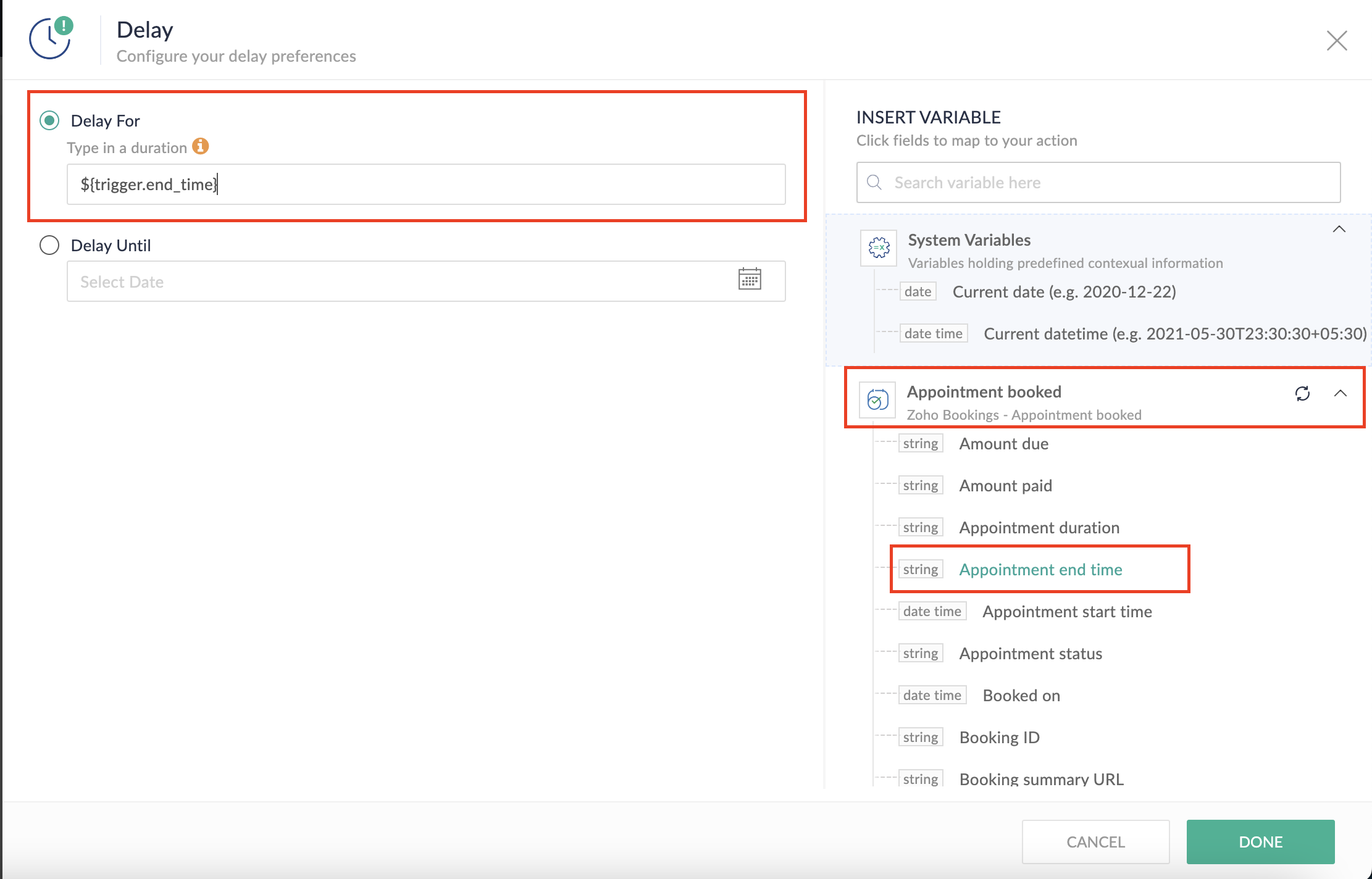
Completing this steps helps us ensure that this workflow executes exclusively at the end of each appointment.
C. We can now allocate additional time for any necessary actions:
For example, let's consider extending the remaining actions by an extra 5 minutes. This extension grants you additional time to update the appointment status.
1. From the Logic tab, drag and drop another Delay action to the bottom of the first Delay action.
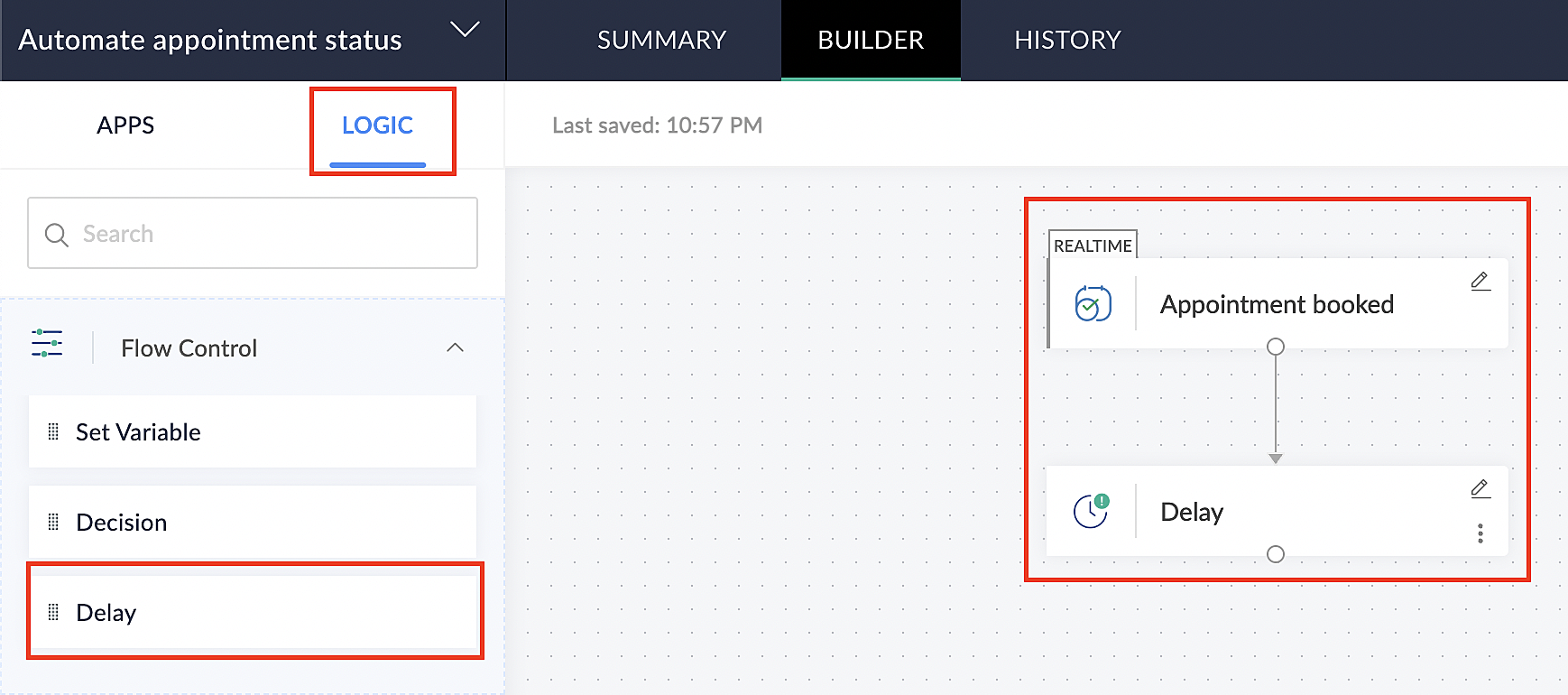
2. Click on the edit icon next to the Delay function.
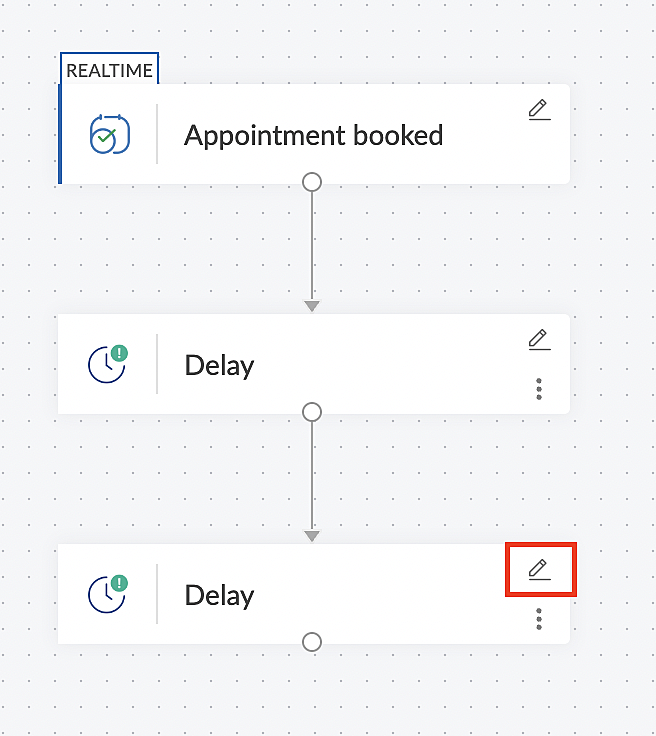
3. In the Delay For column, set the desired extra time based on your preference. If going by our proposed example, we'd configure an additional 5 minutes.
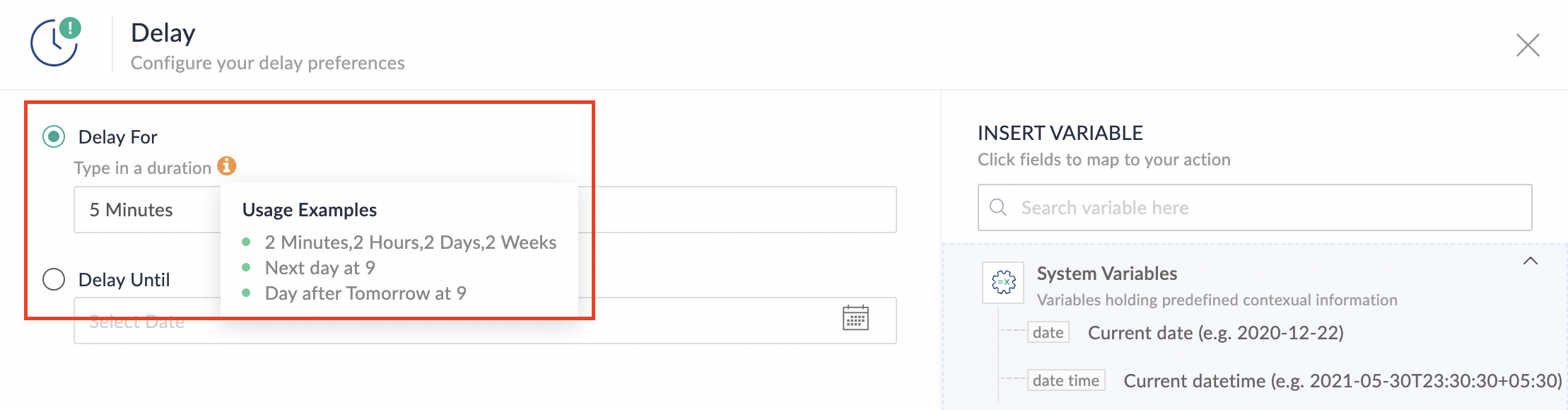
For more details: Delay
Note: If you decide not to include extra time and prefer to execute the flow precisely at the end of the appointment duration, you do not need to complete this section of steps.
D. Finally, let's configure a custom function
Through this step, we'll ensure our ended appointment's status updates to Completed (as long as no other status has been selected).
1. From the Logic tab, click the Custom Functions dropdown.
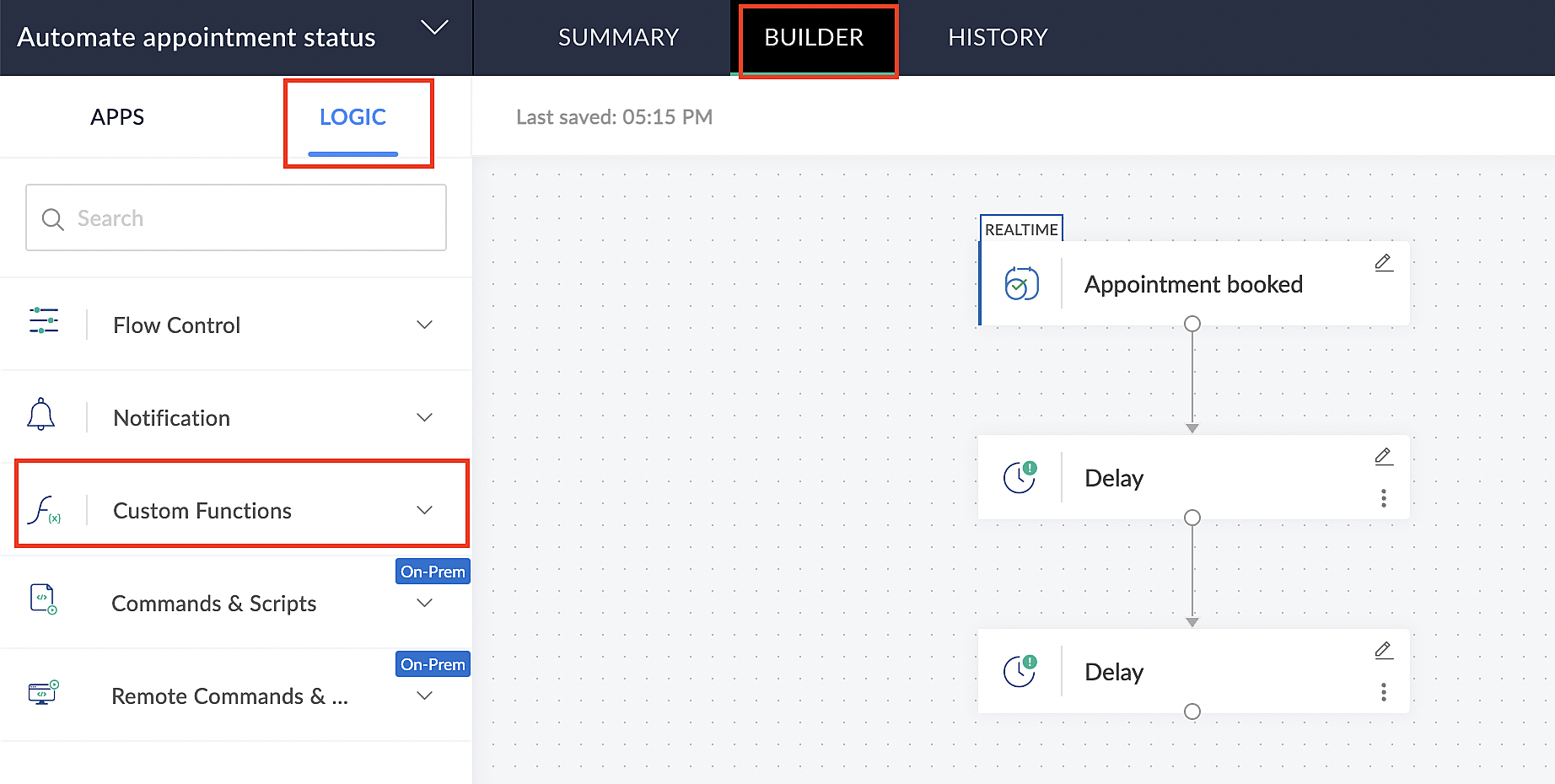
For more details: Custom Functions
2. Click +Custom Function.
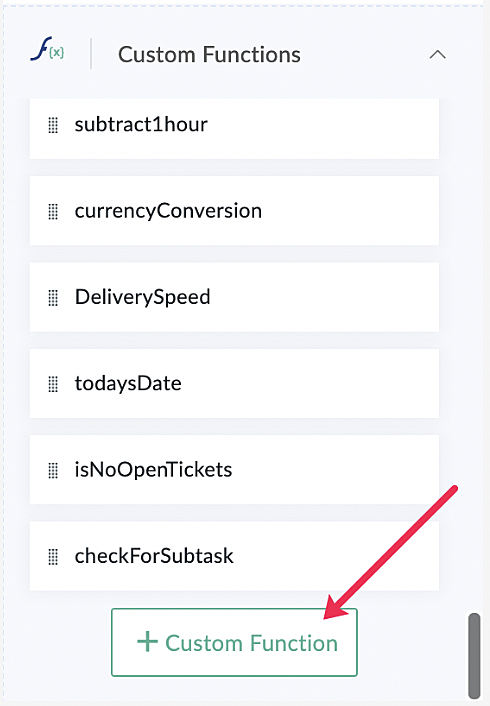
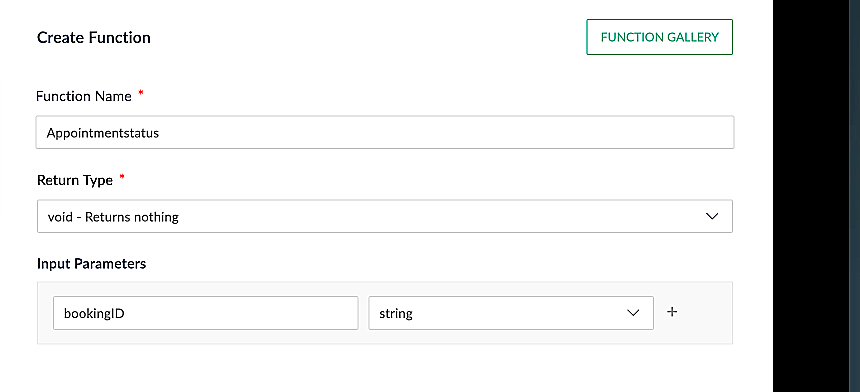
3. Add a relevant name for the function under Function Name, and set the Return Type as void - Returns nothing from the dropdown.
4. Under Input parameters, type bookingID and select string from the dropdown as shown in the screenshot below.
5. Click Create to open the Deluge script page, where we will enter our code for execution.
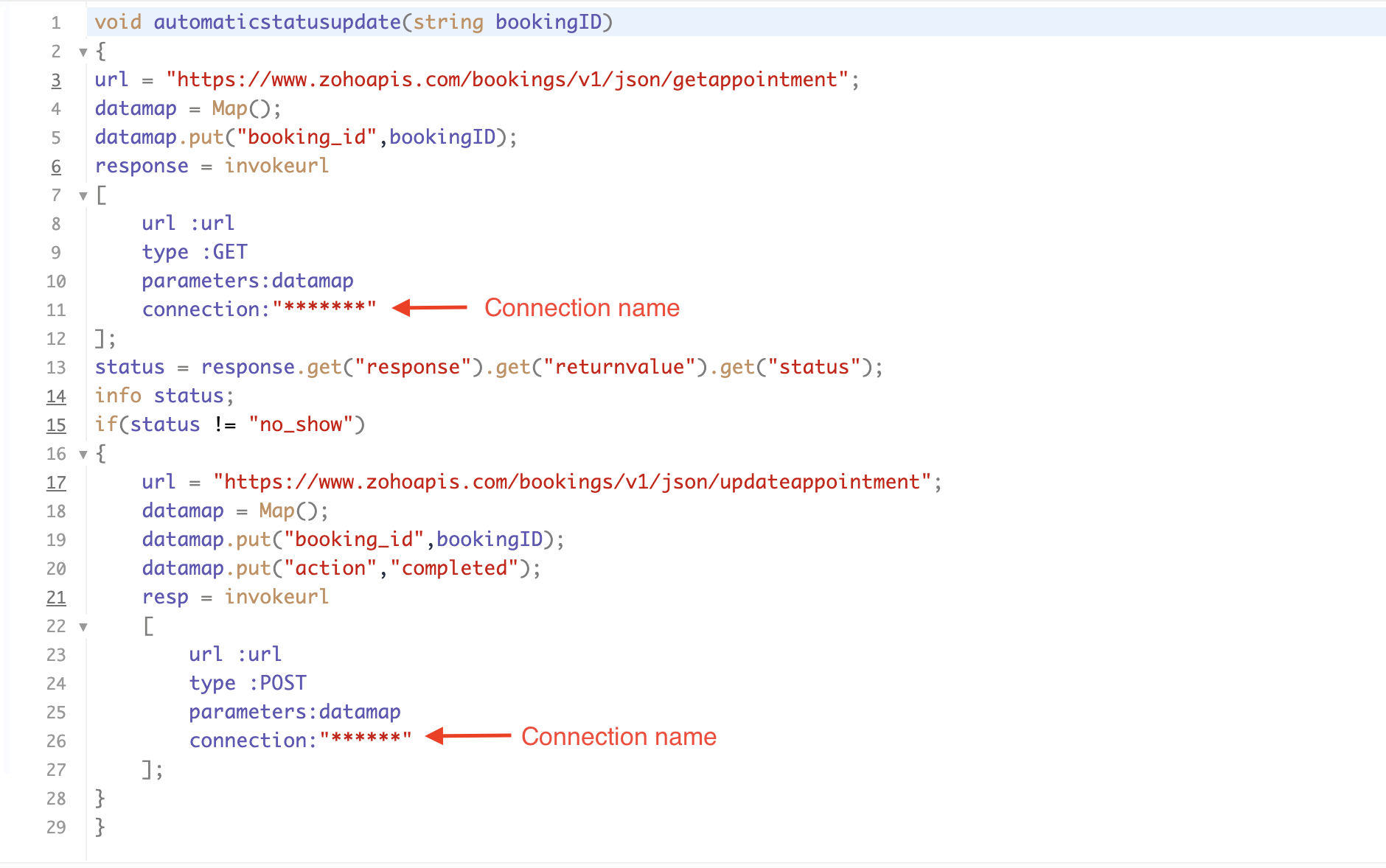
If you're interested, here is a brief explanation of the code:
Line 1: To pass the input data below to the code.
- Booking ID: Identifies the specific booking for fetching details and checking the status.
Line 3: Set up the API endpoint URL based on the Zoho Bookings account's data center.
- More details: Domain-specific API URLs
Line 3–12: We utilize the Get Appointment API' to retrieve the appointment details. For more details: Get Appointment API
Line 13: Here, we're fetching the status of the respective appointment from the response of the Get Appointment API.
Line 15: Implement an 'if' condition to execute the code only if the appointment status is not No show.
Line 16–27: In this step, we utilize the 'Update Appointment API to mark the appointment status as Completed' when the condition specified in line 15 of the code is met.
This is how the final flow will look:
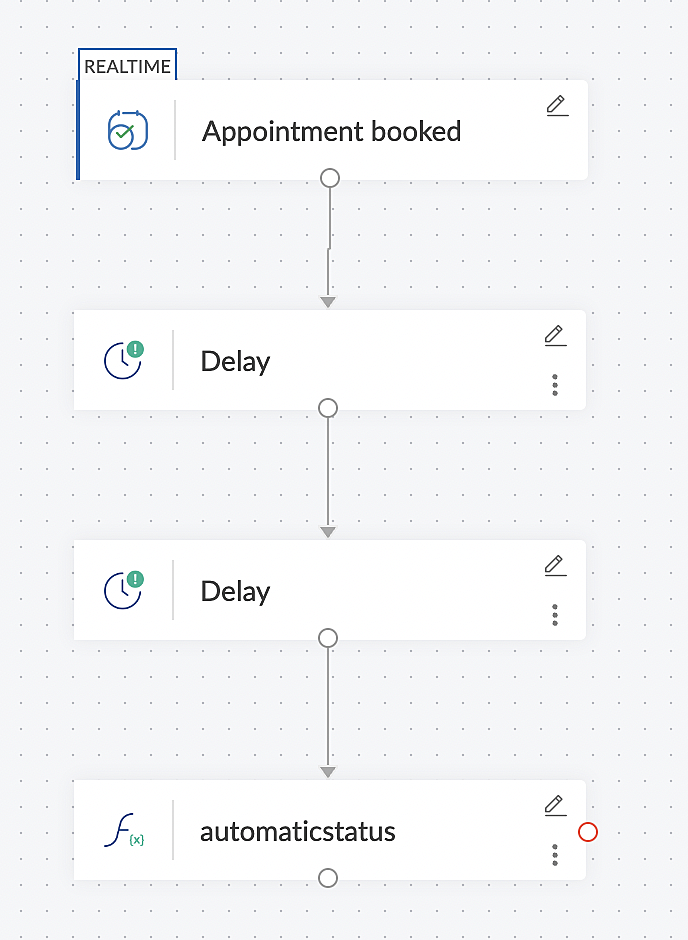
This is how the final flow will look:
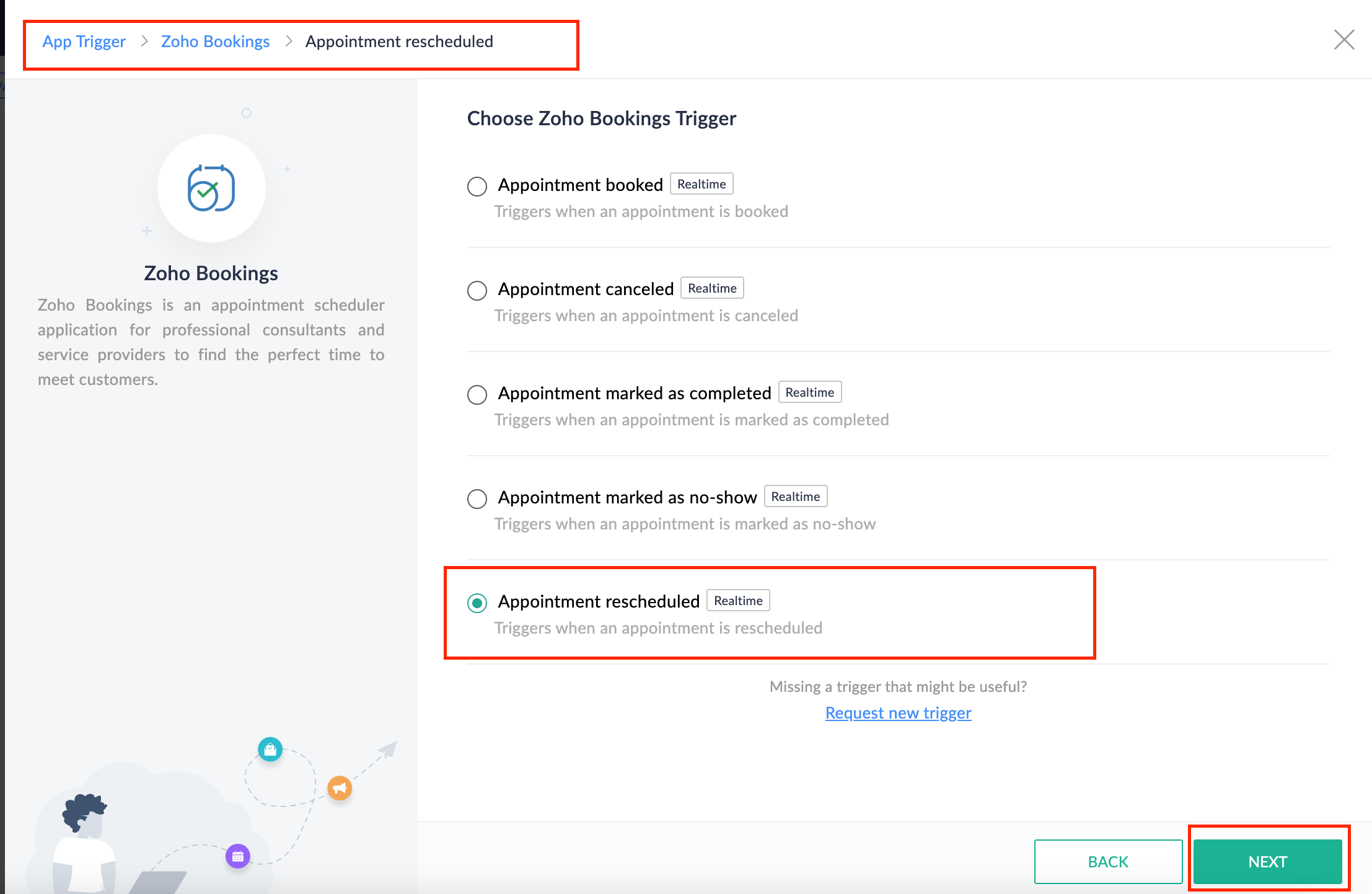
Note: The described flow is tailored for newly scheduled appointments. For cases where appointments are initially scheduled and later rescheduled, a separate flow must be created. The flow for rescheduled appointments follows the same steps outlined above, with the only modification being the initial trigger. Instead of the 'Appointment booked' trigger, please substitute it with the 'Appointment rescheduled' trigger in step A (steps B, C, and D remain the same).
Collecting feedback with surveys
Ensuring a seamless and positive customer experience is a top priority for every appointment. An integral part of this process involves gathering feedback from customers after the appointment's completion. This valuable feedback not only helps understand their sentiments but also provides insights for continuous improvement.
Let's explore how to leverage Zoho Survey to collect valuable feedback from customers. Additionally, we'll delve into the process of pre populating survey fields with the customer's name extracted from the appointment.
How to create a survey in Zoho survey:
You have the option to create a new survey from scratch or choose from templates or existing surveys.
For more details, refer to: Create a Survey.
As an example, let's use the Customer Feedback Survey from the templates.
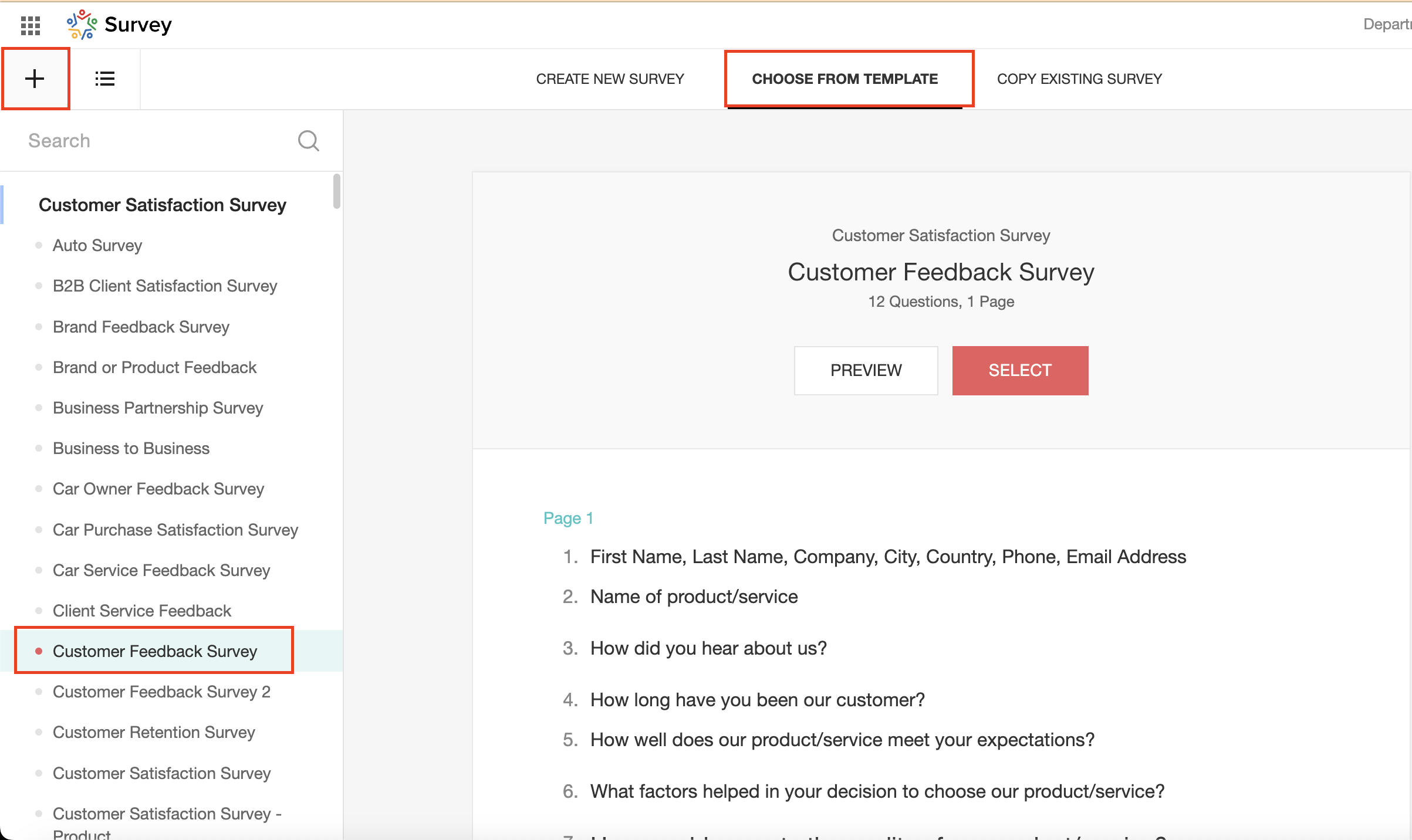
To enhance your survey experience, you have the flexibility to edit the survey form and select specific fields for inclusion.
Now, let's take a closer look at streamlining the customer experience by auto-populating the field inputs in Zoho survey with customer details. This additional step eliminates the need for customers to add their information manually, contributing to an enhanced overall experience.
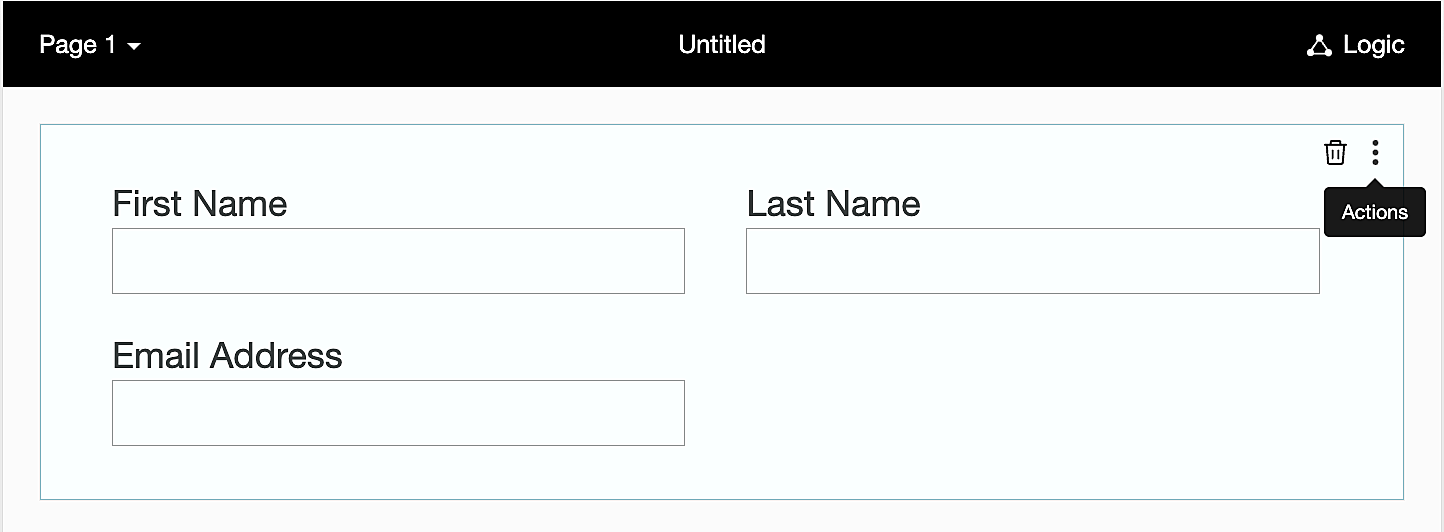
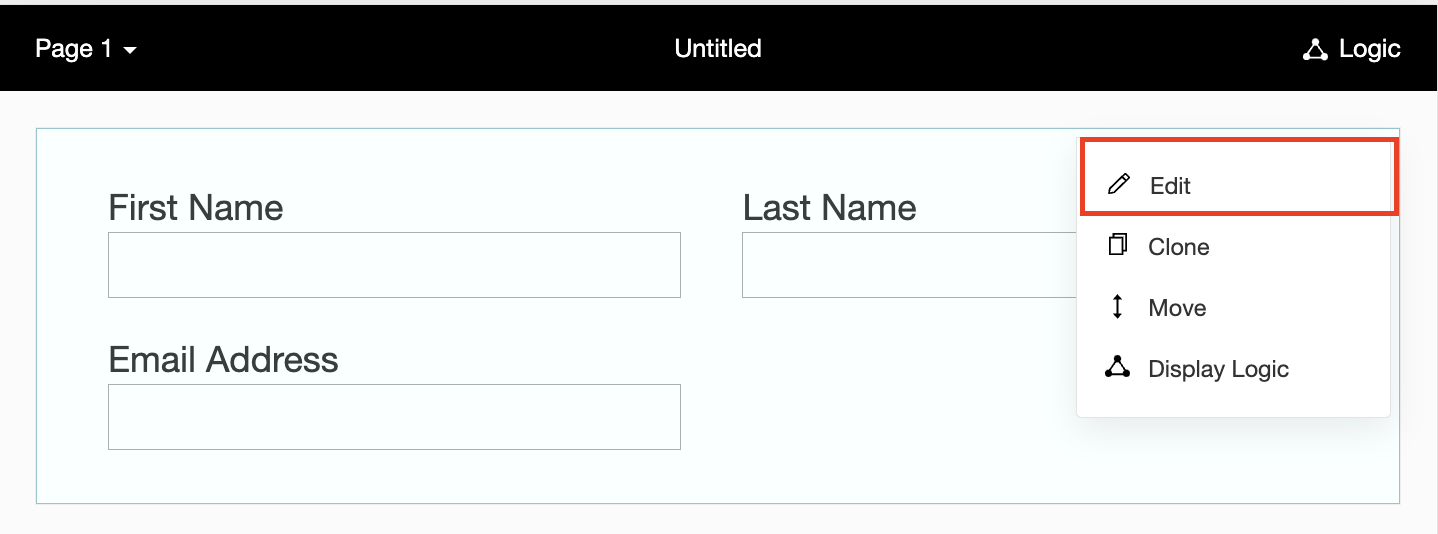
1. Click on the Actions button (three dots) next to the Last Name field, and choose Edit.
2. Click on Advanced options and check the box next to Prepopulate answer.
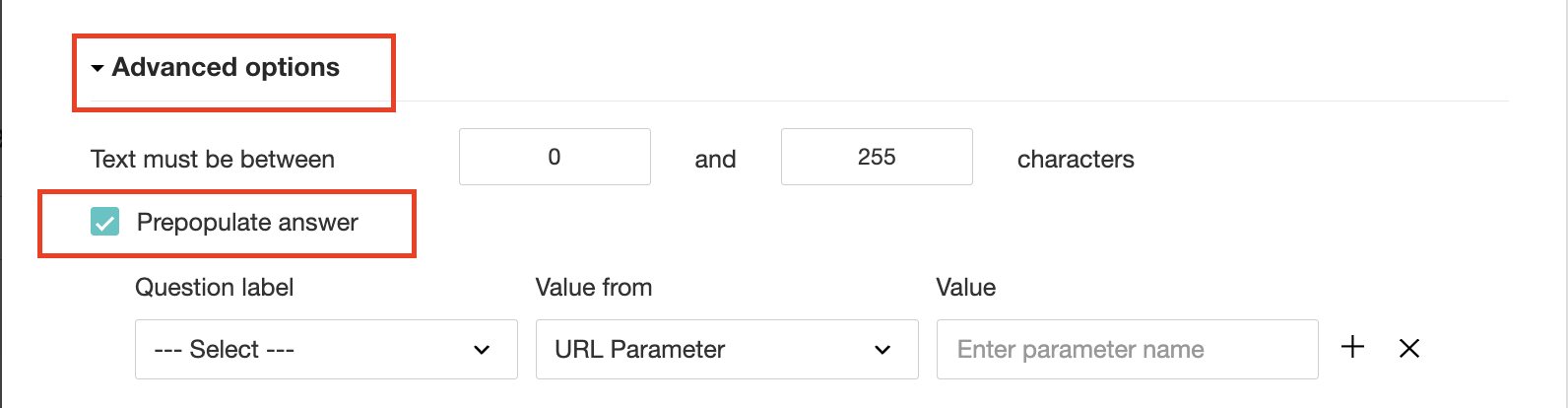
3. Select First Name, Last Name, and Email Address under Question label and URL parameter in each corresponding Value from field.
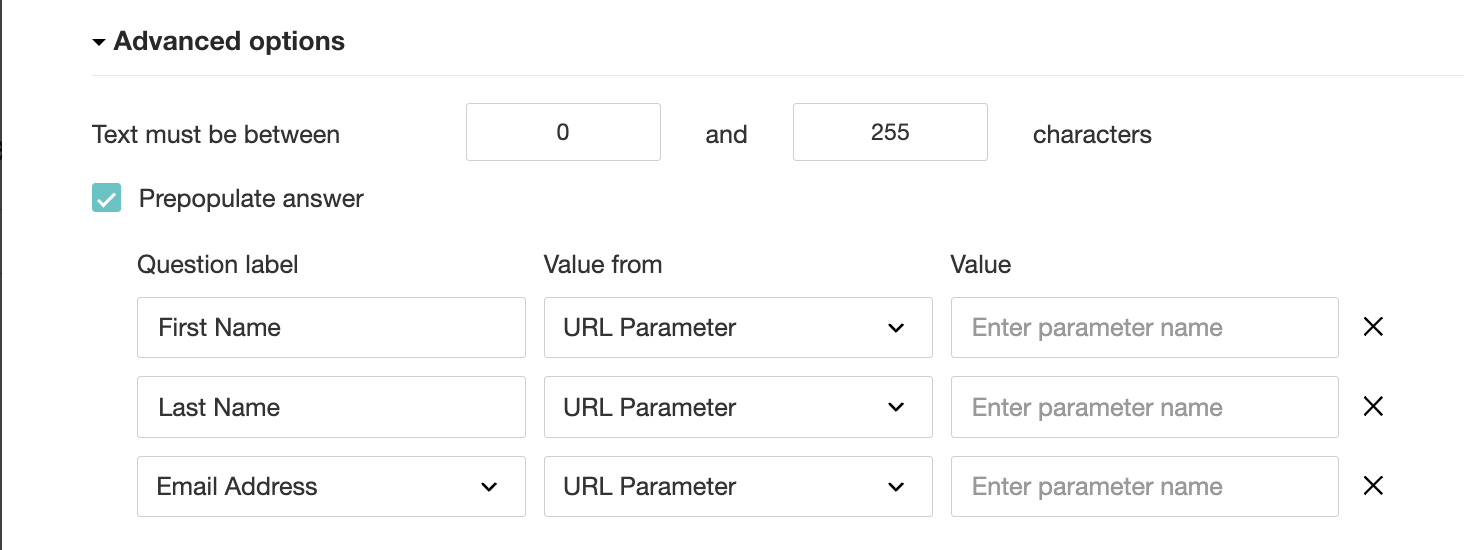
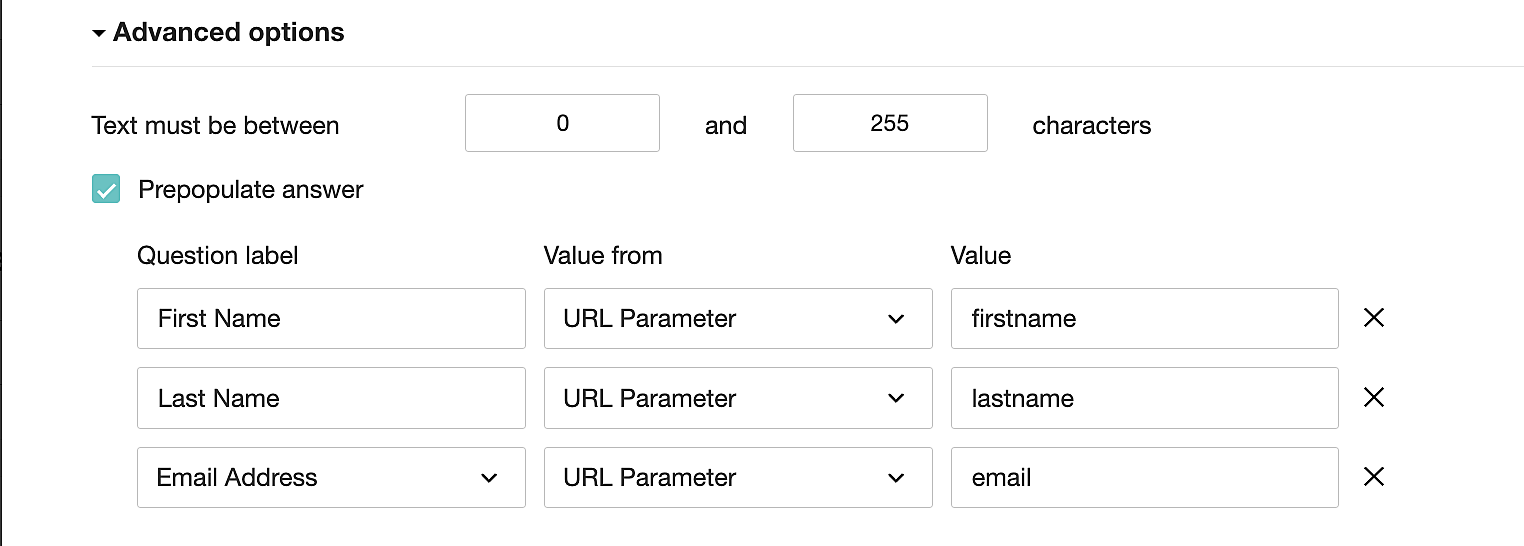
4. In the Value field, configure the parameter name (e.g., firstname, lastname, email). Once configured, this parameter name will be used in the survey link to prefill the fields in the survey form. Customize it as per your requirements, ensuring consistency with the term used in the survey URL.
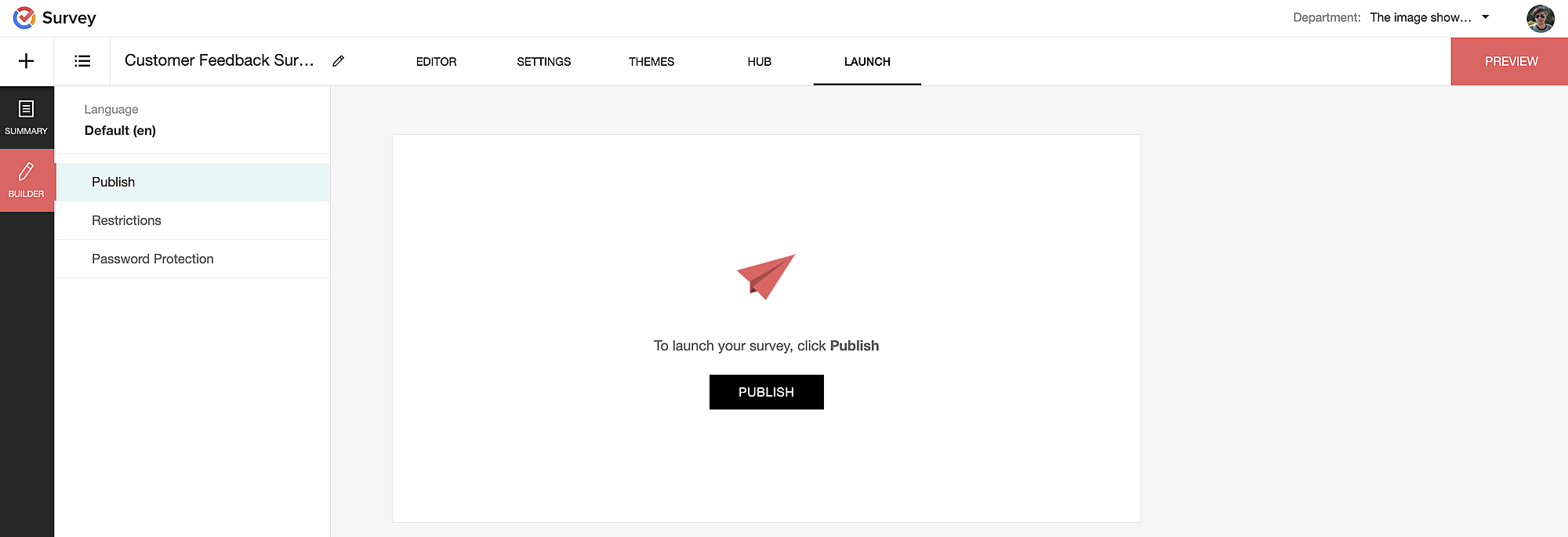
To publish the survey, go to the Launch tab and click on the Publish button to obtain the Zoho Survey URL.
Pre-populating fields in the Zoho Survey form
Once we have the Zoho Survey URL, we'll need to match the configured parameter name and variables from the Zoho Bookings email notifications. These variables play a crucial role in dynamically fetching customer information and populating it in the Zoho Survey form.
For details about variables in Zoho Bookings email notifications, refer to this link: Pre-defined variables
We'll now edit the survey URL to align the variables with the configured Value, or parameter name, from our prepopulated answer settings.
Let's say this is our survey URL:
https://survey.zohopublic.com/zs/E****h
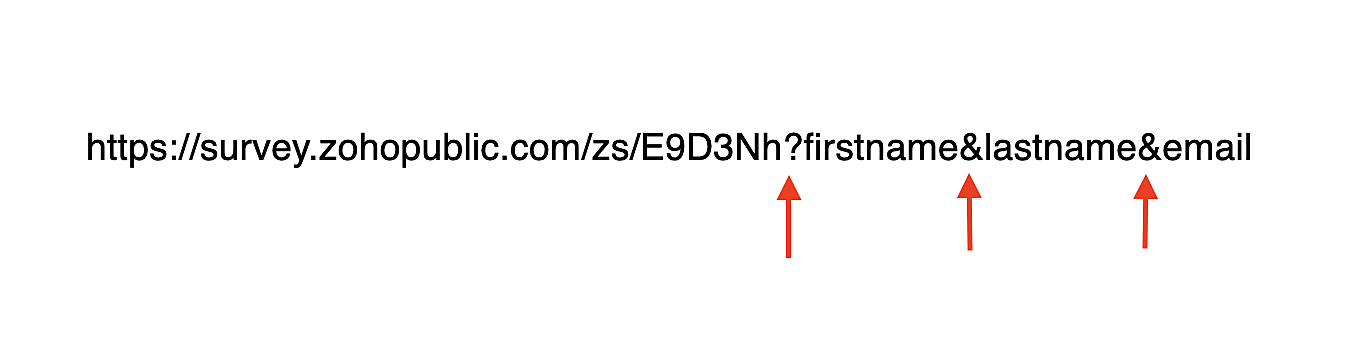
We'll want to use a question mark ("?") at the end of the survey URL and an ampersand ("&") to separate different parameter names.
Here's what that would look like using our example Value names from earlier:
Now, let's map the parameter names to the Zoho Bookings variables.
It would look like this:

For more details: Autofill
Where to use the Zoho Survey URL
To enable the automatic sending of the Zoho Survey URL to customers upon updating the appointment status to Completed, follow these steps in the Zoho Bookings application:
For one-on-one services:
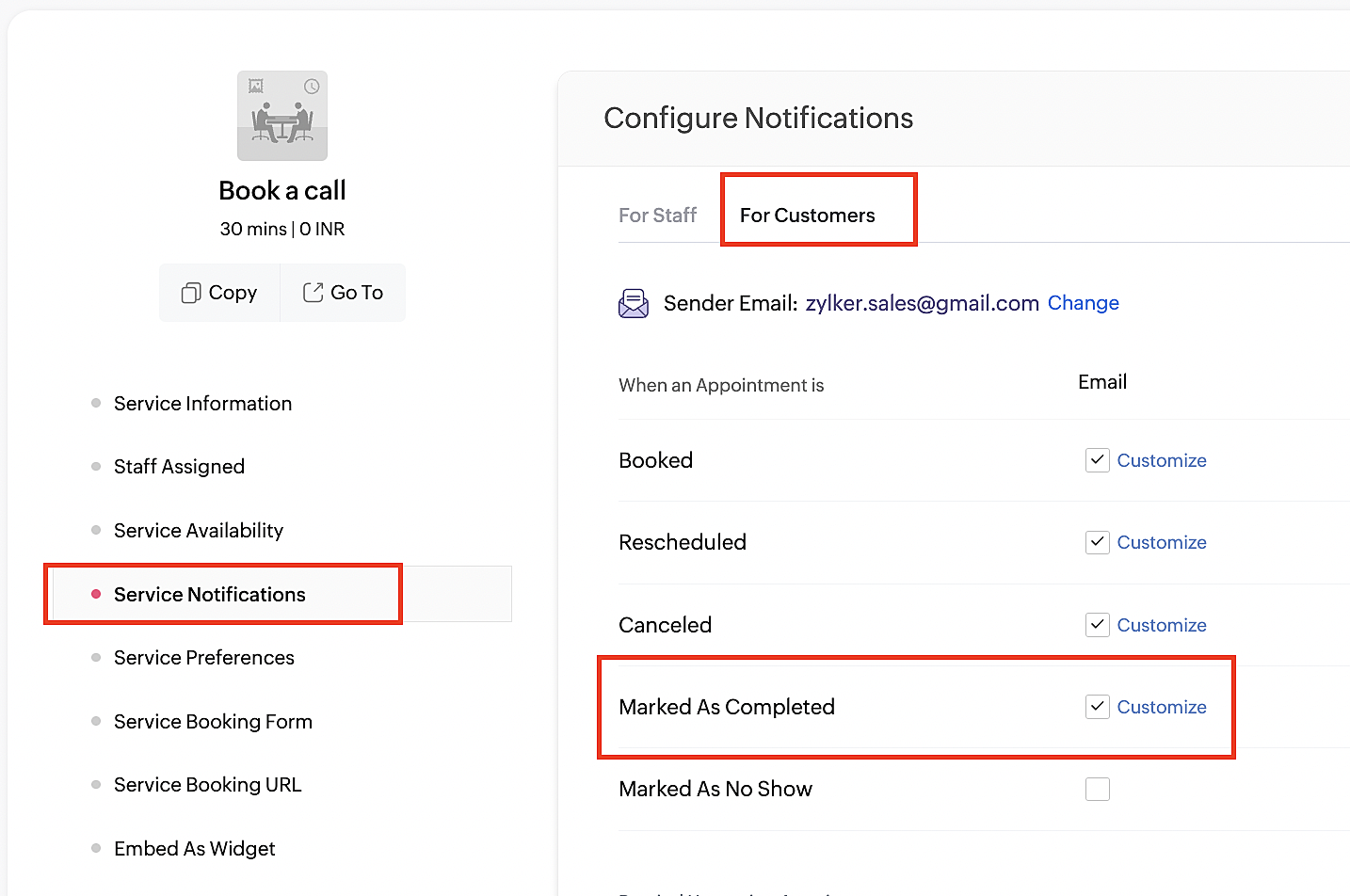
1. Click on Service in the top left corner.
2. Select the desired one-on-one service.
3. Choose Service Notifications.
4. Navigate to the For Customers tab.
5. Click Customize next to the Mark As Completed' trigger to access the email content.
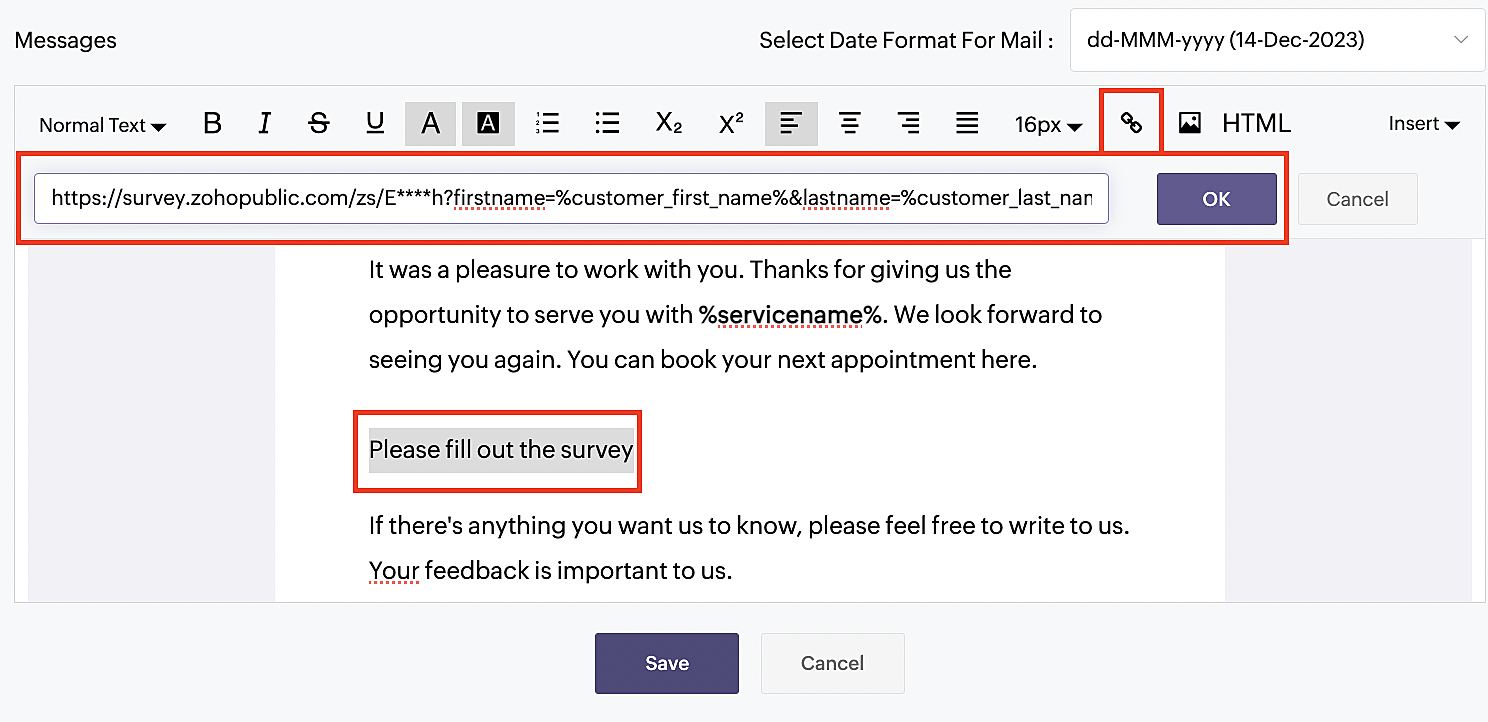
6. Enter your desired name for the button. For example, you might use something like 'Please fill out the survey'.
7. Select the entered text and click on the Add Link icon. Paste the configured Zoho Survey URL in the URL box. This will convert your text into a hyperlink that leads to the survey.
For group and resource booking services, please follow the same steps under Workspaces > Notifications.
For more details: Workspace Notifications
With the completion of this step, we have incorporated the Zoho Survey URL with dynamic variables, facilitating the dynamic autofill of customer data.
To wrap it up
With the successful implementation of the configuration described above, the entire process of automating status updates and collecting feedback is now seamlessly integrated, promising an elevated and enhanced product experience for all users.
If you have any questions or need assistance with your configuration, please email us at hello@zohobookings.com or support@zohobookings.com.
Topic Participants
Kaushik S
Sticky Posts
Approve or deny appointments based on criteria
Hey, community members! Have you ever wondered how to automatically approve or deny appointments? While we're still working on building that feature, we've got an alternative method to cancel appointments if they don't meet your specific criteria. Let
Recent Topics
How do I create an update to the Cost Price from landed costs?
Hi fellow Zoho Inventory battlers, I am new to Zoho inventory and was completely baffled to find that the cost price of products does not update when a new purchase order is received. The cost price is just made up numbers I start with when the productManage control over Microsoft Office 365 integrations with profile-based sync permissions
Greetings all, Previously, all users in Zoho CRM had access to enable Microsoft integrations (Calendar, Contacts, and Tasks) in their accounts, regardless of their profile type. Users with administrator profiles can now manage profile-based permissionsZoho OAuth Connector Deprecation and Its Impact on Zoho Desk
Hello everyone, Zoho believes in continuously refining its integrations to uphold the highest standards of security, reliability, and compliance. As part of this ongoing improvement, the Zoho OAuth default connector will be deprecated for all Zoho servicesVoC in Zoho CRM is now data savvy: Explore response drilldown, summary components and participation in CRM criteria
VoC has all the goods when it comes to customer intelligence—which is why we're constantly enhancing it. We recently added the following: A customer drilldown component that shows you the list of prospects and customers behind a chart's attribute ExpandedHow do I bulk archive my projects in ZOHO projects
Hi, I want to archive 50 Projects in one go. Can you please help me out , How can I do this? Thanks kapilError 0x800CCC0F Outlook
Hello, i cannot send or receive email in outlook. can you please help. 'Sending' reported error (0x800CCC0F) : 'The connection to the server was interrupted. If this problem continues, contact your server administrator or Internet service provider (ISP).'Passing the CRM
Hi, I am hoping someone can help. I have a zoho form that has a CRM lookup field. I was hoping to send this to my publicly to clients via a text message and the form then attaches the signed form back to the custom module. This work absolutely fine whenCan I add Conditional merge tags on my Templates?
Hi I was wondering if I can use Conditional Mail Merge tags inside my Email templates/Quotes etc within the CRM? In spanish and in our business we use gender and academic degree salutations , ie: Dr., Dra., Sr., Srta., so the beginning of an email / letterZoho vault instal on windows
I am trying to use Zoho Vault Desktop for Windows, but I am unable to complete the sign-in process. Problem description After logging in to my Zoho account and clicking Accept on the authorization page, nothing happens. The application does not proceedZoho Browser??
hai guys, this sounds awkward but can v get a ZOHO BROWSER same as zoho writer, etc. where i can browse websites @ home and continue browsing the same websites @ my office, as v have the option in Firefox, once i save and close the browser and again when i open it i will be getting the same sites. If u people r not clear with my explanation, plz let me know. Thanks, SandeepLet’s Talk Recruit: LinkedIn Cheatsheet
Welcome to the first edition of Let’s Talk Recruit for 2026. We are kicking off the year by revisiting one of the most asked about topics in Zoho Recruit. How our LinkedIn integrations actually work and how recruiters can get the most value from them.Zoho Forms API
Is there any way to get all form entry list using API? Looking forward to hear from youCreating a Chart from a Report
In Zoho Analytics, is it possible to create a chart from a Pivot View report? We are looking to use Zoho Analytics to replace Excel for Sales reports and would like to be able to show both the table and the chart together.Ability to Set Client Name During Portal Invitation
Hi Zoho Team, We would like to suggest an important enhancement to the Zoho Creator Client Portal functionality. Zoho Creator recently introduced the option to set a client’s display name in the Client Portal settings, which is very helpful for creatingMove email between inboxes?
Is it possible to move emails from one team inbox to another? We would like to be able to have a single "catch-all" inbox for incoming requests, and then move the email to the appropriate department inbox. I was hoping we would be able to accomplish thisPDF Attachment Option for Service Reports
Hello Team, I would like to check with you all if there is an option to attach PDF documents to the service reports. When I try to attach a file, the system only allows the following formats: JPEG, JPG, and PNG. Could you please confirm whether PDF attachments【Zoho CRM】データ一覧画面でのメモのバッジ機能リリースのお知らせ
ユーザーの皆さま、こんにちは。コミュニティチームの藤澤です。2026年度もゾーホーユーザーコミュニティをどうぞよろしくお願いいたします! 今回は「Zoho CRM アップデート情報」の中から、新機能のデータ一覧画面でのメモのバッジ機能をご紹介します。 目次 概要 メモのバッジ機能について メモの作成について メモに関する様々な処理について 最近追加したメモについて メモのバッジの非表示について クライアントスクリプトの対応 概要 メモのバッジ機能について 既存の活動バッジに加えて、すべてのタブのデータ一覧表示画面に、各データごとに利用できる「メモのバッジ」(キャプチャ内の赤枠部分)が新たに導入されました。is it possible to add more than one Whatsapp Phone Number to be integrated to Zoho CRM?
so I have successfully added one Whatsapp number like this from this User Interface it seems I can't add a new Whatsapp Number. I need to add a new Whatsapp Number so I can control the lead assignment if a chat sent to Whatsapp Phone Number 1 then assignCan’t find fsm in zoho one
Every other app is available to me in Zoho one except fsmPosibility to add Emoticons on the Email Subject of Templates
Hi I´ve tried to add Emoticons on the Subject line of Email templates, the emoticon image does show up before saving the template or if I add the Emoticon while sending an Individual email and placing it manually on the subject line. Emoticons also showTask Deletion Restriction & Strict Stage Control
Hello Zoho Community, We have the following two issues currently pending and under testing, for which we require a workable and reliable solution: 1. Task Deletion Restriction We are testing ways to ensure that staff users are not able to delete tasksUnable to mass update a picklist field
Hello, I have the records within our Accounts module divided between two account types: Parent Accounts & Member Accounts. I am attempting to mass update accounts from one picklist value to the other (within other specific criteria in our custom fields)Process checklist in CRM
Hi We've created a new sales process that I'm mapping into the CRM - issue I have is that some of the tasks / milestones I would like to capture require very simple tick box responses but there are quite a few under a variety of sub categories so I don'tCRM project association via deluge
I have created a workflow in my Zoho CRM for closing a deal. Part of this workflow leverages a deluge script to create a project for our delivery team. Creating the project works great however, after or during the project creation, I would like to associateHolidays - Cannot Enter Two Holidays on Same Day
I have a fairly common setup, where part-time employees receive 1/2 day's pay on a holiday and full-time employees receive a full day's pay. Historically, I've been able to accommodate this by entering two separate holidays, one that covers full-timeWhere is the settings option in zoho writer?
hi, my zoho writer on windows has menu fonts too large. where do i find the settings to change this option? my screen resolution is correct and other apps/softwares in windows have no issues. regardsFile emails in Shared email folder
Hi, I am unable to allow users to collaborate in Shared email folders: User 1 shares a folder let's say "SharedTopic" with full permissions Users 2 and 3 can see this folder but are unable to add emails to this folder or search in this folder. For example,How create a draft via workflow?
I wish to create a workflow rule for specific emails that creates a draft response - not an automatic email reply, but just a draft with a set response ready to be verified by an agent who can then manually select recipients. Alternatively, the workflowThis user is not allowed to add in Zoho. Please contact support-as@zohocorp.com for further details
Hi Team, when I,m trying to create a email account (imagixmidia.com.br) it's showing this error >> This user is not allowed to add in Zoho. Please contact support-as@zohocorp.com for further details plz help me thanksHow to manage task lists in Zoho Desk?
Hello, I use Zoho Desk for IT customer support. I have a list of standard operating procedures (SOPs), including SOPs for onboarding new users, offboarding users, losing a device, etc. These are lists of tasks to be performed depending on the situation.Zoho → ShipStation Integration – Sales Order–Driven Fulfilment Workflow
Hello All, I’m reaching out to explore the best way to integrate a shipping tool into our inventory which will speed our process up. We are looking to integrate ShipStation into our existing order-to-fulfilment workflow, as we’re keen to standardise onBusiness Day Logic Update: More Accurate Scheduling for Your Workflows
Hello everyone, We’re improving how business-day calculations work in workflows, especially when triggers happen on weekends. This update ensures that offsets like +0, +1, and +2 business days behave exactly as intended, giving you clearer and more predictableConvert Lead Automation Trigger
Currently, there is only a convert lead action available in workflow rules and blueprints. Also, there is a Convert Lead button available but it doesn't trigger any automations. Once the lead is converted to a Contact/Account the dataset that can be fetchedDefault Tagging on API-generated Transactions
If one assigns tags to an Item or Customer, those tags get auto-populated in each line item of an Invoice or Sales Order when one creates those documents. However, if one creates the Sales Order or Invoice via the API (either directly coding or usingUser
If user is already part of manage engine endpoint central , what hapens when i try to add them to another Zoho org / directory? Are these users added as external users?Adding a new section to the related details sidebar when creating a new ticket.
Hello, I was wondering if you can add a new section to the related details sidebar when creating a new ticket. I was wanting to have it to where it also shows the account information related to the contact chosen as well. This is the section I am referringDisplaying only unread tickets in ticket view
Hello, I was wondering if someone might be able to help me with this one. We use filters to display our ticket list, typically using a saved filter which displays the tickets which are overdue or due today. What I'd really like is another filter thatHow to compare a subform lookup field that allows multiple entries when edited
I have a form with a subform with multiple fields. One of the fields is a lookup field that allows a multi select. On edit validation, I want a workflow to execute only when the entries in that subform field has changed. The old. function is not workingIs Zoho Shifts included in the Zoho One plan?
In case the answer is no: there's any plan to make it available via One? Thank youZoho Tracking Image location
So we've been having an issue with tracking email opens. Specifically in Gmail. Our emails are not that long either, maybe 4 sections of image/250 characters of text/button per section. But all my test accounts I used via Gmail we're showing opens. But then come to find out the tracking image is at the very bottom of the email. So If the message is clipped (It always just clips our social icons on the bottom) and the user doesn't click the show more button it never tracks the open. Looking at otherNext Page