Advanced Analytics for Zoho CRM
The Zoho Analytics connector for Zoho CRM (& Zoho CRM Plus) allows you to analyze your Zoho CRM data in a much efficient way. Its intuitive drag-and-drop interface allows you to easily create reports and dashboards. Sales and Marketing personnel can slice and dice their Zoho CRM data and take informed business decisions.
The Advanced Analytics for Zoho CRM includes 100+ prebuilt reports and dashboards over your Zoho CRM data that help you to jump-start your analytics right away.
How to set up the Zoho CRM integration with Zoho Analytics?
A user with administrator privileges (Account admin and Org admin) can configure the integration.
Follow the below steps to import your Zoho CRM data into Zoho Analytics seamlessly:
Import from Zoho CRM Application
- Login to your Zoho CRM account.
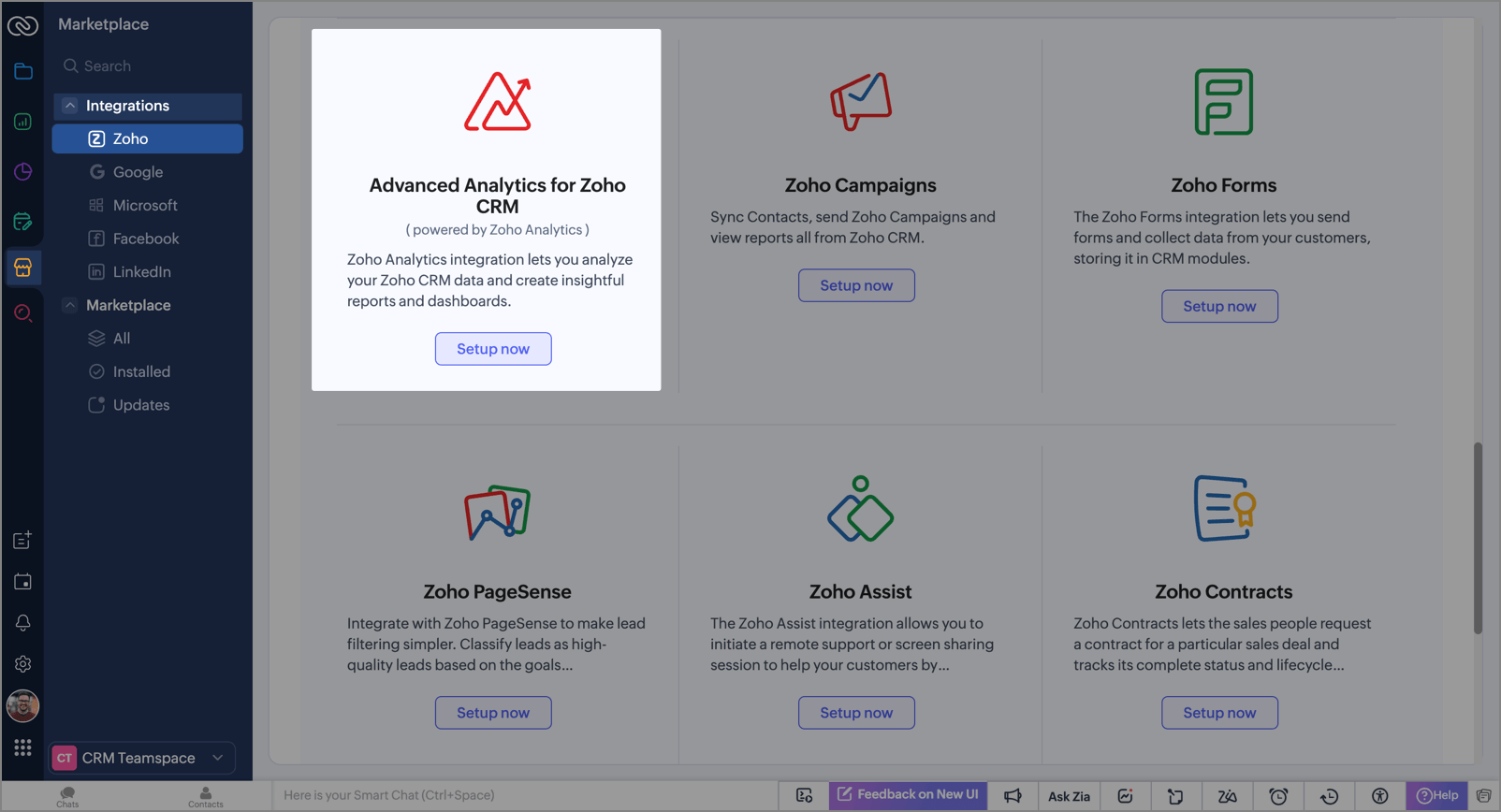
- Click the Marketplace icon from the side pane.
- From the Integrations dropdown, click Zoho.
- Select Advanced Analytics for Zoho CRM from the list.
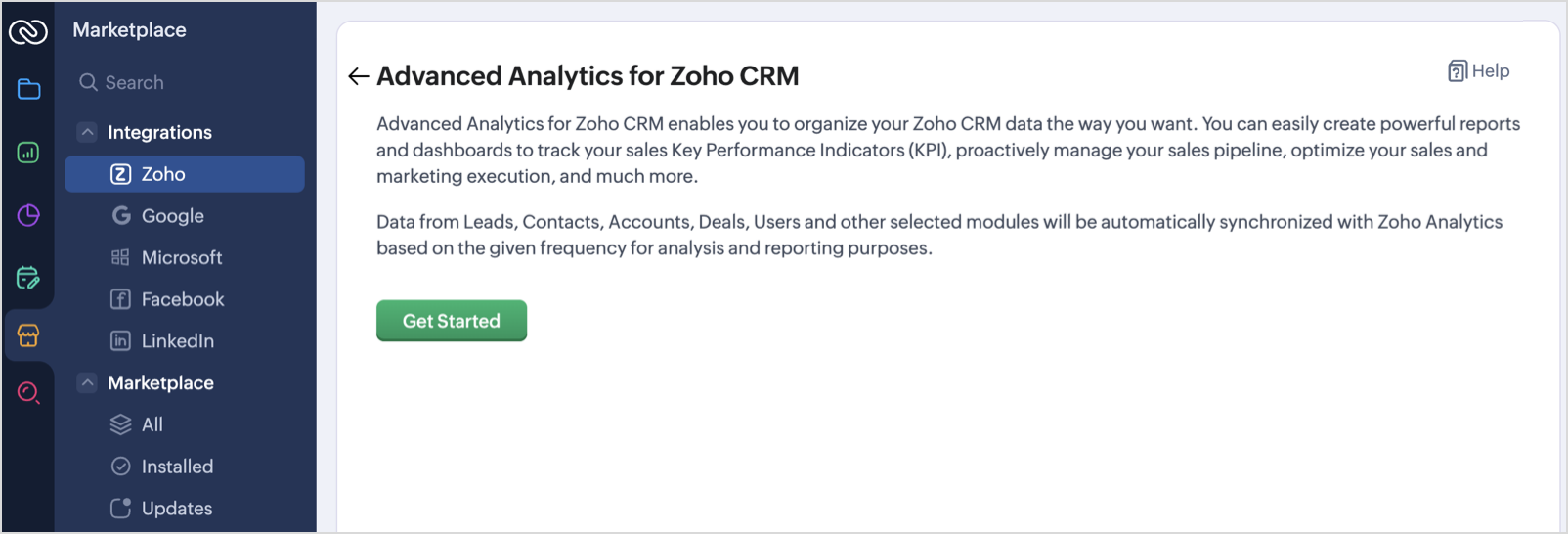
- Click the Get Started button under the Advanced Analytics for CRM section.
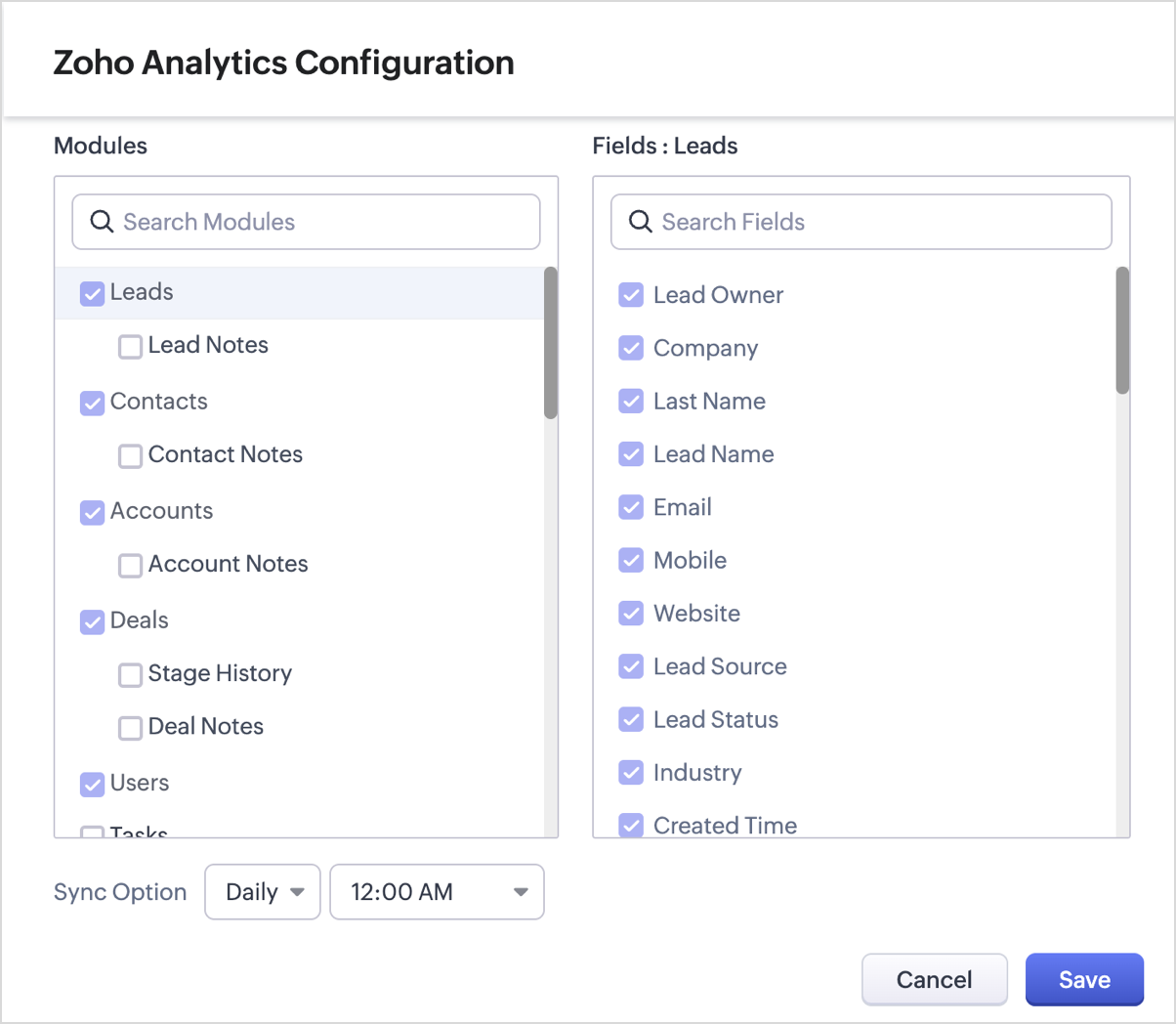
- From Zoho Analytics Configuration dialog, select the modules and fields to sync. Mandatory fields are preselected and cannot be cleared.
- Set the Sync Option.
- Click Save.
This process can take from a few minutes to a couple of hours depending on your data. You will receive an email notification when it is complete.
Import from Zoho Analytics
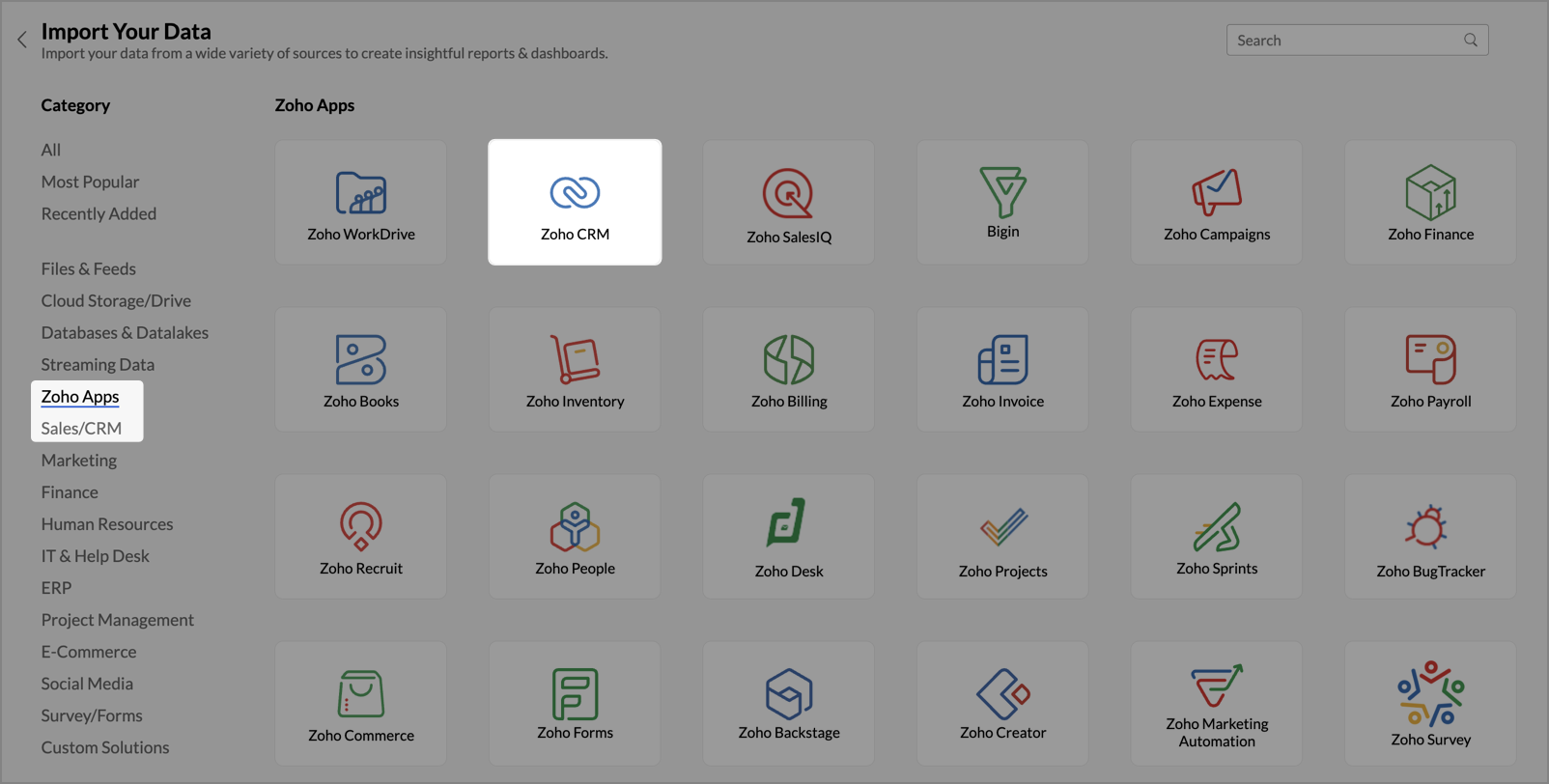
- On the Zoho Analytics home page, click Import Your Data.
- Navigate to the Zoho Apps tab and select Zoho CRM from the available applications.
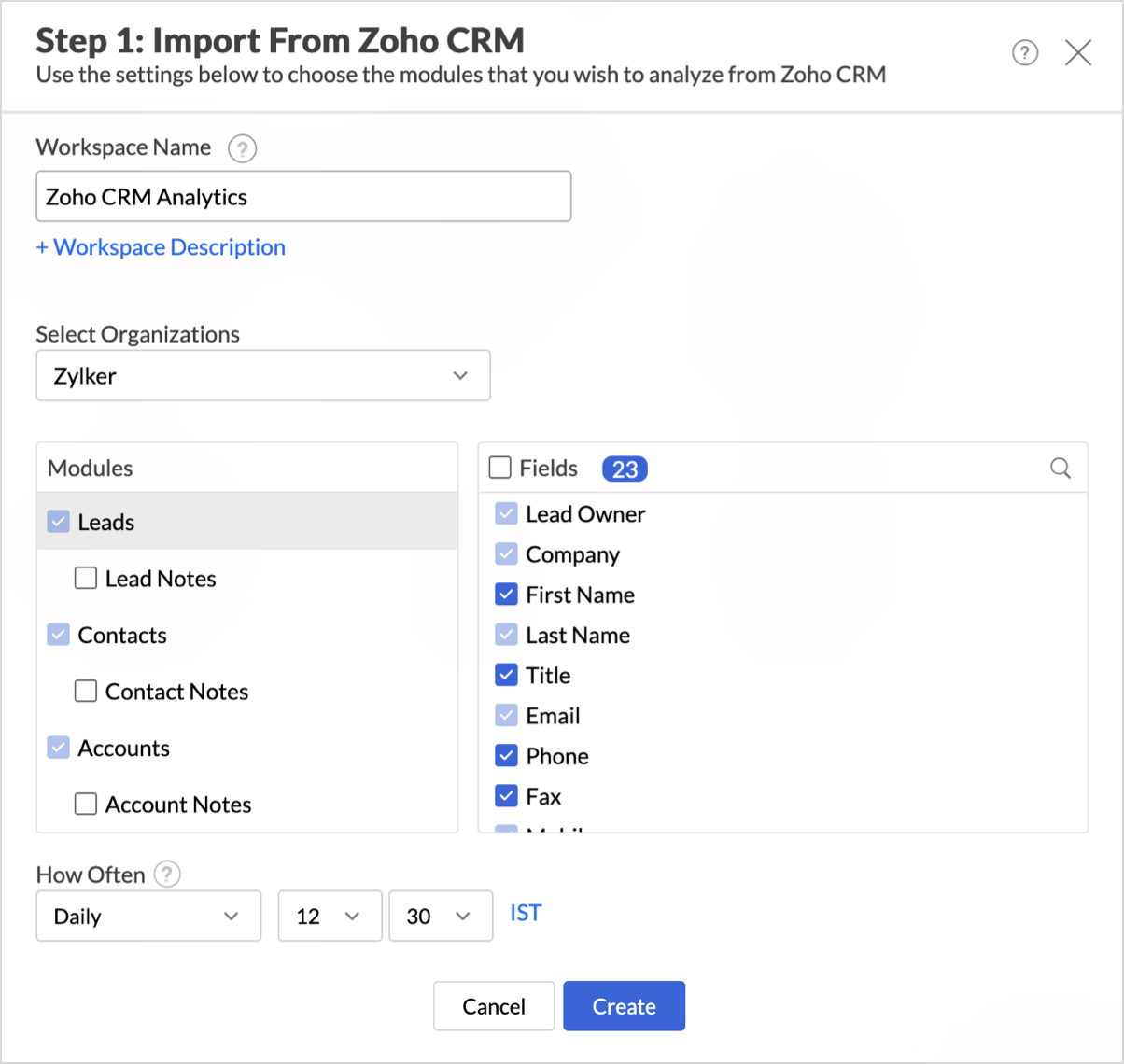
- Enter Workspace Name and Workspace Description (Optional).
- Select the available Organization from the drop-down.
- Select the Modules and Fields.
- From the How Often section, choose the interval in which the data should be synced. Refer to the Data Sync Frequency section to learn more.
- Click Create. Import will be initiated.

Note:
- The initial fetch might take a few minutes depending on the volume of the data to be imported. An email and an in-app notification will be sent once the initial fetch is complete.
- The setup process can sometimes fail for a variety of reasons. In this case, we request you to access the Data source tab and click the Retry link to import again. If the issue persists then write to support@zohoanalytics.com.
Modules and Fields
The below table lists the modules and fields that will be synced to Zoho Analytics.
Modules | Fields |
Leads | Id, Lead Owner, Company, First Name, Last Name, Title, Email, Phone, Fax, Mobile, Website, Lead Source, Lead Status, Industry, No. of Employees, Annual Revenue, Email Opt Out, Skype ID, Created By, Modified By, Created Time, Modified Time, Full Name, Salutation, Street, City, State, Zip Code, Country, Description, Secondary Email, Last Activity Time, Twitter, Rating, Tag, Converted Date Time, Converted Account, Converted Contact, Converted Deal, Lead Conversion Time, Unsubscribed Mode, Unsubscribed Time, Change Log Time, Is Converted, Locked, Last Enriched Time, Enrich Status, Lead Owner Name |
Contacts | Id, Contact Owner, Lead Source, First Name, Last Name, Account Name, Vendor Name, Email, Title, Department, Phone, Home Phone, Other Phone, Fax, Mobile, Date of Birth, Assistant, Email Opt Out, Skype ID, Created By, Modified By, Created Time, Modified Time, Full Name, Salutation, Mailing Street, Other Street, Mailing City, Other City, Mailing State, Other State, Mailing Zip, Other Zip, Mailing Country, Other Country, Description, Secondary Email, Last Activity Time, Twitter, Tag, Asst Phone, Reporting To, Unsubscribed Mode, Unsubscribed Time, Change Log Time, Locked, Last Enriched Time, Enrich Status, Contact Owner Name |
Accounts | Id, Account Owner, Rating, Account Name, Phone, Fax, Parent Account, Website, Ticker Symbol, Account Type, Ownership, Industry, Employees, Annual Revenue, SIC Code, Created By, Modified By, Created Time, Modified Time, Billing Street, Shipping Street, Billing City, Shipping City, Billing State, Shipping State, Billing Code, Shipping Code, Billing Country, Shipping Country, Description, Last Activity Time, Account Number, Account Site, Tag, Change Log Time, Locked, Last Enriched Time, Enrich Status, Account Owner Name |
Deals | Id, Deal Owner, Amount, Deal Name, Closing Date, Account Name, Stage, Type, Probability (%), Expected Revenue, Next Step, Lead Source, Campaign Source, Contact Name, Created By, Modified By, Created Time, Modified Time, Description, Last Activity Time, Lead Conversion Time, Sales Cycle Duration, Overall Sales Duration, Tag, Change Log Time, Reason For Loss, Converted from Lead, Deal Owner Name |
Tasks | Id, Task Owner, Subject, Due Date, Contact Name, Related To, Status, Priority, Send Notification Email, Created By, Modified By, Created Time, Modified Time, Description, Repeat, Closed Time, Tag, Locked, Last Activity Time, SEMODULE, Task Owner Name |
Meetings | Id, Host, Title, Location, Contact Name, Related To, Repeat, Created By, Modified By, Created Time, Modified Time, Description, All day, Check-In Time, Check-In By, Check-In Comment, Check-In Sub-Locality, Check-In City, Check-In State, Check-In Country, Latitude, Longitude, Zip Code, Check-In Address, Checked In Status, From, To, Tag, Participants Reminder, Last Activity Time, Meeting Venue, Provider, SEMODULE, Host Name |
Calls | Id, Call Owner, Subject, Call Type, Call Purpose, Contact Name, Related To, Call Start Time, Call Duration, Call Duration (in seconds), Description, Call Result, Created By, Modified By, Created Time, Modified Time, Reminder, Call Status, Tag, Outgoing Call Status, Scheduled in CRM, Last Activity Time, Call Agenda, Caller ID, Dialled Number, Voice Recording, SEMODULE, Call Owner Name |
Products | Id, Product Owner, Product Name, Product Code, Vendor Name, Product Active, Manufacturer, Product Category, Sales Start Date, Sales End Date, Support Start Date, Support End Date, Created By, Modified By, Created Time, Modified Time, Unit Price, Commission Rate, Tax, Taxable, Usage Unit, Qty Ordered, Quantity in Stock, Reorder Level, Handler, Quantity in Demand, Description, Tag, Locked, Last Activity Time, Product Owner Name |
Quotes | Id, Quote Number, Subject, Deal Name, Quote Stage, Valid Until, Contact Name, Carrier, Account Name, Quote Owner, Created By, Modified By, Created Time, Modified Time, Sub Total, Discount, Tax, Adjustment, Grand Total, Billing Street, Shipping Street, Billing City, Shipping City, Billing State, Shipping State, Billing Code, Shipping Code, Billing Country, Shipping Country, Terms and Conditions, Description, Tag, Team, Locked, Last Activity Time, Quote Owner Name |
Sales Orders | Id, SO Number, Subject, Deal Name, Purchase Order, Quote Name, Due Date, Pending, Contact Name, Carrier, Excise Duty, Sales Commission, Status, Account Name, Sales Order Owner, Created By, Modified By, Created Time, Modified Time, Sub Total, Discount, Tax, Adjustment, Grand Total, Billing Street, Shipping Street, Billing City, Shipping City, Billing State, Shipping State, Billing Code, Shipping Code, Billing Country, Shipping Country, Terms and Conditions, Description, Tag, Customer No., Locked, Last Activity Time, Sales Order Owner Name |
Purchase Orders | Id, PO Number, Subject, Vendor Name, Contact Name, PO Date, Due Date, Carrier, Excise Duty, Sales Commission, Status, Purchase Order Owner, Created By, Modified By, Created Time, Modified Time, Sub Total, Discount, Tax, Adjustment, Grand Total, Billing Street, Shipping Street, Billing City, Shipping City, Billing State, Shipping State, Billing Code, Shipping Code, Billing Country, Shipping Country, Terms and Conditions, Description, Tag, Tracking Number, Requisition Number, Locked, Last Activity Time, Purchase Order Owner Name |
Invoices | Id, Invoice Owner, Invoice Number, Subject, Sales Order, Invoice Date, Purchase Order, Due Date, Excise Duty, Sales Commission, Status, Account Name, Contact Name, Created By, Modified By, Created Time, Modified Time, Sub Total, Discount, Tax, Adjustment, Grand Total, Billing Street, Shipping Street, Billing City, Shipping City, Billing State, Shipping State, Billing Code, Shipping Code, Billing Country, Shipping Country, Terms and Conditions, Description, Tag, Deal Name, Locked, Last Activity Time, Invoice Owner Name |
Campaigns | Id, Campaign Owner, Type, Campaign Name, Status, Start Date, End Date, Expected Revenue, Budgeted Cost, Actual Cost, Expected Response, Numbers sent, Created By, Modified By, Created Time, Modified Time, Description, Tag, Parent Campaign, Last Activity Time, Campaign Owner Name |
Vendors | Id, Vendor Name, Phone, Email, Website, GL Account, Category, Vendor Owner, Created By, Modified By, Created Time, Modified Time, Street, City, State, Zip Code, Country, Description, Tag, Locked, Email Opt Out, Unsubscribed Mode, Unsubscribed Time, Last Activity Time, Vendor Owner Name |
Price Books | Id, Price Book Owner, Created By, Modified By, Created Time, Modified Time, Price Book Name, Active, Pricing Model, Description, Tag, Locked, Last Activity Time, Price Book Owner Name |
Cases | Id, Case Number, Case Owner, Status, Product Name, Type, Case Origin, Related To, Account Name, Deal Name, Created Time, Modified Time, Case Owner Name |
Users | Id, First Name, Last Name, Email, Alias, Phone, Mobile, Website, Fax, Street, City, State, Country, Zip Code, Language, Country Locale, Time Zone, Role, Date of Birth, Added By, Modified By, Added Time, Modified Time, Profile, Time Format, Status, Full Name, Confirm, Zuid, Date Format, Grouping, Decimal, Sort order preference, Name format, status reason, Source, Profile Name, Role Name |
Lead Notes, Contact Notes, Account Notes, Deal Notes, Task Notes, Meeting Notes, Call Notes, Product Notes, Quote Notes, Sales Order Notes, Purchase Order Notes, Invoice Notes, Campaign Notes, Vendor Notes, Price Book Notes, Case Notes | Id, Note Title, Note Content, Note Owner, Note Owner Name, Parent Id, Created By, Modified By, Created Time, Modified Time |
Data Sync Frequency
Zoho Analytics offers flexible sync schedules to ensure that your data is always up-to-date for effective analysis. These schedules allow you to automate the process of updating your data, ensuring that your analyses are based on the latest information.
- Real-time Sync (Enterprise plan)
- 1 Hour (Premium plan and above)
- 3 Hours (Standard plan and above)
- 6 Hours (Standard plan and above)
- 12 Hours (Standard plan and above)
- Daily (Basic plan and above)
Handling Data Synchronization Failure
Data synchronization can fail,
- If the data type of a field is changed in Zoho CRM.
- If the Modules and Fields selected for analysis are deleted in Zoho CRM.
- If the user who configured the integration no longer has permission to access the modules.
In any of the above mentioned cases, the data sync will be paused. You will be notified via email and in-app notification with the exact reason for failure, along with the solution.
To resolve the sync failure, delete or restructure the views, or restore the specific modules and fields from the source application. Refer to Data Sync failure and solutions article for more details.
Once you have made the changes, click the Sync now option to resume the data sync. If the issue persists, mail us at support@zohoanalytics.com.
Managing Data Sources
The Data Sources tab provides essential information to monitor and manage the integration setup. It also allows you to edit the settings as needed. Users with administrator privileges will be able to view and modify the connection settings.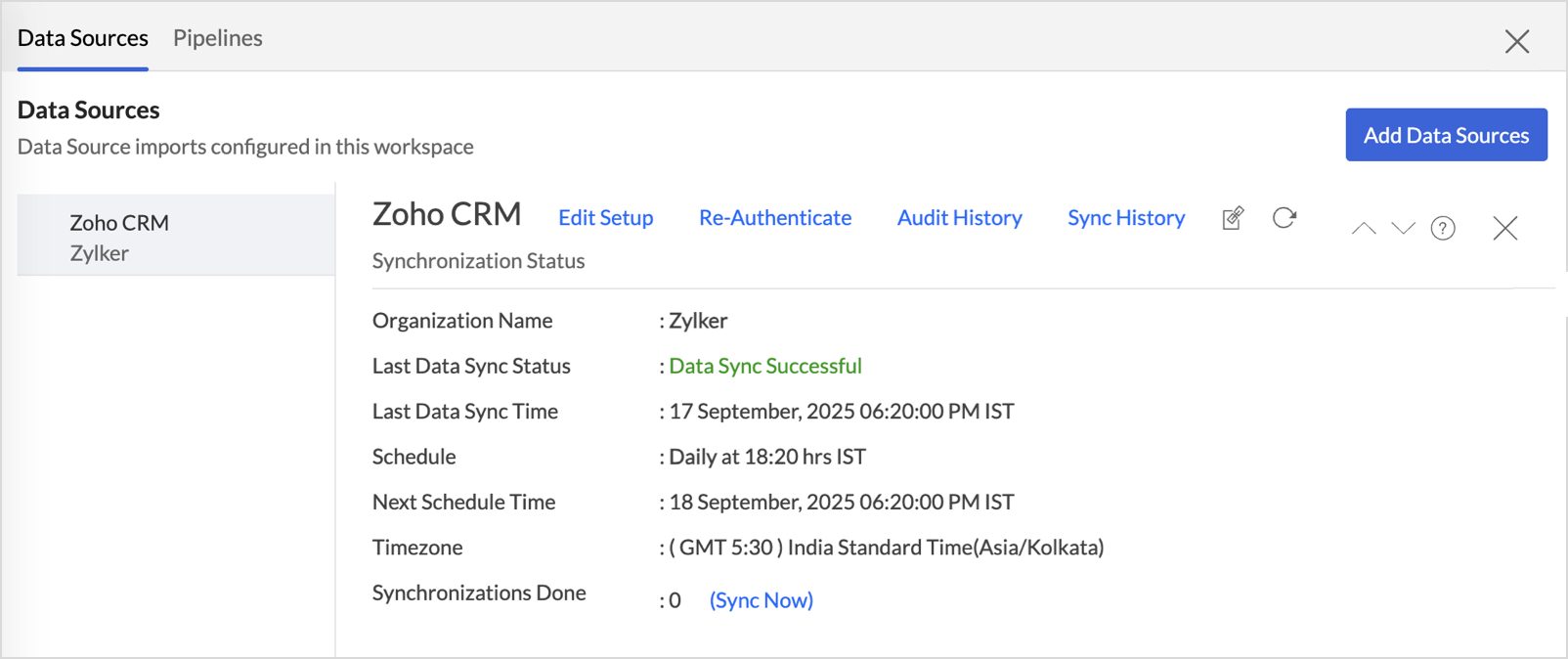
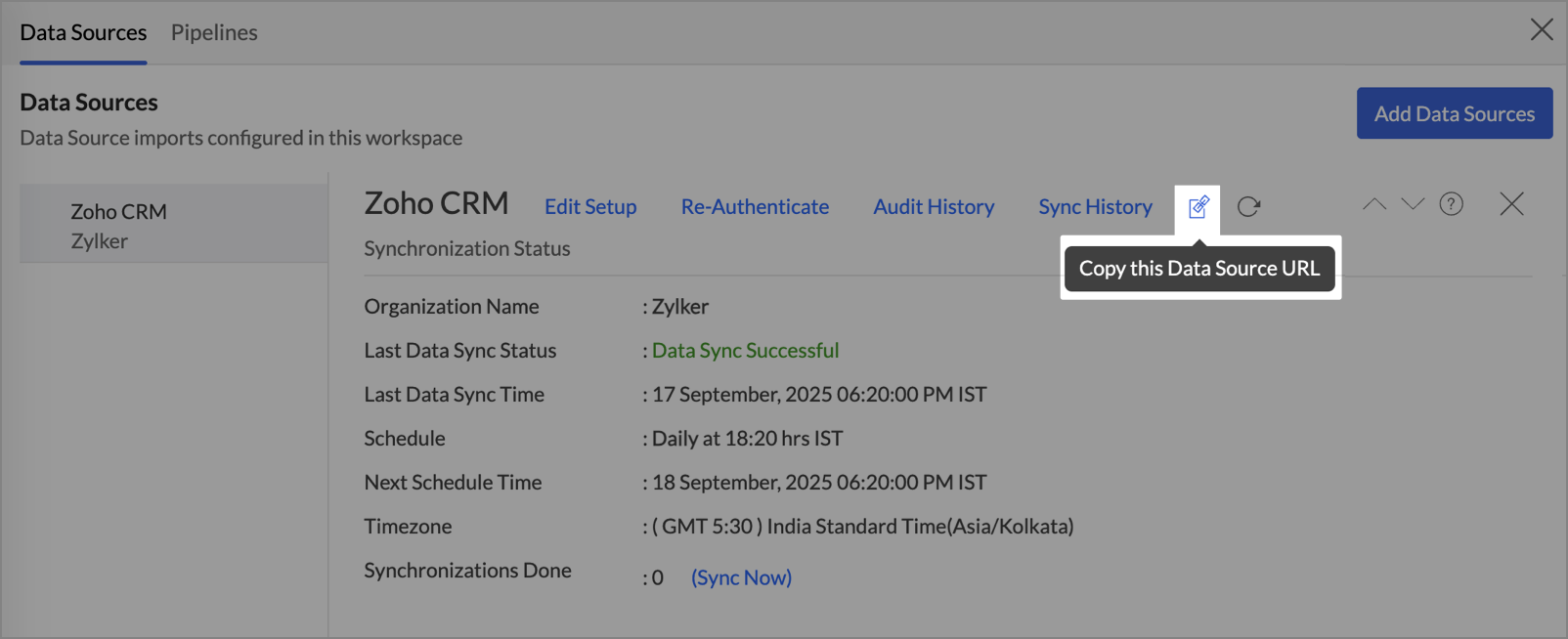
Data Source Permalink
The Data Source Permalink helps you easily access the data source tab. Only the Organization Admin and Account Admin can make changes in the Data sources page. Other users can know the synchronization details like whether the last data sync was successful or not, when the last data sync happened, when the next sync is scheduled to happen, etc.
This link can also be pasted in dashboards so that everyone accessing the dashboard can know about the sync status.
Note:
Additionally, users with Organization Admin and above privileges can do the following actions :
- Edit Setup
- Re-Authenticate
- Audit History
- Sync History
Edit Setup
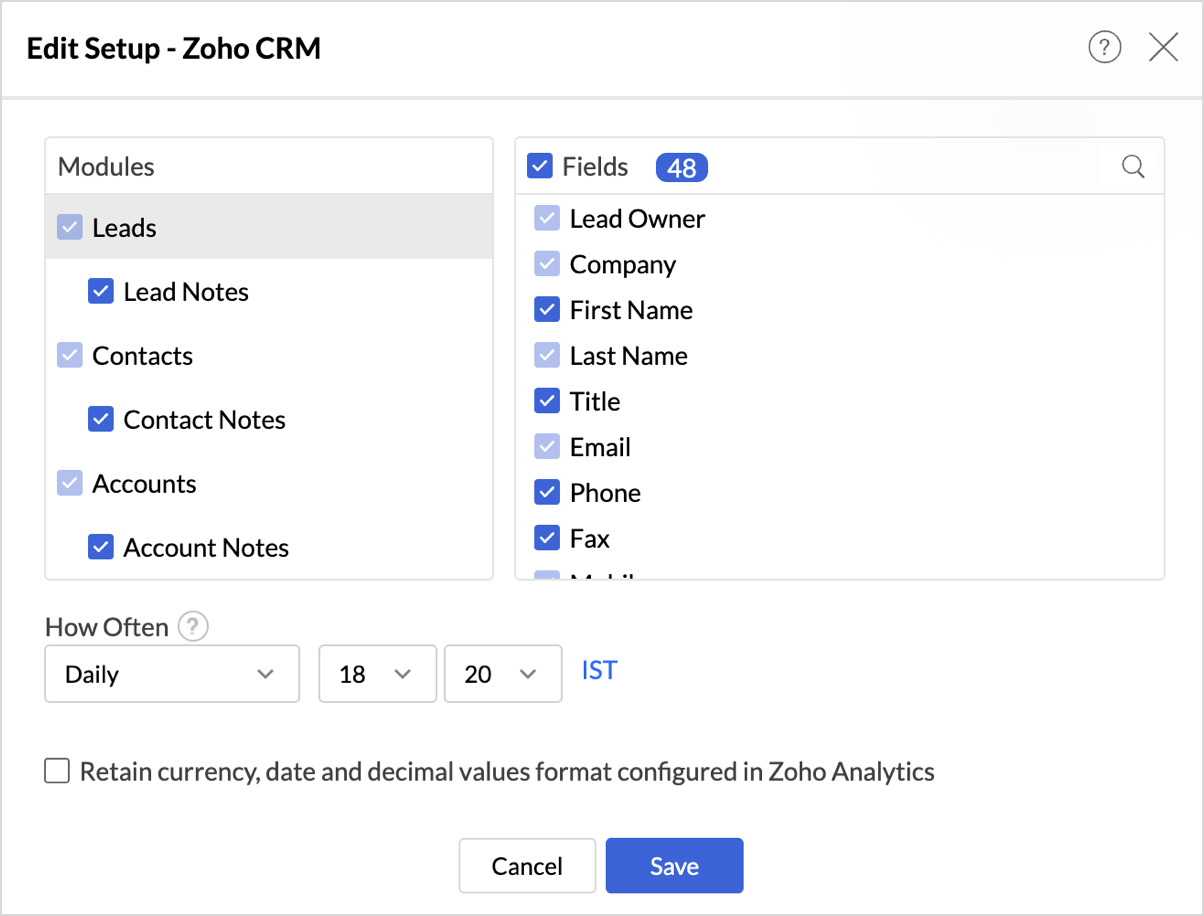
The Edit Setup tab allows you to add or delete modules or fields, change the schedule interval, and modify other settings specific to the business application.
To modify the settings,
- Click Data Sources > Edit Setup.
- The Edit Setup - Zoho CRM dialog will open. Modify the settings as needed and click Save.
Re-Authenticate
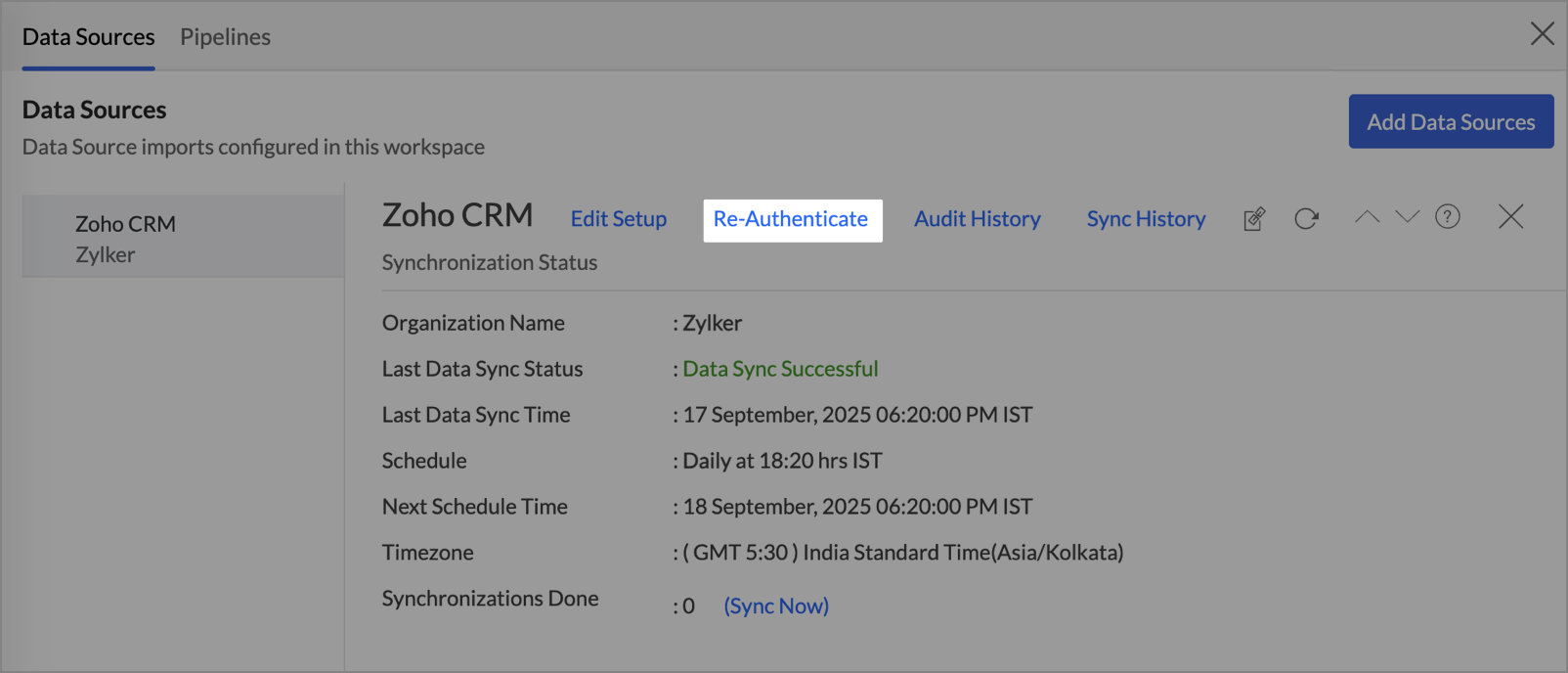
Re-authentication will be helpful when the credential is changed. In this case, the data sync will be paused, and the administrator who configure the connector setup must re-authenticate to resume the data sync.
To re-authenticate,
- Click Data Sources > Re-Authenticate.
- The Re-Authenticate Zoho CRM dialog will open. Click Authenticate Zoho CRM and enter the Zoho CRM credentials to re-authenticate.
Sync History
The Sync History tab provides details about the data sync for the last 45 days. A successful data sync is marked in green, and a sync failure is marked in red.
To view the Sync history,
- Click Data Sources > Sync History.
- A calendar with the Sync History of the last 45 days will open. The date when the data sync has happened will be highlighted. Hover to view the number of times the data had got synced on a specific date.
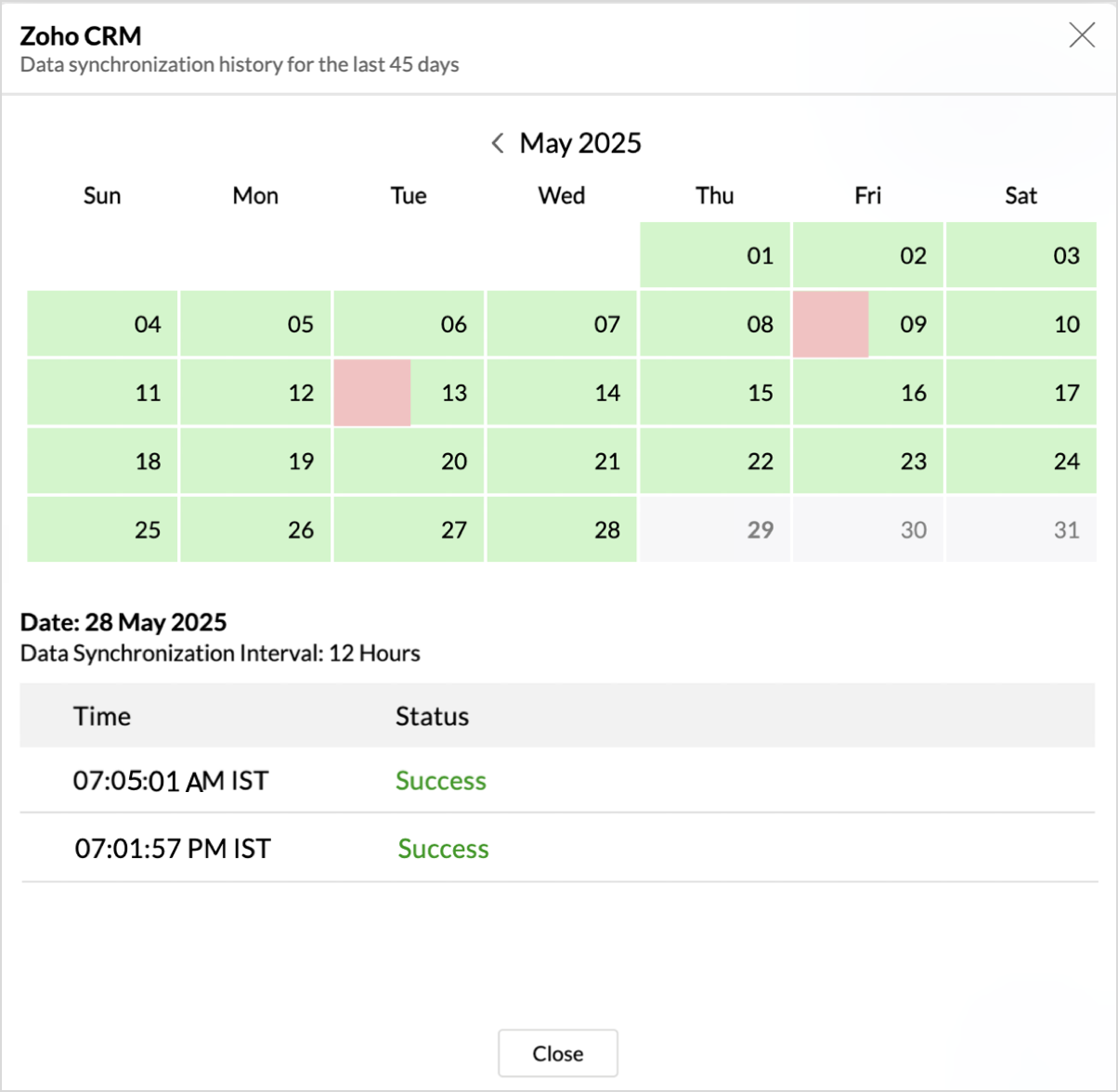
- Click the date to view more details.
- Time - Displays the time when the data is synced.
- Status - Shows whether the sync was a success or a failure. In case of failure, the reason will be displayed. Refer to this page to learn how to resolve the issue and avoid further failure.
Audit History
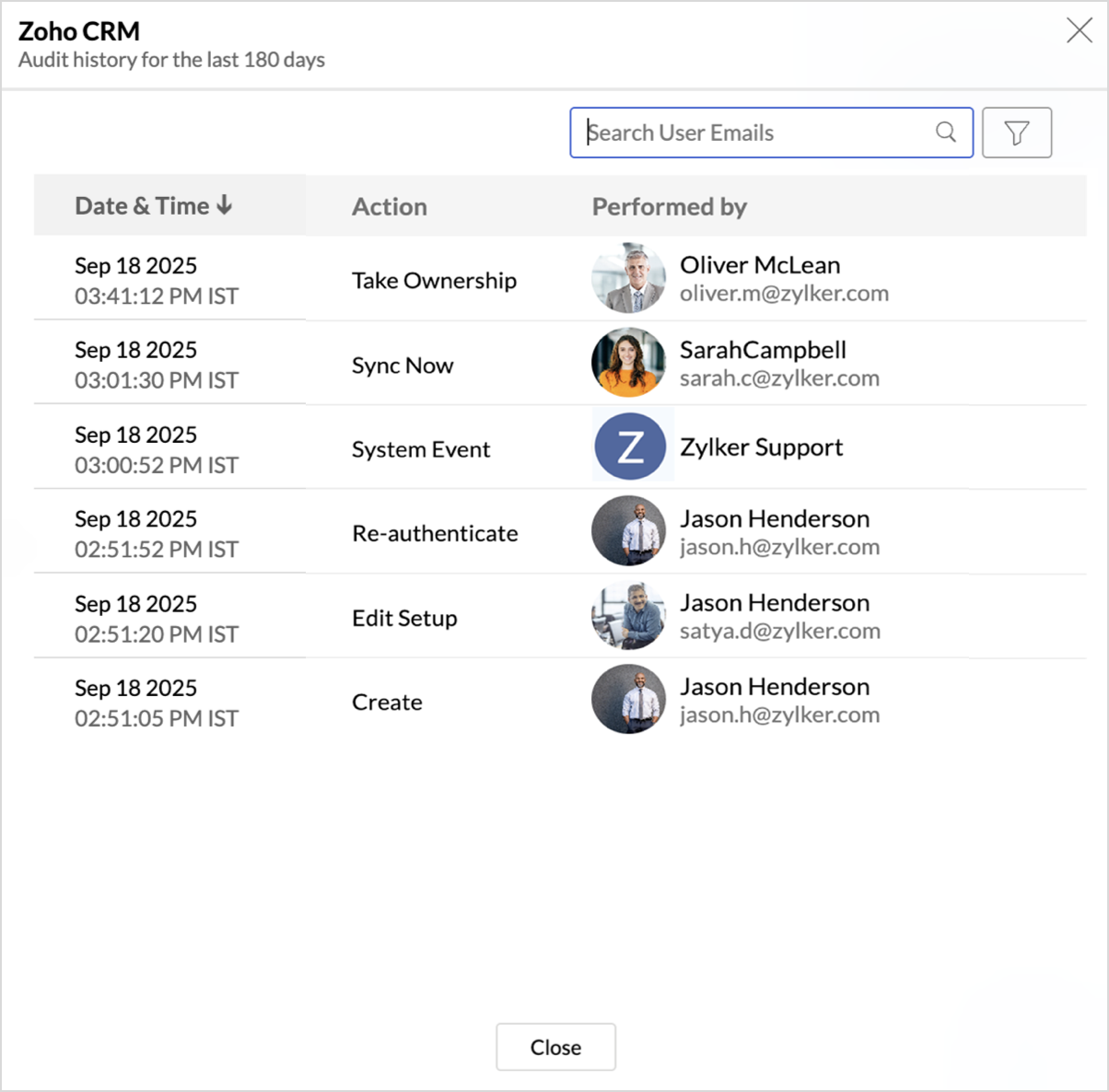
Zoho Analytics logs all the user activities and system events within the Zoho CRM workspace. The following actions are logged in Zoho Analytics,
- User Action: Create, Modules Added, Modules Removed, Fields Added, Fields Removed, Schedule Change and Entities Modified, Delete, Take Ownership, Re-authenticate, Sync Now, Retry.
- System Action: Plan upgrade or downgrade.
To view the audit history,
- Click Data Sources > Audit History.
- A dialog with the activities for the last 180 days will open.
Transferring Zoho CRM Connector to Another Admin
In Zoho Analytics, you can transfer the Zoho CRM connector to another Administrator in your organization when needed. This ensures that the integration remains functional and manageable even when there are changes in account ownership or user roles.
You can transfer the connector in the following ways:
- Transfer via Account Ownership Change
If you are the Account Administrator, you can transfer ownership of your Zoho Analytics account including the CRM connector to another Organization Administrator.
Learn how to transfer account ownership Transfer When Leaving the Organization
If the previous Organization Administrator had configured the Zoho CRM Advanced Analytics connector, you must manually take ownership of it to continue managing and maintaining the connection.
Before you take ownership:
Go to Org Settings > Manage Users and remove the existing connector owner (the former Administrator).
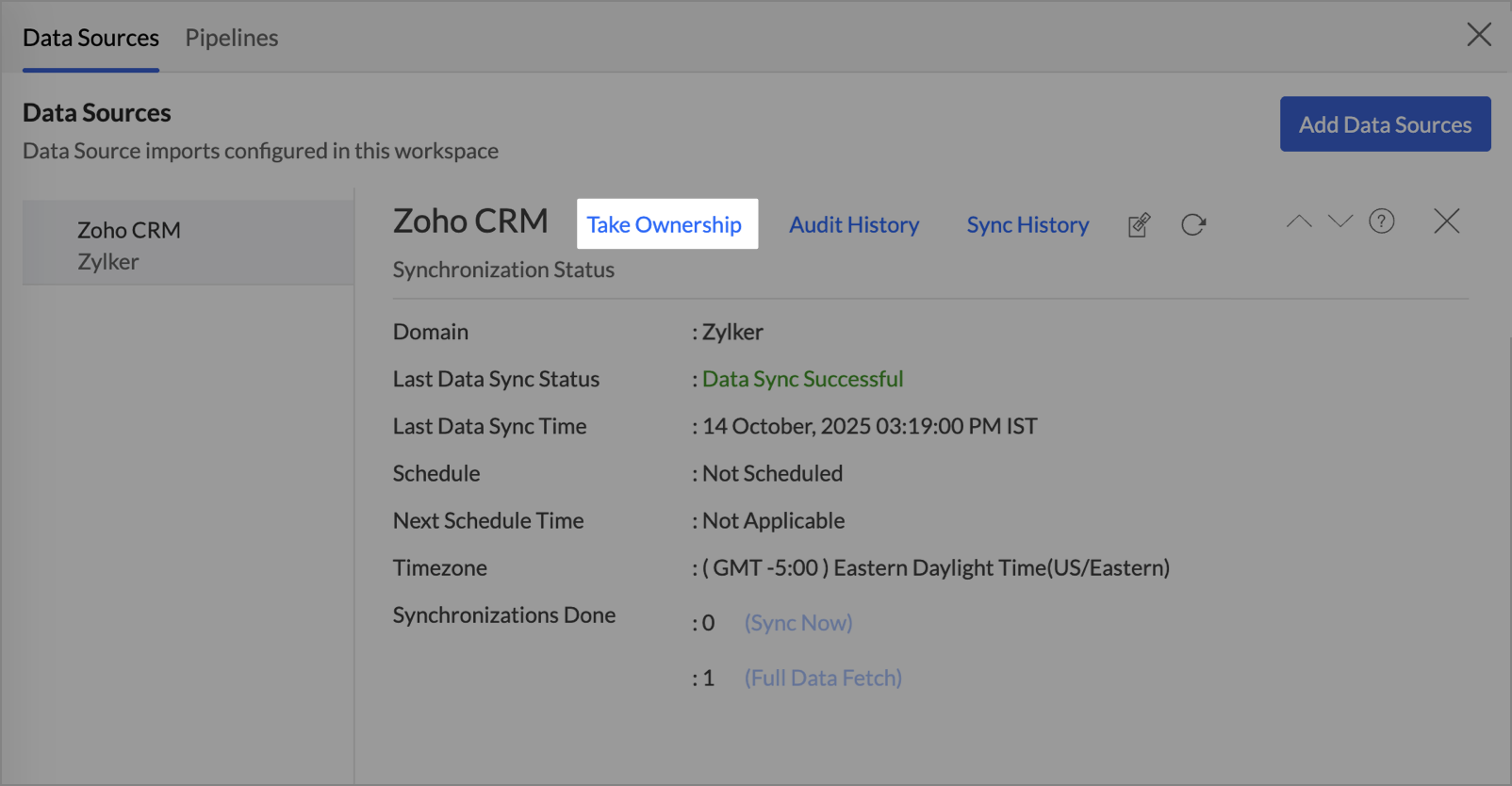
The Take Ownership option appears in the Data Sources page only after the previous owner is removed from the organization.
To take ownership of the connector:- Open the Zoho CRM Advanced Analytics Connector.
- Click Data Sources to open the connector’s settings page.
- Click Take Ownership.
Ensure that you have the required permissions to manage the Zoho CRM connector before proceeding.
- Request a Manual Connector Transfer
If the current Organization Administrator is still part of the organization but wants to transfer the Zoho CRM connector to another Organization Administrator, write to our support team for assistance. Contact: support@zohoanalytics.com
Include your organization name and the email addresses of both the current and new admins.
Remove Data Source
Zoho Analytics allows you to remove the integration if needed. Removing the data source will stop further data synchronization and delete all associated tables, reports, and dashboards from the workspace.
Click the Settings icon in the Data Sources tab, and select Remove Data Source from the drop-down menu.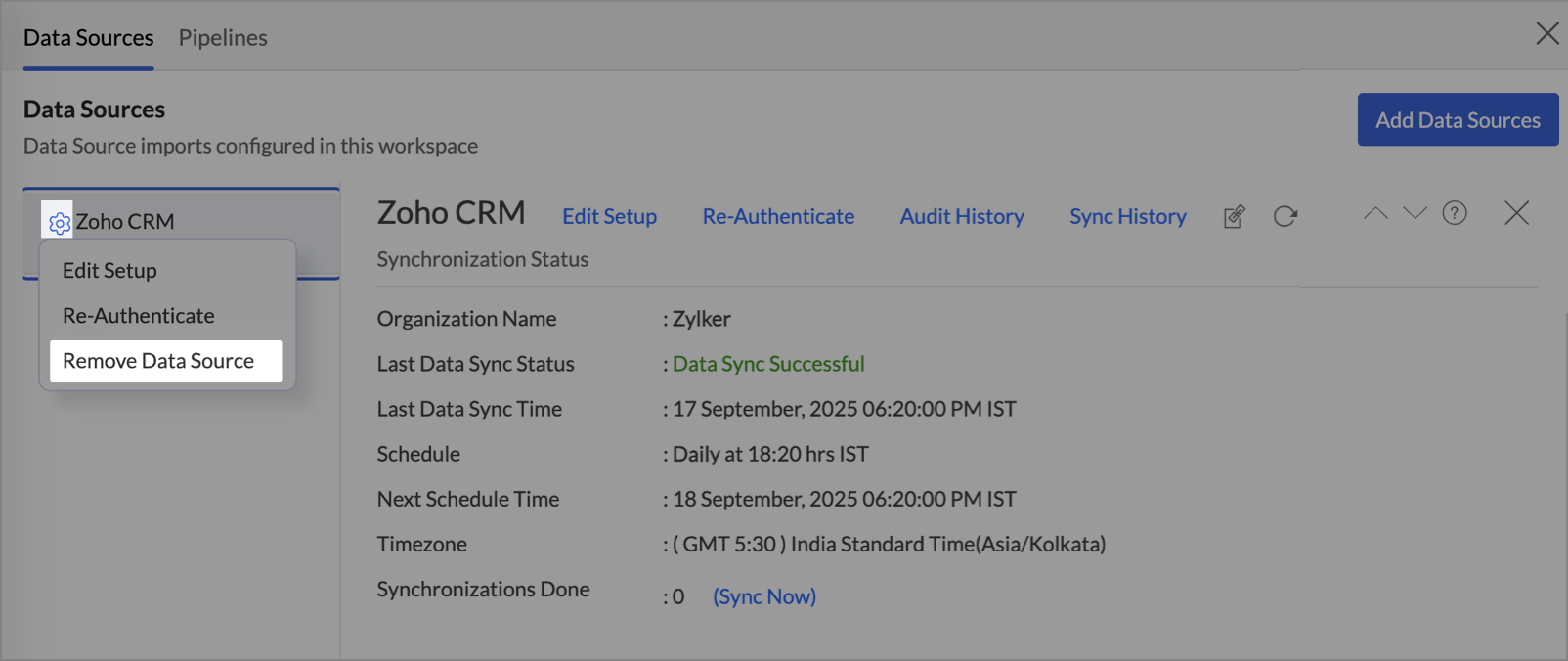
Data Blending
Zoho Analytics allows you to blend data from Zoho CRM with data from other sources such as Zoho Books, spreadsheets, or third-party apps to create unified reports and dashboards.
Combine Data Using Lookup Relationships
To blend data, you need a common column (such as Customer ID or Email) between the two tables. This allows you to define a lookup relationship.
Follow these steps to create a lookup:
- Open the required table.
- Right-click the column you want to convert.
- Select Change to Lookup Column.
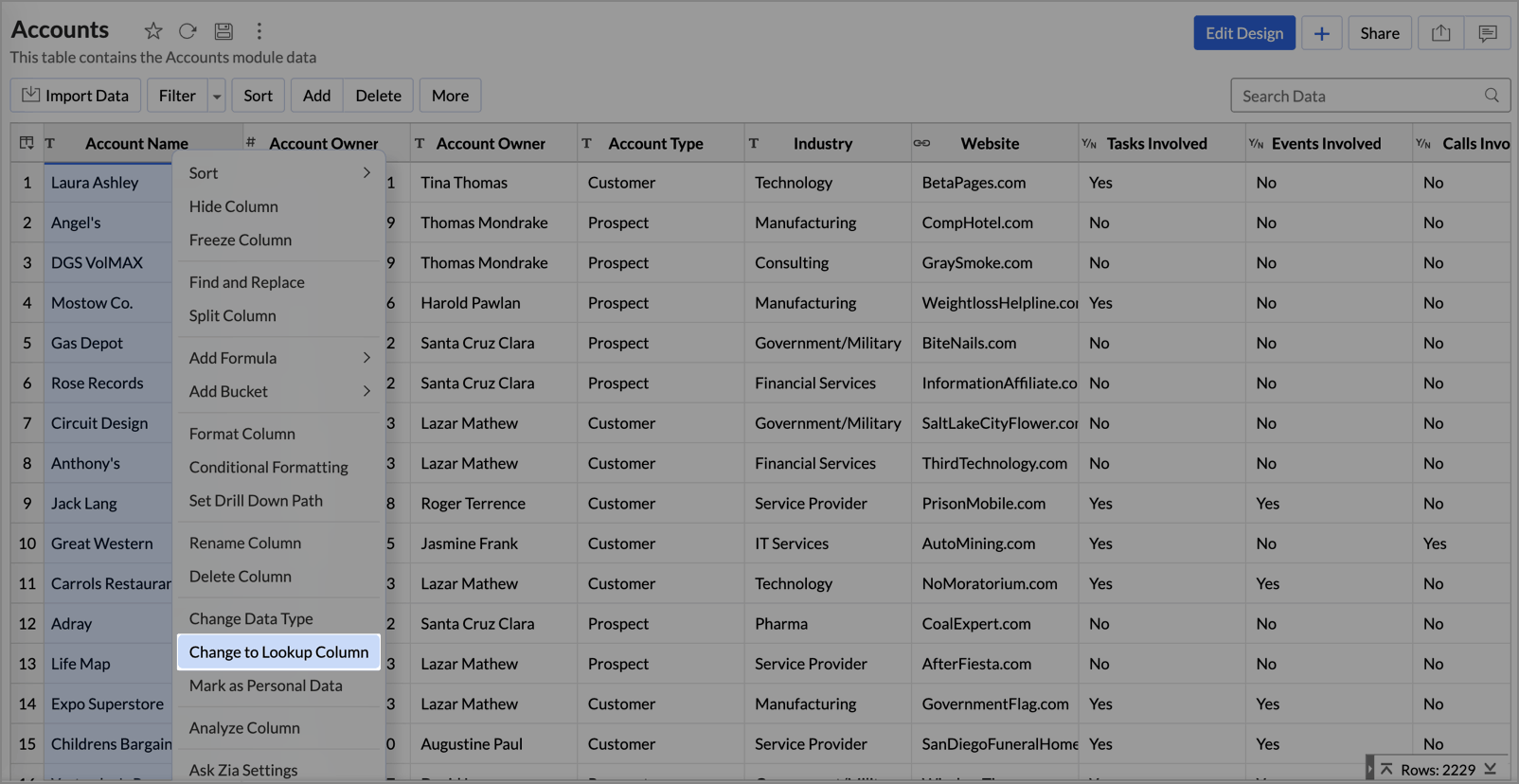
- In the dialog box, choose the column to look up from the related table.
- Click Save & Close to apply the lookup.
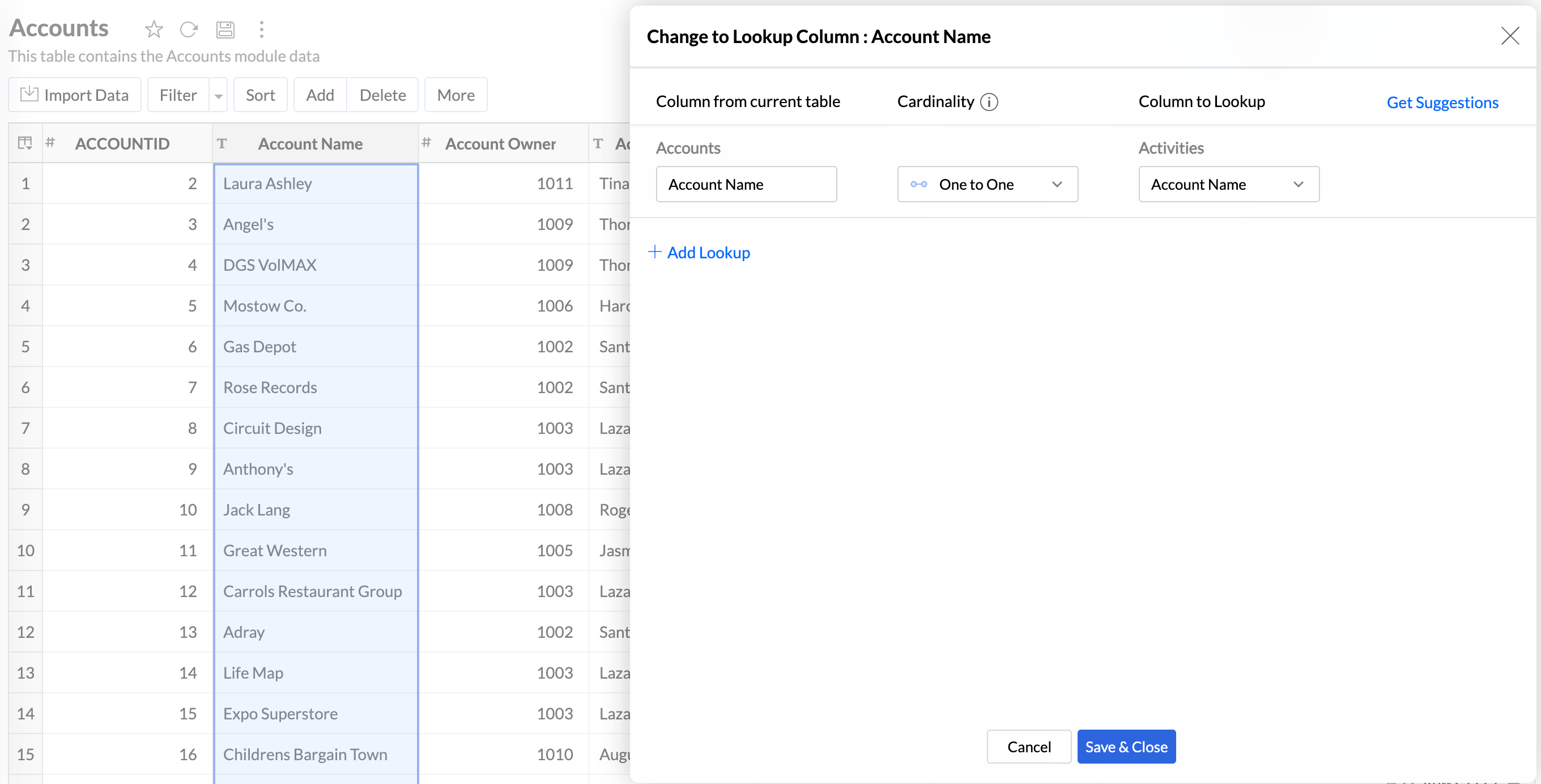
Learn more about Lookup columns
Import and Blend Data from Zoho Applications
You can integrate and analyze data from multiple Zoho apps along with Zoho CRM in a single workspace. This enables you to generate reports that span across business functions like sales, finance, support, recruitment, and development.
Popular supported Zoho applications include:
- Zoho Books
- Zoho Desk
- Zoho Projects
- Zoho BugTracker
- Zoho Recruit
- Zoho Creator
- Zoho Finance Suite
- Zoho People
Explore full list of supported Zoho app connectors
Import Data from Zoho Apps
To blend data from any Zoho application:
- Open your Zoho CRM Advanced Analytics workspace.
- Click Create (+) > New Table / Import Data.
- In the Import Your Data window, select the Zoho app you want to import from.
- Authenticate the connection.
- Select the Modules and Fields you want to analyze.
- Schedule how often the data should be updated.
- Click Create to complete the setup.
Once the data is imported, you can create reports that combine modules from Zoho CRM and other Zoho apps.
Automatic vs. Manual Lookups for Zoho Apps
Zoho Analytics automatically creates lookup relationships between Zoho CRM and the following apps:
- Zoho Books
- Zoho Desk
- Zoho Campaigns
- Zoho Inventory
- Zoho Subscriptions
- Zoho Invoice
For other Zoho applications like Zoho Projects, Recruit, Creator, and BugTracker, you can manually create lookup relationships using common fields.
Follow the same steps listed in the Combine Data Using Lookup Relationships section above.
Import and Blend Third-Party Business Applications
Zoho Analytics supports integration with a wide range of business apps, enabling you to run cross-functional analytics across platforms.
Follow the same steps as for Zoho apps mentioned above under Import and Blend Data from Zoho Applications.
Once imported, the data becomes part of your CRM workspace, allowing you to create combined reports and dashboards.
Automatic vs. Manual Lookups
Zoho Analytics automatically creates lookup relationships between Zoho CRM modules and:
- Salesforce CRM
- Zendesk
For other applications, you need to create lookups manually.
To manually set up lookups:
Follow the same steps listed in the Combine Data Using Lookup Relationships section above.
Data Modeling & Preparation
Zoho Analytics allows you to combine data from various sources such as Files, Feeds, Databases and Business Applications for an in-depth analysis. Query Tables allow you to combine data from different tables to create reports. The SQL Query Suggester helps to build complex queries.
Zoho Analytics auto identifies similar columns and provides suggestions for lookup while importing. Click here to learn more about Joining Tables.
Formulas
Zoho Analytics provides a set of pre-built formulas along with the connector. To access these formulas,
From the CRM workspace, click Data from the side panel and click Unified Metrics. This lists all the prebuilt formulas and other formulas available across the workspace.
You can also create your own custom formulas in Zoho Analytics. To know how to create your own formulas, refer to the Formulas (Calculations).
How can you visualize and analyze Zoho CRM data?
Zoho Analytics allows you to create a wide range of visualizations to analyze Zoho CRM data and gain actionable insights across your sales, marketing, and customer engagement activities. You can build reports and dashboards to track lead and deal trends, monitor sales performance, analyze pipeline movement, forecast revenue, evaluate campaign effectiveness, and measure customer interactions across accounts, contacts, and activities.
- Zoho Analytics offers a wide range of visualization types to conduct your analysis. Refer to the Creating Reports section to learn more. The chart type primer lists all the viz types available in Zoho Analytics.
- With Predictive analytics, forecast future trends, detect anomalies, and segment data using Cluster analysis.
- Find the What, Why and How behind any outcome with Zia Insights.
Sharing and Collaboration
- Use fine-grained permission control over your shared data and reports, while collaborating with your colleagues & friends.
- Efficiently collaborate with your users by setting up real-time commenting on a shared view.
- Publish reports for wider consumption. Embed reports/dashboards within your websites, web applications, and blogs.
- Export, email, and print reports in a variety of formats.
- Use Zoho Analytics mobile apps (optimized for both IOS and Android platform) and access data, reports, and dashboards on the go.
Embed Reports or Dashboards as Web Tabs in Zoho CRM
You can embed Zoho Analytics reports or dashboards directly inside Zoho CRM as a Web Tab, making it easier for teams to access insights within their workflow.
This feature is available only for users with Administrator privileges in Zoho CRM.
Get the Report or Dashboard URL from Zoho Analytics
- Open Zoho Analytics and access your CRM workspace.
- Navigate to the desired report or dashboard.
- Click the Share button (top-right corner).
- Select URL/Permalink.
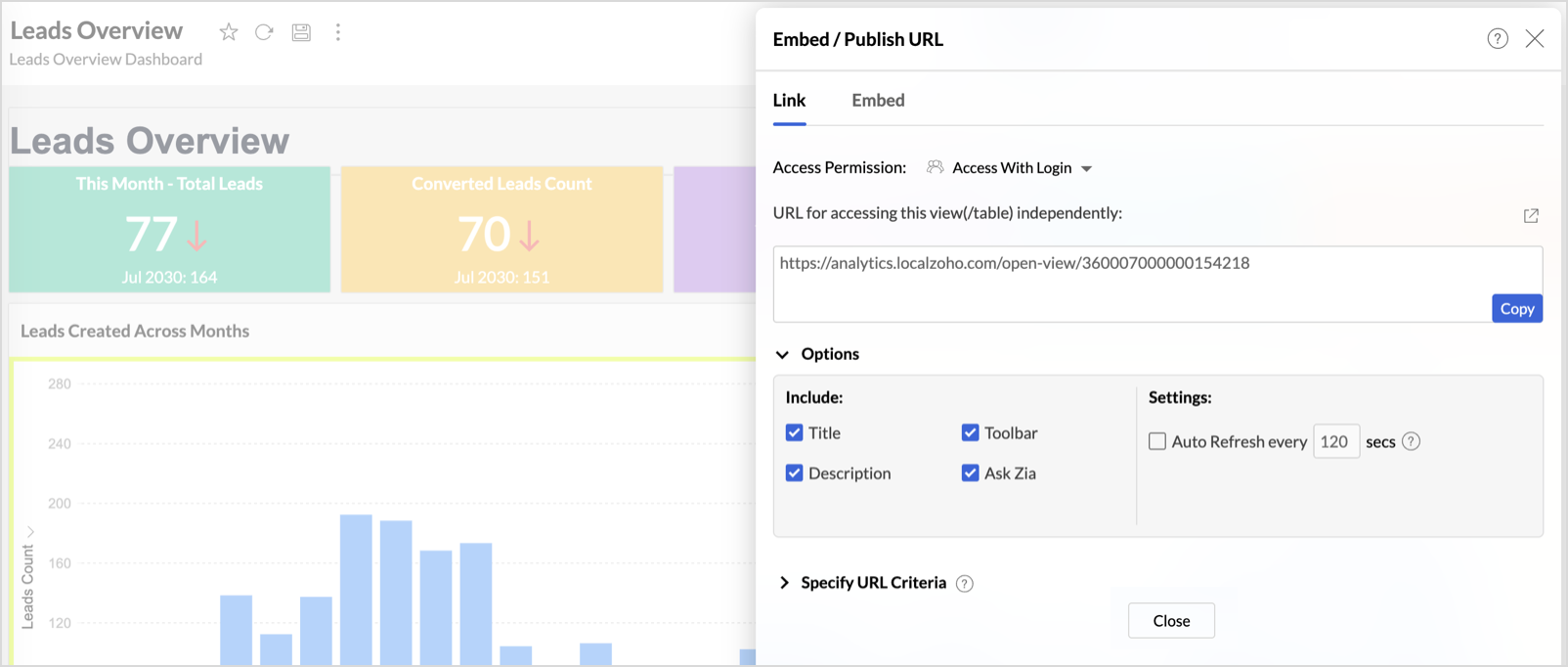
- In the dialog that opens:
- Set the required access permissions.
- Optionally, define URL criteria.
- Copy the generated URL and paste it into the Web Tab link field in Zoho CRM.
To create a Web Tab in Zoho CRM
- Sign in to your Zoho CRM account.
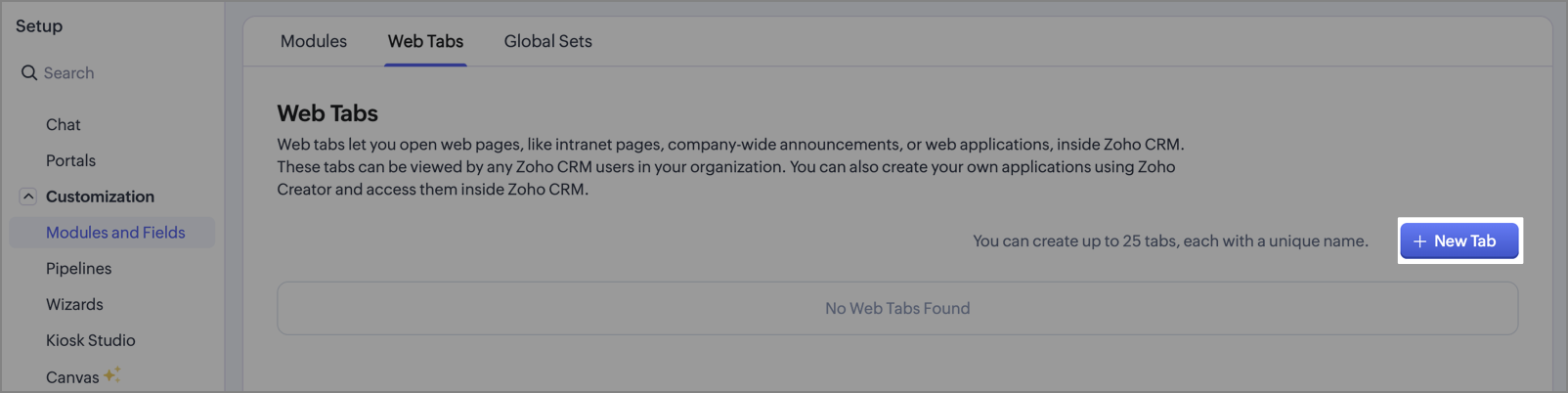
- Go to Setup > Customization > Modules and Fields > Web Tabs.
- Click + New Tab.
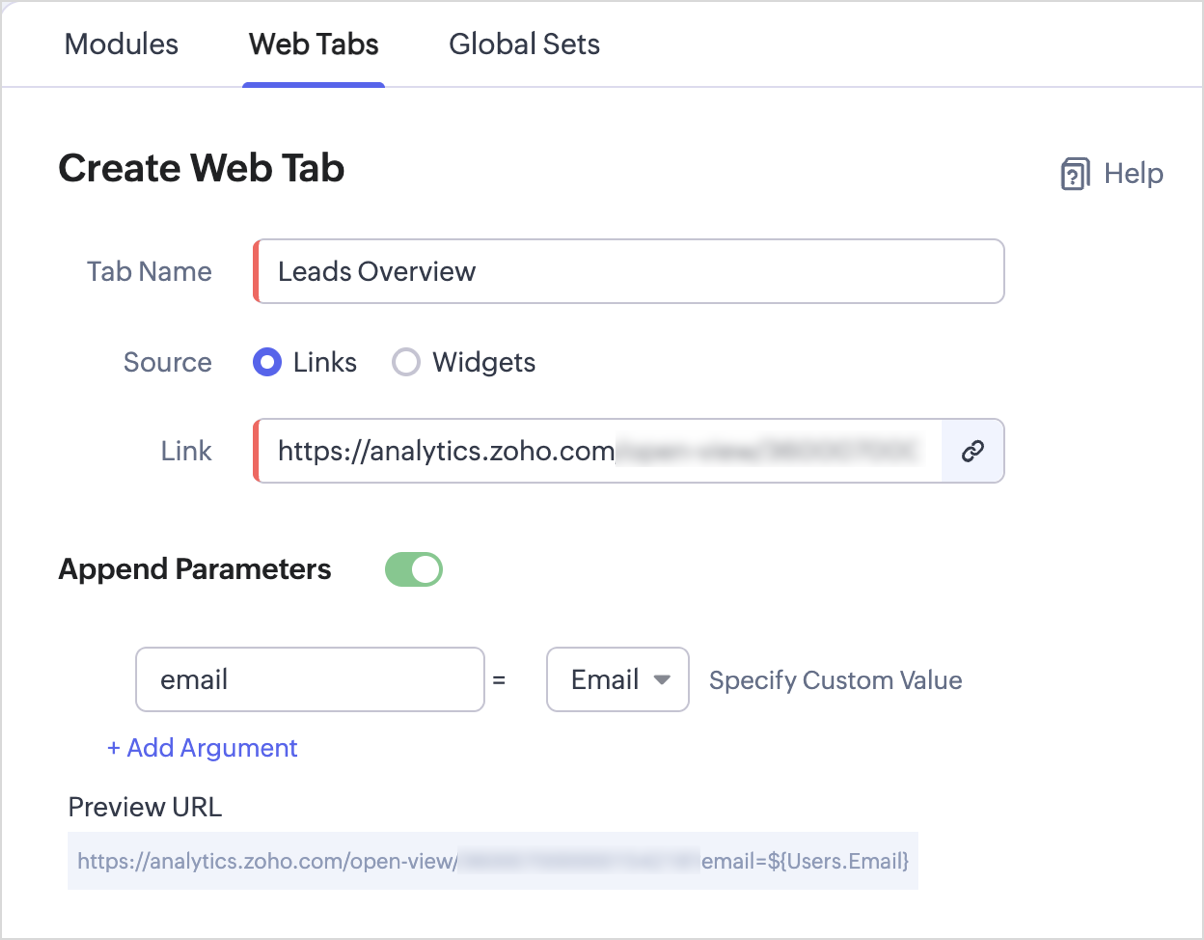
- Enter a Tab name for your new Web Tab.
- Select the Source.
- Links
- Paste the URL of the report or dashboard from Zoho Analytics.
- Enable Append Parameters to pass CRM data as URL parameters.
- Parameter Name: Provide the name of the parameter you want to append to the link URL. For example: name, email etc.
- Value: Choose a CRM field whose value should be sent for the parameter. The drop-down lists all available fields from the current module. (or)
You can also enter fixed value by clicking Specify Custom Value.
- Preview URL: Displays a link with the appended parameters.
- Widgets
- Select Widget to create new or choose the existing widget.
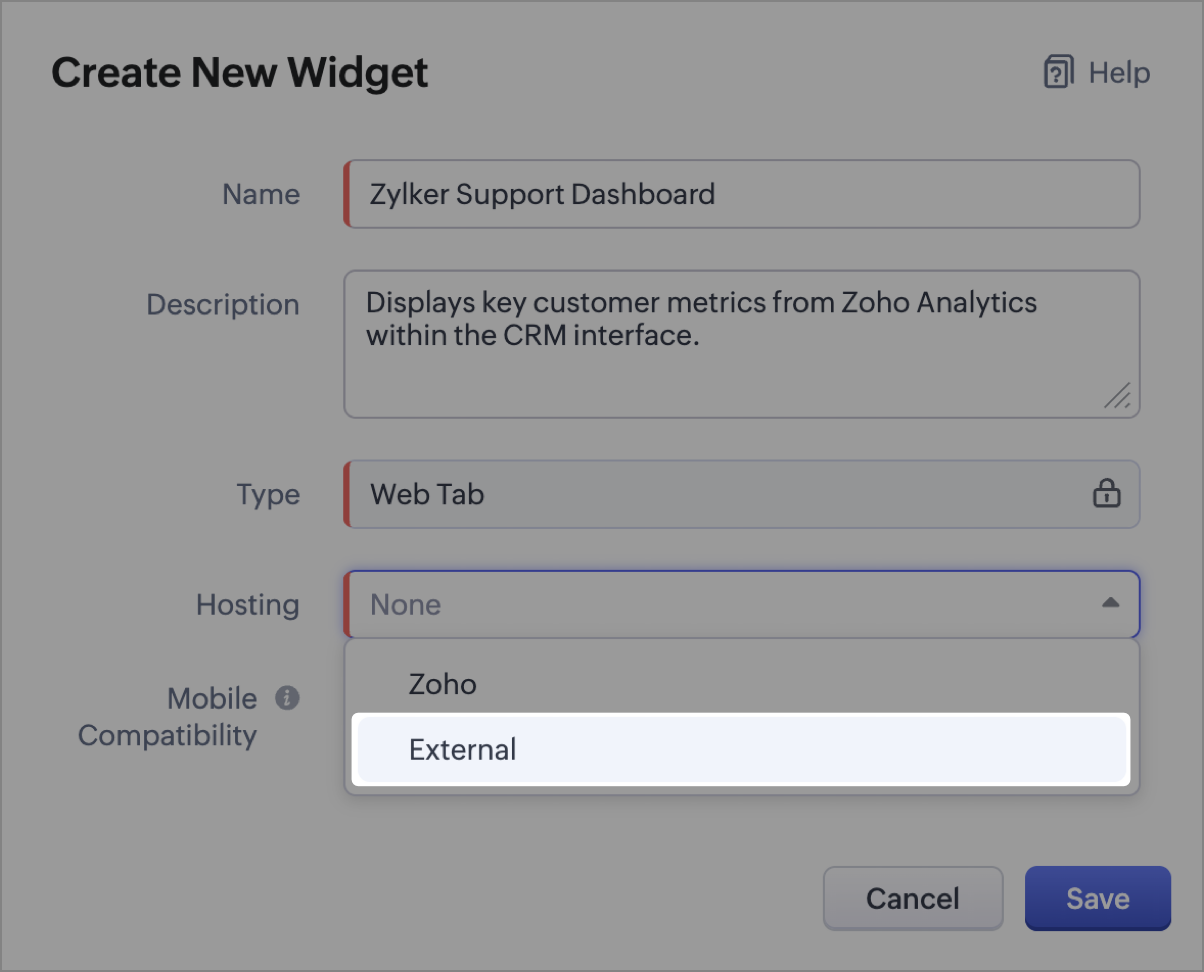
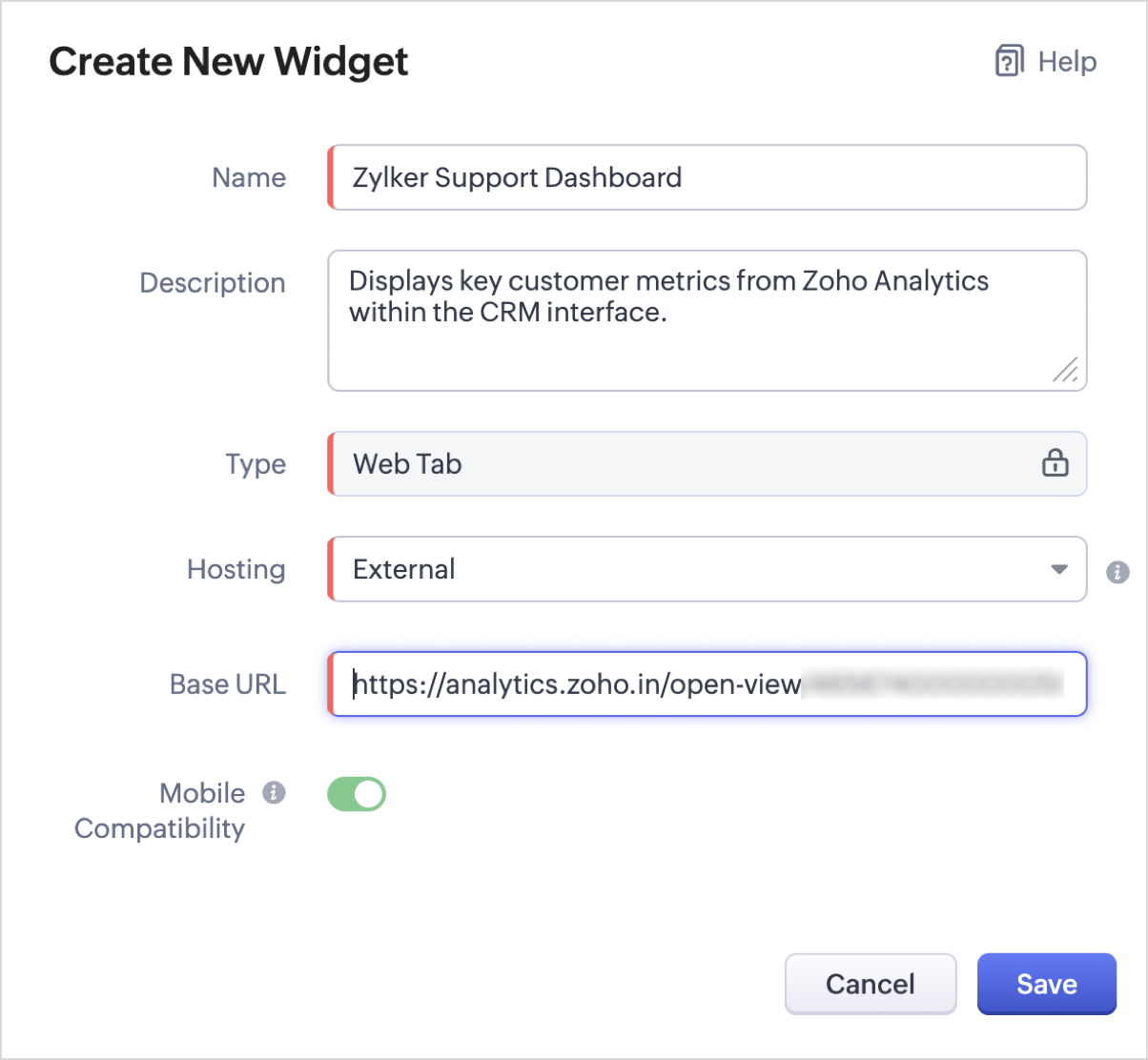
- Enter the following details to create a new widget.
- Name - Enter a unique name for the widget.
- Description (Optional) - Enter a brief description of the widget’s purpose.
- Type - The type of widget to create. This field is set to Web Tab and cannot be changed.
- Hosting - Select how the widget will be hosted:
- Zoho
- External
- Base URL - Enter the URL where the widget’s web application is hosted.
- Mobile Compatibility - Turn this on to make the widget available in Zoho CRM mobile apps.
- Click Save to create the widget.
- From Web Tab Access, select the user profiles or roles who can see and access this Web Tab.
- Under Teamspace permission, select the CRM teamspace where the Web Tab should be created.
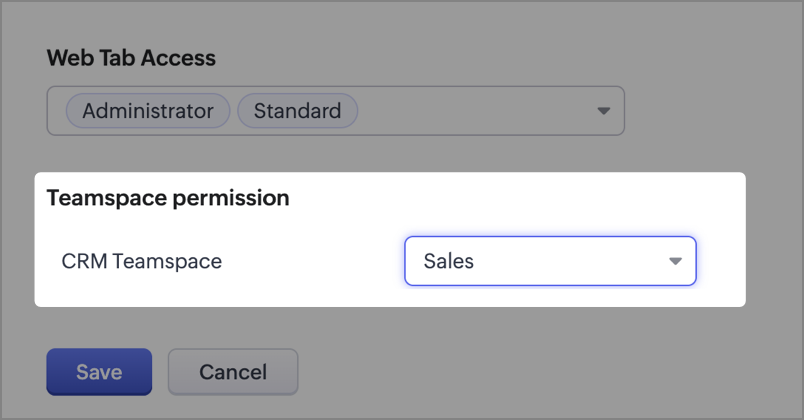
- Click Save to create the Web Tab with all the specified settings.
The Web Tab will now appear as a module in Zoho CRM.

Help & Support
We offer 24x5 technical support (Monday to Friday). In case if you need our assistance kindly do mail us your questions to support@zohoanalytics.com.
You can also reach out to us on our toll-free numbers.
United States: +1 (888) 900 9646
United Kingdom: +44 (20) 35647890
Australia: +61-2-80662898
India: +91 44 6965 6060