Kaizen #205 - Answering Your Questions | Managing Picklists and Enabling History Tracking via Zoho CRM APIs
Hello everyone!
Welcome back to another post in our Kaizen series.
In this post, we will look at how you can manage picklist fields in Zoho CRM using APIs. This topic was raised as feedback to Kaizen #200, so we are taking it up here with more details.

In this post, we will cover the following:
- What is a picklist field in Zoho CRM?
- Picklist vs Multi-select Picklist
- Working with picklist fields via APIs
- Creating a picklist field using the Create Custom Field Metadata API
- Updating a picklist field using the Update Custom Field Metadata API
- Assigning picklist values when creating records using the Insert Records API
- Updating picklist values in existing records using the Update Records API
- History tracking for picklists
- What is history tracking for picklists in Zoho CRM?
- Use case
- Enabling history tracking for a picklist using the Create Custom Fields API
What is a picklist field in Zoho CRM?
A Picklist field is a drop-down field in Zoho CRM that contains a predefined list of values. While creating or updating a record, you can select one value from this list instead of entering it manually. This helps you avoid typing errors.
Example :
A Region field with values East, West, North, and South.
If a lead is from the East, the user simply selects East from the picklist instead of typing it manually.
Picklist vs Multi-select Picklist
Picklist | Multi-select Picklist |
Users can select only one value from the list. | Users can select multiple values at once. |
A standard Region picklist works when a record belongs to only one region. Example : East | A Multi-select Region picklist works when a record spans multiple regions. Example : East, North |
Global picklist / Global set : User can create a picklist in common and associate the created picklist across the modules to maintain accuracy. Refer to Kaizen #161: Global Sets using Zoho CRM APIs for more details.
Working with picklist fields via APIs
Creating a picklist field using the Create Custom Field API
You can create a new Picklist field in a module by calling the Create Custom Field Metadata API. For example, you can create a picklist field named Region with the values: East, West, North, South.
Request URL : {{api-domain}}/crm/v8/settings/fields?module=Leads
Request Method : POST
Sample Input
When creating a picklist field, set its data type as picklist and provide the list of options, each with a mandatory display_value. You can also configure additional properties such as actual_value, lexical sorting, and color coding.
{ "fields": [ { "field_label": "Select Region", "data_type": "picklist", // Specify the data type as picklist "tooltip": { "name": "info_icon", "value": "Select your region here" }, "profiles": [ { "id": "5725767000000026011", "permission_type": "read_write" } ], "pick_list_values": [ { "display_value": "East", //The unique display value for the picklist, which will be displayed in the CRM UI. Use the display_value in API requests during create, update, and upsert operations. "actual_value": "IN_East" //The unique reference value associated with the particular option. }, { "display_value": "West", "actual_value": "IN_West" }, { "display_value": "North", "actual_value": "IN_North" }, { "display_value": "South", "actual_value": "IN_South" } ], "pick_list_values_sorted_lexically": true, //Sorts options alphabetically. Default value is false. "enable_colour_code": true //Allows color coding for picklist options. Default value is false. } ] } |
Note : To create a multi-select picklist field, set the data_type key to multiselectpicklist in the request body ("data_type": "multiselectpicklist").
Sample Response
{ "fields": [ { "code": "SUCCESS", "details": { "id": "5725767000007613005" }, "message": "field created", "status": "success" } ] } |
Updating a picklist field using the Update Custom Field API
The PATCH - Field Metadata API lets you modify an existing Picklist field. Use the Get Fields Metadata API to get your picklist field ID.
You can:
- Add new options
- Update the picklist
- Remove existing options using Update Custom Layout API
Here is a sample request that updates the Select Region dropdown field in the Leads module.
Request URL : {{api-domain}}/crm/v8/settings/fields/5725767000007613005?module=Leads
Request Method : PATCH
Adding a new option to the existing picklist field
Sample Input
{ "fields": [ { "pick_list_values": [ { "display_value": "Central", //adding a new option to the existing picklist field "actual_value": "IN_Central" } ], } ] } |
Updating picklist
{ "fields": [ { "profiles": [ { "id": "5725767000000026011", "permission_type": "read_only" //updating the permission_type } ], "pick_list_values": [ { "display_value": "South Region", //updating the display field's value "id": "5725767000007613010" //unique ID of the option } ], "enable_colour_code": false //disabling color code for the options } ] } |
Note : Use the actual_value or unique ID of a picklist option to update its display value. Use the Get Fields Metadata API or Get Layouts Metadata API to get the details.
Removing existing options using Update Custom Layout API
To remove picklist values, keep only the required options in your input. Any options not included in the request will automatically move to the unused section.
First, fetch the required layout, section, field, and option IDs using the Get Layouts Metadata API. Then, in your request body, specify only the picklist values you want to retain.
Request URL : {{api-domain}}/crm/v8/settings/layouts/5725767000000091055?module=Leads
Request Method : PATCH
Sample Input
{ "layouts": [ { "id": "5725767000000091055", //layout id "sections": [ { "id": "5725767000000209001", //section id "fields": [ { "id": "5725767000007613005", //field id "pick_list_values": [ { "display_value": "Central", "id": "5725767000007626001" }, { "display_value": "East", "id": "5725767000007613004" } ] } ] } ] } ] } |
Here, Central and East regions remain as active picklist options, and West, North, and South regions are moved to the unused section.
Updated response
Use the Get Fields Metadata API to check the updated response. The Central and East are still active options (type: used), and North, South, and West are inactive options (type: unused)
{ "fields": [ . . . { "field_label": "Select Region", "id": "5725767000007613005", "api_name": "Select_Region", "pick_list_values": [ { "display_value": "-None-", "sequence_number": 1, "reference_value": "-None-", "colour_code": null, "actual_value": "-None-", "id": "5725767000007613013", "type": "used" //default option }, { "display_value": "Central", "sequence_number": 6, "reference_value": "Central", "colour_code": null, "actual_value": "IN_Central", "id": "5725767000007626001", "type": "used" }, { "display_value": "East", "sequence_number": 2, "reference_value": "East", "colour_code": null, "actual_value": "IN_East", "id": "5725767000007613004", "type": "used" }, { "display_value": "North", "sequence_number": 4, "reference_value": "North", "colour_code": null, "actual_value": "IN_North", "id": "5725767000007613008", "type": "unused" }, { "display_value": "South", "sequence_number": 5, "reference_value": "South", "colour_code": null, "actual_value": "IN_South", "id": "5725767000007613010", "type": "unused" }, { "display_value": "West", "sequence_number": 3, "reference_value": "West", "colour_code": null, "actual_value": "IN_West", "id": "5725767000007613006", "type": "unused" } ], "data_type": "picklist" } ] } |
Assigning picklist values using the Insert Records API
When you insert a record, you can directly pass the picklist option’s display value (not the ID) in the request body.
Request URL : {api-domain}/crm/v8/{module_api_name}
Request Method : POST
Sample Input
{ "data": [ { "Company": "Zylker", "Last_Name": "David", "Select_Region": "Central" // Picklist value to assign } ] } |
Note:
- When creating, updating, or upserting records,
- You can either pass an existing picklist value or add a new one, through the API. Please note that the new value will only be stored in that record, and will not be added to the picklist field’s metadata.
- In the UI, you can only select from the available dropdown options.
- Always use the display_value of the picklist option, not the picklist option’s ID.
- You can also assign the default option (-None-). In this case, the picklist field’s value will be stored as null ("Select_Region": null)
Sample Response
{ "data": [ { "code": "SUCCESS", "details": { "Modified_Time": "2025-08-23T04:51:39-07:00", "Modified_By": { "name": "Patricia Boyle", "id": "5725767000000411001" }, "Created_Time": "2025-08-23T04:51:39-07:00", "id": "5725767000007623017", "Created_By": { "name": "Patricia Boyle", "id": "5725767000000411001" } }, "message": "record added", "status": "success" } ] } |
Updating picklist values in existing records using the Update Records API
When updating, you also use the picklist display value in the field.
Request URL : {api-domain}/crm/v8/Leads/5725767000007628002
Request Method : PUT
Sample Input
{ "data": [ { "Select_Region": "West" // New picklist value } ] } |
This will replace the existing picklist value with West.
History tracking for picklists
What is history tracking for picklists in Zoho CRM?
You can enable history tracking for a picklist field using the Create Custom Field API. Once enabled, Zoho CRM automatically creates a related list for the tracked picklist and a separate module.
Every time the picklist value changes, Zoho CRM creates a new entry in this related list. Each entry shows the old value, the new value, who made the change, and when it was made, and how long the record stayed in the previous value before moving to the next one.
Use case
Zylker's sales team tracks lead progress through the statuses such as New, Contacted, Qualified, and Converted. The team wants to know how long a lead remains in each status and identify if follow-ups are delayed or leads are not progressing.
You can achieve this by enabling history tracking on the Status picklist. You can also monitor every status change, who made it, and how long the lead stayed in the previous status. This helps the team monitor, identify delays, and improve the follow-up process.
The log stores:
- New Value - updated region in the Moved_To__s key.
- Changed By - user who made the update in the Modified_By key.
- Changed On - date and time when the region was changed in the Last_Activity_Time key.
- Duration - how long the record stayed in the previous value before the change in the Duration_Time and Duration_Days keys.
Enabling history tracking for a picklist using the Create Custom Fields API
Request URL : {{api-domain}}/crm/v8/settings/fields?module=Leads
Request Method : POST
Sample Input
{ "fields": [ { "field_label": "Status", "data_type": "picklist", "pick_list_values": [ { "display_value": "New", "actual_value": "New" }, { "display_value": "Contacted", "actual_value": "Contacted" }, { "display_value": "Qualified", "actual_value": "Qualified" }, { "display_value": "Converted", "actual_value": "Converted" } ], "history_tracking_enabled": true, //(mandatory) Enables history tracking for the picklist "history_tracking": { "related_list_name": "Status History", //Lets you give a custom name to the history related list that CRM creates. "duration_configuration": "time", //Decides how to track the timing of changes: days - History is tracked by days and time - History is tracked by time. Note : Before specifying the time value, enable the duration customization feature in your organization by contacting support@zohocrm.com. "followed_fields": [ // The followed_fields lets you retrieve additional field values whenever the picklist value changes. { "api_name": "Owner" } ] } } ] } |
Sample Response in UI
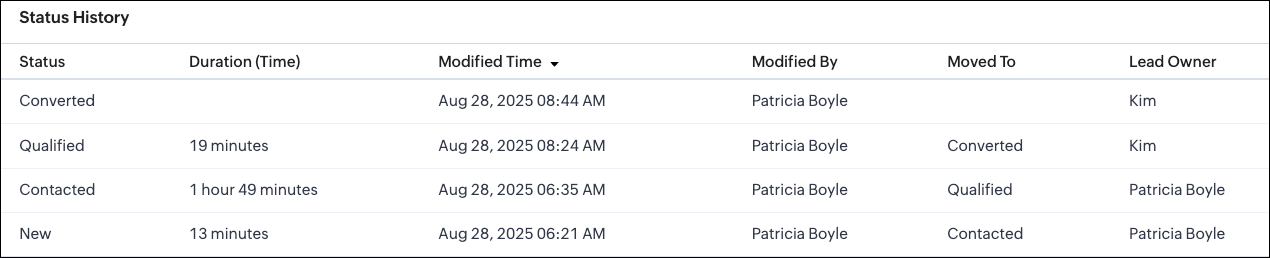
Sample Response via API
Whenever a picklist option changes, the system creates a new record in the related list module. In this example, Status History is the related list module. The sample response below shows how a particular change looks when retrieved using the Get Records API.
Request URL : {{api-domain}}/crm/v8/Status_History/5725767000007739323
Request Method : GET
Sample Response
{ "data": [ { "Status": "Contacted", "$approval": { "delegate": false, "takeover": false, "approve": false, "reject": false, "resubmit": false }, "Modified_Time": "2025-08-28T06:35:15-07:00", "$currency_symbol": "$", "$field_states": null, "$review_process": null, "$editable": true, "Duration_Time": "6568847", //The system stores the duration in milliseconds. "$sharing_permission": "full_access", "Lead_Owner": { "name": "Patricia Boyle", "id": "5725767000000411001" }, "Moved_To__s": "Qualified", "$orchestration": false, "Last_Activity_Time": "2025-08-28T08:24:44-07:00", "Full_Name": { "name": "Zylker", "id": "5725767000007735001" }, "Modified_By": { "name": "Patricia Boyle", "id": "5725767000000411001", }, "$review": null, "$process_flow": false, "$in_merge": false, "id": "5725767000007739350", "$approval_state": "approved", "$pathfinder": false, "$zia_visions": null } ] } |
Note :
- You can select up to 10 fields in total, with a maximum of 5 user fields for all modules except Deals.
- Encrypted fields cannot be specified.
- In the Deals module,
- History tracking is enabled by default for the Stage picklist field.
- You cannot enable history tracking for any other picklist field in the Deals module.
- You can only update the existing Stage picklist field using the Update Custom Field API.
- You can add up to 6 followed fields, with a maximum of 5 user fields.
We hope this post helps you confidently manage picklists and track their history in Zoho CRM. Try it out, and let us know your experience in the comment section or reach out to us at support@zohocrm.com
Stay tuned for more insights in our upcoming Kaizen posts!
Cheers!

Previous Kaizen : Kaizen# 204 - Answering Your Questions - Perform Field Updates before Blueprint transition via Client Script | Kaizen Directory : Home
Related Links :
Topic Participants
Subramanian K
Sticky Posts
Kaizen #198: Using Client Script for Custom Validation in Blueprint
Nearing 200th Kaizen Post – 1 More to the Big Two-Oh-Oh! Do you have any questions, suggestions, or topics you would like us to cover in future posts? Your insights and suggestions help us shape future content and make this series better for everyone.Kaizen #226: Using ZRC in Client Script
Hello everyone! Welcome to another week of Kaizen. In today's post, lets see what is ZRC (Zoho Request Client) and how we can use ZRC methods in Client Script to get inputs from a Salesperson and update the Lead status with a single button click. In thisKaizen #222 - Client Script Support for Notes Related List
Hello everyone! Welcome to another week of Kaizen. The final Kaizen post of the year 2025 is here! With the new Client Script support for the Notes Related List, you can validate, enrich, and manage notes across modules. In this post, we’ll explore howKaizen #217 - Actions APIs : Tasks
Welcome to another week of Kaizen! In last week's post we discussed Email Notifications APIs which act as the link between your Workflow automations and you. We have discussed how Zylker Cloud Services uses Email Notifications API in their custom dashboard.Kaizen #216 - Actions APIs : Email Notifications
Welcome to another week of Kaizen! For the last three weeks, we have been discussing Zylker's workflows. We successfully updated a dormant workflow, built a new one from the ground up and more. But our work is not finished—these automated processes are
Recent Topics
Get user last login
1. Is there a way to programmatically get the last user login to trigger certain workflows? 2. Is there a way to programmatically access the custom fields on a user's account?Seeking Zoho Creator Expert (Delivery Management App / Logistics Ops) — Built & Deployed Before
Hi everyone, We’re building a Delivery Management App (focused on delivery operations for now) using Zoho Creator. We’re looking for a Zoho Creator expert who has already developed and deployed a similar delivery/workflow system and can assist us withAdding Multiple Files to a Zoho Vault Entry
There is a old blog post talking about adding multiple file attachments to one Zoho Vault Secret: https://www.zoho.com/blog/vault/introducing-new-features-in-zoho-vault-powerful-password-sharing-wider-storing.html Is that still possible, I can see howFNB South Africa Bank Feed
I should've thought this wouldn't work. As suspect, Zoho claims to be able to pull bank feeds from First National Bank (South Africa), but fails everytime. I suppose Xero (or even Sage One) is the way to go? If they (miraculously) get it to work again,Zoho unreliable
Some mails are delivered, others not. How can I trust Zoho any more? Some friends get my e-mail, some don't. Same with receiving e-mails: Some I get, some not. If I use Google, everything works well. But Zoho?!!! How to solve this problem? I already reported this problem before, but didn't get any reply. Thanks, Kimthe custom domain forwards by default to the old career site / how to switch it off??
dear friends, how to switch off the old version of the career site?? The set up custom domain forwards directly to the old site, so that I cant publish it... Any ideas? Thank you! KR, VictoriaPreserve Ticket Issue Mapping When Migrating from Jira to Zoho Projects
Hello Zoho Projects Team, We hope you are doing well. We are currently exploring a full migration from Jira to Zoho Projects, and we identified a critical limitation during the migration process involving Zoho Desk integration. Current Situation: We useRecording Shopify/Amazon fees in Zoho Books - Zoho Inventory
We are currently flushing out the connections between Shopify/Amazon and Zoho Inventory. For other users of Zoho Books - Zoho Inventory, where and at what point do you record the merchant fees associated with theses channels? I have gotten mixed responsesPre-fill webforms in Recruit
I don't want to use the career site portal (as I have my own already), but I would like to direct users to the application forms for each role, from my website job pages. Is there a way to pre-fill fields in Recruit application forms, so that I only haveTaxes Payable Adjustment
I am from Canada and I need to make an adjustment to my Taxes Payable (HST) account. Basically I need to take a portion of the amount within Taxes Payable and expense that portion to another account. The adjusting entry would like like the following:ASAP Widget Not showing "My Tickets"ed
Hello Team, I have created a ZOHO ASAP Widget and embedded to my portal app.clearvuiq.com , widget renders ok and I can open tickets from widget. However I want my opened tickets to be visible in the widget. How can I achieve that?Bug Causing Major Sync & SO Access Failures in Zoho POS
We are experiencing critical and recurring issues in Zoho POS that all trace back to role-permission handling defects in the latest POS app version. These issues directly affect syncing, login ability, and Sales Order access for role-restricted usersHow to view CRM Sales Orders in Desk
What's the usual way to view all CRM sales orders linked to a contact, when viewing a ticket in Desk? I don't want to have to open a new tab to see the order in CRM. And the Desk CRM sidebar doesn't seem to be configurable. Would I have to use an extensionKaizen #219: Actions API - Webhooks APIs - Part 1
Hello all!! Welcome back to a fresh Kaizen week. In the previous weeks, we covered Workflow Rules APIs, Actions APIs - Email Notification APIs, Tasks Update API, and Field Update API. This week, we will continue with another Actions API - Webhooks APIPricing Strategies: #3 Services never Stop with just Plans
"Hey, while you're here, could you also take a look at the vegetable patch?" Aaron hears that line almost every week. He runs a small gardening service, the kind where customers subscribe to a simple monthly plan that includes basic maintenance, mowing,Cropping Photos for Zoho Sites
Hi, I'm wondering if there is a built in crop tool for zoho sites for my photos so I can crop them and see what the crop looks like on the site?Possible for first Signer of Sign Form to specify the next signer in the sequence
We have many use cases where multiple signers need sign the same document. We'd love to be able to use sign forms, where the a signer who uses the Sign Form link can specify the name and email address for the next person in the sequence.BUG: Can't copy-paste data outside Sheet
Currently I can't paste data copied from inside any of my Zoho Sheet files to any other app. Copy-paste works inside the sheet It does NOT work between two different sheets These sheets are built from automation templates Everything works fine if I createZoho CRM Community Digest - November 2025 | Part 1
Hello Everyone! Here’s what came through in the first half of November: new updates and a few helpful community discussions with real, notable solutions. Product Updates: Android App Update: Inctroducing Swipe Actions You can now swipe left or right onUpload own Background Image and set Camera to 16:9
Hi, in all known online meeting tools, I can set up a background image reflecting our corporate design. This doesn't work in Cliq. Additionally, Cliq detects our cameras as 4:3, showing black bars on the right and left sides during the meeting. WhereTruesync for Linux
Is Truesync available on linux ?Hidding/excluding specific picklist options from filter
Hi. Is it possible to hide/exclude specific picklist options from this filter? I don't want them to be shown when someone tries to filter in the leads moduleSubforms to Capture Multi-Row Data in Job Sheets
Subforms transform your job sheets from simple checklists to powerful, data-rich forms. In field service work — whether maintenance, inspection, installation, or repair — a single job can involve multiple repeatable entries: readings, parts used, activitiesAdd "Fetch Composite Item" Action for Inventory
I want to make a Flow that uses information returned in the GET call for Composite Items, and it's not currently available in Zoho Flow. Please consider adding this functionality.Adress Labels for sending of the oder und barcode
We want to print with my address labels to stick on the order of the ware can. there are these options?printing individual labels - Dymo LabelWriter
I am trying to print individual labels to my Dymo LabelWriter - has anyone done this? Latest Update (December 2025): The Canvas Print View is now available! We encourage you all to try it out and share your feedback with us. Learn more here: Zoho CRMZoho Creator for Agriculture
Greetings, I am starting to work on Zoho Creator specifically for the agricultural field, any recommendations, tips or ideas that might be helpful ? Also, if you are interested by any means in working on such project, kindly contact me. The project isCustom Print Layout
I would like to create a custom print layout of a Lead or Contact. Is there a way to do that? What I mean is that if I'm viewing a specific lead or contact I'd like to be able to print or export that lead/contact and only print and/or export certain information.Print View
Nothing happens when I'm in a module , ie; Contacts, and I hit the Print View Button. Even when it does come up and say "loading", nothing loadsGet Holiday ready with Zoho Mail's Offline mode
With the holiday season right around the corner, this is the perfect time to get ready to unplug, relax, and enjoy a well-deserved break. In addition to preparing yourself, you can also make sure your organization members are set for their time away fromSolution to Import OST File into Office 365.
MailsDaddy OST to Office 365 Migration Tool is an outstanding solution to recover OST files and migrate them into Office 365 without any hassle. Using this software users can multiple OST files into Office 365 with complete data security. It offers usersZoho CRM Kiosk issues
Firstly this is for a system on the AU servers if that makes a difference. Issues are as follows (For Kiosk): 1. Re-ordering fields in the screen builder is broken. The fields seem to be re-ordering themselves, unless you order everything by moving theEmail Template Edits Not Saving
I can make an edit, click save, and see the blue bar annimation at the top, but the edits don't actually save. Important, because my email templates are now broken and clients are receiving bad emails. Tried on Chrome, Firefox and IE.Default Ticket View - Table?
Guys, We mostly use the table view to queue tickets. Maybe I am missing it - but how can I set that view as 'default" for all our agents? Thanks JVCan I have different users see different pick list values for Potential Stage?
We have some users focusing on new business and others focusing on existing business, and they follow different sales processes/cycles, so we would like them to see different pick list values for Stage (eventually leading up to Closed Won/Lost in both cases). And just to keep it interesting - some of these users will of course do a combination, so would need to see one pick list for their New business potentials and a different pick list for their Existing business ones. Salesforce does thisTracking Snippet not working in Zoho Marketing Automation!
First off, the fact that you have to wait about 12-24 hours for every response is terrible. How are we supposed to conduct business? Second, we have been trying for several days to get the Tracking Code Snippet in marketing automation to work, to no avail.Is there any way to send an Excel received by email to Dataprep?
Every day I receive an email alert with an Excel file that I want to process through a Dataprep pipeline. To do this, I need to: -Save the file to disk -Open the pipeline -Run the pipeline -Update the source -Several clicks to select and open the savedRead webpage - MSXML2.ServerXMLHTTP
I have the following VBA script, put together from various sources (mainly zoho forum/help/support, so it once worked, I guess): private Sub GetListOfSheets() Dim url As String Dim xmlhttp As Object Dim parameters As String Dim html As String range("B1").valueZoho Creator Form Search
I'm new to Zoho Creator and so far i do like it but im shocked there seems to be no easy way to add a search function and/or navigation to there forms as this readily available in every platform i have used in the past. Anyway i have a form which i haveHow to setup DKIM / SPF in Zoho Mail
Hello there! I'm having a hard time understanding how to setup the TXT records for SPF and DKIM with Zoho Mail. I'm following the instructions here: https://www.zoho.com/campaigns/help/setup-spf-dkim.html Specifically, when it comes to the value for theNext Page