Tip #59- Technician Console: Exploring View option- 'Insider Insights'
Hello Zoho Assist Community!
Ever wondered how technicians adapt quickly during a live support session?
Imagine a customer reaching out with an issue that’s disrupting their work. The technician starts a remote session and begins troubleshooting right away using the Technician Console.
Once the session has started, the technician can view the remote screen on their device. A blue arrow will appear on the left; clicking it opens a set of tools that help streamline troubleshooting. These tools are grouped under the following sections:
View | Session | Tools | Files | Chat
Let’s take a closer look at View, one of the most commonly used sections during a support session.
View options explained
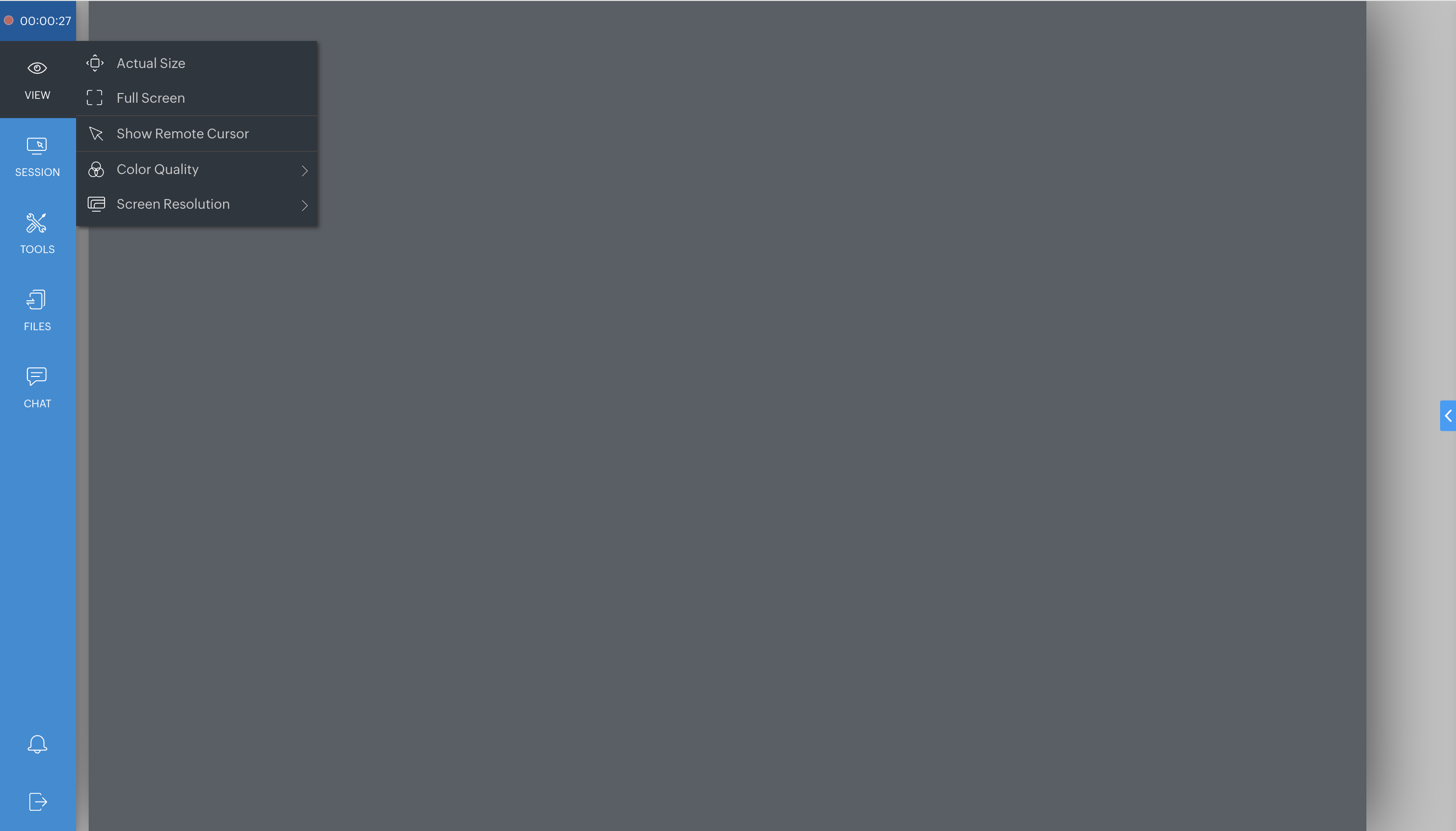
Actual Size displays the customer’s screen in its original dimensions, ensuring nothing is misaligned or missed. Fit Size adjusts the customer’s screen to fit your display, making it easier to work across different screen sizes.
Full Screen
For detailed troubleshooting, technicians can switch to full-screen mode for a clearer, distraction-free view of the remote system.
Show Remote Cursor
This option lets technicians see the customer’s cursor in real time, making it easier to follow actions and provide precise guidance. The cursor can also be hidden when not needed.
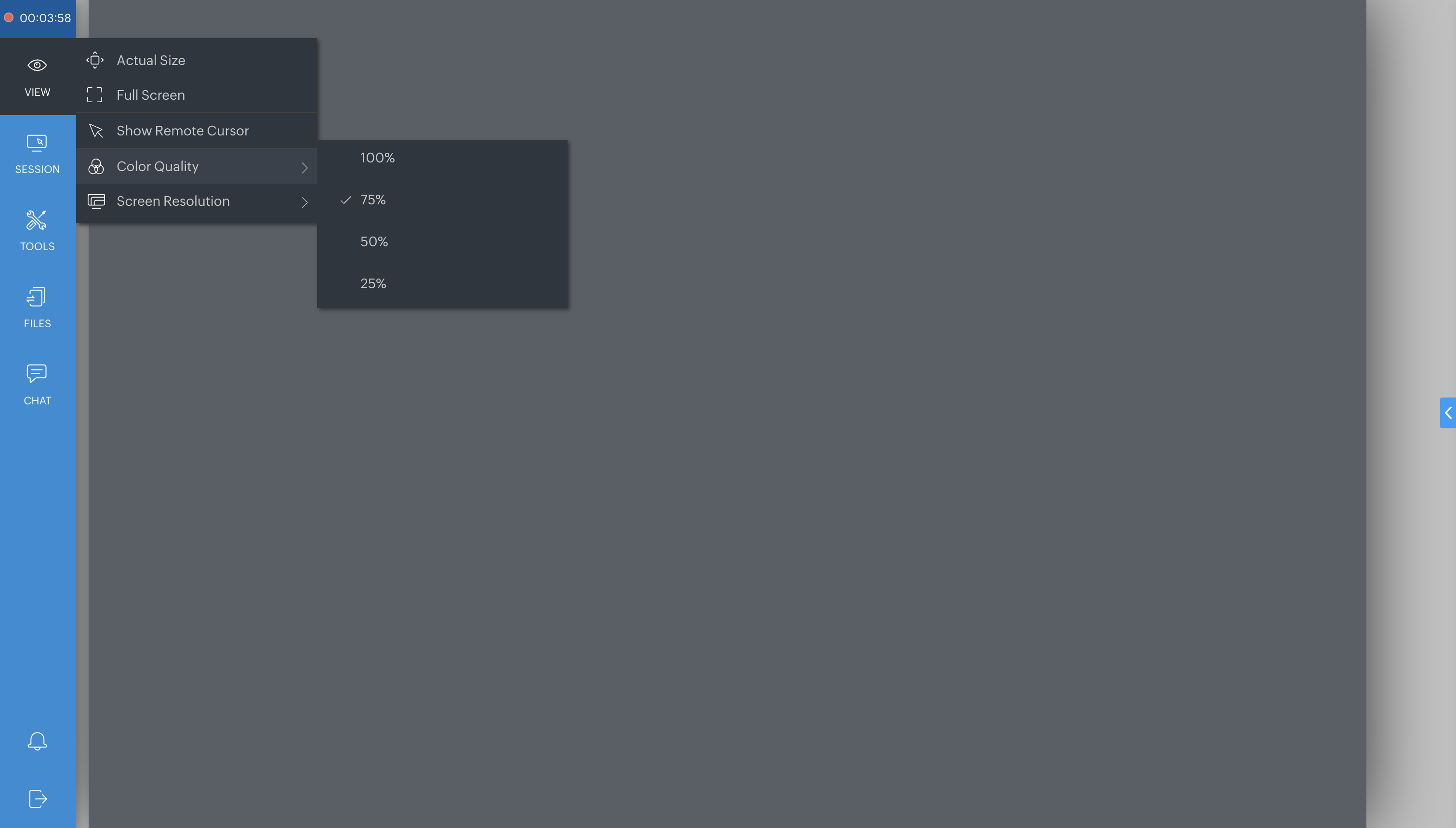
Color Quality
Technicians can adjust color quality based on network conditions. The default setting adapts automatically for smoother performance. For use cases like design work or photo editing, color quality can be increased to ensure better visual accuracy during troubleshooting.
Why this matters
The Technician Console gives support teams the flexibility to adapt to different screens, user actions, and network conditions, helping resolve issues faster and deliver a smoother support experience when customers need help the most.
Try it out! If you need help setting up or have any questions, feel free to reach out to us at support@zohoassist.com — we’re here to help.
Zoho Campaigns Resources





Topic Participants
Amali Steffi Raj J
Zoho CRM Plus Resources
Zoho Books Resources
Zoho Subscriptions Resources
Zoho Projects Resources
Zoho Sprints Resources
Zoho Orchestly Resources
Zoho Creator Resources
Zoho WorkDrive Resources


Zoho CRM Resources
Get Started. Write Away!
Writer is a powerful online word processor, designed for collaborative work.
-
オンラインヘルプ
-
Webセミナー
-
機能活用動画
-
よくある質問
-
Ebook
-
-
Zoho Campaigns
- Zoho サービスのWebセミナー
その他のサービス コンテンツ
ご検討中の方
Recent Topics
Is there a way to automatically add Secondary Contacts (CCs) when creating a new ticket for specific customers?
Some of our customers want multiple contacts to receive all notifications from our support team. Is there a way to automatically add secondary contacts to a ticket when our support team opens a new ticket and associates it with an account? This wouldImproved RingCentral Integration
We’d like to request an enhancement to the current RingCentral integration with Zoho. RingCentral now automatically generates call transcripts and AI-based call summaries (AI Notes) for each call, which are extremely helpful for support and sales teams.Edit Pinned Comments in Zoho Desk
It's great that private comments can now be pinned to the top of the ticket but what would be extremely helpful would be to allow for the pinned comment to be edited vs. having to find the comment in the ticket to edit it.Updating Secondary Contact (CCs)
We use Zoho Forms to capture the user request and integrated with Zoho Desk to raise tickets. Active Microsoft login is captured in our Zoho forms and registered as Primary contact in Zoho desk ticket. We also an have an option to raise ticket on behalfblank page after login
blank page after logging into my email account Thanks youWriterTh
After every space Writer goes to capital letters mode in my Android tablet. The cap mode stays till the second letter is typed in the word then it comes to normal mode.Zoho writer unable to merge documents to PDF with basic fonts in Hebrew or fonts from my computer
I created several forms that will be merged into PDF files through Zoho Writer and I am unable to receive the PDF in the basic fonts of the Hebrew language or in the fonts I have on my computer. The writer exports to PDF an exchange font that looks veryI have already created some Bots, Commands, and Widgets in Cliq, but I am still not seeing the “Create Extension” option in my account. Could you please help me enable or access this option?
Infinite loop of account verification
Hi I can't do anything on my zoho account. I always get this message Hi Sheriffo Ceesay As a security measure, you need to link your phone number with this account and verify it to proceed further. When ever I supply the details, it displays that the number is associated with another account. I don't have any other account on zoho so this is really annoying.How we cut CRM updates from ~20 minutes down to 2, our real workflow
Updating the Zoho CRM after every call used to be one of the biggest time sucks for our team. By the time you write your notes, clean them up, fill in the fields, and log everything properly… you’ve easily lost 15–20 minutes per call. We started experimentingArattai App Features Update
1. Offline Messaging & Sync Enable users to compose messages without internet and deliver them automatically via peer-to-peer methods (Bluetooth/WiFi Direct) when nearby users are available. This would be a game-changer for rural India with unreliableHow to add Product Add-Ons, Mandatory Forms, and Auto-Save Address in Zoho Commerce
Hi all, I need help setting up several behaviors in Zoho Commerce. I can’t find the correct configuration options, so I want to confirm whether these are supported or if there is a workaround. 1. Product-Specific Add-Ons (Example: GWB Subscription) WhenZohomail
Im trying to setup email address zohoPROBLEMA
Salve, non riesco a inviare email, e mi esce una tabela errore temporaneo. come posso risolvere il problema ?Forever FREE Business Email with Zoho Mail
Forever FREE Business Email with Zoho Mail: is it available?Weekly Tips : Make collaboration effortless with Whiteboard in Zoho Mail
Working with your team often means switching between emails, notes, and other applications just to explain an idea. Maybe you are trying to sketch a layout, plan a workflow, or quickly brainstorm ideas—with text alone, things can get confusing. So howFormula field number of days between 2 dates
Hi, I want to have a formula field which calculates the following: IF EndDate < TODAY and Oproep is true (this is a checkbox field) than EndDate - StartDate, otherwise TODAY - StartDate It should calculate the number of days How can I write this for'email address already exists'
I deleted a user from my organization and want to use the same email address that user had, but the email address seems to still exist somewhere as I get 'email address already exists' when I try and create it. I have deleted the entire organization andZOHO reporting DKIM entries are not configured, when they have been configured and verified by 3rd parties
Why is ZOHO reporting to my organisation users the following: "The DKIM entries in your domain's DNS records are not configured. Please contact your administrator for configuring DKIM to ensure optimal RSVP invite delivery." When I have configured theManage Bookings directly from Zoho Mail
Greetings from the Zoho Bookings team! We’re introducing the new Zoho Bookings extension for Zoho Mail, designed to help you view appointments, copy time slots and share booking links without leaving your inbox. This integration brings scheduling rightMy notes from the past 2 months have disappeared
Hola, necesito ayuda urgente. Hoy, al iniciar sesión en mi Zoho Notebook como todos los días, me llevé una gran sorpresa al descubrir que todas mis notas de los últimos dos meses habían desaparecido. Estas notas son muy importantes para mí, ya que usoHow can I load a network into the cliq desktop app?
I have both the standard cliq log in for my org and I am part of a cliq network. In the browser I can choose which I log in to. However, in teh desktop app if I log in it will alwasy load my org's cliq. Can I switch this to the network I have createAbility to modify what displays in calendar invite?
I am a long time calendly user and want to make the switch to bookings. I understand that there is not currently a meets/hangouts integration, is one on the roadmap? Is there anyway I can modify the calendar invite to include the meet link? I can add it to the emails no problem, but I would also like it to display on their calendar. Is there some work around I can do to get it on the calendar? Also am I able to modify the calendar event title?Issue with Booking Confirmation Page Not Displaying, Leading to Customer Anxiety and Unnecessary Support Calls
I am writing to express my growing concern regarding the confirmation process in Zoho Bookings, particularly the inconsistent display of the confirmation page after a successful payment. As a mobile service provider, I rely on Zoho Bookings platform forIs it possible to turn off all capabilities for a customer to schedule, reschedule or cancel an appointment?
Is it possible to turn off all capabilities for a customer to schedule, reschedule or cancel an appointment? I would like to set it up so only staff can schedule appointments. Is this possible?Is there a way to generate a virtual meeting for a group service in Zoho Bookings?
Are virtual meetings not supported for group services/meetings? I have integrated Zoom with one-on-one services, but I need a way to create an online group meeting. ThanksWhere we can change the icon in social preview
Hi, we changed our logo, and the image that appear in preview (ex : when we post a appointment link somewhere) is still our old logo. I did change our logo in the org setting. https://bookings.zoho.com/app/#/home/dashboard/settings/basic-info?clview=falseZoho Bookings changes Lead Source
Hi. i would like to know if there's a way for Zoho Bookings to not change the lead source when booking a lead for an appointment as the lead source will be used in a report. Scenario: Lead source: Website after booking an appointment Lead source: Zoho Bookings Thanks. DanNeed to set workflow or journey wait time (time delay) in minutes, not hours
Minimum wait time for both Campaigns workflows and Marketing Automation journeys is one hour. I need one or the other to be set to several minutes (fraction of the hour). I tried to solve this by entering a fraction but the wait time data type is an integerSuggestion: Associating Assets with Company in Zoho FSM
Hello Team, I would like to share an idea based on practical experience. Currently, all assets in the Zoho FSM Asset module are linked to a specific contact person. I would like to know if it is possible to associate assets with a company instead. ThisZoho Inventory / Finance Suite - Extend Visibility of File Names on Attachment Fields
Hi Inventory / Finance Suite team, I noticed recently that when you add an attachment field to a module in Inventory, only the first 8 characters of the file name are visible on the details view. 8 characters is not a useful amount and there is plentyMany Notes Becoming Unusable
Hello. The Notebook app is becoming unusable. I'm getting odd-looking results from my searches. Some of the notes, after clicking on them, show an update button that does absolutely nothing. Not sure what has happened, but it would be nice to get thisKaizen #218: Actions APIs - Field Updates
Hello all!! Welcome back to a fresh Kaizen week. In the previous weeks, we covered Workflow Rules APIs, Actions APIs - Email Notification APIs, and Tasks Update APIs. This week, we will continue with another Actions API - the Field Update API in ZohoHow Contract Types and Templates Form the Backbone of Zoho Contracts
Every contract in Zoho Contracts starts with two essential elements: Contract Type and Template. These are not just administrative steps. They define how every contract in your organization is created, governed, and managed over time. Let us look at theCRM Related list table in Zoho analytics
In Zoho Analytics, where can I view the tables created from zoho crm related lists? For example, in my Zoho CRM setup, I have added the Product module as a related list in the Lead module, and also the Lead module as a related list in the Product module.Zoho learn Custom portal - networkurl & CustomPortalId
I want to get my individual account’s networkurl and customportalId to use in this API: https://learn.zoho.com/learn/api/v1/portal/<networkurl>/customportal/<customportalId>/manual How can I retrieve the networkurl and customportalId using the API? IConnecting zoho creator to zoho writer to send prefilled documents
i will paste the worflow below // Get user's submitted data from the form userSalary = input.Current_Salary; userCIBIL = input.CIBIL_Score; userEmail = input.Email; userName = input.Name; // You need to get the Document ID from the URL of your Zoho WriterZoho Creator to Zoho Writer for prefilled documents...
In response to the question about connecting Zoho Creator to Zoho Writer for prefilled documents, I wanted to share a working implementation that demonstrates how to use the record_id parameter with the Zoho Writer Merge API. This allows Writer to automaticallyIntroducing our latest privacy enhancement - Hiding email IDs in Zoho Cliq Networks
Hello everyone, Zoho Cliq Networks offers a powerful collaboration platform that allows businesses to create dedicated digital workspaces for external vendors, partners, or individuals you want to communicate with professionally without adding them tozoho performance
OVERALL CONFIGURATION OF ZOHO PERFORMANCE Quarterly performance review Self rating and scoring Manager rating and scoringNext Page