Email Delivery
1. How does Zoho Campaigns know whether your emails were delivered successfully?
Once
emails are delivered, we receive a delivery message from the
recipient's server. This will be tracked and updated in your campaign
report.
Check the "Delivered" count in your campaign's report to confirm successful delivery by following these steps:
1. Go to Reports → Sent Campaigns.
2. Click on the campaign to open a report.
3. Click the number under Delivered.
This shows whether your emails were delivered successfully.
Zoho Campaigns uses our SMTP server to deliver emails to recipient servers.
But, you can't use your own IP address to send campaigns. Zoho Campaigns uses its own IP address to deliver emails on your behalf.
2. Where will you receive replies to your emails?
If you want to receive replies to your emails, enable reply tracking and check the "Auto-forward" box.
When you're creating an email campaign, you can configure Reply Tracking and enable the Auto forward replies option under the Sender section.
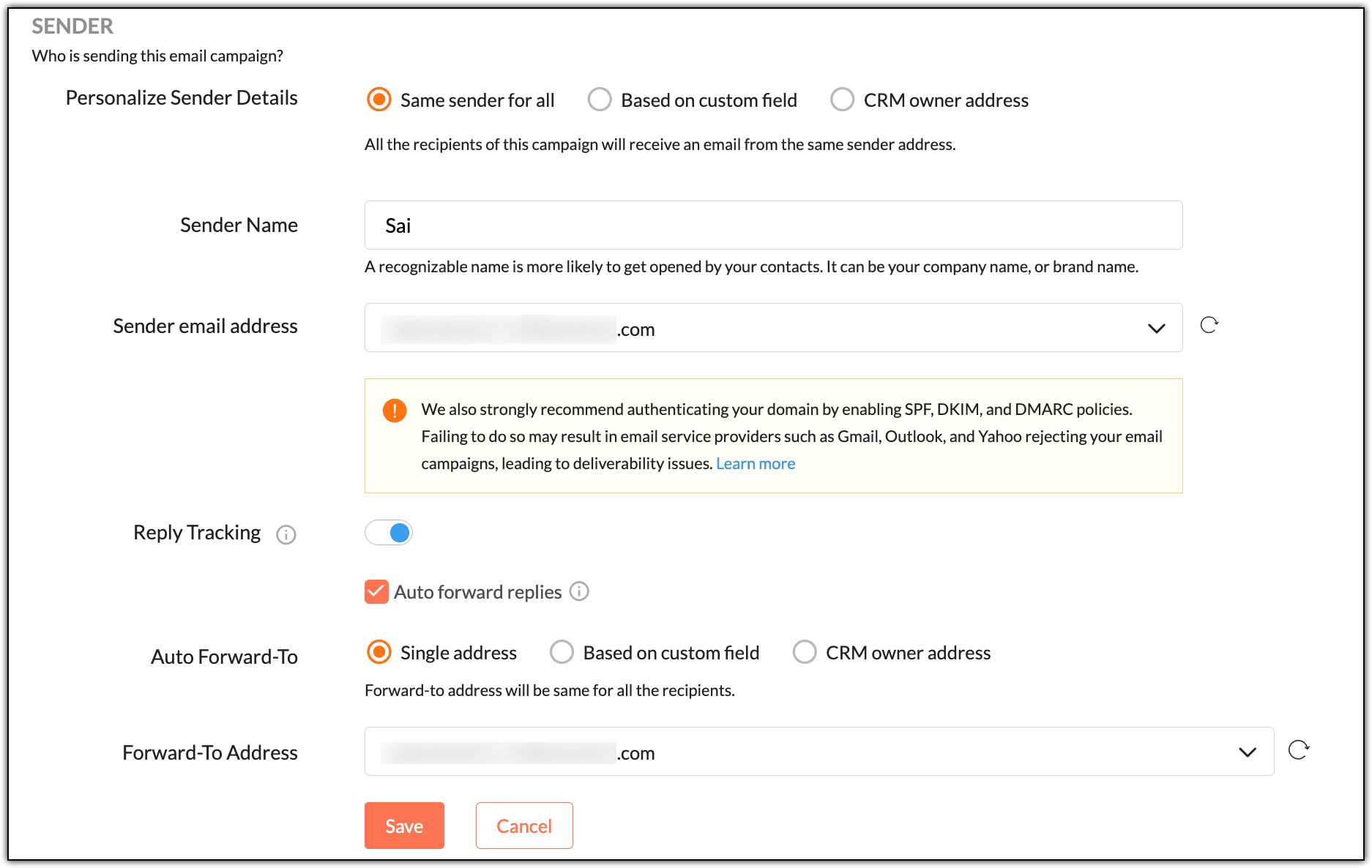
Once you configure your forwarding email address, replies from recipients will be forwarded there.
When
reply tracking is enabled, a system-generated alphanumeric email
address is created in the backend to monitor replies. With auto-forward
replies activated, all responses will be forwarded to the configured
email address.
3. What parameters are considered to deliver emails successfully?
Successful
email delivery depends on several factors, including sender reputation,
domain authentication (i.e., SPF, DKIM, DMARC), clean mailing lists,
recipient engagement, email content quality, proper sending volume, IP
warm-up, and avoiding spam traps.
Monitoring
these factors ensures that emails land in the recipient's inbox rather
than the spam or junk folder and that your email delivery isn't
affected.
4. Are there
any email sending limits on an hourly or daily basis in Zoho Campaigns?
How many emails should you send to a recipient per day?
We do not have a limitation on sending campaigns per hour. However, the recipient's Email Service Provider (ESP) may have limitations.
There isn't a limitation on the number of campaigns you send per day, but again, the recipient's ESP may have limitations.
In
email marketing, flooding a recipient's inbox with multiple marketing
emails is not recommended. This can result in deliverability issues such
as spam markings or bounces. We recommend sending one email per day to
each recipient.
5. What should you know about sending volumes in Zoho Campaigns?
Sending
a high volume of emails won't impact your email delivery but we
recommend using the "Send in Batches" (when creating an email campaign)
option for better email delivery results. Sending emails in batches
helps maintain the ESP's threshold limits (if any) and improves email
deliverability.
Sending
multiple emails to the same recipient can flood their mailbox, leading
to spam markings or abuse complaints, which will negatively impact your
email deliverability.
6. What is a domain warm up? Should you warm up your domain before sending emails?
A
domain warm-up is the gradual process of increasing email sending
volume over time, which builds a positive sender reputation with mailbox
providers. It helps prevent emails from being flagged as spam and
improves deliverability by establishing trust in a new or previously
inactive domain.
Warming up your sending domain before sending emails to a large volume of recipients is always recommended.
7. What role does domain reputation play in email delivery, and how can you improve it?
Domain
reputation refers to the trustworthiness of your sending domain as
judged by email service providers like Gmail or Outlook. It's based on
factors like spam complaints, bounce rates, engagement, and sending
practices. A good domain reputation helps ensure better inbox placement,
while a poor one leads to spam filtering or delivery issues.
To
improve your sending domain's reputation, only send emails to
recipients who have opted in or active contacts. Monitor your domain
reputation through tools like Google Postmaster and take corrective
measures to improve your domain reputation. You can sign up with your
sending domain to view reputation, spam rate, and delivery errors.
Good email sending practices include maintaining
clean lists, using proper authentication, segmenting audiences,
monitoring engagement, controlling frequency, and complying with
regulations. These practices improve deliverability, reduce spam
complaints, and enhance overall campaign performance.
Good contact management practices include
having a proper opt-in source, sending opt-in confirmation emails,
segmenting contacts based on interests, removing old or inactive
contacts, and sending re-engagement emails.
9. Can you send cold emails?
Cold
emails are targeted, individualized messages sent to strangers with no
prior interaction, designed to initiate a professional dialogue, attract
potential clients, or suggest partnerships—avoiding the broad,
impersonal approach of sending spam to known contacts.
In
Zoho Campaigns, you cannot send cold emails. You can only send
campaigns to contacts who have opted in to receive emails from you. We
recommend that you don't send cold emails in general. Zoho Campaigns
sends all emails from our own server. Cold emailing often causes
deliverability issues that can harm our server and IP reputation.
It’s
always recommended to send emails only to contacts who have opted
in/provided consent to receive emails from you to avoid deliverability
issues such as spam complaints or abuse.
 Note: You will not be able to send campaigns to collected or purchased contacts because this violates our terms of use.
10. How do you authenticate your domain? Will it help in email delivery?
To authenticate your domain in Zoho Campaigns:
1. Go to Settings → Domain Authentication → Setup.
2. Copy the SPF and DKIM records and paste them in your domain's DNS settings.
Authenticating
your domain definitely helps in email delivery. Using SPF, DKIM, and
DMARC, authentication ensures that emails are legitimately sent from
your domain. It builds trust with email providers, prevents spoofing, and
reduces the risk of emails being marked as spam. Proper authentication
improves sender reputation and boosts email deliverability.
Dedicated and Shared IP
1. What is a dedicated IP address? Why is it used? What are its advantages?
In
Zoho Campaigns, your email campaigns are typically sent from a shared
IP, where multiple users share IP address. If one user experiences
deliverability issues, it can affect the reputation of that IP,
impacting all of the other users.
A
dedicated IP in Zoho Campaigns is an exclusive email sending IP address
assigned to your account. This improves email deliverability and brand
reputation by isolating your sending reputation from others. When you use a dedicated IP, its reputation will be dependent solely on your email sending practices.
Note: The dedicated IP is brand new. Before sending bulk campaigns, you need to warm up the dedicated IP. There
are advantages to using a dedicated IP. A dedicated IP address gives
you full control over your sender reputation, improving email
deliverability. It ensures that your reputation isn't affected by other
senders, unlike shared IPs. This is especially beneficial for high-volume
senders, providing consistent performance, better inbox placement, and
increased trust with email providers like Gmail or Outlook.
In
Zoho Campaigns, the dedicated IP address is available as an add-on to
purchase. The basic dedicated IP address package we offer is a one-year
subscription plan, which costs $30 per month for one IP address. The
total cost is billed annually, so the charges for the dedicated IP
address would be $30/month * 12 = $360.
Once
a dedicated IP is assigned to your Zoho Campaigns organization, all of
your emails from Zoho Campaigns will be sent from it. You can't use both
the shared IP and dedicated IP simultaneously for sending campaigns.
2. What do you do if the dedicated IP address is blacklisted?
There
can be instances where the dedicated IP is blacklisted by anti-spam
providers. If that happens, you need to raise a delist request. Zoho
Campaigns will not allow sending campaigns using a blacklisted IP
address. Please contact your domain hosting service or anti-spam service
to raise an IP address delisting request for the dedicated IP address
if/when it gets blacklisted.
IP
reputation is a significant factor that affects email deliverability. A
poor IP reputation, often due to spam complaints or high bounce rates,
can lead to emails being blocked or sent to spam folders. Maintaining a
good IP reputation helps ensure better inbox placement and higher
engagement rates.
To find the reputation of the dedicated IP address, you
can search online for IP address reputation monitoring tools and enter
your domain name or IP address to check the current reputation. Some of
the tools that you could refer to include Google Postmaster Tools for
Gmail users, Sender Score (by Validity) for a score-based reputation,
and MXToolbox for blacklist checks.
Note: Zoho Campaigns doesn't recommend a particular tool. It is up to the user to use a tool of their choice.
3. What are the requirements to get a dedicated IP address enabled for my organization?
You
need to send a minimum of 2,000–3,000 emails per day and 35,000–50,000
emails per week. This helps you meet the minimum email sending volume
requirement for a dedicated IP address.
You can have multiple dedicated IPs assigned to your Zoho Campaigns account. You can contact us at support@zohocampaigns.com for further information. You may wonder which IP address will be used
to send your emails. Zoho Campaigns has an automated system in place
that checks and assigns dedicated IP addresses randomly when you have
multiple dedicated IPs assigned to your organization.
To
ensure that your emails are sent from a reputed IP address, you can
check the email header file to find IP address details, which can be used
in IP reputation-monitoring tools to determine the current reputation.
4. What does IP address whitelisting mean?
IP
address whitelisting in email marketing means adding a sender’s IP
address to a recipient’s approved list, allowing emails from that IP to
bypass spam filters. It helps ensure reliable delivery, especially to
corporate or strict email servers, and improves trust and inbox
placement for consistent, legitimate senders.
IP
address whitelisting helps improve email delivery by allowing emails to
bypass spam filters, reducing the chances of being blocked or sent to
junk folders, especially on strict mail servers.
5. What is a shared IP address?
In
Zoho Campaigns, a shared IP address means multiple users send emails
from the same IP. This setup shares the sender reputation, so your email
deliverability can be affected by other users’ sending behavior and
practices.
When
it comes to a shared IP address, based on your email sending practices
and volumes, your account is automatically assigned to a mail group from
the backend. Our system also monitors the performance of your campaigns
and may move your account to different IP address ranges.
Recipients, Reputation, and Spam
1. How can you encourage your recipients to add your email address to their address book?
You can be added as a safe sender in your contact's inbox by including a vCard tag in your email content. Use our vCard merge tag and ask your recipients to use it to add your email address to their contacts/address book for better email deliverability.
Adding
the sender address to the address book or contacts of recipients' mail
clients increases trust in your email, which can help your emails land
in the recipient's inbox. Using our vCard merge tag will facilitate
this.
By
getting into your recipient's contact list, you can ensure that your
emails will not land in the junk/spam folder. As an added advantage,
your email content will not be subjected to an extreme review process
because you’re among the receiver's trusted senders.
Adding
the sender's domain to contacts helps improve email delivery by
allowing emails to bypass spam filters, reducing the chances of being
blocked or sent to junk folders, especially on strict mail servers.
2. Does sending time play an important role in email delivery?
Yes.
Sending time plays a crucial role in email delivery. Emails sent during
peak engagement times are more likely to be opened and interacted with.
Poor timing can lead to lower engagement, which negatively affects
sender reputation and future deliverability. Optimizing send time
improves visibility and campaign performance.
Sending
emails in the recipient's timezone also helps with email delivery.
Sending emails at the recipient's optimal time increases the chances of
engagement, which positively impacts email delivery and performance. It
helps you send emails when your recipients are most likely to engage
with them.
3. Will Zoho Campaigns be monitoring the reputation of IP addresses?
Yes,
our backend systems continuously monitor the IP reputation. If the IP
assigned to your Zoho Campaigns organization is affected, our systems
will automatically assign your account to another high-reputation IP.
If
a Zoho Campaigns IP address gets blacklisted, we have a dedicated team
that works 24/7 to monitor IP address reputation and take necessary
steps to delist our IP addresses.
4. What is domain reputation? What happens if a domain's reputation is low?
Domain
reputation acts like an email sender's "credit score," reflecting
trustworthiness evaluated by Internet Service Providers (ISPs) and email
platforms (such as Gmail and Outlook), and it influences whether emails
reach the inbox or end up in spam, depending on metrics like spam
complaints, user engagement (opens and clicks), bounce rates,
authentication settings (SPF, DKIM, DMARC), and the domain's history and
age.
A
low sender domain reputation will negatively affect email
deliverability by increasing the chances of emails landing in spam
folders or being blocked, reducing open rates, and overall campaign
effectiveness.
Your
domain reputation can suffer from high spam complaints, sending to
invalid addresses, poor list quality, low engagement, and spam-like
content. Inconsistent sending patterns and missing email authentication
(SPF, DKIM, DMARC) also harm your domain reputation. Using a shared IP
with a bad reputation can negatively affect your domain’s
trustworthiness.
5. Can you send emails from a recently created domain?
We
do not recommend sending campaigns to bulk contacts using a newly
created sender domain. We advise you to warm up your sender domain
before sending bulk campaigns from a new domain.
Newly created domains lack reputation, and there’s a higher chance that emails might land in the spam folder.
6. What aspects are considered in email classification?
A couple of aspects that are considered in email classification are domain age and subject line.
Domain
age is considered in email classification. Older domains with
established reputations are generally trusted more, while new domains
may face stricter scrutiny and a higher chance of emails being marked as
spam.
The
email subject line is a key factor in email classification. Spam filters
analyze it for spammy words, misleading content, or excessive
punctuation, which can affect whether the email lands in the inbox or
spam folder.
7. What are the advantages of sending test emails?
Test
emails help you identify alignment and formatting issues (if any). They
also provide insights into email delivery results. By sending the email
content to a known address, you can gather feedback before launching
the actual campaign.
But there are some limitations as well. Merge tags won’t work in test emails, and you're limited to sending a maximum of 50 test emails per day.
You
may come across warning messages in test emails. These typically
indicate issues like unverified sender domains, missing SPF/DKIM/DMARC
records, suspicious content, or emails being sent from low-reputation
IPs. To avoid such warnings, ensure proper domain authentication and
follow best practices. If it’s already authenticated, contact our
support team at support@zohocampaigns.com with the warning message and header file of the emails to help us determine the exact reason. 8. You’ve authenticated your domain, but your emails are still landing in the spam folder. Why is this happening?
Domain
authentication validates the origin of your email and increases its
trustworthiness, which helps reduce spam issues. But, other factors can
affect deliverability too.
Domain
authentication is an important factor in email classification. However,
other factors, such as subject, content, and sender domain reputation,
are also considered. We need to analyze the email header file to pinpoint
why your emails are landing in the spam folder. Contact our support
team at support@zohocampaigns.com with the email header file so we can find the root cause. SCL
stands for Spam Confidence Level. The SCL score in your email header
indicates the likelihood of your email being marked as spam, as assessed
by the recipient’s mail server. A higher SCL score means that your
email is more likely to be considered spam, which may affect delivery or
filtering.
A
high SCL score indicates that the email exhibits characteristics
similar to spam, such as suspicious links, poor formatting, or
misleading content. Email filters use the SCL score to protect
recipients, so a higher score increases the chances of the email being
flagged or blocked.
10. Can an email's content cause it to land in the spam folder?
Yes.
Marketing emails with excessive sales language, misleading subject
lines, too many links, redirection links, or poor formatting may trigger
spam filters. Such content increases the email's SCL score, raising the
likelihood of it landing in the spam folder.
Spammy
words in marketing emails include terms like "free," "urgent,"
"guarantee," "winner," "cash," "discount," and "buy now." These words
can trigger spam filters because they appear overly promotional or
deceptive.
Domain, Email Clients, and Metrics
1. Why are your emails getting clipped in Gmail?
Marketing
emails get clipped in Gmail when the HTML content exceeds Gmail’s size
limit of around 102 KB. If the email is too large, Gmail hides the rest
behind a “View entire message” link, which can negatively impact user
experience and click rates.
In
general—and not only for Gmail—if an image is larger than 1 MB, it will
take longer to load, potentially leading to the email being marked as
spam.
2. Will your sub-domain be affected if the primary domain is affected?
In email deliverability, a subdomain (such as sports.yourcompany.com) acts as a separate sending identity from your primary domain (yourcompany.com). This enables you to manage sender reputation, categorize email types (like
promotions vs. transactional), and safeguard your main domain’s
deliverability by assigning each subdomain its own IP address and
sending history. This separation is crucial because issues with one
email type—such as spam complaints on a marketing campaign—won’t
negatively impact the reputation of your primary domain, which handles
essential communications.
So
if your primary domain’s reputation is affected, it could also impact
the reputation of your sub-domain. You should continue the warm-up
process to improve the domain’s reputation.
Note: You need to authenticate your sub-domain separately.
3. What does "spam markings" mean?
Spam
markings indicate that recipients or email filters have flagged the
message as spam. This hurts your sender reputation, reduces
deliverability, and can result in future emails being sent to spam
folders.
To
avoid spam markings, follow best practices such as using an
authenticated domain, avoiding spammy language, maintaining a healthy
email list, and adhering to email design best practices.
In Zoho Campaigns, you can find the contacts who have marked your emails as spam in the Reports section:
1. Go to Reports → Sent Campaigns.
2. Open the specific campaign → Report summary → Spam.
This will show you the contacts who have marked your emails as spam.
Note: Zoho Campaigns does not track spam markings for all email clients in the campaign reports.
4. Is email size considered in spam classification?
Yes,
spam filters use email size as one indicator. To increase the chances of
your emails reaching the inbox, it's generally recommended to keep the
email body size between 15 KB and 100 KB.
5. Why has a phishing tag been added to your email subject?
A
phishing tag is added when email filters suspect that the content of
your email is deceptive or malicious and aiming to steal personal
information. This tag warns recipients and reduces trust, often caused
by suspicious links, misleading wording, or spoofed sender details.
If
your email is categorized as a phishing email, please ensure that
you've authenticated your domain in Zoho Campaigns. If it is, contact support@zohocampaigns.com with the header file of the email that has the phishing warning message for further investigation. 6. Should you include a one-click unsubscribe option?
Yes.
Incorporating a one-click unsubscribe option in your Zoho Campaigns
emails is essential for compliance, user experience, and deliverability.
It helps you meet global email regulations, reduces spam complaints,
and shows respect for subscriber choice. Making it easy to opt out also
builds long-term trust and keeps your mailing list healthier and more
engaged.
7. How does Zoho Campaigns track click rates?
Zoho
Campaigns tracks your click rate by automatically converting all of the
links in your email into trackable URLs. When a recipient clicks a
link, Zoho Campaigns records the click before redirecting them to the
destination, allowing you to measure how many people engaged with your
content through clicks.
8. How does Zoho Campaigns handle open rates?
Zoho
Campaigns tracks multiple opens by the same recipient. It records each
time an email is opened, helping you understand engagement frequency,
not just whether the email was opened once.
It
also tracks and records the timestamps of each email open. This allows
you to see exactly when recipients opened your emails, helping you
analyze engagement patterns and optimize sending times.
9. Why is your open rate low or zero? What can you do if the open rate drops suddenly?
If
you're suffering from a low open rate, there are multiple factors that
could be affecting it, such as unclear subject lines, irrelevant
content, poor sender reputation, emails landing in spam, or sending at
the wrong time.
Zoho
Campaigns does not track open rates for plain-text campaigns because no
tracking pixel is embedded. We usually embed a one-pixel tracking image
in HTML emails to track open rates but in plain-text emails, we cannot
include images, which is why open rates can't be tracked.
If
open rates are zero with HTML campaigns, tracking may be disabled. You
can enable it through the Show Advanced Options section during campaign
creation. If the open rate is still low, there may be other factors
affecting it; contact us at support@zohocampaigns.com so our Email Deliverability team can analyze it for you.
The factors that could cause a sudden drop in open rate include:
Spam filtering.
Emails landing in junk folders.
Changes in subject lines or sender name reducing appeal.
Poor email list quality or inactive subscribers.
Technical issues with tracking pixels.
Sending at unfavorable times.
Increased unsubscribe and complaint rates affecting deliverability.
Our Email Deliverability team can analyze and provide the reason for low open rates. Contact us at support@zohocampaigns.com with your organization details and the campaign details that are suffering from low open rates. 10. Why is Zoho Campaigns' open rate lower compared to other services?
To
pinpoint the exact reason, we need to analyze if the same email
content, sender domain, and contact list were used in both services. If
so, we would need a report from the other emailing service to compare
and identify the cause of the low open rate. Contact us at support@zohocampaigns.com with these details for our analysis.
Sending Practices
1. What are re-engagement emails? How do you send them, and do they improve open rates?
Re-engagement
emails in Zoho Campaigns are targeted messages sent to inactive
subscribers to reignite their interest. These emails encourage
recipients who haven’t opened or clicked recent campaigns to engage
again, often through special offers, surveys, or reminders.
In
Zoho Campaigns, you can create a segment based on criteria such as "Not
opened any emails in the last 90 days" or "Click rate = 0" to filter the
contacts who haven’t opened any of your campaigns. You can then send
campaigns to those recipients.
Re-engagement
emails help identify your contacts’ interests, so sending future emails
to engaged contacts will increase the open rate.
We
recommend sending re-engagement emails to contacts who have been
inactive, such as those who haven’t opened or clicked any of your emails
for a set period (e.g., 3 months, 6 months, 1 year). Targeting this
group helps revive interest, clean your list, and improve overall
engagement and deliverability.
Also, we recommend sending re-engagement emails one to three times over 2 to 4 weeks
to inactive subscribers. Space them out to avoid overwhelming
recipients and gradually encourage interaction before removing
unresponsive contacts to maintain list quality.
2. What is a follow-up campaign? Who should be sent a follow-up campaign? Will it improve your open rate?
In
Zoho Campaigns, a follow-up campaign is an email sent to recipients
based on their interaction with a previous campaign, such as opens,
clicks, or no response. It helps you re-engage interested users, nurture
leads, or target those who didn’t engage initially.
Follow-up
campaigns help improve open rates by targeting recipients based on
previous engagement. Sending tailored messages to those who didn’t open
or interact increases the chances they’ll engage the second time.
In Zoho Campaigns, you can send follow-up emails to recipients who opened the email. After sending your main campaign:
1. Go to Campaign Reports.
2. Select the relevant campaign.
3. Click Send Follow-up.
4. Select Opened as the recipient group.
5. Create your follow-up message.
6. Click Send.
This sends a follow-up campaign to users who opened your original campaign.
You can also send follow-up emails to unopened recipients. After sending your main campaign:
1. Go to Campaign Reports
2. Select the campaign.
3. Click Send Follow-up.
4. Choose Unopened as the recipient group.
5. Create your follow-up message.
6. Click Send.
This sends a follow-up campaign to users who have not opened your original campaign.
No.
Old or inactive contacts who haven’t engaged with your campaigns for a
while are less likely to open your emails. The chances of engagement
will be relatively low,
and continuing to email them can negatively impact your sender
reputation. It’s better to regularly clean your list or run
re-engagement campaigns to focus on subscribers who are more likely to
respond.
4. Do email sending practices play an important role in improving open rates?
Yes. Good email sending practices include:
These practices all ensure better inbox placement, higher relevance, and increased engagement, which directly boost open rates. Consistently
following these practices also helps build sender credibility over
time, making subscribers more likely to notice and open your emails.
Here are two more practices you can follow to improve open rates:
While
adding CTA buttons or blog links doesn’t increase open rates directly,
compelling content like CTAs and blog links can boost engagement.
Engaged recipients are more likely to open future emails, improving
long-term open rates.
A/B
testing allows you to experiment with different subject lines, sender
names, or send times. By analyzing which version performs better, you
can optimize your emails to be more appealing, increasing the chances
that recipients will open them.
5. How do email sending and sender domain practices impact open rates?
Flooding
recipients’ mailboxes with too many emails can result in deliverability
issues, such as spam markings and abuse complaints, which will
negatively impact open rates.
Using
a different sender domain can also impact open rates. If the domain is
unfamiliar to recipients, it may lower trust and reduce opens. A new or
poorly authenticated domain may face deliverability issues. Consistency
and verification of the sender domain help build trust and improve open
rates.
Using
an invalid sender domain can severely impact open rates. Emails from
unverified or invalid domains are often blocked, marked as spam, or
rejected, leading to poor deliverability and low open rates.
6. Does Zoho Campaigns track auto-replies?
In
Zoho Campaigns, auto-replies, such as out-of-office messages or bounce
notifications, are typically not tracked in the platform’s standard
reporting features. These automated responses are handled by the
recipient's email server.
7. Why aren’t you receiving auto-replies?
Auto-replies
are typically sent to the "Reply-To" address, "From" address, or custom
return path address, depending on the recipient's email client
configuration. In Zoho Campaigns, we track auto-replies sent to the
custom return path address and update them in your campaign report.
If
you find auto-replies are being sent to the sender address instead of
the Reply-To address, it’s because most email servers follow the
"Return-Path" or sender address for the delivery of automated responses
like out-of-office or bounce messages.
8. What could cause a delay in receiving emails when the campaign report shows that the email was delivered?
A
“delivered” status from Zoho Campaigns indicates that the recipient’s
server has accepted the email, but delays can still occur due to factors
like spam filtering, throttling, greylisting, or recipient server
processing. In some cases, emails may first be placed in a queue,
scanned for security, or temporarily deferred during high traffic
periods. As a result, even though delivery is confirmed, it may take
additional time for the email to appear in the inbox or relevant folder.
9. Why are your emails going to the spam folder?
Emails
can end up in the spam folder due to factors like poor sender
reputation, unverified authentication (SPF, DKIM), content that triggers
spam filters, or recipient behavior. Low engagement, frequent spam
complaints, or sending to inactive contacts can further increase the
chances of spam placement. Regularly cleaning your email list,
authenticating your domain, and following email best practices can
significantly minimize these issues.
Never-opened
contacts are likely to be inactive addresses or potential spam traps
that no longer engage with your emails. Continuing to send to them can
negatively impact deliverability and increase the risk of spam
complaints. Cleaning these contacts from your list helps protect your
sender reputation and improves overall campaign performance.
 Zoho Campaigns lets you edit the theme of the campaign while drafting the email content using the footer component in the template editor. You can't create, edit, or delete themes under Settings anymore.
Yes,
you can remove the 'Unsubscribe' link from the footer of an email.
However, you will have to add it to another section of the email
content. This is because Zoho Campaigns does not allow sending email
campaigns without the unsubscribe options to maintain good reputation
and to avoid being labeled as spam.
Follow the steps below
to learn how to remove the unsubscribe link from the email's footer and
how to add it to another section of the email content.
To remove the 'Unsubscribe' link from you emails,
- From the Navigation Toolbar, select Email Campaigns.
- Select the email from which you want to remove the unsubscribe link.
- Scroll down to the CONTENT section and click the drop-down of the Header and Footer Theme.
- Select None(No Header and Footer) option to remove the footer.
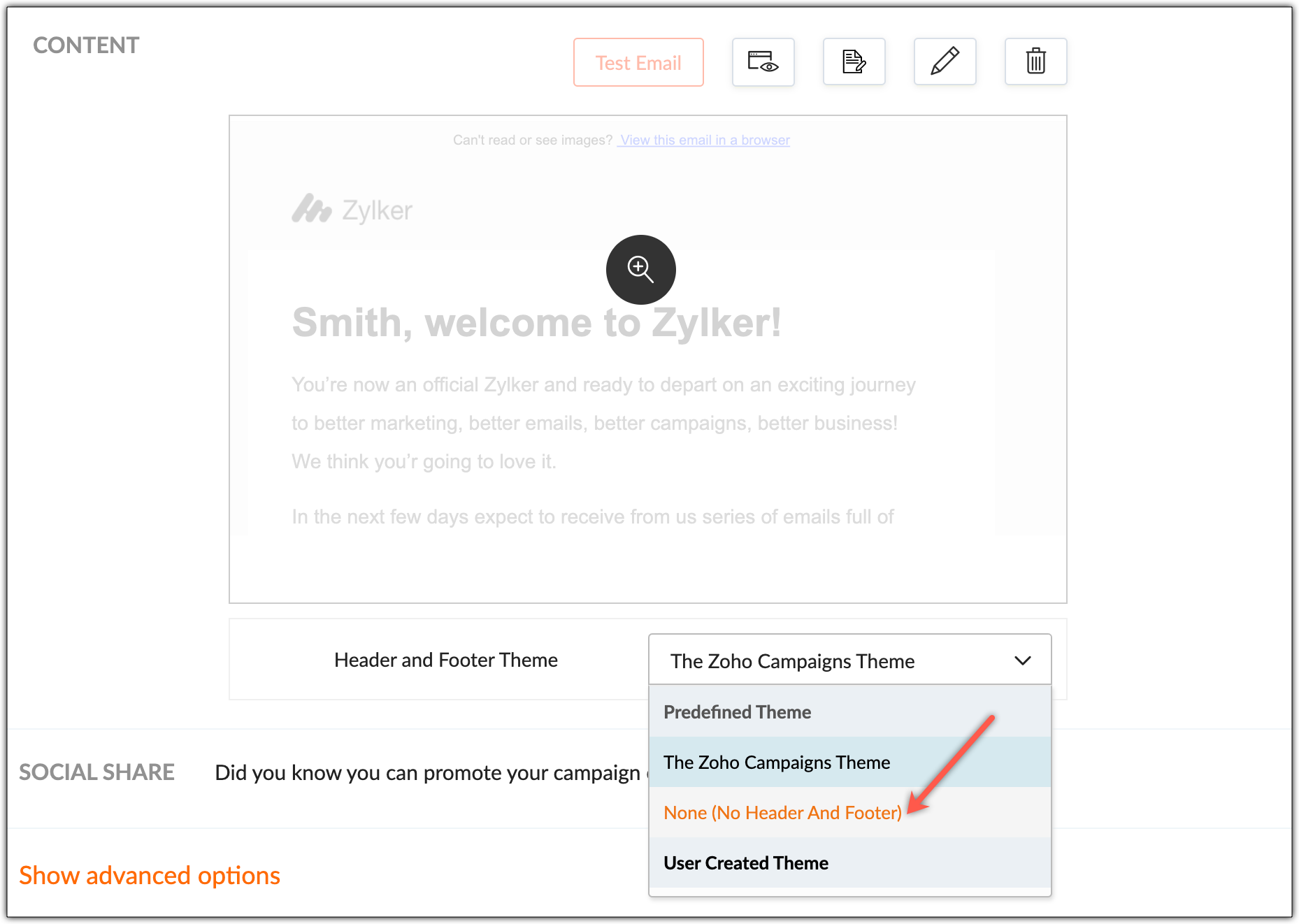
To add an 'Unsubscribe' link elsewhere in the campaign content:
- Click the Edit icon displayed above the email in the CONTENT section.
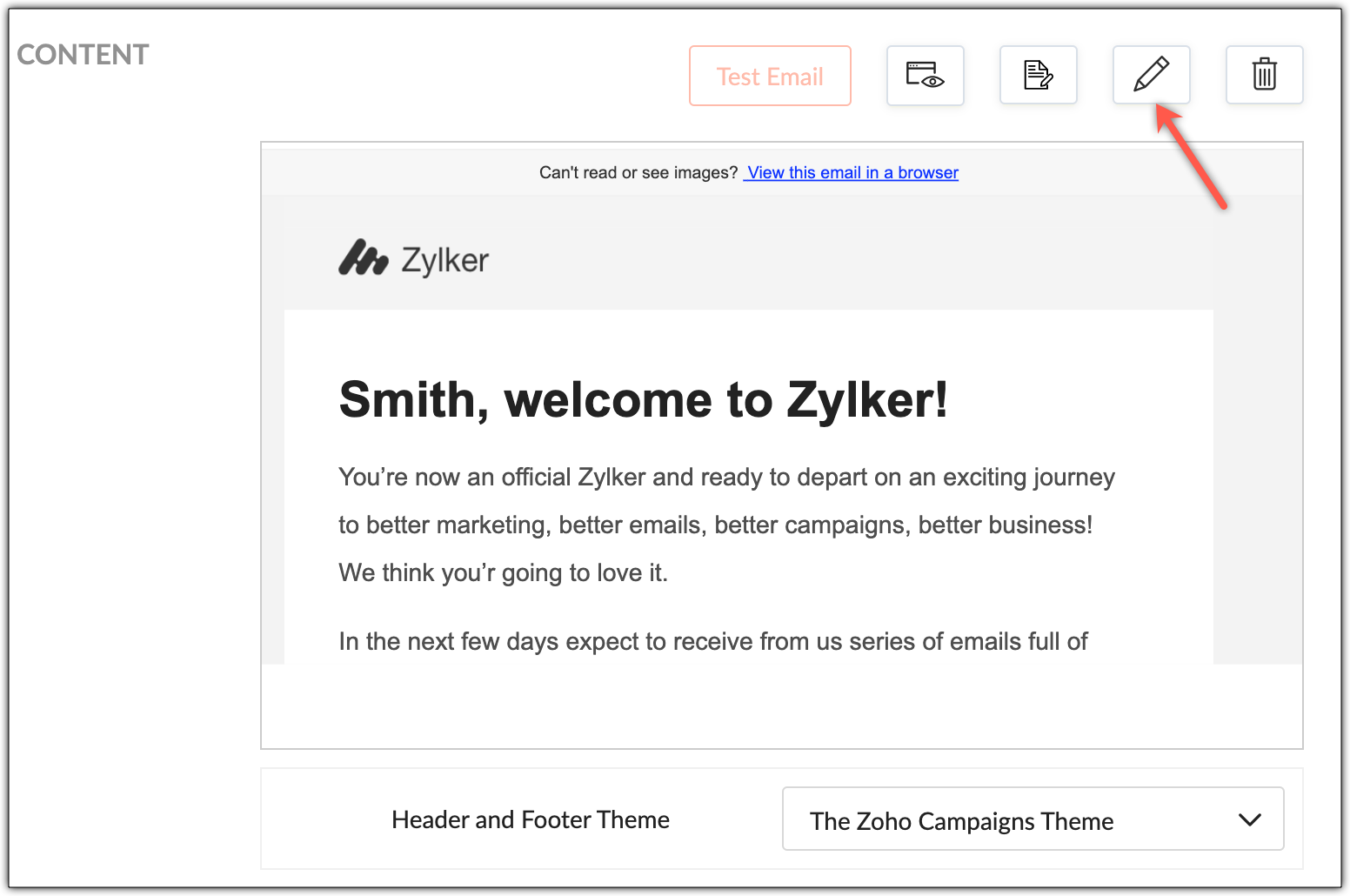
- Scroll down to the bottom of the email content where an unsubscribe link is added by default and delete it.
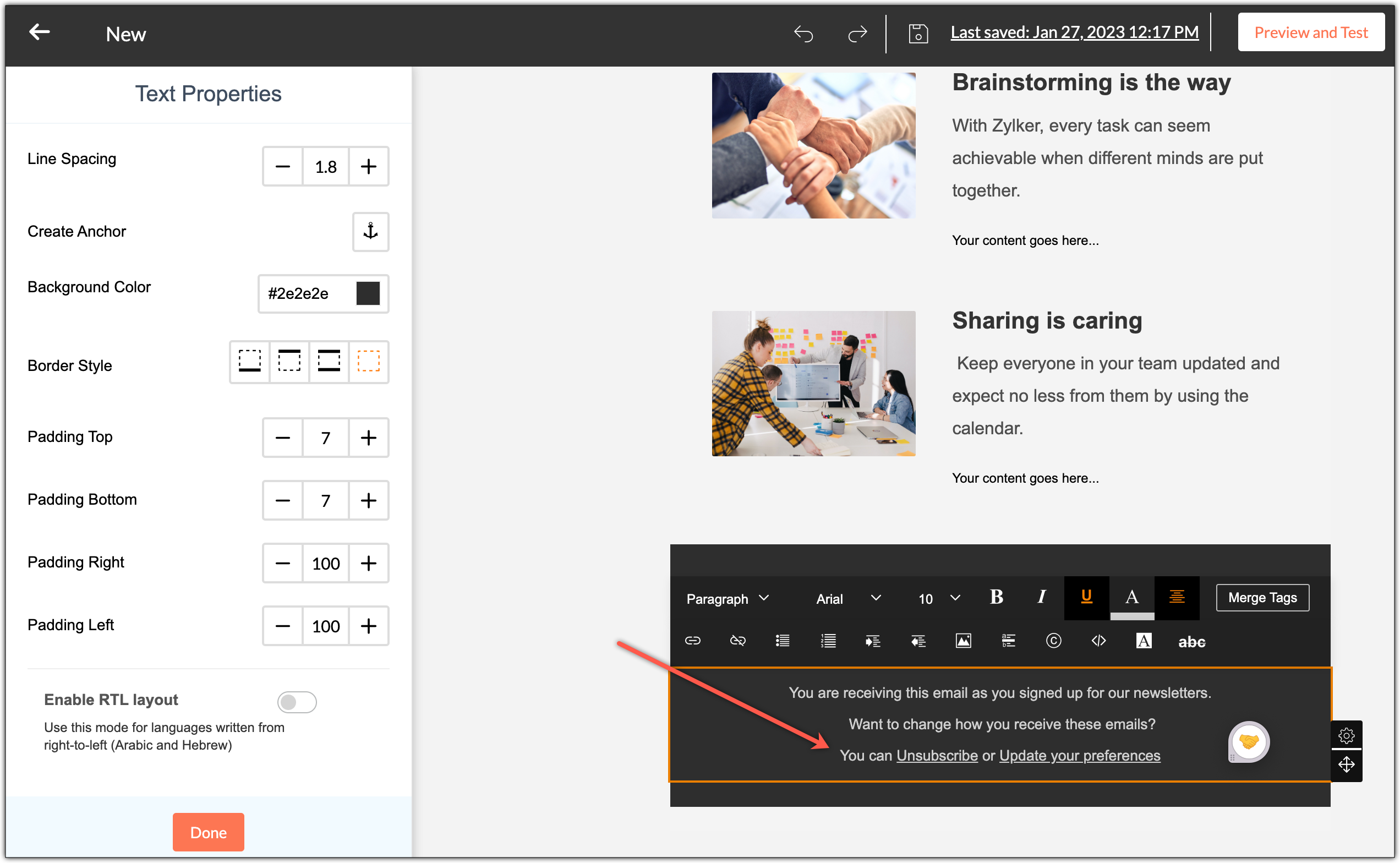
- Choose where to add the unsubscribe link and click the Merge tag option from the editor as shown below.
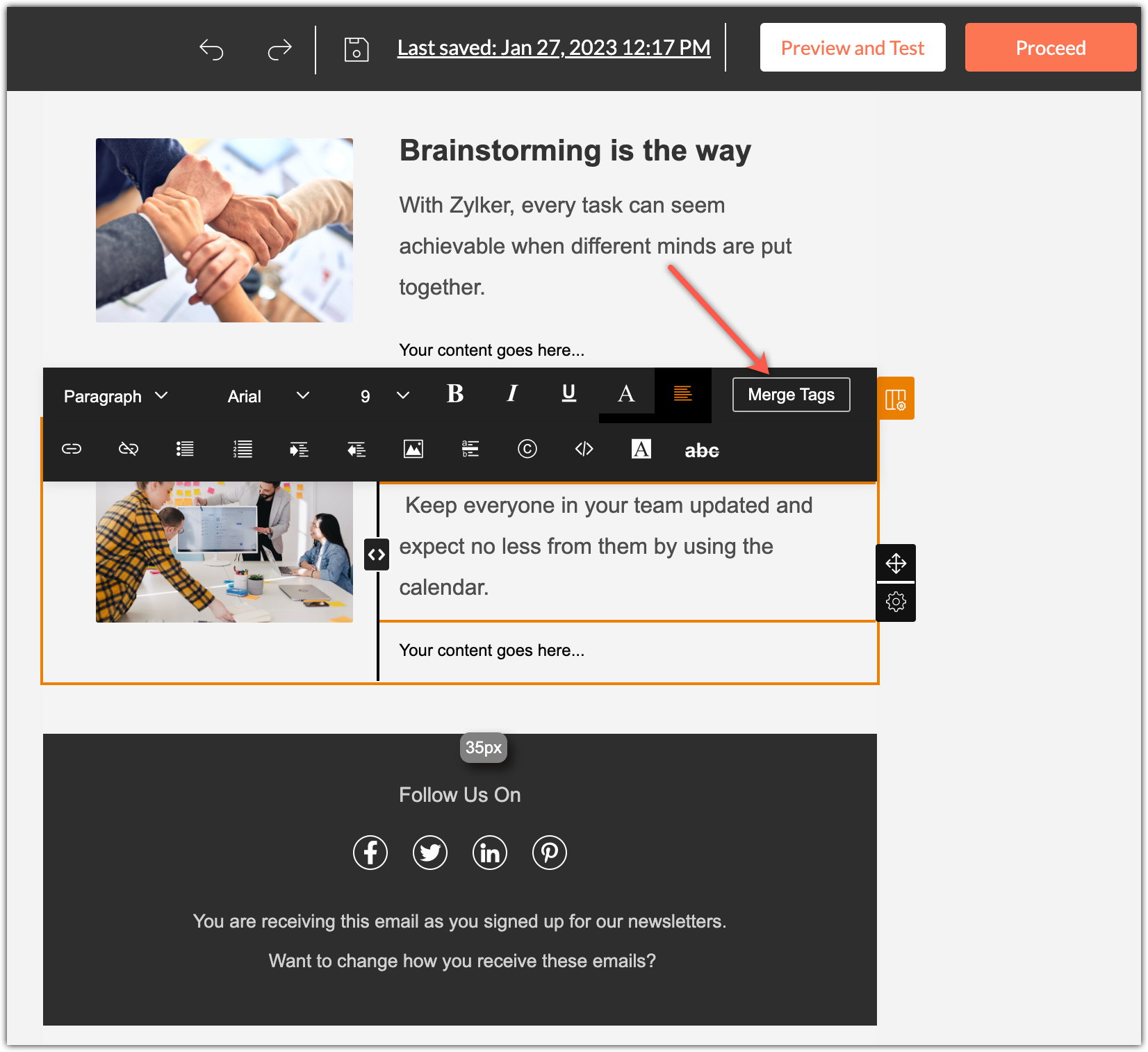
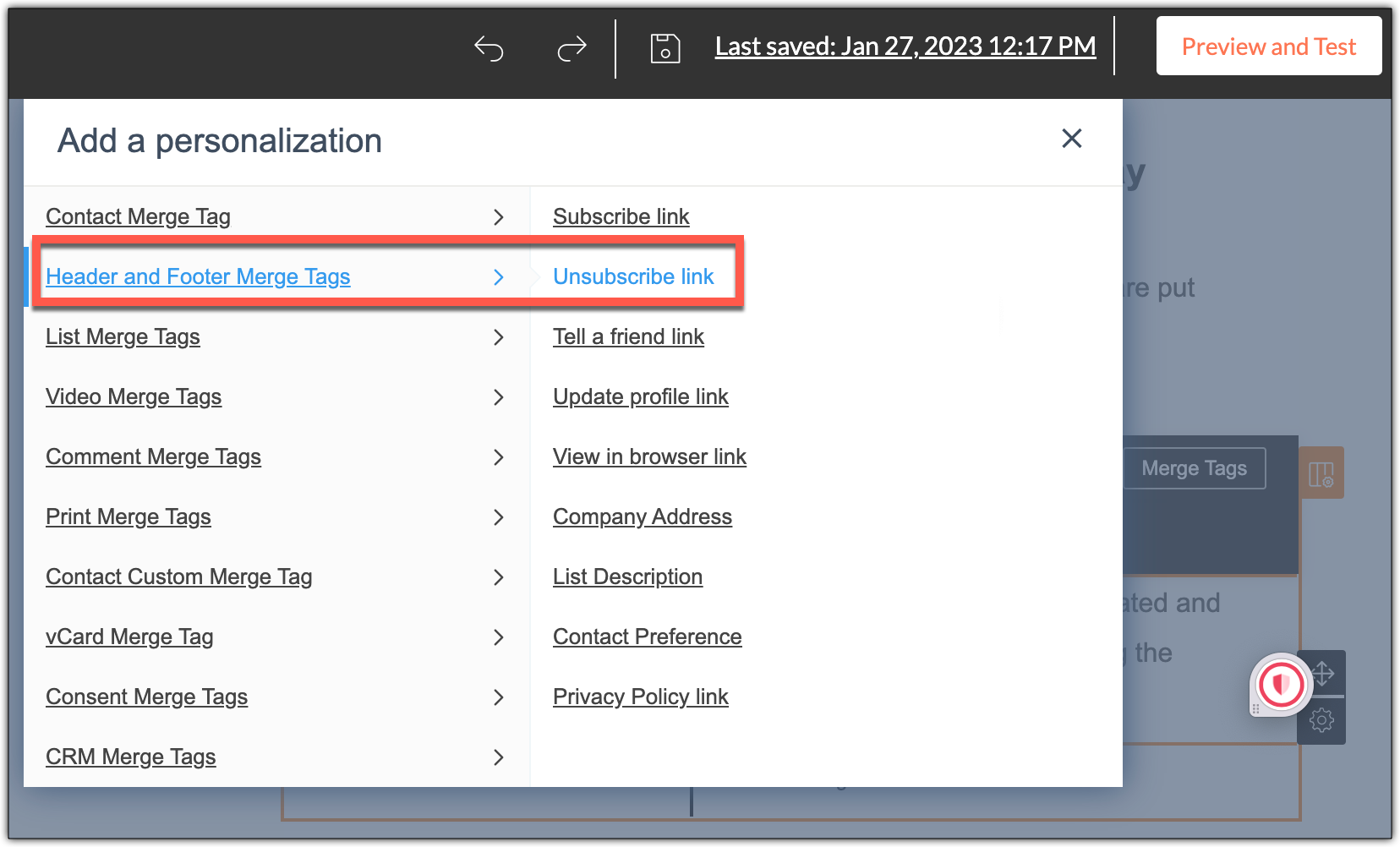
- Under Add a personalization, choose Header and Footer Merge Tags and select the Unsubscribe link.
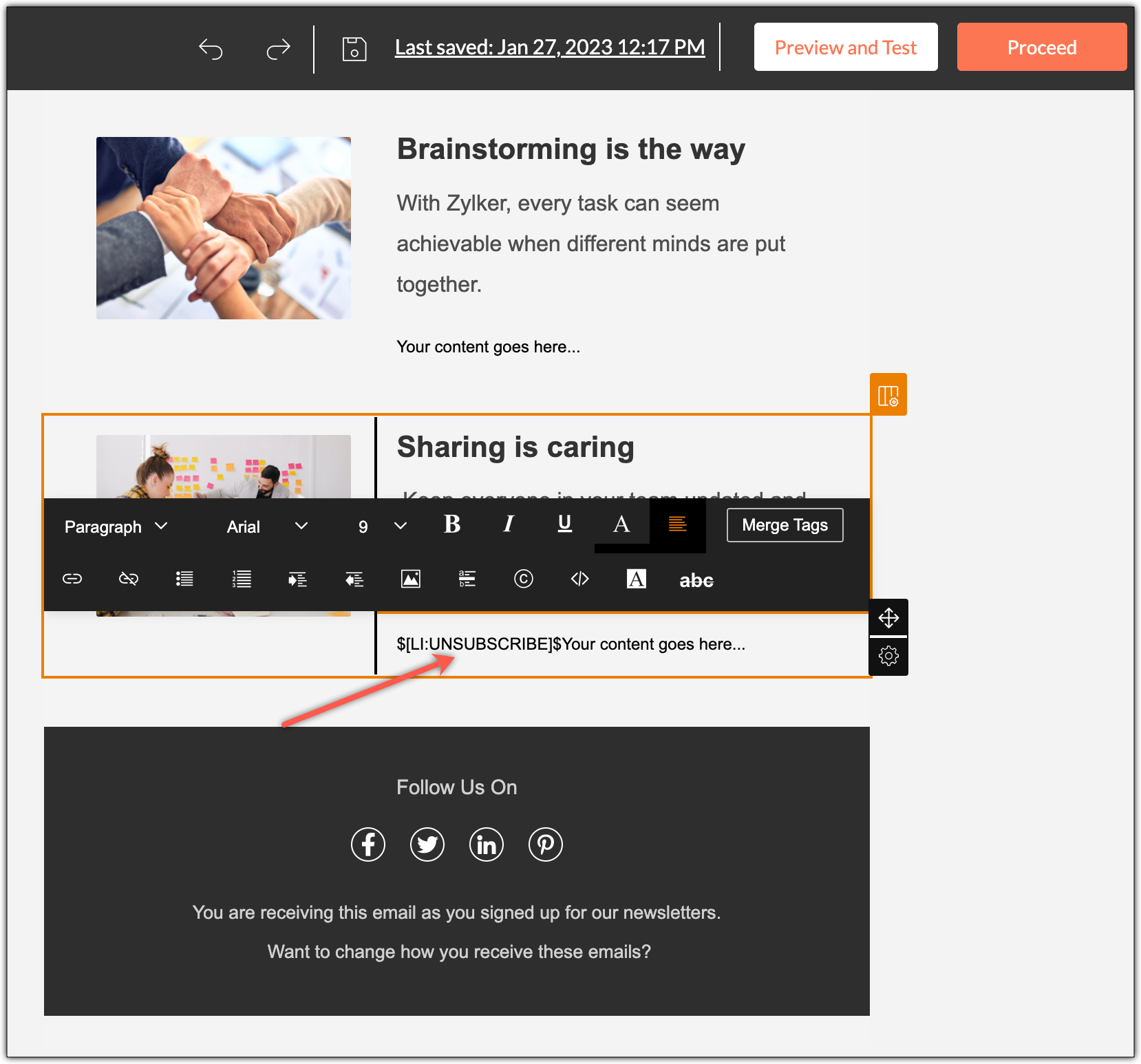
- The unsubscribe merge tag $[LI:UNSUBSCRIBE]$ will be added to that section as shown below.
- Click Proceed to save.
Note :
- We
highly recommend including the 'Unsubscribe' link in your emails to
avoid being sent to spam and to maintain your business reputation.
- We also recommend including the 'Unsubscribe' link at the bottom of your email content.
1. Why is DMARC required to send emails to the inbox?
DMARC
protects your domain from spoofing and phishing attempts, ensuring that
only authorized senders can send emails on your behalf. It helps
mailbox providers trust your emails, which improves deliverability and
increases the chances of inbox placement. Additionally, DMARC provides
visibility into unauthorized usage through reports, allowing you to
monitor and strengthen your email security. Over time, this trust and
transparency contribute to a stronger sender reputation and more
consistent inbox placement.
2. Why is your sender domain reputation affected in Gmail?
Gmail
may lower your sender domain reputation due to factors like high spam
complaints, low engagement, sending to spam traps, missing email
authentication, or sudden volume spikes from a new domain. Inconsistent
sending patterns or frequent changes to the sender domain can also raise
trust issues. Maintaining a clean list, authenticating your domain, and
gradually ramping up sending volume can help restore and protect your
reputation over time.
Emails
often end up in Gmail’s Promotions tab due to content resembling
promotional material, the sender’s reputation, or recipient behavior. To
improve deliverability and help your email campaigns land in
the Primary tab, you can ask your subscribers to move emails to the
Primary tab and add you to their contacts. You can also minimize
promotional content (e.g., too many links or images).
Personalizing
emails and using a separate sender for non-promotional content can help
reduce the likelihood of landing in the Promotions tab.
4. Is it better to use subdomains for sending specific type of campaigns?
Yes,
it’s better to use a subdomain for sending specific types of campaigns.
For example, you can send marketing campaigns from your subdomain. Your
primary domain’s reputation won’t be impacted when your campaigns face
email deliverability issues like high bounce rates, abuse complaints,
being marked as spam, etc. Subdomains also support better branding and
tracking. Ensure that the subdomain is properly set up and
authenticated.
5. If you verify or authenticate your domain in Zoho CRM, do you need to verify it in Zoho Campaigns as well?
Yes,
you need to verify or authenticate your domain in Zoho Campaigns even
if you've already authenticated it in Zoho CRM. For example, let’s say
you're using Zoho Campaigns and Zoho Books. If you've authenticated your
domain in Zoho Campaigns, you need to authenticate the domain in Zoho
Books as well.
7. Can you send campaigns from your company address and not from zcsend.net?
In
Zoho Campaigns, your email campaigns will be sent from our mailing
server—zcsend.net—when your domain isn’t verified in your Zoho Campaigns
account and you cannot configure your own mailing server for sending
campaigns.
You can remove the zcsend.net part when sending email campaigns. For that, you need to verify your domain by authenticating it. To verify your domain:
Add your domain's sender address in Zoho Campaigns. Copy the SPF and DKIM records. Paste them in your domain's DNS and give it some time. Come back to Zoho Campaigns and verify the domain.
8. Can you send campaigns from another system but track reports of it in Zoho Campaigns?
It’s
not possible to track the sent campaigns data or reports of the
campaigns you've sent from another system in Zoho Campaigns. For the
campaigns sent via Zoho Campaigns alone, you can track reports.
9. What will you check when you review my campaign?
During the review process, the moderation team will verify the following factors:
Spam Trap
1. What is a spam trap? What can you do to tackle spam traps?
A
spam trap is a type of fraud management technique used by major ISPs
and blacklist service providers. They’re used to identify spammers and
block their emails. A spam trap looks like a regular email address, but
it doesn't belong to a real person and can't be used for any
communication. Sometimes ISPs use expired email addresses of their users
as spam traps.
When
you send emails to these email addresses, your sender domain will get
spam trap hits and risk incurring a negative reputation. Your emails may
be quarantined by the receiving server or land in the Spam folder. For
more information on spam traps and how to avoid them, please refer our
detailed help documentation here.
Spam
traps are created by ISPs and ESPs to identify marketers who follow
unhygienic sending practices. They’re generally present in purchased
mailing lists. If you send campaigns to purchased mailing lists, your
emails will hit spam traps.
Whenever
your emails hit spam traps, we will notify you, freeze your account,
and ask you to provide a detailed explanation for the spam trap hit. We
will not be able to reveal the spam trap. We will reinstate your account
if your explanation is valid.
2. How do you get spam trap addresses in your mailing list?
Spam
traps are created by ISPs and ESPs to identify marketers who follow
unhygienic sending practices. Spam traps will enter your mailing list
under the following scenarios:
When you use purchased mailing lists.
When you don't handle email bounces properly.
When email addresses provided by your contacts expire.
Spam traps are generally present in purchased mailing lists. Your emails will hit spam traps if
you send campaigns to purchased mailing lists. If you use an old
mailing list, email addresses used by your contacts may expire and
become spam traps.
At
Zoho Campaigns, we urge our customers not to use purchased mailing
lists. We strongly recommend our customers to follow the double opt-in
process to grow their mailing lists. To avoid hitting spam traps,
regularly clean your contact list.
Bounces, Test Mails, and Spam Folder
1. Why wasn’t your campaign delivered to the inbox?
If
your emails aren’t delivered to your contact's inbox, you can ask them
to check other folders of their mailbox including the spam/junk folder.
If the internet service provider or the email client has deployed
filters for security reasons, the emails you send may not land in the
inbox.
To
resolve this, check the email delivery status for your campaign and ask
your contacts to verify the filters and rules they've set for their
inbox. If both the sender and the recipients belong to the same domain,
emails may be blocked. Adding either the IP or domain to the safe sender
list may resolve the issue. If your emails still land in the spam
folder after implementing the steps above, send us the message header of the email that landed in the spam folder at support@zohocampaigns.com. 2. How can you avoid email bounces?
Follow these techniques to avoid email bounces:
Don't use purchased mailing lists.
Use the double opt-in technique to prevent the entry of invalid email addresses into your mailing list.
Regularly clean your mailing list using email validation services.
Don't use blacklisted URLs or spam trigger words in your email content.
Ensure that your sender domain doesn't receive abuse complaints.
Maintain optimal email volume and a healthy email frequency.
Authenticate your sender domain.
If
the images in the campaigns you send are blocked, your contacts can
click the "Display external images" option when they open the email. To
prevent this from happening again, they can select the "Always display
images from this sender" option.
4. How do you monitor your sender domain's reputation? How can you improve its reputation?
If
most of your contacts use Gmail, you can use the Google Postmaster
Tools to check your sender domain's reputation. If your contacts use
other mailbox providers, you can use services like BarracudaCentral,
ReputationAuthority, TrustedSource, etc., to find your sender domain's
reputation.
Here are a few best practices to improve the reputation of a sender domain:
Authenticate the sender domain.
Warm up the sender domain before sending a huge volume of emails.
Ensure that the sent emails don't bounce or receive spam markings or complaints.
Ensure that your campaigns don't contain spam phrases, blacklisted URLs, or shortened URLs.
Implement
hygienic email sending practices like analyzing the time zone of your
contacts before sending emails, and maintaining a healthy email volume
and frequency.
Offer content that addresses the needs and interests of your contacts.
Prune your mailing lists every six months and win back inactive contacts.
Don't use purchased mailing lists.
Use the double opt-in technique to grow your mailing list.
5. Why are you not able to add a DKIM record in GoDaddy?
When you're adding a DKIM record in GoDaddy, you must not include the domain name in the DKIM key.
For example, if your DKIM key is 72247._domainkey.mycompany.com, while adding it in GoDaddy, you must add 72247._domainkey only.
At
Zoho Campaigns, we store hard bounce contacts in a separate mailing
list. Whenever our users try to add new contacts to their mailing list,
we’ll verify it with the hard bounce list. If the user tries to add
contacts that are already in the hard bounce list, the system will
ignore those contacts.
Sometimes,
if our users try sending an email to an active contact and the
contact's mailbox is full, the email will bounce and it will be
categorized as a soft bounce. After seven consecutive soft bounces, the
contact will be added to the hard bounce list and your future campaigns
will not be sent to those contacts.
In
these scenarios, if you reach out to us with the list of active
contacts who've been moved to the hard bounce list, we'll remove them
from the hard bounce list and add them to your mailing list.
7. What will happen if the bounce rate is more than 5%?
At
Zoho Campaigns, while sending a campaign, if the bounce rate exceeds
5%, we'll temporarily pause sending the campaign. We'll notify you and
resume sending the campaign after 24 hours. After we resume sending the
campaign, if the bounce rate exceeds 5%, we will permanently cancel the
campaign.
8. What should you do before reaching out to the support team?
If your emails land in the spam folder, or if you experience any other delivery issue, you can write to us at support@zohocampaigns.com.
When writing to us, we ask you to describe the issue in detail. If your
email has been delivered late or has landed in the spam folder, we ask
you to send us the email header. This will help us identify and resolve your issue quickly. 9. Why do your test emails land in the spam folder when you send them to yourself or teammates?
When
sending emails to your corporate domain, if the "From" and "To" email
addresses are the same, your emails may land in the spam folder due to
the filters and rules implemented by the sender domain.
You can resolve this issue by performing these steps:
Add the sender domain to the safe sender list based on the security configurations implemented for your mailbox. Learn how
Sometimes
your emails may be classified as spam because of the content or due to
the reputation your previous emails have earned. To resolve this, you
can offer relevant content and avoid using spam trigger phrases in the
content. You can also mark previous emails as "not spam" to prevent your
emails from landing in the spam folder.
Terminologies
Message headers are the log details of an email. They provide the following information:
Email source ("From" address).
IP address/server from which the email was sent.
Detailed footprint of the email.
Message content.
Message
headers are unique for every email. Their details can be used to verify
the sender's credibility. Message headers will be helpful in
identifying and analyzing problems related to email delivery.
The
process of obtaining the message header varies with different email
clients. Most email clients allow you to view message headers by
clicking the More icon or using an option that appears on opening a specific email.
Click here to learn more about extracting the message header for various email clients. 2. What is the CAN-SPAM act?
Controlling
the Assault of Non-Solicited Pornography and Marketing (CAN-SPAM) is an
Internet solicitation law passed in 2003. Non-compliance with this law
will lead to severe penalties, and in some cases it’s considered a
criminal offense. The most notable mandate is to keep the process of
unsubscribing simple and to honor opt-out requests promptly.
3. What is a conversion rate?
The
conversion rate is used to measure the number of contacts or potential
leads that have been able to convert; that is, complete a desired
action. This can include actions such as making a purchase, signing up,
or downloading a resource. While actions like unsubscribe and mark as
spam don’t count as desired activities, they still factor into overall
engagement metrics and can indirectly influence campaign performance.
4. What are some different complaint types?
Spam markings: Recipients mark your email as spam. This occurs when:
You send emails to people who have not subscribed to receive your marketing emails.
The unsubscribe process is too complicated.
Your sending practices irk your contacts.
Direct complaints: A contact submits a complaint about your email to their ISP, the sender
domain's anti-abuse team, email service provider, or various antispam
services.
5. You don’t receive the verification email that confirms you’ve added a sender address. What do you do?
Sometimes, the confirmation email may not be delivered to your inbox. In such cases:
Check your junk/spam folder.
Check
if some filters have been configured for the folders in your mailbox.
If yes, check your email filters and the respective folders.
If you have a POP/IMAP configured to your email account, check the settings to see if emails are being blocked.
Check for an antispam service that may have been configured to block the confirmation/notifications emails.
6. How long does it take for your campaigns to be reviewed?
We
try to review and approve campaigns as soon as possible. Typically, the
Campaigns review team checks to ensure that there’s no spam content and
that your sender address comes from a private domain (e.g.,
@yourcompany.com) and not a public one (e.g., @gmail.com). Usually this
takes 15 to 30 minutes.
7. Whenever you send emails with an image, it lands in the junk or spam folder. Is there a way to ensure it reaches the inbox?
An email can be marked as spam for various reasons. Let's take a look at them now.
Subject line:
Major ESPs like Yahoo, Gmail, and AOL have spam filters built into
their service. These filters look for certain phrases in the subject
line to determine which emails are spam and which are genuine. Some of
these phrases include "weight loss," "FREE," and "earn from home." If an
email's subject line has these phrases, it may be classified as spam.
Sender domain:
ISPs use mechanisms similar to the ESP's spam filters to validate the
sender's domain. The only difference is that the mechanisms used by ISPs
are more powerful. When they find a sender domain that has been
constantly sending spam, they will blacklist the sender domain. All of
the emails sent from that sender domain will be blocked. If your sender
domain is blacklisted, you must contact the respective ISP and take the
necessary steps to whitelist your sender domain.
Content:
Ensure that you offer relevant content to your contacts. While crafting
an email, maintain the optimal ratio of 60% text and 40% images. Ensure
that you don't use shortened URLs or URLs with multiple redirects in
your email content.
8. Is authenticating your email domain mandatory?
No, it’s not mandatory to authenticate your email domain. However, we strongly recommend that you authenticate your sender domain because it will help your
emails land in the inbox and safeguard them from being tampered with by
fraudsters.
Click here to learn more about authenticating your sender domain.
You don’t need to be tech-savvy to authenticate your domain. If you have access to your domain DNS page, you can click here to learn more about implementing domain authentication. If you don't
have access to the DNS page, you can check with your IT team and the
domain service provider about authenticating your sender domain.
If you still need help, we have an awesome team waiting to help you. Write to us at to support@zohocampaigns.com to set up a personalized call with one of our deliverability experts. Don’t
send marketing emails to people who have expressed disinterest in
receiving your email campaigns. If you have a need where you want to add
a contact who unsubscribed back into the mailing list, we suggest
sending a Short URL of the Zoho Campaigns signup form from your personal
email address.
Click here to learn more about using the Short URL.
More Metrics
1. What do “unique opened”, “unopened”, and “marked as spam” mean?
When a recipient opens your email for the first time, it will be considered a unique open.
If a recipient opens your email multiple times, the unique open count
will not increase incrementally as it will not be considered a unique
open.
When recipients don't open an email you sent, it’s considered unopened.
Marked as spam means that an email campaign has been marked as spam. Mailbox Service
Providers (MSP) give mailbox owners the option to report unsolicited and
suspicious emails they receive. If recipients mark an email as spam,
the MSP may update their filters and rules to capture similar emails in
the future. Some of the MSPs will scan similar emails that they received
in the past and move them to the spam folder. The mailbox provider will
report this to ISPs and the email sender to take corrective measures.
To prevent your emails from being marked as spam, you can practice the following techniques:
Follow the double opt-in process.
Offer content relevant to your contact's needs and interests.
Maintain hygienic email sending practices.
2. Can you use role/group addresses in your mailing list?
Email
addresses that start with admin@, all@, and billing@ are called
role/group addresses. They’re created to share a mailbox with a group of
people. Usually, these email addresses will not be used to receive
marketing emails.
If
you send emails to a role/group address, among the group's members, one
or two may be interested in reading them, but those who are
uninterested may mark your emails as spam or unsubscribe. This will
affect your sender domain's reputation and our IPs reputation.
At Zoho Campaigns, we do not allow our customers to import or send emails to role/group addresses.
Click here to learn more about role/group email addresses. 3. Why can't you send an image-only campaign?
Sometimes,
your contacts/email service providers might have disabled the
auto-downloading of images. In these situations, when recipients open
your email, only the placeholder of your images will be displayed and
you may not be able to convey the message you intended to convey through
the images. Also, the open rate will not be calculated as the images
won't have been downloaded.
We
recommend that you have both text and image in a 60:40 ratio so that
even when the images are not downloaded, the text will convey the
message.
4. Can you use shortened URLs in your emails?
When
you're sending emails with URLs, ensure that you use direct URLs. Don't
use shortened URLs or URLs of blacklisted domains because you may earn a
negative reputation from mailbox providers and anti-spam services.
Mailbox providers generally consider broken links, URLs with multiple
redirects, and shortened URLs to be suspicious.
We
don't recommend using shortened URLs in marketing emails because there
are chances for fraudsters to easily use shortened URLs to perform
phishing and spoofing activities. Also, ISPs and ESPs may consider
emails with shortened URLs to be suspicious.
Let's
assume that the shortened URL service you use is also used by a
spammer. If ISPs and ESPs blacklist the shortened URL's domain and you
keep using the it, your sender domain will incur a negative reputation.
This may lead to delivery issues for your emails.
It’s always recommended to send emails with direct URLs.
5. What is an open rate and a click-to-open rate?
An
email open rate is the metric of how many emails were opened compared
to how many were delivered. The more emails your recipients open, the
higher your open rate. The open rate is tracked with the help of a
hidden one-pixel image placed in the body of the message. When an email
recipient opens the email and the one-pixel image is downloaded, an
"open" is recorded in your Campaigns database. When the recipient opens
the email multiple times, the open count increases.
The
click-to-open rate (CTOR) is the number of clicks compared to the
number of email opens your campaign has received. For example, if an
email is opened by five recipients and one recipient clicks the link in
the email, the click-to-open rate is 20%.
6. Why is your one-pixel tracking image not automatically downloadable?
Fraudsters
often send suspicious emails where they attempt spoofing or phishing
activities when recipients open them and download the images they
contain. Taking this into consideration, mailbox service providers will
block auto-download of images so that the mailbox owner isn’t
compromised.
If
the auto-download image option is disabled in the recipient mailbox,
none of the images—including the one-pixel tracking image added to track
the open rate—will get downloaded. In these situations, we'll be able
to track open rates only when the recipients manually download the
image.
7. Can you use a public domain-based email address to send marketing emails?
Some
of the major email service providers have framed new policies that
mandate the implementation of DMARC. If you don't authenticate your
sender domain by implementing DMARC, your emails will bounce. It implies
that you can't use third-party sender domains. We don't recommend
sending marketing emails from a public domain sender address because you
can't authenticate public sender domains.
8. How are open rates measured?
The
open rate is tracked with the help of a hidden one-pixel image placed
in the body of the email message. When an email recipient opens the
email and the one-pixel image is downloaded, an "open" is recorded in
your Campaigns database. When the recipient opens the email multiple
times, the open count increases.
This
tracking method is only used for HTML emails. For plain text emails, we
can't use the same technique because we can't embed images in the
email. In these situations, you can track the open rate using URLs. If
you have URLs in your email campaign and you’ve enabled the URL tracking
feature, the open/click rate will be tracked when recipients click the
URL.
9. What can cause missed open and click metrics?
Sometimes, recipients/email clients have disabled the image auto-download option for security-related reasons, so the hidden one-pixel image won’t download.
In these scenarios, until the recipient clicks the "Display image now"
or "Download image" option, we won't be notified about the email open.
The
click rate is tracked by adding the tracking code to the URL used in
the email message. Sometimes, even when the recipients click the URL in
the email, they may not be taken to the website because of connectivity
issues or restrictions laid by the anti-virus program installed on the
recipient's computer. For these reasons, we won't be able to track the
click rate.
10. Why my email campaign is put on hold?
Every email goes through a review process where our moderator reviews
it and ensures that your email meets our industry standards.
Apart from notification email, you’ll receive
an alert notification on top-right corner of your Zoho Campaigns screen.
Below
are the possible cases when your email could be put on hold. Check the
reason for your account suspension and follow our suggestions below to
resolve it.
Sender address
Public domain
An
email campaign can be put on hold if you are trying to use a public
domain sender address (for example, Gmail, Outlook) to send emails.
What we recommend: Please use your own business domain address to send emails.
No-reply sender address
If
your sender address for a campaign contains 'no-reply', then your email
recipients may become less responsive. This will lead to a lesser email
open and click rates.
What we recommend: Please use a personal sender email address (For example, john@yourdomain.com , patricia@mydomain.com ).
Sender address domain blacklist
An
email is put on hold when your sender address domain has been
blacklisted. Emails sent from a blacklisted sender domain are more
likely to land in spam folder.
What we recommend: Please delist your sender address domain before sending any more campaigns.
New sender domain
An email is put on hold when you are sending emails to a lot of contacts from a new sender domain.
Please share the following information with us:
- Source of your mailing list.
- Have your contacts gone through a double opt-in subscription process?
Sender domain clarification
An email is put on hold when we need more information about your domain.
Please provide us the following information:
- Nature of your business.
- Source of your mailing list - Where and how did your contacts choose to receive your newsletters?
Content in email subject
Subject
An
email is put on hold when its subject line contains words that can
negatively impact the deliverability rate of your campaign (For example,
'Free', 'Discount', 'Offer').
What we recommend: Please change the subject line and resubmit your campaign for review.
Re. and Fwd. in subject
An email campaign is put on hold when its subject line starts with Re./Fwd.
Marketing emails don't have reply and forward tags by default. So,
using reply and forward mail tags in the subject line will negatively
impact your email deliverability.
What we recommend: Please remove these tags from your subject line and resend the campaign for review.
ALL CAPS in subject
Using
an ALL CAPS in email campaigns leads to low open rates and creates
suspicion among spam filters. So, an email with ALL CAPS is put on hold.
What we recommend: Edit the subject line and resubmit your campaign for review.
Special characters
Special
characters (for example, !@#$%^&*()_+) in email subject lines
create a suspicion among spam filters and can make the email land in
spam. So, an email with too many special characters is put on hold.
What we recommend: Edit the subject line and resubmit your campaign for review.
To learn how to write an engaging email subject,
click here .
Content in email message
Test message in email content
An email is put on hold when the campaign contains test content and you're about to send it to a lot of your email recipients.
What we recommend: Please check your campaign content and resubmit it for review.
Single image in email content
An
email campaign is put on hold when the campaign consists of a single
image. Image-only content is not advisable as some mailbox providers do
not display images by default. So, only an empty email will be visible
to your recipients.
What we recommend: Please use both images and text in your content, and then
resubmit your campaign for review.
No unsubscribe link
An email is put on hold when you have either removed or hidden the 'unsubscribe' link. According to the CAN-SPAM act, it is mandatory to include unsubscribe links in marketing emails.
What we recommend: Please include/unhide the unsubscribe link in your campaign and resubmit it for review.
Content alignment issue
An
email campaign is put on hold when the text content in your campaign is
misaligned which may reduce campaign engagement with your email
recipients.
What we recommend: Please align the content and resubmit your campaign for review.
URL is not working
An email is put on hold when at least one of the URLs in it is not working.
What we recommend: Please double check your links, and resubmit the campaign for review.
Images are not loading
An email is put on hold when the image in your campaign is not loading.
What we recommend: Re-upload the image and resubmit campaign for review.
Suspicious email content
If
an email content looks like spam, spam filters feel suspicious and make
it land in spam. So, we put emails with suspicious email content on
hold.
To learn how to avoid spam filters, click here .
First name merge tag
An email is put on hold when the first name merge tag
isn't a Zoho Campaigns supported merge tag.
What we
recommend: Zoho Campaigns merge tag is ($[FNAME]$), please
insert this merge tag and resubmit your campaign for
review.
Last
name merge tag
An email is put on hold when the last name merge tag
isn't a Zoho Campaigns supported merge tag.
What we
recommend: Zoho Campaigns Merge Tag - ($[LNAME]$), please insert this
merge tag and resubmit your campaign for review.
To learn more on merge tags, click here .
Pre-designed template content
An email is put on hold when you are about to send
a pre-designed, unedited content to a lot of your email recipients.
What we
recommend: Add your own content in the template and then
resubmit your campaign for review.
Shortened URLs from public services
Shortened
URLs from public services are affected by the domain reputation of that
URL shortening service. So, emails with shortened URLs from public
services are more likely to land in spam folder.
What we recommend: Use a shortened URL with your own domain.
An email is put on hold when the footer doesn't
have proper business and contact information. According to the CAN-SPAM Act, every
marketer is bound to provide valid business and contact information in their
marketing emails. To learn what to add in footer information, click here .
What we
recommend: Add the required footer information and resubmit your campaign for
review.
URL in content blacklisted
If the domain of the URLs linked in your email has been blacklisted, your emails are more likely to land in spam folder.
What we recommend: If you would like to use
the links, delist the domain. To learn more about blacklisted domain, click here .
Multiple redirection URLs
An email is put on hold when at least one of the links
in your campaign is a multiple redirection link.
What we
recommend: Include the final destination link and resubmit your campaign for review.
Banking spam
If your email resembles online payment or banking emails (for example,
PayPal, HSBC, Bank of America, JPMorgan Chase, etc), it creates
suspicion among spam filters. So, we restrict such emails. For further
clarifications, please contact support@zohocampaigns.com.
Restricted email content
If
an email content consists of Multi Level Marketing (MLM), electronic
cigarettes, pharmaceutical products, or gambling services, it is put on
hold.
An email is put on hold if it has two
footers. This commonly happens when you copy and paste content from another
campaign.
What we
recommend: Remove one of the footers and resubmit your
campaign for review.
Spam-like images
An email is put on hold when you’ve used images that resemble spam, which will have a bad impact on your email
deliverability rates and sender domain reputation.
What we
recommend: Please remove the image from your email and resubmit your
campaign for review.
Mailing list
High bounce rate
An email is put on hold when some of your previous campaigns have had high bounce rates.
We would like to know the following information:
- Source of your mailing list - Where and how did your email recipients choose to receive your newsletters?
- Sign up form URL through which your email recipients subscribed to your mailing list.
When
you frequently add and delete email addresses from your mailing list,
there are more chances for contact engagement gap and sending duplicate
campaigns to the same lead. To avoid these adverse effects, we recommend
you to have a consistent mailing list.
What we recommend: Please reach out to us and let us know the reason for frequently adding and deleting email addresses.
Abuse complaints
When
some of your previous campaigns have received abuse complaints it leads
to domain/IP blacklisting. At Zoho Campaigns, we follow a zero
tolerance policy towards spammers and abuse email senders. So, we
recommend you to send the below information so that we can understand
the reason for abuse complaints in your emails.
- Source of your mailing list - Where and how did your contact choose to receive your newsletters?
- Did your contacts enter your mailing list through double opt-in subscription process?
- Sign up form URL.
An email is put on hold until we have more information on the source of your mailing list.
Please share the following information with us:
- Nature of business.
- Source of your mailing list - Where and how did your contacts choose to receive your newsletters?
- Sign up form URL.
Email sending practices
Attaching .exe file
If
you have attached an auto-download executable (.exe) file link in your
email it will make your email land in the spam folder.
What we recommend: If your contacts need access to an .exe file, create a page on your
website where they can download the file, then add the URL of that page
URL to your campaign.
Frequent campaigns
When
you send emails too frequently to your contacts, there are more chances
that they can get frustrated and mark it as spam or unsubscribe.
What we recommend: Plan and schedule your emails such that you don't bombard your
recipient's inboxes. To learn how to set email frequency limits with
Zoho Campaigns, click here .