Connect AI Clients to Zoho Creator via Zoho MCP
 In a nutshell
Zoho MCP is the integration layer that connects AI clients, such as Claude, ChatGPT, Gemini, and AI-enabled IDEs, such as Cursor, Windsurf, and VSCode, with Zoho Creator and other applications. Zoho MCP exposes application capabilities as tools and enable AI clients to securely retrieve information and perform actions across connected applications. By enabling AI clients to orchestrate actions across applications, users can perform complex business operations and workflows with simple natural language instructions.
 Availability
- Zoho Creator integration with Zoho MCP and AI clients is available in all plans of Creator.
- Only Zoho MCP administrators can create MCP servers, integrate applications and AI clients, and configure the tools exposed through an MCP Server.
1. What is MCP?
Zoho MCP is a Model Context Protocol (MCP) based integration layer that enables AI clients to securely interact with Zoho Creator and other applications using natural language instructions. With Zoho MCP, AI clients such as Claude, ChatGPT and Cursor can securely analyze your application data and perform authorized actions based on your instructions such as creating or updating records, triggering workflows, scheduling automations, and coordinating tasks across your connected Zoho services and other business applications, without leaving the conversation.
By exposing application tools (actions) through a standardised protocol, Zoho MCP enables GenAI assistants(ChatGPT, Claude etc) to discover and perform operations only within the scope defined by the MCP administrator. For each application that is connected with an MCP server, MCP administrators can select the specific tools(actions) to expose to the AI client.
Additionally, Zoho MCP acts as an authorization gateway, managing the method of authorization used to access the tools, either through on-demand OAuth authorization or pre-configured connections.
Without MCP, integrating AI with applications typically requires building custom APIs, orchestration logic, authentication handling, request formatting, and platform-specific integrations for each AI client individually.
A single MCP server can be configured with multiple Zoho products and external business applications. For external applications which are not natively supported, Zoho Flow can be used as an intermediate layer to integrate them with the MCP server. Zoho Flow is an integration platform that enables you to connect Zoho applications and third-party services by creating automated workflows.

Note: Invoking Zoho Creator tools through Zoho MCP consumes Developer API calls from your Creator account. You can monitor your Developer API calls usage and limit from the Billing section. Additionally, AI clients like Claude consume tokens for processing prompts and responses as billed by the AI provider.
To get started right away:
- Proceed to the steps to connect Zoho Creator with AI clients using MCP server section to configure an MCP server and connect it to an AI client.
- Refer to the tools available for Zoho Creator in the MCP server section to understand the capabilities and operations supported by each tool.
2. How does Zoho MCP work?
2.1 Core components of Zoho MCP architecture
To enable AI prompt-driven task execution, multiple architectural layers collaborate to process user requests, standardise communication, manage integrations, and interact with external applications. The following sections describe the role and responsibilities of each layer in detail.
AI orchestrator:
The AI orchestrator is the intelligence layer responsible for understanding user requests and determining the sequence of actions required to fulfil them. It analyzes the user's natural language input, identifies the appropriate tools and operations needed, and coordinates the execution of those actions through the MCP framework.
The AI orchestrator has reasoning and decision making skills and can break down complex requests into multiple steps, determine the order in which actions should be executed, evaluate responses from previous steps, and decide the next action based on the results.
For example, when a user requests, "Create a lead, schedule a meeting and send invites", the AI orchestrator sequences the requests into action items. It analyzes the tools or scope required, applications to interact with, operations to perform, fetches the outcome of the result and ensures that the task is completed successfully as the user intended.
In an MCP architecture, GenAI clients such as Claude, ChatGPT, or Gemini act as the orchestrator. They serve as the central decision making component that drives the interaction between the user and external applications.
MCP client:
The MCP client is the communication layer that enables the AI orchestrator to interact with MCP servers. It formats action requests from the AI orchestrator according to the Model Context Protocol (MCP) standard before sending them to the MCP server.
When the AI orchestrator determines that an action needs to be performed, it instructs the MCP client to invoke the appropriate tool. The MCP client then formats the request according to the MCP specification, establishes communication with the target MCP server, and transmits the request. Once a response is received, it parses the response and delivers the results back to the AI orchestrator. The MCP client does not contain knowledge of any specific application's APIs.
The MCP client is a component of GenAI platform and is managed by the same platform. It functions as the communication layer between the AI orchestrator and MCP servers, handling request formatting, communication, connection management, and response processing. Since these operations are performed internally, users do not interact with the MCP client directly.
Zoho MCP server:
The MCP server acts as a bridge between the MCP client and connected Zoho applications. It translates MCP requests into application specific API calls and directs them to the appropriate application, which acts as the execution layer. It also processes the application's response and returns it to the MCP client in a standardised format.
The MCP server consists of several functional areas that work together to validate requests, enforce security, translate operations, and facilitate communication with applications.
|
Functional area
|
Purpose
|
|
Tools (to be configured by MCP administrator) |
Tools represent the capabilities of various Zoho services and external applications that are made available to AI clients through the Zoho MCP server. Each tool represents a specific action that can be performed within a connected application, such as creating records, updating data, retrieving information, or triggering workflows.
While configuring an MCP server, Zoho MCP administrators can choose which application to integrate with and which tools to expose based on the application's requirements and security considerations. Each tool defines the action it performs, the required inputs, and the expected response. The AI clients use this information to identify and invoke the appropriate tool to interact with the application without needing to understand the application's underlying implementation and APIs.
|
|
Authentication & authorization (to be configured by MCP administrator) |
The authentication and authorization layer ensures that the MCP server has the necessary permissions to interact with the connected applications. Before an AI client can retrieve data or perform actions in an application, the MCP server must be authorized to access the application with appropriate scope.
Zoho MCP supports two methods for establishing authorization:
Authorization on Demand: User specific authorization where, each user connecting to the MCP server must complete the OAuth authorization flow using their own account credentials before using the tool.
Authorization via Connection: Authorization is established in advance through a connection during MCP server configuration. This is an organization-level authorization method where a administrator authorizes once and shares the resulting OAuth access and refresh tokens with trusted members, allowing them to access and invoke MCP tools without individual user authentication.
Zoho MCP administrators can configure a authorization method in the Connection section of the Zoho MCP server configuration page. By default, Authorization on Demand is configured.
After authorization is established, the Zoho MCP auth layer manages the credentials associated with the application and ensures that the AI client can perform only the actions that have been approved. If access is revoked or the authorization becomes invalid, the user must re-authorize the application before using the tools. |
|
Request handler (internal process) |
The request handler is responsible for processing requests received from the MCP client. It validates the request structure, verifies if the required inputs are present, and identifies the appropriate tool to handle the request. Once the request is validated, the request handler passes the request to the API translator. If the request contains missing, invalid, or unsupported inputs, the request handler returns an error response without invoking the application. |
|
API translator (internal process) |
The API translator converts standardised MCP requests into application-specific API requests. Since each application may use different APIs, endpoints, request formats, and data structures, the API translator maps the incoming request to the API format required by the target application. The connector then invokes the corresponding application API to perform the requested operation. |
|
Response formatter (internal process)
|
Once the API request is executed by the target application, the application returns a response containing the outcome of the operation. The response formatter processes this response and converts it into a standardised MCP-compliant format before returning it to the MCP client.
|
2.2 End-to-end request processing
The following steps describe how a user request is processed through the MCP architecture:
- The user submits a request to the AI client in natural language to perform a specific task.
- The AI orchestrator analyzes the request and determines the actions required to complete the task.
- The MCP client converts the request into MCP compliant format and sends it to the MCP server.
- The MCP server configured in Zoho MCP validates the request, verifies access permissions, and translates the request into application specific API calls.
- The MCP server then, invokes the appropriate application with the API call.
- The application executes the requested operation and returns a response to the MCP server.
- The MCP server converts the response into MCP compliant format and sends it to the MCP client.
- The MCP client returns the response to the AI orchestrator.
- The AI orchestrator interprets the response and presents the result to the user.
3. Steps to connect Zoho Creator with AI clients using MCP server
Follow the steps below to connect the Zoho Creator MCP Server to an LLM. Claude is used in this guide for demonstration purposes.
Configure the Zoho Creator MCP server
Configure the Zoho Creator MCP server
- Open Zoho MCP web application and click Create MCP server to build a custom MCP server.
- Enter a name for the MCP server in the Create your MCP Server popup and click Create.
Once the MCP server is created, you will be redirected to its configuration page. - Click Add Tools in the Tools section of the server configuration page.
The Add Tools window will be displayed, allowing you to select a product to integrate with the MCP server. - Select Zoho Creator from the list of Zoho products in the Add Tools window.
A list of tools specific for the selected product will be displayed. - Choose the tools that the AI client must be permitted to perform in Zoho Creator and click Add Now.
Zoho Creator and its configured tools are listed in the Tools section of the server configuration page. - Click Add More Tools to add new products and configure its associated tools. This option can also be used to add or remove the tools of previously configured products.
Zoho MCP server URL
- Navigate to the Connect section in the configuration page and copy the generated Server URL. This URL is used to establish a connection between the Zoho MCP server and the AI client.
Regenerate API Key generates a new API key and updates the MCP server connection URL. This is typically used when the existing API key needs to be replaced for security reasons. Regenerating the key invalidates all existing connections. Update the connected LLM with the newly generated URL to restore access to the Zoho MCP server.
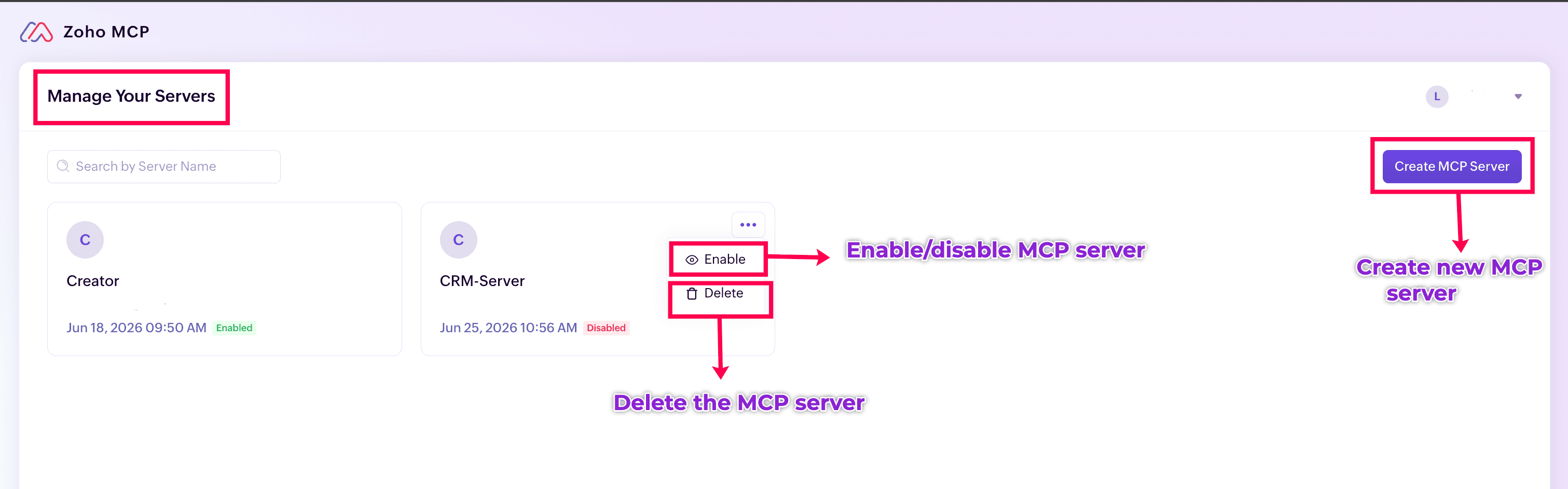
Note: The Manage Your Servers page in Zoho MCP provides a centralized view of all configured MCP servers. From this page, you can create new servers, enable or disable existing servers, and delete servers which are no longer needed.
Connect Zoho MCP server with an AI client (Claude)
- Open Claude application and sign in with your account. On the landing page, select and click Customize from the side bar.
- Click Connectors on the customization page to view and manage integrations with external applications and services.
- Click the Add connector (
) icon in the Connectors pane. The following options are displayed:
Browse connectors – View and use pre-defined connectors that are available in the connector library.Add custom connector – Create a custom connector for services that are not available in the connector library.
- Click Add custom connector to create a connector for the MCP server.
- Paste the server URL copied from the Zoho MCP server into the Remote MCP server URL field, specify a Name for the custom connector and click Add. Once added, the custom connector is displayed in the list of available connectors.
- Click Connect to initiate the connection between Claude and the Zoho MCP server.
- Review the requested permissions and click Allow to authorize Claude to access your Zoho MCP account.
Upon successful authorization, Claude will be connected to the Zoho MCP Server and able to access Zoho Creator and other configured application capabilities. You can now use natural language prompts to retrieve data and execute supported operations across the connected applications in the MCP server.
4. Tools available for Zoho Creator in the Zoho MCP Server
The Zoho MCP server exposes a set of tools that enable GenAI clients to interact with Zoho Creator applications. These tools are grouped in the below table based on their functionality and the operations they perform in the application.
| Category | Tool | Function |
|---|---|---|
| Application & workspace management | getApplications | Retrieves the complete list of applications under the authenticated Zoho Creator account, including application details such as name and link name. |
| getApplicationsByWorkspace | Retrieves details of all applications linked to the specified workspace. | |
| getWorkspaces | Retrieves the list of workspaces accessible to the authenticated user. | |
| getApplicationSummary | Retrieves the summary of specified Zoho Creator application. | |
| duplicateApplication | Creates a copy of an existing application, including its forms, reports, workflows, and configurations. | |
| deleteApplication | Deletes a Zoho Creator application and its associated resources. | |
| updateApplicationStatus | Enables or disables a Zoho Creator application. | |
| getGalleryApps | Retrieves details of available pre-built applications from the gallery. | |
| installGalleryApp | Initiates the installation of the specified gallery application which is pre-built in Zoho Creator. | |
| getGalleryAppInstallationStatus | Retrieves the installation status of a gallery application. | |
| getSections | Retrieves all sections configured in the application menu, along with the components contained within each section. For each component, details such as component type (form, report, page, or chat agent) and display name are returned. | |
| Data operations | getCreatorRecords | Retrieves all records from a specified Zoho Creator report. |
| getRecordByID | Retrieves a specific record from a Zoho Creator report using its Record ID. | |
| addRecords | Adds one or more records to a specified form. | |
| updateRecords | Updates records in a report matching the specified criteria. | |
| updateRecordByID | Updates a specific record in a report using its record ID. | |
| deleteRecords | Deletes records matching the specified criteria in a report. | |
| deleteRecordByID | Deletes a specific record in the specified report using its record ID. | |
| Form & field configuration | getForms | Retrieves metadata of all forms in a specified application. |
| getFormMetadata | Retrieves detailed form metadata, including all fields, its link name, field properties, and buttons. | |
| getFields | Retrieves the list of fields within a specified form. | |
| getPages | Retrieves metadata of all pages within an application. | |
| getReports | Retrieves metadata of all reports within an application. | |
| getReportMetadata | Retrieves detailed report metadata, such as report name, report link name, type of report and base form. It also retrieves the actions enabled for the report. | |
| Process & approval automation | executeStatelessFormButton | Executes a button configured for a stateless form. A stateless form does not store any data submitted through the form, and is used mostly to trigger workflows and custom operations. |
| executeReportCustomAction | Executes a custom action associated with a report. The custom action can perform operations such as sending notifications, updating records, invoking integrations, executing Deluge scripts, or triggering other workflow actions configured for the report. | |
| getBlueprintTransitions | Retrieves the blueprint transitions available for a specific record. This tool returns the record's current blueprint stage and the transitions that can be performed from that stage. | |
| executeBlueprintTransition | Executes a blueprint transition for a specific record. | |
| getApprovals | Retrieves approval requests raised in the application with its current status. The tool returns details such as the associated record, form name, approver, and submission information. The approval action is configured in the approval workflow of the application. | |
| executeApprovalAction | Executes an approval action configured in the approval workflow for the specified records. Based on the user's input, the tool executes the appropriate approval action, such as approve, reject, or any other action configured in the approval workflow. | |
| Collaboration & comments | addComment | Adds comments to the specified records in a report. |
| getComments | Retrieves comments associated with the specified record in a report. | |
| addReplyToComment | Adds a reply to an existing comment of a record. | |
| deleteComment | Deletes the specified comment under records. | |
| AI & chat agents | getChatAgentMetadata | Retrieves chat agent's metadata such as display name, link name, its configurations, actions that the chat agent can perform and conversation settings. |
| invokeChatAgent | Invokes a chat agent to perform actions based on user input. |
|
|
Environment management
|
addAppToEnvironment
|
Creates instances of the application in development, stage and production environments.
|
|
getAppEnvironmentStatus
|
Retrieves the current state of each environment (development, stage, production) for an application. The response includes the setup status, last publish status, and whether the stage environment has pending changes compared to production.
|
|
|
getAppStageChanges
|
Retrieves the list of all changes made in the development environment that can be pushed to stage environment.
|
|
|
getEnvironmentVersionHistory
|
Retrieves the publish history of the specified applications across the stage and production environments. The response includes version number, publish date, change count and info of the user who published the changes.
|
|
|
getProductionChanges
|
Retrieves the list of all changes available in the stage environment ready to be deployed to production. Fetches application changes available under an account owner's name.
|
|
|
publishStageChanges
|
Publishes changes from the specified application's development environment to stage environment.
|
|
|
publishProductionChanges
|
Publishes changes from the specified application's stage environment to production environment.
|
|
|
removeAppFromEnvironment
|
Removes the specified application from all environments - development, stage, and production.
|
|
|
Usage and monitoring
|
getUsageSummary
|
Returns the current usage and allowed limits for account usage metrics such as records, storage, users, applications, AI calls, datasources, APIs and more for the specified environment.
|
|
getUsageTrend
|
Retrieves daily or monthly usage data for the specified usage metrics, such as records, storage, users, applications, AI calls, and data sources, for the mentioned environment.
|
4.1. Points to note
- When an action is invoked through using a MCP tool, the action may have associated workflows. In such cases, only the On Success and On Validate workflows are triggered.
- Add and update record operations are not supported for integration forms.
5. Use case
Employee Onboarding Across Multiple Applications
In an employee onboarding application, HR teams must coordinate activities across multiple teams and applications to process a new hire. They must create employee records, notify reporting managers, raise asset request with the IT team, assign onboarding tasks, and ensure that all required activities are completed before the employee's start date. To perform these activities manually, HR need to navigate multiple applications, understand the underlying workflows, and execute each action separately.
By connecting Zoho Creator, Zoho CRM, Zoho Desk and email applications through Zoho MCP, these activities can be orchestrated through a single natural language request.
Example prompt:
"Onboard John Smith as a Software Engineer level 2, joining the Engineering department on July 1st. Create the onboarding request, notify the IT and internal teams, and create the employee contact."
"Onboard John Smith as a Software Engineer level 2, joining the Engineering department on July 1st. Create the onboarding request, notify the IT and internal teams, and create the employee contact."
The AI client interprets the user's prompt, identifies the required actions, and invokes the appropriate tools across multiple applications. The following table illustrates how the prompt is translated into application-specific operations.
| User intent | Application | Tool invoked | Action performed |
|---|---|---|---|
| Create the onboarding request | Zoho Creator | addRecords | Creates a new record in the Employee Onboarding Request form with John Smith's details. |
| Assign onboarding activities | Zoho Creator | executeReportCustomAction | Triggers the onboarding workflow to assign tasks to HR, IT, and internal teams. |
| Create the employee contact | Zoho CRM | createRecords | Creates a contact record for John Smith in Zoho CRM contacts module. |
| Notify IT team | sendEmail | Sends onboarding notifications to the IT team. | |
| Notify internal teams | sendEmail | Sends onboarding notifications to the relevant internal teams. | |
| Initiate approvals | Zoho Creator | getApprovals executeApprovalAction |
Retrieves and initiates the approval process configured for onboarding requests. |
| Provide status to the user | AI client | NA | Consolidates responses from all applications and presents the onboarding status to the user. |
The AI executes these actions in the appropriate sequence, ensuring that dependencies between applications and workflows are handled correctly. For example, the onboarding request is created before notifications are sent or approval actions are initiated. Once the process is complete, HR administrator can follow up with, "What is the status of John Smith's onboarding request?", "Show pending onboarding approvals for John Smith", or "Has the IT team completed the onboarding tasks?". The AI retrieves the latest information from the relevant applications and provides a consolidated response, enabling HR to manage the process without navigating across multiple applications.
6. Glossary
| Terminology | Description |
| Zoho MCP | An integration platform that enables AI clients to securely interact with Zoho applications and external business applications using natural language prompts. |
| MCP server / Zoho MCP server | A configurable gateway in Zoho MCP that connects applications, exposes tools, manages authorization, and enables AI clients to invoke application capabilities. |
| MCP client | The communication component in an AI client that identifies and invokes the appropriate tools, formats requests according to the Model Context Protocol (MCP), sends them to the MCP server, and returns the response to the AI client. |
| GenAI clients/ AI clients | AI clients are applications that enable users to interact with generative AI to perform a wide range of tasks, including content creation, data analysis, coding, and workflow automation. Examples of AI clients include ChatGPT, Claude, Gemini, and AI-enabled IDEs such as Cursor, Windsurf, and Visual Studio Code. |
| GenAI assistant | An AI-powered conversational assistant that uses generative AI models to understand natural language prompts provided by the users and performs the requested tasks. |
| AI orchestrator | The AI client that interprets user prompts, determines the required actions, and invokes the appropriate tools to complete the requested task. |
| Tools | Individual application capabilities exposed through an MCP server. Each tool represents a specific operation, such as retrieving data, creating records, updating information, or triggering workflows. |
| Zoho Flow | A no-code integration platform that connects Zoho products and third-party applications through automated workflows. It can be used to integrate external applications with the MCP server. These external applications are not supported by Zoho MCP directly. |
| Server URL | A unique endpoint generated for an MCP server to establish a connection between the AI client and the server. |
| API key | A unique authentication key associated with an MCP server. It is embedded in the server URL and is used to authenticate requests from AI clients. |
| Zoho MCP administrator | A user with permission to create and manage MCP servers, configure applications and tools, establish authorization, and control AI access to the connected applications. |
7. FAQ
- What is an MCP server and what operations can I perform with it?
An MCP server acts as a bridge between AI clients and business applications. It integrates multiple applications and GenAI assistants in a single platform, enabling AI client to retrieve information and perform actions across connected applications through natural language prompts. - Can I create forms or reports through MCP?
No, the MCP server does not support creating or modifying application structures. Forms, fields, reports, pages, workflows, and other application configurations must be created and managed through the Zoho Creator application interface. - Can I connect other applications such as Zoho CRM and Bamboo HR through MCP?
Yes, a single MCP server can integrate multiple Zoho products, and applications powered by Zoho Flow. This allows AI clients to invoke tools across multiple applications and coordinate actions through a single natural language interaction. - Can I create workflows in Zoho Creator through MCP?
No, the MCP server cannot be used to create or modify application structures. Such configurations must be performed directly in the Zoho Creator interface. So, workflow creation and configuration are not supported through MCP. However, the MCP server can execute workflows, custom actions, approvals, and other processes that have already been configured in the application. - Can I create a new Zoho Creator application through MCP?
Yes, if the appropriate tools are configured, the MCP server can install prebuilt gallery applications. However, custom applications which needs to be built from scratch cannot be performed using AI prompts and MCP server. - Can I add or remove users through the MCP Server?
No, user management activities such as adding or removing users and changing user permissions must be performed through the Zoho Creator interface. - Can I retrieve records from Zoho Creator and transfer them to another application?
Yes, if the required tools and applications are configured in the MCP Server, the AI client can retrieve records from Zoho Creator and create or update records in another connected application. You can also download or export the records in the required templates. - Can I configure integrations and connections through the MCP Server?
No, the MCP server cannot be used to configure integrations, create connections, or manage connectors. These configurations must be performed through the Zoho Creator interface. - Is my data secure when prompting with AI clients through MCP ?
Yes, before an AI client can access an application through MCP, the application must authorise the MCP server and grant the required permissions. When a tool is invoked, the MCP server verifies that valid authorization exists and ensures that the requested operation is within the permissions granted by the application. The invoked application enforces its own access control on individual user level. - Can I restrict which forms or reports are accessible via MCP?
Yes, you can restrict forms and reports through Zoho Creator's permission settings. When a request is made in AI client through MCP, Zoho Creator enforces the configured access controls and allows only authorized operations to be performed. As a result, the AI client can access and interact only with the forms, reports, and data that the authorized user has permission. - What are the supported AI clients in Zoho MCP?
Zoho MCP works with any GenAI client that supports the MCP protocol, allowing it to securely access tools, and data across Zoho services and external applications. Examples for AI clients with native MCP support include Claude, ChatGPT, Gemini and AI-enabled IDEs such as Cursor, Windsurf, and VSCode.
8. Related topics
- Zoho MCP implementation guide
- Zoho MCP tool guide
- Zoho MCP glossary
- Hands-on tutorial: Integrate Zoho Creator with Claude using Zoho MCP
What's next
Previous
What's next
Now that you understand how Zoho MCP enables Creator apps to connect with generative AI clients, follow this hands-on tutorial to perform operations in Creator and Monday.com using AI clients.
Previous
Before integrating AI clients with Creator using Zoho MCP, make sure you understand the capabilities and components of Zoho Creator application.