Bidirectional sync between Zoho Bookings and Zoho CRM - Part 1
Hey, community members!
The default integration between Zoho CRM and Zoho Bookings is unidirectional, which means that any appointments booked, rescheduled, or deleted in Zoho Bookings will be reflected in Zoho CRM. However, any modifications made to events in Zoho CRM that originated from Zoho Bookings will not be reflected back in Zoho Bookings. Hence, as we're announcing in this community post, we've made the sync bidirectional.
This community post will cover the process of configuring appointment bookings from Zoho CRM in Zoho Bookings, as well as managing appointment statuses such as Canceled, No Show and Completed. We have addressed the rescheduling action in a separate post. To view it, please click on the following link: Reschedule Action
This community post will be beneficial for active Zoho CRM users who handle all their meetings within Zoho CRM. Additionally, you can use this community post as a reference to explore various automation possibilities tailored to your business requirements. For instance, with this post's guidance, when you update a booking's status field to "Completed" in Zoho CRM, it will automatically sync with Zoho Bookings and trigger an automated "Mark as completed" email to customers. This enhancement will improve your Zoho Bookings and Zoho CRM synchronization experience, making appointment management easier.
Prerequisites of bidirectional sync:
- Zoho Bookings Premium subscription
- Zoho CRM paid subscription
- Enable Zoho CRM integration within Zoho Bookings
The purpose of enabling the Zoho CRM integration within Zoho Bookings is to transfer booking details from Zoho Bookings to Zoho CRM. In this configuration, the mandatory field is the Booking ID, which is passed from Zoho Bookings to Zoho CRM through the integration. Whenever an appointment is booked, customer details will be sent to the designated CRM module, and a corresponding record will be created in the Meetings module within Zoho CRM, which will help in automating the workflow.
Here's the complete demo video that covers all the configurations discussed in the community post below:
Timestamps for your reference:
0:35 - Purpose of this community post
Here's the complete demo video that covers all the configurations discussed in the community post below:
Timestamps for your reference:
0:35 - Purpose of this community post
1:26 - Zoho CRM plugin installation
4:43 - Custom field creation
7:20 - Function creation
9:22 - Connection creation
10:24 - Configuring arguments
11:06 - Workflow creation
13:33 - Argument mapping
14:41 - Output verification
17:41 - Conclusion
How we're approaching this bidirectional sync
1. Booking an appointment from Zoho CRM
Install the Zoho Bookings for Zoho CRM plugin within your Zoho CRM application. This plugin enables the creation of a "New Appointment" button within the Zoho CRM Leads and Contacts module, which enables you to select the desired booking page you wish to open. You can choose from various workspace, service, or staff booking pages. After configuration, you can initiate the process of scheduling bookings directly from within your Zoho CRM account.
- Guide on Zoho Bookings and Zoho CRM plugin installation: Booking page selection for Zoho CRM plugin
2. Booking status: Completed or No Show
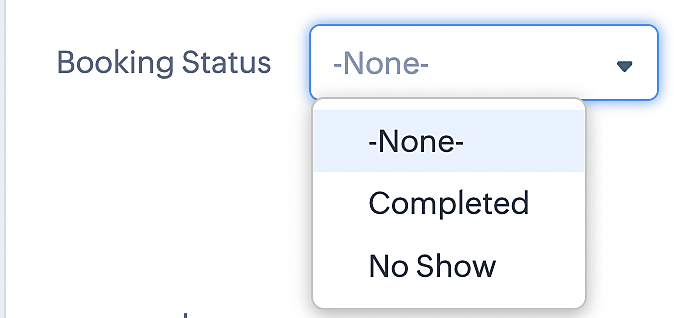
To update a booking's status (Completed or No Show), we've added a new picklist properties field named "Booking Status" in the Meetings module and configured it with two options: "completed" and "no show". Depending on the booking status chosen, the corresponding booking in Zoho Bookings will be updated.
- Details on how to add a custom field to the Meetings module : Customizing modules
- Here's a video that demonstrates how to add a field to a module in Zoho CRM: Adding fields
Reference:
3. Booking status: Canceled
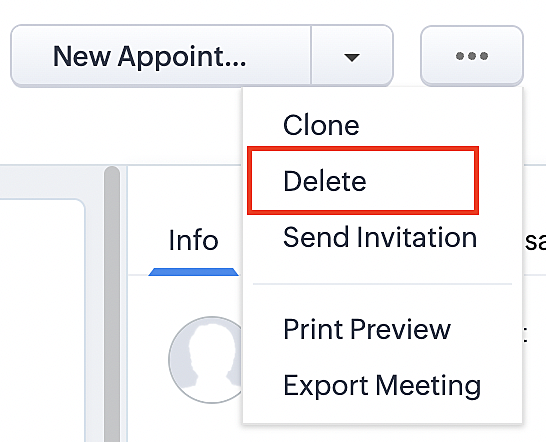
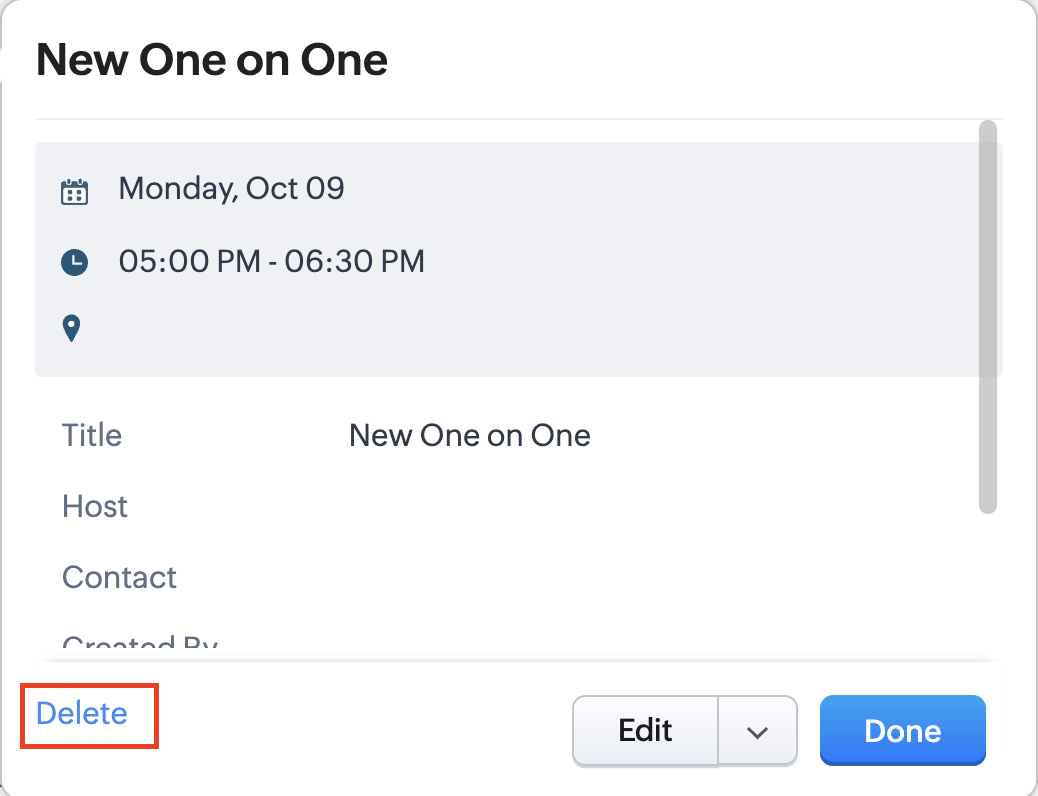
Whenever a meeting is deleted from the Meetings module, the corresponding booking in the Zoho Bookings app will also be canceled automatically. The meeting can be deleted either from the Meetings module or directly from the calendar.
To enable bidirectional sync between Zoho CRM and Zoho Bookings
Complete these steps in Zoho CRM.
Step 1: Creating connections
You first need to establish a connection between Zoho CRM and Zoho Bookings. Zoho Bookings is listed as one of the default connections in Zoho CRM, making it simple to set up. Select the Zoho Bookings connection, define the connection name and scope, and you'll be all set. This connection will enable you to link both applications and facilitate the seamless transfer of data.
Read here for more details on how to create connection in Zoho CRM: Connections
Step 2: Creating functions
In this context, we'll be creating three functions: one for marking appointments as completed, another for canceling appointments, a third for marking appointments as no shows, and a fourth for rescheduling appointments. For each function, we must also configure arguments, which pass values or data into a function when making a call. Here, we'll pass the booking ID to the function as an argument to update the necessary booking status.
i. To create a function for marking appointments as completed:
1. Go to Setup > Developer Space > Functions.
2. In the Functions page, click + Create New Function.

3. Configure the function name, display name, and description.
4. Set the category as automation.
This opens the Deluge script page.
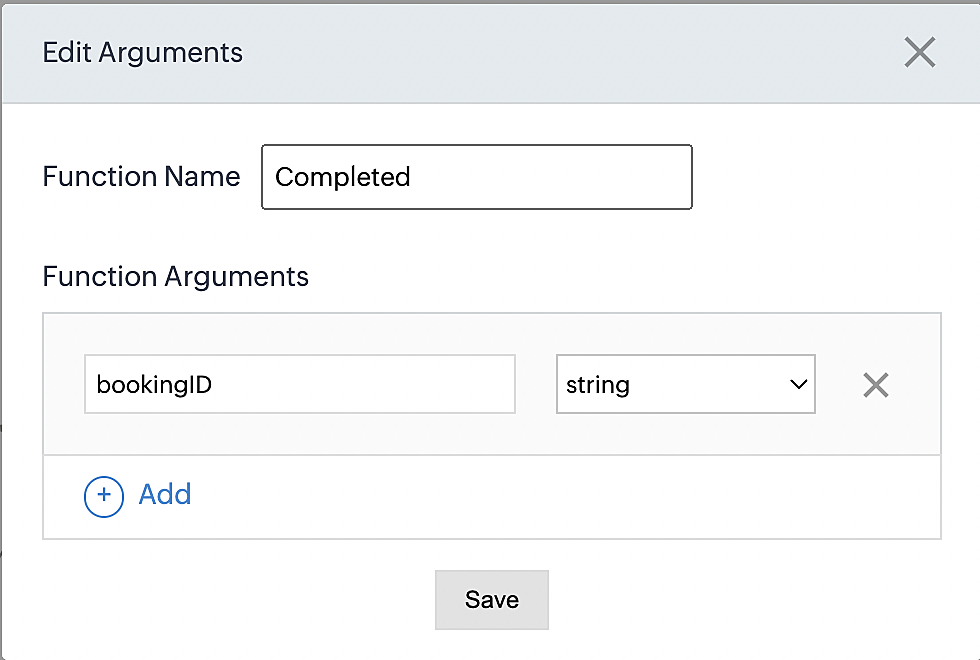
5. Next, configure the function's arguments:
A. Click on Edit Arguments on the Deluge script page.

B. Set the Parameter Name as bookingID. (Please note that the "bookingID" value is case sensitive and must match
the term used in the code).
C. Set the type as string.
Reference:
Please configure the below code in the Deluge script page.
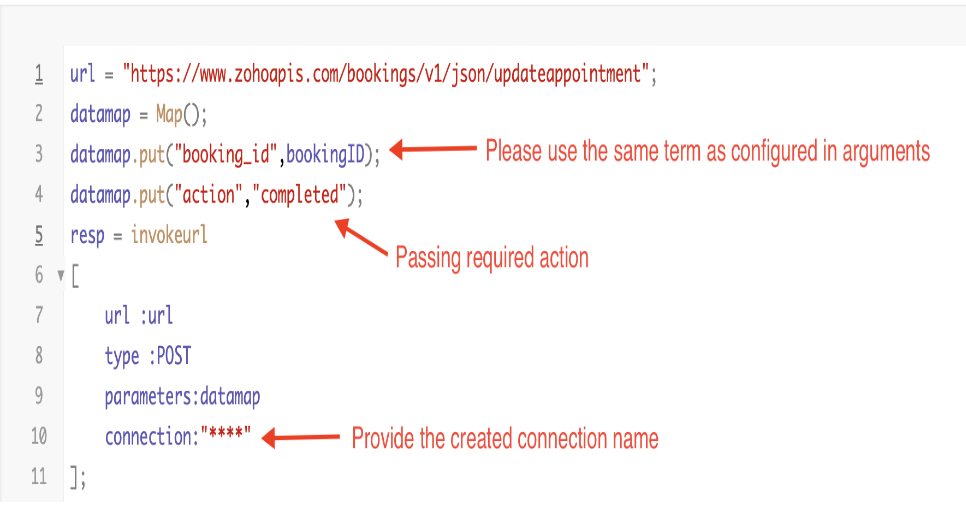
By completing these steps, we've configured a function that will mark appointments as completed.
ii. To create a function for marking appointments as no shows
1. Go to Setup > Developer Space > Functions.
2. In the Functions page, click + Create New Function.

3. Configure the function name, display name, and description.
4. Set the category as automation.
This opens the Deluge script page.
5. Next, configure the function's arguments:
A. Click on Edit Arguments on the Deluge script page.

B. Set the Parameter Name as bookingID. (Please note that the "bookingID" value is case sensitive and must match
the term used in the code).
C. Set the type as string.
Reference:
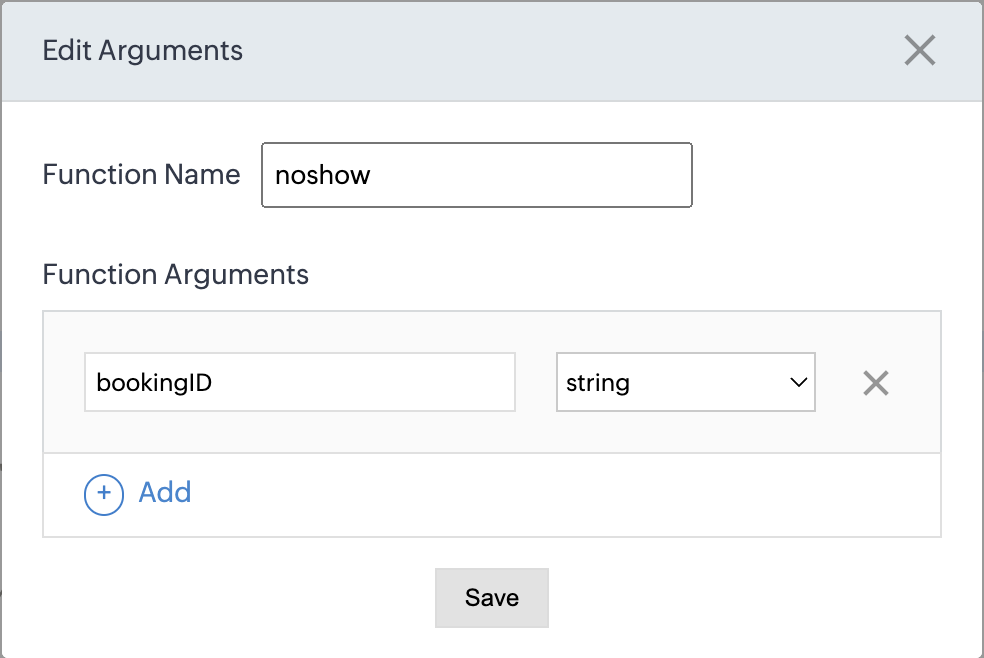
Please configure the below code on the Deluge script page.
Code link: No show
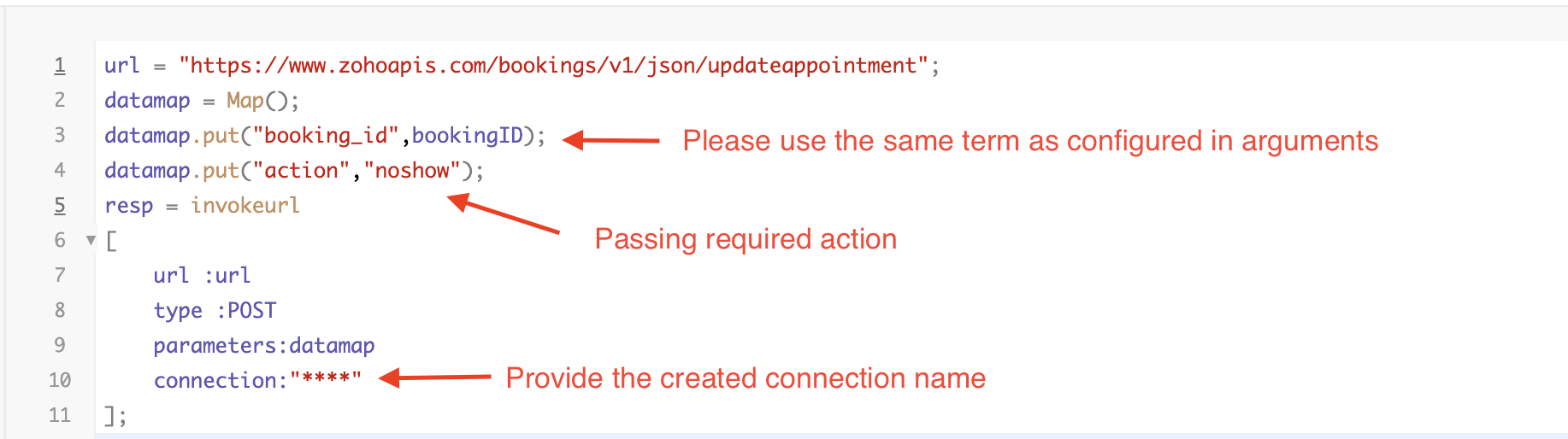
By completing these steps, we've configured a function that marks appointments as no shows.
iii. To create a function for marking appointments as canceled
1. Go to Setup > Developer Space > Functions.
2. In the Functions page, click + Create New Function.

3. Configure the function name, display name, and description.
4. Set the category as automation.
This opens the Deluge script page.
5. Next, configure the function's arguments:
A. Click on Edit Arguments on the Deluge script page.

B. Set the Parameter Name as bookingID. (Please note that the "bookingID" value is case sensitive and must match
the term used in the code).
C. Set the type as string.
Reference
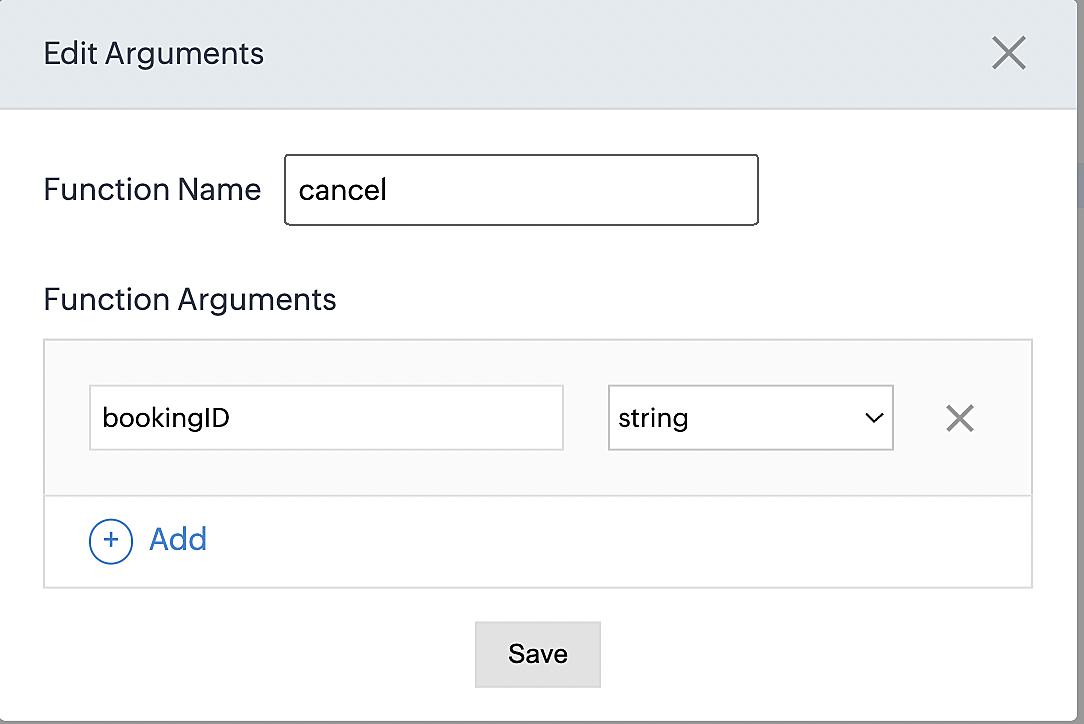
Please configure the below code on the Deluge script page.
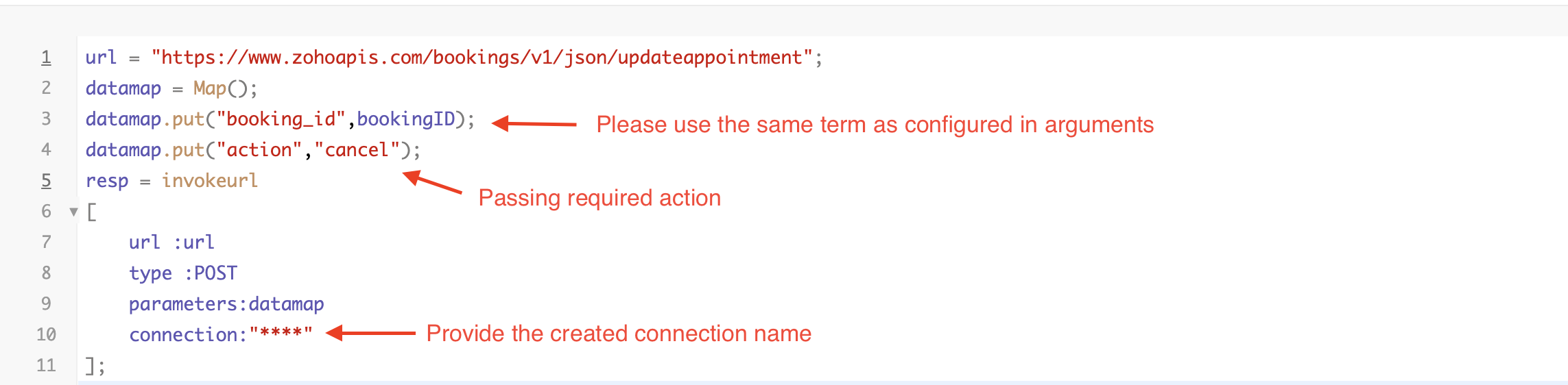
By completing these steps, we've configured a function that marks appointments as canceled.
Code explanation
Below is an explanation of the code that covers all the configurations present in the three functions mentioned above (cancel, mark as completed, and mark as no show).
Line 1: Based on the Zoho Bookings account's data center, we're setting up the API endpoint URL configuration.
Lines 2 - 4: To update appointments, we utilize the Zoho Bookings API. Within the update appointment API, there are two mandatory fields that need to be included: BookingID and action (completed/cancel/noshow).
Lines 5 - 10: We use the invokeURL task for API calls. To learn more about the invokeURL task, please refer to the following document: InvokeURL task for API calls
Now, let's proceed and learn about the process of creating a workflow and linking the established functions to it. This will enable us to automate the entire appointment status updating process.
Step 3: Creating a workflow
Workflow rules are sets of actions (email notifications, tasks and field updates) that are executed when specified conditions are met. Here, we'll generate workflow rules for each action to activate the respective function, thereby automating the appointment status updating process.
i. Creating a workflow for "canceling" appointments in Zoho Bookings when a meeting is deleted in Zoho CRM
Part 1: Creating the rule
1. Go to Setup > Automation > Workflow Rules.
2. In the Workflow Rules page, click Create Rule.

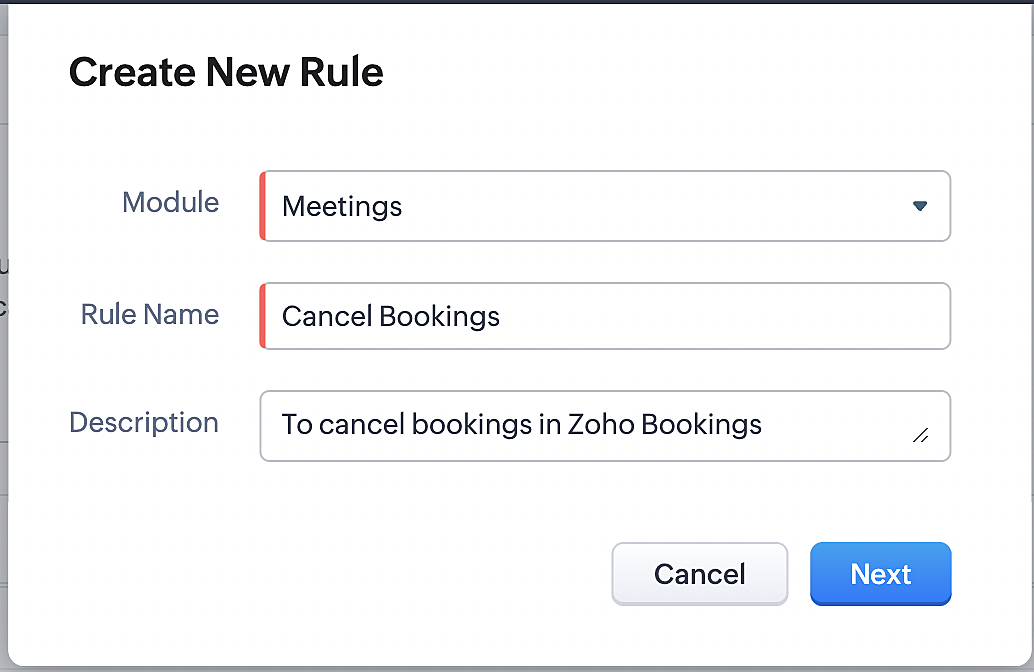
3. Select "Meetings" under Module and configure rule name and description as required.
More details: Create Rule
Reference:
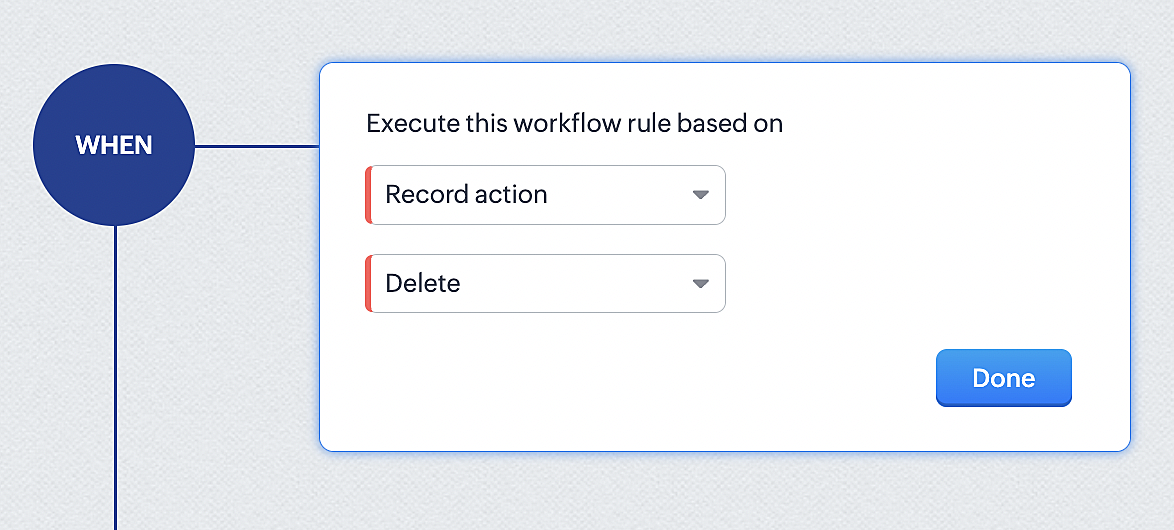
1. Select Record Action > Delete > Done to execute the rule when meetings are deleted.
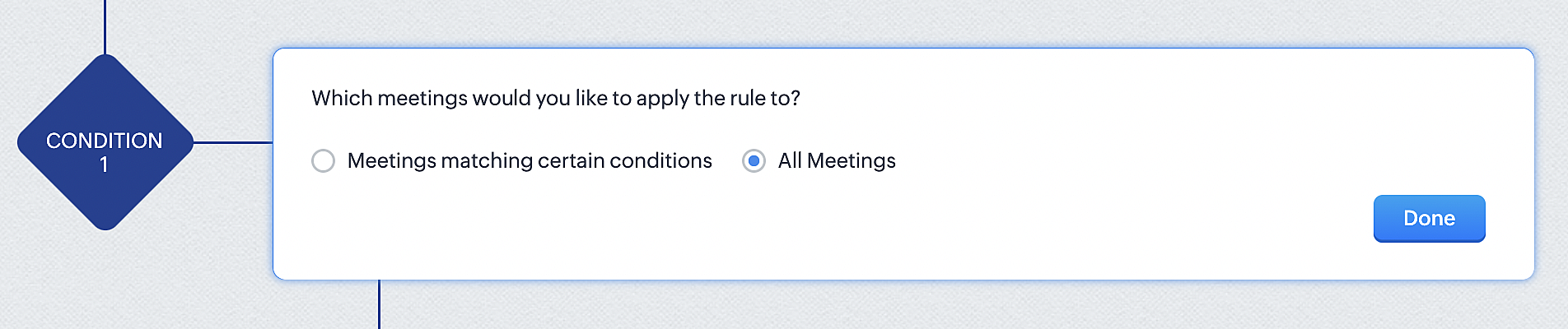
2. Configure condition > All Meetings.
3. Instant Actions > Function.
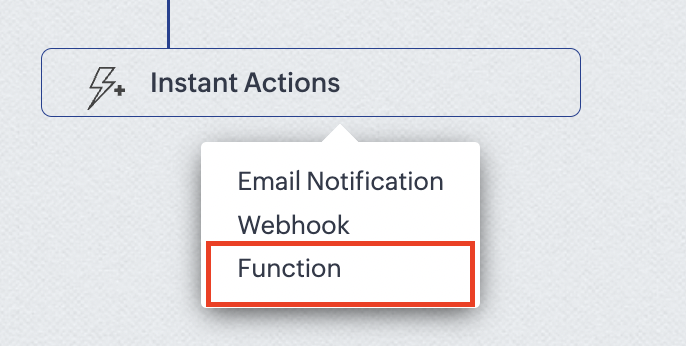
4. Click the New Function button.

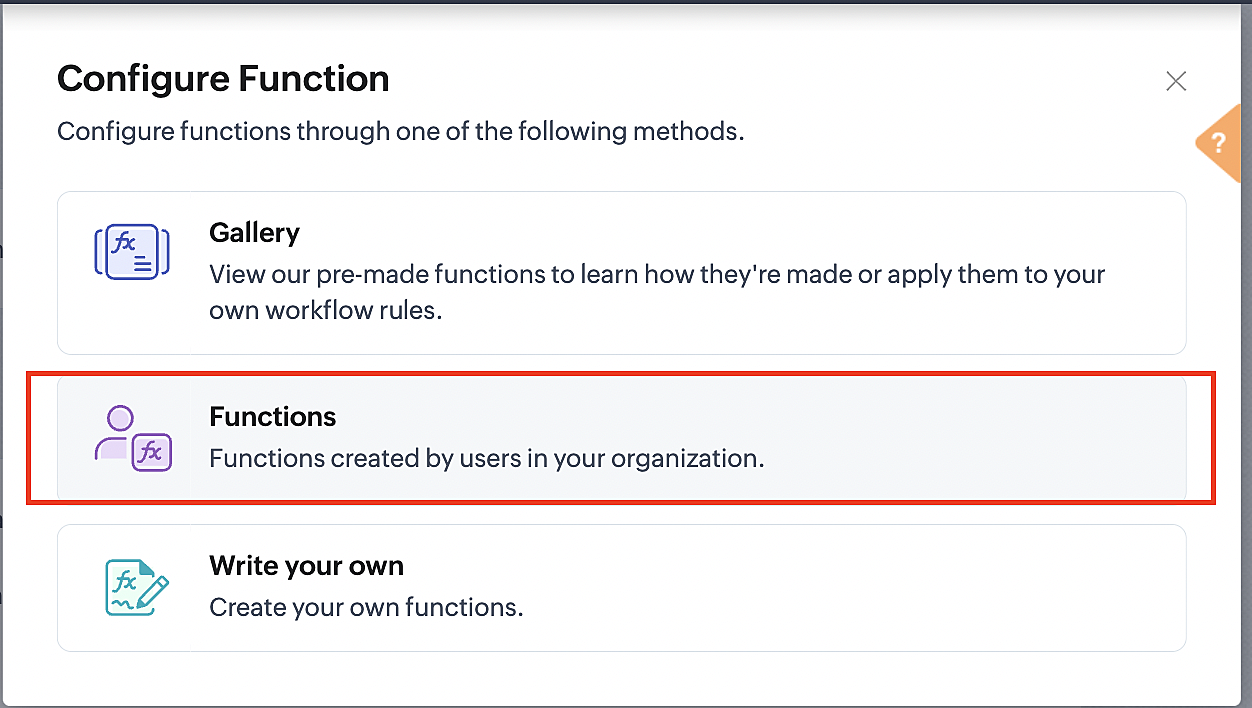
5. In the Configure custom function page, select the "cancel" function you created from among the functions users in your organization have created.
Part 3: Argument mapping
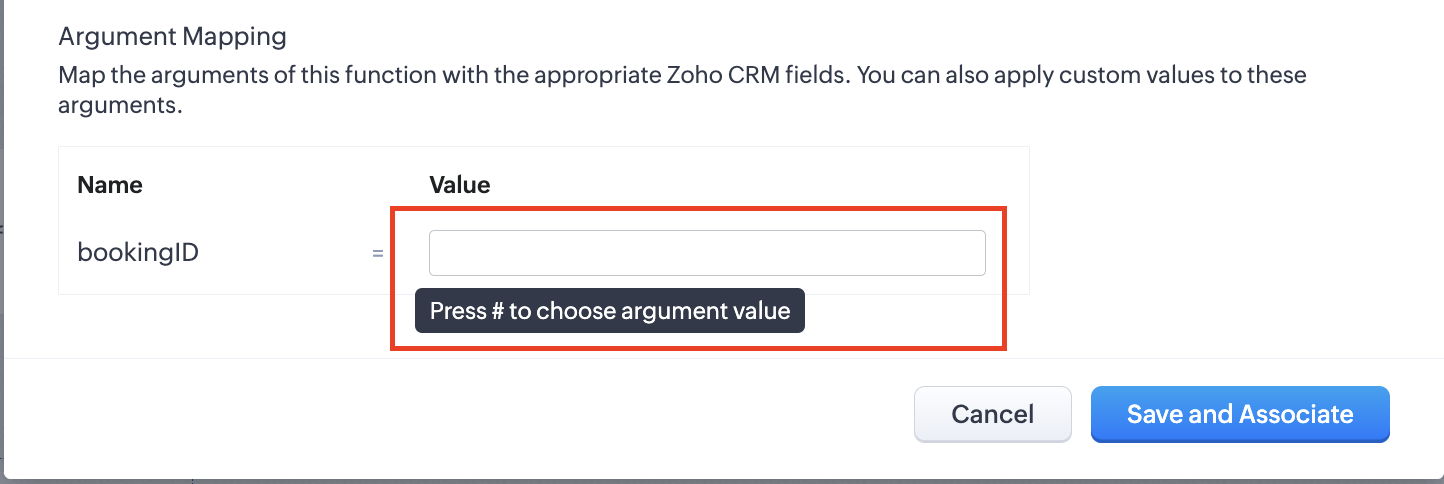
1. Press # to choose an argument value.
2. Select Meetings under Module and BookingId in the field.
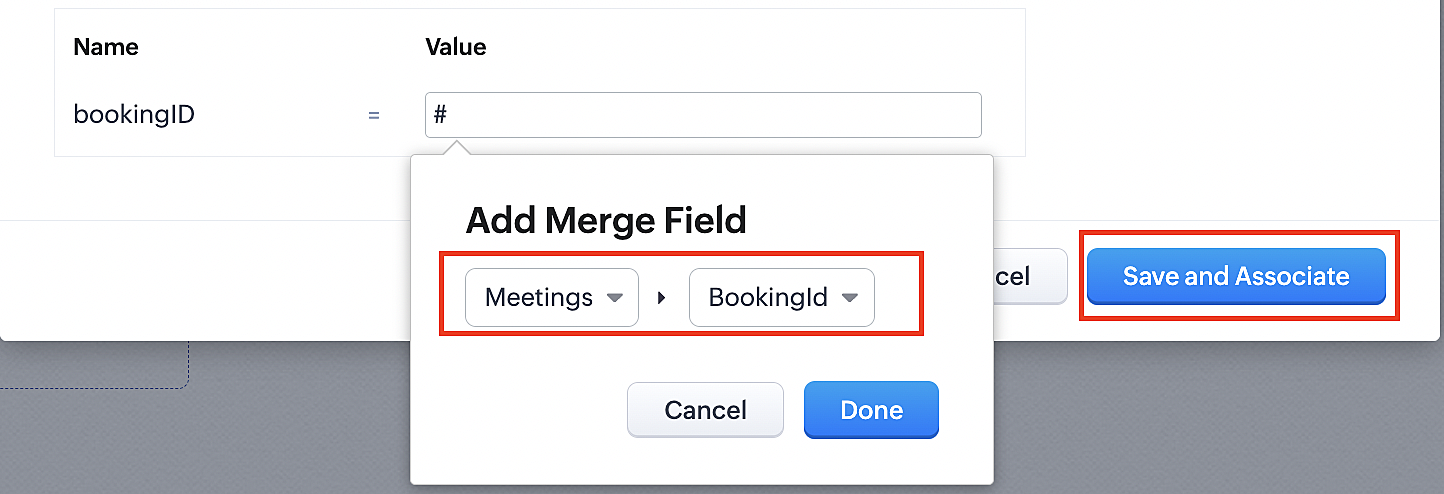
3. Click the Save and Associate button.
Reference:
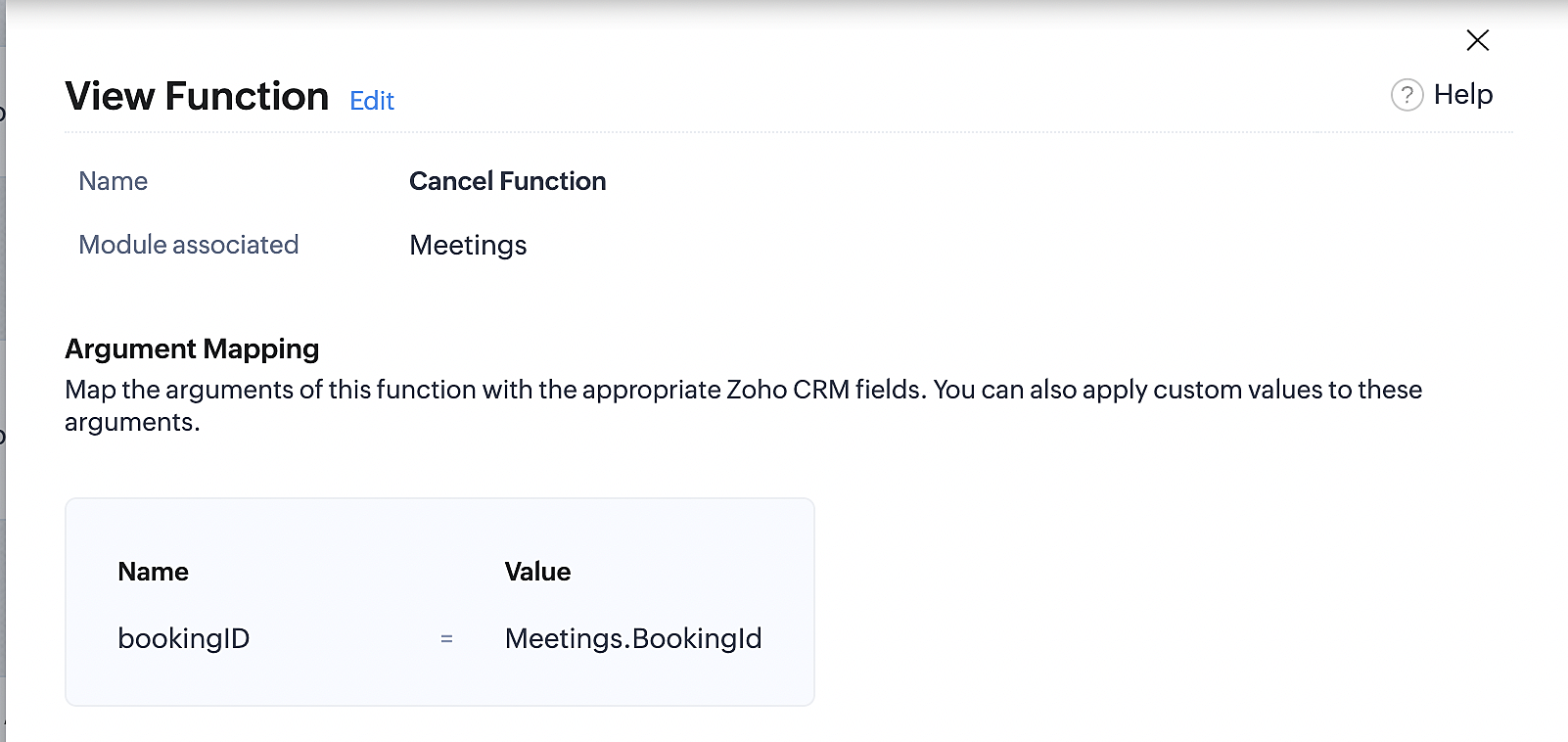
Below is the final flow of the cancel booking workflow:
At the end of Part 3, we will have created a workflow that will be executed automatically when meetings are deleted in Zoho CRM. Simultaneously, the bookings associated with the meeting will also be canceled in Zoho Booking.
ii. Creating workflow for updating an appointment's status as "no show" in Zoho Bookings when the meeting's booking status is marked as no show in Zoho CRM
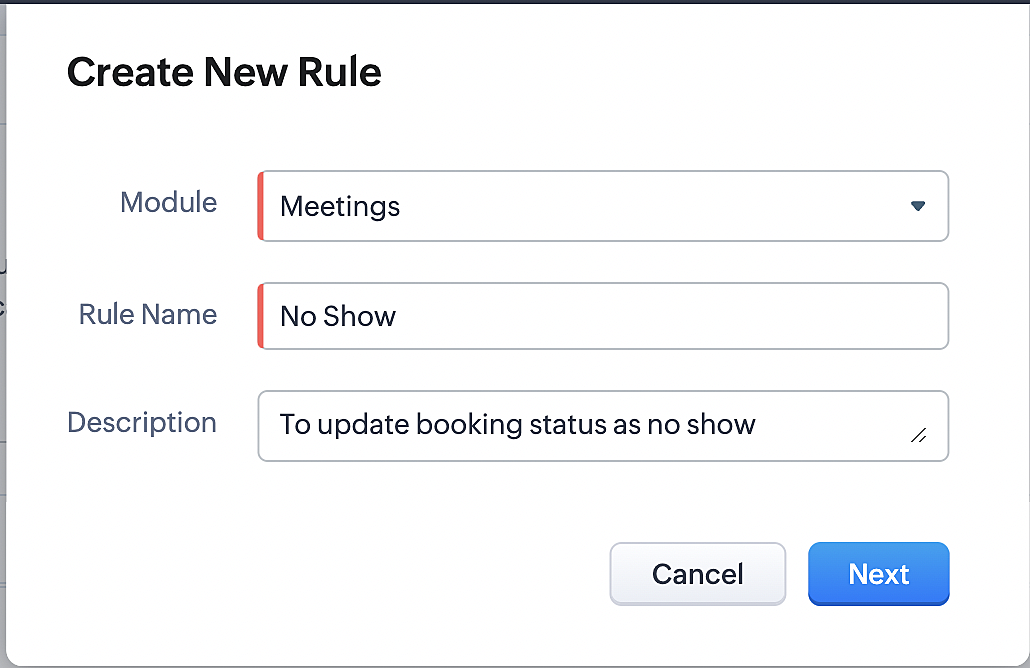
Part 4: Creating the rule
1. Go to Setup > Automation > Workflow Rules.
2. In the Workflow Rules page, click Create Rule.

3. Select Meetings under Module and configure the rule name and description as required.
Reference:
Part 5: Specifying the rule trigger
If you encounter difficulties while navigating through the steps mentioned below, please refer to Part 2 above, where we have provided step-by-step screenshots for clarification.
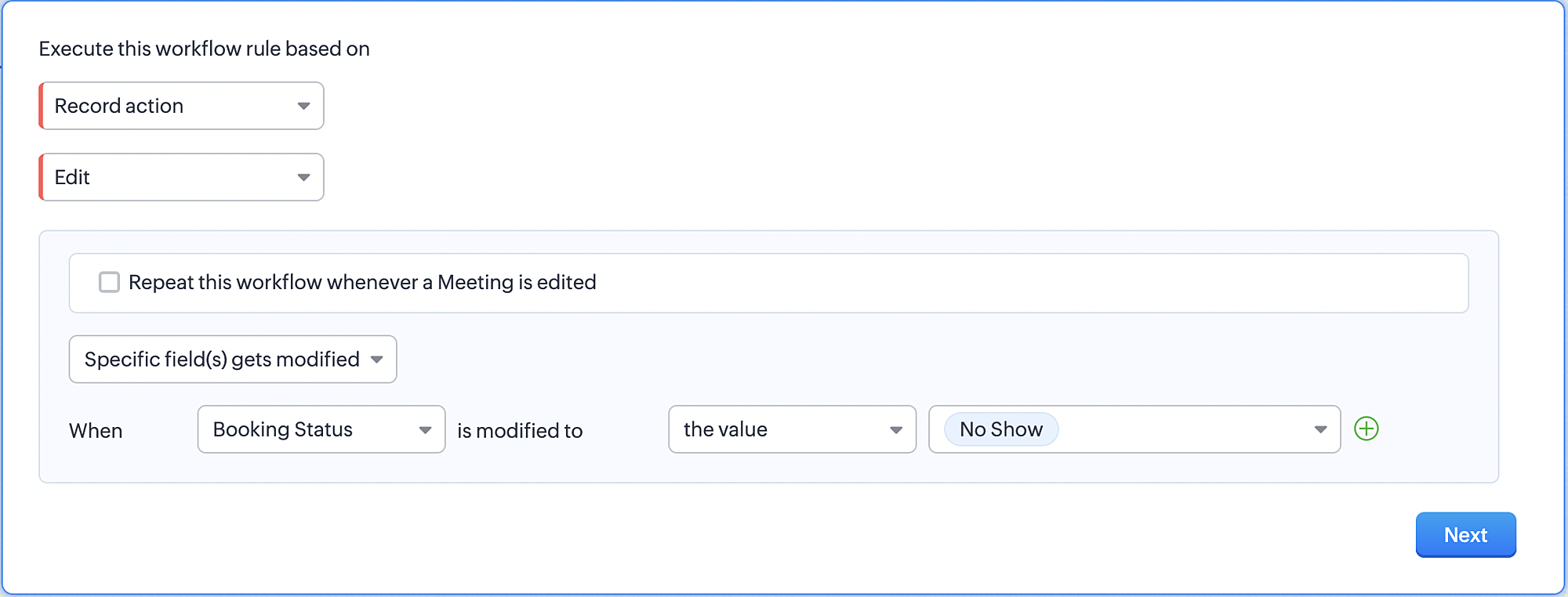
1. Record Action > Edit.

2. Enable the Specific field(s) gets modified and configure it per the screenshot below.
a. This is to ensure that the workflow is executed only when the booking status under the meeting module is
updated to "No Show".
updated to "No Show".
3. Configure condition > All Meetings.
4. Instant Actions > Function > New Function.
5. In the Configure custom function page, select the "no show" function you created from among the functions
users in your organization have created.
users in your organization have created.
Part 6: Argument mapping:
If you encounter difficulties while navigating through the steps mentioned below, please refer to Part 3 above, where we have provided step-by-step screenshots for clarification.
1. Press # to choose an argument value.
2. Select Meetings under Module and configure the field as "BookingId".
3. Click Save and Associate button.
Reference:
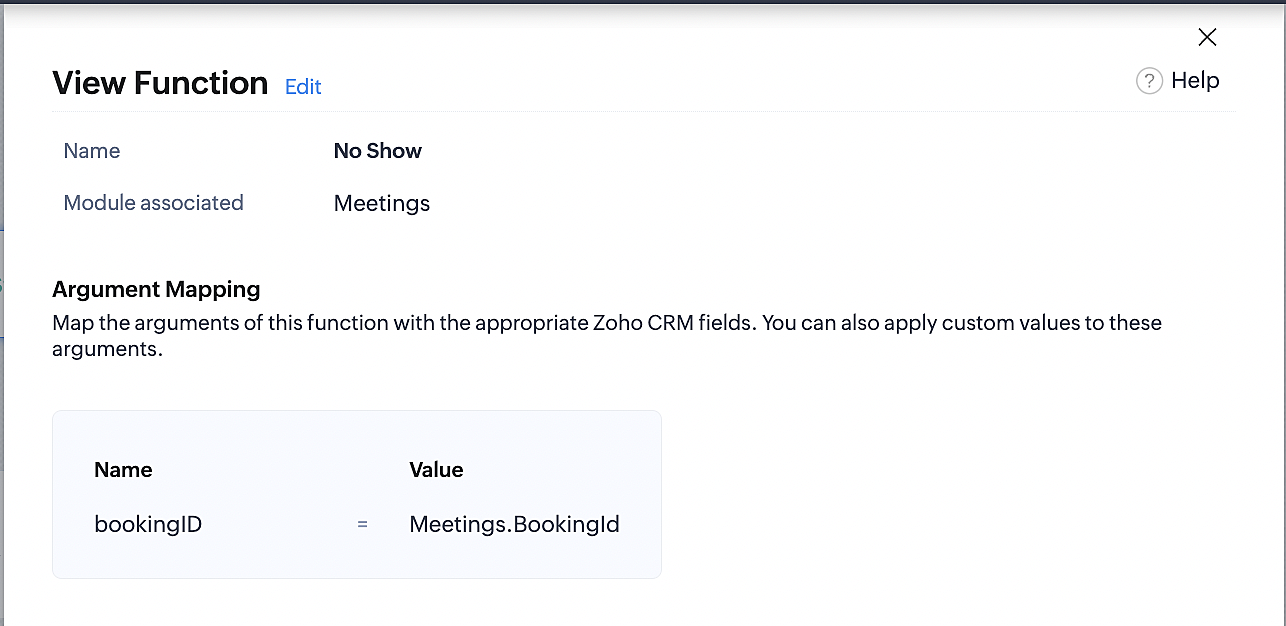
Below is the final flow of the "No Show" booking status workflow:
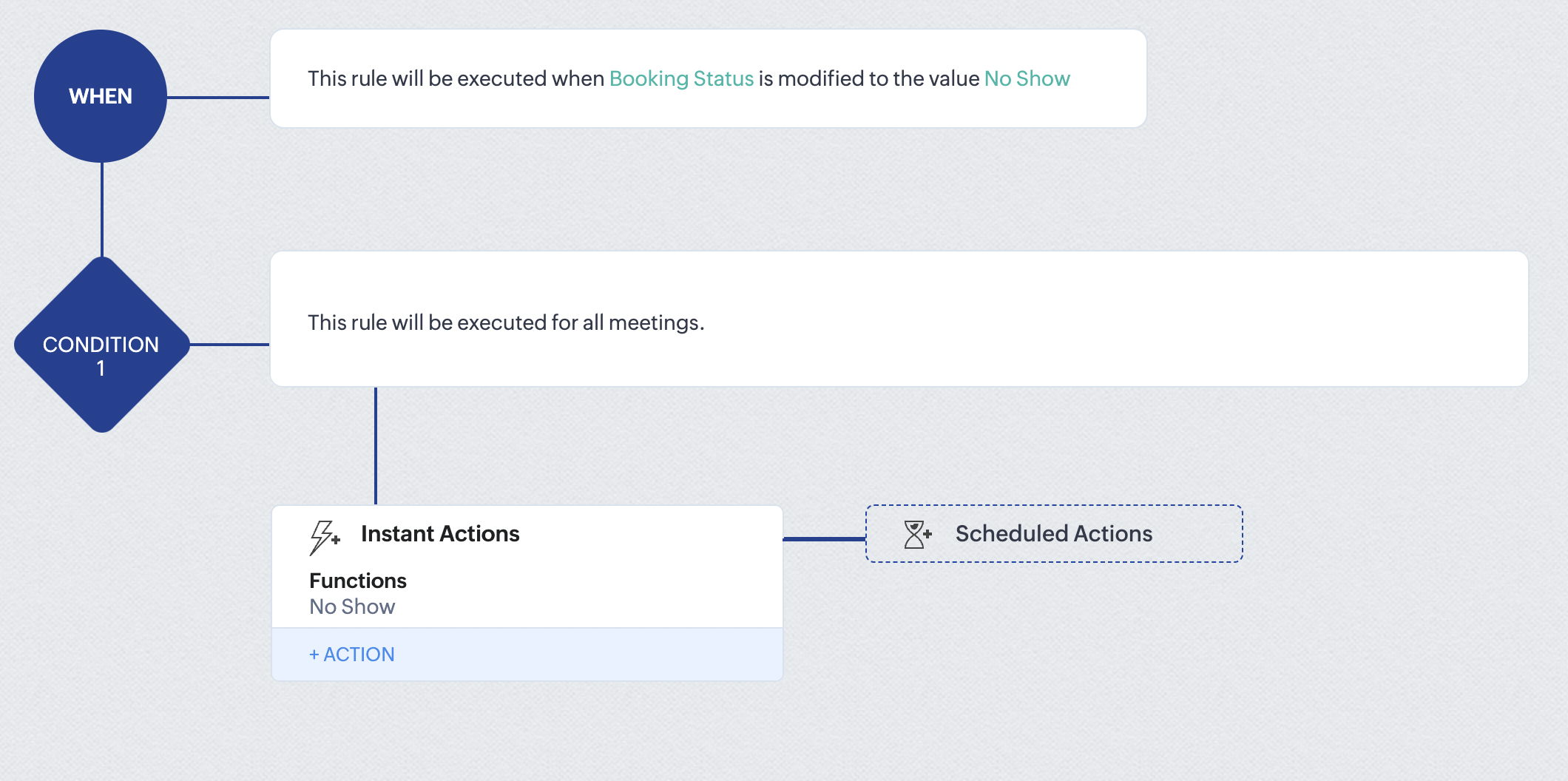
At the end of part 6, we will have created a workflow that automatically executes when the booking status field within the Zoho CRM Meetings module is updated to "No Show." This action will result in the associated bookings for that meeting also being marked as "No Show" in Zoho Bookings.
iii. Creating workflow for updating appointment status as "Completed" in Zoho Bookings when the booking status field of the meeting is marked as completed in Zoho CRM.
Part 7: Creating the rule
1. Go to Setup > Automation > Workflow Rules.
2. In the Workflow Rules page, click Create Rule.

3. Select Meetings under Module and configure rule name and description as required.
Reference:
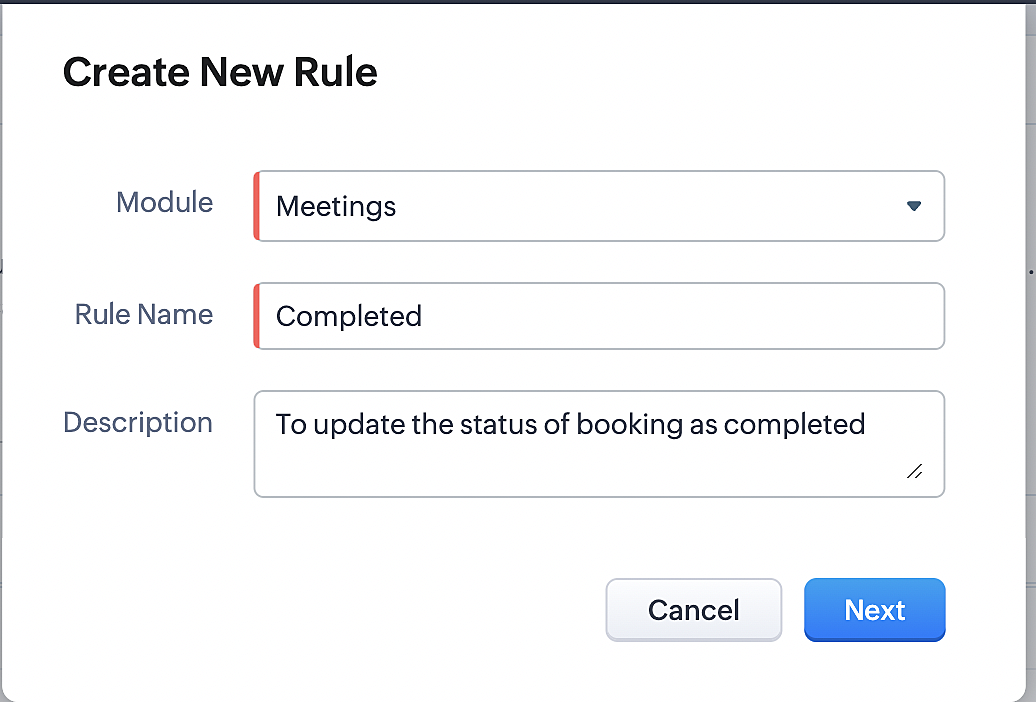
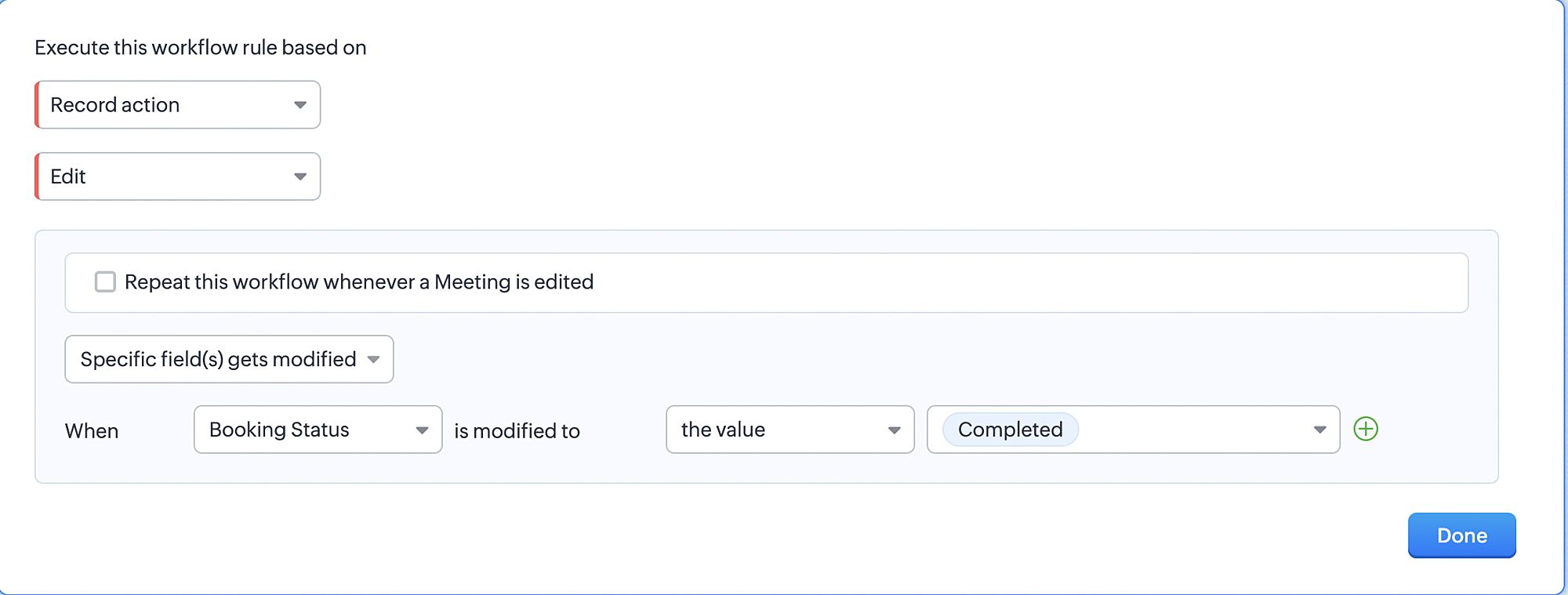
Part 8: Specifying the rule trigger
If you encounter difficulties while navigating through the steps mentioned below, please refer to Part 2 above, where we have provided step-by-step screenshots for clarification.
1. Record Action > Edit.

2. Enable the Specific field(s) gets modified setting and configure it per the screenshot below.
a. This serves to ensure that the workflow is executed only when the booking status under the Meetings module is
updated to "Completed".
3. Configure condition > All Meetings.
4. Instant Actions > Function > New Function.
5. In the Configure custom function page, select the "completed" function you created from among the functions users
in your organization have created.
Part 9: Argument mapping:
If you encounter difficulties while navigating through the steps mentioned below, please refer to Part 3 above, where we have provided step-by-step screenshots for clarification.
1. Press # to choose an argument value.
2. Select Meetings under Module and configure the field as "BookingId".
3. Click Save and Associate button.
Reference:
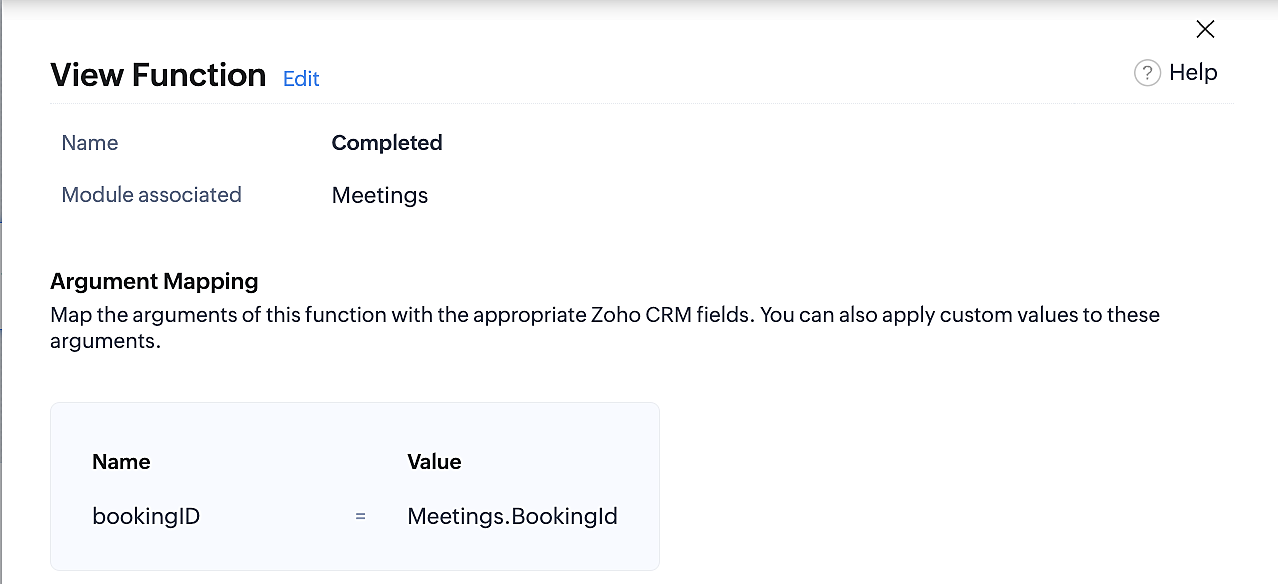
Below is the final flow of the "Completed" booking status workflow:
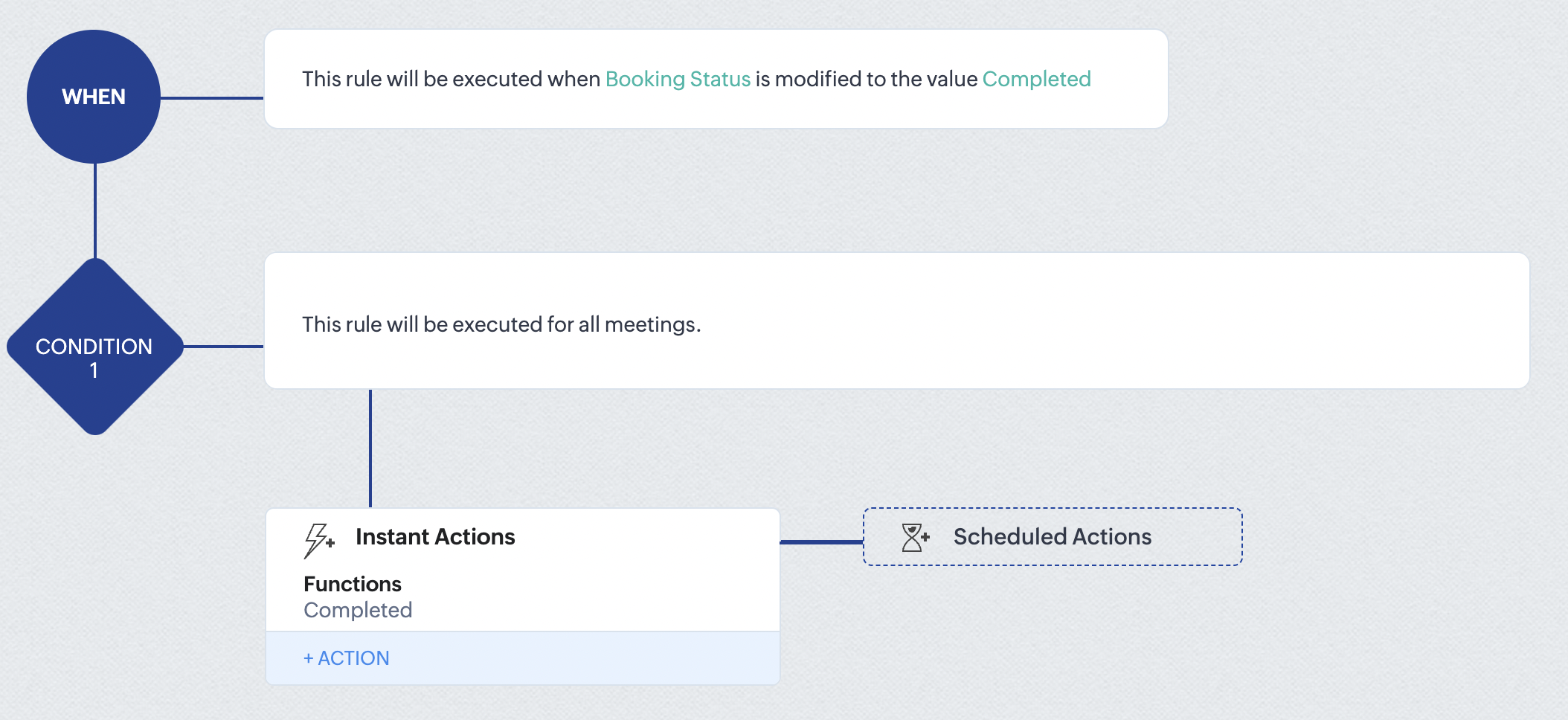
At the end of part 9, we will have created a workflow that is automatically executed when the booking status field within the Zoho CRM Meetings module is updated to "Completed." As a result, the associated bookings for that meeting will also be marked as "Completed" in Zoho Bookings.
Conclusion
We've reached the end of this community post. With the integration mentioned above in place, you'll be able to book, cancel, and update the status of appointments in Zoho Bookings directly from your Zoho CRM application. This will help you effectively manage your appointments in one place. As mentioned above, we've covered the rescheduling action in a separate post, which you can access by clicking on the following link: Reschedule Action
Furthermore, we've outlined a method for automating appointment statuses in detail. You can use this document as a reference to explore the various possibilities that suit your needs.
If you have any questions or need assistance with your configuration, please email us at hello@zohobookings.com or support@zohobookings.com.
New to Zoho Recruit?
Zoho Campaigns Resources





Topic Participants
Kaushik S
bruce
Ishwarya SG
PrismaNote Support
Sticky Posts
Good news! Calendar in Zoho CRM gets a face lift
Dear Customers, We are delighted to unveil the revamped calendar UI in Zoho CRM. With a complete visual overhaul aligned with CRM for Everyone, the calendar now offers a more intuitive and flexible scheduling experience. What’s new? Distinguish activitiesVoC in Zoho CRM is now data savvy: Explore response drilldown, summary components and participation in CRM criteria
VoC has all the goods when it comes to customer intelligence—which is why we're constantly enhancing it. We recently added the following: A customer drilldown component that shows you the list of prospects and customers behind a chart's attribute ExpandedWrapping up 2025 on a high note: CRM Release Highlights of the year
Dear Customers, 2025 was an eventful year for us at Zoho CRM. We’ve had releases of all sizes and impact, and we are excited to look back, break it down, and rediscover them with you! Before we rewind—we’d like to take a minute and sincerely thank youPresenting ABM for Zoho CRM: Expand and retain your customers with precision
Picture this scenario: You're a growing SaaS company ready to launch a powerful business suite, and are looking to gain traction and momentum. But as a business with a tight budget, you know acquiring new customers is slow, expensive, and often deliversCreate and populate a record in an instant: Introducing zero-shot field prompting to Zia's ICR
A couple of months ago, we upgraded our in-house AI image detection and validation tool, Zia Vision, with intelligent character recognition (ICR). By training Zia with sample images, you could create and enrich CRM records with data extracted from standard
Zoho CRM Plus Resources
Zoho Books Resources
Zoho Subscriptions Resources
Zoho Projects Resources
Zoho Sprints Resources
Zoho Orchestly Resources
Zoho Creator Resources
Zoho WorkDrive Resources


Zoho CRM Resources
Get Started. Write Away!
Writer is a powerful online word processor, designed for collaborative work.
Zoho CRM コンテンツ
-
オンラインヘルプ
-
Webセミナー
-
機能活用動画
-
よくある質問
-
Ebook
-
-
Zoho Campaigns
- Zoho サービスのWebセミナー
その他のサービス コンテンツ
ご検討中の方
Recent Topics
Ability to add VAT to Retainer Invoices
Hello, I've had a telephone conversation a month ago with Dinesh on this topic and my request to allow for the addition of VAT on Retainer Invoices. It's currently not possible to add VAT to Retainer Invoices and it was mutually agreed that there is absolutely no reason why there shouldn't be, especially as TAX LAW makes VAT mandatory on each invoice in Europe! So basically, what i'm saying is that if you don't allow us to add VAT to Retainer Invoices, than the whole Retainer Invoices becomesTime Log Reminder
Tracking the time spent on tasks and issues is one of the most important functions of a timesheet. However, users may forget to update the time logs because they have their own goals to achieve. But, time logs must be updated at regular intervals to keep[Early-access] Introducing Zoho's CommandCenter - Cross-Zoho business process automation
Resources to help Webinar recording | Documentation Feature Restrictions Currently available on early-access only for US data center accounts Features Role CommandCenter as a Service uses signals across Zoho services to propel the movement of recordsTip #58- Accessibility Controls in Zoho Assist: Learning- 'Insider Insights'
Learning should be clear and interruption-free for everyone. Timely feedback plays an important role in helping users understand actions as they happen, without breaking their focus. In this post, we’ll explore the final section of Accessibility: Learning.ZIA "Generate Content" action doesn't have contexual data from the ticket
"Generate Content" action doesn't have contexual data from the ticket. I try to get AI to help me with this ticket but it doesn't seem to have any ticket information as context. Although the ticket has a lot of information in it.Zoho Desk - Zoho FSM Integration issue on Mobile and iPad
Hello Team, I am trying to create a Work Order (WO) using the Zoho FSM integration (Add-on Service) that is integrated with Zoho Desk. The issue is that the integration is not working on mobile devices and iPads. While I am able to create the WO, Request,E-File Form 1099 Directly With the IRS From Zoho Books
The Form 1099 filing season has begun, and businesses are required to e-file certain forms with the IRS to report payments made to vendors and contractors. If your business made qualifying payments during the year, you must e-file the appropriate FormCan I hide empty Contact fields from view?
Some contacts have a lot of empty fields, others are mostly filled. Is there a way I can hide/show empty fields without changing the actual Layout? I would like to de-clutter my view, and also be able to add information later as I am able. I would be willing to learn to code a button, but I am highly confused about it and thus worried it would be beyond me. I've looked at a lot of the developer documents and I'm not able to make a lot of sense of them. Thank you in advance to anyone who knows theSuggestions for showing subscribed Topics in CRM (contact record)
We have several Topics set up in ZMA. We also have a sync set up between ZMA and CRM. I'd like to display the subscribed topics on the CRM Contact record. This will allow the Sales team (who uses CRM) to see at a glance what topics a Contact is subscribedReplies sometimes creating separate ticket
Sometimes when a customer responds to an email coming from Zoho Desk, instead of adding a reply to the original ticket, a separate ticket is created. This happens even though the response subject line contained the ticket number, and the person respondingRe-hide fields when option is unselected
Hi all Can anyone help me with this - when I create a 'show' field rule for when a dropdown option is selected, how to I make it so the 'show' option re-hides if that option is no longer selected?Allow Attaching Quartz Recordings to Existing Zoho Support Tickets
Hi Zoho Team, We would like to request an enhancement to how Zoho Quartz recordings integrate with Zoho Support tickets. Current Behavior: At the moment, each Quartz recording automatically creates a new support ticket. However, in many real-world scenarios:I'm getting this error when I try to link an email to a deal inside the Zohomail Zoho CRM extension.
When I click "Yes, associate," the system displays an "Oops!! Something went wrong" error message. I have attached a screenshot of the issue for reference.Custom Fields
There is no way to add a custom field in the "Timesheet" module. Honestly, the ability to add a custom field should be available in every module.Remove the “One Migration Per User” Limitation in Zoho WorkDrive
Hi Zoho WorkDrive Team, Hope you are doing well. We would like to raise a critical feature request regarding the Google Drive → Zoho WorkDrive migration process. Current Limitation: Zoho WorkDrive currently enforces a hard limitation: A Zoho WorkDriveTranslation from Chinese (Simplified) to Chinese (Traditional) is not working. It randomly translated. Google Translate accurately but zoho translate is not working at all
Hi friends, The newly added language for translation. https://www.zoho.com/deluge/help/ai-tasks/translate.html "zh" - Chinese "zh-CN" - Chinese (Simplified) "zh-TW" - Chinese (Traditional) my original text: 郑这钻 (and it is zh-CN) translated traditionalConsultant-Only Booking Page
Zoho Bookings does not allow for Meeting Type OR Workspace-Wide booking pages to be turned off. This is detrimental to organizations that have territory-based or assigned accounts, because if prospects can go to these booking pages and either select theAll new Address Field in Zoho CRM: maintain structured and accurate address inputs
The address field will be available exclusively for IN DC users. We'll keep you updated on the DC-specific rollout soon. It's currently available for all new sign-ups and for existing Zoho CRM orgs which are in the Professional edition. Latest updateCall result pop up on call when call ends
I’d like to be able to create a pop up that appears after a call has finished that allows me to select the Call Result. I'm using RingCentral. I have seen from a previous, now locked, thread on Zoho Cares that this capability has been implemented, butCustom Sorting based on other columns in table
I need the ability to apply custom sorting to a text-based dimension in the X axis where the sorting is based on another column in the table. For example, I have a chart report where the X axis is a text label. I would like to be able to sort those textFeature Request: Enable Custom PDF Layout Editor for All Modules (Including Package Slips)
Hello Zoho Community and Product Team, I am writing to share a suggestion that would significantly enhance the customization capabilities within Zoho Books. We all appreciate the power of the Custom PDF Layouts (the "New" template engine) that allowsIs there a way to invoke deluge function from within a widget?
Hi! I have custom functions in deluge and I was wondering whether there is any way to call this function through a widget? Something like on click of a button inside a widget, run the deluge custom function. Would this be possible?Can a default task Priority be set?
The "Priority" field in the Task layout does not allow a default to be set. Is there another way of doing it? Because the current default is "None" and the Zoho Kanban board design has selected this field as critical information to surface by includingAdding a threshold to a line chart based on date range
I have a line chart that is tracking a percentage over time. It also has a filter for 50 different clients. I would like to create a threshold that is based on a portion of the date range. As I understand it, this would be done by adding a column to theResize Signature field dynamically
On the tablet, it is perfect. But on smaller mobile devices and PCs, both web and application, it is too small for people to sign. Is there any plan to make the signature field size dynamically in the future update?Super Admin Logging in as another User
How can a Super Admin login as another user. For example, I have a sales rep that is having issues with their Accounts and I want to view their Zoho Account with out having to do a GTM and sharing screens. Moderation Update (8th Aug 2025): We are workingZoho Creator Application - New User Not able to access the application
In Zoho Creator, The newly added user not able to access the " Added Application" - User has received the Invitation Email, but while clicking "confirm Account" in the invitation Email, the following error message has appeared. "Sorry! you cannot acceptDeleting Salutation Field
We have updated our lead input screen and 'Salutation' has appeared. This is not visible in the 'Edit Pgae Layout' screen so cannot be moved to 'List of Removed Fields' Salutation is visible in the list in 'Customization - Fields' however I can only 'Edit' or 'Replace' I cannot delete and I do not need this field on my lead input screen. Please can you advise how to get rid of this. Screen shots can be provided if needed. Thank you TashaAuto-Generate & Update Asset Serial Numbers using a custom function (Assets Module)
Hello Team, I’ve been working on a script to automate one of our processes in Zoho FSM, and the core functionality has been successfully implemented. However, I’m encountering an issue related to serial number allocation, which is not working as expected.Partner with HDFC And Sbi Bank.
Hdfc and sbi both are very popular bank if zoho books become partner with this banks then many of the zoho books users will benefit premium features of partnered banks.Zoho Mail iOS app update: Access Delegated Mailbox.
Hello everyone! You can now access the delegated mailbox from within the iOS version of the Zoho Mail app. To access the delegated mailbox: Open the Zoho Mail app. Go on to the 'Email' module. Tap the profile picture. Choose the delegated mailbox PleaseHow to convert Lead's country field from Text to Pick List
Hi, I would like to change the default country field in ZCRM from text to pick list. It looks like not I can't delete default country field and recreate it as pick list nor can i create an new custom field country because such a label belong to default field. So what do I have to do? Any ideas? LHow create a draft via workflow?
I wish to create a workflow rule for specific emails that creates a draft response - not an automatic email reply, but just a draft with a set response ready to be verified by an agent who can then manually select recipients. Alternatively, the workflowNew feature: Invite additional guests for your bookings
Hello everyone, Greetings from Zoho Bookings! We are happy to announce the much-awaited feature Guest Invite, which enhances your booking experience like never before. This feature allows additional participants to be invited for the bookings to makeImproved Contact Sync flow in Google Integration with Zoho CRM
Hello Everyone, Your contact sync in Google integration just got revamped! We have redesigned the sync process to give users more control over what data flows into Google and ensure that this data flows effortlessly between Zoho CRM and Google. With thisImage field in custom module
Hi guy, Is there any hope of adding a custom image field in the custom module? We created a custom module to keep track of assets, and it would be helpful if we could attach an image to the record. Thanks Rudyالخصم على مستوى فاتورة المبيعات
السلام عليكم ورحمة الله وبركاته مطلوب في إنشاء خصم على مستوى فاتورة المبيعات وليس على مستوى البند أريد معرفة الطريقة؟VAT and Taxes option not available
Dear ZOHO Team , The VAT and Taxes options in my ZOHO books account not available,I tried to find how to enable or check the way to use this option but unfortunately couldn't find it anywhere ,I'm in UAE ,kindly let me know what to do to solve this issueDefault Tagging on API-generated Transactions
If one assigns tags to an Item or Customer, those tags get auto-populated in each line item of an Invoice or Sales Order when one creates those documents. However, if one creates the Sales Order or Invoice via the API (either directly coding or usingDirect Feed (Bank)
Is Direct feed integration for AlRajhi and ADCB bank supported by Zoho Books in GCC/SaudiNext Page