Kaizen 228 - Process Large-Scale Migrated Data Using Catalyst Solutions

Howdy, tech wizards!
This week’s Kaizen explores how Catalyst Solutions in the Zoho CRM Developer Hub help import large volumes of data into Zoho CRM while improving data quality and simplifying the migration process.
Why Catalyst Solutions?
Catalyst Solutions provide a library of independent, ready-to-use backend solutions called CodeLibs. The CRM Bulk Data Processor CodeLib helps handle complex data operations on large datasets. Following are the key benefits:
- Highly Scalable: Processes large datasets efficiently, supporting up to 200,000 records per API call.
- Automation Made Simple: Automate complex tasks like segmentation, data cleansing and lead scoring with minimal effort.
- Effortless Integration: Comes with pre-configured Catalyst resources such as serverless functions and data stores that integrate directly with Zoho CRM.
Business Scenario
Zylker, a manufacturing company, migrated over 3 lakh Lead records into Zoho CRM from spreadsheets.
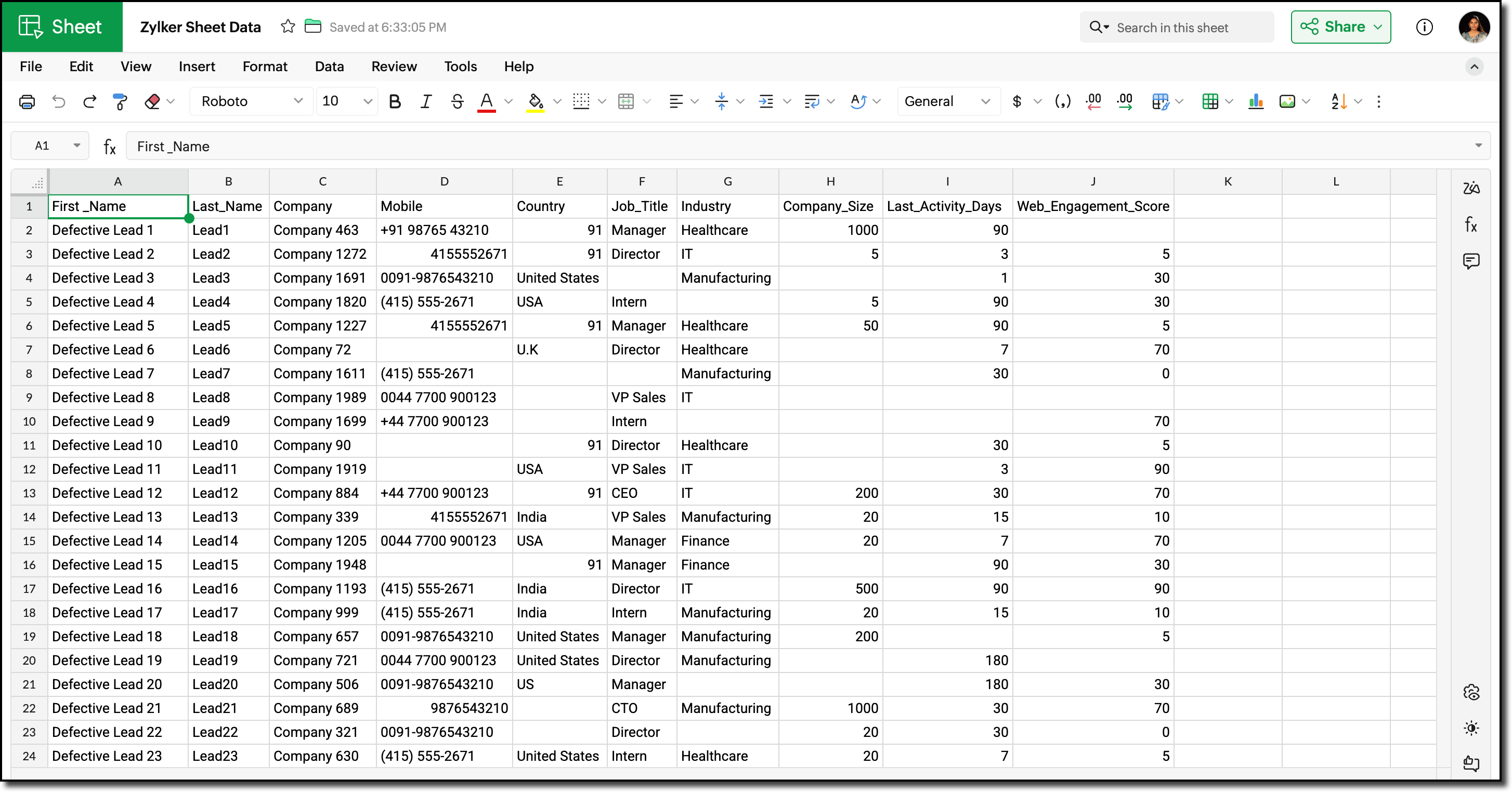
Post-migration, the Lead data showed the following inconsistencies and challenges:
- Phone number field did not include country codes, or contained incorrect country codes. This inconsistency made it difficult for sales teams to contact Leads reliably.
- Identifying potential Leads for follow-up required manual effort and marketing team has to run generic campaigns without lead segmentation.
Using workflows before record creation to fix phone numbers for this volume would result in 3 lakh individual workflow executions, which can slow imports and cause partial failures.
Solution Overview
Zylker can use the CRM Bulk Data Processor available in Catalyst Solutions to address these challenges at scale.
The solution works as follows:
- Lead records are fetched in bulk from Zoho CRM using the Bulk Read API.
- The fetched data is temporarily stored to evaluate the priority and quality of each record. Based on this evaluation, the records are also segmented accordingly.
- The Country field value is used to identify and append the correct country code to the phone number.
- The processed records are updated back into Zoho CRM using Bulk Write API.
All operations are executed using pre-configured Catalyst resources provided by the CodeLib. You can explore the Bulk Data Flow in Catalyst help page to understand how each resource participates in the processing pipeline.
Prerequisites
Before you begin, ensure the following:
1. Log into your Zoho CRM and navigate to Setup > Customization > Modules and Fields > Leads.
Create the following custom Single Line fields to map existing record data in Zoho CRM.
- Last Activity Days
- Web Engagement Score
Refer to the Working with Custom Fields help page for detailed guide.
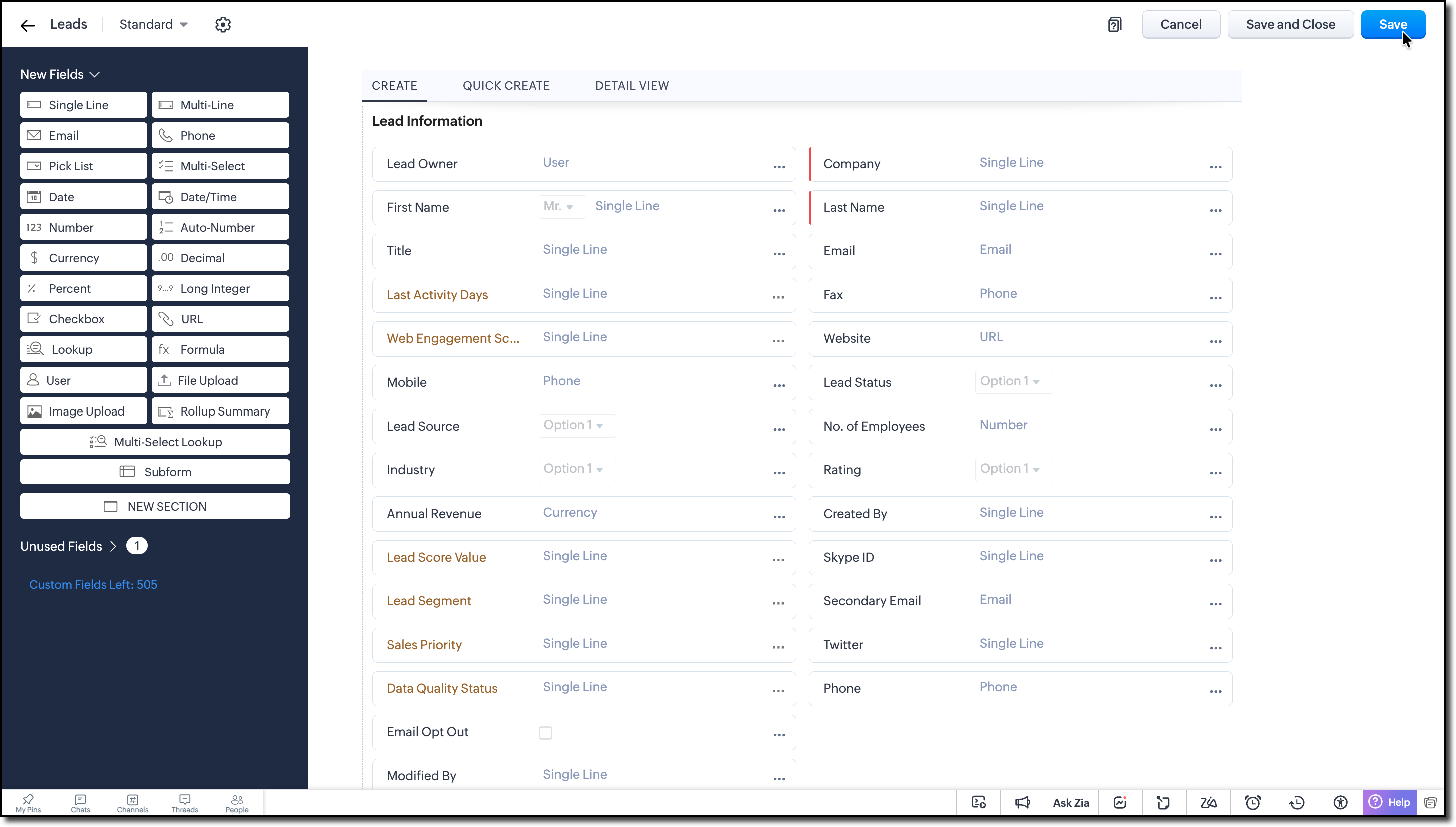
2. Create the following custom Single Line fields to store the calculated values during bulk processing:
- Lead Score Value
- Lead Segment
- Sales Priority
- Data Quality Status
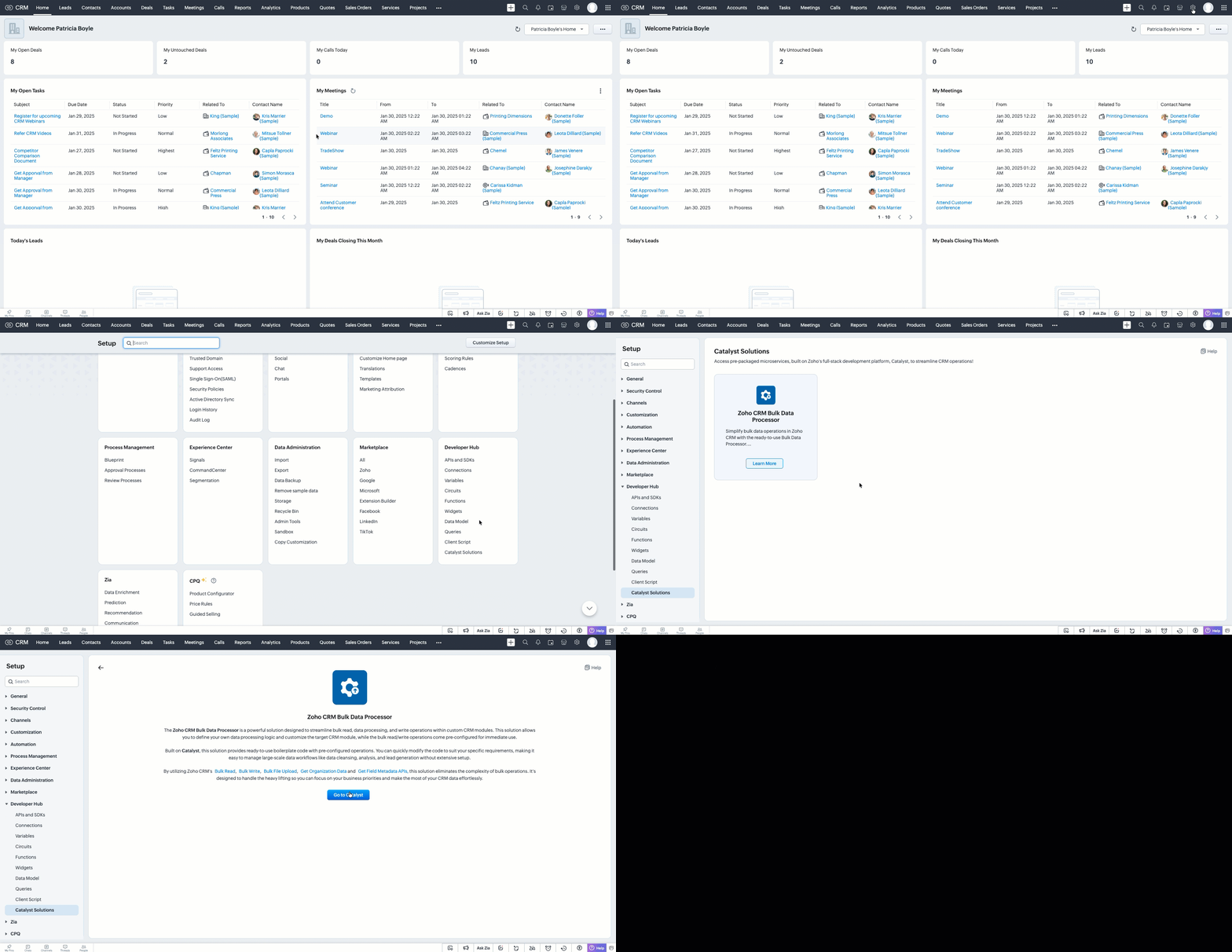
3. Go to Setup > Developer Hub > Catalyst Solutions > Zoho CRM Bulk Data Processor.
4. Click Go to Catalyst and create a Catalyst account if required.
5. Refer to the Catalyst CLI Installation Guide and install it on your local system.
6. Create a new folder on your local system, which will act as a local project directory. Use the following command:
mkdir -p <folder_name> |
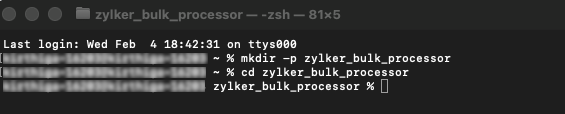
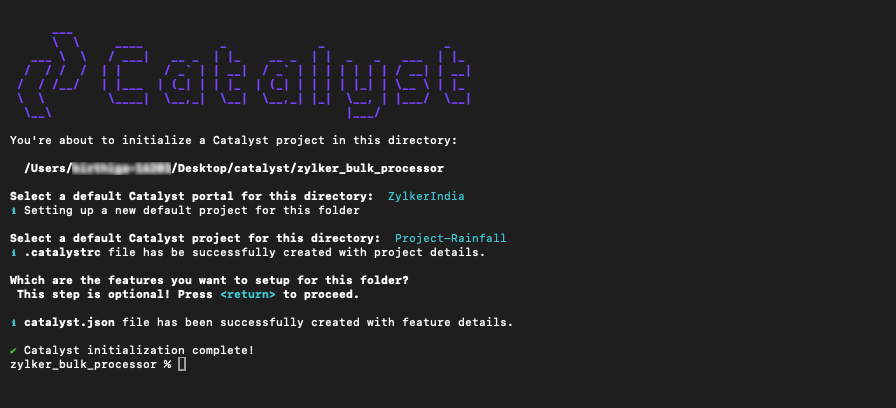
7. Navigate to the project folder in your terminal and execute the following command:
catalyst init |
8. Follow the prompts to select and initialize your desired project from the Catalyst console.
When prompted to choose a feature, press Enter and proceed without choosing any feature.
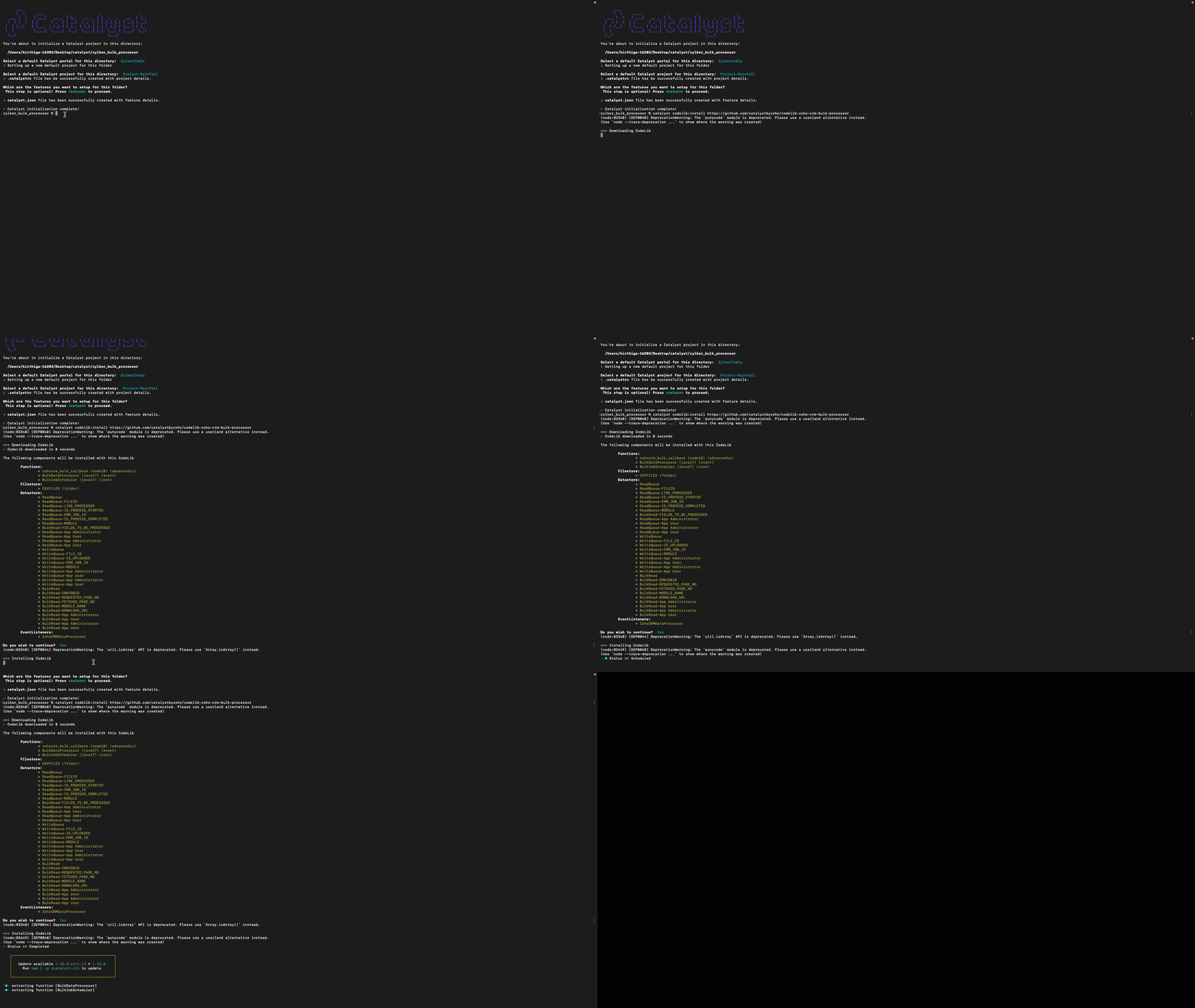
9. Run the following command to install the CRM Bulk Data Processor CodeLib.
catalyst codelib:install https://github.com/catalystbyzoho/codelib-zoho-crm-bulk-processor |
Step 1: Create a Cron Job
1. Open the Catalyst Console and navigate to the same project in which you have installed the CRM Bulk Data Processor CodeLib.
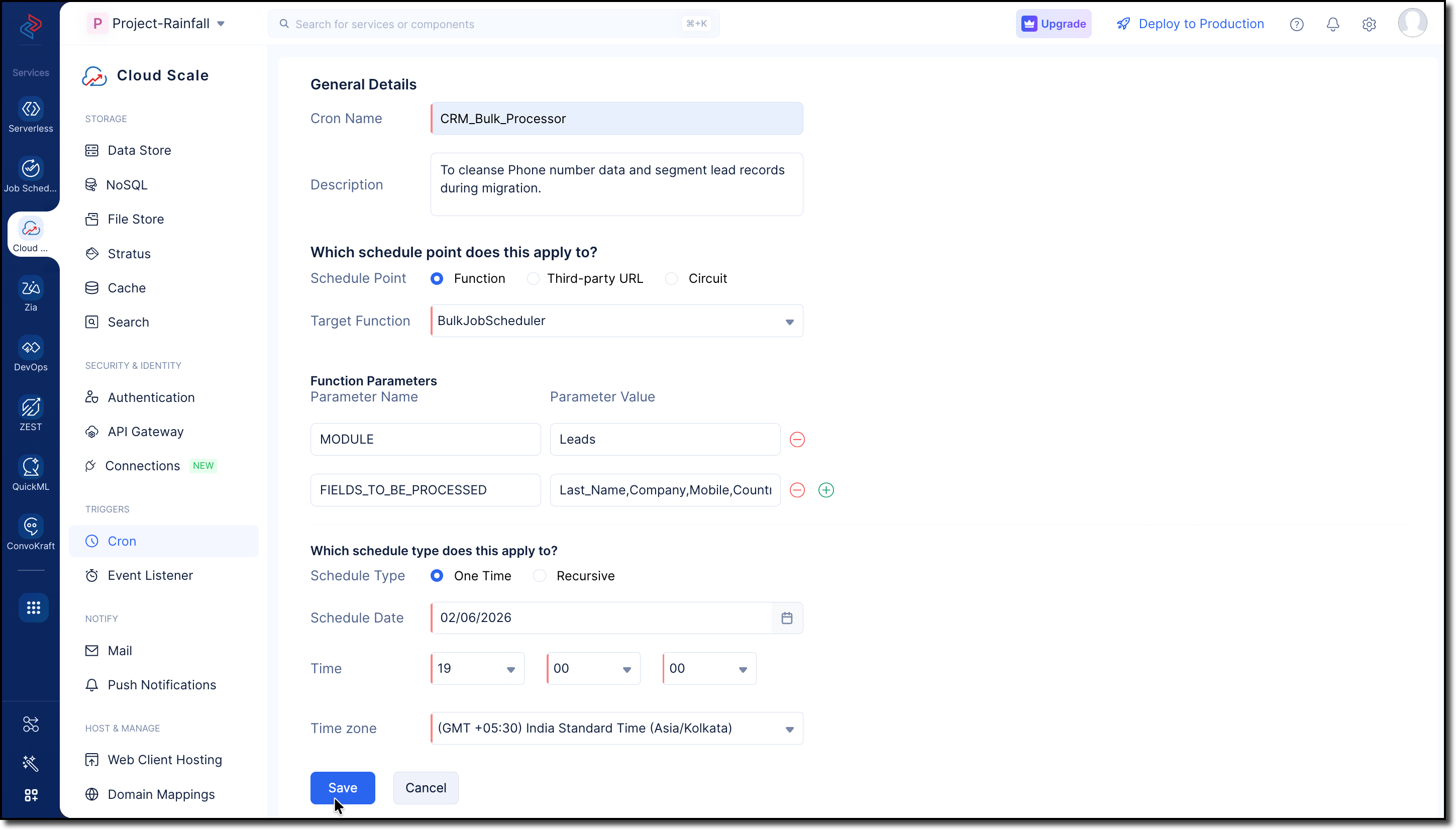
2. Go to Cloud Scale > Triggers > Cron and click Create Cron.
3. Fill in the following details:
- Provide a Name and Description for the cron job.
- Select Function and choose BulkJobScheduler from the dropdown in the Target Function field.
- Enter the following parameters and values:
MODULES -> Leads
FIELDS_TO_BE_PROCESSED -> Last_Name, Company, Mobile, Country, Designation, No_of_Employees, Web_Engagement_Score, Lead_Score_Value, Lead_Segment, Sales_Priority, Data_Quality_Status
Use GET Modules Metadata API and GET Fields Metadata API to get the API names of the required module and fields.
- Choose the Schedule Type as One Time for our use case.
Refer to the Implementing Cron Jobs Help Guide for more details.
Step 2: Configure Zoho CRM API Credentials
1. Create a self-client application in Zoho's API Console.
2. Generate a Grant Token with the following scopes:
- ZohoFiles.files.ALL
- ZohoCRM.bulk.ALL
- ZohoCRM.modules.ALL
- ZohoCRM.settings.ALL
- ZohoCRM.org.ALL

3. Follow the OAuth Help Section for a step-by-step guide to generate Access and Refresh tokens for your Zoho CRM organization.
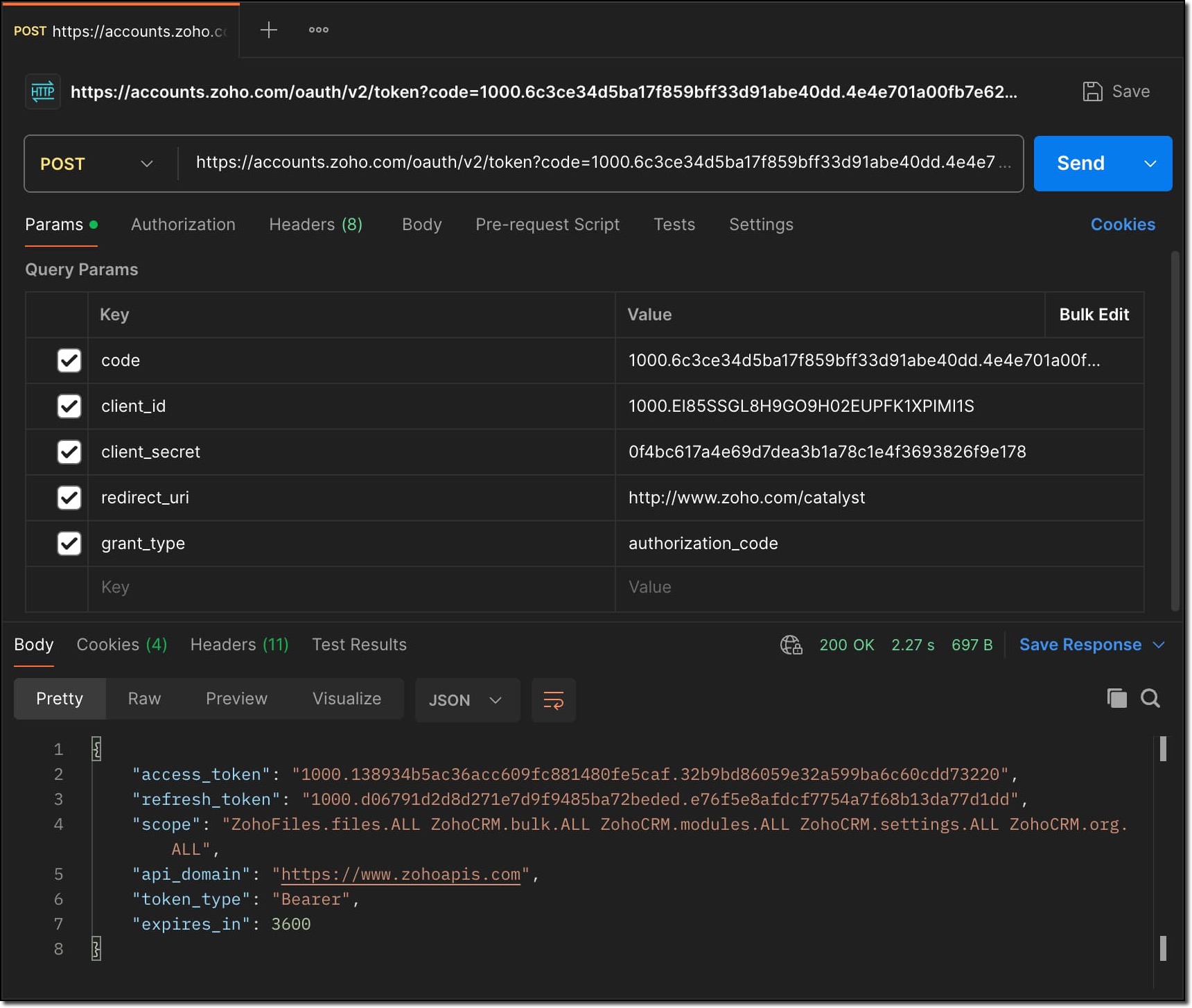
Store all the API credentials securely for later use.
4. To allow Catalyst to access Zoho CRM data, configure the stored API credentials as environment variables in the catalyst-config.json file within the BulkDataProcessor function.
For detailed guidance, refer to the Configure Function Components help guide in CRM Bulk Data Processor.

These environment variables are used by Catalyst Connectors to create access tokens for establishing secure connection between Zoho CRM and Catalyst.
Step 3: Add Business Logic
1. Go to com.processor.record.ZCRMRecordsProcessorImpl.java file of the BulkDataProcessor in the functions directory.
2. Override the ZCRMRecordsProcessor method with the business logic.
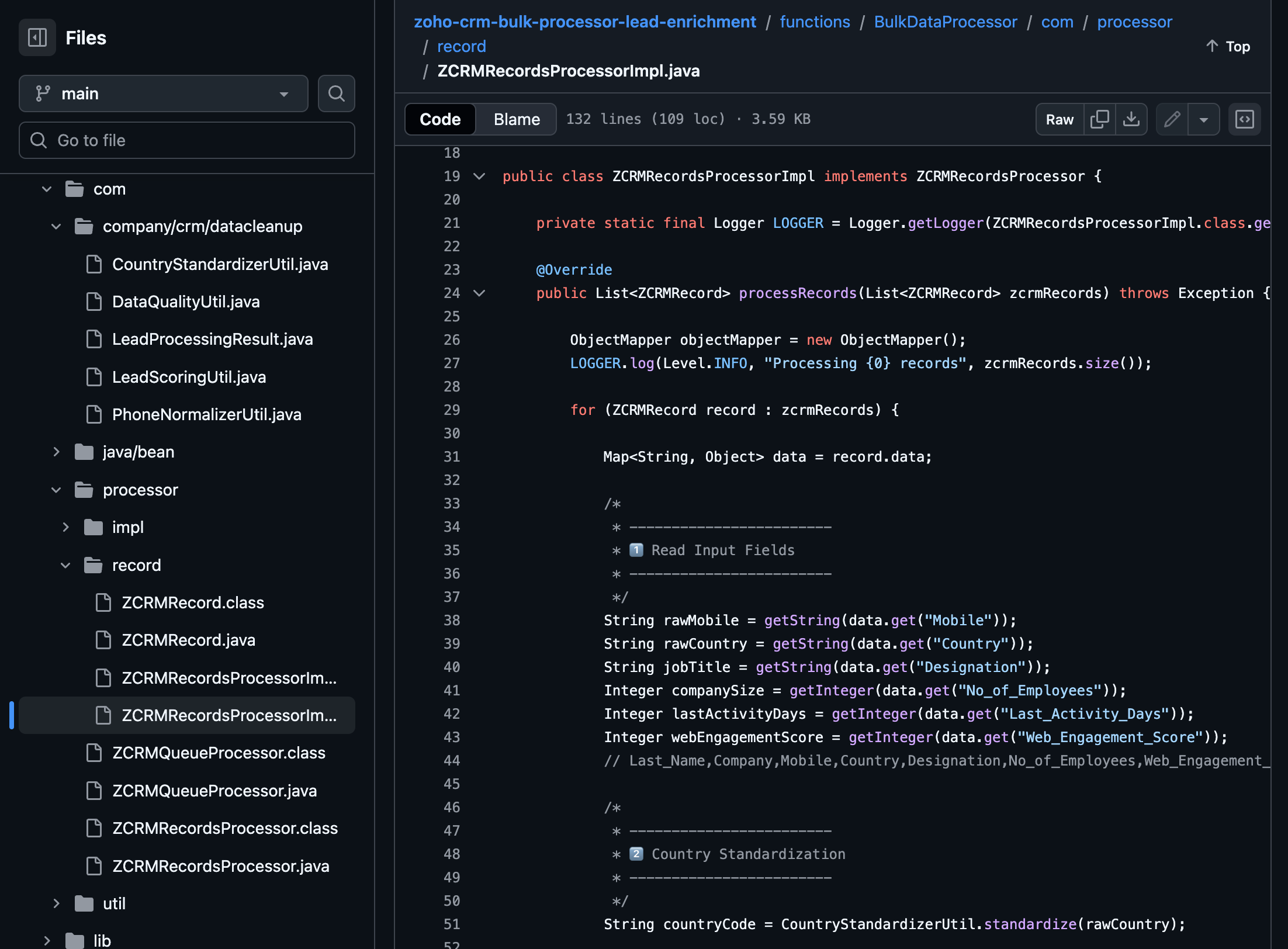
The complete code sample for this use case is available on GitHub for reference.
Following is the major custom logic used here:
Use the GET Fields Metadata API to fetch the API names of the fields required throughout the custom logic.
Phone Number Normalization:
This can be implemented in two stages, Country standardization and Phone Number formatting.
For country standardization, CountryStandardizerUtil maps different variations of the Country field in records to a single standardized country identifier. These variations may include,
- Country Names (India, Unites States, United Kingdom)
- Abbreviations (Ind, IN, USA, US, UK)
- Calling Codes (+91, +1, +44)
With this, we can ensure different interpretations of the same country are interpreted consistently during the process.
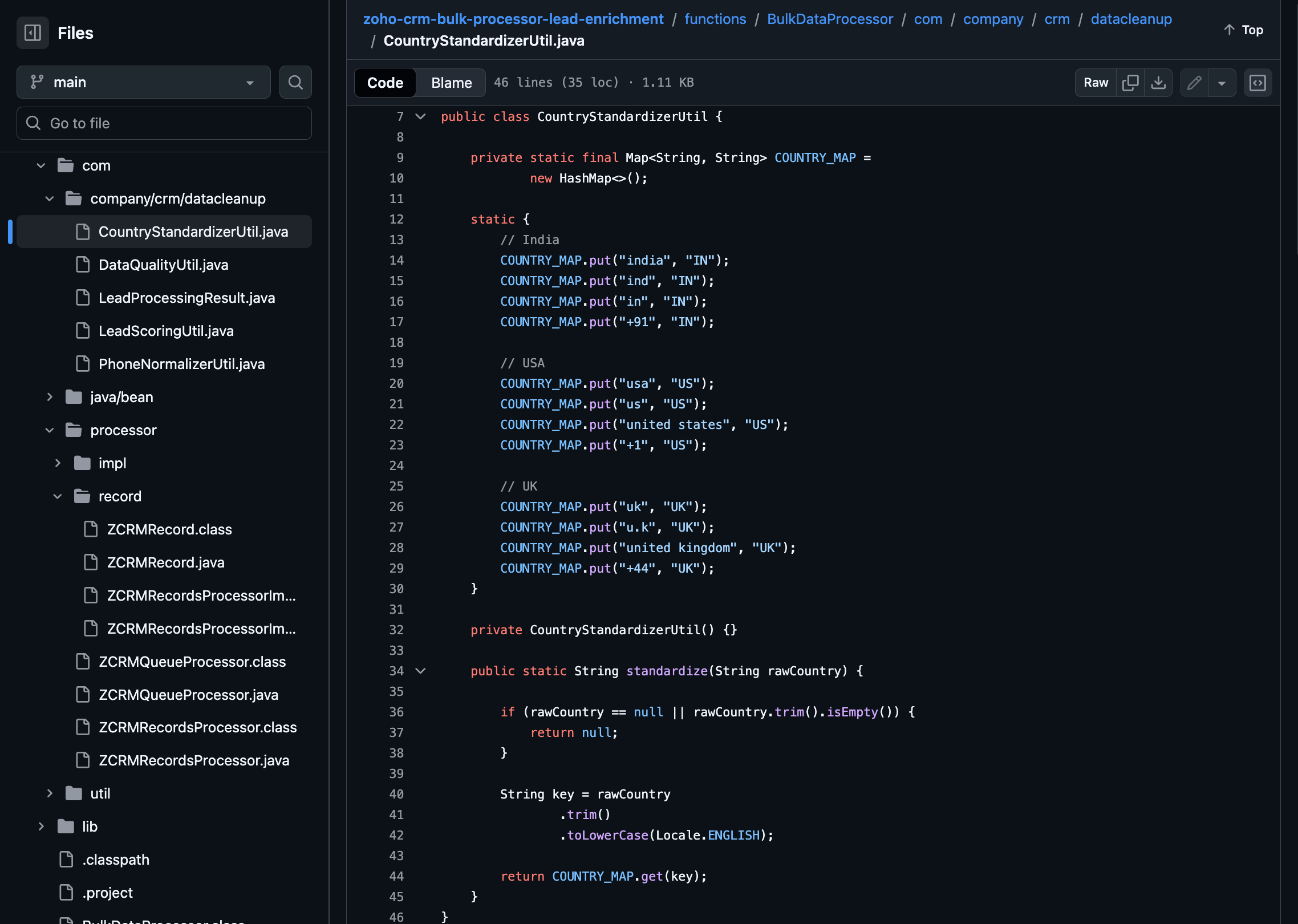
Once the country is standardized, Phone Numbers are formatted to E.164 format in the PhoneNormalizerUtil.
It removes all non-numeric characters and converts the Phone input to E.164 format with the respective country codes.
public class PhoneNormalizerUtil { private static final Pattern NON_DIGIT = Pattern.compile("[^0-9]"); public static Optional<String> normalizeToE164(String rawPhone, String countryCode) { if (rawPhone == null || rawPhone.trim().isEmpty()) { return Optional.empty(); } String digits = NON_DIGIT.matcher(rawPhone).replaceAll(""); if (rawPhone.startsWith("+") && digits.length() >= 10) { return Optional.of("+" + digits); } switch (countryCode) { case "IN": return normalizeIndia(digits); case "US": return normalizeUS(digits); case "UK": return normalizeUK(digits); default: return Optional.empty(); } } private static Optional<String> normalizeIndia(String digits) { if (digits.length() == 10) { return Optional.of("+91" + digits); } if (digits.startsWith("91") && digits.length() == 12) { return Optional.of("+" + digits); } return Optional.empty(); } private static Optional<String> normalizeUS(String digits) { if (digits.length() == 10) { return Optional.of("+1" + digits); } if (digits.startsWith("1") && digits.length() == 11) { return Optional.of("+" + digits); } return Optional.empty(); } private static Optional<String> normalizeUK(String digits) { if (digits.startsWith("44") && digits.length() == 12) { return Optional.of("+" + digits); } if (digits.length() == 10) { return Optional.of("+44" + digits); } return Optional.empty(); } } |
Lead Priority and Segmentation
The lead priority is calculated using the Title, No of employees, Last Activity Days and Web Engagement Score fields in the record.
Each field value contributes a predefined number of points:
- If the job title indicates a senior role such as CEO, CTO, Director, or VP, 25 points are added.
- If the company size is 200 employees or more, 20 points are added.
- If the Lead has been active within the last 7 days, 15 points are added.
- If the web engagement score is 70 or higher, 10 points are added.
The sum of all applicable factors is returned as an integer and based on this score the lead's priority and segmentation is assigned as follows:
- High (Hot): score ≥ 70
- Medium (Warm): score ≥ 40
- Low (Cold): score < 40
public static int calculateLeadScore( String jobTitle, Integer companySize, Integer lastActivityDays, Integer webEngagementScore) { int score = 0; // Decision Maker if (jobTitle != null) { String title = jobTitle.toLowerCase(); if (title.contains("ceo") || title.contains("cto") || title.contains("director") || title.contains("vp")) { score += 25; } } // Company Size if (companySize != null && companySize >= 200) { score += 20; } // Recency if (lastActivityDays != null && lastActivityDays <= 7) { score += 15; } // Engagement if (webEngagementScore != null && webEngagementScore >= 70) { score += 10; } return score; } public static String deriveSegment(int score) { if (score >= 70) return "Hot"; if (score >= 40) return "Warm"; return "Cold"; } public static String derivePriority(String segment) { switch (segment) { case "Hot": return "High"; case "Warm": return "Medium"; default: return "Low"; } } |
Lead Quality:
Lead quality is evaluated based on the validity of the Mobile and Country fields in the records.
- Clean: Both field values are valid.
- Critical: Both field values are invalid.
- Needs Review: Only one of the field values is invalid.
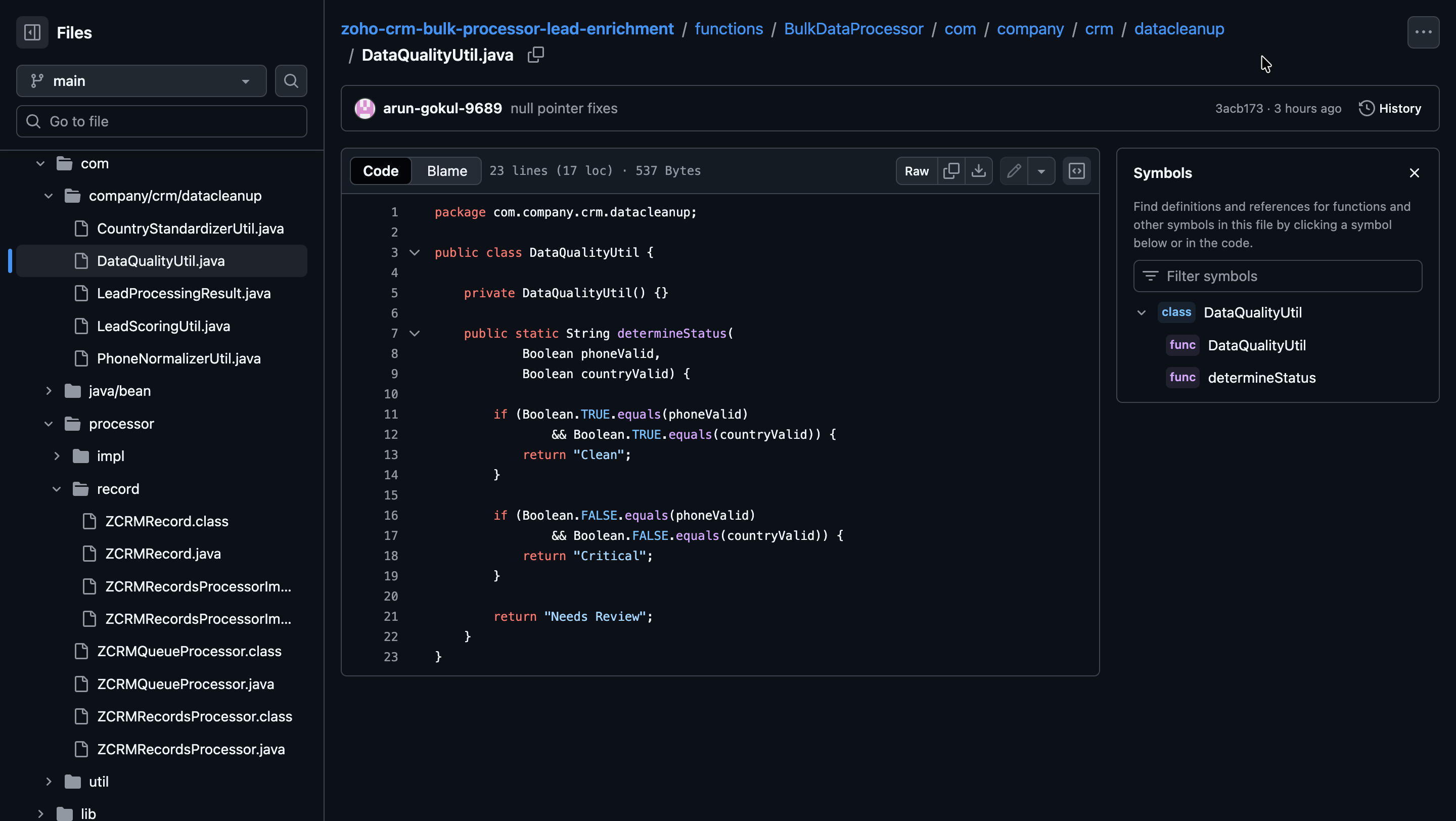
Write Back to Records:
The processed data is written back to Zoho CRM as follows:
- Mobile: Formatted phone numbers.
- Lead Score: Total score calculated from all applicable fields.
- Lead Segment: Segment derived from the lead score.
- Sales Priority: Priority assigned based on the lead segment.
- Data Quality Status: Overall quality of the Lead record.
if (normalizedMobile.isPresent()) { data.put("Mobile", normalizedMobile.get()); } data.put("Lead_Score", leadScore); data.put("Lead_Segment", leadSegment); data.put("Sales_Priority", salesPriority); data.put("Data_Quality_Status", dataQualityStatus); } |
Step 4: Deploy to Development
Run the following command to deploy your local customizations to the Development Environment of Catalyst.
catalyst deploy |

You can find the complete code sample on GitHub for reference.
Try it Out!
With the changes deployed to the Development environment, let us now test the solution.
We hope this Kaizen helps you import large volumes of data into Zoho CRM while improving data quality and lead intelligence using the CRM Bulk Data Processor.
Have questions or suggestions? Drop them in the comments or write to us at support@zohocrm.com.
We will circle back to you next Friday with another interesting topic.
On to Better Building!
--------------------------------------------------------------------------------------------------------------------------

Previous Kaizen: Client Script Support for List Page (Canvas) | Kaizen Collection: Directory
--------------------------------------------------------------------------------------------------------------------------
New to Zoho Recruit?
Zoho Campaigns Resources





Topic Participants
Kiruthiga G
Sticky Posts
Kaizen #198: Using Client Script for Custom Validation in Blueprint
Nearing 200th Kaizen Post – 1 More to the Big Two-Oh-Oh! Do you have any questions, suggestions, or topics you would like us to cover in future posts? Your insights and suggestions help us shape future content and make this series better for everyone.Kaizen #226: Using ZRC in Client Script
Hello everyone! Welcome to another week of Kaizen. In today's post, lets see what is ZRC (Zoho Request Client) and how we can use ZRC methods in Client Script to get inputs from a Salesperson and update the Lead status with a single button click. In thisKaizen #222 - Client Script Support for Notes Related List
Hello everyone! Welcome to another week of Kaizen. The final Kaizen post of the year 2025 is here! With the new Client Script support for the Notes Related List, you can validate, enrich, and manage notes across modules. In this post, we’ll explore howKaizen #217 - Actions APIs : Tasks
Welcome to another week of Kaizen! In last week's post we discussed Email Notifications APIs which act as the link between your Workflow automations and you. We have discussed how Zylker Cloud Services uses Email Notifications API in their custom dashboard.Kaizen #216 - Actions APIs : Email Notifications
Welcome to another week of Kaizen! For the last three weeks, we have been discussing Zylker's workflows. We successfully updated a dormant workflow, built a new one from the ground up and more. But our work is not finished—these automated processes are
Zoho CRM Plus Resources
Zoho Books Resources
Zoho Subscriptions Resources
Zoho Projects Resources
Zoho Sprints Resources
Zoho Orchestly Resources
Zoho Creator Resources
Zoho WorkDrive Resources


Zoho CRM Resources
Get Started. Write Away!
Writer is a powerful online word processor, designed for collaborative work.
Zoho CRM コンテンツ
-
オンラインヘルプ
-
Webセミナー
-
機能活用動画
-
よくある質問
-
Ebook
-
-
Zoho Campaigns
- Zoho サービスのWebセミナー
その他のサービス コンテンツ
ご検討中の方
Recent Topics
[Webinar] Zoho Writer for content creators and publishing houses
Managing multiple drafts, edits, and client reviews doesn't have to slow you down. Join our upcoming webinar to see how Zoho Writer helps content creators and publishing houses create, edit, and publish seamlessly—all in one place. You'll learn how to:Adding Reports to Portals
Is there a way to add Reports to portals so only the user can see report templates relevant to them?How to assign one Manual to multiple Spaces?
Hello, I have two spaces, one called tech knowledge and the other one called HR knowledge. I have a manual that is called HR tech. I want to assign this manual to HR knowledge and tech knowledge. How should I do that?Introducing VeriFactu Support in Zoho Books
Hello users, Spain has introduced the VeriFactu system under Real Decreto 1007/2023 to ensure integrity, traceability, and anti-fraud compliance in e-invoicing. Starting January 1, 2026, all B2B invoices must be reported to Agencia Estatal de AdministraciónHow can I assign courses to Spaces?
How can I make courses show up here in this space?:When will Zoho Learn be able to support SCORM files on the mobile app?
When I click the SCORM content, I just get a message saying it's not possible yet. Yet implies that it will be coming soon. All I'm asking for is a realistic timeline so I know whether or not to invest my time in using it. If it will be soon, then I willAnnouncing new features in Trident for Windows (v.1.35.6.0)
Hello Community! Trident for Windows just got better with an update that makes working with your emails even more efficient. Let’s dive into what’s new! Work with PST files more efficiently. You can now do more than just view mounted PST files. You canMarketing Tip #9: Track your traffic sources
Not all marketing channels work equally well. Knowing whether your visitors come from Google, Instagram, or email helps you focus on what actually drives sales. Try this today: Check your Zoho Commerce reports or connect Zoho PageSense to see your topGoogle Analytics import data inaccurate (as of October 11, 2025)
We have Zoho Analytics connected to GA4 to import daily event data. This has been running without issue for a couple of years. However, a month ago we started noticing discrepancies. All data until October 10 lines up perfectly - October 11 onward isPrevent accidental duplicate entry of Customer Ordersome
Zoho Support has confirmed that Zoho currently does not have any method (using Deluge, flow or any other method) to alert a user when a sales order has been entered twice using the same customer reference number (i.e. a duplicate). Most ERP platformsZoho Books | Product updates | November 2025
Hello users, We’ve rolled out new features and enhancements in Zoho Books. From translating email notification templates to the new transaction locking restrictions, explore the updates designed to enhance your bookkeeping experience. Making Tax DigitalInsert Image into Notebook page
Prior to today, I could add images to my notebook pages. Today when I tried to do this I got an error message that said something like, "There's been a problem on our end. Try again later." So, I've tried all the ways I know how, but I can't insert an【開催報告】名古屋 ユーザー交流会 Vol.2 2025/11/21 Zoho Analytics / Inventory で実現する在庫の"未来予測"
ユーザーの皆さま、こんにちは。コミュニティチームの中野です。 11/21(金)に名古屋 ユーザー交流会 を開催しました。 本投稿では、当日実施したセッションの様子及び投影資料をお届けします。 会場にて参加できなかった皆さまも、ぜひご参照ください。 (Zoho 社員セッションの登壇資料については、11/28(金)開催の東京回の開催報告で共有いたします) 今年2回目の開催となる名古屋 ユーザー交流会では、株式会社エンツナクリエイト 野末さんによる Zoho Analytics / InventoryIs there a way to automatically add Secondary Contacts (CCs) when creating a new ticket for specific customers?
Some of our customers want multiple contacts to receive all notifications from our support team. Is there a way to automatically add secondary contacts to a ticket when our support team opens a new ticket and associates it with an account? This wouldImproved RingCentral Integration
We’d like to request an enhancement to the current RingCentral integration with Zoho. RingCentral now automatically generates call transcripts and AI-based call summaries (AI Notes) for each call, which are extremely helpful for support and sales teams.Edit Pinned Comments in Zoho Desk
It's great that private comments can now be pinned to the top of the ticket but what would be extremely helpful would be to allow for the pinned comment to be edited vs. having to find the comment in the ticket to edit it.Updating Secondary Contact (CCs)
We use Zoho Forms to capture the user request and integrated with Zoho Desk to raise tickets. Active Microsoft login is captured in our Zoho forms and registered as Primary contact in Zoho desk ticket. We also an have an option to raise ticket on behalfblank page after login
blank page after logging into my email account Thanks youWriterTh
After every space Writer goes to capital letters mode in my Android tablet. The cap mode stays till the second letter is typed in the word then it comes to normal mode.Zoho writer unable to merge documents to PDF with basic fonts in Hebrew or fonts from my computer
I created several forms that will be merged into PDF files through Zoho Writer and I am unable to receive the PDF in the basic fonts of the Hebrew language or in the fonts I have on my computer. The writer exports to PDF an exchange font that looks veryI have already created some Bots, Commands, and Widgets in Cliq, but I am still not seeing the “Create Extension” option in my account. Could you please help me enable or access this option?
Infinite loop of account verification
Hi I can't do anything on my zoho account. I always get this message Hi Sheriffo Ceesay As a security measure, you need to link your phone number with this account and verify it to proceed further. When ever I supply the details, it displays that the number is associated with another account. I don't have any other account on zoho so this is really annoying.How we cut CRM updates from ~20 minutes down to 2, our real workflow
Updating the Zoho CRM after every call used to be one of the biggest time sucks for our team. By the time you write your notes, clean them up, fill in the fields, and log everything properly… you’ve easily lost 15–20 minutes per call. We started experimentingArattai App Features Update
1. Offline Messaging & Sync Enable users to compose messages without internet and deliver them automatically via peer-to-peer methods (Bluetooth/WiFi Direct) when nearby users are available. This would be a game-changer for rural India with unreliableHow to add Product Add-Ons, Mandatory Forms, and Auto-Save Address in Zoho Commerce
Hi all, I need help setting up several behaviors in Zoho Commerce. I can’t find the correct configuration options, so I want to confirm whether these are supported or if there is a workaround. 1. Product-Specific Add-Ons (Example: GWB Subscription) WhenZohomail
Im trying to setup email address zohoPROBLEMA
Salve, non riesco a inviare email, e mi esce una tabela errore temporaneo. come posso risolvere il problema ?Forever FREE Business Email with Zoho Mail
Forever FREE Business Email with Zoho Mail: is it available?Weekly Tips : Make collaboration effortless with Whiteboard in Zoho Mail
Working with your team often means switching between emails, notes, and other applications just to explain an idea. Maybe you are trying to sketch a layout, plan a workflow, or quickly brainstorm ideas—with text alone, things can get confusing. So howFormula field number of days between 2 dates
Hi, I want to have a formula field which calculates the following: IF EndDate < TODAY and Oproep is true (this is a checkbox field) than EndDate - StartDate, otherwise TODAY - StartDate It should calculate the number of days How can I write this for'email address already exists'
I deleted a user from my organization and want to use the same email address that user had, but the email address seems to still exist somewhere as I get 'email address already exists' when I try and create it. I have deleted the entire organization andZOHO reporting DKIM entries are not configured, when they have been configured and verified by 3rd parties
Why is ZOHO reporting to my organisation users the following: "The DKIM entries in your domain's DNS records are not configured. Please contact your administrator for configuring DKIM to ensure optimal RSVP invite delivery." When I have configured theManage Bookings directly from Zoho Mail
Greetings from the Zoho Bookings team! We’re introducing the new Zoho Bookings extension for Zoho Mail, designed to help you view appointments, copy time slots and share booking links without leaving your inbox. This integration brings scheduling rightMy notes from the past 2 months have disappeared
Hola, necesito ayuda urgente. Hoy, al iniciar sesión en mi Zoho Notebook como todos los días, me llevé una gran sorpresa al descubrir que todas mis notas de los últimos dos meses habían desaparecido. Estas notas son muy importantes para mí, ya que usoHow can I load a network into the cliq desktop app?
I have both the standard cliq log in for my org and I am part of a cliq network. In the browser I can choose which I log in to. However, in teh desktop app if I log in it will alwasy load my org's cliq. Can I switch this to the network I have createAbility to modify what displays in calendar invite?
I am a long time calendly user and want to make the switch to bookings. I understand that there is not currently a meets/hangouts integration, is one on the roadmap? Is there anyway I can modify the calendar invite to include the meet link? I can add it to the emails no problem, but I would also like it to display on their calendar. Is there some work around I can do to get it on the calendar? Also am I able to modify the calendar event title?Issue with Booking Confirmation Page Not Displaying, Leading to Customer Anxiety and Unnecessary Support Calls
I am writing to express my growing concern regarding the confirmation process in Zoho Bookings, particularly the inconsistent display of the confirmation page after a successful payment. As a mobile service provider, I rely on Zoho Bookings platform forIs it possible to turn off all capabilities for a customer to schedule, reschedule or cancel an appointment?
Is it possible to turn off all capabilities for a customer to schedule, reschedule or cancel an appointment? I would like to set it up so only staff can schedule appointments. Is this possible?Is there a way to generate a virtual meeting for a group service in Zoho Bookings?
Are virtual meetings not supported for group services/meetings? I have integrated Zoom with one-on-one services, but I need a way to create an online group meeting. ThanksWhere we can change the icon in social preview
Hi, we changed our logo, and the image that appear in preview (ex : when we post a appointment link somewhere) is still our old logo. I did change our logo in the org setting. https://bookings.zoho.com/app/#/home/dashboard/settings/basic-info?clview=falseNext Page