2025 Ask the Experts sessions wrap-up : Key highlights from the experts

Here is a rewind journey of our Ask the Experts (ATE) Sessions, where we brought you expert insights and practical best practices together in one place. This recap highlights the key takeaways, learnings, and best practices from all these sessions so you have everything in one place.
Insights from Zoho Desk: A year of listening, learning, and connecting
In every Ask the Expert (ATE) session, we received a diverse mix of questions. We addressed a variety of requests, ranging from tailored business solutions to customized feature requests and tips to support their businesses better.
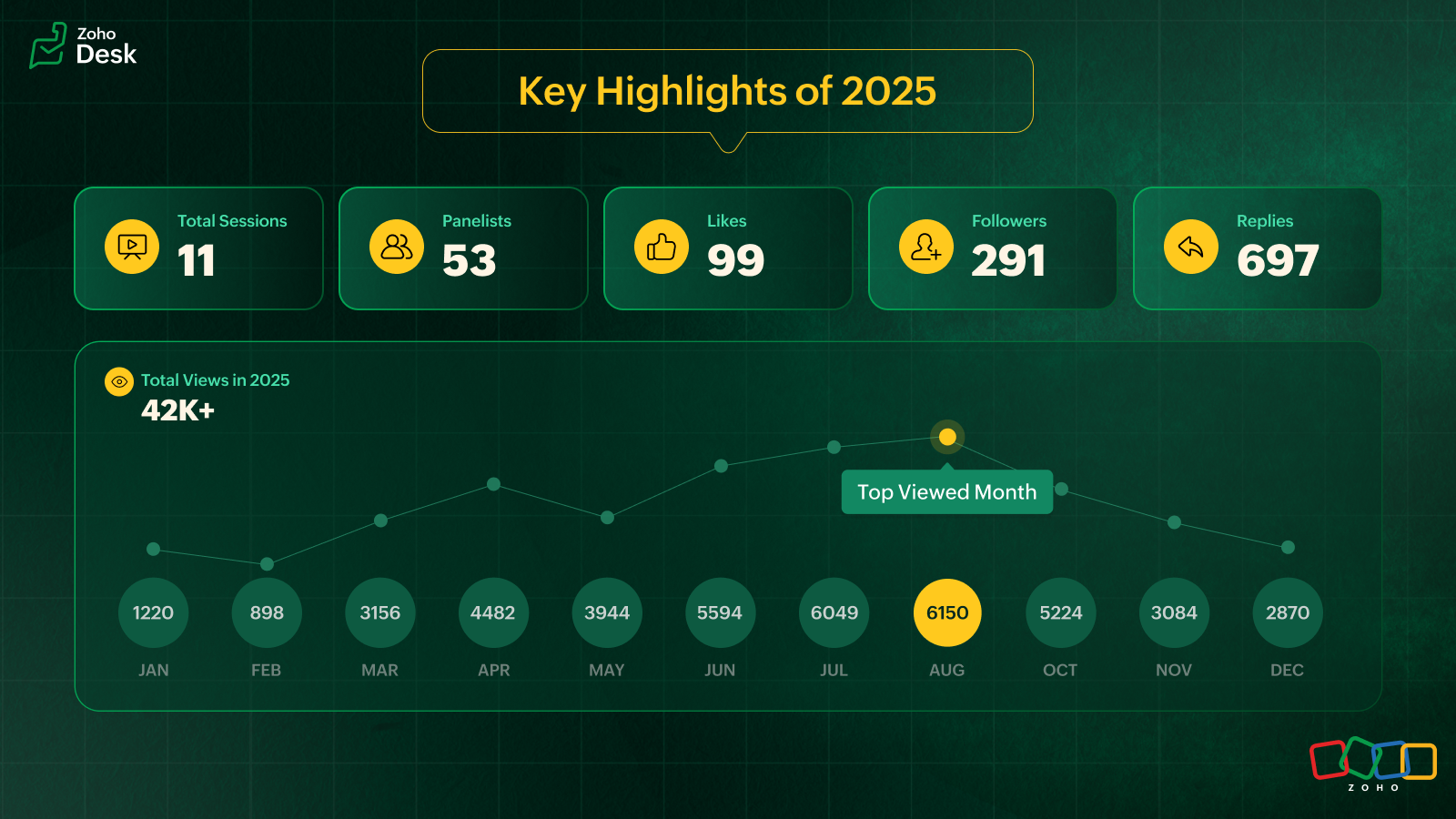
In 2025, we hosted 11 ATE sessions covering a wide range of Zoho Desk features and modules, designed to help teams get the most out of the platform. We brought together panelists from across Zoho Desk to share real-world expertise for every business.
Live video ATE
ATE 19 focused on the 2025 Spring release. We hosted live sessions in a webinar style. This session was eventful as users got to interact with and listen to our panelists live. After the session, the panelists followed up with all the users over tickets and offered sessions to help users with customized solutions.
In an attempt to cater to as many of our users across the globe as possible, we hosted two live sessions: one serving users in Australia, Asia, and the Middle East, and the other to connect with users across the US and Europe. Here's a walkthrough of the sessions: Inside Zoho Desk Spring Release 2025 and Zia in Focus.
Ask the Experts, 2025, addressed various topics covering all the modules within Zoho Desk
- Onboarding and getting started with Zoho Desk
- Multichannel support and self-service portals
- Automation and AI with Zia
- Integration, accessibility, and personalization
- Analytics, data administration, and mobile apps
- Spring and Autumn releases for 2025
We wrapped up the ATE series in December with The Merry Metrics Edition = Best of Zoho Desk [Best Practices + Holiday Automation + Year-End Insights]
Guest panelists
In the ATE themed around integrations and extensions, we partnered with RingCentral. Luis Vargas and Matthew Ludwig from RingCentral shared the panel with Zoho Desk experts to discuss best practices for integrating RingCentral's telephony system with Zoho Desk.
ATE 2025 highlights: Best practices you should know
I. Migrating to Zoho Desk? Here's what you shouldn't miss
For simple and straightforward CSV imports, try the UI import feature to import data into your Zoho Desk account. Zoho Desk is equipped with dedicated templates to process and accept data from known help desk services like Freshdesk, Zendesk, Salesforce, Kayako, Help Scout, HappyFox, and others. For unsupported services, a CSV file is accepted.
To export data from the source service, submit a Zwitch form for migration. Share the required details relating to department mapping, agent mapping, and more in the Zwitch note section of the form.
Once the data is evaluated, the migration will be initiated. The migration engineer will follow up with you regarding the import and if there are cases of invalid files, source portal inaccessibility, or destination OAuth issues.
The migration time depends on the queue length and the volume of data being handled. On completion, a migration report will be shared.
You can also share the residual/delta backup via Zwitch. Residual requests are normally expected within two weeks of the full data import. The migration process for the residual import happens like the Zwitch migration.
Points to remember
- The migration data and information will be retained for 30 days and then wiped off from our import engine. This is in compliance with GDPR and its regional counterparts across the globe.
- Upon migration completion, a report will be shared with a module-wise list of all completed and failed entities with reasons for failure. Data availability and integrity are assured by the end of data transit.
Precaution
Please ensure imported entities aren't deleted/trashed from your help desk service until the completion of the last import batch.
From @Gopalavasan G G Ask the Experts 16: A 5-hour Live Q&A - Tackling Zoho Desk's Onboarding Challenges

II. Optimizing customer support across messaging platforms with Zoho Desk
Automate first-level support with Zia Answer Bots to reduce response times.
- Utilize chatbots to address frequently asked questions (FAQs), provide troubleshooting steps, and handle simple queries.
- Use preset replies and guided responses to help customers find quick solutions.
- Automate ticket creation and status updates to keep customers informed without human intervention.
Enable seamless hand-offs to human agents
- Design workflows where chatbots can connect to live agents based on the complexity of the queries.
- Provide agents with customer history from prior conversations across different platforms to avoid repetition.
Optimize response time with structured workflows
- Implement prioritization rules in IM tickets for priority cases (for example, billing issues or service disruptions).
- Set up automated notifications via custom notification for customers when their issue is being processed.
Utilize rich media for effective communication
- Allow customers to send screenshots, videos, or PDFs to clarify issues faster.
- Use videos to serve as engaging and quick troubleshooting guides.
Ensure channel-specific compliance
- WhatsApp: Requires approved message templates if beyond 24 hours.
- Facebook Messenger: Allows direct messaging for up to 7 days.
- Telegram: No restriction; allows an agent to message anytime.
- WeChat: Allows direct messaging within 48 hours.
- Line: Allows an agent to messages without restrictions.
- Instagram: Enables direct messaging within a 24-hour window.
Provide proactive support and notifications
- Send order updates, payment reminders, and appointment confirmations via automated messages.
- Implement triggered proactive chats based on customer behavior via WhatsApp (for example, abandoned cart reminders).
- Use push notifications on WhatsApp messaging apps to alert customers about service changes or outages.
Create a unified customer experience
- Ensure conversations remain consistent across platforms even if customers switch between apps and resume conversations from another app.
- Provide multi-language support via answer bots with automated translation where necessary.
@Ralph Martin from Ask the Experts 17: Elevate Customer Communication With Multichannel & Instant Messaging
III. Best practices for setting up an email channel
Setting up your email channel in Zoho Desk is key to streamlining your customer support process. The following approaches protect your brand and build trust with your customers.
- Default setup & branded forwarding: Use the default Zoho Desk support email (support@yourcompany.zohodesk.com) and configure email forwarding to your company's email (support@yourcompany.com) to auto-create a ticket for every customer's email.
- Email aliases for departments: Create specific email aliases like sales@yourcompany.zohodesk.com or billing@yourcompany.zohodesk.com for each department, and set up a forwarding rule from your from addresses (like sales@yourcompany.com or billing@yourcompany.com). This will automatically route emails to the appropriate departments, ensuring efficient query management.
- Forwarding verification: After setting up email forwarding, verify the process by checking for the confirmation ticket in Zoho Desk to complete the configuration.
- Secure email with SPF & DKIM: Update your domain’s DNS settings with SPF and DKIM records to prevent spam and spoofing. To bolster email security, DKIM is mandatory for all business-owned domains used in your "From Address" configuration. DKIM cannot be configured for "From" addresses hosted on public domains like Google, Outlook, or AOL; in such cases, you must use your own SMTP servers.
- Custom “From Address": Add and verify your custom "From Address" in Zoho Desk, and update your DNS with the necessary SPF and DKIM values. Verify your domain using the DKIM keys.
- Default domain name: In Zoho Desk, you cannot change the domain name in the default support email address. This domain name is set automatically based on your portal name when you sign up (for example, support@<mycompany>.zohodesk.com). Update it with a unique portal name by reaching out to support@zohodesk.com.
@Sumaya Howth from Ask the Experts 17: Elevate Customer Communication With Multichannel & Instant Messaging
IV. How does a telephony system enhance customer support in Zoho Desk?
Instantly identify your caller
- When a call comes in, the telephony system in Zoho Desk pulls up the caller’s name, phone number, and recent tickets.
- Agents can view contact details and related tickets before picking up the call.
Track every call automatically
- Every call, answered and missed, is logged as a Call Activity in Zoho Desk.
- Answered calls update in real time, while missed calls get recorded at the end of the ring.
- Call duration and status update automatically, keeping your records accurate.
Convert missed calls into actionable tickets
Configure Zoho Desk to create tickets for missed calls: inbound, outbound, or both. This ensures no customer inquiry falls through the cracks.
Handle unknown callers effortlessly
Zoho Desk automatically creates a new contact using the caller’s phone number for new contacts. Agents can edit and update details instantly.
Link calls to tickets for seamless tracking
- Agents can create a new ticket and associate the call activity with it or associate the call activity with an existing ticket.
- Zoho Desk automatically logs a call thread inside the ticket, keeping everything in one place.
- Call activity will be automatically associated with the ticket when you use click-to-call from the Ticket Detailed View.
Record call duration & summarize conversations
- A call timer runs in the background, helping agents track time spent on each call.
- Agents can add notes during the call and after the call.
- This call summary will be added to the call activity and to the ticket, if associated.
Never miss a voicemail or call recording
- If the PBX provider supports it, call recordings and voicemails appear in the call thread, complete with an audio player for easy access.
- Ensure fail-proof call handling
- If the system doesn’t detect an answered or ended call, agents can manually mark the call as answered or ended, ensuring accurate records despite vendor failures.
Keep calls organized with multiple tickets
Agents can create multiple tickets from a call while keeping the call linked to a single ticket.
Note: Creating a ticket automatically for every answered call is possible in Zoho Desk's enterprise edition via a custom function.
@Srini | Zoho Desk from Ask the Experts 17: Elevate Customer Communication With Multichannel & Instant Messaging

V. Enhancing self-service through Guided Conversations (GC) in Zoho Desk
Guided Conversations (GC) empowers businesses with structured, intuitive self-service through conversational flows. GC provides around-the-clock support and ensures a smooth transition from the bot to the support rep. It reduces agents' workload, minimizes response times by automating dynamic responses, and personalizes interactions based on user inputs. GC functions across the web, instant messaging, and mobile apps.
Tips to get the best out of GC
Structuring your flow
To prevent exceeding the 500-block limit, optimize your flow using the action blocks:
- Jump to flow – Redirect users to another flow instead of adding more blocks. It aids transition between different conversation sections.
- Fork – Split the conversation or branches logically into multiple paths efficiently.
- Button Block – Use buttons for seamless navigation across flows.
- Operation block – Executes predefined actions in a flow.
- Webhook – Connects with external services for data transfer
Maintain consistency in cards
Ensure uniform formatting on all cards. If the first card includes a title, image, and description, make sure all subsequent cards follow the same structure.
Ensure uniform formatting on all cards. If the first card includes a title, image, and description, make sure all subsequent cards follow the same structure.
GC uses different types of variables to store and retrieve user information, enabling personalized interactions across IM channels, web, and mobile apps.
- Block Variables – Store responses within a specific block (for example, a user’s name after input).
- Local Variables – Available only within the flow where they are defined (for example, a discount percentage used within the same flow).
- Global Variables – Shared across all departments and flows (for example, company name or logo).
- Session Variables – Specific to a user’s session and accessible across all flows (for example, country-based redirection using the Fork block).
- IM-specific variables – IM variables can retrieve user details and automate tasks. These help identify users by name and unique ID, associate contact details from IM channels, customize experience based on the IM channels, and perform automated actions like creating and updating existing tickets.
Transfer to Agent Block (IM-Specific)
To enable agent transfer in GC on ASAP, GC must be linked to a business messaging channel, that should be connected to the ASAP widget.
You can use Integration Blocks to connect Zoho Desk with Zoho Cliq instead of webhooks, which require manual setup and coding.
Track performance with GC flow metrics
GC flow metrics track performance at each block level, identify areas for optimization, and improve flow performance based on real user interactions.
Get the best out of your Guided Conversations (GC) flows, ensuring a smooth, efficient, and user-friendly experience across instant messaging (IM) channels, web, and mobile apps.
@Chaya Jayasankar from Ask the Experts 22: Scale up your customer support with integrations & extensibility
VI.I Key insights on the RingCentral and Zoho Desk integration
Seamless user experience: RingCentral call recordings play natively within Zoho, and the WebRTC integration ensures calls are logged from any endpoint, including mobile. This means no app switching and a complete view of the communication history within Zoho Desk.
Boost team efficiency: Agents can save time with click-to-call and instant screen pop-ups, providing customer context. Automated call logging reduces manual work, leading to faster resolutions and a better customer experience.
Enhanced collaboration & coaching: Easy access to call recordings within Zoho Desk helps with training and quality assurance. A unified view of all interactions fosters better teamwork.
Luis Vargas with RingCentral from Ask the Experts 22: Scale up your customer support with integrations & extensibility
VI.II Mistakes to avoid while using RingCentral
Poor setup & training: Don't skip defining workflows or training users; it's crucial for adoption.
Ignoring mobile logging: Ensure calls from the RingCentral mobile app are logged in Zoho Desk for full visibility.
Underutilization: Don't just use basic features; leverage custom dispositions and analytics for maximum benefit.
Expert insight: The core value is unified, accurate customer data. The native recording, playback, and universal call logging (even from mobile) are game-changers for seamless, efficient customer interactions.
Matthew Ludwig with RingCentral from Ask the Experts 22: scale up your customer support with integrations & extensibility
VII. Handling the Instant Messaging module in Zoho Desk
The Instant Messaging (IM) module in Zoho Desk provides a unified interface to manage customer conversations across multiple messaging channels.
Messaging channels
Zoho Desk supports the following instant messaging (IM) channels: WhatsApp, Facebook Messenger, Instagram, Telegram, WeChat (primarily used in China and its regions) and Line (commonly used in Japan and its regions).
Business Messaging
Zoho Desk supports its native-live chat application: Business Messaging (BM). Add the Business Messaging widget to your website to connect your customers with your support reps.
Tips for IM configuration (Across all channels)
- Channel integration: Integrate your official IM apps' business accounts with Zoho Desk's IM module to handle conversations from a single platform.
- Agent association: Associate agents with specific messaging channels to ensure a dedicated point of contact for the agents to improve response time and service quality.
- Embed channel options: Each channel provides embeddable options such as links, QR codes, or buttons to place on your website to make it easy for customers to reach out.
- Canned messages: Canned messages save time by responding to common questions with standard message formats. They can be used across all IM channels, and associated with specific departments for better control and consistency.
- Welcome messages: Configure a Welcome Message to greet customers automatically when they initiate their first conversation through IM.
- Offline notifications & business hours: Set business hours for each IM channel to manage availability effectively. When agents are offline or on a holiday, an offline message can notify customers about the availability of support.
IM offerings for 24/7 support
- Answer bot: Use the Answer Bot to handle Level 1 (L1) queries during out-of-business hours and holidays.
- Guided conversations: For structured customer interactions, configure Guided Conversations based on your business flow and associate them with IM to guide the customers.
- Automate notifications via workflows: Zoho Desk workflows support IM-based notifications using Reply via Instant Messaging and Notify via Instant Messaging. Define the criteria in workflows and select the appropriate channel and use templates for custom messages.
Note: WhatsApp supports template-based messages, and other channels support custom templates.
Tracking IM conversations as tickets: IM conversations → Tickets
You can configure IM preferences to automatically convert conversations into tickets. Under Preferences in the Instant Messaging modules, if you select None, IM conversations will not be converted into tickets. If you select Always, all conversations for a contact will be tracked in a single ticket. Configure a time interval to track ticket creation based on your business requirements.
- Auto-closing conversations: Use Auto-Close to automatically close conversations when agents or bots remain idle beyond a configured timeout period.
- Automatic agent assignment (chat routing): Enable Chat Routing in IM to automate agent assignment where online agents are assigned conversations sequentially, while offline agents are excluded from assignment.
Leverage Instant Messaging in Zoho Desk to collaborate effectively with your customers.
@Hareesh P from Ask the Experts 26: Brighten every customer interaction with Zoho Desk all year long
From feature walkthroughs within Zoho Desk to personalized follow-ups via tickets, emails, and one-on-one meetings, every session reflected how Zoho Desk helps businesses grow and benefit customers worldwide. The ideas, questions, and feature requests shared during these sessions continue to guide us in crafting Zoho Desk into a more intuitive, accessible, and human-centered platform.
We thank everyone who participated and contributed to the 2025 ATE series. We look forward to continuing our conversations in the upcoming sessions.
Happy New Year, everyone!

Cheers,
Lydia | Zoho Desk
Lydia | Zoho Desk
Topic Participants
Lydia | Zoho Desk
Sticky Posts
Ask the Experts 10: A 5-hour online Q&A on Zoho Desk Best Practices
Welcome to Zoho Desk's Ask the Experts session! This is a monthly discussion on our forums; wherein a panel of experts will take on questions specific to topics related to Zoho Desk. The panel will be available for a 5-hour period and will answer anyAsk the Experts 7: A 5-hour online Q&A on Telephony and Call Module
Welcome to Ask the Experts session! This is a monthly discussion in forums; each session, a panel of experts will take questions on specific topics related to Zoho Desk. The panel will be available for a 5-hour period and answer any questions posted here.Ask the Experts 5: Online Q&A on Zoho Desk Extensibility
Welcome to Ask the Experts session! This is a monthly discussion in forums; each session, a panel of experts will take questions on specific topics related to Zoho Desk. The panel will be available for a 5-hour period and answer any questions posted here.Ask the Experts 4: A 5 hour online Q&A on agent productivity
Welcome to Ask the expert session! This is a monthly discussion in forums; each session, a panel of experts will take questions on specific topics related to Zoho Desk. The panel will be available for a 5-hour period and answer any questions posted here.Ask the Experts 3: A 5 hour online Q&A on reports and dashboards
Welcome to Ask the expert session! This is a monthly discussion in forums; each session, a panel of experts will take questions on specific topics related to Zoho Desk. The panel will be available for a 5-hour period and answer any questions posted here.
Recent Topics
Signup forms behaviour : Same email & multiple submissions
My use case is that I have a signup form (FormA) that I use in several places on my website, with a hidden field so I can see where the contact has been made from. I also have a couple of other signup forms (FormB and FormC) that slight differences. Allgetting error in project users api
Hello, I'm getting a "Given URL is wrong" error when trying to use the Zoho Projects V3 API endpoint for adding users to a project. The URL I'm using is https://projectsapi.zoho.com/api/v3/portal/{portalid}/projects/{projectid}/projectusers/ and it'sChange total display format in weekly time logs
Hi! Would it be possible to display the total of the value entered in the weekly time log in the same format that the user input? This could be an option in the general settings -> display daily timesheet total in XX.XX format or XX:XX.How to display historical ticket information of the total time spent in each status
Hi All, Hoping someone can help me, as I am new to Zoho Analytics, and I am a little stuck. I am looking to create a bar chart that looks back over tickets raised in the previous month and displays how much time was spent in each status (With Customer,Zoho Community Weekend Maintenance: 13–15 Sep 2025
Hi everyone, We wanted to give you a heads-up that Zoho Community will undergo scheduled maintenance this weekend. During this period, some community features will be temporarily unavailable, while others will be in read-only mode. Maintenance Window:Agent Performance Report
From data to decisions: A deep dive into ticketing system reports An agent performance report in a ticketing system provides a comprehensive view of how support agents manage customer tickets. It measures efficiency and quality by tracking key performancePourquoi dans zohobooks version gratuite on ne peut ajouter notre stock d'ouverture??
Pourquoi dans zohobooks version gratuite on ne peut ajouter notre stock d'ouverture ??How can I adjust column width in Zoho Books?
One issue I keep running into is as I show or hide columns in reports, the column widths get weird. Some columns have text cut off while others can take a fourth of the page for just a few characters. I checked report layout guides and my settings, butInvalid value passed for file_name
System generated file name does not send file anymore - what is the problem?Custom Function for Estimates
Hey everyone, I was wondering if there was a way to automate the Subject of an estimate whenever one is created or edited: * the green box using following infos: * Customer Name and Estimate Date. My Goal is to change the Subject to have this format "<MyFirm>-EstimateSearch in module lists has detiorated
Every module has a problem with the search function :-/YouTube Live #1: AI-powered agreement management with Zia and Zoho Sign
Hi there! We're excited to announce Zoho Sign’s first YouTube live series, where you can catch the latest updates and interact with our Zoho Sign experts, pose questions, and discover lesser-known features. We're starting off by riding the AI wave inSearch in module lists has detiorated
Every module has a problem with the search function :-/Bigin: filter Contacts by Company fields
Hello, I was wondering if there's a way to filter the contacts based on a field belonging to their company. I.e.: - filter contacts by Company Annual Revenue field - filter contacts by Company Employee No. field In case this is not possibile, what workaroundHas Zoho changed the way it searches Items?
Right now all of our searches have broken and we can no longer search using the SKU or alias. It was fine last night and we came in this morning to broken.....this is impacting our operations now.Refunds do not export from Shopify, Amazon and Esty to Zoho. And then do not go from Zoho inventory to Quickbooks.
I have a huge hole in my accounts from refunds and the lack of synchronisation between shopify , Amazon and Etsy to Zoho ( i.e when I process a refund on shopify/ Amazon or Etsy it does not come through to Zoho) and then if I process a manual credit note/CRM->INVENTORY, sync products as composite items
We have a product team working in the CRM, as it’s more convenient than using Books or Inventory—especially with features like Blueprints being available. Once a product reaches a certain stage, it needs to become visible in Inventory. To achieve this,Zoho Calendar not working since a few days
Hey there, first off a minor thing, since I just tried to enable the Calendar after reading this in another topic (there was no setting for this though) : For some reason my current session is showing me based in New York - I'm in Germany, not using aMonthly timesheet, consolidation of time by project
I have time logs for various jobs for project. Is it possible to consolidate the time spent for each job, when I am generating a timesheet for a month? I am getting the entries of jobs done on each day when I generate a timesheet for a month For exampleSending emails from an outlook account
Hi, I need to know if it's possible to send automatic emails from an Outlook account configured in Zoho CRM and, if so, how I can accomplish that. To give you some context, I set up a domain and created a function that generates PDF files to be sent laterStruggling with stock management in Zoho CRM – is Zoho Inventory the solution?
My biggest pain point today with Zoho is inventory management. I run a retail business and reliable stock management is absolutely critical. Obviously, I need this inventory to be visible inside the CRM. At first, I tried handling it through custom modulescan't login Kiosk URGENT
already try, can't login pls help to support. thanks.【Zoho CRM】CRM for Everyoneに関するアップデート:関連データ機能
ユーザーの皆さま、こんにちは。コミュニティチームの中野です。 今回は「Zoho CRM アップデート情報」の中から、CRM for Everyoneの新機能「関連データ機能」をご紹介します。 関連データ機能は、あるタブのデータを別のタブに柔軟に関連付け、異なるタブで管理されている情報を1か所にまとめて表示できます。 たとえば、組織タブとチームタブのデータを関連付けることで、必要な情報に効率よくアクセスでき、顧客理解を深めながら他チームとの連携もスムーズに行えます。 目次 1. 関連データの設定方法Profit / margins on Sales orders / Invoices / Estimates
When we select an SKU or item name in any of these documents, much info such as invoice.line_items.rate is pulled from the item & filled into the document being worked on. If we had another lineItem DB field (hidden) auto filled at the same time: invoice.line_items.purchase_rateInventory to Xero Invocie Sync Issues
Has anyone had an issue with Invoices not syncing to Xero. It seems to be an issue when there is VAT on a shipping cost, but I cannot be 100% as the error is vague: "Unable to export Invoice 'INV-000053' as the account mapped with some items does notHow to activate RFQ? What if a price list has ladder price for items?
Where can I find the option to activate request for quotation? How does it work? If the item has ladder price, does it gets calculated depending on how many items are in the cart?Can't join canal Developers Zoho User
Hello, I received an invitation to join this channel, but I get an error when I try to join it, and I get the same error when I go to the Zoho Cliq interface > Search for a channel. Is this because I don't have a license linked to this email address?Desk Email reply - set default font / use custom font
Hello, in our e-mails, which we send to our customers, a certain font must be used (Corporate Design): Segoe UI https://en.wikipedia.org/wiki/Segoe#Segoe_UI How can this be included? How can this be set as the default font to ensure that this font isPDF Templates - Checkbox Borders
Is there a way to remove the border of a radio/checkbox on a PDF? I'd like to use the function of checkbox but if there's no easy way to remove the border (the PDF form already has a rectangle so it gets cluttered), then I'm forced to create a singleSettings Icon No Longer in ZOHO Desk?
In ZOHO desk, there has been a gear icon for settings. as of yesterday, it is no longer there. I showed up briefly this morning but is gone again. Anybody else experiecing this?Tip #43 - Track, Review, and Analyze Your Assist Sessions with Reports-'Insider Insights'
Did you know you can generate detailed reports for both remote support sessions and unattended access sessions in Zoho Assist? This makes it easy to monitor technician activity, measure efficiency, and review customer interactions. Let us now take a closerSimplified Call Logging
Our organization would like to start logging calls in our CRM; however, with 13 fields that can't be removed, our team is finding it extremely cumbersome. For our use case, we only need to record that a call happened theirfor would only need the followingSub form doesn't as formula field
Is it possible to get formula field in sub form in futures?Week date range in pivot table
Hello, I need to create a report that breakouts the data by week. I am using the pivot table report, and breaking out the date by week, however the date is displayed as 'Week 1 2014' format. Is there anyway to get the actual dates in there? ex. 1/6/2014-1/12/2014 Thanks,How do I get Status History data of my Projects?
I want to build a table in Zoho Analytics that Groups by Date, when Projects entered a certain status. I cannot find Status History or any such useful data available in the Setup of my Data Source sync. Please advise how I can achieve this?Is it possible to hide fields in a Subform?
Since layout rules cannot be used with Subforms, is there another way, or is it even possible, to hide fields in a subform based on a picklist fields within said subform? For example, if the Service Provided is Internet, then I do not want to see theWeekly Tips :Instantly find what you need with Attachment Viewer
Your inbox must be packed with project emails, shared notes, and scattered attachments. You are looking for one specific file—a presentation slide or maybe a media clip from a team update—but don’t want to dig through endless email threads or switch betweenMissing Zoho Desk integration option for form workflows
According to the help page "Configure Zoho Desk integration in form workflows" we should be able to select Zoho Desk as an integration target but when I open the integrations list then Zoho Desk is not being listed in it. We are on the Premium plan which should already support Zoho Desk integrations.Gantt for 2 or more projects
Hello, I'm trying the free version of your produtc. It is veryyy good!!!! I don't know if in the Standard plan, I can overview a Gantt Graph for 2 or more Projects Milestone. This would be very helpfull for managing teams and taking decisions about who I will assign a task to. In the paid plan Do I have this possibility? Thank you.Integrating a Zoho Project Gantt Chart into Reports
Is is possible to integrate a Zoho Project Gantt Chart into a Zoho Report Dashboard. I am in the process of creating Project Status Dashboards for the projects that we track in Zoho Projects and I would like to incorporate the gantt chart within Reports. Please let me know! ThanksNext Page