Hello everyone,
2026 marks a special milestone for us as we celebrate 10 years of Zoho Desk.
A decade into business, there is always something new to keep up with, new expectations to meet, and new ways to make customer support better. Zoho Desk continues to evolve with these changing needs, bringing in features and improvements that help businesses keep moving forward.
This milestone gives us an opportunity to reflect on that journey and bring together the updates introduced along the way.

Register for the
webinar to explore all the 2026 release features.
Here's a roundup of the features, enhancements, and improvements released throughout 2026 as we mark a decade of Zoho Desk.
Categories:
- Zia
- Automation
- Data Administration
- Self-Service: Help Center and Knowledge Base
- Ticket Management
- Customization and Personalization
- Analytics
- Integrations
- IM
- GC
- Mobile apps
- Radar
Zia
Zoho desk bridges AI capability with core human skills to bring a dynamic mix of emotion, judgement, and soft skills alongside machine capabilities, carefully designed to scale-up support workflows and ticket handling capacity for enterprises that are exploring ways to strike balance between human and AI.
Integration of Zoho Desk with Zia agents allows seamless building and hiring of custom agents from Agent store for specialized tasks. The custom agents are ascribed roles, permissions, and department access giving better control over data security and management. Pre-built agents from the store can be hired as digital employees or connected to the Desk portal to perform autonomous tasks such as classifying tickets, triaging and routing high priority critical tickets, replying to L1 queries. With humans in the loop, the decision-making autonomy continues to lie within human hands. While AI agents handle the daily grind by managing tedious administrative tasks and answering straightforward inquiries, humans shift their focus on complex queries rewarding customers with the best experience.
Connect Azure-hosted OpenAI models for generative AI features
Generative AI in Zoho Desk has been updated with support for Azure OpenAI, department-level feature preferences, and generation admin controls.
Organizations that manage their AI infrastructure on Microsoft Azure can now use Azure-hosted OpenAI models with Zoho Desk. Once connected, these models power ticket summaries, insights, writing assistance, and reply assistance.
Azure OpenAI Integration is ideal for teams that prefer to keep their AI processing within their existing Azure environment.
Department-Level Generative AI
Generative AI services are configured at the organization level, but feature preferences can now be managed independently for each department. Admins can enable only the AI capabilities that make sense for a specific team’s workflow.
Available features that can be controlled per department include Insights, Summary, Writing Assistance, and Reply Assistance.
This gives support administrators the ability to roll out AI features gradually and appropriately across different teams.
Generation Admin Controls
Admins can now decide how AI-generated content is produced for Insights and Summaries within each department.
Three generation modes are available:
- Generate on click - Content is created only when an agent manually triggers it.
- Auto generate - Content is automatically generated every time an agent opens a ticket.
- Dynamic (default) - The system adapts based on the agent’s previous behavior.
These controls help teams balance AI assistance with agent preference and workflow needs.
Zia Sentiment Analysis now supports 11+ languages
The model Zia uses for sentiment analysis has been upgraded. Admins can now update to the new model for more accurate and contextual sentiment detection across conversations.
Sentiment analysis now works beyond English and supports a wider set of languages, including: Arabic, German, Spanish, French, Japanese, Chinese, Indonesian, Hindi, Italian, Malay, and Portuguese.
Automate ticket field picklist predictions with ready-to-use models
Admins can now select between two prediction models for field predictions: Trainable and Ready to use.
- Trainable model - Learns from your past tickets to understand why specific field values were chosen. Admins can correct predictions, and the system uses those corrections to retrain and improve accuracy over time.
- Ready-to-use model - A pre-trained model that works instantly without relying on your historical data. It analyzes ticket content to predict field values right away, ideal for teams that want quick results.
Support admin can switch between models at any time. Previous prediction data remains unchanged, while new predictions follow the selected model. A built-in Playground also lets you test and compare both models on real or sample tickets before going live.
PII is automatically detected and anonymized based on predefined categories such as personal details, contact information, financial data, and health records. After the AI generates a response, the anonymized values are re-identified within Zoho Desk so agents retain full conversational context.
Admins can set different PII masking rules for each department based on the sensitivity of the data they handle.
Before going live, admins can use the Playground to test how information is masked on sample content or real tickets.
Watch Now
Automation
Build flexible workflows with conditional branching in Automation Studio
Support teams handle tickets that are of different priority, category, criticality, and customer type.
For example, an e-commerce company wants to automate its return and refund process to check order details, request missing information, and follow up after a delay. Based on the return, refund must be processed, customers must be notified if the request is rejected, or seek manager approval for high-value refunds.
Handling these requests manually or creating multiple workflows for each associated action gets very complicated, slows down the operation, creates dependencies and delays in ticket assignment.
Automation Studio's conditional branching helps businesses handle these complex scenarios in a single workflow. Based on ticket conditions, the rule can follow different blocks such as Action, If, Fork, and Delay, ensuring that each request receives the appropriate actions and attention.
This helps maintain consistency in ticket handling, reduces manual intervention, and ensures requests reach the right teams at the right time. Support reps can spend less time in coordinating routine tasks and more time in addressing customer needs.
Organizations with different teams working on different schedules can configure multiple business-hour blocks for a single day and define schedules that extend across consecutive days. For example, teams can set working hours from 9:00 AM to 2:00 PM, 9:00 PM to 1:00 AM, and 10:00 PM to 6:00 AM, accommodating multiple shifts and overnight operations without having to fit them into a single continuous time block.
This is particularly useful for businesses with teams operating across time zones or round-the-clock support operations. By aligning business hours with actual working schedules, organizations can ensure that SLA is adhered for the hours their teams are available to handle tickets. This helps prevent non-working periods from affecting response and resolution timelines, making SLA tracking more accurate and consistent with their operating schedules.
Manage multiple holiday lists across business hours
Businesses operating across geographies can configure regional holidays using different holiday lists associated with their business hours. Recurring and year-specific holiday lists can be created for up to two years in advance, allowing organizations gain greater visibility into upcoming holidays.
This also makes it easier to plan team schedules across locations and ensures that business hours and SLA is calculated accurately for regional holidays.
Generate Deluge scripts with Zia using natural language prompts
Zia Assistant can now generate Deluge scripts for custom functions based on a simple prompt. Instead of writing code from scratch, just describe what you need and Zia creates a ready-to-use script.
This lowers the technical barrier of working with Deluge, making automation faster and more accessible. Review the generated script, test it, and save it directly in the custom function configuration.
Data Administration
Support inboxes receive multiple queries in a day and some of them may not be genuine customer queries. Newsletters, automated notifications, promotional emails, unauthorized, and unwanted messages can get added to the backlog, making it harder for support reps to identify and prioritize actual customer requests. Sometimes legitimate emails from trusted customers or business partners may sometimes be incorrectly flagged as spam.
Organizations can add trusted emails and domains to allowlist to ensure that none of the genuine customer queries gets overlooked.
As a part of protection and privacy, the email addresses and domains that often raise spam content can be added to the blocklist.
Using allowlist and blocklist, emails from trusted senders can be prioritized while unwanted communications can be filtered out. This reduces the time taken by support reps to sort through irrelevant messages and lets them focus their attention on meaningful customer interactions and manage their ticket queues more efficiently.
Embed Zoho Desk within your organization's websites using Trusted Domains
Support reps frequently operate across internal portals, workspaces, and service consoles, while managing customer tickets separately in Zoho Desk. Constantly switching between these applications interrupts ticket handling, slows down response times, and makes it harder to retain the full context of a customer's request.
Trusted Domains addresses this by allowing administrators to authorize specific website domains to embed Zoho Desk through an iframe, so reps can access the Desk interface directly within their existing work environment using their Desk credentials and profile permissions.
Administrators can add trusted domains in two ways:
- Exact domain: Authorizes one specific website domain. For example, adding support.example.com allows embedding only on that domain, while a subdomain like company.example.com will not be authorized. This is ideal when a single, well-defined portal needs embedded access.
- Pattern-based domain: Authorizes multiple domains that match a regular expression (regex) pattern. For example, adding ^(help|desk)\.company\.com authorizes both help.company.com and desk.company.com in one configuration. This approach is useful when several approved subdomains share a common structure, allowing administrators to cover them all without adding each one individually.
With Desk accessible alongside operational systems, reps can access customer and service details in seconds rather than switching back and forth across different tools. Administrators retain full control on where Desk gets embedded, extending access only to approved business environments.
Protect sensitive customer information in tickets using content masking and redaction
Customers share sensitive information such as payment card numbers, bank account information, email addresses while reaching out to the support team.
This information is needed only for the support rep handling this query and not for all the reps in the department since it may lead to privacy and data breach.
Organizations may face data retention challenges since the sensitive data often remains stored in the system long after it is resolved, increasing liability in the event of a breach.
Content masking in Zoho Desk allows support reps to mask sensitive information within individual ticket threads and comments manually, hiding it from general view while keeping the rest of the conversation fully accessible.
Support reps with appropriate profile permissions can temporarily view content for investigation, and the data automatically re-masks when the ticket is refreshed or reopened. Masked information also stays hidden in quoted replies and forwards, preventing accidental disclosure. This way, sensitive details are visible only when required.
When sensitive information is no longer required, support reps can permanently redact it from the ticket using
Content Redaction. Using redaction, the selected data is removed from Zoho Desk entirely while preserving the ticket and its remaining conversation history, so teams retain context without holding onto information that could lead to potential breach. This helps organizations reduce data-retention liability and meet privacy obligations with confidence.
Encrypt data backup and export with a password
Data backups and module exports in Zoho Desk often contain sensitive information such as customer records, ticket conversations, contact details that should not be accessible to unauthorized users. When these files are downloaded and shared without protection, organizations risk exposing their confidential data.
To address this, both data backups and exports can be encrypted with a password before downloading. Admins can enable the Encrypt with Password option and set the respective password that meets strong complexity criteria. The file is protected after downloading, ensuring its contents remain secure and confidential. The password can be shared with the intended recipient through an authorized channel so they can access the file.
This gives organizations an added layer of control over sensitive data leaving the system. Files remain protected even after download, reducing the risk of unauthorized access if they are shared, stored, or transferred outside of Zoho Desk. Password-based encryption also helps teams meet security and compliance requirements by ensuring that exported or backed-up data is only accessible to intended recipients with the correct credentials.
Audit Log now covers Departments, Teams, and Activities
Audit Log now supports three additional modules, allowing administrators to track add, update, and delete operations across Departments, Teams, Tasks, Events, and Calls.
Administrators can also access deletion records, even after activities are deleted, making it easier to investigate past actions and maintain accountability.
Independent parallel testing and deployment with multiple Sandbox accounts
Admins can now create up to three Sandbox accounts, making it easier for different departments to test and validate configurations at the same time.
Each team gets its own isolated environment to try out workflows, automation, layouts, and assignment rules without affecting other teams' changes. Once validated, teams can deploy their configurations to production independently, without disrupting other Sandbox environments.
Watch now
Self-Service: Help Center and Knowledge Base
Track support requests using the tickets dashboard in the Help Center
Submitting support tickets and tracking them individually consumes a lot of time and users lose track of the ticket progress. The Tickets Dashboard in the help center provides a consolidated view of the tickets submitted by users and their teams, making it easier to check statuses, monitor progress, and understand ticket distribution by status, department, and channel.
Watch Now
Users can secure their help center accounts from being accessed by unauthorized users with Multi-Factor Authentication (MFA). On enabling MFA, a second verification, Time-Based One-Time Password (TOTP) is generated on the configured authenticator app such as Zoho OneAuth, Google Authenticator, Microsoft Authenticator, or Duo Auth. This helps users protect their accounts even if their passwords are compromised.
Organizations can configure OpenID Connect (OIDC) authentication in Zoho Desk to let Help Center users sign in using their existing credentials of identity providers such as Google or Microsoft.
OIDC acts as an identity layer over the OAuth 2.0 framework, verifying users through identity tokens. This enables Single Sign-On (SSO), eliminating the need for users to manage separate Help Center credentials or repeatedly enter their login details while providing a secure sign-in experience.
Relying on article titles and URLs as the primary way to identify Knowledge Base content can be challenging. Titles may change, multiple articles may contain similar keywords, and URLs can be lengthy or include appended dates. This makes cross-team references less reliable and slows down the process of identifying the right article.
Article Numbers in the KB module address this by assigning a unique, sequential identifier to every article upon creation. The number remains unchanged even when the article title is updated and can be used to search for the article directly in both the KB module and Help Center. All translations of an article share the same number, allowing teams across regions to reference the same content using a single identifier.
This gives organizations a permanent and consistent way to reference articles in emails, documents, and conversations without ambiguity. Article numbers can also be incorporated into permalink structures to create shorter, more reliable links.
Since article numbers cannot be edited once assigned, references remain accurate and consistent over time.
llms.txt for AI-Friendly Help Center Content
Zoho Desk Help Center now provides an llms.txt file that organizes Help Center content in Markdown format, making it easier for compatible AI tools and large language models (LLMs) to discover and reference support articles, product guides, and FAQs.
llms.txt extend the reach of the existing documentation, allowing end-user to find product information and troubleshooting guidance through AI-powered assistants.
Ticket Management
Set a default From Address for outgoing departmental emails
Admins can now configure a default From Address for each department, ensuring that agents automatically use the designated email address when replying to tickets.
This helps maintain consistent and recognizable email communication across departments.
Send email replies with pre-set email templates or snippets
Support representatives can now use templates or snippets when replying to tickets through the Send as Email option, reducing repetitive typing, speeds up response times, and ensures consistent communication across customer interactions.
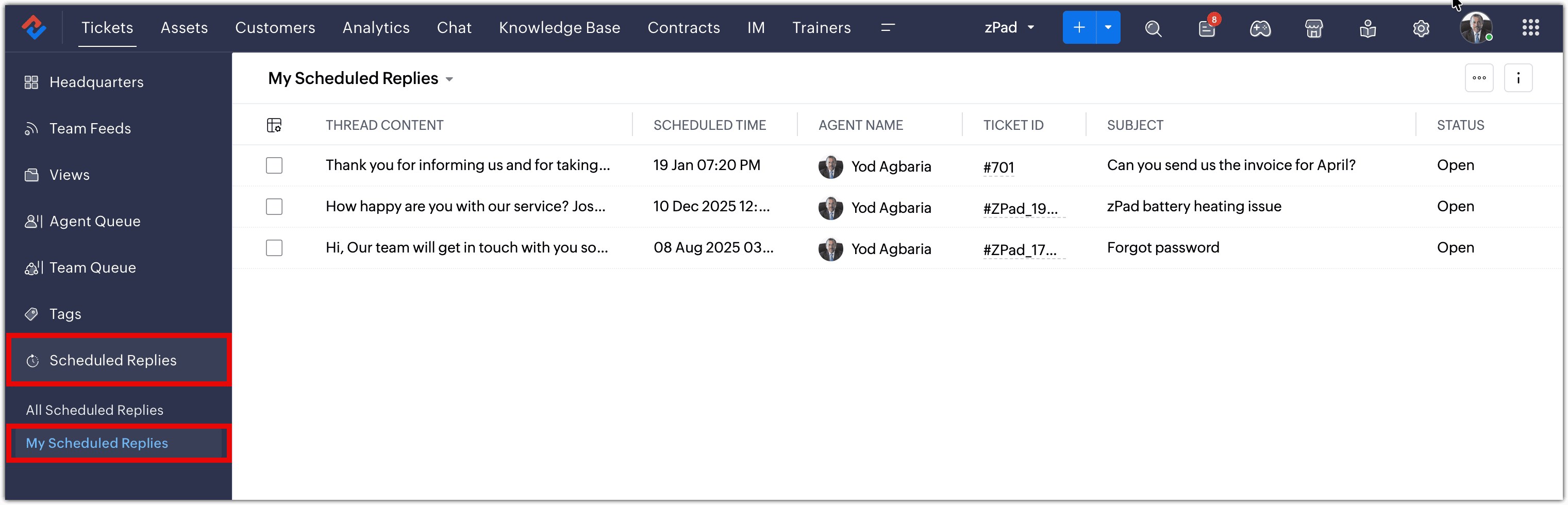
Manage, reschedule, and send scheduled replies from one view
The Scheduled Replies view lists all scheduled replies in a single table, ordered by scheduled time (latest first). Users can see key details such as thread content, scheduled time, status, ticket ID, subject, and thread owner.Two views are available:
- My Scheduled Replies - Shows only the replies scheduled by the logged-in agent (default view).
- All Scheduled Replies - Allows managers and senior agents to see every scheduled reply in the department.
Review field-level changes made to activities with the new History tab
Activity History for Tasks, Calls, and EventsActivity History now keeps a clear record of every change made to Tasks, Calls, and Events. It captures the values entered when an activity is created and tracks all subsequent field updates.
When a support representative modifies an activity, the History tab shows both the previous and updated values of the changed fields. This makes it easy to see what was updated, when it changed, and how the activity has been updated over time, helping teams maintain accountability and review activity progress with full context.
Picklist Value History now tracks every change made to picklist fields such as subscription status, payment mode, or account type. For each update, the system records the previous value, the new value, the date and time of the change, and the user who made it.
This gives administrators clear visibility into how a record has evolved over time, making it easier to audit changes and troubleshoot issues when needed.
Currently available for the Contact and Account modules.
Colored recipients chips for non-domain recipients in ticket replies
Agents can now easily identify email recipients whose domains differ from the ticket contact's domain when replying to tickets. Email reply's recipient box highlights these non-domain recipients with color-coded indicators and displays an alert before sending the reply, giving agents a chance to review the recipient list.
Admins can configure recipient highlighting and alerts separately for each department, as this prevents accidental sharing of customer information with unintended recipients and makes email communication safer.
The indicators can be customized to have a bold, minimal, or subtle appearance based on the representative's preference.
Agents can now use Side Chats to collaborate privately with selected team members directly within a ticket, without exposing internal discussions to everyone who has access to it.
Side Chats makes it easier to consult subject matter experts, discuss sensitive information, and involve other departments while keeping internal discussions separate from customer-facing conversations.
Participants can reply to specific messages, share files and voice messages, react with emojis, pin important updates, and manage conversations in real time.
Agents can also create multiple Side Chats within a ticket, each with its own participants, making it easier to handle different discussions independently.
With participant-level access, chat notifications, and administrative controls to manage participants and conversations, teams can collaborate securely while keeping discussions organized and accessible in the context of the ticket.
Watch Now
When customers reply to an email about an existing request, the reply gets created as a new ticket instead of getting added to the original ticket. When the reply gets created as a duplicate, the conversation history gets split across tickets, making it harder for support reps to follow the discussion.
Email threading based on ticket ID addresses this by linking incoming replies to the corresponding ticket when the ticket ID is included in the email subject. This keeps follow-up messages, such as refund updates or additional debugging details, within the original ticket's thread.
This keeps related email conversations together, giving support reps the context they need to continue handling a request without switching between duplicate tickets.
The support reps can preview the attachments before adding to a ticket, ensuring the right file is shared every time. They can also annotate images directly by adding shapes, arrows, and text, highlighting content, blurring sensitive areas, or cropping images.
This makes it easier to prepare and share relevant visual information without switching to external image editing tools.
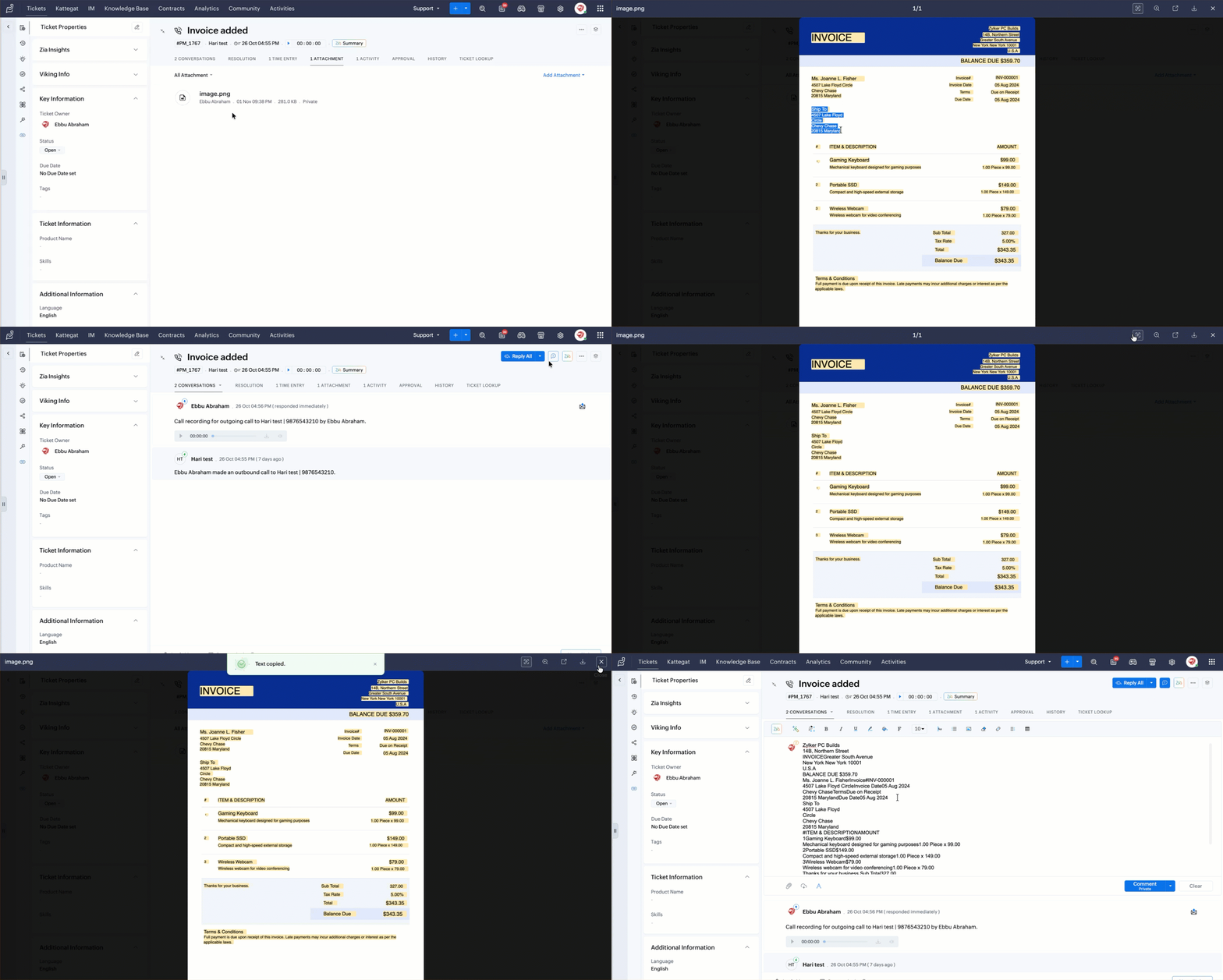
Copy text directly from images using OCR
When a customer is facing an issue such as error message, a configuration screen, a transaction receipt, or a system log, they frequently share screenshots for troubleshooting. Support reps rely on the details available in the image to look up accounts, trace orders, analyze technical problems, and collaborate with internal teams. Manually typing the content from the image slows down response times and could lead to potential transcription mistakes, such as a swapped digit in an account number or a missed character in an error code, that can impact the investigation and delay resolution.
With Optical Character Recognition (OCR) in the Tickets module, support reps can extract and copy text directly from any image attached to a comment, ticket form, thread, or note. This helps support rep save time and protect the accuracy of the data being used for lookups and troubleshooting.
Support representatives can now use snippets when adding public or private comments to tickets, making it easier to reuse responses while maintaining consistency.
Reps can choose from personal or shared snippets, while admins and support representatives can create new snippets and share them with selected agents.
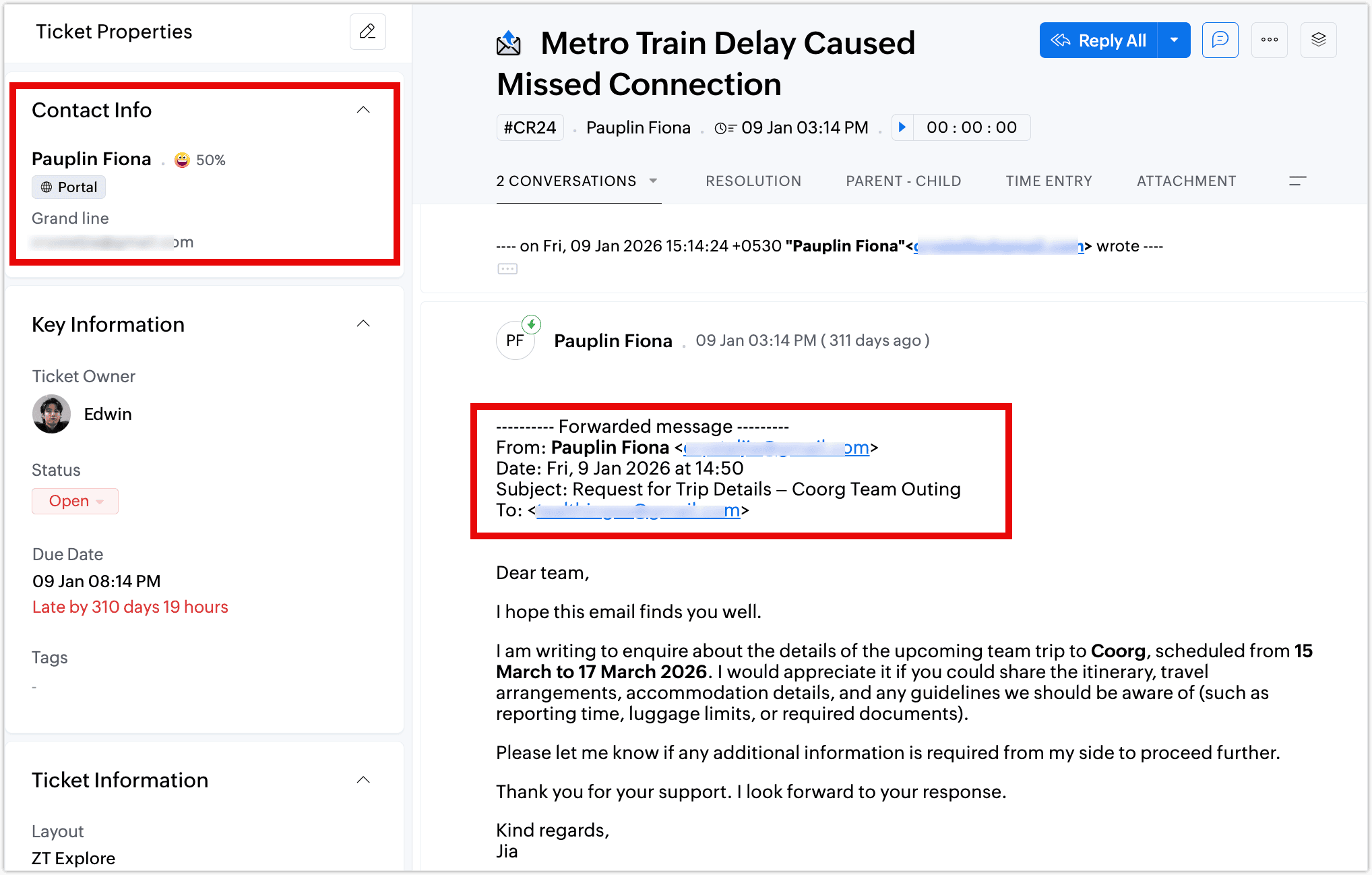
Retain the original sender as the contact in forwarded emails
When agents forward customer emails to Zoho Desk, the forwarding agent’s email address can be identified as the ticket contact instead of the customer’s.
Zoho Desk now offers two ways to identify the original sender of a forwarded email and set them as the ticket contact:
- Original sender keyword - Support reps can add the #original_sender tag followed by the customer’s email address in the email content. Zoho Desk uses this address as the ticket contact.
- Automatic original-sender extraction - Zoho Desk can retrieve the sender details from the forwarded email’s header. It identifies the address in the original message’s From field and assigns that customer as the ticket contact.
Support reps can now use email templates and snippets while sending mass replies to selected tickets. They can insert a predefined message into the reply, review the content, and send it to the selected tickets.
Customization and Personalization
Workstation: Design Your Own Ticket Detail Layout
Every support agent handles tickets differently. Some focus on conversation threads, others depend on external integrations, and many juggle between high volumes of tickets.
The ticket detail view page looks the same for everyone, but not all support reps need the same information. They find it challenging to access the right information needed. This mismatch between the interface and individual workflows creates friction, slows down response times, and adds unnecessary effort to everyday tasks.
Workstation addresses this by giving them the ability to personalize their entire ticket detail view to match their requirements. They can choose from seven ready-to-use styles, each designed around a distinct way of working:
- Standard
- Classic
- Modern
- Compact
- Advanced
- Superior
- Custom
By letting support reps design their own workspace, Workstation reduces context switching and improves overall efficiency.
Watch now
OpenDyslexic font for a better reading experience
OpenDyslexic is now available as a new font addition to make reading easier for users with dyslexia and other reading difficulties.
Its uniquely shaped letters and heavier bottom weighting help distinguish similar characters, reduce letter confusion, and improve readability, especially when reading text-heavy content.
Improve visibility and focus with accessibility settings
Users with diverse needs find it challenging to find relevant search results quickly, recognize mandatory fields, and get visual strain from dark colors used in interfaces. This slows them down and also makes the UI less accessible.
To address these challenges, accessibility controls include:
- Highlight keyword matches - Users can enable this option to highlight the keyword in search results. Matching words can be quickly spotted since the result is more visually prominent.
- Required field indicator - Mandatory fields can be displayed using an asterisk (*) or the text 'Required,' with an option to mark the label in red for better visibility.
- Monochrome - Users can switch the entire UI to black, gray, and white tones, with the flexibility to retain the rich text and reply editor in its original colors, if preferred.
These enhancements help support reps navigate the interface more comfortably, locate information faster, and work with a layout that adapts to their accessibility needs.
Additionally, all accessibility preferences can be reset to default in a single action, avoiding the need to disable each option individually.
Manage notifications from selected departments
Support reps who are part of multiple departments may receive notifications from all of them, including departments they don't work with regularly. This can result in unnecessary alerts, making it harder to keep track of notifications that require their attention.
With selective department notifications, support reps can disable alerts from departments that are not a part of their regular responsibilities while continuing to receive notifications from the departments they actively work with.
For example, a support rep who primarily handles Finance queries but is also a Subject Matter Expert in Operations can turn off Operations notifications. This helps reduce unrelated alerts while allowing the rep to remain part of the department and contribute whenever their expertise is needed.
Norwegian and Odia language support
Zoho Desk is now available in Norwegian and Odia, giving users the option to access the platform in their preferred language.
Analytics
Different teams have different priorities when monitoring support operations. While the headquarters dashboard provides key metrics by default, some teams may need to track additional information to get a clearer picture of their operations.
With the ability to add components such as reports, KPI cards, widgets, and embeds, the teams can customize the dashboard to include all the metrics that are needed.
This gives teams greater flexibility in monitoring their operations, helping managers focus on relevant metrics and make informed decisions based on the information they need.
Watch now
Use Ask Zia to explore your data using natural language queries and get instant, AI-powered insights. Zia dynamically generates visual responses, including charts and tables, based on what you ask.
Watch Now
Integration
Integrating Zoho Desk with Zoom Meeting
On integrating Zoho Desk with Zoom, support reps can access Zoom meeting capabilities within Desk environment while managing customer requests. This reduces the need to switch between applications to coordinate customer interactions. By bringing these capabilities together, organizations can manage customer communication and support activities within a connected workflow.
Enhanced data sync with Power BI REST API
Users can now sync up to 10,00,000 records per sync across all modules in Zoho Desk using Power BI REST API. This provides an alternative to the Microsoft Fabric API for transferring Desk data to Power BI, with no additional API purchase required. The synced data can then be used to create and manage reports and dashboards in Power BI.
Instant Messaging
WhatsApp Co-Existence allows businesses to connect their existing WhatsApp Business App number with Zoho Desk while continuing to use it in the WhatsApp Business App. Support teams can manage customer conversations from Zoho Desk without requiring a new number, helping businesses expand their support setup while keeping their existing contact number.
Zoho Desk now supports WeCom as an Instant Messaging channel, allowing businesses to connect their WeCom account and manage customer conversations from the IM inbox. Agents can exchange messages and media, use canned responses, and share knowledge base articles alongside other supported messaging channels, helping teams manage support from one workspace.

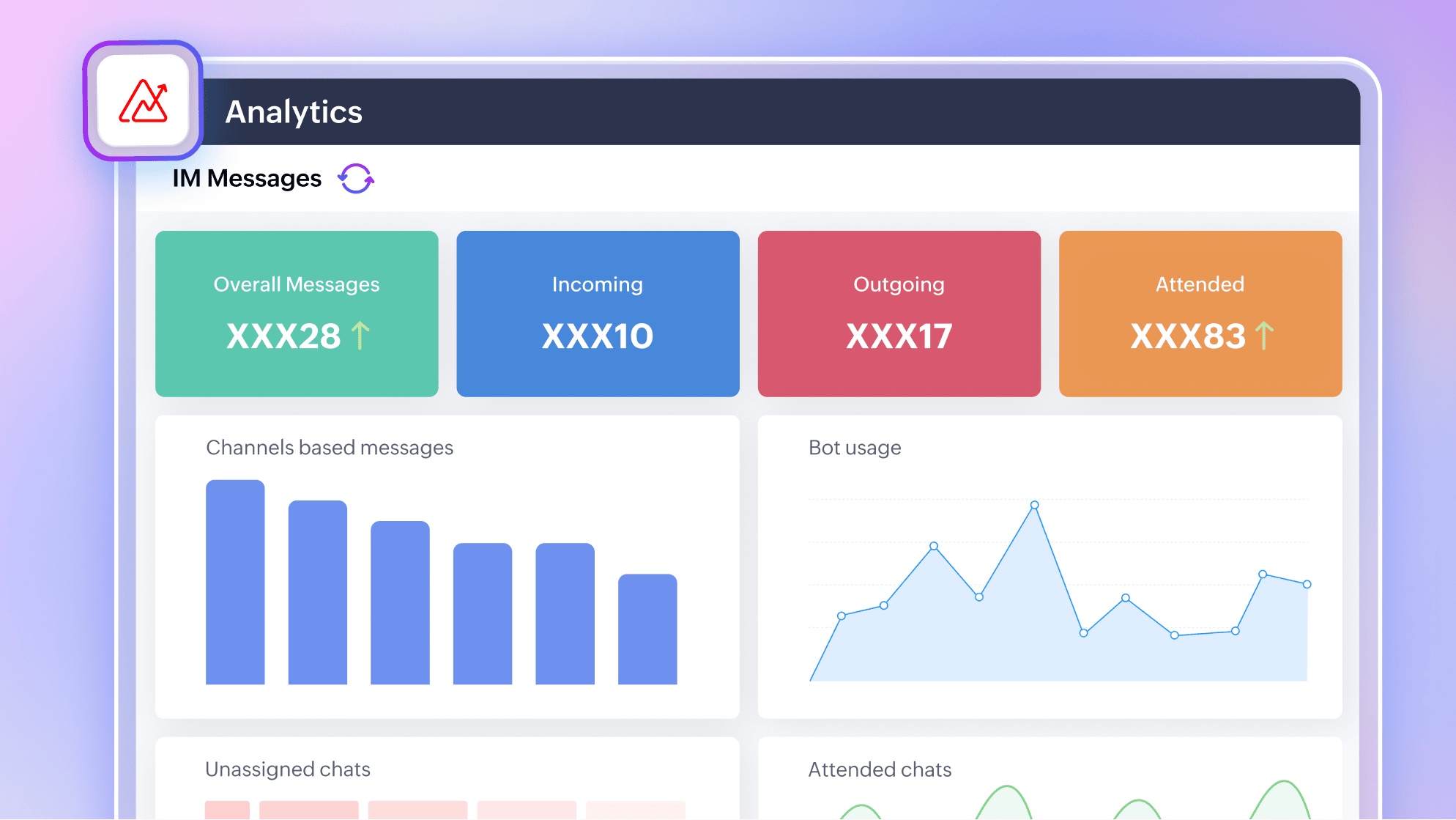
IM data can now be synced with Zoho Analytics to create detailed reports on customer engagement, message activity, bot usage, channel activity, and support operations. Teams can track IM performance over time and gain deeper insights into their customer communication workflows, helping them identify trends and make informed improvements to support operations.
IM now supports multiple language versions within a single canned message, allowing teams to manage translations from one place. Agents can select the appropriate language while responding to customers, helping them reply efficiently and provide consistent multilingual support across supported IM channels.

WhatsApp Voice Calling allows agents to handle incoming and outgoing WhatsApp voice calls directly from Zoho Desk. Agents can receive customer calls, initiate calls from conversations, and view call history while managing calls alongside chats. This brings voice and messaging into the same workspace for smoother customer support.
Zoho Desk now supports Arattai, Zoho’s instant messaging service, as an Instant Messaging channel. Businesses can connect their Arattai Business account and create channels using verified businesses and phone numbers. Agents can respond to conversations and convert them into tickets, while businesses can offer customers access to Arattai through a website chat link, QR code, or message button.
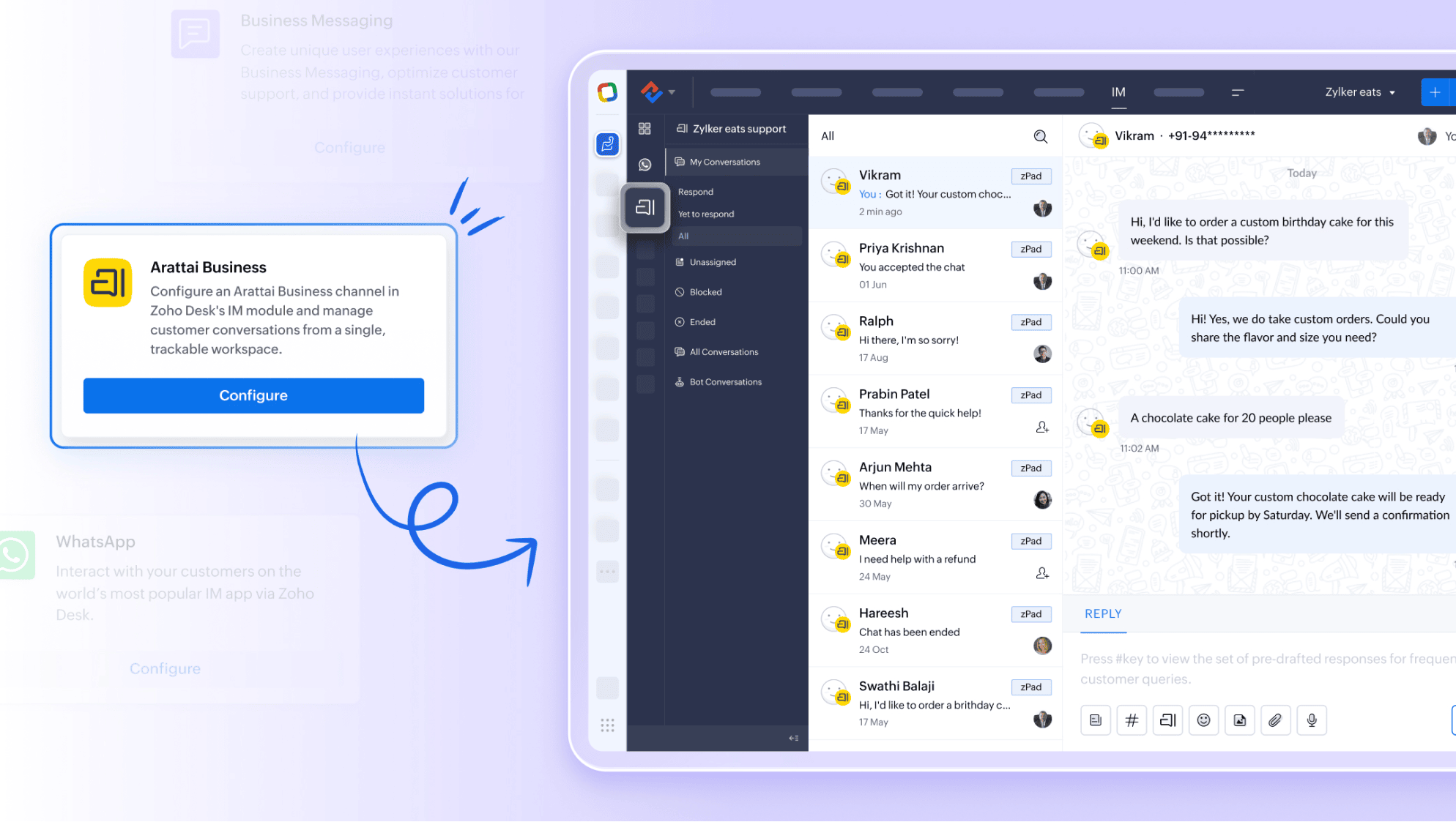
Agents can now access their assigned IM chats and unassigned conversations from a single inbox while keeping conversations assigned to other agents private. This helps agents focus on their ongoing chats and pick up conversations awaiting attention, providing access to the work they need while maintaining clear conversation visibility boundaries.
Guided Conversations
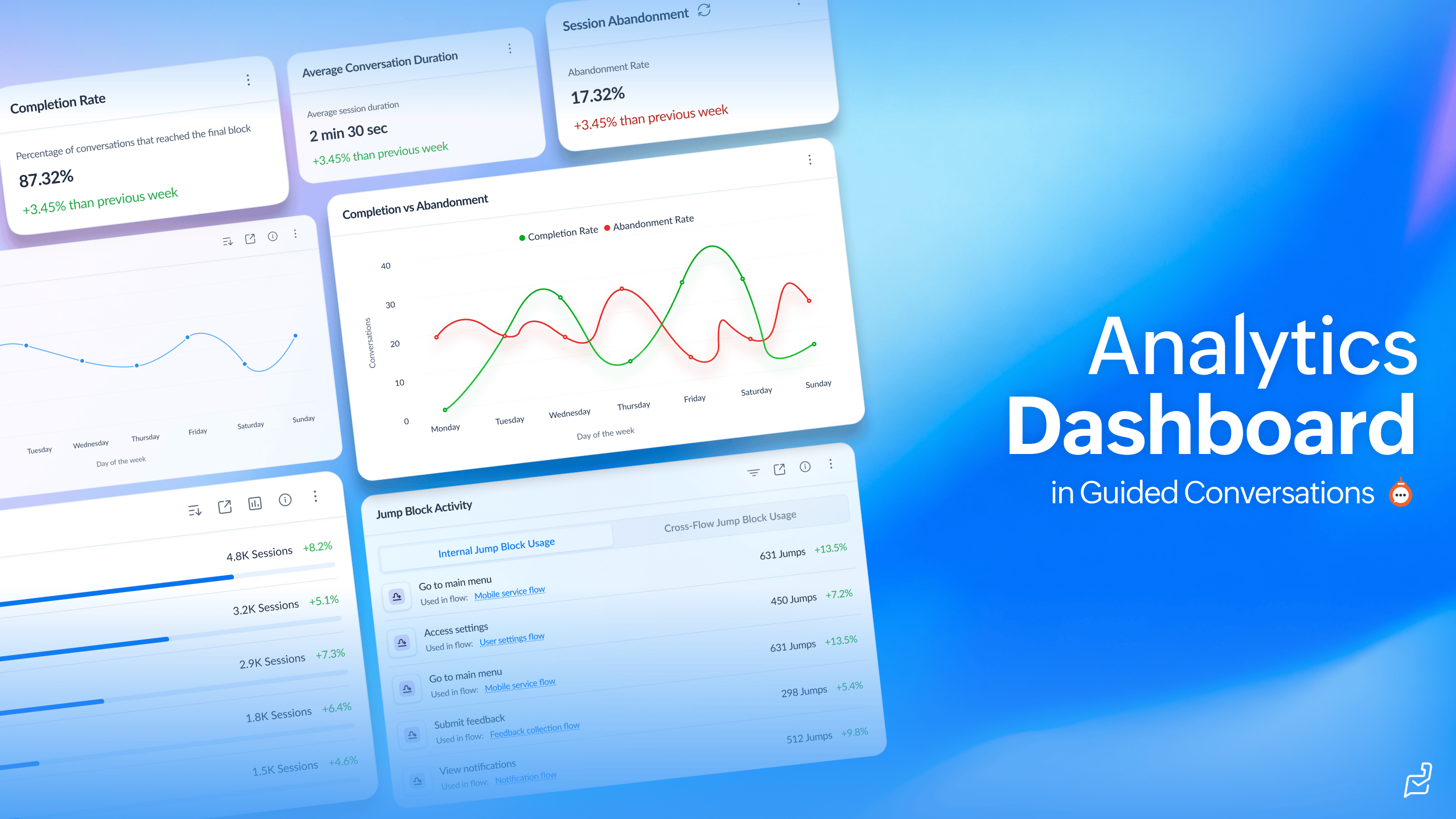
The Guided Conversations analytics dashboard provides a centralized view of conversation trends, block performance, chatbot metrics, agent transfers, and other key performance indicators. Teams can use these insights to understand how customers interact with their flows, identify areas for improvement, and optimize Guided Conversations for better outcomes.
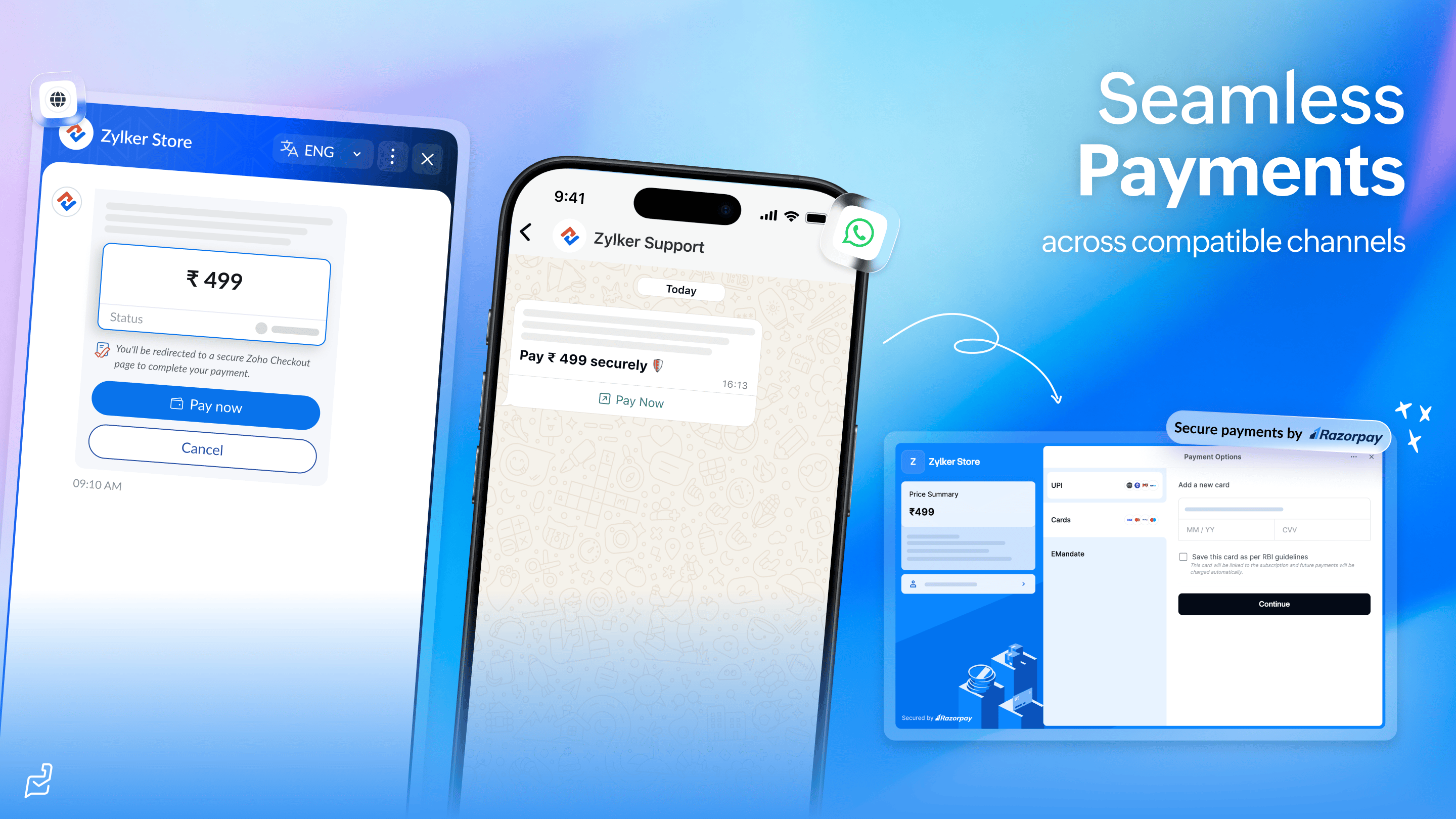
Payments in Guided Conversations allows businesses to collect secure payments directly within a conversation using Zoho Checkout. Customers can complete payments without leaving the conversation, while businesses can configure payment gateways, supported currencies, and payment preferences to suit their requirements. This helps teams offer a convenient payment experience within their conversational flows. Learn more
Guided Conversations now supports AI-powered translation of published flow content into one or multiple supported languages. This helps teams make their flows available in customers’ preferred languages and reduce the effort involved in translating content for multilingual self-service.
Connections in Guided Conversations allows businesses to connect external applications and services to their flows and exchange data based on customer interactions. Teams can schedule appointments, create tickets, and share results directly within the conversation, helping customers complete tasks through a connected self-service experience.
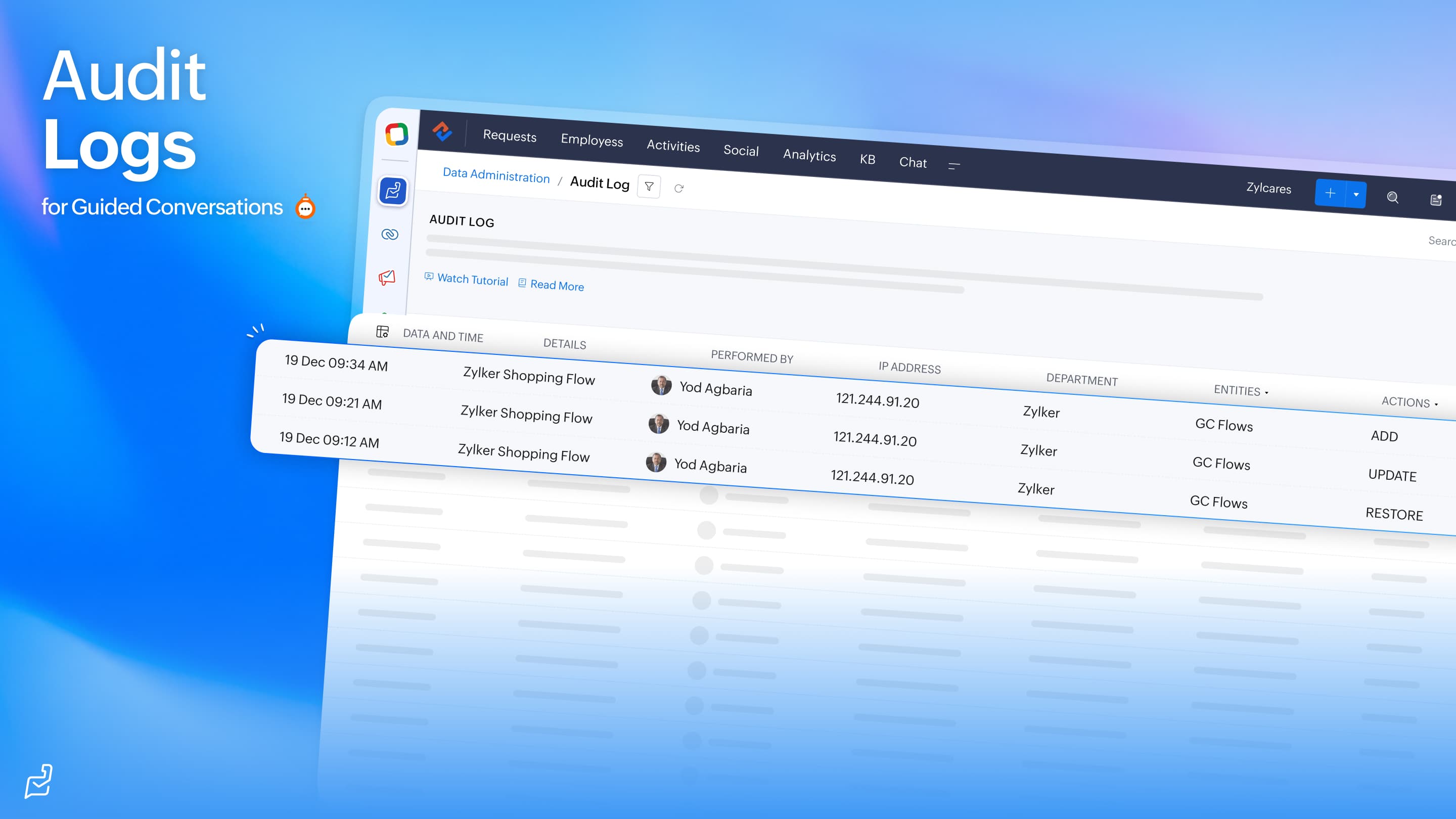
Guided Conversations now includes functional enhancements for administration, language support, file sharing, and conversation context. Teams can track GC activities in audit logs, create conversations in additional supported languages, display supported files received through webhook responses, and use the customer’s first IM message as a variable within the flow. These enhancements help teams manage and build more context-aware conversations.
The Guided Conversations builder now offers improved navigation, customization, and richer conversation content. Teams can add GIFs to supported message blocks, navigate large flows using Flow Navigator and the Mini Map, customize widget themes with gradients, and share Guided Conversations through public URLs. These enhancements make flows easier to build, personalize, and share with customers.
Desk mobile (Android & iOS)
Handle WhatsApp voice calls directly from IM on the Zoho Desk app (iOS and Android)
Support reps can handle WhatsApp voice calls within the IM module, helping them respond to urgent or complex customer requests without leaving the conversation. They can answer incoming calls, place outgoing calls when the customer has granted permission, return missed calls, review message history during an active call, and minimize the call while using other areas of the app.
Call-related events, including permission updates, are recorded in the related WhatsApp conversation to preserve context. Only audio calls are supported; incoming-call notifications will be displayed even when push notifications are disabled.
Manage contact and account details with unified information tabs (iOS and Android)
Support reps can access contact/account related information through the sub-tabs in the contact/account detail page. They can view and manage activities (tasks, events, and calls), filter tickets by status (open, on hold, overdue, or spam)and view the ticket interactions, review logged time entries, check happiness ratings and feedback history, see associated products, manage attachments and documents, read and post comments, and access custom sub-tabs created through lookup fields.
This unified view eliminates the need to switch between screens and helps agents understand the full customer relationship before responding.
Access knowledge base articles on the go (iOS and Android)
Support reps can access and manage the knowledge base content from the Zoho Desk mobile app while working on the go. They can browse categories and article statuses, search and filter articles, view available translations, and review details such as comments, attachments, feedback, insights, and history. Depending on their permissions, they can also publish drafts, delete or unpublish articles they created, respond to or close feedback, create tickets from feedback or comments, and moderate use comments.
Send WhatsApp messages to multiple ticket contacts at once (iOS and Android)
Support reps can send WhatsApp messages to multiple contacts at scale directly from the tickets page, making it easier to communicate at scale without handling each ticket individually. They can select upto 50 tickets, choose the relevant department, WhatsApp channel, and message template, review the message before it is sent, and reach the selected contacts efficiently.
Quickly access frequently used ticket filters (iOS)
Users can save frequently used ticket-filter combinations for quick access whenever they need them. Up to 100 filter combinations can be saved, helping agents return to the same set of relevant tickets without reapplying the filters each time. Saved filters can also be renamed or deleted as workflows change.
View the app in Arabic and Hebrew (iOS and Android)
Users can view the interface in Arabic and Hebrew which is aided by the RTL (right-to-left) function, thus aligning the app to the Arabic and Hebrew script.
Radar
Custom Modules
Any custom module created in Zoho Desk can now be made available in Radar, so users can view records, open details, and act on them from their phone. Records show in a table layout, and you can search, filter, sort, and create, edit, or delete records based on your permissions. To get started, enable the module from the Custom Modules section of the Radar Store.
Activities Card
The Activities card shows Tasks, Calls, and Events in one place, so teams can track meetings, follow-ups, and scheduled work while away from their desks. You can switch between all activities or one type at a time, filter by owner, due date, status, or priority, and star the views you use most. Enable it from Productivity Cards in the Radar Store.
Accounts Card
The Accounts card gives you account-level details on mobile, including tickets, activities, products, attachments, and time entries. You can switch between saved account views, filter by fields like industry or account type, and edit, delete, or pin accounts from the detail page. It needs the Customers permission in Radar and is available to admins, supervisors, and agents based on their profile.
Audit Logs
The Audit Logs card lets admins review user actions and system changes across the help desk from their phone. It shows who changed what and when, across workflows, agents, departments, contacts, accounts, and custom modules, with filters for date and action type. Access is limited to users with the Support Administrator profile.
Contacts Card
The Contacts card brings each customer’s tickets, interactions, and activities into one mobile view. You can open contact views you’ve already set up on the web, such as high-priority or region-specific lists, without reapplying filters each time. From a contact’s page, you can see ticket counts and happiness ratings, and pin, deactivate, or mark the contact as spam.
Zoho Lens in Radar
Agents can start or schedule an AR remote assistance session from a ticket in Radar and invite experts or customers through a secure link. During the session, participants share a live camera feed, add annotations, and talk through voice and chat. When the session ends, the notes, session ID, duration, participant details, and screenshots are added to the ticket automatically.
Thanks and regards,
B. Akshaya | Zoho Desk - User Education


