Hourly Permissions
What is Hourly Permissions in Zoho People?
Hourly permission allows employees to request brief periods of absence from their duties during standard office hours.
Watch our help video on hourly permissions in attendance
Enable Hourly Permission
To enable hourly permission, navigate to Settings > Attendance > Configuration > Methods. Enable Hourly Permission.
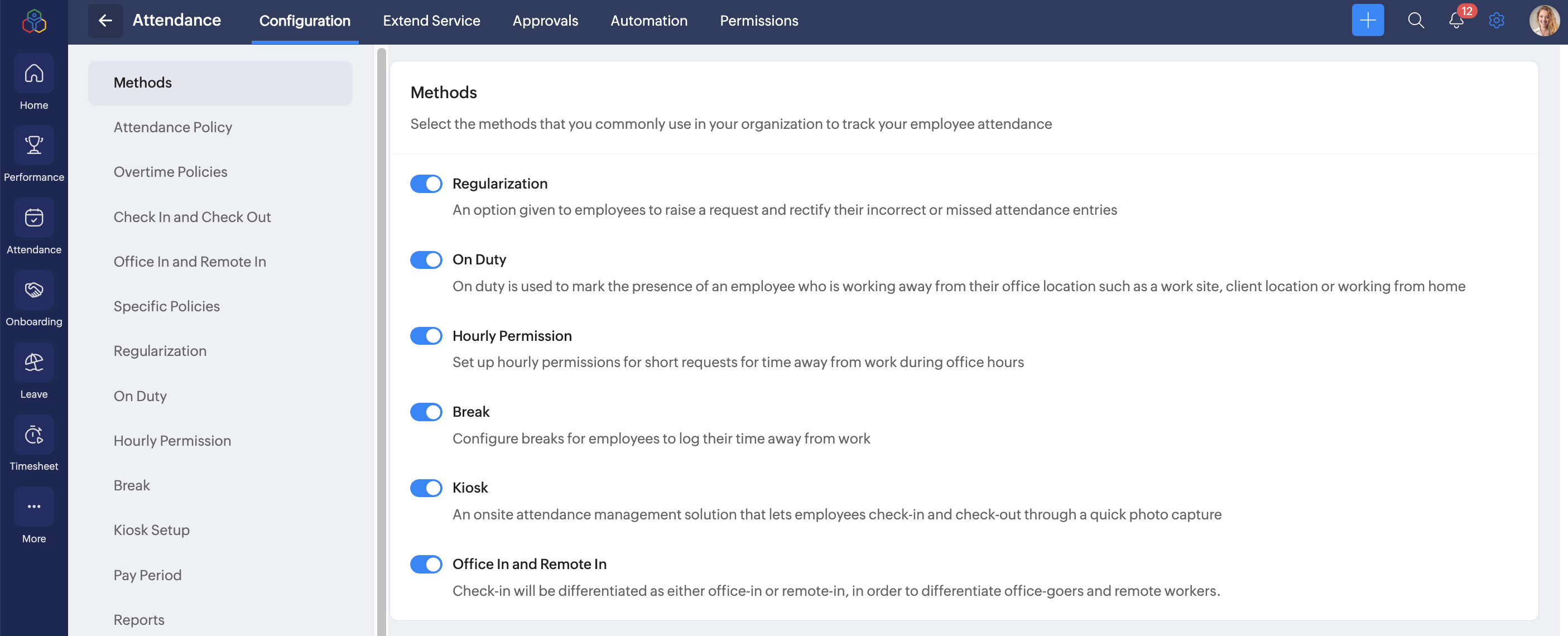
Configuring Hourly Permissions
Navigate to Settings > Attendance > Configuration > Hourly Permission tab. Click on Add Permission.
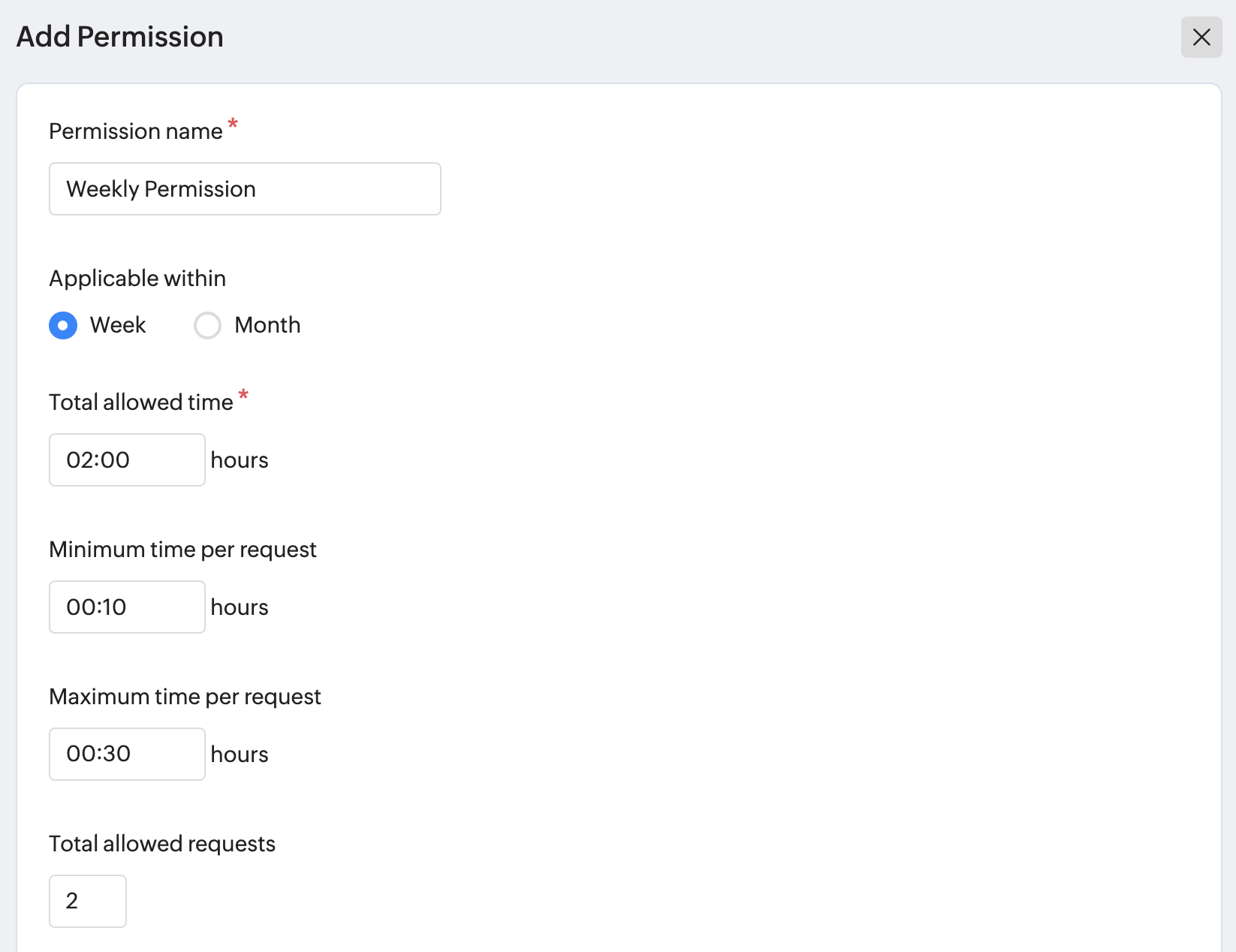
- Enter a name for the permission you are configuring.
- Select if the allowed limits are calculated weekly or monthly.
- Specify the total allowed time that employees can request permissions for (for the selected month or week).
- Specify the minimum time per request.
- Specify the maximum time per request.
- Enter the total number of allowed requests within the selected period.
- If requests are to be made within the employee's shift timings only, enable Limit hourly permission within employees shift time.
- To allow hourly permission after shift time when an employee has checked in within the grace period, enable the Allow hourly permission after shift time checkbox.
 For example, in attendance specific policy, the grace period is set to 30 minutes after the shift start time, employees who check in within that time can submit hourly permission for up to 30 minutes after the shift end time.
 - Visibility and mandatory settings: Enable this option to require employees to provide a reason and upload proof when submitting a hourly permission request.
- Configure employee applicability (if specific users option is selected, you can further configure applicability by locations, departments, etc).
- Click Save.
Sample use case

You can setup approvals for hourly permission requests from the Approvals tab.