What are Cadences?
Cadences is a CRM tool that helps businesses run targeted, personalized follow-ups across emails, calls, tasks and WhatsApp. It enables teams to engage customers based on specific goals and responses, ensuring that every interaction is timely and relevant.
By automatically adjusting or stopping follow-ups once the desired response is received, Cadences saves time and improves the effectiveness of sales and marketing efforts. Its flexibility makes it suitable for a wide range of industries, helping businesses engage customers more efficiently and drive better outcomes.
What is the difference between Cadences and Workflow rules?
Cadences and Workflow Rules are both powerful automation tools in Zoho CRM, but they serve different purposes and offer unique functionalities:
Cadences
Purpose: Cadences are designed to streamline and automate sequential follow-ups with customers. They are particularly useful for managing ongoing interactions over a period of time.
Features:
- Multi-channel Follow-ups: Cadences support follow-ups via emails, calls, and tasks, allowing for a personalized and varied communication strategy.
- Sequential Automation: Actions are triggered based on customer responses or specific conditions, creating a structured follow-up sequence.
- Target Audience: Users can enroll or remove targets manually or automatically based on custom view criteria.
- Automation: Automatically removes records that have reached their desired outcome, focusing efforts on active opportunities.
- Analytics: Provides detailed reports to analyze the effectiveness of follow-ups and customer engagement.
Use Case: Ideal for sales and marketing teams that need to maintain consistent and structured engagement with leads and customers over time.
- Guide new customers through the onboarding process with a structured communication plan. Send a welcome email, followed by a series of instructional emails, and schedule a check-in call after two weeks.
- Follow up with attendees after a webinar or event to gauge interest and move them further down the sales funnel. Send a thank-you email immediately after the event, followed by a survey email, and schedule a call to discuss the attendee's interest.
- Let’s consider the nurturing process for a prospect to book a test drive. This process would vary for each lead. If a lead shows much interest by attending your calls, asking questions, etc,. a sales rep would prefer to schedule calls and get things done soon. For leads who doesn’t respond much, still you would want to send nurturing contents but for this kind of prospects you might prefer emails. Contrary to workflows, this is not a single-step automation; rather, it involves a series of steps.
Cadences aims to educate prospects gradually, leading to more informed discussions and better ways to connect with the prospects.
Workflow Rules
Purpose: Workflow rules are designed to automate routine business processes by triggering specific actions based on predefined conditions. They help streamline repetitive tasks and ensure timely follow-ups.
Features:
Action Triggers: Workflow rules can trigger actions such as sending emails, assigning tasks, and updating fields when certain conditions are met.
Conditions: Multiple conditions can be set to refine when the rule should be triggered.
Flexibility: Can be used across various modules and for a wide range of automation needs within the CRM.
Use Case:
- Suitable for automating specific tasks and actions that need to occur immediately or on a scheduled basis when certain criteria are met, such as sending a welcome email when a new lead is created.
When a new lead is created, assign it to a sales rep based on predefined criteria such as territory or industry. Automatically assign the lead to the appropriate sales rep and notify them via email. - After a lead status changes to "Qualified," create a follow-up task for the assigned sales rep to schedule a meeting. Create a task and set a due date for the follow-up action whenever the lead status is updated to "Qualified."
Summary:
Cadences are focused on managing and automating sequential customer follow-ups across multiple channels, providing a structured approach to customer engagement.
Workflow Rules are more about automating individual tasks and processes based on specific triggers and conditions, ensuring routine tasks are handled efficiently.
What permission is required to create Cadence in my CRM account?
Users with the
Manage Automation permission can, by default, manage and view Cadences. When the Automation permission is enabled, the Cadences permission is automatically enabled as well. The ability to
Enroll or
Un-enroll users can then be granted as needed, depending on specific requirements

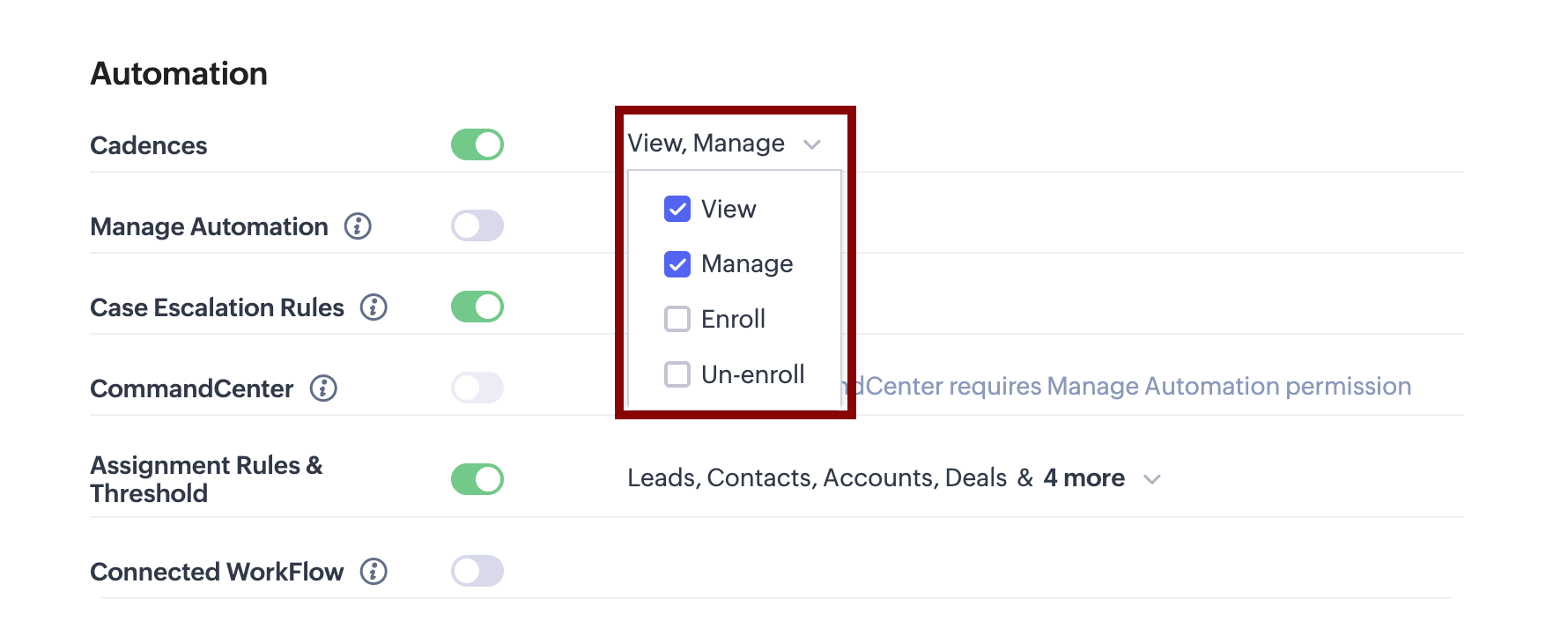
If the Manage Automation permission is disabled for a profile, admin users can still enable Cadences permissions separately. Based on the profile’s requirements, they can grant specific permissions such as View, Manage, Enroll, or Un-enroll.
Configuring Cadences is a two-step process.
Step 1 - Choosing your Target Audience
Cadences in Zoho CRM is module-specific. The user can choose the target audience for Cadences from:
- Manual Enrollment: Choose the targeted users later after Cadences creation
- Custom view: The custom views in the chosen module
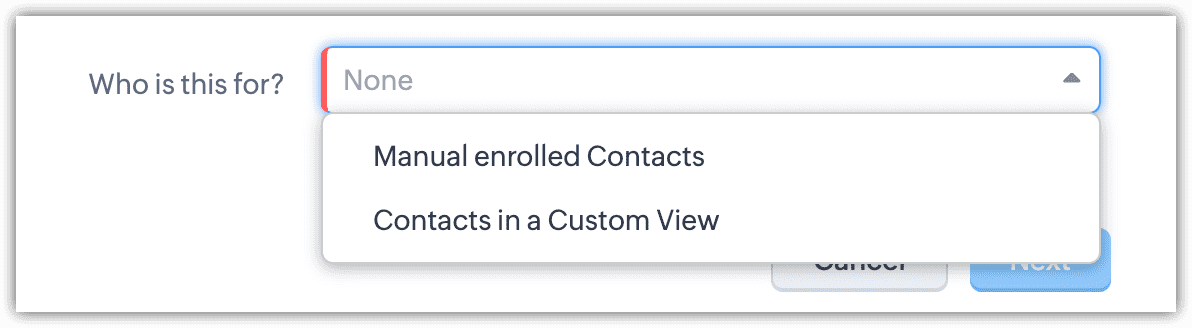
Note: You can target records in all user-based modules, both system defined like Leads, Contacts, Deals and custom modules like Vendors as well
Step 2 - Configuring the Follow-ups
In Cadences, you can configure three types of follow-ups:
- Email
- Tasks
- Calls
- WhatsApp
Each follow-up type has specific configuration options to suit your requirements.
How can I see active cadences for my records?
When a record is added to a cadence, the Cadences related list on the record’s detail page displays all relevant cadence information. You can also customize this related list to show only the columns you need, such as Start Date, Enrolled By, and Cadences Status etc.
Is there any limit on the number of followups that can be created?
No there is no restriction on number of Follow-ups. The restriction is based on number of actions (email, calls, tasks and WhatsApp) that can be added to one Cadence.
Please refer below for the detail about limit based on your CRM edition.
What is a manual enrollment and custom view enrollment while creating a cadence?
Manual Enrollment allows users to enroll records into a cadence manually after the cadence is created. This gives users the flexibility to choose exactly which records should enter the follow-up sequence.
It is especially useful when records need to be added selectively based on context or judgment that may not be defined in a custom view. Manual enrollment works well for scenarios where individual records need to be added on the fly as they come in.
To enroll records in Cadences manually:
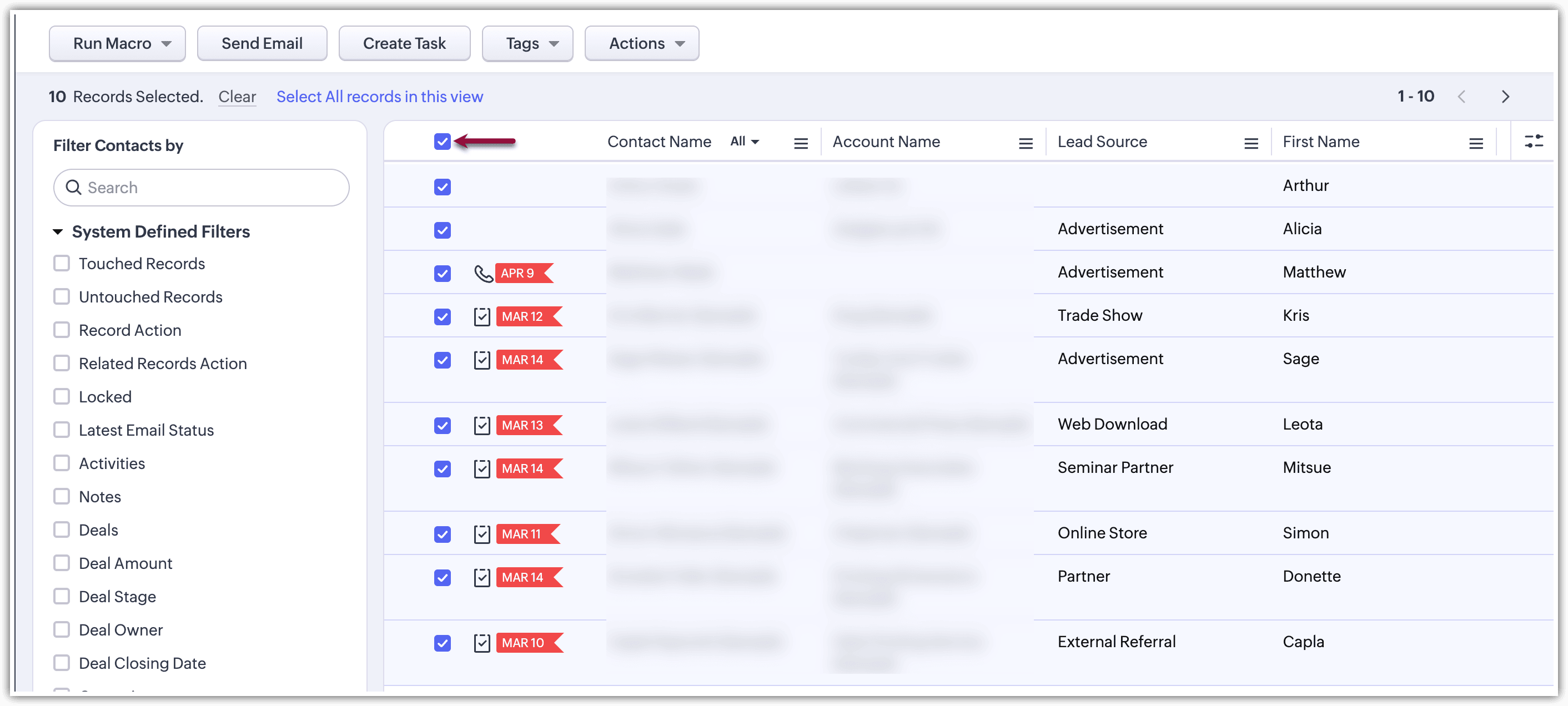
- Go to the records page in your module (Leads, Contacts or Deals).
- Select the records either individually, one after the other, or in bulk by checking the box at the top.
Click Actions at the top, select
Cadences, then choose the
Add to Cadence option.
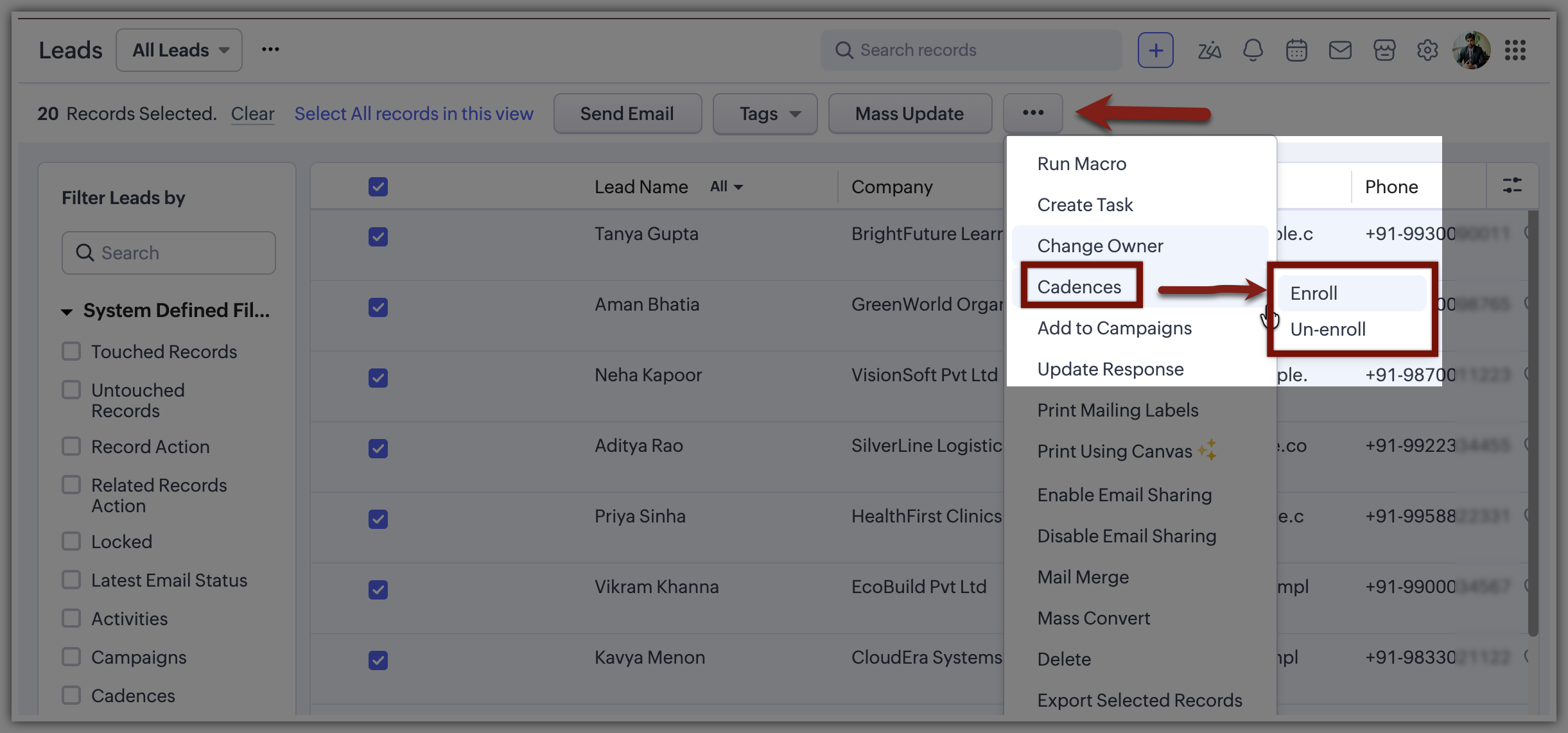
Click Actions at the top, select
Cadences, then choose the
Enroll option.
Choose the cadence you want your records to be enrolled in from the list of published cadences.
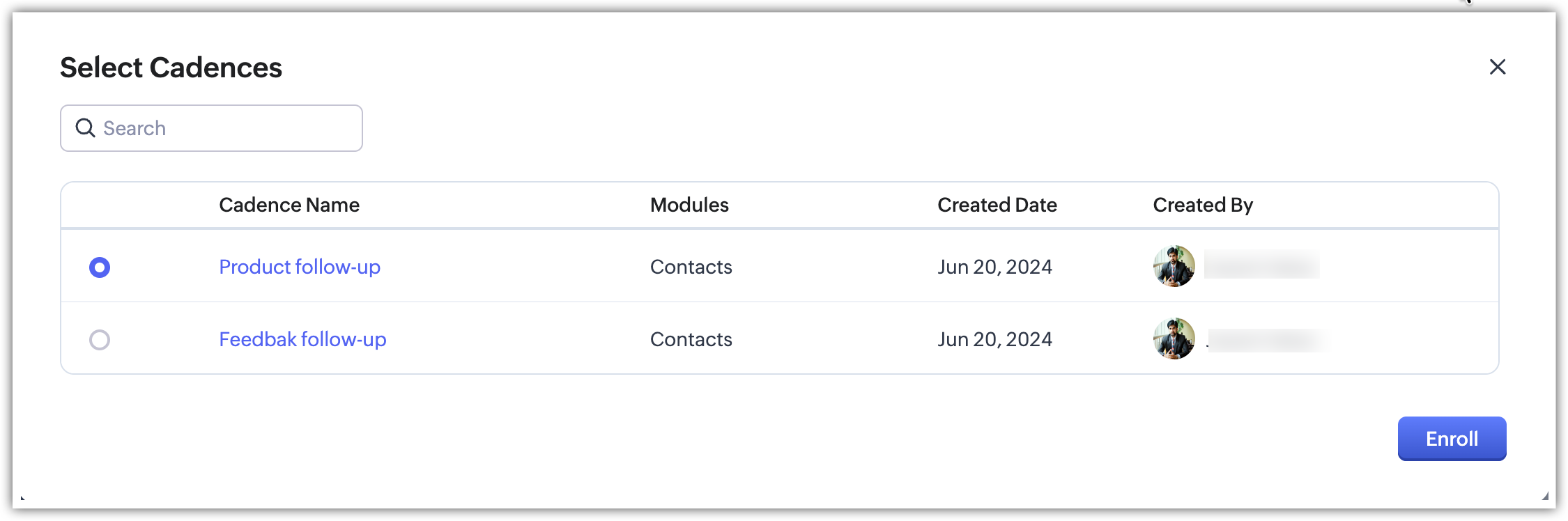
Note: You need to have one or more cadences already published for the module you want to enroll records to.
For example: A sales rep meets a new lead at a conference and wants to enroll them in a follow-up sequence immediately after entering their details into Zoho CRM. They select the lead manually and enroll them in the relevant cadence for new conference leads.
Custom View Enrollment
- Custom View Enrollment uses predefined custom views to automatically enroll records into a cadence based on specific criteria. Custom views are filters created within a module to display records that meet certain conditions.
- Custom view enrollment is beneficial when you want to automate the enrollment process based on dynamic criteria. This method is ideal for ongoing campaigns where records are continually being updated and you want to ensure that all relevant records are automatically enrolled.
For example: A marketing team runs a campaign targeting leads from a specific industry. They create a custom view filtering leads by industry type. All leads matching the industry criteria are automatically enrolled in the cadence designed for that campaign.
What are the Un-enroll option and properties in Cadences?
The Un-enroll feature is essential for ensuring that records no longer relevant to a cadence are automatically removed, keeping your follow-up sequences clean and focused. This helps in maintaining efficiency and relevance in your customer engagement processes.
Properties and Settings
- Automatic Un-enrollment:
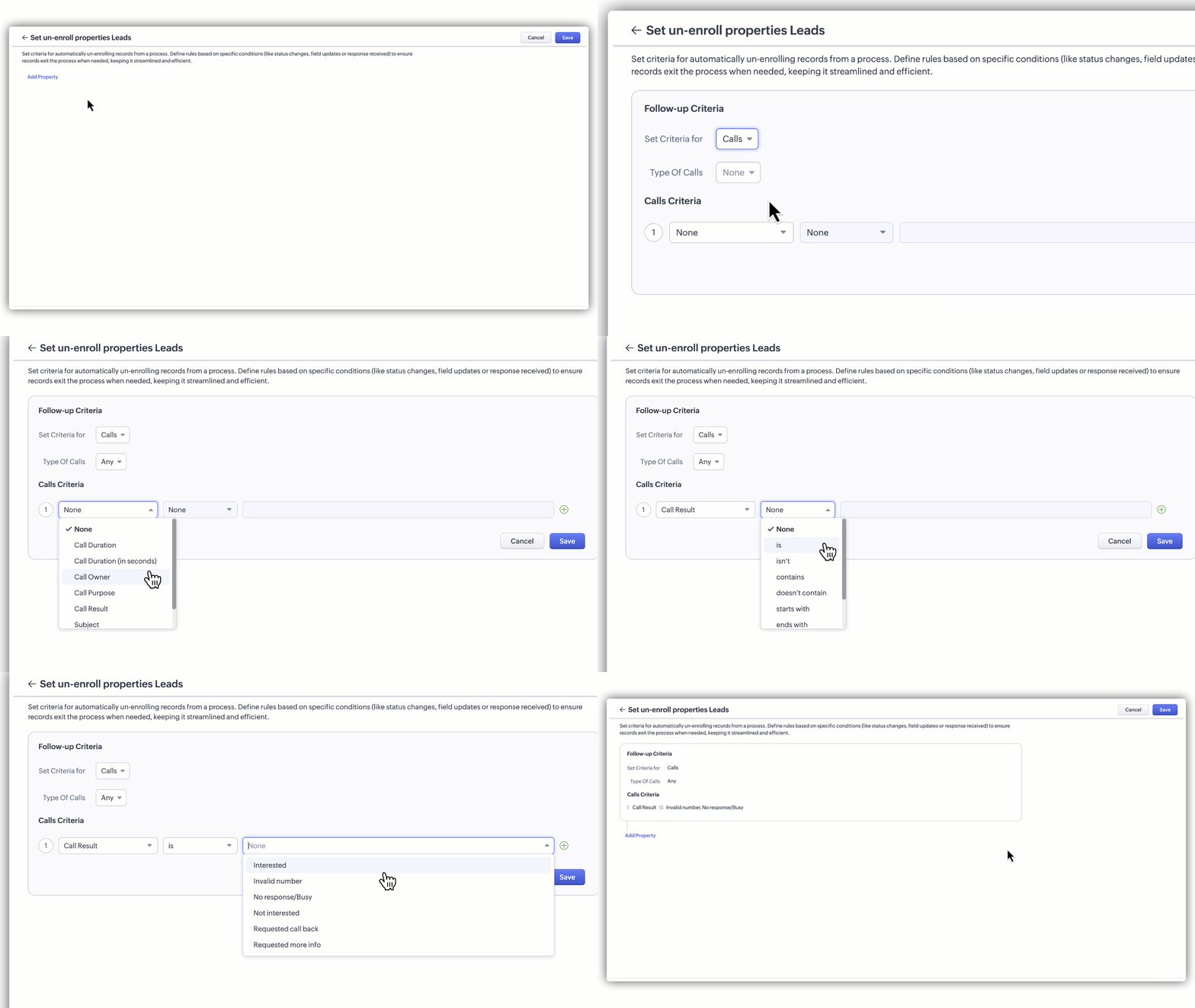
Outcome-based Un-enrollment: When a specific follow-up condition is met, for instance, if the call result is marked as an invalid number, no response, or busy, the system can act accordingly and un-enroll the record. You can set follow-up based criteria for.
WhatsApp
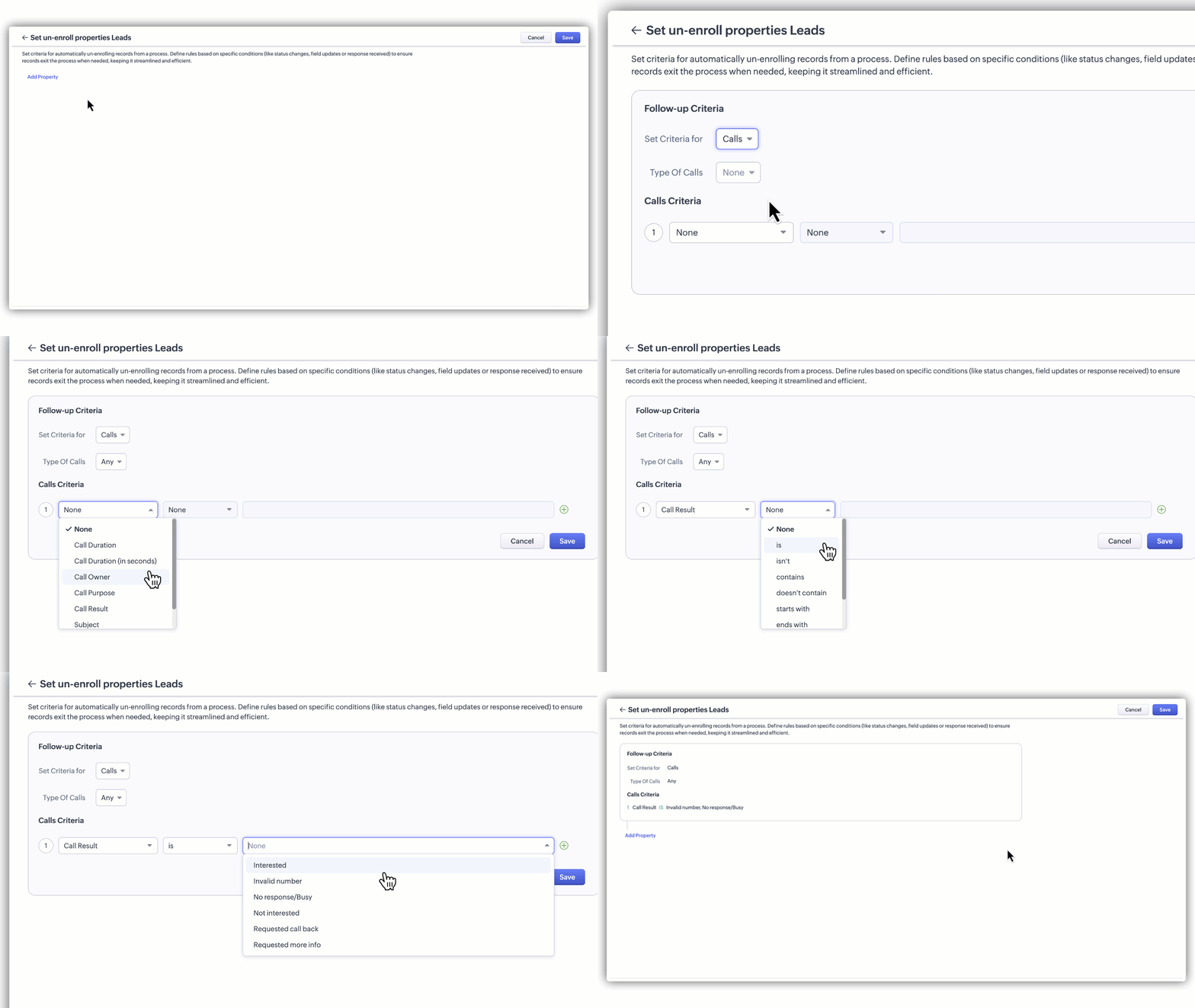
They don't fall under custom view criteria: If records no longer meet the custom view criteria that originally enrolled them in the Cadence, they’ll be automatically un-enrolled. Any scheduled or ongoing follow-ups will be cancelled at that point
Note: For Cadences based on custom view criteria, once a record is enrolled, it will continue through the follow-ups even if it no longer meets the criteria, unless an un-enrollment condition is configured to automatically remove records that don't fall under the custom view criteria.
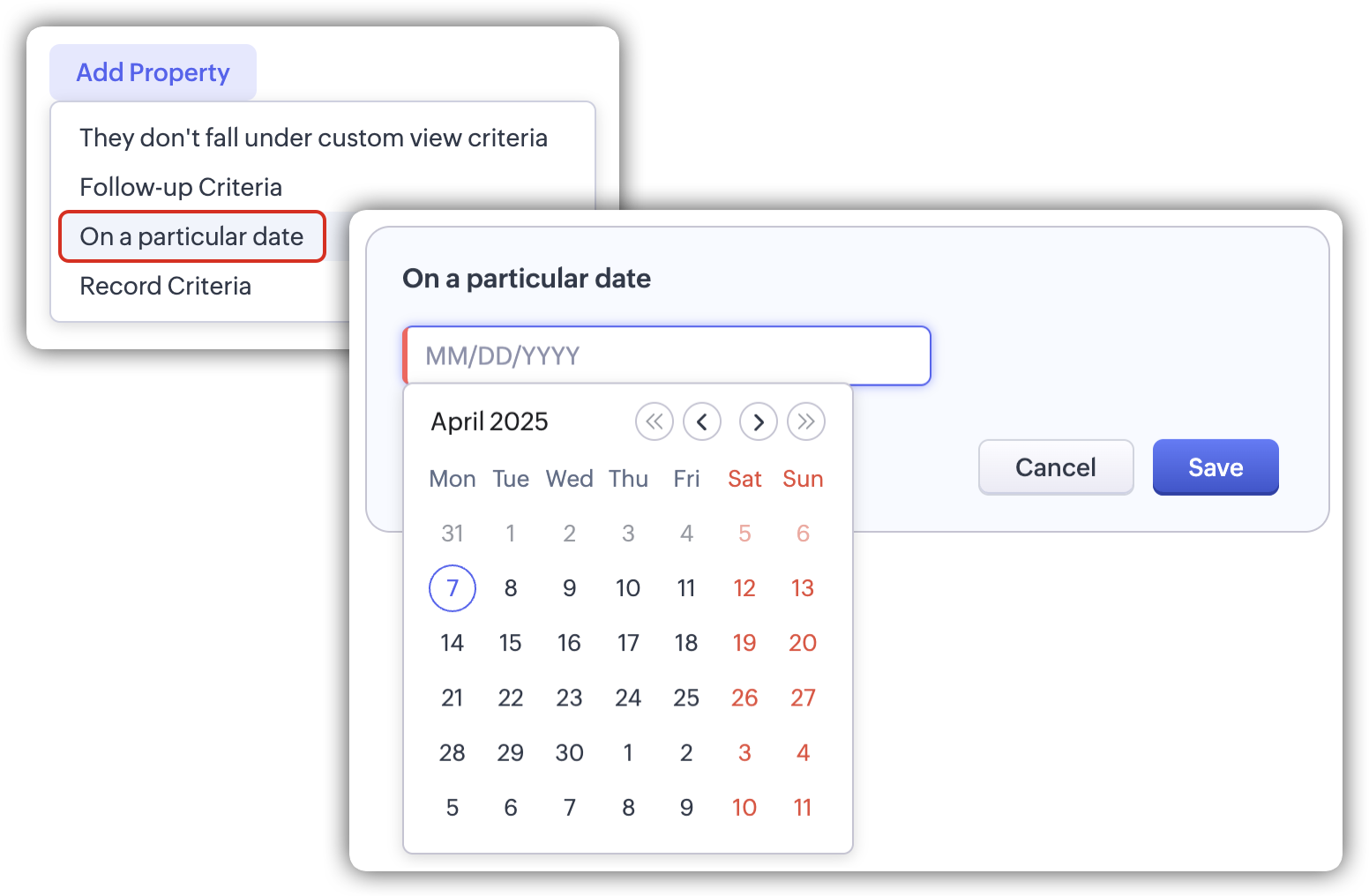
- Un-enrollment on a particular date: Un-enrollment of records will happen based on a chosen date.
- Criteria-based Un-enrollment: When a user creates a cadence based on a custom view, the records that meet the criteria defined in the custom view will be enrolled in the cadence.
If after enrollment, a record no longer meets the defined/selected custom view criteria, it will be unenrolled from the cadence automatically.
- Manual Un-enrollment: <User-triggered> Admins or users can manually un-enroll a record from a cadence if they determine that the follow-up is no longer necessary or relevant.
- Tracking and Reporting: <Activity Logs > Zoho CRM keeps track of all un-enrollment actions, whether automatic or manual, providing a clear history of why and when a record was un-enrolled. This helps in analyzing the effectiveness of your cadences and making necessary adjustments.
Notes:
If a Cadence is deactivated partway through, any actions that were scheduled but have not yet occurred will be halted and will not proceed. This includes any future actions planned within the Cadence at the time of deactivation.
- Upon republishing, if a follow-up is edited and includes records that are already scheduled, the Cadence for those records will be marked as stopped, and the records will be unenrolled.
- If a record matches both enrollment and un-enrollment criteria, the record will be skipped and not enrolled at all, irrespective of whether the follow-up is immediate or scheduled.
- If a record meets both the un-enrollment criteria and the follow-up trigger at the same time, it will be un-enrolled instead of triggering the follow-up action. Un-enrollment takes priority.
- If a Cadence is inactive at the time of scheduled un-enrollment, the record will still be un-enrolled to maintain process consistency.
The un-enroll feature in Cadences ensures that your follow-up processes are not only automated, but also adaptable and responsive to changing customer statuses and outcomes, enhancing overall engagement and productivity.
Can I resume or restart follow-ups when re-enrolling records into a Cadence?
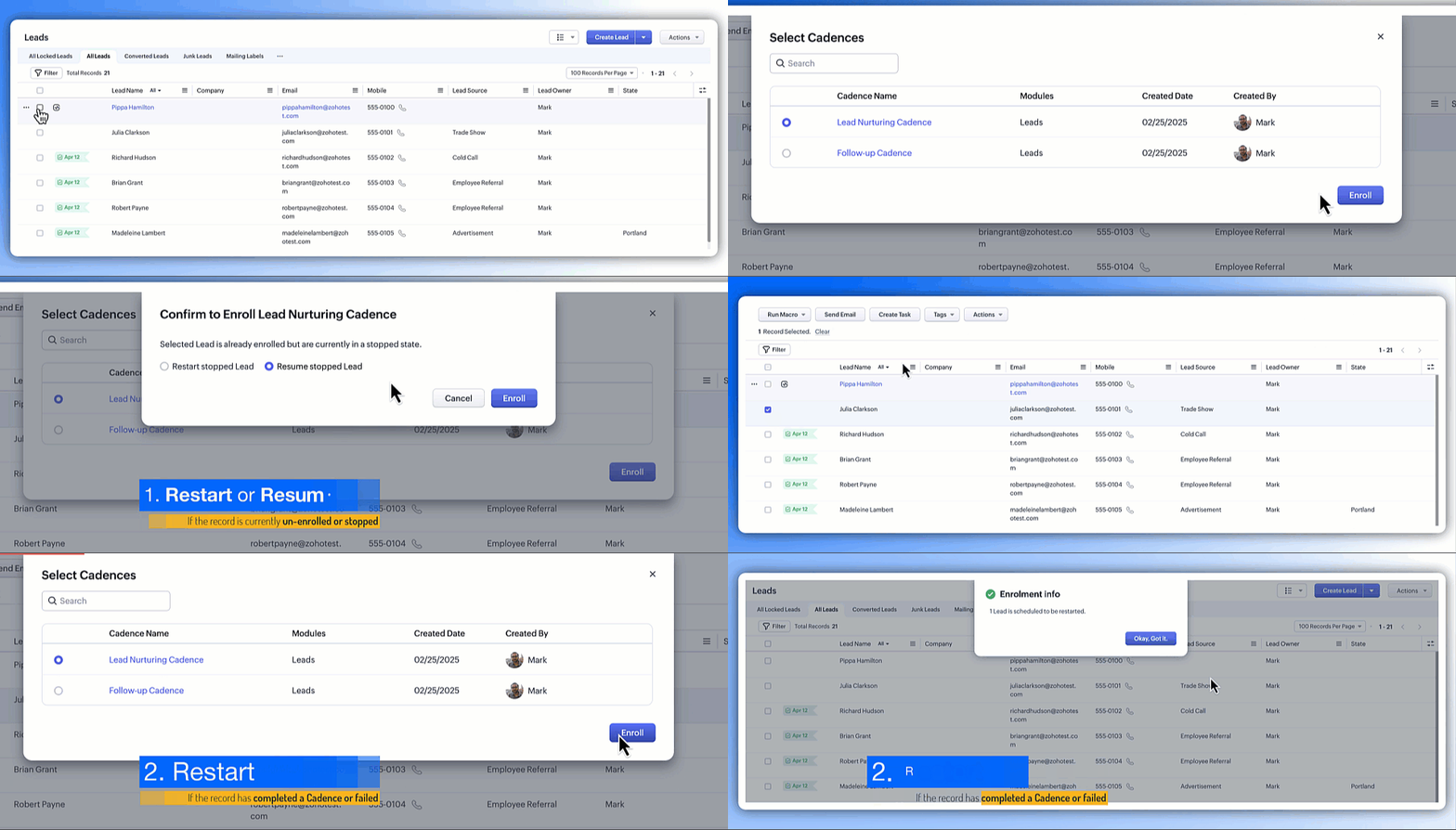
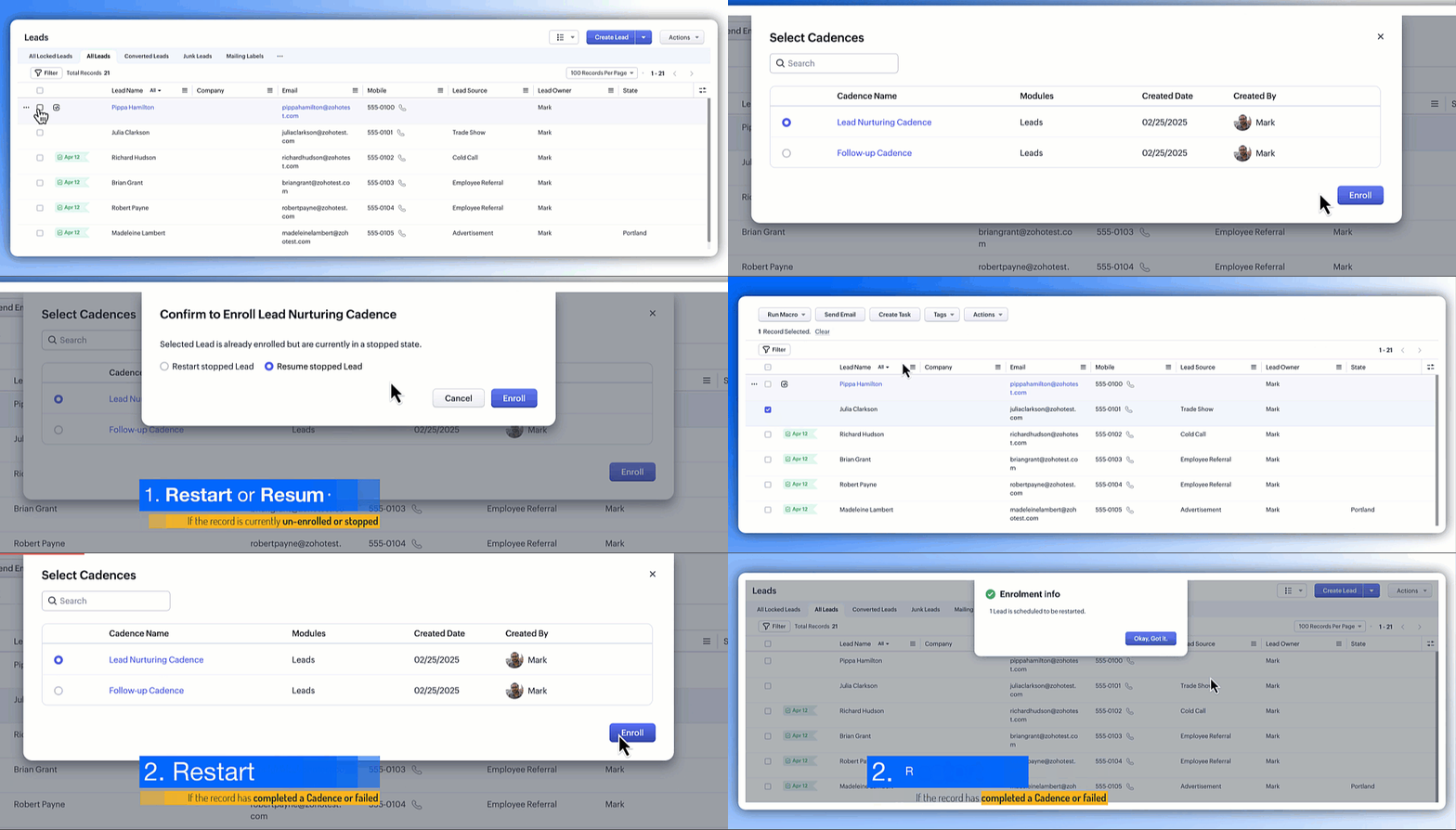
You can now re-enroll records that were previously un-enrolled, whether due to manual removal, completion, or when the un-enrollment criteria is met. Depending on the Cadence status, you’ll have the option to resume it from where it left off or restart it from the beginning.
For example, say a lead dropped off in the middle of a 5-step nurture Cadence. If you're re-engaging with that lead later, you’re no longer required to start the follow-ups from scratch. Based on your business goals and the lead’s earlier interactions, you can now choose to either resume the Cadence from where it left off or restart it from the beginning.
On the other hand, if a Cadence was already completed, or say the record failed in any of the follow-up steps, you can restart it from the beginning, useful for seasonal campaigns or re-engagement efforts.
Note:
- Records with missing or deleted follow-up activities cannot be resumed and must be restarted instead.
- If a follow-up activity is deleted, the cadence can only be restarted.
Is Cadences applicable for custom modules as well?
Yes, cadences are applicable for custom modules. However, only emails and tasks are available for follow-up. Currently, calls are not supported as follow-up actions in custom modules.
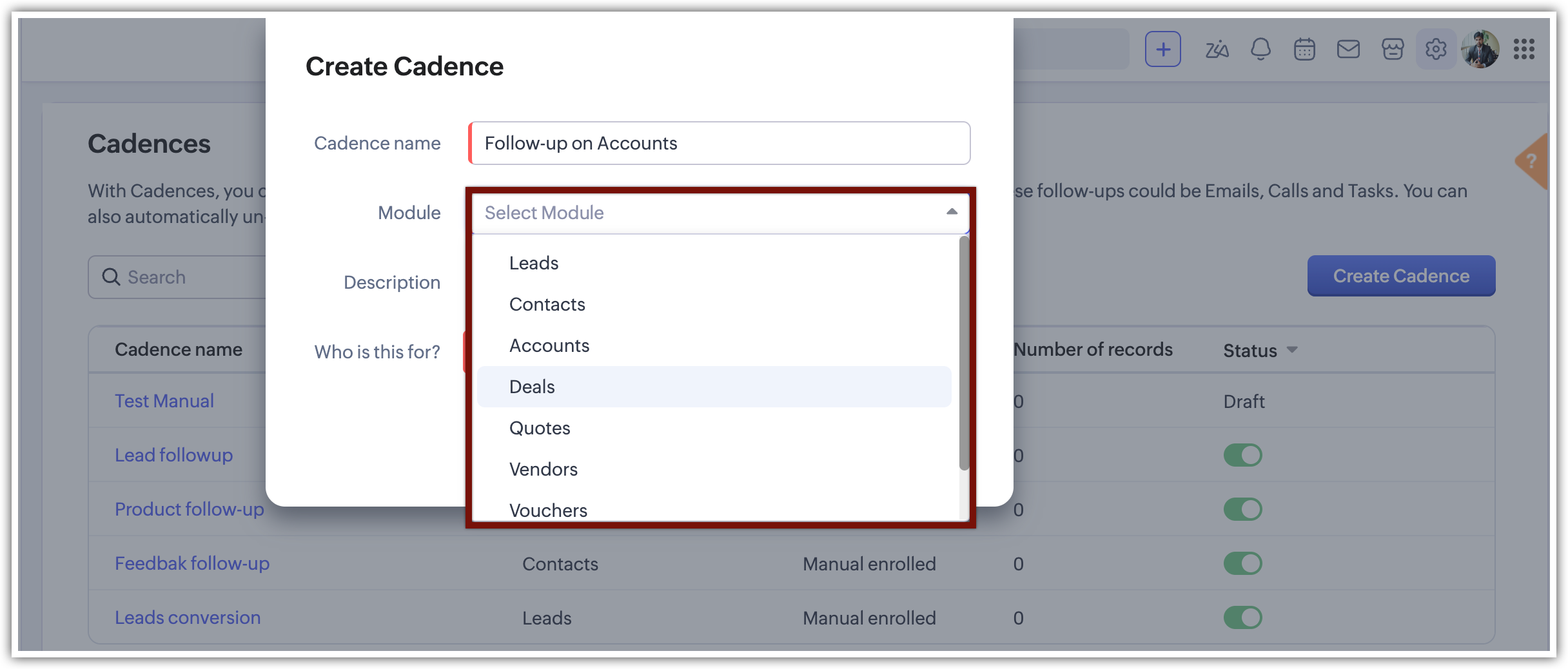
Which modules are available in Cadences?
Leads,
Contacts,
Deals,
Vendors,
Accounts,
Quotes and
Assets modules are available in Cadences along with the custom modules you have created in your Org.
Can I use Cadences for all the records in my module?
Yes, you can use cadences for all the records in your module either by manually enrolling them or by creating a custom view which incorporated all the available records in the module.
Can I use a date/time-field as a trigger in Cadences?
No, you cannot use it directly. However, you can set a date field as a criterion in a custom view and use the custom view instead.
For example, if you have a custom view called "Today's Leads" with the criterion "Created date is today," you can use this custom view.
Can one cadence work across multiple modules?
No, but a single module can have multiple cadences.
For example, the Contacts module can have several cadences. However, each cadence is specific to one module, so if you want to use cadences for different modules, you will need to create distinct cadences for each module.
If a custom view is selected as the trigger, what happens if a record initially meets the custom view criteria but later the data changes and the record no longer fits the criteria?
You can choose to un-enroll a record when it no longer meets the custom view criteria. This option is available under Un-enroll properties.
If the record meets the criteria again later, it will not be re-enrolled.
Can we generate tasks or emails, as well as calls, based on the same action type again?
No, once you have created an email, task, or call based on a specific action type (e.g., when an email is 'Replied'), the option for 'Replied' will be disabled automatically the next time you schedule an email or task.
Is it possible to clone or copy a cadence to another module?
You can clone or duplicate a cadence within the same module, but this feature is not available for duplicating cadences across different modules.
Can all actions in a follow-up be executed even if some records have already moved to the next follow-up?
In a follow-up, only one action will be executed based on the response. Once that action is completed, the sequence will move to the next follow-up stage.
Can you have multiple cadences per module?
You can have multiple cadences per module, but only a certain number can be active at any given time.
Is it be possible to update a field?
This feature is not available in Cadence, but you can achieve it using a workflow.
Can a cadence be added via a workflow?
The feature is absent in Cadence currently, but it is intended to be incorporated in the forthcoming update.
If I have a cadence for leads module and the lead is converted, will cadences stop?
Yes, the cadence will cease to function on the record which has been converted.
What happens if you modify an active cadence?
When active cadences (with already enrolled records) are modified, changes to the follow-ups (whether newly added or updated) will not affect records where the scheduled follow-up has already been executed. For records enrolled after the modification, the updated cadence flow will apply.
Editing a cadence does not restart it from the first follow-up. Existing records within the cadence will continue from their current position and execute as originally configured. However, if a follow-up is edited and it is scheduled for existing records, the cadence will pause. If no response has been received for that follow-up yet, it will resume from that point.
You can keep a draft version of your cadence until it is ready to be published, while the active version will continue to run.
What will happen if I deactivate a cadence?
If a cadence is deactivated, all the related follow-ups will be halted as well. If a cadence is deactivated partway through, any actions that were scheduled but have not yet occurred will be halted and will not proceed. This includes any future actions planned within the cadence at the time of deactivation.
How do I deactivate or reactivate a cadence?
To deactivate or reactive cadence:
- Click the toggle switch for the cadences you wish to reactivate or deactivate. This will open a pop-up.
Can I get the reports for cadence?
Yes, you can.
To get reports in Cadences from within Cadences page:
- Go to Setup > Automation > Cadences.
- On the Cadences setup page, hover over the cadence you want to view reports for and click View Reports.
To get reports on cadences from the Reports module:
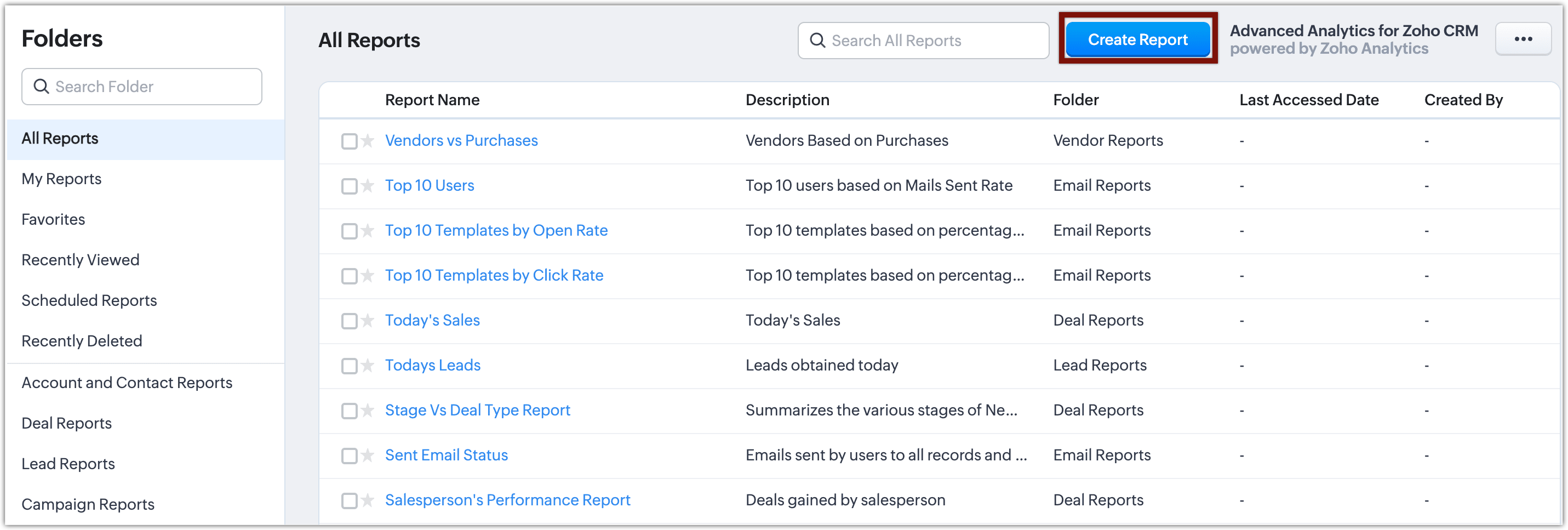
- Go to the Reports module.
- Click on Create Report.
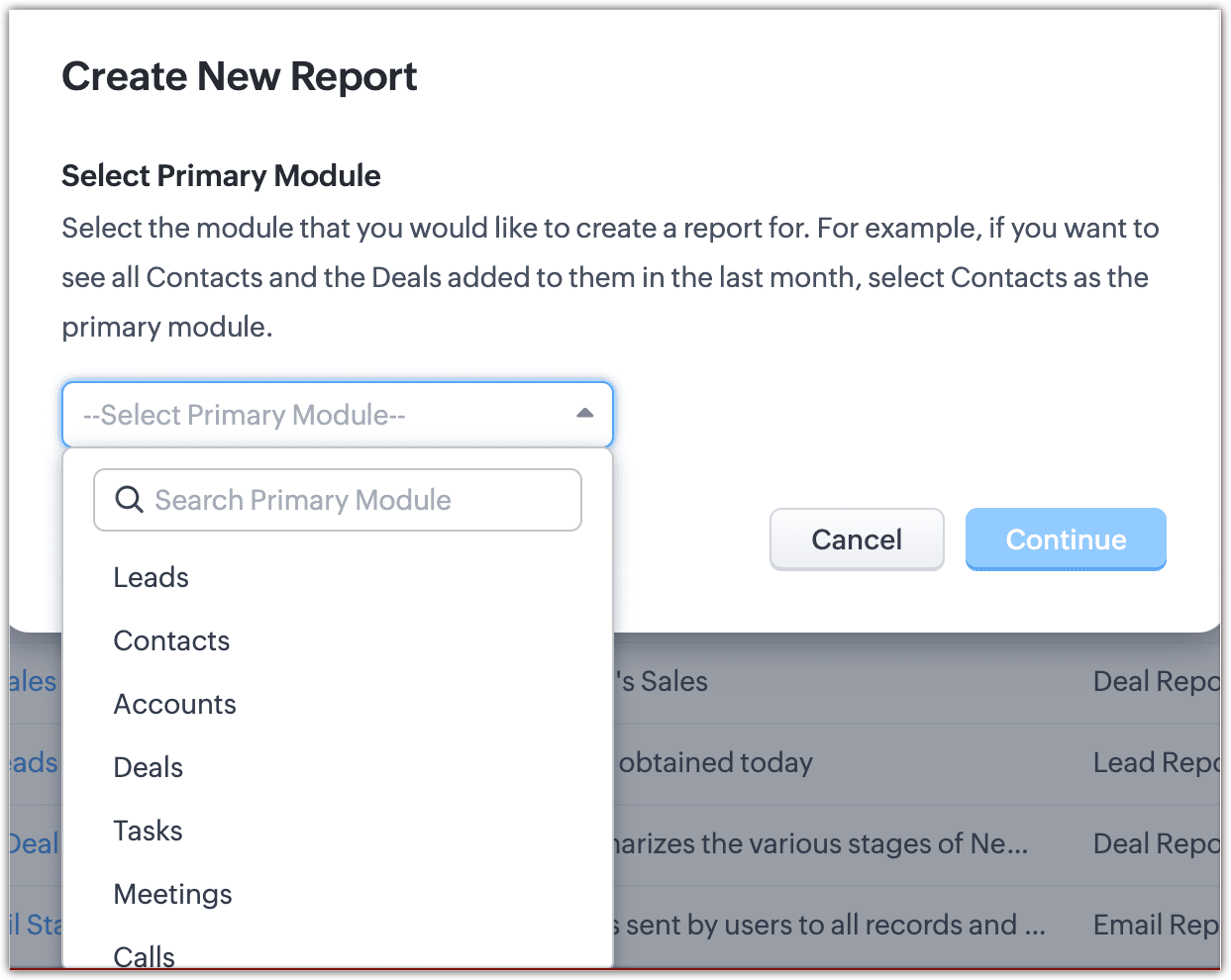
Select the module for which you want to generate reports, then click
Continue. (For cadences, choose from the Leads, Contacts, Deals, Vendors, or Assets modules).
On the Reports page, click the + button. You will see options to choose child modules. Select cadences from the list.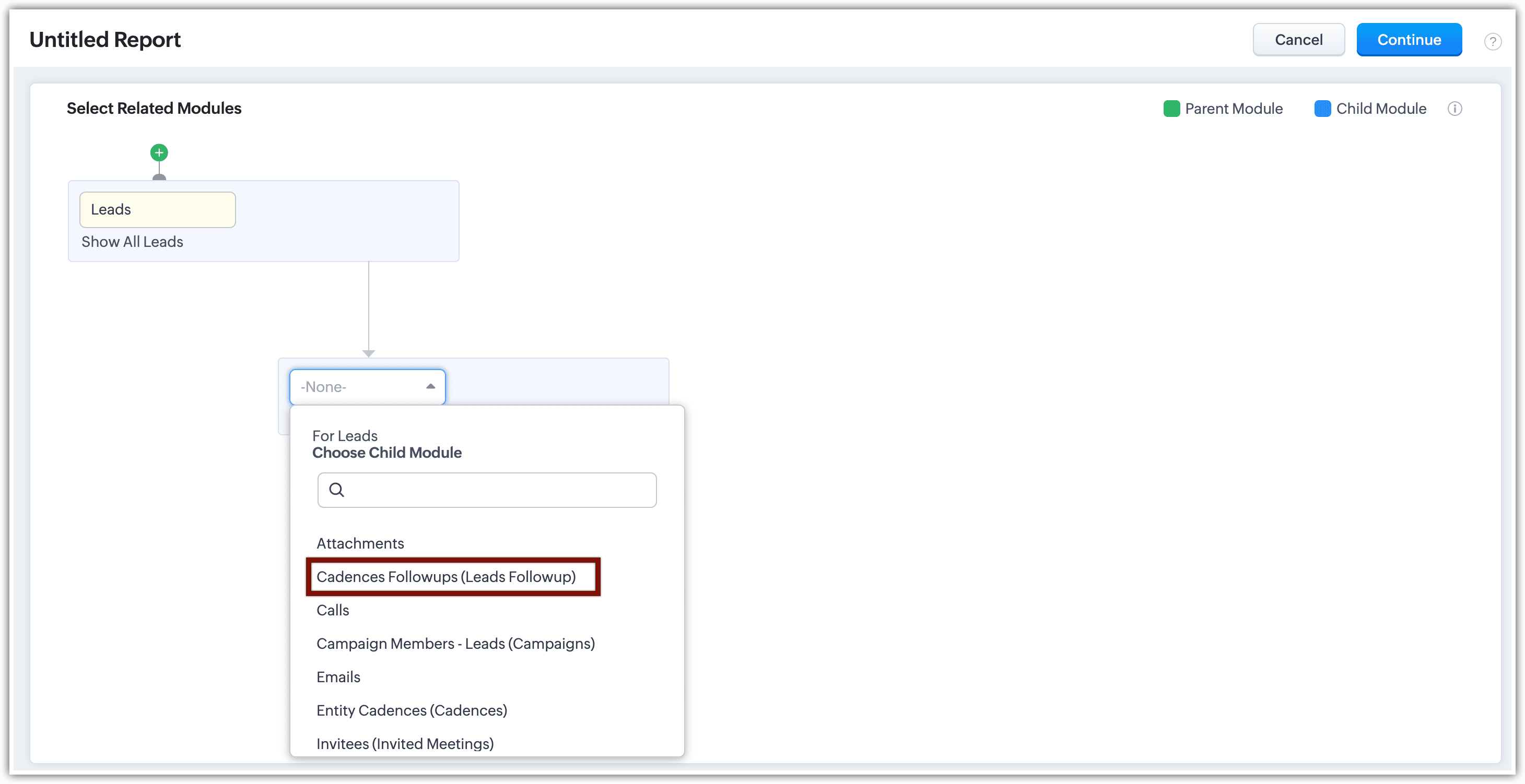
Select the relationship type, Inclusive or Exclusive, then click Done.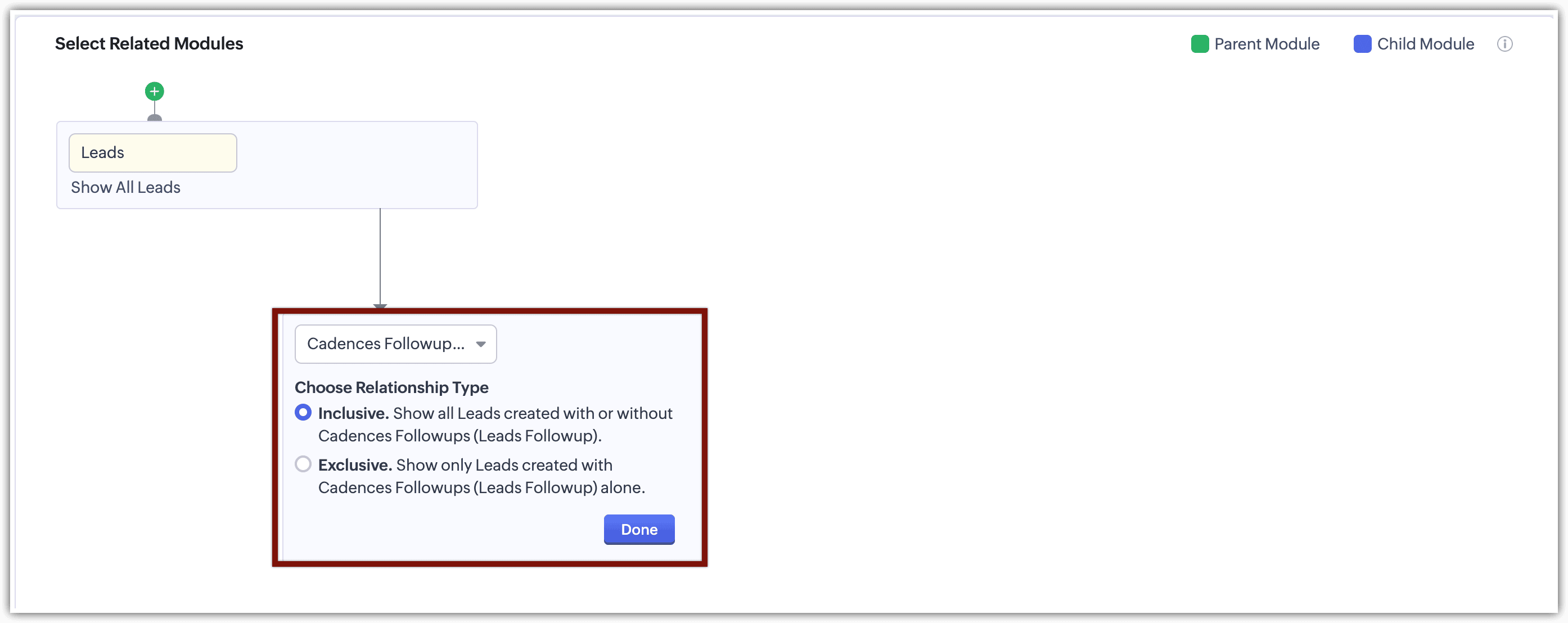
Click Continue.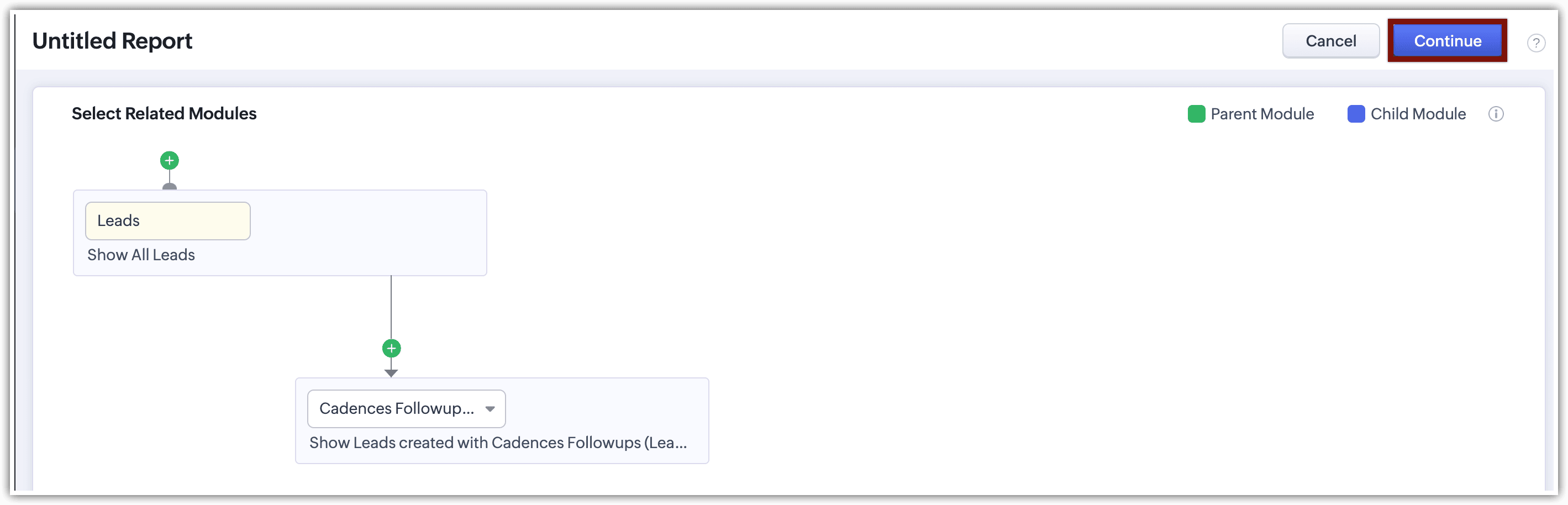
You have successfully created your cadences report.
Learn more about Creating Reports.
Yes. You can use the tag in custom view and use the custom view here.
Yes, the record will be attributed to multiple cadences.
Will un-enrolling a cadence remove scheduled calls that were created but were not executed within that cadence?
Yes, any scheduled action will be deleted on un-enrollment of a cadence.
What’s the main point of using a cadence to send a campaign instead of doing it with Zoho Campaigns?
If you use CRM campaigns or send transactional emails to your customers, utilizing cadences for sending and automating follow-ups is ideal for running a nurturing series. However, if you need to send bulk campaigns, Zoho Campaigns is the better choice.
What is the method for determining the daily email sending limit via Cadences?
The daily email sending limit in Zoho CRM varies depending on the edition you are subscribed to. Each email feature in Zoho CRM has its own specific limit, such as individual emails, mass emails, and workflow emails. For cadences, the daily email limits are determined by the workflow email limits.
When using cadences, these limits apply, meaning each email sent through a cadence counts towards your workflow email notifications. This ensures that your automated follow-ups and nurturing series remain within the established boundaries.
Will a customer unsubscribing from an email alert disable the cadence?
When a customer unsubscribes from an email alert, the cadence will stop sending emails to that customer. However, the cadence itself is not entirely disabled. You can still engage with the customer through other means, such as phone calls or tasks included in the cadence. This allows you to continue nurturing the relationship using non-email activities.
Will you verify the email includes the unsubscribe tag?
We do have an Unsubscribe link option in our email templates. When you keep in the template while sending emails, we take care of the un-subscription.
Learn more about
setting unsubscribe link.
Is it possible to make changes to a cadence while it is still active?
Yes, Zoho CRM allows you to keep a draft version of an active cadence. This means you can have two versions of a cadence at the same time: one that is active and another in draft mode. While the active version continues to run, you can make changes and updates to the draft version. Once you finalize the changes in the draft, you can activate it, replacing the previous active cadence.
What happens to the sequence if the system fails to detect the opening of an email?
If the system does not detect that the email has been opened, the email will remain in the "sent" status. Consequently, the next step in the cadence or any follow-up action set to trigger upon the email being opened will not be initiated.
Is it possible to remove a deal from a cadence by the Deal stage?
Yes, it is possible.
A deal can be automatically removed from a cadence based on its Deal Stage by configuring un-enroll properties using record criteria. When the deal’s stage changes to the specified value (for example, Closed Won or Closed Lost), the system automatically un-enrolls the deal from the cadence. This ensures that follow-ups stop once the deal has progressed to a stage where further actions are no longer required.
Can Cadences automatically make calls, or do they serve as reminders for sales reps to make the calls manually?
No, automatic calls are not created. Instead, a notification will be shown on the CRM page to remind the sales rep to make the call manually.
Is it possible to add a followup for Un-replied or Un-opened mail?
This feature is not available at the moment, but it is in our immediate pipeline and will be available in our upcoming updates.
Can we choose if we want to send an automatic email or manual?
The core purpose of automation is to turn manual tasks into automated ones. Cadences are designed to automate follow-up tasks, reducing lead nurturing time and helping sales reps streamline their processes. As a result, cadences can perform follow-up actions automatiycally, such as sending emails, as long as the specified criteria are met.
Can the initial email in a cadence be sent from someone other than the cadence creator?
Yes, you can select the "sender" address while creating your follow-ups as emails in cadences, just like you do in Workflows.
Is there a limit on how many follow ups we can add?
No, there is no restriction on the number of follow-ups. The restriction is based on the number of actions (emails, calls, and tasks) that can be performed by cadences.
Can leads be enrolled in a specific stage?
If there is a field that differentiates these leads, you can use it in the custom view criteria then apply that custom view in the Cadence.
Will a record will be un-enrolled after the last follow-up is created or completed, regardless of the exit settings? Will this also apply if the record leaves the selected view?
Yes, the record will be un-enrolled after the last follow-up is executed. If you want the record to be un-enrolled when it leaves the selected view, you need to set this in the un-enrollment properties.
Can you integrate cadences with Command Center or Blueprints?
Currently, you cannot perform that action, but it is included in our plan and will be implemented in future updates for Cadences.
If a follow-up includes a task or call, does it pause all subsequent email automation in that path?
No, it doesn't. You can plan the next follow-ups based on the status of the call or task.
Will the automation proceed to the next email even if a call or task is still pending?
Yes, if it is configured that way, the automation will proceed. You can adjust this behavior through the configuration settings in your cadence.
If you have a task or call as part of the follow-up, does that pause all subsequent email automation on that path? What allows the path to complete?
No, it doesn't pause subsequent email automation. You can plan the next follow-ups based on the status of the call or task. The path completes once the last follow-up is done; there's no need to mark the task or call manually as completed.
Will the subsequent emails in the cadence be transmitted through IMAP or will they all be sent from CRM servers?
The emails will be sent from CRM servers. If an Email Relay is configured for automated emails, they will be sent through the configured Email Relay server; otherwise, they will be sent from CRM servers.
Can I choose any WhatsApp template? Or only pre-approved ones?
You can only use pre-approved WhatsApp templates. Cadences lets you select a WhatsApp message only from the list of available WhatsApp message templates, which means custom messages aren’t supported as of now.
Note: WhatsApp follow-ups can be created only if WhatsApp Business is enabled for your WhatsApp account.
Which modules support WhatsApp follow-up?
WhatsApp follow-up is supported for the Leads and Contacts module only as whatsapp integration is only supported for Leads and contacts.
Is there a limit on how many Cadences I can create and how many I can have active?
Yes, there is a limit on the number of cadences, which varies based on your Zoho CRM edition. Please refer to the table below for details.
CRM Edition | Cadences You Can Create (per module) | Active Cadences Allowed (per module) |
Standard | 20 | 10 |
Professional | 40 | 20 |
Enterprise | 60 | 30 |
Ultimate | 70 | 50 |
What’s the maximum number of active Cadences allowed per module with add-ons?
Yes. With add-ons, you can have up to 70 active Cadences per module.
For example, in the Standard edition of Zoho CRM, by default you can create up to 20 Cadences per module and have 10 active Cadences at a time.
Now, let's say for your business requirements you run 30 Cadences simultaneously. In this case, you can buy 20 add-on limits. You'll now be able to have up to 30 active Cadences (10 base + 20 add-ons) and up to 40 Cadences created (20 base + 20 add-ons).
Your existing subscription and pricing remain unchanged; this add-on simply gives you room to scale without added complexity.
Can I allow someone to just view Cadences but not manage them?
Yes, you can. Under Setup > Security Control > Profiles > Profile type > Cadences, admin users can grant view-only access to Cadences without allowing management actions. With the updated permission settings, you can enable View Cadences independently, while keeping Manage Cadences disabled.
This means:
- Users can see Cadences and their details
- They cannot create, edit, activate, deactivate, or delete Cadences
 Note: All Cadences permissions are enabled by default when the Manage Automation permission is turned on for a profile. To grant more specific access such as only viewing, enrolling in, or managing Cadences admin users must first disable Manage Automation, and then enable the required Cadences permissions individually based on the level of access needed.
Do I need Automation permission (or full “Manage Automation” permission) for someone to create and manage Cadences?
No. You do not need the full Manage Automation permission to create and manage Cadences in Zoho CRM.
Cadences now have dedicated permissions that can be assigned directly in a user’s profile under Setup > Security Control > Profiles > Profile type > Cadences, With these Cadences-specific permissions, users can create and manage Cadences, as well as enroll and un-enroll records, without requiring access to other automation features.
That said, users who already have Manage Automation permission will also be able to manage Cadences, since this permission automatically enables all Cadences permissions as part of broader automation access.
When should a Cadence be resumed, and when should it be restarted for a record?
You can resume or restart a Cadence for a record based on how and when the record was un-enrolled.
When a Cadence is completed, meaning all follow-up steps have been executed, the record can be enrolled again, but the Cadence can only be restarted from the beginning. Resuming is not available because there are no remaining steps to continue from.
When a Cadence fails during a follow-up step, the record can still be enrolled again. However, in this case as well, the Cadence can only be restarted from the beginning, since the sequence could not continue from the failed step.
When a Cadence is stopped midway, either due to configured un-enrollment properties or manual un-enrollment, you have more flexibility. When the record is enrolled again, you can choose to:
- Resume the Cadence, which continues from the follow-up step where it was stopped, or
- Restart the Cadence, which begins again from the first follow-up.
This flexibility allows you to either continue from where the engagement paused or restart the entire Cadence, depending on your engagement strategy.
What happens if a record fails at a follow-up step, and can it be enrolled again?
If a record fails at a follow-up step, it is not removed from the Cadence immediately. Instead, the Cadence moves to a Stopped / Failed state for that record. This can happen due to configuration issues, such as an invalid or missing email address, or a follow-up activity being removed.
Once the issue causing the failure is fixed, the record can be enrolled again. However, since the Cadence could not continue from the failed step, the record cannot resume from where it stopped. When re-enrolled, the Cadence restarts from Follow-up 1.
In short, records that fail at a follow-up step can be enrolled again, but the Cadence will restart, not resume.
Can I restrict who can re-enroll records into a Cadence?
Yes, you can restrict who is allowed to re-enroll records into a Cadence.
Re-enrollment is controlled through Cadences permissions at the profile level. Only users who have the appropriate permissions can enroll or re-enroll records into a Cadence. Users with view-only access can see Cadences but cannot take any enrollment actions.
In practice:
- Users with Manage Cadences or Enroll to Cadences permission can re-enroll records.
- Users with view-only Cadences access cannot re-enroll records.
- If Manage Automation is enabled for a profile, all Cadences permissions are enabled by default. To restrict re-enrollment, Manage Automation must be disabled and Cadences permissions should be granted selectively







