Managing time zone
Managing and calculating time zones while publishing content can be tricky, especially when you’re handling multiple brands or working with teams across different regions. A small mistake in time conversion can result in posts going live too early, too late, or at the incorrect time altogether. In Zoho Social, you can set a time zone according to your preference.
By unifying your time zones based on your account, brand, or location preferences, Zoho Social makes it easy to plan, schedule, and publish content at the right time.
Time Zone Settings in Zoho Social
Zoho Social offers three different time zone options to help you publish content at the right time, no matter where you or your brands are located. Whichever option you choose (account, brand, or browser) becomes your primary time zone in Zoho Social. Each option is designed to support a different working style.

Note:
- All timestamps across the portal will be shown in your primary time zone.
- The Reports tab always uses the GMT zone, regardless of your selected preference.
Account Time zone
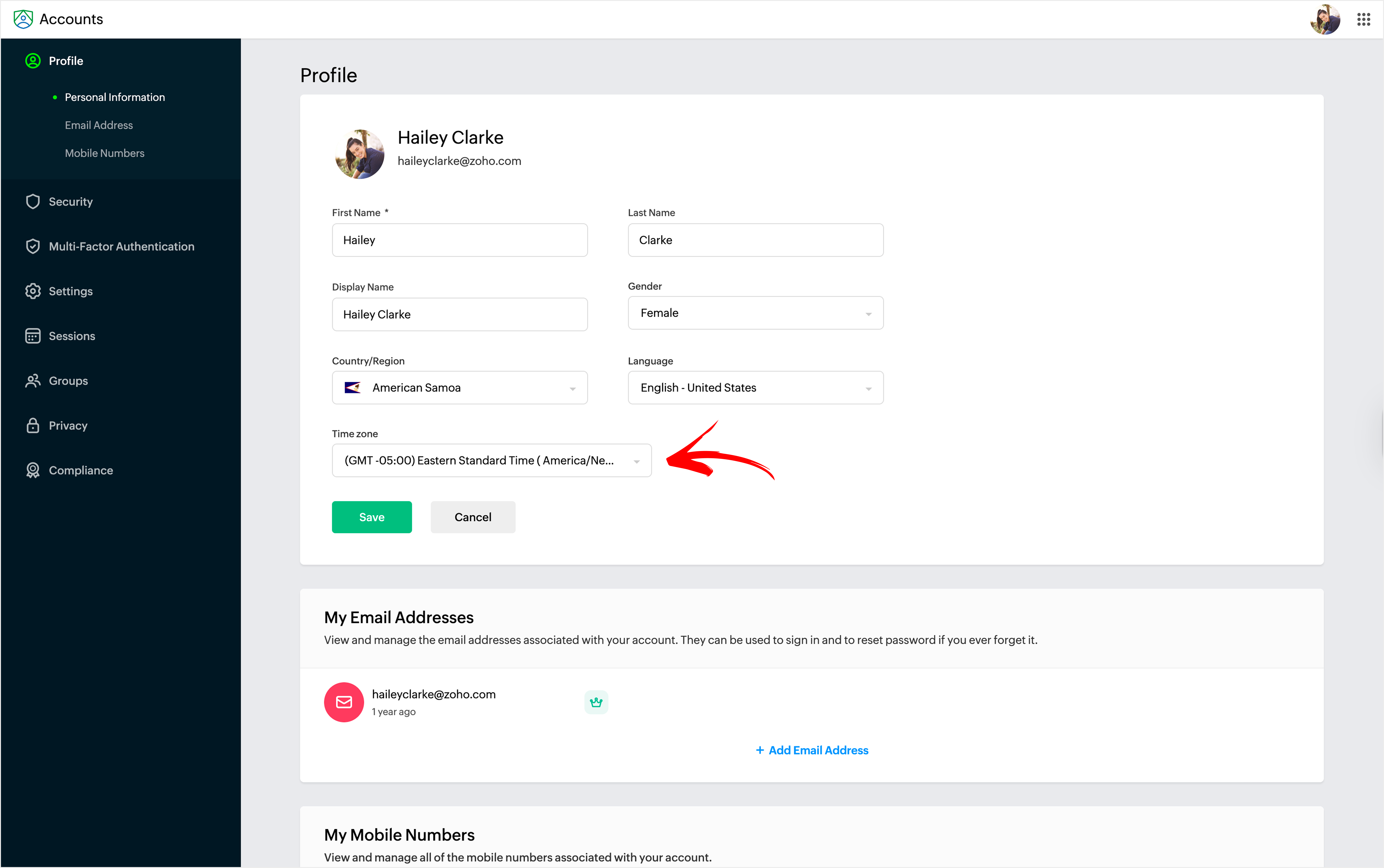
The Account Time zone follows the time zone set in your Zoho account (accounts.zoho.com). When you select this option, Zoho Social will use the same time zone for scheduling posts and managing your content. If you want your Zoho Account time zone to be applied to Zoho Social, this is the right choice.
Example:
If your Zoho CRM (Zoho account) is set to IST, Zoho Social will also use IST for all scheduling and reporting activities.
Best for:
- Users who work with Zoho Suite apps
- Teams that want one common time zone across all Zoho products

Pro Tip:
- Choose the Account time zone if you use more than one Zoho app and want Zoho Social to stay in sync.
- Learn more about how to change the time zone in Zoho accounts.
Browser time zone
The Browser time zone uses the time zone of the device operating system you’re currently using. So if you travel to another country, Zoho Social will switch to the local time zone of that place. For example, if you're in India today and in the UK next week, your time zone in Zoho Social will update based on where you log in from.
Best for:
- Users who travel frequently
- Individuals who want their schedule to match their current location
Pro Tip:
- Choose the Browser time zone if your work hours change depending on where you are physically located.
Brand time zone
With Brand time zone, each brand you manage can have its own separate time zone. All posts and schedules for that brand will follow the time zone you set for it.
For example, if you manage:
- A brand for India -> Set time zone to IST
- A brand for the US -> Set time zone to EST
Best for:
- Agencies and marketers handling multiple brands in different regions
- Teams managing global audiences
Pro Tip:
- Choose the Brand time zone when your brands serve audiences in different countries or time zones.
To change the brand time zone:
- Go to Settings -> Brand information.
- Click Edit in the top-right corner.
- Enter your Preferred time zone.
- Click Save
Custom Time zone
The Custom Time Zone option allows you to manually select the exact time zone you want Zoho Social to follow. Once set, that time zone will be used consistently across Social. This is useful when your audience is spread across different parts of the world, and you want to align your posts with their peak engagement times.
For instance, you manage a global brand and want to focus on the UK this month, mainly, but next month, your focus shifts to Australia. With Custom Time zone, you can manually switch the time zone to match where your audience is most active.
How to choose a time zone
To choose your preferred time zone:
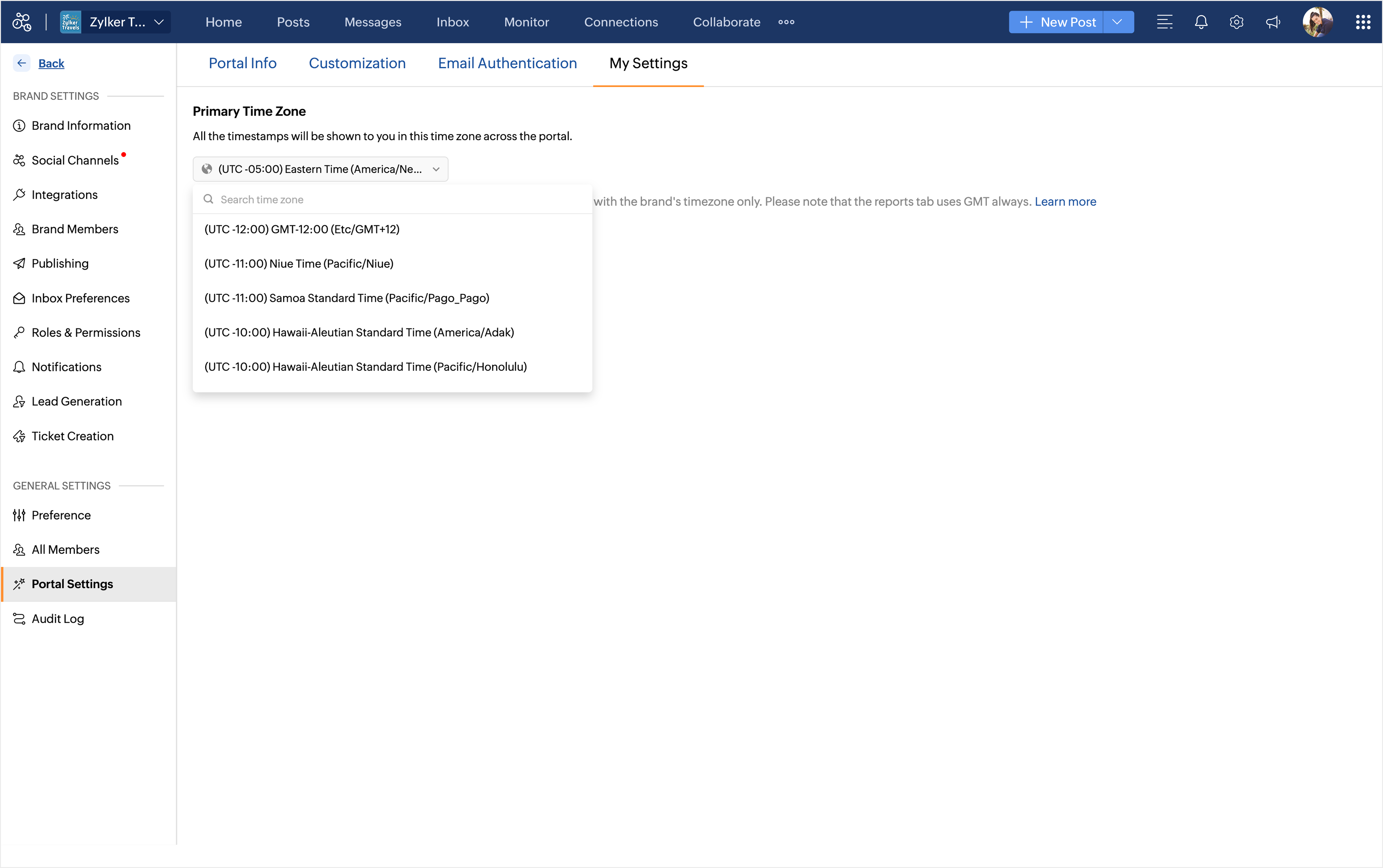
- Go to Settings -> Portal Settings.
- Click on the My Settings tab.
- Under Primary time zone, choose one of the following from the dropdown:
- Account time zone
- Browser time zone
- Brand time zone
- You can also custom choose your preferred time zone from a list of time zones across the world using the dropdown menu.
- Click Proceed