QR Code Generator
Access the QR code generator and create your QR code in just a few clicks.
QR codes are a part of our everyday lives. From paying for your coffee and scanning a restaurant menu to booking metro tickets, QR codes make accessing information quick and effortless. QR codes offer an instant way for people to acquire what they need, without extra steps.
Creating a QR code should be just as simple.
The QR code generator in Social Toolkit lets you generate QR codes in seconds and customize them to match your brand. You can personalise your QR code by adjusting colours, adding text, and refining the design to suit your campaign or purpose.
Beyond creation, Social Toolkit also helps you track performance. With built-in analytics, you can monitor how your QR code is performing by viewing the number of visits. This gives you clear insights into how users are engaging with your website or content.
Social Toolkit’s QR Generator makes it easy to create, customize, and track QR codes all in one place.
Generate your QR code
You can generate a QR code in just a few simple steps using the QR code generator in Social Toolkit for the following content types:
- Link - Paste any link to generate a QR code instantly. This can include your website, menu card, playlist, social media profile, YouTube video, or any other online link you want users to access quickly.
- Media - Upload or drag and drop a media file to create a QR code that allows users to view the file directly by scanning it.
- Text - Enter your text in the input box to generate a QR code. You can customize the text using different fonts and formatting options such as bold, italics, strikethrough, bullet points, emojis, and emoticons for better readability and visual appeal.
- App link - Create a QR code that directs users to your app on the Play Store or App Store by pasting the respective store URL. iOS users are automatically redirected to the App Store, while Android users are redirected to the Play Store. An alternate link is mandatory in the App Link section.

Info:
- An alternate link is a backup page that users are redirected to when a QR code expires or when it’s scanned from devices other than Android or iOS.
Customizing your QR code
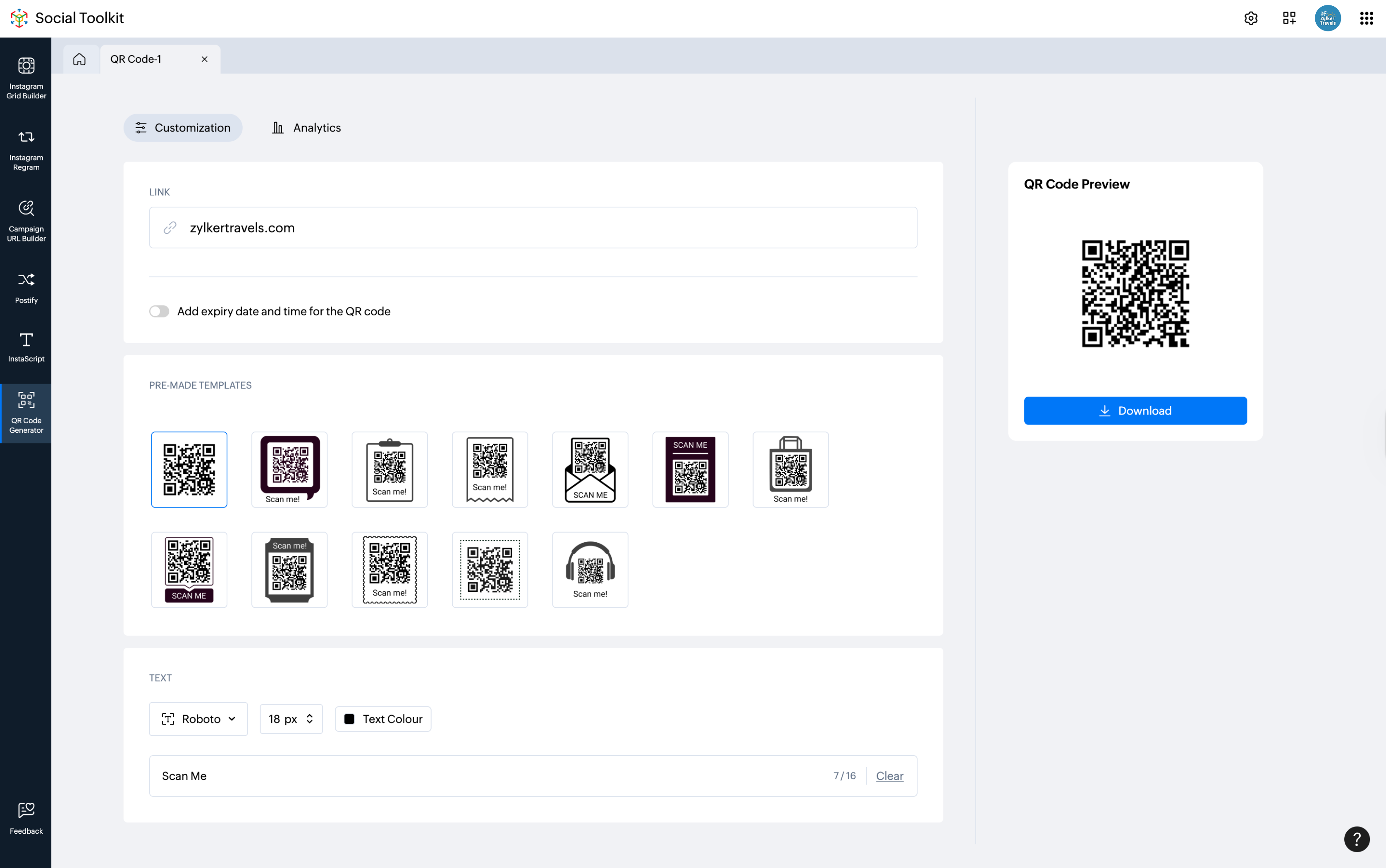
You can customize your QR code to match your brand style and purpose using pre-made templates and a variety of font styles.
Pre-made templates
Social Toolkit offers a set of pre-made templates that you can choose from based on your brand or use case.
For example:
- You can select a music-themed template for playlists.
- Choose shopping, payment, or feedback templates for relevant links.
You can also customize the frame colour to match your brand identity.
Text customization
You can edit the text displayed with your QR code by changing the font style, size, and color, as well as the text itself. This helps your QR code align visually with your campaign or brand style.
Set an expiration date
You can set an expiration date for your QR code based on your needs.
For example, if you’re generating a QR code for an event registration, you can make the QR code expire once registrations close.
You can also add an alternate link that users will be redirected to after the QR code expires, such as a page that says “Registrations are closed”.

Note:
- The expiration date option is not available for QR codes created for apps.
Steps to generate a QR code
To generate a QR code
- Go to the QR code generator in Social Toolkit.
- Enter the link or content you want to convert into a QR code.
- Click Generate QR code.
- Customize the template and text to match your brand style.
- Click Download to save your QR code.
Analytics
The QR code generator in Social Toolkit provides analytics to help you track visitor activity and engagement. You can view:
Total Visits - The total number of visits received on the link.
Unique Visits - The total number of new visits received on the link.
Browser Distribution - The distribution of visits on the link based on the browsers they were received.
Device Distribution - The distribution of visits on the link based on the devices they were received.
Visits by Country - The distribution of visits on the link based on the countries they were received.
Visits by Platform - The distribution of visits on the link based on the platform they were received.