Import data from SAP Hana
You can import data from the SAP Hana database into Zoho DataPrep using Zoho Databridge. Click here to know about Zoho Databridge.
Before looking into how to import data, let's take a look at the pre-requisites to connect to the SAP Hana database.
Prerequisites for SAP Hana
Please ensure the following conditions are met before proceeding with connecting to your SAP Hana.
1. Provide database read permissions to the Zoho DataPrep server.
2. Ensure you have the correct login credentials for your database. As a best practice, try connecting to your target database from the Zoho DataPrep server, using the native database management software available for the respective database.
To import data from SAP Hana
1. Open an existing pipeline or create a pipeline from the Home Page, Pipelines tab or Workspaces tab and click the Add data option.
 Info: You can also click the Import data
2. In the next screen, choose the required database or click the Databases category from the left pane.
3. Select New connection from the Connection drop down. If you have existing connections, you can choose the required connection from the Connection drop down.
4. Give your connection a name under the Connection name section.
5. Zoho Databridge is a tool that facilitates importing data from local databases. Databridge is mandatory to import data from any local database.

Note: If this is the first time you are downloading Zoho Databridge, see how to install it here.
6. Once you have installed Databridge on your machine, select your Databridge from the Databridge drop-down.
Note: Select the Databridge which is installed in the same network as the database you want to import the data from.
7. Select SAP Hana in the Database type drop down and enter the Database server host name and Port number.
8. Enter your Database name and provide the username and password if authentication is required.
Note: You can also select the Use SSL checkbox if your database server has been setup to serve encrypted data through SSL.
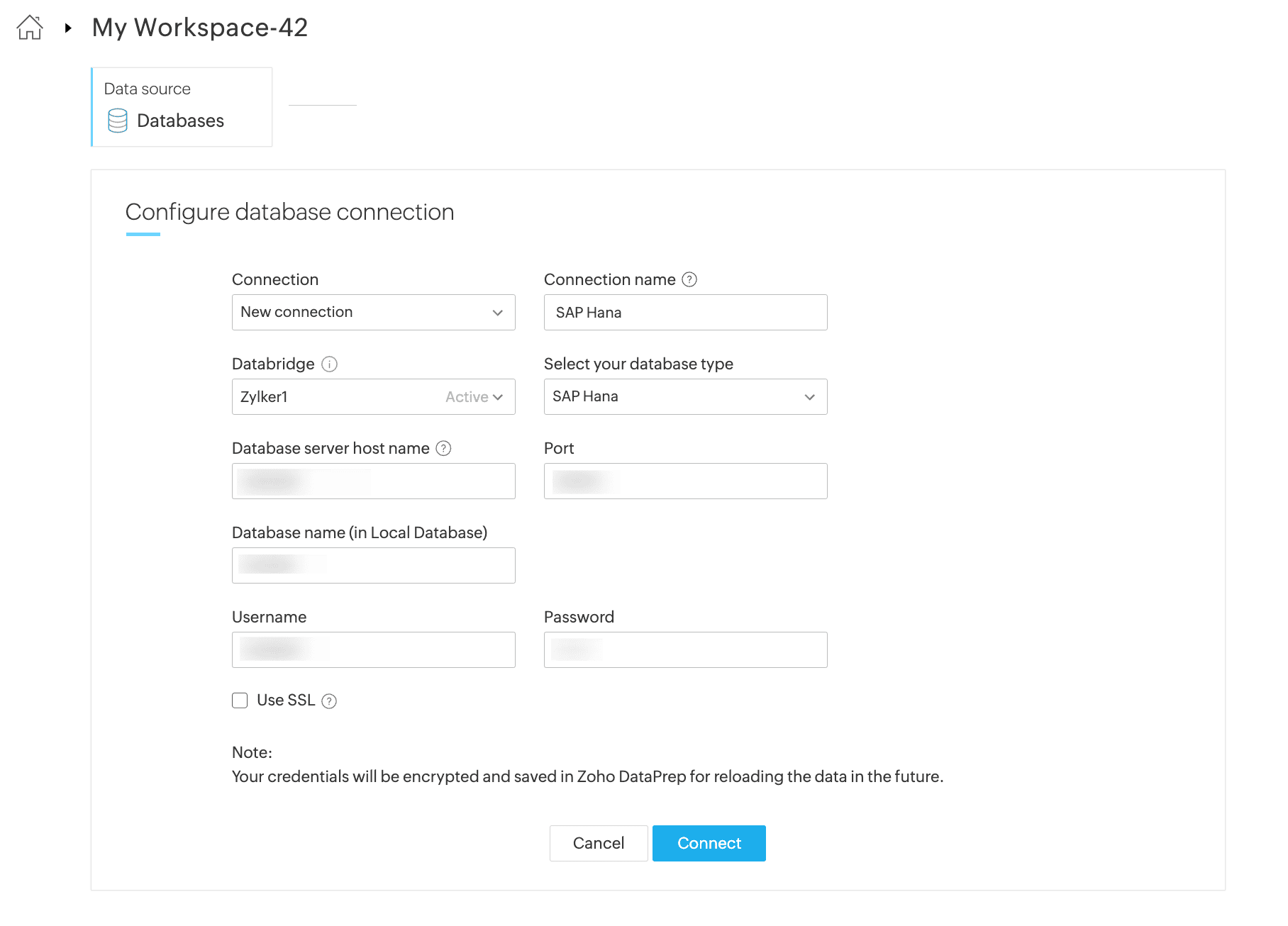
9. Save your database configuration and connect to the database using Connect.
Note: The connection configuration will be automatically saved for importing from the database in the future. Credentials are securely encrypted and stored.
10. Select the tables that need to be imported.
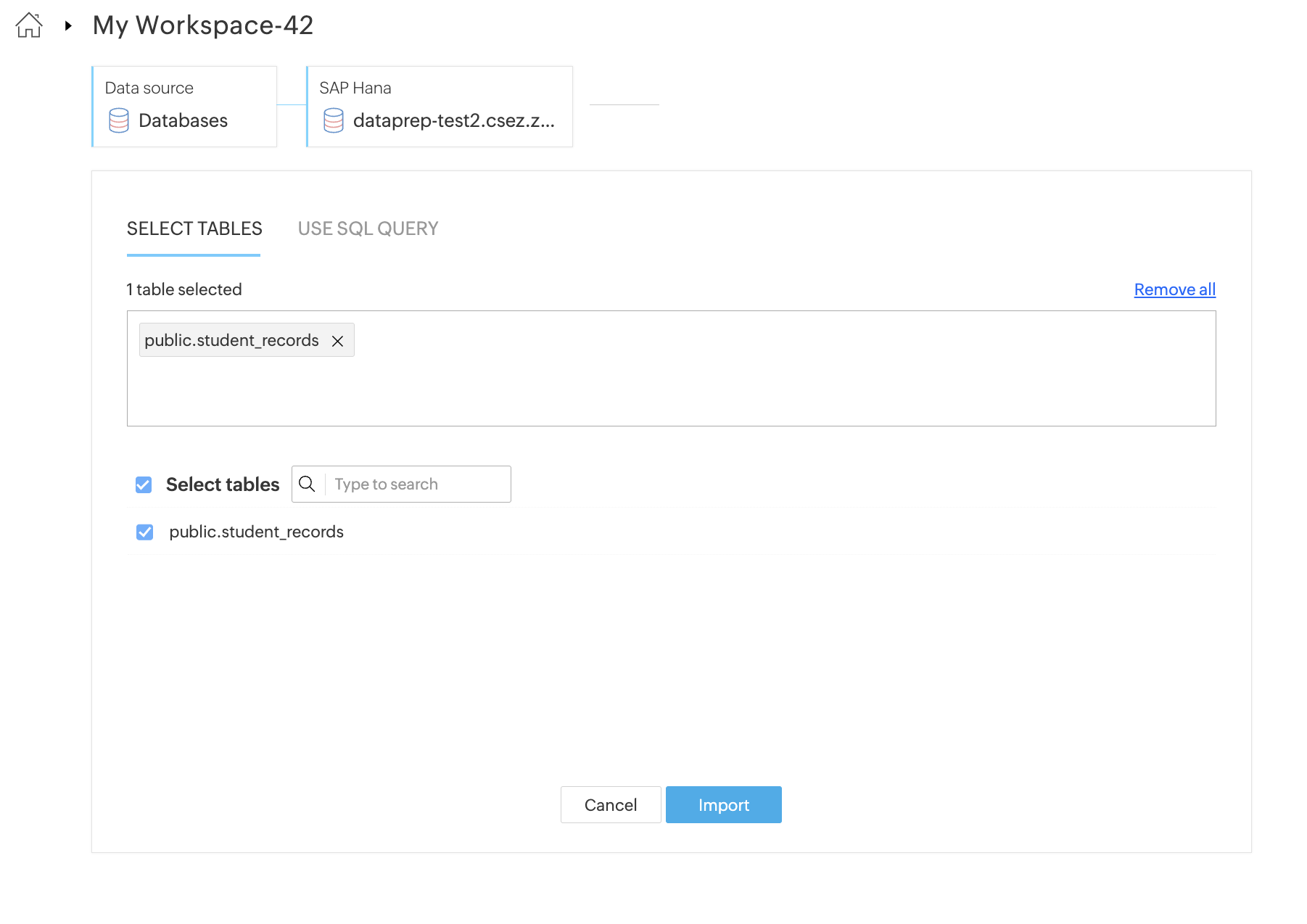
11. You can also use alternatively a SQL query to import data.
The incremental fetch option is not available when the data is imported using a query from databases. Click here to know more about incremental fetch from local database.
12. Click the Import button.
13. Once you are done creating your data flow and applying necessary transforms in your stages, you can right-click a stage and add a destination to complete your data flow.
While configuring the Schedule, Backfill, Manual reload, Webhooks, or Zoho Flow, the import configuration needs to be mandatorily setup for all the sources. Without setting up the import configuration, the run cannot be saved. Click here to know more about how to set up import configuration.
14. After configuring a run, a pipeline job will be created at the run time. You can view the status of a job with the granular details in the Job summary. Click here to know more about the job summary.
To edit the SAP Hana connection
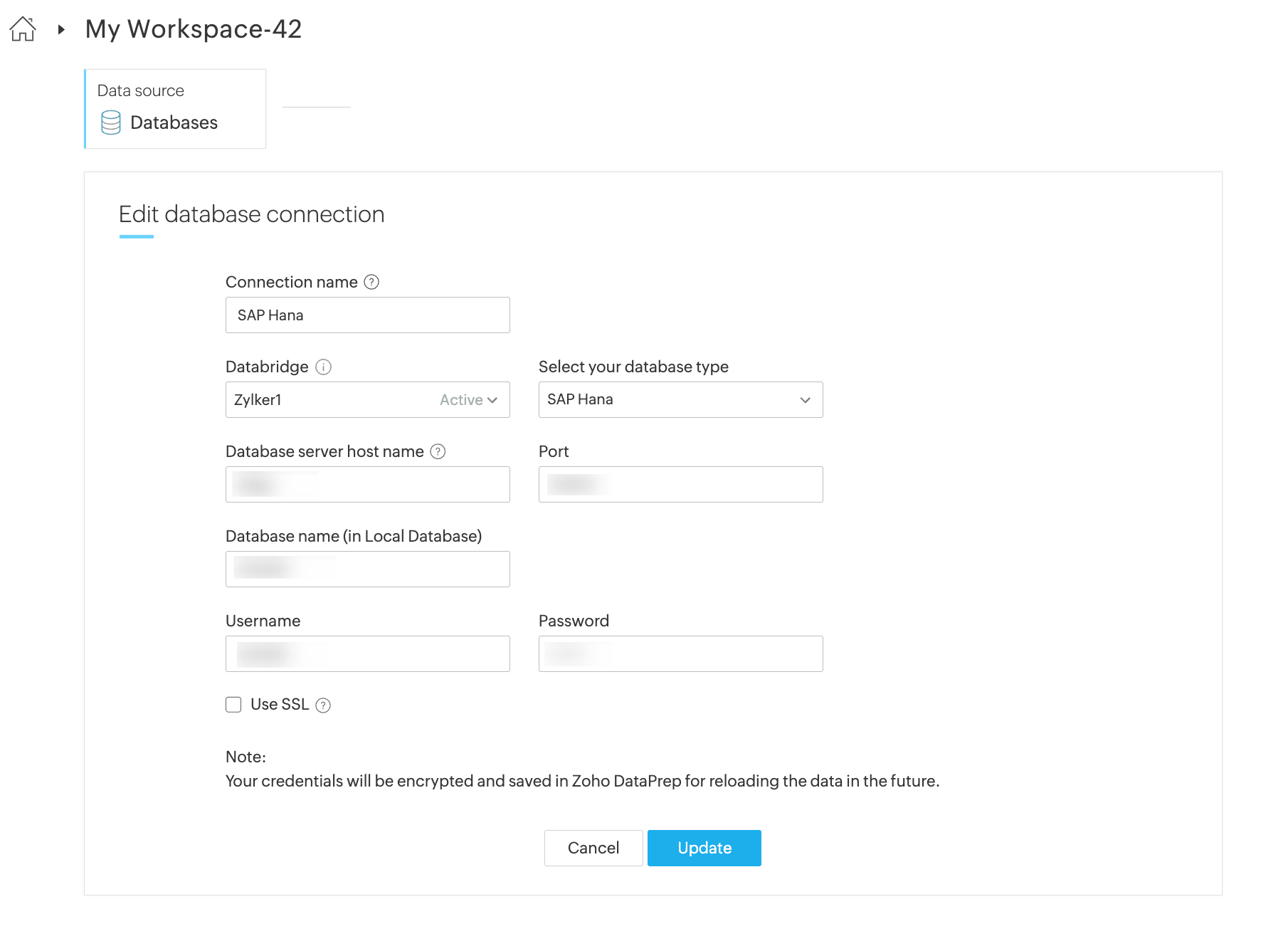
DataPrep saves your data connections to avoid the hassle of keying in the credentials every time you need to connect to a data source or destination. You can always edit the saved data connection and update them with new parameters or credentials using the Edit connection option.
1. While creating a new dataset, click Saved data connections from the left pane in the Choose a data source section.
2. You can manage your saved data connections right from the data import screen. Click the ellipsis (3 dots) icon to share, edit, view the connection overview, or remove the connection.
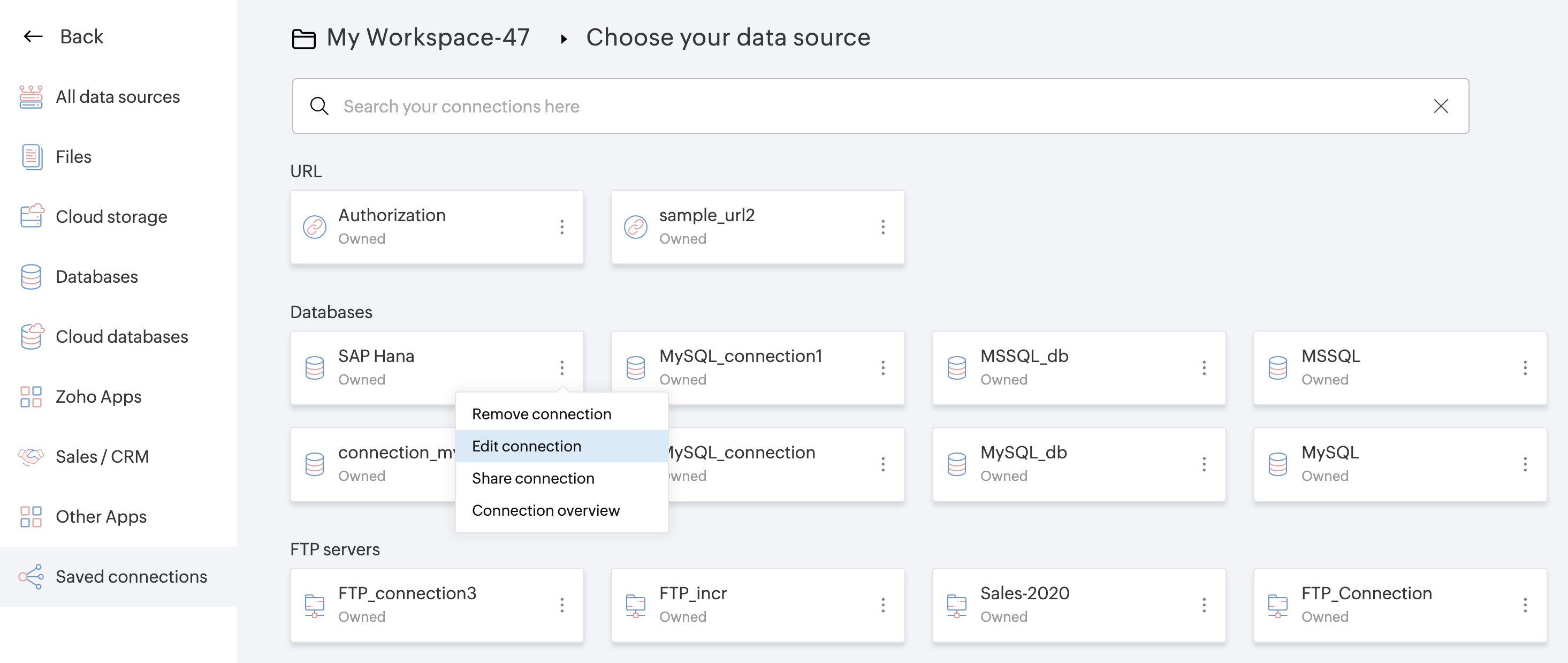
3. Click the Edit connection option to update the saved connection with new parameters or credentials.
Use cases
Automating daily SAP Business One(on-prem) data Integration to Zoho Analytics
Problem:
Every day at 9:00 AM IST, the user needs to automatically fetch transactional data (invoices, customers, products, stock, etc.) from an on-prem SAP Business One (SQL Server / HANA) system, process it using Zoho DataPrep for cleaning, transformation, and joins, and update Zoho Analytics dashboards without any manual effort.
Key Considerations:
What is the recommended architecture (Databridge → DataPrep → Analytics vs direct DB → Analytics)?
How to ensure reliable incremental data loads and scheduling?
How are schema changes (new fields) handled over time?
What performance and security best practices apply to on-prem SAP B1?
Solution:
You can automate this process using SAP Business One → Zoho Databridge → Zoho DataPrep → Zoho Analytics. First, install Zoho Databridge based on your OS to securely connect your on-prem SAP B1 database to DataPrep. Then, create a pipeline with SAP B1 as the source and Zoho Analytics as the destination, and apply the required data cleaning, transformation, and join rules in DataPrep. Schedule the pipeline to run daily at 9:00 AM IST to automatically update your dashboards without manual effort.
Note: Direct imports from ERP applications are not supported. Data can be imported from the ERP’s underlying on-prem databases, such as SAP HANA or Microsoft SQL Server.
Answers to Key Considerations:
1) Recommended architecture:
Use SAP Business One → Zoho Databridge → Zoho DataPrep → Zoho Analytics. Direct connection to Zoho Analytics is only recommended if no transformations are needed, but Databridge is still required for secure on-prem access.
2) Reliable incremental loads and scheduling:
DataPrep scheduled runs handle incremental fetching of new and modified records, ensuring reliable daily execution and data freshness.
3) Handling schema changes:
Any new fields added in the source data are automatically detected during scheduled runs. Target Matching validates schema compatibility before exporting data to Zoho Analytics.
4) Performance and security best practices:
Enable “Fetch new and modified data” to reduce load and improve performance during the pipeline runs. Ensure your SQL Server or SAP HANA setup meets prerequisites, and use Databridge for secure on-prem connectivity.