Setting up URL Shorteners

Setting up URL Shorteners

Have you ever faced the inconvenience of sharing long URLs that look vague and unprofessional on your social networks, e-brochures, or emails? Has your long URL been cut off or broken while being pasted somewhere? Trying to post multiple links to social networks and exceeding your character count?

Zoho Social's URL shortener feature lets you handle all of this and more, while ensuring that your links look precise and are much easier to share. This feature also comes along with UTM tracking parameters and statistics that provide invaluable information for your business such as the number of clicks, insights on the people who click them, where these clicks are coming from, and more.

Zoho Social provides you with three URL shortener options currently:
  1. Zurl - Zoho Social's default URL shortener
  2. Bit.ly
  3. Custom domain

Feature Availability 

zURL is available across all paid plans - Standard, Professional, Premium, Agency, and Agency Plus.
Bit.ly integration is available for plans Professional, Premium, Agency, and Agency Plus.
Custom URL integration is available for plans Premium, Agency, and Agency Plus.
Notes
You can add one custom domain per portal in the Premium plan, and up to five domains per portal in the Agency and Agency Plus plans.

To access the URL shortener settings 

  1. Go to Settings.
  2. Under General Settings, click Preference -> URL Settings.
  3. Click the toggle next to Auto Shorten URLs to automatically shorten the length of URLs added to the compose window.
  4. Select the URL shortener you want to use.

Zurl

Zurl is the default URL shortening service provided by Zoho Social. It is available for all Zoho Social users, and doesn't require any other steps to integrate.  

Bit.ly  

Bit.ly is a popular URL shortening platform that allows you to create shorter URLs. To connect your bit.ly account to Social, you must have an account in bit.ly and also be an admin in your Zoho Social account.

To connect your Bit.ly account

If you already have a Bit.ly account, here's how you can connect it to Zoho Social:
  1. Go to Settings.
  2. Under General Settings, click Preference -> URL Settings.
  3. Select bit.ly as the URL shortening service.
  4. Allow Zoho Social to authorize by signing in to your bit.ly account. 

Custom Domain    

A custom domain is a personalized web address that uses a domain name you can specifically choose for your brand or organization. This means that you can choose the customer sign-in points to look personalized for your brand name.

If you use Zurl to shorten the link, your link will look like this - https://zurl.co/V68s68

If you use bit.ly, your link will look like this: https://bit.ly/3f4k2Qp

If you use a custom domain, your link would look like this: https://www.example.com/G67hU

Benefits of using a custom domain URL

  1. A custom domain URL enables you to set a standard brand identity and lets users easily recognize your brand when they notice the link.
  2. A personalized URL looks more professional, is easy to remember, and stays in the minds of users. This will help users come back to your webpage to finish a purchase or avail your service when they need it.
  3. Custom domains look more trustworthy to your followers, so you can avoid the chance of people considering the links to be spam or irrelevant.
  4. Using custom domains also has SEO benefits, because the URLs look more meaningful and will gather more clicks due to the branding.

To add a custom domain to Zoho Social 

Notes
To add a custom domain, you should be either a brand or portal admin of your Zoho Social account.
  1. Go to Settings.
  2. Under General Settings, click Preference -> URL Settings.
  3. Under URL Shortener Domains, click + Add a domain.
  4. Enter the name of your custom domain. (For instance: deals.zylkertravels.com)
  5. Enter the home page URL where users will be redirected if only the domain name is present in the link. (For example: www.zylkertravels.com)
  6. Enter the error page URL where users will be redirected if the primary link is inaccessible. (For example: www.zylkertravels.com/404)
  7. Click Done. 


After you've added all the details, domain verification will occur in the backend. If there are any issues with verification, click the link to the verification guide next to the added domain and follow the listed steps.

To update your DNS record

Notes
The below mentioned steps are mandatory before you add your custom domain.
  1. Log in to the account linked to your registered domain.
  2. Go to DNS Settings.
  3. For a custom domain, add an "A record" and point it to the IP [136.143.187.52].
  4. For a sub domain, add a "CNAME" record and point it to the domain smarturl.cs.zohohost.com.
  5. Save the changes. It may take 24 hours or more for the changes to reflect.

Once you've updated your DNS record, click Retry to verify the domain again. 


After the verification is complete, the custom domain is added to Zoho Social, and you can start using it to shorten URLs.

To shorten a URL  

Info

Once you've shortened it using a custom domain it looks like this: https://www.example.com/G67hU

With a vanity name, your URL can look even more precise: https://www.example.com/software-release
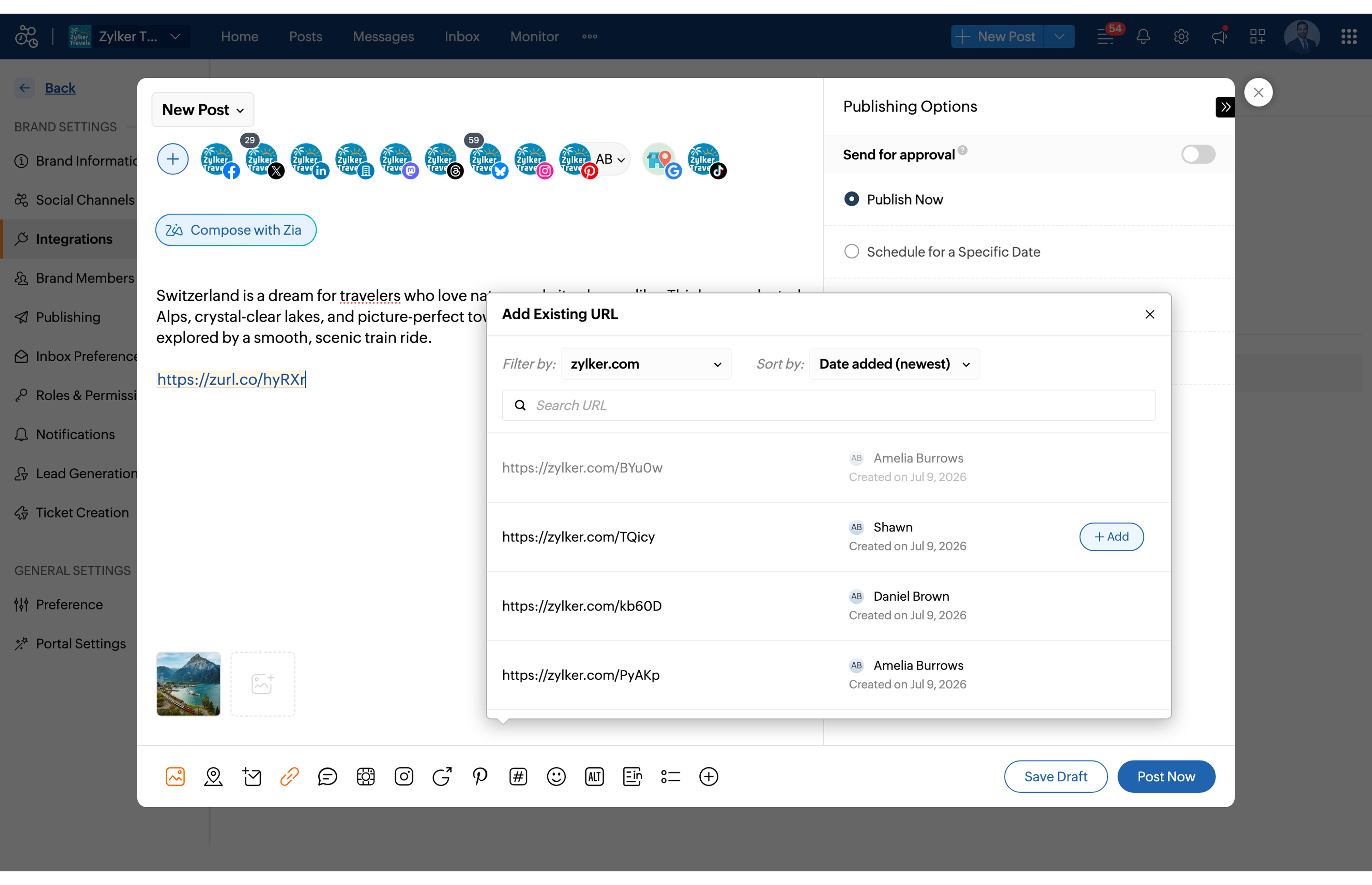
From the compose window
  1. Click New Post in the top-right corner of your Zoho Social dashboard.
  2. Add the long URL to the compose window.
  3. Click URL Properties to access the URL settings.
  4. Switch the toggles for URL Shortening and URL tracking if necessary.
  5. Select the domain you want to use to shorten the URL from the drop-down.
  6. Enter a vanity name. 
  7. Verify the link preview, and click Apply.


If you're an admin in your Zoho Social account, you can also access the URL settings to shorten URLs.
  1. Go to Settings.
  2. Under General Settings, click Preference -> URL Settings.
  3. Click + Shorten URL.
  4. Choose the domain you want to use to shorten the URL from the drop-down.
  5. Enter the long URL.
  6. Enter a vanity name.
  7. Click Generate


Notes
If you'd like to retain the original link, you can deselect the toggle next to Shorten URL in the URL Settings window.
Once the shortened URL is created, you can click on the URL under URL Settings to edit it and add further details.
  1. Add a title to the vanity URL for internal identification purposes.
  2. Add a description to explain in detail about the vanity name.
  3. Set the expiration date for the URL.
  4. Add the fallback URL to which users should be redirected when the primary link has expired or is inaccessible. (screen)
  5. Switch the toggle if you want to add UTM trackers to the specific URL. Choose or add the trackers you want to add.
  6. Verify the link preview, then click Save Changes


These parameters will be saved to the URL, and will be reflected automatically when it is attached to the compose window.
  1. If you're using a custom domain to shorten a URL, the vanity name field, once fetched or added manually, cannot be edited.
  2. If you've enabled UTM tracking, and added utm_source as a social network, then you can't add a vanity name to your URL.


        Create. Review. Publish.

        Write, edit, collaborate on, and publish documents to different content management platforms.

        Get Started Now


          Access your files securely from anywhere

            Zoho CRM Training Programs

            Learn how to use the best tools for sales force automation and better customer engagement from Zoho's implementation specialists.

            Zoho CRM Training
              Redefine the way you work
              with Zoho Workplace

                Zoho DataPrep Personalized Demo

                If you'd like a personalized walk-through of our data preparation tool, please request a demo and we'll be happy to show you how to get the best out of Zoho DataPrep.

                Zoho CRM Training

                  Create, share, and deliver

                  beautiful slides from anywhere.

                  Get Started Now


                    Zoho Sign now offers specialized one-on-one training for both administrators and developers.

                    BOOK A SESSION


                                Quick LinksWorkflow AutomationData Collection
                                Web FormsEnterpriseOnline Data Collection Tool
                                Embeddable FormsBankingBegin Data Collection
                                Interactive FormsWorkplaceData Collection App
                                CRM FormsCustomer ServiceAccessible Forms
                                Digital FormsMarketingForms for Small Business
                                HTML FormsEducationForms for Enterprise
                                Contact FormsE-commerceForms for any business
                                Lead Generation FormsHealthcareForms for Startups
                                Wordpress FormsCustomer onboardingForms for Small Business
                                No Code FormsConstructionRSVP tool for holidays
                                Free FormsTravelFeatures for Order Forms
                                Prefill FormsNon-Profit

                                Intake FormsLegal
                                Mobile App
                                Form DesignerHR
                                Mobile Forms
                                Card FormsFoodOffline Forms
                                Assign FormsPhotographyMobile Forms Features
                                Translate FormsReal EstateKiosk in Mobile Forms
                                Electronic Forms
                                Drag & drop form builder

                                Notification Emails for FormsAlternativesSecurity & Compliance
                                Holiday FormsGoogle Forms alternative GDPR
                                Form to PDFJotform alternativeHIPAA Forms
                                Email FormsFormstack alternativeEncrypted Forms

                                Wufoo alternativeSecure Forms

                                TypeformWCAG


                                      All-in-one knowledge management and training platform for your employees and customers.

                                                Create. Review. Publish.

                                                Write, edit, collaborate on, and publish documents to different content management platforms.

                                                Get Started Now


                                                                  You are currently viewing the help pages of Qntrl’s earlier version. Click here to view our latest version—Qntrl 3.0's help articles.


                                                                      Manage your brands on social media


                                                                        • Desk Community Learning Series


                                                                        • Digest


                                                                        • Functions


                                                                        • Meetups


                                                                        • Kbase


                                                                        • Resources


                                                                        • Glossary


                                                                        • Desk Marketplace


                                                                        • MVP Corner


                                                                        • Word of the Day


                                                                        • Ask the Experts


                                                                          Zoho Sheet Resources


                                                                              Zoho Forms Resources


                                                                                Secure your business
                                                                                communication with Zoho Mail


                                                                                Mail on the move with
                                                                                Zoho Mail mobile application

                                                                                  Stay on top of your schedule
                                                                                  at all times


                                                                                  Carry your calendar with you
                                                                                  Anytime, anywhere


                                                                                        Zoho Sign Resources

                                                                                          Sign, Paperless!

                                                                                          Sign and send business documents on the go!

                                                                                          Get Started Now


                                                                                                  Zoho TeamInbox Resources


                                                                                                            Zoho DataPrep Demo

                                                                                                            Get a personalized demo or POC

                                                                                                            REGISTER NOW


                                                                                                              Design. Discuss. Deliver.

                                                                                                              Create visually engaging stories with Zoho Show.

                                                                                                              Get Started Now


                                                                                                                                  • Related Articles

                                                                                                                                  • URL Tracking - Frequently Asked Questions

                                                                                                                                    Why is it important to enable URL tracking under Publishing Settings? If you choose to enable URL tracking under Settings, UTM parameters will be automatically included in any URL you paste on the Publishing Window while you create your post—without ...
                                                                                                                                  • Analytics for URL

                                                                                                                                    The URL metrics available in Zoho Social will help you measure the engagement received for a URL you've attached to your post. Understanding these metrics and tracking URL activity can give you an idea of how well your campaign is performing in terms ...
                                                                                                                                  • Campaign URL Builder

                                                                                                                                    Access Campaign Builder now to generate custom URLs! The Campaign URL Builder tool is used to create custom URLs specific to your campaigns. These URLs contain tracking parameters that will help to identify where the traffic to your webpage is coming ...
                                                                                                                                  • Connecting Google Business Profile with Zoho Social

                                                                                                                                    What is Google Business Profile Google Business Profile is a free tool from Google that lets you create an online profile for your business. This profile helps your business appear in Google Search and Google Maps when people look for products or ...
                                                                                                                                  • Connecting Mastodon account with Zoho Social

                                                                                                                                    Zoho Social lets you connect your Mastodon account and publish or schedule posts in no time. You can also get detailed analytics on the performance of the published posts such as favorites, replies, re-blogs, engagements, and engagement distribution. ...
                                                                                                                                    Wherever you are is as good as
                                                                                                                                    your workplace

                                                                                                                                      Resources

                                                                                                                                      Videos

                                                                                                                                      Watch comprehensive videos on features and other important topics that will help you master Zoho CRM.


                                                                                                                                      eBooks

                                                                                                                                      Download free eBooks and access a range of topics to get deeper insight on successfully using Zoho CRM.


                                                                                                                                      Webinars

                                                                                                                                      Sign up for our webinars and learn the Zoho CRM basics, from customization to sales force automation and more.


                                                                                                                                      CRM Tips

                                                                                                                                      Make the most of Zoho CRM with these useful tips.


                                                                                                                                        Zoho Show Resources