Usage Alerts
In a nutshell
Usage Alerts help monitor account limits and consumption patterns by sending notifications when predefined thresholds have been reached. These alerts enable timely action to manage resources effectively, prevent unexpected overages, and ensure smooth, uninterrupted use of the platform.
Availability
- Usage Alerts is available in all plans of Creator.
- Usage Alerts is available only in C6.
- Only the super admin and admins can configure Usage Alerts.
1. Overview
Usage alerts in Zoho Creator help admins monitor and manage their platform usage effectively, ensuring they do not exceed defined limits or lose records due to overflow hits. These alerts act as an early warning system, notifying configured users when usage approaches predefined percentage thresholds.
By setting up usage alerts, businesses can stay informed about their account's consumption patterns and take action before reaching usage limits, preventing service interruptions or data loss.
With timely email notifications, stakeholders can respond quickly by optimizing account usage, controlling excess data submissions, or upgrading plans as required. This proactive approach ensures uninterrupted operations and a better user experience for all application users.
1.1. Use case
A retail company launches a marketing campaign for a new product, and it unexpectedly goes viral. Orders start flooding in, and the system is making more API calls than usual to process them. With usage climbing fast toward the set limit, there’s a real risk that some orders could fail to go through, leaving customers frustrated and sales lost.
Thankfully, usage alerts are already in place. When API consumption hits 70% of the limit, the right people get notified immediately. They can quickly increase the plan, buy add-ons to keep things running smoothly.
This way, every order is processed without a hitch, customers stay happy, and the company doesn’t miss out on valuable sales during a big marketing win.
1.2. Navigation guide
Go to the Billing from the left panel, navigate to Usage Details, and select Configure Usage Alerts from the top-right corner of the section.
1.3. How usage alerts work
Usage alerts are configured based on customizable percentage thresholds against your allocated usage limits. When usage reaches a specific threshold, the system automatically sends out an email notification to the assigned recipients. These alerts provide precise details on current usage and the percentage of the quota consumed, helping you avoid unexpected overflow hits that could stop new records from being added.
1.4. Configuring thresholds
Administrators can create multiple percentage-based thresholds to receive alerts well before limits are reached. For example, you can set thresholds at 70%, 90%, and 100% of your account's usage quota. Each threshold can have its own list of recipients, ensuring that the right people are informed at the right time.
Threshold levels are fully customizable and can be updated anytime to align with evolving account usage patterns. This flexibility helps prevent oversights and ensures continuous control over platform usage parameters like record limits.
1.5. Usage notifications
All usage alerts in Zoho Creator are delivered via email. These emails include details about the specific threshold crossed. Configurable recipient lists allow you to send alerts to different users for each threshold, ensuring no critical notification is missed.
1.6. Usage alerts dashboard
- Total Usage Alerts: Displays the total number of active alerts configured for monitoring usage.
- Status: Indicates whether usage alerts are currently active or inactive.
- Add Usage Alerts: Option to create new usage alerts for monitoring consumption thresholds.
1.7. Best practices for usage alerts
To make the most of usage alerts:
- Define multiple thresholds for early, critical, and final warnings to avoid hitting hard limits unexpectedly.
- Assign relevant users for each threshold level so alerts reach the right audience promptly.
- Regularly review and adjust thresholds based on past usage trends to ensure they remain effective.
This strengthens overall financial management and ensures a more predictable and optimized cloud billing experience.
2. Configure usage alerts
2.1. Add usage alert
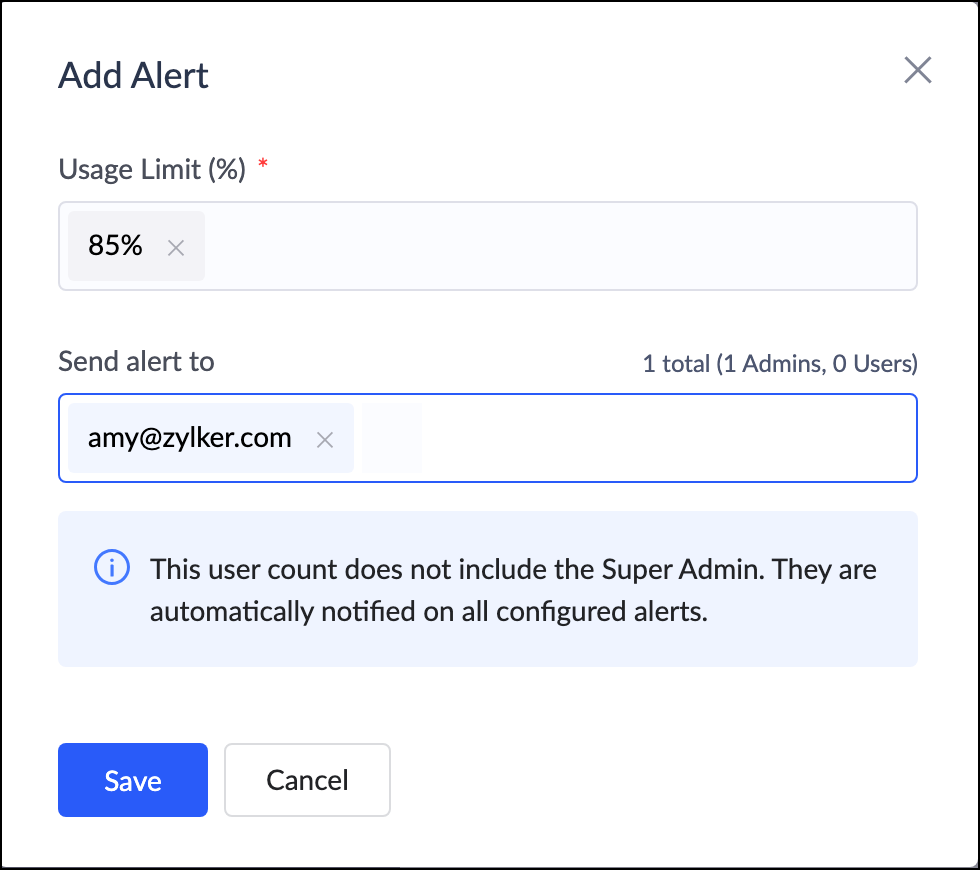
- Navigate to Configure Usage Alerts under Usage Details in the Billing tab.
- Select Add Usage Alert.
- Choose the Module, set the Usage Limit (%), and select the email addresses of users who should receive the alerts.
- Click Save.
Note: You can also add a user by selecting a module, selecting Add Alerts, and configuring the usage limit (%) and email address.
2.2. Edit usage alert
- Select the alert to be configured
- Hover over the configured percentage of the alert.
- Select the ellipsis icon in the right corner and choose Edit.
- Update the required users.
- Click Save to apply the changes.
2.3. Activate/deactivate usage alert
- Hover over the alert and click the ellipsis icon in the right corner.
- Choose Activate or Deactivate as needed.
- The status of the alert will be updated accordingly.
2.4. Delete usage alerts
- Hover over the alert and click the ellipsis icon in the right corner.
- Choose Delete.
- Confirm the action to permanently remove all the alert percentages configured for that module and select Delete.
3. Points to note
- Only the users whose status is 'Active' can be added as a recipient for the Usage alerts.
- The maximum number of users for individual alert within a module is 50 users.
- Super admin don't have to be added as one of the recipients. They are automatically notified on all configured alerts.
- The usage alerts for 90% and 100% thresholds are preconfigured for each module other than records. You can edit to add more users or delete the alert if needed.
- The usage alerts for 80%, 90%, 95% and 100% thresholds are preconfigured for records. You can edit to add more users or delete the alert if needed.
4. Related topics