Zoho People - Slack Integration
Integrate Zoho People with Slack to quickly perform your HR operations, and to get real time approval alerts in Slack.
Purpose
To simplify and speed up HR tasks by enabling employees and managers to perform key Zoho People actions and receive notifications directly within Slack workspace.
Key Features
For Employees | For Managers (in addition to employees) |
|
|
Access Zoho People Zia AI Assistant from Slack

To access Zia from Slack, Zia must first be enabled in your Zoho People web account. Click here to learn more about enabling Zia and its features.
Zia is Zoho People’s AI-powered HR assistant designed to help employees and HR teams interact with the platform using natural language. It acts as an intelligent workplace assistant that can answer HR-related questions, generate insights, automate routine actions, analyze workforce data and more.
Here are the key highlights of Zia:
- Built as a self-hosted AI assistant for Zoho People users.
- Answers HR policy and employee-related queries by referencing organization policy documents uploaded to the Files service.
- Supports conversational and contextual follow-up interactions.
- Assists with queries related to pending approvals, assigned tasks, and LMS progress tracking.
- Enables users to perform actions through chat, such as sending reminders or sharing employee feedback.
- Provides guidance on configuring Zoho People by referencing the Zoho People Knowledge Base.
- Answers analytical and trend-based questions, while also providing insights and summaries.
- Access is controlled through role and permission-based, ensuring secure access (Configured through Zoho People web).

All text-based interactions are supported directly within Slack. For advanced features such as graph generation, visual reports, chat-based UI navigation, and voice input, use Zia in Zoho People web.
Just type in your query in the chat window and Zia AI will respond to you directly in the Slack - Zoho People chat space.

Integrate Zoho People with Slack (Administrators)
 Requirements: Zoho People paid account and a Slack account.
If you are a Zoho People administrator, set up the Slack integration through the Zoho People marketplace and configure the required approval notifications to be sent to Slack.
- From home page, navigate to Settings > Marketplace > Third-party Integrations > Slack.If you have multiple organization accounts in Zoho People, enable the integration from the required Zoho People organization's account.
- Click Configure > Enable Slack Integration.
- Login and authenticate to the Slack workspace for which you would like to enable the integration.
- Upon authentication you will be directed to Slack integration section in Zoho People, where you can enable the required form approval notifications and select ‘Notify all users to install the Zoho People app in Slack’ to notify your employees via feeds and email.To further enable or disable form approval notifications sent to slack, from your Zoho People home page, navigate to Settings > Marketplace > Third-party Integration > Slack and click View Details.
- Once the integration is set up, login to Slack, you can view the Zoho People app and can perform the following actions using slash commands.Type /zpeople_help to get the full list of Zoho People commands.
- Check in and check out
- Apply for leave
- Request on-duty requests
- View upcoming holiday information
- Submit attendance regularization requests
- Log time entries
- View and approve pending approval request
- Get approval notifications (if enabled)
Integrate Zoho People with Slack (Employees or Users)
Requirements: Zoho People paid account and a Slack account If you are a Zoho People user, you can add Zoho People app via Slack Marketplace, once connected, you can:
- Check in and check out
- Apply for leave
- Add on-duty requests
- View upcoming holiday information
- Submit regularization requests
- Log time entries
- View and approve pending approval request
- Get approval notifications (Only if enabled by admin)
To receive real-time Zoho People approval notifications in Slack, the Zoho People administrator must enable the Slack integration and configure the required form approval notifications in Zoho People.
To add Zoho People app to your Slack workspace:
- Login to your Slack workspace.
- From your home page, click Add apps and click on Zoho People > Add to Slack.
You will be directed to Zoho People and Slack integration page. - In the integration page, select your Zoho People organization account Portal name, click Configure and Allow access.
If you're user in multiple Zoho People organizational accounts, you can view the portal name by clicking your profile icon at the top right of your Zoho People homepage and selecting Manage Organization. This will display the portal names of all your associated accounts.If Zoho People admin enables the integration from Slack, they will be directed to Zoho People Slack integration section, where they can enable form approval notifications and can notify all employees in the organization to add Zoho People to their Slack workspace.
- Once you have successfully enabled Zoho People and Slack integration.
- Login to your Slack account, you can view the Zoho People app, click on the app and type /zpeople_help to get full list of Zoho People commands.
- Type the required command to perform Zoho People actions in Slack.
Using Zoho People Commands and Actions in Slack
> View full list of commands - /zpeople_help
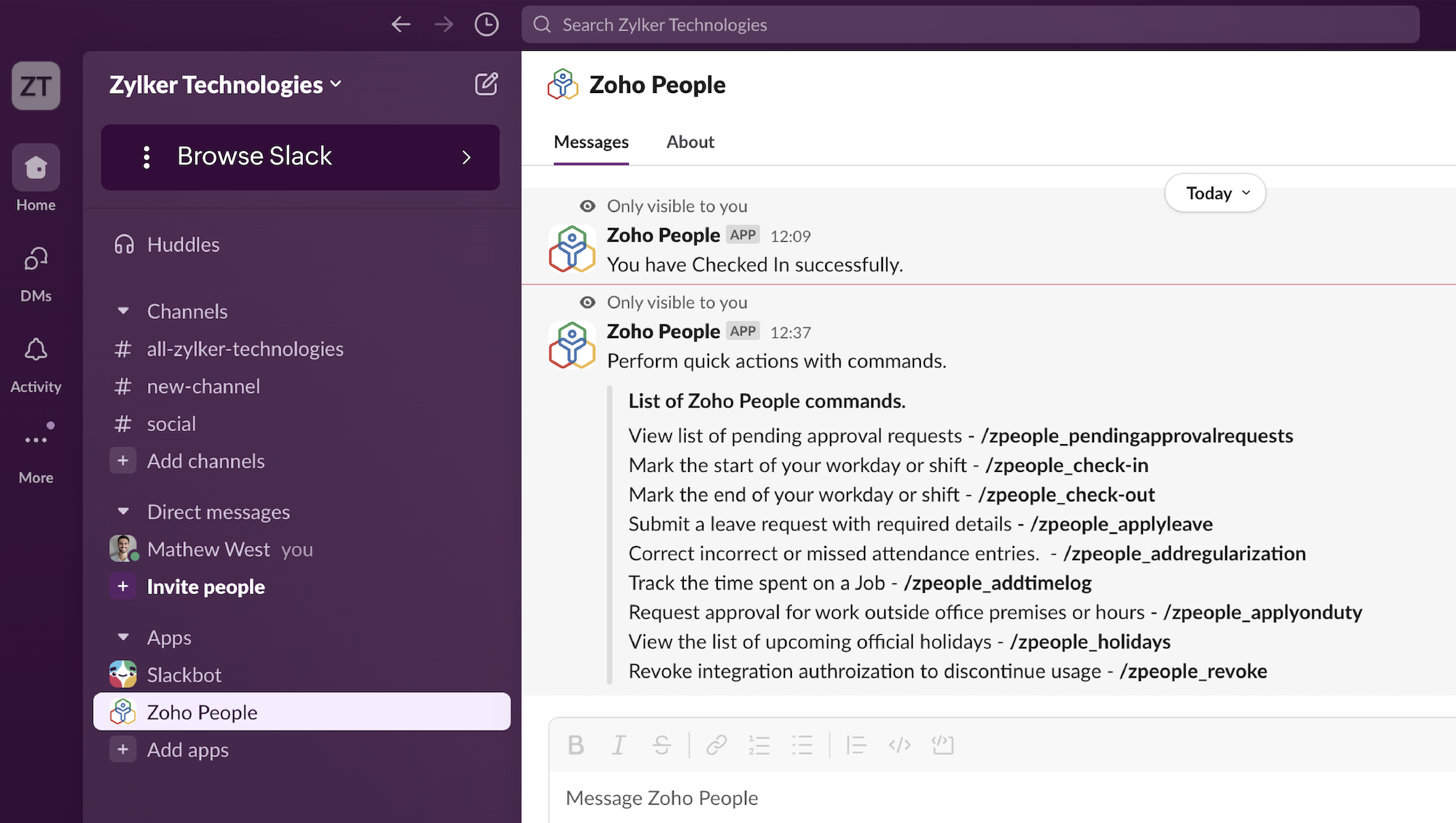
Alternatively, click on Zoho People > About to view the full list of commands and, click Start Command and press Enter to execute.
> Check-in - /zpeople_check-in
> Check-out - /zpeople_check-out
> Approval Notification (To trigger approval notification, Zoho People admin must enable the form notification settings in Zoho people Slack integration section)
> View and approve pending approval request - /zpeople_pendingapprovalrequests
> Apply leave - /zpeople_applyleave
> View upcoming holidays - /zpeople_holidays
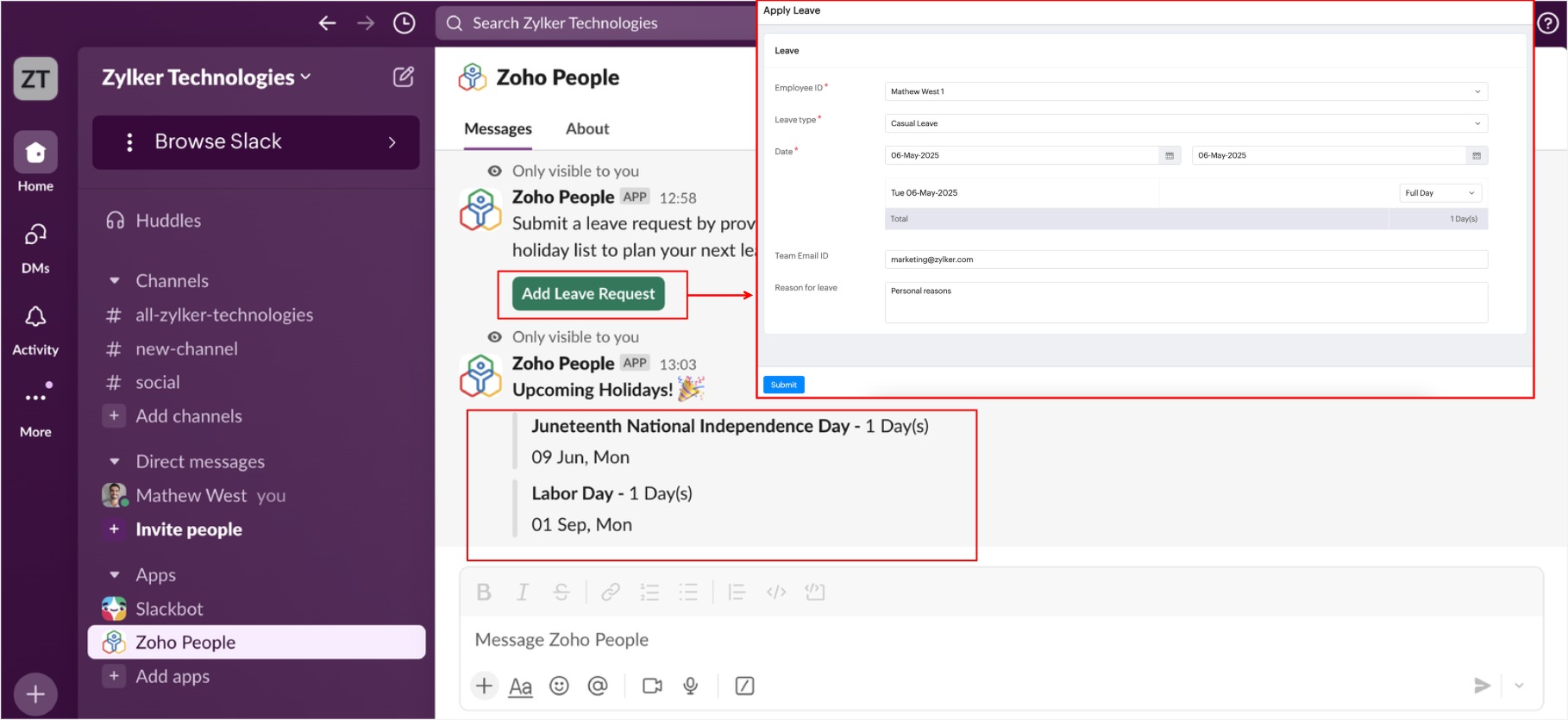
> Add time log - /zpeople_addtimelog
> Add on duty Request - /zpeople_applyonduty
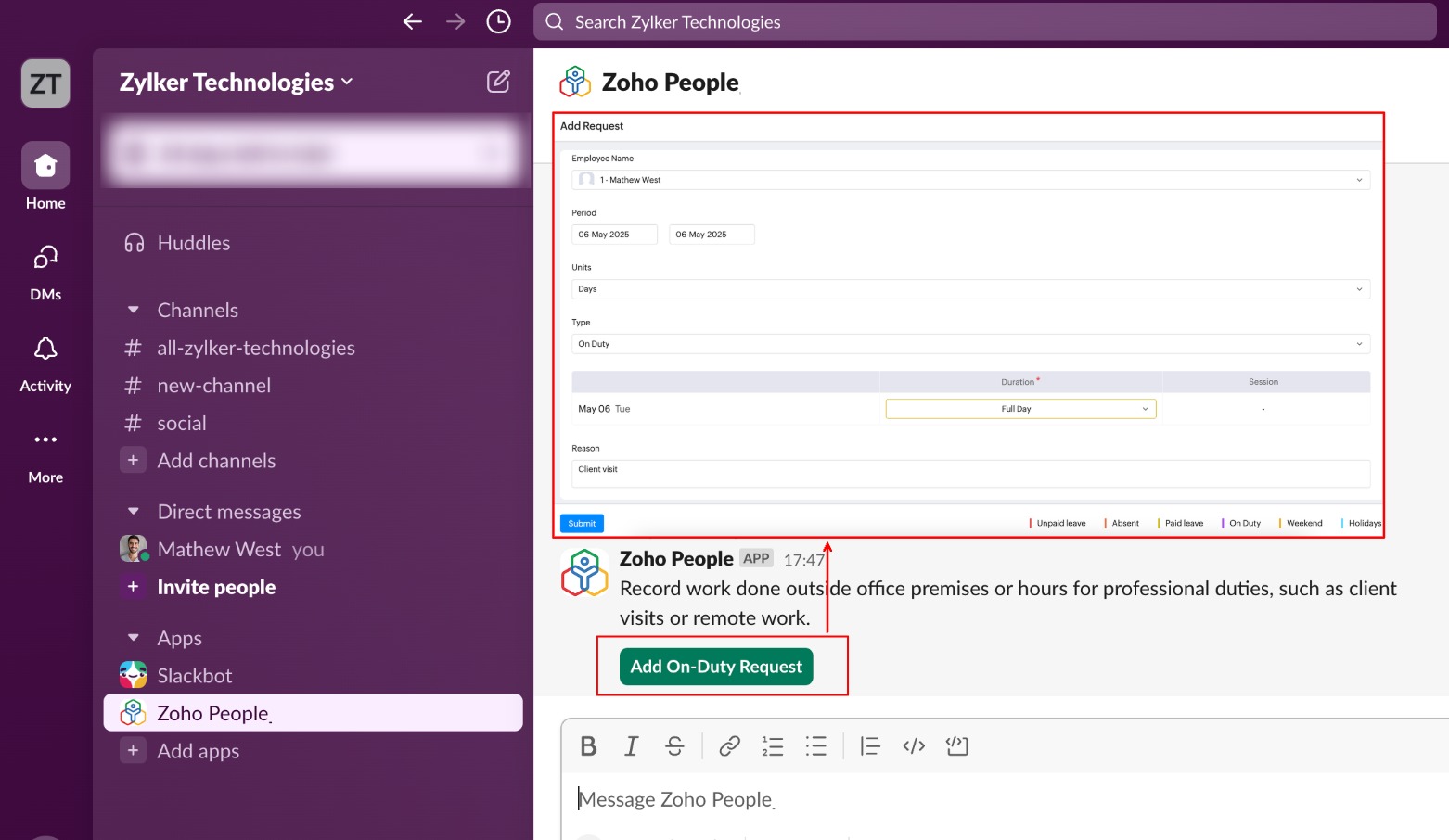
> Add attendance regularization request - /zpeople_addregularization
Using Slash Commands in Private and Public Channels
Slash commands can be used in both private and public channels. When you trigger a slash command, an initial card appears. In some cases, interacting with this card, for example, by clicking a button displays a second card. To view the second card in a group or channel, make sure the Zoho People bot is added. If the bot isn’t present, the second card will not appear.
To add Zoho People bot to the private or public channel:
From your slack workspace, click on the Channel > Channel name > Integrations > Add an App and add Zoho People app to the channel.
Alternatively, you can navigate to Zoho People bot, click on Zoho People and add the app to the required channels.
Revoke Slack Integration
You can revoke the integration at any time using the /zpeople_revoke command. To enable the integration again, you must re-authorize using your Zoho People account.
To revoke Slack integration:
- Login to your slack account and type the revoke command /zpeople_revoke.
- Click on Revoke, the integration will be disabled.
- If you are a Zoho People administrator, upon revoking in Slack, login to your Zoho People account, navigate to Settings > Marketplace > Third-party Integrations > Slack, click View details and click on Delete Integration.

If you delete the integration in Zoho People first, only approval notifications to Slack will be disabled. To completely disconnect the integration, you must also revoke it from Slack.