Harvest for Zoho Projects
Harvest for Zoho Projects is a time-tracking extension which logs the number of hours a
user spends on a task. The user can start or stop the timer widget to
record the time taken for every work item. A new record gets added to
the user’s Harvest account for every new time entry made through Zoho
Projects.
Installing Harvest
- Click
in the upper-right corner of the top navigation band.
- Navigate to Marketplace > All.
- Search for Harvest for Zoho Projects extension.
- Click Install.
- Agree to the Terms of Service and Privacy Policy.
- Click Install.
- In the General section, select the profiles and projects you want the extension to be shared with or given access to.
- Agree to the terms of use.
- Click Save & Proceed.
Add time logs for tasks
- Click on a task to open the details page.
- Click on Harvest icon from the right panel.
- Enter time manually or click start timer.
- Timer can be paused and resumed. Please note that every pause
and resume will be added as a separate entry in Harvest. Zoho Projects
will show the total time as a single entry.
- Timer can be paused and resumed. Please note that every pause
and resume will be added as a separate entry in Harvest. Zoho Projects
will show the total time as a single entry.
- Click on Stop Timer to add the time log entry to Harvest.
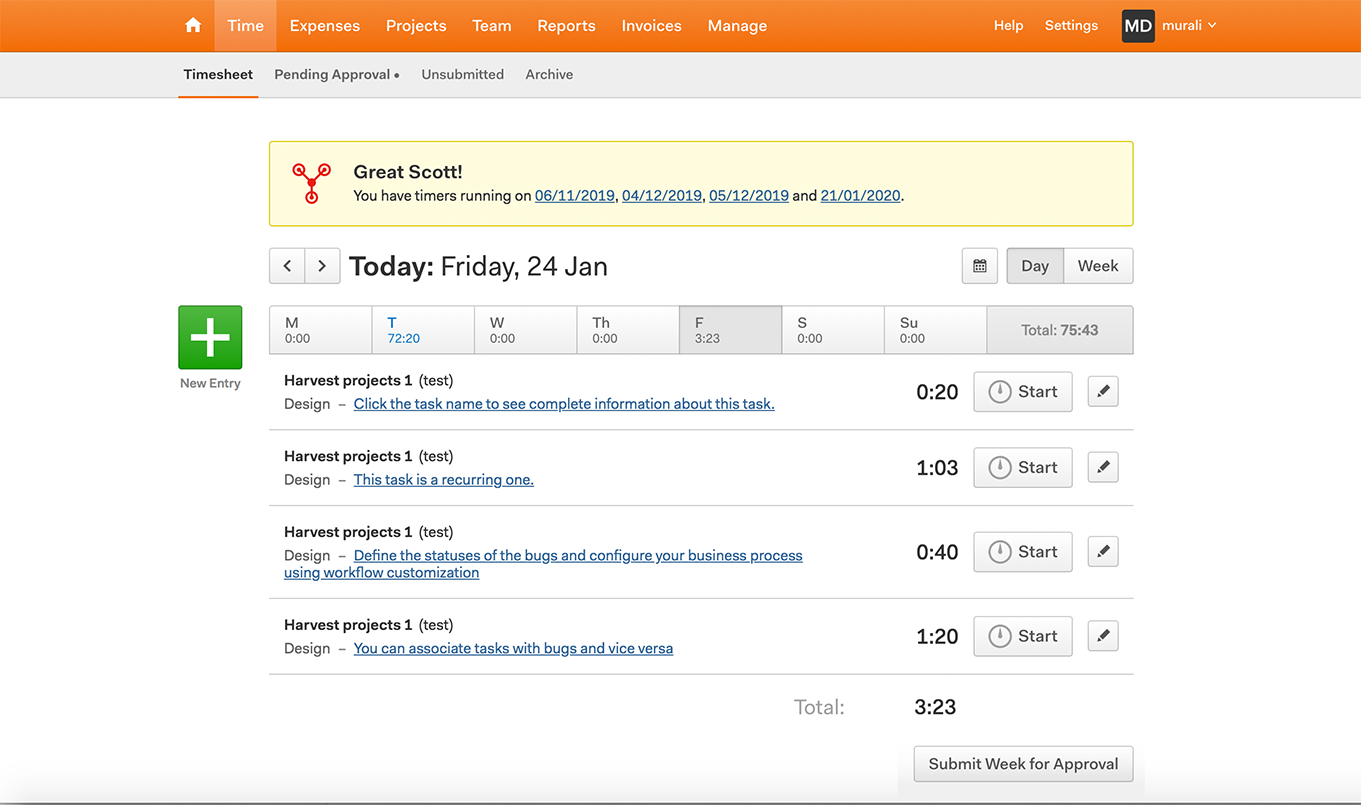
- View time log entries in Harvest.
- Click on task name to view task details in Zoho Projects.
Uninstalling the extension
- Click
- Navigate to Marketplace > All.
- Click Installed.
- Click Harvest for Zoho Projects.
- Click Uninstall.
- The extension will be uninstalled, and all the associated data will be lost.