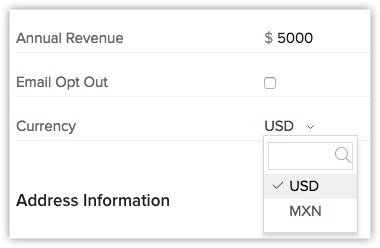
The multi-currency support in Zoho CRM helps you to handle business transactions in the global marketplace easily. If you regularly deal with international clients and vendors, then Multi-Currency will facilitate international buying and selling. With Multi-Currency support in Zoho CRM, you can:
- Estimate the value of an opportunity using the currency you deal in and also in the customer's local currency.
- Generate and view reports in your organization's currency.
- Import a single file that contains data with values in multiple currencies.

Overall benefits of using multi-currencies
- Improved customer experience: Customers can make payments in their preferred currency, which enhances their experience and boosts customer satisfaction.
- Increased sales: By enabling customers to make purchases in their local currency, businesses can expand their reach and gain new customers, resulting in increased sales and revenue.
- Global reach: Businesses can expand their operations globally, allowing them to sell products or services to customers in different currencies. Accepting payments in multiple currencies removes barriers to entry and enables businesses to tap into new markets.
- Accurate pricing: Ensures that pricing is accurate and consistent across different currencies, preventing confusion and errors in pricing that can negatively impact sales.
- Currency conversion: Automatically converts currencies, making it easy for businesses to manage payments without having to convert currencies manually or use a third-party tool.
Terminologies in currencies feature
Home Currency
It is the primary currency that your organization uses for its business. Often this is the currency used to generate annual reports and calculate the company's income. The Home Currency is most relevant for multinational companies that do business in multiple currencies. For example, a company has offices in Japan, India, and Spain, but its headquarters are in the US. So, the financial figures of this company are expressed in terms of US Dollars. In the example, the Home Currency is US dollars.
Active Currency
These are the currencies in which your organization does business. Only active currencies can be entered in deals and other fields.
Inactive Currency
These are the currencies that your organization no longer uses. Once deactivated, these currencies will not be deleted. They will still be listed under Currencies.
Exchange Rates
It is the rate at which one currency can be exchanged for another. In your CRM account the exchange rate is used to convert an amount in one currency to the home currency used by your organization.
Record Currency
This is the currency for each record. All the currency values for a record will be based on the selected record currency.
Now that we are familiar with the terminologies of currencies management in Zoho CRM, let us look at how to use it.
Availability
 Available across all paid editions of Zoho CRM.
Permissions:
- The permission setting required to access the Currencies tab is available in the admin-level permissions settings. Users with Manage Currencies permission in the Admin Level Permissions can Add, Activate, Deactivate, and Customize currencies.
Choose Home Currency and Add Multiple Currencies
You can select your home currency through the currencies tab, and we'll recommend a value based on your choice in the currency locale option during signup.
The suggested home currency will be based on the chosen option, and users can either confirm it or make changes as needed using the Currencies tab. Users with manage currencies permission can access the currencies tab. The permission setting required to access the Currencies tab has been added to admin-level permissions settings.
To set home currency
- Go to Setup
> General > Company Settings.
- In the Company Settings page, go to the Currencies tab.
Note: This Home Currency value is the option you choose in "Currency locale" during the initial CRM setup. - Do one of the following:
- Click Change Home Currency if you want to change the currency which you had initially set during CRM setup.
- Change the currency and its format.
Note: Once you change the home currency by choosing a currency from the dropdown, an alert message will appear to remind you that the home currency cannot be changed further, and the currency code will be applied to all existing records and the values will remain unchanged. - Click Yes, Confirm Home Currency to proceed with the change.
- Click Confirm Home Currency if you want to continue using the same home currency.
Note: Based on the currency that you select, the currency Format will be populated. - If required, click Edit to change the following:
- Select the Code/Symbol from the drop-down list.
- Select the Digit Separator from the drop-down list.
- Select the Decimal Places from the drop-down list.
- Click Save.
Add Multiple Currencies
 Automatic exchange rate updates are being rolled out in phases and are currently available only for orgs in specific data centers. Learn more.
After choosing the home currency, users with permission to access the currencies tab can add other currencies that company uses for business. Other users will then be able to select these currencies to use them as a record's currency while creating leads, contacts, deals, etc.

Note
- The Currency field will be available in the records only if a currency is added.
- The system-defined fields - Currency and Exchange rate can be removed from the layout if there are no Currency type fields in the layout. At any point if a Currency type field is added to the layout, automatically the system-defined fields - Currency and Exchange rate will be added.