Advanced search in a lookup field
When the Lookup field has large number of records then finding a particular record becomes cumbersome. Moreover, the basic search will display only 5000 results and manually scrolling down through these results to find the required record is tedious. The Advanced search option will enable you use the advanced search mechanism and zero down on the required records or field values in the lookup fields.
Enable advanced search a lookup field
- Open the form builder.
- Select the required lookup field.
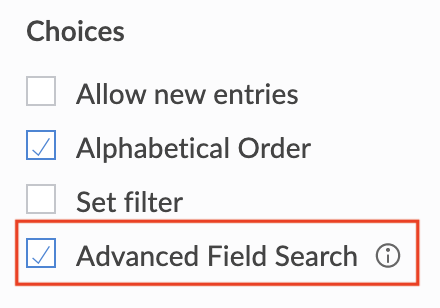
- Navigate to the Field Properties -> Choices section on the right.
- Check the checkbox next to Advanced Field Search option.
Search using advanced search
- Access the application.
- Navigate to the required lookup field.
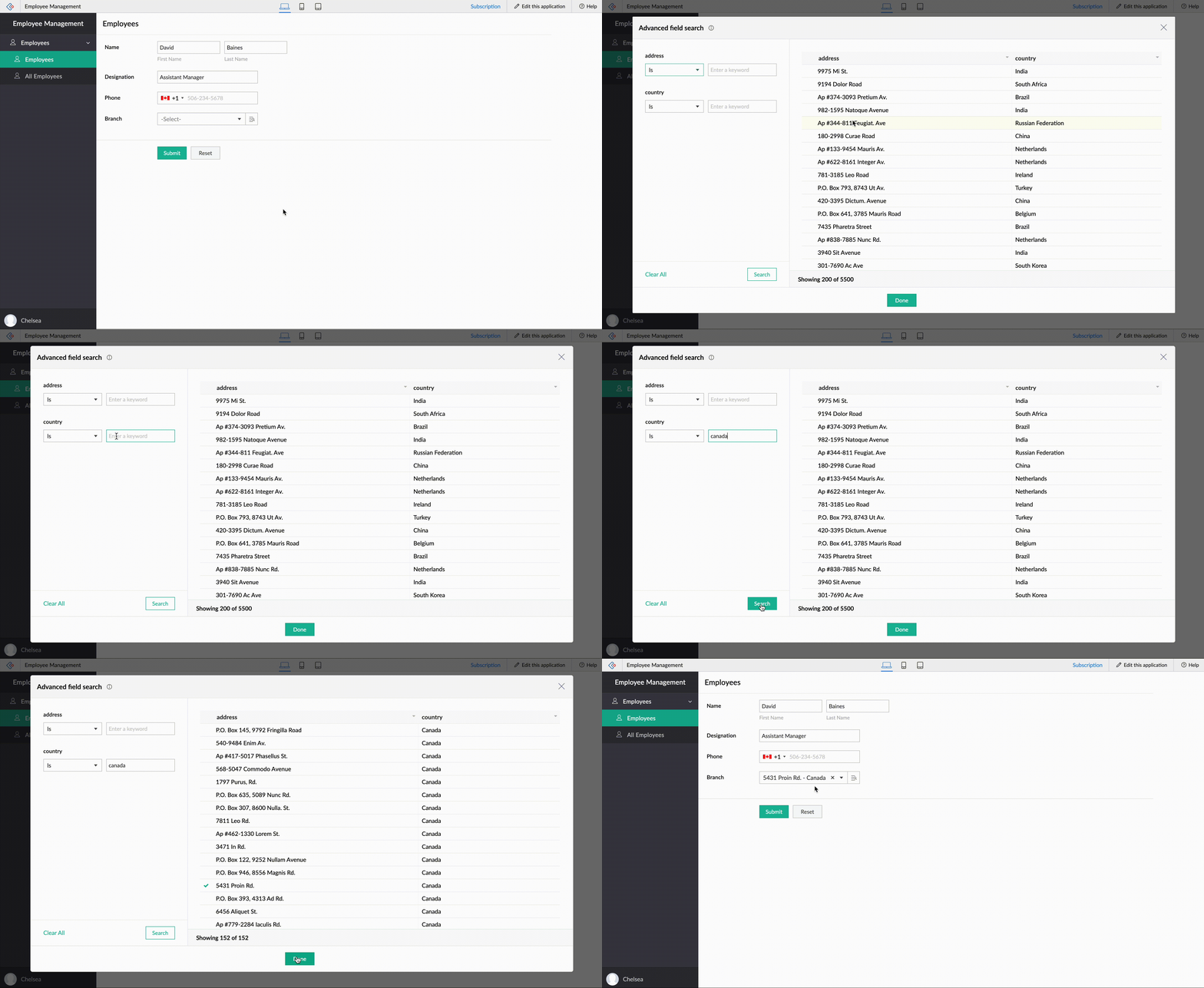
- Click on the Advanced search button.

- The Advanced Field Search popup will appear.
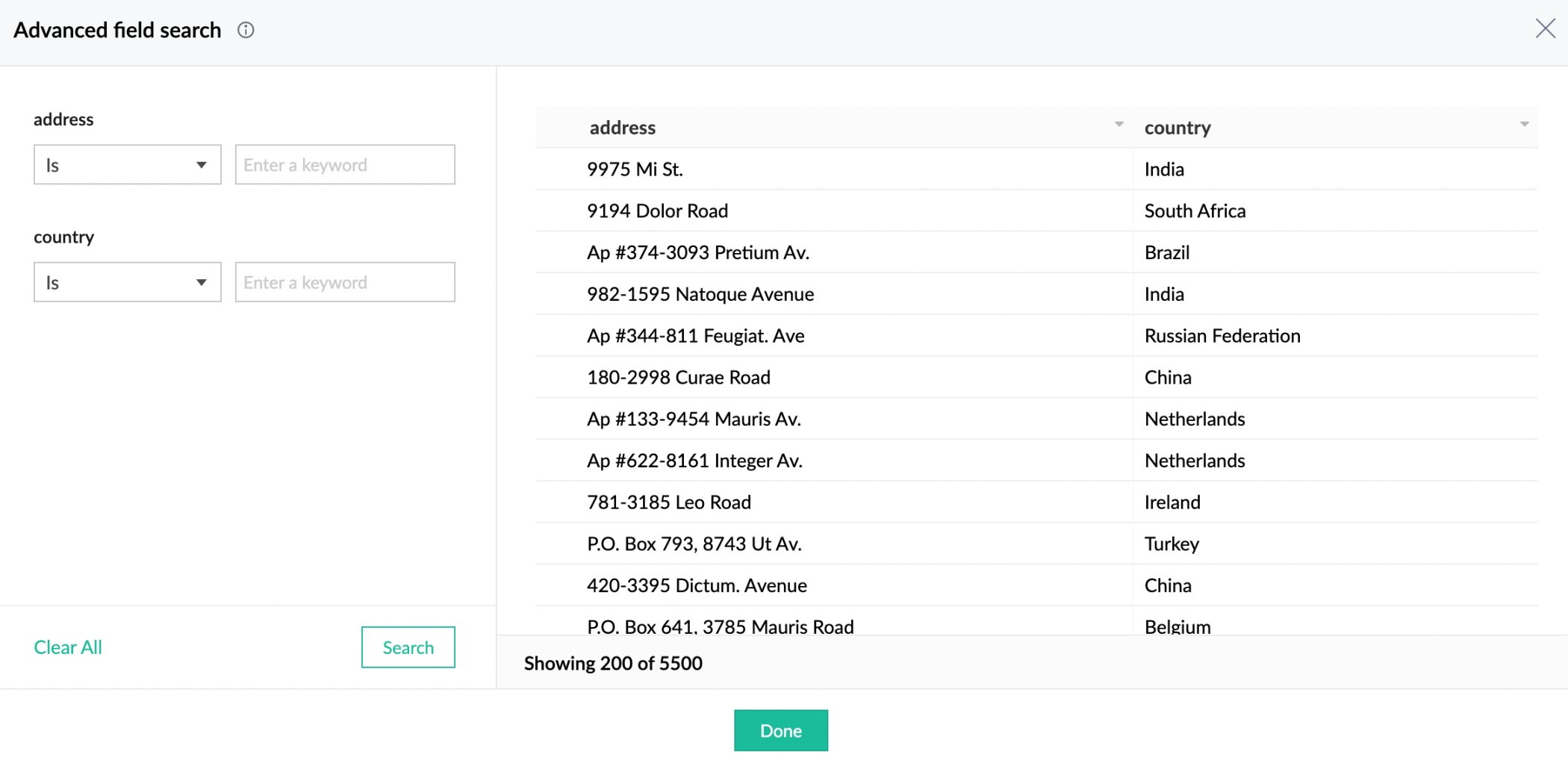
- In the left pane of the popup, the lookup field(s) will be listed. Choose the required search operator and enter the appropriate search keywords.
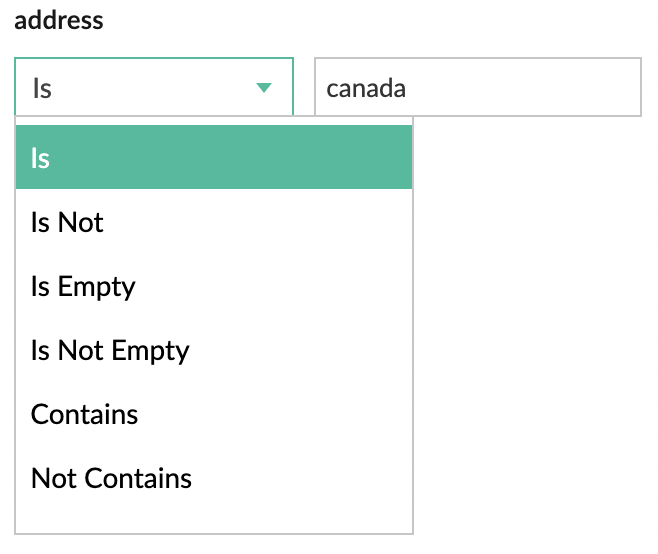
- Click Search.
- The list of relevant search results will be displayed on the popup.
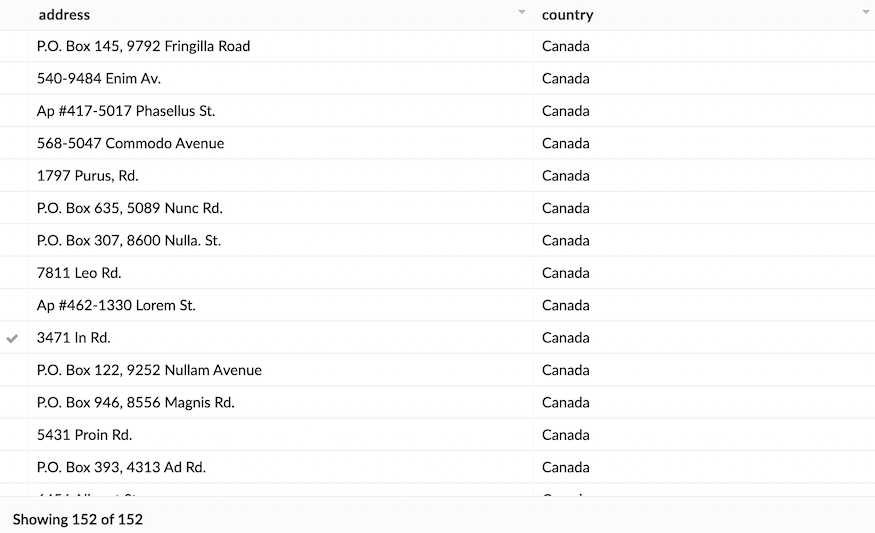
- Choose the required record and click Done.
Related Topics:
- Understand Lookup field
- Configure bidirectional lookup
- Relationships between forms
- Unidirectional and bidirectional relationships