Zoho Directory Integration with Zoho People
What is Zoho Directory?
Zoho Directory is Zoho’s centralized identity and access management (IAM) service.
It lets organizations manage all users, groups, and permissions for Zoho apps and third-party apps from one place.
It also supports single sign-on (SSO), security policies, and directory integrations (like Active Directory/LDAP) for easier user provisioning.
Integrate Zoho People with Zoho Directory
Zoho People's integration with Zoho Directory allows Administrators to handle identity and user access management with ease. Manage access to multiple products with varying login credentials using one central tool. Zoho Directory improves your organization's online account security.
Using Zoho Directory Integration
- To begin, go to Settings > Marketplace > Zoho. Select Configure in the Zoho Directory space.
- Click Configure, for a list of all services.
- There are 4 options to choose from. Single Sign-On, Security Policies, Active Directory Sync, Sign-in Activity. To begin, click Configure to sign-in and start using the listed features. You can learn more about the various features below.
Features
Single Sign-On
Enabling SAML will allow the users to authenticate themselves through their identity provider (or domain). For example, if SAML is enabled for zylkercorp.com, then users logging in from that domain will be verified and allowed to login.
you can learn more.
To setup Single Sign-On, click Configure, and Setup Now, to go through the setup.
you can learn more.
To setup Single Sign-On, click Configure, and Setup Now, to go through the setup.
For detailed instructions to setup, Click here.
Security Policies
Security policies are a set of customizable rules that govern how your users can authenticate themselves. They consists of four components:
- Password Policy: This component dictates how strong the users' passwords must be and how often they have to be renewed.
- MFA: This component dictates which multi-factor authentication modes the user can use to sign in.
- Allowed IPs: This component dictates which IP address the user can use to sign in. Any sign-in requests from IPs that aren't allowed will be denied.
- Session Management: This component dictates how many active sessions a user can have, and for how long.
To add a Security Policy:
- Open the Zoho Directory Integration page (Settings > Marketplace > Zoho > Zoho Directory)
- Go to Security tab, you can click on the Default Policy to edit the policy.
- If you want to create a new policy, click + Add Security Policy.
- When configuring a new security policy, a display name, the group for which this policy is to be applied can be configured, you can also choose to exclude specific users.
- Finally click Add to save changes.
To learn about setting up MFA (Multi Factor Authentication), Click here.
Active Directory Sync
Zoho Directory Sync is a secure and straightforward directory, password synchronization tool which helps in syncing users and their passwords in Active Directory (AD) with Zoho accounts.
Zoho Directory enables you to delegate user authentication and management to your Active Directory or LDAP server via Zoho Directory Sync (ZDSync) tool. This tool performs a one-way synchronization from your existing LDAP server to the Zoho Directory Admin Panel. This enables you to maintain all your user identities in a single place, without having to add, edit, or disable user accounts manually in the Admin Panel. As the synchronization always happens from AD to Zoho, the data in AD is never compromised.
Active directory sync works with supported third-party services integrated through Zoho Directory. Learn about importing users from third party services in Zoho Directory.
Zoho Directory Sync Tool Functions:
- Queries your LDAP Server.
- Queries your Zoho Account.
- Compares the data in the two lists.
- Curates any changes during comparison.
- Updates your Admin Panel with all necessary changes.
Click here to learn more about Active Directory Sync and to download Password Sync Agent (windows).
For setup and configuration steps, Click here.
For setup and configuration steps, Click here.
Sign-in Activity
Monitor active users, and view recent sign-in activities. Additionally, view user login history, usage, see reports, and more.
To access this feature:
- In The Zoho Directory Integration page, (Settings > Integrations > Zoho > Zoho Directory). Select the Reports tab. Under Applications, click Sign-in activity.
- Select Users from the side menu to view list of all your Active users.
- Click on the user whose activity you wish to view and choose Account Activity (refer below image).
- On clicking that you will see details such as the IP address from where the user accessed Cliq and the login time.
Frequently Asked Questions (FAQ)
1. Do I need a Zoho Directory account to use Zoho People?
No. You can run Zoho People independently, but Zoho Directory makes user and access management easier across Zoho apps.
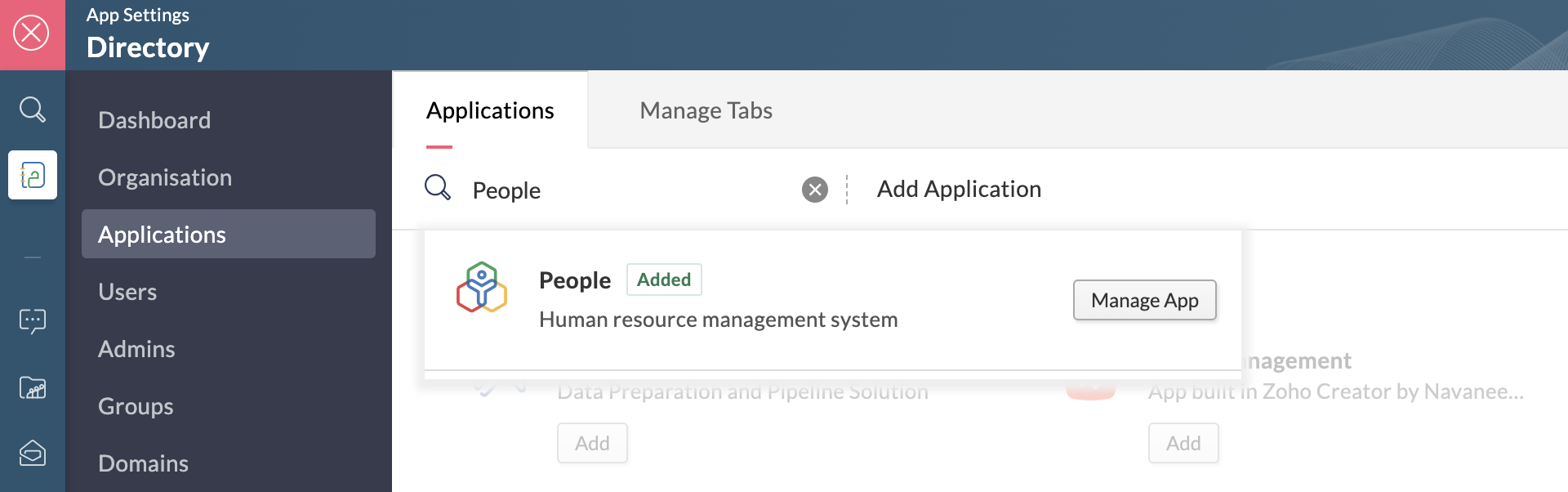
Go to the Applications tab in your Zoho Directory account and search and add People from your Zoho Directory account.
2. How do I sync users from Active Directory/LDAP into Zoho People?
Set up AD/LDAP sync in Zoho Directory. All synced users and groups automatically appear in Zoho People.
3. Can Zoho Directory handle single sign-on (SSO) for Zoho People and third-party apps?
Yes. You can configure SSO once in Zoho Directory and it applies to Zoho People/Plus supported external apps.
4. What happens to users in Zoho People if I disable or delete them in Zoho Directory?
The change reflects automatically—disabled or deleted users lose access to Zoho People and other linked apps.
5. How do security policies (MFA, password rules) set in Zoho Directory affect Zoho People logins?
All users logging in to Zoho People must follow the policies you configure in Zoho Directory.
6. Can I use Zoho Directory to manage multiple Zoho People portals under one organization?
Yes. You can manage several Zoho People portals from the same Zoho Directory organization.
7. Is there an additional cost for using Zoho Directory with Zoho People?
No. Zoho Directory’s core features are included with Zoho People; advanced features require paid Zoho Directory plans or add-ons. Learn more about Zoho Directory pricing.
8. How do I integrate Zoho Directory with Microsoft 365/Google Workspace so users can sign in to Zoho People?
Enable the respective integration in Zoho Directory, map users, and they’ll be able to log in to Zoho People using their Microsoft 365 or Google credentials.
If your facing any issues with active directory sync or single-sign on, kindly reach contact support at support@zohodirectory.com.

Domain verification is mandatory to manage users added through domain-based email IDs in Zoho People and Zoho Directory.