How to create a new post in Zoho Social
Your social media workflow begins with creating a post and it’s the most important part of your content process. Whether you're planning campaigns or publishing in real time, Zoho Social simplifies post creation with a powerful, all-in-one Compose window.
The Compose window is designed to bring everything you need into a single space, so you don’t have to switch between tabs or tools. From writing and customizing content to previewing and scheduling posts, the compose window is built to make your workflow smoother and more efficient.
To get started, click + New Post. This opens the Compose window, where you can begin crafting your content.
Ways to create a post
You can create a post in Zoho Social in two ways:
- New Post window
- Customize Content window
To switch between these options, go to the Compose window (+ New Post) and click the New Post dropdown. From there, select the option you want to use. This allows you to either create a single post for all networks or customize your content for each platform from one place.
Difference between the new post window and customize content window
New Post window
The New Post window is best when you want to publish the same content across all your social channels.
Here, you can:
- Write your content manually or generate it using Zia
- Add media (images/videos)
- Resize images if they don’t meet platform-specific requirements
- Use the preview panel on the right to see how your post will appear.
Note:
- To understand image sizes and platform requirements, refer to the Media Guidelines.
Customize content window
The Customize Content window is useful when you want to tailor your post for each platform. Lets say you want to have a short caption for Instagram and a detailed paragraph for LinkedIn. You can use customize content to tailoryour post for different platforms.
Here’s how it works:
- Start by adding content (text or media) that will be common across all platforms.
- Select a specific platform
- Customize the content for that platform like captions, hashtags, mentions, tags, collaborators, etc.
- Use the preview panel on the right to see how your post will appear.
With this option, you don’t need to create separate posts for each platform. You can manage everything in one place while still customizing content for each channel.

Note:
- The Customize Content window opens with the Original Content by default. Any text or media added here will be applied to all selected social networks. If you want to make platform-specific changes, simply select the required social network and customize the content for that particular channel.
Buttons in the compose window
The Compose window in Zoho Social includes several options to help you enhance your post and tailor it for different platforms.
- Attach media - Upload images or videos from your desktop, Media Library, or Cloud Picker. You can also design creatives directly using Canva. This option is available for all channels.
- Add location - Available for platforms like Instagram, Facebook and Threads. Adding a location helps your audience know where your post is based.
- Add direct message Link (X) - Add a direct message link to your X post so users can easily reach out to you.
- First comment - Add a first comment to your post. Supported for Facebook, LinkedIn, Instagram, and YouTube.
- Google business profile options - For your Google Business Profile, you can add a button, offer, or event to make your post more actionable.
- Pinterest posting options - Add a title, destination URL, and alt text for your media when posting to Pinterest.
- Hashtags - Add hashtags to your post. You can choose from popular hashtags or use saved hashtag groups.
- Add emoji - Enhance your caption by adding emojis.
- Create poll - Create polls on platforms like Threads, X and LinkedIn (profile and page) to increase audience engagement.
- Create threaded posts - For platforms like X, Threads, and Bluesky, you can create threaded posts to share longer content beyond character limits.
- Set target audience - Define your audience by location (country/region), so only users from selected locations can view your post.
- Instagram Posting Options – Access Instagram-specific publishing options such as tagging accounts, inviting collaborators, posting a trial reel, and sharing your reel to the Instagram feed, depending on the post type.
- YouTube Options - When you upload a video, this YouTube option will be enabled. You can add details such as title, description, visibility, tags, and category to your YouTube post.
- URL Properties - When you paste a link, this option gets enabled. You can shorten the link, add tracking parameters, and choose a domain.
- Compose with Zia - Use Zia to generate content quickly. Just enter a prompt, choose tone and language, and Zia will create content for you
- Instagram Preview - You can preview how your post will appear on your Instagram grid before publishing.
- Alt Text - Add alt text to each image to improve accessibility and help users understand your visual content better.
- @Mentions - Type @ in the Compose window to get account suggestions for platforms like X, Facebook, LinkedIn, and Bluesky.
- Convert to document (LinkedIn) - Share information in any of these file formats - DOC, DOCX, PPT, PPTX, and PDF to your LinkedIn audience and also combine multiple images into a single, organized PDF document, making it easier to manage and share
Publishing options in Zoho Social
Once your post is ready, you can choose how and when to publish it using the available publishing options:
- Publish Now - Share your post instantly across selected social channels.
- Schedule Post - Create your post and schedule it for a specific date and time. Your post will be published automatically at the scheduled time.
- Add to Queue (CustomQ) - With CustomQ, you can define specific time slots for each day of the week. When you add a post to the queue, it will be automatically scheduled in the next available slot.
- SmartQ - Use SmartQ to post at the best time for engagement. Zoho Social suggests optimal time slots based on when your audience is most active.
Send for Approval
In Zoho Social, you can streamline team collaboration with an approval workflow. If your team requires approvals before publishing, you can enable the Send for Approval option in the Compose window. Once enabled, your post will be sent to the assigned approver instead of being published directly.
Note:
- You can also save posts as Drafts and come back to edit or publish them whenever needed.
- Learn more about how the approval workflow works.
Custom Thumbnail Options
A custom thumbnail helps make your post more visually appealing and improves engagement by giving your audience a clear preview of your content. You can upload a custom thumbnail for supported video-based platforms.
To add a custom thumbnail:
- Open the Compose window
- Upload your video file
- Select the required social channel
- Choose a recommended thumbnail, upload one from your media, or select a frame from the video as your thumbnail.
- Preview your post and continue publishing or scheduling
Custom thumbnails are especially useful for video content on platforms like YouTube and Facebook, where thumbnails play an important role in attracting viewers.
Reel and Shorts Publishing
You can publish short-form vertical videos directly from Zoho Social to platforms that support Reels and Shorts.
To publish a Reel or Short:
- Click + New Post
- Upload a vertical video
- Select a supported platform.
- Add your caption and post details
- Choose a publishing option
- Preview and publish your post
For Instagram Reels, select the Add to Instagram Feed option if you want the Reel to appear in your main feed. If unchecked, the Reel will only appear in the Reels section of your profile.
Note:
- Ensure your video meets the platform requirements for aspect ratio, duration, and file size.
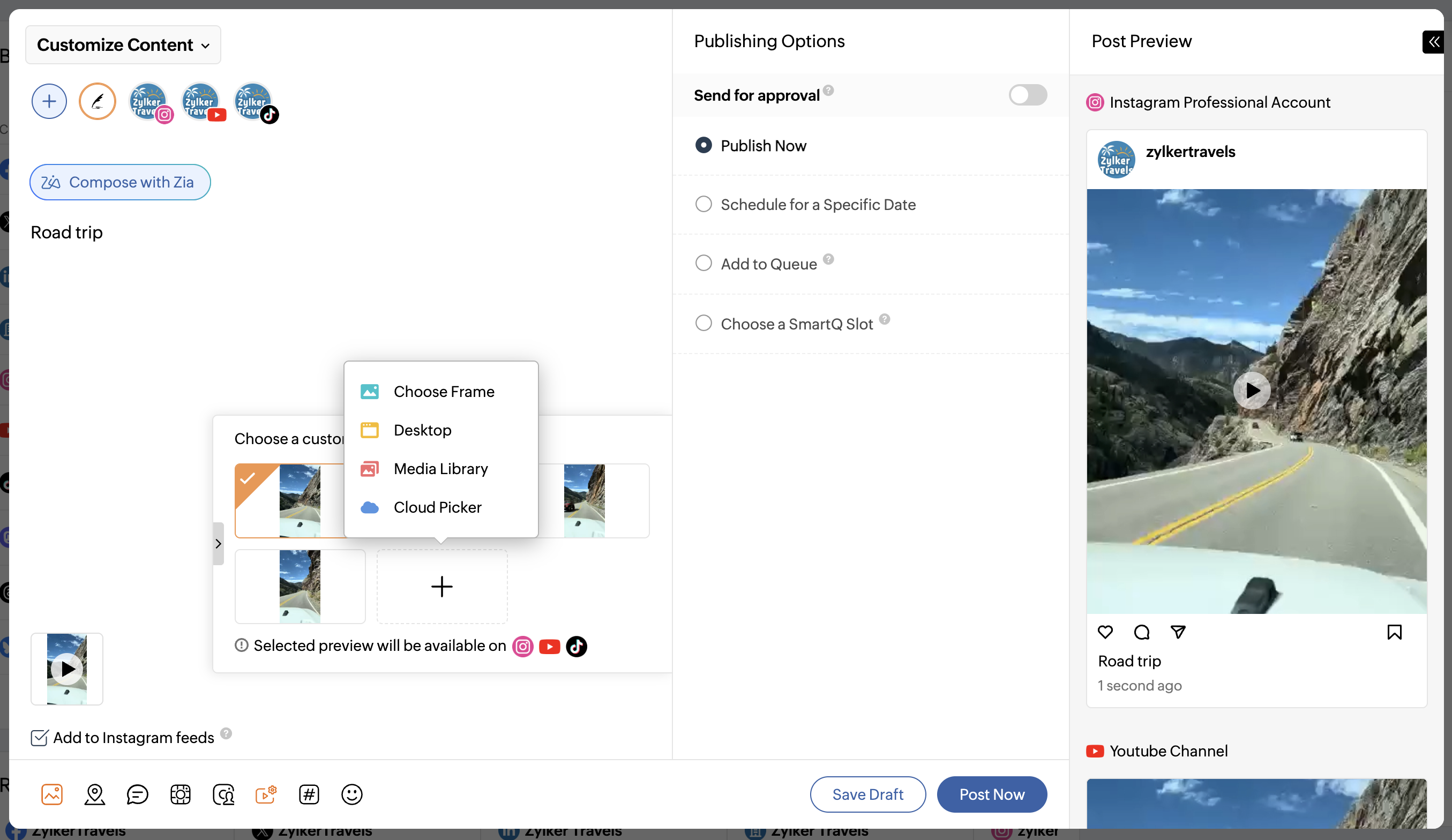
Post Preview
The Compose window also includes a post preview panel on the right side. This preview shows how your post will appear on each platform. It is a static (non-interactive) preview, designed to give you a clear idea of the layout and appearance before publishing.