Share files externally from within your desktop sync apps
Greetings from the Zoho WorkDrive team!
The ability to create external links, and share them with external users, right from your desktop apps is now available in the latest versions of WorkDrive TrueSync and Sync.
Create a custom external share link for a file or folder
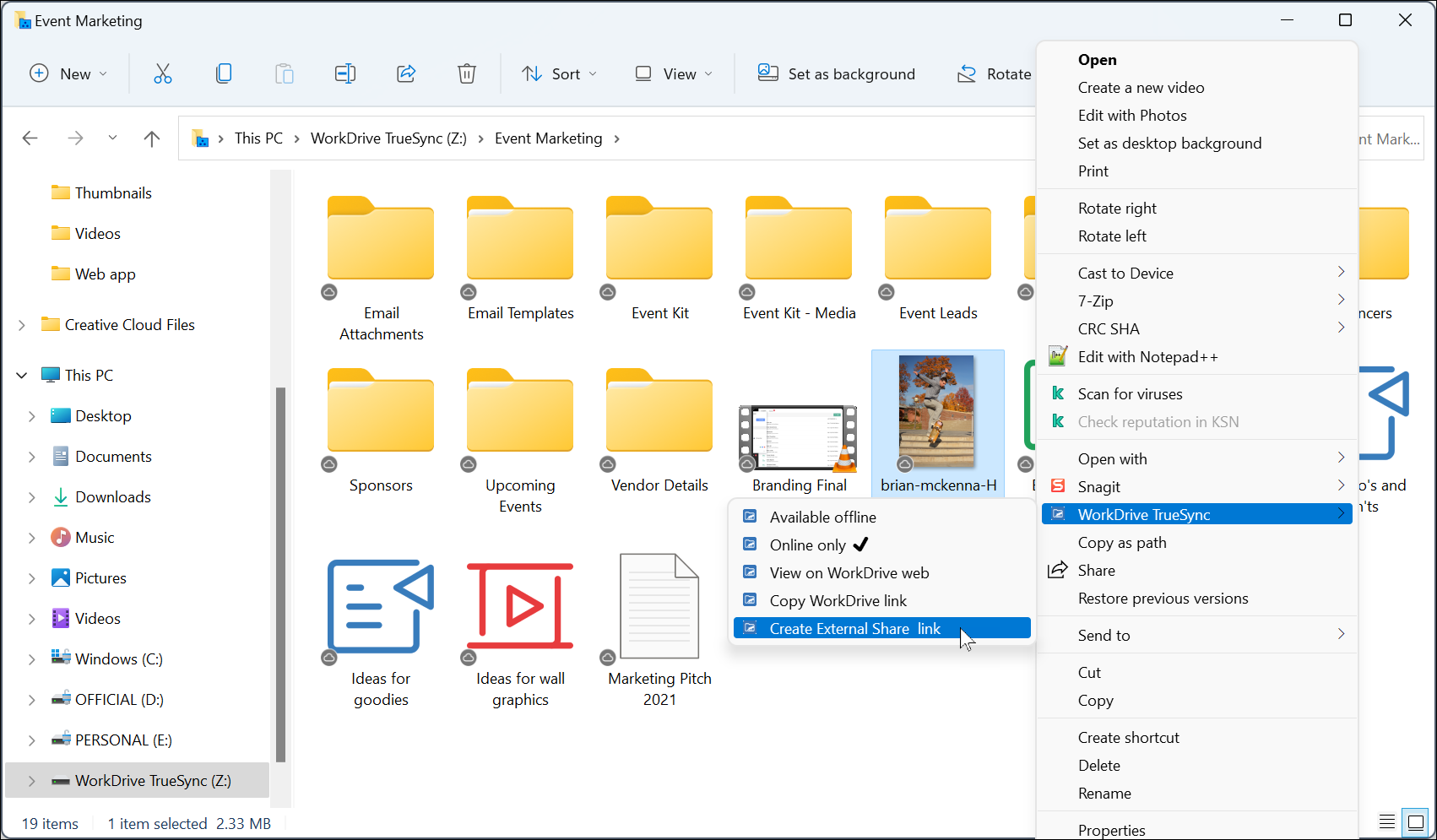
It’s pretty simple! Just locate the file you wish to share in your app window, and right-click on it. You’ll see the option to create an external share link right away. In the link creation window, you’ll see the familiar external share link window from the web app. From here, you can create and share your link.
Here are the detailed steps to create an external share link from your desktop app:
- Open your WorkDrive Sync/TrueSync folder.
- Right-click on the required file or folder.
- Select WorkDrive TrueSync -> Create External Share Link. In WorkDrive Sync, select Create External Share Link. This opens the link creation window.
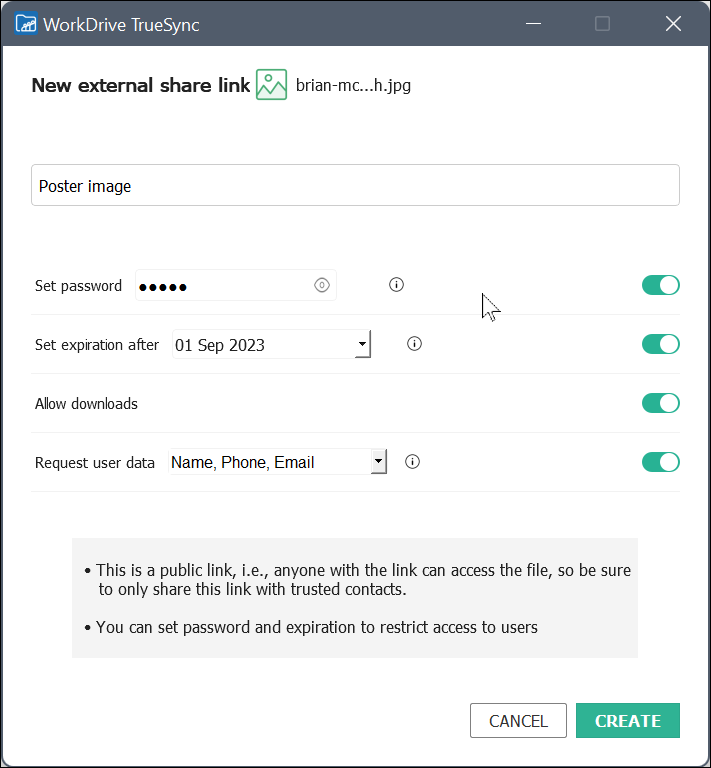
- Enter a name for the link.
- To enable password protection for the file or folder, toggle ON Set Password and enter a password.
- To set an expiration period for the link, toggle ON Set Expiration. This will make the share link invalid after the set date.
- Toggle ON Allow Downloads to let external users download the shared file or folder. If you wish to restrict users from downloading the file or folder, toggle this option OFF.
- Toggle ON Request User Data and choose to require user details, like name, email address, and phone number. If this option is enabled, a user has to submit their details every time they wish to access the file or folder. This way, you always know who opens your file or folder using the external share link.
- Click CREATE. A new dialog box will open.
- In the following window, you can click the Copy Link button to copy the link and share it with users.
You can also email the external share link to multiple users directly by typing out their email addresses in the space below the Email Share Link section. After you are done adding the email addresses and your message, click SEND EMAIL.
You can edit any of the share link settings by clicking the Link Settings button.
Note
- Once you have closed the external share link window, you will not be able to access the link settings for that specific link from the Sync app. You will need to go to the web app to access previously created share links.
- Team Admins can mandate passwords for all external share links at the team level. They can also set a strong password policy, making the links more secure. Learn more about mandatory passwords and password policies.
Whether you’re on the web, a desktop, or your mobile device, you can quickly create a shareable link on any platform!
Please feel free to contact our support team at support@zohoworkdrive.com if you have any questions.
Access your files securely from anywhere
New to Zoho Recruit?

Zoho Developer Community
New to Zoho LandingPage?
Zoho LandingPage Resources
New to Zoho Survey?
New to Zoho CRM Plus?
Deliver unforgettable customer experiences
New to Zoho CRM Plus?
Deliver unforgettable customer experiences
New to Zoho Marketing Plus?
Everything you need to run your marketing
New to Zoho Marketing Plus?
Everything you need to run your marketing
New to Bigin?





Topic Participants
Srijeet Bose
Rissana from Settle Easy Valencia
Gautham Balaji G
Sticky Posts
Ask the Experts: Five-hour live Q&A session with Zoho WorkDrive product experts
Have questions about WorkDrive 5.0? Let’s talk! We recently launched Zoho WorkDrive 5.0, packed with powerful updates to help your team work smarter, stay secure, and get more value from your business content. From content-centric workflows and AI-poweredSupport for auto-upgrade in TrueSync (for Windows)
WorkDrive TrueSync app now supports auto-upgrading to the latest version for Windows OS. You must manually download and install the TrueSync app version 3.4.0 to avail this feature. Download the latest TrueSync app for Windows (version 3.4.0) SupportedWorkDrive API Documentation
WorkDrive provides users and developers an extensive set of APIs to help integrate functionalities of Zoho WorkDrive with other Zoho applications and third-party tools. We have published the official WorkDrive API Documentation page for all external users.March 15, 2023: Zoho Docs is discontinued
As of today (March 15, 2023) Zoho Docs is discontinued for all users. We would like to thank our customers for trusting us for so many years! Going forward, we're confident you'll enjoy using Zoho WorkDrive for all your advanced file management and collaborationIntroducing WorkDrive 4.0: Enhanced productivity. Advanced data administration. (Phase 1)
Hello All, We're excited to share the release of WorkDrive 4.0, which includes important new features and enhancements focused primarily on productivity, secure collaboration, data administration, integrations, and user experience. Read the official announcement
New to Zoho TeamInbox?
Zoho TeamInbox Resources
Zoho CRM Plus Resources
Zoho Books Resources
Zoho Subscriptions Resources
Zoho Projects Resources
Zoho Sprints Resources
Qntrl Resources
Zoho Creator Resources
Zoho CRM Resources
Design. Discuss. Deliver.
Zoho Show Resources

Get Started. Write Away!
Writer is a powerful online word processor, designed for collaborative work.
Zoho CRM コンテンツ
-
オンラインヘルプ
-
Webセミナー
-
機能活用動画
-
よくある質問
-
Ebook
-
-
Zoho Campaigns
- Zoho サービスのWebセミナー
その他のサービス コンテンツ
Nederlandse Hulpbronnen

ご検討中の方
Recent Topics
Cash based businesses cannot use the new fixed asset module
Hello all, If your bookkeeping is reporting in cash, you cannot use the new fixed acid module, as it does all the depreciation bookings accrual and not cash. This is definitive and you can't turn them into a cash booking. They will never appear in yourZoho Learn & Zoho Connect
Hi, Is there a way to sync the knowledge base we have in Zoho Learn with the manuals section is Zoho Connect? Thanks,Apply Payment Received Amount Zoho Books Invoice
Hello team here is the sample code How can apply the payment received record over a unpaid zoho books invoice. //......................... paymentID = customer_payment.get("payment_id"); organizationID = organization.get("organization_id"); paymentmaplist[Live Webinar] New in Zoho WorkDrive: AI enhancements, Data Loss Prevention, Version Controls, and more
Hello everyone, We're excited to bring you another round of powerful updates in Zoho WorkDrive! Join us on May 15 for an exclusive live webinar where we’ll unveil the latest features designed to enhance your team’s productivity, collaboration, and dataLive webinar: Streamlining legal operations: Leveraging Zoho WorkDrive for law firm success
Hello everyone, Managing legal documents across departments and jurisdictions can be complex, but it doesn’t have to be. Join us on March 6 for an exclusive webinar where we’ll show you how Zoho WorkDrive empowers legal teams to stay compliant, organized,Live Webinar: Optimizing back-office operations in the manufacturing industry to maximize profitability
Hello everyone, We’re excited to invite you to our upcoming live webinar on February 6! Discover how Zoho WorkDrive can help manufacturing businesses optimize back-office operations, improve efficiency, and boost profitability. Our product experts willLive webinar: 2024 recap of Zoho WorkDrive
Hello everyone, We’re excited to invite you to our year-end live webinar! This session will take you through the transformative features and updates we’ve introduced in Zoho WorkDrive this year, helping you streamline document management like never before.Live webinar: Explore WorkDrive's seamless integrations with key Zoho apps
Hello everyone, We’re excited to invite you to our upcoming live webinar, where we'll delve into the seamless integration of WorkDrive with other key Zoho applications! This is a fantastic opportunity to enhance your productivity and streamline your workflowsLive webinar: Getting the most out of WorkDrive in Zoho Workplace
Hello everyone, We’re excited to invite you to our upcoming live webinar, where we’ll explore how to maximize your use of WorkDrive as part of the Zoho Workplace bundle. This is a fantastic opportunity to elevate your productivity and streamline yourLive webinar: Mastering data migration, organization, and team collaboration
Hello everyone, We’re excited to invite you to our upcoming live webinar! Discover how to seamlessly migrate your data, optimize file organization, and boost team collaboration using Zoho WorkDrive’s powerful features. This is a fantastic opportunityJoin our live webinar: Explore the WorkDrive TrueSync application!
Hello everyone, We are thrilled to invite you to a live webinar focused on mastering the WorkDrive TrueSync application. Discover how to seamlessly sync your content between the cloud and your computer, ensuring smooth and efficient file management. OurEnvio de mails
Hola! No puedo enviar mails pero si recibirlos. No se como solucionarlo! Mi dominio es chidobebes.com.arERROR CODE :554 - Your access to this mail system has been rejected due to poor reputation of a domain used in message transfer
In my email configuration: The domain's MX Records are pointed to Zoho The domain's SPF Records have been pointed out successfully DKIM is enabled. DMARC Record is pointed for the domain. The domain name is digioorja.in. Still facing the issue of Error:This Operation has been restricted. Please contact support-as@zohocorp.com for further details
l tried to verify my domain (casalimpaeperfumada.com.br) and its shows this error: This Operation has been restricted. Please contact support-as@zohocorp.com for further details.SLOW EMAILS
Is there an issue with the Zoho server? For two days now I've been having issues with very long buffering. Please advise. Thank you.POP3 authentication error - SOLVED
Just in case others are as forgetful as me ... As Zoho has changed the POP server for personal and free organisational users, I needed to change the POP server on my email client. This failed persistently but eventually I remembered that I had chosenAdd Zoho One Groups/Departments to Shared Mailbox Access
Hi, I hope you're doing well. Currently, in Zoho Mail, I can manually add specific users or the entire organization to a shared mailbox. However, there is no option to add Zoho One groups or departments. Feature Request: We would like the ability to assignAllow Filters with Only Special Characters in Zoho Mail
Hi Zoho Mail Team, I hope you're doing well. We have noticed that currently, Zoho Mail does not allow creating filter criteria using only special characters, such as = or #. However, there are scenarios where such a filter is necessary. For example: FilteringHow to save email as PDF?
I saw 2 previous threads about this. One is from 14 years ago. The other was closed as "answered" a year ago but the feature was never implemented: https://help.zoho.com/portal/en/community/topic/how-to-download-save-emails-as-pdf Is the "save as PDF"Flexible plans
Hi, I have a Workplace Standard subscription. On Zoho's website, it mentions that with the annual plan it's possible to have multiple plans under the same organization—for example, Workplace Standard and Mail Lite. However, I can’t find a way to do thisWeekly Tips : Teamwork made easy with Multiple Assignees
Let's say you are working on a big project where different parts of a single task need attention from several people at the same time—like reviewing a proposal that requires input from sales, legal, and finance teams. Instead of sending separate remindersCannot give public access to Html Snippet in Zoho Creator Page
Hi, I created a form in Zoho Creator and published it. The permalink works but I want to override the css of the form. (style based URL parameters is not good enough) So I created a page and added an Html snippet. I can now override the css, which isWeekly Tips : Customize your Compose for a smoother workflow
You are someone who sends a lot of emails, but half the sections in the composer just get in your way — like fields you never use or sections that clutter the space. You find yourself always hunting for the same few formatting tools, and the layout justAccounting on the Go Series-43:Enhancing Your Reporting Efficiency with Dashboard Filter State Retention
Hello everyone! Welcome back to our series on Zoho Books mobile app features. Today, we will talk about a feature that yet again helps you focus on work that really matters-Dashboard Filter State Retention. Imagine you're working on your Zoho Books dashboard,Zoho books/payroll tax payment
I accidentally made a second payment to my taxes for $300 which is reflected in my bank account and therefore on Zoho books but I can not match it to any transactions because its not reflected in payroll as a tax payment. Is there a way to add an extraI can't renew the Finance Plus subscription
I tried to renew the Finance Plus subscription but it keeps reloading the same page over and over when ever I click on "Renew Subscription" buttonEstimate vs Quote
they are different. Quote is for 1 piece price + other charges. Estimate is for total quantity to be ordered. The gross total amount of the Estimate is the amount payable. Replacing Estimate as Quote is not understandable because they are different. InAccounting on the Go Series-47: Effortless GSTIN Management- Auto Populate TaxPayer Details in Zoho Books Mobile App
Hello everyone, Welcome back! Today, we're focusing on a feature specifically designed for our Indian users in the Zoho Books-Indian edition, particularly those who deal with GST compliance regularly. We understand the importance of accurate and efficientAccounting on the Go Series-48: Enhance Accuracy with Custom Work Week Start Days in Zoho Books iOS app
Hello everyone, Welcome back! We’re here with another feature spotlight that might seem small but can have a big impact on your daily routine: setting the first day of the work week in the Zoho Books iOS app. Imagine this: You’re a business owner whoTime to Get Paid Report in ZBooks
Hello, One of our customers who has 25 different companies around the world gets 60 days to make payments. Unfortunately, the subject report does not report an average time to get paid (in days) or the ability to look at a custom period of time. CurrentlyHow to prepare a balance sheet for a company that has no operations yet?
.Project Billing Method from Zoho People
Normaly our customers use Zoho Projects to manage projects and timesheet that are being charge to the customer. Using the integration from Zoho Project we can have projects base on different billing method. For example most of our customer use HourlyZoho Books-Accounting on the Go Series!
Dear users, Continuing in the spirit of our 'Function Fridays' series, where we've been sharing custom function scripts to automate your back office operations, we're thrilled to introduce our latest initiative – the 'Zoho Books-Accounting on the Go Series'.Zoho Books | Product updates | July 2025
Hello users, We’ve rolled out new features and enhancements in Zoho Books. From plan-based trials to the option to mark PDF templates as inactive, explore the updates designed to enhance your bookkeeping experience. Introducing Plan Based Trials in ZohoZoho Books | Product updates | August 2025
Hello users, We’ve rolled out new features and enhancements in Zoho Books. From the right sidebar where you can manage all your widgets, to integrating Zoho Payments feeds in Zoho Books, explore the updates designed to enhance your bookkeeping experience.Update or Upsert Records Using Unique Custom Fields
Hello customers, We've enhanced the process of updating records via API. You can now: Update records using unique custom fields Upsert records using unique custom fields Note: Both the features are available in the Zoho Books and Zoho Inventory apps.[Webinar] Understanding the New Invoice Management Systems
Join industry expert CA Pritam Mahure as he discusses the importance of the new Invoice Management System (IMS) and its impact on taxpayers. Topics Covered: - Concept of IMS and pre-requisites - Applicability and Restrictions on Invoices/Records for IMSAccounting on the Go Series-51: Effortless Transactions: Create and Manage Directly from Uploaded Documents
Hello everyone, We’re back with another useful feature that makes working with Zoho Books even easier! This time, we’re simplifying the process of creating transactions directly from uploaded documents. Imagine you’re out meeting clients, and you receive[WEBINAR] Effortless migration to the VAT-ready South Africa edition of Zoho Books
Hello there, If you are one of our early users from South Africa using the older edition of Zoho Books, this webinar is for you! We have now launched a new South Africa edition with VAT support, to which you can migrate your existing data. Join this session,Accounting on the Go Series-52: Capture Receipts on the Go, Right from Your Lock Screen.
Hello everyone, We’re excited to introduce a feature that will make your life so much easier—especially for those constantly on the move! With iOS 18, Zoho Books now allows you to capture receipts directly from your lock screen using Locked Camera Capture.Next Page