Bidirectional sync between Zoho Bookings and Zoho CRM - Part 1
Hey, community members!
The default integration between Zoho CRM and Zoho Bookings is unidirectional, which means that any appointments booked, rescheduled, or deleted in Zoho Bookings will be reflected in Zoho CRM. However, any modifications made to events in Zoho CRM that originated from Zoho Bookings will not be reflected back in Zoho Bookings. Hence, as we're announcing in this community post, we've made the sync bidirectional.
This community post will cover the process of configuring appointment bookings from Zoho CRM in Zoho Bookings, as well as managing appointment statuses such as Canceled, No Show and Completed. We have addressed the rescheduling action in a separate post. To view it, please click on the following link: Reschedule Action
This community post will be beneficial for active Zoho CRM users who handle all their meetings within Zoho CRM. Additionally, you can use this community post as a reference to explore various automation possibilities tailored to your business requirements. For instance, with this post's guidance, when you update a booking's status field to "Completed" in Zoho CRM, it will automatically sync with Zoho Bookings and trigger an automated "Mark as completed" email to customers. This enhancement will improve your Zoho Bookings and Zoho CRM synchronization experience, making appointment management easier.
Prerequisites of bidirectional sync:
- Zoho Bookings Premium subscription
- Zoho CRM paid subscription
- Enable Zoho CRM integration within Zoho Bookings
The purpose of enabling the Zoho CRM integration within Zoho Bookings is to transfer booking details from Zoho Bookings to Zoho CRM. In this configuration, the mandatory field is the Booking ID, which is passed from Zoho Bookings to Zoho CRM through the integration. Whenever an appointment is booked, customer details will be sent to the designated CRM module, and a corresponding record will be created in the Meetings module within Zoho CRM, which will help in automating the workflow.
Here's the complete demo video that covers all the configurations discussed in the community post below:
Timestamps for your reference:
0:35 - Purpose of this community post
Here's the complete demo video that covers all the configurations discussed in the community post below:
Timestamps for your reference:
0:35 - Purpose of this community post
1:26 - Zoho CRM plugin installation
4:43 - Custom field creation
7:20 - Function creation
9:22 - Connection creation
10:24 - Configuring arguments
11:06 - Workflow creation
13:33 - Argument mapping
14:41 - Output verification
17:41 - Conclusion
How we're approaching this bidirectional sync
1. Booking an appointment from Zoho CRM
Install the Zoho Bookings for Zoho CRM plugin within your Zoho CRM application. This plugin enables the creation of a "New Appointment" button within the Zoho CRM Leads and Contacts module, which enables you to select the desired booking page you wish to open. You can choose from various workspace, service, or staff booking pages. After configuration, you can initiate the process of scheduling bookings directly from within your Zoho CRM account.
- Guide on Zoho Bookings and Zoho CRM plugin installation: Booking page selection for Zoho CRM plugin
2. Booking status: Completed or No Show
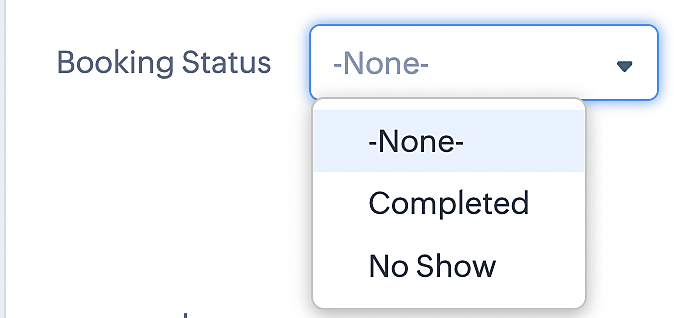
To update a booking's status (Completed or No Show), we've added a new picklist properties field named "Booking Status" in the Meetings module and configured it with two options: "completed" and "no show". Depending on the booking status chosen, the corresponding booking in Zoho Bookings will be updated.
- Details on how to add a custom field to the Meetings module : Customizing modules
- Here's a video that demonstrates how to add a field to a module in Zoho CRM: Adding fields
Reference:
3. Booking status: Canceled
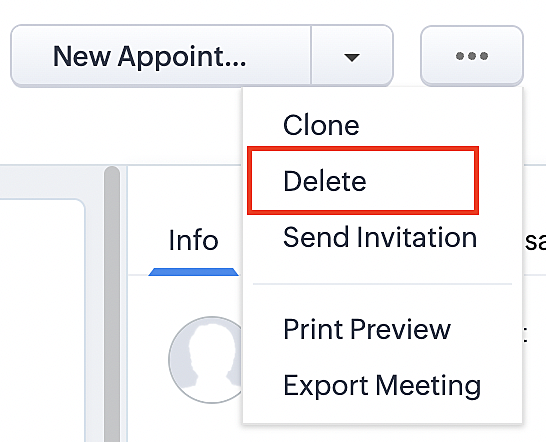
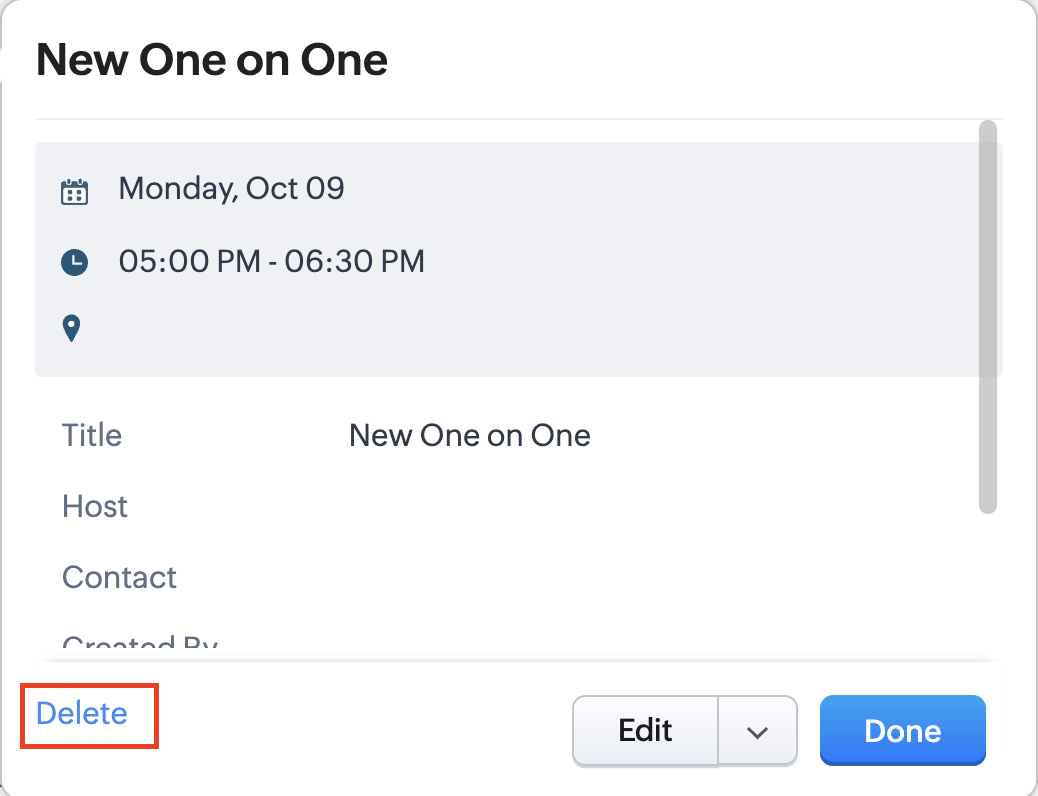
Whenever a meeting is deleted from the Meetings module, the corresponding booking in the Zoho Bookings app will also be canceled automatically. The meeting can be deleted either from the Meetings module or directly from the calendar.
To enable bidirectional sync between Zoho CRM and Zoho Bookings
Complete these steps in Zoho CRM.
Step 1: Creating connections
You first need to establish a connection between Zoho CRM and Zoho Bookings. Zoho Bookings is listed as one of the default connections in Zoho CRM, making it simple to set up. Select the Zoho Bookings connection, define the connection name and scope, and you'll be all set. This connection will enable you to link both applications and facilitate the seamless transfer of data.
Read here for more details on how to create connection in Zoho CRM: Connections
Step 2: Creating functions
In this context, we'll be creating three functions: one for marking appointments as completed, another for canceling appointments, a third for marking appointments as no shows, and a fourth for rescheduling appointments. For each function, we must also configure arguments, which pass values or data into a function when making a call. Here, we'll pass the booking ID to the function as an argument to update the necessary booking status.
i. To create a function for marking appointments as completed:
1. Go to Setup > Developer Space > Functions.
2. In the Functions page, click + Create New Function.

3. Configure the function name, display name, and description.
4. Set the category as automation.
This opens the Deluge script page.
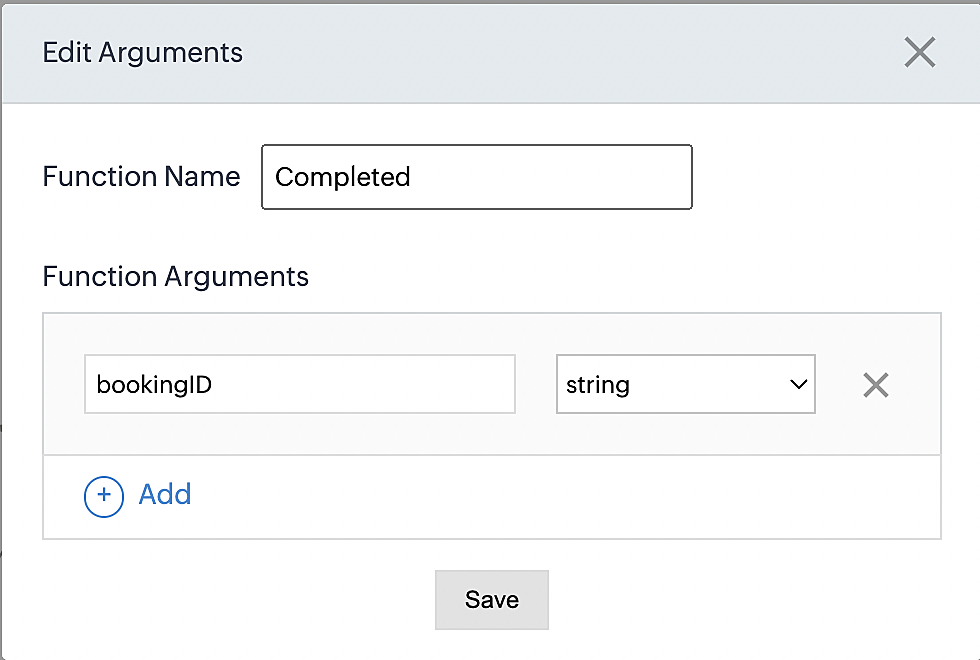
5. Next, configure the function's arguments:
A. Click on Edit Arguments on the Deluge script page.

B. Set the Parameter Name as bookingID. (Please note that the "bookingID" value is case sensitive and must match
the term used in the code).
C. Set the type as string.
Reference:
Please configure the below code in the Deluge script page.
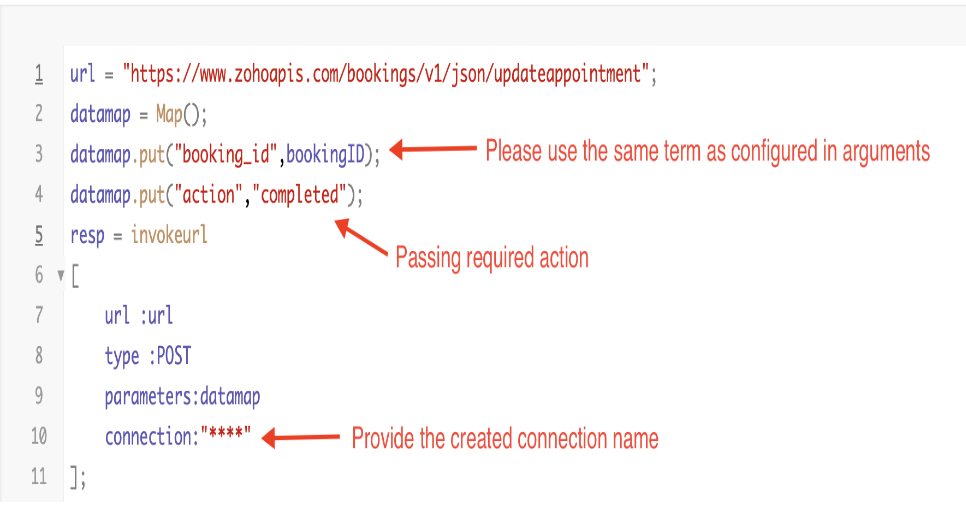
By completing these steps, we've configured a function that will mark appointments as completed.
ii. To create a function for marking appointments as no shows
1. Go to Setup > Developer Space > Functions.
2. In the Functions page, click + Create New Function.

3. Configure the function name, display name, and description.
4. Set the category as automation.
This opens the Deluge script page.
5. Next, configure the function's arguments:
A. Click on Edit Arguments on the Deluge script page.

B. Set the Parameter Name as bookingID. (Please note that the "bookingID" value is case sensitive and must match
the term used in the code).
C. Set the type as string.
Reference:
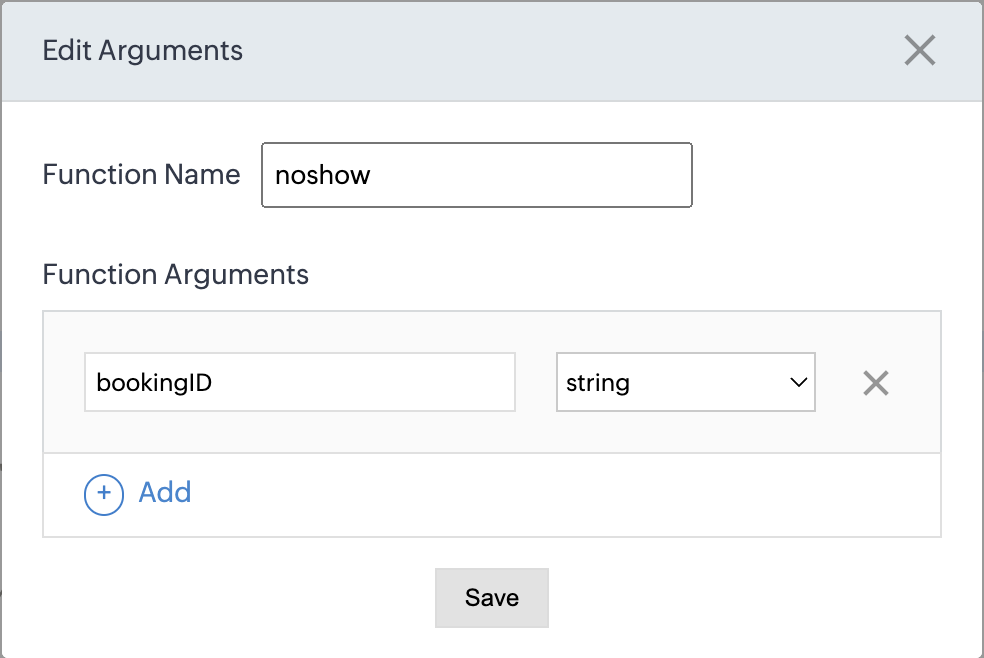
Please configure the below code on the Deluge script page.
Code link: No show
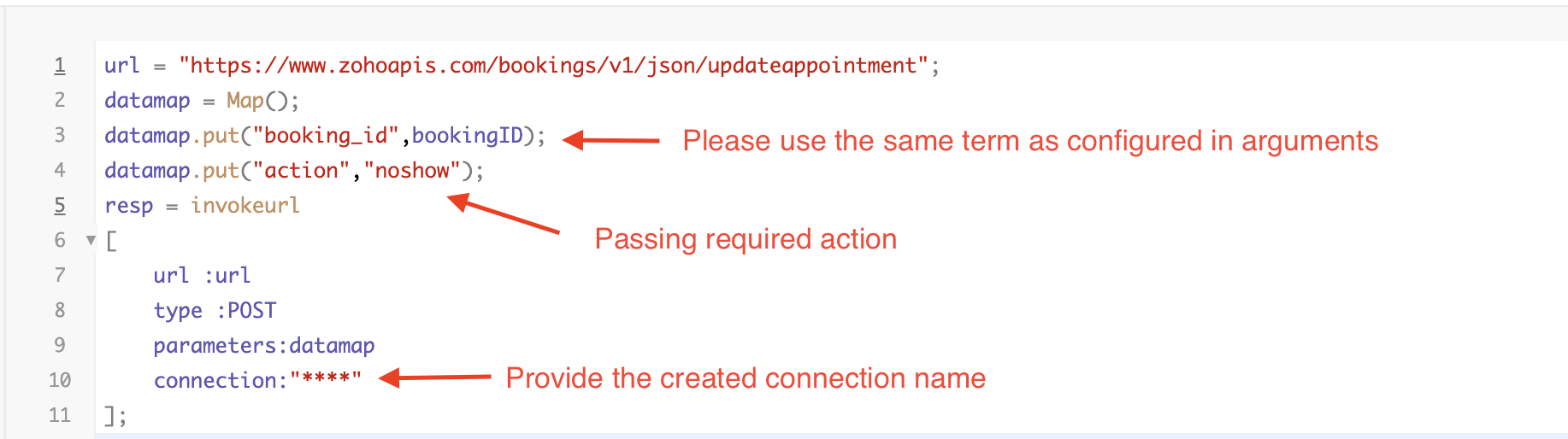
By completing these steps, we've configured a function that marks appointments as no shows.
iii. To create a function for marking appointments as canceled
1. Go to Setup > Developer Space > Functions.
2. In the Functions page, click + Create New Function.

3. Configure the function name, display name, and description.
4. Set the category as automation.
This opens the Deluge script page.
5. Next, configure the function's arguments:
A. Click on Edit Arguments on the Deluge script page.

B. Set the Parameter Name as bookingID. (Please note that the "bookingID" value is case sensitive and must match
the term used in the code).
C. Set the type as string.
Reference
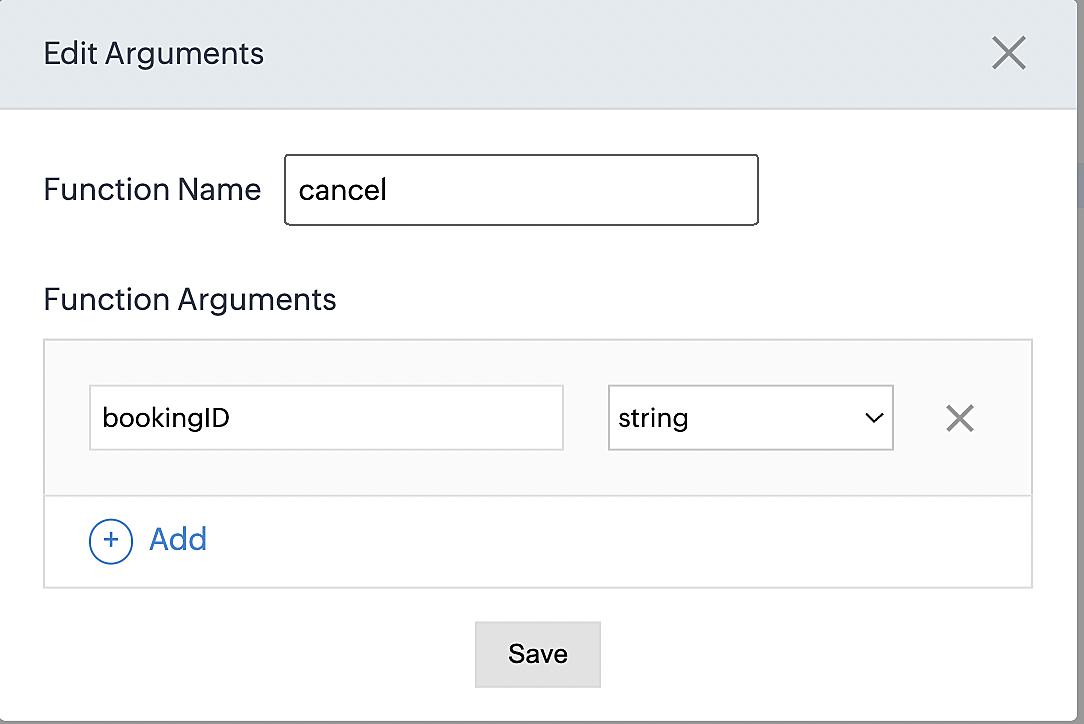
Please configure the below code on the Deluge script page.
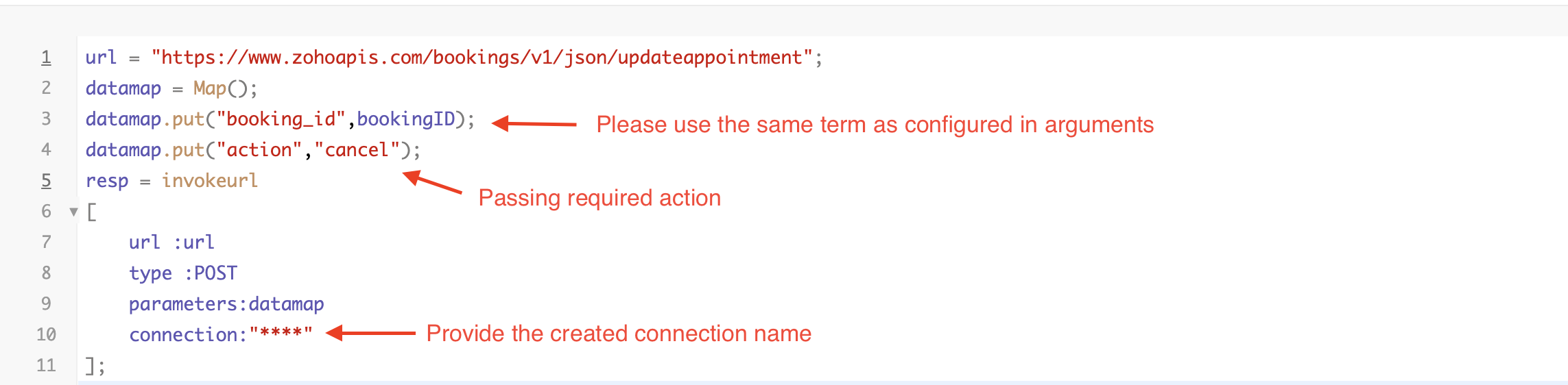
By completing these steps, we've configured a function that marks appointments as canceled.
Code explanation
Below is an explanation of the code that covers all the configurations present in the three functions mentioned above (cancel, mark as completed, and mark as no show).
Line 1: Based on the Zoho Bookings account's data center, we're setting up the API endpoint URL configuration.
Lines 2 - 4: To update appointments, we utilize the Zoho Bookings API. Within the update appointment API, there are two mandatory fields that need to be included: BookingID and action (completed/cancel/noshow).
Lines 5 - 10: We use the invokeURL task for API calls. To learn more about the invokeURL task, please refer to the following document: InvokeURL task for API calls
Now, let's proceed and learn about the process of creating a workflow and linking the established functions to it. This will enable us to automate the entire appointment status updating process.
Step 3: Creating a workflow
Workflow rules are sets of actions (email notifications, tasks and field updates) that are executed when specified conditions are met. Here, we'll generate workflow rules for each action to activate the respective function, thereby automating the appointment status updating process.
i. Creating a workflow for "canceling" appointments in Zoho Bookings when a meeting is deleted in Zoho CRM
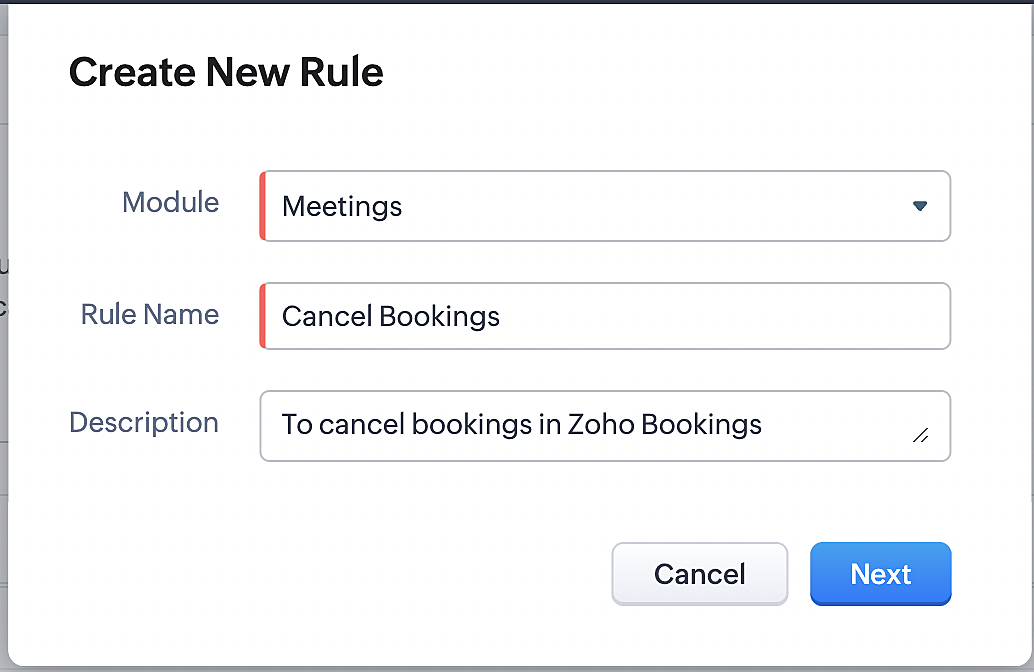
Part 1: Creating the rule
1. Go to Setup > Automation > Workflow Rules.
2. In the Workflow Rules page, click Create Rule.

3. Select "Meetings" under Module and configure rule name and description as required.
More details: Create Rule
Reference:
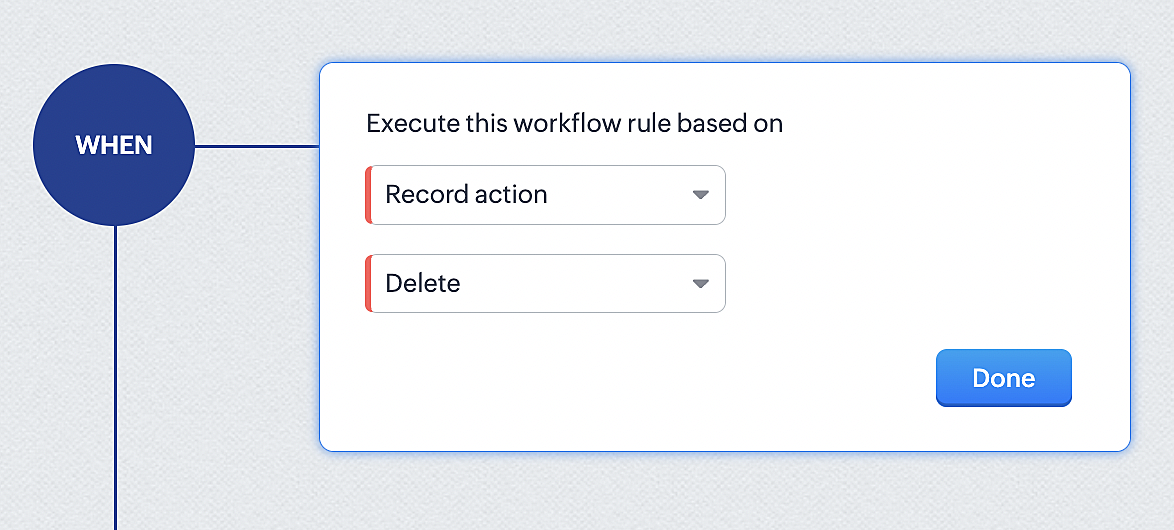
1. Select Record Action > Delete > Done to execute the rule when meetings are deleted.
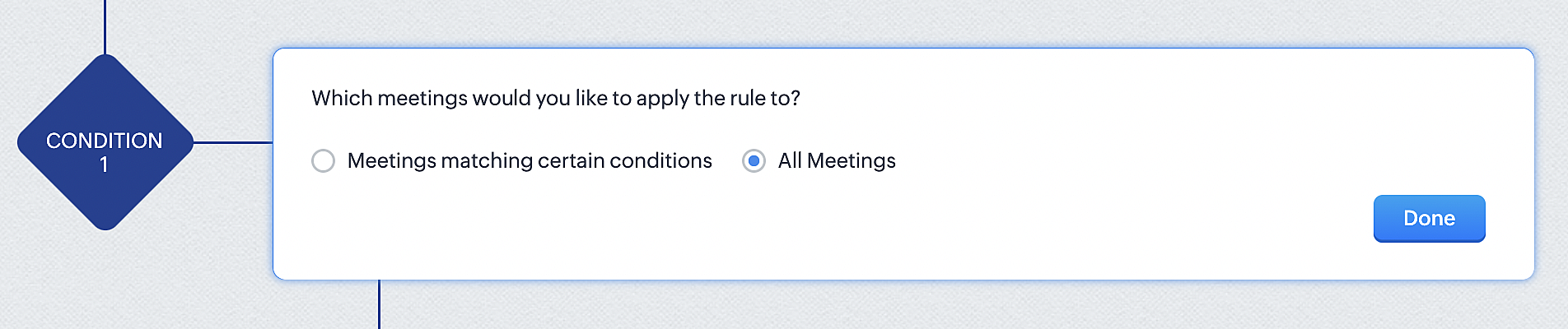
2. Configure condition > All Meetings.
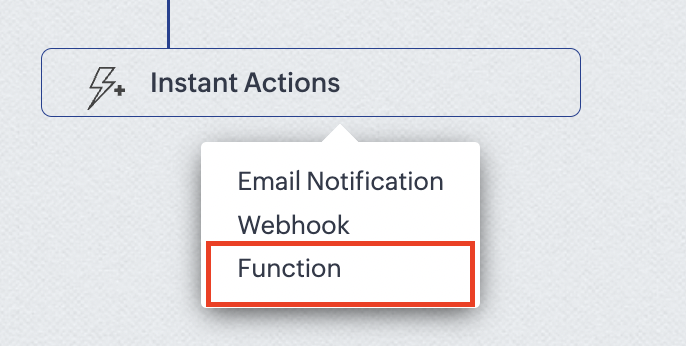
3. Instant Actions > Function.
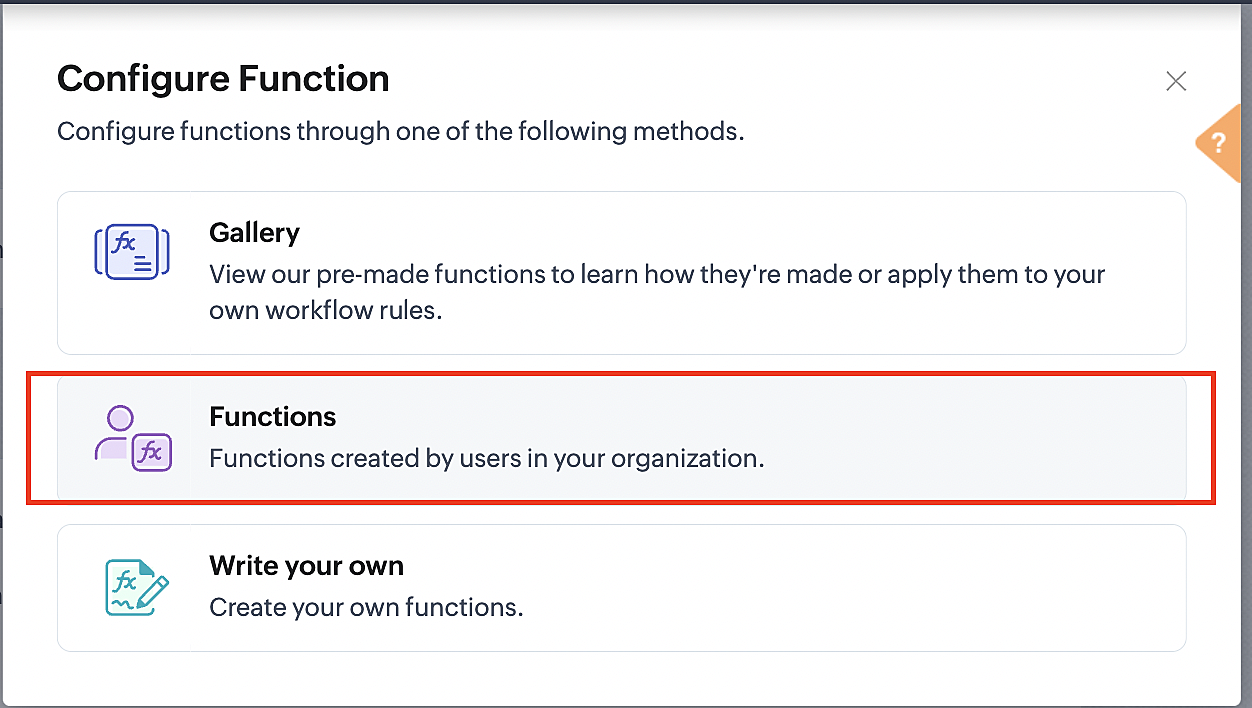
4. Click the New Function button.

5. In the Configure custom function page, select the "cancel" function you created from among the functions users in your organization have created.
Part 3: Argument mapping
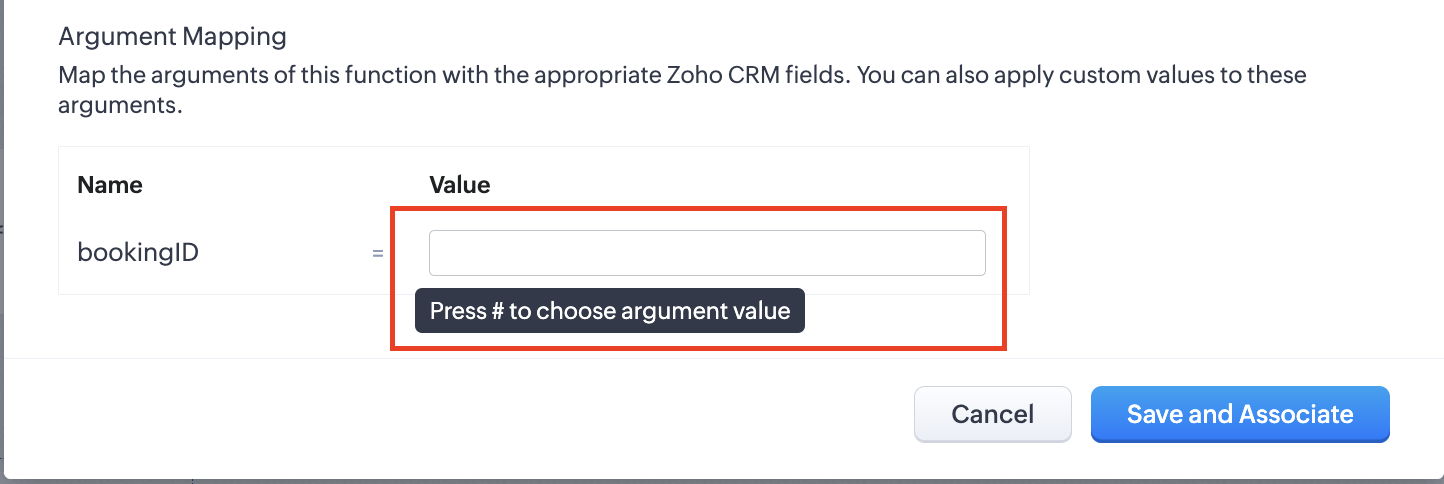
1. Press # to choose an argument value.
2. Select Meetings under Module and BookingId in the field.
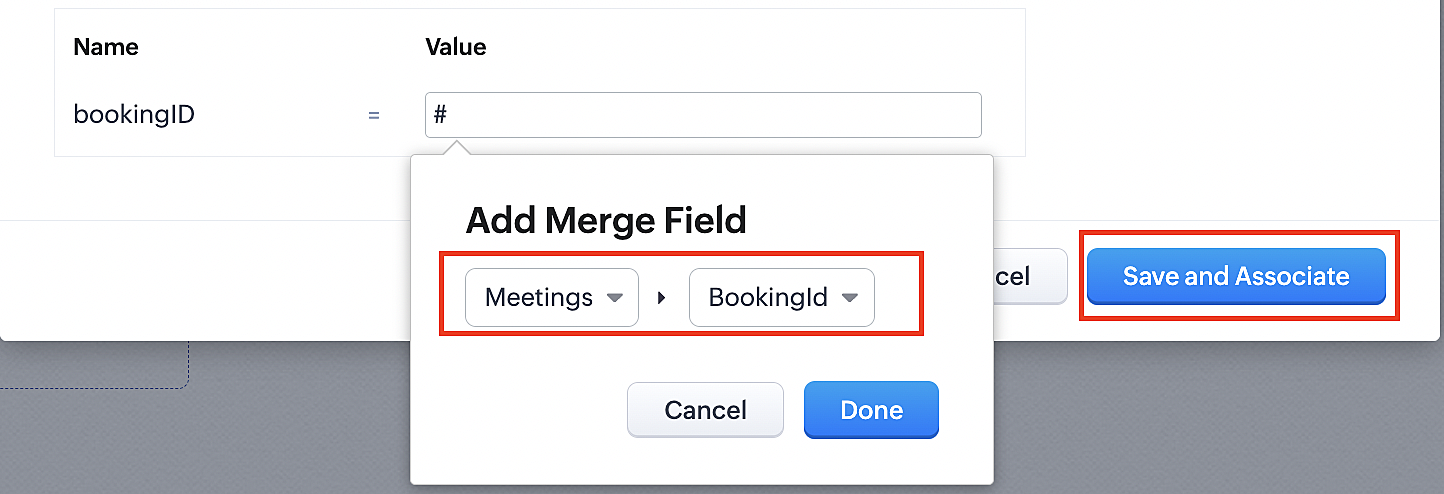
3. Click the Save and Associate button.
Reference:
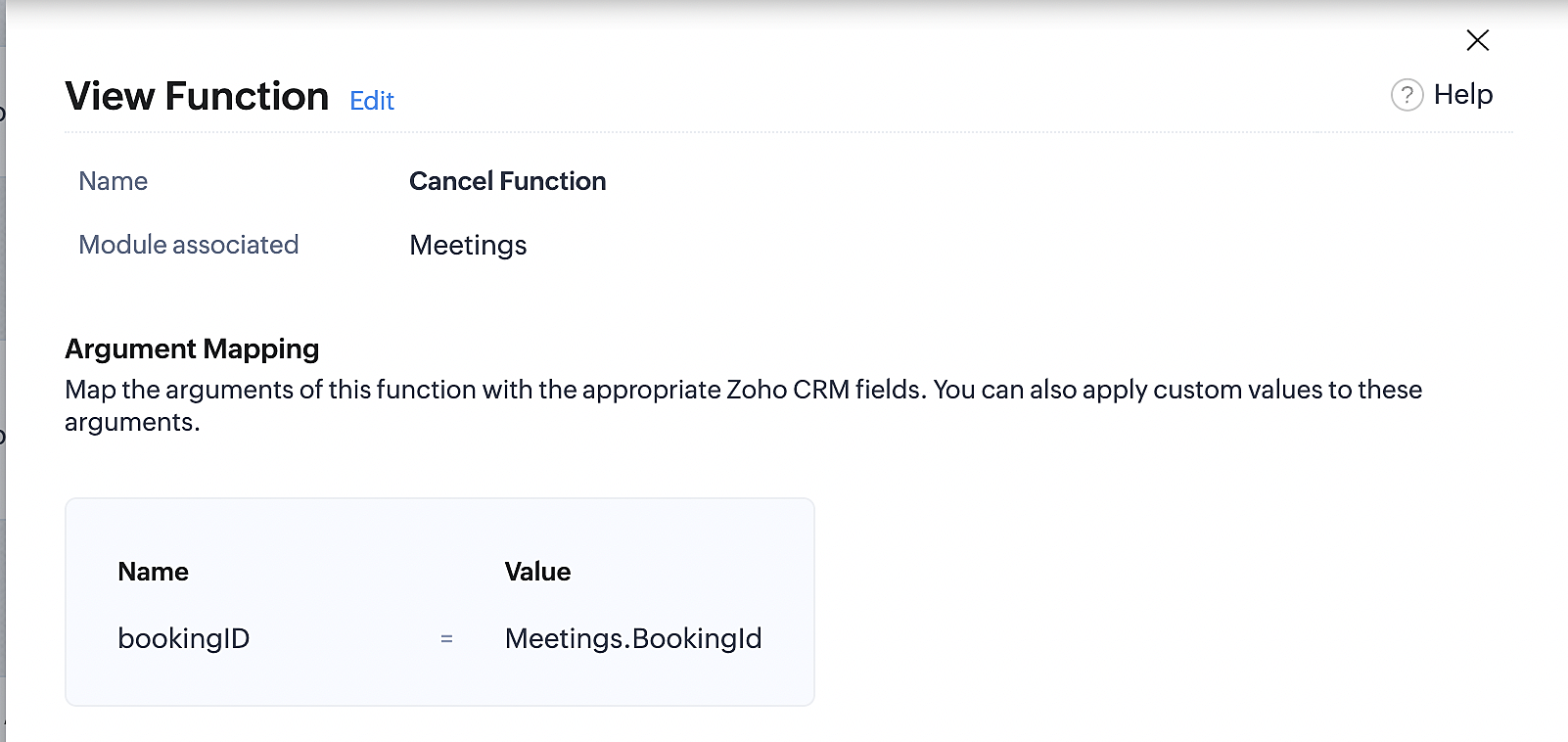
Below is the final flow of the cancel booking workflow:
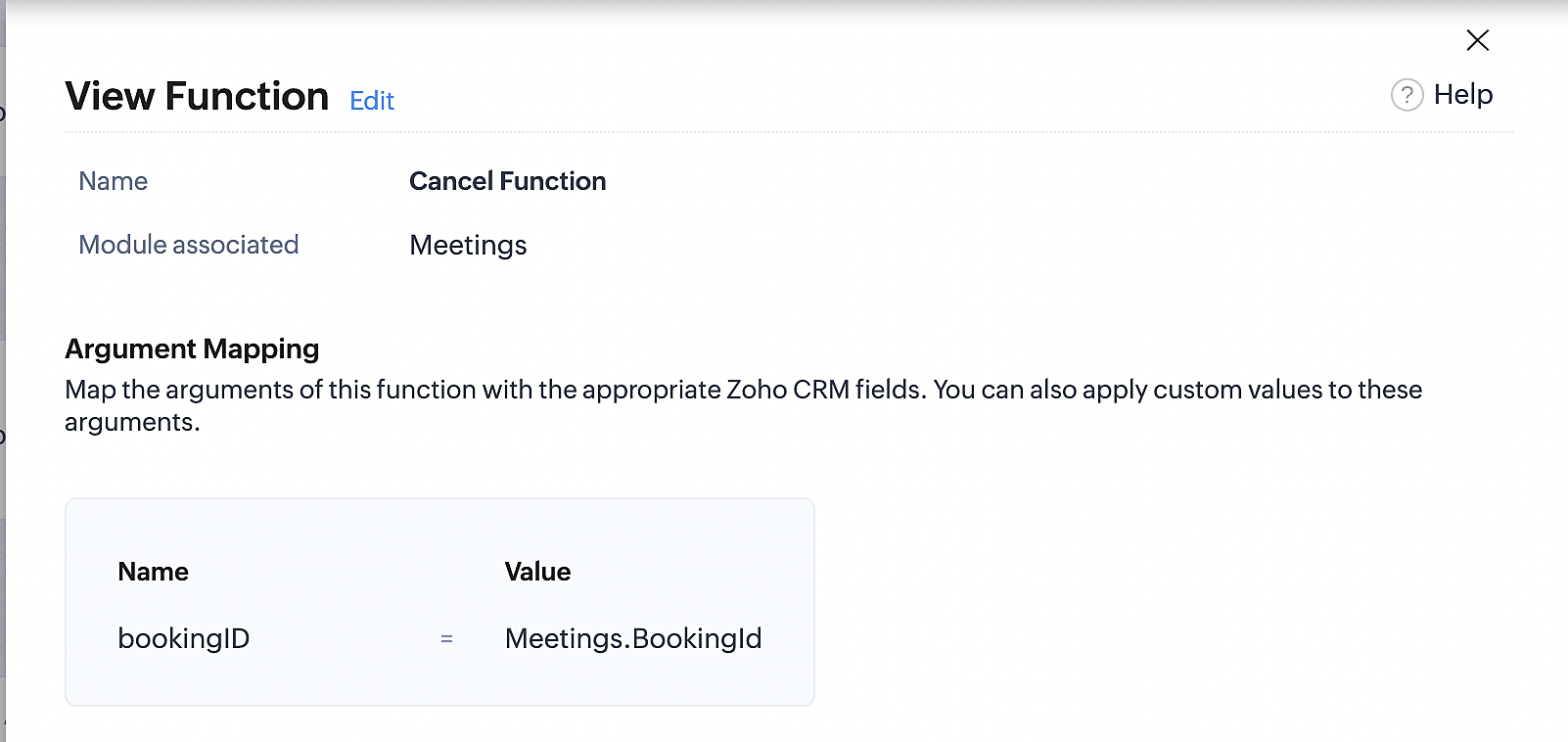
At the end of Part 3, we will have created a workflow that will be executed automatically when meetings are deleted in Zoho CRM. Simultaneously, the bookings associated with the meeting will also be canceled in Zoho Booking.
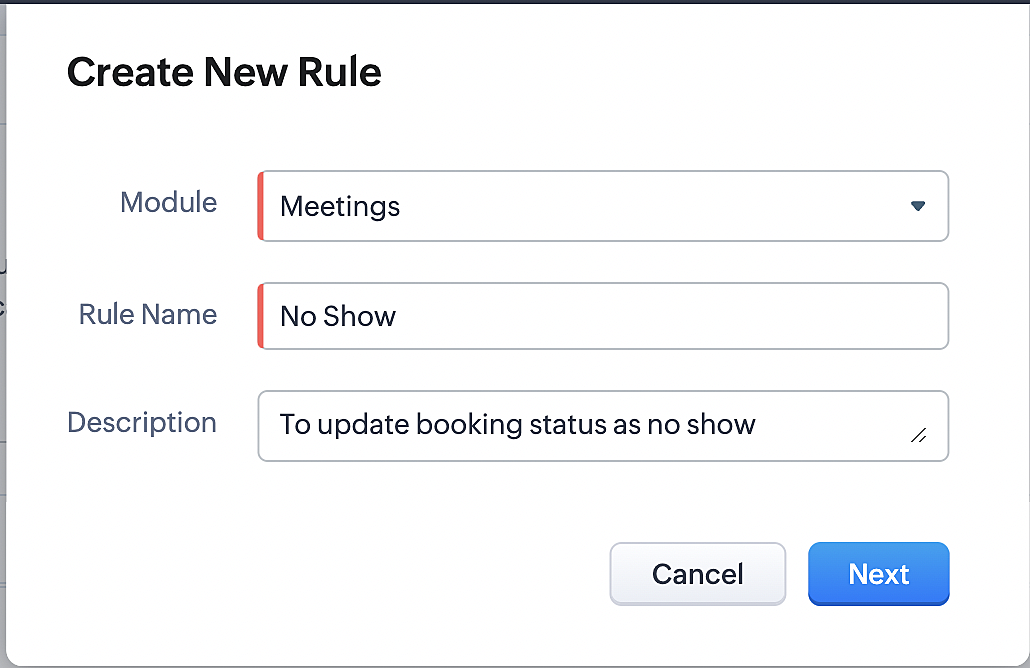
ii. Creating workflow for updating an appointment's status as "no show" in Zoho Bookings when the meeting's booking status is marked as no show in Zoho CRM
Part 4: Creating the rule
1. Go to Setup > Automation > Workflow Rules.
2. In the Workflow Rules page, click Create Rule.

3. Select Meetings under Module and configure the rule name and description as required.
Reference:
Part 5: Specifying the rule trigger
If you encounter difficulties while navigating through the steps mentioned below, please refer to Part 2 above, where we have provided step-by-step screenshots for clarification.
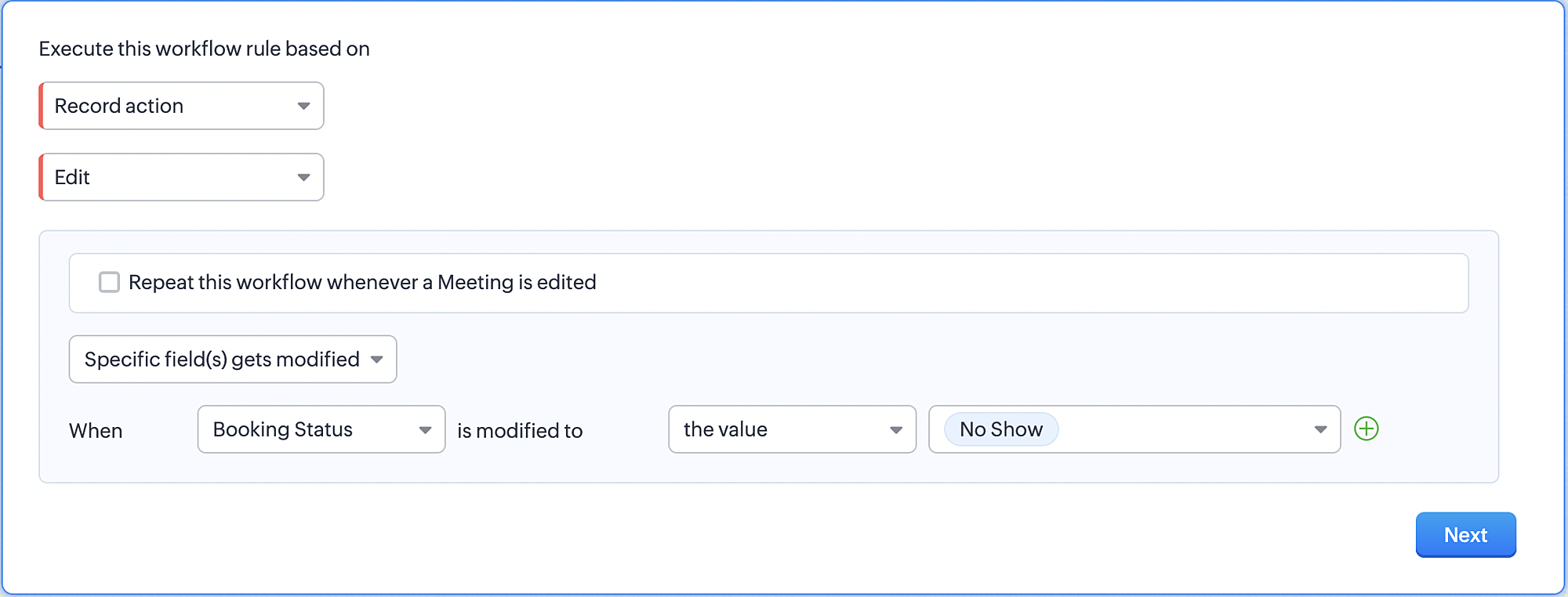
1. Record Action > Edit.

2. Enable the Specific field(s) gets modified and configure it per the screenshot below.
a. This is to ensure that the workflow is executed only when the booking status under the meeting module is
updated to "No Show".
updated to "No Show".
3. Configure condition > All Meetings.
4. Instant Actions > Function > New Function.
5. In the Configure custom function page, select the "no show" function you created from among the functions
users in your organization have created.
users in your organization have created.
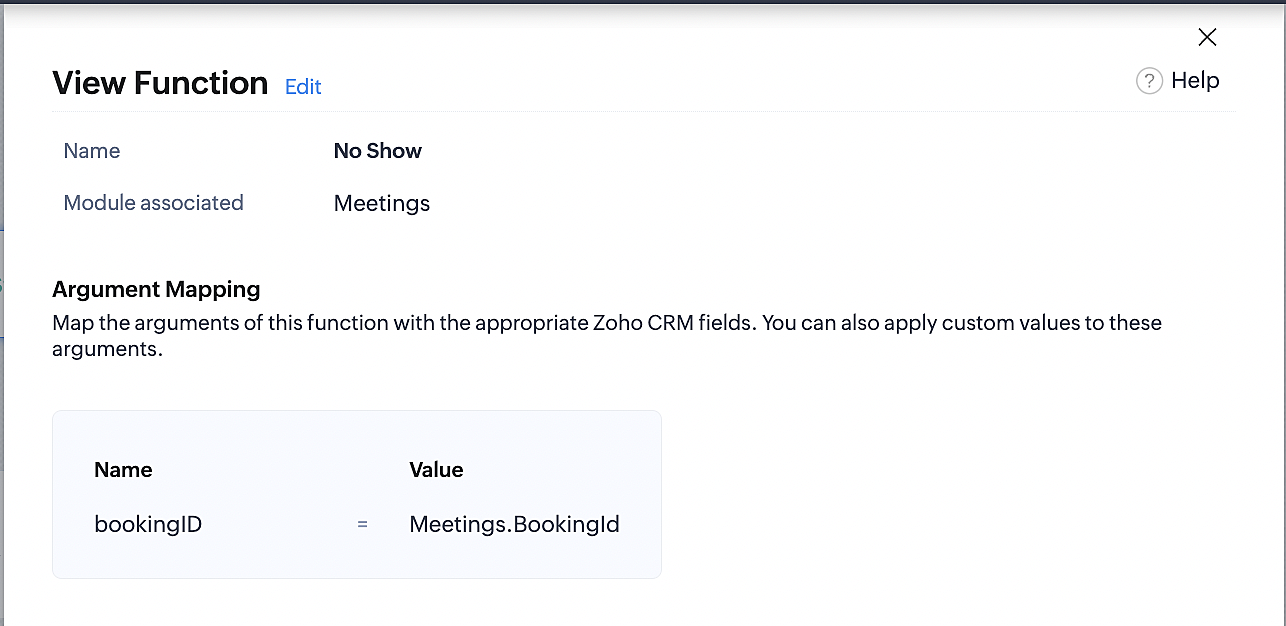
Part 6: Argument mapping:
If you encounter difficulties while navigating through the steps mentioned below, please refer to Part 3 above, where we have provided step-by-step screenshots for clarification.
1. Press # to choose an argument value.
2. Select Meetings under Module and configure the field as "BookingId".
3. Click Save and Associate button.
Reference:
Below is the final flow of the "No Show" booking status workflow:
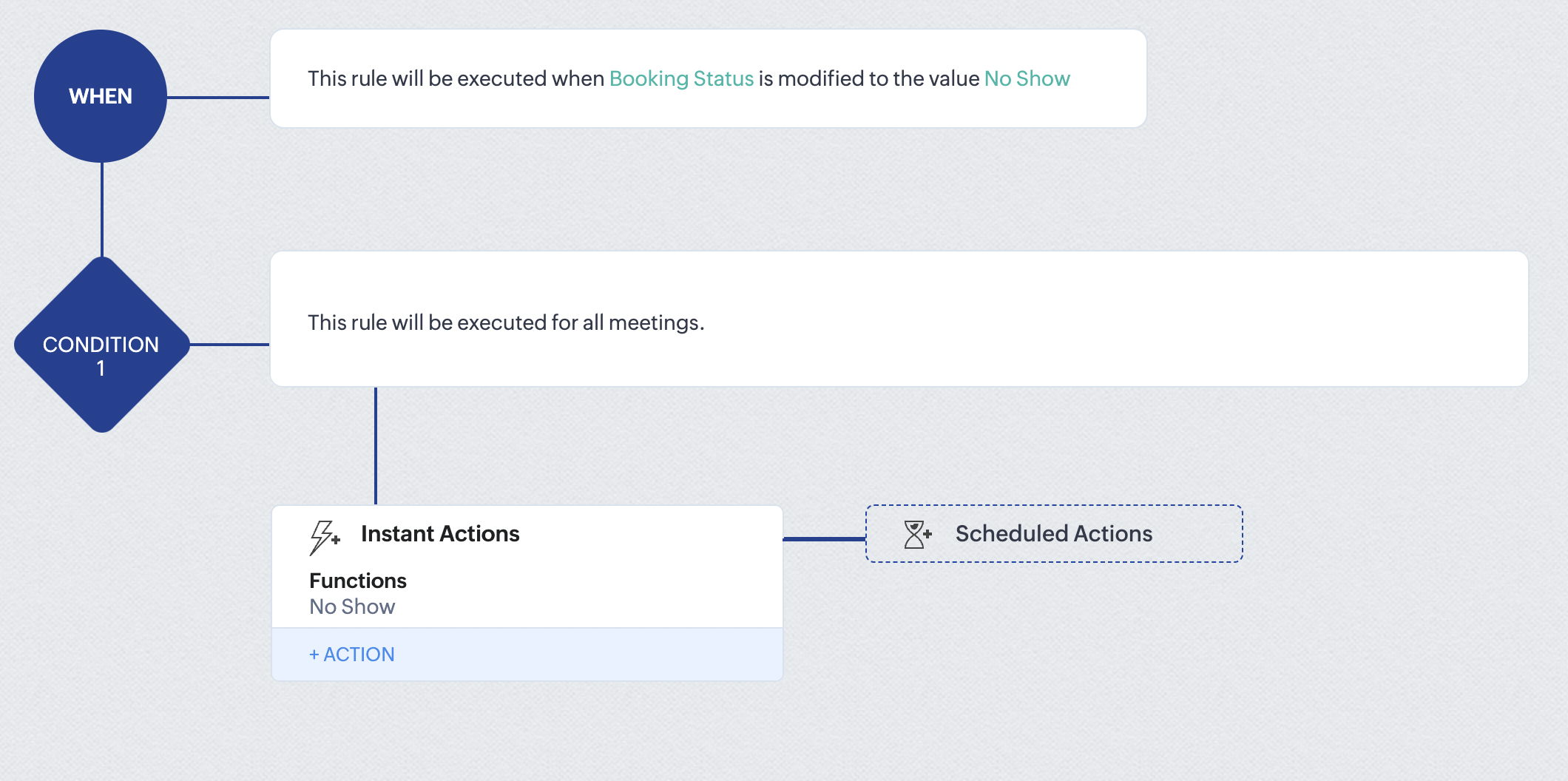
At the end of part 6, we will have created a workflow that automatically executes when the booking status field within the Zoho CRM Meetings module is updated to "No Show." This action will result in the associated bookings for that meeting also being marked as "No Show" in Zoho Bookings.
iii. Creating workflow for updating appointment status as "Completed" in Zoho Bookings when the booking status field of the meeting is marked as completed in Zoho CRM.
Part 7: Creating the rule
1. Go to Setup > Automation > Workflow Rules.
2. In the Workflow Rules page, click Create Rule.

3. Select Meetings under Module and configure rule name and description as required.
Reference:
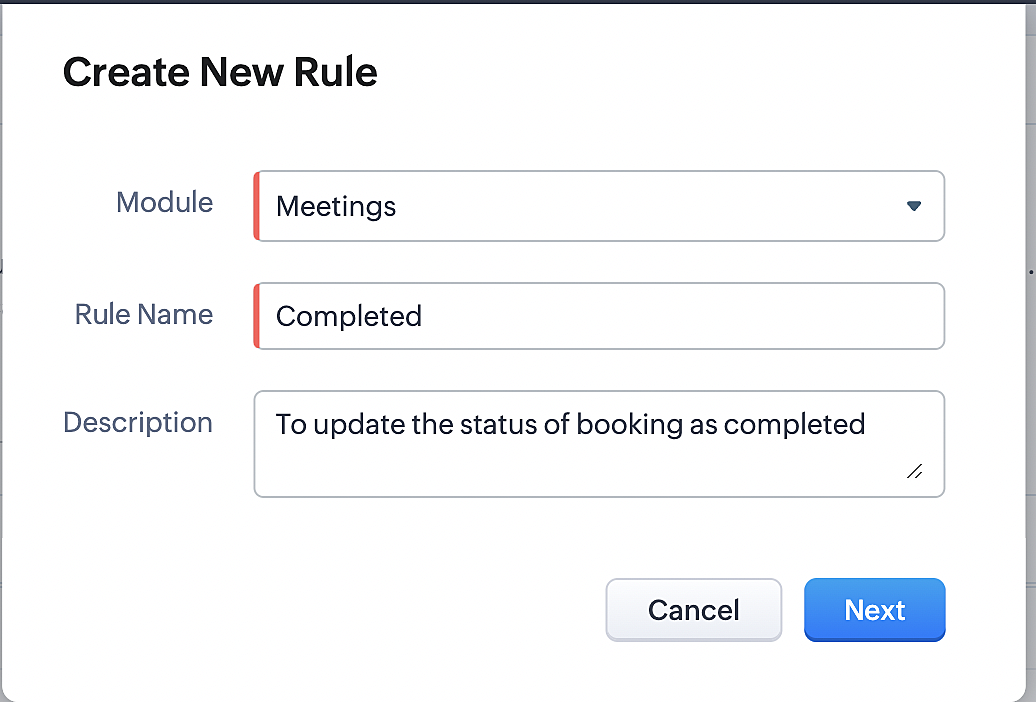
Part 8: Specifying the rule trigger
If you encounter difficulties while navigating through the steps mentioned below, please refer to Part 2 above, where we have provided step-by-step screenshots for clarification.
1. Record Action > Edit.

2. Enable the Specific field(s) gets modified setting and configure it per the screenshot below.
a. This serves to ensure that the workflow is executed only when the booking status under the Meetings module is
updated to "Completed".
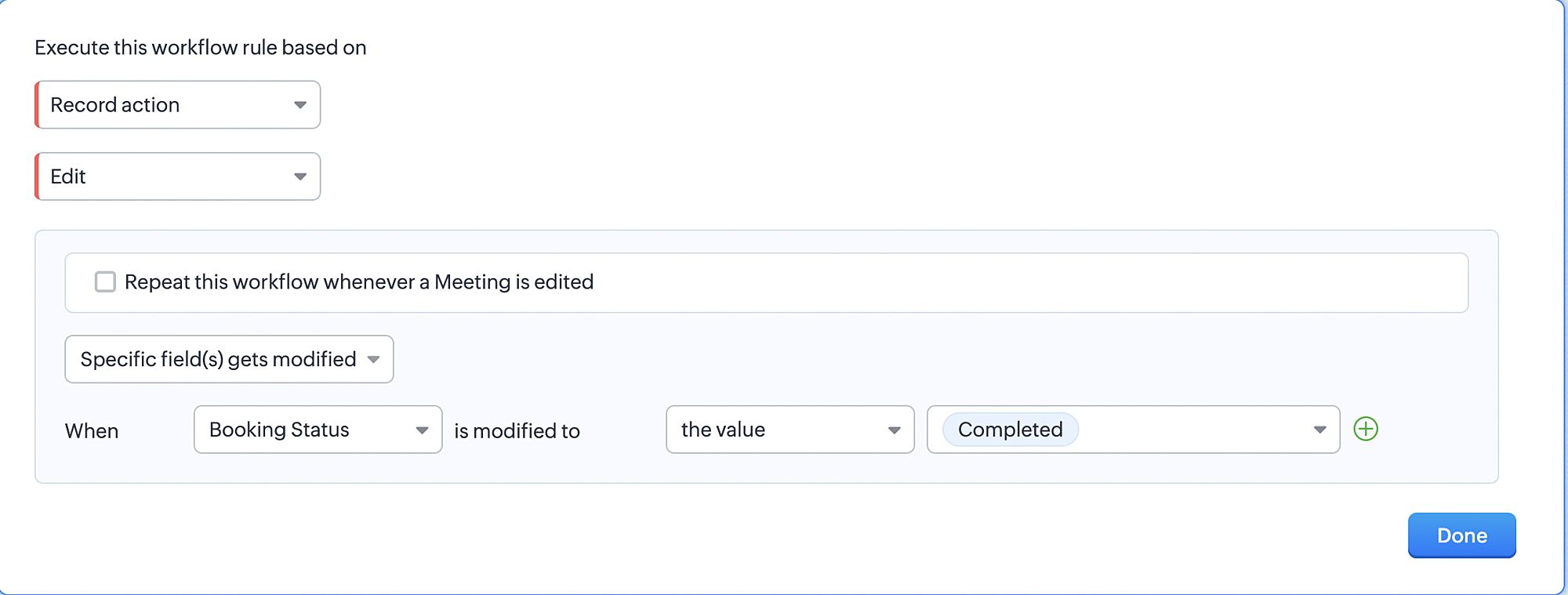
3. Configure condition > All Meetings.
4. Instant Actions > Function > New Function.
5. In the Configure custom function page, select the "completed" function you created from among the functions users
in your organization have created.
Part 9: Argument mapping:
If you encounter difficulties while navigating through the steps mentioned below, please refer to Part 3 above, where we have provided step-by-step screenshots for clarification.
1. Press # to choose an argument value.
2. Select Meetings under Module and configure the field as "BookingId".
3. Click Save and Associate button.
Reference:
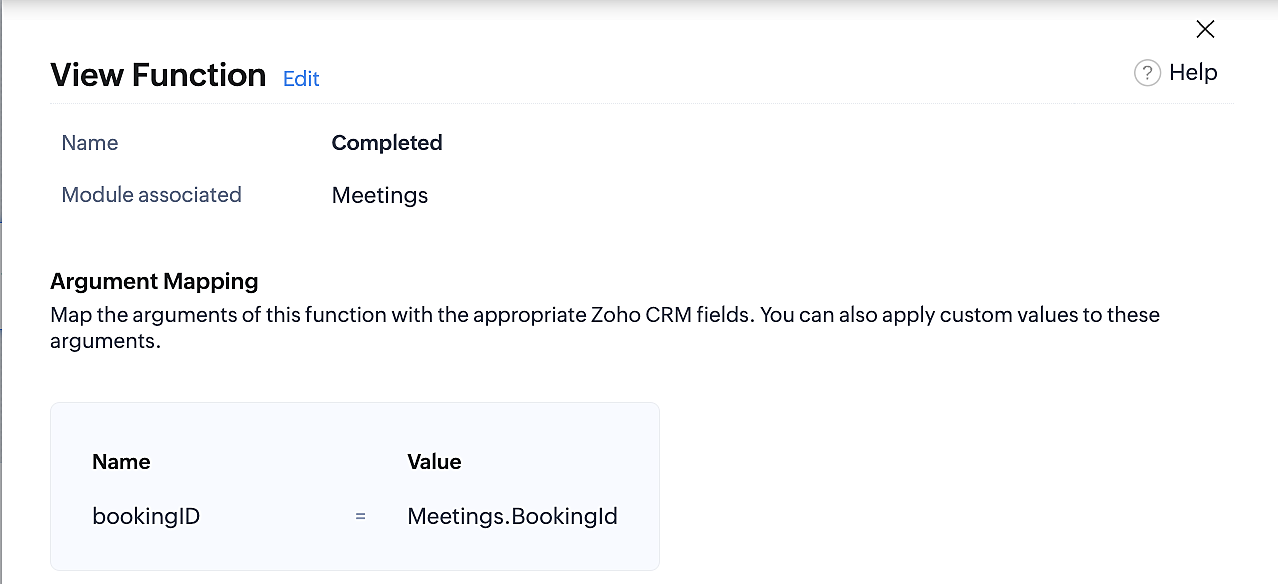
Below is the final flow of the "Completed" booking status workflow:
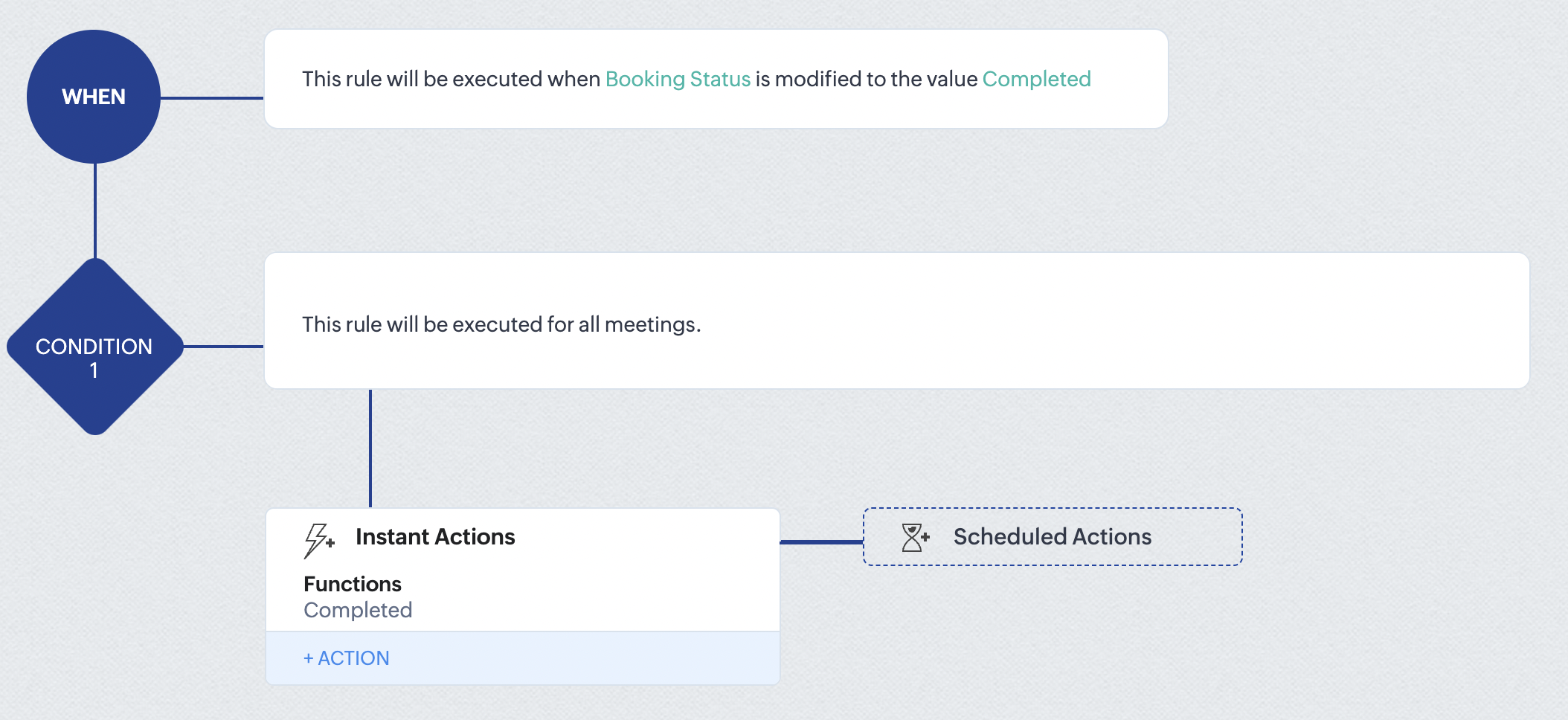
At the end of part 9, we will have created a workflow that is automatically executed when the booking status field within the Zoho CRM Meetings module is updated to "Completed." As a result, the associated bookings for that meeting will also be marked as "Completed" in Zoho Bookings.
Conclusion
We've reached the end of this community post. With the integration mentioned above in place, you'll be able to book, cancel, and update the status of appointments in Zoho Bookings directly from your Zoho CRM application. This will help you effectively manage your appointments in one place. As mentioned above, we've covered the rescheduling action in a separate post, which you can access by clicking on the following link: Reschedule Action
Furthermore, we've outlined a method for automating appointment statuses in detail. You can use this document as a reference to explore the various possibilities that suit your needs.
If you have any questions or need assistance with your configuration, please email us at hello@zohobookings.com or support@zohobookings.com.
Access your files securely from anywhere
New to Zoho Recruit?

Zoho Developer Community
New to Zoho LandingPage?
Zoho LandingPage Resources
New to Zoho Survey?
New to Zoho CRM Plus?
Deliver unforgettable customer experiences
New to Zoho CRM Plus?
Deliver unforgettable customer experiences
New to Zoho Marketing Plus?
Everything you need to run your marketing
New to Zoho Marketing Plus?
Everything you need to run your marketing
New to Bigin?





Topic Participants
Kaushik S
bruce
Ishwarya SG
PrismaNote Support
Sticky Posts
Presenting ABM for Zoho CRM: Expand and retain your customers with precision
Picture this scenario: You're a growing SaaS company ready to launch a powerful business suite, and are looking to gain traction and momentum. But as a business with a tight budget, you know acquiring new customers is slow, expensive, and often deliversGood news! Calendar in Zoho CRM gets a face lift
Dear Customers, We are delighted to unveil the revamped calendar UI in Zoho CRM. With a complete visual overhaul aligned with CRM for Everyone, the calendar now offers a more intuitive and flexible scheduling experience. What’s new? Distinguish activitiesCreate and populate a record in an instant: Introducing zero-shot field prompting to Zia's ICR
A couple of months ago, we upgraded our in-house AI image detection and validation tool, Zia Vision, with intelligent character recognition (ICR). By training Zia with sample images, you could create and enrich CRM records with data extracted from standardIn-person ZUG Meetups for Real Estate Professionals - US Q1 2026
The Real Estate Zoho User Group is going on a multi-city, in-person meetup tour across the US, and we’d love to see you there! These meetups are a great opportunity to: Connect with fellow real estate professionals using Zoho Share challenges and discoverNimble enhancements to WhatsApp for Business integration in Zoho CRM: Enjoy context and clarity in business messaging
Dear Customers, We hope you're well! WhatsApp for business is a renowned business messaging platform that takes your business closer to your customers; it gives your business the power of personalized outreach. Using the WhatsApp for Business integration
New to Zoho TeamInbox?
Zoho TeamInbox Resources
Zoho CRM Plus Resources
Zoho Books Resources
Zoho Subscriptions Resources
Zoho Projects Resources
Zoho Sprints Resources
Qntrl Resources
Zoho Creator Resources
Zoho CRM Resources
Design. Discuss. Deliver.
Zoho Show Resources

Get Started. Write Away!
Writer is a powerful online word processor, designed for collaborative work.
Zoho CRM コンテンツ
-
オンラインヘルプ
-
Webセミナー
-
機能活用動画
-
よくある質問
-
Ebook
-
-
Zoho Campaigns
- Zoho サービスのWebセミナー
その他のサービス コンテンツ
Nederlandse Hulpbronnen

ご検討中の方
Recent Topics
関連トピックから配信リストをつくる
ZOHOキャンペーンの既存の連絡先リストを関連トピックで絞り込んで、配信リストを作成する方法があれば、教えてください。Zoho Mail not working
Anyone else had the issue where emails wont send from either the desktop CRM or the mail app? It just says "syncing" then "failed". I deleted it and tried to access emails through the CRM on my phone (fold) but they dont show. It seems it is impossibleShorten one URL but not all
I have read that I should be able to click on the shorten link button at the bottom of the post window and shorten just one URL. But it does all of the URLs in my post. I want only one shortened. Not sure what I'm missing. Any help appreciated.What is Zoho Marketing Plus?
As if there wasn't enough confusion with SalesIQ, CRM, Campaigns and Marketing Automation, now we have Marketing Plus too. Can somebody from Zoho please give us a comparative list of features that are in Marketing Plus compared to what's in MarketingCreating a new deal with specific layout and pipeline
I am trying to create a button which creates a new deal for a particular account. It needs to be assigned a specific layout and pipeline. It seems like it should be really simple but I've been struggling to get this to work all day, can anyone help?!Announcing New Features in Trident for macOS (v.1.21.0)
Hello everyone! Trident for macOS is here with interesting features to elevate your workplace communication and productivity. Let's take a quick look at them. Get better visibility for concurrent events. Quickly compare and manage simultaneous eventsModifying Product Details
I am in the process of setting up new products in Zoho Commerce and have encountered a few problems: 1) Tabs It seems that Product Details pages do not have the ability to create Tabs. eg: https://www.thedebugstore.com/tp240141-aardvark-usb-i2c-spi-host-adapter-total-phase.htmlZoho Commerce B2B
Hello, I have signed up for a Zoho Commerce B2B product demo but it's not clear to me how the B2B experience would look for my customers, in a couple of ways. 1) Some of my customers are on terms and some pay upfront with credit card. How do I hide/showCreating a custom CSV file using deluge script/
I have an application I have developed and the client wants us to place an export file in csv onto an ftp server daily. Now I don't see au options in creator to change the separator to anything else. The client wants the separator to be the pipe symbol "|" I think i would be able to create schedule with some code to create the appropriate data in a string using deluge script but I haven't seen any functionality that would allow me to deposit that data as a file anywhere or attach it to an emailHow can I get a nested value attributes inside a key par?
Hello! Im getting the following output when reviewing a record I am after. I am trying to put some conditions based on a data value that is inside another data. For example, lets grab the below output. Info {"Account_Name":{"name":"Liberty ConstructionInvoices not arriving and mail server settings
I am having an issue where some clients are not receiving invoices. I have configured Zoho Books to send on my behalf and configured the appropriate SPF, DKIM and DMARC settings on my mail server and tested these as working. I get the CC'd copies so IMulti Line Text Character Limit
I want to export my Help Center articles but I realized that the text in the Answer column is being cut off. I'm guessing there is a character limit for multi line text fields. How can I get around this?Emails bouncing to Hotmail / Outlook.com
Today I have seen multiple emails bouncing all to Hotmail and outlook.com mailboxes, all other emails are being delivered. Is it just me or is this a widespread issue with Zoho Books ? Bounce Reason : uncategorized-bounceBe careful if you want to purchase zoho one
Hi, just to add one more complain to the other similar complains. When I purchased zoho one, Divith, my account manager told me (by email) that I would be able to keep different emails that I have inside the company (contact, privacy, etc.). During theSchedule Timeout 5 minutes vs. stated 15 minutes
I am running into a function run timeout error after 5 minutes for my schedules. The Functions - Limits documents states it should be 15 minutes: Functions - Limits | Online Help - Zoho CRM. What should it actually be? Due to the 5 minute timeout, I'mImporting invoices in bulk using the xls file template - still posting as draft - Is there a way to skip "mark as sent" and post it directly?
Hello everyone, as the title say, is there a way that when I upload from the template file, it will post automatically? I tried changing the "Invoice Status" from draft to approved but it is still appearing as draft and is making me go to invoices soHow to set Sales Order Payment Terms when creating a Sales Order via the Zoho Books API
I am creating Sales Orders via the Zoho Books API. I would like to set the Payment Terms to a particular value from the list of allowed values. Is that possible? I was able to get the list of payment terms via this API call: https://books.zoho.com/api/v3/settings/paymentterms?organization_id=XXXX"Function and workflow to create customer payment and send receipt
I am attempting to set up a workflow/custom function for the automatic creation of a customer payment and sending the email receipt, but am receiving the error "Improper Statement Error might be due to missing ';' at end of the line or incomplete expression" I've been over everything several times and cannot see where the error is (code is copied into the attached document). I haven't used custom functions before with Deluge, so it's very likely something very simple, or I've completely muckedHow to rename the Submit Button by using deluge script
Hi everyone, As we know, the Submit button can be renamed in the form builder setting. But I have scenario where I need the Submit Button to be renamed differently according to condition. Anyone knows how to do it? Thank YouBanking: Transfer from another account without base currency
Scenario: A banking line item shall be categorised as an "internal transfer" from another bank account. This is a USD to EUR transfer. Our base currency is CHF. What we tried: Category: "Transfer from another account" From: Our USD account To: Our EURItem cost price - How to accomodate changing cost prices
I am in urgent need of assistance with how to accommodate changing cost prices for items, not manually. We import items so their landed cost is always changing. This cost is NOT reflected however in the item cost price. This is going to cause us someMarketer's Space: Targeted messaging : Leveraging Zoho Campaigns for Effective Communication
Hello Marketers, Welcome back to Marketers’ Space! Targeted messaging ensures your communication reaches the right audience - boosting engagement, conversions, and overall campaign success. In this post, we’ll be looking at targeted messaging to create:between: conditions in search?criteria
Hello, please help solve problem I try to select deals by Creater_Time between dates i send this GET request /crm/v4/deals/search?criteria=(Created_Time:between:(2024-02-01T18:52:56,24-02-17T18:52:56)) encoded to /crm/v4/deals/search?criteria=%28Created_Time%3Abetween%3A%282024-02-01T18%3A52%3A56%2C24-02-17T18%3A52%3A56%29%29Zoho Creator : Updating Records via Import. Can't use Autonumber or ZohoRecordID ?
Hi, I am trying to use the function to update a report with an import. I'm running in to the error : "unable to update because the form has no column with unique values" In the release notes it says Only field with unique values can be used to compare💡 Feature Request: Custom App Bundle Plan (Pick Only the Apps You Need)
Request: Allow Users to Build a Custom App Bundle (Choose Only the Apps They Need) Hi Zoho Team, I appreciate the value that Zoho One and the Plus Bundles (CRM Plus, Finance Plus, etc.) offer. However, I’m finding it difficult to get the best fit forSearch Feature Now Broken
I have many hundreds of notes on Zoho Notebook but now when I search for a keyword, I only get 30 results maximum. This is unacceptable and yet another feature that has become broken on this quickly deteriorating software. Please fix immediately.Restrict Zoho One Account Notifications to Admins
Hi Zoho One Team, I hope you're doing well. We recently noticed that end users are receiving administrative pop-ups in Zoho One, such as the DKIM configuration notice (screenshot attached). This type of notification is only relevant to administratorsAutomated Checkout
Hi Team, I’m trying to create an automated checkout function in Zoho People. My requirement is that if an employee forgets to check out, the system should automatically check them out after 10 hours. However, I'm encountering an error while updating theZoho CRM Community Digest - June 2025 | Part 1
**We offer both video and written formats, take your pick and jump in.** CRM FOMO is real. You could be doing everything right and still miss the beat. That’s where we come in. Zoho CRM Community Digest! Every two weeks, we bring you the insider scoopIntroducing Video Tutorials for the Zoho FSM Mobile App
We’re excited to announce the launch of our brand-new video tutorials for the Zoho FSM Mobile App—designed painstakingly to help your field agents get up to speed in no time! Whether you're brand new to the Zoho FSM mobile app or just need a quick refresher,Zoho People > Managed People > User Access Control
Hello All I need your recommendation on how should i go about setting the User Access Control in my Zoho PeopleWhat happened to the tabs in the ribbon on the top in my CRM?
Hi, This morning all of the tabs (modules) in the ribbon on top are no longer showing up. I had the modules in the ribbon in a specific order for easy, one-click access. Now it's only showing the active tab and the rest are hiding under the three dotsConnect to Australian bank
How do I connect to an Australian bank. No Australian bank shows up in my list. I think its because the service provider is Token and not Yodlee. How do I change this?Searching for content within courses
Hello, I have been testing out Zoho One for my company have been exploring Learn. I've noticed that you cannot search for content within a course. You can only locate the title of the course. Example: Course: How to Make Your Bed Chapter: Pillows Lesson:Citations Problem
I'm having an odd problem with the "Add Citations" feature of Zoho Writer. When I add a citation using the "Fetch website details online" feature it works the first time I use it but if I try it a second time by clicking that link nothing at all happensZoho People Leave Balance Show as Negative
Hi All I have the Portugal material Leave that policy allows up to 120 days or 150days for employee to apply within 365 days and employees is able to take minimum of 1 days or up to 120 days In my Leave Grant I have set as the setting.Zoho People > Performance > Appraisal > Mismatch between the template-configured module and the currently enabled module.
Hello There When we enable the performance module there a prompt Mismatch between the template-configured module and the currently enabled module. How do we resolve thisZoho People Leave Application Module Error: Leave balance has exceeded as on 09-07-2025.
Dear All I need to check how do i resolve the issue of Error: Leave balance has exceeded as on 09-07-2025. All my leave have this issuePower of Automation:: Daily Time log summary broadcast to Zoho Cliq using Schedule Custom Functions
Hello Everyone, A Custom function is a user-written set of code to achieve a specific requirement. Set the required conditions needed as when to trigger using the Workflow rules (be it Tasks / Project) and associate the custom function to it. Requirement:When Calls Ends, Creating Note with the call description by deluge code
Hi, i need help with writing deluge code function, to scenario is like this - i want to create a workflow thats after 10 that the call ends the deluge function will create a new note in module calls that link the note in module calls to the his lead ticketNext Page