Bidirectional sync between Zoho Bookings and Zoho CRM - Part 1
Hey, community members!
The default integration between Zoho CRM and Zoho Bookings is unidirectional, which means that any appointments booked, rescheduled, or deleted in Zoho Bookings will be reflected in Zoho CRM. However, any modifications made to events in Zoho CRM that originated from Zoho Bookings will not be reflected back in Zoho Bookings. Hence, as we're announcing in this community post, we've made the sync bidirectional.
This community post will cover the process of configuring appointment bookings from Zoho CRM in Zoho Bookings, as well as managing appointment statuses such as Canceled, No Show and Completed. We have addressed the rescheduling action in a separate post. To view it, please click on the following link: Reschedule Action
This community post will be beneficial for active Zoho CRM users who handle all their meetings within Zoho CRM. Additionally, you can use this community post as a reference to explore various automation possibilities tailored to your business requirements. For instance, with this post's guidance, when you update a booking's status field to "Completed" in Zoho CRM, it will automatically sync with Zoho Bookings and trigger an automated "Mark as completed" email to customers. This enhancement will improve your Zoho Bookings and Zoho CRM synchronization experience, making appointment management easier.
Prerequisites of bidirectional sync:
- Zoho Bookings Premium subscription
- Zoho CRM paid subscription
- Enable Zoho CRM integration within Zoho Bookings
The purpose of enabling the Zoho CRM integration within Zoho Bookings is to transfer booking details from Zoho Bookings to Zoho CRM. In this configuration, the mandatory field is the Booking ID, which is passed from Zoho Bookings to Zoho CRM through the integration. Whenever an appointment is booked, customer details will be sent to the designated CRM module, and a corresponding record will be created in the Meetings module within Zoho CRM, which will help in automating the workflow.
Here's the complete demo video that covers all the configurations discussed in the community post below:
Timestamps for your reference:
0:35 - Purpose of this community post
Here's the complete demo video that covers all the configurations discussed in the community post below:
Timestamps for your reference:
0:35 - Purpose of this community post
1:26 - Zoho CRM plugin installation
4:43 - Custom field creation
7:20 - Function creation
9:22 - Connection creation
10:24 - Configuring arguments
11:06 - Workflow creation
13:33 - Argument mapping
14:41 - Output verification
17:41 - Conclusion
How we're approaching this bidirectional sync
1. Booking an appointment from Zoho CRM
Install the Zoho Bookings for Zoho CRM plugin within your Zoho CRM application. This plugin enables the creation of a "New Appointment" button within the Zoho CRM Leads and Contacts module, which enables you to select the desired booking page you wish to open. You can choose from various workspace, service, or staff booking pages. After configuration, you can initiate the process of scheduling bookings directly from within your Zoho CRM account.
- Guide on Zoho Bookings and Zoho CRM plugin installation: Booking page selection for Zoho CRM plugin
2. Booking status: Completed or No Show
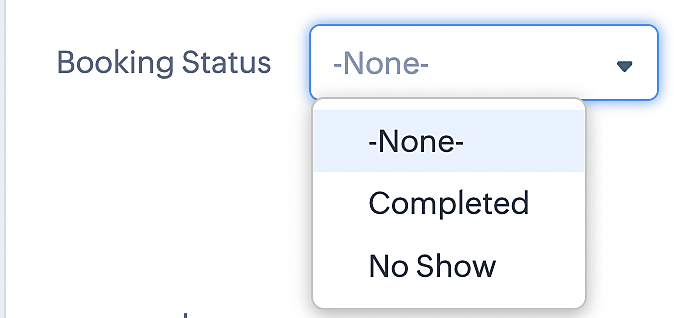
To update a booking's status (Completed or No Show), we've added a new picklist properties field named "Booking Status" in the Meetings module and configured it with two options: "completed" and "no show". Depending on the booking status chosen, the corresponding booking in Zoho Bookings will be updated.
- Details on how to add a custom field to the Meetings module : Customizing modules
- Here's a video that demonstrates how to add a field to a module in Zoho CRM: Adding fields
Reference:
3. Booking status: Canceled
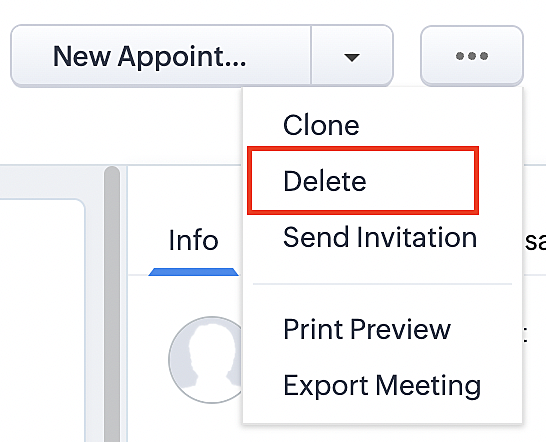
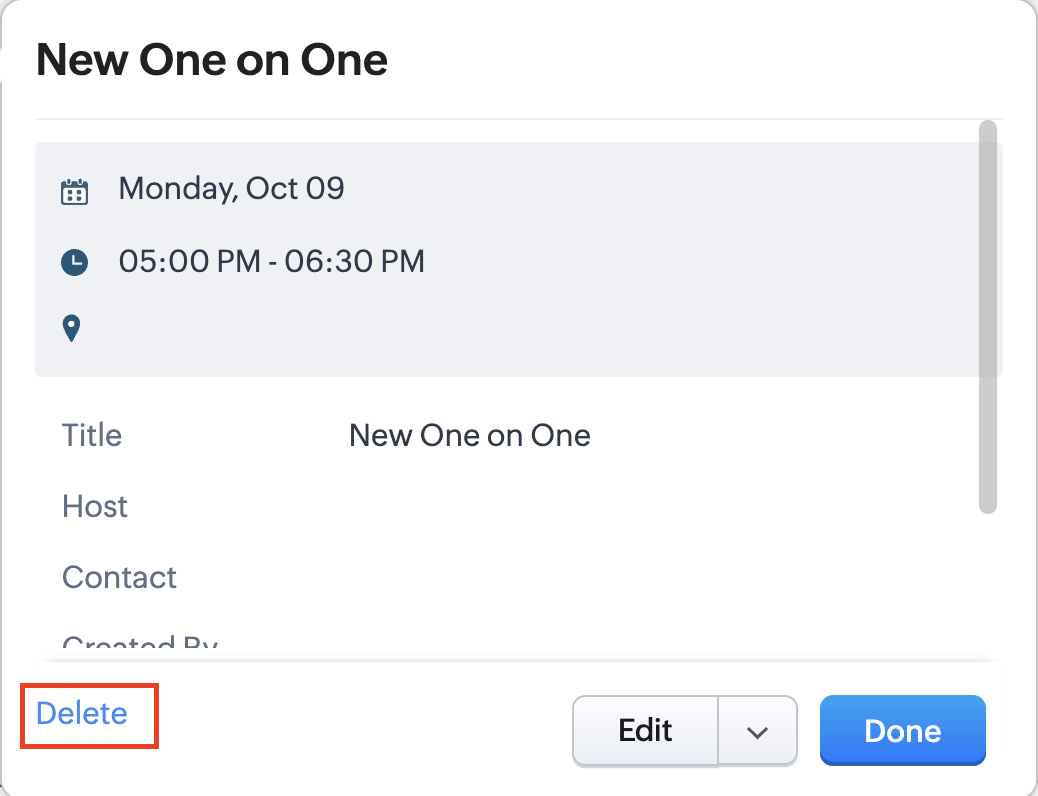
Whenever a meeting is deleted from the Meetings module, the corresponding booking in the Zoho Bookings app will also be canceled automatically. The meeting can be deleted either from the Meetings module or directly from the calendar.
To enable bidirectional sync between Zoho CRM and Zoho Bookings
Complete these steps in Zoho CRM.
Step 1: Creating connections
You first need to establish a connection between Zoho CRM and Zoho Bookings. Zoho Bookings is listed as one of the default connections in Zoho CRM, making it simple to set up. Select the Zoho Bookings connection, define the connection name and scope, and you'll be all set. This connection will enable you to link both applications and facilitate the seamless transfer of data.
Read here for more details on how to create connection in Zoho CRM: Connections
Step 2: Creating functions
In this context, we'll be creating three functions: one for marking appointments as completed, another for canceling appointments, a third for marking appointments as no shows, and a fourth for rescheduling appointments. For each function, we must also configure arguments, which pass values or data into a function when making a call. Here, we'll pass the booking ID to the function as an argument to update the necessary booking status.
i. To create a function for marking appointments as completed:
1. Go to Setup > Developer Space > Functions.
2. In the Functions page, click + Create New Function.

3. Configure the function name, display name, and description.
4. Set the category as automation.
This opens the Deluge script page.
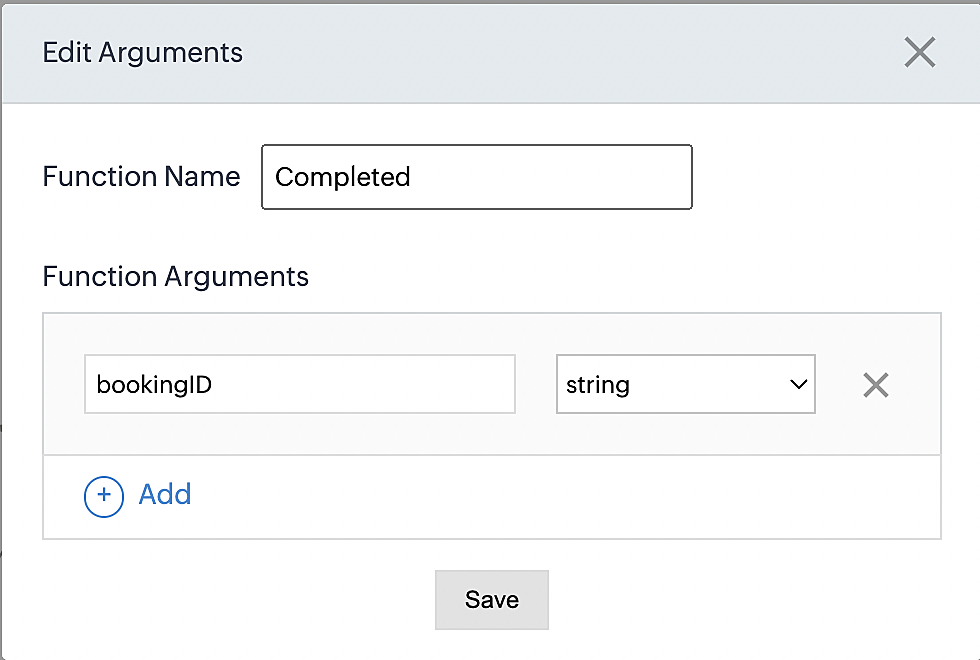
5. Next, configure the function's arguments:
A. Click on Edit Arguments on the Deluge script page.

B. Set the Parameter Name as bookingID. (Please note that the "bookingID" value is case sensitive and must match
the term used in the code).
C. Set the type as string.
Reference:
Please configure the below code in the Deluge script page.
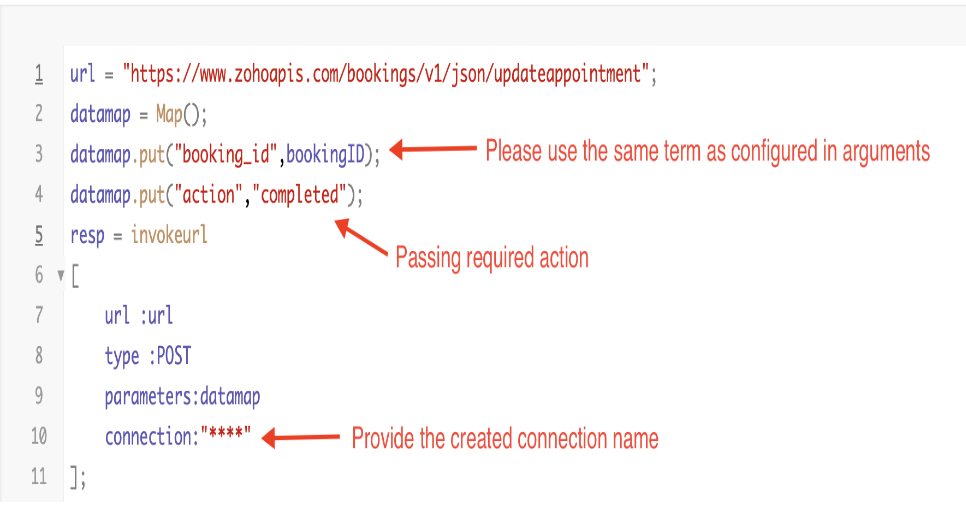
By completing these steps, we've configured a function that will mark appointments as completed.
ii. To create a function for marking appointments as no shows
1. Go to Setup > Developer Space > Functions.
2. In the Functions page, click + Create New Function.

3. Configure the function name, display name, and description.
4. Set the category as automation.
This opens the Deluge script page.
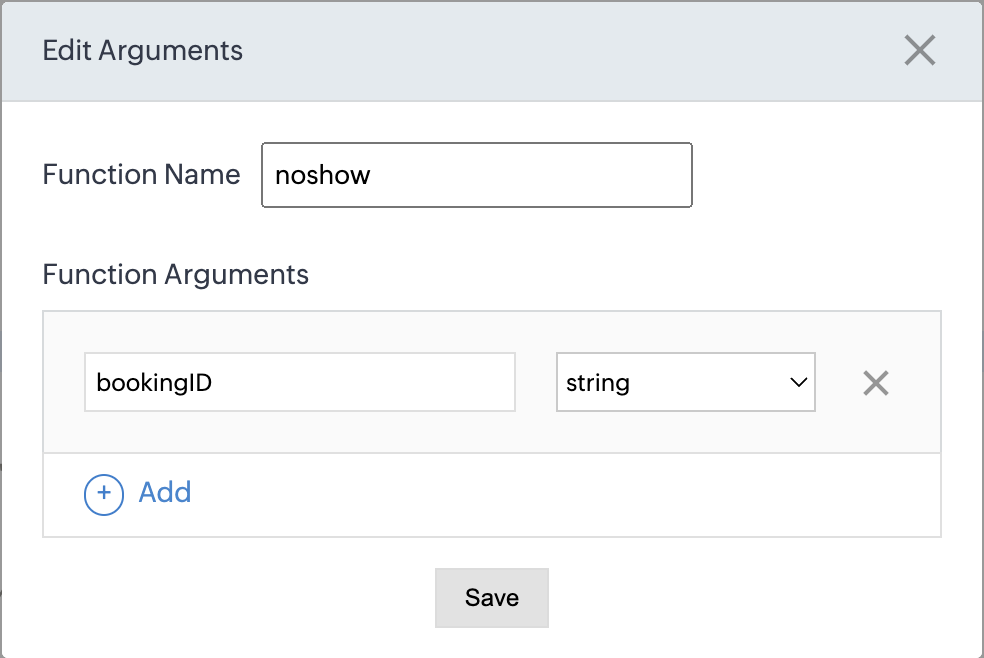
5. Next, configure the function's arguments:
A. Click on Edit Arguments on the Deluge script page.

B. Set the Parameter Name as bookingID. (Please note that the "bookingID" value is case sensitive and must match
the term used in the code).
C. Set the type as string.
Reference:
Please configure the below code on the Deluge script page.
Code link: No show
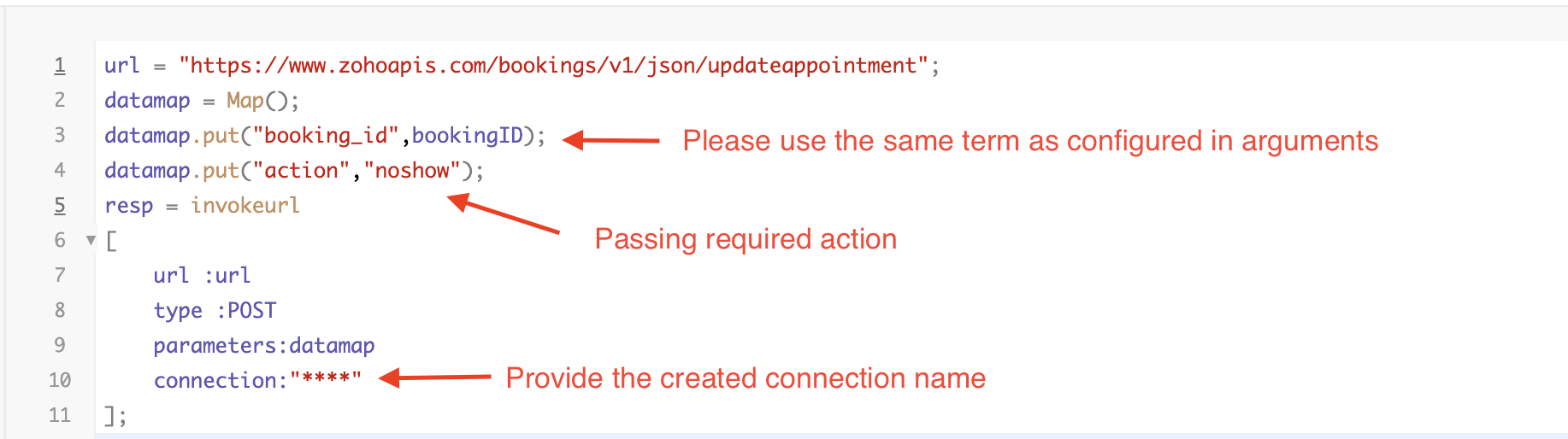
By completing these steps, we've configured a function that marks appointments as no shows.
iii. To create a function for marking appointments as canceled
1. Go to Setup > Developer Space > Functions.
2. In the Functions page, click + Create New Function.

3. Configure the function name, display name, and description.
4. Set the category as automation.
This opens the Deluge script page.
5. Next, configure the function's arguments:
A. Click on Edit Arguments on the Deluge script page.

B. Set the Parameter Name as bookingID. (Please note that the "bookingID" value is case sensitive and must match
the term used in the code).
C. Set the type as string.
Reference
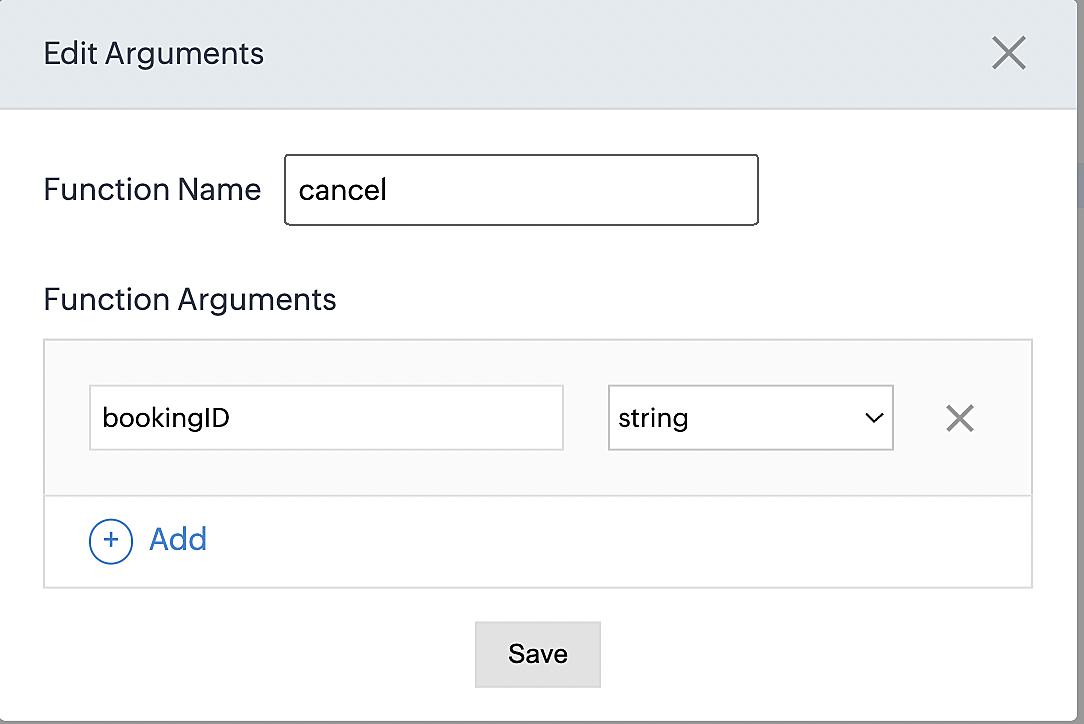
Please configure the below code on the Deluge script page.
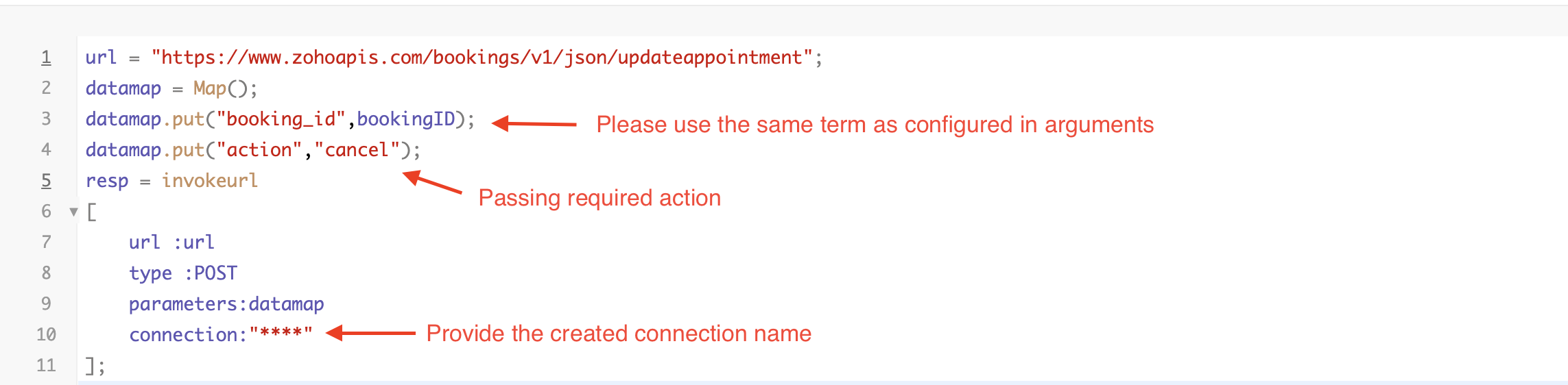
By completing these steps, we've configured a function that marks appointments as canceled.
Code explanation
Below is an explanation of the code that covers all the configurations present in the three functions mentioned above (cancel, mark as completed, and mark as no show).
Line 1: Based on the Zoho Bookings account's data center, we're setting up the API endpoint URL configuration.
Lines 2 - 4: To update appointments, we utilize the Zoho Bookings API. Within the update appointment API, there are two mandatory fields that need to be included: BookingID and action (completed/cancel/noshow).
Lines 5 - 10: We use the invokeURL task for API calls. To learn more about the invokeURL task, please refer to the following document: InvokeURL task for API calls
Now, let's proceed and learn about the process of creating a workflow and linking the established functions to it. This will enable us to automate the entire appointment status updating process.
Step 3: Creating a workflow
Workflow rules are sets of actions (email notifications, tasks and field updates) that are executed when specified conditions are met. Here, we'll generate workflow rules for each action to activate the respective function, thereby automating the appointment status updating process.
i. Creating a workflow for "canceling" appointments in Zoho Bookings when a meeting is deleted in Zoho CRM
Part 1: Creating the rule
1. Go to Setup > Automation > Workflow Rules.
2. In the Workflow Rules page, click Create Rule.

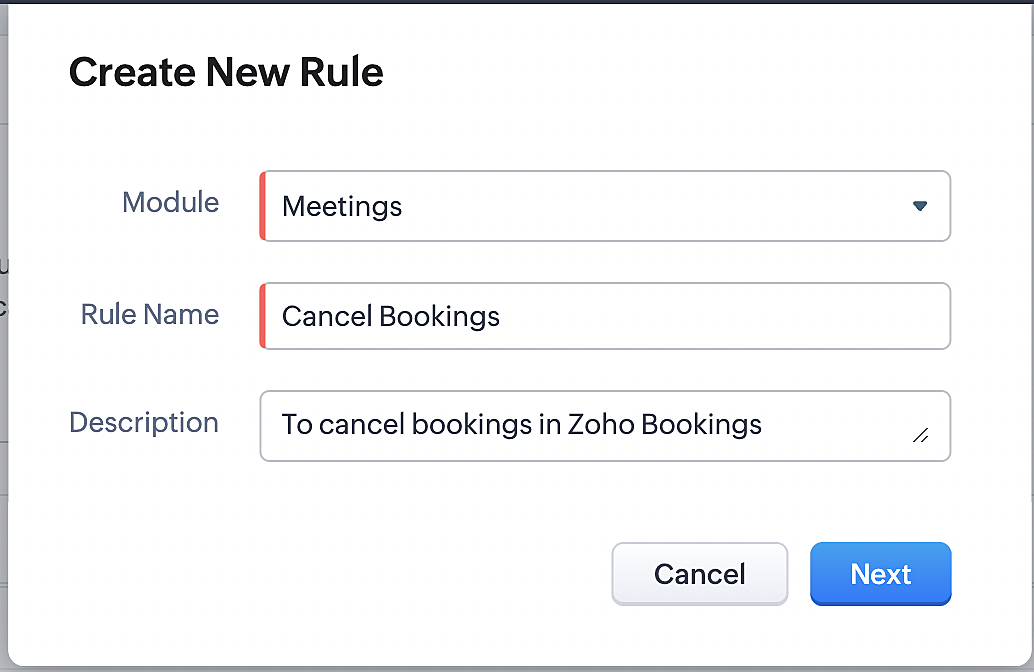
3. Select "Meetings" under Module and configure rule name and description as required.
More details: Create Rule
Reference:
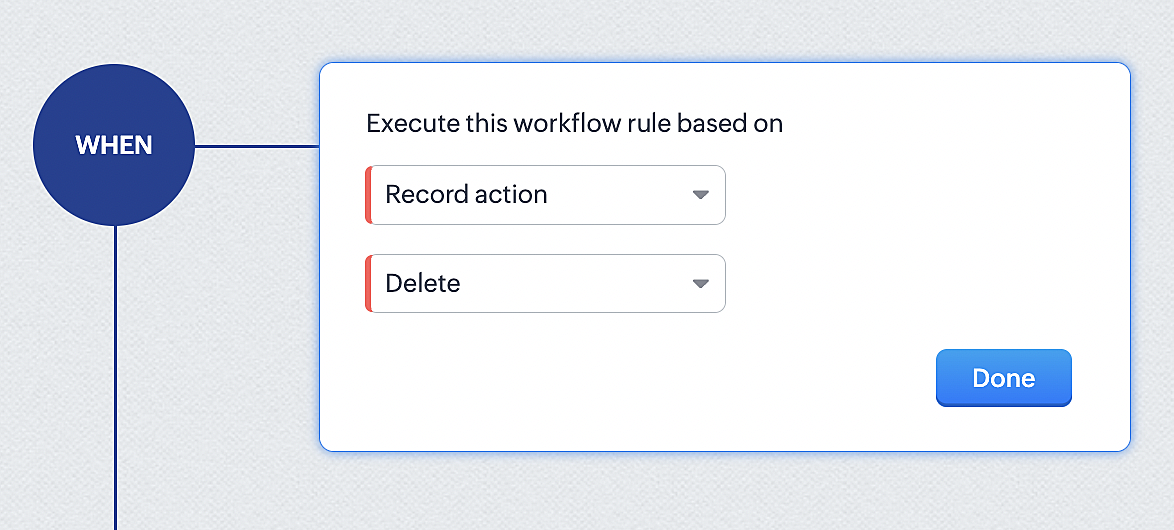
1. Select Record Action > Delete > Done to execute the rule when meetings are deleted.
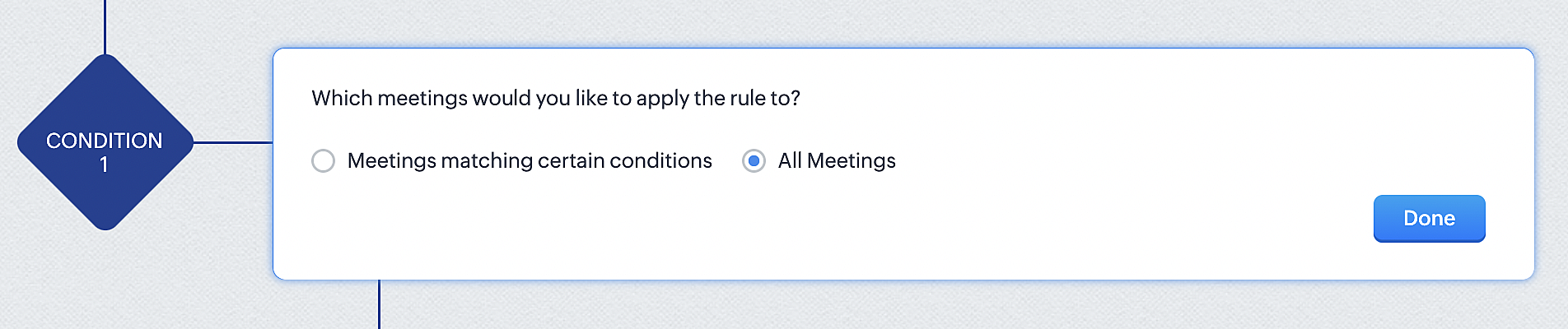
2. Configure condition > All Meetings.
3. Instant Actions > Function.
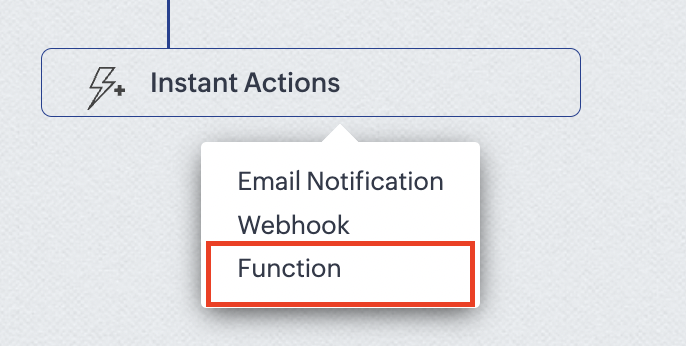
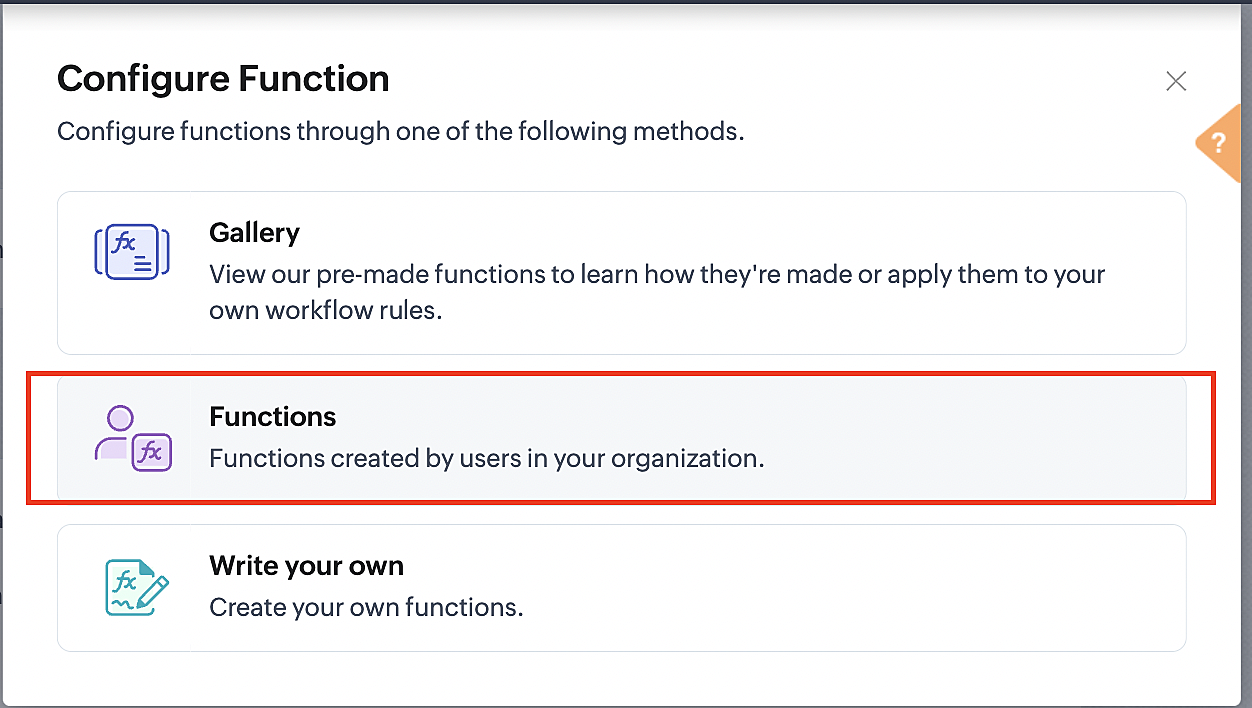
4. Click the New Function button.

5. In the Configure custom function page, select the "cancel" function you created from among the functions users in your organization have created.
Part 3: Argument mapping
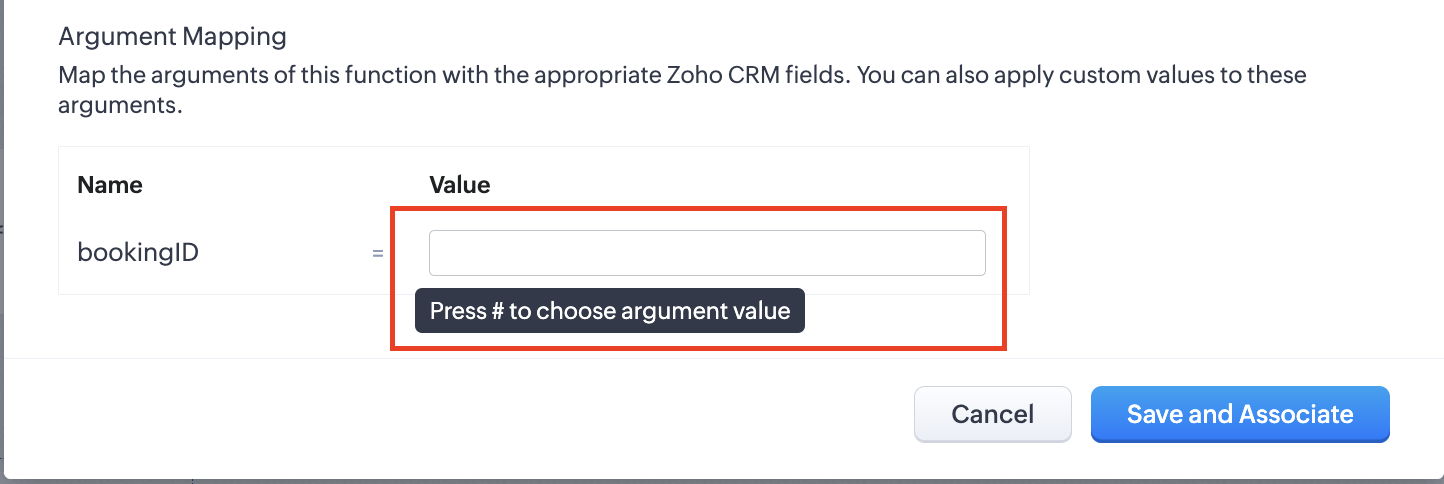
1. Press # to choose an argument value.
2. Select Meetings under Module and BookingId in the field.
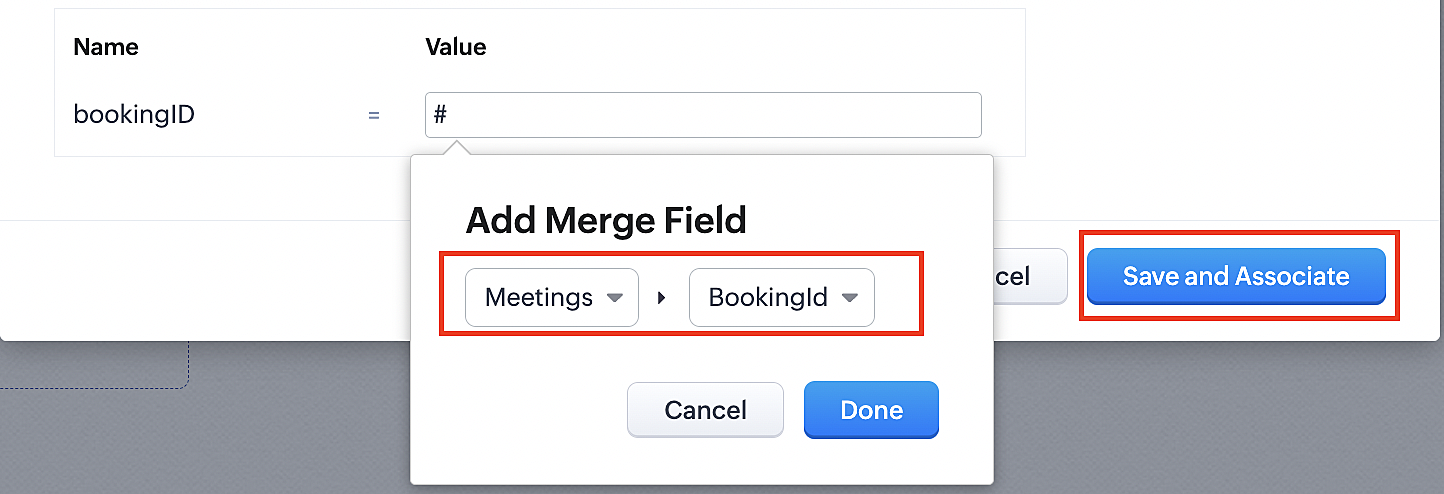
3. Click the Save and Associate button.
Reference:
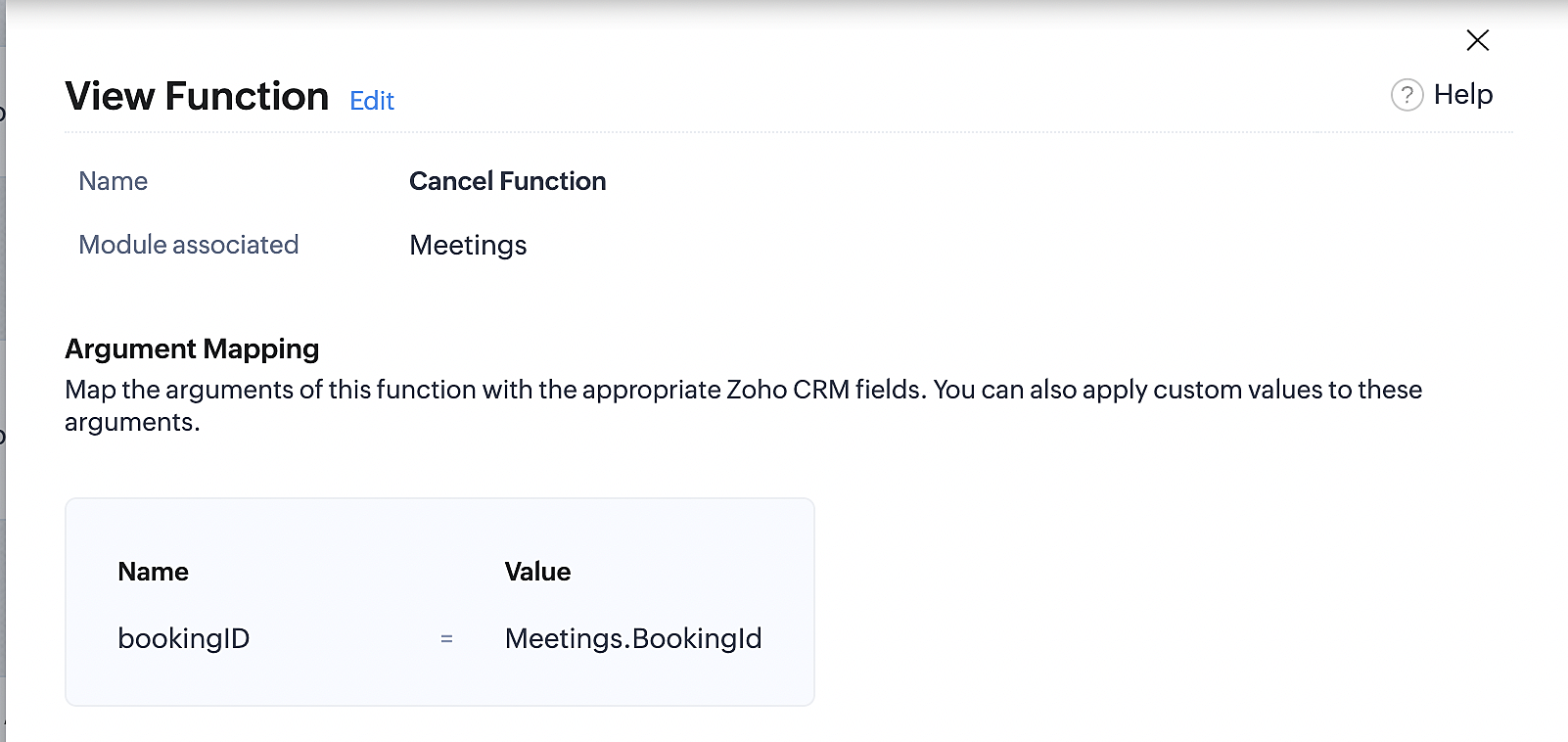
Below is the final flow of the cancel booking workflow:
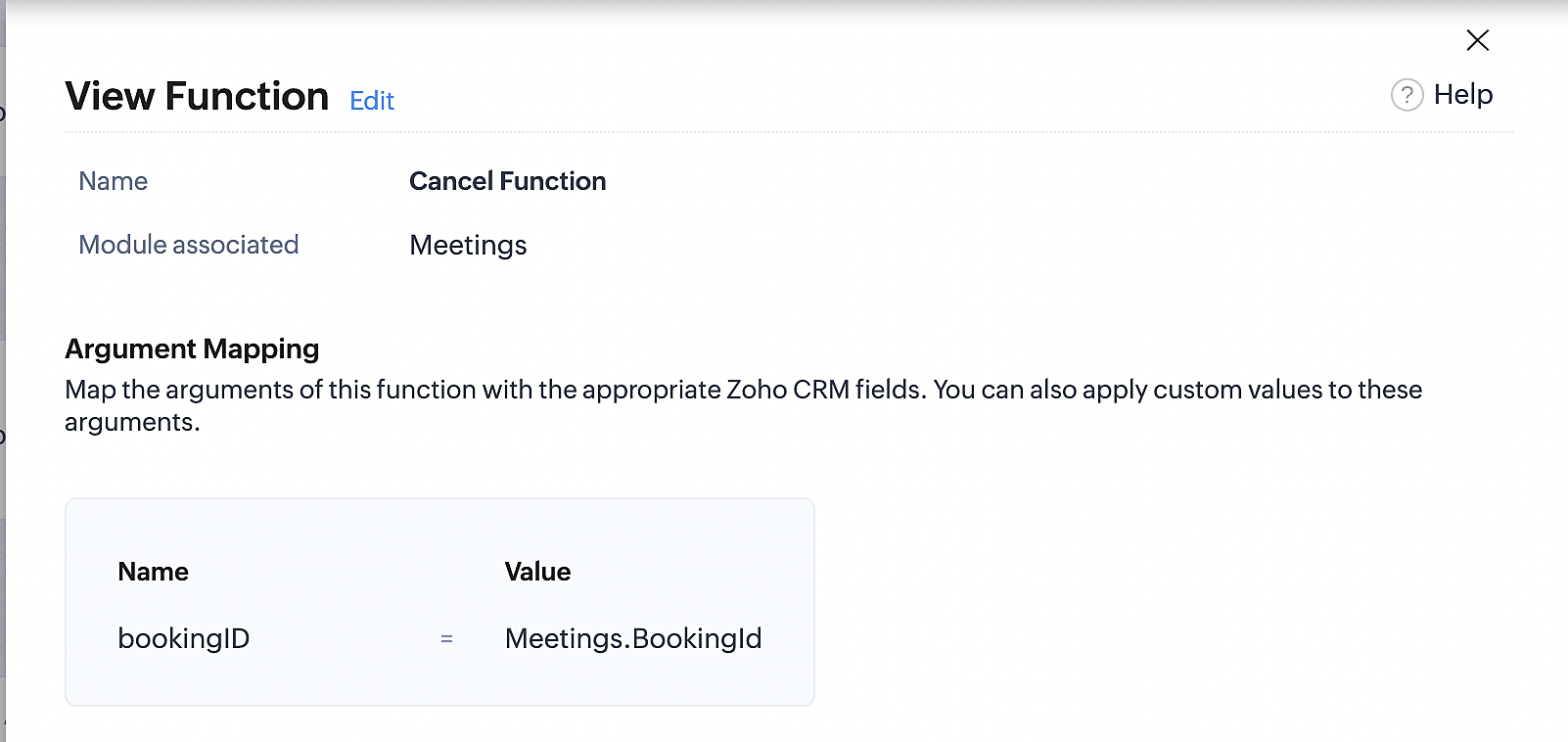
At the end of Part 3, we will have created a workflow that will be executed automatically when meetings are deleted in Zoho CRM. Simultaneously, the bookings associated with the meeting will also be canceled in Zoho Booking.
ii. Creating workflow for updating an appointment's status as "no show" in Zoho Bookings when the meeting's booking status is marked as no show in Zoho CRM
Part 4: Creating the rule
1. Go to Setup > Automation > Workflow Rules.
2. In the Workflow Rules page, click Create Rule.

3. Select Meetings under Module and configure the rule name and description as required.
Reference:
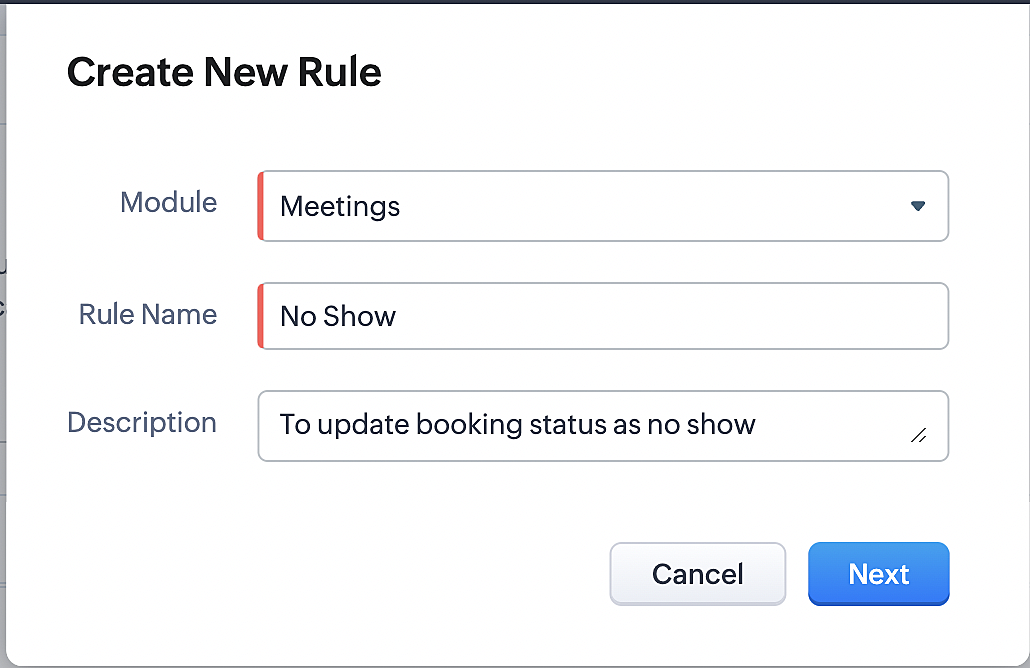
Part 5: Specifying the rule trigger
If you encounter difficulties while navigating through the steps mentioned below, please refer to Part 2 above, where we have provided step-by-step screenshots for clarification.
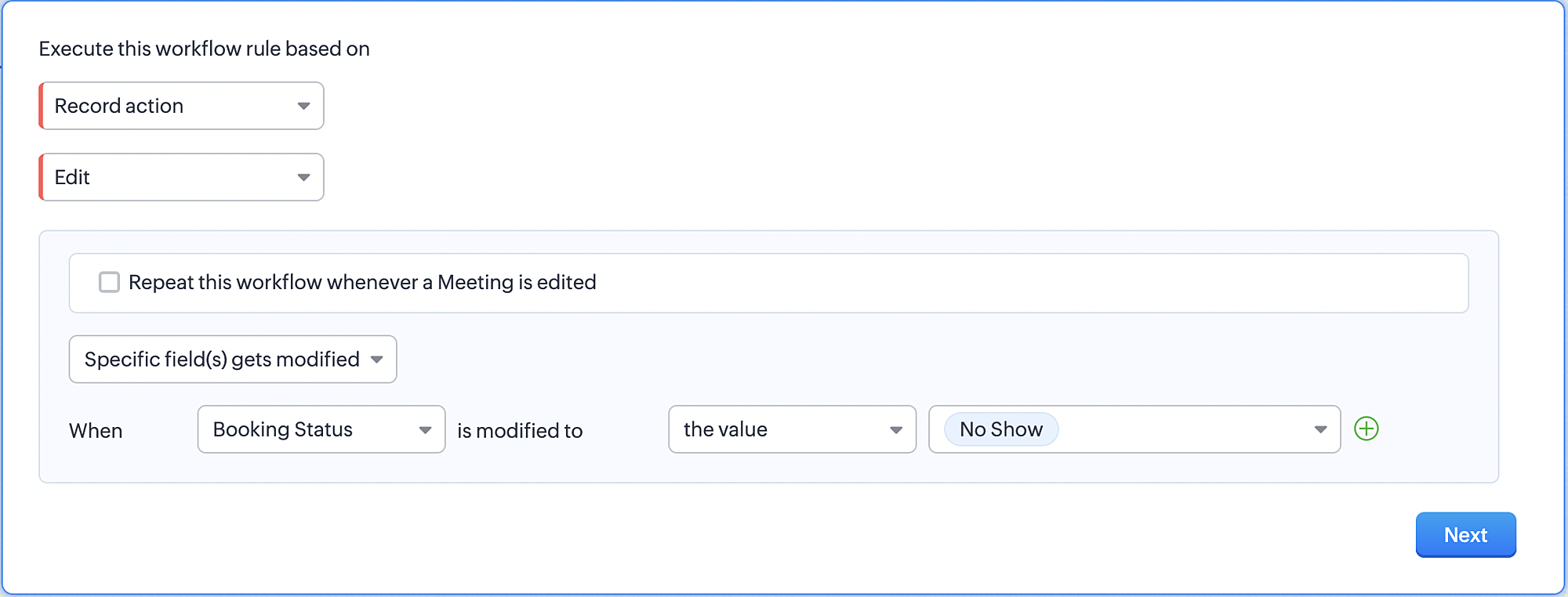
1. Record Action > Edit.

2. Enable the Specific field(s) gets modified and configure it per the screenshot below.
a. This is to ensure that the workflow is executed only when the booking status under the meeting module is
updated to "No Show".
updated to "No Show".
3. Configure condition > All Meetings.
4. Instant Actions > Function > New Function.
5. In the Configure custom function page, select the "no show" function you created from among the functions
users in your organization have created.
users in your organization have created.
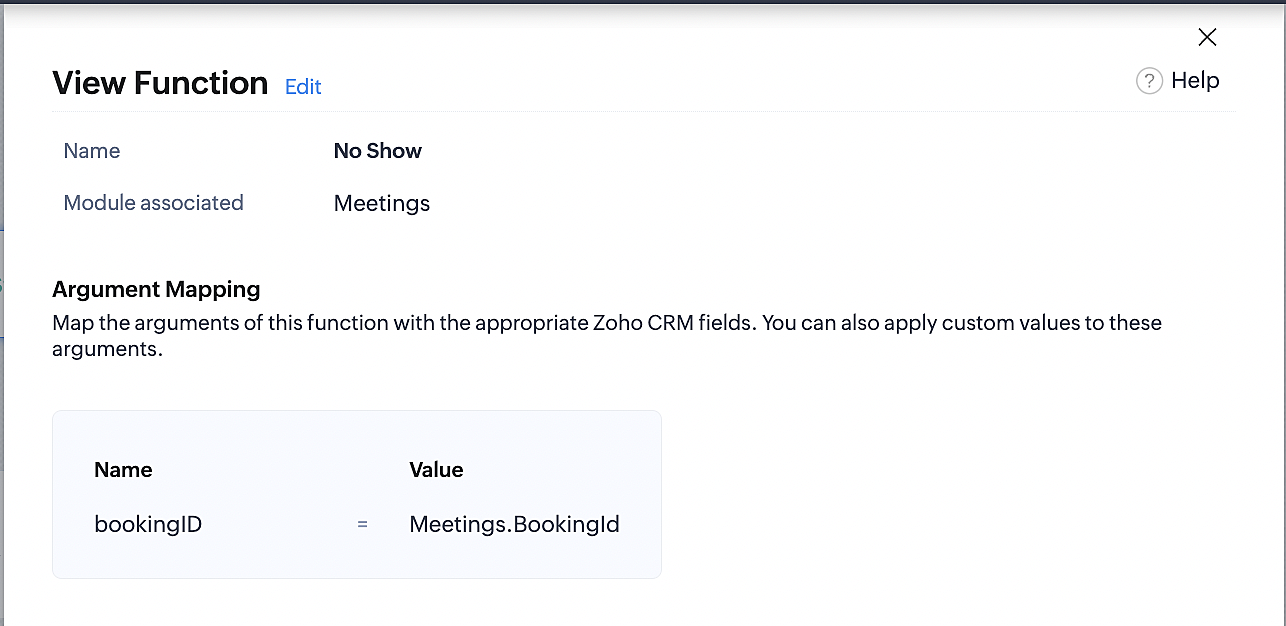
Part 6: Argument mapping:
If you encounter difficulties while navigating through the steps mentioned below, please refer to Part 3 above, where we have provided step-by-step screenshots for clarification.
1. Press # to choose an argument value.
2. Select Meetings under Module and configure the field as "BookingId".
3. Click Save and Associate button.
Reference:
Below is the final flow of the "No Show" booking status workflow:
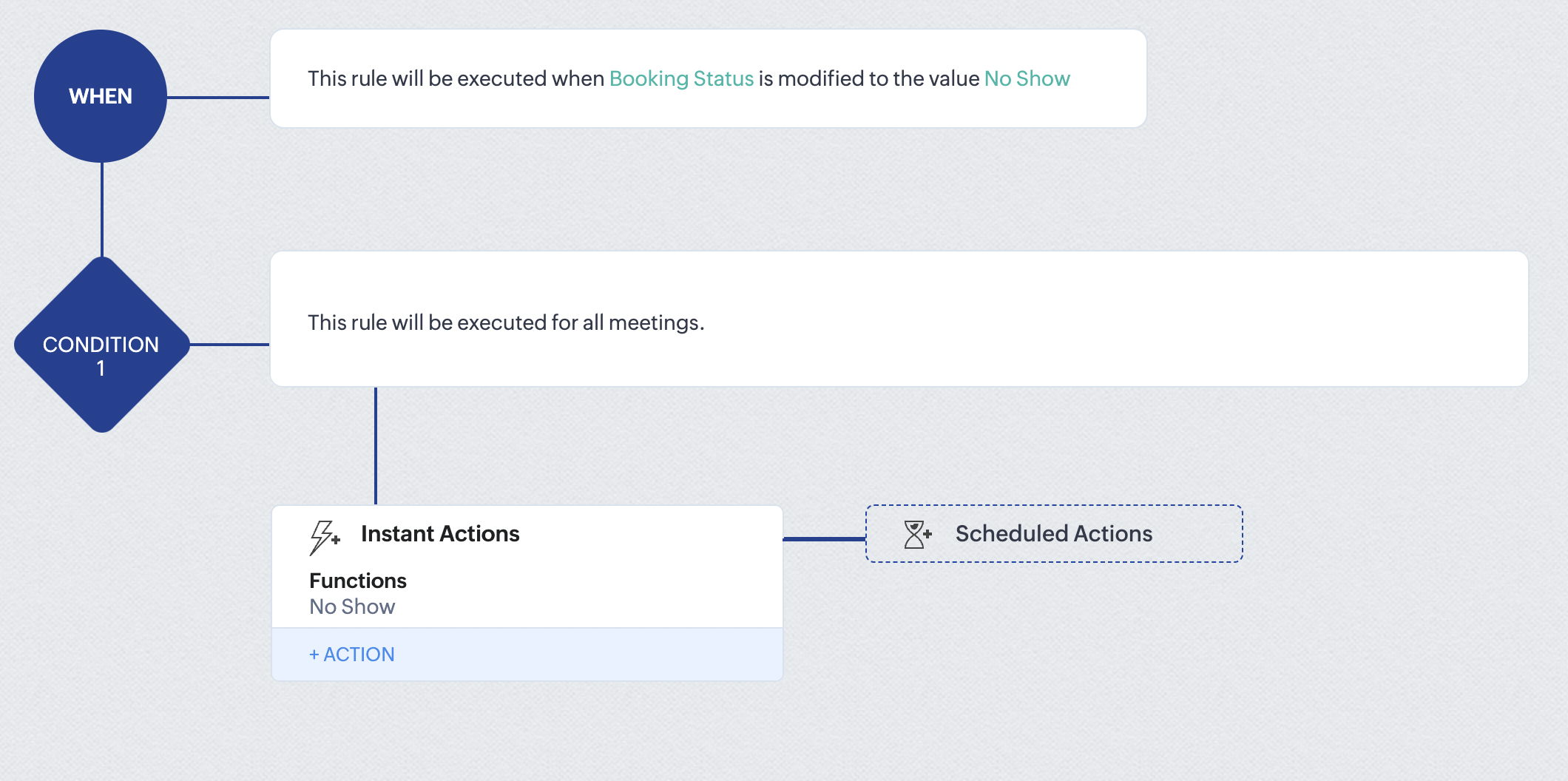
At the end of part 6, we will have created a workflow that automatically executes when the booking status field within the Zoho CRM Meetings module is updated to "No Show." This action will result in the associated bookings for that meeting also being marked as "No Show" in Zoho Bookings.
iii. Creating workflow for updating appointment status as "Completed" in Zoho Bookings when the booking status field of the meeting is marked as completed in Zoho CRM.
Part 7: Creating the rule
1. Go to Setup > Automation > Workflow Rules.
2. In the Workflow Rules page, click Create Rule.

3. Select Meetings under Module and configure rule name and description as required.
Reference:
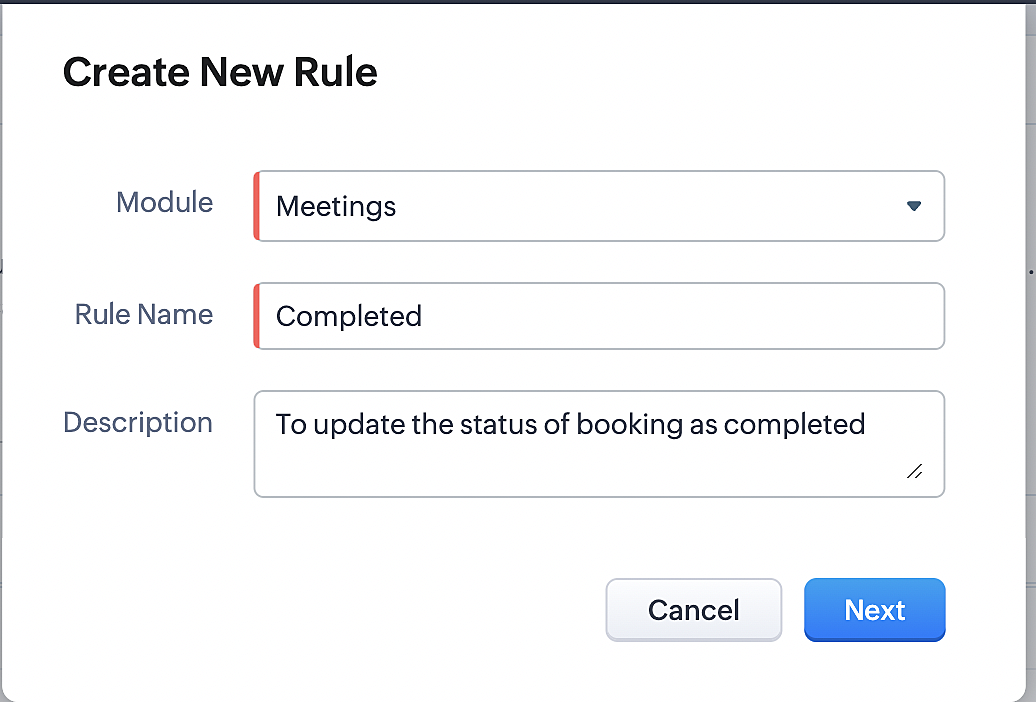
Part 8: Specifying the rule trigger
If you encounter difficulties while navigating through the steps mentioned below, please refer to Part 2 above, where we have provided step-by-step screenshots for clarification.
1. Record Action > Edit.

2. Enable the Specific field(s) gets modified setting and configure it per the screenshot below.
a. This serves to ensure that the workflow is executed only when the booking status under the Meetings module is
updated to "Completed".
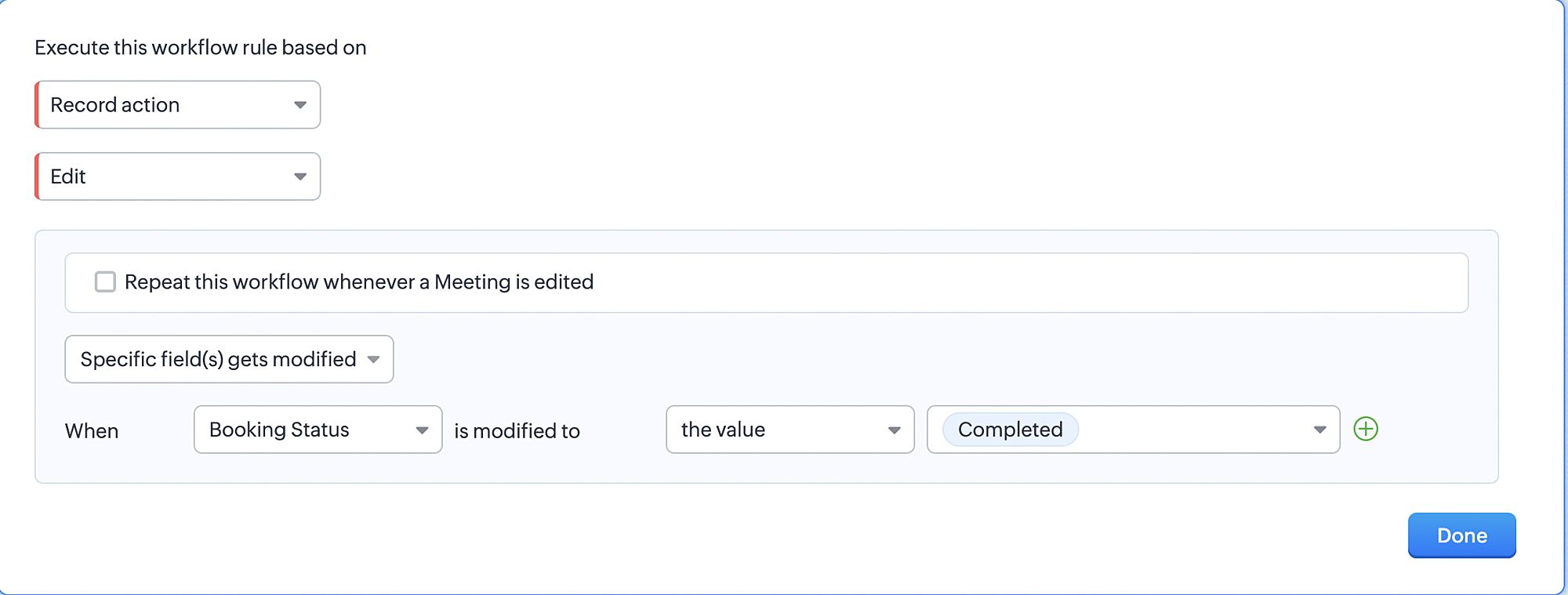
3. Configure condition > All Meetings.
4. Instant Actions > Function > New Function.
5. In the Configure custom function page, select the "completed" function you created from among the functions users
in your organization have created.
Part 9: Argument mapping:
If you encounter difficulties while navigating through the steps mentioned below, please refer to Part 3 above, where we have provided step-by-step screenshots for clarification.
1. Press # to choose an argument value.
2. Select Meetings under Module and configure the field as "BookingId".
3. Click Save and Associate button.
Reference:
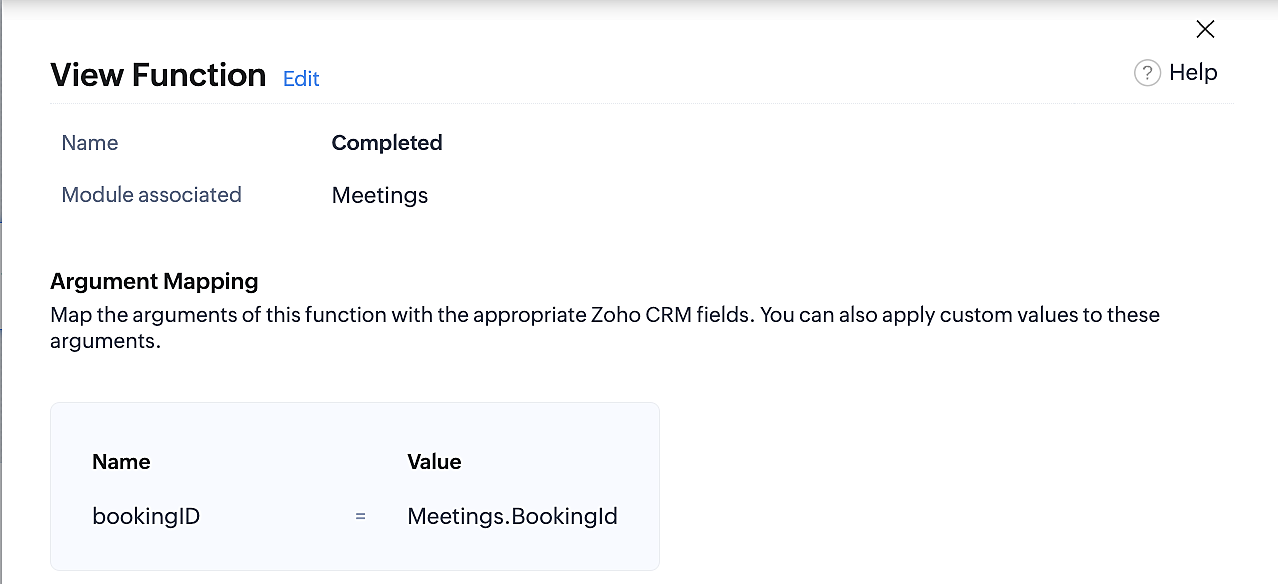
Below is the final flow of the "Completed" booking status workflow:
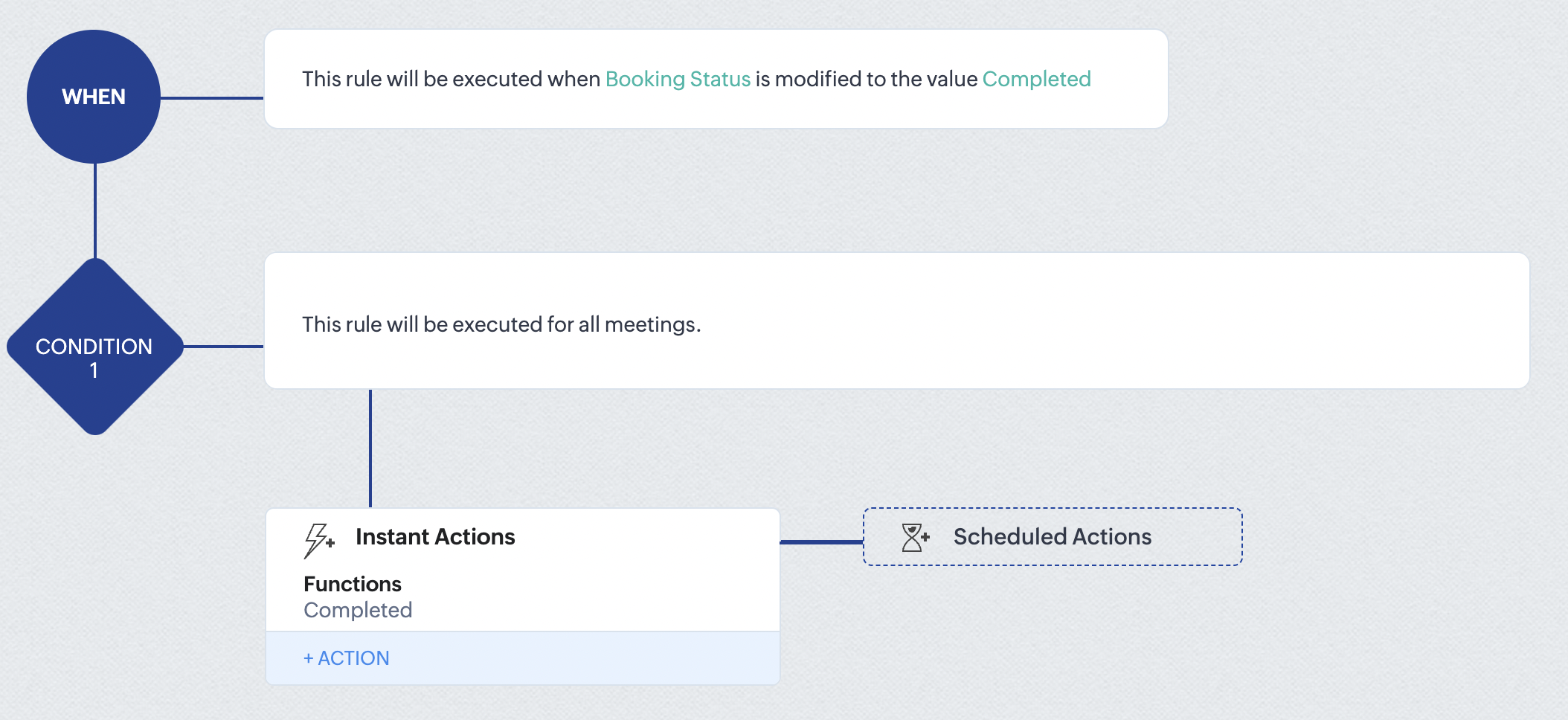
At the end of part 9, we will have created a workflow that is automatically executed when the booking status field within the Zoho CRM Meetings module is updated to "Completed." As a result, the associated bookings for that meeting will also be marked as "Completed" in Zoho Bookings.
Conclusion
We've reached the end of this community post. With the integration mentioned above in place, you'll be able to book, cancel, and update the status of appointments in Zoho Bookings directly from your Zoho CRM application. This will help you effectively manage your appointments in one place. As mentioned above, we've covered the rescheduling action in a separate post, which you can access by clicking on the following link: Reschedule Action
Furthermore, we've outlined a method for automating appointment statuses in detail. You can use this document as a reference to explore the various possibilities that suit your needs.
If you have any questions or need assistance with your configuration, please email us at hello@zohobookings.com or support@zohobookings.com.
Access your files securely from anywhere
New to Zoho Recruit?

Zoho Developer Community
New to Zoho LandingPage?
Zoho LandingPage Resources
New to Zoho Survey?
New to Zoho CRM Plus?
Deliver unforgettable customer experiences
New to Zoho CRM Plus?
Deliver unforgettable customer experiences
New to Zoho Marketing Plus?
Everything you need to run your marketing
New to Zoho Marketing Plus?
Everything you need to run your marketing
New to Bigin?





Topic Participants
Kaushik S
bruce
Ishwarya SG
PrismaNote Support
Sticky Posts
Presenting ABM for Zoho CRM: Expand and retain your customers with precision
Picture this scenario: You're a growing SaaS company ready to launch a powerful business suite, and are looking to gain traction and momentum. But as a business with a tight budget, you know acquiring new customers is slow, expensive, and often deliversGood news! Calendar in Zoho CRM gets a face lift
Dear Customers, We are delighted to unveil the revamped calendar UI in Zoho CRM. With a complete visual overhaul aligned with CRM for Everyone, the calendar now offers a more intuitive and flexible scheduling experience. What’s new? Distinguish activitiesCreate and populate a record in an instant: Introducing zero-shot field prompting to Zia's ICR
A couple of months ago, we upgraded our in-house AI image detection and validation tool, Zia Vision, with intelligent character recognition (ICR). By training Zia with sample images, you could create and enrich CRM records with data extracted from standardIn-person ZUG Meetups for Real Estate Professionals - US Q1 2026
The Real Estate Zoho User Group is going on a multi-city, in-person meetup tour across the US, and we’d love to see you there! These meetups are a great opportunity to: Connect with fellow real estate professionals using Zoho Share challenges and discoverNimble enhancements to WhatsApp for Business integration in Zoho CRM: Enjoy context and clarity in business messaging
Dear Customers, We hope you're well! WhatsApp for business is a renowned business messaging platform that takes your business closer to your customers; it gives your business the power of personalized outreach. Using the WhatsApp for Business integration
New to Zoho TeamInbox?
Zoho TeamInbox Resources
Zoho CRM Plus Resources
Zoho Books Resources
Zoho Subscriptions Resources
Zoho Projects Resources
Zoho Sprints Resources
Qntrl Resources
Zoho Creator Resources
Zoho CRM Resources
Design. Discuss. Deliver.
Zoho Show Resources

Get Started. Write Away!
Writer is a powerful online word processor, designed for collaborative work.
Zoho CRM コンテンツ
-
オンラインヘルプ
-
Webセミナー
-
機能活用動画
-
よくある質問
-
Ebook
-
-
Zoho Campaigns
- Zoho サービスのWebセミナー
その他のサービス コンテンツ
Nederlandse Hulpbronnen

ご検討中の方
Recent Topics
Questions about ACH in Zoho Billing
We have ACH enabled for subscriptions in Zoho Billing and we have the option enabled for users to be able to log in to their bank to add the account to their payment methods. Questions: 1) If the user's bank isn't supported via the log-in method, willZoho Writer Default Publish Setting for Mail Merge
Hello, I was thinking of using Mail Merge to create documents from CRM and automatically link them. However, I noticed the "publish" function and it seems the default is "to the world". This creates some anxiety as it is not clear what this "to the world"Contacts Profile
Is there a way to add a picture to my contacts profile? You have an outline of a person but no way I can see to import a picture.Tip 46: View resource allocation while adding or editing tasks
Keeping track of employees workload can be daunting but also necessary. Overloading employees with work can cause burnout and reduce productivity. Managers should be able to identify resources who are less engaged when assigning tasks. This will ensure a balanced workload and also improve employee's efficiency. Zoho Projects lets you identify resources who are available to take up a job when you add or edit a task. Assign the task to team members and the calendar in the Start Date field will displaySwitching Between Multiple Zoho One Organizations in New UI
Here’s a polished version in English that you can use on Zoho’s support or community forum: Subject: Switching Between Multiple Zoho One Organizations in New UI Hello Zoho Community / Support Team, I’m currently managing two independent Zoho One organizations..ds import error from .ds file
Problem encountered while creating the application Exception occured while publishing message to the topic :: [DataModelTopic]Fully functional FSM workflow
I am using Books, FSM, Begin and Desk. At this moment, FSM is not fully functional even on its own. For example, Customer A buys 4 air-cons and 3 brackets from us. We are fine to create WO manually in FSM. This should be the full loop for a FSM workflow:-Connect Woocommerce new order to zoho books via zoho flow
Hello i want help to create a flow to create a new sales order from woocommerce to zoho books. Can someone send me step by step flow, functions and fields?What's New in Zoho Invoice | April - June 2025
Hello everyone! We're excited to share the latest feature updates and enhancements we've made to Zoho Invoice from April to June 2025. In this, you will learn more about the following features: New Integrations via Zoho Marketplace Add Images to EmailPROJECTS - More flexibility with task and pricing
Hi Everyone, I would like to use PROJECTS in my Zoho Booking app but it does not fit into my business. For example: I charge per sessions fixed price. My session usually are 2 hours and I bill the customer on the end of the month. My session can haveIs it possible to change default payable account for a bill?
We have a case where we need to change a bill account from the default accounts payable to another account (it can be current asset or current liability, depending on the case). However, Zoho Books has set default account for bills, (accounts payable)how to upload a reviewed price list in zoho to replace the existing price list
Price list upload for my zoho booksCompany details and emails
Our company has recently been rebranded and we have new email address - How do I update information for users. I have tried to re invite users with new email but it sends me to organization and there is no where I can change the email or invite with newLinking Resale Certificates to Customer Locations
Florida Resale Certificates must be on every customer invoice. We have customers with multiple locations and each location has a seperate FL Resale Certificate. The FL Resale Certificate makes the transaction EXEMPT from Sales Tax. Can FL Resale CertificateNotebook App Not Opening
I love this app but for the last 2 days it recuses to open. My phone tells me the app is bugged and I must wait for a new update. Is anyone else having this problem or is something going on with me? I have many important notes that I can't necessarilyAdmin and Dispatcher Users show as Field Technicians in Dispatch Module?
Hi Zoho, Our Admin and Dispatch user both show up as Fied Technicians / Field Agents in the Dispatch module, but they most certainly should not be assigned to any of the work orders and service appointments. These users are NOT service resources. HowCopy Sales Order Reference# to Purchase Order#
Hello, We use our customer's purchase order number as the order number on our purchase order to the supplier. We direct ship everything from our suppliers and the customers then see their PO number on the packing notes (instead of a sequentially-generated one). Therefore, is it possible to use automation to copy the Sales Order Reference# (customer PO) to the respective Purchase Order# (our PO) when converting the Sales Order to a Purchase Order?Free webinar: Zoho Sign in Q2 2025: A quick walkthrough
Hi there! We’re halfway through the year—and Zoho Sign has some exciting enhancements to show for it! Join us in our upcoming webinar to discover what's new and what you can look forward to. What will this session cover? Explore the newest features introducedUsing a Webhook as an Action
I have been able to setup where I can use a webhook as a Trigger, but I am wondering how I can use a webhook as an Action. In the Zoho Flow Builder when using Zoho CRM as a trigger, I do not see a way to invoke a URL to POST json data that can be usedAdding commas to a numeric value
Hi, I want to add commas to numeric values so that they look like money E.g 1234.56 to 1,234.56 12345.67 to 12,345.67 12345678.90 to 12,345,678.90 How do you do that in Deluge? Thanks for the helpPushing Zoho People leave into Microsoft calendar: how to chose how "event" is shown (busy, free etc)
Hi, how can I select how a "leave" event is pushed into Microsoft calendar? I want for leave "working elsewhere" to show as working elsewhere and NOT as busy.Tiktok and Instagram Carousel with Music
Is it possible to add music or sound (can be downloaded or uploaded or attached) when we upload carousels in IG and Tiktok?[Product Update] Locations module migration in Zoho Books integration with Zoho Analytics
Dear Customers, As Zoho Books are starting to support an advance version of the Branches/Warehouses module called the Locations module, users who choose to migrate to the Locations module in Zoho Books will also be migrated in Zoho Analytics-Zoho BooksOnce again, non-admins can no longer revise the site map
Not sure when this change happened, but it's a problem now. This appears to be a regression on this issue: https://help.zoho.com/portal/en/community/topic/bug-non-admins-can-no-longer-revise-the-site-map ... which was solved. That issue was also a regression.Detail View in Mobile without Labels
Zoho creator 6. I have been trying to acheieve this but not able to. I have a quick view of my articles using custom layout for mobile. When i tap on an article it opens in detail view on my mobile which has two cols. Left displays label and right theUpdating task using excel file
Hi, Is there a way to update existing tasks using excel file import? ThanksCross module filtering is now supported in CRM
Editions: All DCs: All Release plan: This enhancement is being released in phases. It is now available in AU, JP, and CN DCs. Help resource: Advanced filters The Cross-module filtering enhancement is now available to all CRM accounts in the followingBefore Going To The Qc stage , site ready ness file upload mandtoty how to achive this in the blue print transition
Before Going To The Qc stage , site ready ness file upload mandtoty how to achive this in the blue print transition On click of the Predelivery transition can we show site ready ness file upload mandtoty or on click of the QC show the alert message siteNote cards are duplicating
Hi, I've been using this app for some time and love it. Recently I've noticed that upon closing a note card, it creates a duplicate. If I exit the notebook it's in and go back, everything is back to normal. Not a major issue but still a little annoying.Where is the (Bulk) Notes Export function from Notebook ???????
I have seen various threads over the last two years on this and basically no action from ZOHO at all ! BTW having to go to an individual note and export to PDF (which now doesn't even work ) or some sort of zoho format is by no means the answer ! I still can't see any sort of bulk (or even individual) export function across notes. This is really poor for a notes product that is nearly 4 years old from a "major vendor". I now have a large number of notes (some with images) that I want to export andAgain about the backlighting of the search query when searching in a client for Linux
Some time passed, I installed a client for Linux version 3.4.0, but I still did not receive the promised search with the backlighting of the search query how it was implemented in the client for android. In the previous topic, you told me that this functionImportant! ZipRecruiter Sponsored Posting Plan Changes in Zoho Recruit
Greetings, We’re reaching out to inform you about an important upcoming change to the ZipRecruiter Sponsored job board integration within Zoho Recruit. What’s Changing? Starting June 1, 2025, Zoho Recruit will be updated with ZipRecruiter's latest pricingIn the Blue Print Transition requirement received it will show 8 check field in pop up if they any one of this field then only move to next stage Ist quote
In the Blue Print Transition requirement received it will show 8 check field in pop up if they any one of this field then only move to next stage Ist quote Pls help how i fix thisLinking Multi-UOM Barcodes to Products in Zoho Books
Greetings, I'm using Zoho Books for retail shop and I'm running into a bit of a challenge with products that have multiple Units of Measurement (UOMs) and corresponding barcodes. For example, I sell cigarettes both as individual packets and in cartonsConvert Item to composite item
When using Zoho CRM integrated with Zoho Inventory/Books, the item creation process is a little messy. After a few years of trial and error, we have settled on creating items in CRM, which are sync'ed to Zoho Inventory using Zoho's own internal integration.Mapping “Account Name” from CRM to Campaigns
I’m syncing our Contacts list to Campaigns and want to select “Account Name” as an available field. Account Name does not appear in the drop down menu for CRM field even though Account Name is a field in our standard layout. How can I make it availaZoho Campaigns to Zoho Analytics Sync Fails – Field Mapping Shows But Not Applied
I’m facing a persistent issue with the Zoho Campaigns integration to Zoho Analytics in my workspace. Here’s a detailed description of the problem: Under Edit Setup, I see a field mapping summary that shows: DataField Mapping: Most Recent Login However,Host in US Data Centre
I humble apply to be registered on US Data centreMultiple images, one record
I have a form that is used to capture the following info: -Facility Name -Origin -Shipment # -Picture of Damaged Pallet (Image field) I want to be able to capture multiple pictures without having to create a new record, as there might be multiple damaged pallets on the shipment. Obviously, one never knows how many damaged pallets might be on a shipment so I'd prefer not to create 20 image fields and have most of them unused. I'd prefer that they have an option to add another image only if they needhow to dynamically upload multiple images for single record?
Is the use of dynamic multiple images in a single record supported? I've searched but have not found the answer. If it is supported, how is it done? I saw 1 suggestion to add a sub-form but that doesn't seem to be the answer. I don't want to add a set number of image fields. Each record would have a different number of images. I want the addition of images to be dynamic. thanksNext Page