Bidirectional sync between Zoho Bookings and Zoho CRM - Part 1
Hey, community members!
The default integration between Zoho CRM and Zoho Bookings is unidirectional, which means that any appointments booked, rescheduled, or deleted in Zoho Bookings will be reflected in Zoho CRM. However, any modifications made to events in Zoho CRM that originated from Zoho Bookings will not be reflected back in Zoho Bookings. Hence, as we're announcing in this community post, we've made the sync bidirectional.
This community post will cover the process of configuring appointment bookings from Zoho CRM in Zoho Bookings, as well as managing appointment statuses such as Canceled, No Show and Completed. We have addressed the rescheduling action in a separate post. To view it, please click on the following link: Reschedule Action
This community post will be beneficial for active Zoho CRM users who handle all their meetings within Zoho CRM. Additionally, you can use this community post as a reference to explore various automation possibilities tailored to your business requirements. For instance, with this post's guidance, when you update a booking's status field to "Completed" in Zoho CRM, it will automatically sync with Zoho Bookings and trigger an automated "Mark as completed" email to customers. This enhancement will improve your Zoho Bookings and Zoho CRM synchronization experience, making appointment management easier.
Prerequisites of bidirectional sync:
- Zoho Bookings Premium subscription
- Zoho CRM paid subscription
- Enable Zoho CRM integration within Zoho Bookings
The purpose of enabling the Zoho CRM integration within Zoho Bookings is to transfer booking details from Zoho Bookings to Zoho CRM. In this configuration, the mandatory field is the Booking ID, which is passed from Zoho Bookings to Zoho CRM through the integration. Whenever an appointment is booked, customer details will be sent to the designated CRM module, and a corresponding record will be created in the Meetings module within Zoho CRM, which will help in automating the workflow.
Here's the complete demo video that covers all the configurations discussed in the community post below:
Timestamps for your reference:
0:35 - Purpose of this community post
Here's the complete demo video that covers all the configurations discussed in the community post below:
Timestamps for your reference:
0:35 - Purpose of this community post
1:26 - Zoho CRM plugin installation
4:43 - Custom field creation
7:20 - Function creation
9:22 - Connection creation
10:24 - Configuring arguments
11:06 - Workflow creation
13:33 - Argument mapping
14:41 - Output verification
17:41 - Conclusion
How we're approaching this bidirectional sync
1. Booking an appointment from Zoho CRM
Install the Zoho Bookings for Zoho CRM plugin within your Zoho CRM application. This plugin enables the creation of a "New Appointment" button within the Zoho CRM Leads and Contacts module, which enables you to select the desired booking page you wish to open. You can choose from various workspace, service, or staff booking pages. After configuration, you can initiate the process of scheduling bookings directly from within your Zoho CRM account.
- Guide on Zoho Bookings and Zoho CRM plugin installation: Booking page selection for Zoho CRM plugin
2. Booking status: Completed or No Show
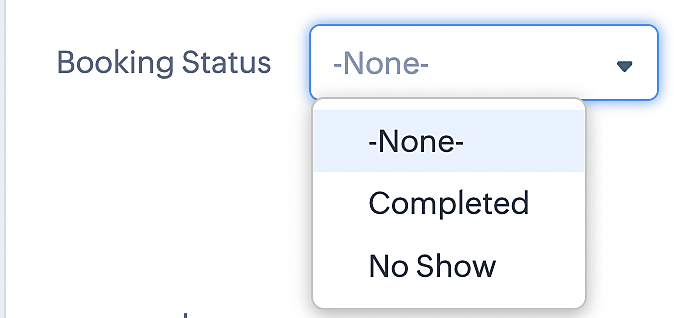
To update a booking's status (Completed or No Show), we've added a new picklist properties field named "Booking Status" in the Meetings module and configured it with two options: "completed" and "no show". Depending on the booking status chosen, the corresponding booking in Zoho Bookings will be updated.
- Details on how to add a custom field to the Meetings module : Customizing modules
- Here's a video that demonstrates how to add a field to a module in Zoho CRM: Adding fields
Reference:
3. Booking status: Canceled
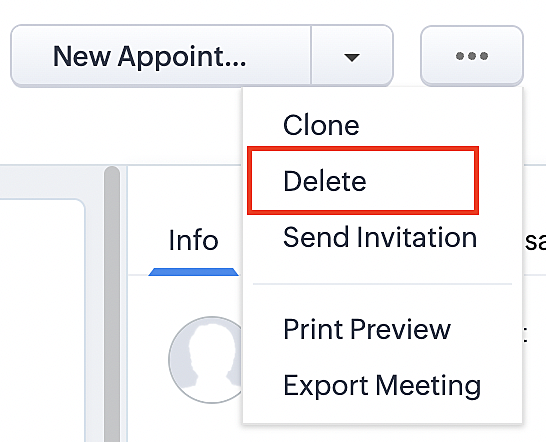
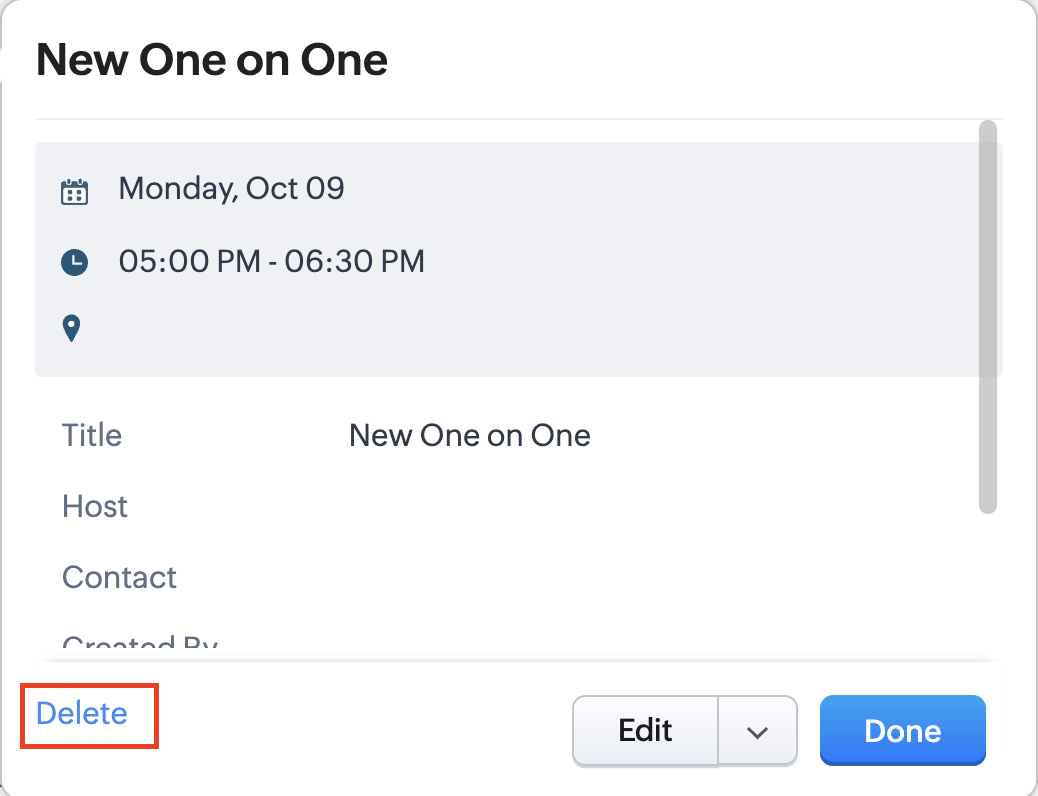
Whenever a meeting is deleted from the Meetings module, the corresponding booking in the Zoho Bookings app will also be canceled automatically. The meeting can be deleted either from the Meetings module or directly from the calendar.
To enable bidirectional sync between Zoho CRM and Zoho Bookings
Complete these steps in Zoho CRM.
Step 1: Creating connections
You first need to establish a connection between Zoho CRM and Zoho Bookings. Zoho Bookings is listed as one of the default connections in Zoho CRM, making it simple to set up. Select the Zoho Bookings connection, define the connection name and scope, and you'll be all set. This connection will enable you to link both applications and facilitate the seamless transfer of data.
Read here for more details on how to create connection in Zoho CRM: Connections
Step 2: Creating functions
In this context, we'll be creating three functions: one for marking appointments as completed, another for canceling appointments, a third for marking appointments as no shows, and a fourth for rescheduling appointments. For each function, we must also configure arguments, which pass values or data into a function when making a call. Here, we'll pass the booking ID to the function as an argument to update the necessary booking status.
i. To create a function for marking appointments as completed:
1. Go to Setup > Developer Space > Functions.
2. In the Functions page, click + Create New Function.

3. Configure the function name, display name, and description.
4. Set the category as automation.
This opens the Deluge script page.
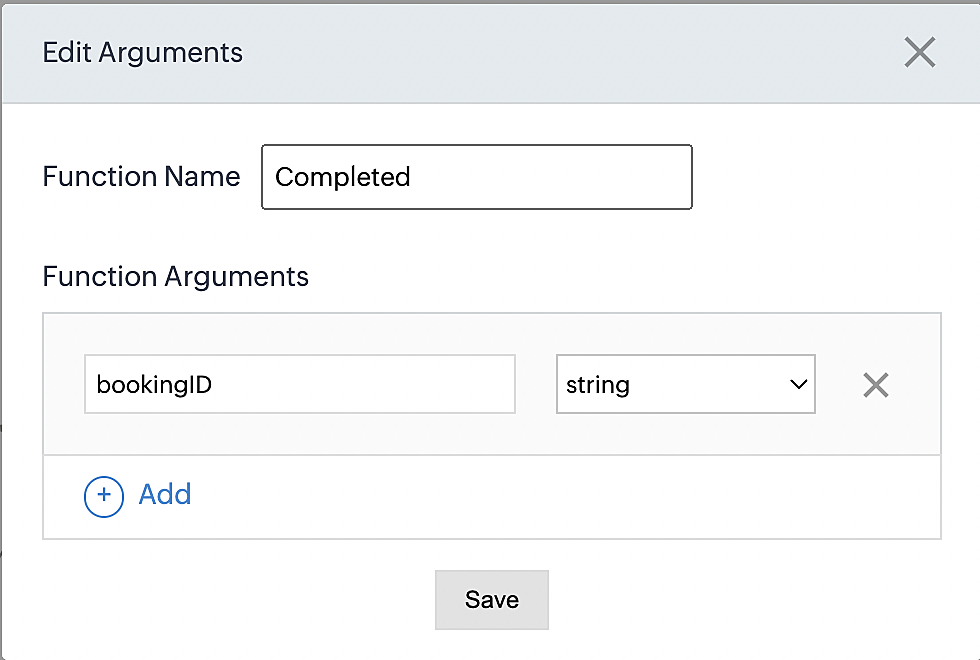
5. Next, configure the function's arguments:
A. Click on Edit Arguments on the Deluge script page.

B. Set the Parameter Name as bookingID. (Please note that the "bookingID" value is case sensitive and must match
the term used in the code).
C. Set the type as string.
Reference:
Please configure the below code in the Deluge script page.
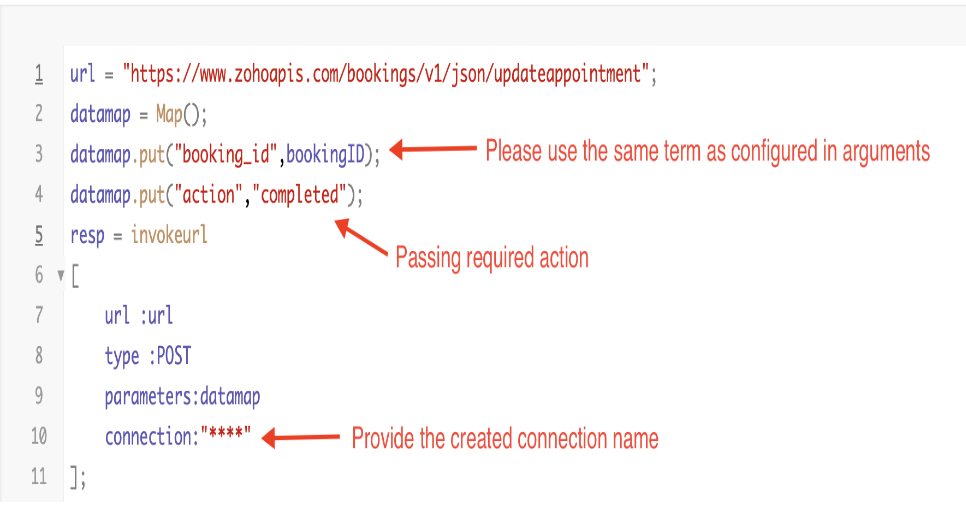
By completing these steps, we've configured a function that will mark appointments as completed.
ii. To create a function for marking appointments as no shows
1. Go to Setup > Developer Space > Functions.
2. In the Functions page, click + Create New Function.

3. Configure the function name, display name, and description.
4. Set the category as automation.
This opens the Deluge script page.
5. Next, configure the function's arguments:
A. Click on Edit Arguments on the Deluge script page.

B. Set the Parameter Name as bookingID. (Please note that the "bookingID" value is case sensitive and must match
the term used in the code).
C. Set the type as string.
Reference:
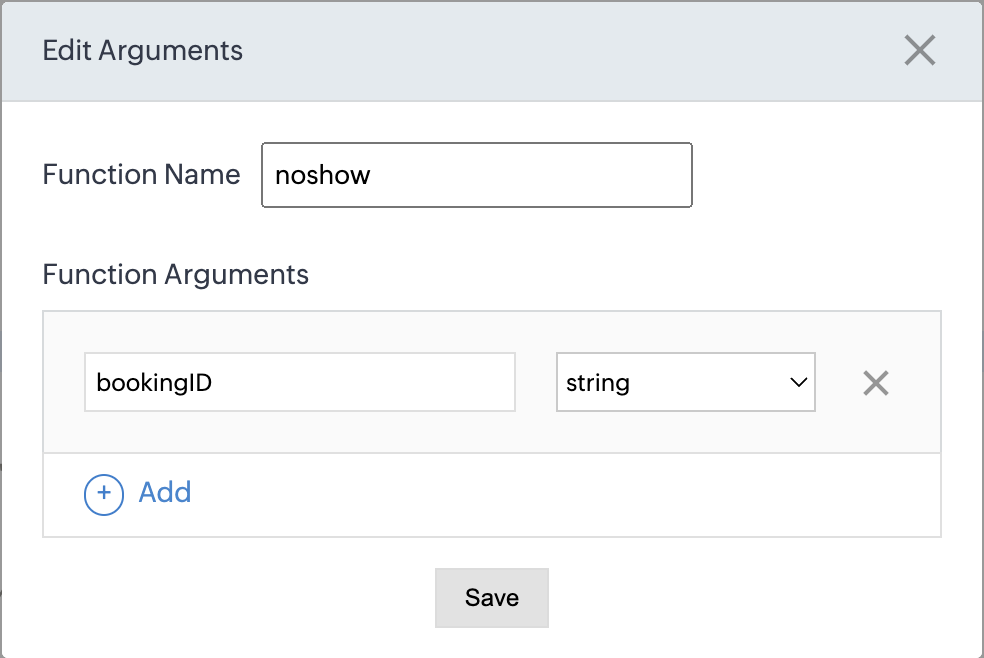
Please configure the below code on the Deluge script page.
Code link: No show
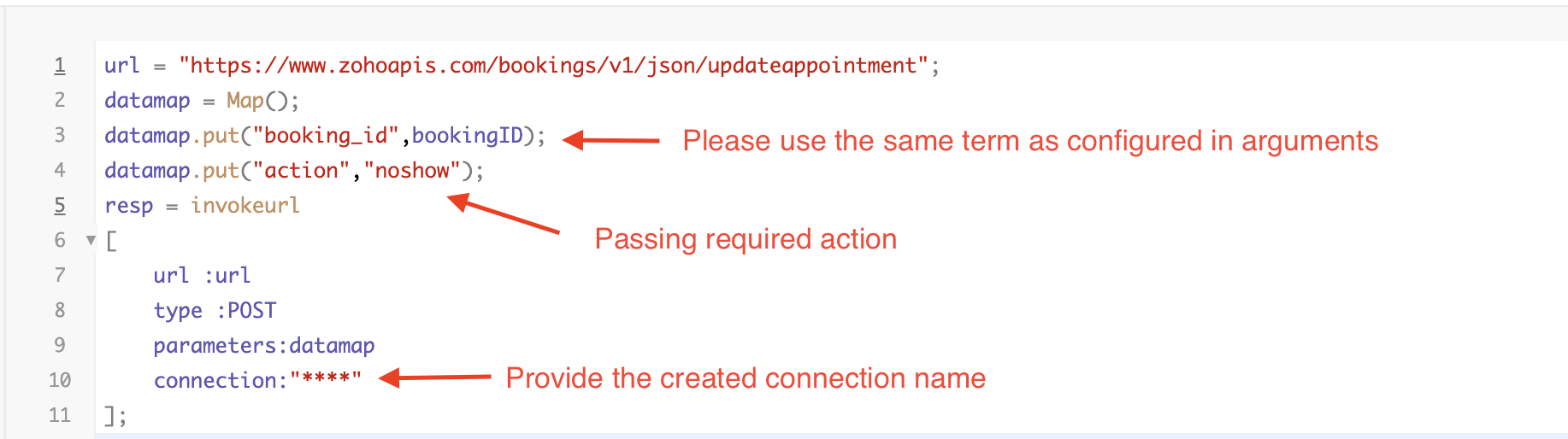
By completing these steps, we've configured a function that marks appointments as no shows.
iii. To create a function for marking appointments as canceled
1. Go to Setup > Developer Space > Functions.
2. In the Functions page, click + Create New Function.

3. Configure the function name, display name, and description.
4. Set the category as automation.
This opens the Deluge script page.
5. Next, configure the function's arguments:
A. Click on Edit Arguments on the Deluge script page.

B. Set the Parameter Name as bookingID. (Please note that the "bookingID" value is case sensitive and must match
the term used in the code).
C. Set the type as string.
Reference
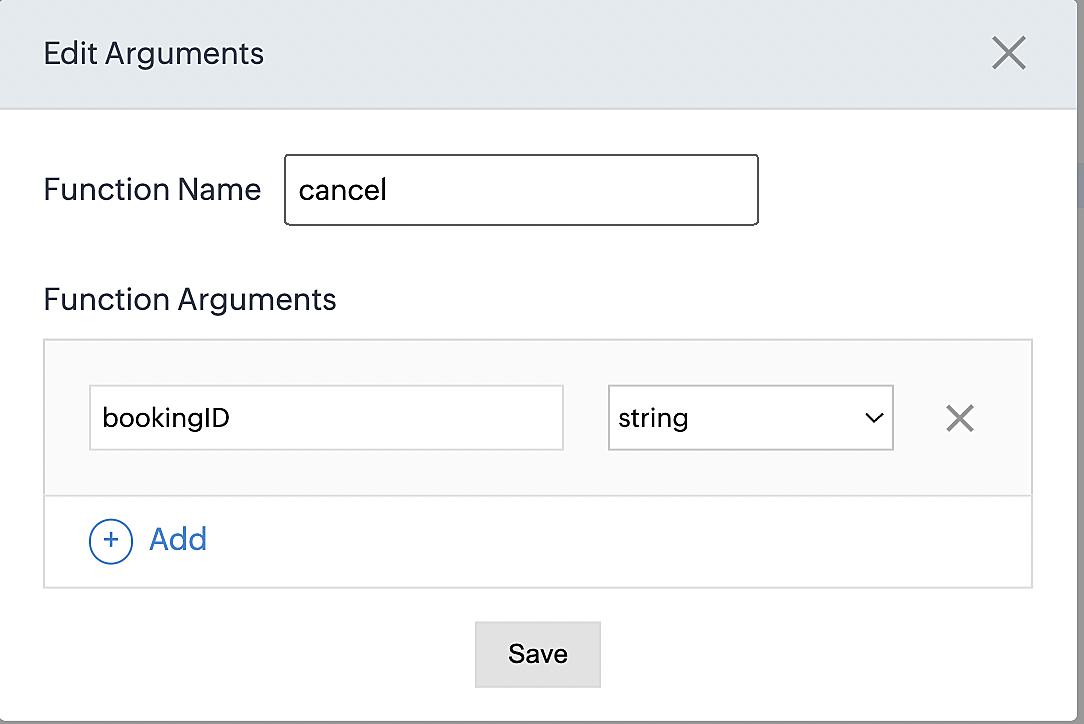
Please configure the below code on the Deluge script page.
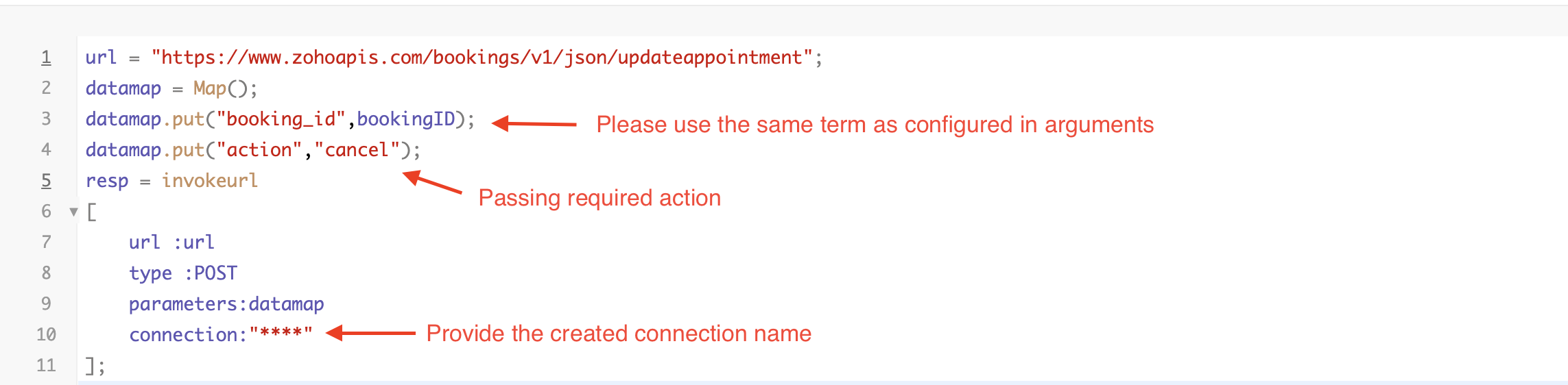
By completing these steps, we've configured a function that marks appointments as canceled.
Code explanation
Below is an explanation of the code that covers all the configurations present in the three functions mentioned above (cancel, mark as completed, and mark as no show).
Line 1: Based on the Zoho Bookings account's data center, we're setting up the API endpoint URL configuration.
Lines 2 - 4: To update appointments, we utilize the Zoho Bookings API. Within the update appointment API, there are two mandatory fields that need to be included: BookingID and action (completed/cancel/noshow).
Lines 5 - 10: We use the invokeURL task for API calls. To learn more about the invokeURL task, please refer to the following document: InvokeURL task for API calls
Now, let's proceed and learn about the process of creating a workflow and linking the established functions to it. This will enable us to automate the entire appointment status updating process.
Step 3: Creating a workflow
Workflow rules are sets of actions (email notifications, tasks and field updates) that are executed when specified conditions are met. Here, we'll generate workflow rules for each action to activate the respective function, thereby automating the appointment status updating process.
i. Creating a workflow for "canceling" appointments in Zoho Bookings when a meeting is deleted in Zoho CRM
Part 1: Creating the rule
1. Go to Setup > Automation > Workflow Rules.
2. In the Workflow Rules page, click Create Rule.

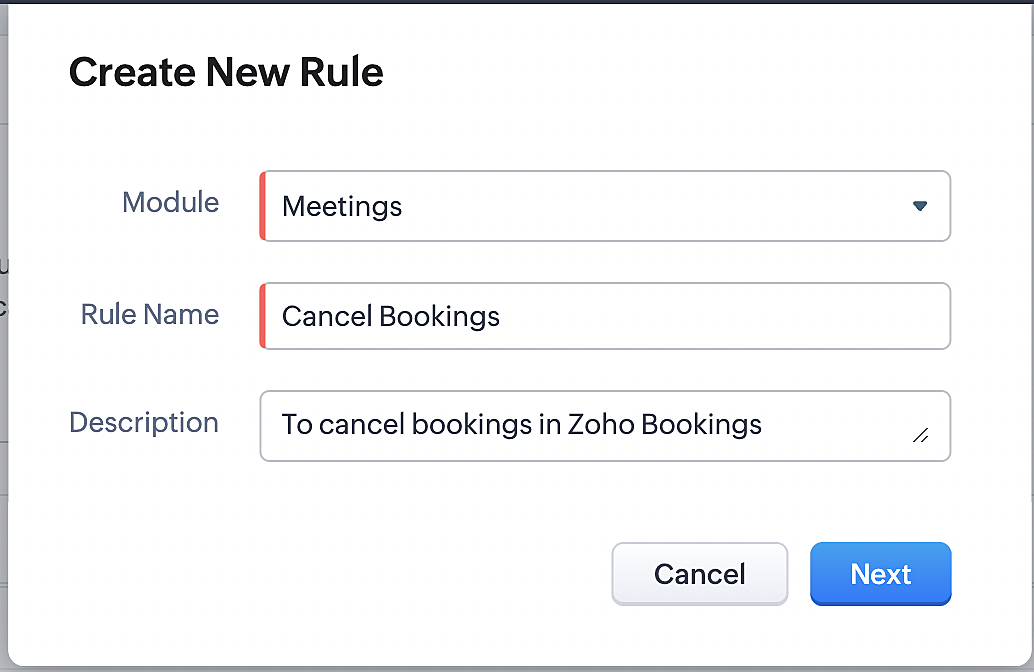
3. Select "Meetings" under Module and configure rule name and description as required.
More details: Create Rule
Reference:
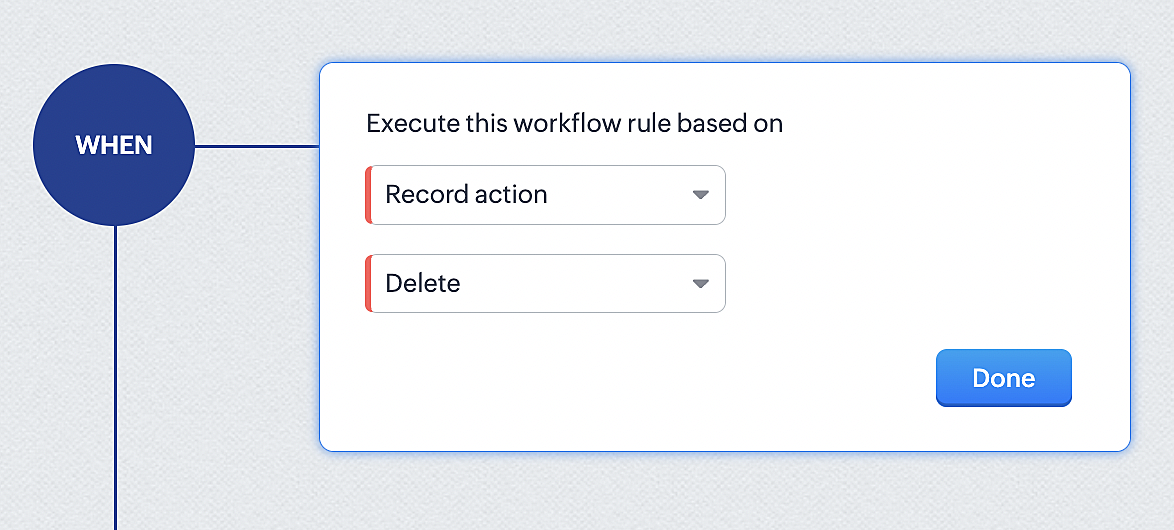
1. Select Record Action > Delete > Done to execute the rule when meetings are deleted.
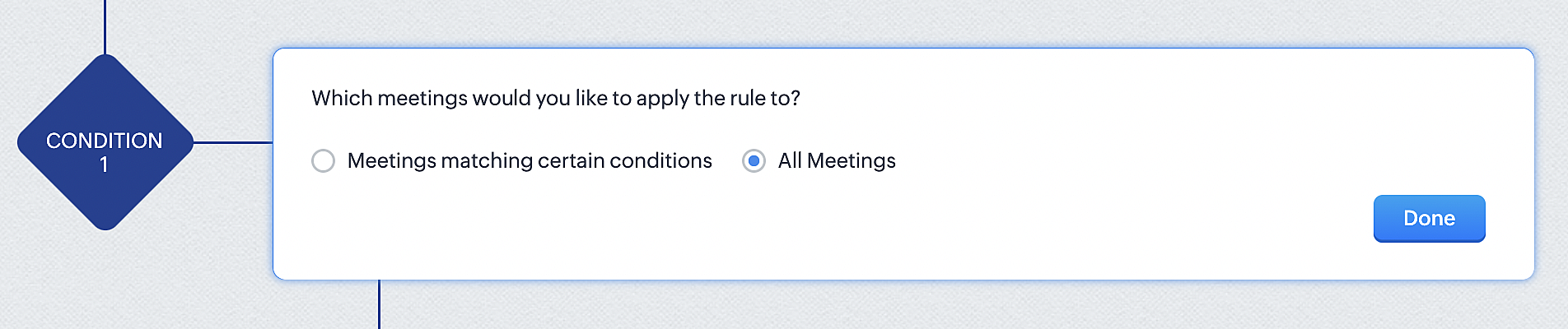
2. Configure condition > All Meetings.
3. Instant Actions > Function.
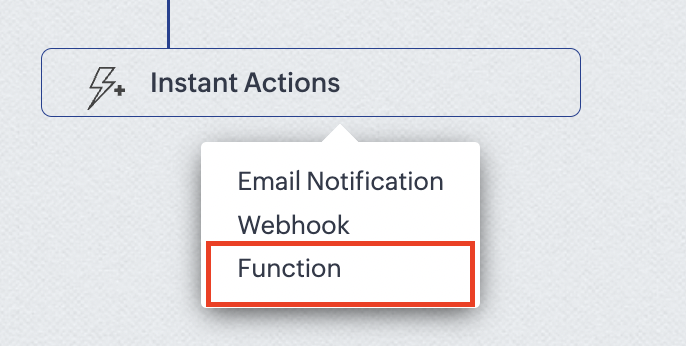
4. Click the New Function button.

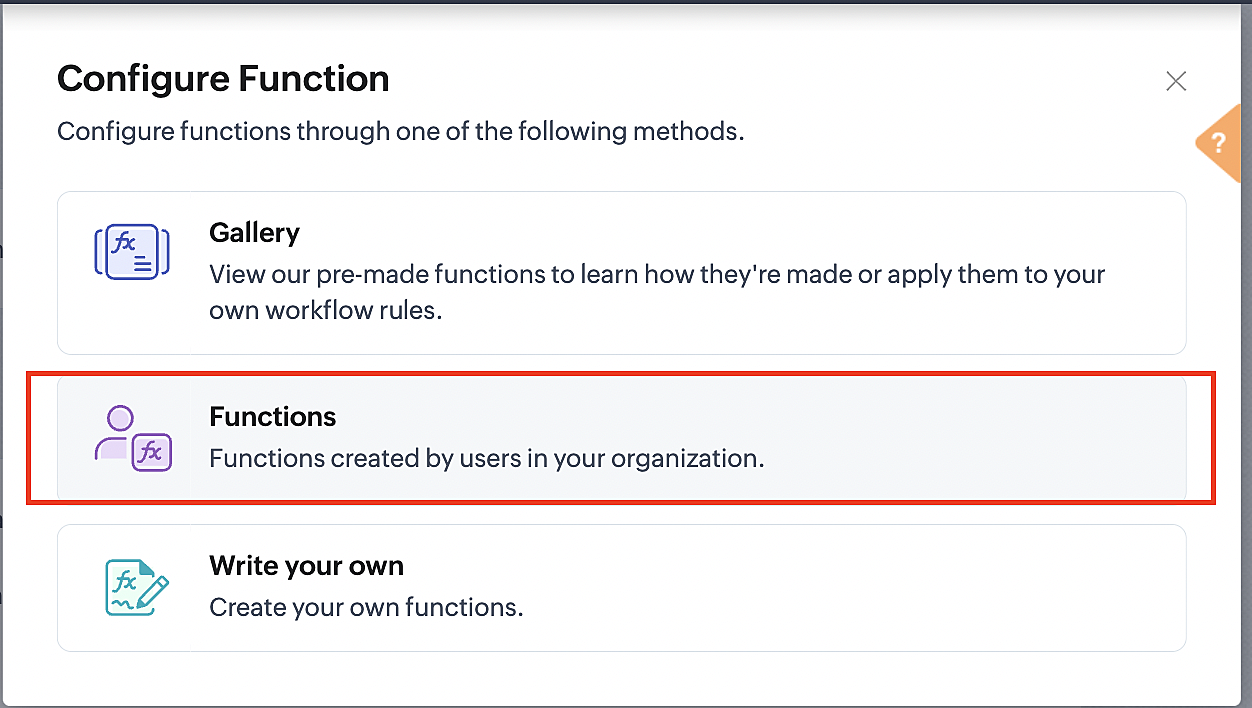
5. In the Configure custom function page, select the "cancel" function you created from among the functions users in your organization have created.
Part 3: Argument mapping
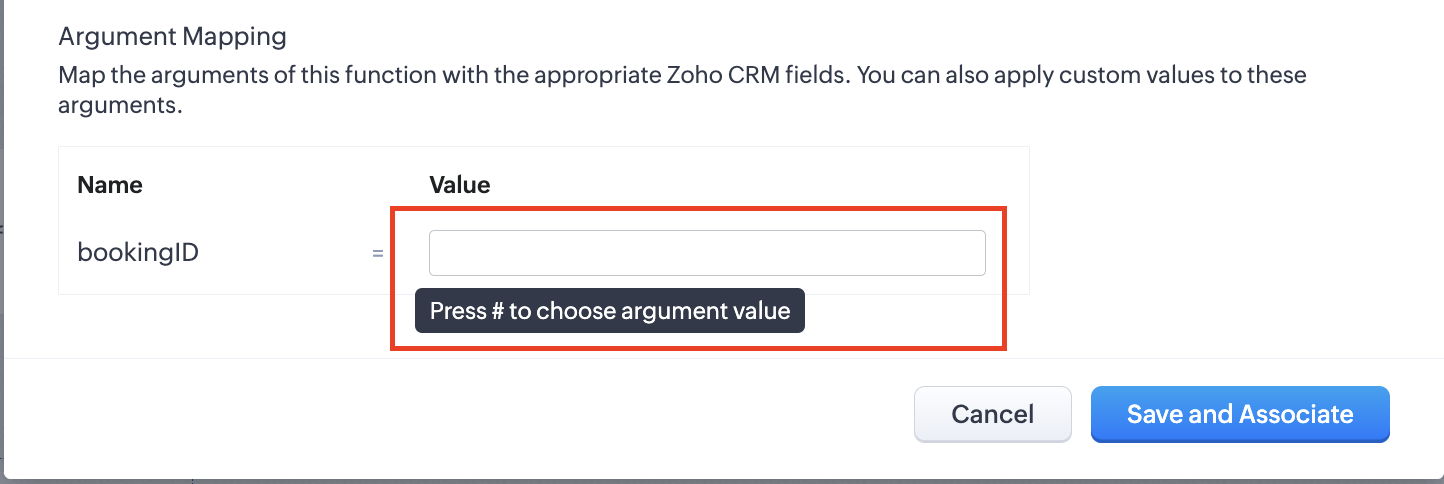
1. Press # to choose an argument value.
2. Select Meetings under Module and BookingId in the field.
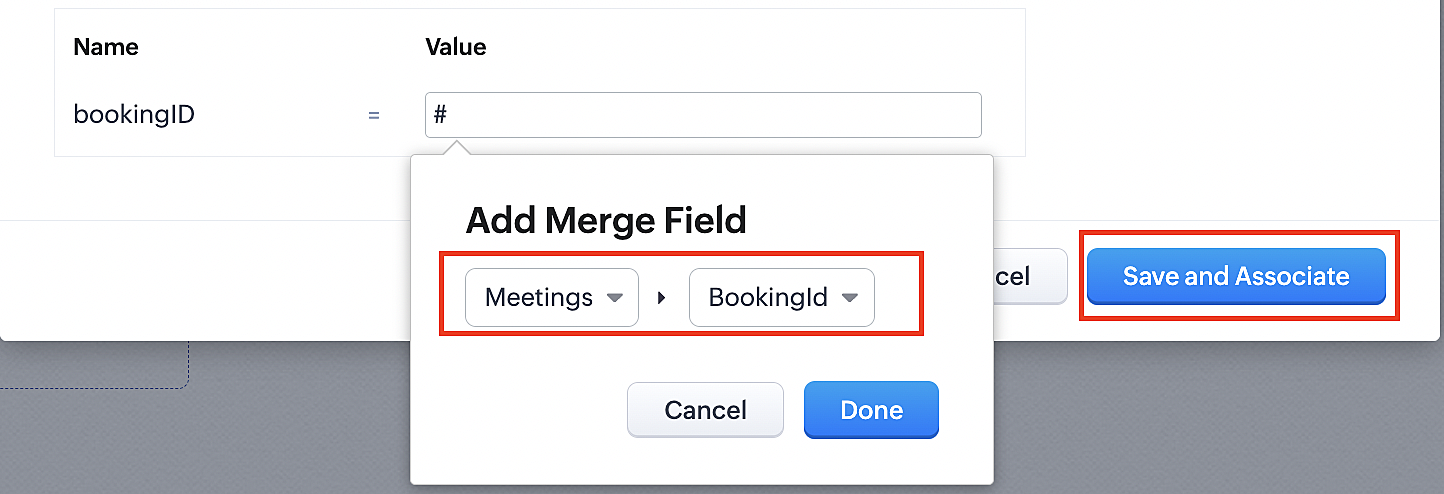
3. Click the Save and Associate button.
Reference:
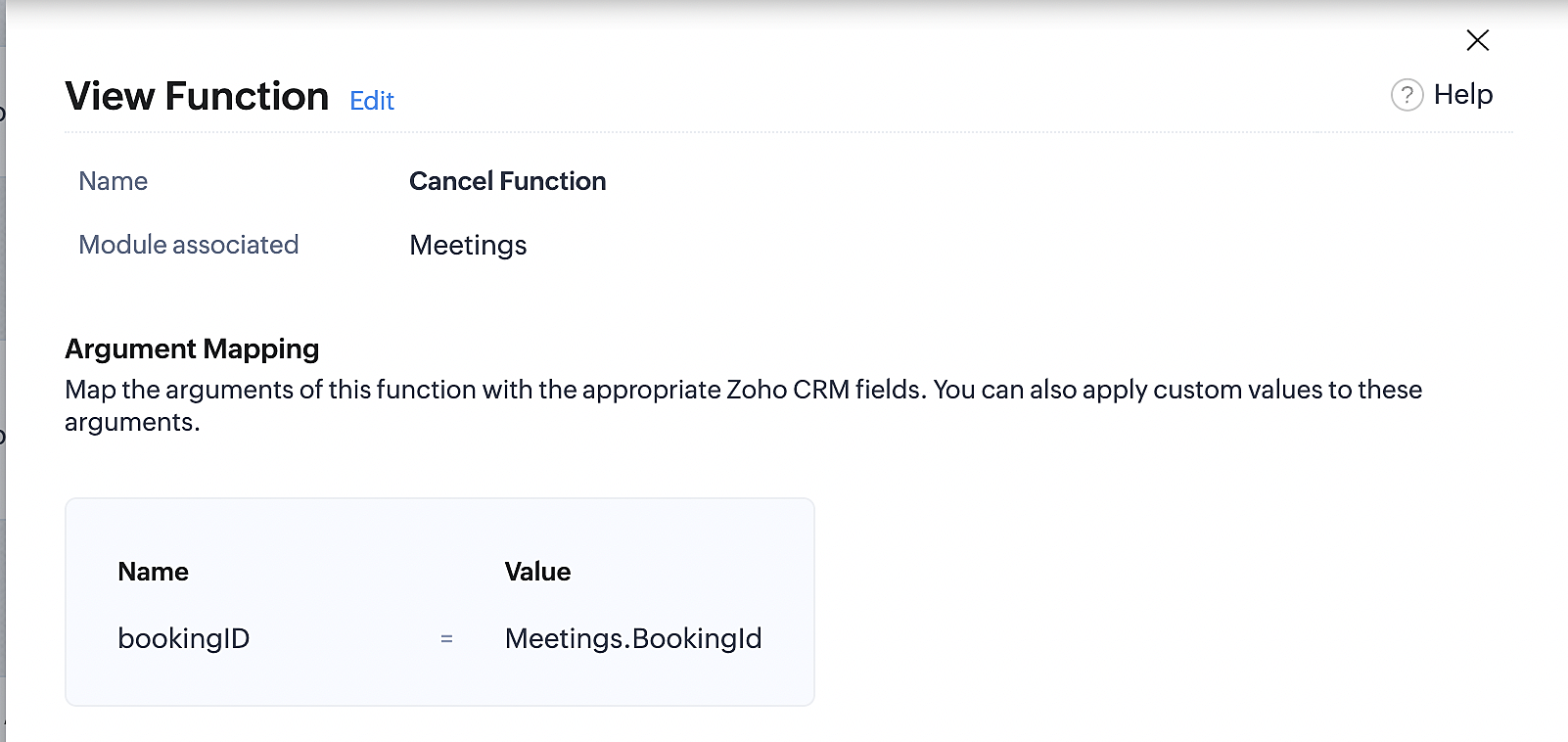
Below is the final flow of the cancel booking workflow:
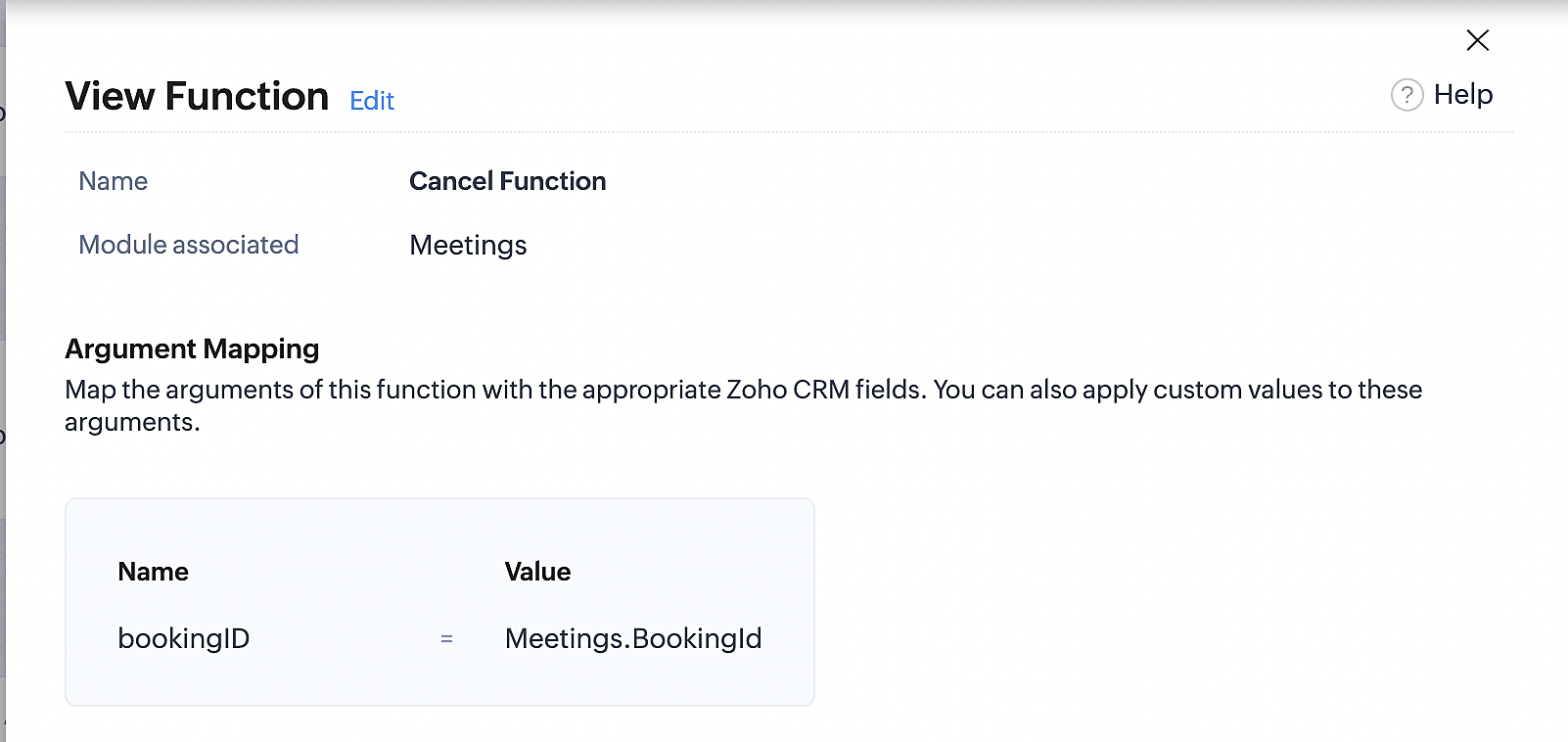
At the end of Part 3, we will have created a workflow that will be executed automatically when meetings are deleted in Zoho CRM. Simultaneously, the bookings associated with the meeting will also be canceled in Zoho Booking.
ii. Creating workflow for updating an appointment's status as "no show" in Zoho Bookings when the meeting's booking status is marked as no show in Zoho CRM
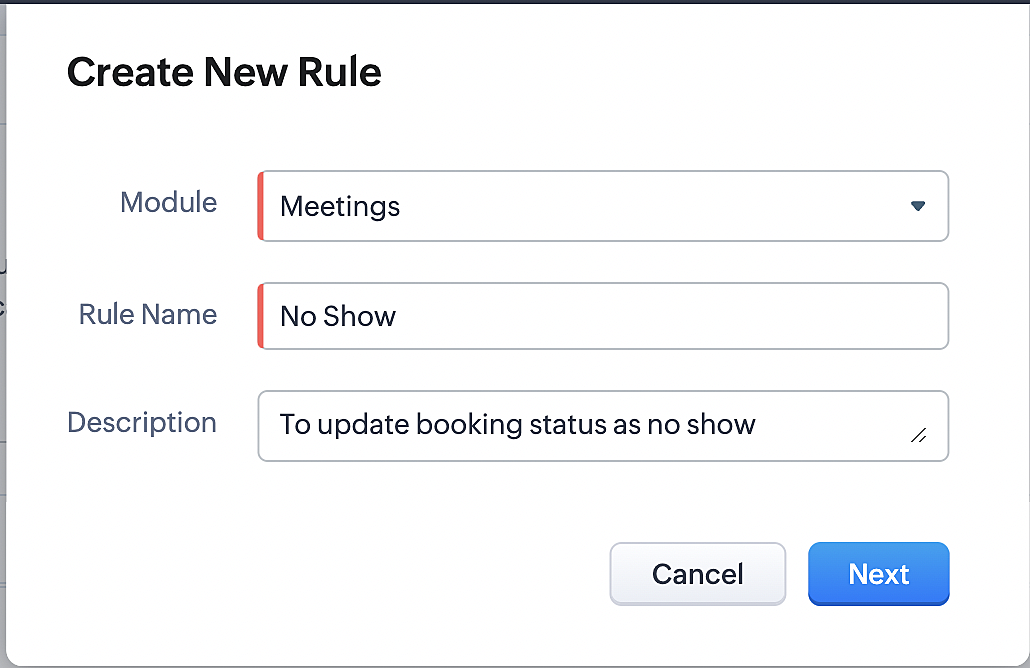
Part 4: Creating the rule
1. Go to Setup > Automation > Workflow Rules.
2. In the Workflow Rules page, click Create Rule.

3. Select Meetings under Module and configure the rule name and description as required.
Reference:
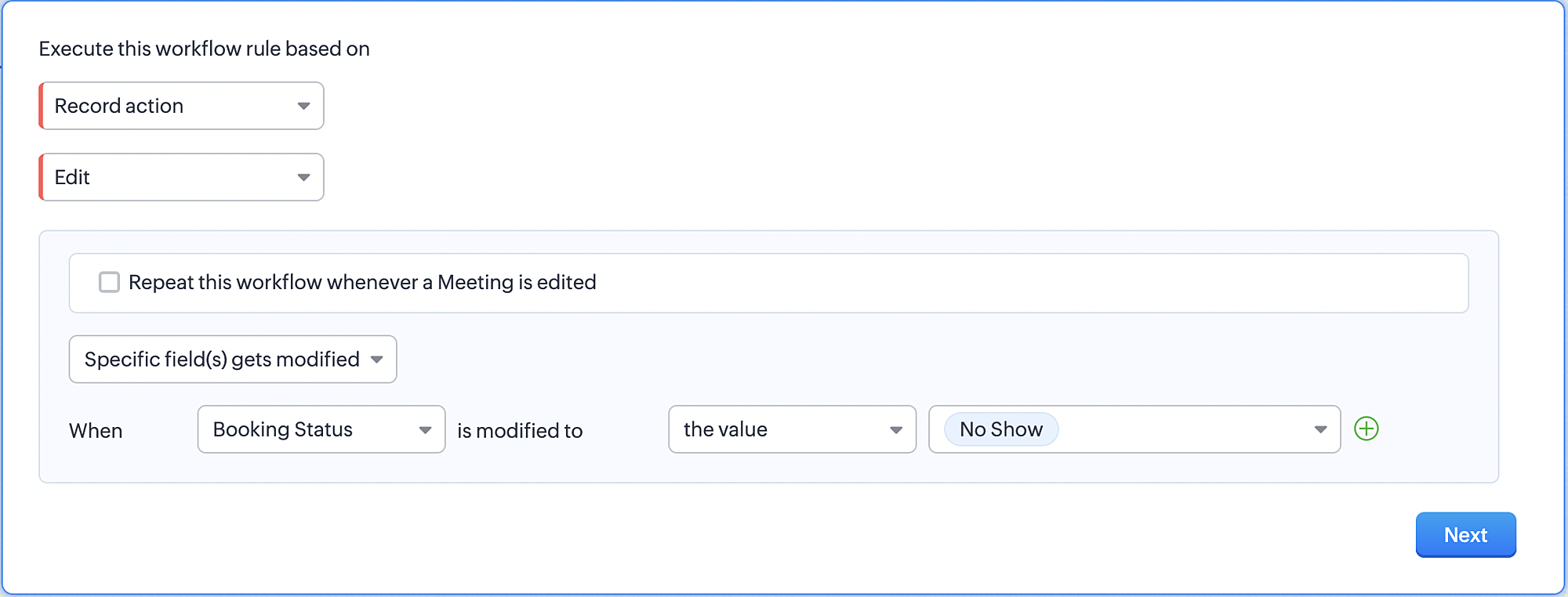
Part 5: Specifying the rule trigger
If you encounter difficulties while navigating through the steps mentioned below, please refer to Part 2 above, where we have provided step-by-step screenshots for clarification.
1. Record Action > Edit.

2. Enable the Specific field(s) gets modified and configure it per the screenshot below.
a. This is to ensure that the workflow is executed only when the booking status under the meeting module is
updated to "No Show".
updated to "No Show".
3. Configure condition > All Meetings.
4. Instant Actions > Function > New Function.
5. In the Configure custom function page, select the "no show" function you created from among the functions
users in your organization have created.
users in your organization have created.
Part 6: Argument mapping:
If you encounter difficulties while navigating through the steps mentioned below, please refer to Part 3 above, where we have provided step-by-step screenshots for clarification.
1. Press # to choose an argument value.
2. Select Meetings under Module and configure the field as "BookingId".
3. Click Save and Associate button.
Reference:
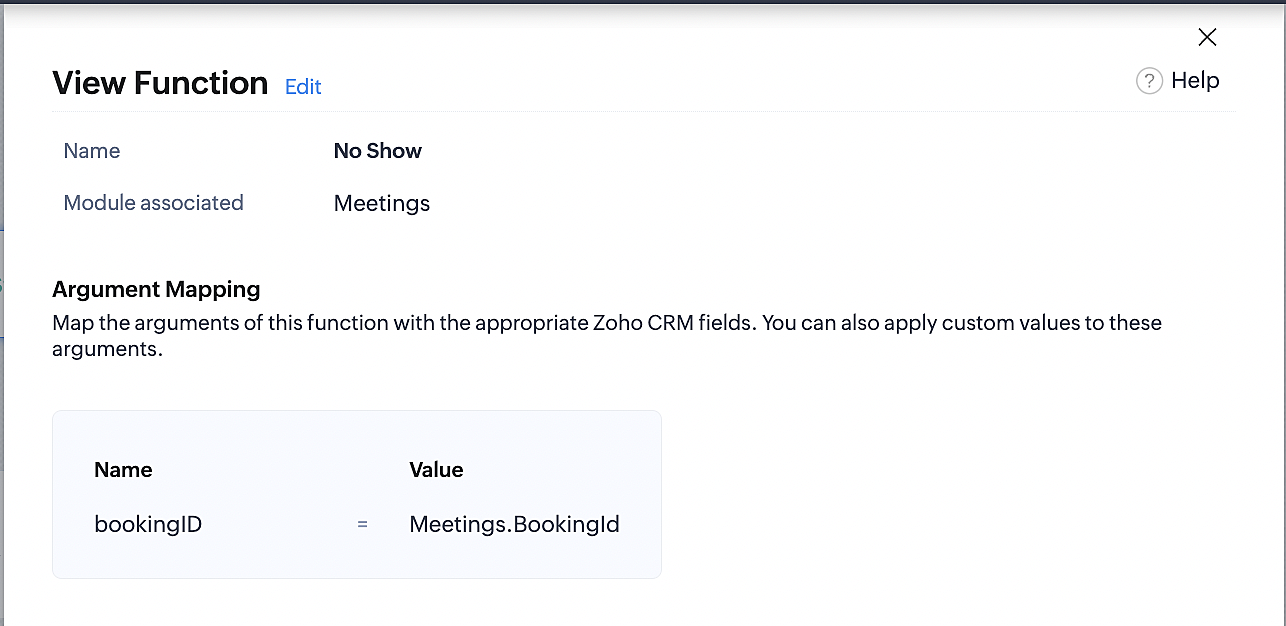
Below is the final flow of the "No Show" booking status workflow:
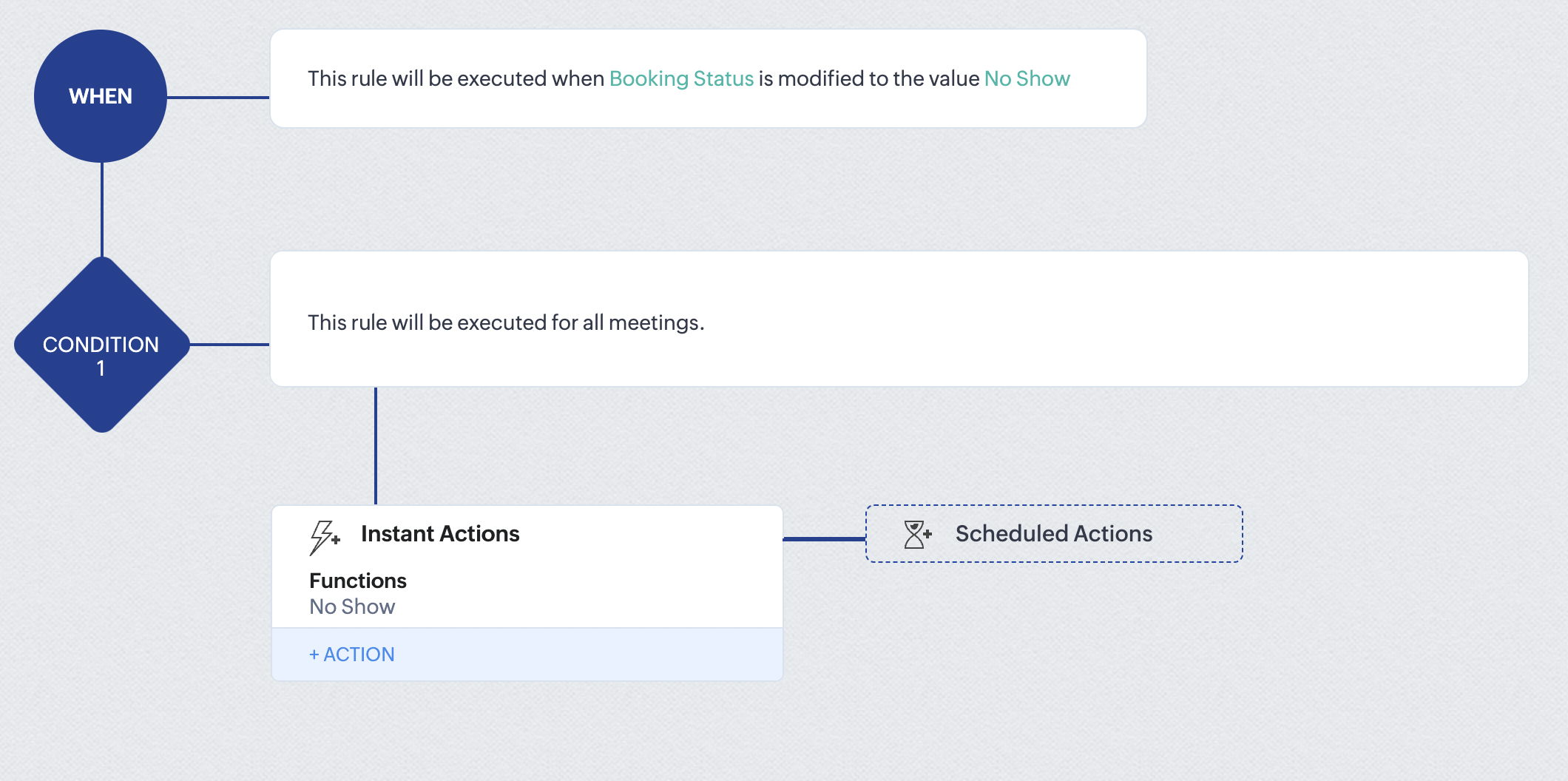
At the end of part 6, we will have created a workflow that automatically executes when the booking status field within the Zoho CRM Meetings module is updated to "No Show." This action will result in the associated bookings for that meeting also being marked as "No Show" in Zoho Bookings.
iii. Creating workflow for updating appointment status as "Completed" in Zoho Bookings when the booking status field of the meeting is marked as completed in Zoho CRM.
Part 7: Creating the rule
1. Go to Setup > Automation > Workflow Rules.
2. In the Workflow Rules page, click Create Rule.

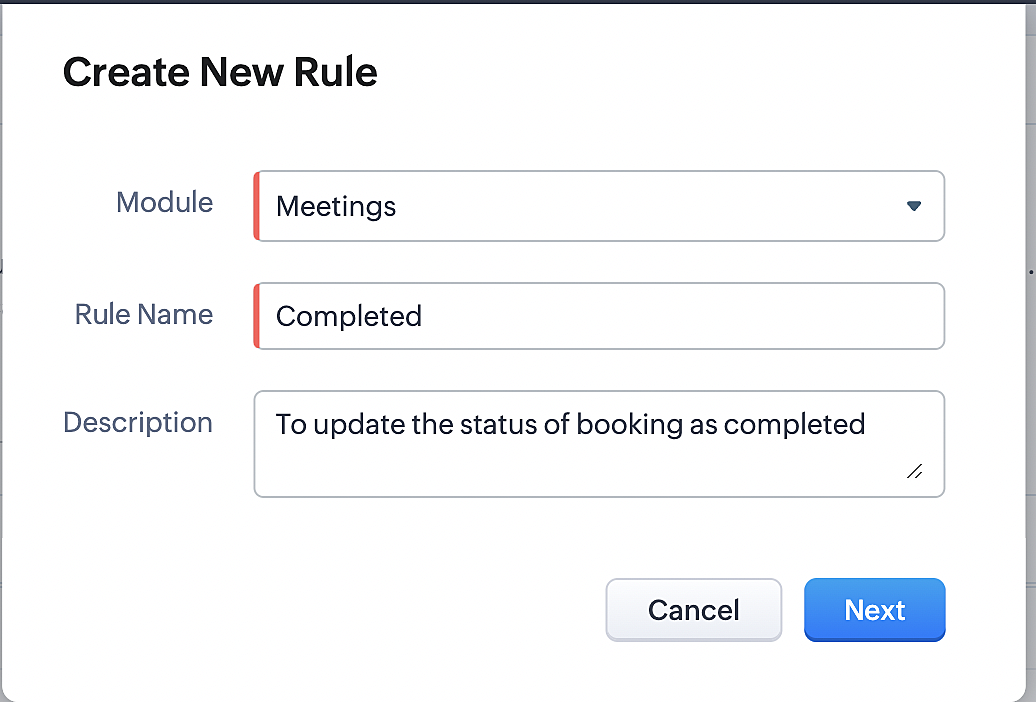
3. Select Meetings under Module and configure rule name and description as required.
Reference:
Part 8: Specifying the rule trigger
If you encounter difficulties while navigating through the steps mentioned below, please refer to Part 2 above, where we have provided step-by-step screenshots for clarification.
1. Record Action > Edit.

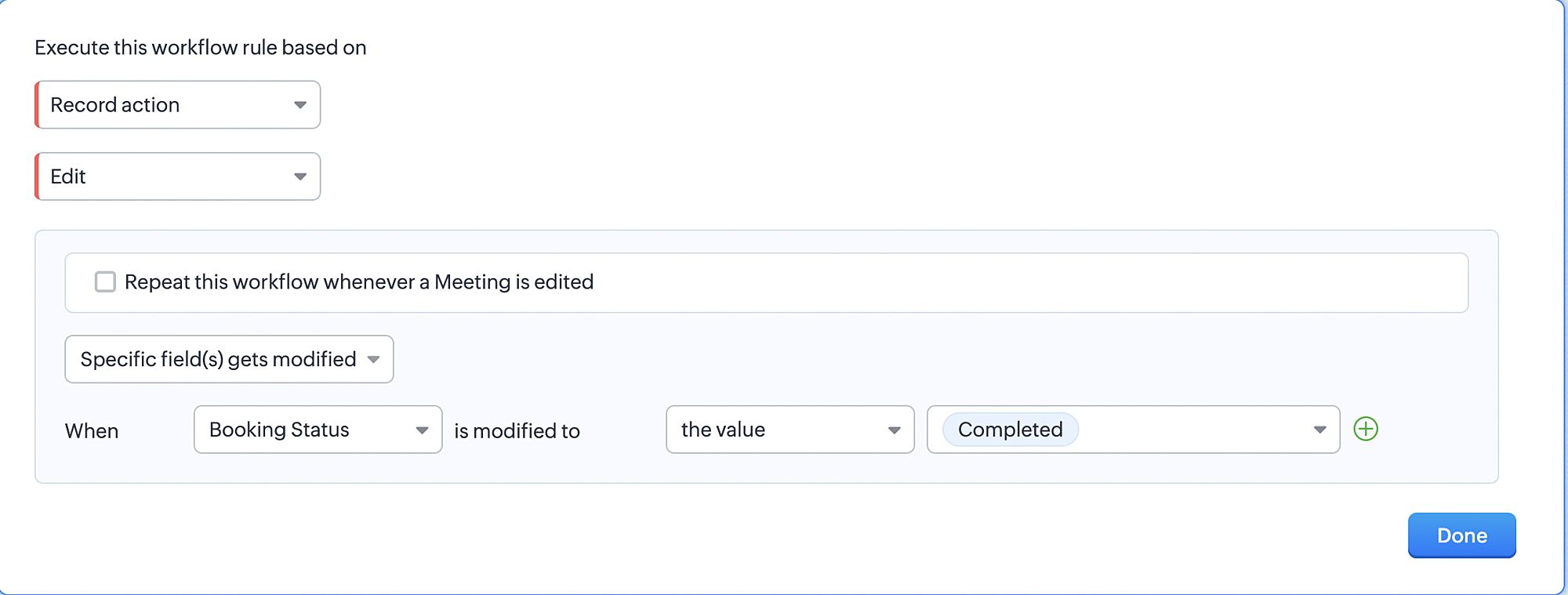
2. Enable the Specific field(s) gets modified setting and configure it per the screenshot below.
a. This serves to ensure that the workflow is executed only when the booking status under the Meetings module is
updated to "Completed".
3. Configure condition > All Meetings.
4. Instant Actions > Function > New Function.
5. In the Configure custom function page, select the "completed" function you created from among the functions users
in your organization have created.
Part 9: Argument mapping:
If you encounter difficulties while navigating through the steps mentioned below, please refer to Part 3 above, where we have provided step-by-step screenshots for clarification.
1. Press # to choose an argument value.
2. Select Meetings under Module and configure the field as "BookingId".
3. Click Save and Associate button.
Reference:
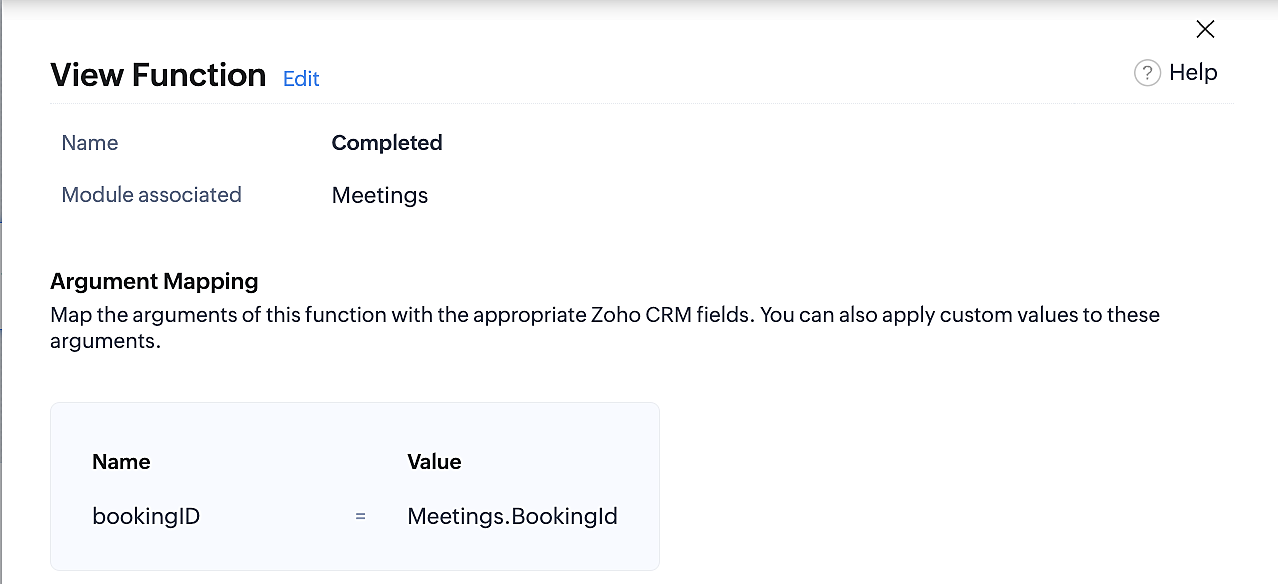
Below is the final flow of the "Completed" booking status workflow:
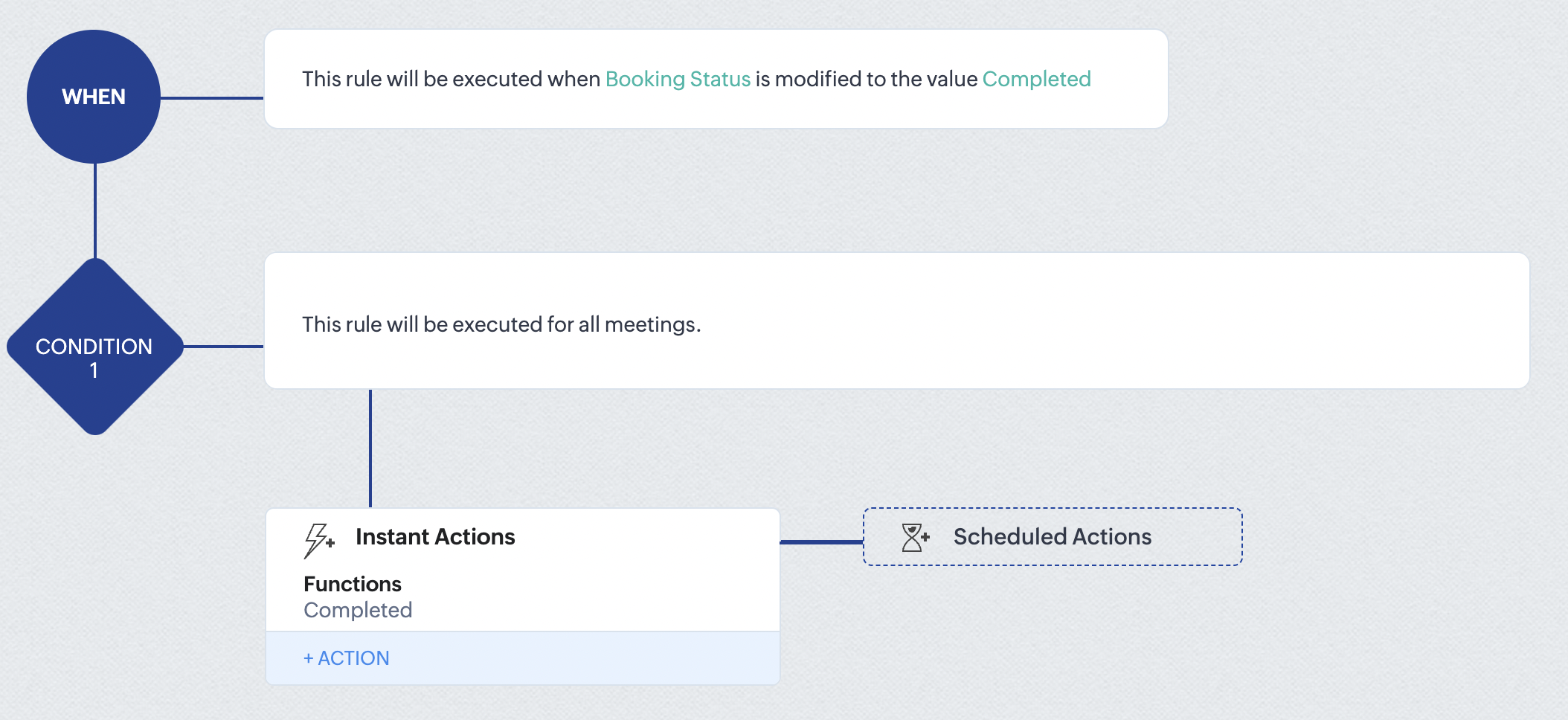
At the end of part 9, we will have created a workflow that is automatically executed when the booking status field within the Zoho CRM Meetings module is updated to "Completed." As a result, the associated bookings for that meeting will also be marked as "Completed" in Zoho Bookings.
Conclusion
We've reached the end of this community post. With the integration mentioned above in place, you'll be able to book, cancel, and update the status of appointments in Zoho Bookings directly from your Zoho CRM application. This will help you effectively manage your appointments in one place. As mentioned above, we've covered the rescheduling action in a separate post, which you can access by clicking on the following link: Reschedule Action
Furthermore, we've outlined a method for automating appointment statuses in detail. You can use this document as a reference to explore the various possibilities that suit your needs.
If you have any questions or need assistance with your configuration, please email us at hello@zohobookings.com or support@zohobookings.com.
Access your files securely from anywhere
New to Zoho Recruit?

Zoho Developer Community
New to Zoho LandingPage?
Zoho LandingPage Resources
New to Zoho Survey?
New to Zoho CRM Plus?
Deliver unforgettable customer experiences
New to Zoho CRM Plus?
Deliver unforgettable customer experiences
New to Zoho Marketing Plus?
Everything you need to run your marketing
New to Zoho Marketing Plus?
Everything you need to run your marketing
New to Bigin?





Topic Participants
Kaushik S
bruce
Ishwarya SG
PrismaNote Support
Sticky Posts
Presenting ABM for Zoho CRM: Expand and retain your customers with precision
Picture this scenario: You're a growing SaaS company ready to launch a powerful business suite, and are looking to gain traction and momentum. But as a business with a tight budget, you know acquiring new customers is slow, expensive, and often deliversGood news! Calendar in Zoho CRM gets a face lift
Dear Customers, We are delighted to unveil the revamped calendar UI in Zoho CRM. With a complete visual overhaul aligned with CRM for Everyone, the calendar now offers a more intuitive and flexible scheduling experience. What’s new? Distinguish activitiesCreate and populate a record in an instant: Introducing zero-shot field prompting to Zia's ICR
A couple of months ago, we upgraded our in-house AI image detection and validation tool, Zia Vision, with intelligent character recognition (ICR). By training Zia with sample images, you could create and enrich CRM records with data extracted from standardIn-person ZUG Meetups for Real Estate Professionals - US Q1 2026
The Real Estate Zoho User Group is going on a multi-city, in-person meetup tour across the US, and we’d love to see you there! These meetups are a great opportunity to: Connect with fellow real estate professionals using Zoho Share challenges and discoverNimble enhancements to WhatsApp for Business integration in Zoho CRM: Enjoy context and clarity in business messaging
Dear Customers, We hope you're well! WhatsApp for business is a renowned business messaging platform that takes your business closer to your customers; it gives your business the power of personalized outreach. Using the WhatsApp for Business integration
New to Zoho TeamInbox?
Zoho TeamInbox Resources
Zoho CRM Plus Resources
Zoho Books Resources
Zoho Subscriptions Resources
Zoho Projects Resources
Zoho Sprints Resources
Qntrl Resources
Zoho Creator Resources
Zoho CRM Resources
Design. Discuss. Deliver.
Zoho Show Resources

Get Started. Write Away!
Writer is a powerful online word processor, designed for collaborative work.
Zoho CRM コンテンツ
-
オンラインヘルプ
-
Webセミナー
-
機能活用動画
-
よくある質問
-
Ebook
-
-
Zoho Campaigns
- Zoho サービスのWebセミナー
その他のサービス コンテンツ
Nederlandse Hulpbronnen

ご検討中の方
Recent Topics
Why Do My Portal Users Can't See Any Data in Reports
In My zoho crm i have created a button automation which basically is it converts a quote into invoice and sales order , so initially when a person who is my app user submits a quotation form it goes into quote module and record is created and in eachIntroducing Zoho Commerce 2.0 — It's more than just selling!
Hello! We are proud to launch Zoho Commerce 2.0, a reimagination of how online businesses look, feel, and function. This launch is both timely and symbolic, as we reaffirm our commitment to empowering small and medium enterprises with powerful, yet simple-to-useIntroducing prompt builder in Zoho CRM
We’ve introduced a new way to put Zia’s generative AI to work—right where your teams need it most. With the all new prompt builder for custom buttons, you can create your own AI instructions to generate tailored content, suggestions, or summaries acrossItem Batch Creation/Updation
I have a requirement to integrate a local system with Zoho Books. I need to create items in Zoho Books with batch tracking enabled, but I couldn't find a specific API for that in the Zoho Books API documentation. Is there a dedicated API endpoint to createEducation Zoho User Group (ZUG) virtual meetup featuring Zoho Sign
Hi there! The educational sector often faces the hassle of handling extensive paperwork, which leads to increased operational costs. A digital signature solution like Zoho Sign can help you modernize your processes, go fully digital, and seamlessly collectTroubleshooting Delays in Zoho CRM Automation Workflows for Lead Status Updates
Dear Zoho Community, I am refining a sales pipeline in Zoho CRM, implemented in May 2025, to enhance efficiency for a small business managing client leads. While the CRM effectively tracks leads, I am encountering delays in automation workflows that update📣 [Webinar] Spikra shows how businesses leverage Zoho Bookings to increase revenue
[Webinar] Spikra shows how businesses leverage Zoho Bookings to increase revenue Hi all, Service-based businesses need to be on top of their client experience game to stay ahead. Spikra, one of our Advanced Zoho Partners, has been helping businesses deliverKaizen #172 - Leveraging the 'crmAPIResponse' Object in Queries
Hello everyone! Welcome back to another week of Kaizen! We released the Queries feature sometime back and hope you have tried it out. A little gist about this feature before we move on to our post. Zoho CRM's Queries feature enables dynamic data retrievaltransforming 1D tables to 2D and the other way round
Does Dataprep have tools to convert 1D tables to 2D tables and the other way round? The actions that are commonly called "pivot" and "melt". What I mean is transitioning between these two kinds of table: 2D id ____ name ____ surname ____ age 00 ____ MattHow I Migrate data from one SharePoint Tenant to another
I want to perform SharePoint tenant to tenant migration, but the problem is I don't know how to do so. I’ve heard about different SharePoint Migrator, but I’m not sure which one is the best for this type of migration. Any guidance would be really heRebrand your CRM with the all-new custom domain mapping setup
UPDATES TO THIS FEATURE! 19th Jan, 2024 — Custom domain mapping has been made available for portal users in Zoho One and CRM Plus. 23rd June, 2023 — Custom domain mapping has been made available for all users, in all DCs. Hello everyone! We are elatedauthentication
We cannot connect via IMAP. We are receiving the following error: Error: You are yet to enable IMAP for your account. Please contact your administrator (Failure)Bad User: Authenticated but not connected
Zoho CRM cannot send/receive emails and it appears as if it may be an api configuration change either via Zoho or MS. Does anyone have information on how to fix this error message? I am admin on all my accounts. Zoho and MS are blaming each other.Edit email address that appears on invoice
Hi How do I change the email address that appears on invoices, it is showing the email address that i used to sign up to zoho with but I want to change it to another email address that we use for accounts. also is there a way to edit the position of aZoho Tasks - Add Sorting by Priority
We are able to Group by and Filter by Priority but for some reason we can't Sort by Priority on the Task lists. Please allow for sorting by priority if the current view is not grouped by priority.Zoho People > Candidate Form > error Editable Primary Lookup is needed to set add permission
Hello All I have try to turn on the add feature in the candidate form It show the error Editable Primary Lookup is needed to set add permission What is missing from my side?6 time-saving tips for working with tables in Zoho Writer
Tables have always been the best way to represent data. They help you structure and categorize information systematically and present them in a simpler way. While tables in Zoho Writer are easy to implement, some tasks might not be that obvious. Here are some time-saving tips to help you work better with tables in Zoho Writer: 1. Insert Multiple Rows / Columns in a Table Adding more rows and columns is the most common action performed while working with tables. Instead of using the Table tab,Add Built-in "Partner Finder" / "Contractor Directory" Tab to Zoho Desk Help
Hi Zoho Team, We hope you're doing well. We would like to request a new feature for the Zoho Desk Help Center: A built-in, configurable "Partner Finder" / "Contractor Directory" tab or section, similar in concept to your own Zoho Partner Finder at: 🔗Can't get sender adress to work
Hi, I am having some trouble getting the sender adress to work for responses on tickets. I would like to configure a sender adress that is different from the zohodesk emailadress that is normally used. These are the steps I have followed: 1. Add a newQuestion Regarding Deleted Reports in Zoho Desk Analytics
Dear Zoho Desk Support Team, I hope this message finds you well. We have a question regarding the Analytics module in Zoho Desk, specifically related to deleted reports/dashboards. We would like to understand the following: Is there a recycle bin, recoveryAdd an option to start zobot when user clicks the Chat with Us button
I would like to have an option to start the zobot when user clicks on "Chat with us" button when chat widget is maximized that way visitors could see first the homepage and decide which channel they would like to use to connect, or to see the quicke helpZoho Books - Feature Request - Provide "Show PDF View" toggle on Invoice records
I have noticed it is possible to activate or deactivate the PDF preview on some records but not all. This would be very helpful on Invoices when a custom template is being used and the PDF preview does not represent the output file. Not available on:Incorrect Handling of XLSX data
Trying to import an XLSX schedule of bills into Zoho Books I ran across the problem of date formatting. To replicate: Build a CSV file with bill dates in whatever format you like and import it - this should work if you match the "dd/MM/yyy" etc. formatDisable Smart Filters By Default
The smart filters "feature" is causing confusion for Zoho Mail users. New emails should be delivered to the inbox unless they have specifically opted to redirect them somewhere else. People don't understand that new emails might be waiting in a randomAdding Columns to Reports
Hi, Is it possible to choose fields to be added as columns in the reports? Thank you.How do I automatically assign the project owner for all tasks in Zoho Projects?
I have been researching for days on how to automatically assign all the tasks to the project owner on creation of the project in Zoho Projects. I have been having to go in and manually change all the task owner from 'unassigned' to the owner of the projectCRM Kiosk - Action for GetRecords
I have a Kiosk screen with GetRecords and want to use the selected records in a custom function. My particular case is to set a lookup value on the selected records. Generally speaking though, I want to work with the selected records in a function. IEmail for customer to provide payment information
Is there a way for customers when you set up a subscription to get an email that prompts them to put in their billing information to start their subscription? Also, can you show the subscription in their portal?Unable to display field label from a hidden Single Line Textbox in Description
Hi folks, I'm unable to display my hidden field, e.g. ${zf:SingleLine4} , in my description. I'm pre-filling this hidden Single Line Text box via "Field Alias - Pre-fill URL" settings. I noticed that my decimal form fields work, e.g. ${zf:Decimal}, andLookup fields
Is there any way to add Lookup fields to Zoho FSM -- I do not see the option but I see default lookup fields in different modulesZoho Analytics - Bill Table
Hi I am new to Zoho and mainly work in Books. Recently learned of Zoho Analytics and am exploring it to create reports that would be useful for me. For example, I want to create a bills cash forecast by week for cash flow planning. When I start to createCreating a tax - amount table in Analytics
Hi everyone, I would like to create a report in Zoho Anayltics that creates the tax and amounts in a table. I have been able to create a report that shows me all the tax accounts, but I can't get it combined with the amounts of the accounts. Is thereIs it possible to do custom domains on test accounts that use saml setups?
In Zoho Billing, Is it possible to do custom domains on test accounts that use saml setups for the customer portal?I’m facing an issue while trying to upload a PDF file to a custom file upload field within the Leads module via the Zoho CRM API.
Hi Zoho Team, I’m facing an issue while trying to upload a PDF file to a custom file upload field within the Leads module via the Zoho CRM API. I am able to manually upload a PDF into this field through the UI. I am also able to upload files as attachmentsNo chat option
Chat option is not available in Android app.How to add custom templates in zoho sheets mobile
How can I add custom templates in Zoho spreadsheet mobile?Order Items
Hi .. We have to implement orders with line but each line should have a separate record and not as a subform, does anyone have experience with that kind of solution what is the best practice for that kind of thing ThanksTrello: Invalid Client - Client ID passed does not exist
Hello, I am trying to authorize the Zoho CRM power-up in Trello but always land on the following page: I tried adding a trello client to the Zoho API console but this generated a different client ID to the one in the link of the page in the above picture.Zoho Sprints - Q2 updates for 2025
Hello everyone! We’re excited to share the latest updates from Zoho Sprints for Q2 2025! This quarter, we rolled out a few highly-requested features designed to enhance collaboration and time management across your projects. Here's a look back at theCRM Email Insights Not Working - Status not Changing
I used to be able to see if a customer opened/read an email in CRM, but I no longer get those status changes inside their record. I have everything enabled and I am sending the email from CRM. The experience center has the status' enabled as well. AnyNext Page