Extension pointers #14: Extend end-user benefits and allow personalization by implementing extensions with custom actions
From our earlier post on custom actions, we know that we can create templated actions, share them with end users, and allow them to reuse those actions to achieve personalized outcomes. In this post, we'll look at how custom actions make it easy for users to carry out these templated tasks to get customized results.
Consider the following scenario: a hardware company that already uses Zoho CRM then utilizes Zoho Projects to implement and work on the deals they've won. Assume that the Zoho Projects portal has two projects: one for handling smaller revenue deals that require minimum development and less time, and the other for managing larger revenue dealsthat will eventually demand more time and resources for execution.
As an end user processing deals in Zoho CRM, it would be extremely convenient for the company to have the deals automatically fall into the appropriate projects, such as a task based on the expected revenue. Furthermore, it would be ideal to send emails to the customer with whom they have made the deal to request anything needed from their end in order to move forward with the implementation of the deal. Let's see how we can achieve this with the help of custom actions.
We have detailed posts on the steps to create a custom action along with a live example. Now, let's reiterate and go over the steps to achieving the above use case.
Developer activities
1. Create a connector for Zoho Projects.
2. Create a custom user interface (widget-connected app) that allows the user to select the project where the deal should be created as a task, as well as add the personalized email subject and body that will be sent to the user.
3. Create a custom action in the Zoho Developer console.
- Associate the custom user interface to the custom action.
- Define an action that creates a task in the selected project and also sends an email to the customer based on the values entered by the end user in the custom UI.
Extension/end-user activities
4. Create workflows as an end-user (i.e., set criteria on expected revenue; provide personalized values for email subject and body, and choose the project in which the deal fulfilling the set criteria should be created as a task) and assign a custom action to them.
Developer activities
1. Creating a connector
- Create a new connector in your extension for Zoho Projects using the Connectors feature under Utilities in the left panel of the Zoho Developer console.
Note: Zoho Projects follows the OAuth 2.0 protocol for its authentication mechanism. You can refer to this post to learn more about the steps to register Zoho Projects and retrieve your client credentials.
- Add the necessary connector APIs for your functionality.
- The Zoho Projects REST APIs added for our example are mentioned below.
Connector API Name | Method type | URL |
Get Projects | GET | https://projectsapi.zoho.com/restapi/portal/${portalid}/projects/ |
Create project task | POST | https://projectsapi.zoho.com/restapi/portal/${portalid}/projects/${projectid}/tasks/?name=${name}&description=${description} |
2. Create a custom user interface:
1. Create a custom user interface that allows the end user to select the project in which they want to create the deal as a task, as well as enter the email subject and body that should be sent to the contact associated with the deal.
2. You can find the HTML code for the custom UI as an attachment to the post.
- In the HTML code, we have two text fields to get the user inputs for the email subject and body.
- We have also invoked the connector API to get projects from a portal. The response is then populated and displayed as a dropdown list to allow the user to select the project in which they want the deal to be created as a task.
- In the HTML code snippet, we have hard coded a static value for the Zoho Projects portal.
Note: Depending on your business use case requirements, you can create custom variables to prompt the user to input their Zoho Project portal ID, or you can create a setting widget that displays the user's portals, allowing the user to choose the portal in which they want to have the deals created as tasks as well.
- ZOHO.CRM.ACTION.setConfig - In this example, we have utilized the setConfig method. This method can be used to set values to variables which can be retrieved later through the widget's page load response.
➤ For our example, we have used the setConfig method to set various Zoho CRM deal and email (subject and body) user input values to variables. We have later obtained these saved values through the widget's page load response, which contains a configdata key with these set data as its values.➤ Sample page load response when ZOHO.CRM.ACTION.setConfig is used in our example:
"module": "Deals", "configdata": { DealTest: "Sample Digital Marketing Project" Dealdescription: "${!Deals.Description}" Dealname: "${!Deals.Deal_Name}" Message: "Sample Message" Subject: "Deal Won!" To: "${!Deals.Contact_Name.Email}" |
➤ We have then used the preset saved values available in the configdata key to prepopulate the widget UI every time it loads.
3. Create a custom action
- Go to the Zoho Developer console and select the extension in which you want to create the custom action.
- Create a custom action by navigating through Automate - > Custom Actions, under the Build section in the left panel. Click Create Action.
- Enter the Custom Action Name and Description. Click Next.
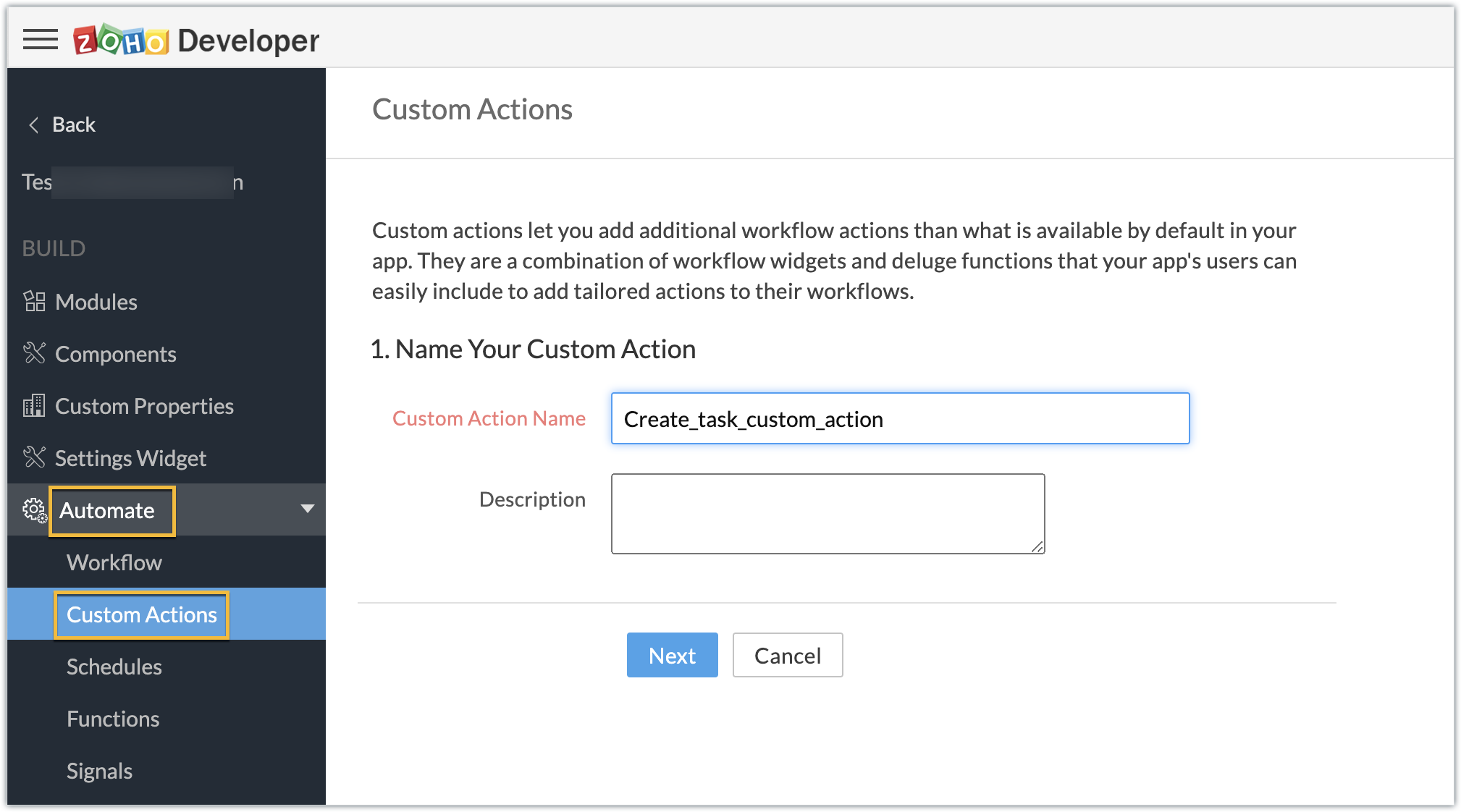
- Provide the location of the html file (widget UI) to complete the resource path. Click Next, then click Create Function.
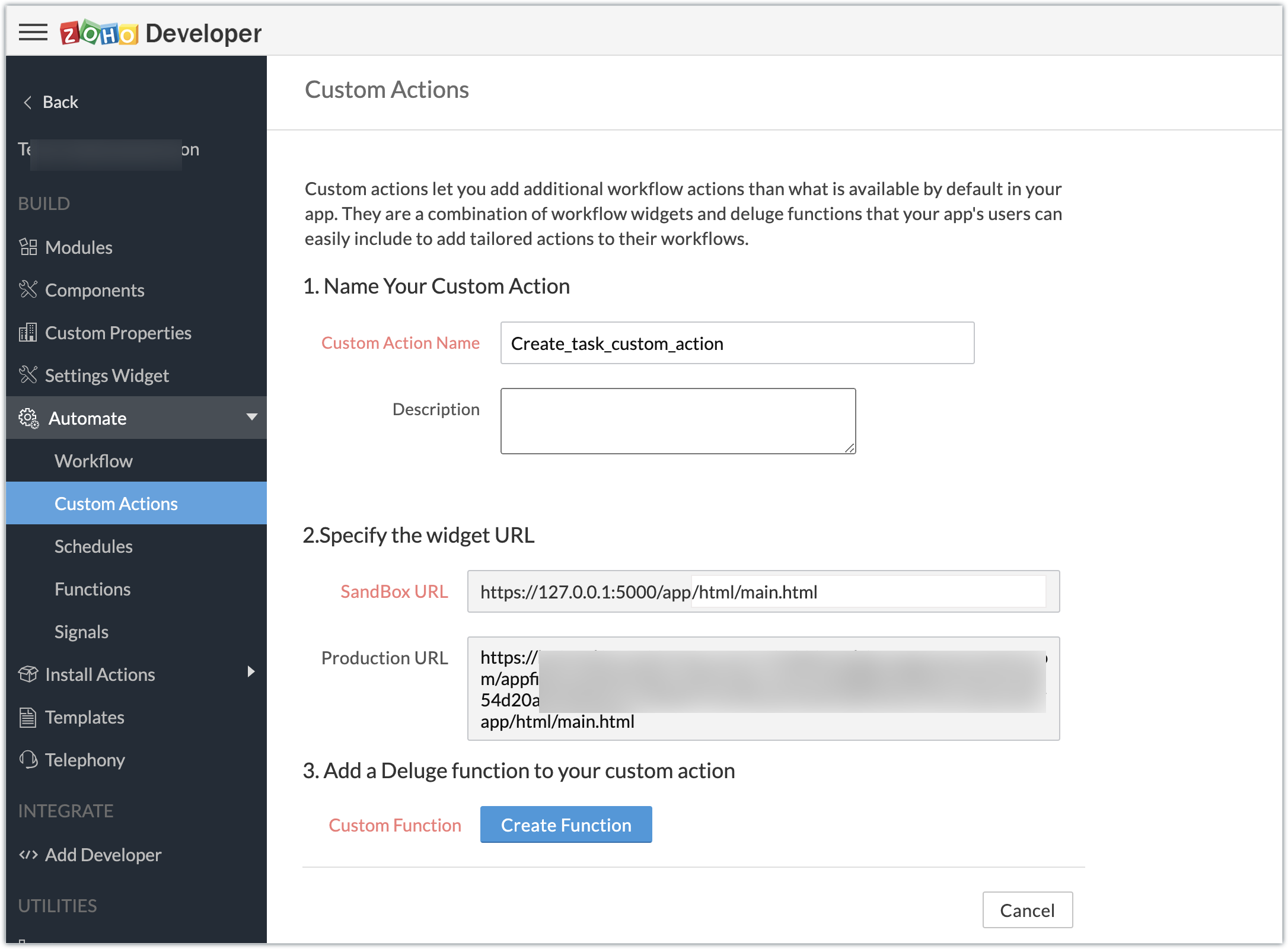
- Enter the Deluge function to perform our use case functionality.
- Click Save & Close, then click Save.
Deluge function code snippet:
dynamic_map = Map(); dynamic_map.put("portalid","xxxxxx"); dynamic_map.put("projectid",input.config.get("Dealproject")); dynamic_map.put("name",input.config.get("Dealname")); dynamic_map.put("description",input.config.get("Dealdescription")); response = zoho.crm.invokeConnector("xxxxx.zohoprojects.createprojecttask",dynamic_map); sendmail [ from :zoho.adminuserid to :input.config.get("To") subject :input.config.get("Subject") message :input.config.get("Message") ] |
- In the above Deluge code, we have performed the functionality of creating the deal as a task in Projects and sending an email to the deal's contact with the input provided by the end user in their CRM account while associating the custom action to a workflow.
Custom action in effect (End-user):
Create workflows:
- As an end user who has the extension which features the custom action installed in the Zoho CRM account, go ahead and create workflows to define criteria and associate the custom action.
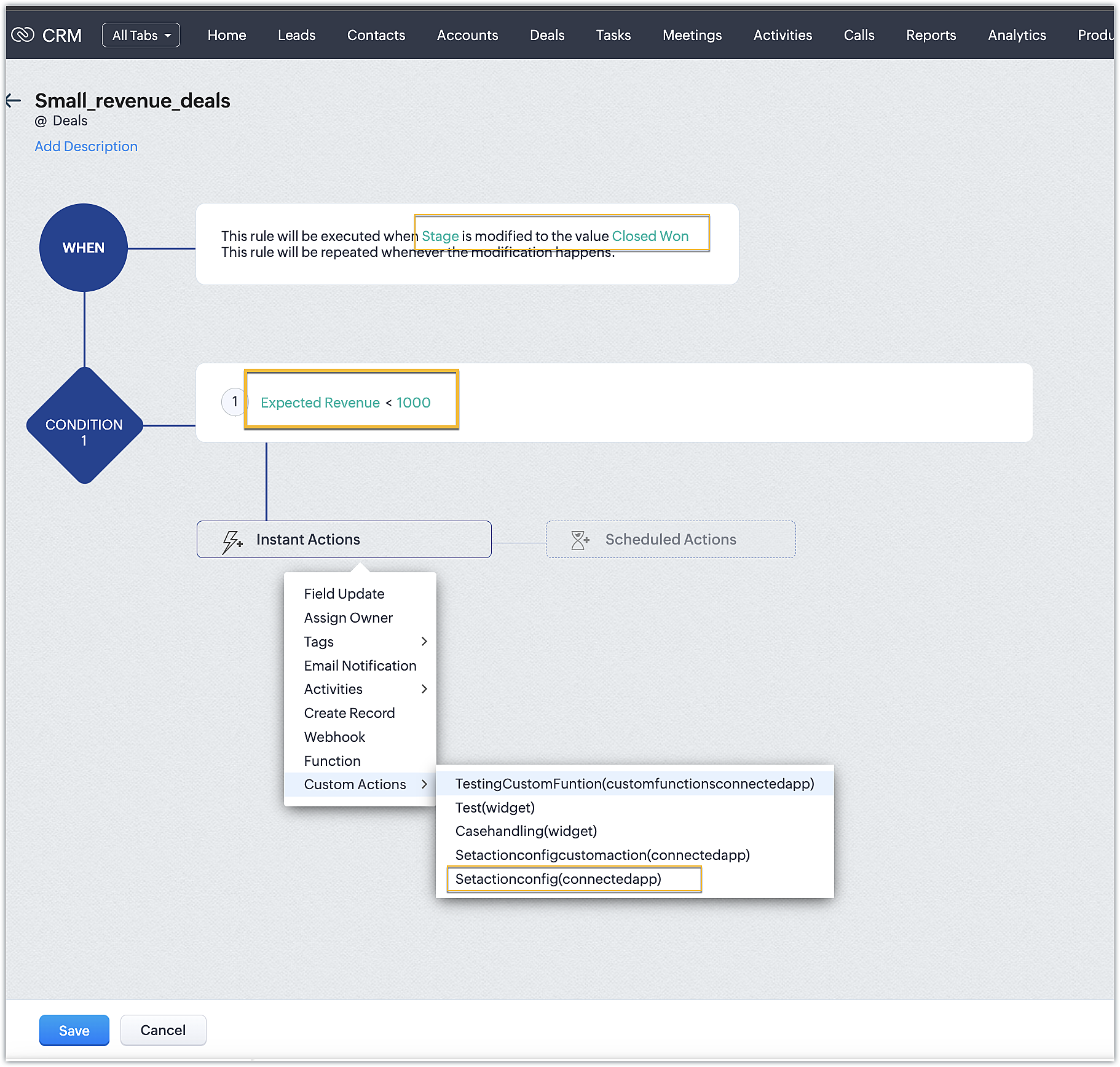
- In our case, we have two workflows:
➤ One for smaller deals where the expected revenue is less than 1000 USD
➤ One for larger deals where the expected revenue is greater than or equal to 1000USD
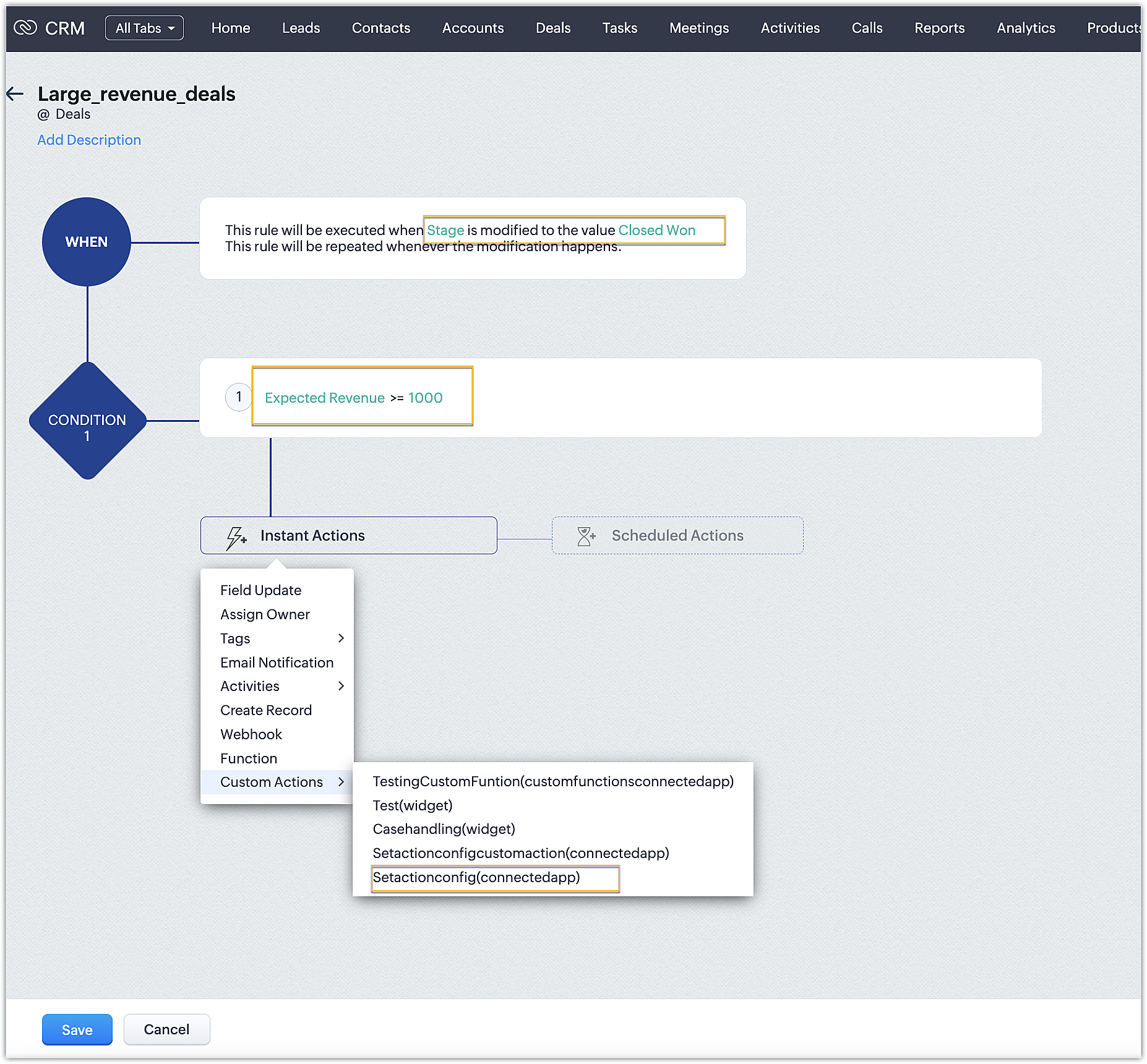
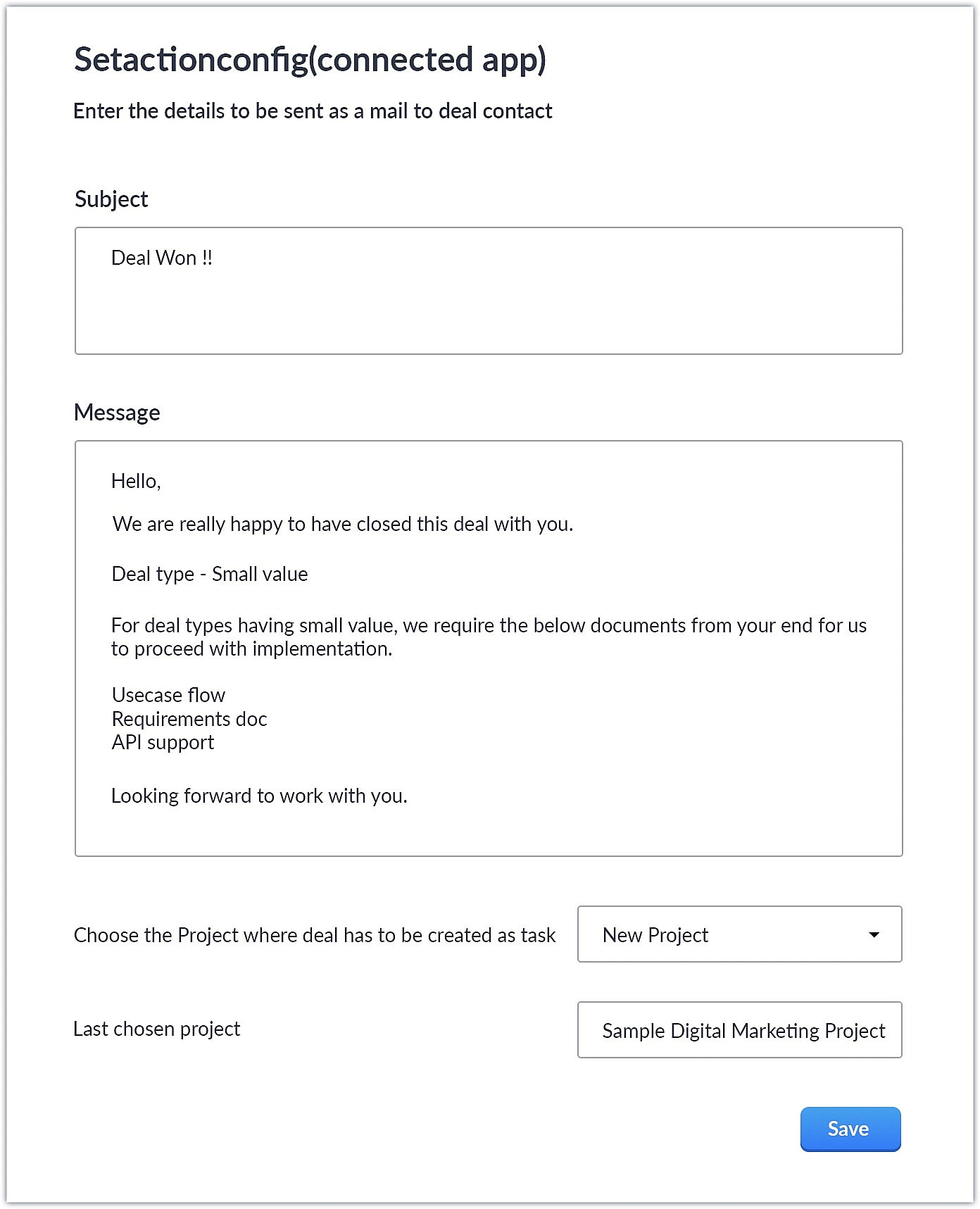
- Upon choosing the custom action, the custom UI appears where-in you can provide user specific input for email body and subject and also choose the project where you want deal to be created as a task in Zoho Projects.
Smaller revenue deals:
Larger revenue deals:
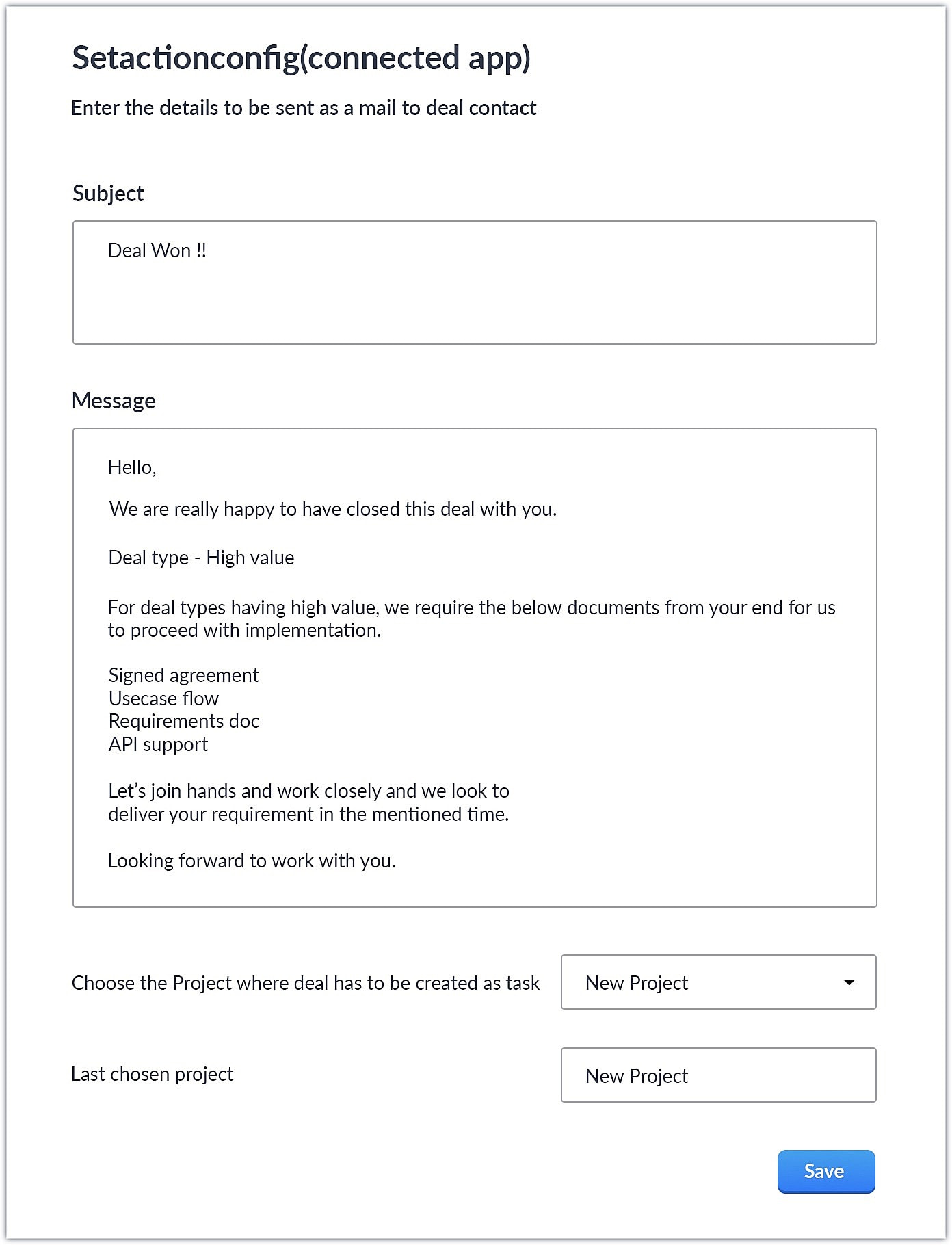
- When a deal with the necessary criteria is satisfied, an email is sent out to the deal's contact with the subject and body provided by the end user. A task is also created in Zoho Projects with some specific deal details.
This is one business case where you can use custom action. As a parallel use case to the above example itself, say you have multiple projects in Zoho Projects, each used to work on different case categories (bugs, issues, feature request, etc.). You could develop the same kind of template and allow end users to configure the criteria and outcomes accordingly.
You could also use custom actions feature to perform templated actions to obtain personalized outcomes depending on your business needs. We hope you found this information helpful. Keep following this space for more information!
SEE ALSO:
Access your files securely from anywhere
Centralize Knowledge. Transform Learning.
All-in-one knowledge management and training platform for your employees and customers.
New to Zoho Recruit?

Zoho Developer Community
New to Zoho LandingPage?
Zoho LandingPage Resources
New to Zoho Survey?
New to Zoho CRM Plus?
Deliver unforgettable customer experiences
New to Zoho CRM Plus?
Deliver unforgettable customer experiences
New to Zoho Marketing Plus?
Everything you need to run your marketing
New to Zoho Marketing Plus?
Everything you need to run your marketing
New to Bigin?





Topic Participants
Nanditha Somasundaram Somasundaram
Sticky Posts
Kaizen #198: Using Client Script for Custom Validation in Blueprint
Nearing 200th Kaizen Post – 1 More to the Big Two-Oh-Oh! Do you have any questions, suggestions, or topics you would like us to cover in future posts? Your insights and suggestions help us shape future content and make this series better for everyone.Kaizen #226: Using ZRC in Client Script
Hello everyone! Welcome to another week of Kaizen. In today's post, lets see what is ZRC (Zoho Request Client) and how we can use ZRC methods in Client Script to get inputs from a Salesperson and update the Lead status with a single button click. In thisKaizen #222 - Client Script Support for Notes Related List
Hello everyone! Welcome to another week of Kaizen. The final Kaizen post of the year 2025 is here! With the new Client Script support for the Notes Related List, you can validate, enrich, and manage notes across modules. In this post, we’ll explore howKaizen #217 - Actions APIs : Tasks
Welcome to another week of Kaizen! In last week's post we discussed Email Notifications APIs which act as the link between your Workflow automations and you. We have discussed how Zylker Cloud Services uses Email Notifications API in their custom dashboard.Kaizen #216 - Actions APIs : Email Notifications
Welcome to another week of Kaizen! For the last three weeks, we have been discussing Zylker's workflows. We successfully updated a dormant workflow, built a new one from the ground up and more. But our work is not finished—these automated processes are
New to Zoho TeamInbox?
Zoho TeamInbox Resources
Zoho CRM Plus Resources
Zoho Books Resources
Zoho Subscriptions Resources
Zoho Projects Resources
Zoho Sprints Resources
Qntrl Resources
Zoho Creator Resources
Zoho CRM Resources
Design. Discuss. Deliver.
Zoho Show Resources

Get Started. Write Away!
Writer is a powerful online word processor, designed for collaborative work.
Zoho CRM コンテンツ
-
オンラインヘルプ
-
Webセミナー
-
機能活用動画
-
よくある質問
-
Ebook
-
-
Zoho Campaigns
- Zoho サービスのWebセミナー
その他のサービス コンテンツ
Nederlandse Hulpbronnen

ご検討中の方
Recent Topics
How to Avoid Impacting Other Users When Hiding Columns in Zoho Sheet
Hi Team, We’re experiencing a challenge with the column-hiding feature on Zoho Sheet during collaborative sessions. When one user hides a column, it becomes hidden for all users working on the file, which disrupts others' workflows. In comparison, ExcelWhat are the benefits of procurement software in a growing business setup?
I’ve been exploring tools that can help automate purchasing and vendor-related tasks. I keep hearing about the benefits of procurement software, especially for businesses that are scaling. I want to understand how it helps in streamlining operations,What formula to use in computing total hrs and decimal hrss
So , my data includes log im column , 2 breaks with 2 columns that says back and lunch and 1 column that says back and logged out. What formula should i use to be able to automatically have my total hours as I input time in each column? ThankyouReplacing email ID,
In zoho sheets If I am sending it as an email attachments can I replace sender email ID from notifications to my email ID.Latest Enhancements and Bug Fixes in Zoho Meeting
Hello there, We hope you're doing well. The latest updates from Zoho Meeting include enhancements like adding names for instant meetings, renaming participants, enabling text notifications for participant entry/exit, viewing details of bandwidth optimization,Multi-video feed in webinars, custom domain options, and our integration with MS Outlook
Hi there, We hope you're doing well. With your help, we have been able to release many useful features and enhancements in 2020. We, the Zoho Meeting team, would like to thank you all for the feedback, support, and encouragement you've given as we workedAdd co-hosts in meetings, manage webinar registration and other enhancements
Hello all, This month's updates allow you to add co-hosts while scheduling meetings. You can also control your webinar registrations better by allowing or blocking registrations from the domain or country of your choice. Read on to learn more. MeetingA new UI for distraction-free engagement in online meetings and webinars that scale up for 3000 attendees
Hello all, We're excited to share our new, refined UI for online meetings. Here's how the new UI will improve your experience during online meetings: We've re-designed Zoho Meeting's online meeting UI to enable users to fully engage in conversationsI Can't Clone Webinar that I Co-Organize
How do i get our account admin to give me permission to clone our webinars? I am a co-organizerLatest updates in Zoho Meeting | Calendar view, Zia integration with OpenAI, edit the recurring pattern in a recurring meeting, device error notifications revamp, and more.
Hello everyone, We’re glad to share a few updates and enhancements in Zoho Meeting, including the Calendar view, being able to edit the recurring pattern in a recurring meeting, revamped device error notifications, and other enhancements that you’ll findNew enhancements in the latest version of the Zoho Meeting Android mobile app.
Hello all, In the latest version of Zoho meeting Android mobile app (v2.2.6), we have brought in support for the below enhancements. Close account: Now users will be able to close their Zoho account directly from the app. Unmute toast message: If a userShare material, Lock Meeting and revamped feedback UI in the latest version of the Meeting iOS app.
Hello all, In the latest version of the Zoho Meeting iOS mobile app (v1.6), we have brought in the below enhancements. Share material in meeting: We have introduced share material during meeting that allows participants to view supported materials suchLatest updates in Zoho Meeting | New chat feature between an organizer and co-organizer in webinars, recording consent for webinar co-organizers and attendees in the Android app, and more.
Hello everyone, We’re excited to share a few updates for Zoho Meeting. Here's what we've been working on lately: A new chat feature between an organizer and co-organizer in webinars, recording consent for webinar co-organizers and attendees in the AndroidLatest updates in Zoho Meeting | A new Files tab to manage all your PDFs, PPTs, Video files and recordings, live transcription , ability to lock settings and adaptive echo cancellation.
Hello everyone, We’re excited to share a few updates for Zoho Meeting. Here's what we've been working on lately: A new Files tab to manage all your PDFs, PPTs, Video files and recordings, live transcription during sessions, ability to lock settings andLatest updates in Zoho Meeting | Meeting Rooms , Pin video feeds and customize from and reply-to email addresses
Hello everyone, We’re excited to share a few updates for Zoho Meeting. Here's what we've been working on lately: Introducing Zoho Meeting Rooms, an immersive solution for teams to connect over virtual meetings in video conference rooms. You can also pinLatest updates in Zoho Meeting | New top bar video layout, a revamp of our in-session settings and now import webinar registrations with a CSV file
Hello everyone, We’re excited to share a few updates for Zoho Meeting. Here's are some of them : We have moved audio, video, virtual background and preferences under a single settings pop-up for better user navigation. You can now upload a CSV file containingImportant update: Changes in email sender policies
Hello, This is to announce important changes to email sender policies from Google that may impact your use of Zoho Meeting. Restriction on public domains Effective February 1, 2024, Google is implementing policies that will affect the configuration ofChat for webinar session, schedule meeting session for 24 hours - Zoho Meeting iOS app update
Hello, everyone! In the most recent iOS version of the Zoho Meeting app, we have introduced the chat functionality for the webinar session. To access this feature, the Organizer should have the 'Public chat' option enabled on the Zoho Meeting desktopInvoice Copy 2005116990189
Please provide the invoice for the trancaction 2005116990189Darshan Hiranandani About
Hi, I’m Darshan Hiranandani, a dedicated software developer with a strong passion for creating efficient and user-friendly applications. With a degree in Computer Science and several years of experience in the tech industry, I specialize in full-stackLatest update in Zoho Meeting | On-demand webinars
Hello everyone, We’re excited to introduce our new on-demand webinar feature, you can now provide pre-recorded sessions that your audience can access immediately, no need to wait for scheduled sessions. Benefits of On-demand webinars : Scheduling flexibilityZoho Meeting iOS app update - Join breakout rooms, access polls, paste links and join sessions, in session host controls
Hello, everyone! In the latest iOS version(v1.7) of the Zoho Meeting app, we have brought in support for the following features: Polls in meeting session Join Breakout rooms Paste link in join meeting screen Foreign time zone in the meeting details screen.Zoho Meeting app update.
Hello, everyone! In the latest Android (v2.3.7) and iOS (v1.7.1) versions of the Zoho Meeting app, we have brought in support for the following features: Report Abuse option. WorkDrive integration. Report Abuse option You can now report to us any deceptiveZoho Meeting Android app update - v2.4.0
Hello everyone! We are excited to announce that we have brought in support for the following features in the latest version of the Zoho Meeting Android app(v2.4.0): 1. Start Personal Meeting Rooms 2. Revamp of the schedule meeting screen and meeting detailsIntroducing Zoho Desk integration and a few minor enhancements
Zoho Desk Integration We've now introduced an integration between Zoho Meeting and Zoho Desk to efficiently manage meeting-related customer inquiries. With this integration, you can track, respond to, and resolve meeting-related tickets directly fromZoho Meeting iOS app update: Hearing aid, bluetooth car audio and AirPlay audio support.
Hello everyone! We are excited to announce the below new features in the latest iOS update(v1.7.4) of the Zoho Meeting app: 1. Hearing aid support: Hearing aid support has been integrated into the application. 2. Bluetooth car Audio, AirPlay audio support:Zoho Meeting Android app update: Breakout rooms, noise cancellation
Hello everyone! In the latest version(v2.6.1) of the Zoho Meeting app update, we have brought in support for the following features: 1. Join Breakout rooms. 2. Noise cancellation Join Breakout rooms. Breakout Rooms are virtual rooms created within a meetingiOS 12 update: Introducing autofill passwords and Siri Shortcuts in Zoho Vault
With this iOS 12 release, Zoho Vault users can now autofill usernames and passwords on Safari and other third-party apps. Users can enjoy a seamless login experience to their everyday apps without compromising security and also access passwords stored in Zoho vault with Siri Shortcuts by adding personalized phrases. How to enable autofill password on your iOS device? First, you need to update your device to iOS 12. Apple recommends you to take a backup before you update your device to the latestZoho Vault: A look at what's new for iOS, iPadOS, and macOS
Hi everyone, At Zoho Vault, we constantly aim to improve your security experience. Based on both internal and external feedback, we have recently rolled out updates across our iOS, iPadOS, and support for macOS platforms. Introducing the desktop app forBiometric Access Support on Zoho Vault Desktop App
Is there any plans to add biometric authentication (fingerprint, face recognition) for Vault desktop apps (Windows/macOS) to enhance security and ease of access. I would love to hear other members view on thisFree webinar: Learn the benefits of migrating to Zoho Vault's new interface
With remote work becoming more and more common across the globe, productivity and time management are now pivotal concerns for every organization. With the number of business applications employed by companies constantly increasing, a password manager like Zoho Vault saves a lot of productive hours for your team. Vault's new interface has been carefully designed to address these pressing needs, helping users increase their productivity while improving their overall online experience. This July,Free Webinar: An exclusive live Q&A session with the Zoho Vault team
As 2020 draws to an end, we're closing out a year that has seen drastic changes all around the world. Many businesses have adopted cloud solutions and a remote work culture for the first time, and this has given rise to newer cyber risks and threats thatWhy passwordless authentication should be your top security project for 2021
Hello users! We know that nobody likes to remember passwords, yet they form an indispensable part of our lives. Many of us working with any kind of technology today manage numerous passwords for personal and business accounts. With the widespread adoptionFree Webinar: See why Zoho Vault is the best alternative to LastPass
When LastPass was acquired by LogMeIn in Oct 2015, we expressed our genuine concern about how this would change the LastPass business model and how customer trust would transfer from one company to another. As we suspected, LastPass doubled their pricingManaging cyber threats when working remotely | A Customer Survey Report
The nearly universal adoption of remote work has changed the way businesses function. Globally, enterprises continue to work to find new ways to make life easier for employees working remotely. However, a commonly cited concern has been the lack of cybersecurityWorld Password Day: 5 interesting facts about passwords
It's World Password Day: that time of the year when we talk about password hygiene and the importance of safe password management. World Password Day is observed on the first Thursday of every May, and this year, we'd like to talk about some of the mostFree Webinar: Go passwordless in 2022 with Zoho Vault
Passwords have long been the preferred authentication method, largely due to their universal appeal. While they're easy for people to use and implement, they're also convenient for hackers to exploit. Reports from 2021 state that weak and stolen passwordsMyki has announced EOL for its services | Learn why Zoho Vault password manager is the best alternative
Hello Myki users, Myki has announced end-of-life for its Teams, MSP, and GUARD services, after being acquired by JumpCloud. In their recent announcement, Myki stated that they will be removing their apps and extensions from the respective stores, turningJoin our exclusive meetup with Zoho's Real Estate community
Hey there, The Zoho Vault team is conducting a meetup for all real-estate users from Zoho. During this session, we will be discussing the need for secure password management and how Vault can help you and your clients safely protect passwords and otherFree webinar: A quick walkthrough of Zoho Vault and major updates in 2023
Managing passwords is crucial for all businesses. You can securely store, share, and manage passwords effectively from anywhere with Zoho Vault. We have introduced several new features in 2023 to offer the best online experience for our users. Join ourNext Page