Appointment summary

This page is applicable for Bookings 2.0 version only. To view the equivalent Bookings 1.0 version, please check this page.
1. In a nutshell
An appointment summary provides a comprehensive overview of an appointment. It contains booking details, customer information, payment data, and online meeting links info.
2. Feature availability

3. Steps to access Appointment Summary
- Switch to the required workspace by clicking the workspace name under Bookings at the top left. Click the Appointments tab at the left side pane.
Info: Alternative to viewing appointments workspace wise, you can view only your appointments under My Space. - Select the required tab Upcoming/Past/Custom Date and select the required appointment.
- A slider will appear from the right side showing the Appointment Summary of the selected appointment.
The upper portion of the appointment summary shows the date, time, customer name, email, and status of the appointment. Here, you can:
- Change the appointment status
- Click the status dropdown at the top - right side and update to the required status.
- For group bookings, appointment status will be changed to Completed as soon as the appointment ends.
- Copy the meeting link or join directly by clicking the button.
- Click the Join button to open a new tab and start the meeting.
- Click the Copy icon to copy the meeting link.
The information is shown in two tabs.
3.1 Appointment Info
This tab shows the details of the appointment, such as:
Appointment Info tab | |
Name of the workspace that the event type belongs to | |
Name of the Event type booked | |
Users booked for the appointment | |
Time | Time and duration of the appointment |
Extra time before the appointment | |
Extra time after the appointment | |
3.2 Customer Info
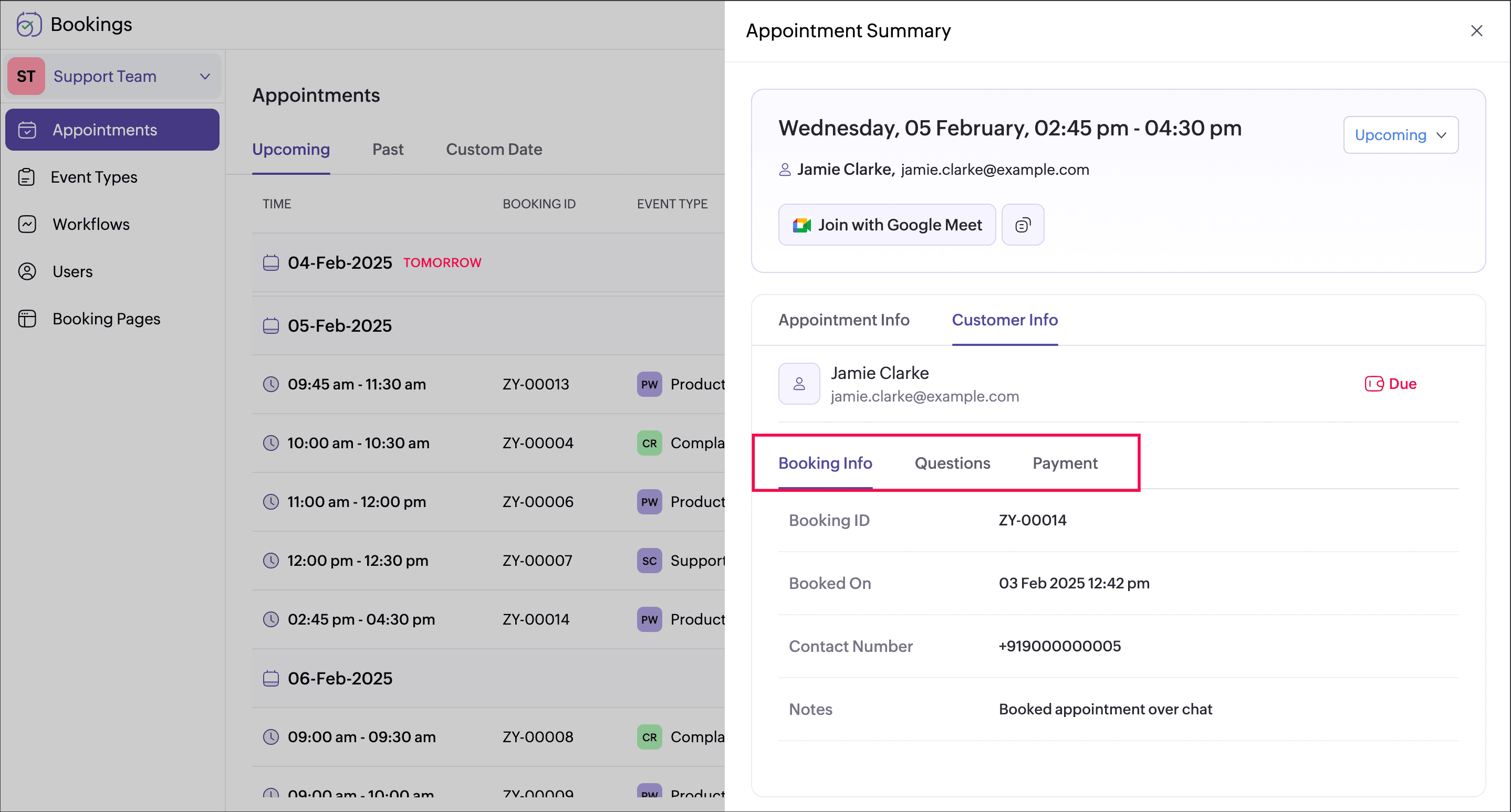
This tab shows all the details about the customer. It is further divided into three tabs, Booking Info, Questions, and Payment.
Customer Info tab | |
Booking Info tab | |
Booking ID | Unique booking ID of the appointment |
Booking On | Date and time when the appointment is booked |
Contact Number | Customer contact number |
Notes | Notes added when the appointment is booked from the in-app by the users. |
Questions tab | |
Additional questions | Contains custom fields added in the booking form |
Payment tab | |
Whether the payment is Paid, Due, or Pending | |
Total | Price of the appointment |
Paid | Amount paid by the customer |
Due | Amount yet to be paid by the customer |
4. Points to note
- Canceled appointments can be deleted by selecting the delete icon
as shown below.
- Changing the appointment or payment status will trigger the respective workflow (if configured).